FAQ Overview
Accessing Delta
Accessing Delta: How Do I Log Into Delta?
Delta's login screen is straightforward: enter the email and password provided to you by your system administrator when your account was created. NOTE: your screen may look different than the one depicted below, especially if you elected to brand your login screen, but the login function itself remains the same.
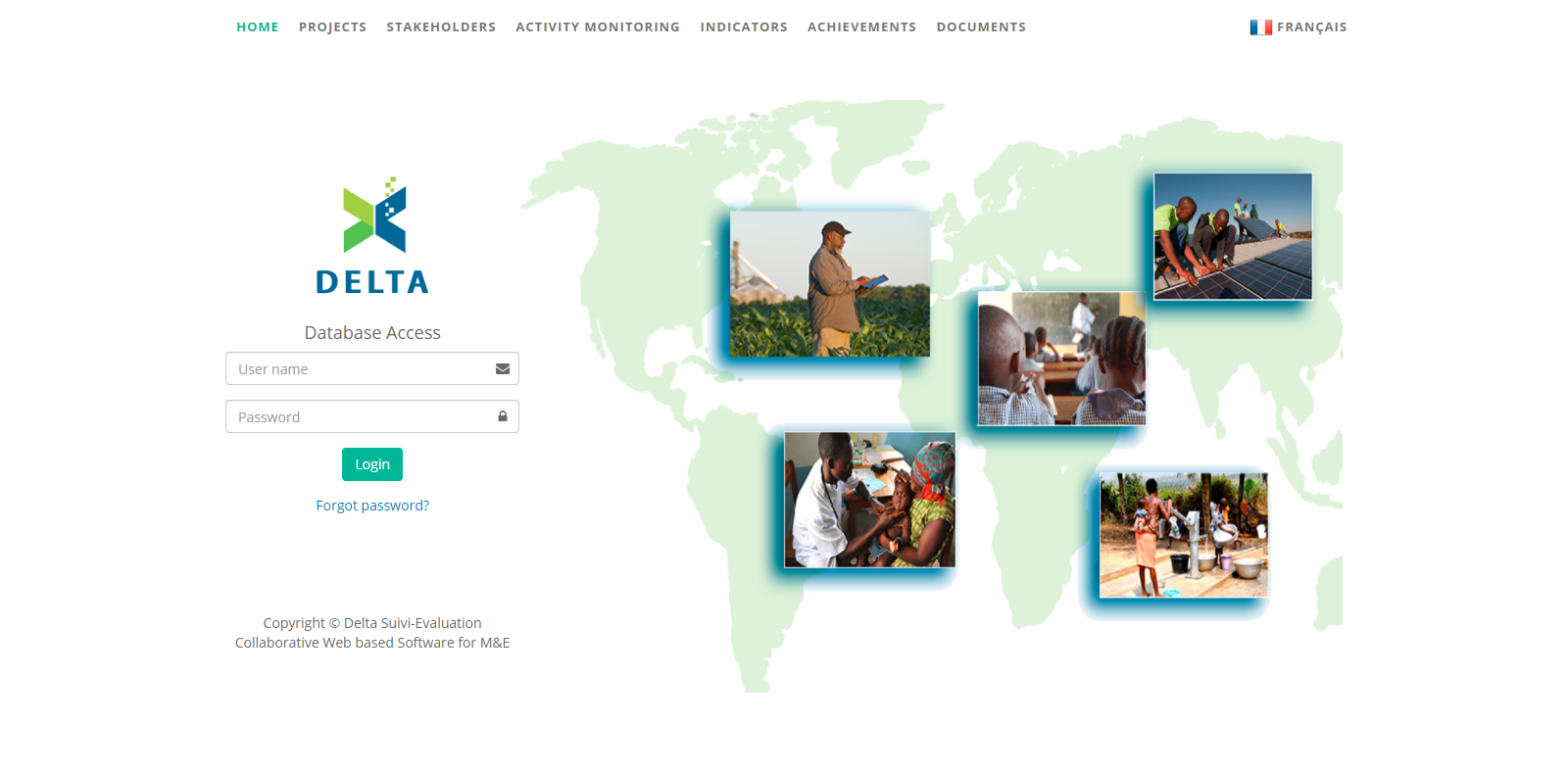
Enter your email address (User Name) and your password, and click the Login button. If you entered your credentials correctly, you'll be logged into the system and taken to the Portfolio page, the home page of the system.
NOTE: if you enter an incorrect password too many times, your account will be locked and you'll have to contact your system administrator to unlock it. The number of times you can enter an incorrect password without getting locked out is set by your administrator.
NOTE: if your credentials have expired, you'll get the following error message:
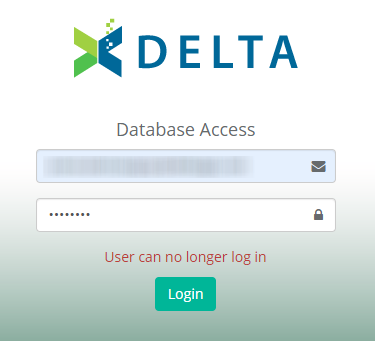
If this occurs, contact your system administrator to have them extend your credentials. If you're a system superuser, we suggest you check your user profile from time to time to make sure your credentials are not near expiry.
Next: Accessing Delta: I Forgot My Password
Author: Administrator
Last update: 2023-06-30 21:45
Accessing Delta: I Forgot my Password
If you cannot recall your password, click the Forgot Password? link to bring up the password reset screen.
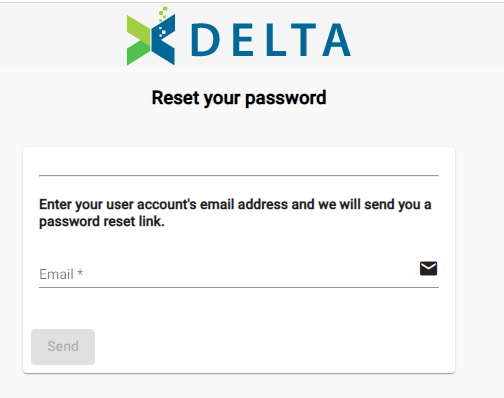
Enter your email address, and click the Send button.
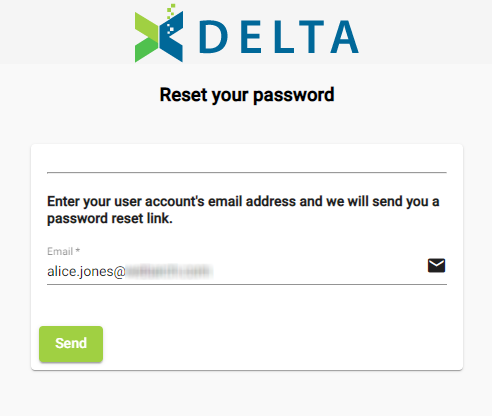
A confirmation screen will appear.
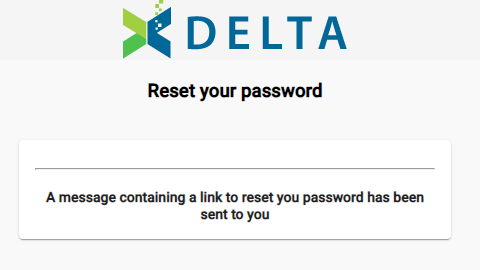
Check your email for the password reset link. If you don't see the email, please check your spam/junk mail folder, and make sure to add the system email address (noreply@delta-suivi-evaluation.com) to your white list.
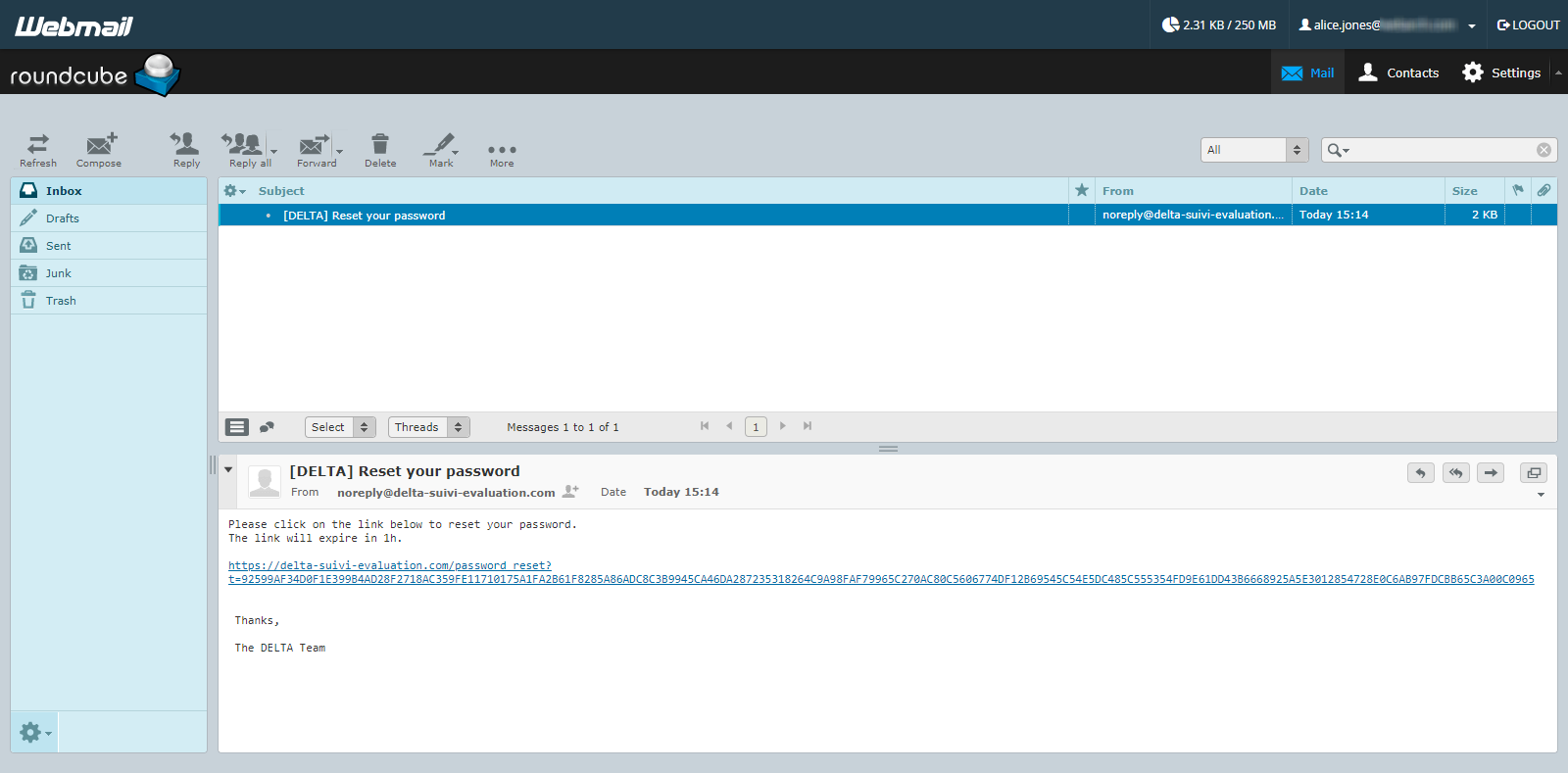
Click the link in the email to go to the password reset screen.
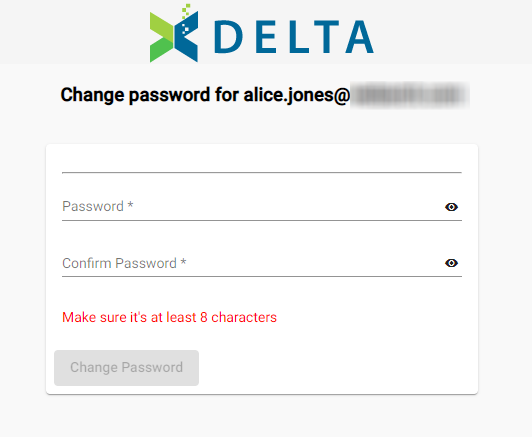
Enter your new password, then enter it again to confirm. Make sure your password is at least eight characters long. You may use uppercase, lowercase, and numbers. You can also use the eye icon on each line to unmask your password while you enter it. NOTE: do not unmask your password if another person might see it. This is a security risk.
Click the Change Password button when you're done. A confirmation screen will appear.
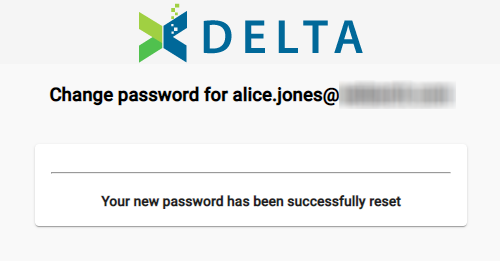
Go to your login page, and log in with your new password.
Previous: Accessing Delta: How Do I Log Into Delta? | Next: Language Switch
Author: Administrator
Last update: 2023-06-30 21:46
Accessing Delta: Language Switch
The login screen features a language switch. While you can change the language after you've logged in, you can set your initial preference on the login screen by clicking the language switch link at top right.
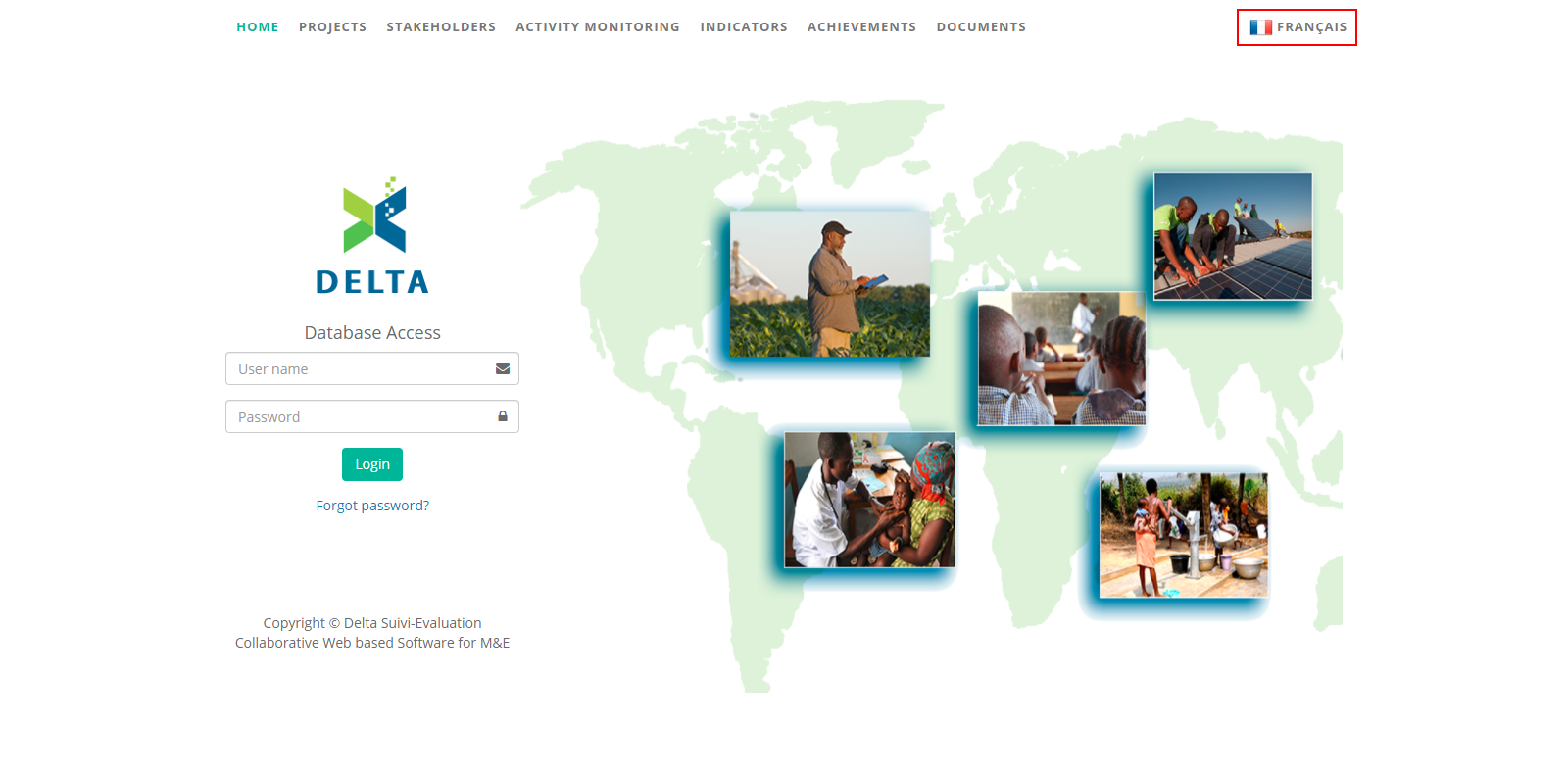
Delta currently supports English, French, Spanish, Portuguese and Arabic versions.
Previous: Accessing Delta: I Forgot My Password | Next: Accessing Delta: Managing Your User Information
Author: Administrator
Last update: 2023-06-30 21:46
Accessing Delta: Managing Your User Information
Delta allows you to make changes to your user information yourself, without the intervention of your system administrator. While logged into the system, you can access your user information by clicking on the small figure at top right in the main toolbar.


 From the popup window, you can add or change your photo, change your password, and switch the language used by the system.
To add your photo, click Change Photo, then navigate to the image file you want to use, then click Open/OK to upload the image.
To change your password, click Change Password, then enter your current password, your new password, and confirm the new password by entering it a second time. Click OK to save your changes.
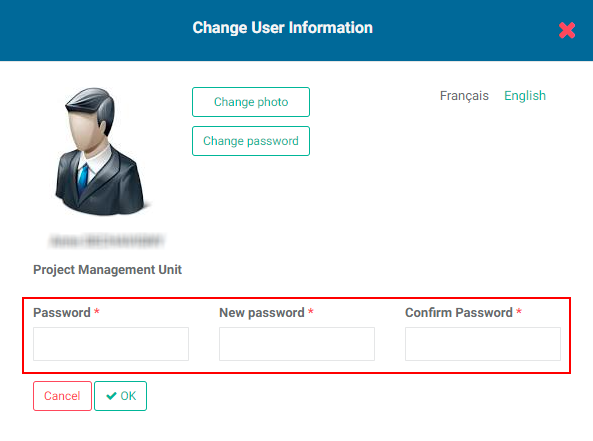
To switch languages, click the language you want to use. Delta currently supports English, French, Spanish, Portuguese and Arabic.
Previous: Accessing Delta: Language Switch | Next: Accessing Delta: Getting Started With Delta
Author: Administrator
Last update: 2023-06-30 21:47
Accessing Delta: Getting Started With Delta
Once your system is commissioned, there is some minimum configuration you need to perform before you can start using Delta. The following assumes there is at least one superuser account in the system for you to use.
When you first log in, the screen will be empty except for the left side navigation and the title and toolbar at top.
To edit the Portfolio, click on the Edit (pencil) icon next to its name at top center. The Edit Portfolio screen opens.
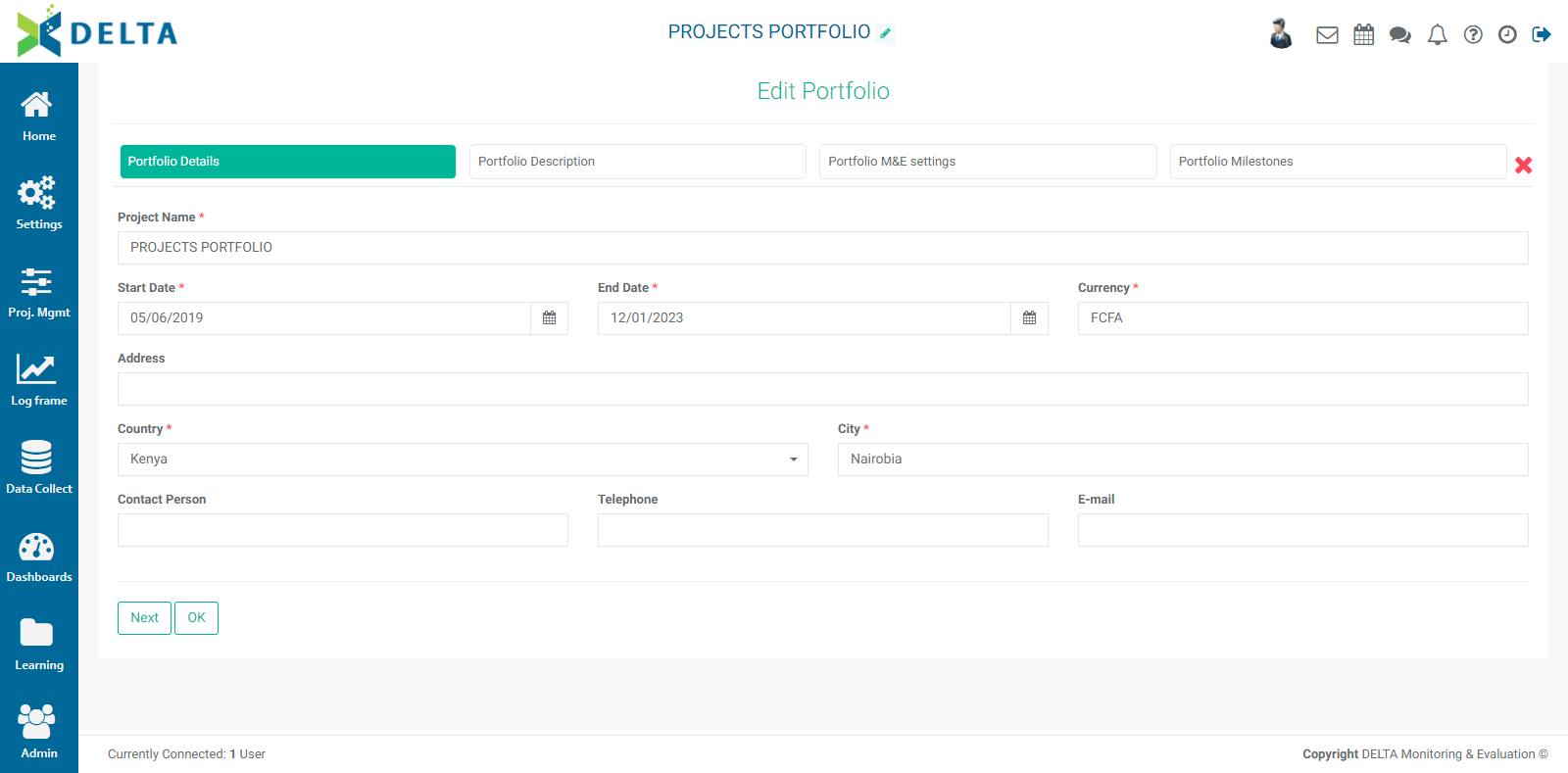
The minimum information you need to enter for the portfolio is its name, and the default currency for your system. NOTE: you will be able to use any currency in individual projects. Any currency other than the default will be converted to the default with an exchange rate you will provide when working with your project costs and budgets.
If you're planning on using cross-cutting indicators and cross-cutting activities, you'll also need to input a Portfolio-level log frame, but this can be done later.
Finally, the Locations list is set at the Portfolio level. This is the list of all the locations where projects take place. Typically a country, it can also encompass entire regions covering several countries. Creating a Locations list is explained in Portfolio Settings: Locations.
Previous: Accessing Delta: Managing Your User Information | Next: Accessing Delta: Delta's Public Portal
Author: Administrator
Last update: 2023-06-30 21:32
Accessing Delta: Delta's Public Portal
Delta supports the publishing of selected information via links displayed on its portal page. If you opted to enable this option, you'll see links at the top of your login page.
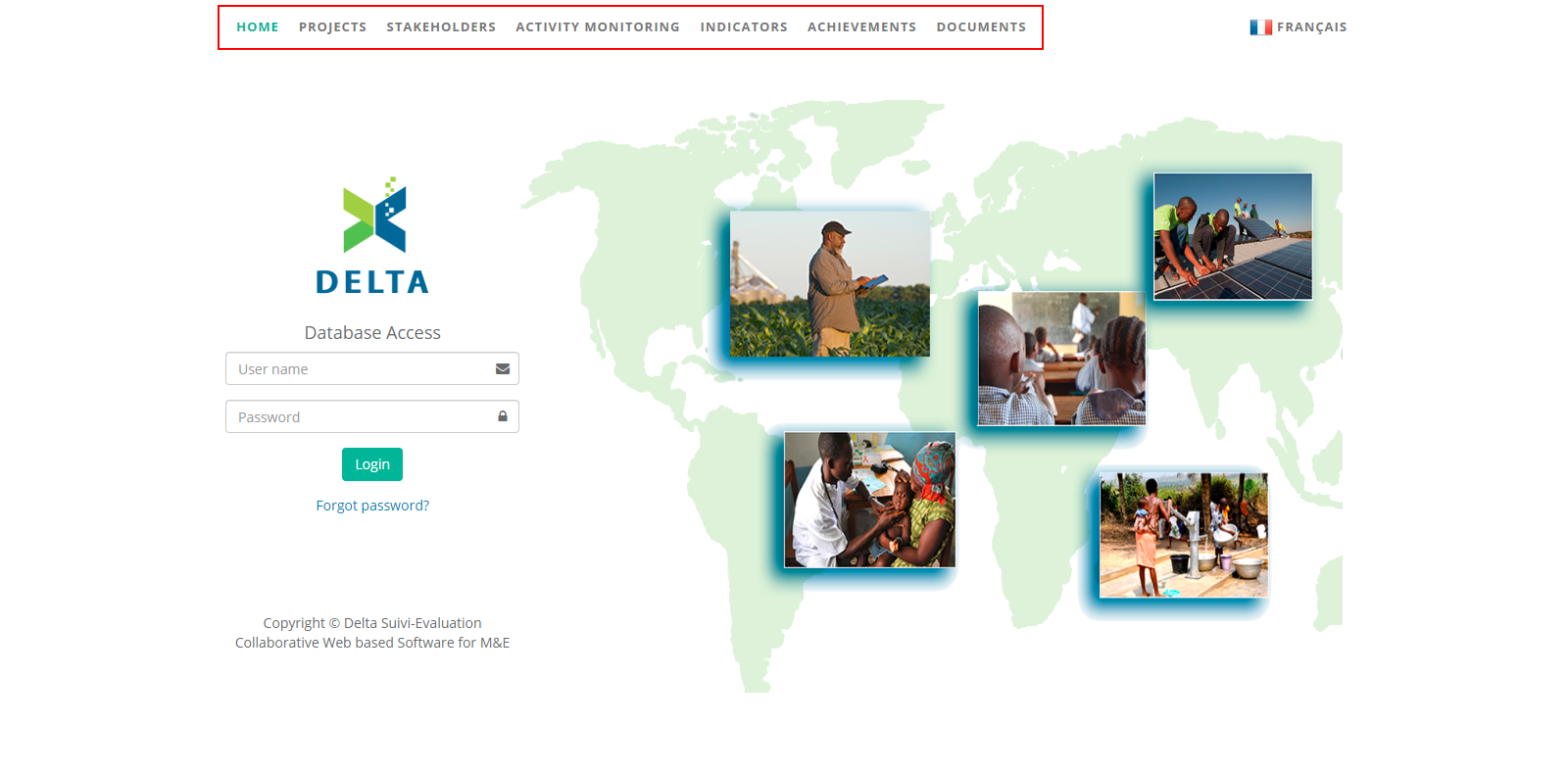
The purpose of those links is to provide select portfolio and project information to the public without a need for a system account or login. Delta features Public checkboxes throughout its interface, for example for indicator reports.
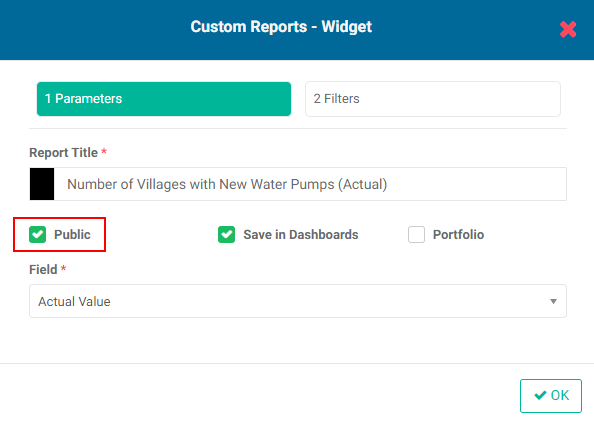
IMPORTANT: this option is not automatic. You'll need to specify to our support team that you wish to deploy it to your production (live) system.
Previous: Accessing Delta: Getting Started With Delta | Next: Portfolio Screen
Author: Administrator
Last update: 2023-06-30 21:47
Portfolio Screen
Portfolio Screen
The Portfolio screen is your home page. The screen is divided into two parts: the left navigation, and the main viewscreen. Use the icons in the left navigation to access the various modules of Delta. Each module in the left navigation is explained in detail in this guide.
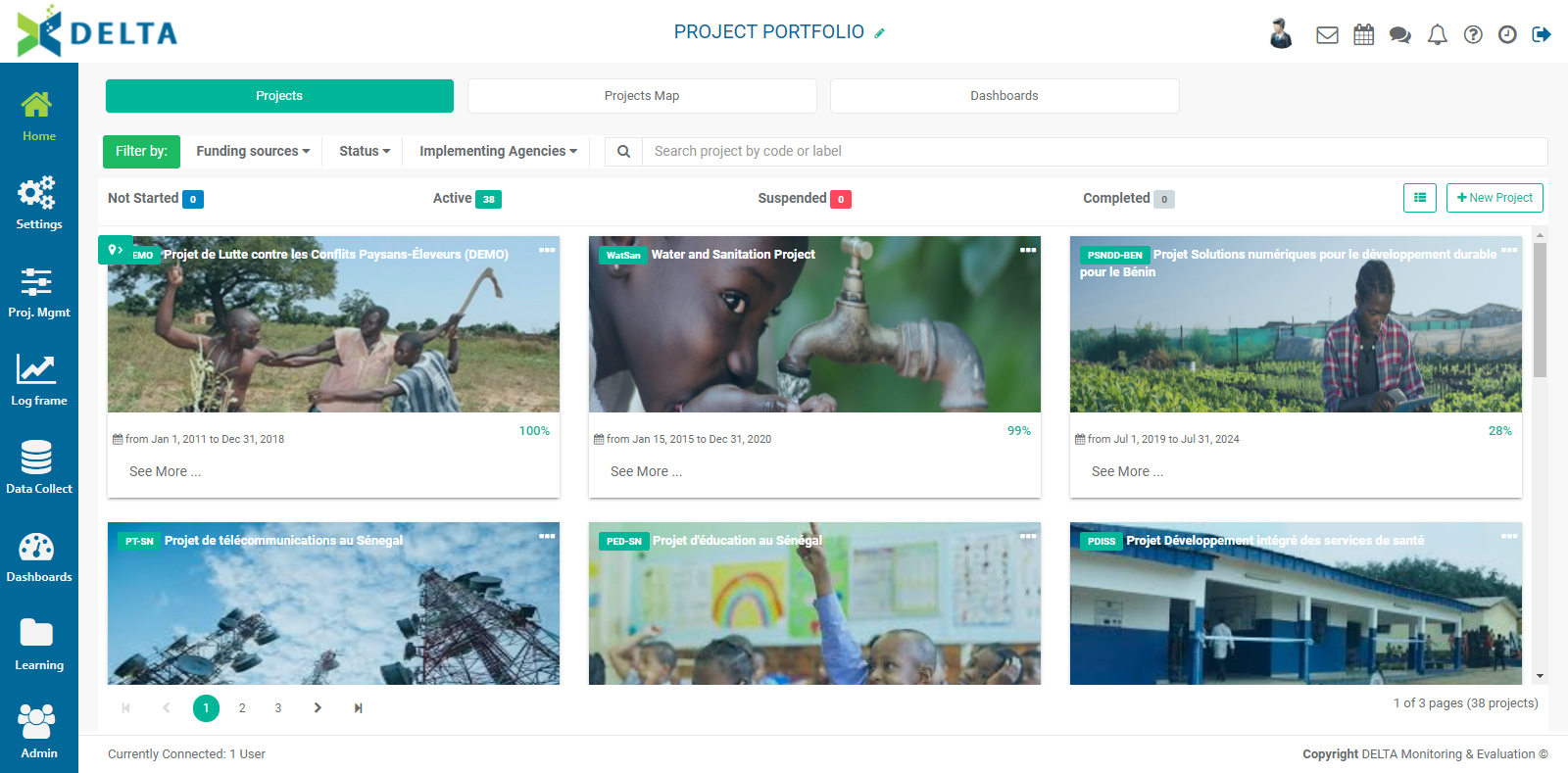
When you’re on the Portfolio page, the information you'll be putting into each module will pertain specifically to the Portfolio level. For example, indicators created at the Portfolio level will be associated with the portfolio log frame. A specific use of this is the creation of cross-cutting indicators which can be made available to all the projects in the portfolio, and will be informed (planned, tracked, and reported on) at the project level.
The Portfolio screen features several areas: the Main Toolbar at the top right, the Filter bar, the Search bar, three tabs that correspond to three views for the project portfolio, a +New Project button which you’ll use to create a new project, and the tile area, each of which corresponds to an individual project. New to Delta is the option to display projects in List view as well as Tile view.
The default view is the Project Portfolio view. You can also choose to view projects by location/map, and view a basic dashboard which displays at-a-glance information about the sectors and funding of the projects in the portfolio.
To return to this screen at any time, click the Home button at the top of the left navigation.
NOTE: this user guide covers every function of Delta, without regards to permissions.
Previous: Accessing Delta: Delta's Public Portal | Next: Portfolio: Projects View
Author: Administrator
Last update: 2023-06-30 21:48
Project Management
Intro to the Project Management (PM) Module
The new Project Management module regroups six important functionalities: Activities, Activity Plan & Budget, Funds Disbursement, Project Timeline (Gantt chart), Project Reports, and Staff Reports. All have been redesigned and enhanced to make them easy to find, intuitive to use, and versatile in their features.
Intro to Activities pertains to everything having to do with configuring, planning, tracking, and reporting on activities. This is the first page in the extensive Activities content.
Activity Plan & Budget is a planning and monitoring tool that's generally used for annual planning and follow-up of a programme.
Funds Disbursement is a tracking tool which allows you to enter and track project disbursements against financing.
Project Timeline is the Gantt chart for the project.
Project Reports were formerly located in the Analytics module, which has been replaced with the Dashboards module. All the project performance custom reporting functionality for Activities has been moved here, and works as it did previously.
Staff Reports were formerly located in the Documents module, which has been replaced by the Learning module. These are corporate reports, quarterly documents, etc.
Previous: Project Settings: Alerts | Next: Project Management: Intro to Activities
Author: Administrator
Last update: 2023-07-02 18:26
PM: Activity Plan & Budget (APB)
The Activity Planning & Budget (APB) screen is the planning and monitoring tool that's generally used for annual planning and follow-up of a programme. The APB is usually prepared by the programme managers and approved in a workflow which involves steering and monitoring bodies as well as technical and financial partners. Activities are planned as described on the basis of the APB.
After activities have been planned, and/or actuals data associated with these activities has been entered into the system, users can call up this screen to view and follow the status of the APB.
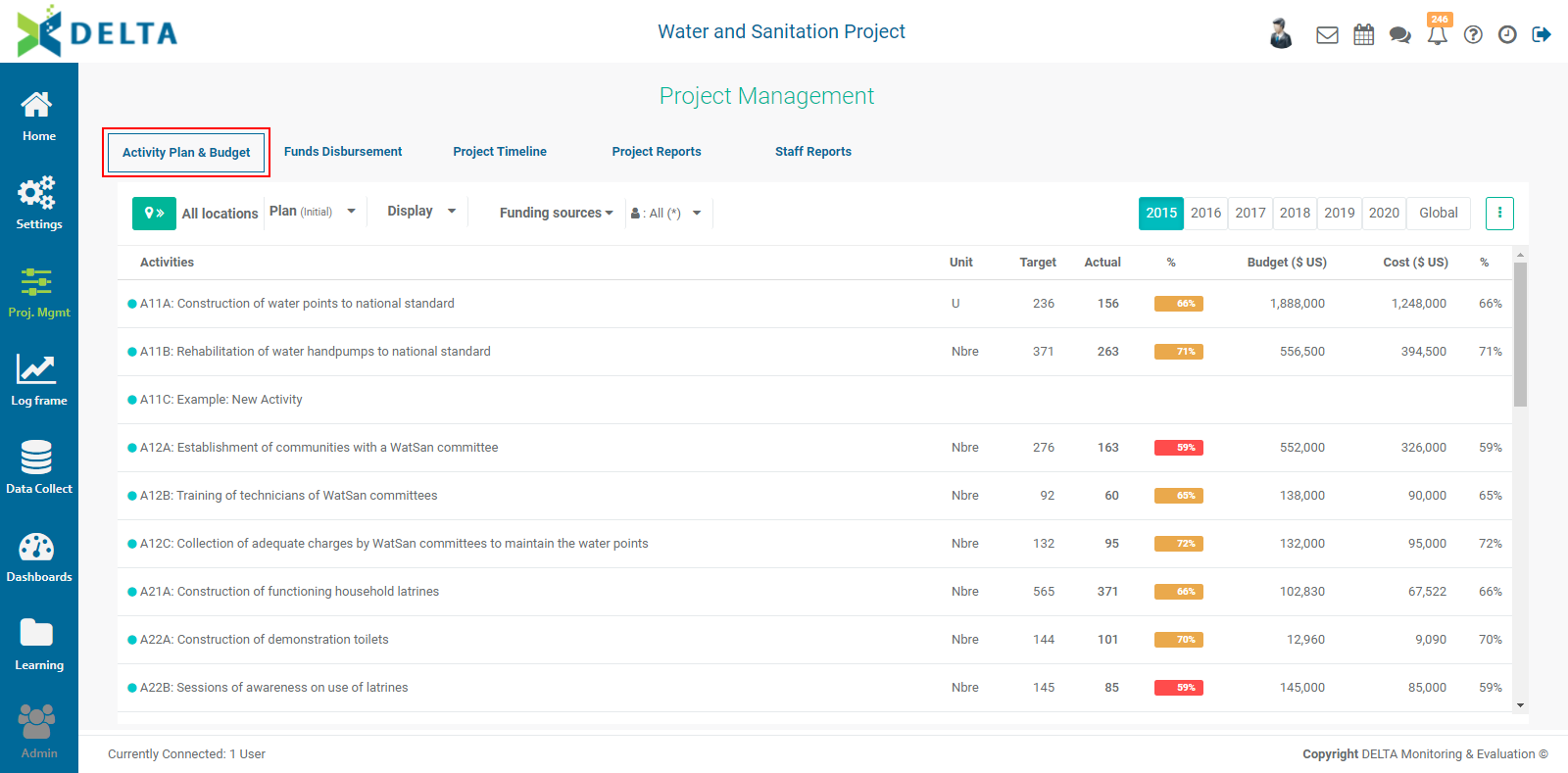
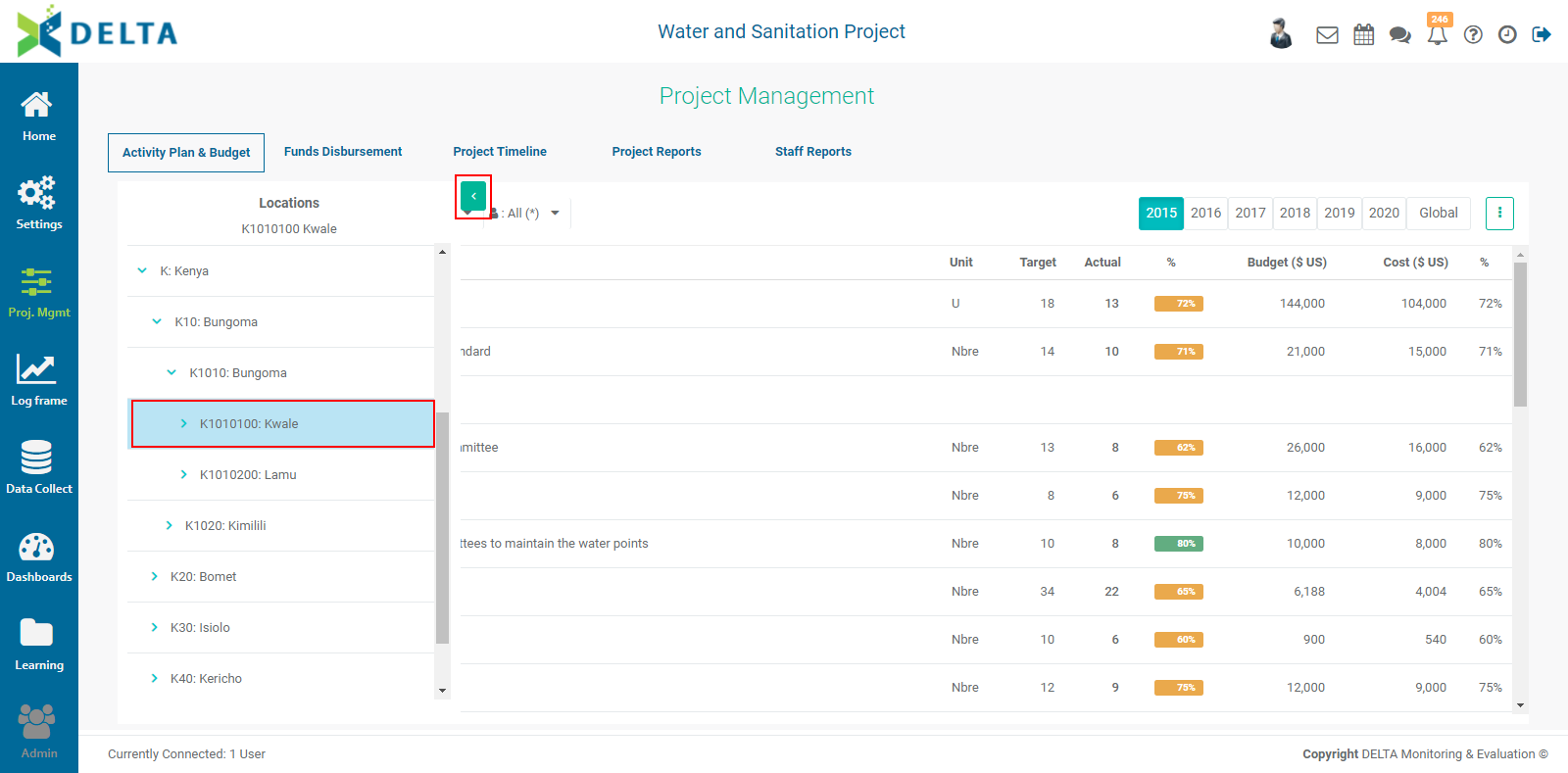
The basis for the APB is the Locations list. Click the >> button to expand the Locations list onto the screen.

To expand and collapse the branches of the Locations list, click the carets (> and v) to the left of each level. Click on a location to select it and view its specific information. Click the Hide (<) button to hide the geography list.
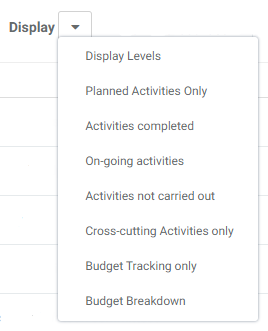
The data can be further filtered by various criteria: by Plan (initial vs. revised), by Display type, by Funding Source, and/or by Stakeholder. Filters can be combined simply by choosing criteria under each individual filter.
The Display options are extensive and include type of activity as well as activity status and budget tracking or breakdown. It is especially useful to sort out cross-cutting activities used by the project.
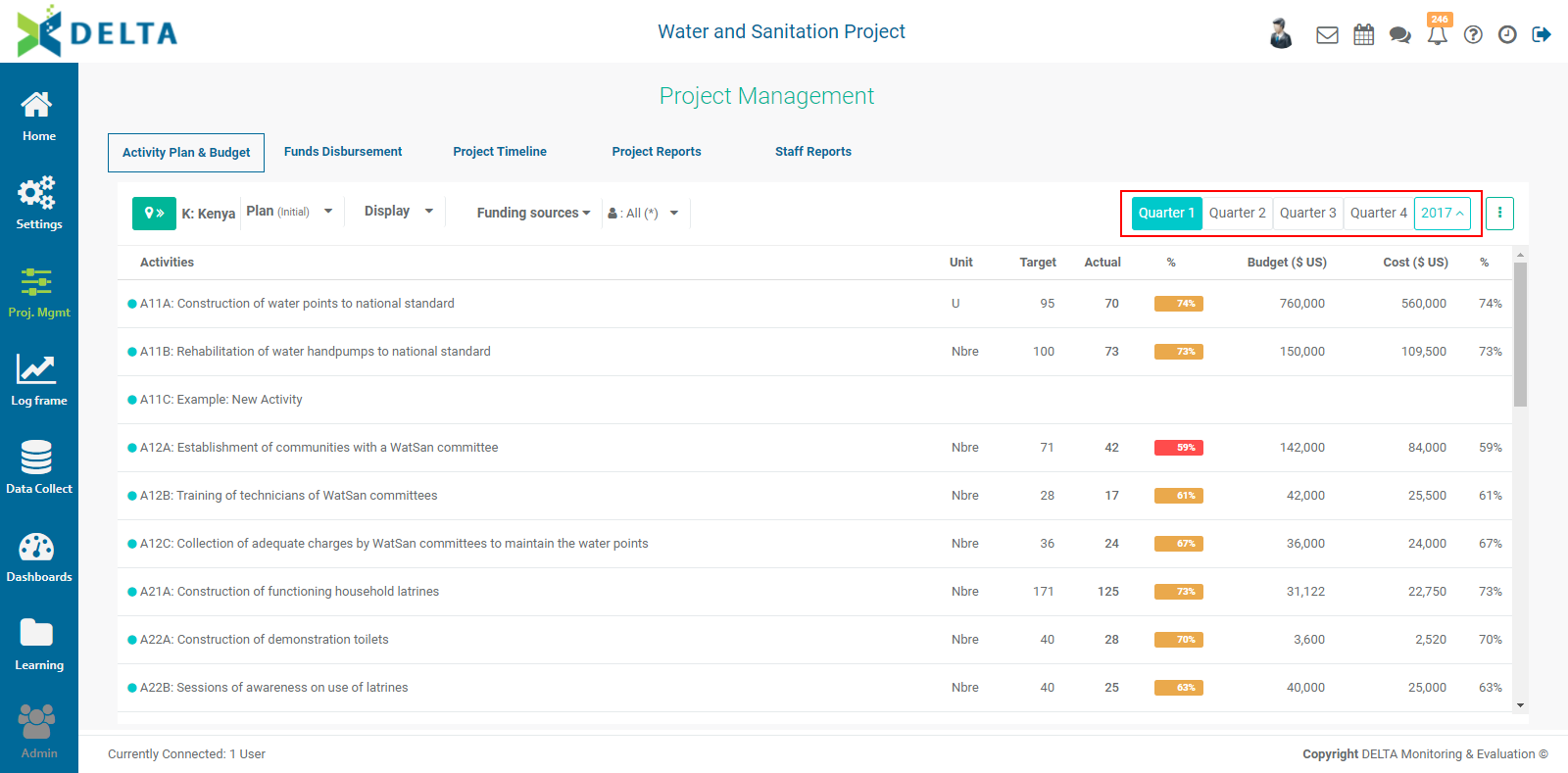
The default timeline view for this dashboard is Global.

Click on a year to view its data.

To see the details of a given period, double-click on a year to expand its data. Click on each of the period tabs to view its data. Click on the year tab to return to the previous screen. NOTE: Any filters or views already applied will also be applied to the year and period views.
The vertical More icon to the right of the timeline bar contains additional functions which can be performed from this screen:
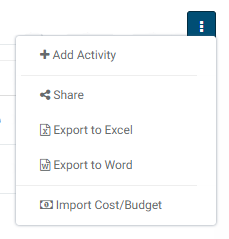
Click +Add Activity to create a new activity for the project. This process is described in detail in this article: PM: Activities: Creating a New Activity.
Select Share to send this dashboard to selected recipients in the Chatroom.
To export this dashboard, select Export to Excel or Export to Word.
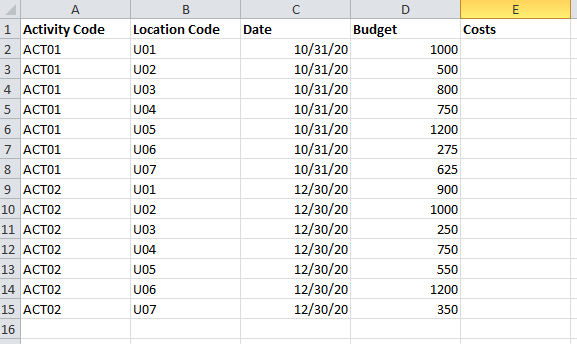
To import activity costs and budgets for the project, select Import Cost/Budget, navigate to the Excel spreadsheet you want to use to select it, and click Open or press Enter on your keyboard. The system will briefly display a status icon while the import takes place. NOTE: this step should only be performed after all activities have been configured. The cost and budget spreadsheet must contain the following columns: Activity Code, Location Code, Date, Budget, and Costs. The date allows the system to place the budget item in the proper period for each location and activity.
IMPORTANT: Budgets and costs can be imported more than once, but you need to be careful; any import subsequent to the first one will overwrite existing data if the spreadsheet contains identical codes and dates. In the example below, costs have not yet been determined and are left blank.
Previous: PM: Activities: Creating a New Activity | Next: PM: Funds Disbursement
Author: Administrator
Last update: 2023-06-30 21:50
PM: Project Timeline (Gantt Chart)
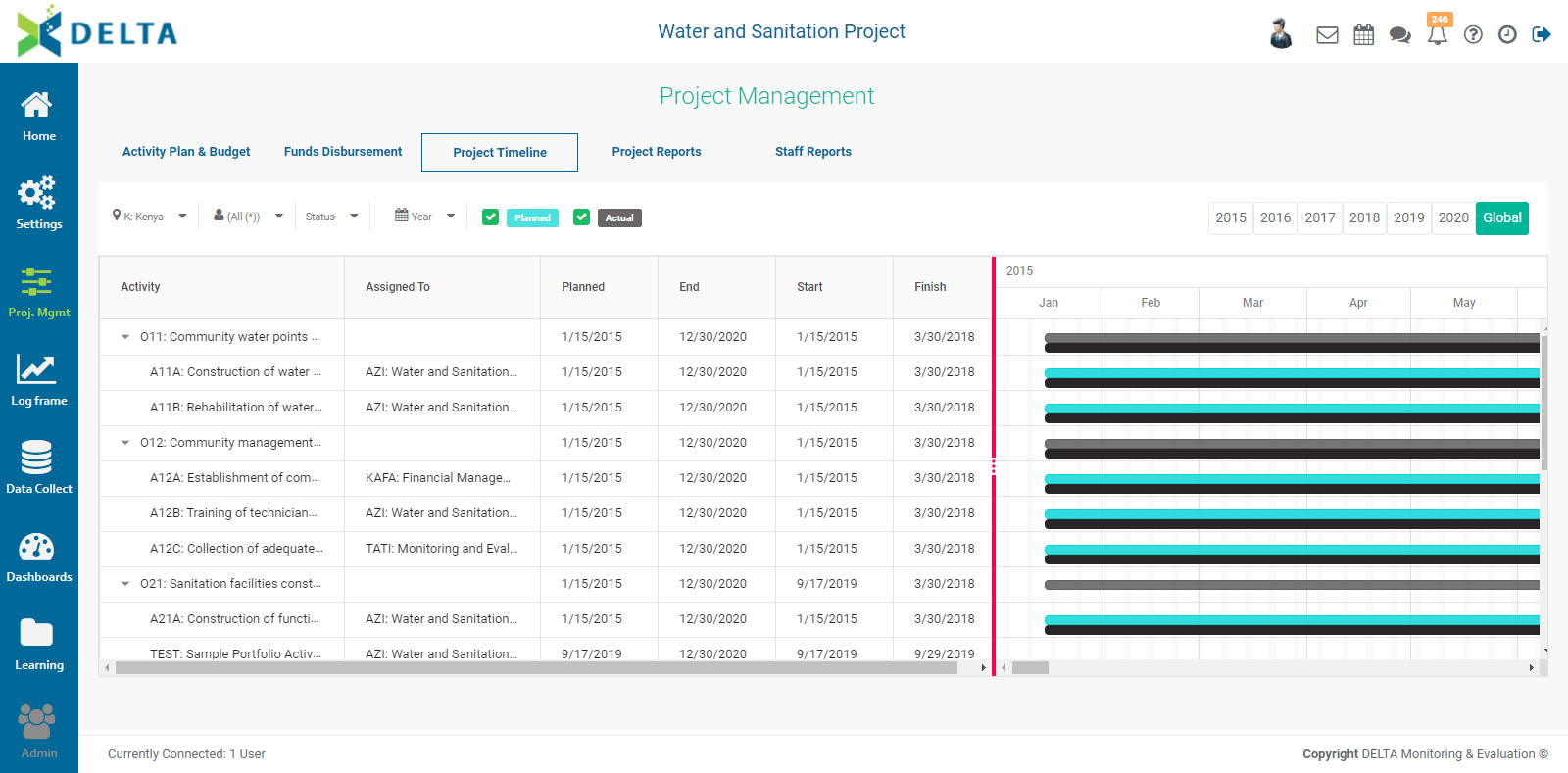
Gantt charts are an indispensable tool to ensure that project activities are completed in the time allotted by the project. Delta allows users to display Gantt charts by stakeholder, by log frame, and by geographical location. Delta's Gantt Chart functionality is located in the Project Timeline screen of the Project Management Module.
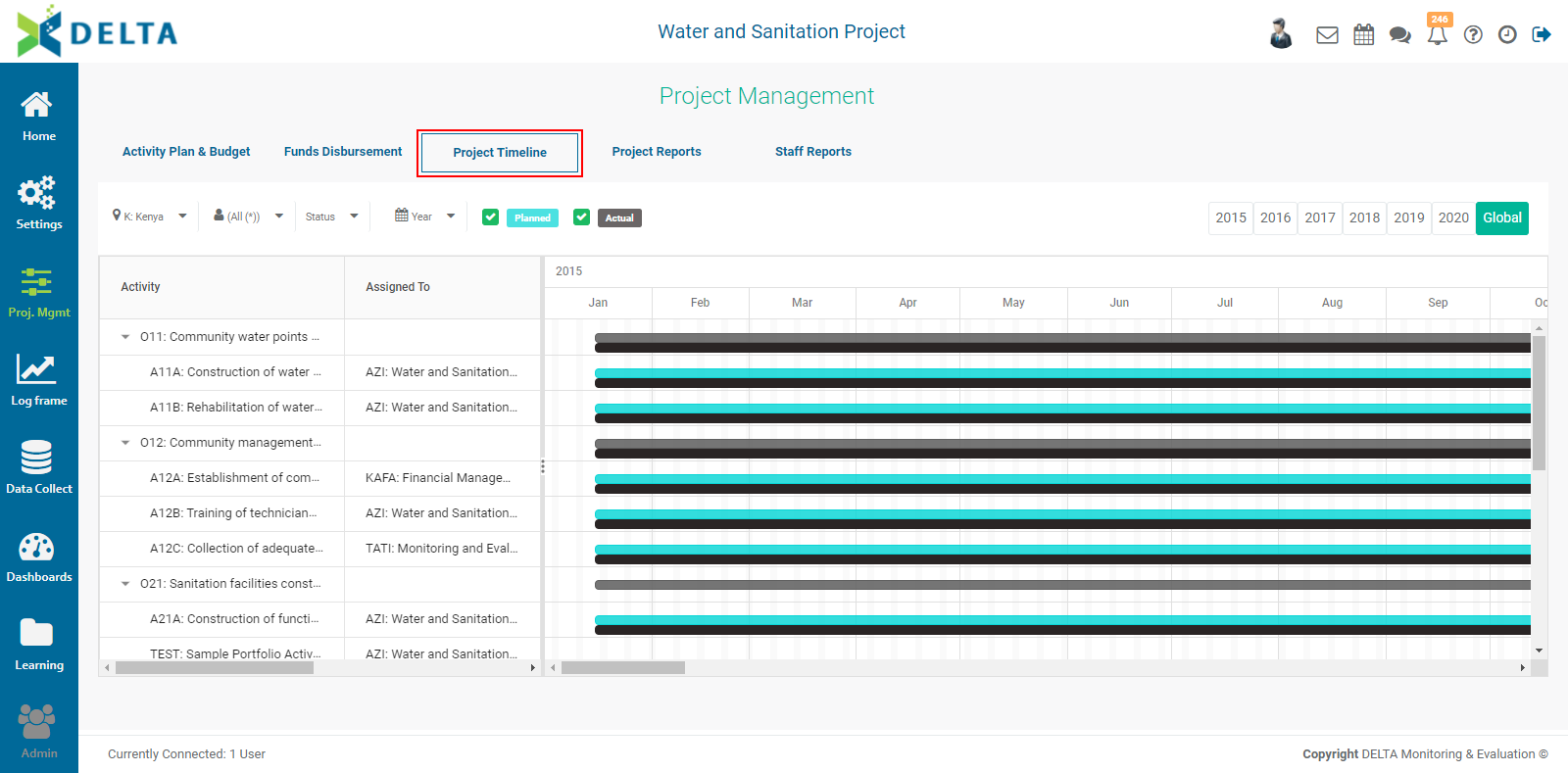
If the screen appears blank at first, verify that the correct locations are selected. To change locations or location levels, click the caret (v) next to the Location at top left.
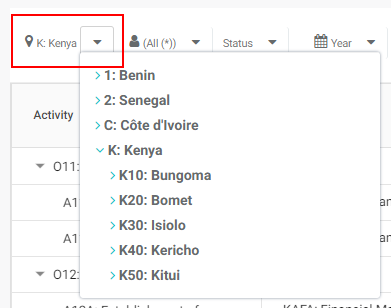
Select the correct location set - for example, a country - and view the resulting timeline.
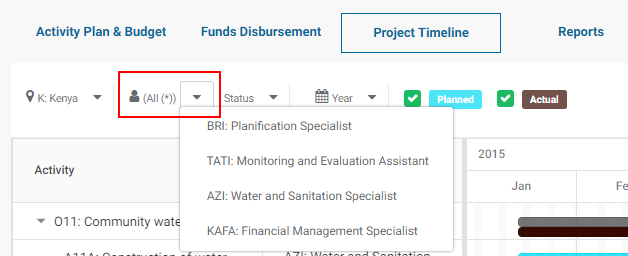
Click the caret next to the Stakeholders to filter the Gantt chart by stakeholder.
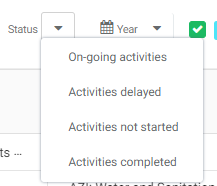
Click the caret next to Status to filter activities of the log frame by status.
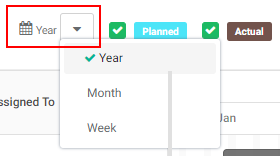
To select the detail of the timeline display, click the caret next to the calendar icon and select the desired time scale.
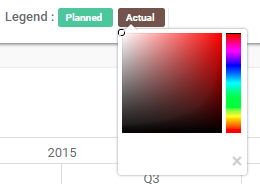
You can display both Planned and Actual timebars. Check/uncheck which you want to see. To change the color of the bars, click on their color label to bring up the color picker. Select a new color, or click the X at the bottom right of the color picker to dismiss it. Changes will be applied immediately in the Gantt chart.
The default view is Global. To view any year, select it from the time bar at top right.

Note that the two parts of the screen, the one containing the log frame/project plan and the one containing the Gantt chart itself, scroll independently of one another. Click, hold, and drag the vertical divider to reposition it.
Previous: PM: Funds Disbursement | Next: PM: Project Reports: Table Reports
Author: Administrator
Last update: 2023-06-30 21:51
Project Management: Intro to Activities
Activities are created automatically in Delta when a log frame is created or imported into a project. They are the endpoint of each branch of the log frame, regardless of how many log frame levels are used. Activities appear as a list in the Activities Planning & Budget (APB) screen of the Project Management module. From there, any activity can be opened and worked on, from configuration to reporting.
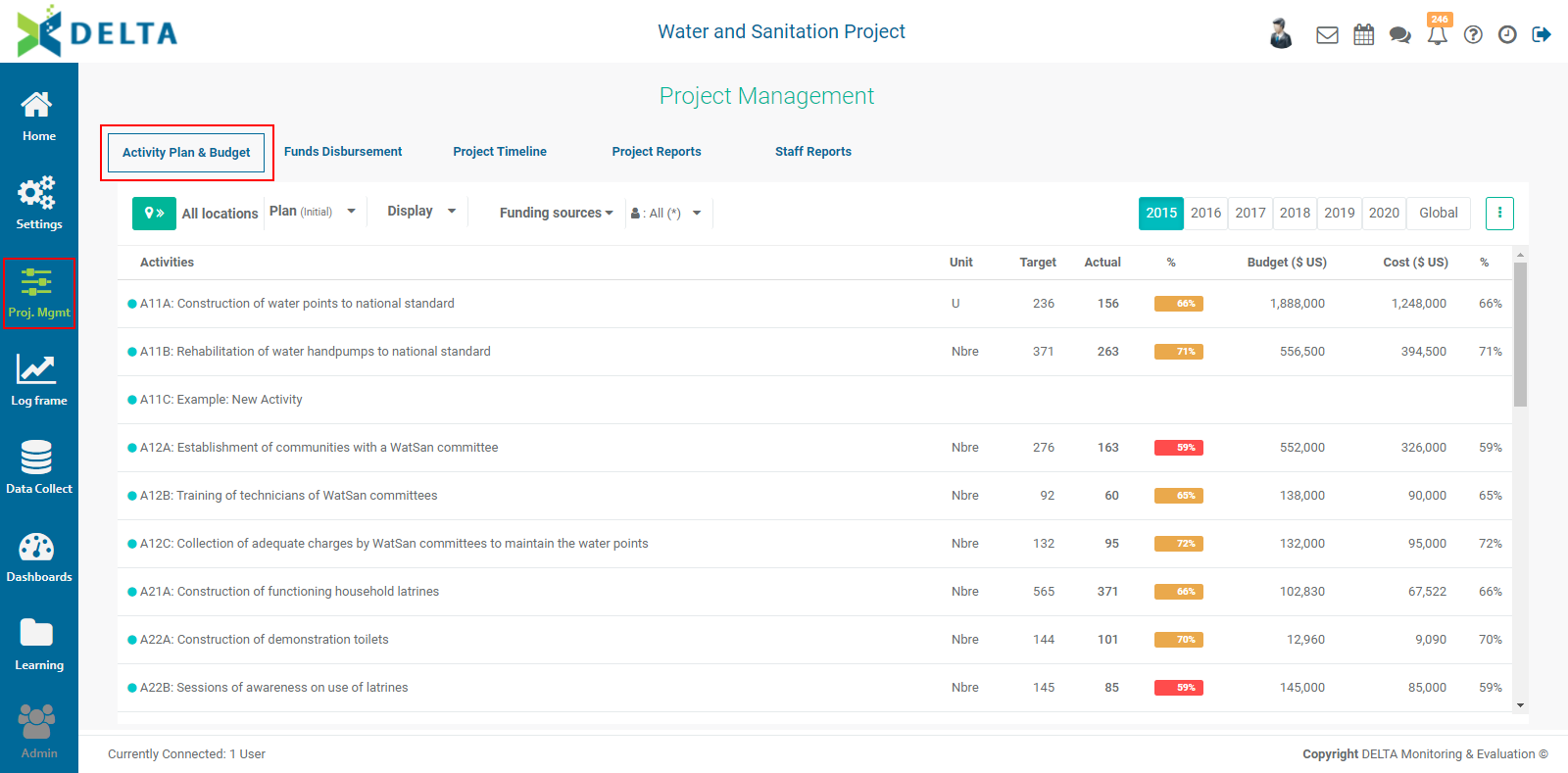
Activities require some basic configuration in order to be planned, tracked, and reported on. Activities which have not yet been configured appear in the Activities list of the APB screen with no date range or responsible entity.
Delta features extensive options for the monitoring of activities, with associated graphs, images, and documents. Activities can also be the subject of workflows, and permissions for activities can be granted at the activity level.
Previous: Intro to the Project Management (PM) Module | Next: PM: Activities Screen
Author: Administrator
Last update: 2023-06-30 21:51
PM: Activities Screen
Activities are the end points of the branches of the log frame. Note that depending on your nomenclature and the number of levels you use in your log frame, your display will differ from the examples in this article. In any case, the system will handle log frame branch end points as activities.
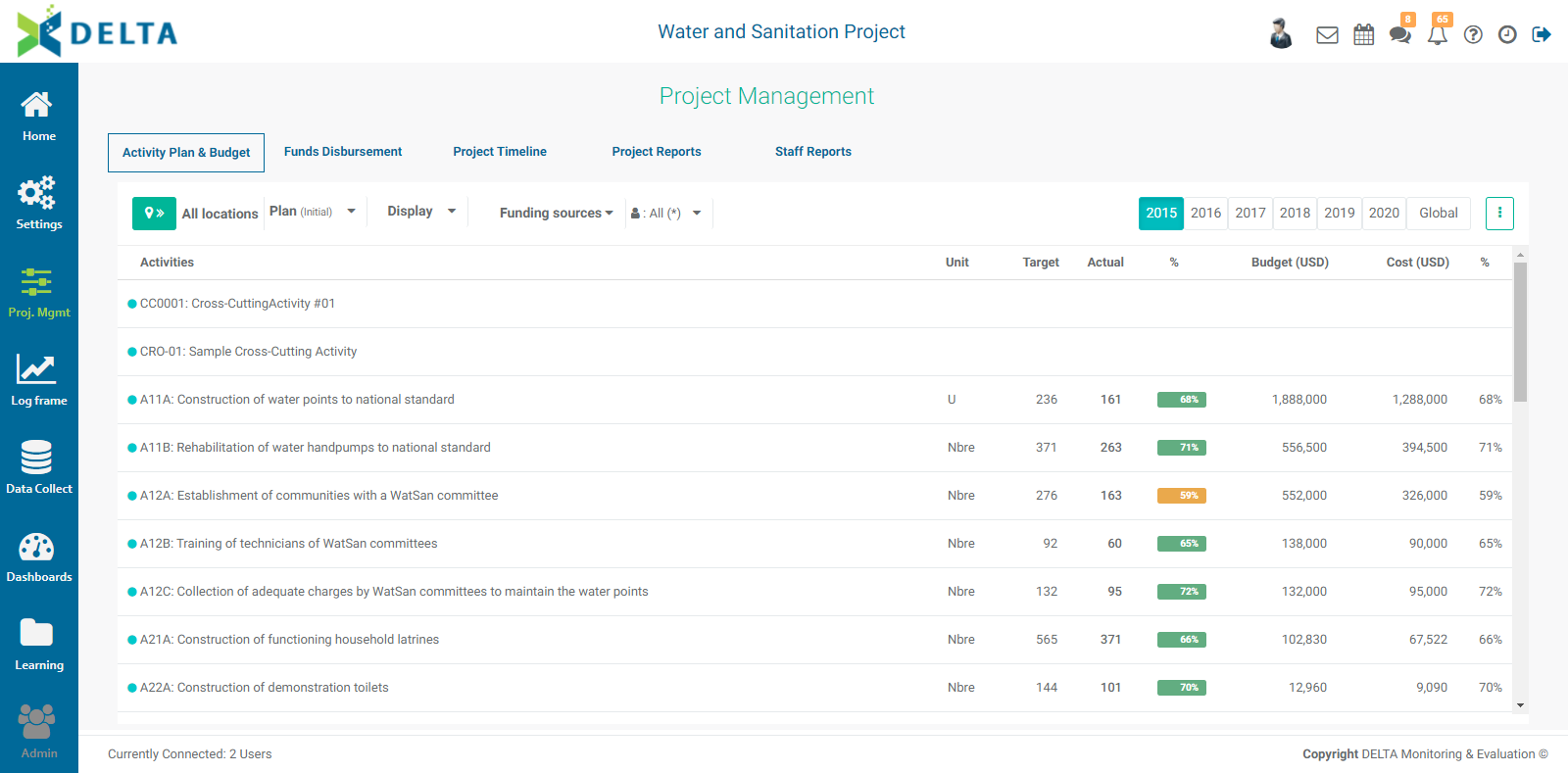
Each activity in the list displays at-a-glance information: code, activity name, unit of measure, targets and actuals, percent activity performance, and budget, costs, and percent financial performance. All activities appear, regardless of whether they have been configured or contain any data.
From the Project Management Module Activity Plan & Budget screen, click on any activity to open it.
Previous: Project Management: Intro to Activities | Next: PM: Activities: Configuring an Activity
Author: Administrator
Last update: 2023-06-30 21:52
PM: Staff Reports
The Staff Reports screen allows you to view and create categories or reports, set the periodicity of a document (for example, an annual report), associate alerts with document deadlines, assign the document to a user, import report templates, and track report assignments.
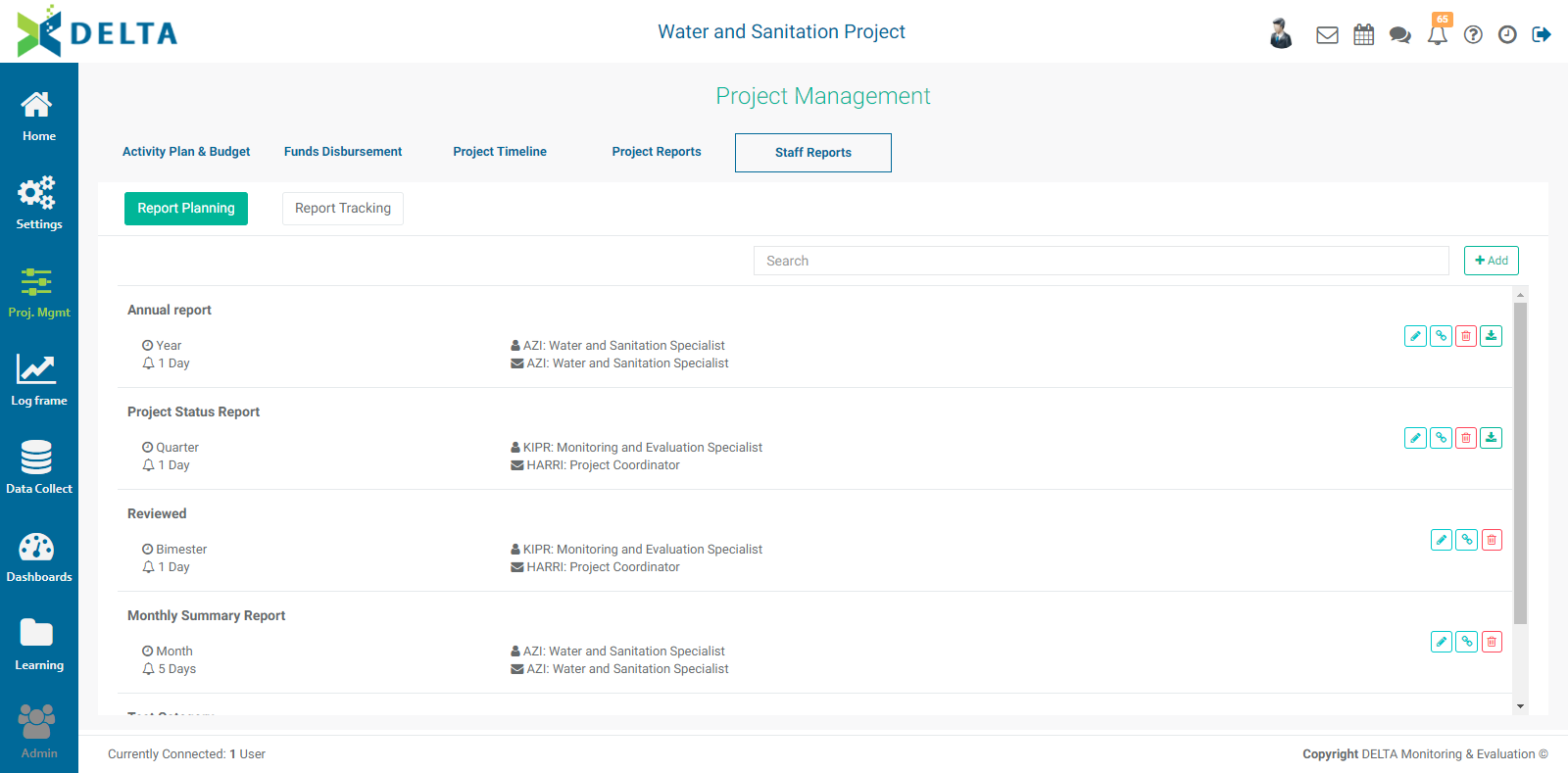
To add a report, click the +Add button at upper right to bring up the category screen.
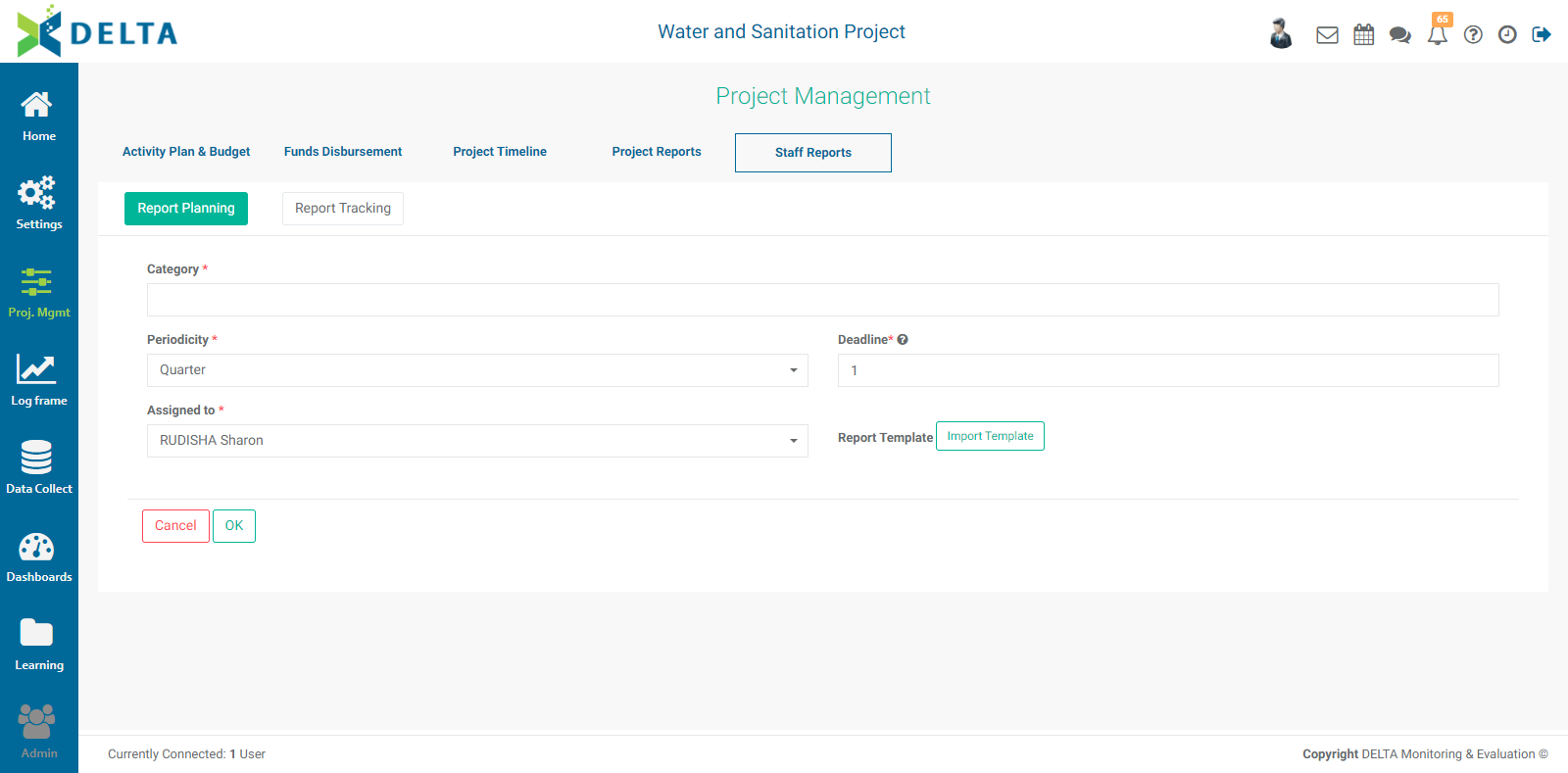
Enter the category name, the periodicity (how often the document is to be produced), and the deadline (number of days before the due date to issue an alert). Select an actor from the Assigned To pick list, and click OK when you're done to save your work and return to the Reports screen. All fields are mandatory.
Assigning a document to an actor will result in an alert appearing in their Notifications icon, the alert bell icon in the main toolbar at top right.
You can also import a report template is one is available. Click the Import Template button to associate a template to this document category.
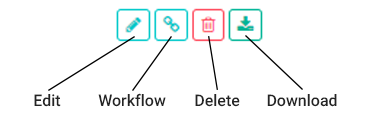
You can edit any document in the Document Categories list by clicking the pencil icon in its toolbar. Initiate a workflow by clicking the chainlink icon, and delete the category by clicking its trashcan icon. Document categories that contain an associated template will also feature a download icon.
To initiate a workflow for a document, click on the Workflow icon. Click on the +Add button to select the actors in the workflow.
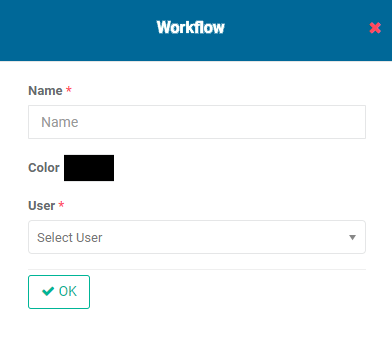
Enter the name of the workflow, and assign a user to it. Editing the color is optional, but it can serve as a marker for the person who has been assigned to it, see below. Click OK when you're done.
Each part of the workflow appears in its own tile. Create as many steps as are needed to complete the workflow for the current document category.
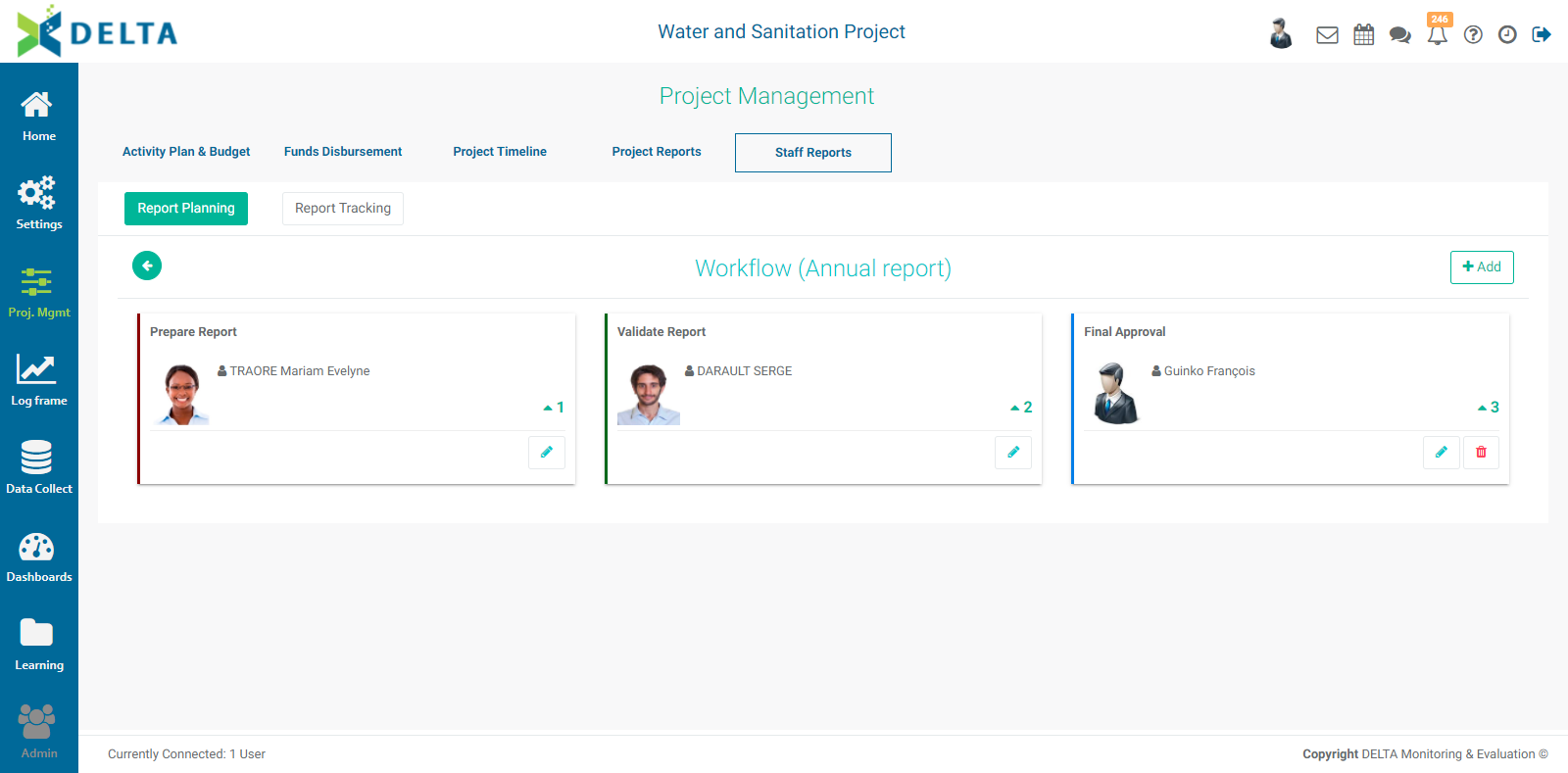
As is the case with assigning documents, assigning users to a workflow will activate the Notification icon at top right of the screen in the main toolbar. Note that if a user is assigned to a quarterly report, for example, and the project timeline is two years, all eight notifications will appear in their Notifications list.
The Report Tracking screen is an at-a-glance view of all scheduled and unscheduled documents in the project pipeline, sorted according to the document categories created above. You can use the filter at the top to search documents by date range. You can also filter the document list by Scheduled status.
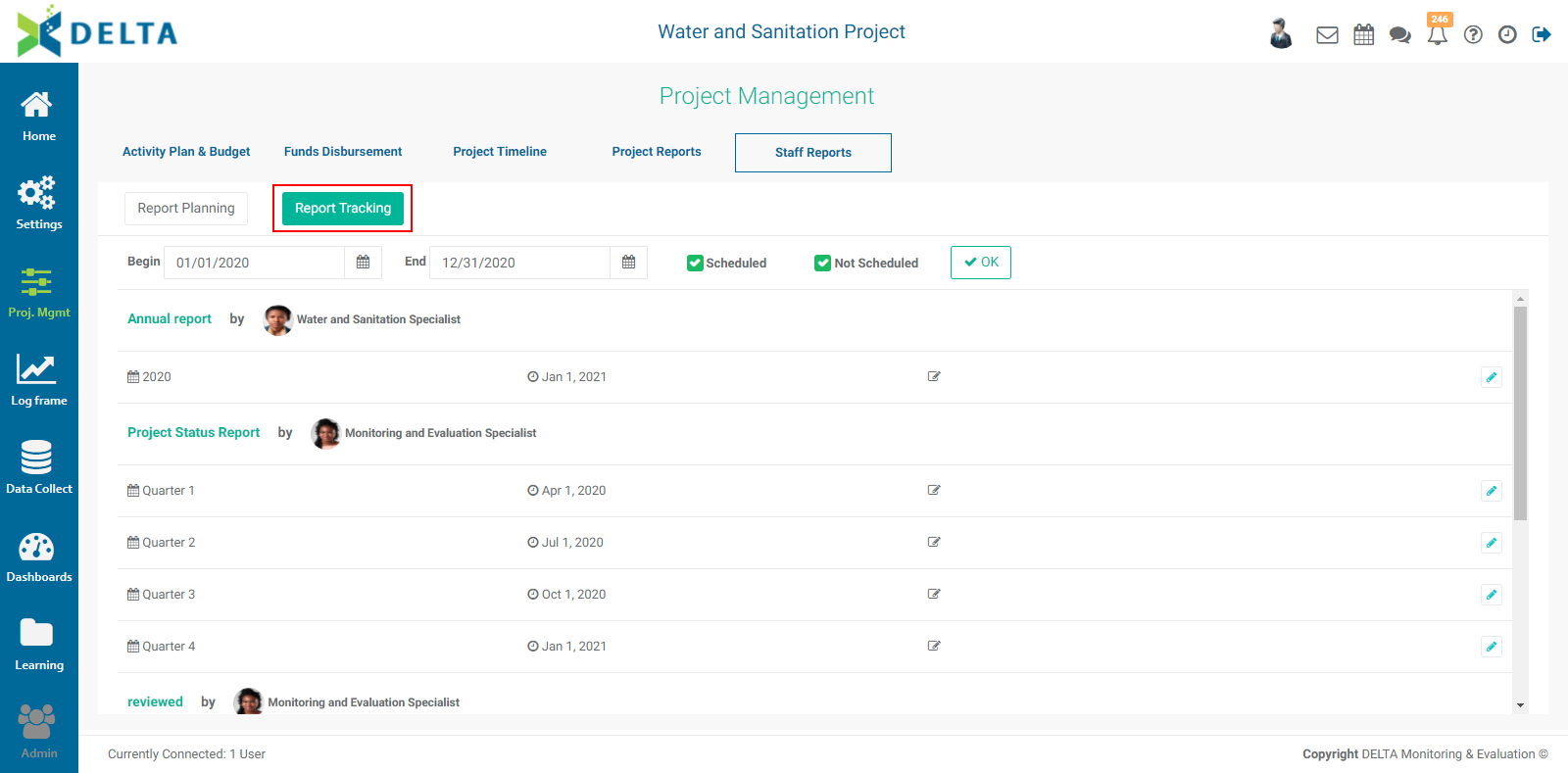
You can search by date range and status. Click OK to apply your selections. The list will be filtered according to the options you selected.
To update the reporting schedule of a report with actuals, click on its Edit icon to bring up the Update window.
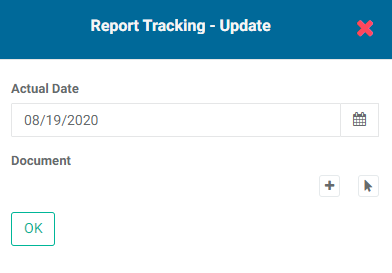
The default date is today's date. Enter the actual date of the report, then upload a document or select one from the document library in the Learning module.
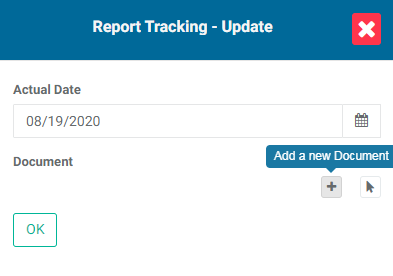
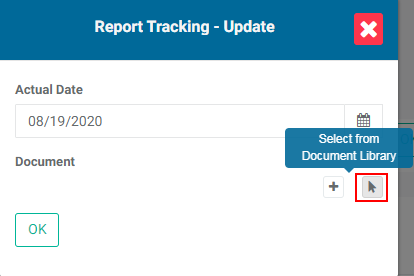
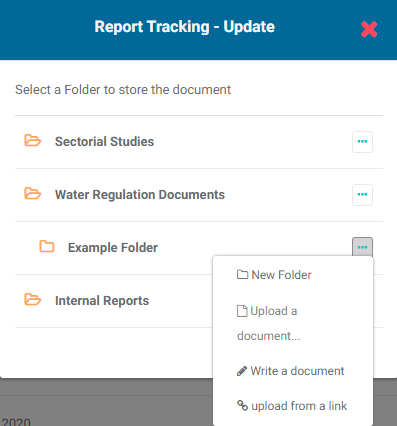
To upload a document, click the + button to bring up the Folder Selection popup window. You can select an existing folder to save the uploaded document to by clicking on its folder icon to toggle it to 'open', or click the More (...) icon to create a new folder.
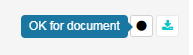
If a workflow is associated to a report and the workflow has been initiated, the report will be locked from editing, and a dot icon will appear in the report's toolbar instead of an Edit icon.

Mouse over the dot to view comments entered during the workflow. The color of the dot matches the color that was assigned to the workflow step/user.
Previous: PM: Project Reports: Widgets | Next: Log Frame Centricity in Delta
Author: Administrator
Last update: 2023-06-30 21:54
PM: Funds Disbursement
The Funds Disbursement screen allows you to enter project spending by financing source and agreement.
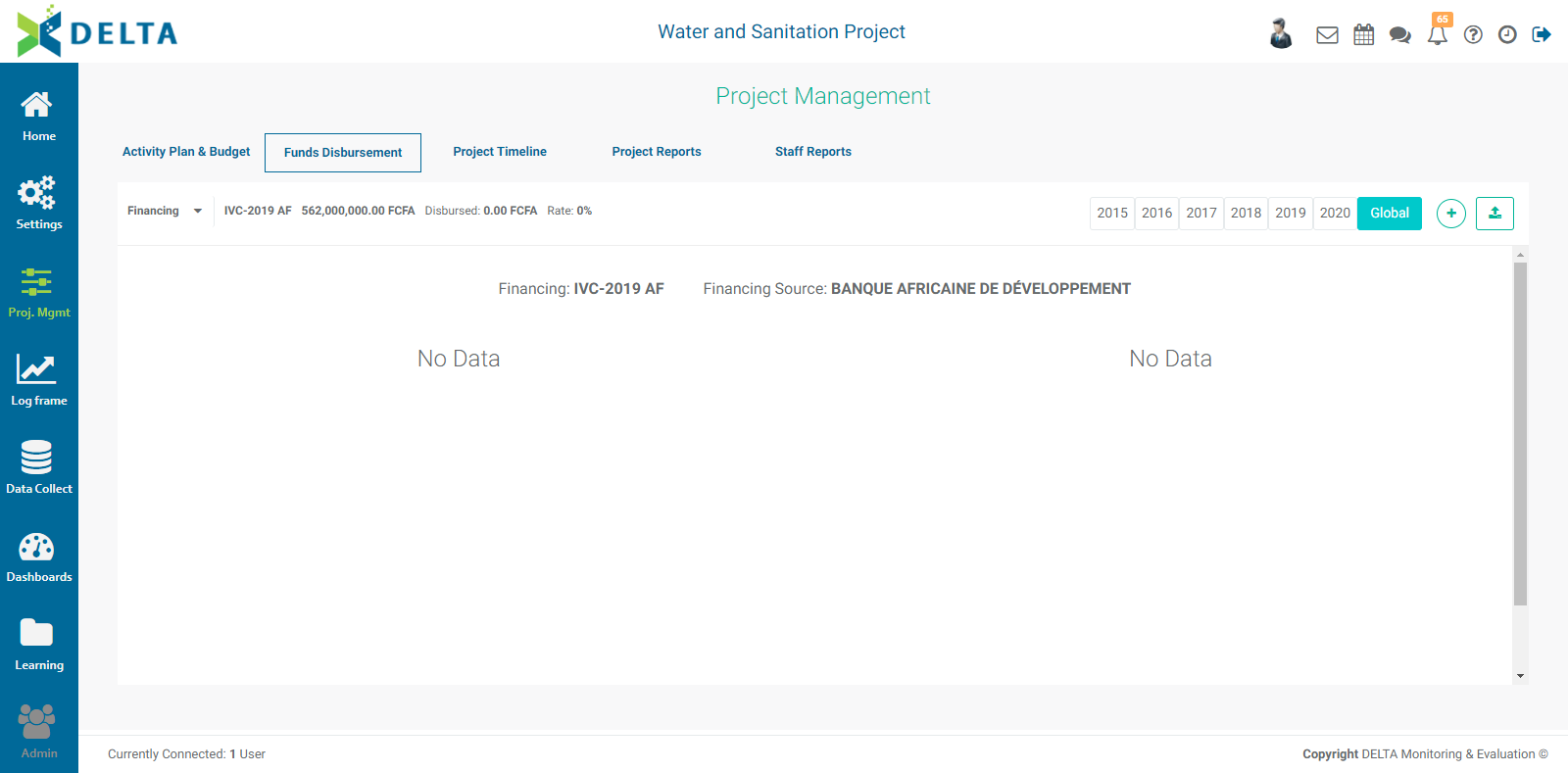
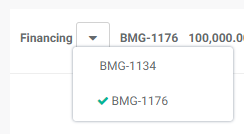
Use the pick list at top left to select the financing agreement you want to view or add information to. The pick list is populated by the information that was entered in the Financing screen of the project's Settings module.
Click the + button at top right to bring up the Disbursement popup window.
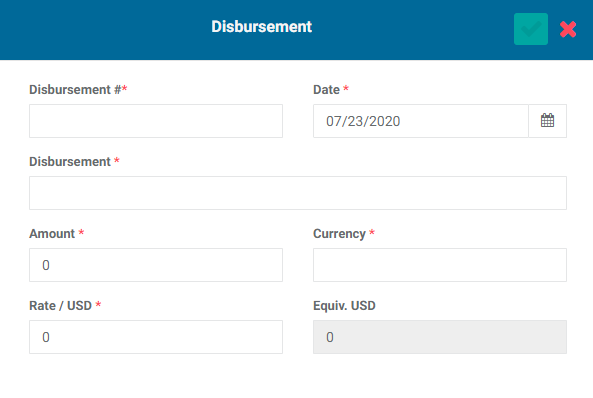
Enter a disbursement number, the date, the object of the disbursement, the amount and currency, and the exchange rate. The system will convert the selected currency to the project's base currency.
Click the checkmark in the popup window's title bar to save your work and return to the Disbursement screen. The information you entered will appear on the screen. Scroll down to see the disbursement graphs.
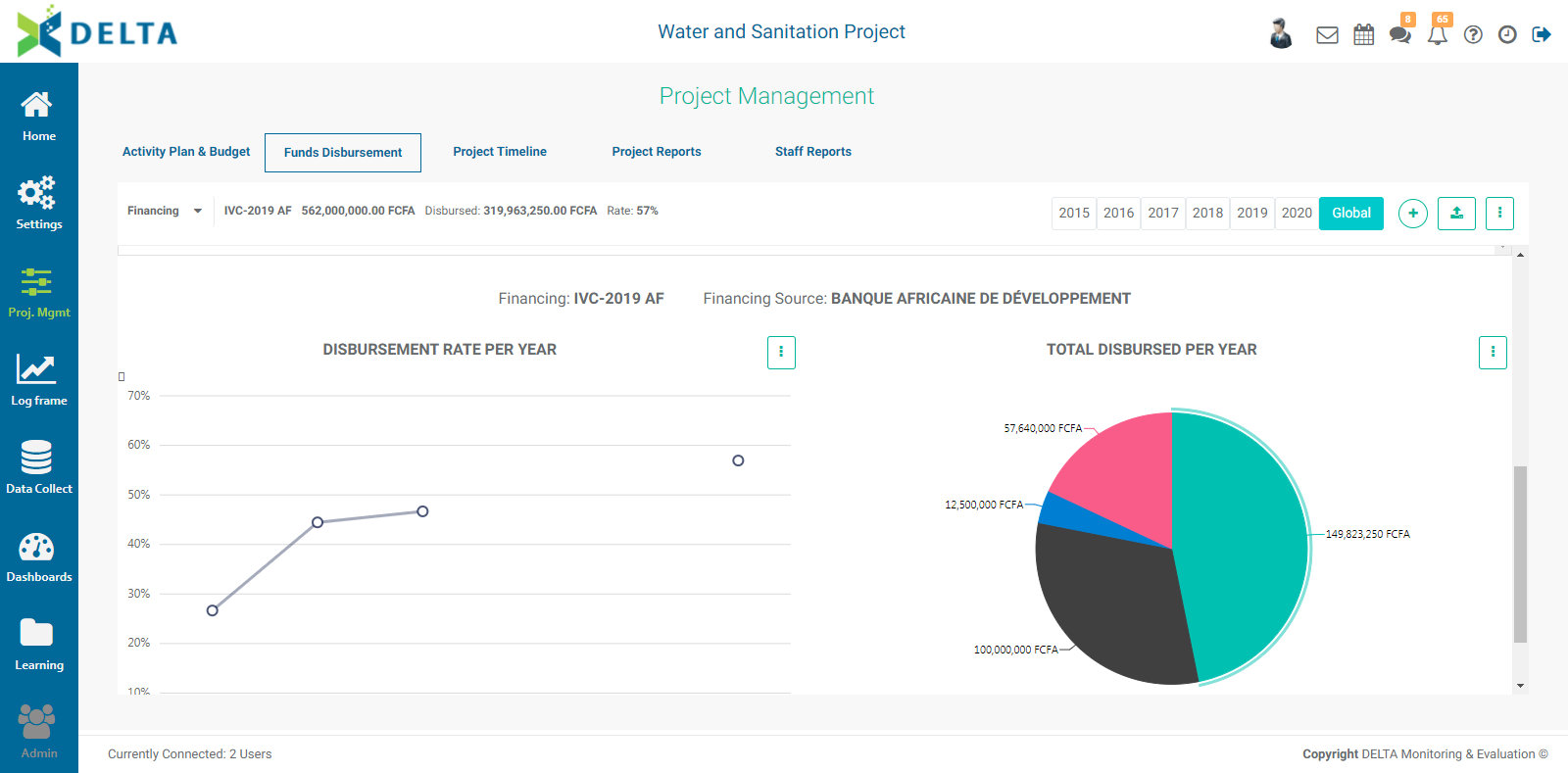
The default view is Global. Use the year tabs at top right to view a single year for a given financing source. If a year contains no data, the screen will display the graphs for the Global view.
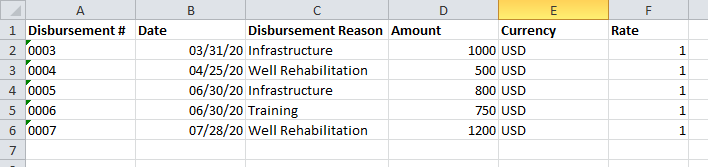
You can also import the disbursement data. Click the Import Data icon at top right to select an Excel file for import.

The Excel sheet must contain the following headers: Disbursement # (unique number), Date, Disbursement (reason), Amount, Currency, and Rate. NOTE: whenever importing anything into Delta, make sure the sheet in your Excel document is the only one containing data.
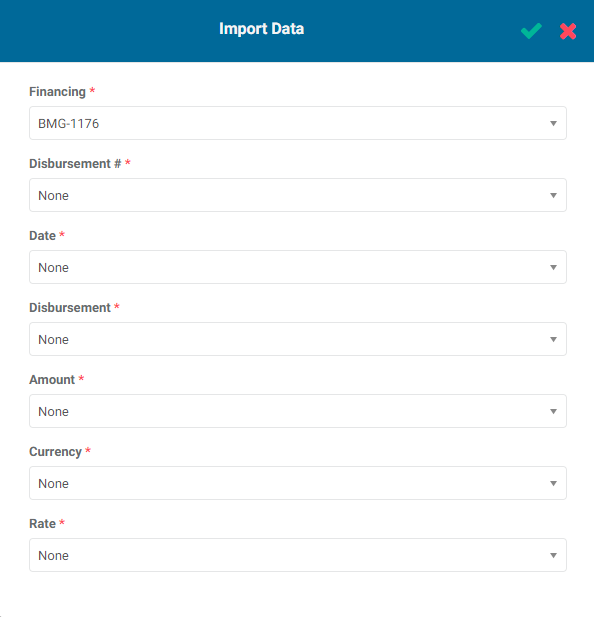
Click the Import Data icon to bring up the import popup window.
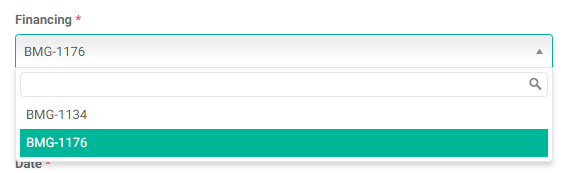
Select the correct Financing Agreement from the first pick list. This list is populated by the entries made in the project's Financing Sources in the Settings module.
Match each field of the popup window with a header of your spreadsheet. Using the same headers in your spreadsheet makes it easier to correctly match all the fields with a spreadsheet column.
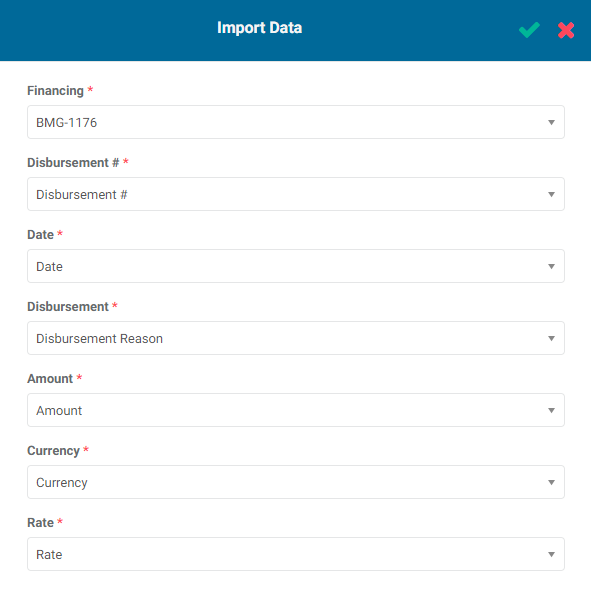
Once all the fields are matched with a spreadsheet column, click the checkmark in the popup window title bar to save your work and return to the Funds Disbursement screen. The imported data will appear on the screen.
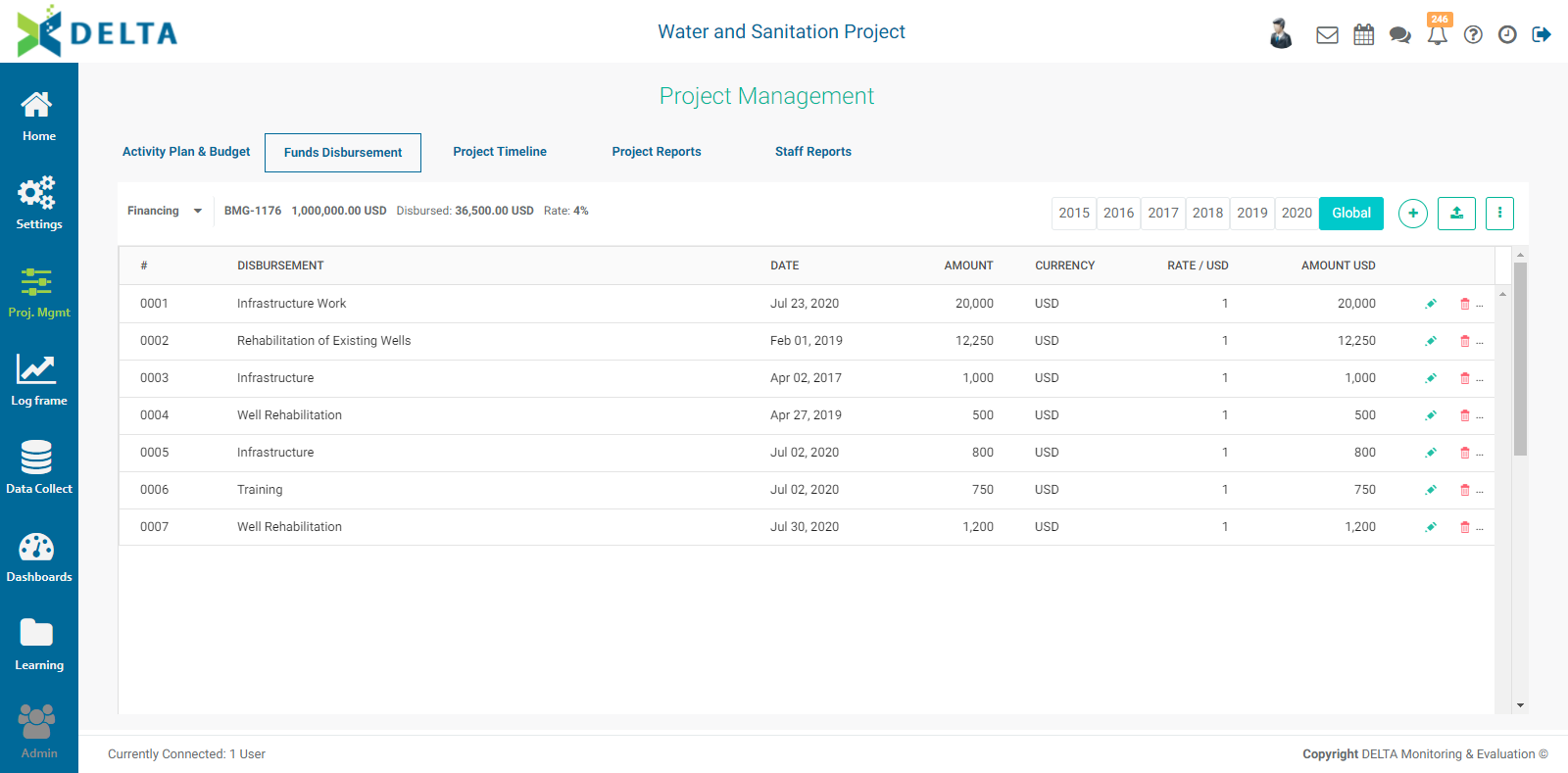
To edit a disbursement entry, click its Edit icon. NOTE: the disbursement number cannot be edited once the entry has been saved.
To delete an entry, click its Delete icon.
Previous: PM: Activity Plan & Budget | Next: PM: Project Timeline (Gantt Chart)
Author: Administrator
Last update: 2023-06-30 21:56
PM: Activities: Configuring an Activity
Overview
To work with activities, enter the project's Project Management module, and select the activity you want to work with from the list on the APB screen. Activities which have not yet been configured will display no information, specifically the unit of measure.
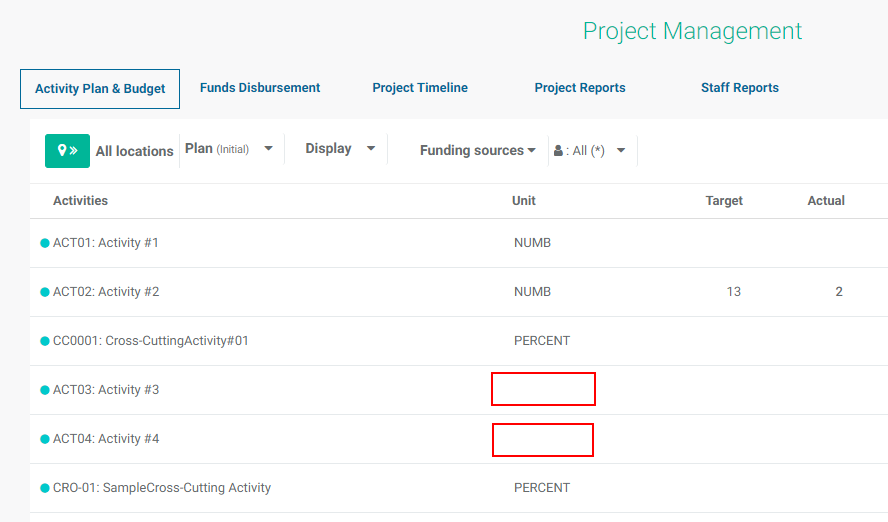
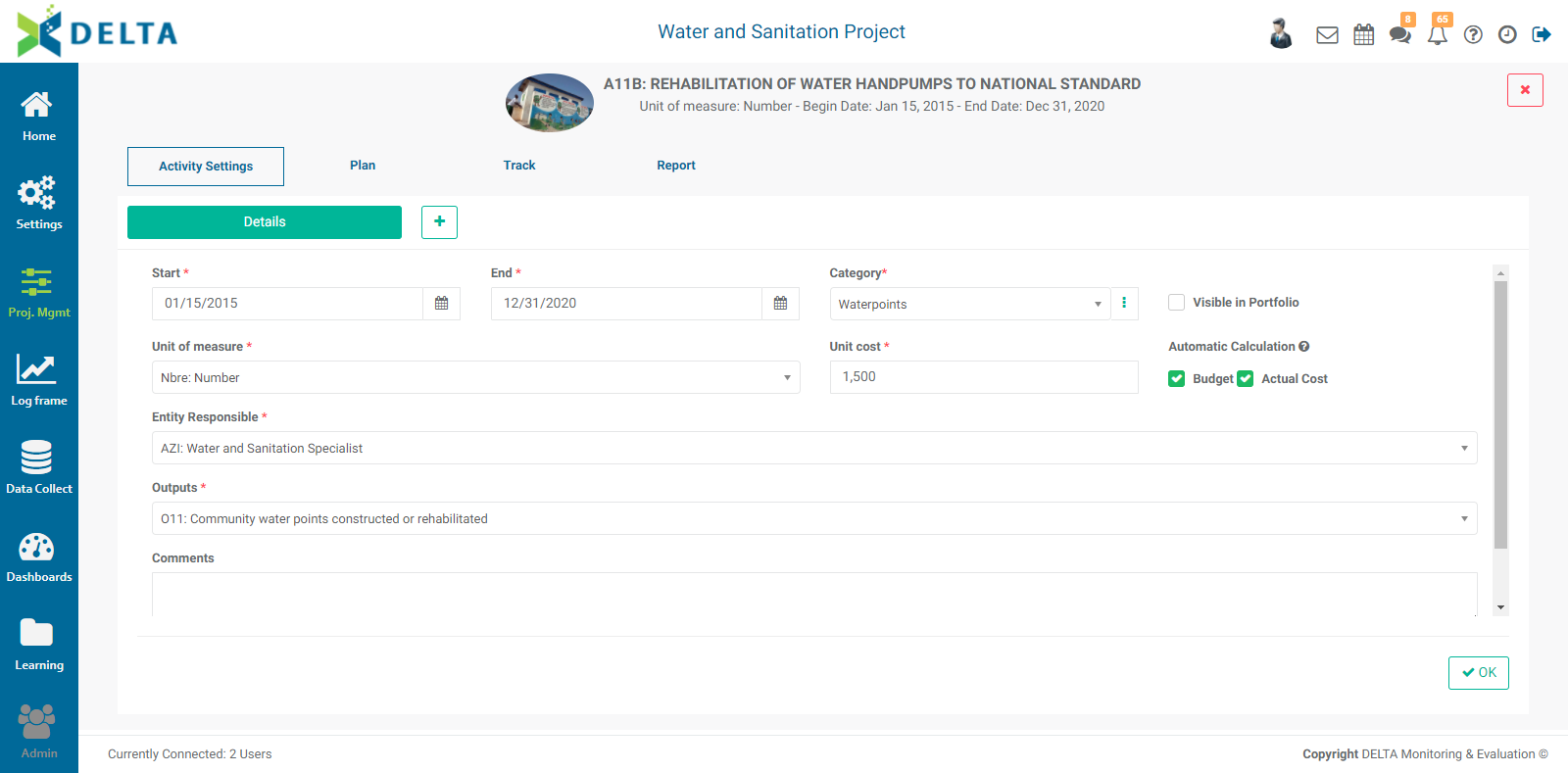
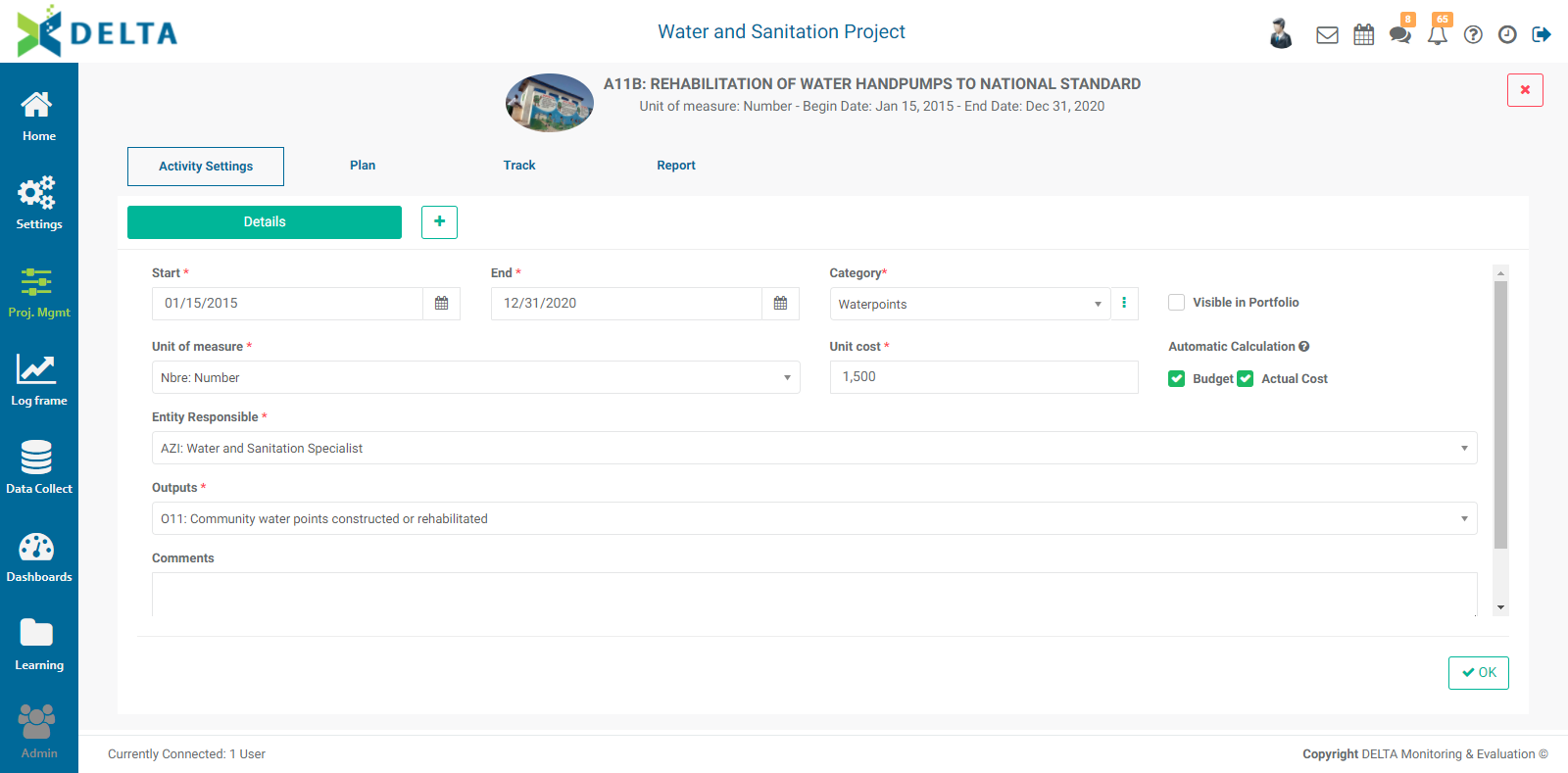
Click any activity in the APB list to open it. Configuring an activity is straightforward. To begin, click on an activity which does not show any information except for its code and name. You’ll be taken to the activity Details screen. The label for this screen will not appear until you’ve saved your work.
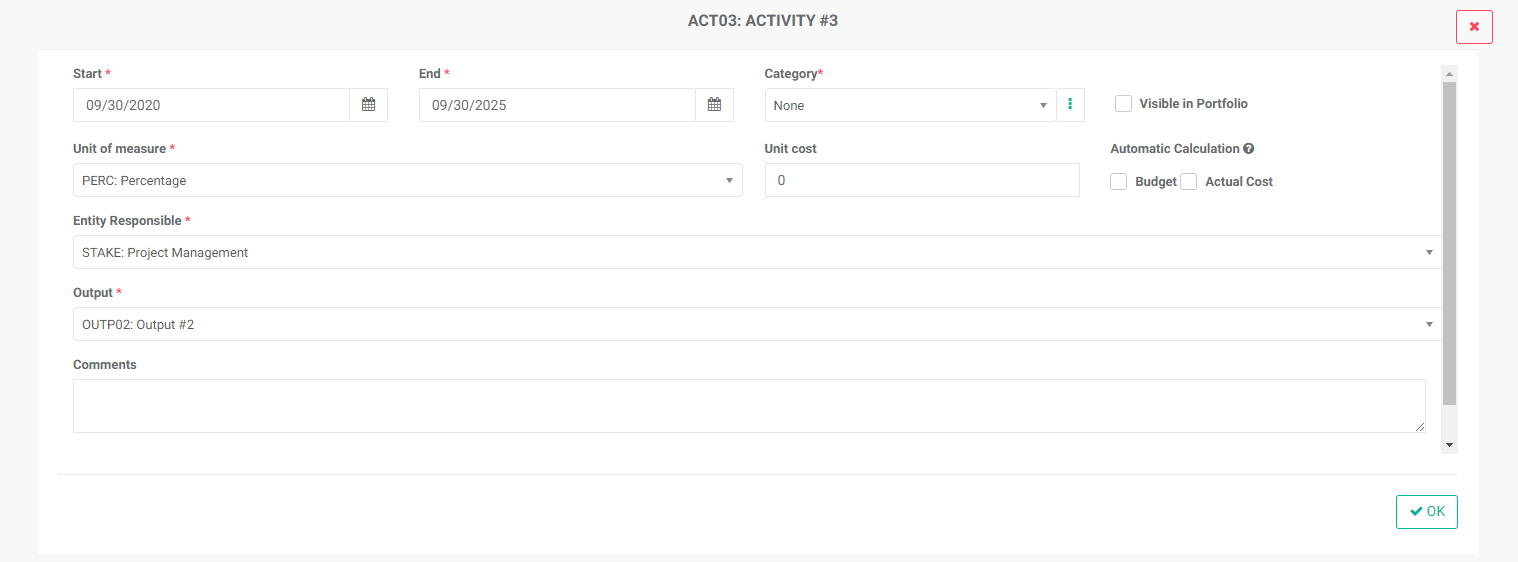
Mandatory fields are marked by an asterisk (*). Adjust the Start Date and End Date; the initial dates in those fields are the project start and end dates.
In a new project, the Category pick list will be empty. To create an activity category, click the More icon at the end of the field to bring up the Activity Categories popup window.
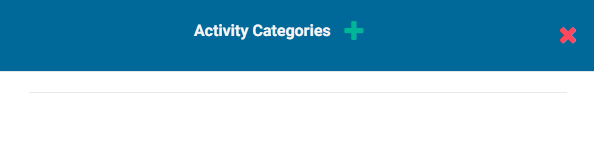
Click the + in the popup window title bar to add a new category.
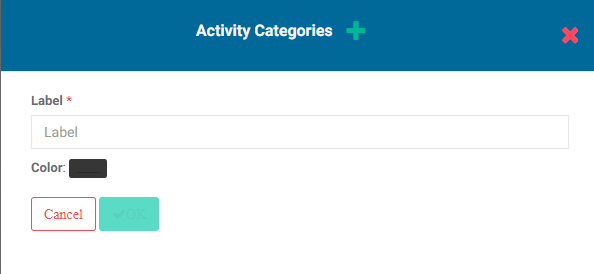
Enter the name of the category, and select a color for it. Click OK to save your work. The new category will appear in the popup window.
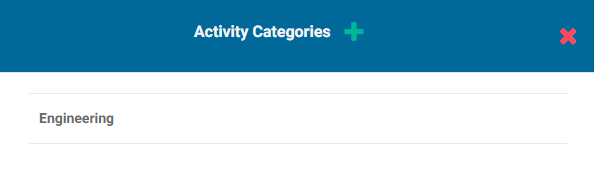
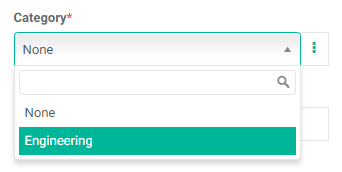
When you're done, click the X to close the popup window and return to the activity configuration screen. The new category will appear in the pick list and can now be selected.
The Visible in Portfolio checkbox allows this activity to correctly roll up and be displayed at the portfolio level. This also makes the activity easier to find for portfolio managers.Although this is not mandatory, we recommend using this feature to make sure all the available information regarding activities appears at the portfolio level.
Select a Unit of Measure for the activity. The units of measure pick list is populated by the Units settings entered for the project. If no units of measure appear, you'll need to add at least one in the project's Settings > Units screen.
Enter the Unit Cost for the activity, if applicable. This field is optional and may be left blank if you do not wish to use the system to track financials, or if the activity has no budget or cost.
If you do use Unit Cost, you may opt to have the system automatically calculate Budget and Actual Cost based on the Unit Cost. Leaving those checkboxes unchecked allows users to enter the information manually when planning and tracking the activity.
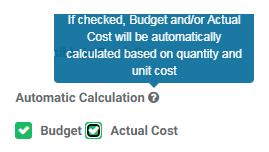
NOTE: you do not have to automate both calculations. If you check Budget but don't check Actual Cost, you'll be able to adjust actual activity costs based on the actual spend. This will make actuals more accurate in cases where activity costs might fluctuate based on location, personnel, etc.
Select the Entity Responsible for this activity. This pick list is populated from the Stakeholders you entered in the project settings.
Select the appropriate Log Frame Predecessor of this activity in the log frame to associate it to the correct branch of the hierarchy. NOTE: the field will automatically display the log frame element which was the parent of the activity when the log frame was input into the project. Note also that the label of this field will reflect the labels you assigned to the log frame template. Double-check this field carefully.
Enter any comment relevant to this screen (optional), then click OK to save you work. The screen will now be labeled as Activity Settings > Details, and the other tabs for the activity will appear as well.
Click the X at top right to close the Activity Details window and return to the APB screen. Locate your activity and verify that the unit of measure appears on the activity line item.

The Activity Details screen contains additional options, contained under the + menu to the left of the Details tab.
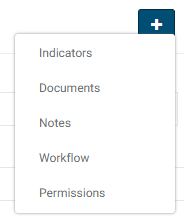
These optional screens are discussed in the following articles:
NOTE: The Activity Settings > Details screen also features a Completed checkbox at lower right. Check the box once the activity is completed. This will enable the filters to show the activity in the proper category.
Previous: PM: Activities Screen | Next: PM: Activities: Planning an Activity
Author: Administrator
Last update: 2023-06-30 21:58
PM: Activities: Planning an Activity
Overview
Once you have configured the activity settings, you can start planning that activity. Planning takes place from the top down, i,e. starting at the Global level (if used), then Annual, then Period. Planning information can be entered manually for each activity, or imported through the Activity Plan & Budget screen in the Project Management module.
From the Project Management module, select Activity Plan & Budget in the horizontal navigation.
Click the activity you want to plan to open it, and select Plan from the top tier navigation.
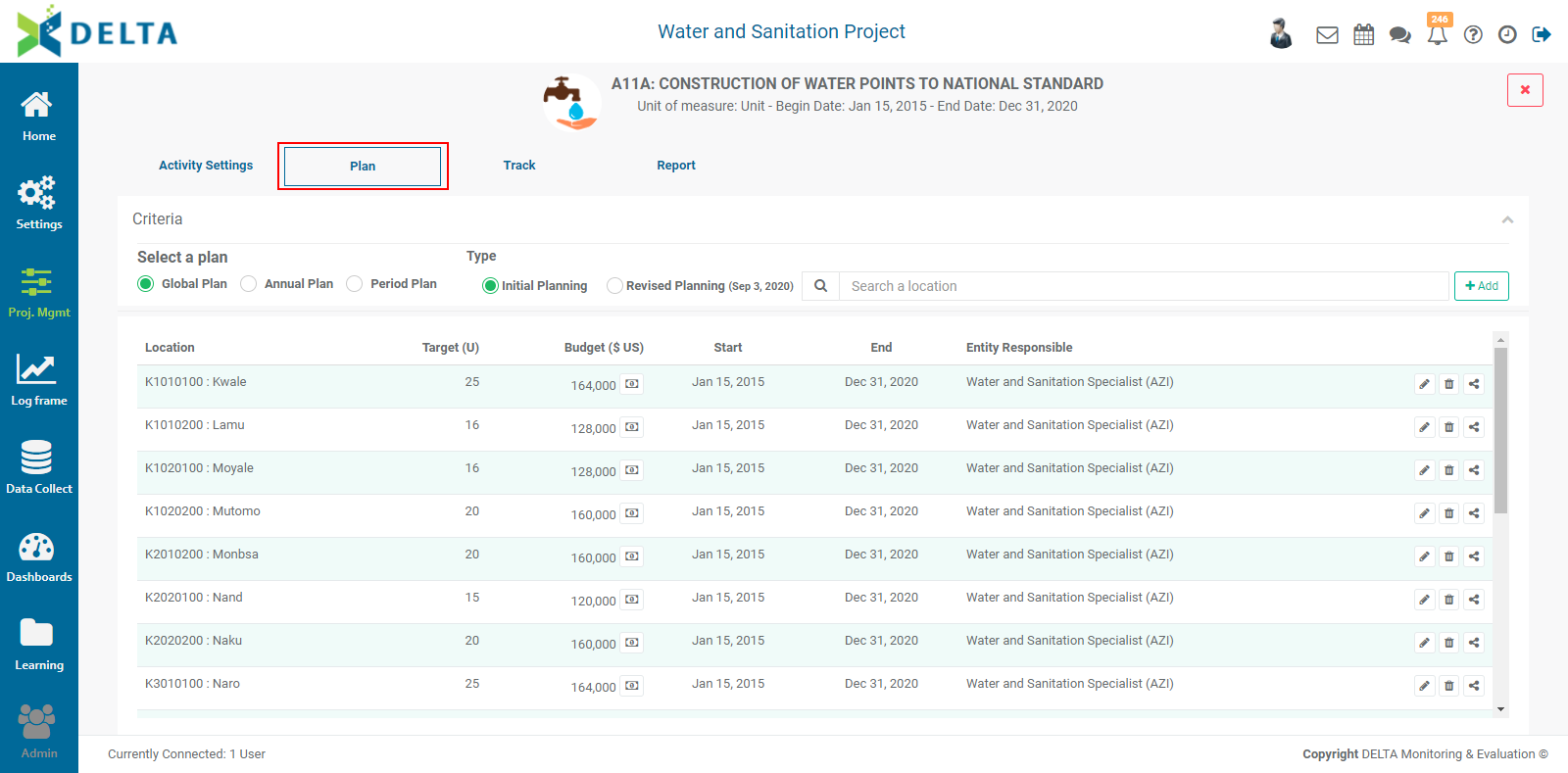
The first time you open the Planning screen to plan an activity, it will be empty. You will add the locations where the activity takes place, and plan each one on the Global (if used), Annual, and Period levels. The example above uses Global planning, and already contains planned locations.
To add a location, click the +Add button at top right to bring up the Locations popup window. The contents of this window is populated by the Locations settings at the Portfolio level. If the +Add button does not appear on the screen, make sure you're at the highest level of planning for your project, either Global or Annual. Also, make sure the Initial Planning radio button is active.
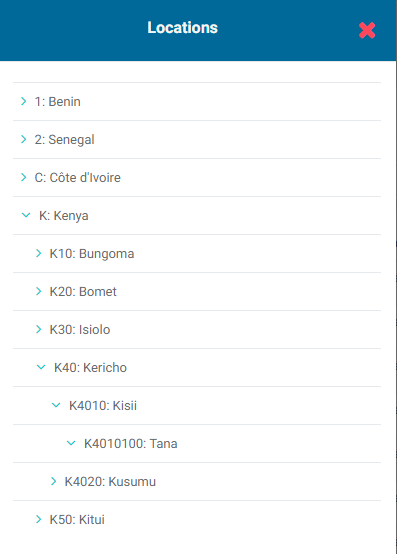
Use the carets to expand and collapse the various elements of the list. Find the location you want to use, and click it to select it. Activities (the lowest level of the log frame) take place at the lowest level of the Locations geography.
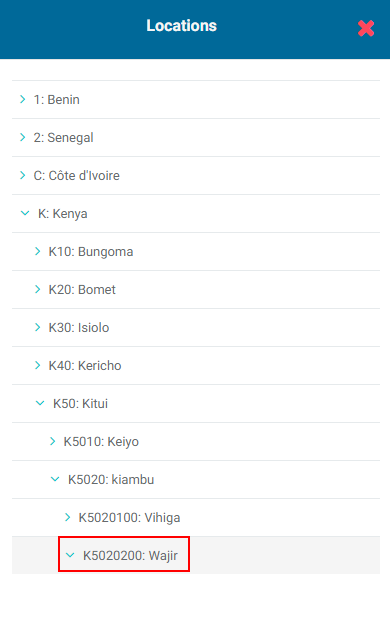
The Locations popup window will change to the Plan popup window.
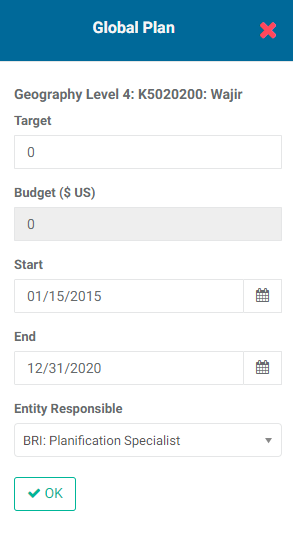
Enter the target for this activity for the entire duration of the activity within the project. If you selected Automatic Calculation: Budget & Actual Cost in the Activity Details when you configured the activity, Delta will automatically enter a budget figure based on the Unit Cost you entered in the Details screen.
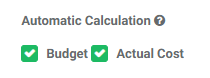
NOTE: if you want to manually input budget and/or costs information, make sure you uncheck Automatic Calculation: Budget & Actual Cost. If you choose not to use Delta to track financials, you should also leave those options unchecked. You may also automatically track budget but not cost, and vice-versa, simply by checking one box and not the other.
Note that the level of planning is displayed in the popup window title bar.
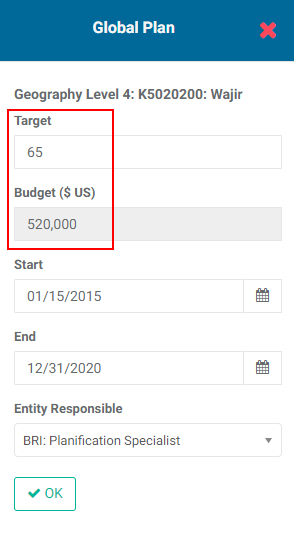
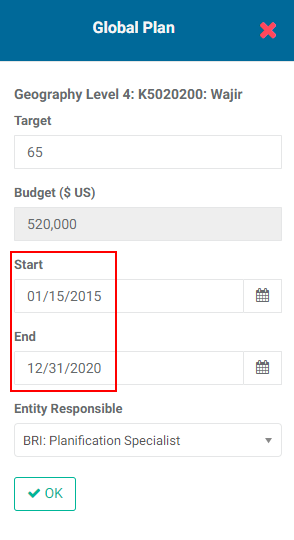
The default Start and End dates are based on the project start and end dates. If the activity will take place during the entire project, leave the default dates as is. If, on the other hand, the activity will only take place during a specific duration in the project timeline, select the correct start and end dates for the activity.
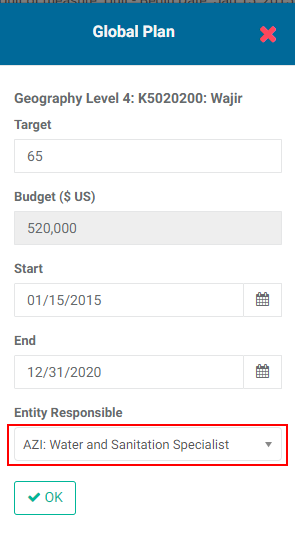
Enter the person or entity responsible for the activity. The pick list is populated by the Stakeholders you entered in the project Settings module.
Click OK when you're done to save your work and return to the Plan screen. The location you just added will appear on the page. NOTE: locations are sorted alphabetically/numerically by Location code. You may need to scroll to find your new location.
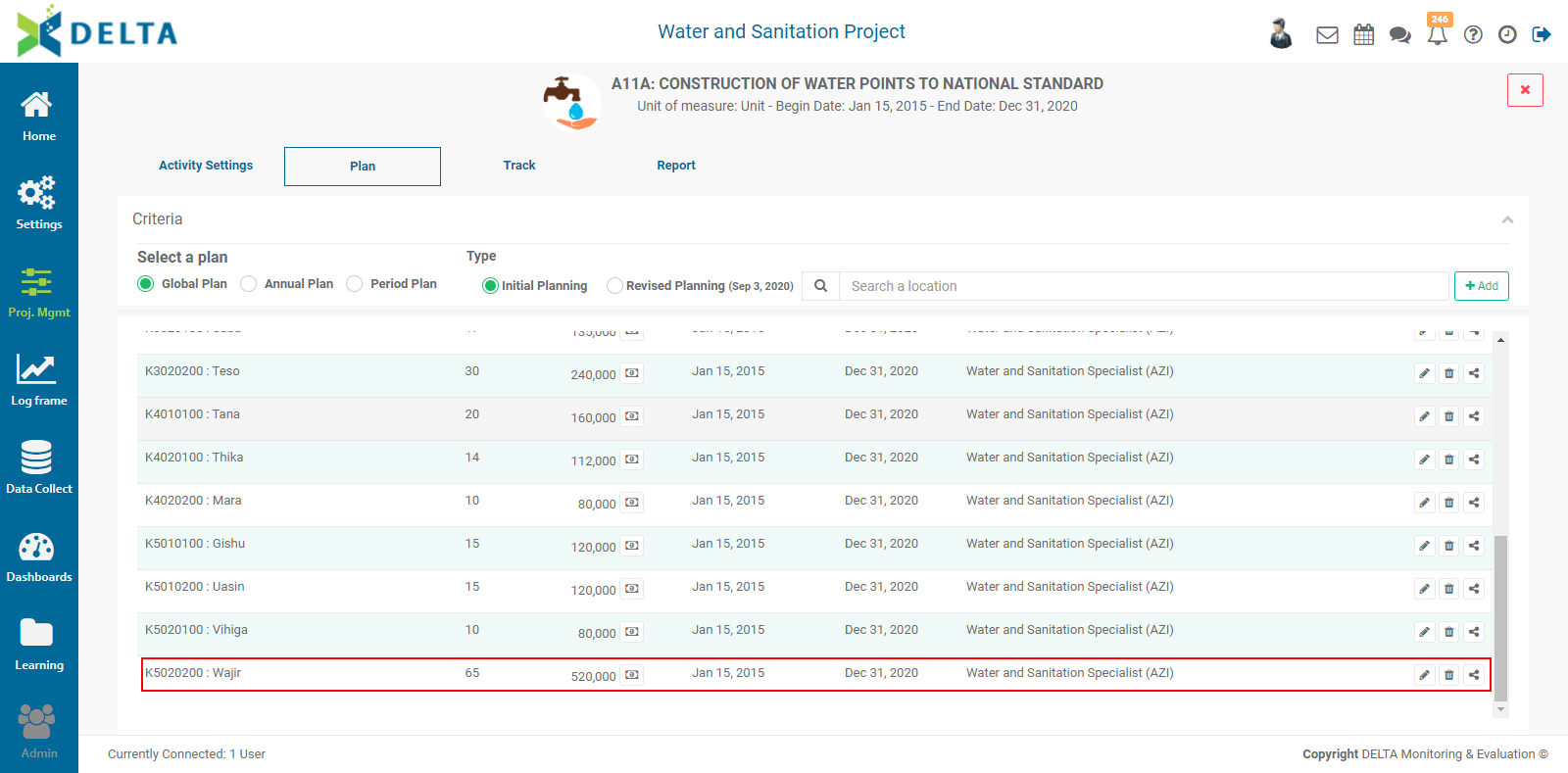
You’ll notice a dollar icon next to the Budget figure. Click on it to enter the distribution of the budget. This functionality allows you to allocate the budget to the various funding sources (Portfolio settings) and budget categories which were entered in the Settings module. This gives you very fine-grained control over budget, cost, and financials reporting.
To edit the budget distribution for an activity, click the Dollar icon next to the Budget figure to open the Distribution popup window.
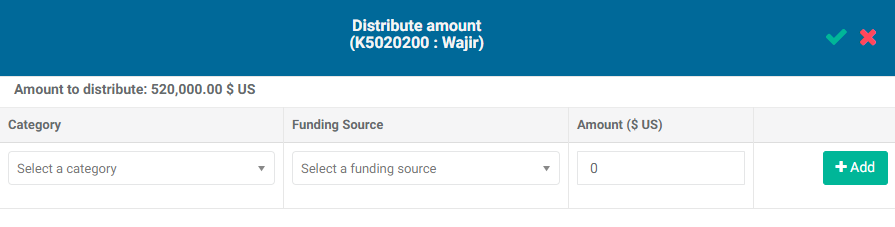
The amount to be distributed appears at top left. The sum of all distributions to the funding sources and categories must equal this figure, or the system will return an error.
Select the budget category and the funding source, and enter the appropriate amount.
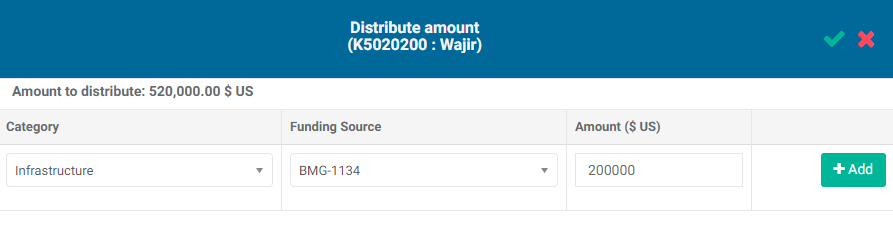
Click the +Add button to save this allocation. The saved allocation will appear at the bottom of the popup window.
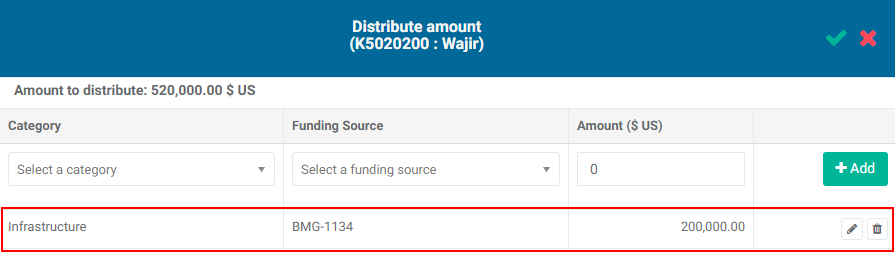
Click the allocation’s Edit icon to make any changes. Click the small inline checkmark to save your changes. Click the Delete icon to delete the allocation.
Repeat the steps above until the entire amount has been distributed. Delta displays a running total as you enter each allocation.
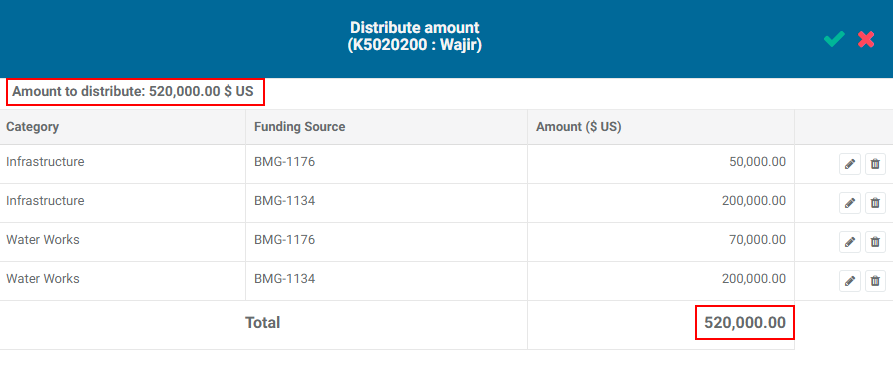
When the amount has been distributed, click the checkmark in the Distribution popup window title bar to save your work and return to the Plan screen.
Using this functionality is optional; however, it affords a lot of flexibility and refinement in tracking budgets and actuals.
Each activity location has its own toolbar: Edit, Delete, and Share. To edit an activity location, click its Edit icon, make the necessary changes, and click OK to save your work and return to the Plan screen. To delete a location, click its Delete icon and confirm the deletion.
To share an activity location, click its Share icon to open the Share popup window. Entering a comment in the box enables the Share With button. If you need more space to enter your comment, click, hold, and drag the three small lines at botton center of the Comments box to resize it.
Click the Share With button to select the recipients. All recipients are selected by default. Selected recipients are highlighted. Click OK to share the item. Recipients will get a notification in the form of a numbered badge on top of their Chat icon in the main toolbar.
Whenever you work in activity planning, you have to keep an eye on three things: which level of planning you’re working with, which specific year and period you’re entering information into, and whether you’re using Initial or Revised Planning. You start with the highest level (Global or Annual), then drill down to the lower levels (Annual and/or Period), and with Initial Planning. Use the radio buttons to switch to another planning timeline. This will allow you to refine your activity planning to more detailed levels.
If you opted to use Global Planning in your project definition, you’ll be able to plan year over year once you select Annual Planning. Once your annual planning is done, switch to Period Planning to break down your targets and budgets for each period. You’ll need to select each year and each period of each year to enter all the planning information. NOTE: you will not be able to enter period planning for a given location until you’ve entered your annual planning. If you’re using global planning, you’ll need to complete it before you can enter annual planning for a given location.
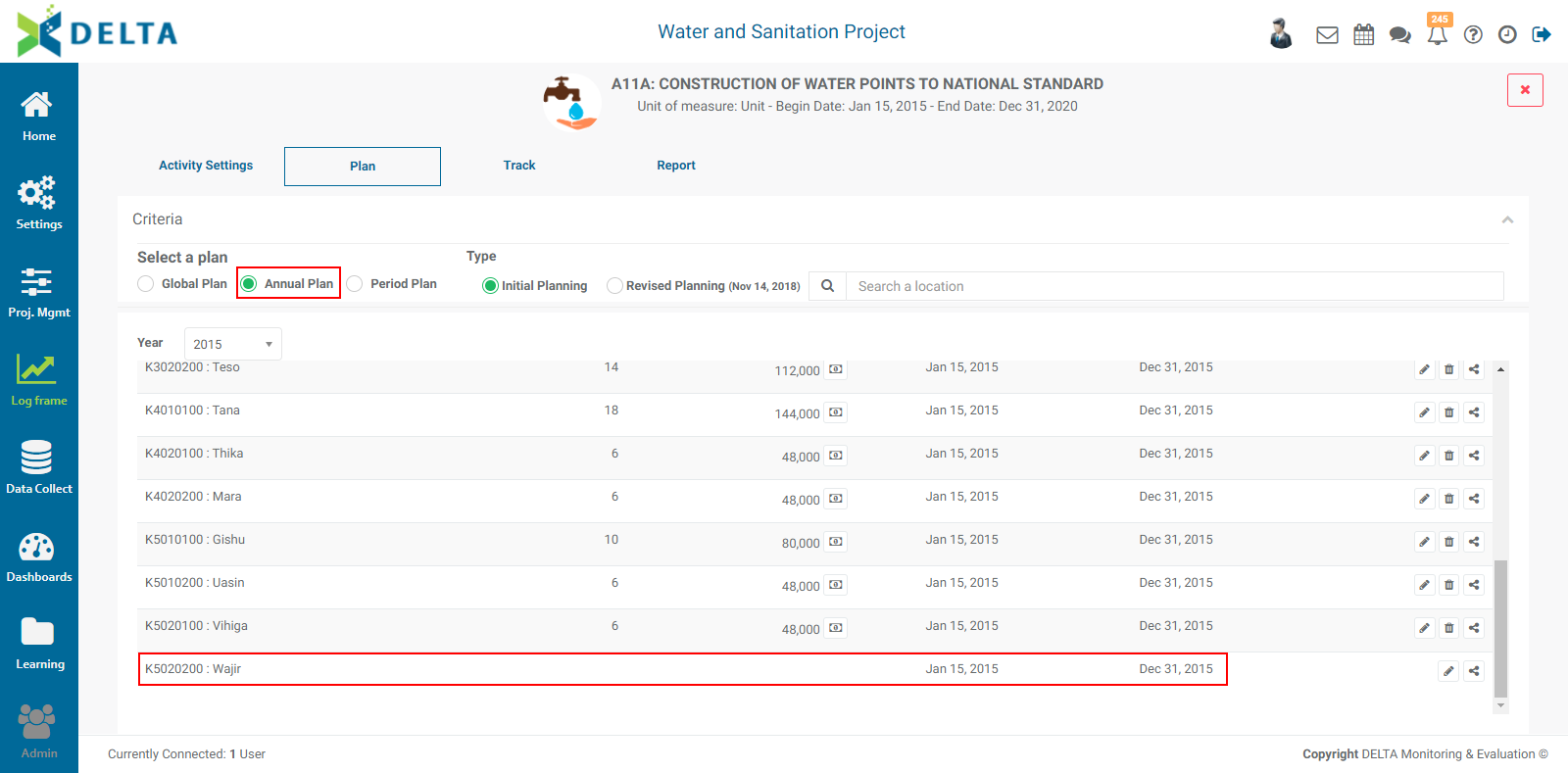
Click the Annual Plan radio button to switch to that level of planning. Locations which have not been planned at the Global level (if used) will not appear on this screen until Global Planning is completed. Locations which have yet to be planned for a given year will appear on the screen, but will not contain any targets or budget information.
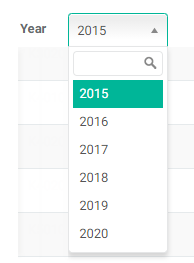
Select the appropriate year for which to enter planning data from the pick list at top left. You can plan years in any order, but a year must be planned for Period Planning to be available for that year.
Click on the activity location's Edit icon to open it, and enter budget and cost information for that location and year.
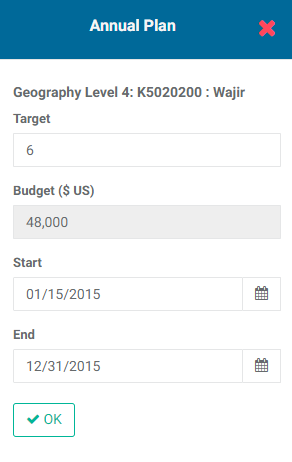
The default Start and End dates are based on the fiscal year. In the example above, the fiscal year is the same as the calendar year. Fiscal years are set in the M&E settings screen of the project definition. Adjust the dates as appropriate. Click OK when you're done to save your work and return to the Plan screen. The target and budget for the activity location will appear, once again sorted by alpha/numeric order of log frame code.
Since this example used Global Planning, part of the allocation information is already populated when you click on the location's Dollar icon to enter its distribution.
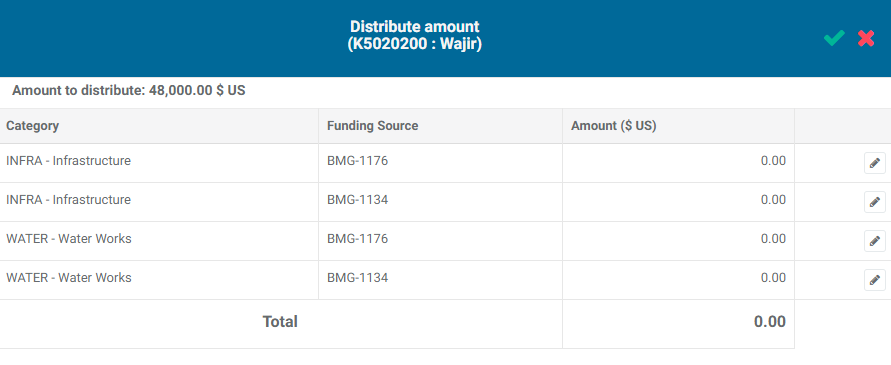
The amount to distribute is displayed at top left. As long as the distributed amount equals that figure, some line items may be left blank; for example, if one funding source will not contribute to this activity at this location for the selected year, its line item distribution can be set to zero.
Click each line item's Edit icon to enter the appropriate amount for the funding source and budget category, and click its checkmark when you're done to save the item. Repeat until the amount has been distributed.
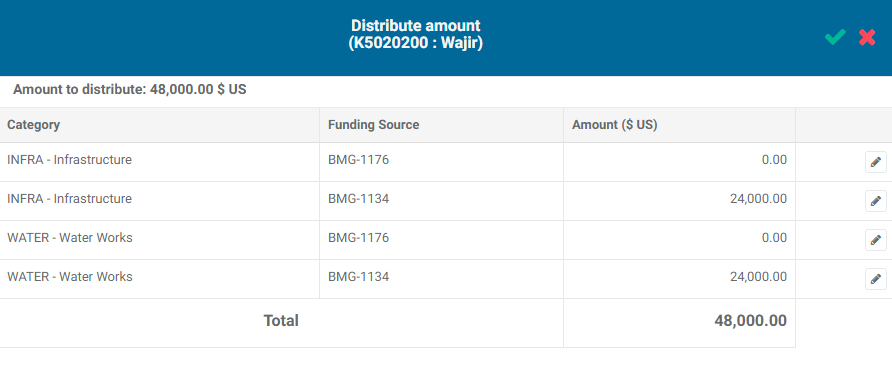
Click the checkmark in the Annual Planning popup window to save your work and return to the Plan screen.
To enter Period Planning, click the radio button for that level, and select the year and period for which you want to enter planning information. Periods are determined by the M&E settings you entered when you created the project.
The steps to enter Period Planning are the same as for the other planning levels. As a best practice, we suggest planning all the periods of a given year for a given location at the same time, but you can proceed however you see fit.
At the highest level of planning (Global or Annual, depending on your project definition), you can also enter revised planning information. Revised planning information allows you to save changes made to planning on a given date.
To enter revised planning information, verify that you’re at the highest planning level, and click the Revised Planning radio button.

Click the Edit icon next to Revised Planning to select the date of the revised planning. Click the calendar icon and navigate the calendar to select the date, and then click the checkmark to save your work. The date you selected will appear next to the Revised Planning.

Click on the Edit icon of every location to enter revised planning. Click OK for each popup window when you’re done, and edit the next location.
NOTE: Revised Planning is only available at your highest level of planning.
Previous: PM: Activities: Configuring an Activity | Next: PM: Activities: Tracking an Activity
Author: Administrator
Last update: 2023-06-30 22:01
PM: Activities: Tracking an Activity
Overview
The next logical step once you have entered planning data into your activity is to track the activity. Open the activity, and click on the Track tab in the top tier of the horizontal navigation. This is where actuals are entered for the activity. Tracking takes place at the lowest level of planning, so you’ll need to make sure the planning is complete for all the periods covered by the activity. Locations will not appear in periods for which there is no planning information.
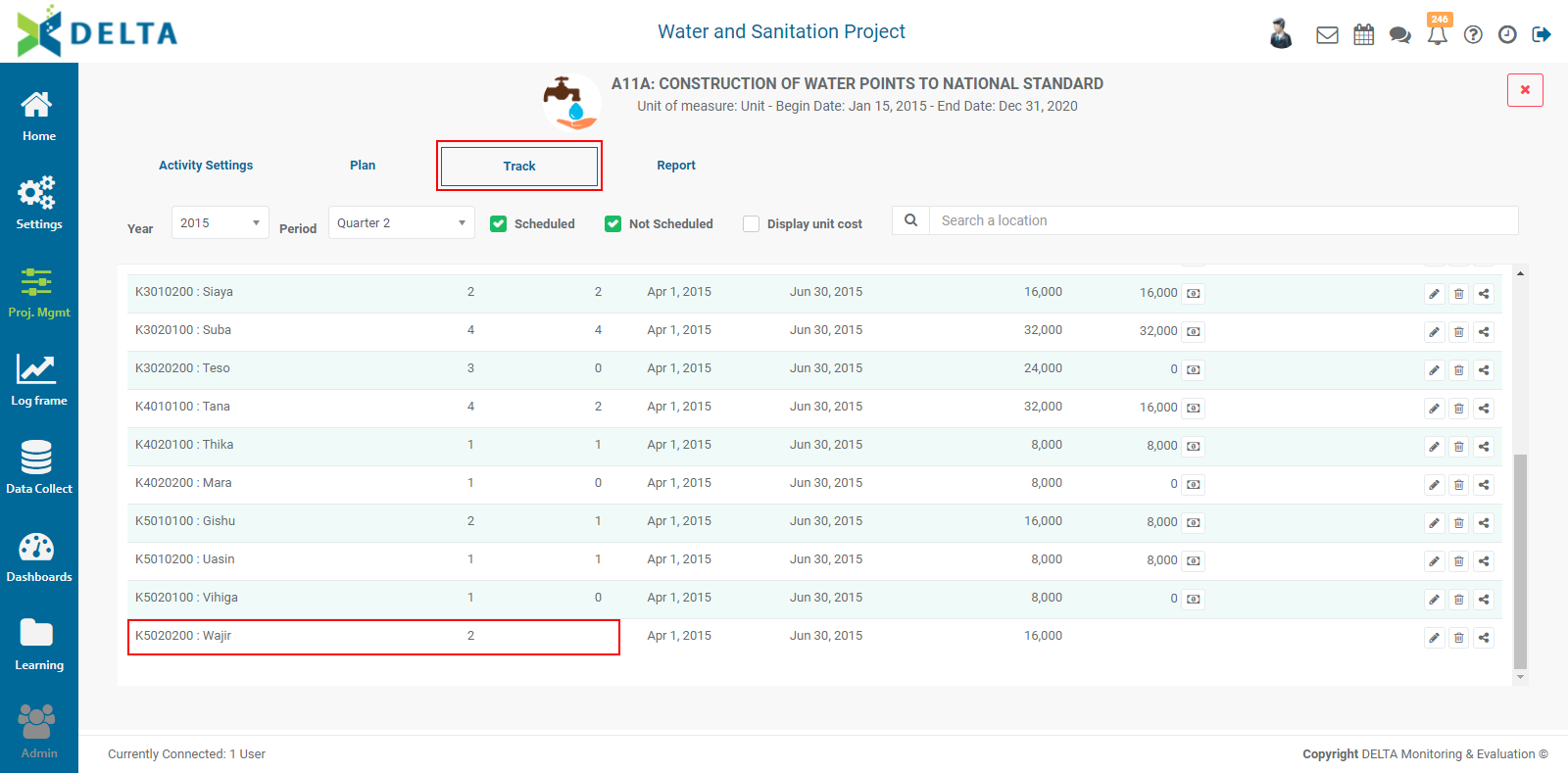
In the example above, planning information for Wajir has been entered, but not tracking data yet. To enter actuals for this activity at this location and period, verify that you're in the correct year and period, then click on the item's Edit icon in its toolbar to open the Track popup window.
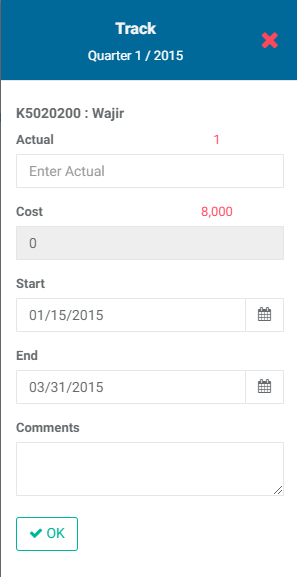
The popup window title bar contains the year and period, and the location appears in the window proper right beneath it. Note also that the previously entered targets and costs appear as hints in the window.
Enter the actuals and cost. If you selected automatic calculation of the cost when you configured the activity, Delta will fill in the Cost field for you based on the figure you entered in the Actual field and the Unit Cost you input when you configured the activity.
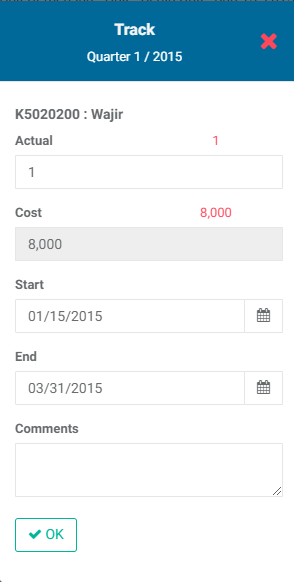
Enter a comment if desired, and click Ok when you’re done to save your work and return to the Track screen. The actuals will now appear in the location's line.

Note the dollar icon next to the Cost figure. Click on it to distribute the cost among the funding sources you previously associated with the activity, then click on each item's Edit icon to enter the allocation, then click the item's checkmark to save the allocation you entered. Repeat this step until the entire amount that appears at top left of the window has been distributed. You need to enter data in at least one line.
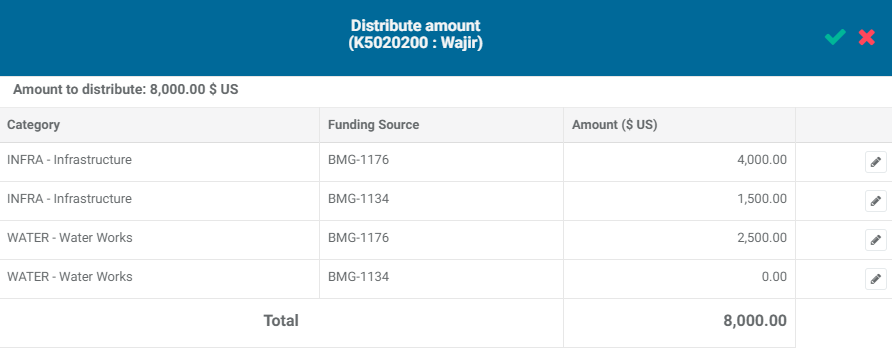
When you're done, click the checkmark in the Track popup window title bar to save your work and return to the Track screen.
The Scheduled vs Not Scheduled activities checkboxes allow you to filter activities based on whether planning information has been entered for a location. Locations where planning was not completed for the selected year and period are considered to be not scheduled.

Check the Display Unit Cost box to display the calculated unit cost for each location. If you checked the Budget and Actual Costs boxes in the Details tab, Delta will calculate those for you, and take those calculations into account when figuring out the activity progress in the Activities tab of the project dashboard.
Previous: PM: Activities: Planning an Activity | Next: PM: Activities: Built-In Report
Author: Administrator
Last update: 2023-07-01 20:33
PM: Activities: Workflows
Delta supports the use of Workflows for activities. Workflows allow users with sufficient permissions to assign various aspects of activity planning and tracking to specific individuals. Workflows are created from the Activity Settings screen, under the More button's optional screens menu.
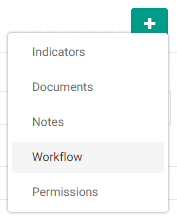
Click the More button, then select Workflow to show its tab. Click the tab to bring up the Workflow screen proper.
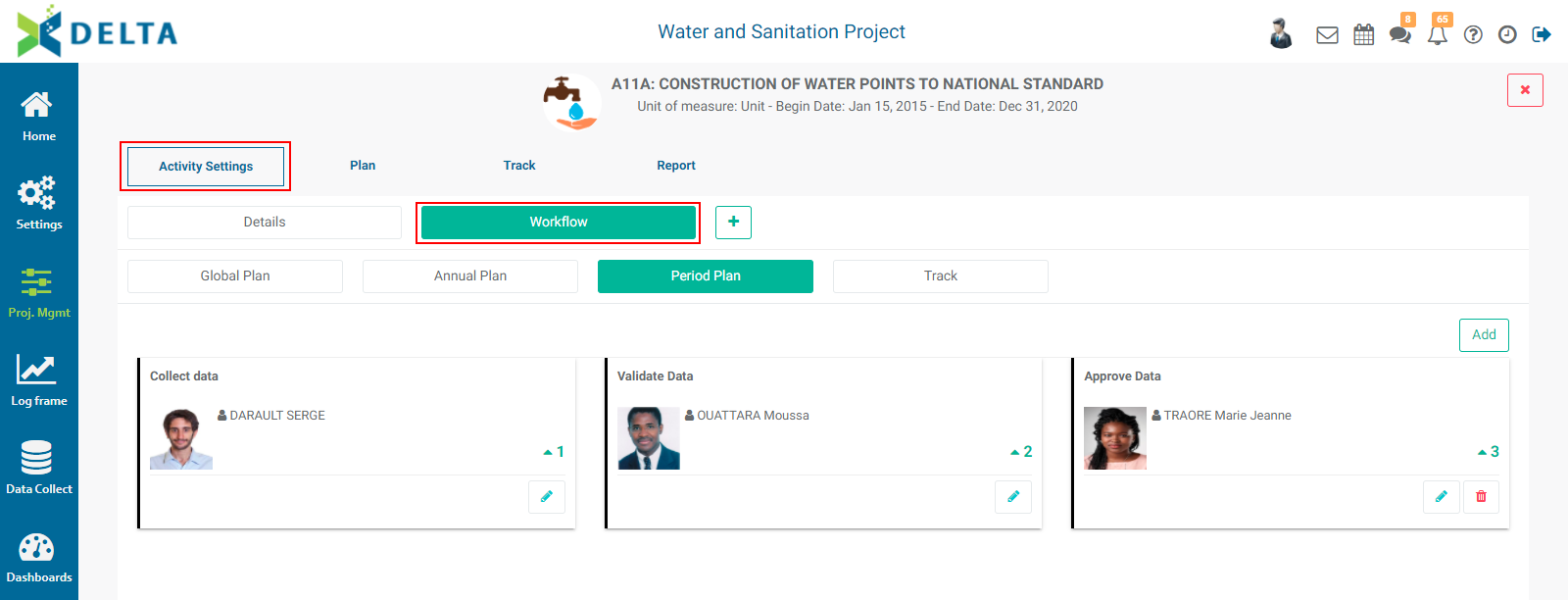
Tasks for which you can create workflows for activities are Global Plan, Annual Plan, Period Plan, and Track. NOTE: if your project does not use Annual Planning, the Annual Plan option will not appear. Planning levels are set in the M&E settings tab of the project definition screen.
All tasks work the same. The example below uses the Tracking tab.
Click the Add button at top right to bring up the Workflow popup window.
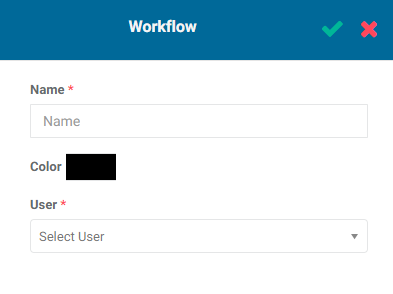
Enter a name for the workflow. If desired, select a color from the color picker (optional). Select the user to whom you want to assign the task from the User pick list. To see the resulting notification, select yourself from the list. All users appear in the list, including superusers, since they can be assigned tasks as well as regular users.
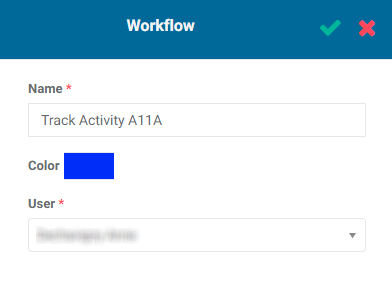
Click the checkmark in the Workflow popup window to save your work and return to the Workflow screen. The new workflow element appears in a tile on the screen.
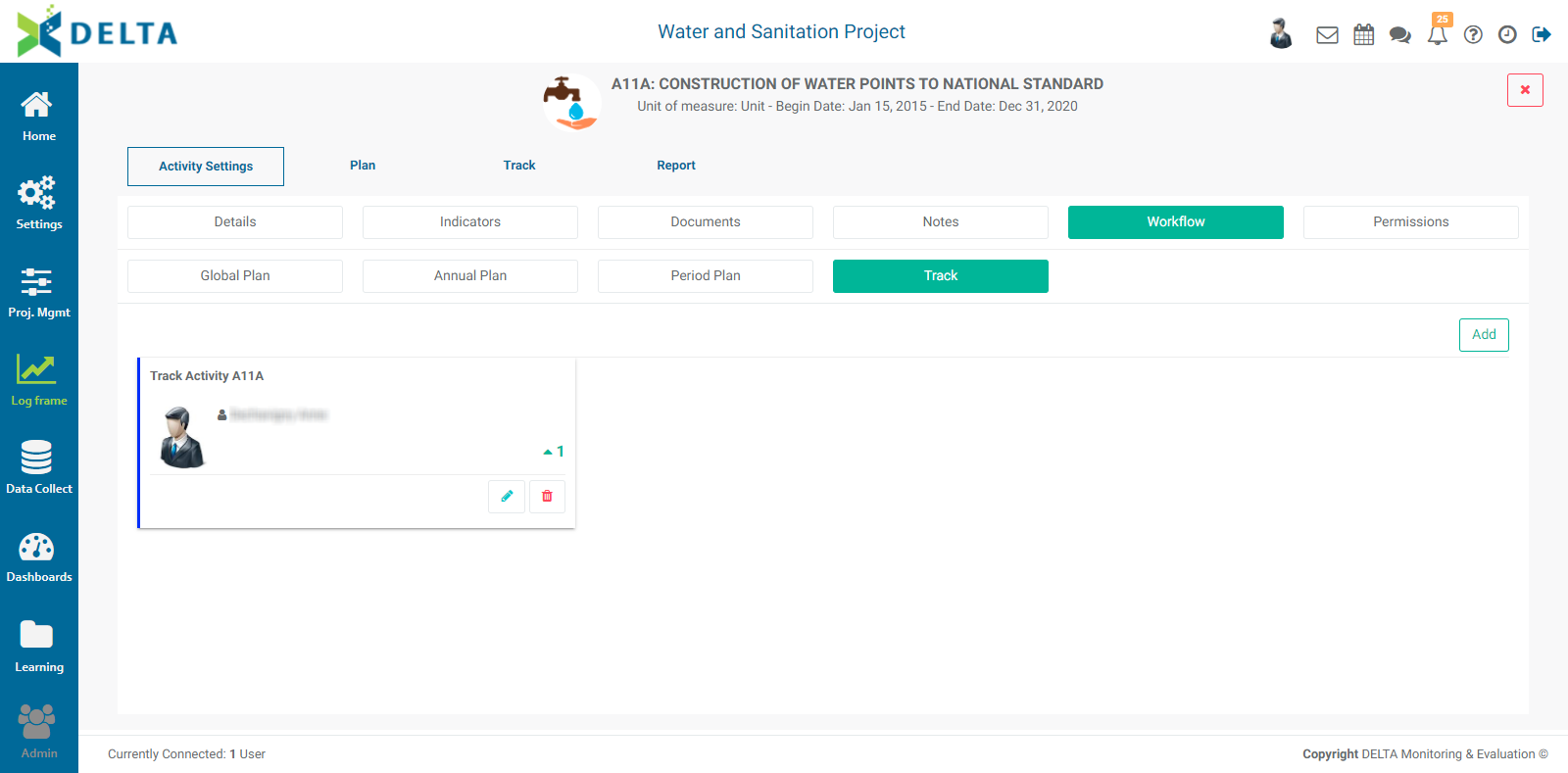
If you only need to assign one person to an activity-related action, you only need one step in a workflow. If more steps are required, click the Add button and add the necessary steps. You can add as many steps as are needed to a workflow. NOTE: each person can only be assigned one step in a multistep workflow. This ensures that the same person does not perform both data entry and verification/approval.
If you assigned the task to yourself, you'll see a numbered badge over the Alert icon in the main toolbar at top right. This indicates to users that they have been assigned an actionable item. NOTE: all instances of a workflow for the entire duration of the project will be created at once. For example, if you have a two-year project, quarterly reporting periods, and ten locations, you will see 80 notifications.

To take action on your notifications, click the Alert icon in the main toolbar, and select Workflows from the menu.
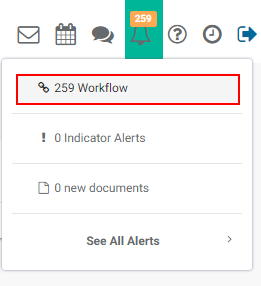
The tabs where your assignments are located will contain a numbered badge. Select the Activities tab to bring it to the front, and click the Track subtab to also bring it to the front.
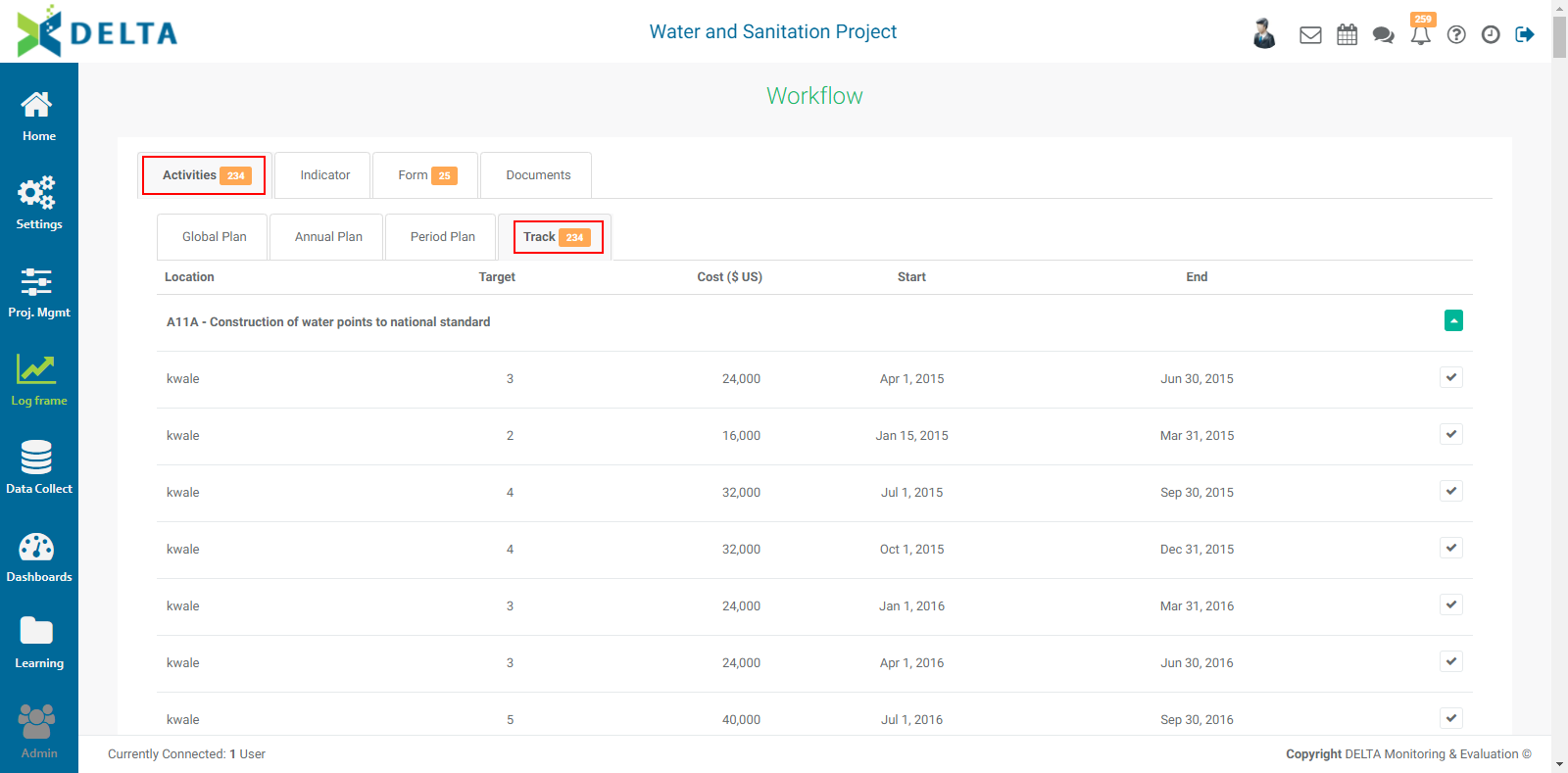
The list is sorted alphabetically by location, then start date. Each item in the list contains target, cost, and dates information for the item, and also features a checkmark icon.

Click any checkmark to bring up the Validate Data popup window. Enter comments and click OK to mark the data as validated.
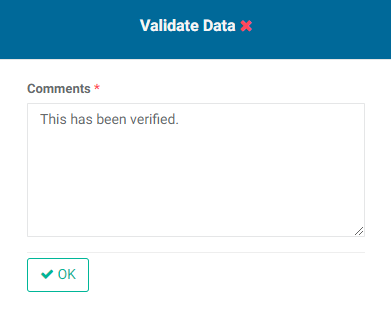
The item will disappear from the list upon completion.
To see the effect of the steps above, go back to the Log Frame module and open your activity. Select Track from the horizontal menu, then select the correct year and period for the workflow item you completed.
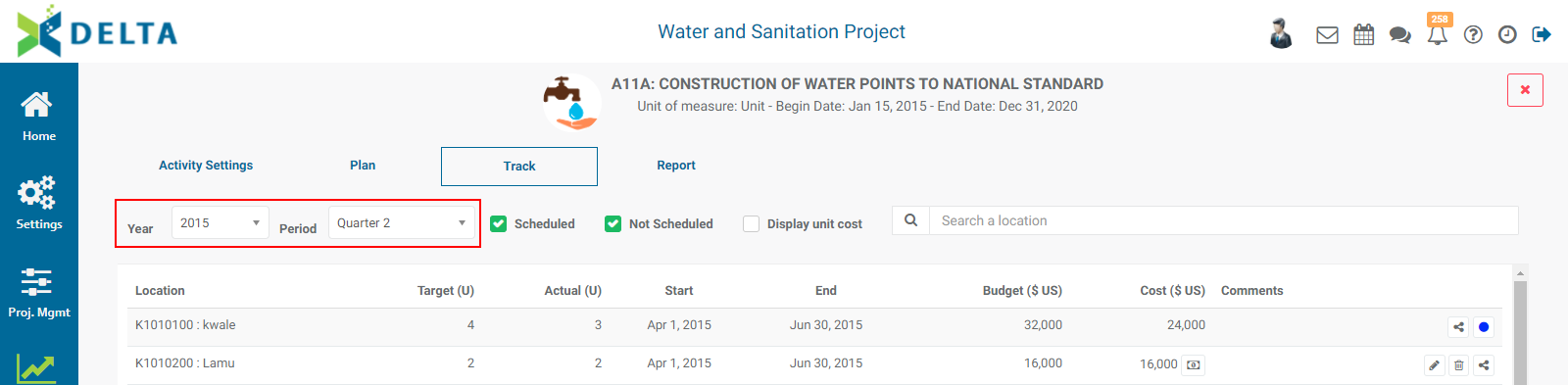
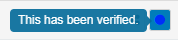
Note that the activity for which you entered a comment is now locked from editing. Mouse over the dot to view the comment you entered. The color of the dot reflects the color of the last step performed in the workflow for easy visual reference to the person who performed the workflow step.

Previous: PM: Activities: Notes | Next: PM: Activities: Permissions
Author: Administrator
Last update: 2023-07-01 20:37
PM: Activities: Permissions
Delta supports the use of permissions for activities. This allows very fine control of who has access to plan and track activities. Permissions are set at the Activity Settings level, as an optional screen. Click the More button to bring up the optional screens menu, and select Permissions to show the Permissions tab.
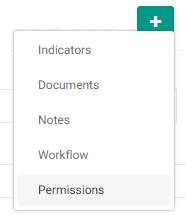
Click the Permissions tab to bring up the Permissions screen proper.
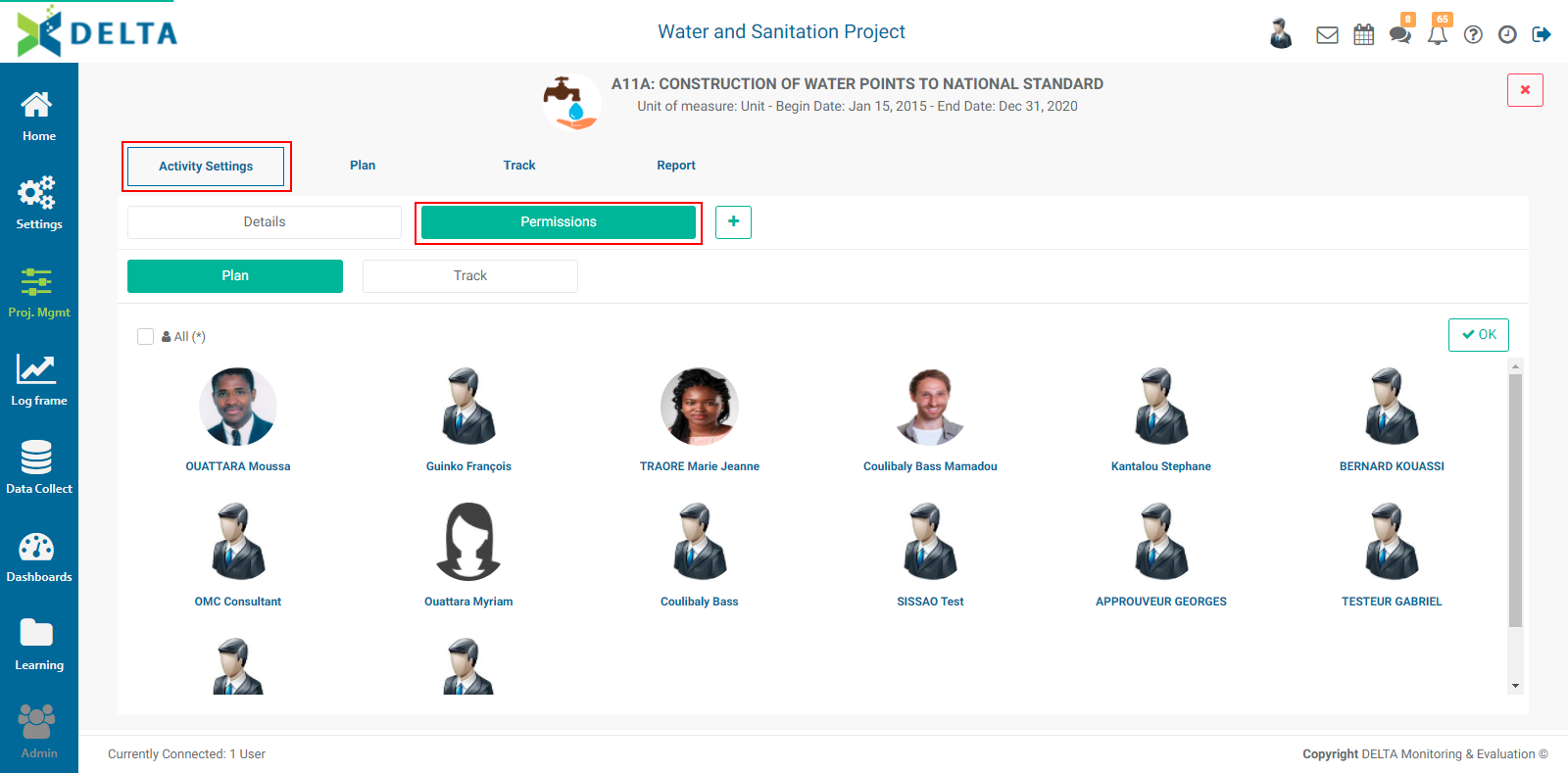
From this screen, you have the option of setting permissions for activity planning and activity tracking. Select one or more users to assign permissions by clicking on their tile to highlight each one. NOTE: only regular users appear on these screens, since superusers already have permissions for everything.
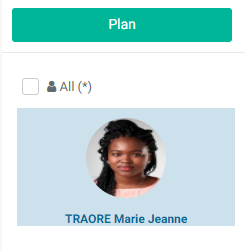
Click OK when you're done to save your work. Permissions are applied immediately.
Previous: PM: Activities: Workflows | Next: PM: Activities: Cross-Cutting Activities
Author: Administrator
Last update: 2023-07-01 20:38
PM: Activities: Cross-Cutting Activities
Delta features an additional type of activity, Cross-Cutting Activities. These are activities that appear in every project. They are set up at the portfolio level, and informed by each project from its Project Management module's APB screen. IMPORTANT: the Portfolio must contain a log frame to which activities (and indicators) can be associated.
To add a cross-cutting activity, enter the Portfolio's Project Management module, select Activity Plan & Budget, click the More button at top right and select +Add Activity.
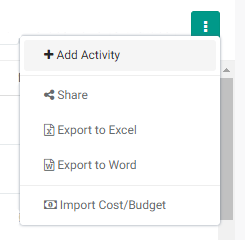
The unlabeled Activity Details screen will appear.
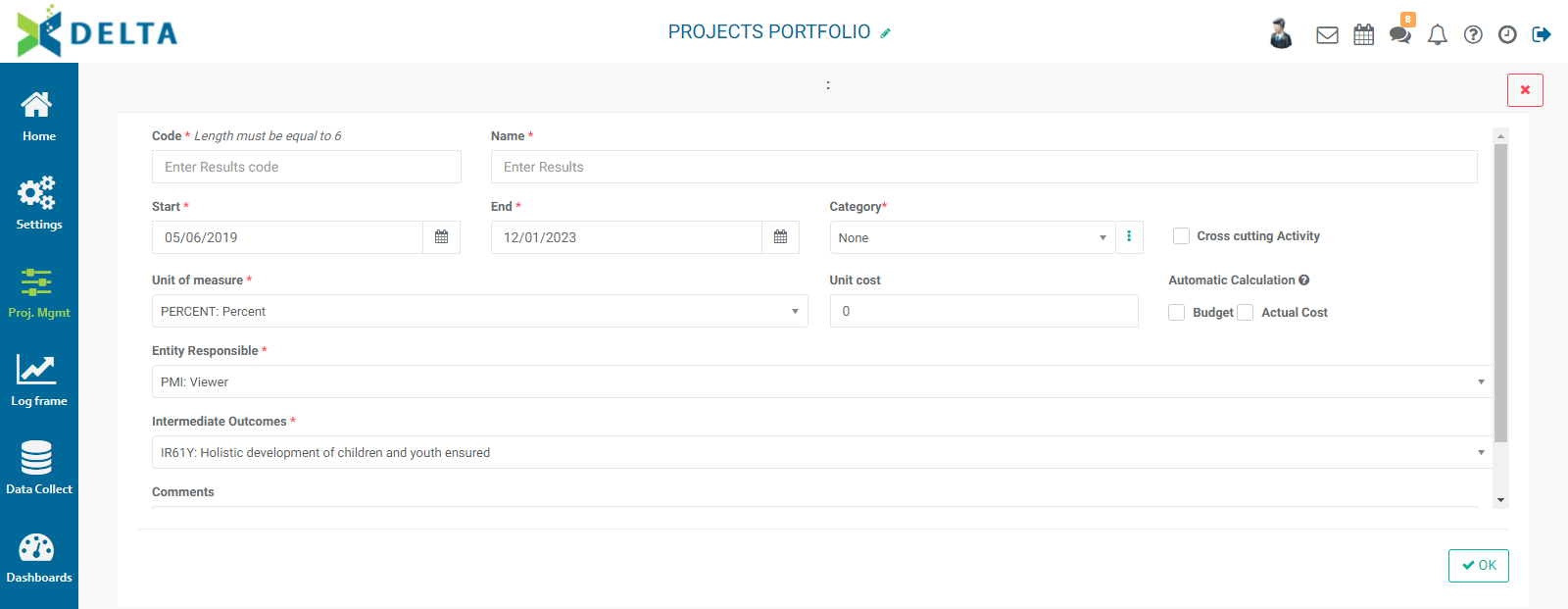
Enter a code and name for the activity, then enter a start date, end date, and category for the activity. If no categories exist in the pick list, click the More icon at the end of the Category field, and create the desired category, as described in the Configuring an Activity article.
IMPORTANT: check the Cross Cutting Activity checkbox. Two subtabs will appear: Description (the current screen) and Projects.
Select a unit of measure from the pick list. This list is populated by the Portfolio-level Settings -> Units entries.
Enter a unit cost, and select Budget and/or Actual costs if you want Delta to automatically perform those calculations.
Enter the entity responsible for the activity. The pick list is populated from the portfolio-level stakeholders list.
Select the proper portfolio log frame element to which the activity is to be associated.
Enter a comment (optional) regarding the cross-cutting activity. Although optional, we strongly suggest as a best practice that you enter as much information as is available, especially since this activity will be deployed to projects.
Click the Projects tab to bring it to the front.
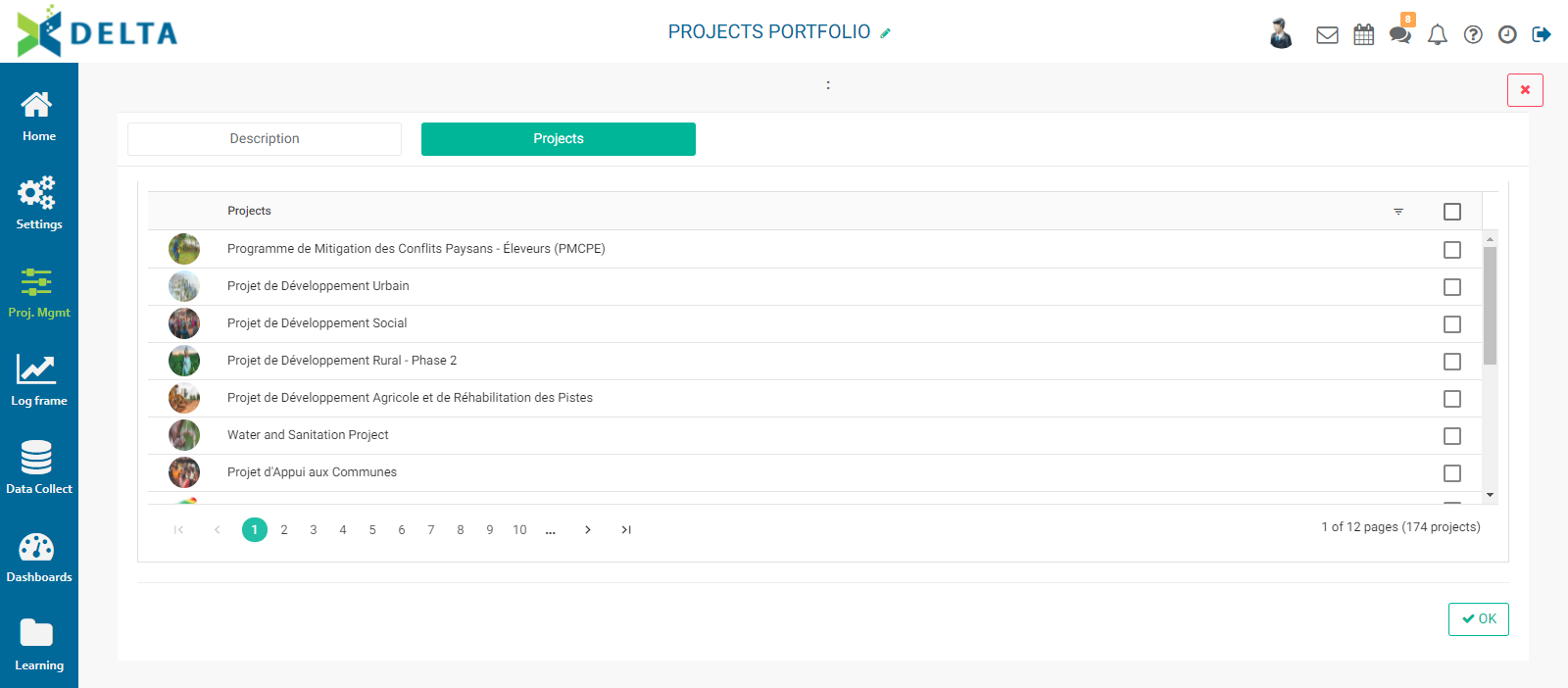
Select the projects to which you want to deploy the activity, and click OK to save your work. Click the X at top right to close the screen and return to the APB screen.
Verify that your new activity appears on the screen, and click on the activity to open it. Note the available tabs. Cross-cutting activities are created at the portfolio level, but informed at the project level. When you click on the cross-cutting activity you created, you’ll note that the Plan and Track tabs do not appear at the Portfolio level. Similarly, Workflows and Permissions are set at the Project level, and those optional interface items do not appear at the Portfolio level.
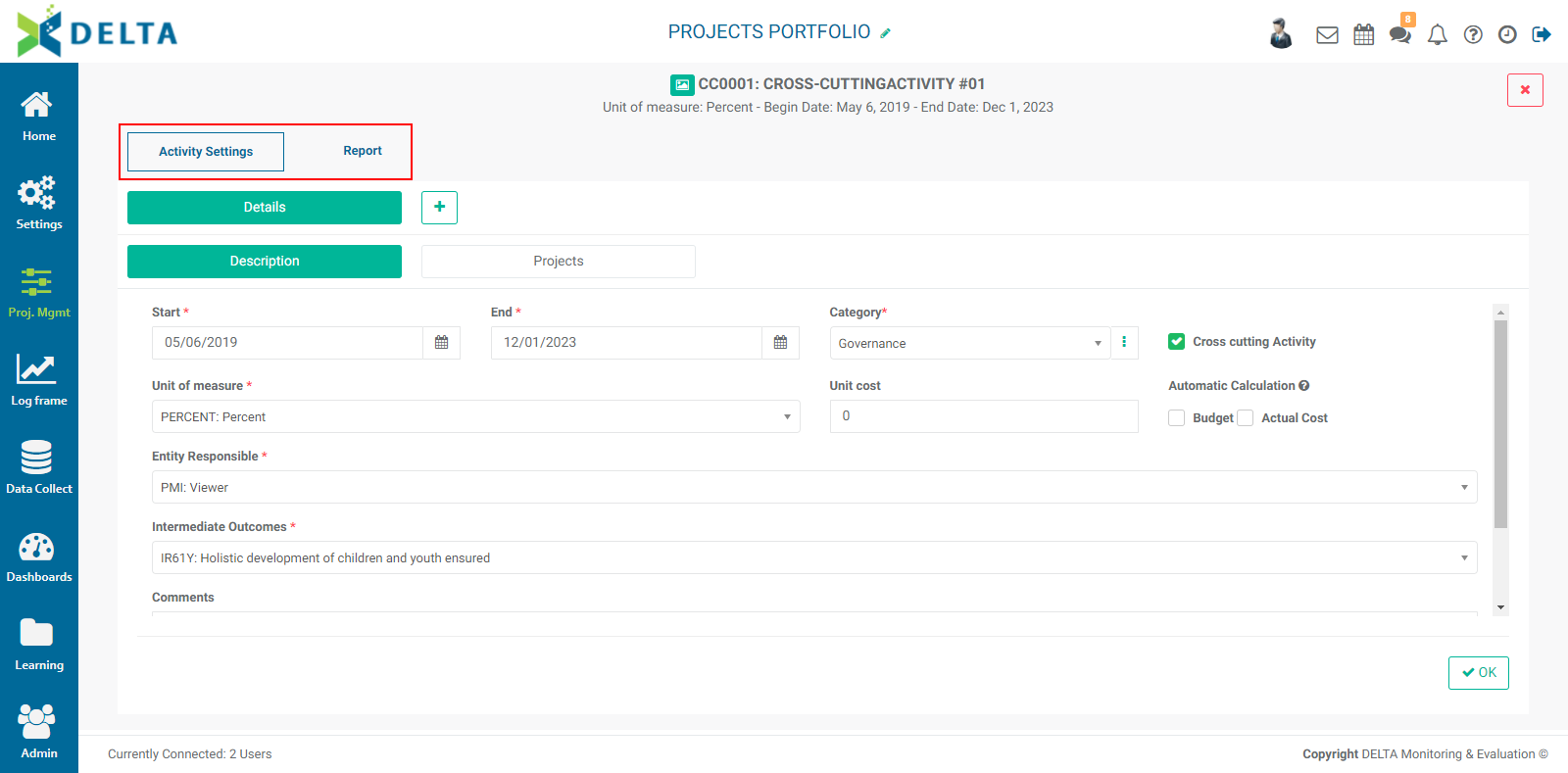
Before you can use the cross-cutting activity, you need to also configure it at the project level. Open a project to which you've deployed the cross-cutting activity, and open the activity from the project's Project Management module.
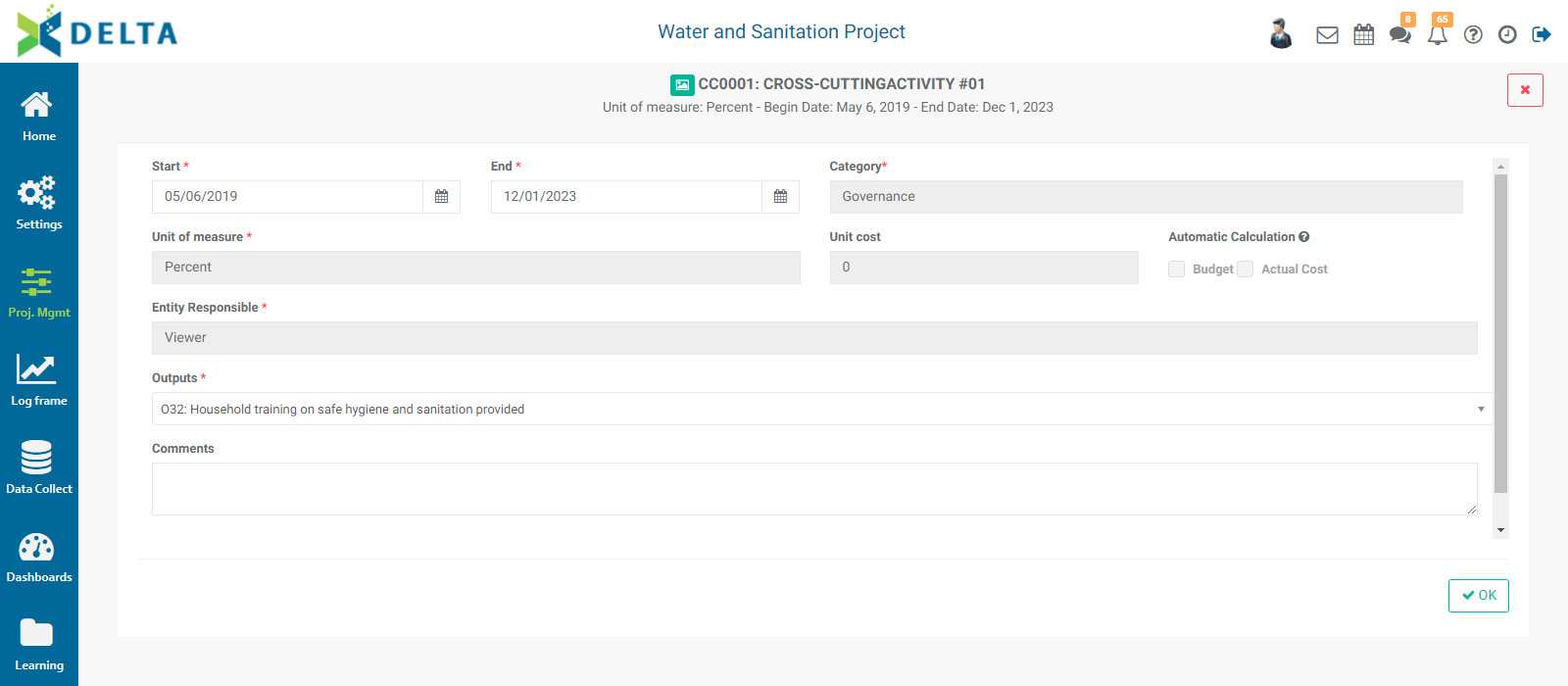
The activity needs one more item of configuration: it must be associated with a project log frame element. Most of the other fields are locked from editing at the project level because those parameters are set at the Portfolio level.
Select the start and end date for the cross-cutting activity, and select the correct project log frame element the activity needs to be associated with.
Click OK to save your work and return to the APB screen. The cross-cutting activity will now appear in the list as configured, with its unit of measure displayed in its line.
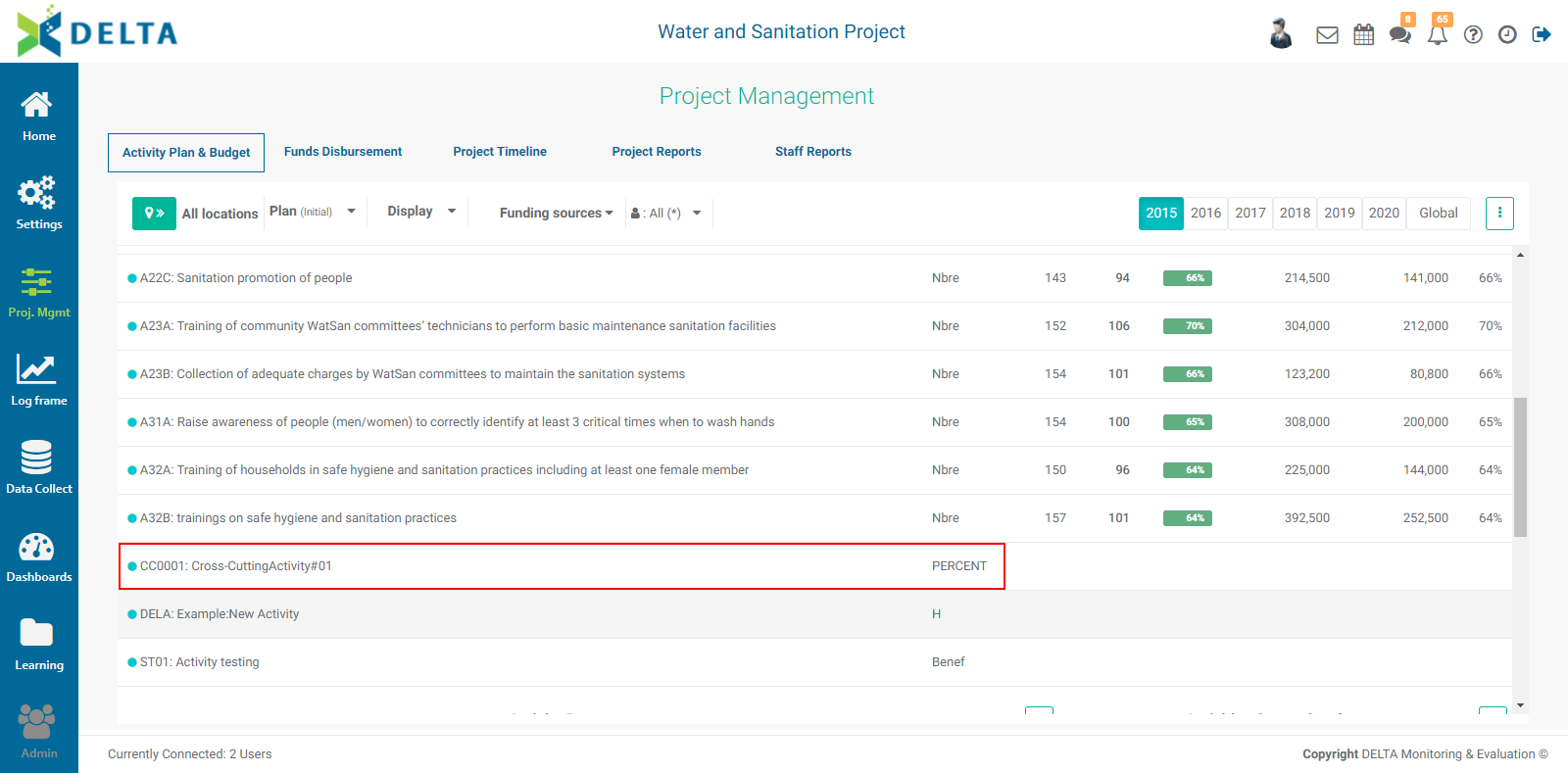
To view a cross-cutting activity’s report, from the Portfolio Project Management APB screen, click on a cross-cutting activity to open it and select the Report tab. You can select a single project, or all projects to display the relevant information for the cross-cutting activity. You can also select the year or the global view (timeline of the portfolio based on the projects it contains), initial or revised figures, and whether cost and budget are displayed.
Click the More icon at the right of the Search bar to share or export the dashboard.
If no information is available for a cross-cutting activity, it means that it has not been populated at the project level. To enter planning and tracking data into a cross-cutting activity, return to the Portfolio level, locate your project and open it. Enter the Project Management module and locate the cross-cutting activity you created. Click on it to open it.
In the (unlabeled) Details tab, enter the required information. In particular, you’ll need to assign a project-level log frame element to the activity. Click OK when you’re done to save your work and return to the APB screen.
Once you’ve entered the details for a cross-cutting activity at the project level, you can plan and track it, and report on it just like you would any project-level activity.
To enter planning and tracking data for a cross-cutting activity, you'll need to open each project in turn and enter the appropriate data there. Click on the Home icon to return to the Portfolio screen, and select a project to which the cross-cutting activity was deployed. Enter the project's Project Management module, and click the activity to open it. Enter planning and tracking data as you would for any activity, and click OK to save your work and return to the project's APB screen.
To view a cross-cutting activity’s report, from the Portfolio Project Management module's APB screen, click on a cross-cutting activity to open it, and select the Report tab. You can select a single project, or all projects to display the relevant information for the cross-cutting activity. You can also select the year or the global view (timeline of the portfolio based on the projects it contains), initial or revised figures, and whether cost and budget are displayed.
Click the More menu at the right of the Search bar to share or export the dashboard.
If no information is available for a cross-cutting activity, it means that it has not been populated at the project level.
Previous: PM: Activities: Permissions | Next: PM: Activities: Creating a New Activity
Author: Administrator
Last update: 2023-07-01 20:45
PM: Project Reports: Table Reports
The Project Reports screen regroups all the reports created for the project from a performance and budget standpoints. The data for these reports are derived from activities actuals. These reports therefore reflect the business intelligence (BI) aspects of project results: project performance, and budget/costs.
From the Project Management module, click the Project Reports tab to create and view activity reports.(1)
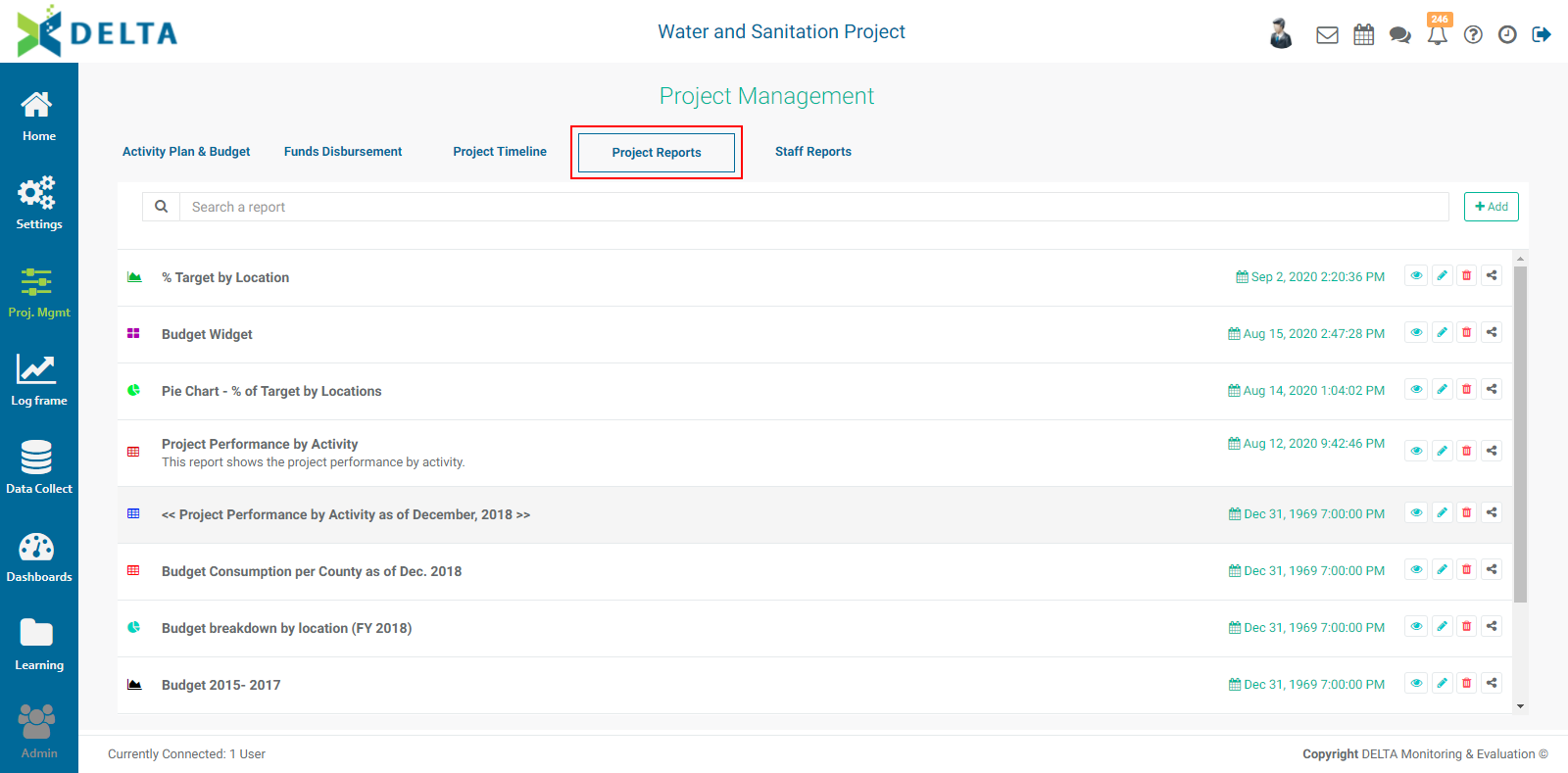
To create a custom report, click the +Add button at top right to bring up the menu.
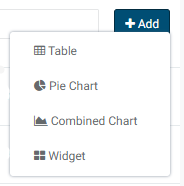
The first type of report is Table. This is a regular grid report. Select Table to bring up the Custom Reports - Table popup window.
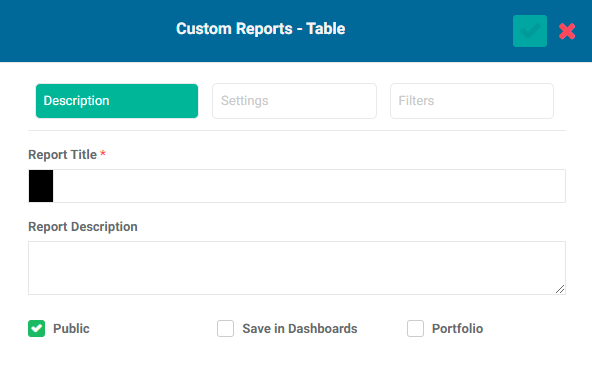
The window contains three tabs: Description, Settings, and Filters.
Enter a title for the report (mandatory) and a description (optional, but recommended as a best practice).
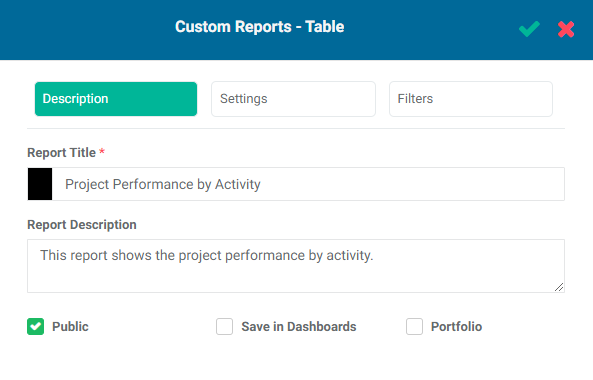
NOTE: once you've entered a title for the report, the Settings and Filter tabs will become active, as well as the checkmark in the popup window title bar.
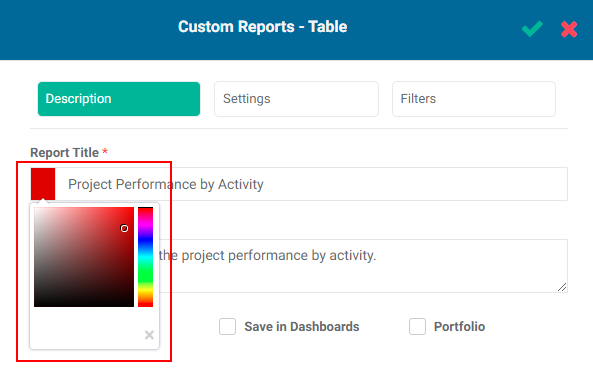
The default color for the report icon is black. Select another color by clicking on the color block to the left of the Title box to bring up the color picker.
Checking the Public box makes this report available to anyone. The Public option throughout Delta publishes selected project information to the Portal - the Delta login page - for access by anyone with the URL to the portal. This functionality is described in detail in Accessing Delta: Delta's Public Portal.
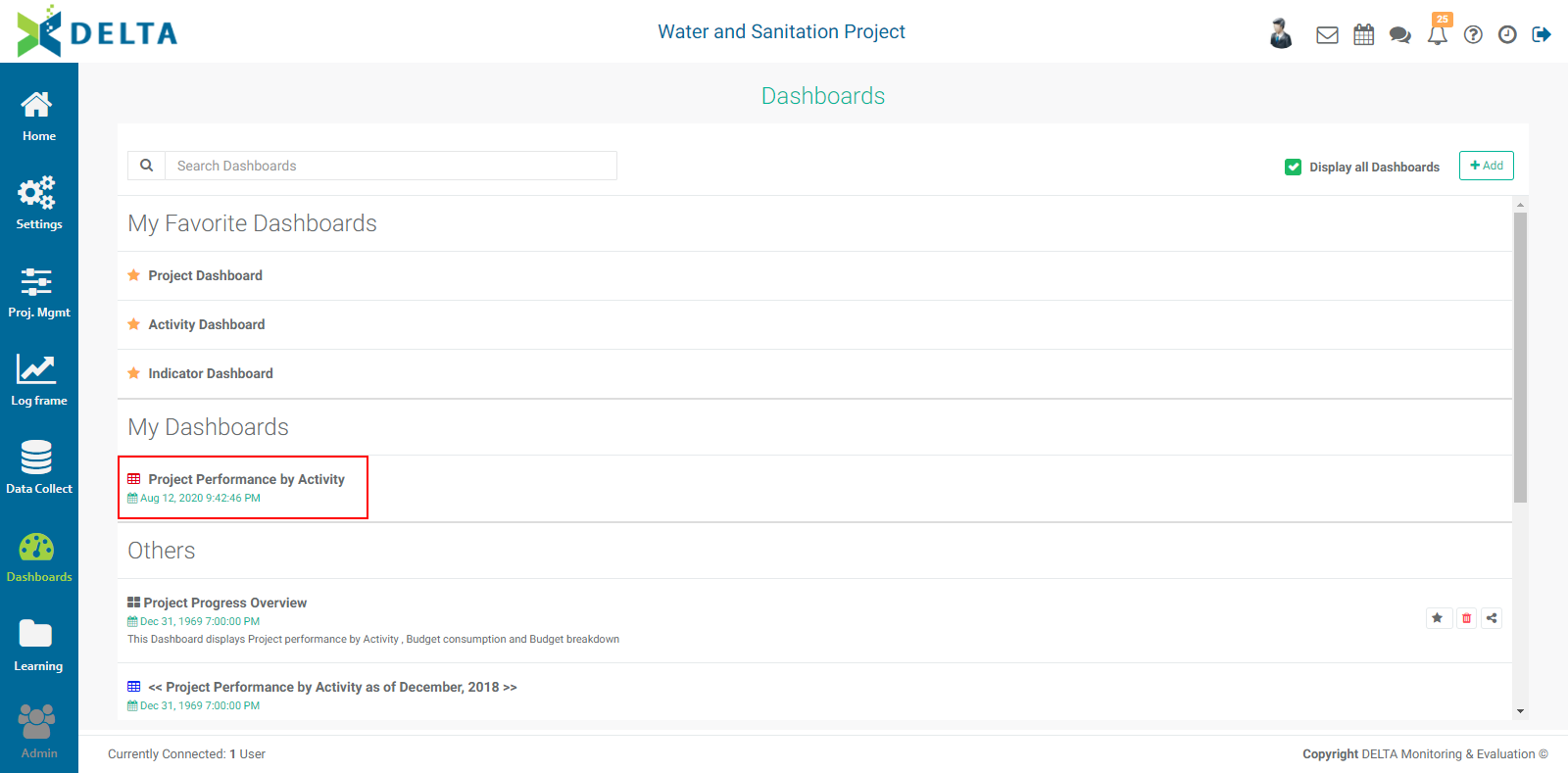
Checking the Save in Dashboards box will show this report in the Dashboards Module. It will appear in My Dashboards for you, and in Others for other users, who will then be able to add this report to their own dashboards.
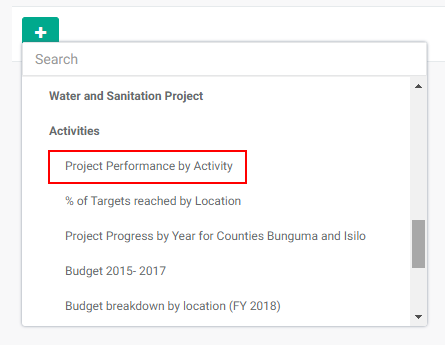
Checking the Portfolio box will make this report available at the Portfolio level. The reports' names appear in the Portfolio Dashboard pick list, sorted by project, and can then be used for multiproject dashboards. NOTE: all project reports are automatically available to be added to project custom dashboards.
In the Settings tab of the popup window, select the data set you want to use as the rows and columns of the table. The two pick lists are related: the options for both are Log Frame, Period, Locations, Financing Source, and Budget Categories. Each can only be used once in a table, so selecting one option from either of the pick lists removes it from the other one. In the example below, Period is selected by default in the Display By pick list, so it does not appear in the Rows pick list.
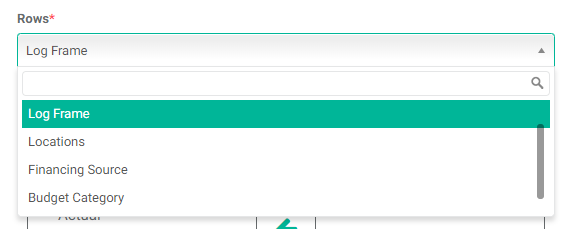
Select the fields you want to display in the table by dragging and dropping them from the Fields list to the Columns list. Click, hold, and drag the fields in the Columns list to reorder them.
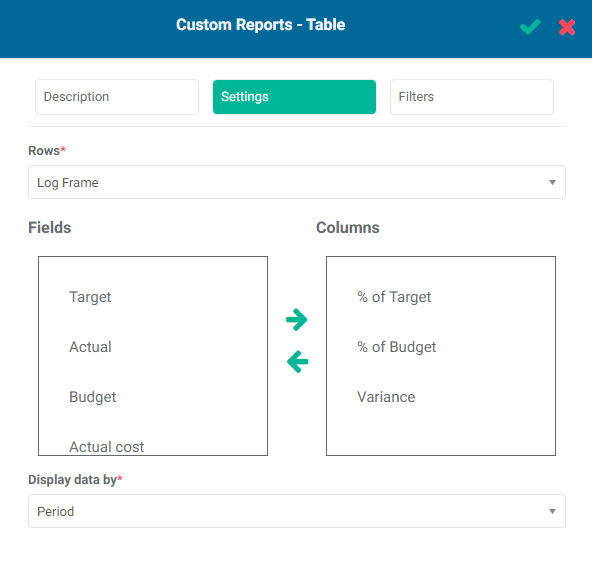
If you're done, click the checkmark in the popup window title bar to save your work and return to the Project Reports tab of the Project Management module. The new report will appear at the top of the list.
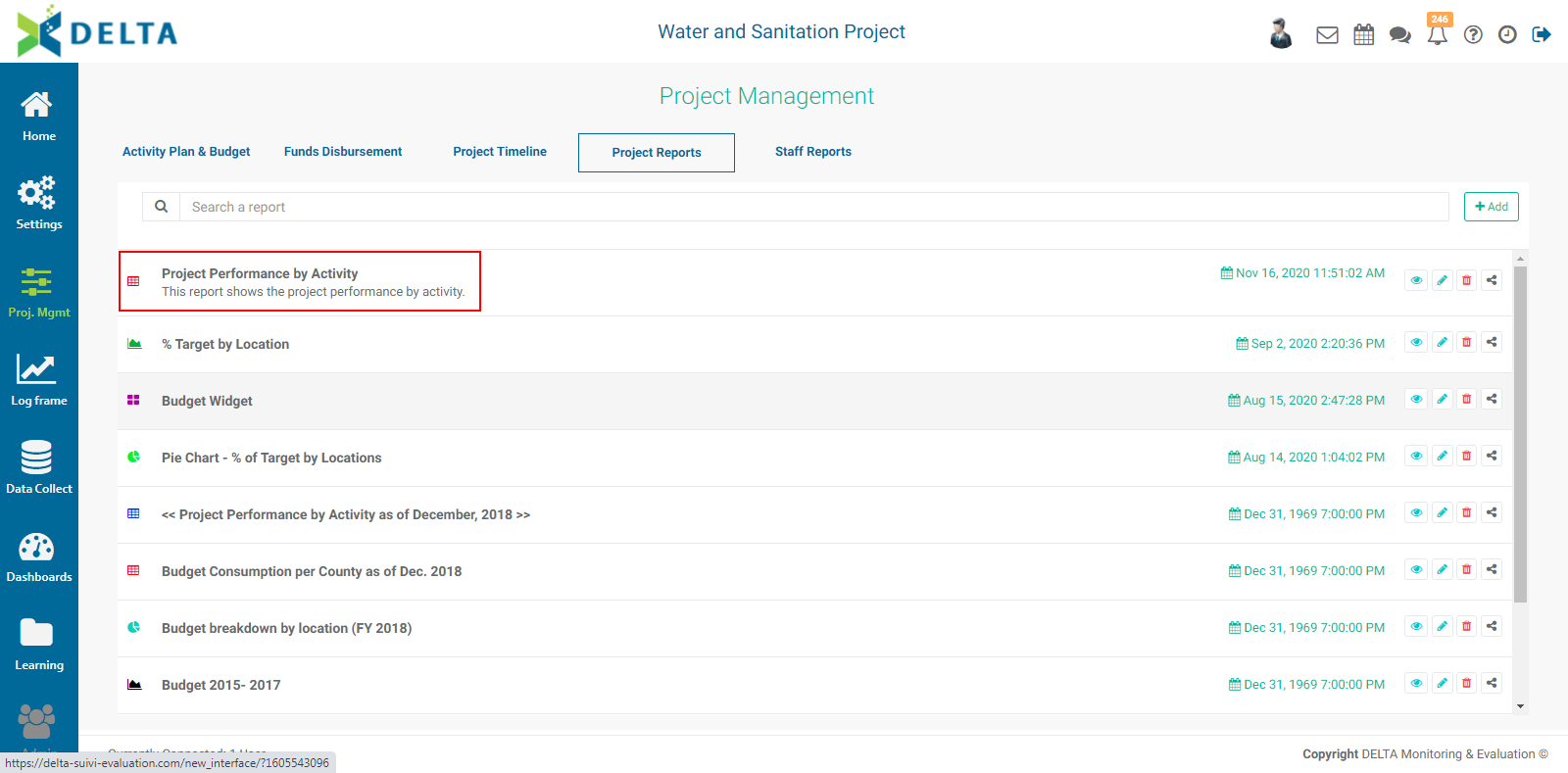
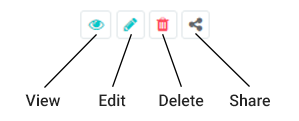
Reports are sorted by most recent first. They also feature a timestamp, and a toolbar with the following icons:
To view a report, click its name in the list, or click its View icon.
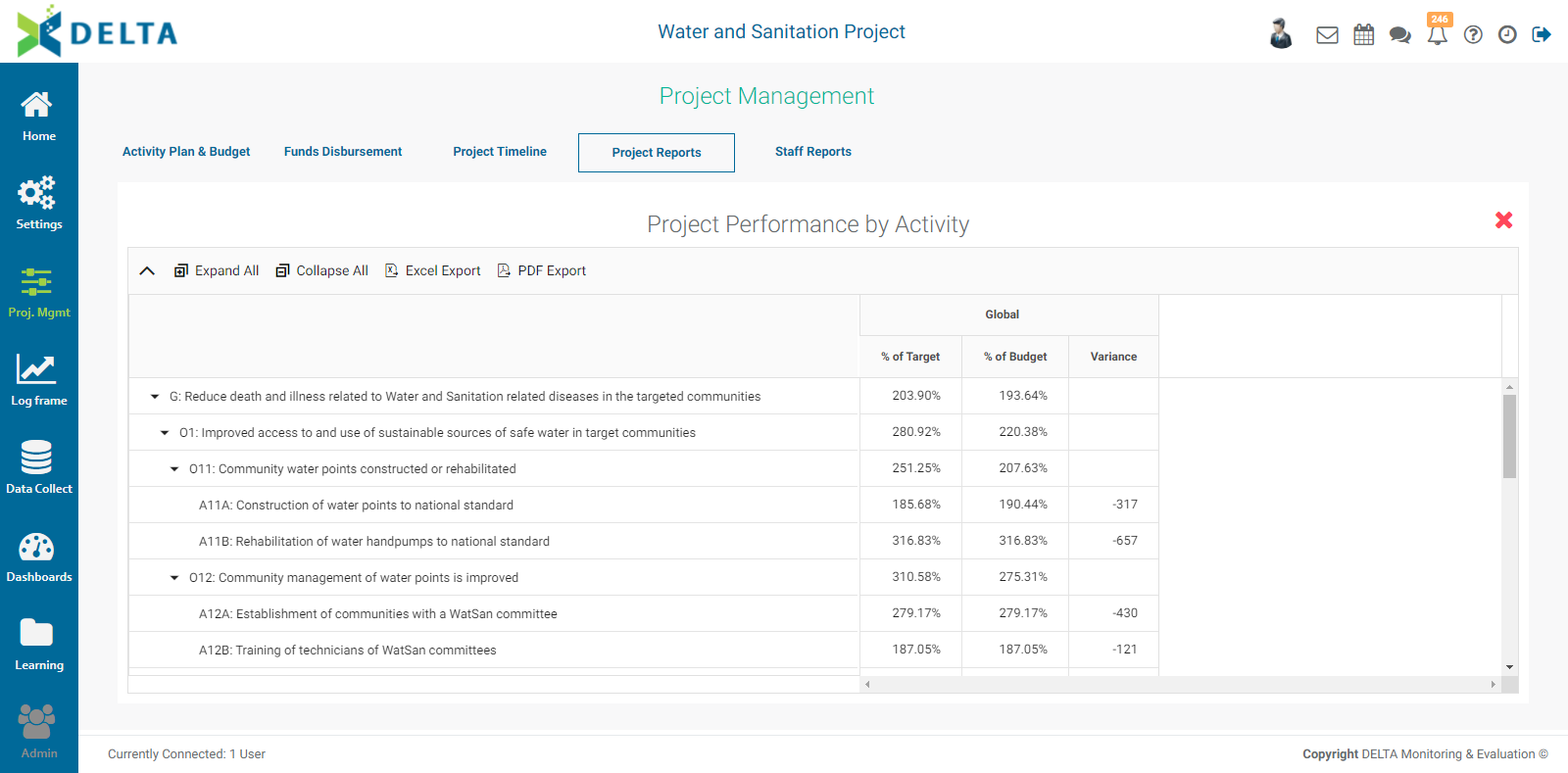
Note the position in the table layout of the items selected in the example: the Log Frame at left from the Rows pick list, the column headers based on Period, and the selected fields. The Rows and Display By selections are essentially a way to disaggregate your BI data.
Table reports by default initially display data at the highest level available for the selected item. Delta's BI reports allow users to further drill down into table data by simply double-clicking on the Display By header in the table. In our example, the Period (Display By) shows Global at the top, the highest level of data. Double-clicking on Global expands the data into years.
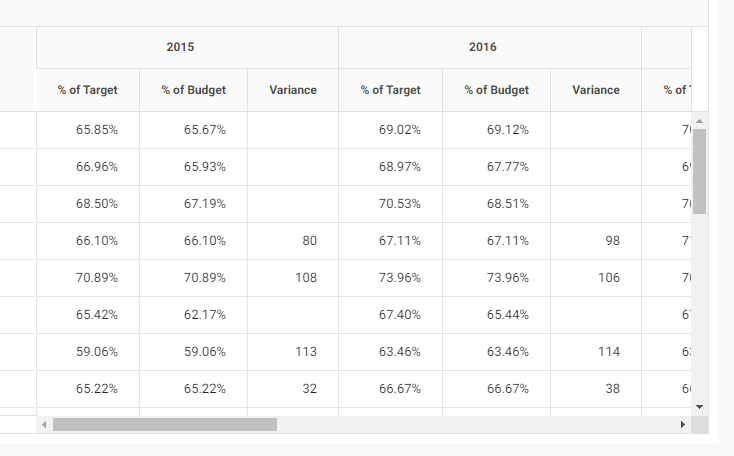
Double-clicking on a year expands it into its individual periods.
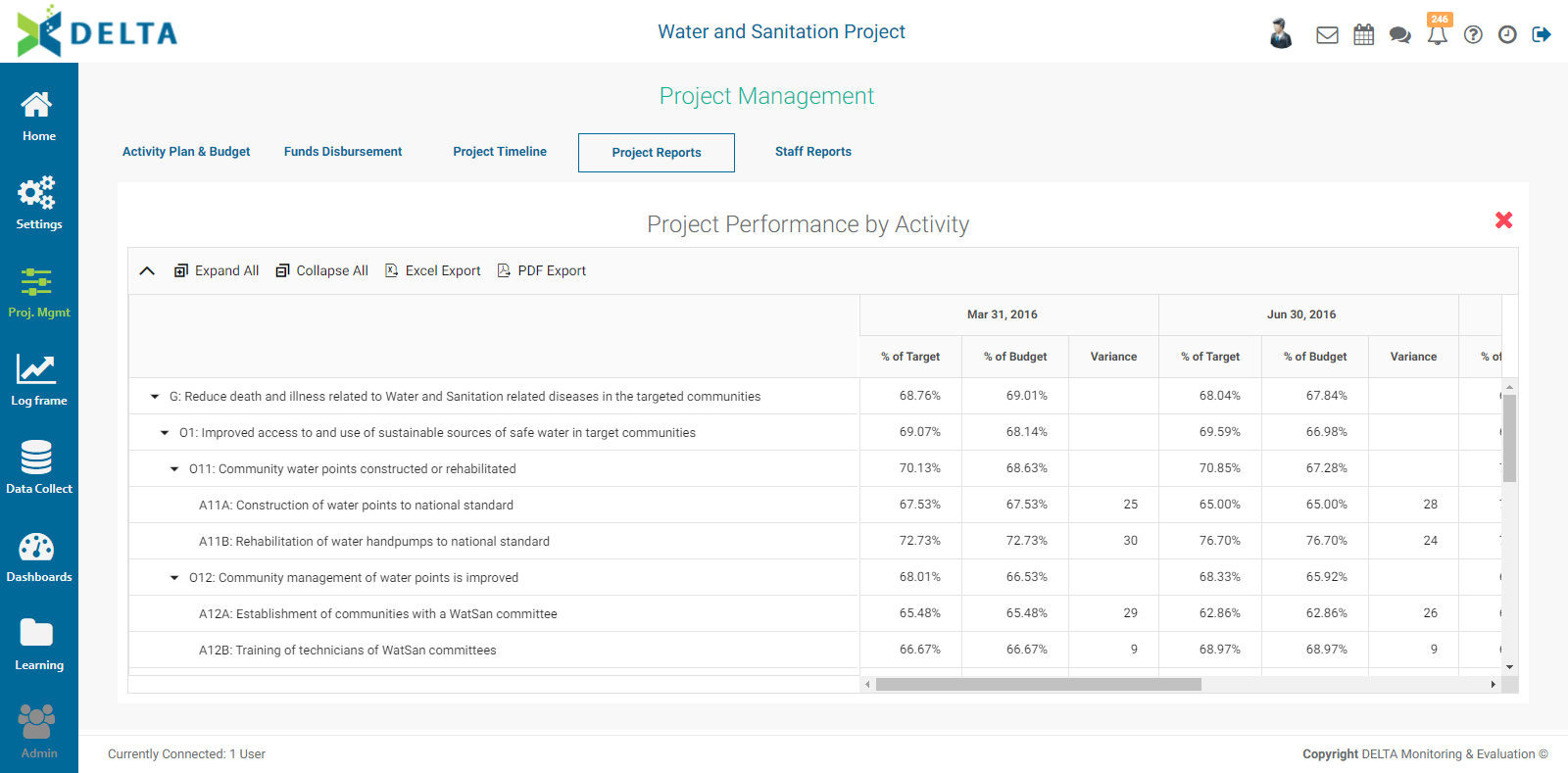
To return to higher levels from a drilldown, click the caret at top left next to the Expand button to "zoom out" of the data, eventually returning to the highest level view.

IMPORTANT: in the particular case of Periods in the example above, the Global level for Period appears because when the project was created, it was set up to have three levels of planning in the project definition's M&E Settings tab. For a project which is set up with two levels of planning, the top level for Period will be Annual (years), and only one drilldown will be available, down to individual periods. The period lengths are also set in the M&E Settings tab of the project.
Click the X at top right to close the report and return to the Reports list screen.
To edit a report, click the Edit icon in its toolbar. Make the desired changes to the report parameters, and click the checkmark in the Custom Reports - Table popup window title bar to save your work and return to the Reports list screen.
For our example, we'll change the Display By selection from Periods to Locations. This will break down project performance data by geographical location. Note that the highest level of (Display By) Locations appears as the top header, in this case the Country.
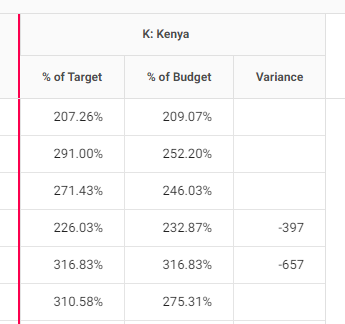
Double-clicking on the header drills down through the geography levels assigned to the Locations list in the Portfolio Settings module. The number of available drilldowns depends on the number of geography levels. Navigate out of the drilldowns by using the caret at top left as described above.
Note that the left pane (the Rows) scrolls independently from the rest of the table. You can also resize the two parts of the table by moving your cursor over the top of the vertical dividing line until the Resize cursor appears. Click, hold, and drag to resize the left pane. You can also resize each individual column in the right side of the table by clicking, holding and dragging the cell dividers. These are temporary settings, and will be reset when you close the report.
Table reports support the use of filters. Click the report's Edit icon, and click the Filters tab in the Custom Reports - Table popup window.
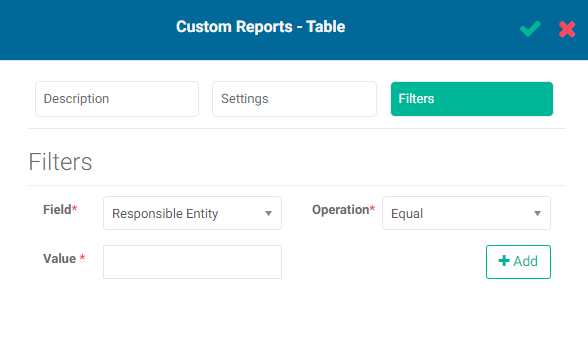
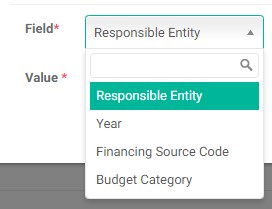
Select the field you wish to use as the basis for the filter. NOTE: the contents of this pick list will depend on which selections you made in the Rows and Display By pick lists.
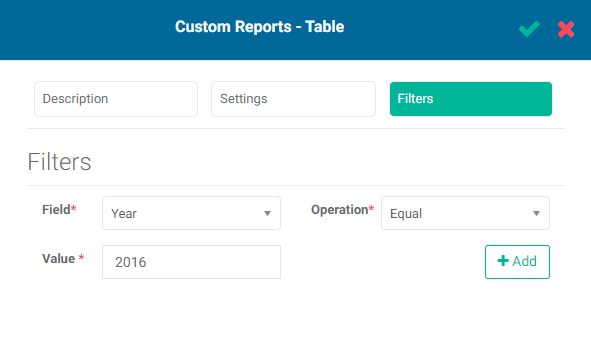
Select the operation you want the filter to perform, and the value of the filter. In this example, we're going to filter for data for the year 2016, where the Field is 'Year', the Operation is 'Equal', and the Value is '2016'.
Click the +Add button when you're done to save your filter. The Filters form will reset to blank, and your new filter will appear at the bottom of the screen.
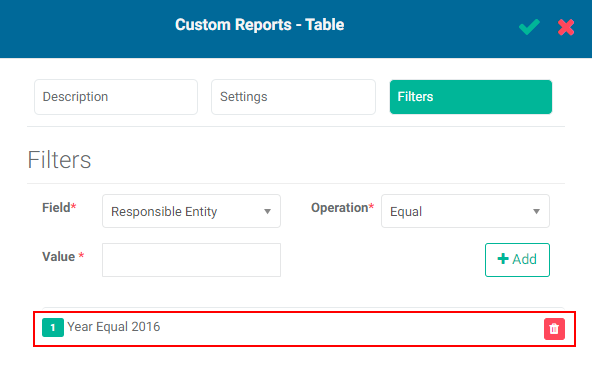
Click the checkmark in the Custom Reports - Table popup window title bar to save your work and return to the Reports list screen. Open the report to view the filtered data.
You can add as many filters as are needed. If you create more than one filter, you also need to add logic for the system to know how to handle multiple filters. The logic is simply AND/OR, and the correct syntax uses the number of the filter. In the example below, the logic is 1 OR 2, so either condition must be met. The AND operator requires that all conditions must be met, while the OR operator requires that at least one condition must be met.
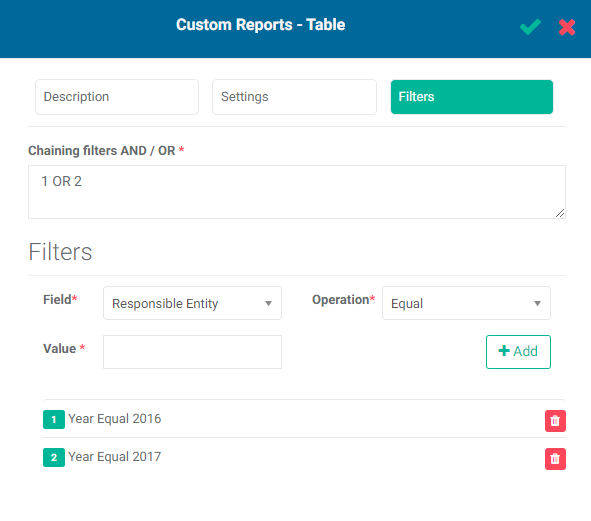
You can also use parentheses to group logical operations. In an instance with three filters, for example, 1 AND 2 OR 3 is parsed in the order in which it is written; but in 1 AND (2 OR 3), the contents of the parentheses are parsed first.
To remove a filter, click its Delete icon. There is currently no way by which a user can edit a filter, but they take very little time to set up, so replacing a faulty filter is easy.
While you're viewing a report, you can export it in Excel (.xlsx) or PDF (.pdf) format by clicking on either option at top left of the table.

The Share icon in the report's toolbar allows users to input notes, comments, media, or other information about the report with specified recipients.
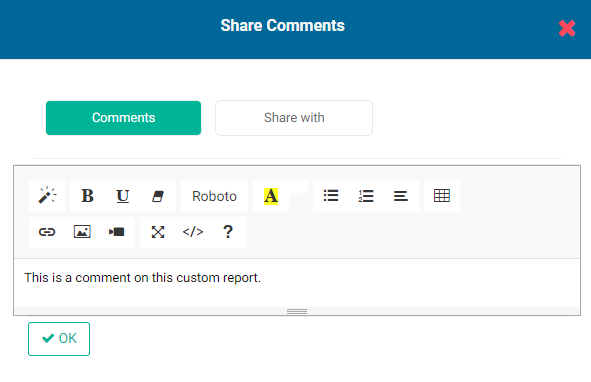
Note the three parallel lines at the bottom of the comment input box. Click, hold, and drag the lines to increase the height of the comment input box.
As you start to input content into the comments box, the Share With button appears. When you're done with your comment, click the Share With button to select recipients. Click OK when you're done. The selected persons will receive a notification in the form of a dot on top of their Alerts icon in the project's main toolbar.
(1) In earlier versions of Delta, these custom activity reports were located in the Analytics module.
Previous: PM: Project Timeline (Gantt Chart) | Next: PM: Project Reports: Pie Chart Reports
Author: Administrator
Last update: 2023-07-01 20:50
PM: Project Reports: Pie Chart Reports
The second type of Activity Custom Reports is Pie Chart. From the Project Management module, click on the Project Reports tab, click the +Add button, and select Pie Chart from the menu.
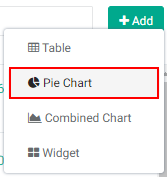
The Custom Reports - Pie Chart popup window opens.
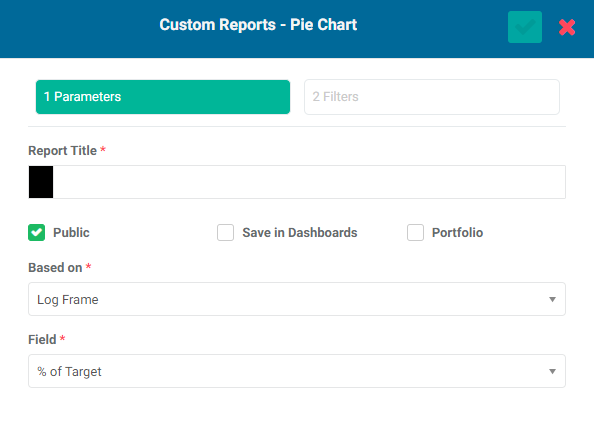
Enter a name for the report in the Report Title field.
The default color for the report icon is black. Select another color by clicking on the color block to the left of the Report Title box to bring up the color picker.
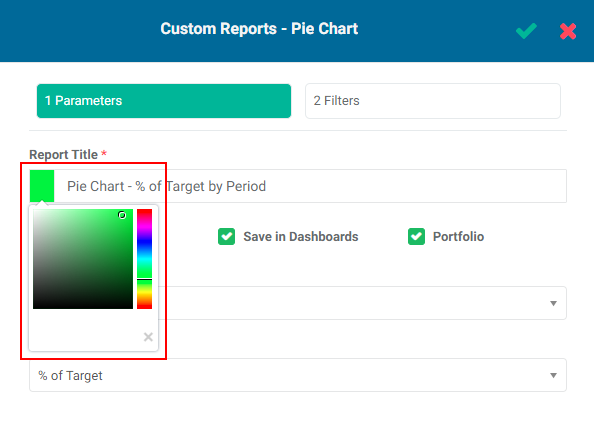
Checking the Public box makes this report available to anyone. The Public option throughout Delta publishes selected project information to the Portal - the Delta login page - for access by anyone with the URL to the portal. This optional functionality is described in detail in Accessing Delta: Delta's Public Portal.
Checking the Save in Dashboards box will show this report in the Dashboards Module. It will appear in My Dashboards for you, and in Others for other users, who will then be able to add this report to their own dashboards.
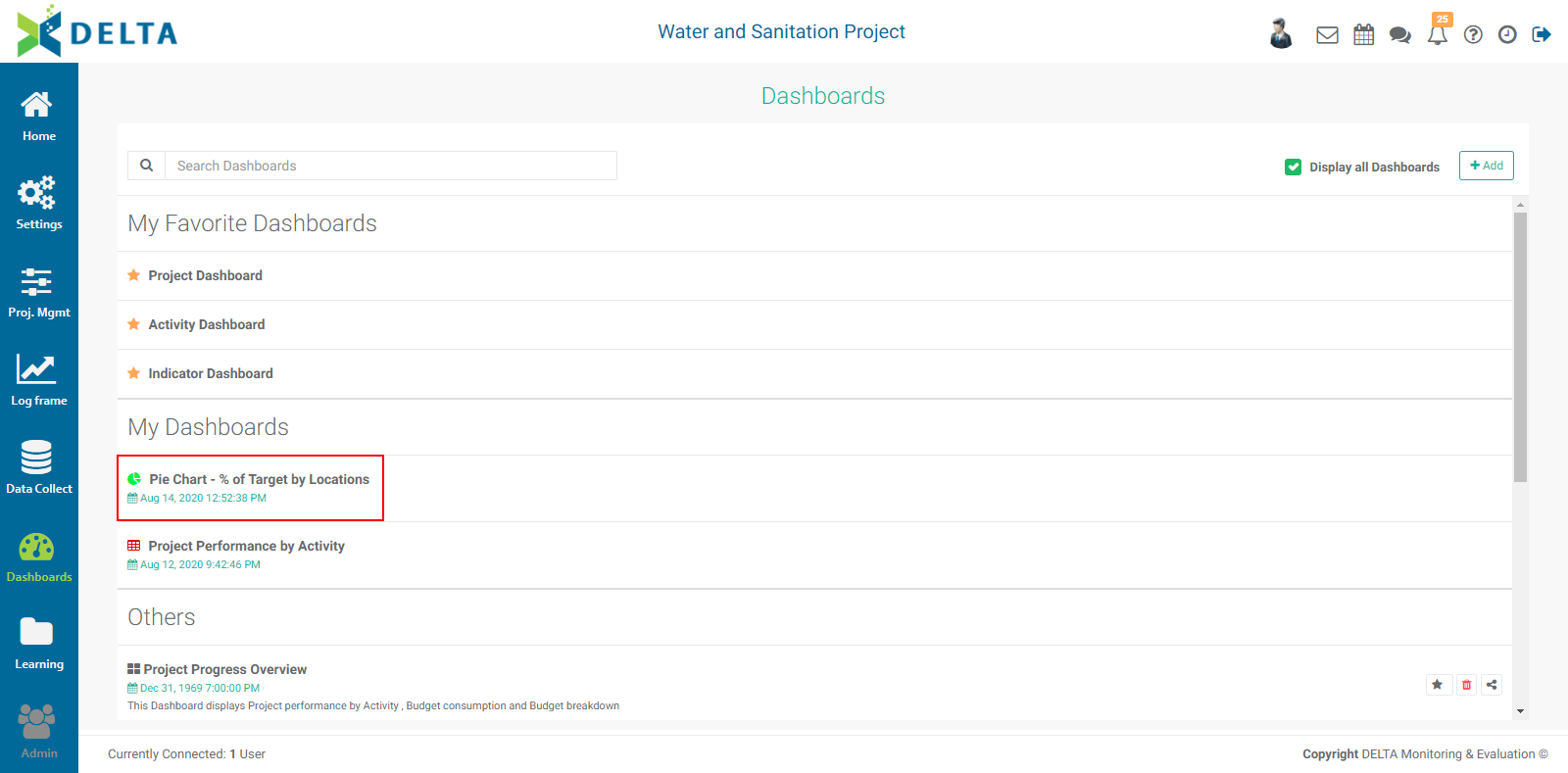
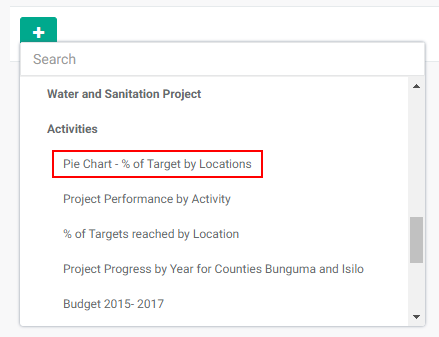
Checking the Portfolio box will make this report available at the Portfolio level. The reports' names appear in the Portfolio Dashboard pick list, sorted by project and type (Activities, Indicators, Forms), and can then be used for multiproject dashboards. NOTE: all project reports are automatically available to be added to project custom dashboards.
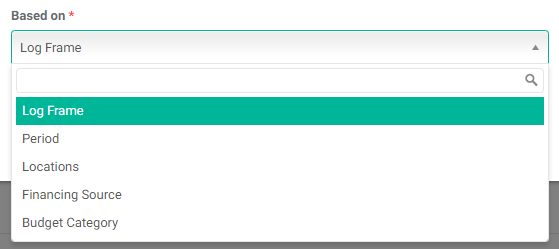
Select the basis for the pie chart from the Based On pick list. The options are Log Frame, Period, Locations, Financing Sources, and Budget Category.
Select the field you want to graph from the Field pick list.
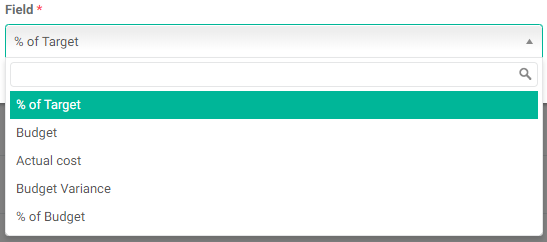
If you're done, click the checkmark in the popup window title bar to save your work and return to the Reports tab of the Project Management module. The new report will appear at the top of the list.
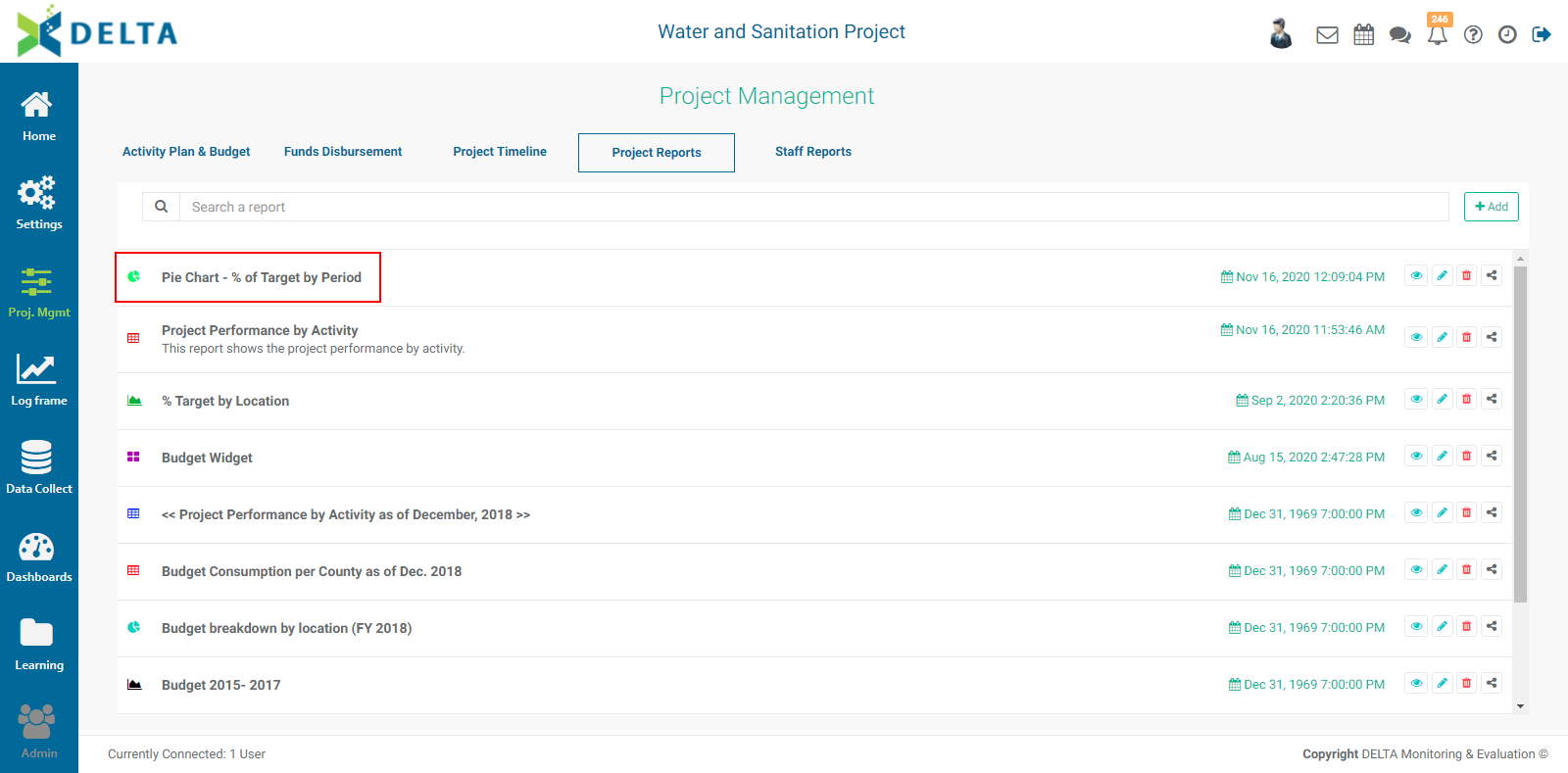
Reports are sorted by most recent first. They also feature a timestamp, and a toolbar with the following icons:
To view a report, click its name in the list, or click its View icon.
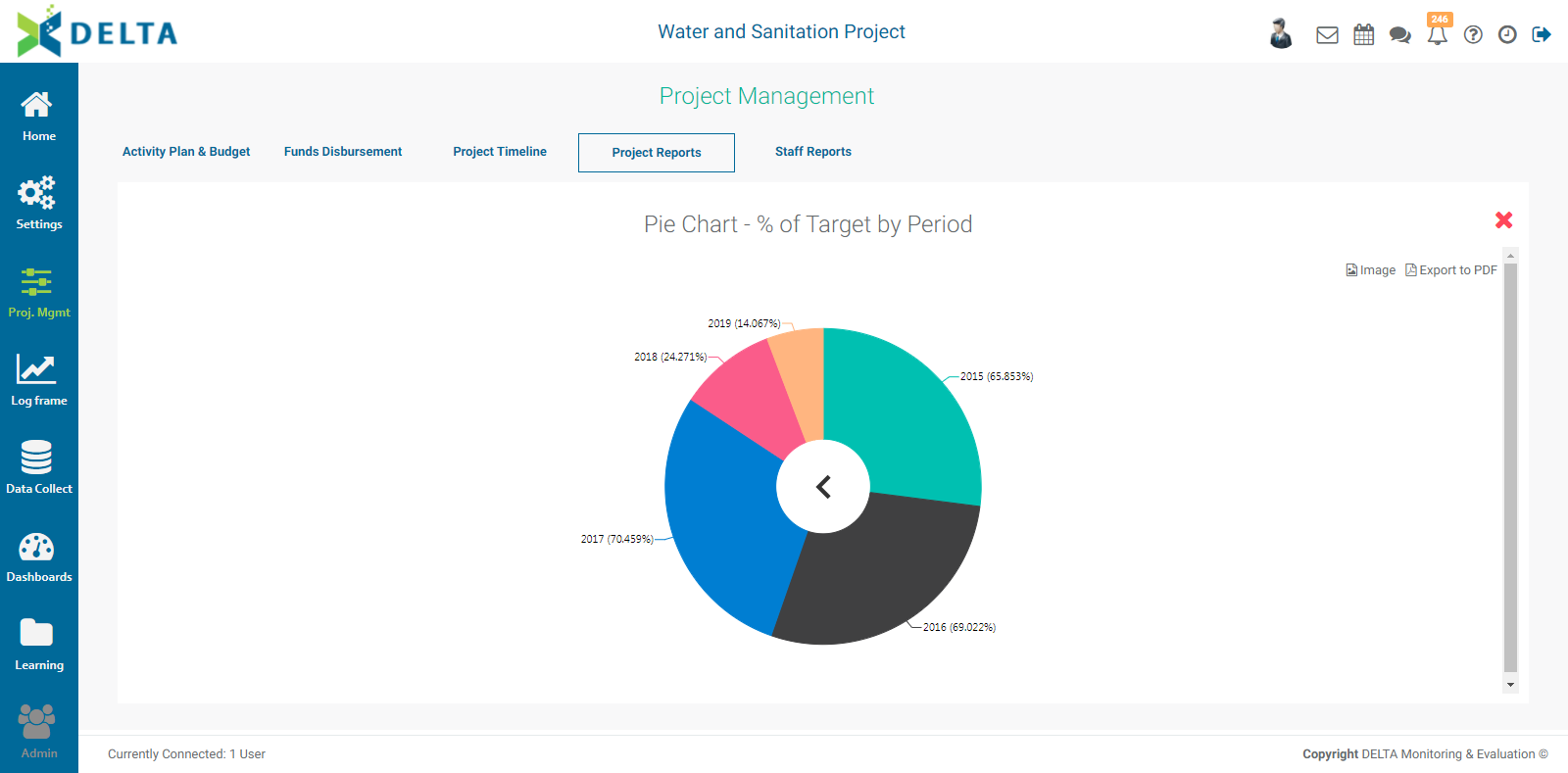
In the example above, the % Target is shown by period. There is no Global display. Each period shows Year and % Target. Year is the highest level available, and therefore is the default view.
Click the X at top right to close the report and return to the Reports list screen.
To edit a report, click the Edit icon in its toolbar. Make the desired changes to the report parameters, and click the checkmark in the Custom Reports - Table popup window title bar to save your work and return to the Reports list screen.
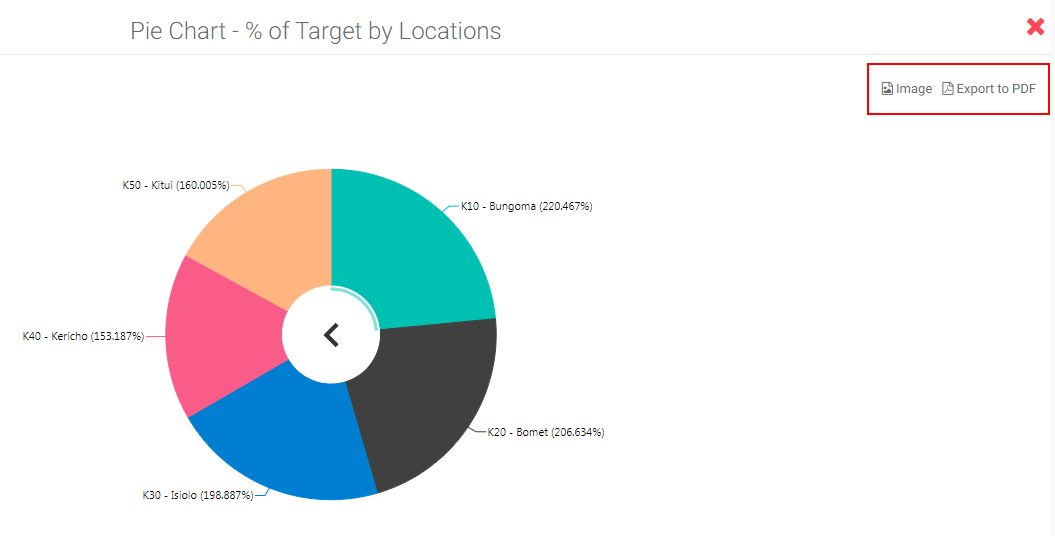
For our example, we'll change the % Target by Period to % Target by Locations. This will break down project performance data by geographical location. We'll also change the title of the report to reflect its settings.
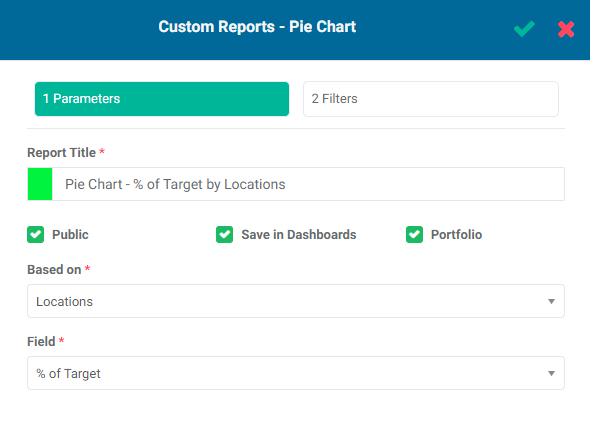
As before, the highest level is the default view. For Locations, this will usually be the country.
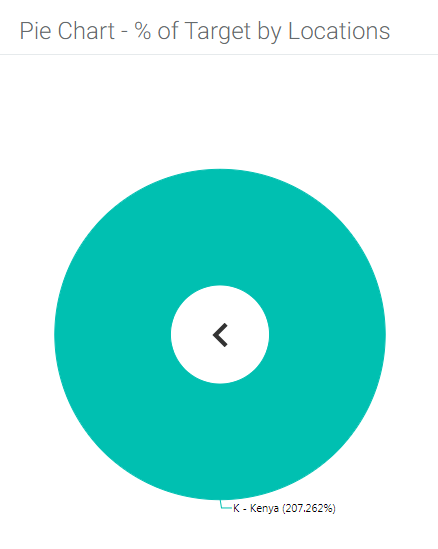
Pie Chart reports by default initially display data at the highest level available for the selected item. Delta's BI reports allow users to further drill down into pie chart data by simply clicking on the each slice of the pie chart. Click on the caret (<) in the middle of the chart to return to the higher levels of the data.
Click on the chart to drill down to the next level of the Locations list.
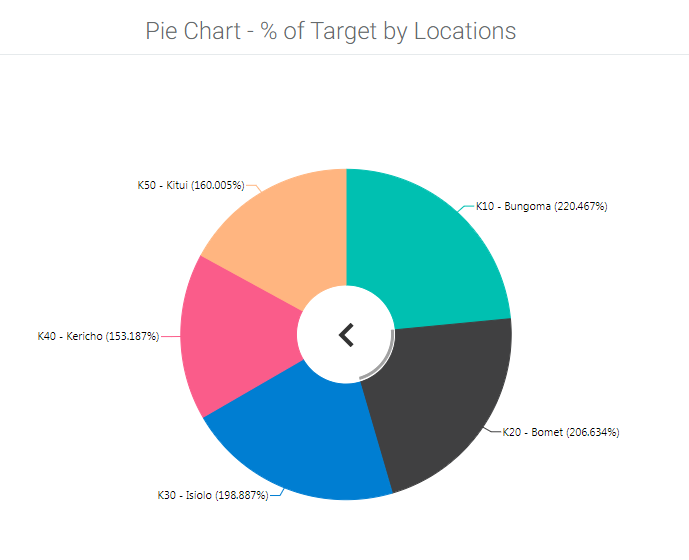
Click the caret (<) in the middle of the chart to return to higher levels of the Locations.
Pie Chart reports support the use of filters. Click the report's Edit icon, and click the Filters tab in the Custom Reports - Pie Chart popup window, then click the + button next to Add Filter.
Select the field you want to filter on. The options are Responsible Entity, Log Frame Code, Year, Financing Source Code, and Budget Category.
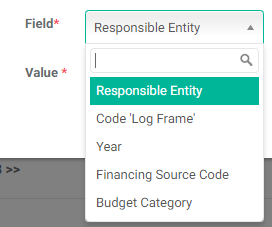
The Log Frame Code allows a user to pinpoint an exact element of the log frame for the report. The code is used instead of the element name to keep things short.
Select the operation you want the filter to perform, and the value of the filter. In this example, we're going to filter for data for the year 2016, where the Field is 'Year', the Operation is 'Equal', and the Value is '2016'.
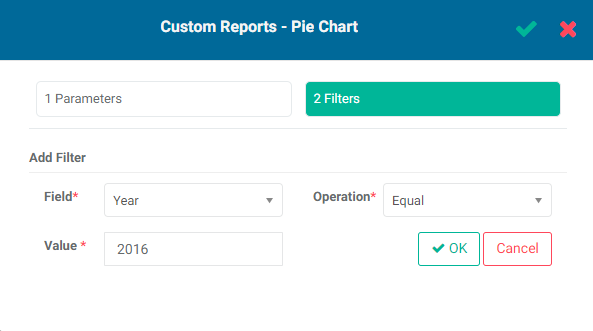
Click OK when you're done to save your filter. Your new filter will appear at the bottom of the popup window.
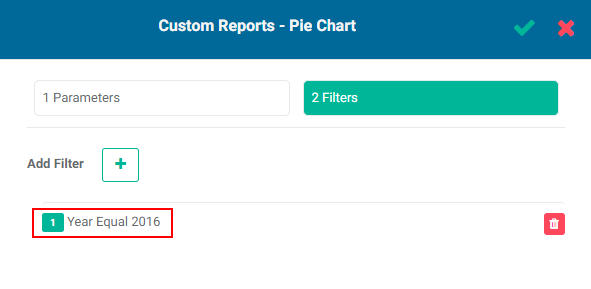
Click the checkmark in the Custom Reports - Table popup window title bar to save your work and return to the Reports list screen. Open the report to view the filtered data.
You can add as many filters as are needed. If you create more than one filter, you also need to add logic for the system to know how to handle multiple filters. The logic is simply AND/OR, and the correct syntax uses the number of the filter. In the example below, the logic is 1 OR 2, so either condition must be met. The AND operator requires that all conditions must be met, while the OR operator requires that at least one condition must be met.
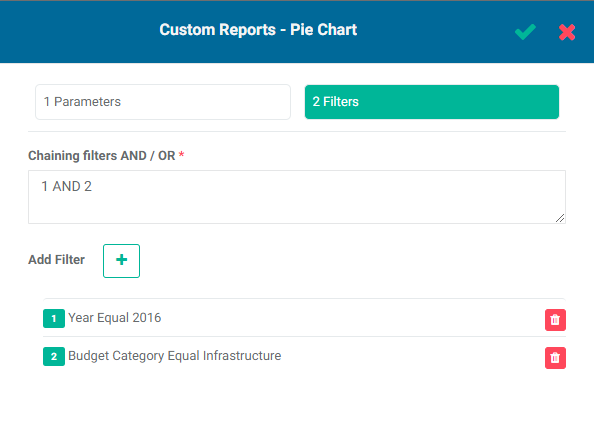
You can also use parentheses to group logical operations. In an instance with three filters, for example, 1 AND 2 OR 3 is parsed in the order in which it is written; but in 1 AND (2 OR 3), the contents of the parentheses are parsed first.
To remove a filter, click its Delete icon. There is currently no way by which a user can edit a filter, but they take very little time to set up, so replacing an incorrect filter is easy.
While you're viewing a pie chart report, you can export it in Image (.png) or PDF (.pdf) format by clicking on either option at top right of the screen. Note that if any filters are applied, this will be reflected in the exported file.
The Share icon in the report's toolbar allows users to input notes, comments, media, or other information about the report with specified recipients.
Note the three parallel lines at the bottom of the comment input box. Click, hold, and drag the lines to increase the height of the comment input box.
As you start to input content into the comments box, the Share With button appears. When you're done with your comment, click the Share With button to select recipients. Click OK when you're done. The selected persons will receive a notification in the form of a dot on top of their Alerts icon in the project's main toolbar.
Previous: PM: Project Reports: Table Reports | Next: PM: Project Reports: Combined Chart Reports
Author: Administrator
Last update: 2023-07-01 20:53
PM: Project Reports: Combined Chart Reports
The third type of Activity Custom Report is Combined Chart. This type of report allows you to graph series side-by-side.
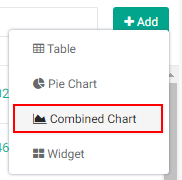
From the Project Management module, select the Reports tab, then click the +Add button at top right to bring up the menu, and select Combined Chart.
The Custom Report - Combined Chart popup window will open.
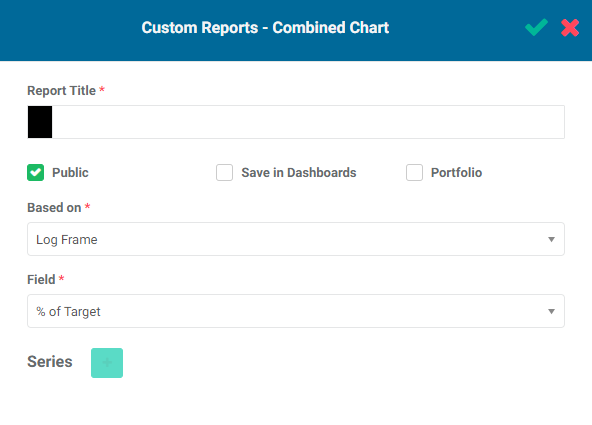
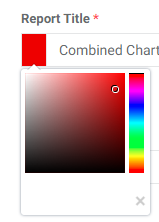
Enter a title for the report. This will enable the Series + button at the bottom of the popup window. If desired, change the default color for the report icon by clicking on the color block to the left of the Report Title box to bring up the color picker.
Checking the Public box makes this report available to anyone. The Public option throughout Delta publishes selected project information to the Portal - the Delta login page - for access by anyone with the URL to the portal, without the need for system access credentials. This functionality is described in detail in Accessing Delta: Delta's Public Portal.
Checking the Save in Dashboards box will show this report in the Dashboards Module. It will appear in My Dashboards for you, and in Others for other users, who will then be able to add this report to their own dashboards.
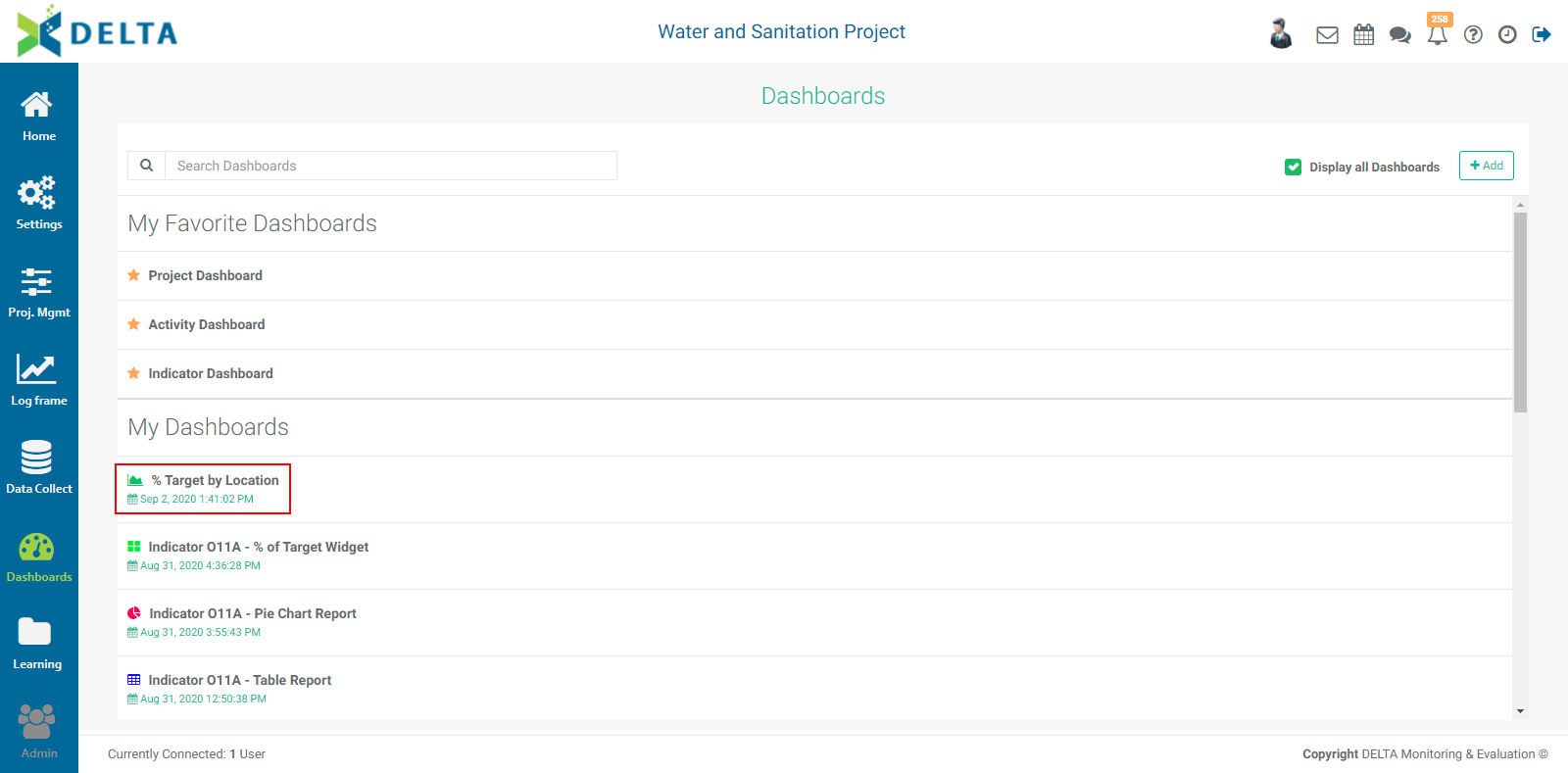
Checking the Portfolio box will make this report available at the Portfolio level. The reports' names appear in the Portfolio Dashboard pick list, sorted by project and type (Activities, Indicators, Forms), and can then be used for multiproject dashboards. NOTE: all project reports are automatically available to be added to project custom dashboards.
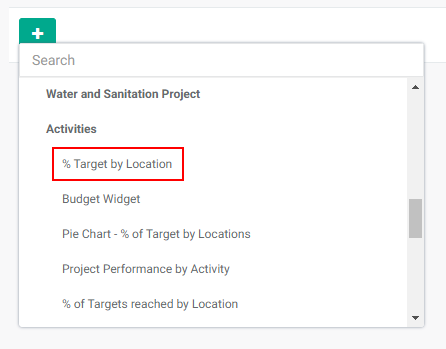
Select the basis for the combined graph from the Based On pick list. The options are Log Frame, Period, Locations, Financing Sources, and Budget Category.
Select the field you want to graph from the Field pick list.
Click the + button next to Series to add a series. In this example, we are going to breakdown '% of Target' by Location and by Year, the latter using series.
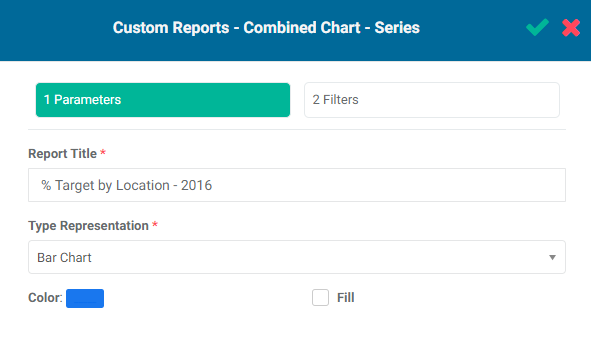
The Report Title in this context is the title for the series. Type Representation are the graphing options: Line Chart and Bar Chart. The Fill checkbox toggles whether the space under a line graph or the bars in a bar graph are filled with the selected color.
When you enter the series title, the Filters tab is enabled. The Filters functionality is similar to that available in other custom reports in Delta, except that in Combined Charts, filters must be used to create the data subsets you wish to graph side-by-side. Click the Filters tab to enter the tab, then click + to add a new filter.
Select the field you want to filter on. The options are Responsible Entity, Log Frame Code, Year, Financing Source Code, and Budget Category.
The Log Frame Code allows a user to pinpoint an exact element of the log frame for the report. The code is used instead of the element name to keep things short.
Select the operation you want the filter to perform, and the value of the filter. In this example, we're going to filter for data for the year 2016, where the Field is 'Year', the Operation is 'Equal', and the Value is '2016'.
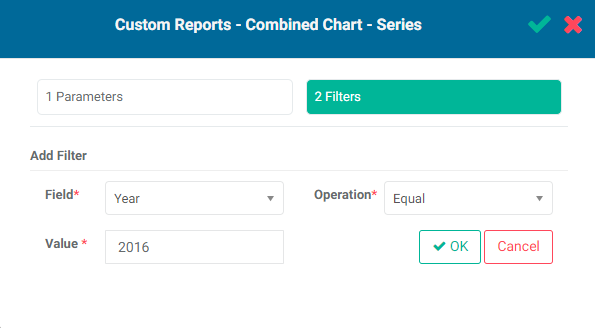
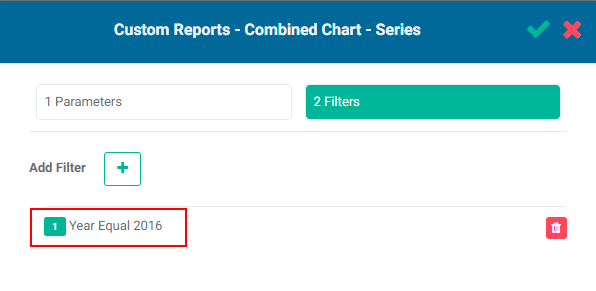
Click OK when you're done to save your filter. The new filter will appear at the bottom of the popup window.
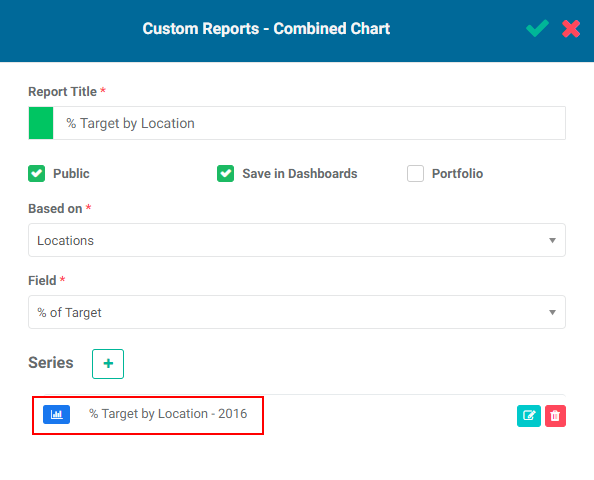
Click the checkmark in the popup window to save this series and return to the Combined Chart popup window. The series will appear at the bottom of the window. The color of the icon is that of the color you selected for the bar or line graph.
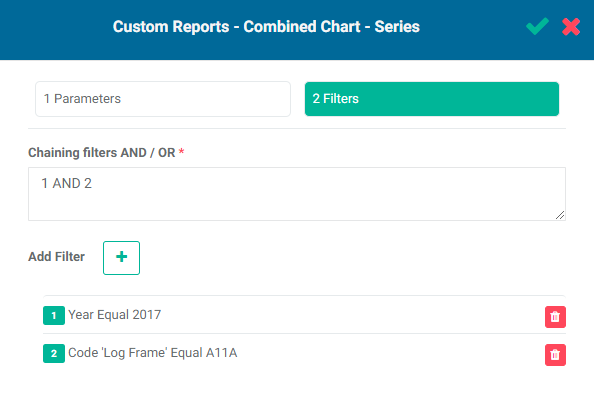
When using filters for a series, you can add as many filters as are needed. If you create more than one filter, you also need to add logic for the system to know how to handle multiple filters. The logic is simply AND/OR, and the correct syntax uses the number of the filter. In the example below, the logic is 1 AND 2, so both conditions must be met. The AND operator requires that all conditions must be met, while the OR operator requires that at least one condition must be met.
In this example, the filters will only return data from Activity A11A for 2017.
Add as many series as needed for the combined graph.
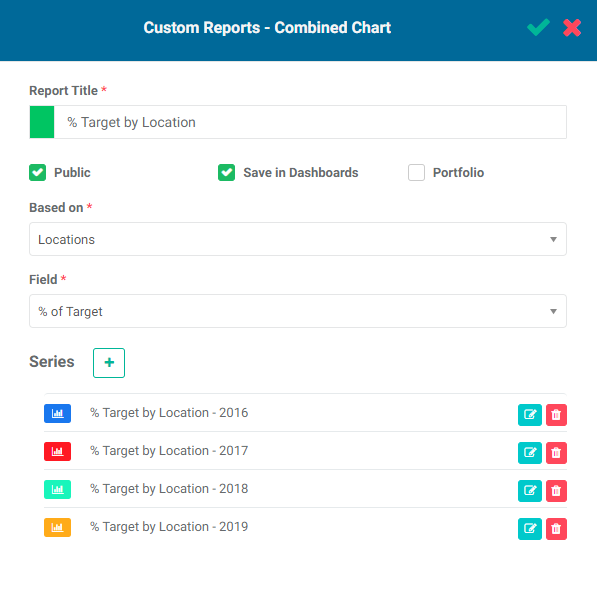
To edit a series, click its Edit icon and make your changes. To delete a series, click its Delete icon.
When you've added all the series you need, click the checkmark in the title bar of the Combined Chart popup window to save your work and return to the Reports screen. The new report will appear at the top of the list.
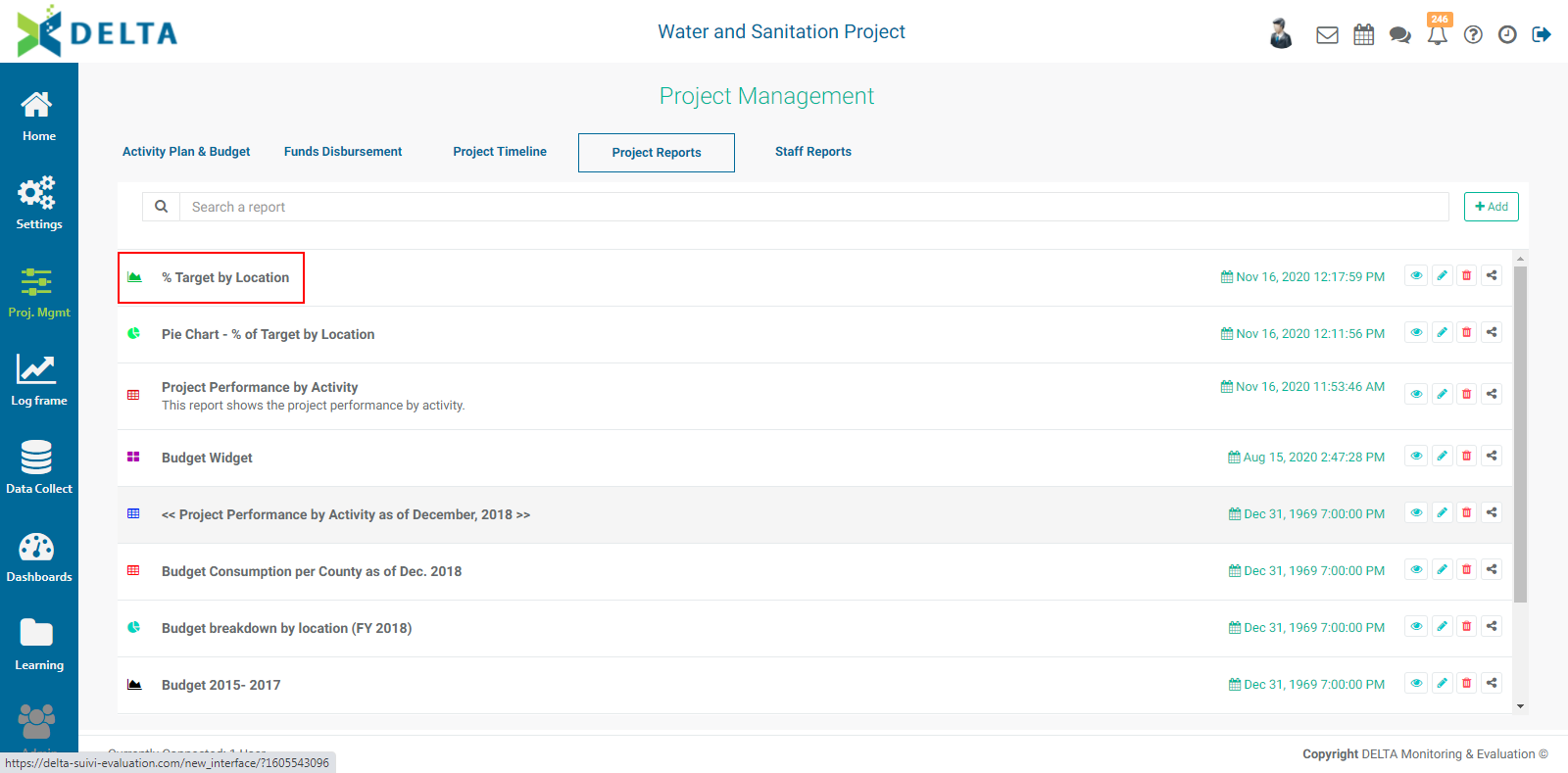
To view the report, click its name in the list, or the View icon in its toolbar.
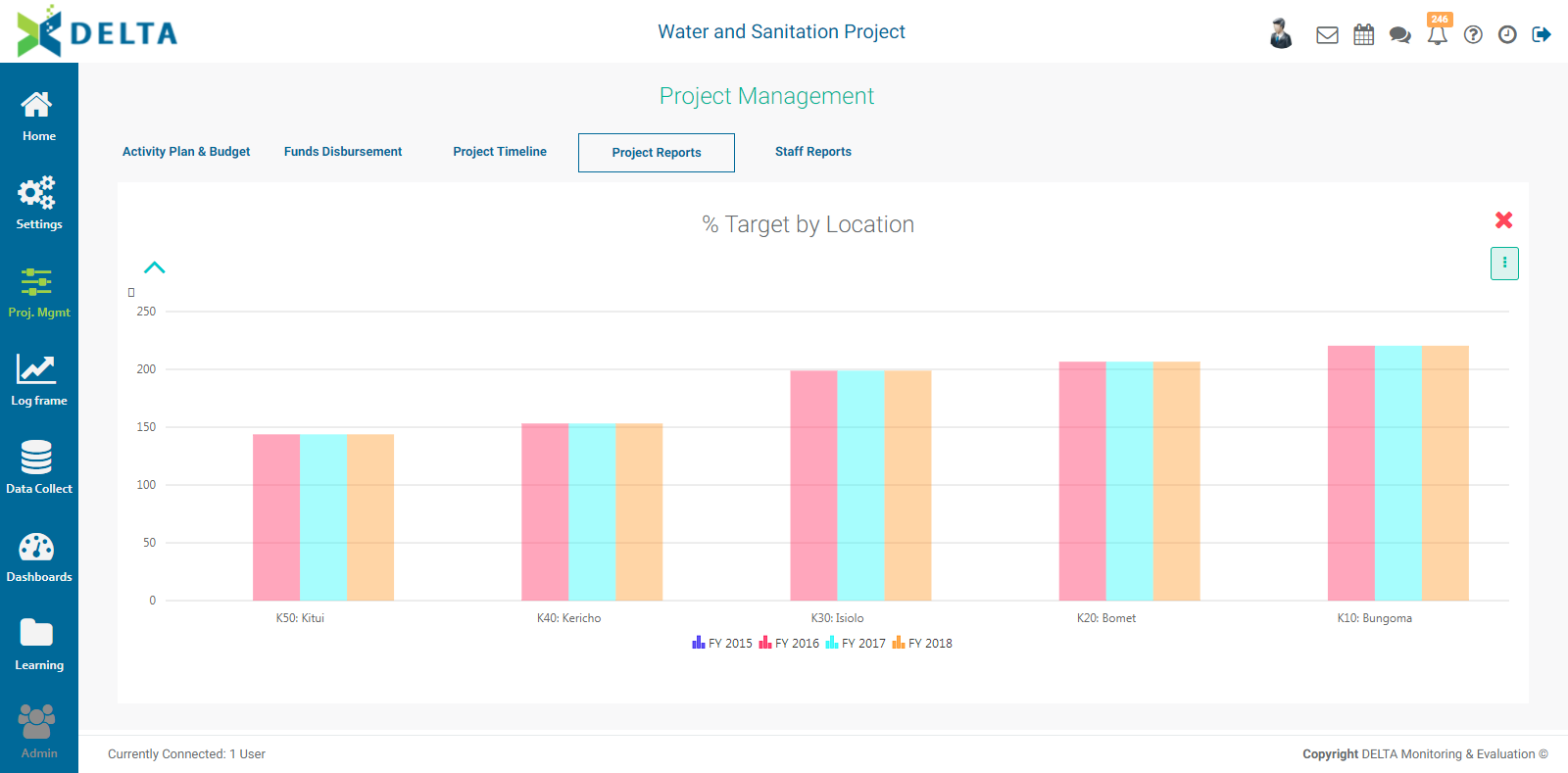
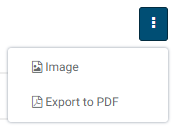
To export the report, open it, then click the vertical More icon at top right. The format options are Image (.png format) and PDF.
To share a report, click its Share icon from the Reports list screen. Enter a comment, and select the recipients.
To delete a report, click its Delete icon.
Previous: PM: Project Reports: Pie Chart Reports | Next: PM: Project Reports: Widgets
Author: Administrator
Last update: 2023-07-01 20:56
PM: Project Reports: Widgets
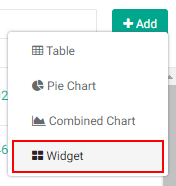
The fourth and last type of Activity Custom Report is Widget. Widgets contain a single data element. From the Project Management module, click the Reports tab, then click the +Add button at top right, and select Widget from the menu.
The Custom Report - Widget popup window will open.

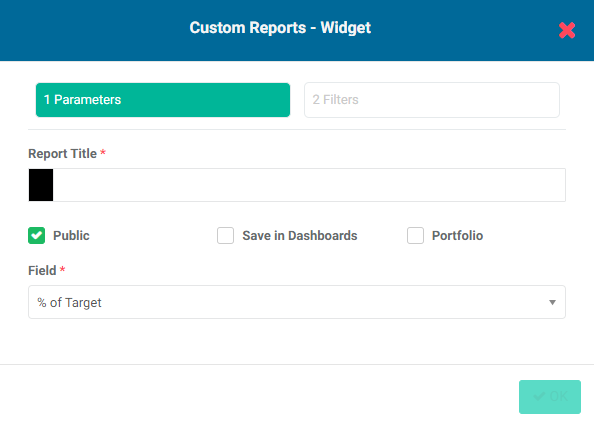
Enter a name for the report in the Report Title field.
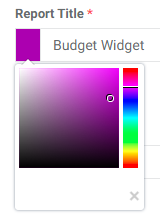
The default color for the report icon is black. Select another color by clicking on the color block to the left of the Report Title box to bring up the color picker.
Checking the Public box makes this report available to anyone. The Public option throughout Delta publishes selected project information to the Portal - the Delta login page - for access by anyone with the URL to the portal. This functionality is described in detail in Accessing Delta: Delta's Public Portal.
Checking the Save in Dashboards box will show this report in the Dashboards Module. It will appear in My Dashboards for you, and in Others for other users, who will then be able to add this report to their own dashboards.
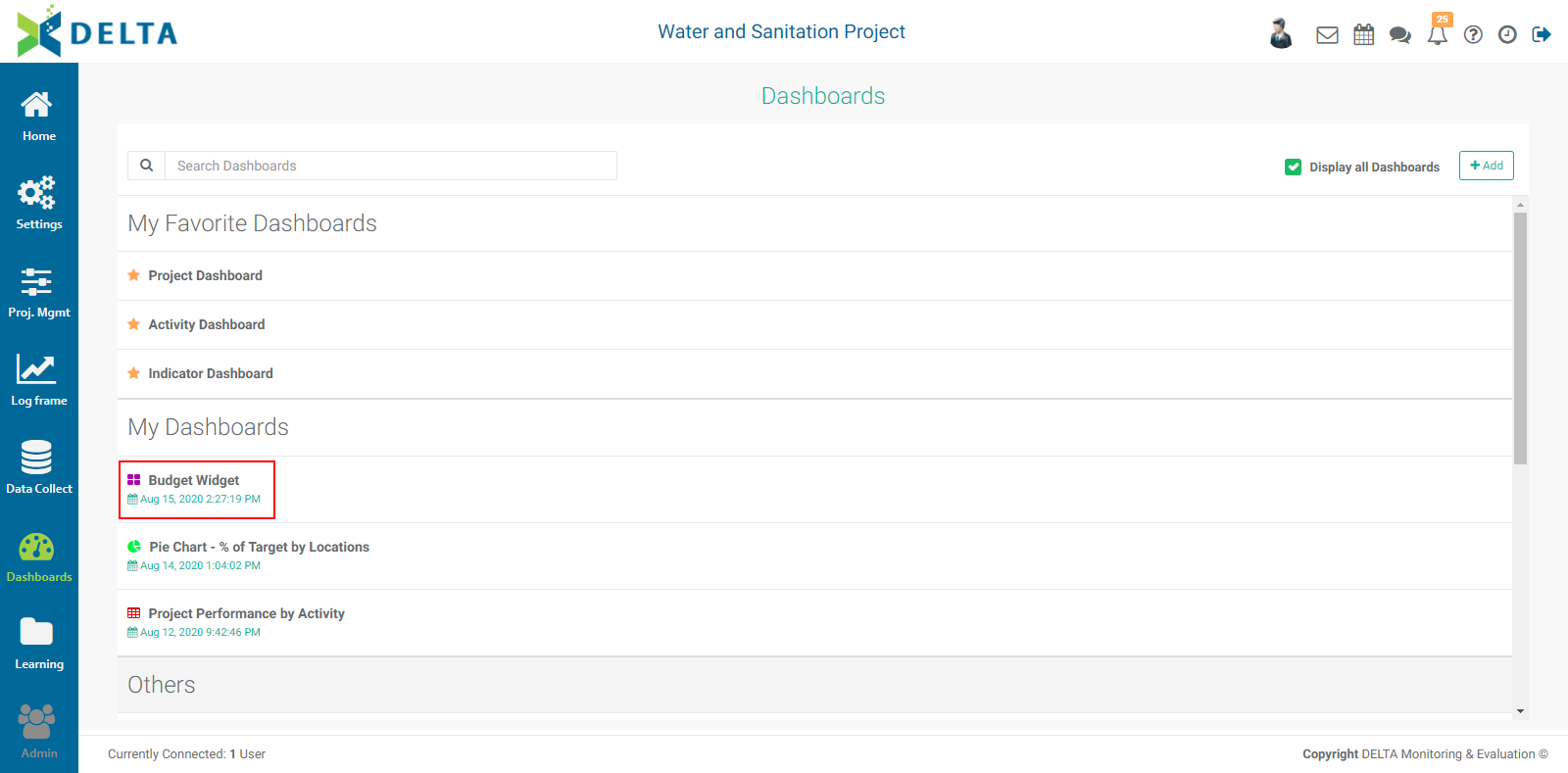
Checking the Portfolio box will make this report available at the Portfolio level. The reports' names appear in the Portfolio Dashboard pick list, sorted by project and type (Activities, Indicators, Forms), and can then be used for multiproject dashboards. NOTE: all project reports are automatically available to be added to project custom dashboards.
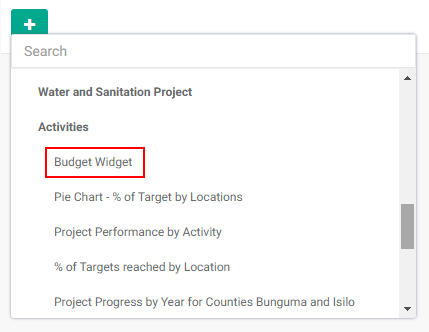
Select the single data point you want the widget to display from the Field menu.
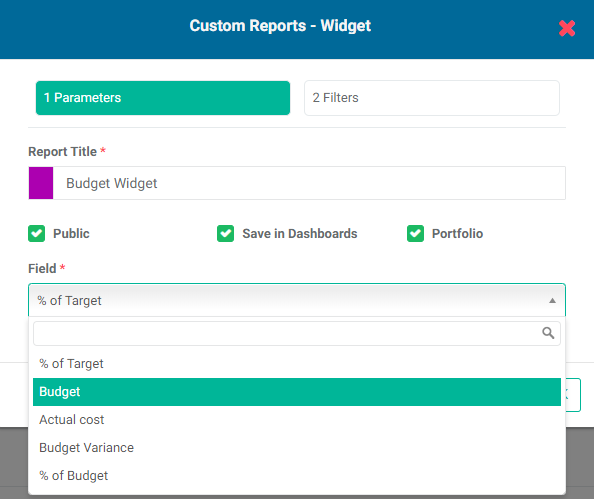
Click OK to save your work and return to the Reports tab of the Project Management module. The new report will appear at the top of the list.
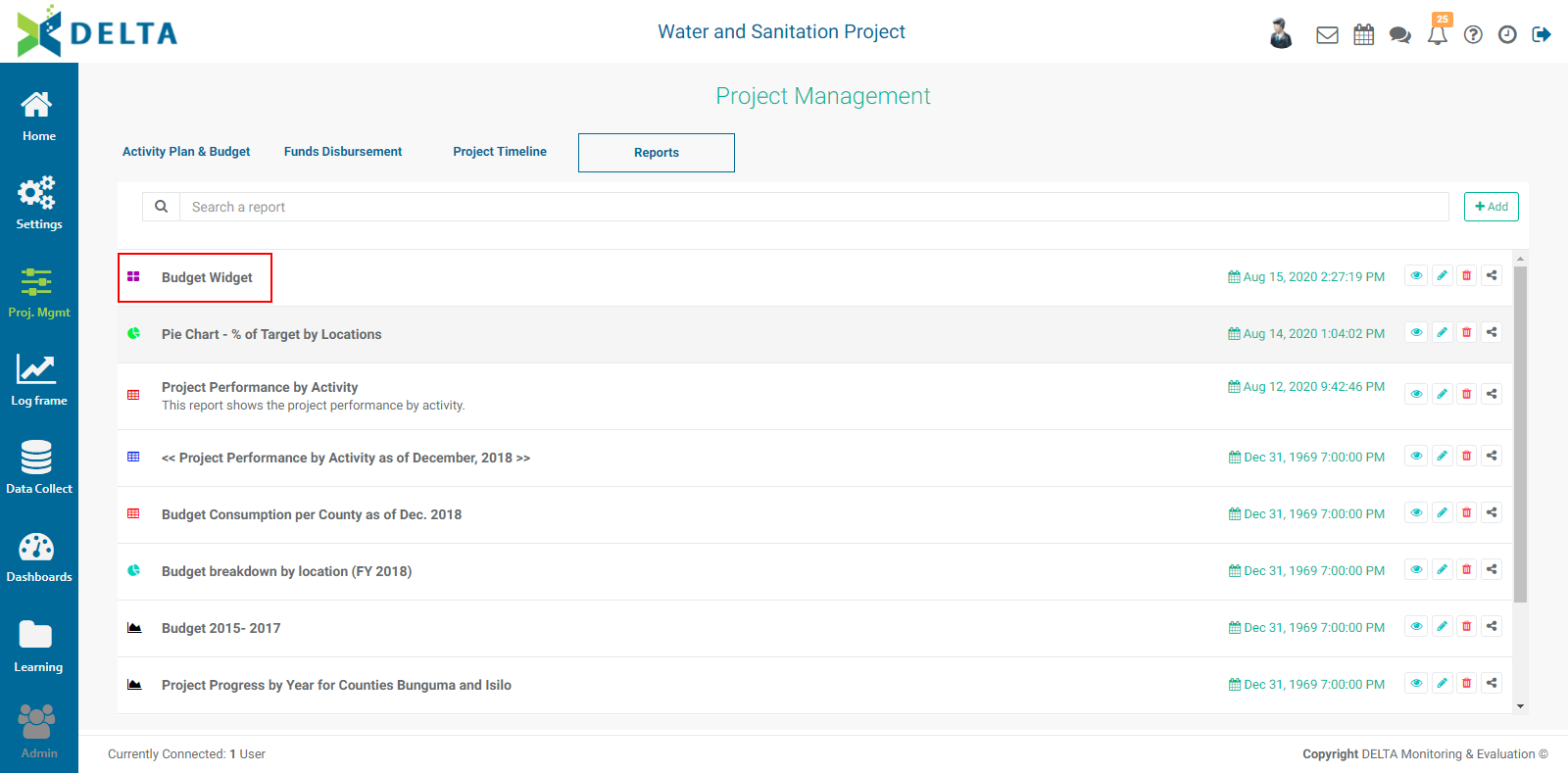
Reports are sorted by most recent first. They also feature a timestamp, and a toolbar with the following icons:
To view the report, click its name in the list, or click its View icon.
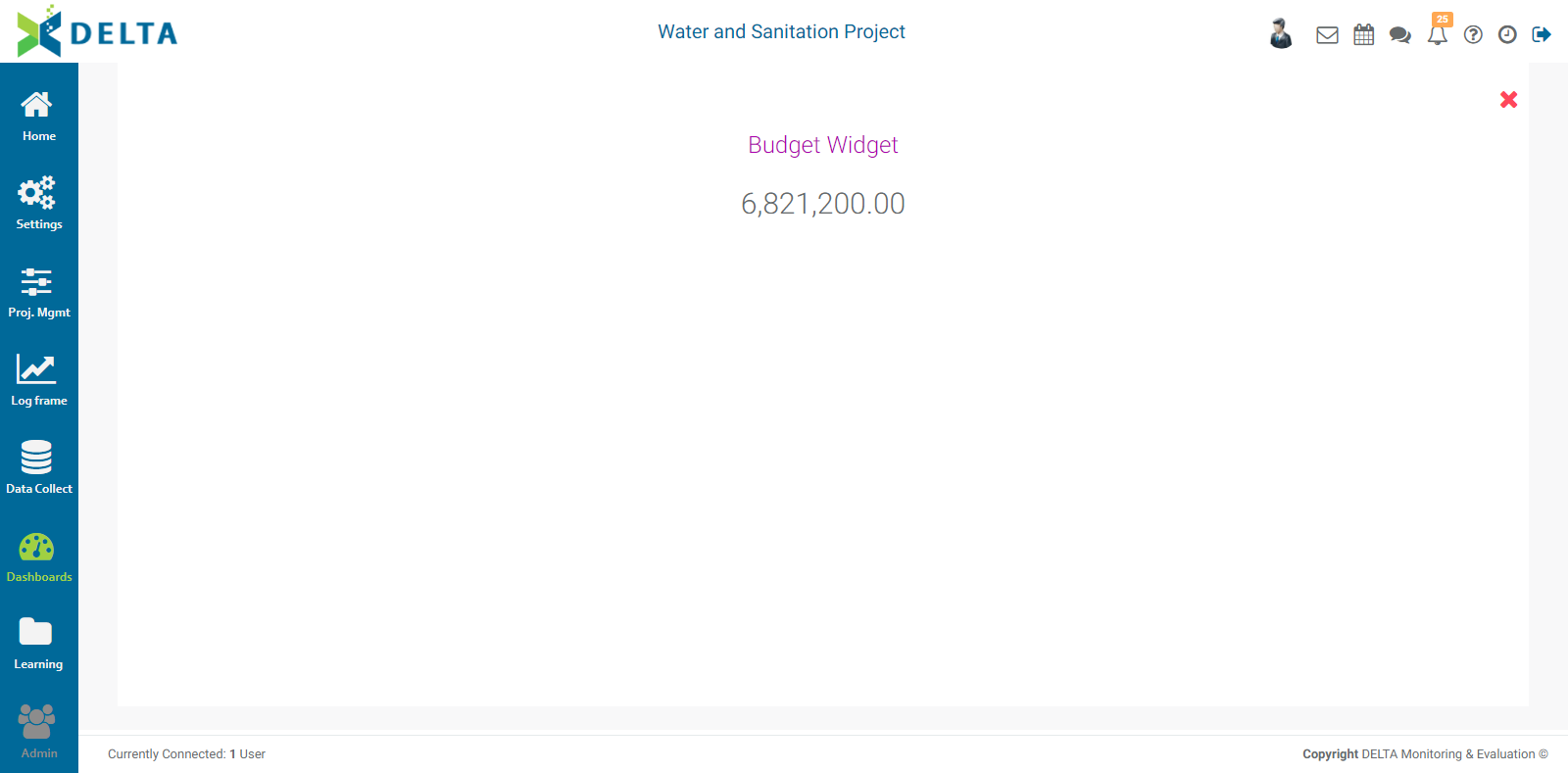
Widgets by themselves don't look like much, but they are useful building blocks for custom dashboards and allow users to set up at-a-glance visual references to important data points.
To edit the report, click the Edit icon in its toolbar.
Widgets support the use of filters. Click the report's Edit icon, and click the Filters tab in the Custom Reports - Widget popup window, then click the + button next to Add Filter.
Select the field you want to filter on. The options are Responsible Entity, Location Code, Log Frame Code, Year, Financing Source Code, and Budget Category.
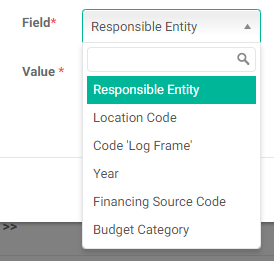
The Location Code allows filtering for a single element of the Locations list, regardless of level
The Log Frame Code allows a user to pinpoint an exact element of the log frame for the report. The code is used instead of the element name to keep things short.
Select the operation you want the filter to perform, and the value of the filter. In this example, we're going to filter for data for the year 2016, where the Field is 'Year', the Operation is 'Equal', and the Value is '2016'.
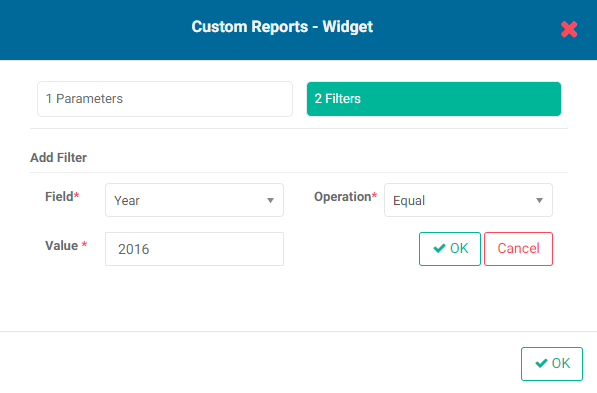
Click OK when you're done to save your filter. Your new filter will appear at the bottom of the popup window.
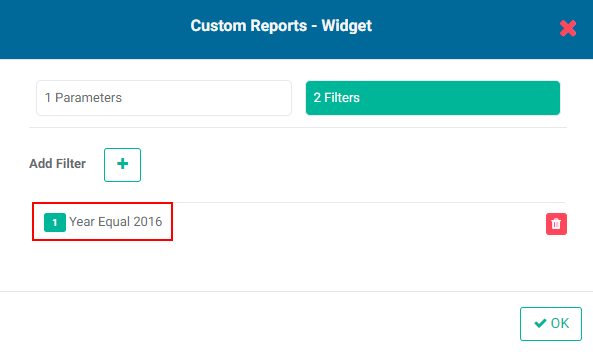
Click the checkmark in the Custom Reports - Widget popup window title bar to save your work and return to the Reports list screen. Open the report to view the filtered data.
You can add as many filters as are needed. If you create more than one filter, you also need to add logic for the system to know how to handle multiple filters. The logic is simply AND/OR, and the correct syntax uses the number of the filter. In the example below, the logic is 1 OR 2, so either condition must be met. The AND operator requires that all conditions must be met, while the OR operator requires that at least one condition must be met.
You can also use parentheses to group logical operations. In an instance with three filters, for example, 1 AND 2 OR 3 is parsed in the order in which it is written; but in 1 AND (2 OR 3), the contents of the parentheses are parsed first.
To remove a filter, click its Delete icon. There is currently no way by which a user can edit a filter, but they take very little time to set up, so replacing an incorrect filter is easy.
There is no export functionality for widgets.
The Share icon in the report's toolbar allows users to input notes, comments, media, or other information about the report with specified recipients.
Note the three parallel lines at the bottom of the comment input box. Click, hold, and drag the lines to increase the height of the comment input box.
As you start to input content into the comments box, the Share With button appears. When you're done with your comment, click the Share With button to select recipients. Click OK when you're done. The selected persons will receive a notification in the form of a dot on top of their Alerts icon in the project's main toolbar.
Previous: PM: Project Reports: Combined Chart Report | Next: PM: Staff Reports
Author: Administrator
Last update: 2023-07-01 20:57
PM: Activities: Associating Indicators to an Activity
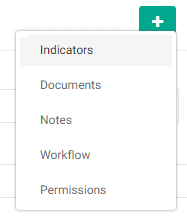
Although indicators are usually not used at the Activity level, you can still create indicators at that level if appropriate for the project. You can also link existing indicators to activities. This functionality is optional, and initially hidden behind a menu on the Activity Settings > Details screen in order to keep the interface tidy.
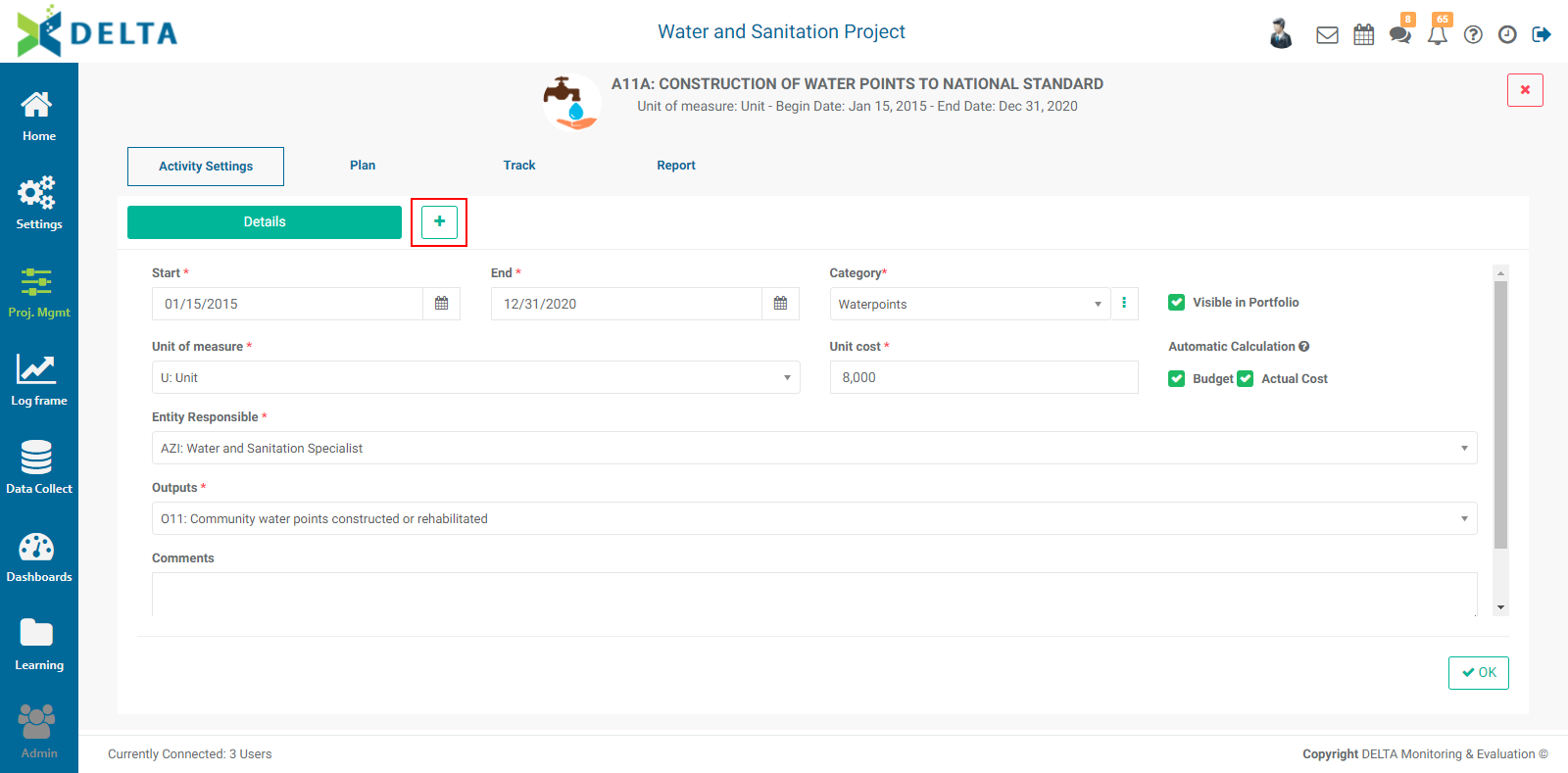
Click the More button to show the optional screens menu for activities, and select Indicators.
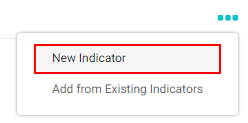
Associating indicators to activities is essentially creating a shortcut to the indicator. You can either select an existing indicator, or create a new indicator.
To create a new indicator, click the More icon (...) at top right, and select New Indicator from the menu.
A new window will open with the indicator's Details tab open. Creating indicators is described in detail in this article. The main difference between this type of indicator and indicators created at the other levels of the log frame is that this indicator will be automatically linked to the same log frame element as the activity itself.
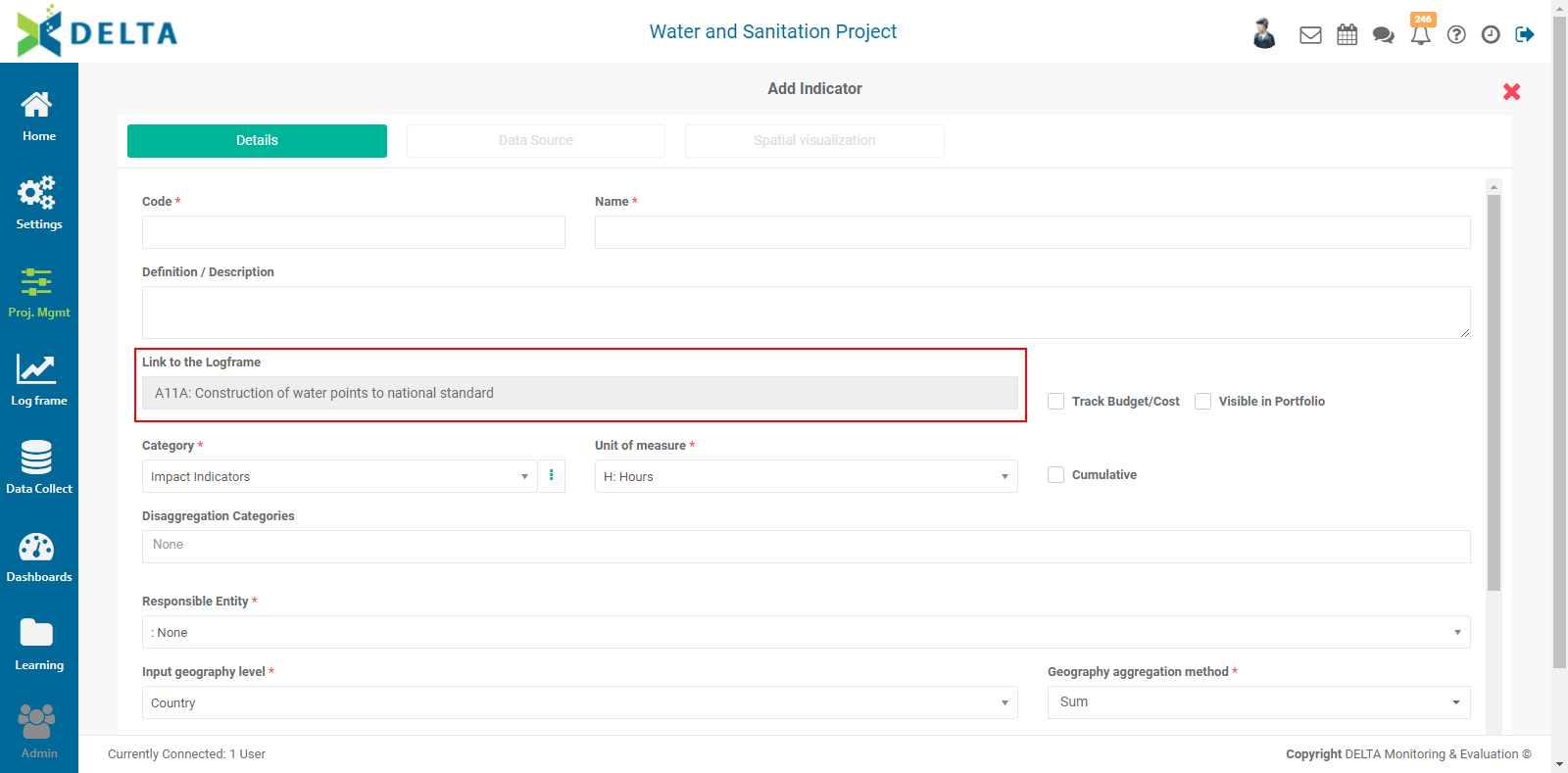
When the indicator has been created and saved, all its functions will become available. These are described in detail in the Indicators section of this guide.
When the indicator has been fully configured, click OK to save your work. A summary graph of the indicator will appear on the screen.
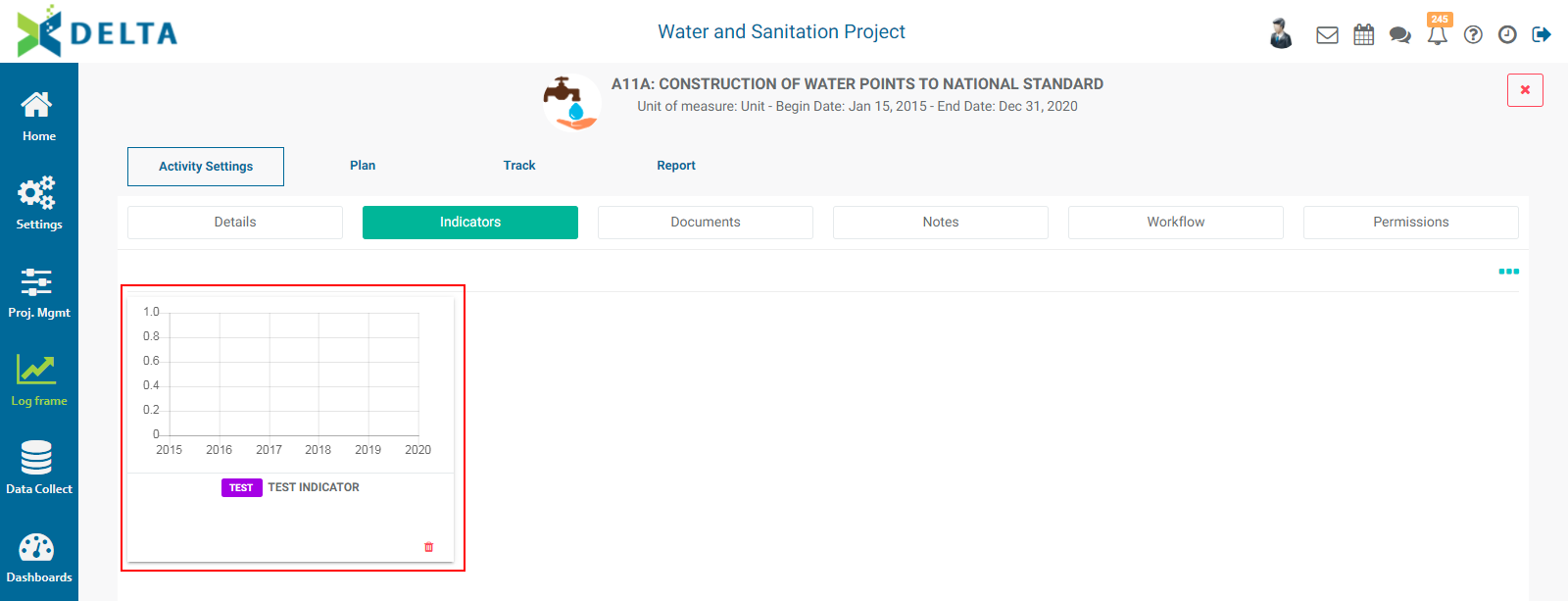
To associate an existing indicator to an activity, click the click the More icon (...) at top right, and select Add From Existing Indicators. The Indicator Selection popup window will open, with a list of all the indicators in the project.
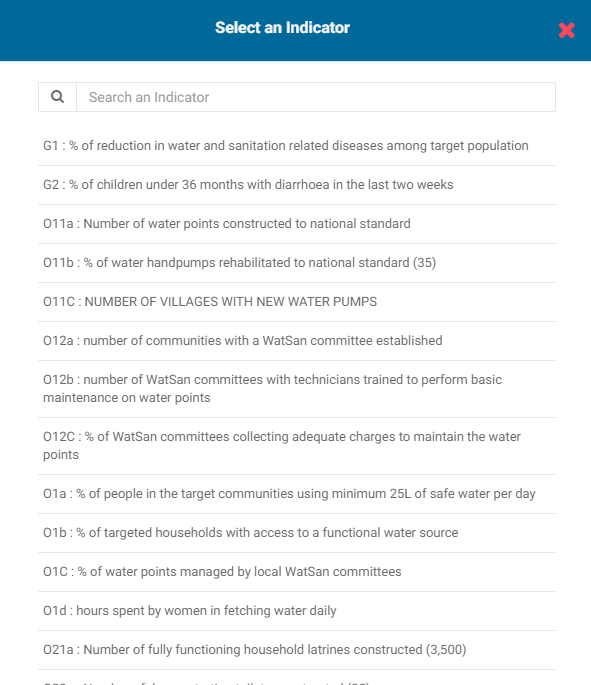
Select the desired indicator from the pick list. The popup window will close and the indicator's summary graph will appear on the screen.
IMPORTANT: when you link an existing indicator to an activity, its link to the log frame will be automatically updated to link to the same log frame element as the activity. For example, an output indicator will be repointed to an activity-level element of the log frame. Use this functionality with caution.
Indicators which are linked to activities appear in the activity's Indicators tab. They also appear in the Log Frame module under Activities.
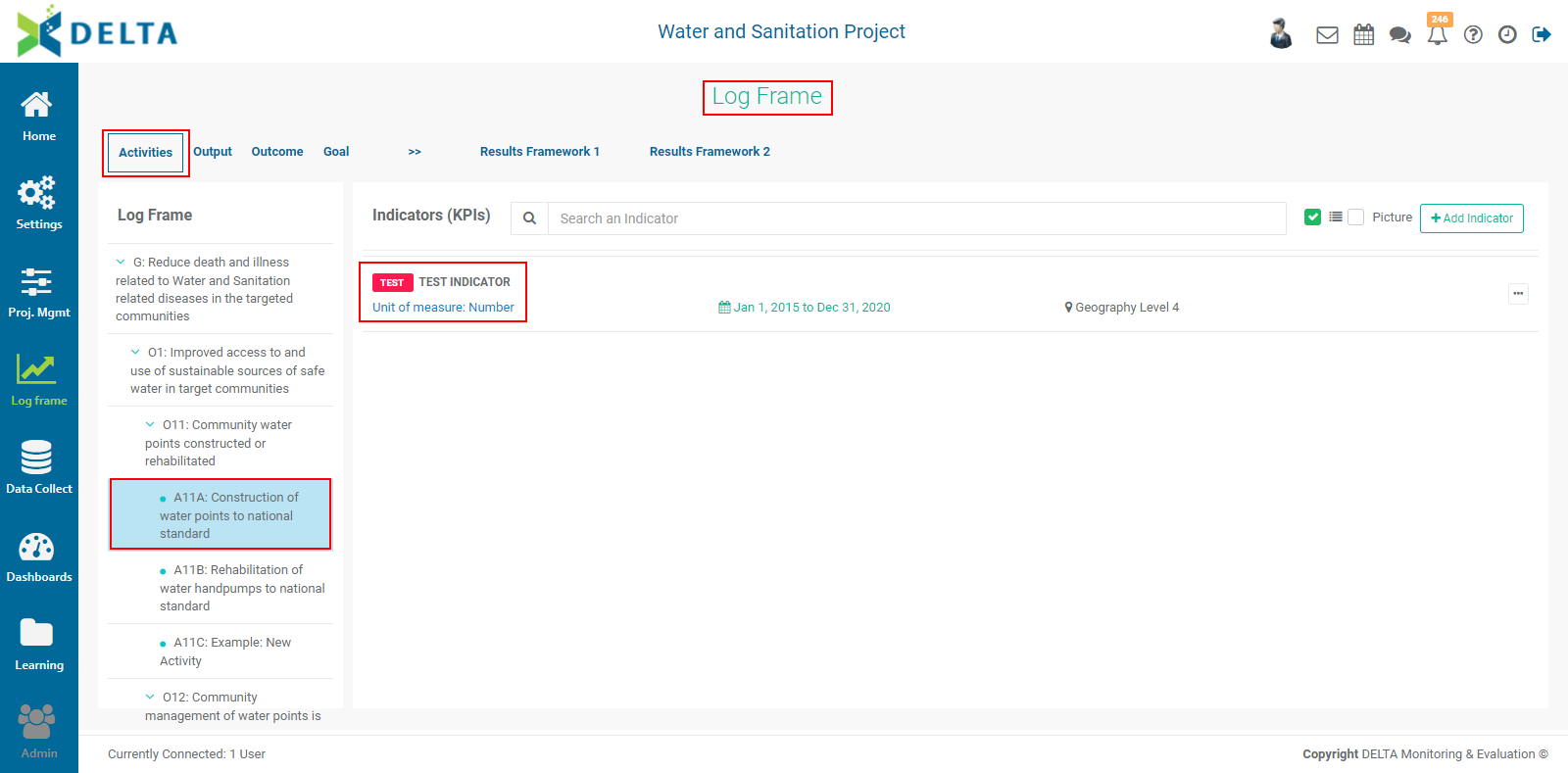
To work with the indicator, click its graph to open it. You can then work with it as you would any other indicator.
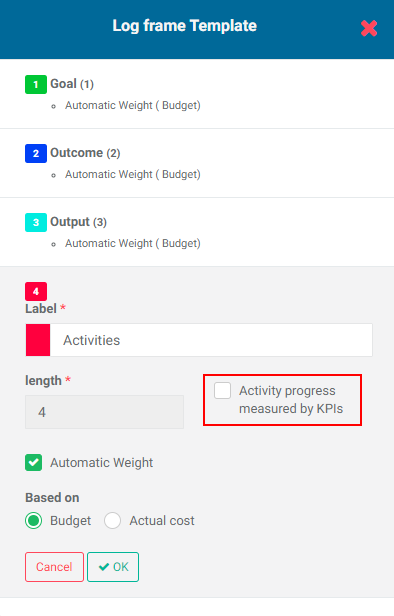
When setting up your log frame, you also have the option to make all activities be informed by an indicator. If you selected the option Activity Progress Measured by KPI, all project activities will be configured to be associated with an indicator. You will not be able to use planning and tracking for any of the activities in the project.
Previous: PM: Activities: Configuring an Activity | Next: PM: Activities: Documents
Author: Administrator
Last update: 2023-07-01 20:59
PM: Activities: Documents
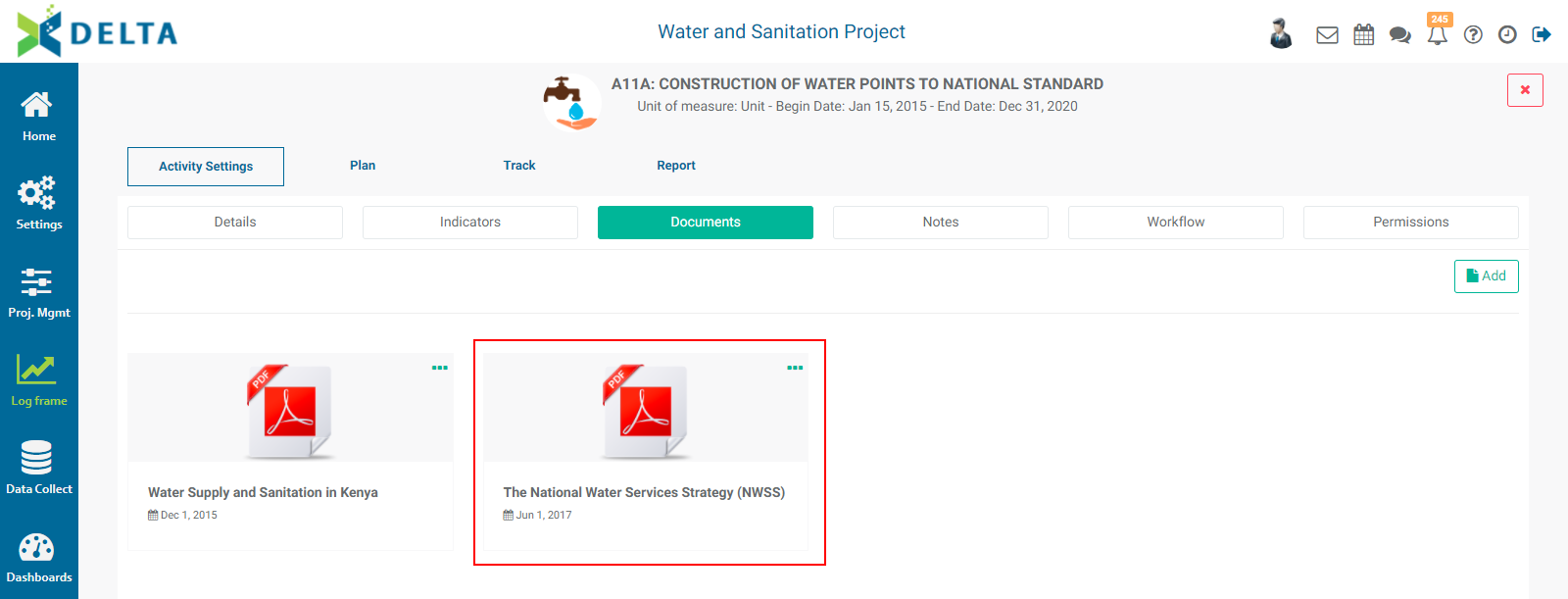
The Activity Documents screen serves as a repository of activity-specific documents. It's accessed from the Activity Settings tab, under the optional screens menu More button.
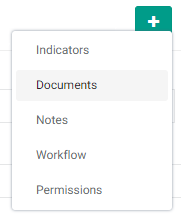
Select Documents from the menu to bring up the Documents tab, then click on the tab to enter the Documents screen proper.
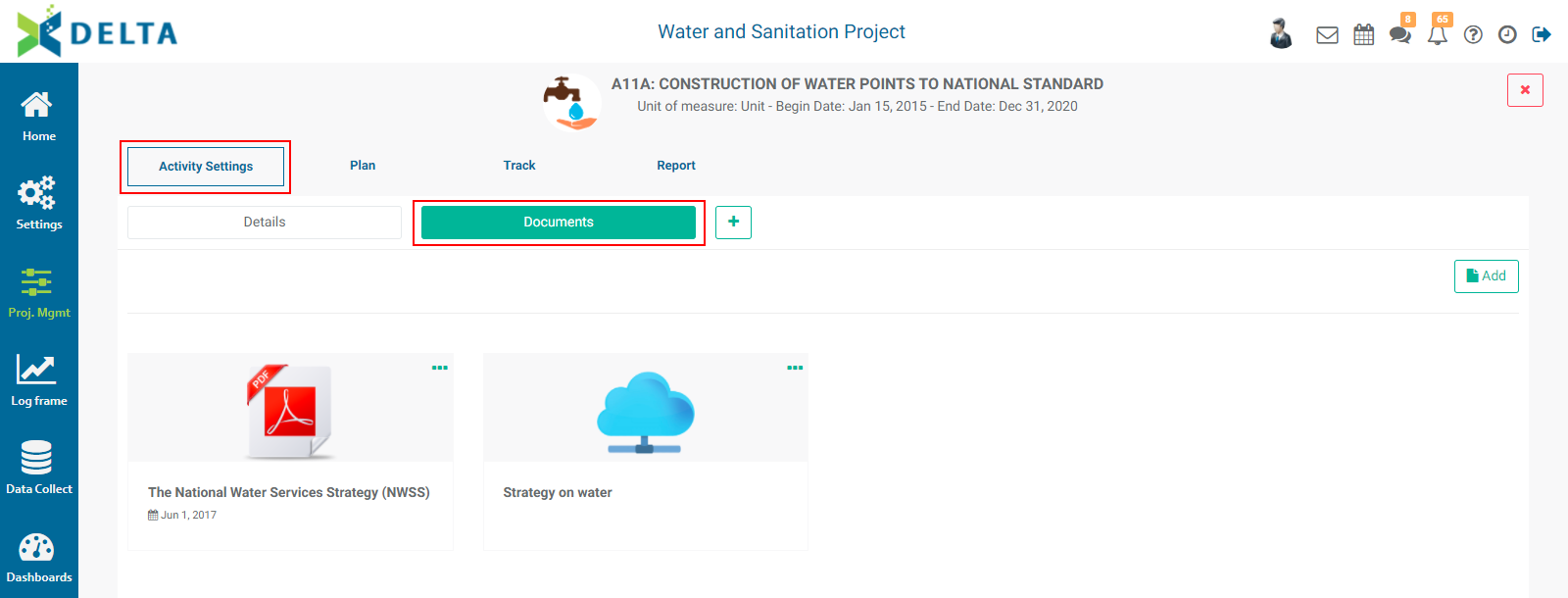
To add a document, click the Add button at top right to bring up an inline form.
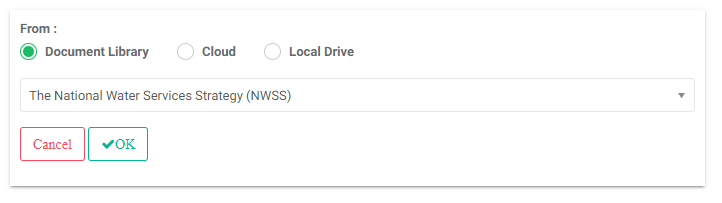
Three options are available: link to a Learning Module library document, link to a cloud document, and upload a document.
To link to a library document, click the Document Library radio button. The pick list below it contains all the documents currently available in the project's Learning module.
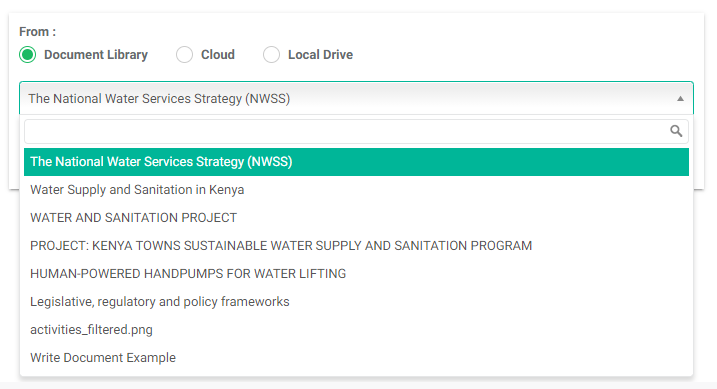
Select the desired document and click OK. The document will appear on the screen.
To link to a cloud document, click the Cloud radio button, then enter the file name and the external link for the file. This is particularly useful when linking to a master or authoritative version of a document, for example on a Sharepoint server, Dropbox, or Google Drive. This helps keep the proliferation of multiple versions of a document.
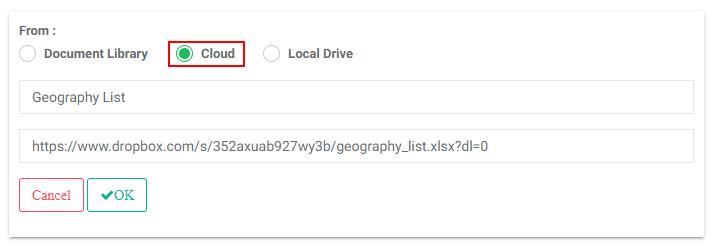
Click OK when you're done. The document will appear on the screen.
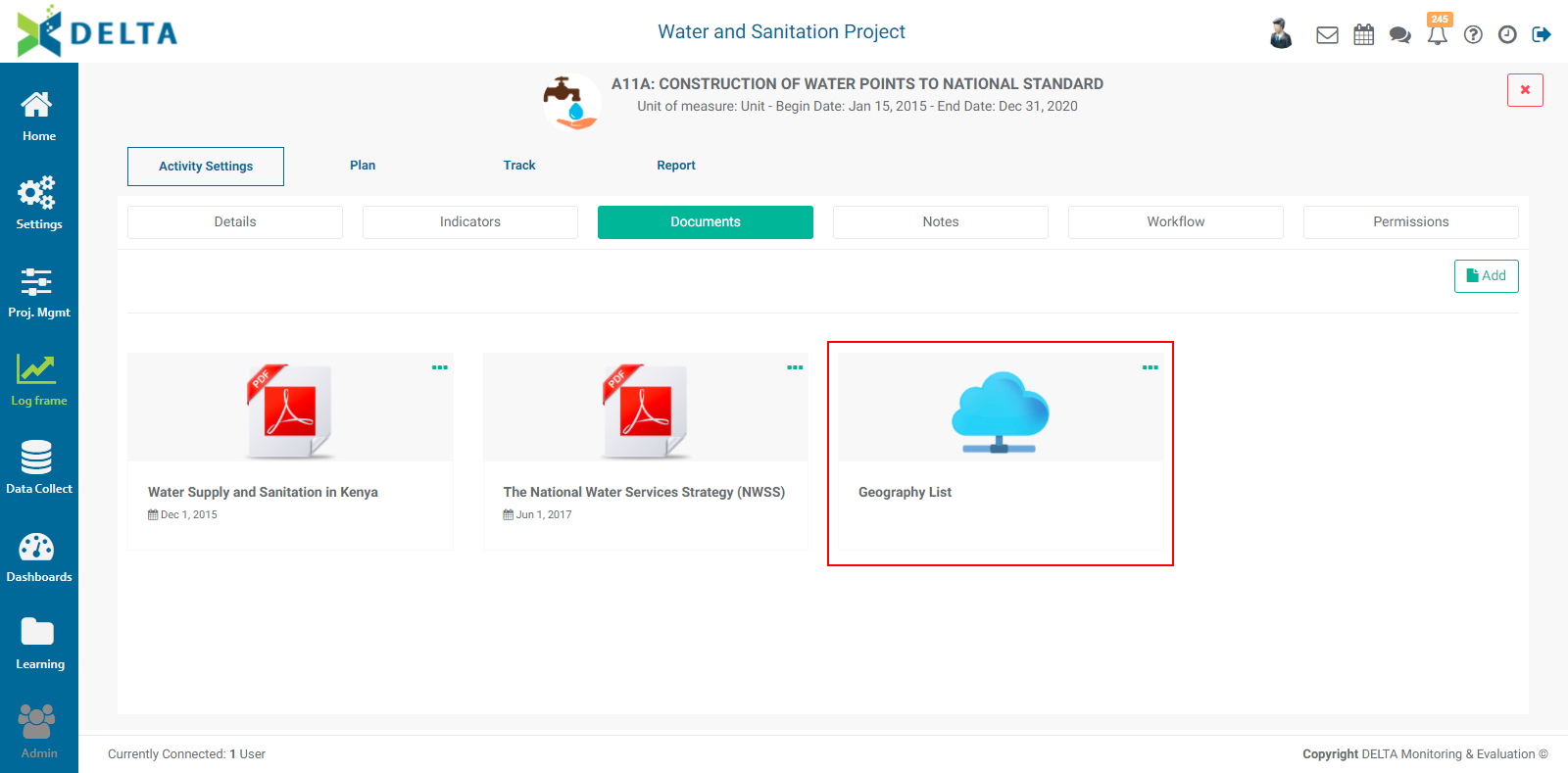
To upload a document, click the Local Drive radio button, then click the More (...) icon at the right end of the File field, and navigate to the desired document on your local hard drive or available network drive. Click the file once to select it, and press Enter on your keyboard.
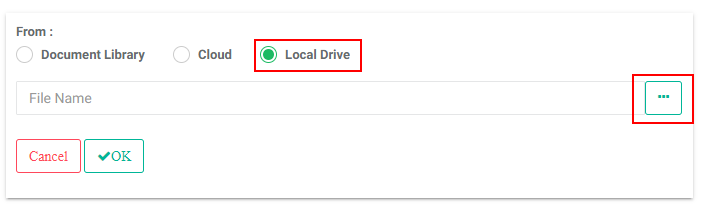
Click OK to save your work and return to the Documents screen. The document will appear on the screen.
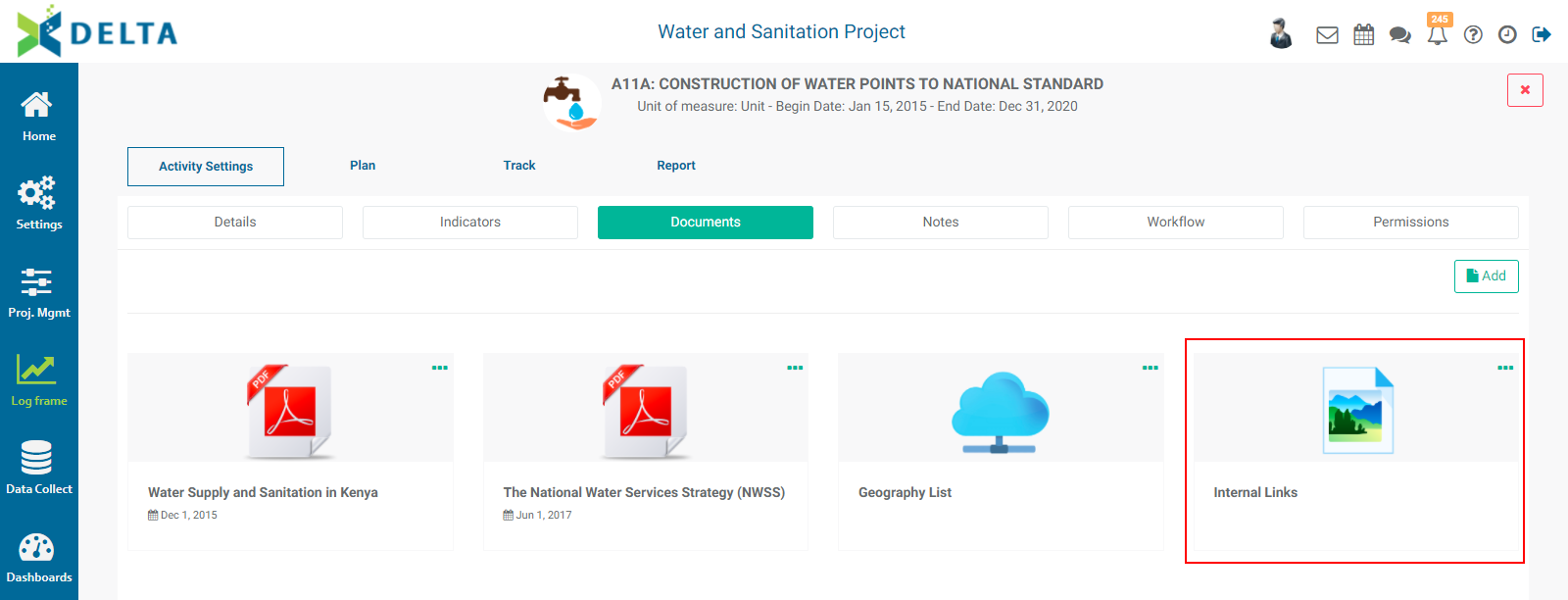
To remove a document, click the More (...) icon in the upper right corner of its tile and select Delete. NOTE: this does not delete the actual document, only the link to it.
NOTE: you can remove the Documents tab from the interface by clicking its Delete icon. This will not delete any of the associated document; it will only hide the tab and screen. To restore the tab, select it again from the More menu.
Previous: PM: Activities: Associating Indicators to an Activity | Next: PM: Activities: Notes
Author: Administrator
Last update: 2023-07-01 21:01
PM: Activities: Notes
The Activities Note screen contains a full-feature text editor which includes styles, fonts, lists, tables, links, pictures, videos, and its own help system. This functionality appears throughout Delta. For activities, the Notes tab is located under the Activity Settings screen More button.
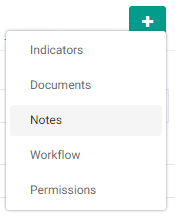
Select Notes from the menu to show the Notes tab, then click the tab to show the Notes screen proper.
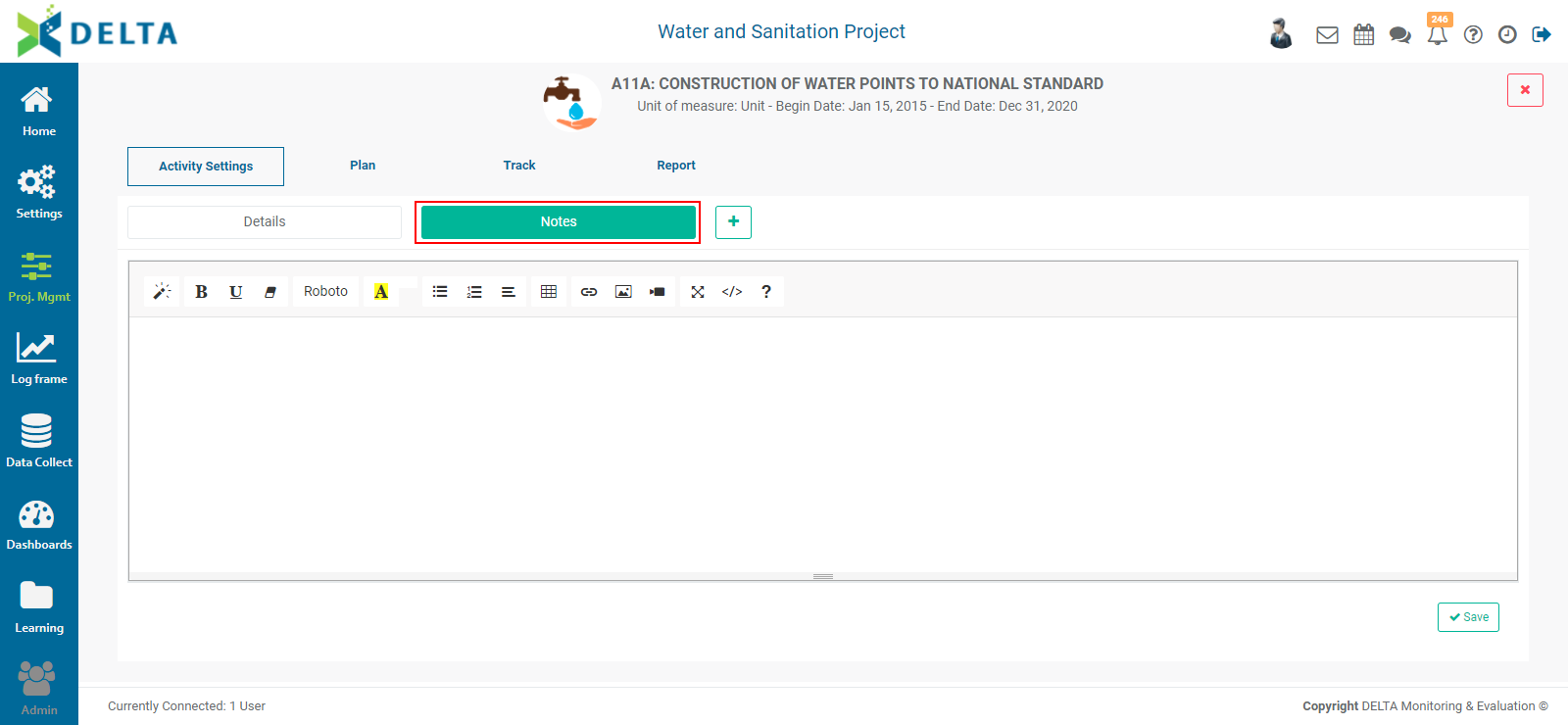
After you've entered a note, click the Save button at lower right. You can add to the note by reentering this tab at any time. It is a best practice to manually timestamp and add your initials or name to a note, so that other users know when and who wrote the note.
Previous: PM: Activities: Documents | Next: PM: Activities: Workflows
Author: Administrator
Last update: 2023-07-01 21:02
PM: Activities: Built-In Report
Overview
The Activity Report screen is a built-in dashboard of the activity's performance. Information for a location and period will not appear on this screen until actuals data for that location and period has been entered.
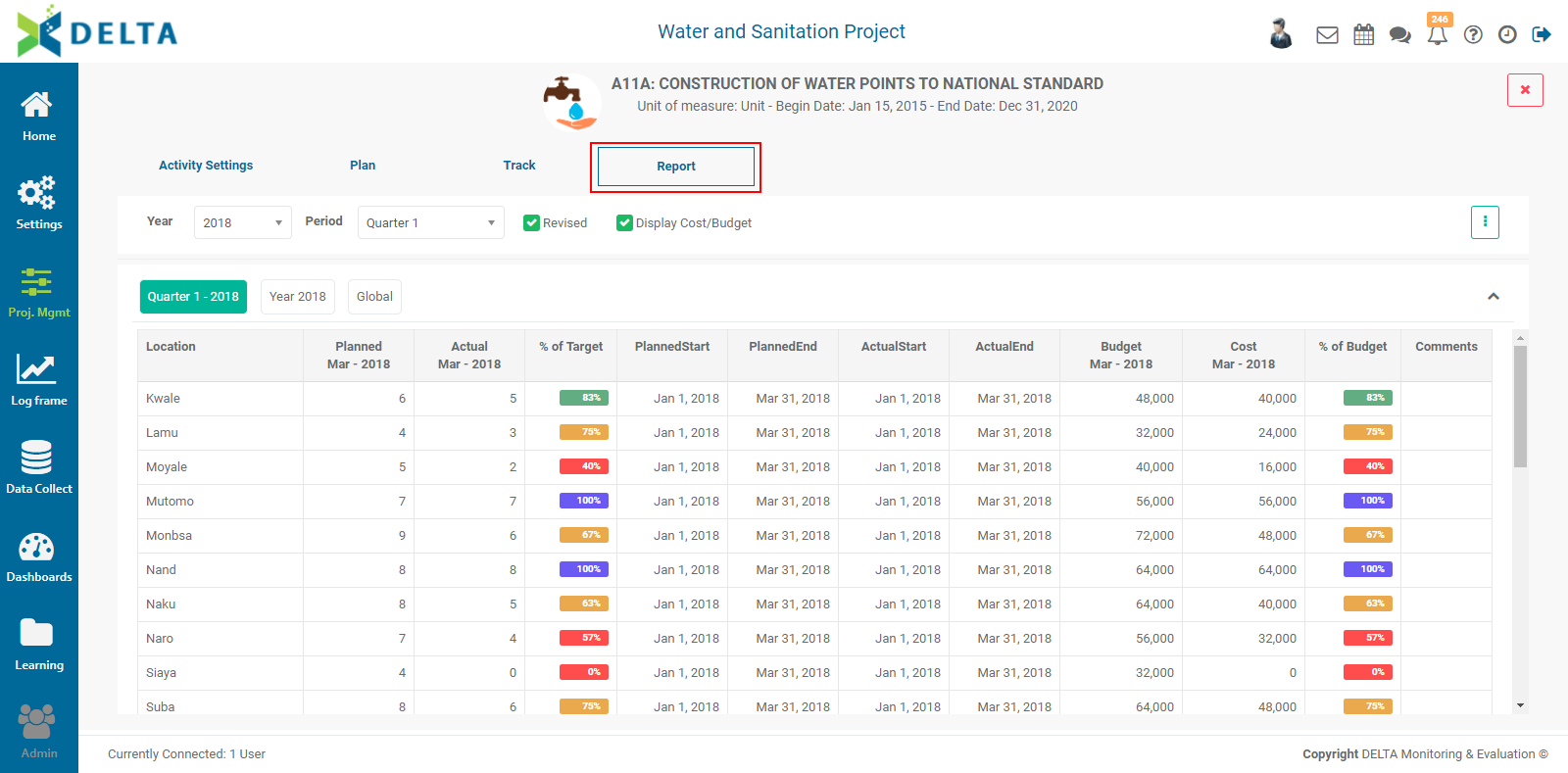
The top part of the screen displays the performance data in tabular form for the selected year and period, while the bottom part of the screen shows summary data in graph format. The color-coded performance markers in the table are based on the flags you set up in the project settings.
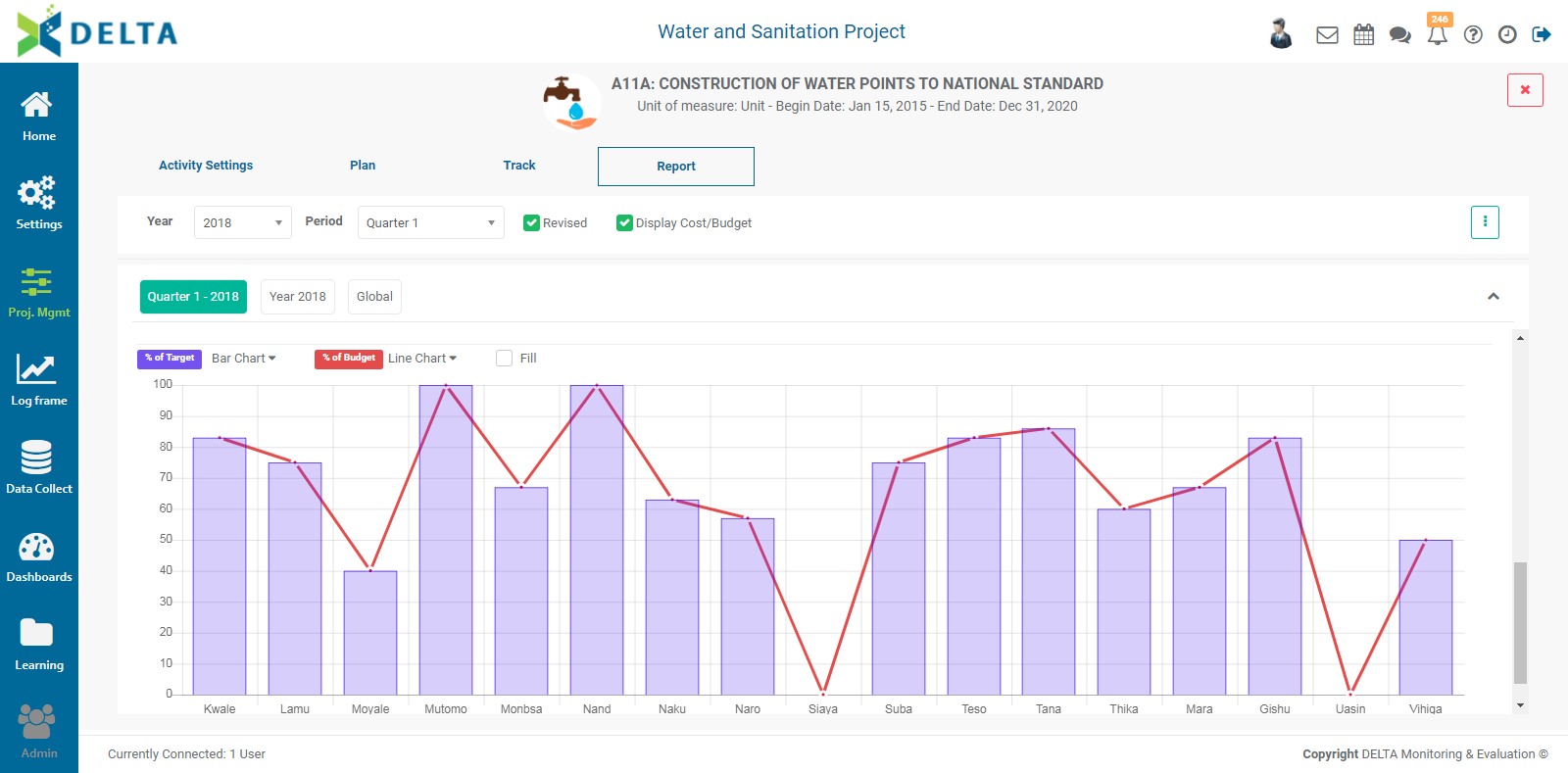
A Global view is also available to display performance data for the entire timeline of the project, including a summary graph at the bottom of the page.
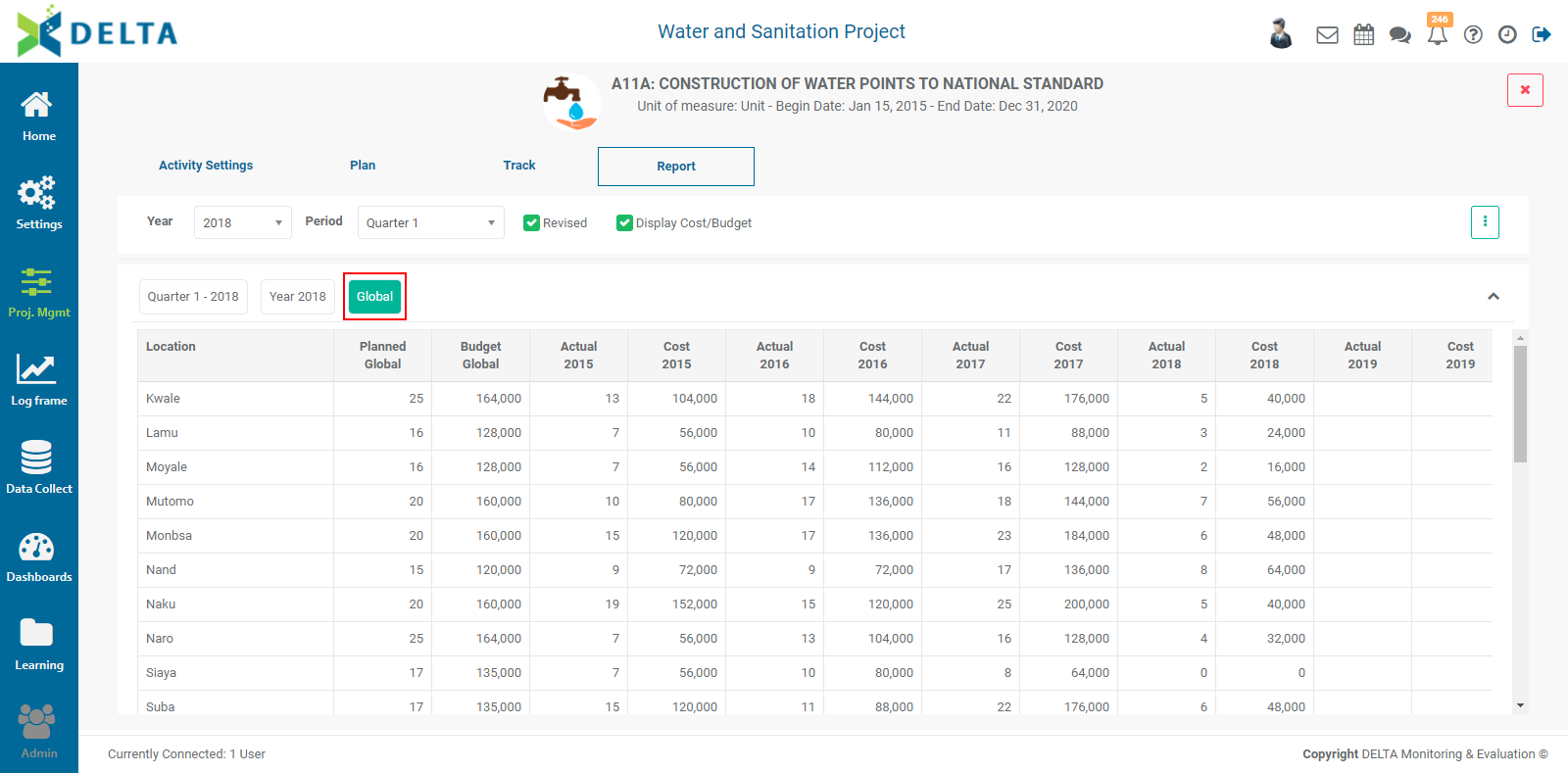
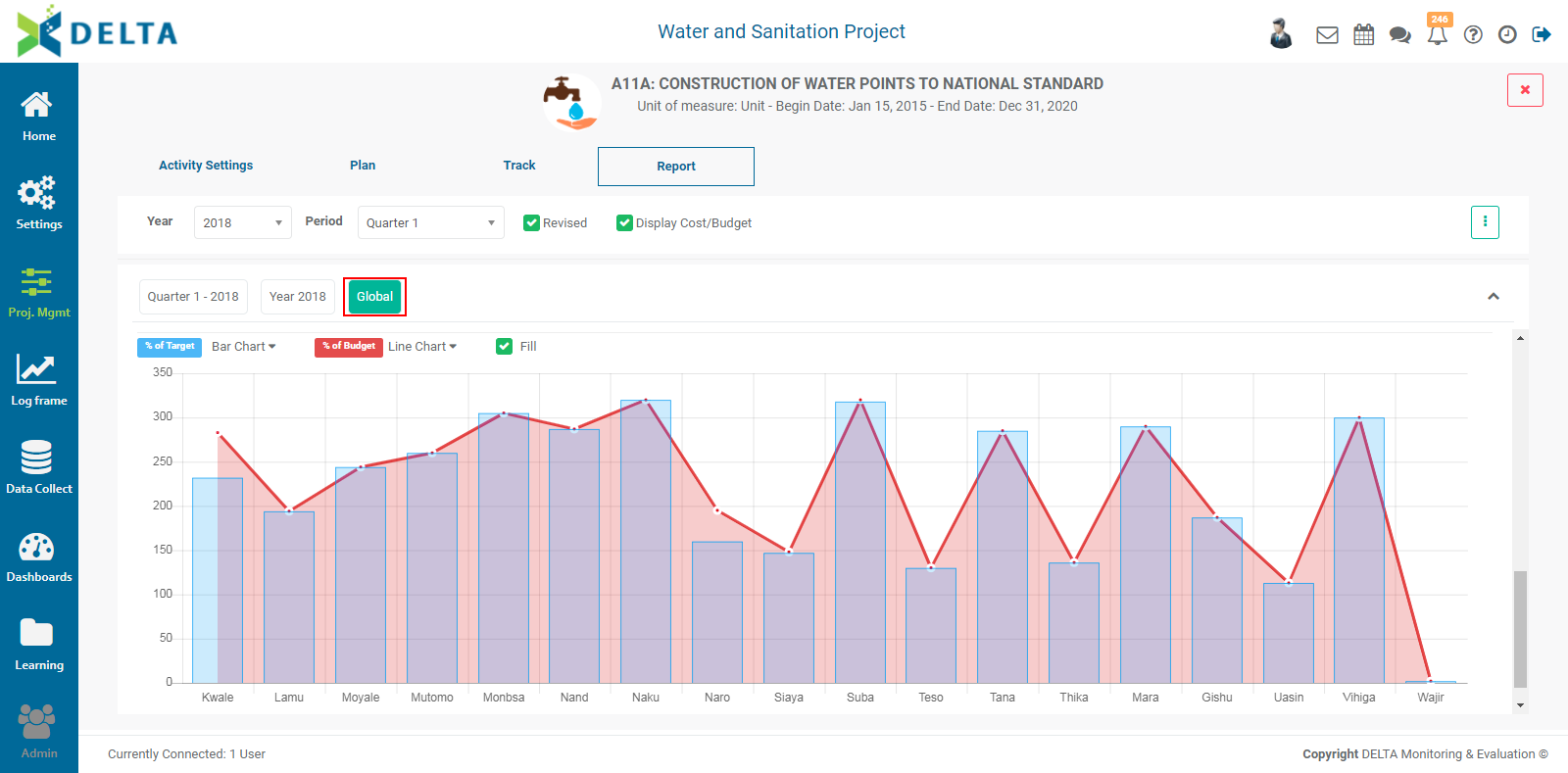
To Share the report, click on the vertical More icon at top left and select Share Dashboard from the menu.
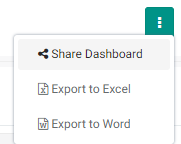
Enter a comment, then click the Share With tab to select recipients. The selected stakeholders will receive a notification as a color dot on top of the Chatroom icon in the main toolbar at the very top right of the screen.
To export this dashboard, click on the More icon, and select either Export to Excel or Export to Word. NOTE: the export file will contain only the currently selected data (year and period) unless Global is selected.
Previous: PM: Activities: Tracking an Activity | Next: PM: Activities: Associating Indicators to an Activity
Author: Administrator
Last update: 2023-07-01 21:03
PM: Activities: Creating a New Activity
Adding activities can be done at both the Portfolio and the Project level. A critical difference between the two is that cross-cutting activities can only be created at the Portfolio level. For more details, read PM: Activities: Cross-Cutting Activities.
To add an activity from the Portfolio level, go to the Portfolio page, click on the Project Management icon in the left navigation, make sure you're in the Activity Plan & Budget screen, then click on the More icon at upper right and select +Add Activity.
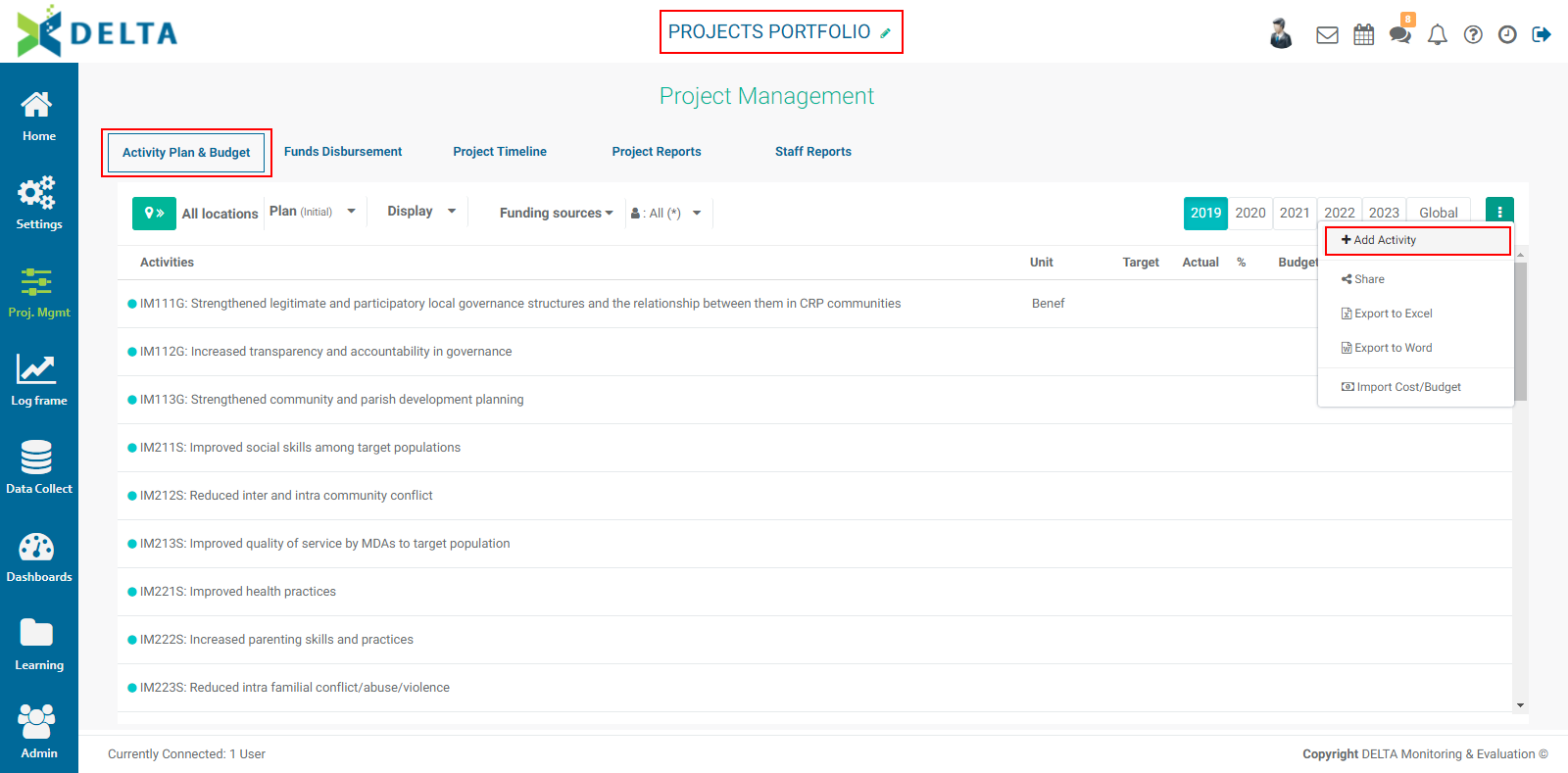
The Activity Details screen will open.
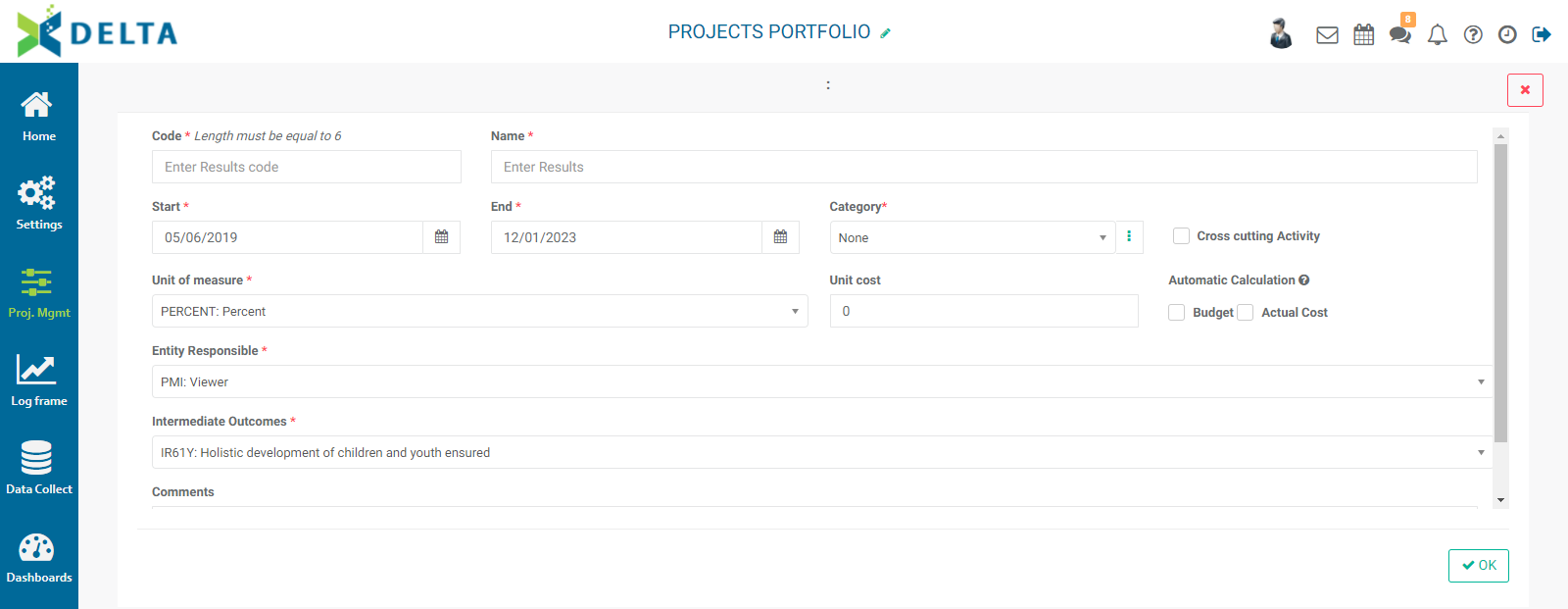
Several fields in this screen get their information from settings entered at the Portfolio level. For example, the length of the code for the activity is determined by the Portfolio log frame. If you're not familiar with its specific information, you can view it in the Settings module at the Portfolio level.
Units of Measure and Entity Responsible are also informed by those settings at the Portfolio level.
To create an activity category, click the More icon at the right of the Category field, click the + in the Activity Categories popup window title bar, then enter the required information in the popup window, and click OK to save your work and return to the Activity Categories list.
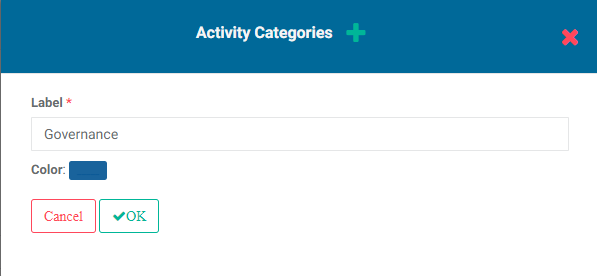
Click the X in the popup window title bar to return to the activity definition screen without saving.
Make sure you select the correct portfolio log frame level in the field directly beneath the Entity Responsible field. the name of that field will be different from the one used in this example (Intermediate Outcome) because it's based on the level of the log frame immediately above the Activity level, and will therefore be aligned with your nomenclature.
To specify this activity as a cross-cutting activity, check the box at upper right. Checking the box will allow you to enter additional information for the activity.
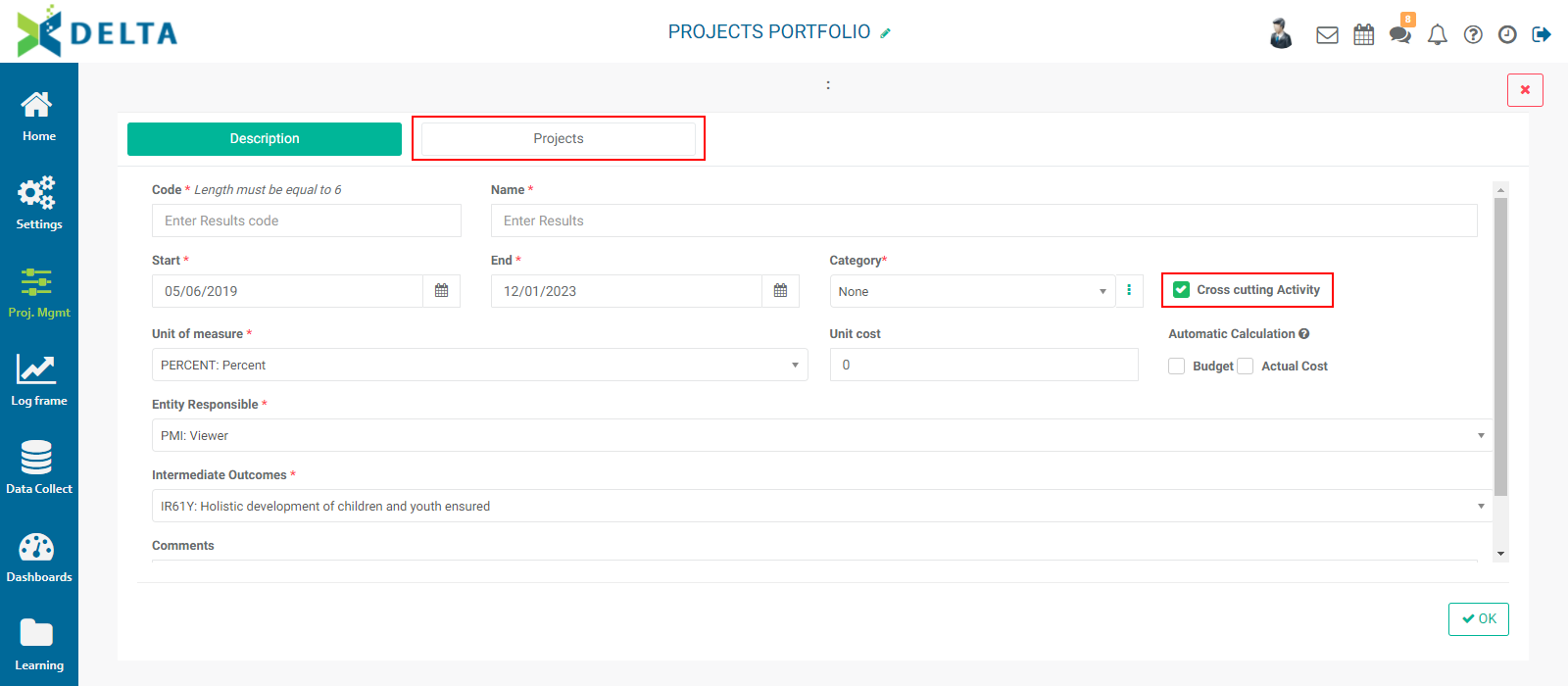
Click the Projects tab to select the projects this activity should be deployed to.
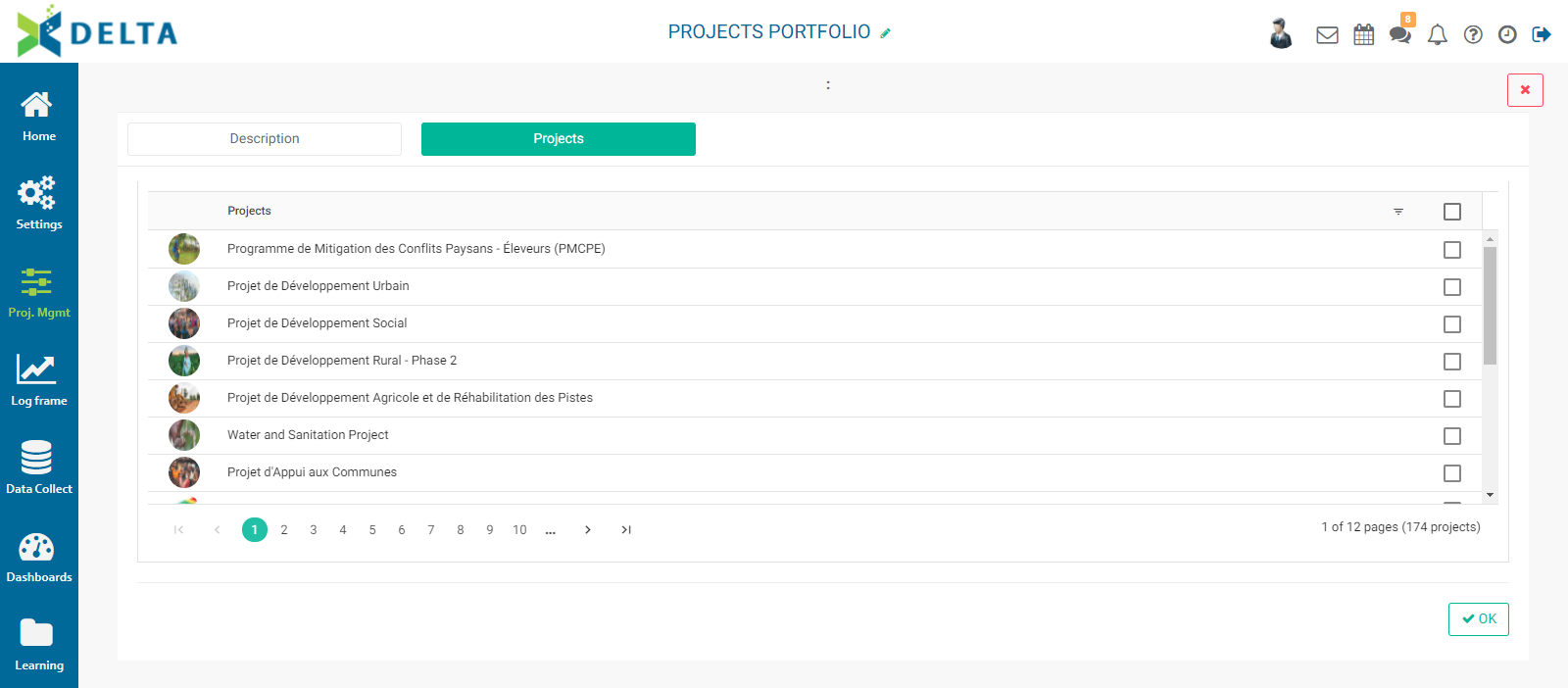
Select the desired projects, or click Check All to select all the projects. If you're done, scroll down to the bottom of the screen and click OK to save your work, or return to the Description screen by clicking its tab, and save your work from there by clicking OK.
Cross-cutting activities are described in further detail in this article.
When creating a project-specific activity from the Activity Planning & Budget screen, the option for a cross-cutting activity is replaced with a Visible in Portfolio checkbox. Select this box to make the activity visible at the portfolio level.
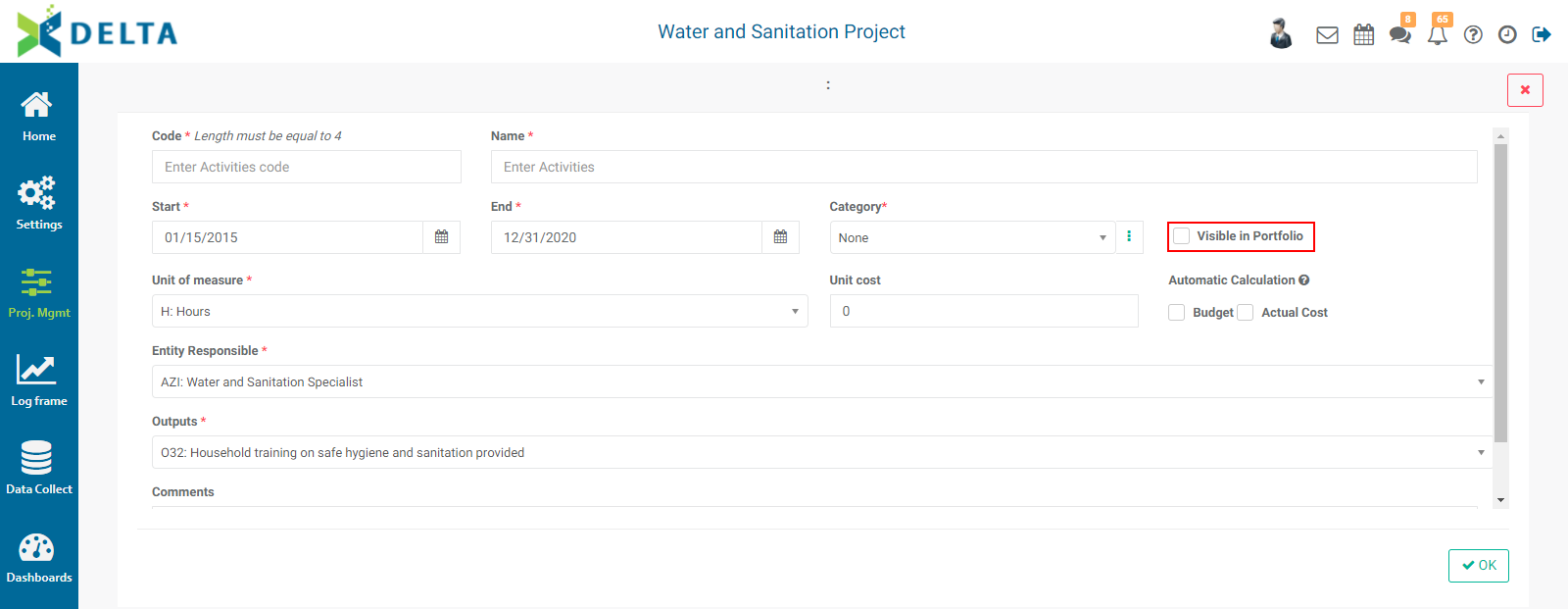
The rest of the process is the same as working with a log frame-generated activity.
NOTE: new activities can also be created from the Log Frame screen of the Settings module, either at the Portfolio or project level. However, to perform any tasks with the new activity, you'll need to do so in the Project Management module.
Previous: PM: Activities: Cross-Cutting Activities | Next: PM: Activity Plan & Budget (APB)
Author: Administrator
Last update: 2023-07-01 21:04
Dashboards Module
Dashboards Module
Overview
Delta contains a large number of built-in dashboards, and also features a custom dashboard functionality. The Dashboards Module specifically regroups custom dashboards, which are built using individual reports as spare parts. Custom reports can be created for Activities, Indicators, and Forms.
Custom Dashboards are sorted into two lists: My Dashboards (the dashboards you created), and Others (all dashboards created by other users). At the top of the two lists are shortcuts to the built-in project dashboards: Project, Activity, and Indicator.
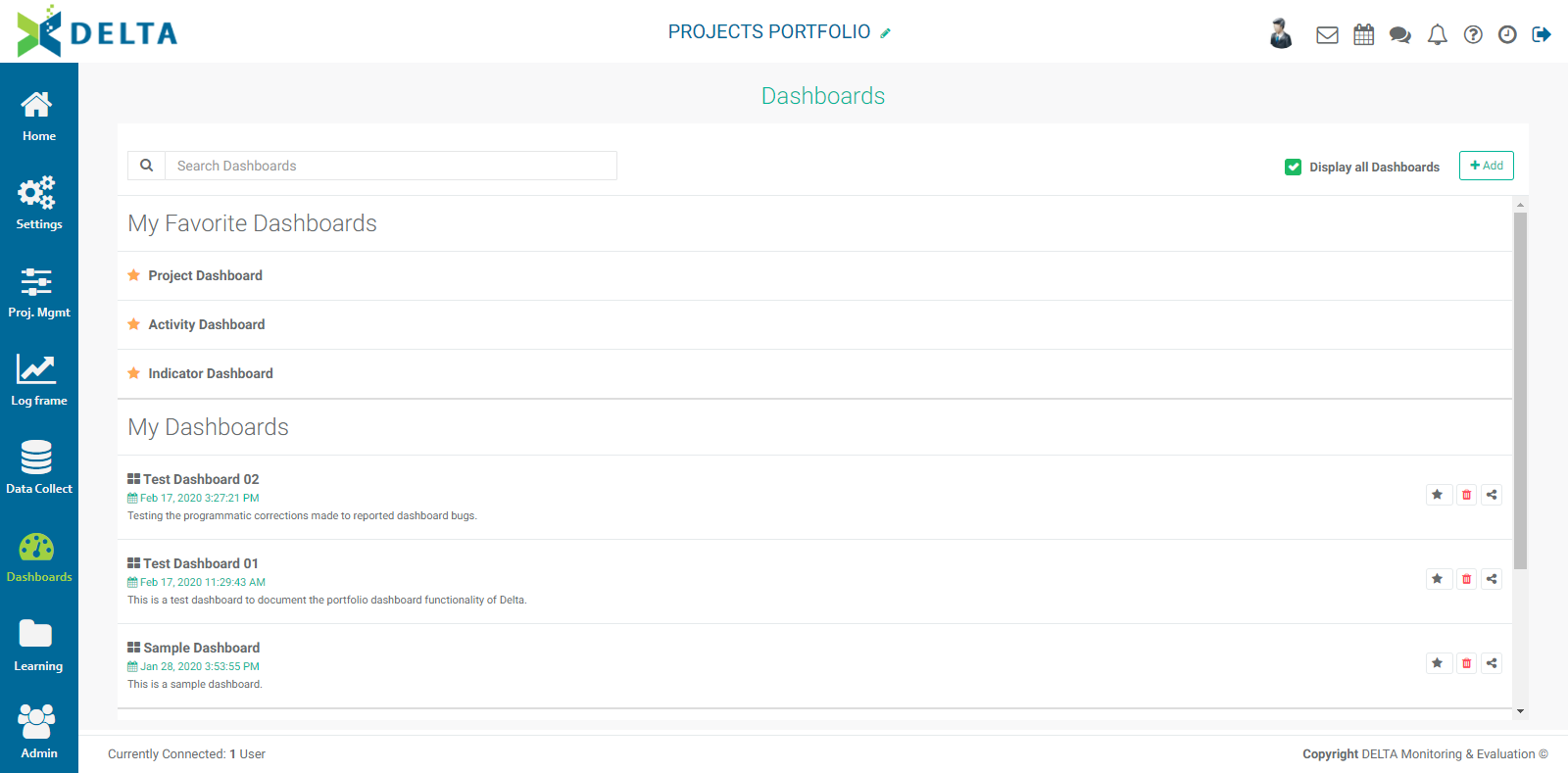
NOTE: dashboards created at the Portfolio level can contain any of the reports in the system, sorted by project and type. Dashboards created at the project level can only contain reports associated to that project, sorted by type. The example below is a project custom dashboard.
To add a new dashboard, click the +Add button to bring up the dashboard component selection pick list.
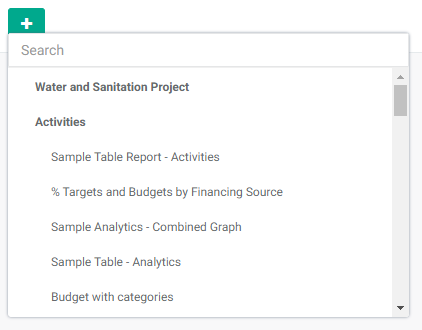
Click the names of the reports you want to add to the dashboard. Selected reports will display a checkmark. When you're done, click OK at the top of the pick list. The dashboard layout will appear, with each selected report in its own panel.
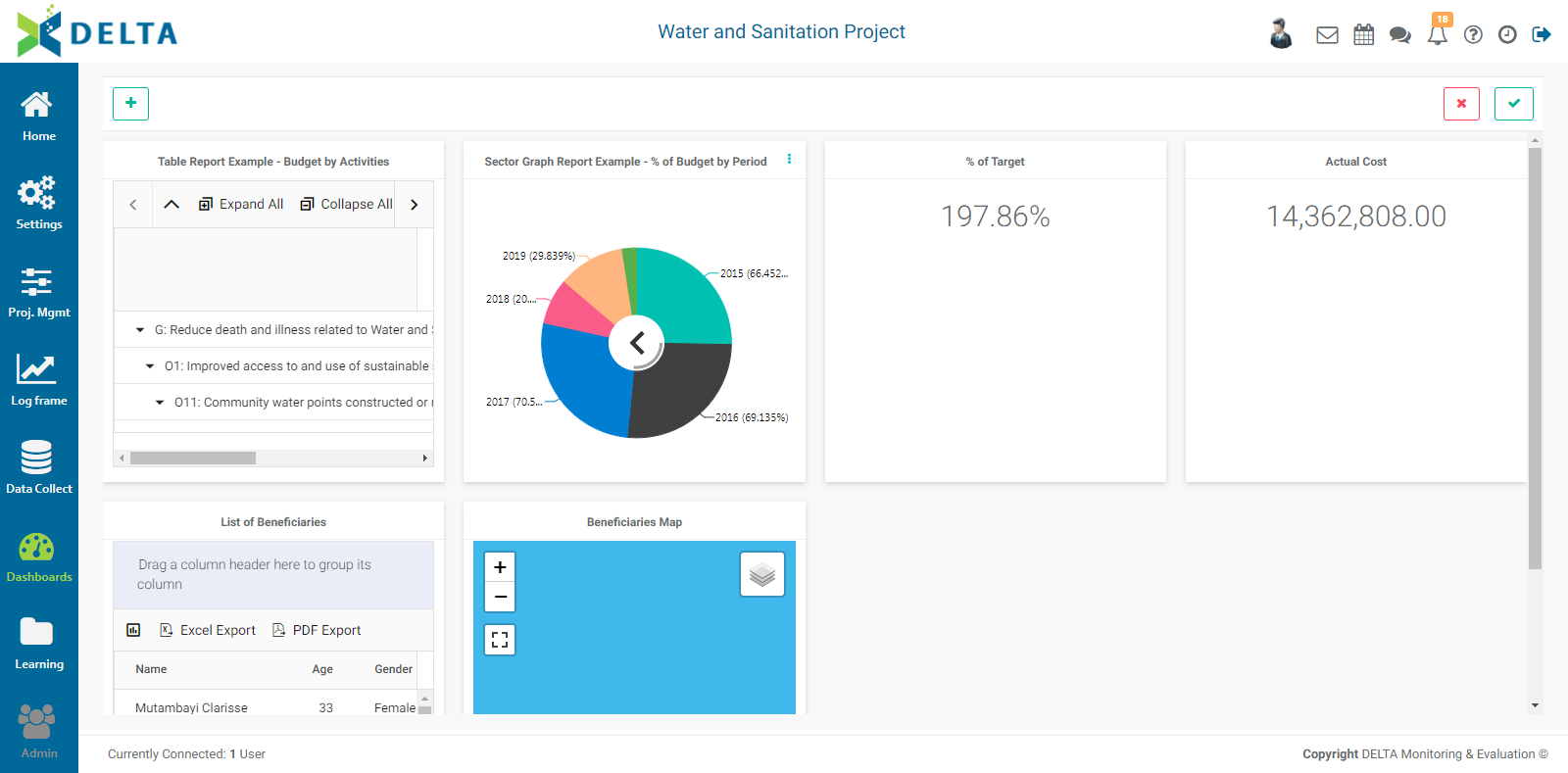
You can move and resize each panel. To move a panel, click, hold, and drag its title bar. To resize a panel, mouse over its edges or corners until the cursor turns into a double-headed arrow, and click, hold and drag until the panel reaches the desired size. Other panels will slide away to make space, and the screen will show a slightly darker color where the footprint of the panel will land.
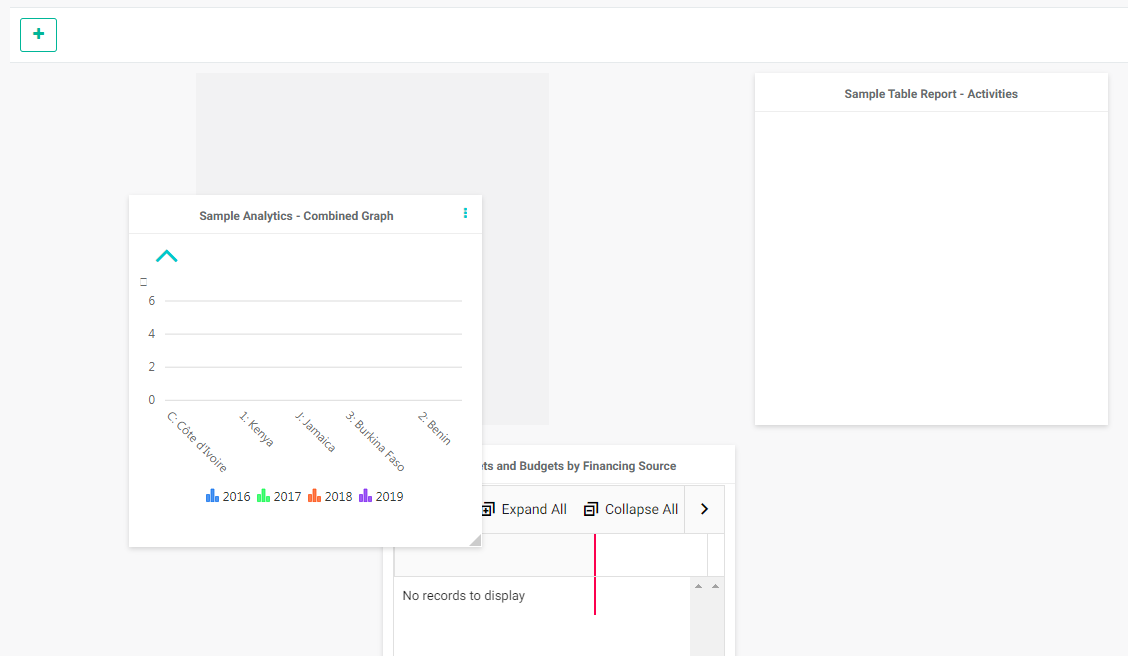
When you're satisfied with your layout,click the checkmark at top right. Enter a title, and a description (optional). Click OK to save your work and return to the dashboard screen. The new dashboard appears in your list. Note that if a description was entered, it appears under the name of the dashboard.
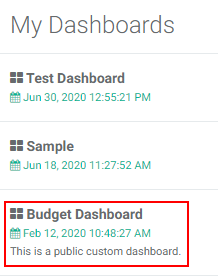
Note that you can export each report from any dashboard on which it appears, except widgets. Click the Excel or the Word icon to export the corresponding report.
Click the Back arrow at top right to get back to the dashboard list.
Each dashboard in the list features three icons: Star, Delete, and Share. Note that only dashboards feature this toolbar; other items are custom reports and can only be edited/deleted/shared from their Custom Reports screen (Activities, Indicators, or Forms).
The star denotes whether a dashboard is available from the project home page. Click the star to activate it (yellow is active). When you go back to the project home page, the starred dashboard will appear next to the default views (Project Dashboard and Map).
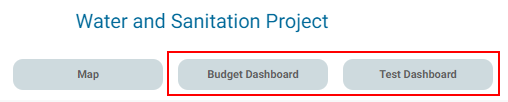
Click on a dashboard's Delete icon to remove it. Deleting a dashboard does not delete the reports it contains.
To edit a dashboard, open it, then click the Edit icon at top right of the screen.
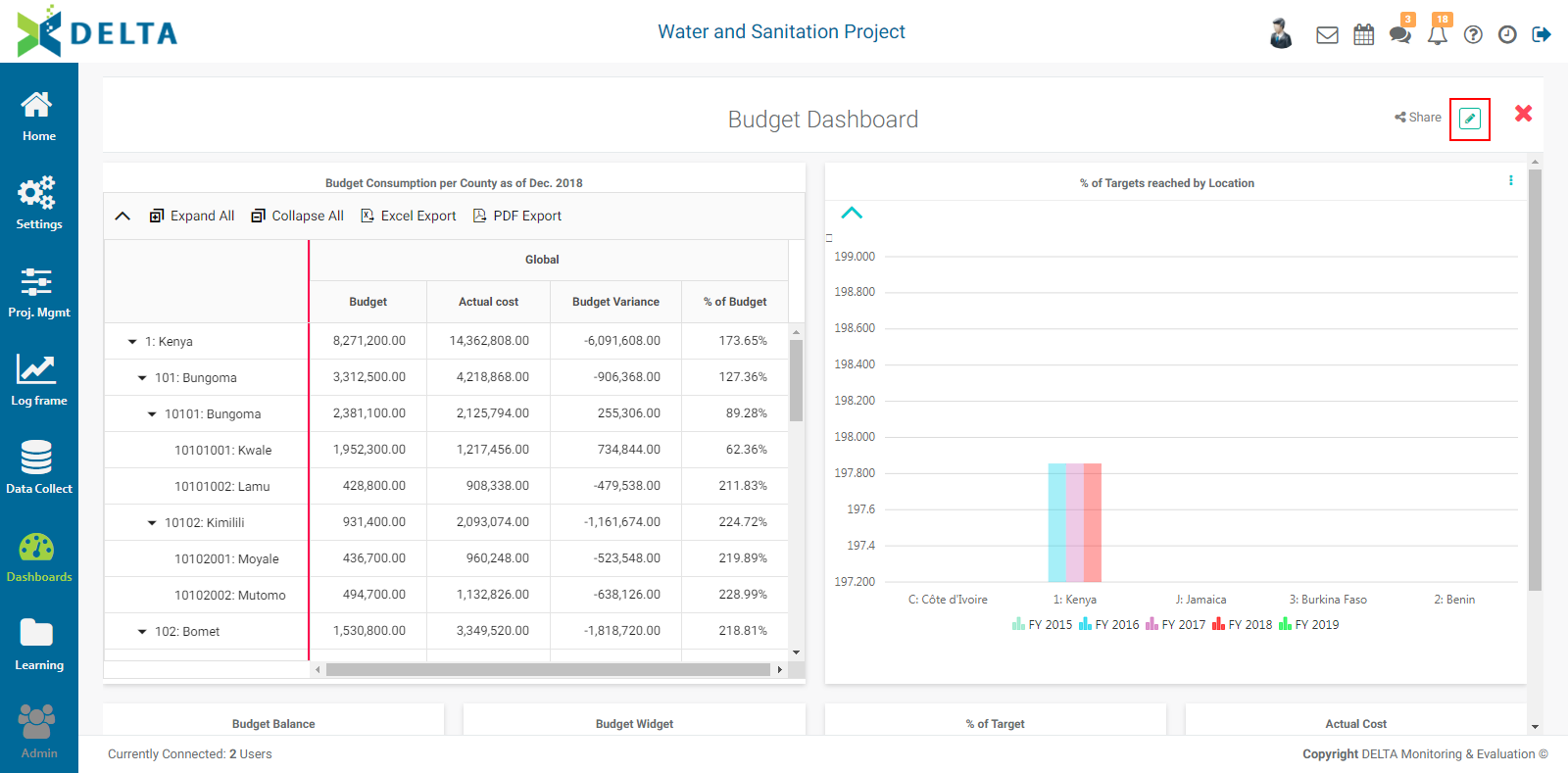
To change which reports are displayed in the dashboard, click the + at top left, and make your selections as described above. Drag each report's panel to rearrange the dashboard layout, resize the panels as needed, and click the checkmark at top right to save your work. This will bring up the Dashboards popup window.
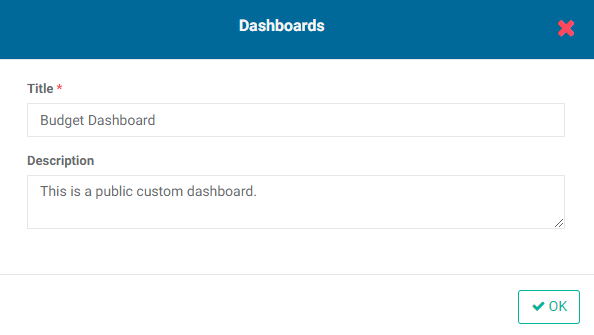
Change the title and description as needed, and click OK when you're done to save your work and return to the Dashboard screen. The revised dashboard will appear on the screen. NOTE: Changing the name or description of an existing dashboard does not save another version; it simply overwrites the previous dashboard configuration.
To share a dashboard, click its Share icon, write a short message, select the recipients, and click OK. The recipients will see a notification in their project main toolbar. NOTE: The Share icon is also available when the dashboard is open and in Edit mode.
Previous: Forms Analytics: Using Forms Analytics as Inputs to Indicators | Next: Learning Module: Documents
Author: Administrator
Last update: 2023-07-01 21:05
Learning Module
Learning Module: Media Library
The second area of the Learning module is the Media Library, which is the repository for supporting/ancillary project documents such as photographs and videos.
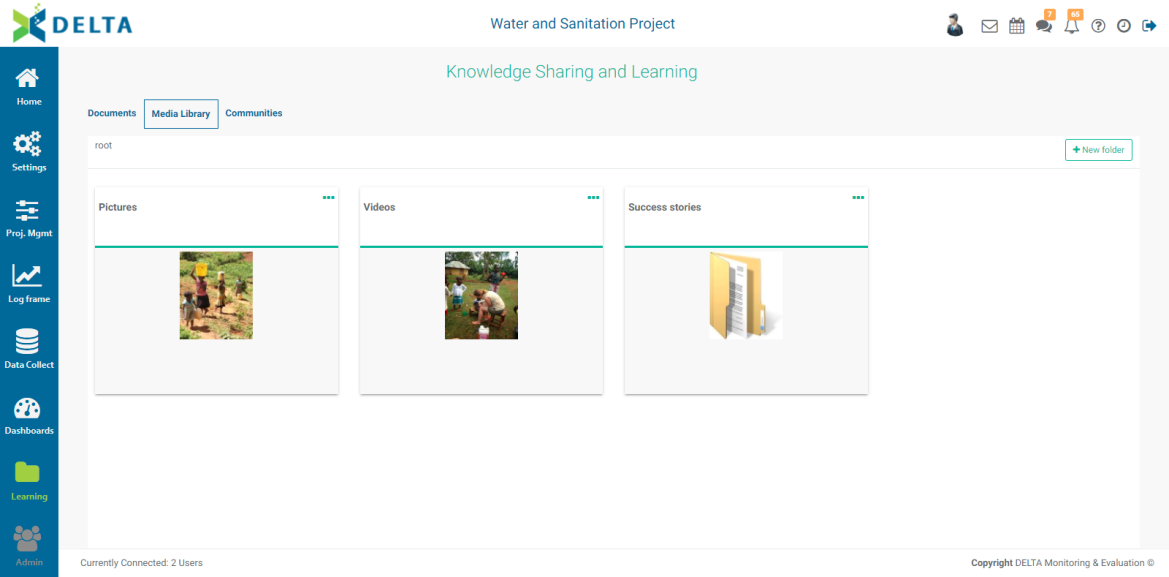
Note the breadcrumbs at the upper left of the folder screen, just below the Documents module navigation. Click "root" from anywhere within the Media Library to return to this screen.
When you first use the Media Library for a project, it will be empty. To create a new folder, click the + New Folder button at top right to bring up a Folder popup window.
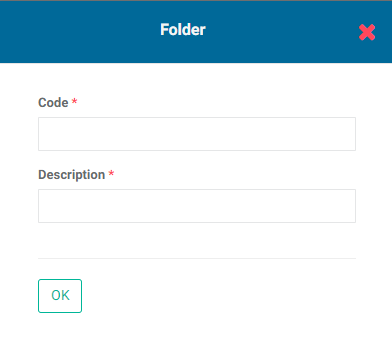
Enter a code for the folder, and a description. The description will appear as the name of the folder. Click OK when you’re done to save your work and return to the Media Library screen.
We suggest creating at least two folders, one for photos, and one for videos. Nesting folders is supported.
To open a folder, click its tile, or select Open Folder from its More (...) menu.
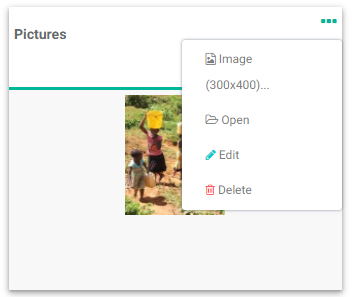
To add a photo or a video, click the More (...) icon at upper right.
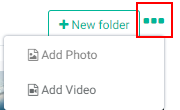
To add a photo, select Add Photo from the More menu. Browse to the file you want to add, either on your local drives or cloud drives. Click the file once to select it, and click Enter. The Media Reference screen will appear.
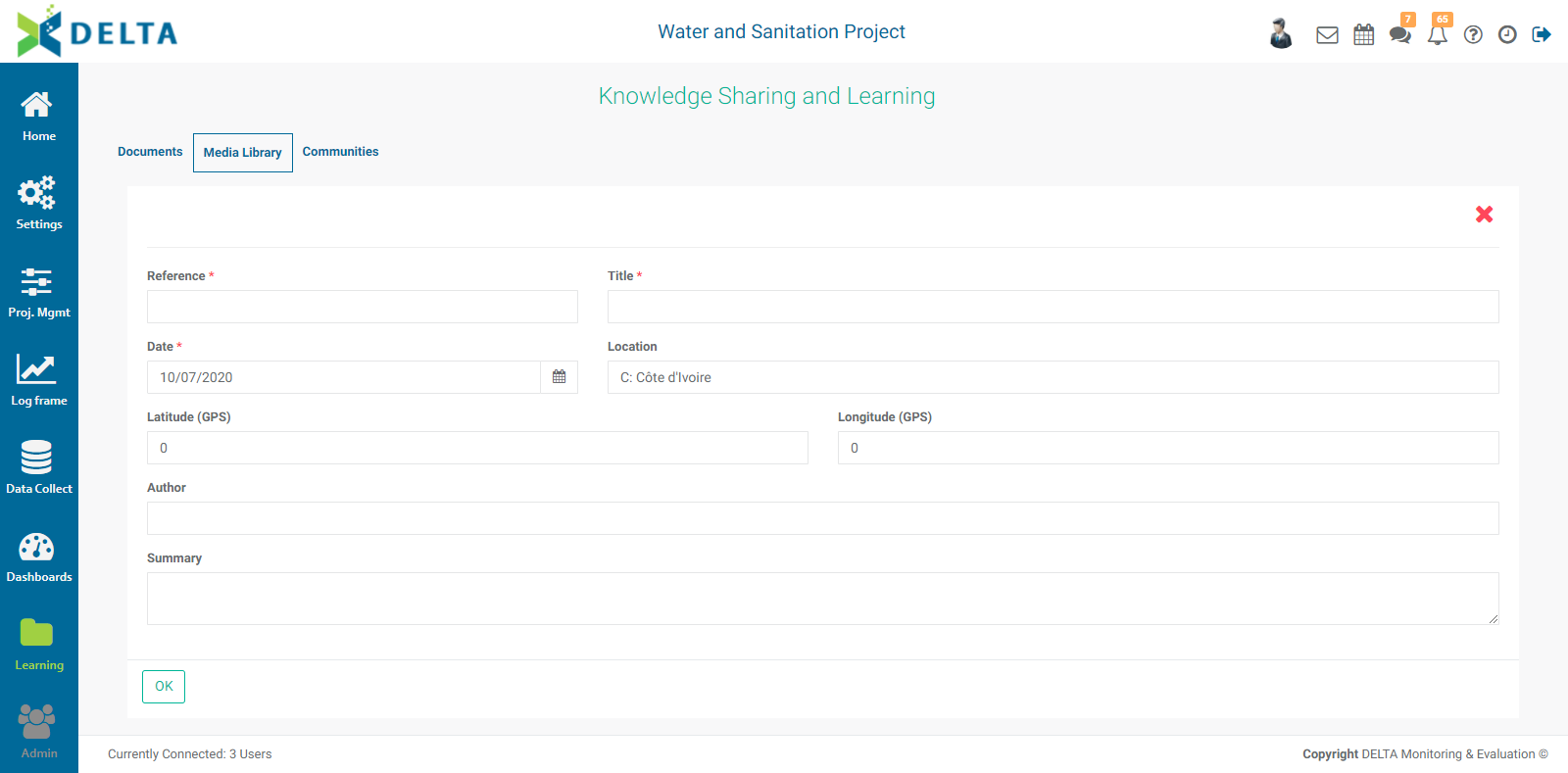
The Reference field is reserved for any identifiers or any similar classification nomenclature. It is a mandatory field, and it cannot be edited once the photo is saved to the library.
Enter a Title for the photo. This will appear on the photo's tile in its folder.
The Date will also appear on the photo's tile. By convention, the date should be the date the photo was taken, and not rhe date it was entered in the system.
The Display In Portal option publishes the photo to the Portal (Login) page as a link to public project documentation. Anyone with the URL of the portal can view this information, without requiring system access credentials. This is described in detail in this article.
The other fields are optional, but as a best practive we recommend entering as much information as is available: Location (pick list populated by the portfolio Locations settings), Latitude and Longitude (GPS coordinates), Author, and Summary.
NOTE: the Reference field cannot be edited once the photo has been saved to the library.
When you're done, click OK at bottom left. Your photo will appear in its own tile on the screen.
To view a slide show of the photos in a folder, click on any photo tile in it. Use the left and right carets to navigate the slide show. To stop playback and return to the Media Library screen, click the X at upper right of the screen.
To edit or delete a photo, click its tile's More icon.
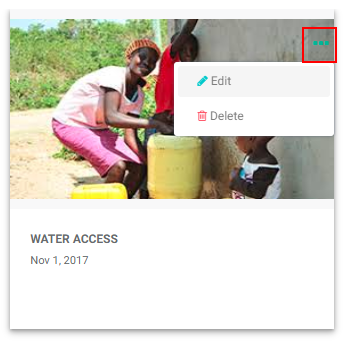
To add a video, select Add Video from the More menu. NOTE: to save space on the system servers, videos can only be linked to their YouTube location and not uploaded, due to their (usually) considerable file size. Consequently, you will need to upload your video to YouTube before you can proceed.
The information required on the Add Video screen is similar to that of the Add Photo screen, with one important difference: the required URL field for the YouTube location of the video.
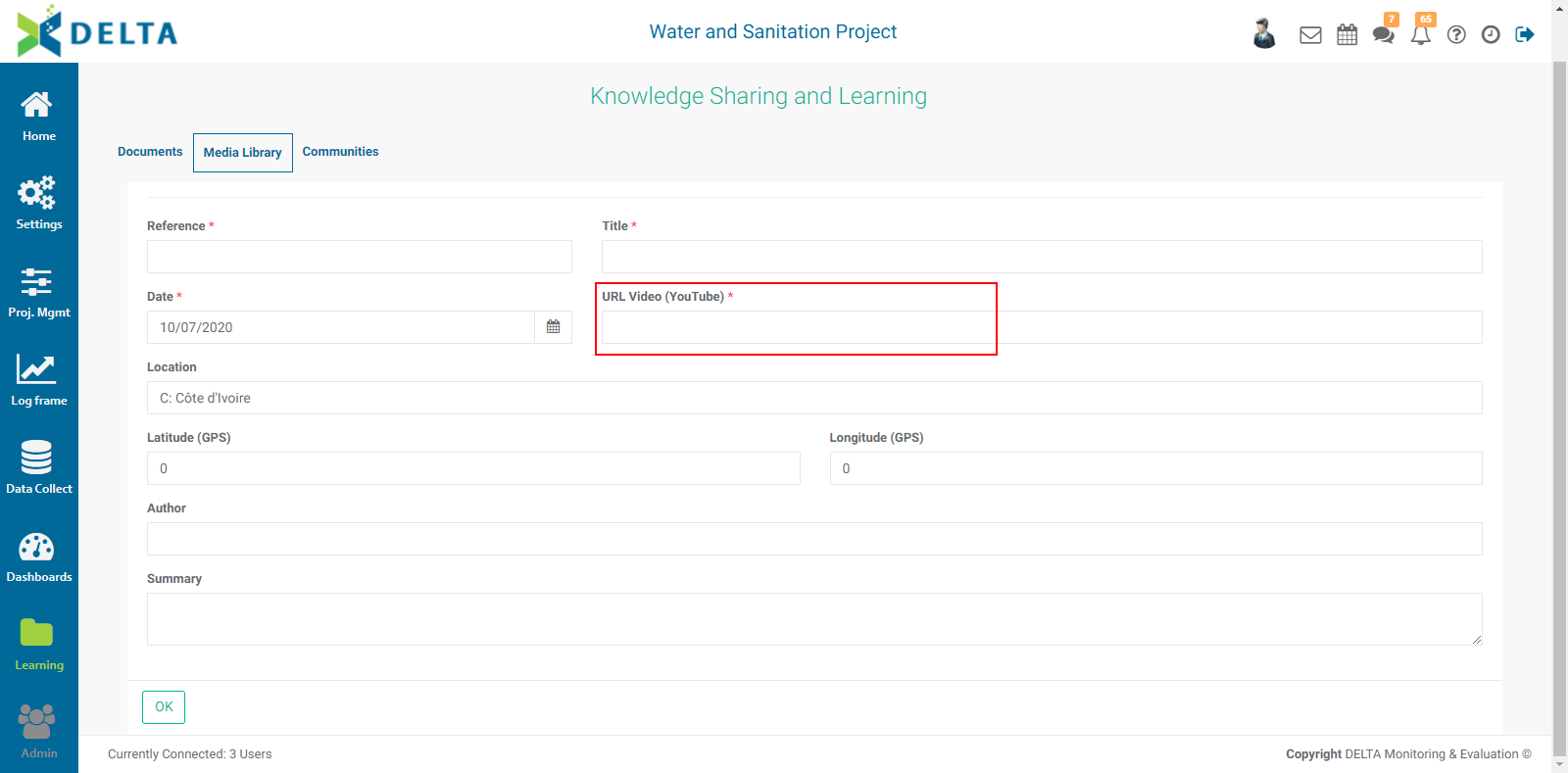
When you’re done entering the required information, click OK to save your work and go back to your folder. A tile with a preview screen of the video will appear in the folder.

NOTE: you can keep your YouTube channel private; as long as you provide your users with direct links to your videos, they will be able to access and play them.
To play the contents of a media folder, click on any tile in the folder. This will start showing each item in term in a floating transparent window, similar to the Photos carousel.
Previous: Learning Module: Documents | Next: Learning Module: Communities
Author: Administrator
Last update: 2023-07-01 21:07
Learning Module: Documents
Delta’s Learning module is a centralized repository for project- and portfolio-related documents and knowledge sharing. Click the Learning icon in the left navigation to enter the Learning module.
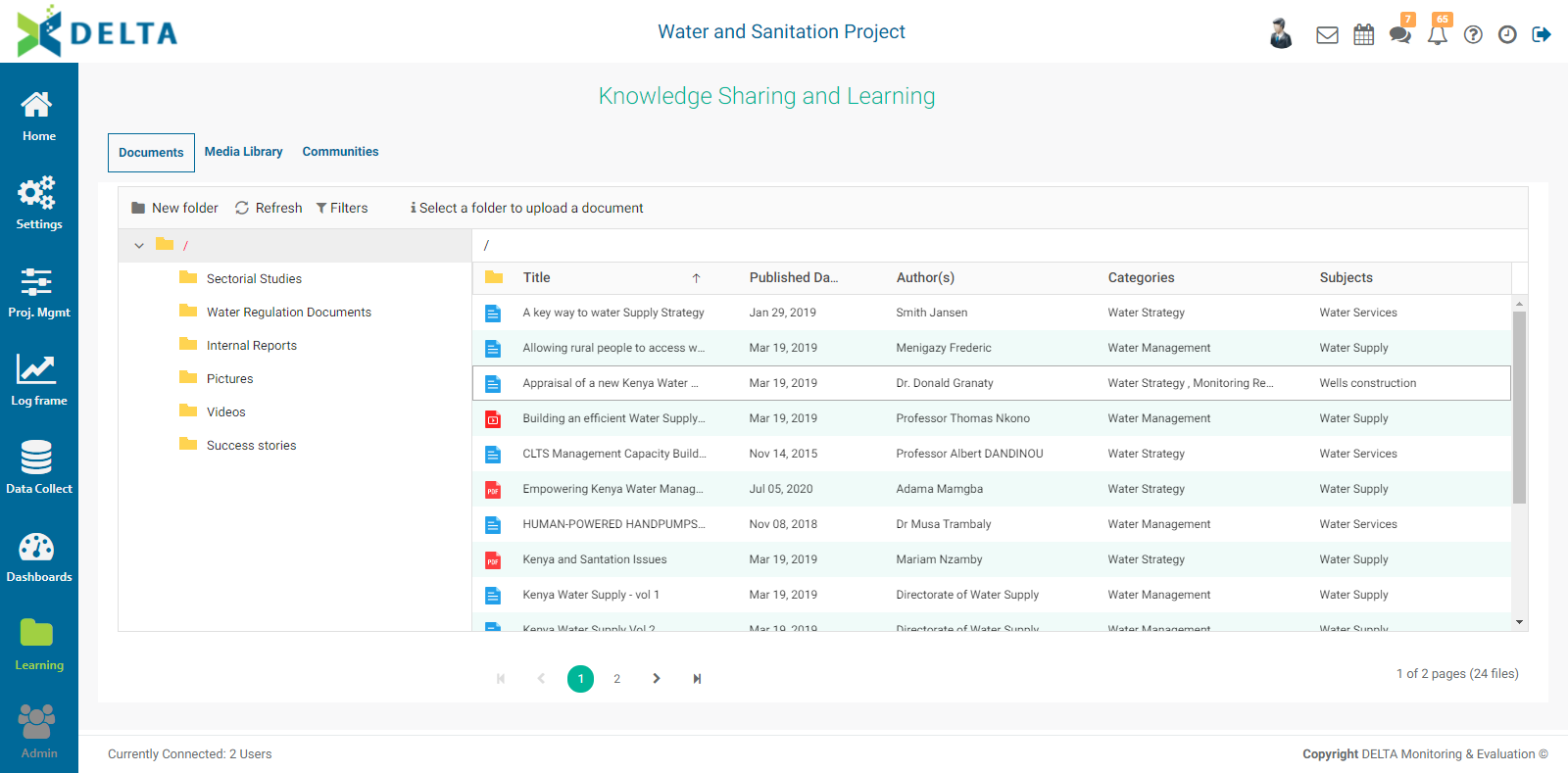
The first section of the module, Documents, is the centralized repository for project-related documents. Select Documents from the horizontal navigation, if not already selected.

The left side of the screen is the navigation pane, while the right side is referred to as the document pane. Folders are shown on the left, their contents on the right. The top folder level, called Root, is denoted by a forward slash (/).
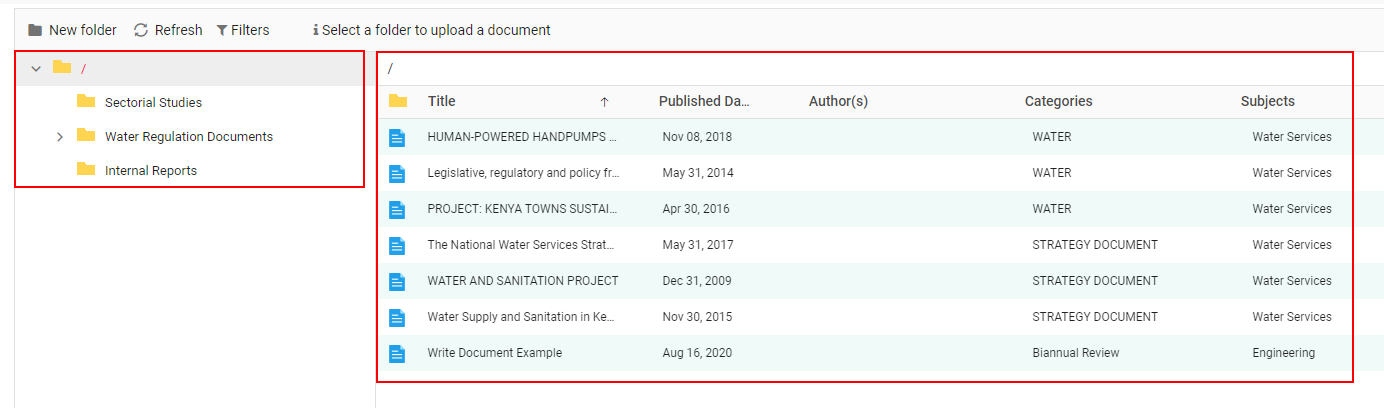
NOTE: the horizontal functions menu is contextual, meaning it will change depending on where you are in the folder structure and which task you're accomplishing. The defaults, seen above, are New Folder, Refresh, and Filters.
Click on a folder column header to sort the selected folder’s documents by Name, Published Date, Author(s), Category, and Subject.
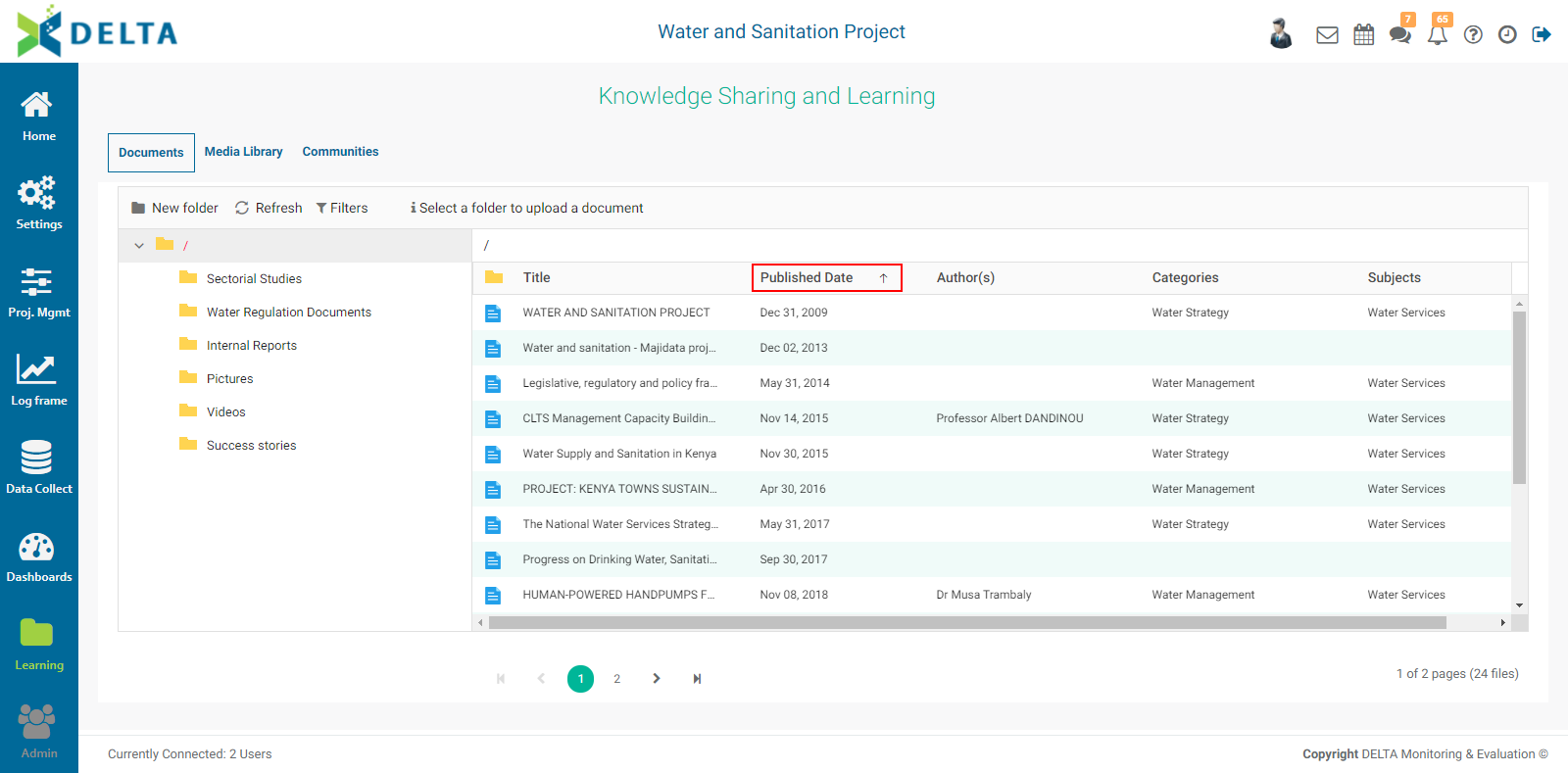
To navigate between folders, click a folder in the navigation pane to select it and display its contents.
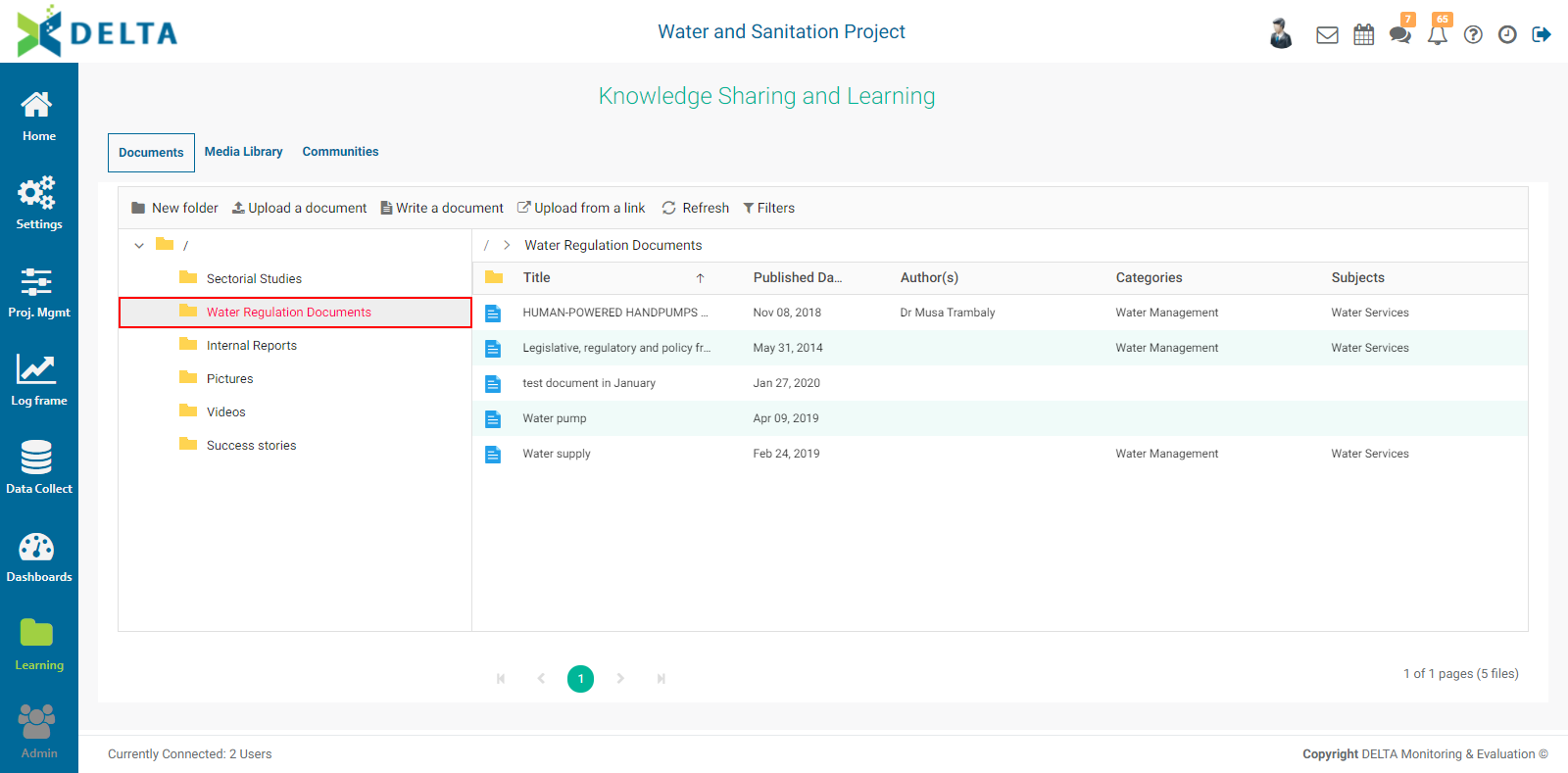
To create a new folder, click the New Folder button below the horizontal sections navigation to bring up the New Folder popup window.
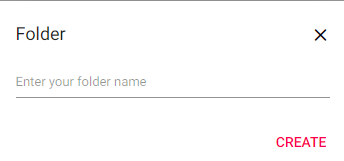
Enter the desired name for the folder and click Create. The folder will be created inside the level selected in the navigation pane.
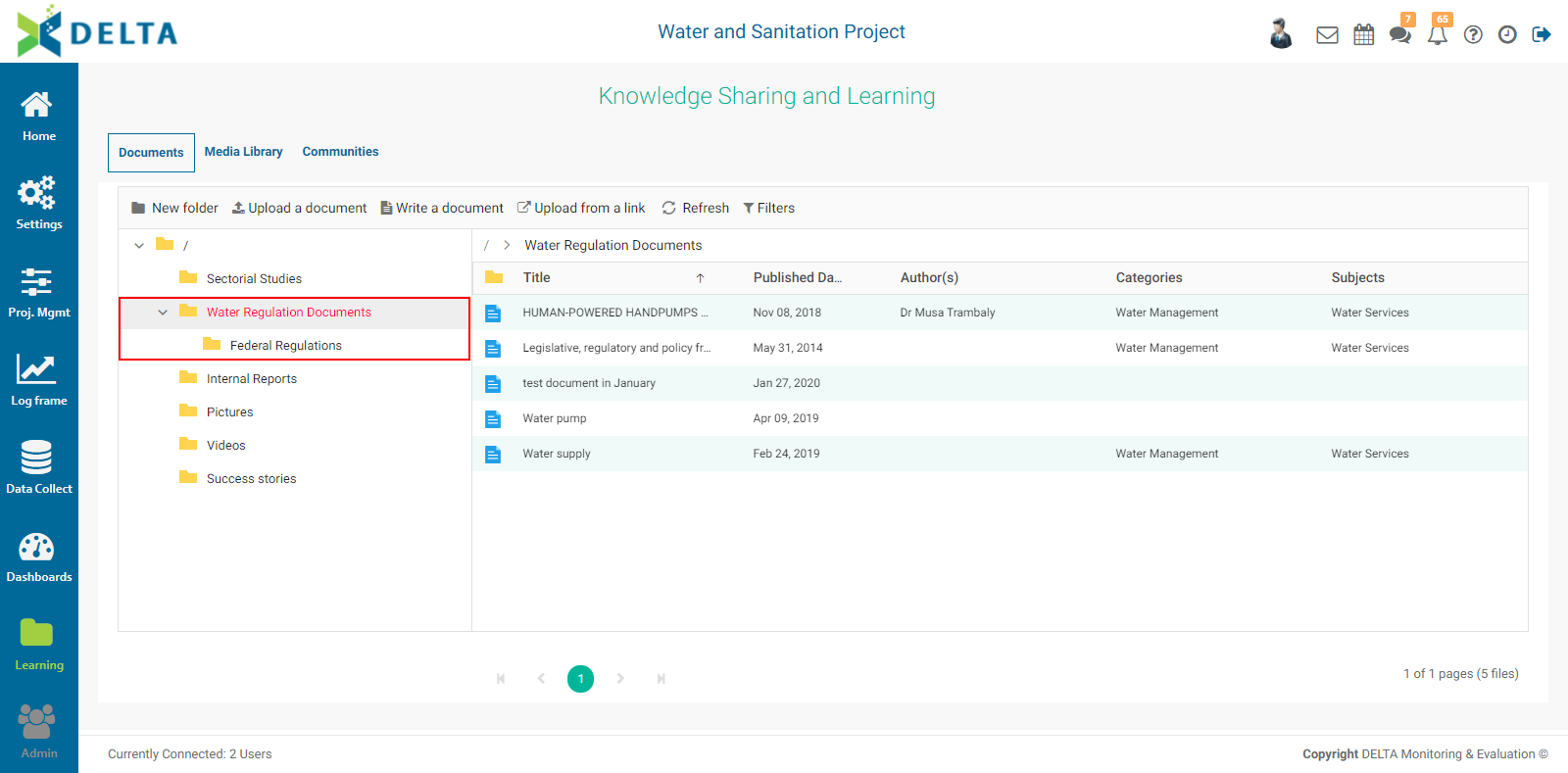
Use the carets in the navigation pane to expand and collapse the list of subfolders.
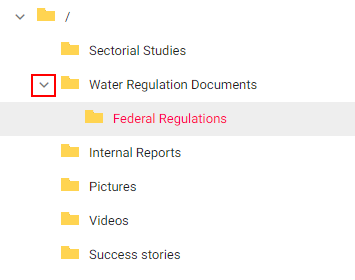
The path from a folder back to the Root level is displayed at the top left of the Document pane. You can use these breadcrumbs to navigate the contents of the library.
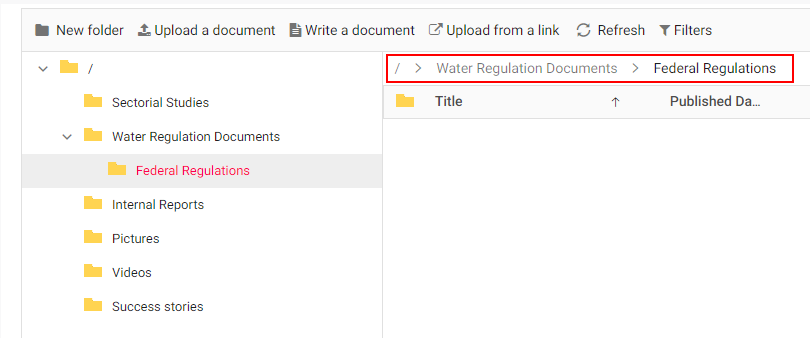
Three methods are available to you for adding documents to the library: Upload, Write, and Upload from Link.

To upload a document, click the destination folder in the left pane to select it. Select Upload a Document from the menu. This will open a standard dialog box from which you can navigate to the document you want to upload. Click the document and click Open or press Enter from your keyboard. A status popup will appear with a thermometer bar showing the progress of the upload. When the upload is complete, the popup will display a success message along with the file name and its size.
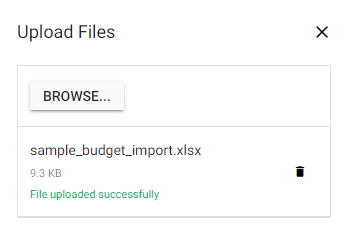
To upload another document to the same destination folder, click the Browse button in the status popup, and navigate to another document. Click the document to select it and click Open or press Enter from your keyboard. The status popup will appear after the upload has been completed. When you’re done, click the X at top right corner of the status popup to dismiss it. Your uploaded document(s) will appear in the documents pane.
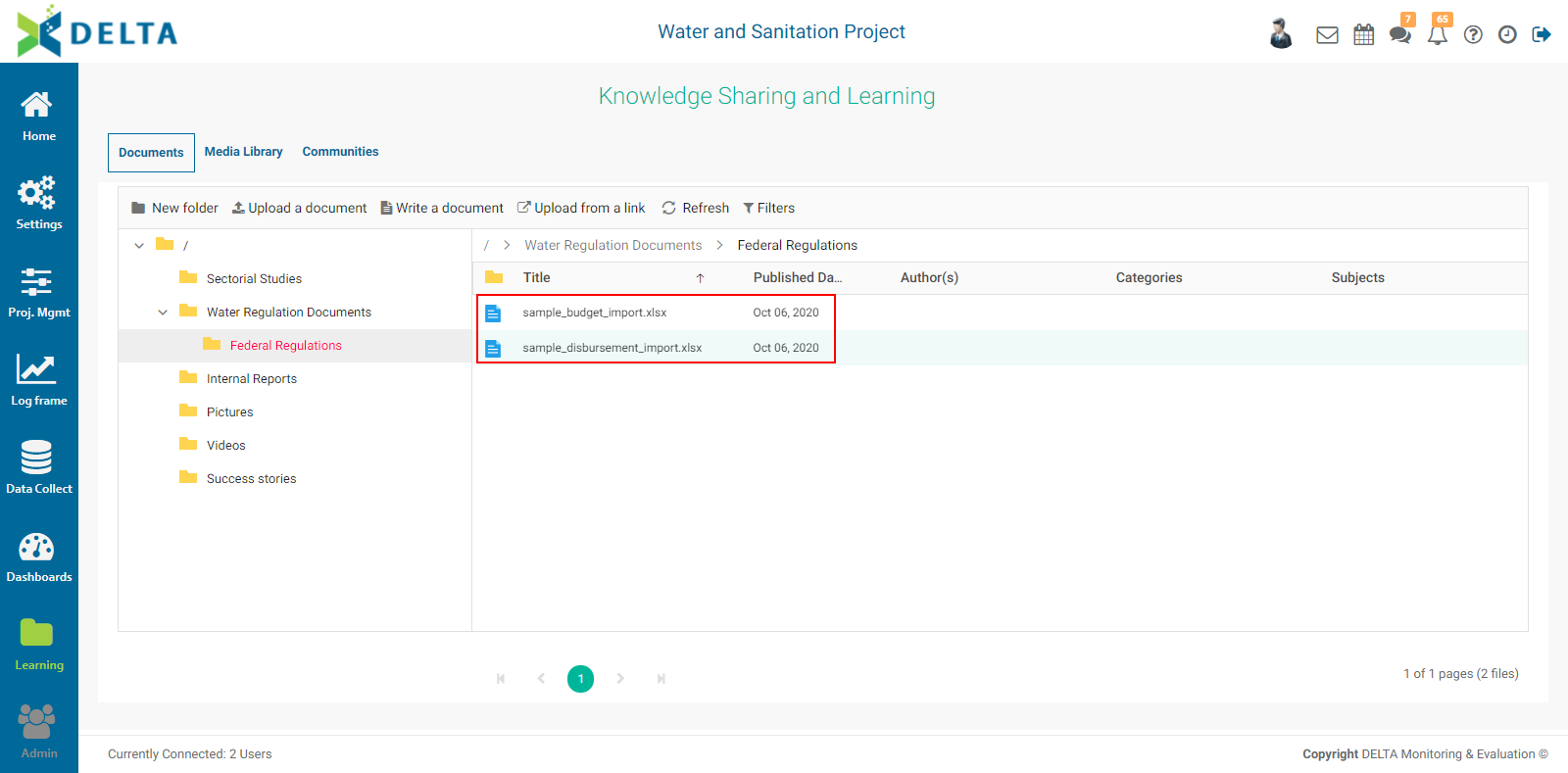
Each document type has its own icon and color. If the document’s name is truncated by the width of the Title column, move your cursor until you get a double grab bar icon ( <-||-> ), then click, hold, and drag to resize the column. You can resize any column in the document pane.
NOTE: while there are no limits to the size of documents which can be uploaded, keep in mind that the larger the document, the longer the upload will take. This may cause problems when using unstable or weak network connections.
To write a document, click the destination folder in the navigation pane to select it. Select Write a Document from the menu. The Document Description screen will open. All fields denoted by an asterisk are mandatory.
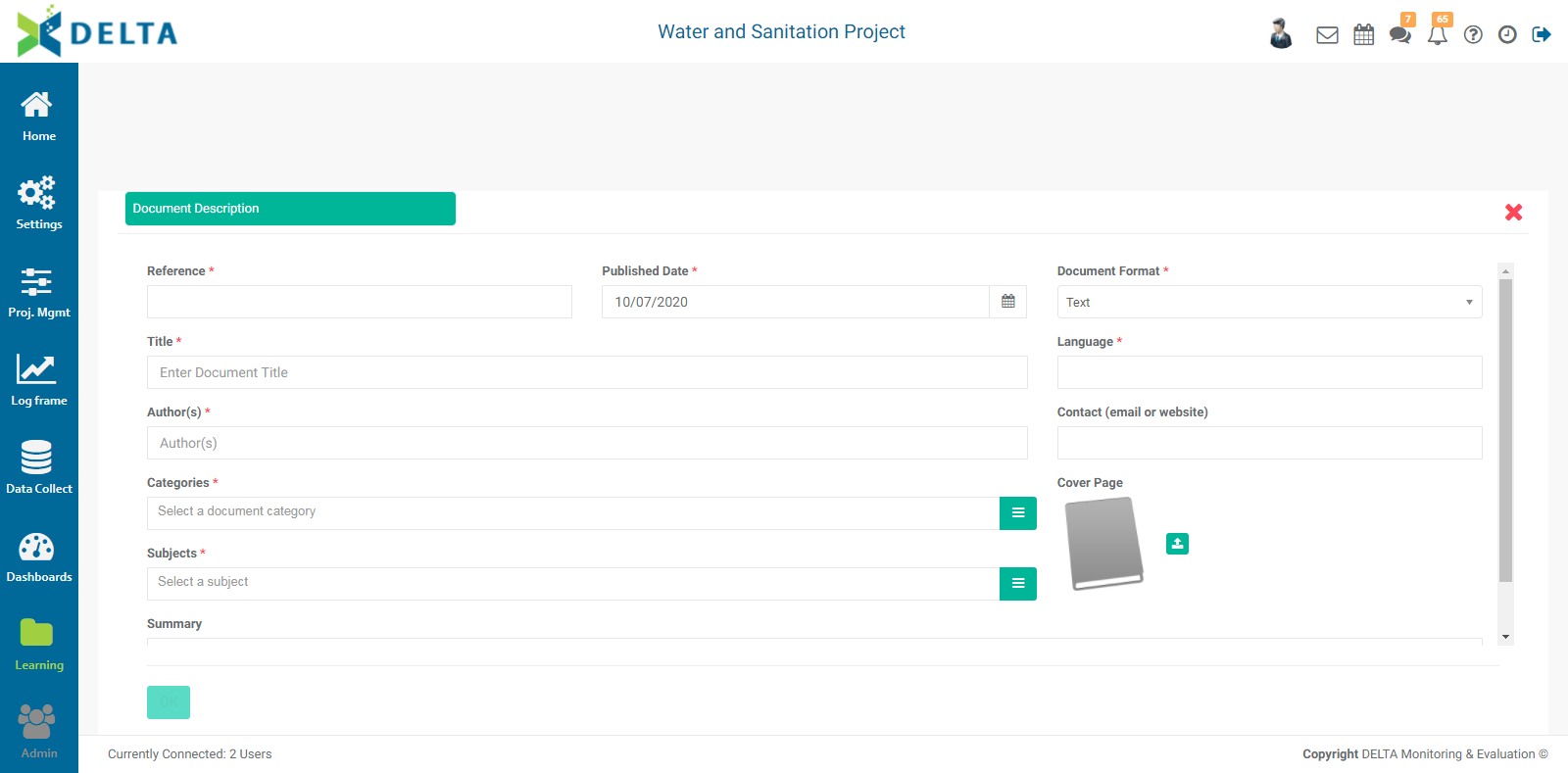
Enter a reference number for the document. There is no set format for how reference numbers are built, so you can use any convention or nomenclature you deem appropriate.
Enter the publication date of the document. The default is today’s date. To select another date, click the calendar at the right end of the Publication Date field to open the calendar and navigate to the desired date.
Select the Document Format from the pick list.
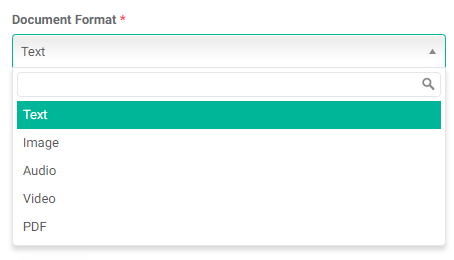
Enter a title for the document, and select the language. If the language you want does not appear, enter it freehand in the Language field. It will be made available for other documents once you save yours.
Enter the name of the author. This is a freehand field. If contact information for the author is available, enter it in the Contact field. Contact information can be an email address or a website URL. This field is optional, but we suggest as a best practice that you always enter as much information as is available.
Enter one or more category(ies) for the document. If the category you’re looking for is not in the pick list, click the ≡ icon at the end of the field to bring up the Categories popup window.
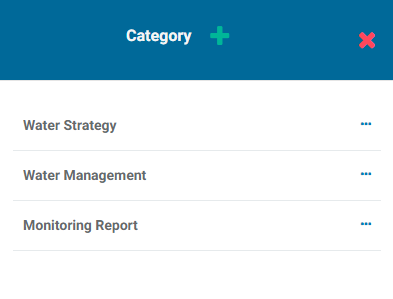
Click the + in the popup window title bar to add the desired category. Enter its label and click OK. The new category will appear in the popup window. Click the X in the popup window title bar to close the popup. The new category will appear in the pick list and is available for selection.
Select one of more Subjects from the pick list. If the subject you’re looking for does not appear in the pick list, create it using the same method described above for the Categories.
If desired, click the Upload icon under Cover Page to upload a cover page for your document. Cover pages are images, and most graphic formats are allowed: .xbm, .tif, .pjp, .jfif, .webp, .pjpeg, .avif, .ico, .tiff, .bmp, .png, .jpeg, .svgz, .jpg, .gif, and .svg. Navigate to your cover page image to select it, and press Enter or click Open to associate it to your document.
Enter a summary for the document. This field is optional.
Once all the mandatory fields have been completed, the Content and Document Sharing tabs will appear next to the Document Description tab.

Click the Content tab to bring it to the front. This screen contains Delta’s full feature text editor. You can enter text and style it, embed images, and link to audio and video files, among its features.
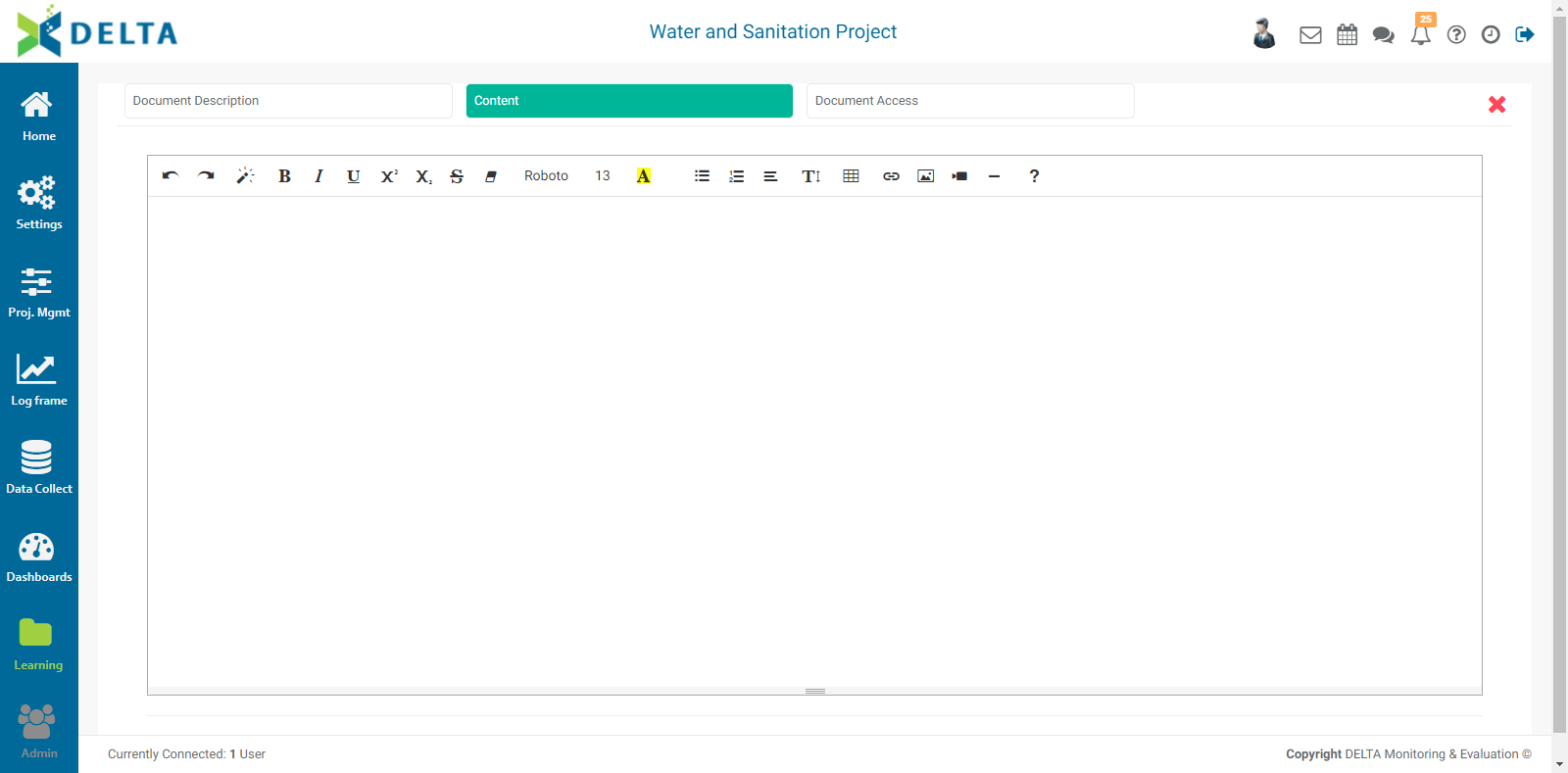
Click OK at the bottom of the Content screen if you’re done. If you would like to add permissions to your document, click the Document Access tab to bring it to the front.
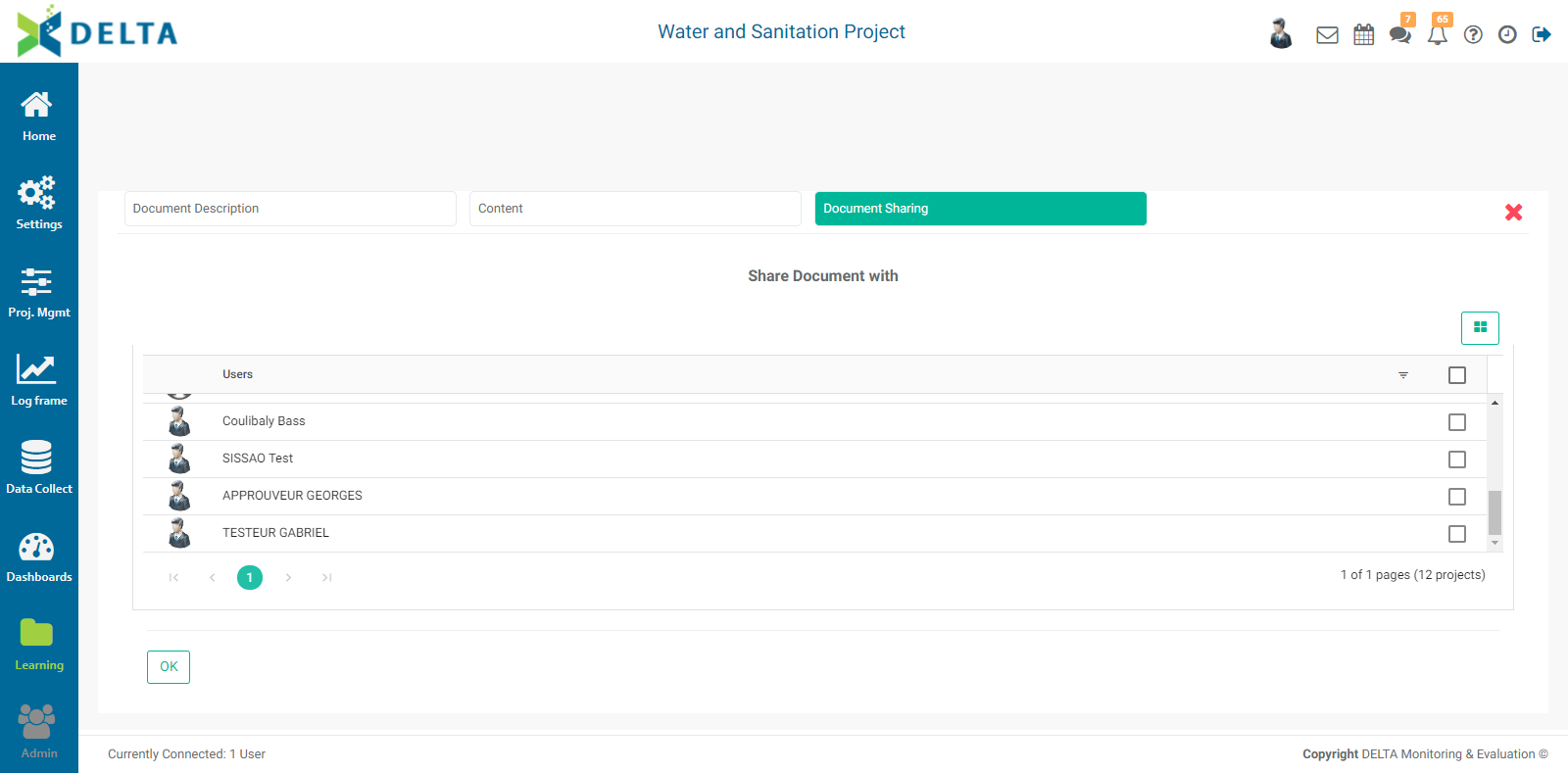
Select the stakeholders who will have access to the document. Note that superusers do not appear on this screen, since they have permissions for everything in the system. Click OK when you’re done. Your document will appear in the document list screen.
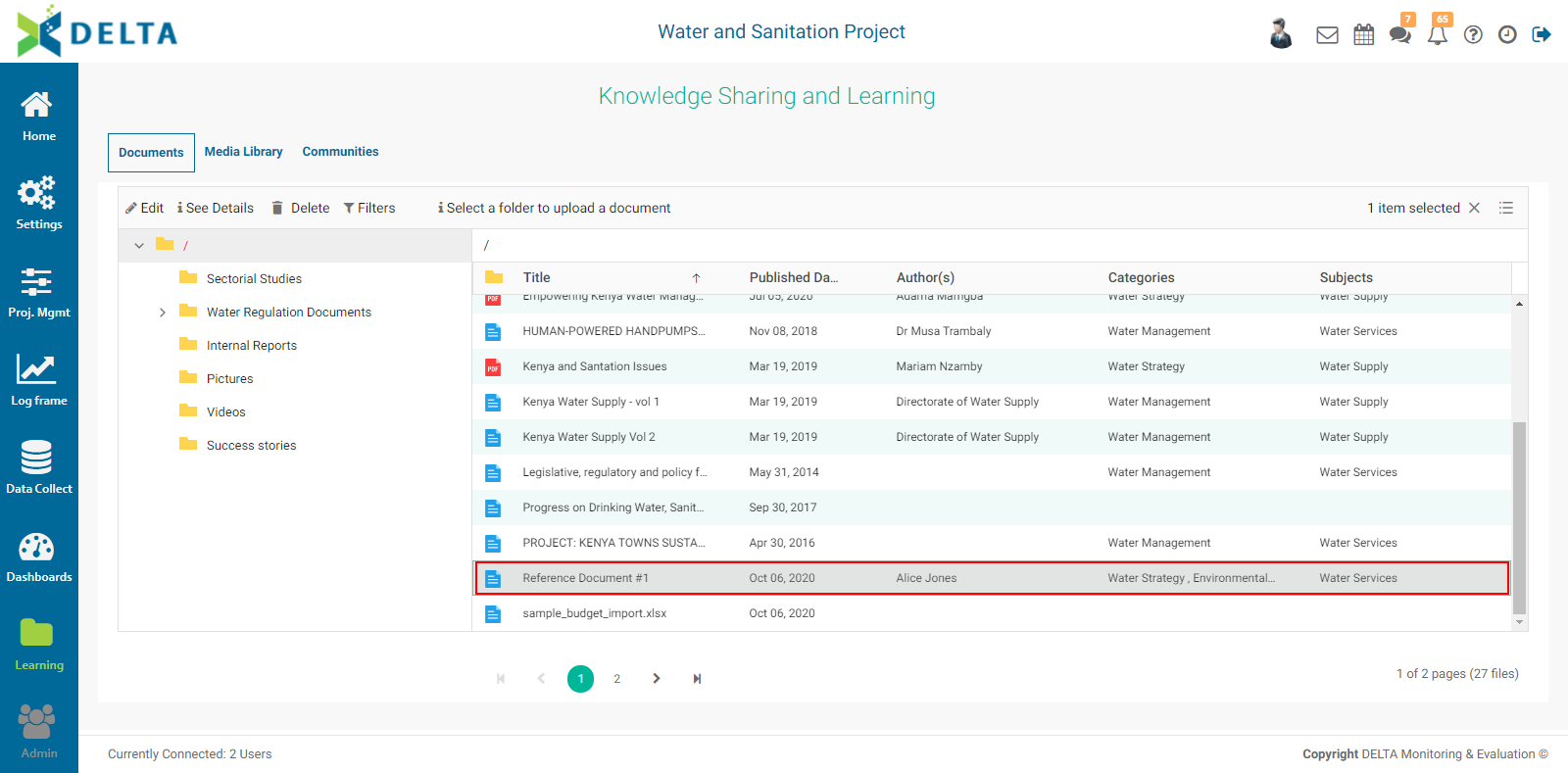
If the document does not appear, use the Refresh button, or navigate to the destination folder if it's not the one currently selected.
The last option in the menu, Upload from a Link, allows you to point to a cloud document, such as documents stored on Dropbox or Google Drive. The document description tab is essentially the same as that for the Write a Document option, except that you must enter the URL of the document instead of navigating to it. There also is no Content tab. NOTE: documents added to the library via this method remain on their respective repositories and are not copied to the library.
Select a document by clicking its name once. To edit the selected document, click the Edit icon at top left above the navigation pane. To see a document’s details, select it and click See Details at top left above the navigation pane, or double-click the document. Its Details screen will open.
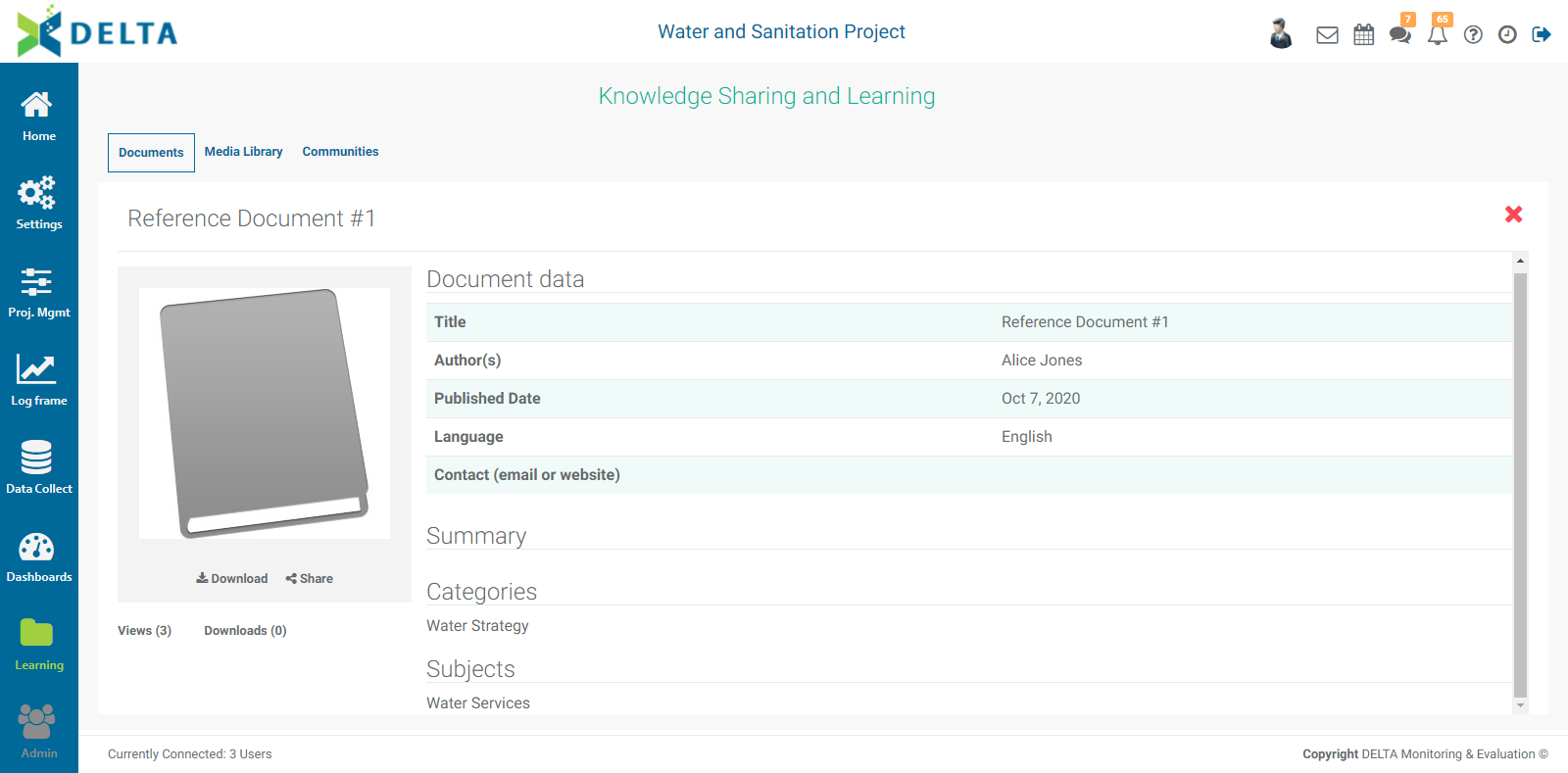
To download the document, select Download at bottom left. NOTE: downloading a linked document will open a new browser tab to the cloud service, in which you'll be able to view the document. This makes the Upload from Link an excellent option for making authoritative versions of external documents available to a project without having to worry about the freshness of the document's information. Click the X at top right to close the document details screen.
To delete a document, select it in the document pane, click Delete, and confirm the deletion.
To rename a folder, right-click it in the navigation pane, and select Rename from the menu.
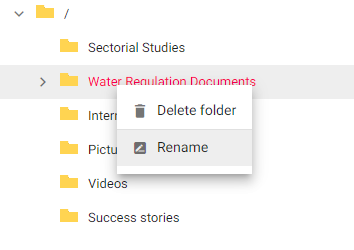
To delete a folder and its contents, right-click it in the left pane, select Delete, and confirm the deletion.
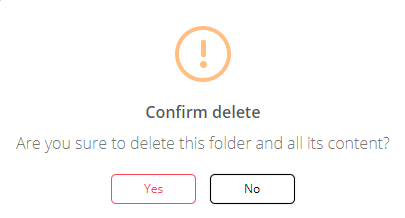
Use the Filters to sort through the library.
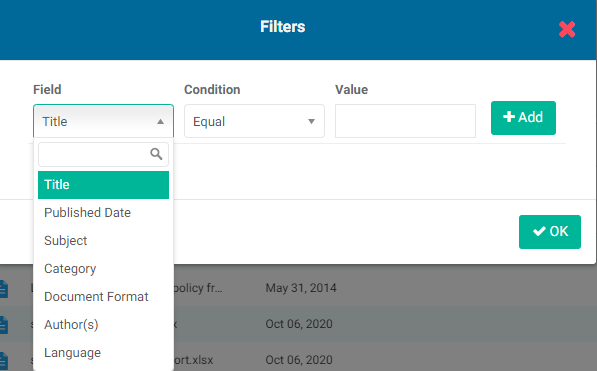
Select the field which you want to use to filter, then enter a condition.
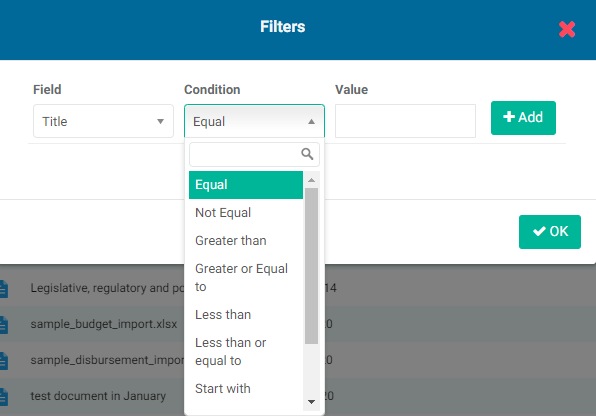
Finally, enter the desired value for the filter, for example ‘title contains water’. Click +Add to save the filter. Enter as many filters as desired, then click OK. Only the documents which conform to your filter(s) will be shown in the document pane.
You can toggle the display between Large Icons and Details by using the menu at top right. This menu only appears when a document is selected.
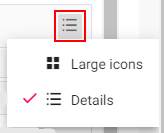
Both views work essentially the same way, except Details will show headers with the name of the folder or document, the item’s last modification date, and its size. To deselect an item, click the X next to 1 Item Selected. Only one item can be selected at a time.
Previous: Dashboards Module | Next: Learning Module: Media Library
Author: Administrator
Last update: 2023-07-01 21:12
Learning Module: Communities
New to Delta is the Communities screen. You can use this to establish communities of practice, centers of excellence, and other project- and program-oriented groups, as well as promote knowledge sharing across teams.
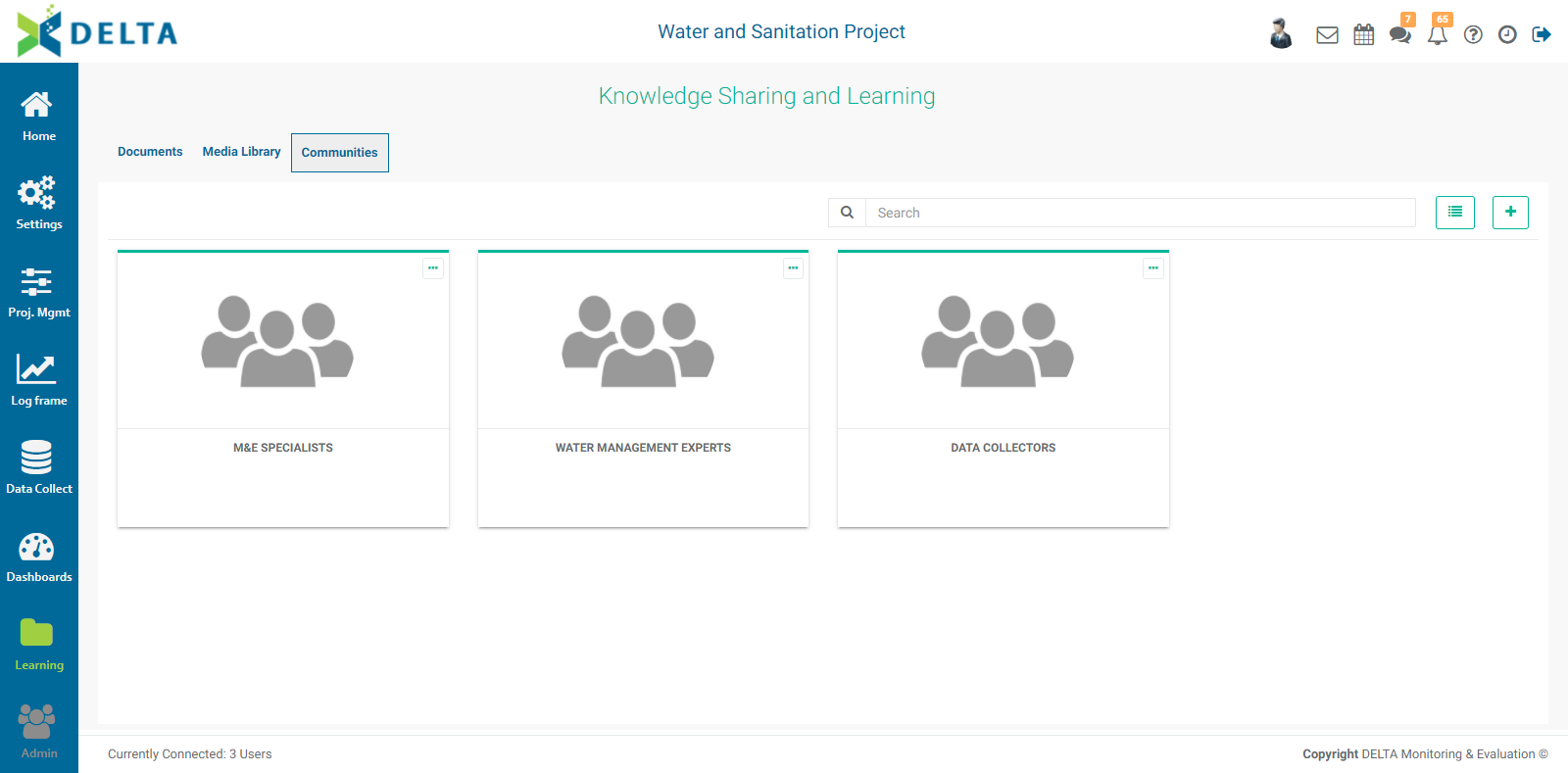
This can be especially useful if persons collaborating on a project are not collocated in the same physical space, or if they don’t know each other very well and need assistance on particular aspects of a project. Using Communities can make it much easier to find a resource person on a given topic of field of expertise.
To create a community, click the + icon at top right of the Communities screen to open the Edit Community screen.
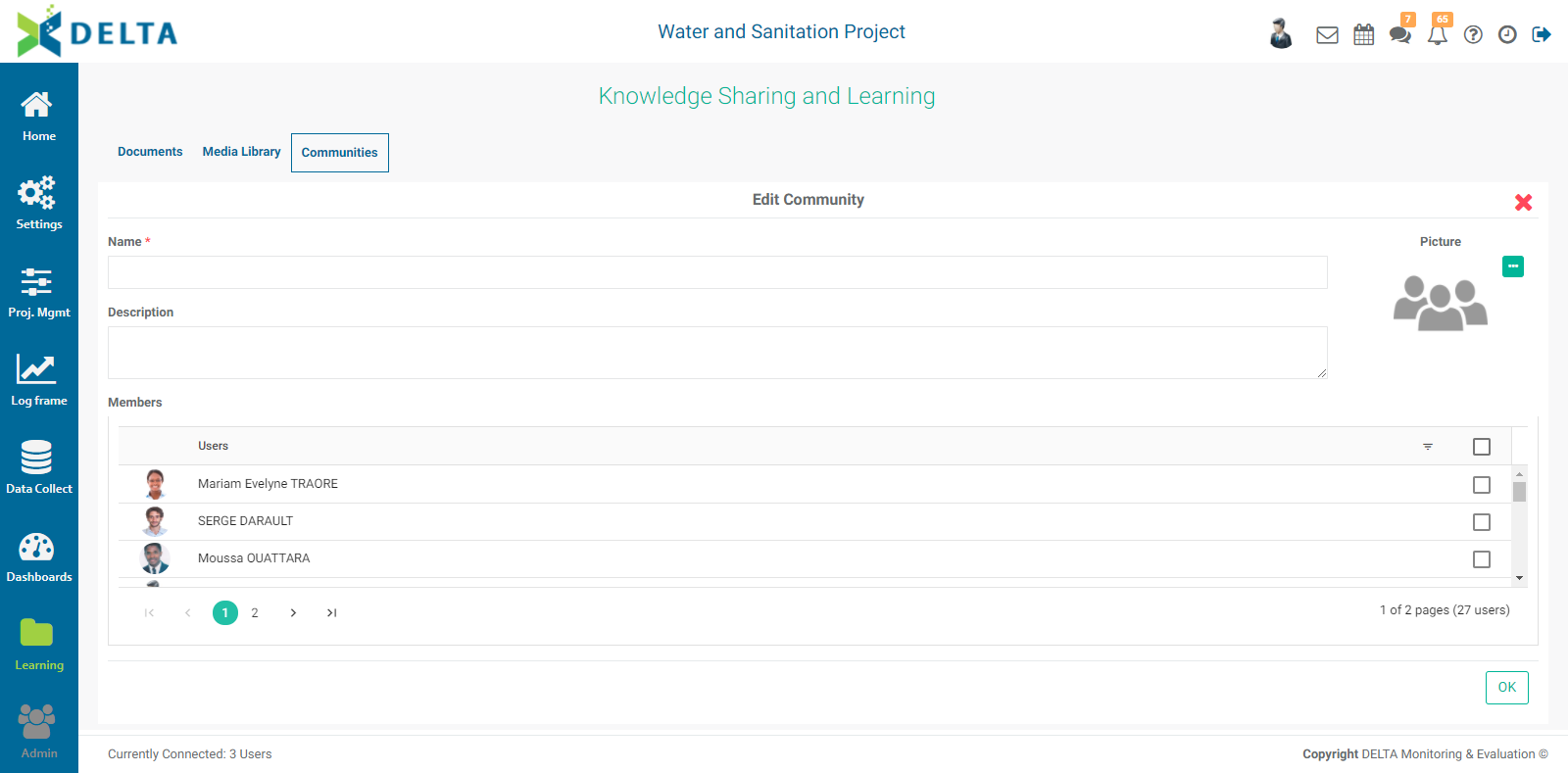
Enter a name for the community (mandatory), and a description (optional but recommended). Select a picture for the community, if desired. Click the More icon next to the generic group graphic, navigate to the desired image, and press Enter or click Open.
Select the members of the community from the list of project stakeholders, and click OK when you’re done to save your work and return to the Communities screen.
To edit or delete a community, click its More icon (either in the upper right corner of its tile or in the toolbar of its list item, depending on the selected view), and choose which action you want to perform.
Previous: Learning Module: Media Library | Next: Admin Module: Users
Author: Administrator
Last update: 2023-07-01 21:13
Administration Module
Admin Module: Users
Delta features a versatile Administration Module which includes extensive access control capabilities, which affords fine-grained control of users' access to data. The module is split into five functions: Users, Customized Rights, Audit Trail, Deleted Items, and Security. In this context, users can be anyone with access, regardless of whether they are actors in a project. NOTE: only superusers (administrators) have access to this module and see its icon in the left navigation.
Users are created at the Portfolio level. The Admin Module icon will be grayed out at the Project level.
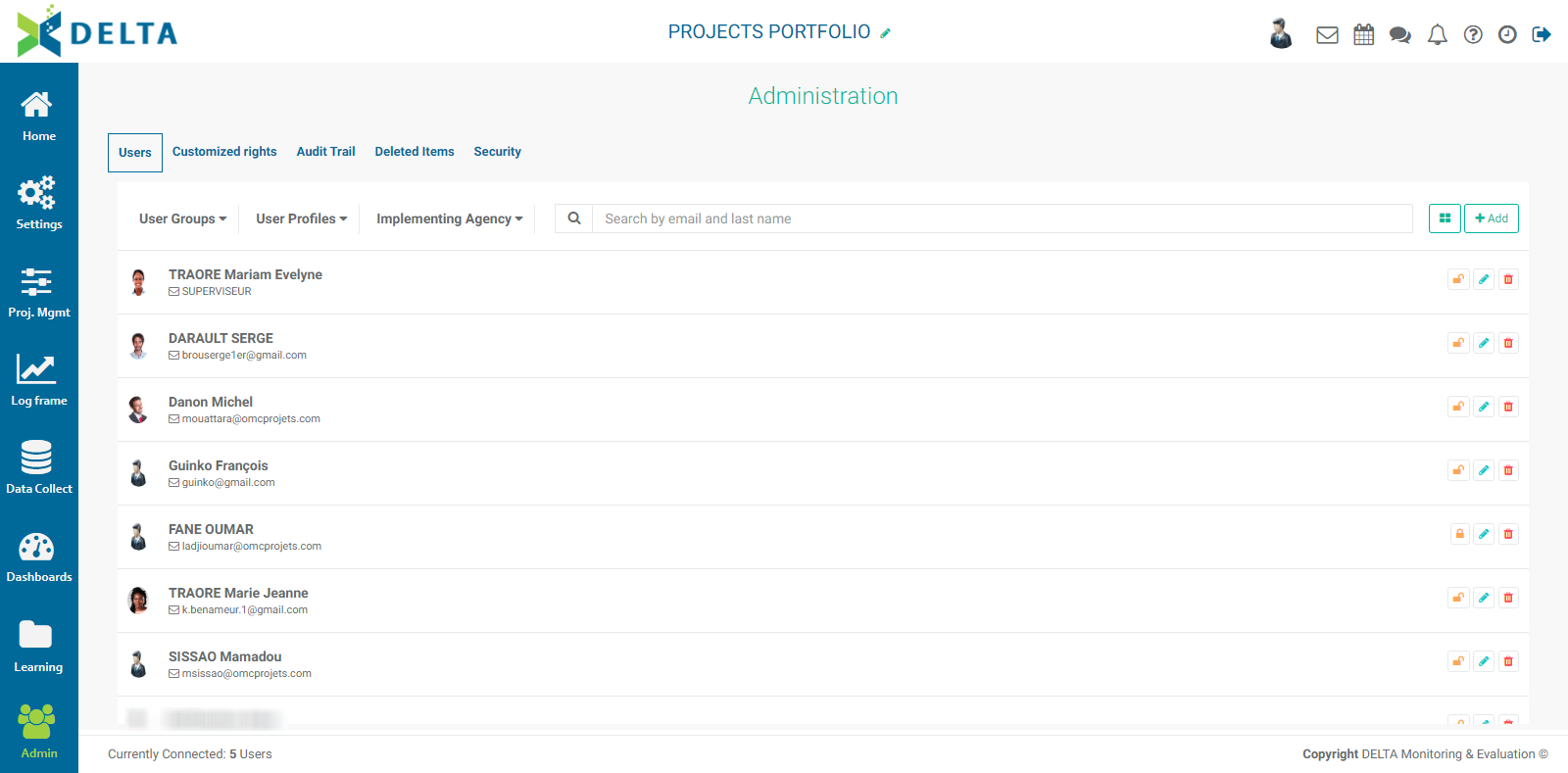
You can filter by user groups, user profiles, or agency, and search for names and email addresses. You can also toggle the view between List and Tile by clicking the List/Tile icon at upper right.
Click the +Add button to create a new user. In the List view, the new user screen will appear inline on top of the list. In the Tile view, the new user screen will appear by itself. The first tab is User Details.
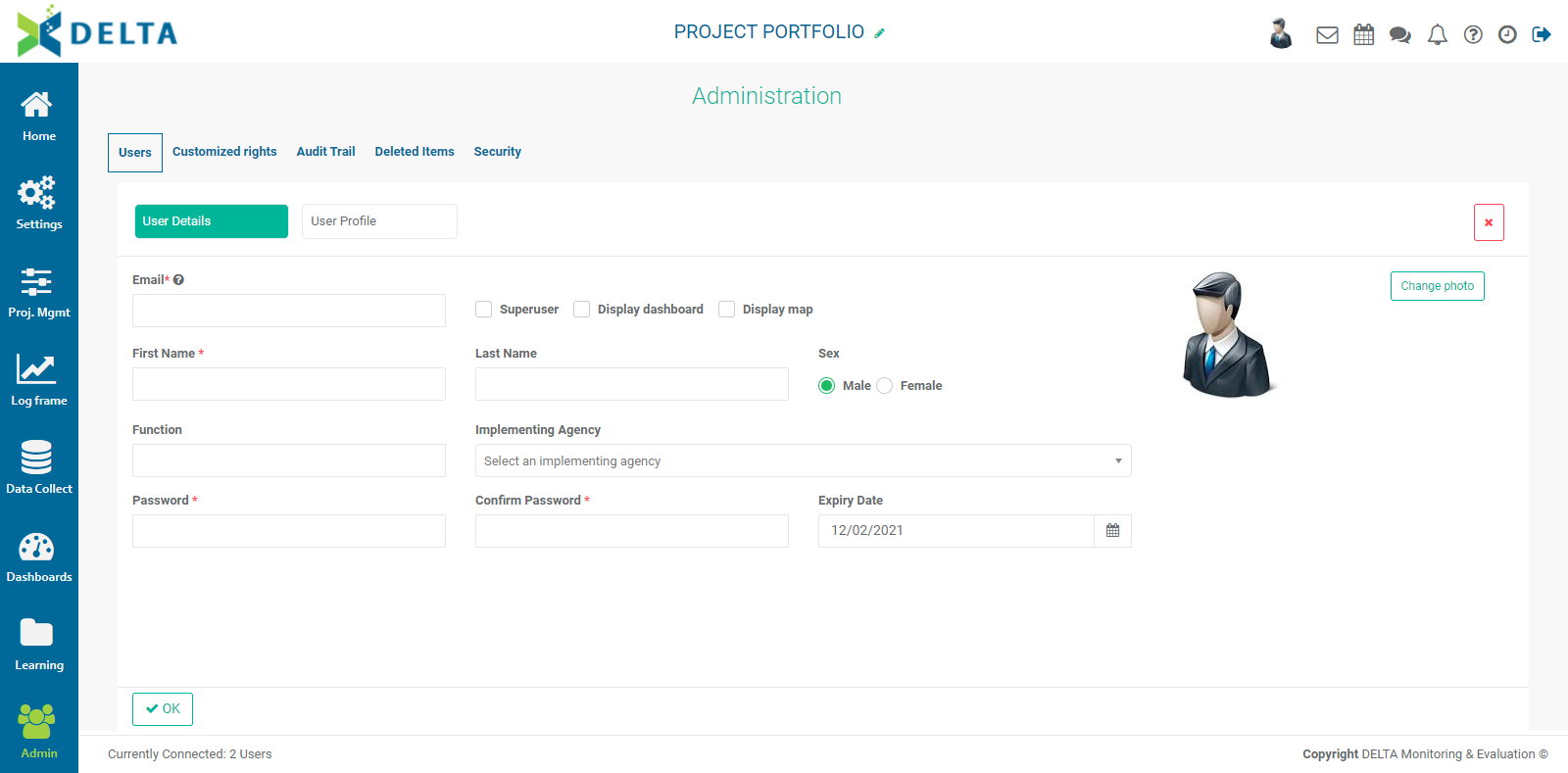
The email, first name, and passwords fields are mandatory. The email in particular must be correct, since it serves as a user's login credential along with their password. They will also receive system notifications at that address. The other fields are optional. It is suggested as a best practice to enter as much information as is available.
Checking the Superuser box grants system-wide access to a user. This will allow a user to access all the system areas as well as all the data contained in the system. This is usually reserved to system administrators. Superusers are the only ones with permissions to create other users. Superusers are also the only users who will see the Admin module icon at the bottom of the left-hand navigation. NOTE: once the Superuser box is checked, the User Profile tab of the Users screen will disappear.
Checking the Display Dashboard and Display Map will grant access to the Portfolio dashboards and map, respectively. These checkboxes will disappear once the Superuser box is checked.
The User Profile tab is used for 'regular', i.e. non-superuser accounts. This screen contains a current list of the projects in the portfolio, and allows administrators to easily grant portfolio and project access permissions to users.
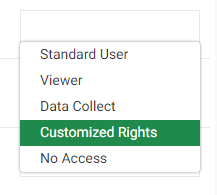
The default selection is Customized Rights. The other options are:
- Standard User: allows access to the entire project or portfolio, including Create, Edit, and Delete
- Viewer: allows view-only access
- Data Collect: allows access to the Data Collection module only, for data collection, verification, and validation
- No Access: locks the user out of the project
Selecting Customized Rights allows the administrator to further refine the permissions to the project. It is the default selection because in and of itself, selecting Customized Rights grants no access to a project until and unless a user is added to a User Group and User Profile in the Customized Rights tab. This also facilitates the work of an administrator, by not having to set permissions for each and every project in the portfolio.
Select Male or Female to indicate the gender of the user. If there is no photo available for the user, a generic icon will appear in the first spot of the Main Toolbar at top right. Selecting the proper gender will ensure the proper generic icon will appear.
Select the user's agency from the Agency pick list, and the user's role/staff post from the Staff/Stakeholder pick list. These are optional fields. If the correct agency or staff/stakeholder information does not appear in their respective pick lists, set them up in Delta's Settings module. NOTE: Agencies can only be created at the Portfolio level, either in the Portfolio's Settings module, or when creating a new project.
Enter a password for the user, then enter it again in the Confirm Password field. Passwords are case-sensitive. Strong passwords should include a mix of uppercase and lowercase characters as well as numbers. Special characters are also allowed except for @, #, and $.
You can set an expiration date for a password. By default, passwords expire one year after the creation of the user in the system. Click the Expiry Date field calendar icon to select another date if appropriate.
Click the Change Photo button to add/change a user's photo.
When you're done, click OK to save your work and return to the previous screen. The user you just created appears in the List and Tile views.
Each user entry has its own toolbar in List view. To edit a user in List view, click that user's Edit icon, make the necessary changes, and click OK to save your changes and return to the list.

To temporarily suspend an account without deleting it, click the list item's Lock icon. Click the icon again to unsuspend the account. The lock's appearance toggles between open and closed to reflect its current state. To delete an account in List view, click its Delete icon, then confirm the deletion.
To manage accounts in Tile view, click the account you want to edit to open it. Make the necessary changes, and click OK to save your work and return to the Tile view. To suspend an account, click its tile, then click its lock icon, and click OK. To delete the account, click on its tile, and click its Delete icon, then confirm the deletion.
Previous: Learning Module: Communities | Next: Admin Module: Customized Rights
Author: Administrator
Last update: 2023-07-01 21:14
Admin Module: Customized Rights
Customized Rights allow system administrators to grant extremely fine-grained permissions to users whose profile permissions are set to Customized Rights in the User Profile tab of the Users screen. IMPORTANT: if Customized Rights are used, a user will not have access to a project unless they are a member of at least one group and one profile for that particular project.
Customized rights in Delta are granted in two ways: project data permissions are handled by user groups, and system permissions are handled by user profiles.
User groups are used to assign fine-grained permissions to the project data. A best practice is to create user groups for users with similar tasks or roles, for example, who require similar levels of access.
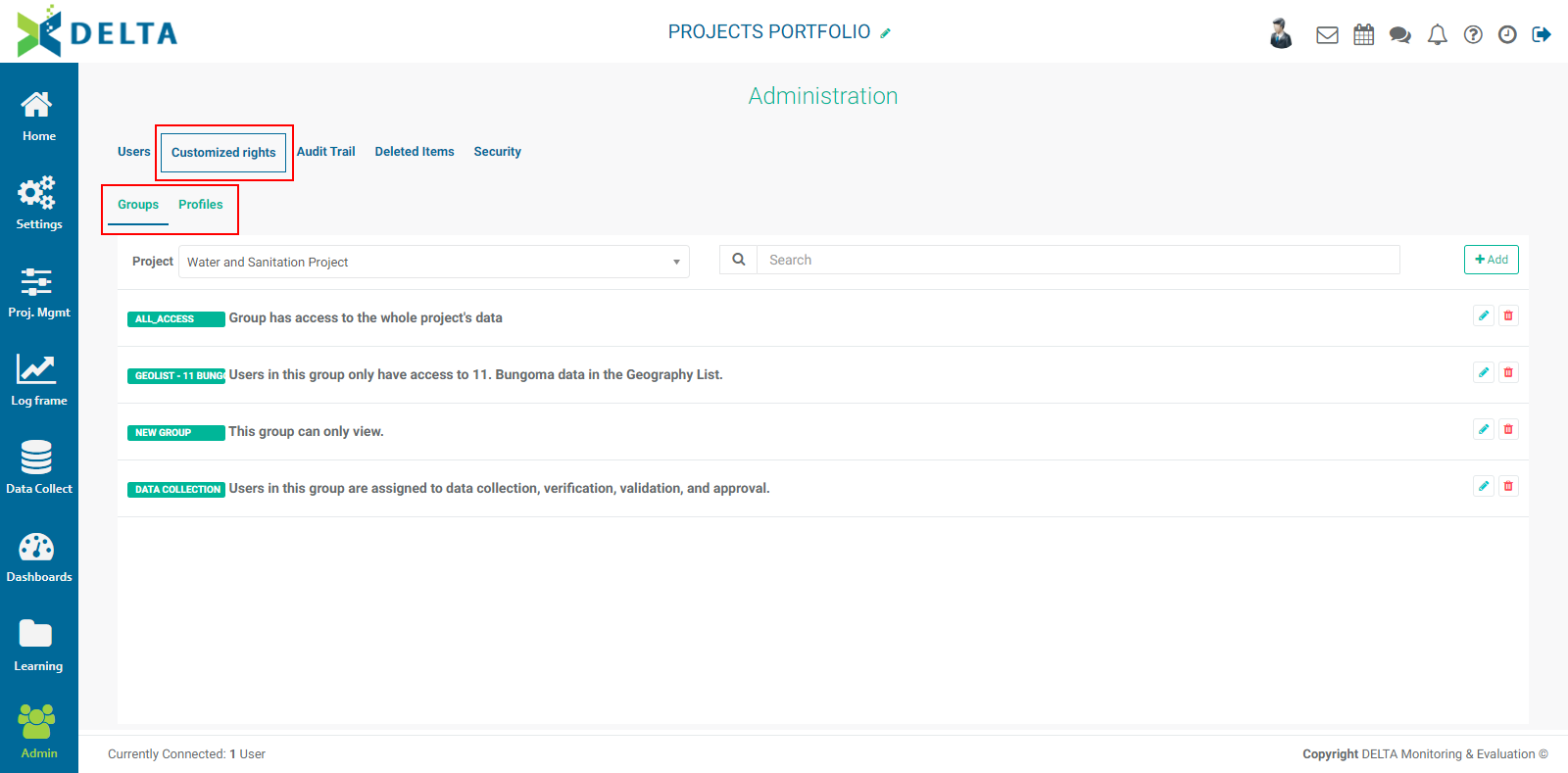
To create a user group, you must first select the project for which you want to apply the permissions. Click the Project picklist and make your selection from the project list.
Click the +Add button at the top right of the Customized Rights screen. The first tab of the Group definition screen is Locations.
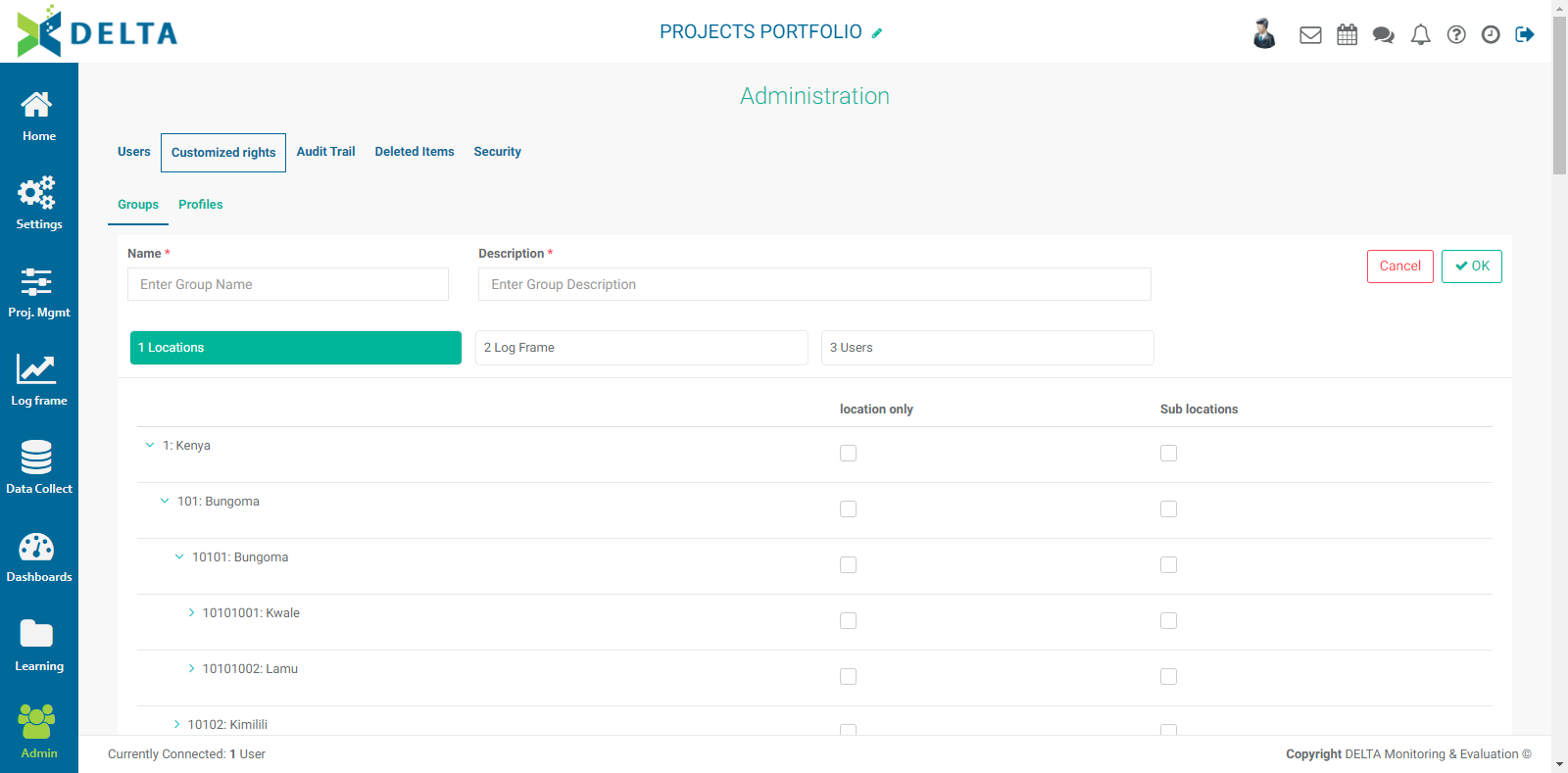
Enter a name and a description for the user group. A good description should include a summary of the permissions. The summary appears on the Groups list screen and makes it easier to locate a user group in the list.
The Locations appear on the left. You can assign permissions at any level of geography (Location Only), and choose to include access to sub-levels in the Geography List (Sub Location). Note that unless you explicitly grant a specific permission by checking a box, the members of the group will have no access to those items' data.
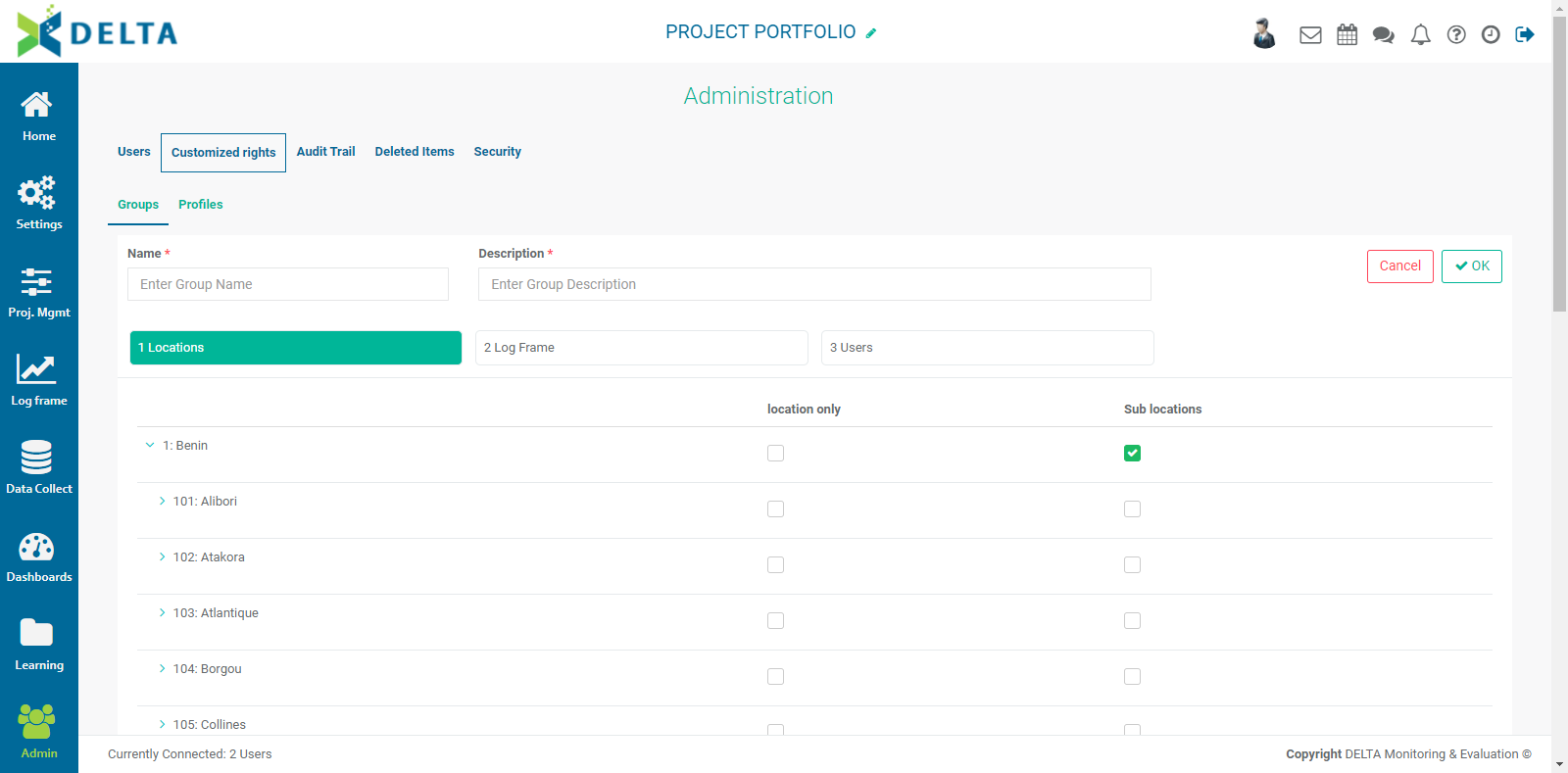
Next, click the Log Frame tab to bring up the log frame permissions screen.
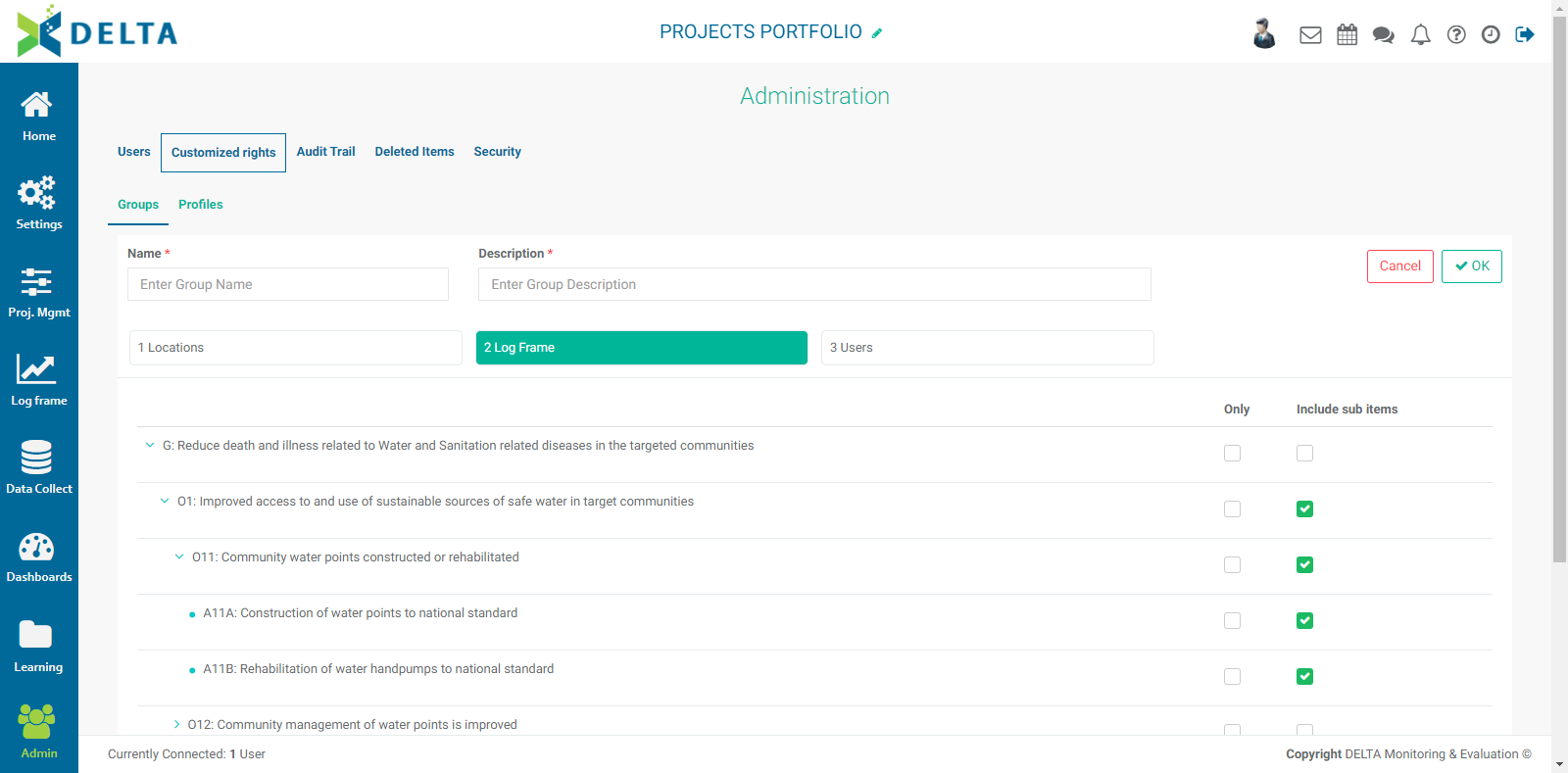
In this screen, you grant/restrict access to individual items in the log frame. This gives you precise control over who sees the project data. You can assign permissions at any level of the log frame (Only), and choose to include sub-items. Note that you must check a box in order to explicitly grant permissions to those items' data to the members of the group.
Finally, click the Users tab to add users to the group. Click All to select all users, or click on a user tile to select that user. Selected users are highlighted. NOTE: superusers will not appear on this screen because they have global permissions for everything in the system by virtue of their status as superusers.
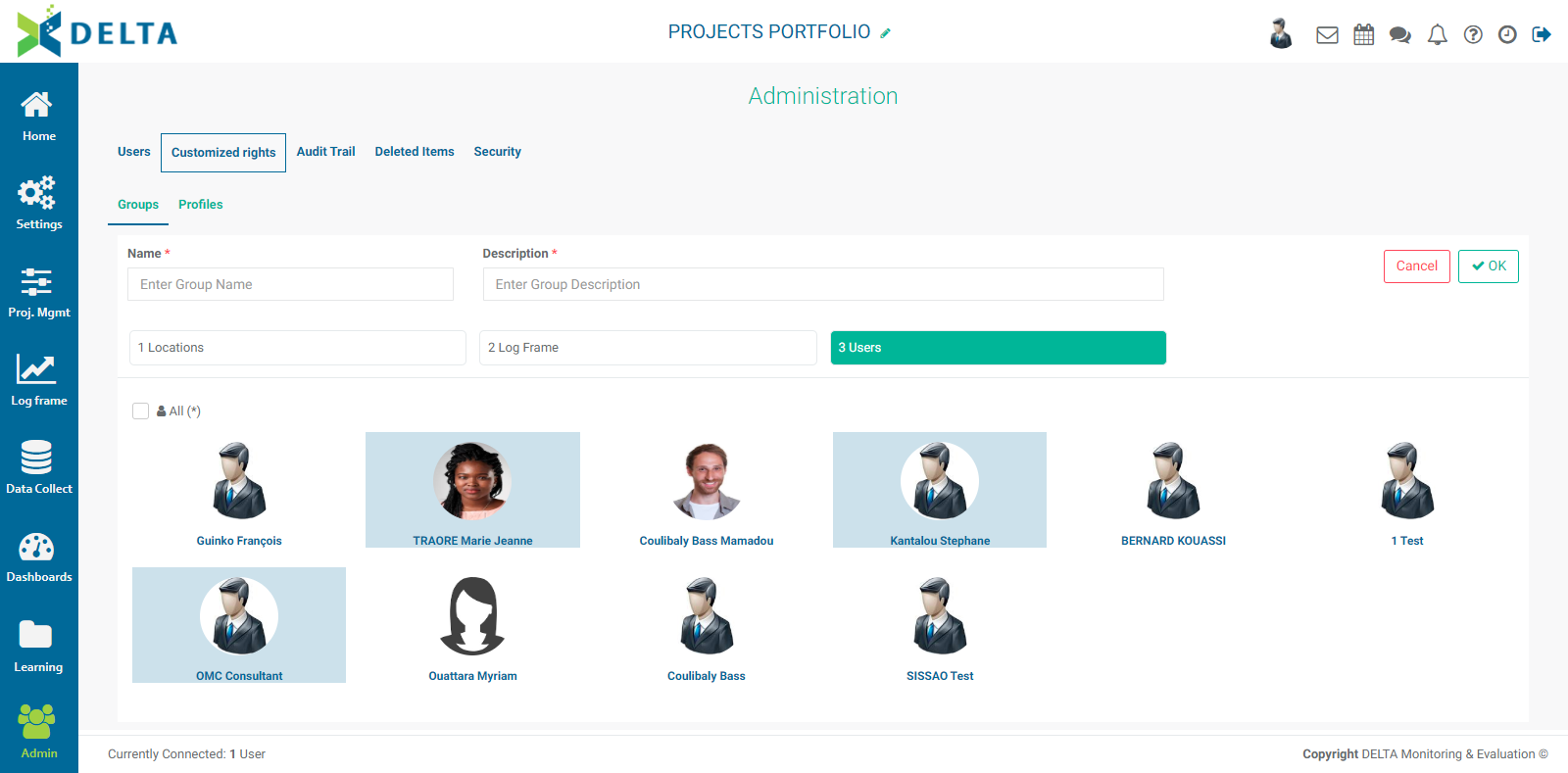
Click OK to save your work and return to the Groups page. The new user group appears in the list, along with its description.
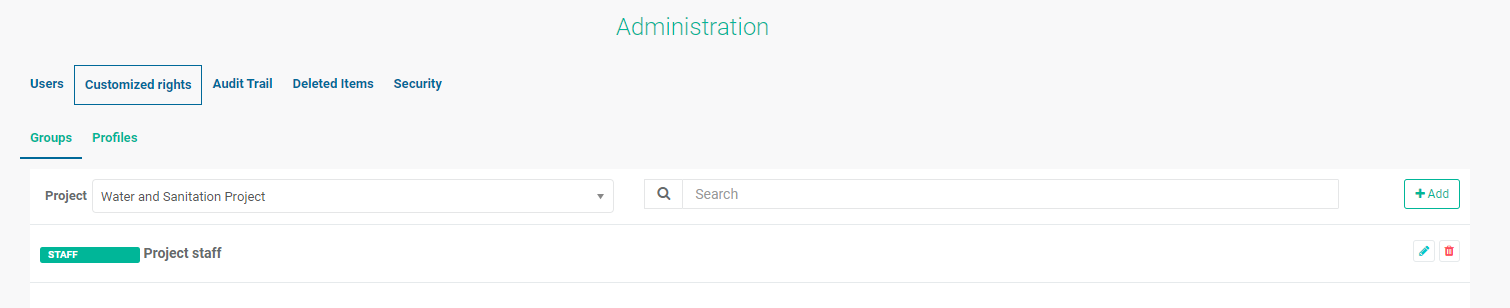
To edit a user group, click its Edit icon. Note that the name of the user group is not editable once it's been created and saved. To delete a user group, click its Delete icon.
User Profiles are used to assign fine-grained permissions to the system itself. A best practice is to create profiles for users with similar roles. Profiles are an effective way to ensure that users can only use the modules of Delta to which they should have access.
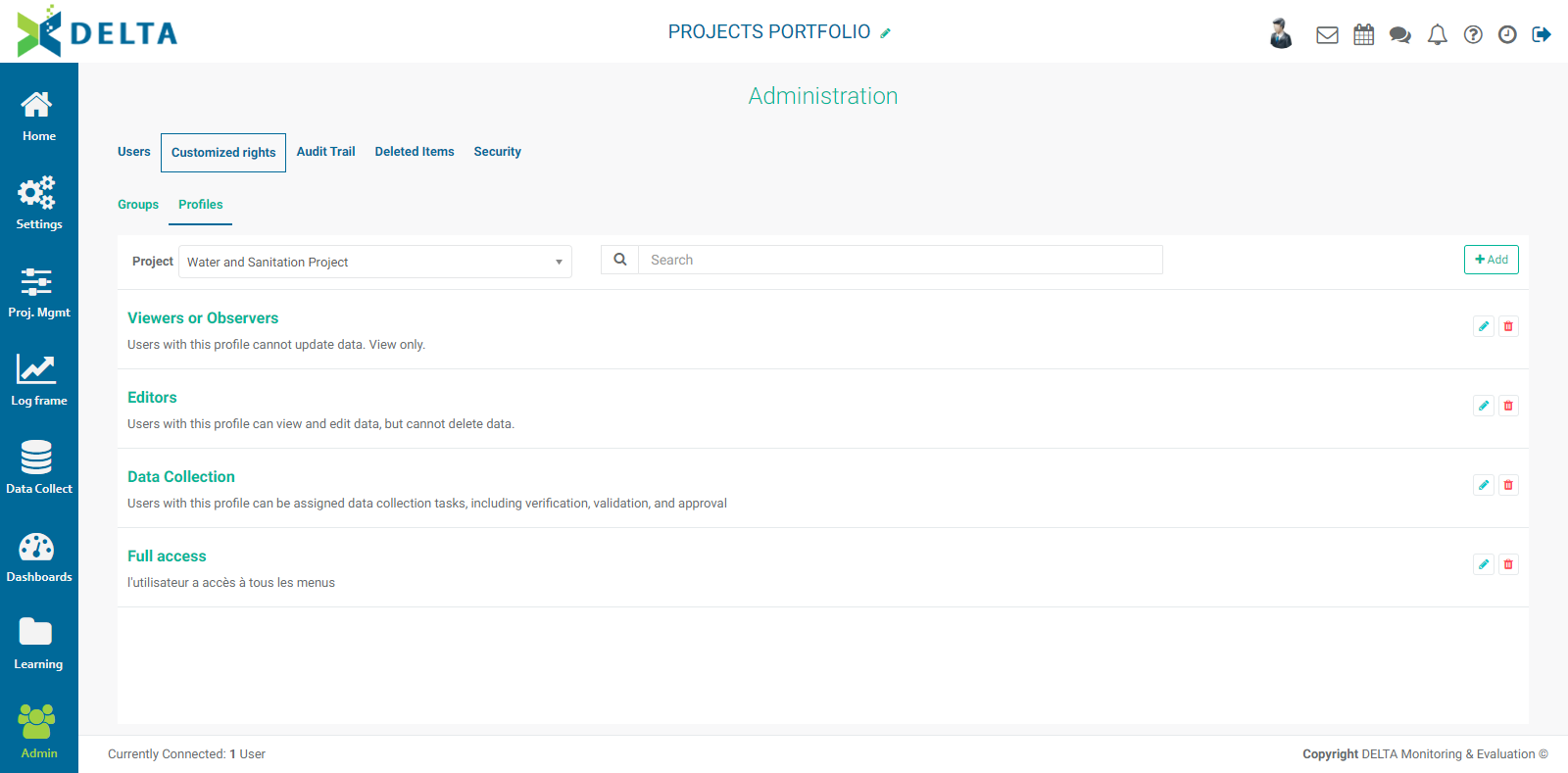
To create a user profile, you must first select the project for which you want to apply the permissions. Click the Project picklist and make your selection from the project list.
Click the +Add button at upper right of the Profiles screen to enter the Profile Definition screen.
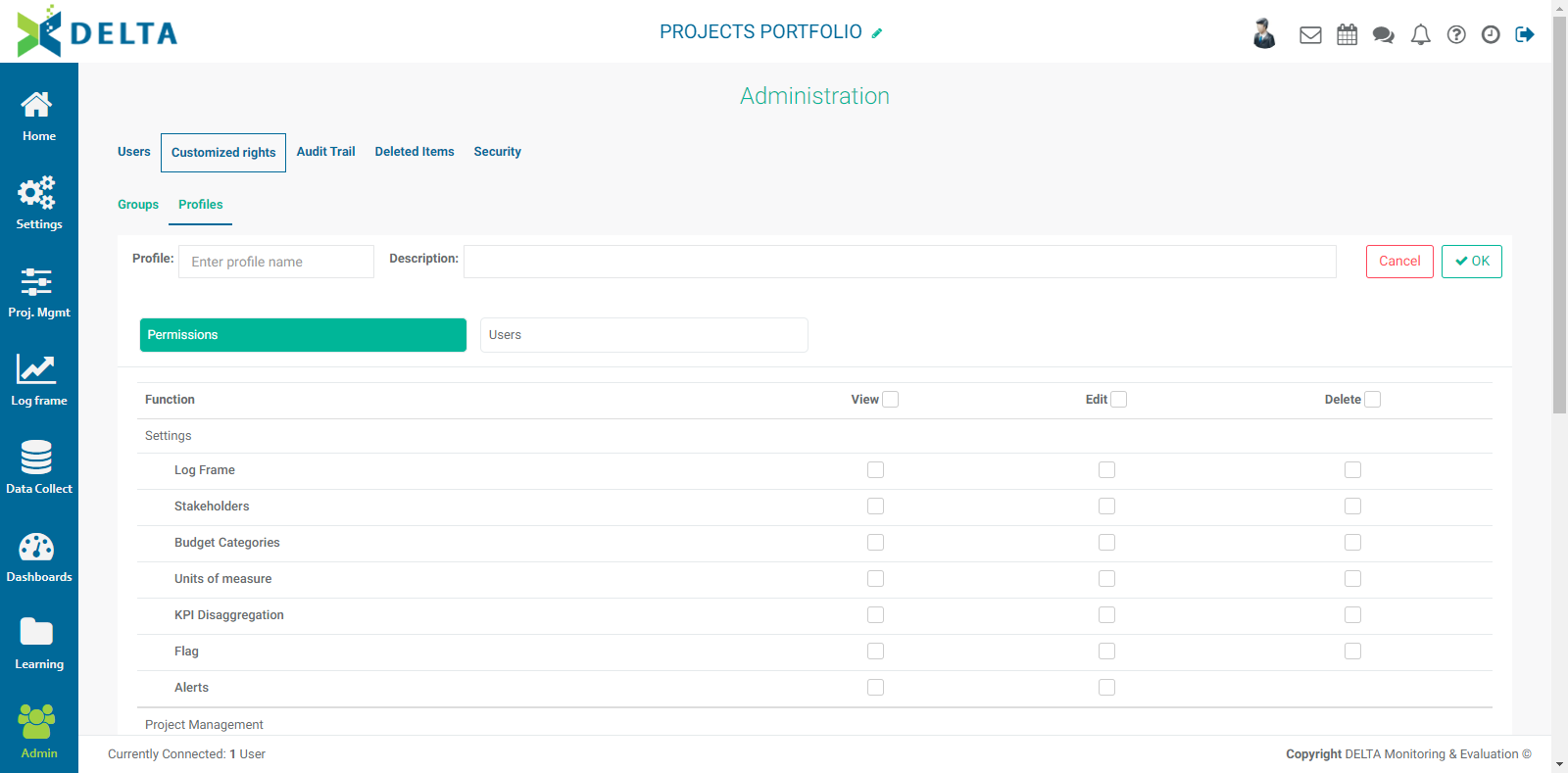
Note that the categories on the left are the modules of Delta, corresponding to the Delta navigation bar on the far left of the screen. User profiles allow the system administrator to hide entire functions and modules of Delta from users. Note also that the Admin module does not appear at all, since only superusers have access to it, and the module will be invisible to regular users.
Enter a profile name and a short description. A good description should include a summary of the permissions. The summary appears on the User Profile list screen and makes it easier to locate a user profile in the list.
Select the items for which this user profile will grant access. NOTE: unless you explicitly grant a specific permission by checking a box, the members of the user profile will have no access to those modules and functions.
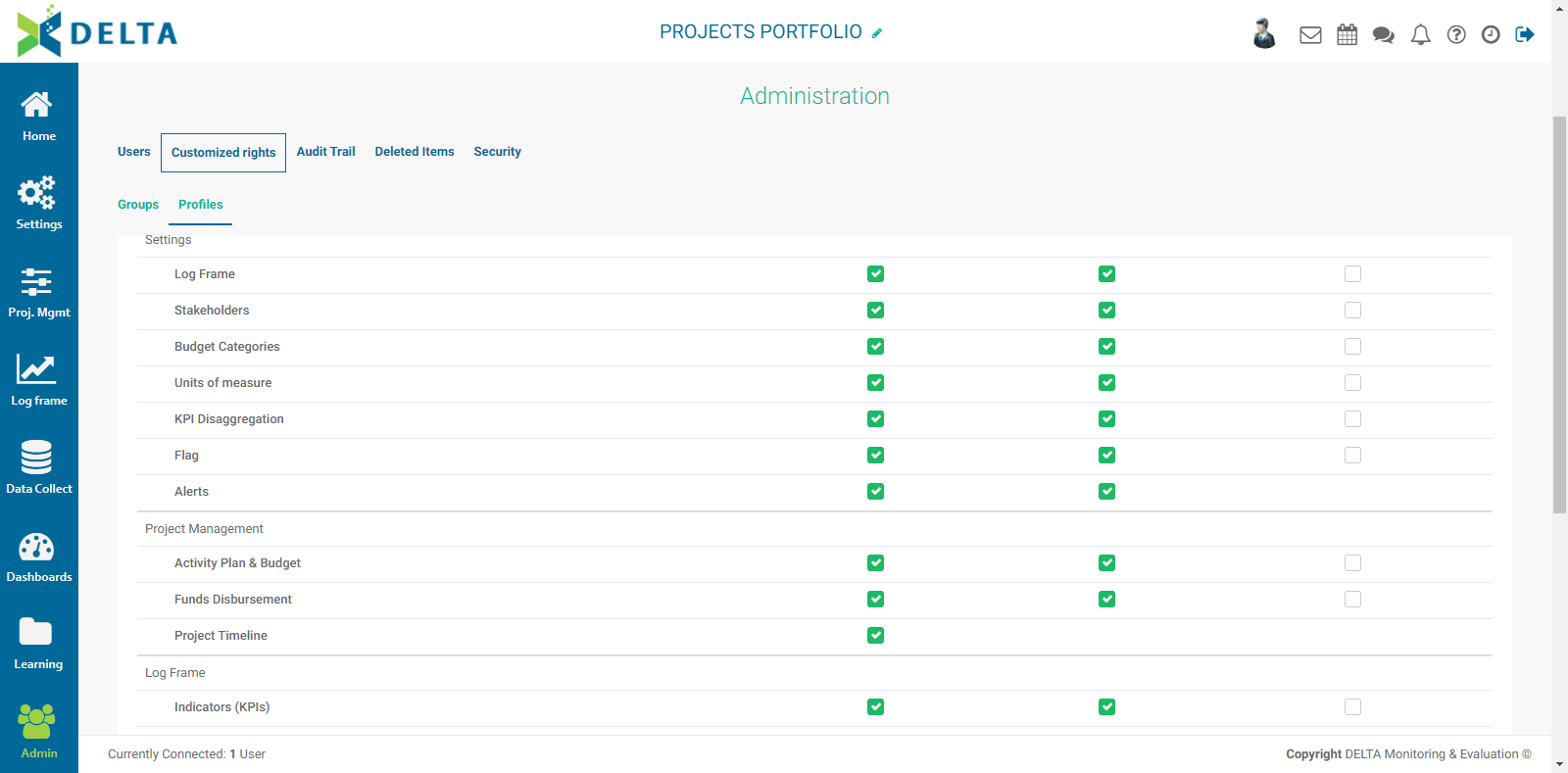
When you're done, click the Users tab. Click All to select all users, or click on a user tile to select the user. Selected users are highlighted. Please note that superusers will not appear on this screen, since they have global permissions for everything in the system by virtue of their status as superusers.
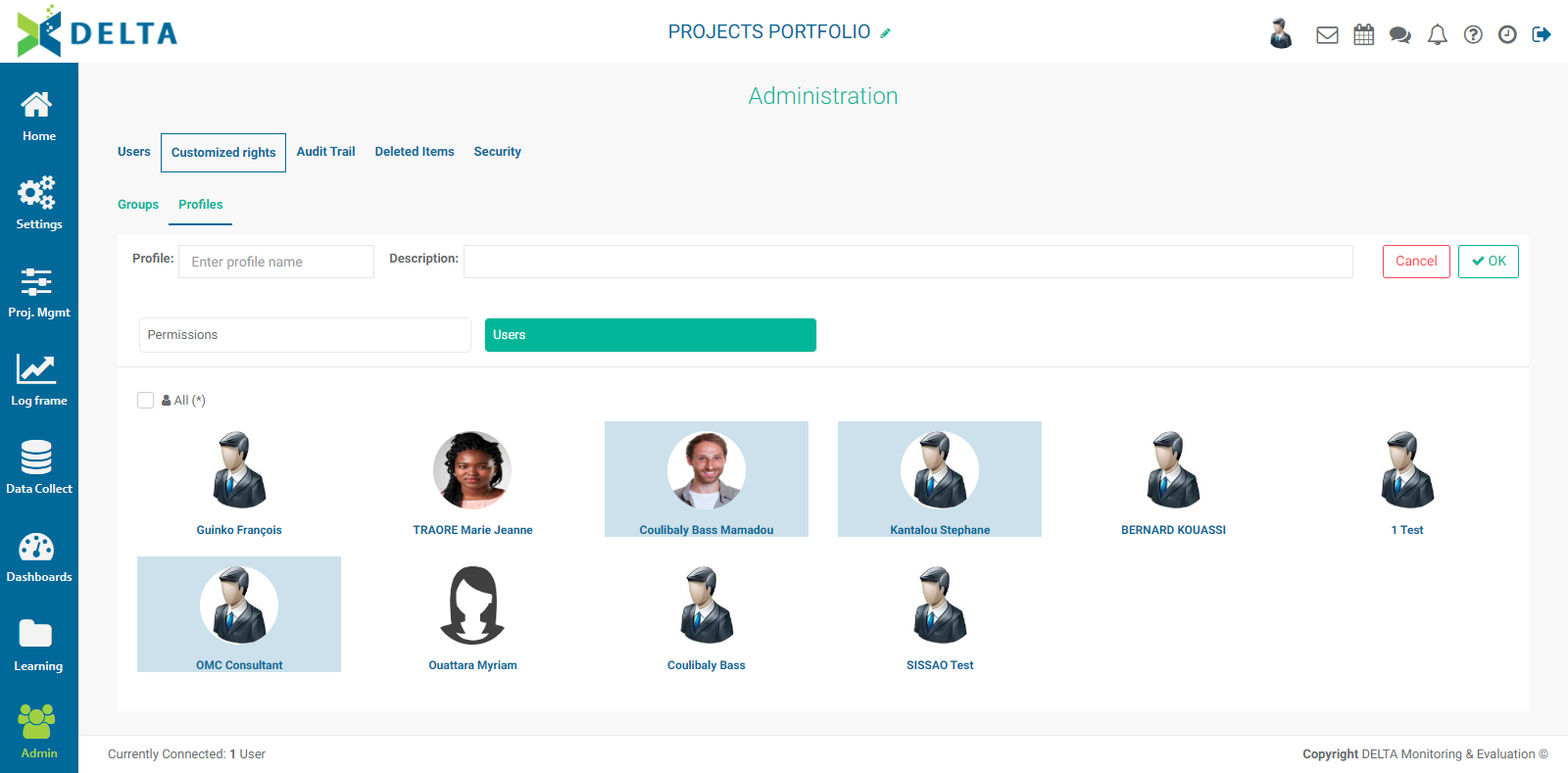
Click OK to save your work and return to the Profiles screen. The new profile appears in the list, along with its description.
To edit a profile, click its Edit icon. To delete a profile, click on its Delete icon.
NOTE: Permissions for Data Collection Forms are handled in the Data Collection module. Forms are a special case for permissions, and the only Forms permission that can be granted in the Admin module is View.
Previous: Admin Module: Users | Next: Admin Module: Audit Trail
Author: Administrator
Last update: 2023-07-01 21:16
Admin Module: Audit Trail
The Audit Trail function allows superusers to trace and search users' activity in the system.
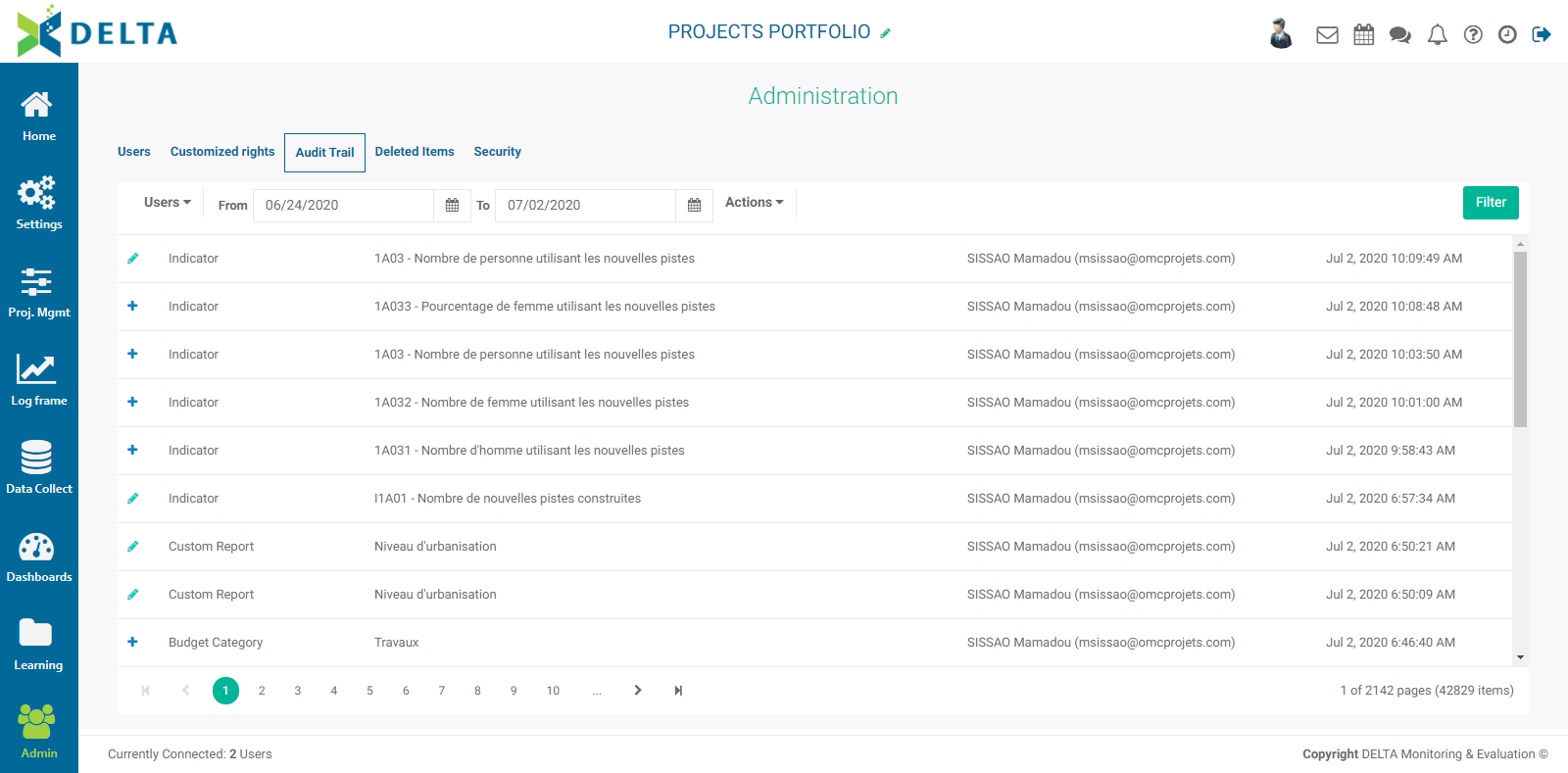
Each line item in the list shows the type of action (icon), the type of element involved, the location in the system where the action was performed (if applicable), the user who performed the action, and the date and time of the action. The screen can be filtered by user, date range, and/or action. Several filters can be applied at once. Click the Filter button at top right to apply your selected filters.
Actions in this context are Create, Update, and Delete. Update corresponds to editing.
To reset the filters, select all users and all actions in the dropdown lists, and click the Filter button.
Previous: Admin Module: Customized Rights | Next: Admin Module: Deleted Items
Author: Administrator
Last update: 2023-07-01 21:16
Admin Module: Deleted Items
The Deleted Items page lists recently deleted items and allows the user to recover information.
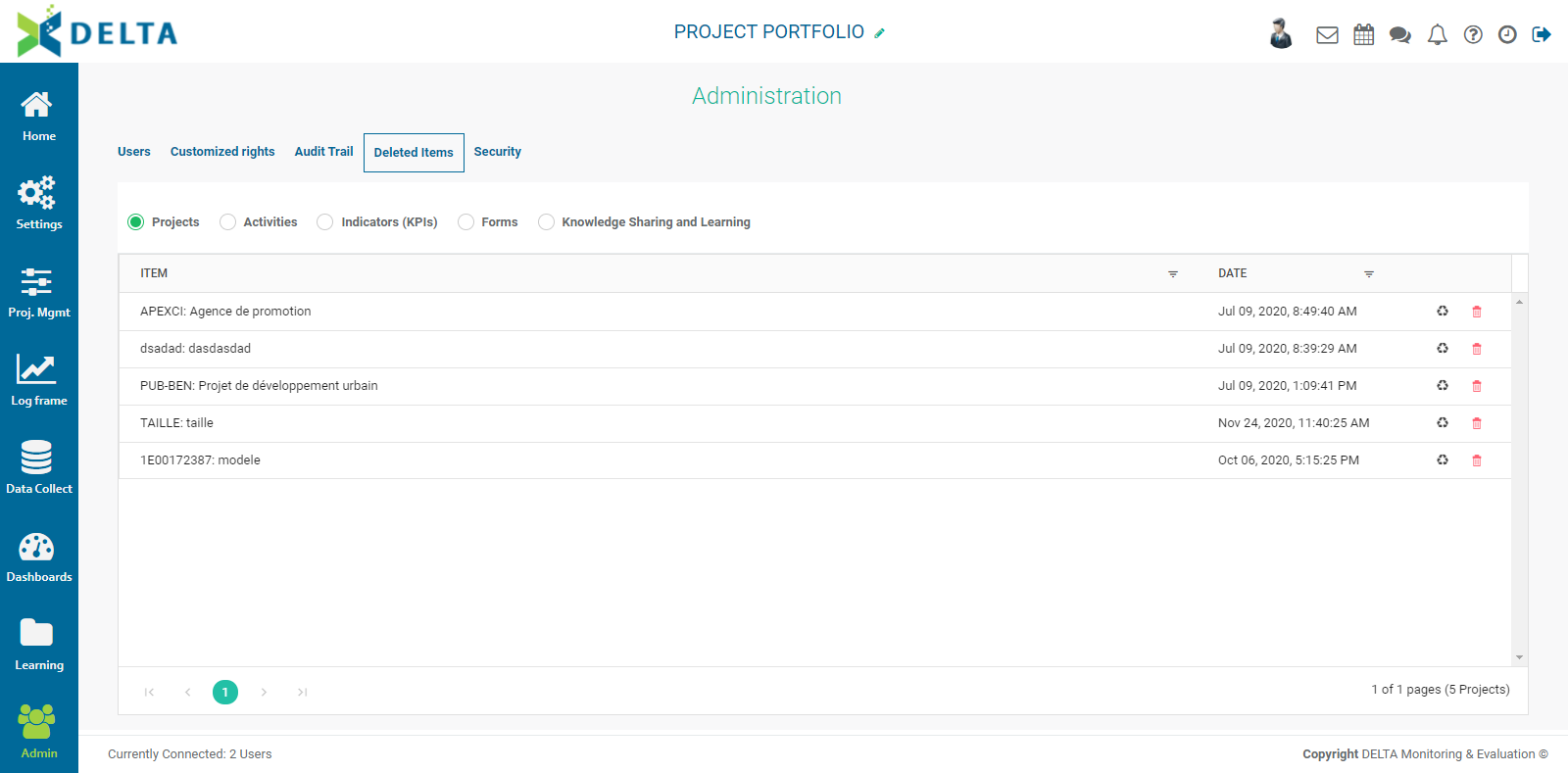
Five categories are available: Projects, Activities, Indicators, Forms, and Knowledge Sharing and Learning. Select the type of information you want to recover, find the desired item in the list, and click the Recycle icon in the item's toolbar to restore it.

You'll be asked to confirm the restore. Click Yes, then verify in the appropriate module that the deleted item has been restored.
To completely delete an item from the list, click its Trash icon and confirm the deletion. IMPORTANT: this action cannot be undone.
NOTE: the system does not track every item that's deleted. The Deleted Items functionality should only be used as a backstop. Contact Technical Services if you cannot retrieve something you deleted.
Previous: Admin Module: Audit Trail | Next: Admin Module: Security
Author: Administrator
Last update: 2023-07-01 21:17
Admin Module: Security
The Security popup window contains two settings:


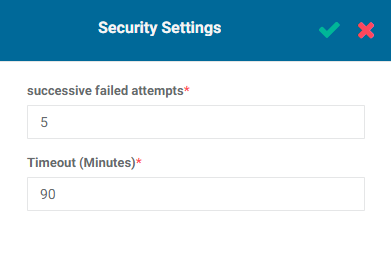
The Successive Failed Attempts parameter sets the number of failed login attempts a user has before their account is locked out. The default is five. Users whose accounts are locked will need to contact their administrator to get it unlocked.
The Timeout parameter sets how long an inactive session will remain open. The default is 30 minutes.
Previous: Admin Module: Deleted Items
Author: Administrator
Last update: 2023-07-01 21:17
Portfolio Screen » Main Toolbar
Main Toolbar: My Messages
My Messages is the system mailbox. It works like a regular email service, but it is entirely internal to Delta. Click on the My Messages icon in the main toolbar to enter the My Messages screen.

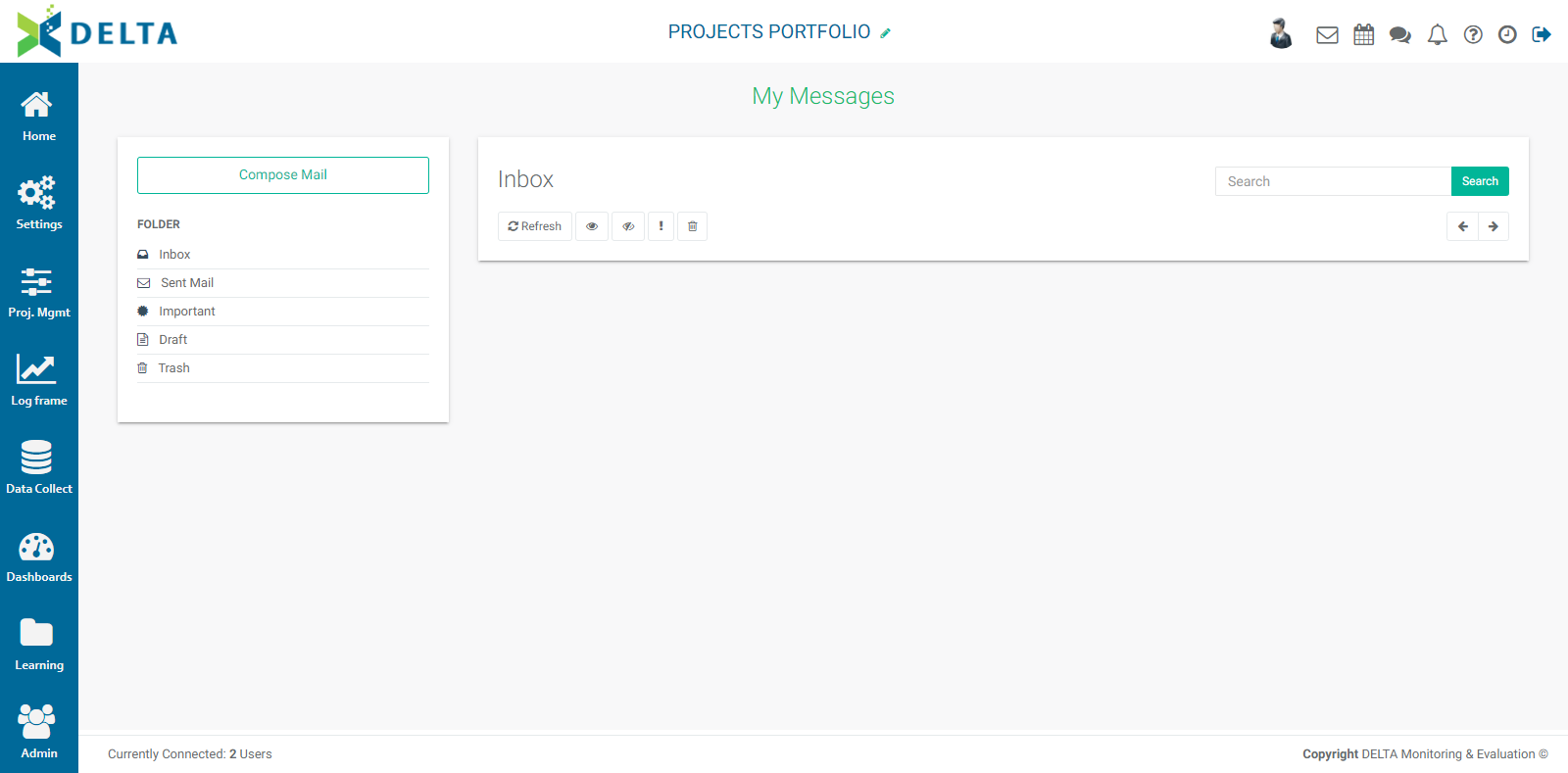
Click the Compose Mail at the top left of the email area to send messages to the members of the project team.
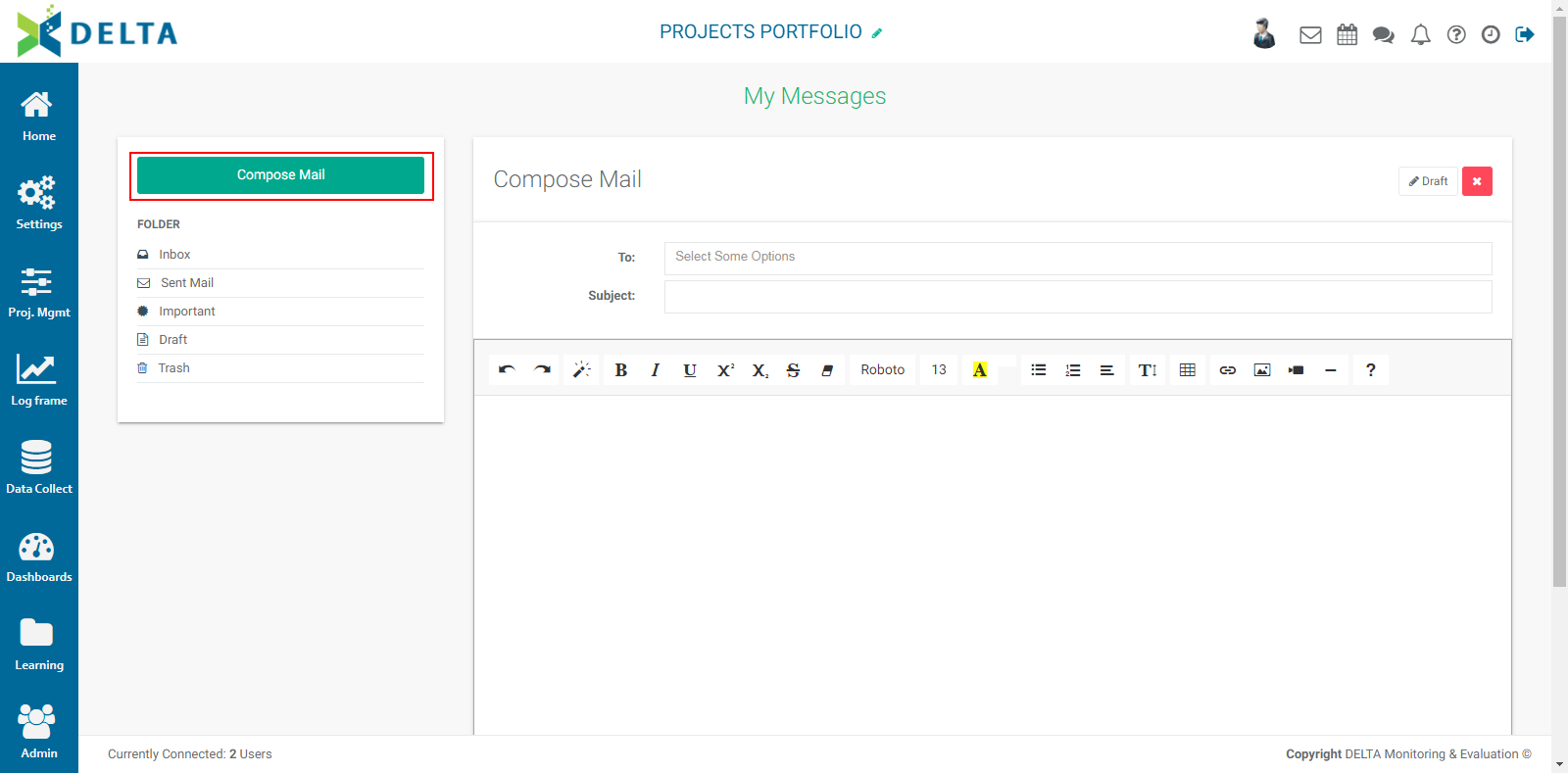
You can select more than one recipient by adding them one at a time from the pick list. Click in the blank part of the To: field to bring up the pick list, and make additional selections as needed.
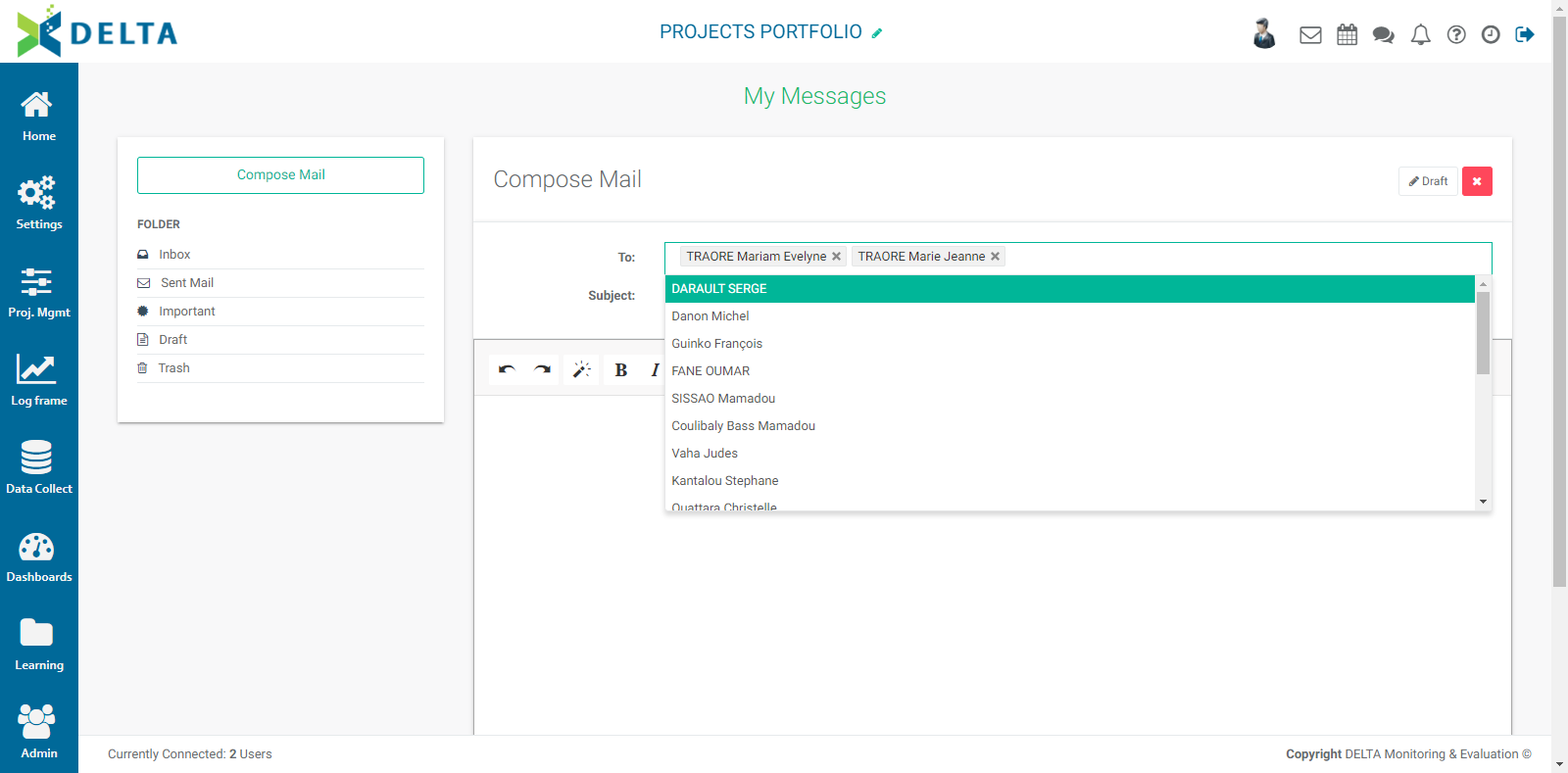
Enter a Subject, and the body of your message. You can add links, pictures, videos, and use a full slate of word-processing tools such as styles, headers, tables, etc. The email system also comes with its own help.

Click the Help icon to bring up the list of shortcuts for the My Messages system.
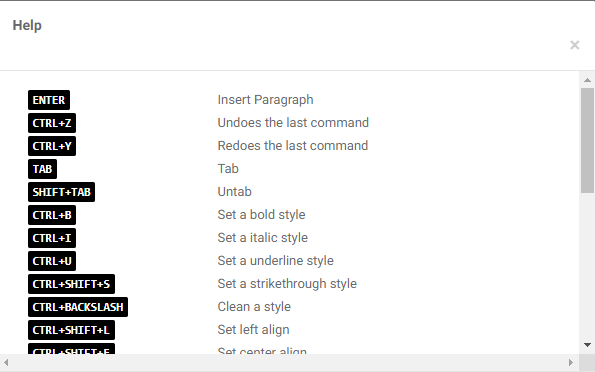
You can save a Draft of your message by clicking the Draft button at top right of the message body window.
Draft messages will be moved to the Draft folder.
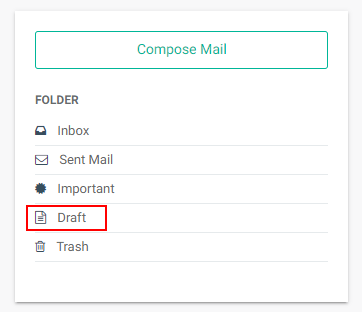
To edit a draft, open the Draft folder and click the desired message. You may resave as a draft, or send the revised message by clicking the Send button at top right of the message body box. Your sent messages will appear in the Sent Mail folder on the left.
Incoming messages you flag as Important will appear in the Important folder on the left. Messages you delete will be moved to the trash. To delete trashed messages, open the Trash folder, select the messages you want to delete, and click the trashcan icon.
Recipients of a message will be notified via a numbered badge over the My Messages icon in the Main Toolbar. NOTE: messages sent at the Project level will only be visible from inside the project, along with the associated notifications. Similarly, messages sent at the Portfolio level will only be visible from that level.
Previous: Project Tiles and Project List Views | Next: Main Toolbar: Calendar/Agenda
Author: Administrator
Last update: 2023-07-01 21:19
Main Toolbar: Calendar/Agenda
The Calendar/Agenda allows users to share important project dates. Click the icon to see project events.

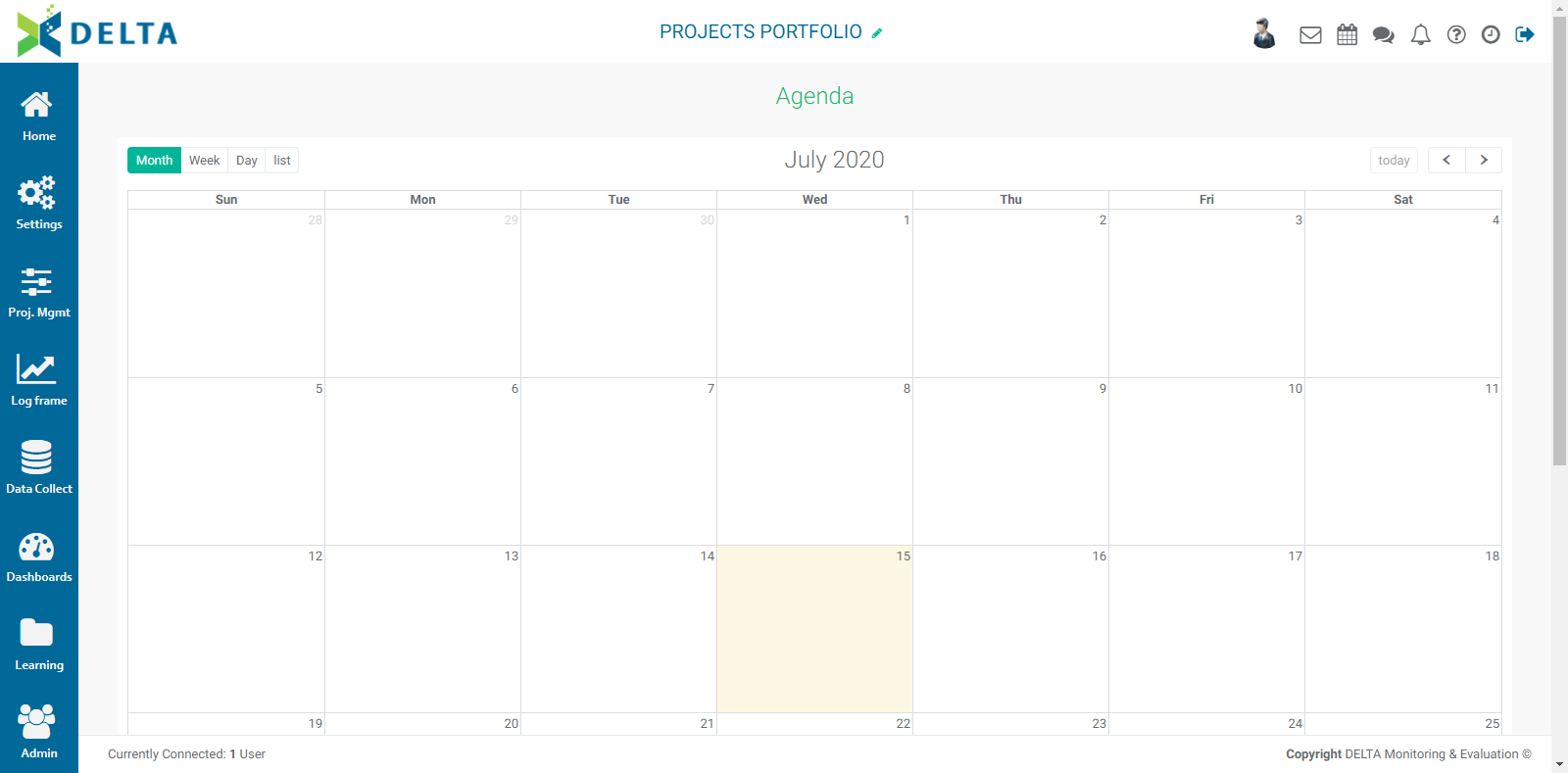
To add an event or a task to the calendar, double-click on the day, then enter the relevant information in the popup window.
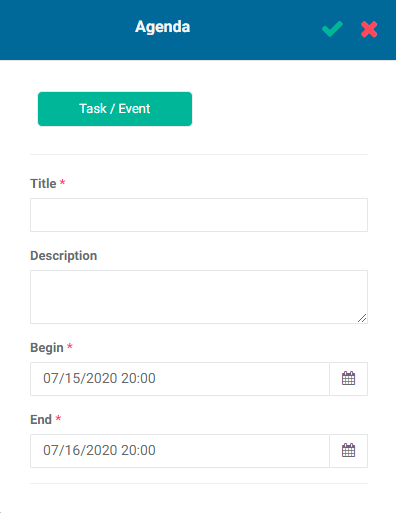
Click in the Begin and End fields to set the start and end date and time of the event. Select the date. Once you select the date, the hours menu appears.
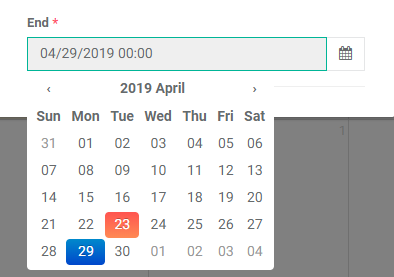
Once you select the hour, the minutes menu appears. Select minutes for the event or task.
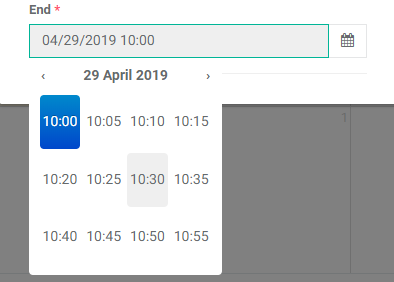
As soon as you enter a title for the event/task, the Share With tab appears next to the Task/Event tab. Click on the tab to bring up a list of project recipients, and select the ones you want to notify of the event or task.
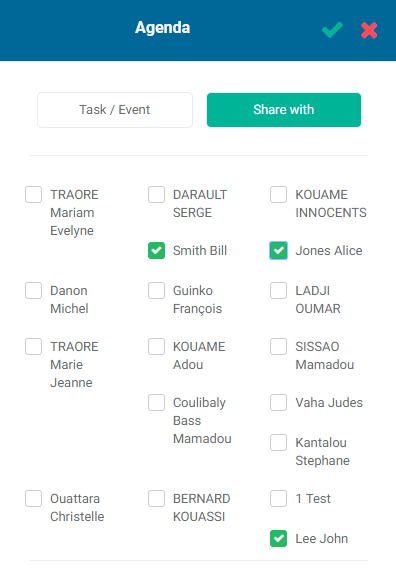
Click the checkmark in the popup window title bar to save your changes. The task or event appears in the calendar grid.
Mouse over the event to view its detailed description. Double-click the event to edit it.
Use the tabs at the top left of the calendar to change the view to Month, Week, Day, or List.
Use the arrows at top right of the calendar to navigate to previous or future months. Click the Today button to quickly return to the current day.
NOTE: As is the case with My Messages, calendar events created in a project will only be visible at the project level. Similarly, calendar items created at the Portfolio level will only appear at that level.
Previous: Main Toolbar: My Messages | Next: Main Toolbar: Chatroom
Author: Administrator
Last update: 2023-07-01 21:20
Main Toolbar: Chatroom
The Chatroom area allows teams to send public messages to other team members, and to share items from various screens in Delta, including reports and dashboards.

Any item which features a Share icon can be sent to the Chatroom.

For example, if you add a comment to an indicator's Actuals and click the Share button, Delta will display a list of recipients from which to choose. Recipients will be notified with a dot on top of the Chatroom icon in their Main Toolbar to indicate new items are waiting to be read. NOTE: shared items in a project will only appear from inside that project. Shared items at the Portfolio level will likewise only appear on the Portfolio Main Toolbar.
NOTE: unlike My Messages, threads and conversations in the Chatroom are visible to everyone (items at the Portfolio level) and to everyone in a project who has sufficient permissions to access that project. In comparison, My Messages items are addressed only to the recipients you selected.
Comments in the chatroom are timestamped and threaded, and show the originator. Reply to a comment by entering text in the Reply (Write Comment) field under the comment you're replying to. Click the checkmark when you're done. The reply will appear under the associated comment.
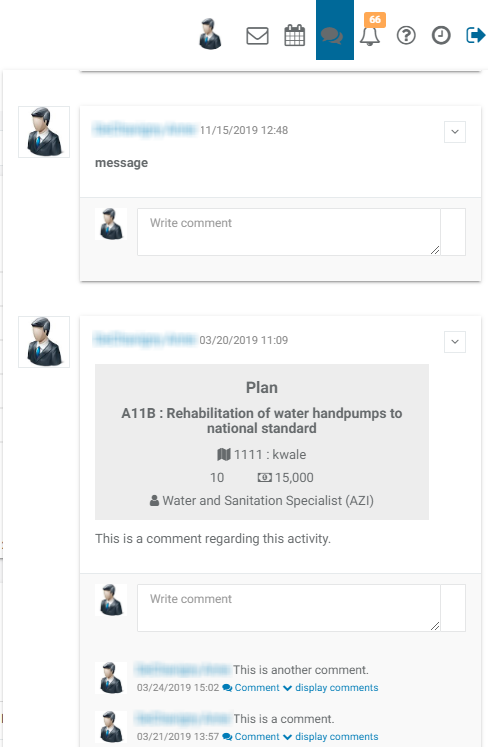
Click the +Add button to create a new comment from scratch. The text editor is the same one used throughout Delta, and features a full complement of tools.
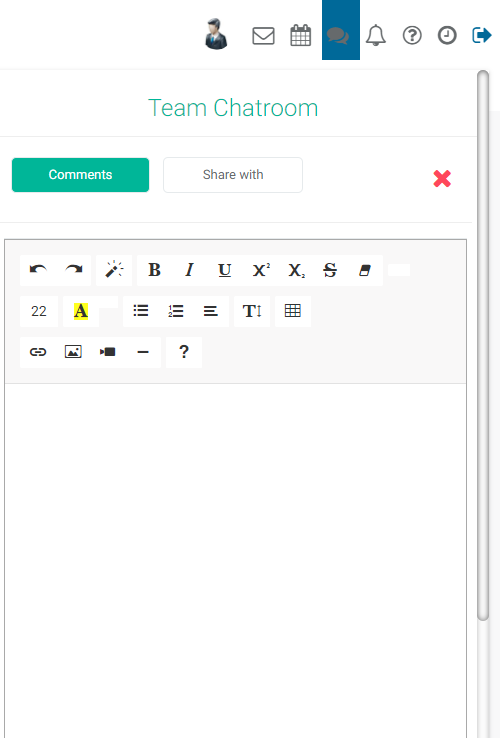
When you're done with your message, Click the Share With tab and select the recipients.
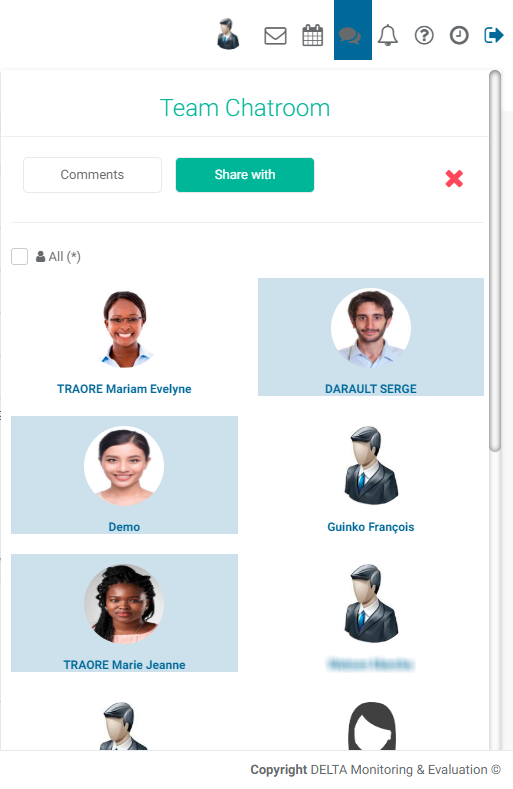
When you share an item, notifications will appear as a dot on top of the Chatroom icon in the main toolbar, accessible from any screen inside Delta. Recipients can reply by clicking on the Chatroom icon, scrolling to the message they wish to reply to, and entering their reply in the text box. Conversations are threaded (displayed by topic in the order in which they are posted), tracked by commenter, and timestamped.
As mentioned above, shared items in a project will only appear from inside that project. Shared items at the Portfolio level will likewise only appear at the Portfolio level.
To dismiss the chat window, click on the Chatroom icon again, or on the X at top right of the Chatroom window.
Previous: Main Toolbar: Calendar/Agenda | Next: Main Toolbar: Alerts
Author: Administrator
Last update: 2023-07-01 21:21
Main Toolbar: Alerts
The Alerts/Notification icon will display a numbered badge if you have been assigned a task or a workflow item in the system.
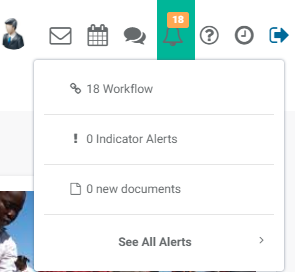
Click on the Alerts icon to view your assigned tasks. Items which can be the subject of a workflow include Activities, Indicators, Forms, and Documents.
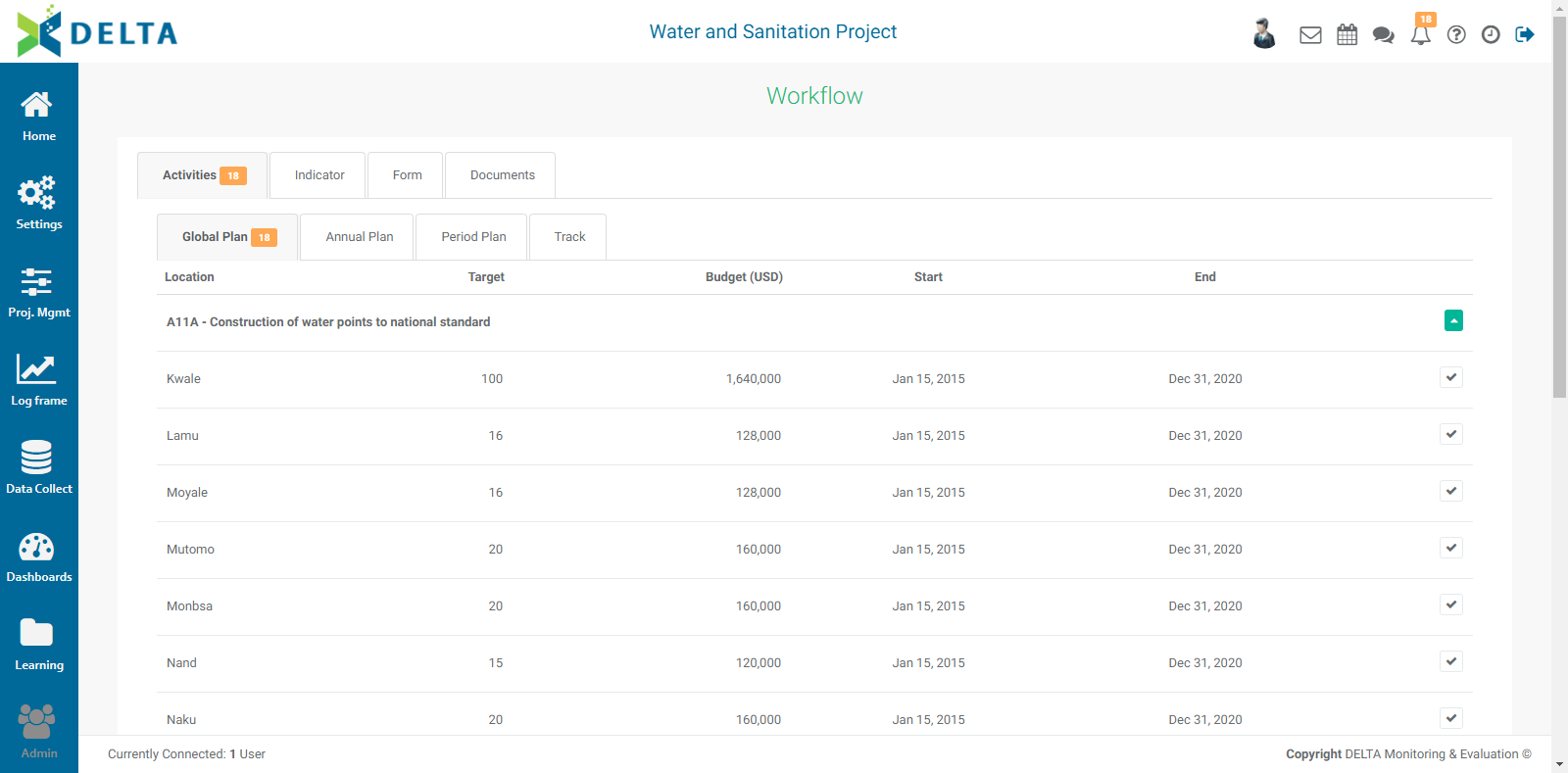
Subcategories of items which are subject to workflows are as follows:
| Activities |
Indicators |
Forms |
Documents |
| Global Planning |
Target Planning |
Data Collection |
Report Planning |
| Annual Planning |
Indicator Tracking |
Data Verification/Validation |
Report Tracking |
| Period Planning |
|
Data Approval |
|
| Tracking |
|
|
|
NOTE: if a workflow task is recurring, all instances of it will appear in the appropriate tab once it is scheduled.
To view and complete your assigned tasks, click on the appropriate tab. Only tabs which contain items which are due will display a numbered badge.
Previous: Main Toolbar: Chatroom | Next: Main Toolbar: Help
Author: Administrator
Last update: 2023-07-01 21:22
Main Toolbar: Help
The Help icon brings up a short menu allowing access to the following options: the Quick Start Guide, the User Manual, the FAQ page, Contact Technical Support and Legal Notices.

When writing to us to report a bug or an unexpected behavior by the system, please include as much detail as possible. Information we need to resolve your issue includes, but is not limited to:
- Your name
- Your organization
- The URL of your Delta installation
- The task you were performing when the issue appeared
- The result your expected from the task
- The details of the actual occurrence of the issue
- Screenshots, if available
- Your device, operating system, and browser/agent
For more details on this knowledgebase system, please refer to this article.
Consult your Service Level Agreement (SLA) for your terms of service regarding technical support.
Previous: Main Toolbar: Alerts | Next: Main Toolbar: Recent/History
Author: Administrator
Last update: 2023-07-01 21:22
Main Toolbar: Recent/History
The Recent button shows a list of some of the most recent screens you've used. Not all items are logged, especially on screens which contain multiple tabs. Select an item to go directly back to that screen.

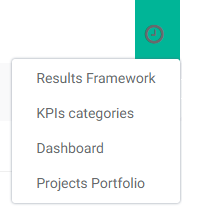
IMPORTANT: we discourage the use of the browser Back button while working in Delta. The Recent list is the fastest way to return to a previous screen.
Previous: Main Toolbar: Help | Next: Filters and Search
Author: Administrator
Last update: 2023-07-02 18:27
Data Collection Module » Creating Data Collection Forms
Data Collection: Form Design
Delta's Data Collection Module contains four functional areas: Create/Edit Form, Collect Data, Review Data, and Analyze & Report. Click the Data Collect icon in the left navigation to enter the module.
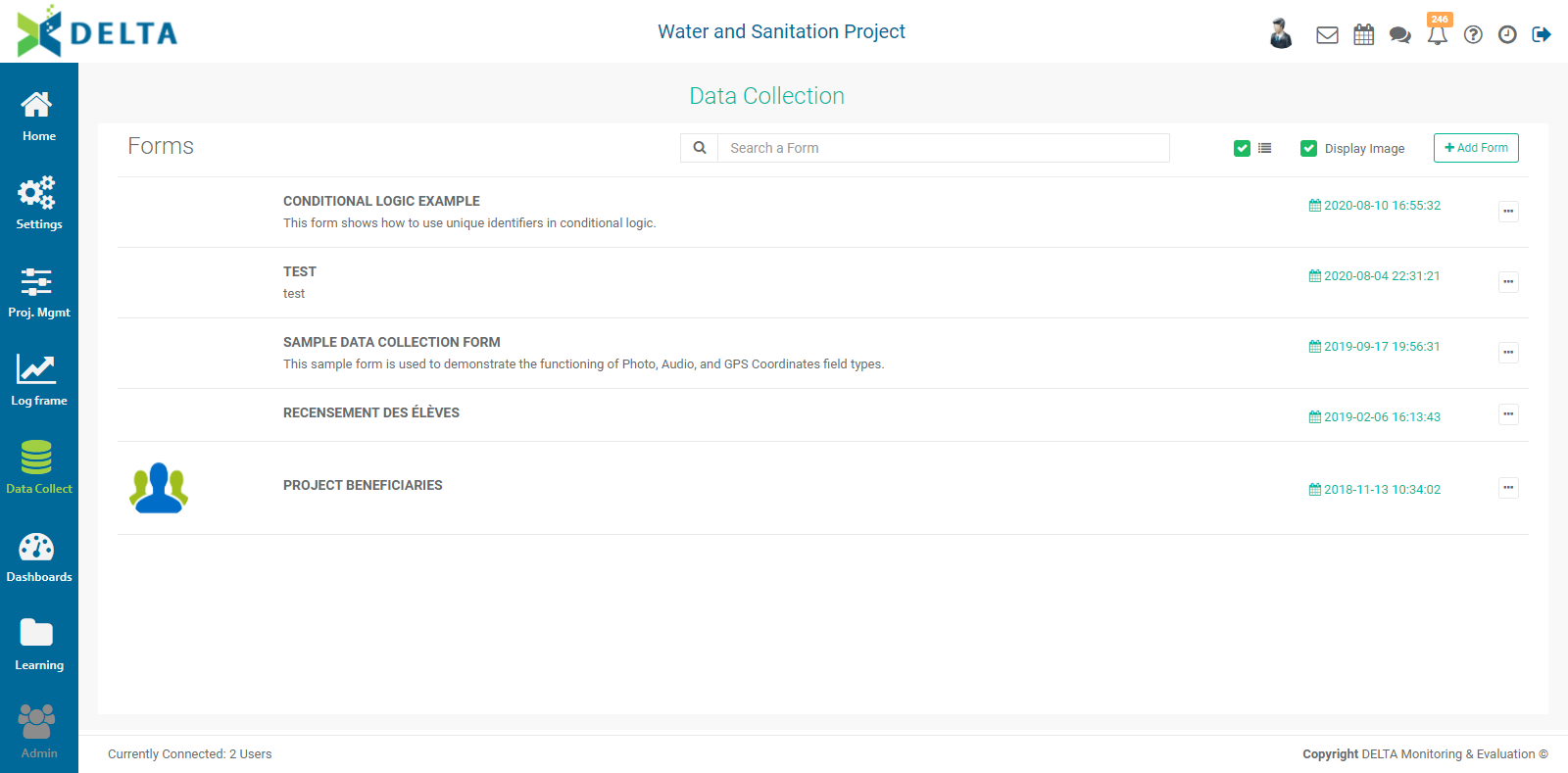
To create a new form, click the + Add Form button at the top right to bring up the Form Design screen.
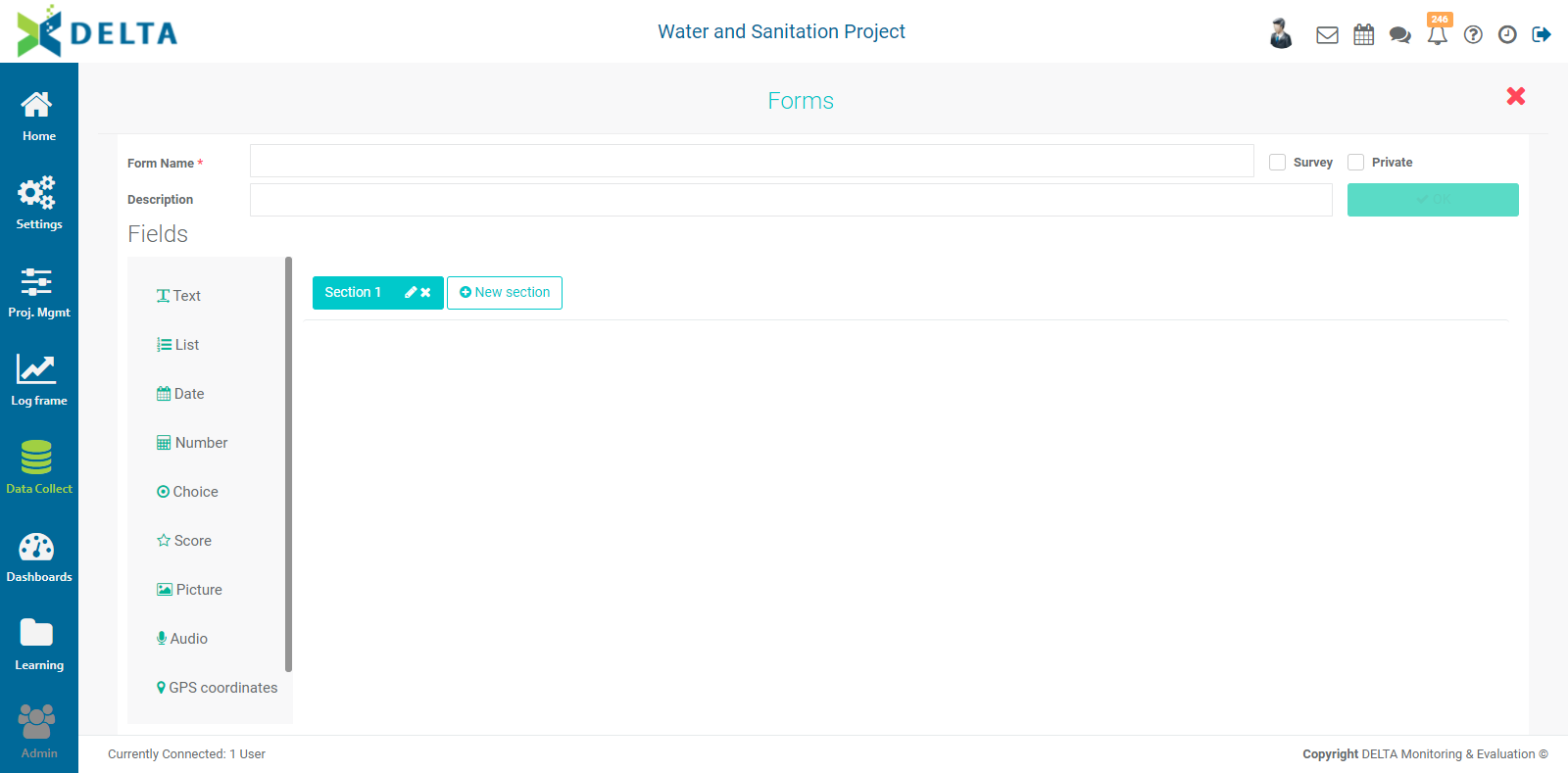
Enter a name for the form in the Name field.
To add a field of a particular type to the form structure, click, hold, and drag your selection onto the blank area of the screen.
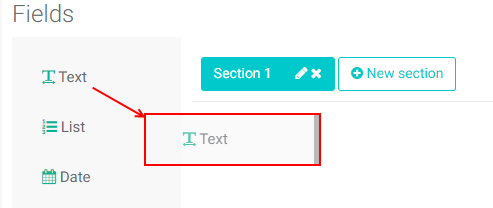
Select the spot where you want to place the field, and release the selection. The field and its parameters appear on the page.

Each field type has its own parameters. Each also is automatically assigned a unique identifier by the system. This identifier appears to the right of the label of the field, along with a key icon, and always begins with the capital letter "I".
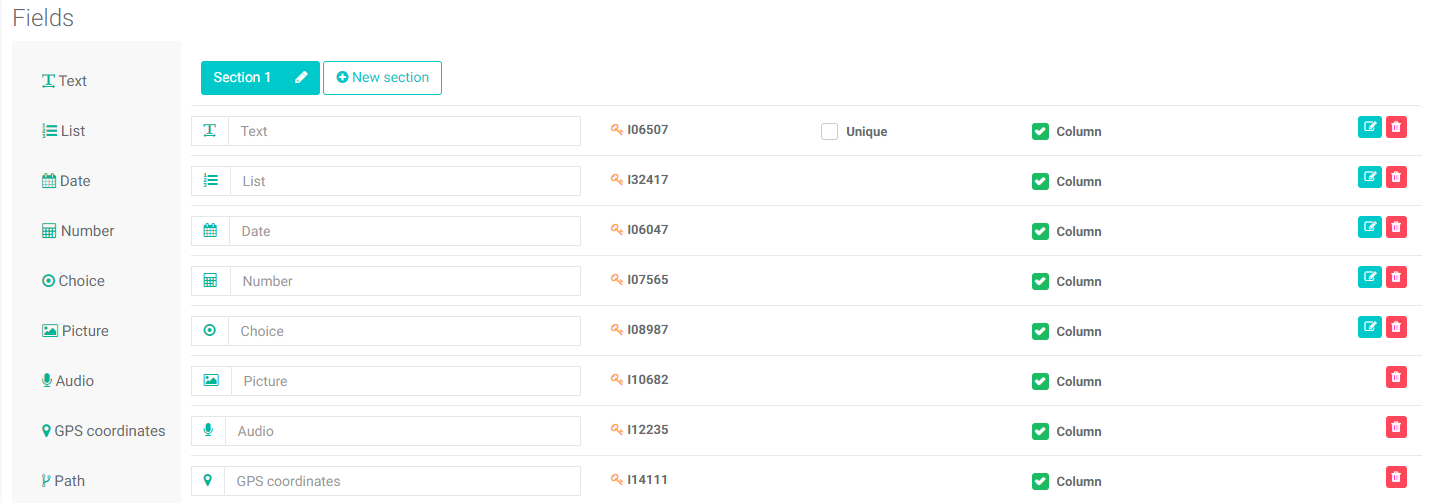
NOTE: make sure that you replace the placeholder text in the field name with an actual name for the field. If you do not, Delta will display the dataset with no headers (which is what the Column checkbox does, using the field name), or will use the field's unique key identifier as the header. Unique key identifiers and using conditional logic (skip logic) are discussed in detail in the article Data Collection: Unique Identifiers & Skip Logic.
The first of the ten types of field is Text.
Enter the label of the text field. Checking the Unique box forces a unique entry into this field every time data is entered into the form during data collection. Checking the Column box will display the data from this form in columnar form during data review.
To configure the text field, click its Edit icon.
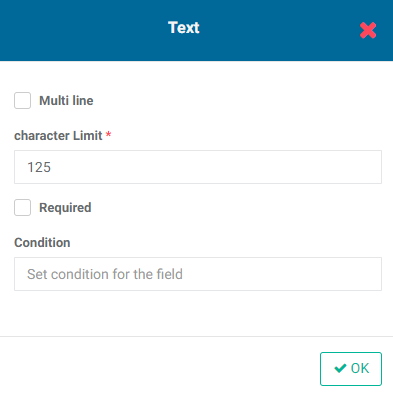
Check Multiline to allow more than one line of text to be displayed on the form. Enter the maximum numbers of characters allowed for this data entry (required). Check the Required box to make this data entry mandatory. Add a condition if appropriate, then click OK when you're done.
The List data field type allows you to add pick lists, parameters from the project settings, and other forms. After adding a List field to your form, click its Edit icon to further configure the field.
The first option, List Options, allows you to create pick lists in your form. Select List Options, then add the items to be displayed in the pick list. Click the Add button after each one. Check/uncheck the Required box, add a condition if appropriate, then click OK when you're done.
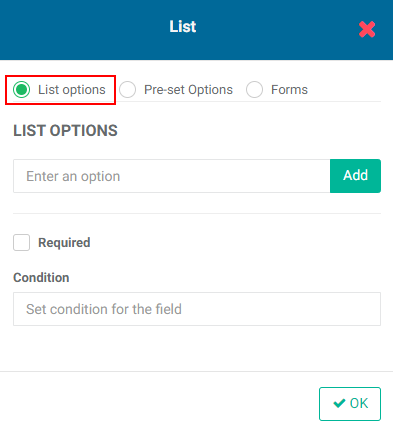
The second option, Pre-set Options, allows you to select a set of project parameters, such as geography list or log frame. Select Pre-set Options, then select the desired parameter. Check/uncheck the Required box, add a condition if appropriate, then click OK when you're done.
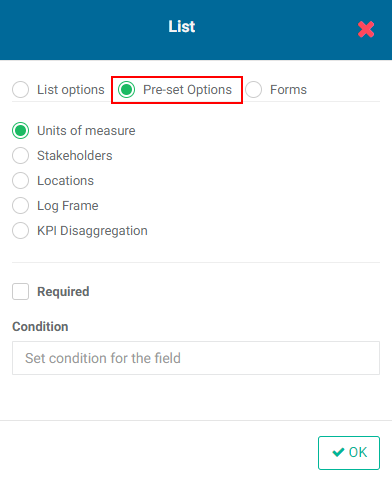
Selecting Units of Measure will populate a pick list with the units of measure entered in the project settings. The pick list will appear in the data collection form when it's used.
Selecting Stakeholder will populate a pick list with the stakeholders from the project settings. The pick list will appear in the data collection form when it's used.
Selecting Locations will display all the project locations in a pick list. This option is useful in a couple of ways: it makes sure location names are consistent, and it also provides the GIS part of the system with the correct data for this particular dataset’s geospatial visualization.
Selecting Log Frame will make all the log frame elements available in a pick list. This option is used to associate form data to a particular activity or indicator.
Selecting Disaggregation Categories will bring up a pick list from which you can select the project disaggregation category you want to use in the form.
The third option, Forms, allows you to select another form in order to incorporate it into the form you're creating. Select Forms, then select the form you want to use.
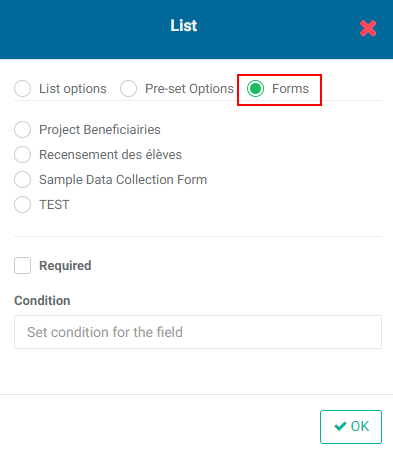
A specialized use of the Forms option is linking baseline (static) with timeline (variable) data in the context of longitudinal studies.
The Date data field type is self-explanatory. After adding a Date field to your form, click its Edit icon to further configure it.
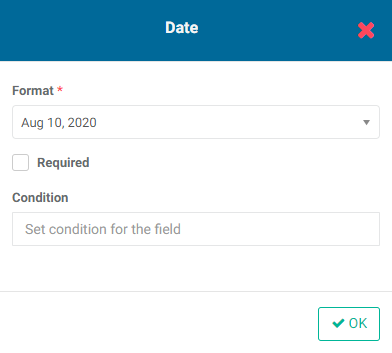
Select a date format from the pick list. Check/uncheck the Required box, add a condition if appropriate, then click OK when you're done.
NOTE: A typical use of this field is to enter the date the data collection took place. This allows the system to place the record in its proper reporting period. Date fields appear in the Period field of an indicator’s Populate With Data File parameters.
The Number data field type is also straightforward. Its only parameter is the number of digits after the decimal point. After adding a Number field to your form, click its Edit icon to configure it.
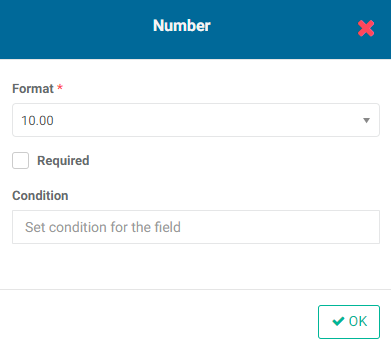
Select the number of digits after the decimal point from the pick list. Check/uncheck the Required box, add a condition if appropriate, then click OK when you're done.
The Choice data field type allows you to quickly build pick lists for your form. After adding a Choice field to your form, click its Edit icon to further configure it.
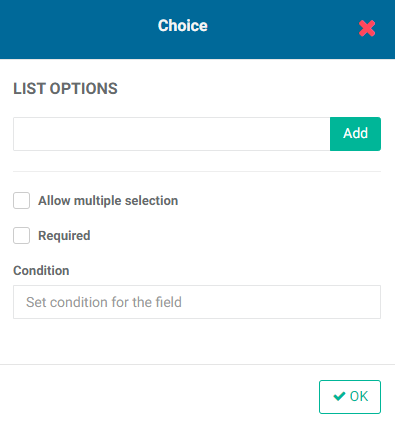
Add the items to be displayed in the pick list. Click the Add button after each one. Check/uncheck the Allow Multiple Selection box, check/uncheck the Required box, add a condition if appropriate, then click OK when you're done.
The next field type is Score. This field allows you to add options for scoring an item, for example on a five-point Likert scale. This is especially useful for surveys. Enter each option and its score one at a time, clicking the + button after each one to save it. You may enter as many options as you need.
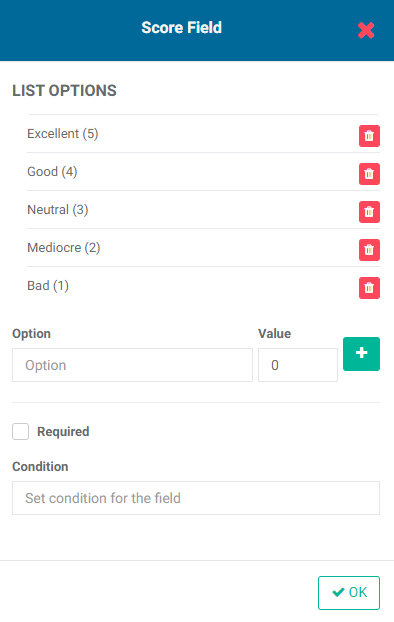
The last four data field types, Picture, Audio, and GPS Coordinates, and Path, require no parameters.
The Picture field type has no configurable elements. It will appear as a More icon in the data collection form. Clicking the More icon will allow you to navigate to the location of an image to add it to the dataset. Supported formats include GIF, JPEG, and PNG. The field acts as a placeholder so the photo can be added after the record has been imported, for example a photo of a interviewed person.
To add a photo to an existing record in a data collection form, click the name of the form you want to work with from the Data Collection module landing page, and either manually create a record or import data. Open the record you want to add the photo to, click the More (...) icon next to the title of the Photo field, and navigate to the image file you want to use. Click OK to confirm. The photo will appear in the form.
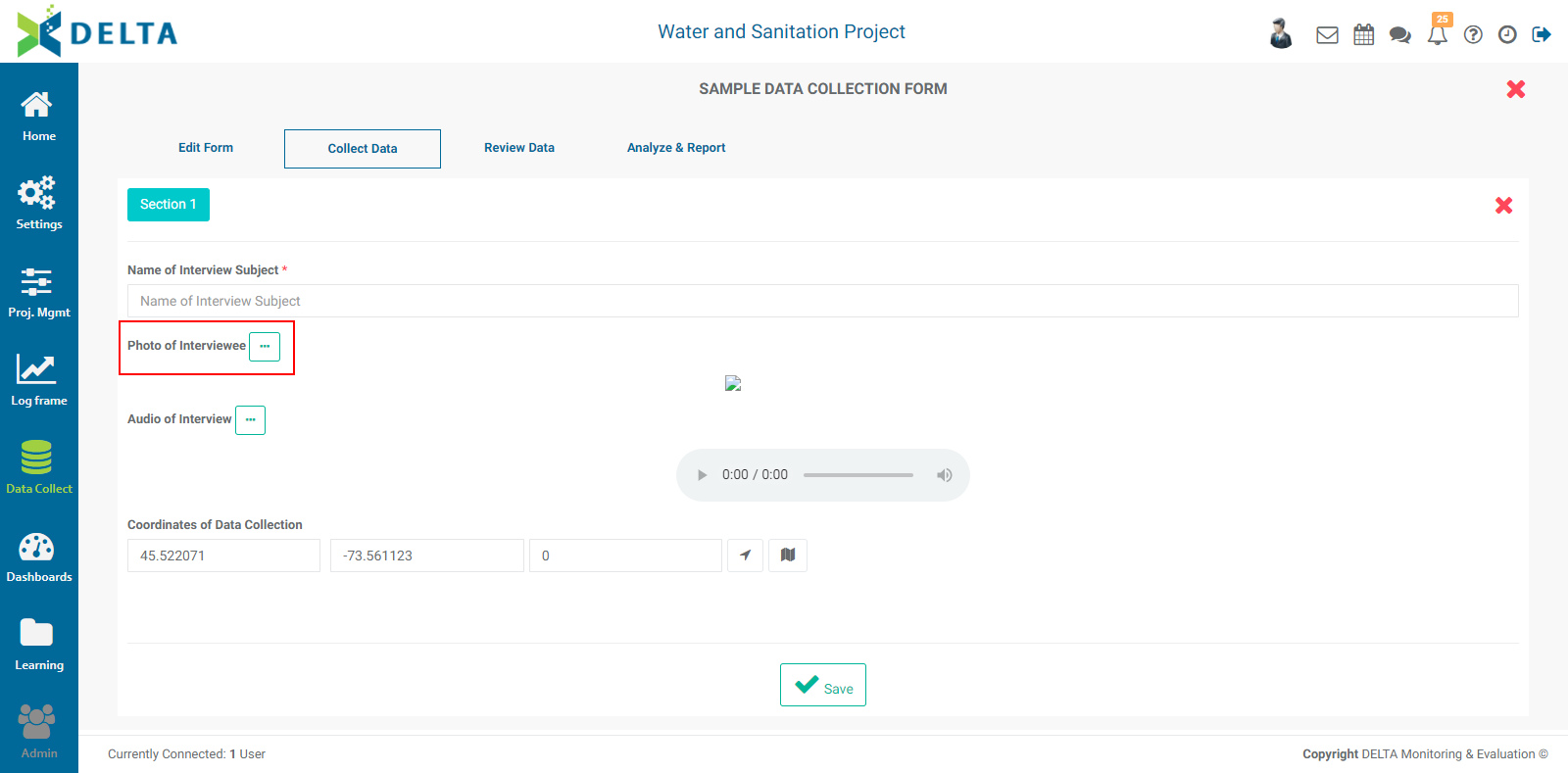
Graphic formats supported by the Photo field are: .xbm, .tif, .pjp, .pjpeg, .jfif, .webp, .ico, .tiff, .bmp, .png, .jpeg, .svgz, .jpg, .gif, and .svg. Keep in mind that larger photo file sizes may slow down the system's display speed, so consider sampling down very large image files into smaller copies.
The Audio field type has no configurable elements. It will appear as a More icon in the data collection form. Clicking the More icon will allow you to navigate to the location of an audio recording to add it to the dataset.
Adding an audio file is similar to adding a photo. In an existing record, click the More (...) menu next to the title of the audio file, navigate to the location of the audio file, and click OK to confirm. The selected audio file will be available for playback in the audio player interface.
Audio formats supposted by the Audio field are: .weba, .webm, .opus, .oga, .flac, .m4a, .ogg, .AMR, .wav, .mp3, .mid, .aiff, .wma, .au, and .aac.
The GPS Coordinates field type has no configurable elements. The GPS coordinates of the data collection site will be entered into the form automatically if the person using the form is in range of a network. GPS coordinates can also be added in after the fact, for example if data collection took place offline but the coordinates are known. The information in this type of field will inform geospatial visualization reports.
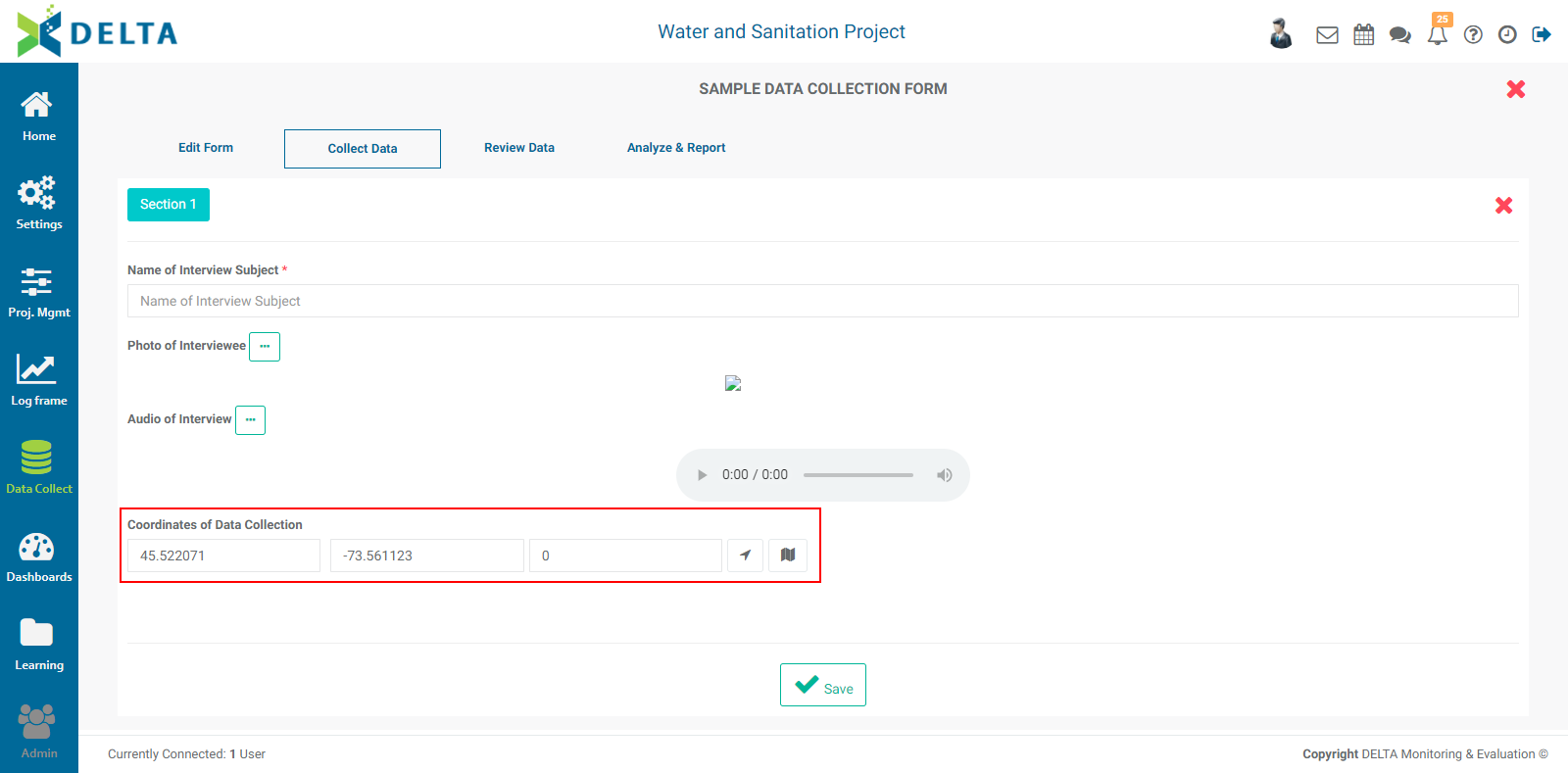
NOTE: the third coordinate of the GPS field is Altitude. The first two coodinates, Longitude and Latitude, are sufficient to correctly place the data record in spatial visualization reports.
The field can also be used as a location/geographic query when setting up an indicator to be populated by a data file, or added as a data layer in indicator geospatial data maps.
The Path field type has no configurable elements. Paths are a specialized GPS-based field which allows people in the field to note their coordinates at several points during traveling, for example while doing fieldwork in several successive locations. The geospatial visualization map for this type of field will display the trajectory taken by the user while performing data collection.
NOTE: these particular visualizations are very fine-grained, and you will most likely need to zoom in very close to see them on the map, as they typically only cover a few miles/km. They can also be added as a data layer in indicator geospatial data maps.
Each form structure screen can hold up to ten fields. If your form is longer, you can create as many form sections as required. Click the + New Section button to create a section. To edit the name of the section, click its Edit icon and enter the new name. Click the checkmark to save the name, or the X to cancel.

To reorder the fields, click and hold a field's icon (to the left of its label), and drag it up or down to another spot. Release the field in its new spot.
When you're done building the form, click OK at top right of the screen. The new form will appear in the list.
Previous: Indicators: KPIs Results Framework | Next: Data Collection: Other Form Settings
Author: Administrator
Last update: 2023-07-01 21:25
Data Collection: Other Form Settings
There are several more tasks you can perform in this part of the Data Collection module once you've created a form. They are described below.
To edit a form, click its name in the list. This will bring up the Form Design screen. Make your changes, and click OK at top right to save your work and return to the Forms list page. The form will be timestamped with the day and time of the last edits.
Delta now supports using data collection forms as surveys. Check the Survey box to mark your form as a survey. The article on Collecting Data describes in detail how to use this functionality.
You can opt to make a form private. In practical terms, this makes the form invisible to all except the user who created it. This is useful if you create a form over several sessions and don't want anyone to use it before it's ready. Check the Private box at top right to keep your form hidden from other users.
You can associate an image with a form. From the Forms list screen, select Image from the form's More menu.


Navigate to the location of your image, then click Open or press Enter on your keyboard. The image will appear on the form tile.
The image is displayed automatically in Tile view, but can be toggled on and off in List view.
The image also appears at the top middle of the screen next to the form's name once the form is open.
To create a workflow for a form, select Workflow from the form's More menu.
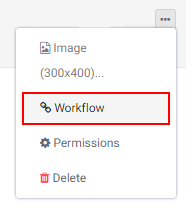
Click the Add button at top right to bring up the workflow popup window.
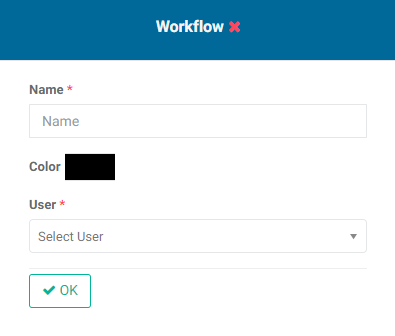
Enter the name of the workflow, and assign a user to it. Editing the color is optional. Click OK when you're done. The new workflow step is displayed as a tile on the screen.
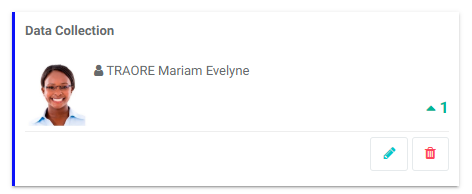
Create as many steps as are needed to complete the workflow for the form. Each step will feature a number reflecting its order in the workflow.
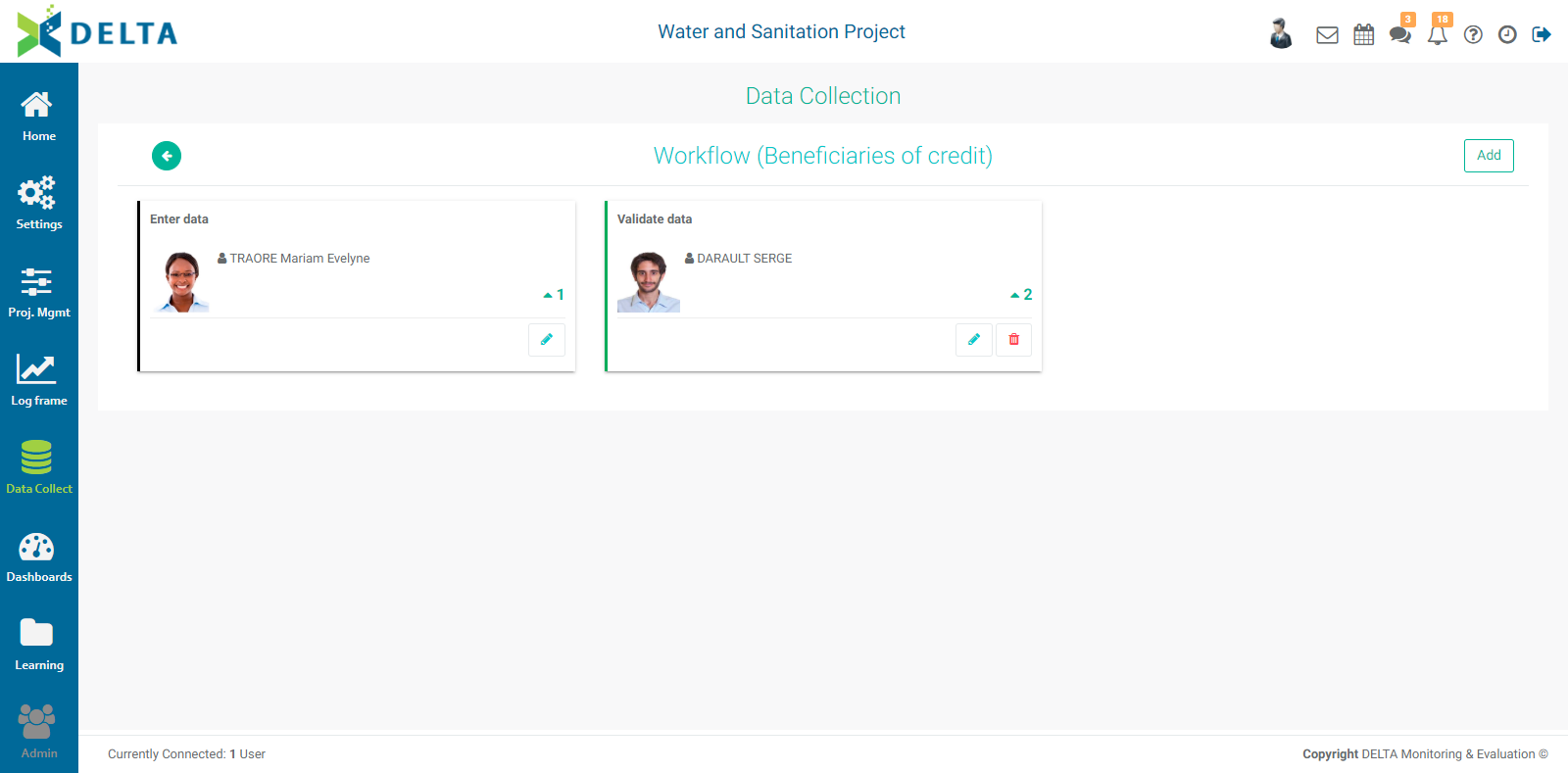
To edit a workflow step, click its Edit icon, make your changes, and click OK to save your work and return to the Workflow screen. To delete a workflow step, click on its Delete icon. NOTE: you can only delete the last step of a workflow. Once it is deleted, the previous step becomes the last and can then be deleted.
Users who are selected to be parts of a workflow will receive a notification in their Alert icon in the Main Toolbar.
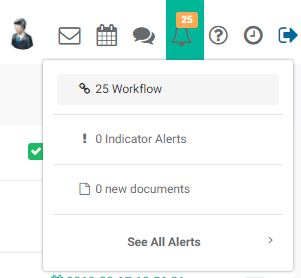
Click the Alert icon to view your assigned items in the system
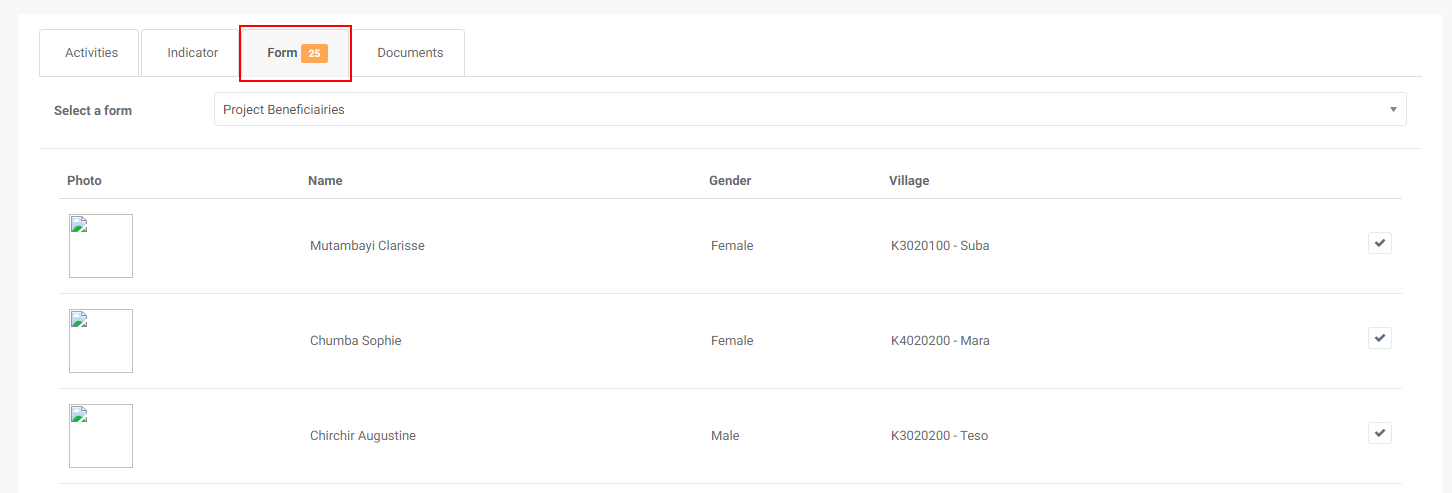
NOTE: in the example above, 25 notifications were created because the data collection form has 25 existing records in it. Regardless of where you set up workflows in Delta, the system will create every instance of an alert. In this case, the recipient of the alerts indeed saw 25 tasks pending in the Workflow section of the Alerts space.
Note also that notifications for a project will only appear once the user has clicked on the project to open it.
To assign permissions to a form, select Permissions from the form's More menu.
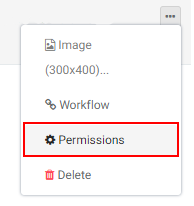
The Permissions screen will appear. NOTE: Only regular users will be shown in the list at left. Superusers do not appear on this screen since they have explicit permissions to the entire system.
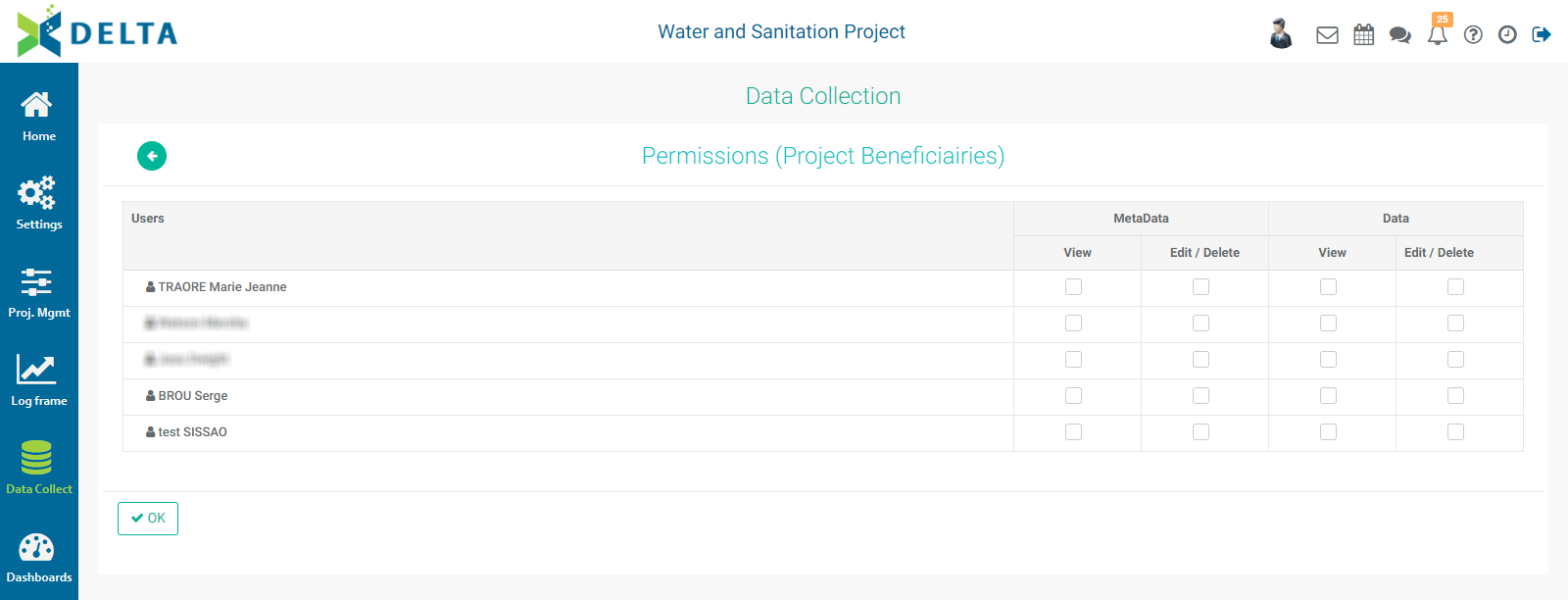
A form's metadata is its structure. Those permissions allow a user to make changes to the form itself. The form's data is the dataset of information collected using that form. Those permissions allow working with only form data.
For each user, select the permissions you want to grant. Click OK when you're done.
To delete a form, select Delete from the form's More menu, then confirm the deletion. NOTE: all data contained in the form will also be deleted.
Previous: Data Collection: Form Design | Next: Data Collection: Unique Identifiers & Skip Logic
Author: Administrator
Last update: 2023-07-01 21:28
Data Collection: Unique Identifiers & Skip Logic
Delta features a powerful conditional tool to allow users to tailor data collection forms to their target audience.
Conditions are commonly used to show/hide fields based on the data entered in another field. This is usually referred to as ‘skip logic’. For example, a field worker might ask a question of women only when performing a survey.
In the example shown below, conditions are added to two number fields which will make only one field appear in the form based on the data entered in a list field. The syntax utilizes the unique key identifiers for the fields, and is straightforward: [identifier]=’value of field’. If the syntax is incorrect, the fields will not appear at all in the form.
The example features one List field with the label Gender, and the choices ‘Woman’ and ‘Man’, and two number fields, 'Number of Children Living at Home' and 'Number of Weekly Trips to Water Points'. We’ll add a condition to each Number field, to make its display on the data collection form contingent on the data entered in the List field.
The concept hinges on the key/unique identifier of the List field. Note that the identifiers for your form fields will be different than the ones depicted below. In this example, the key for the List field is I07299.

Click on the Edit icon of the Number of Children field to open its configuration popup window. In the Condition field, enter the condition using this syntax: [identifier]=’value’. The identifier of the Gender field must be inside square brackets, and the selected value of the Gender field must be between single quotes.
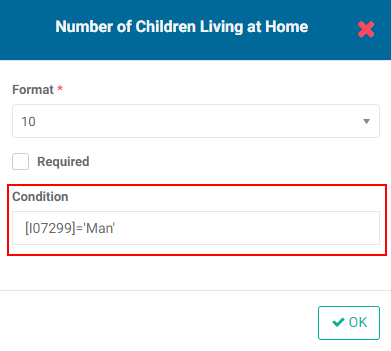
This instructs the field to only appear in the data collection form if the Gender selected in the form is 'Man'.
Similarly, for the Number of Weekly Trips field, the condition is entered according to the same syntax, except the value will be 'Woman'. This will display that field in the form only if 'Woman' was selected in the Gender field.
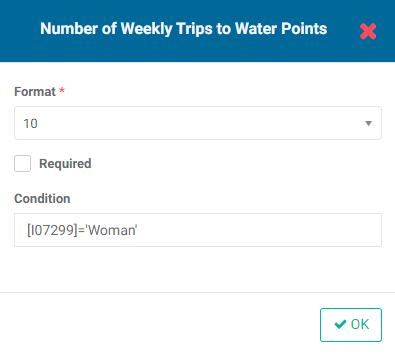
To see how this works, click Collect Data, then click Display Data Collection Screen to view the actual form in Data Collection mode.
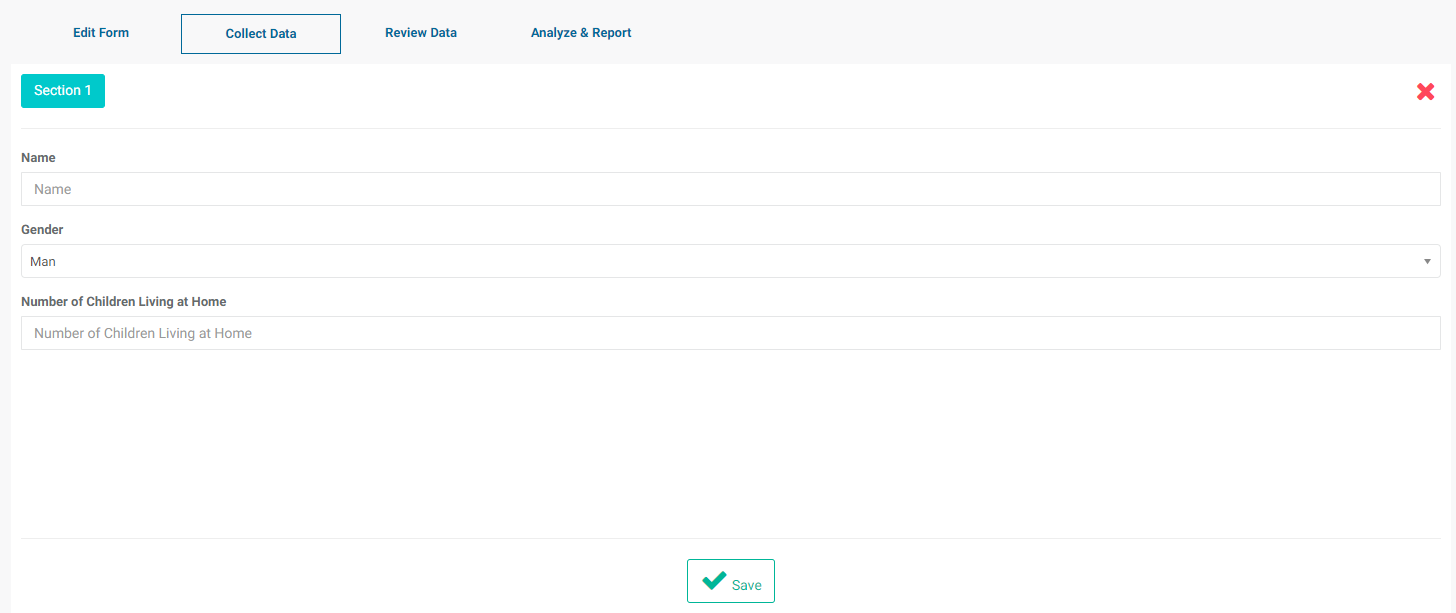
Note that since the first option in the Gender field is selected by default, only the question to be answered only by men appears on the form. Select 'Woman' in the Gender field, and the visibility of both fields is toggled.
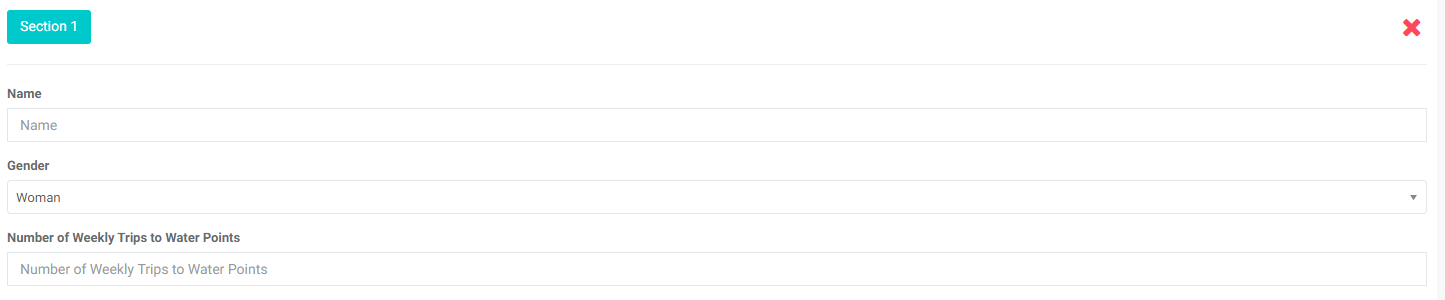
The syntax for skip logic is exact, and there is no room for error. If the form doesn't display properly, return to the Form Design/Edit Form screen to correct any mistakes.
Previous: Data Collection: Other Form Settings | Next: Data Collection: Display Data Collection Screen (Manual Input)
Author: Administrator
Last update: 2023-07-01 21:30
Data Collection Module » Data Collection
Data Collection: Display Data Collection Screen (Manual Input)
To enter the data entry screens, click on your form's name to open it, then click Collect Data. You will be presented with four choices: Display Data Collection Screen, Collect Data via Mobile Device, Send Link for External Data Entry, and Import Data From Excel File.
Select Display Data Collection Screen to input data manually into the form.
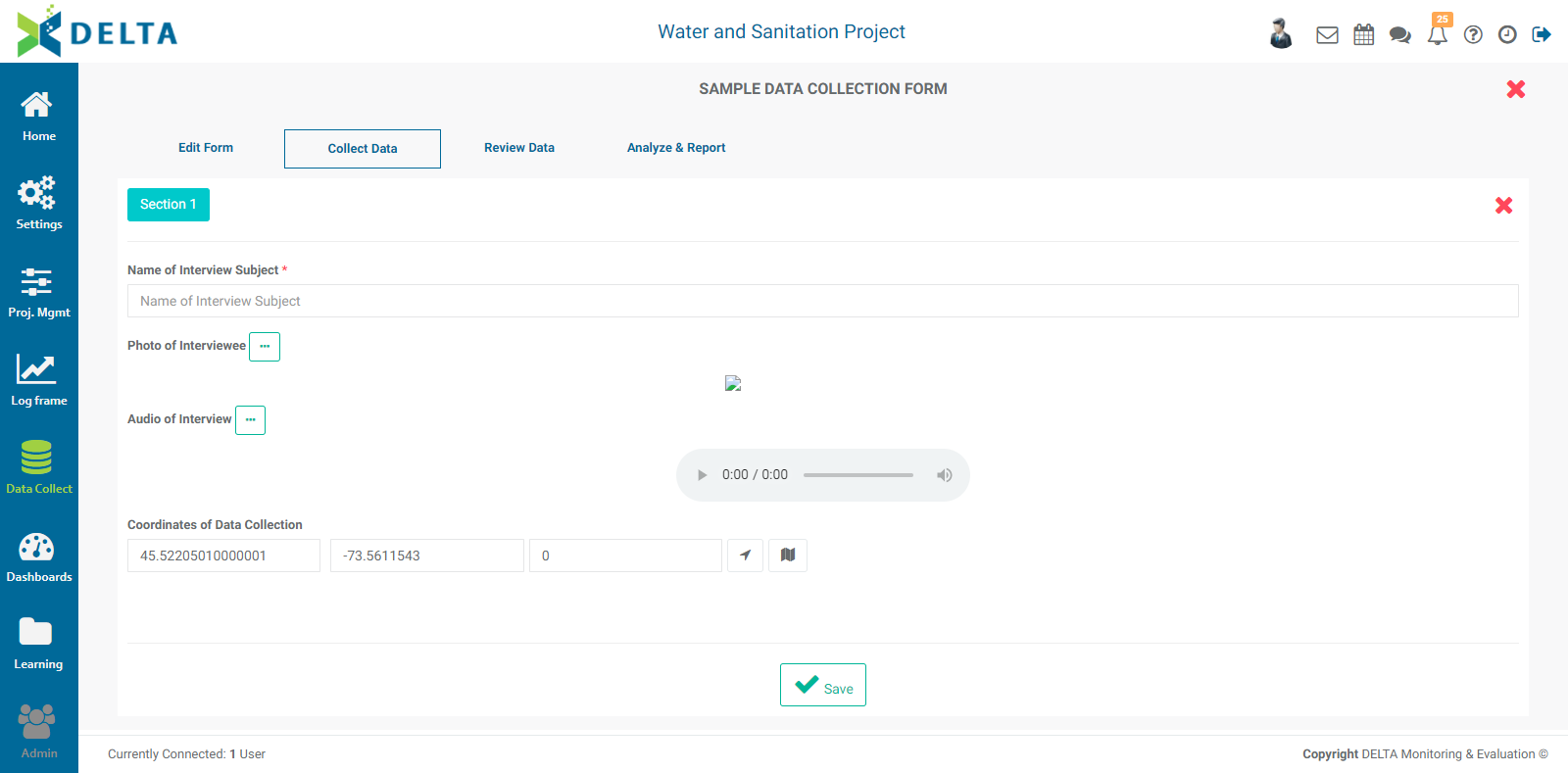
Enter data into the form, and click Save to save your work. The record will be saved, a small confirmation will appear for a few seconds, and the form will reset to blank so another record can be entered into the form. Once you're done entering individual records into the form, click the X at upper right to close the data entry form. NOTE: if the form uses the GPS field, and the device on which the data entry has a live connection, the GPS field will be populated automatically.
Reviewing and editing the data is described in detail in the Data Collection: Reviewing Data article.
Previous: Data Collection: Unique Identifiers & Skip Logic | Next: Data Collection: Collect Data via Mobile Device
Author: Administrator
Last update: 2023-07-01 21:31
Data Collection: Import Data From Excel File
Delta supports offline data collection via importing Excel spreadsheet data directly into data collection forms. You'll first need to make sure the Excel file contains column headers, and has only one active sheet.
From the Data Collection module, select the form into which you want to import data, then click Import Data From Excel File.
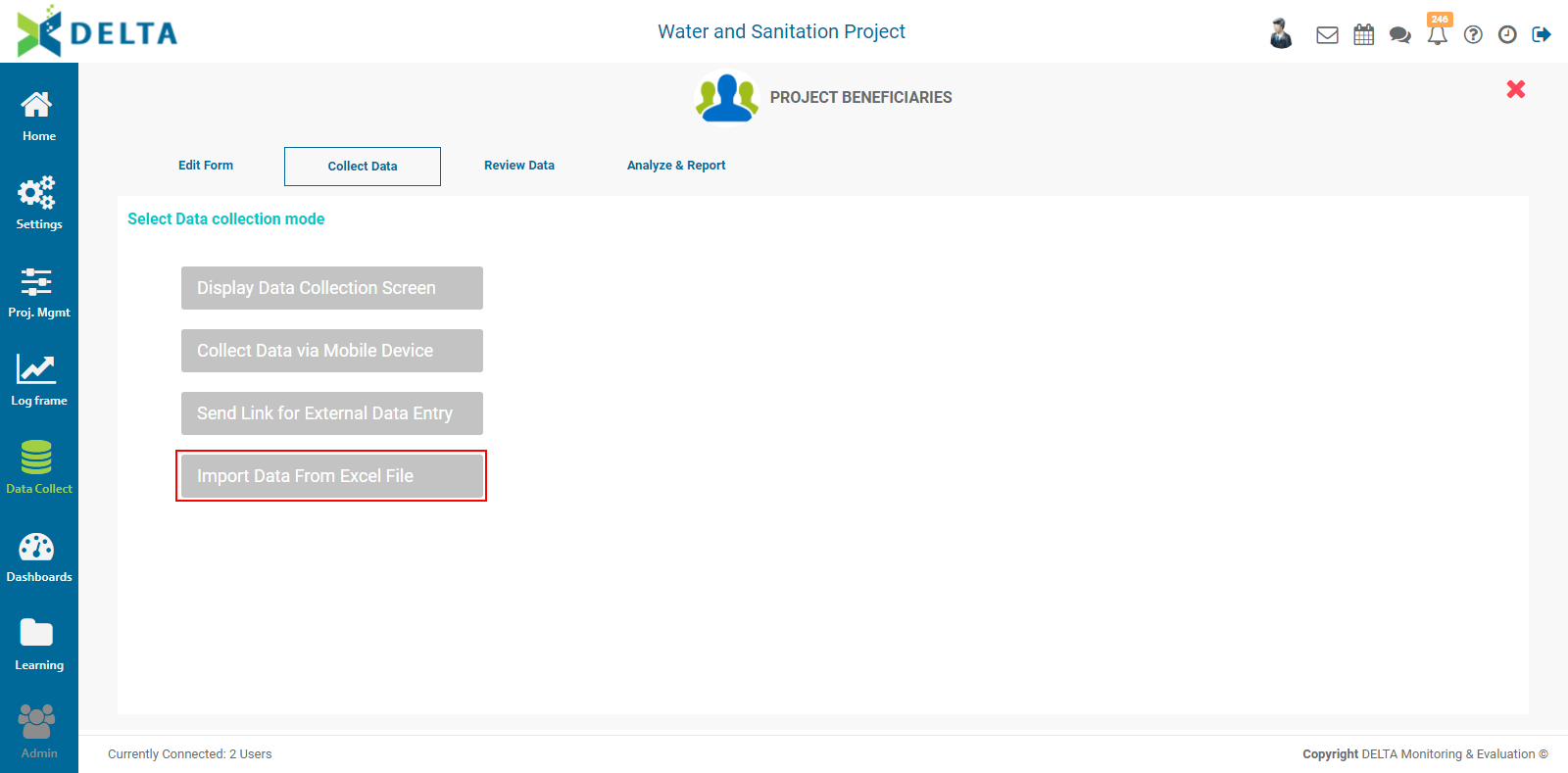
Navigate to the Excel file you want to use. Click on it to select it, and click OK or press Enter on the keyboard to bring up the Import Data popup window.
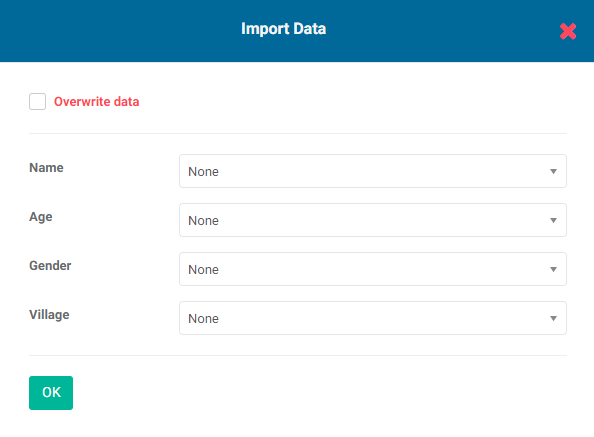
For each field in the form, use the pick list to match the field with the header of the column which contains that particular data. A best practice is to set up your spreadsheet with header names which match the data collection form field names exactly. Also, you may have more columns in your spreadsheet than fields in the form. Just select the ones you want to use from the pick list for each field.
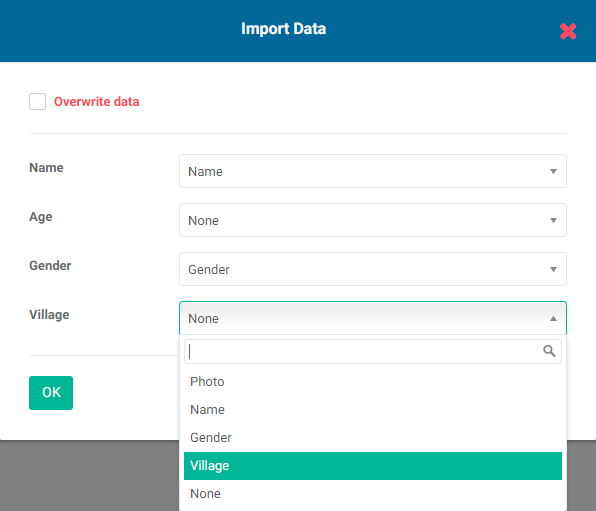
When the import is complete, the imported data will appear in the Reviewing Data screen. If the form already contained data, the imported records are appended at the end.
If any errors occur during the import, Delta will provide an error message stating that the structure of the source file needs corrections. Those errors usually result from missing headers in the spreadsheet, or multiple data sheets in the Excel file. Make the necessary corrections, and try the import again.
NOTE: for forms which contain GPS fields, to correctly import GPS coordinates, the latitude and longitude must be contained within a single field in the Excel spreadsheet, with the latitude first and the longitude second, separated by a comma, with no extra spaces. Delta will add brackets to the GPS data: [-3.774247676475482,-3.774247676475482]. You can also use three GPS coordinates, the third one being altitude. The format for the import is the same, except for another comma and a third number: [-3.774247676475482,-3.774247676475482,0].
The data import functionality allows you to overwrite existing data in the form. Click the Overwrite Data checkbox to enable/disable it. IMPORTANT: Use this only with test data when testing the form prior to deploying it in the field. Data overwrites are irreversible.
Previous: Data Collection: Send Link for External Data Entry | Next: Data Collection: Reviewing Data
Author: Administrator
Last update: 2023-07-01 21:31
Data Collection: Send Link for External Data Entry
Delta supports offline as well as remote data collection.
Offline data collection refers to data collected while the person charged with data collection is out of range of a network, or using another tool to collect the data and converting it for import via an Excel spreadsheet.
Remote data collection makes a form available to users which are not in the system.
From the Data Collection module, open the desired form by clicking its name in the list.
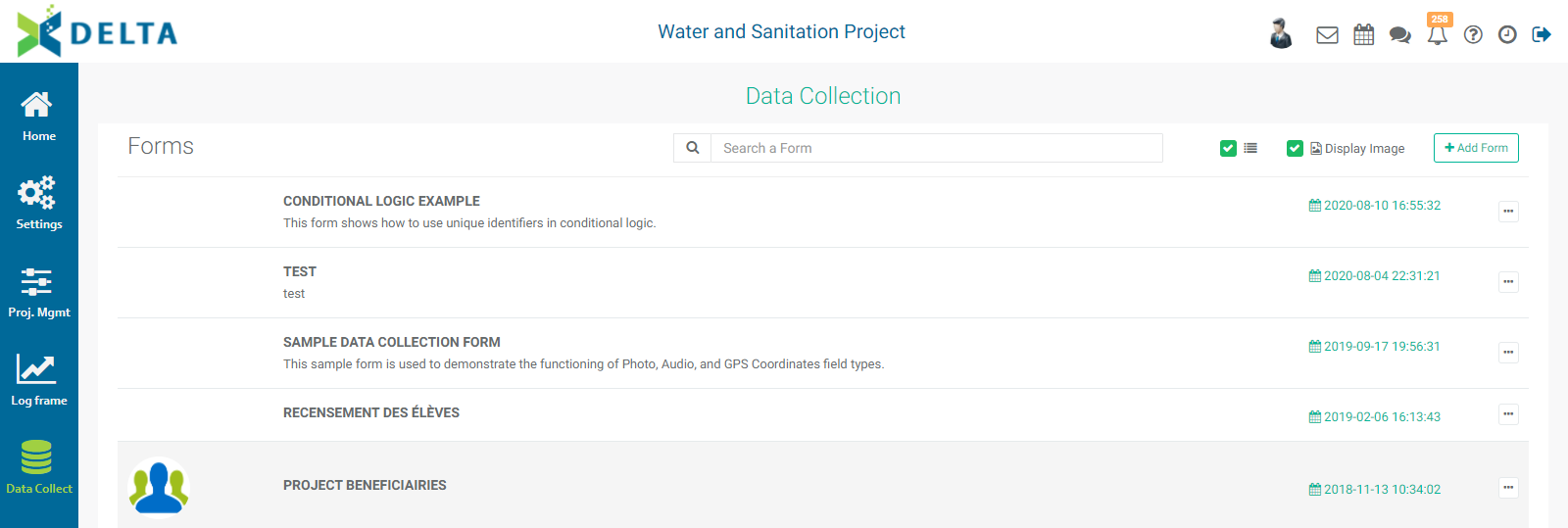
Click the Collect Data tab, and select Send Link For External Data Entry from the menu.
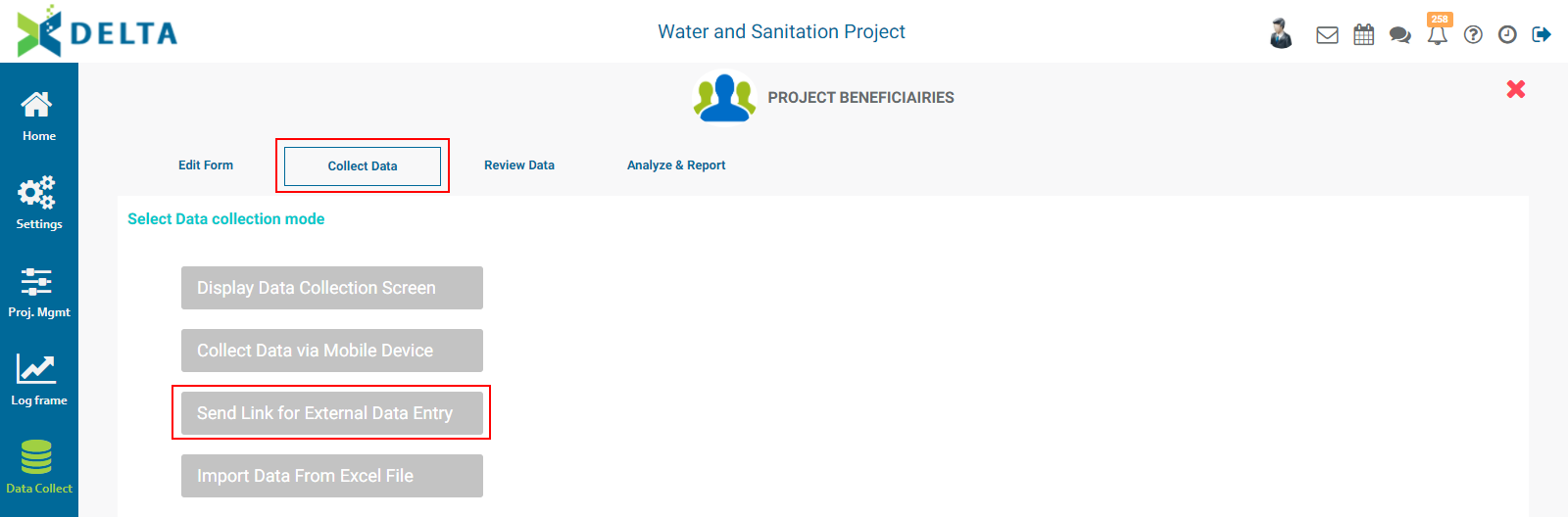
A field containing a URL for the form will appear.
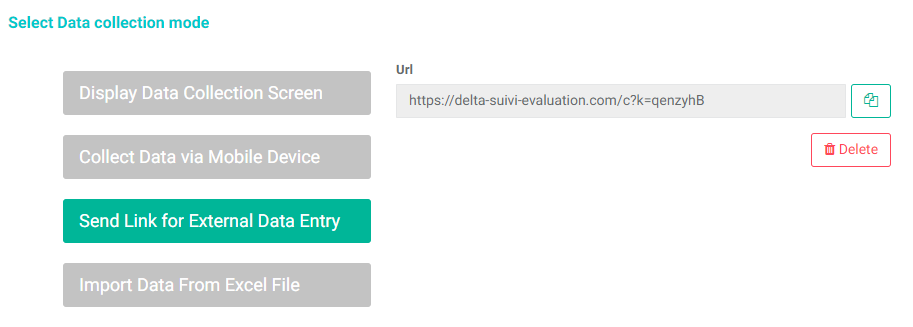
Click the Copy icon at right of the field to copy the link for pasting into an email or document.
Recipients of the link will be able to go directly into the form and enter data without being logged into the system.
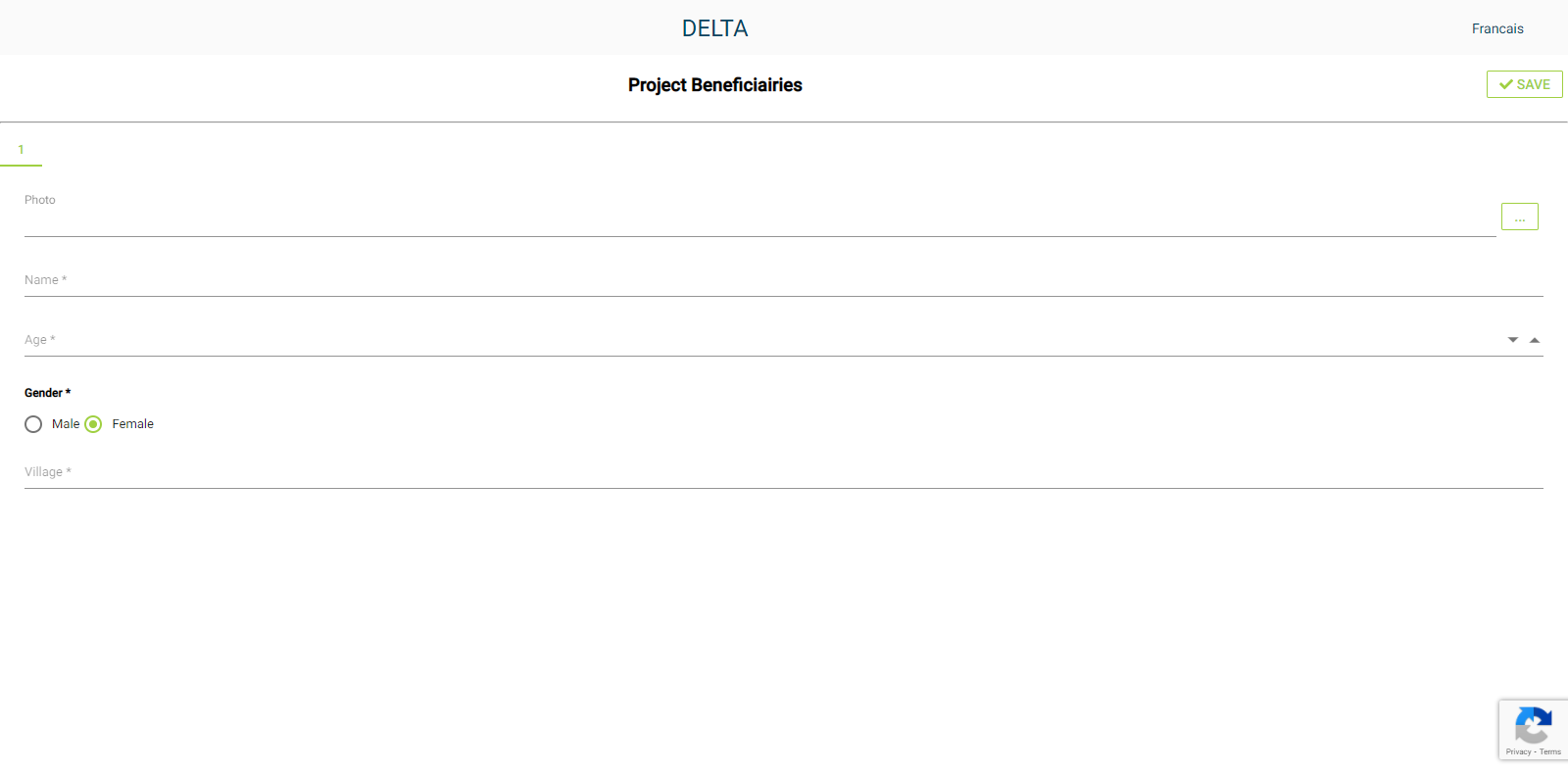
The form layout is responsive, meaning that it will size itself to the screen of the device on which it is displayed. The above screenshot was taken on a laptop, while the one below was snapped from an iPhone.
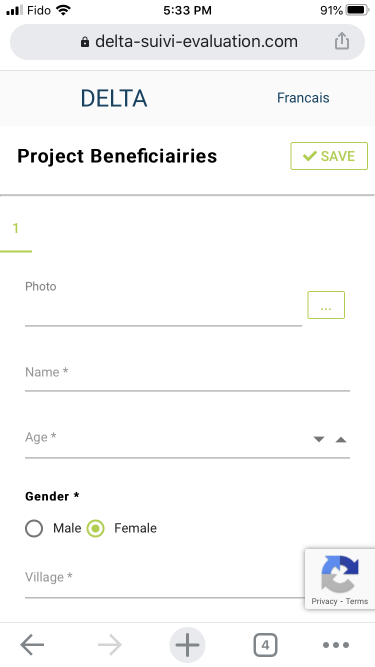
To make sure that only parties who should be using the form can find it, only data collectors should receive the link to it. Note that Delta uses CAPTCHA to ensure that bots and other possibly nefarious automated tools cannot fill out the form.
A specific example of a remote data collection form is the Survey functionality. Checking the Survey box at upper right in the Form Design (Edit Form) screen makes it impossible for a link recipient to fill out the survey more than once.
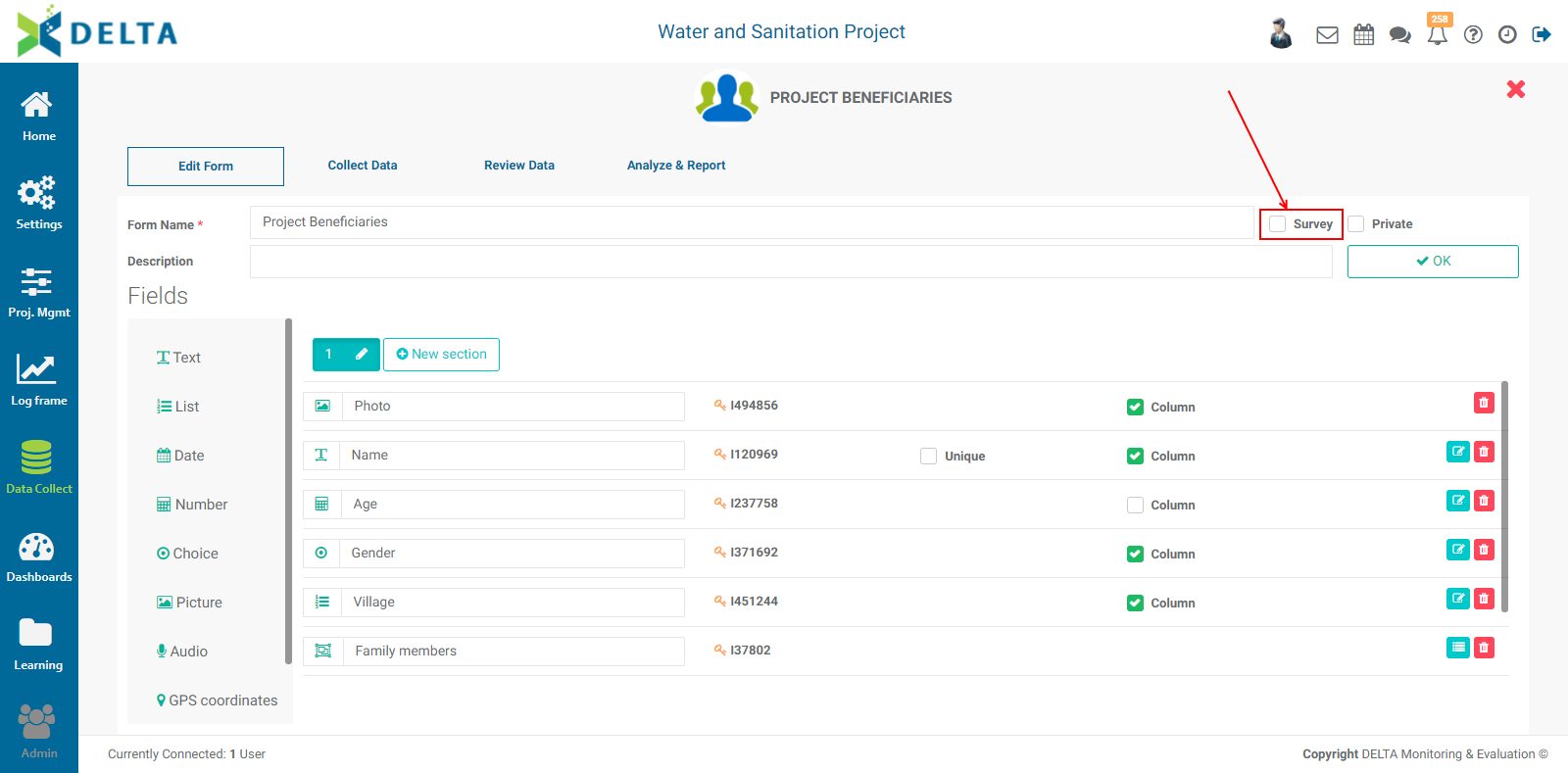
Previous: Data Collection: Collect Data via Mobile Device | Next: Data Collection: Import Data From Excel File
Author: Administrator
Last update: 2023-07-01 21:32
Data Collection: Collect Data via Mobile Device
Delta features a mobile app for data collection. The app works online and offline, and can be installed on any Android device.
To install Delta Mobile, click this link.
Once Delta Mobile is installed, tap its icon to open the app.
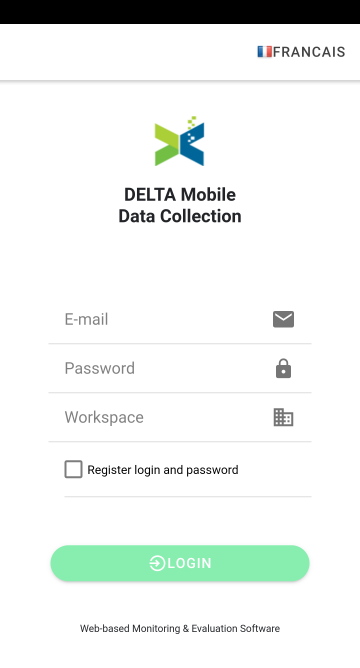
Enter your email address, your password, and the name of your assigned workspace. Check with your system administrator if you don't have those credentials. IMPORTANT: the app will only link to production (live) workspaces. The workspace is NOT the URL of the system you're connecting with.
Check the Register Login and Password box to allow the app to remember you the next time you use it, then tap the LOGIN button. The app will open with the list of projects.
Tap the name of the project you want to work with. The default view is Data Collection. You will see a list of all data collection forms you have permissions to for the project.
Tap the menu at top right to access the navigation menu. The menu contains four items:
- Projects List
- Activities
- Indicators
- Data Collection
The Projects List is the list of all the projects you're allowed to access via the workspace. This is the default view when you launch the application.
Activities shows all the activities for which you can collect data.
Indicators shows the indicators for which you can enter actuals.
Data Collection displays all the data collection forms you're authorized to work with. This is the default view when you open a project.
To work offline, tap Offline Mode at the bottom of the main menu screen. Select the item(s) you want to work with (activities, indicators, or data collection forms), then tap Load Data to download the data onto your device. Once the download is complete, you can work without an internet connection.
Previous: Data Collection: Display Data Collection Screen (Manual Input) | Next: Data Collection: Send Link for External Data Entry
Author: Administrator
Last update: 2023-07-01 21:29
Data Collection Module » Reviewing Collected Data
Data Collection: Reviewing Data
Once data has been entered in the form, regardless of method, the next step is to review the collected data. From the Data Collection module, select the form for which you want to review the data, and click Review Data.
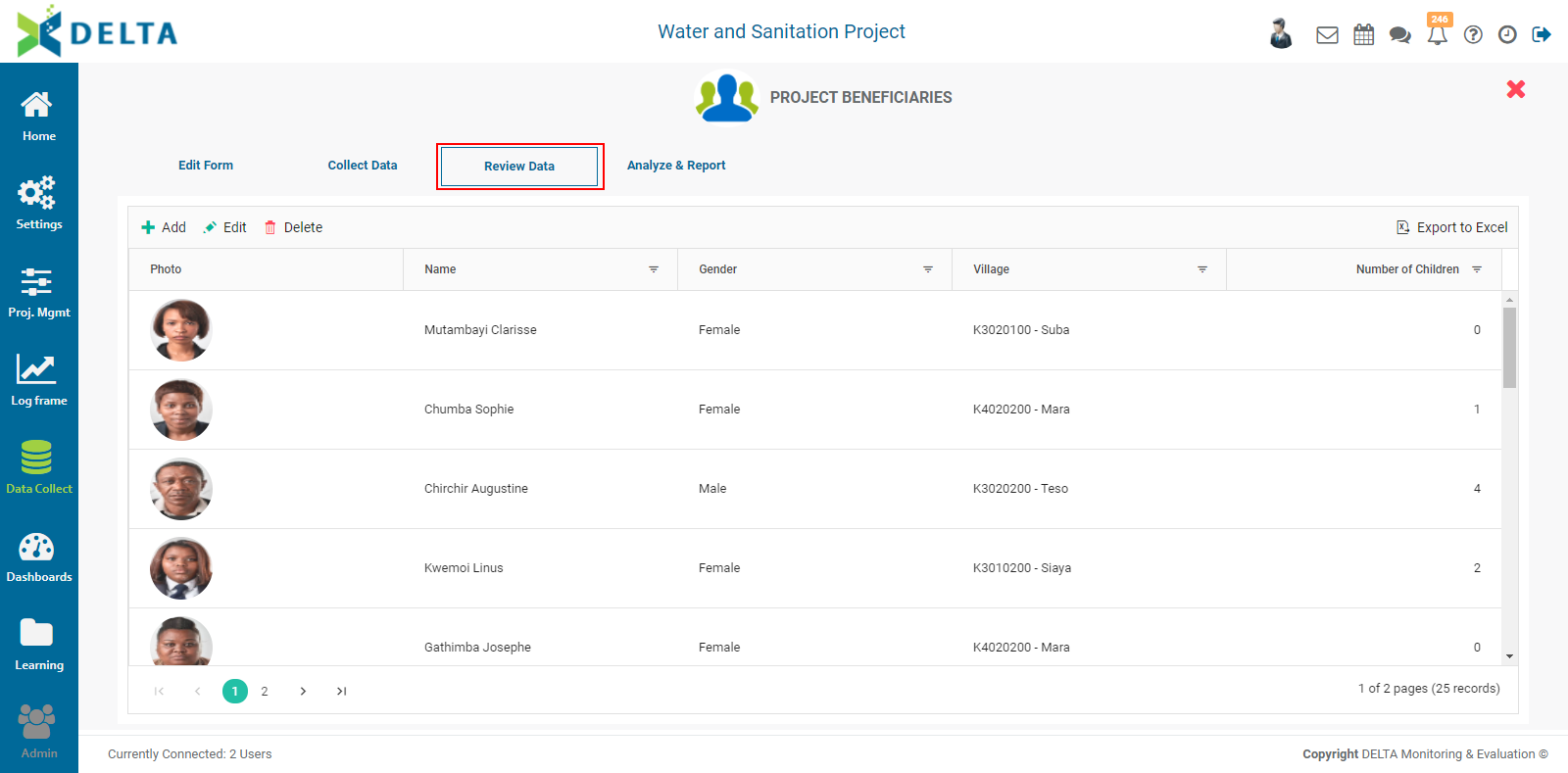
From the toolbar at top left, you can manually add records, edit existing records, and delete records.

You can also filter by data field. Click the Filter icon in a column to select it for filtering.

Select the operation you want the filter to perform.
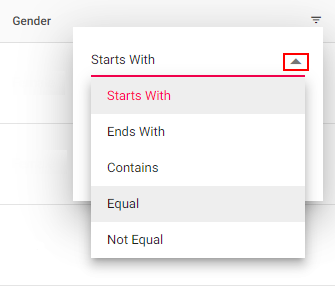
Enter the value the filter will use, then click Filter to apply it to the column. The records will be filtered according to the filter parameters, and the filter icon in that column will appear in red to denote that a filter is in use.
To edit a filter, click the Filter icon again, and make the necessary changes. To delete a filter, click the Filter icon and select Clear.
To add a record, click the +Add icon to bring up the data entry popup window. Make the entry, then click the checkmark in the popup window to save your work and return to the data review screen. Your entry will be appended to any existing records. If necessary, use the page controls to navigate to your new record.

To edit a record, you must first click on it once to select it.
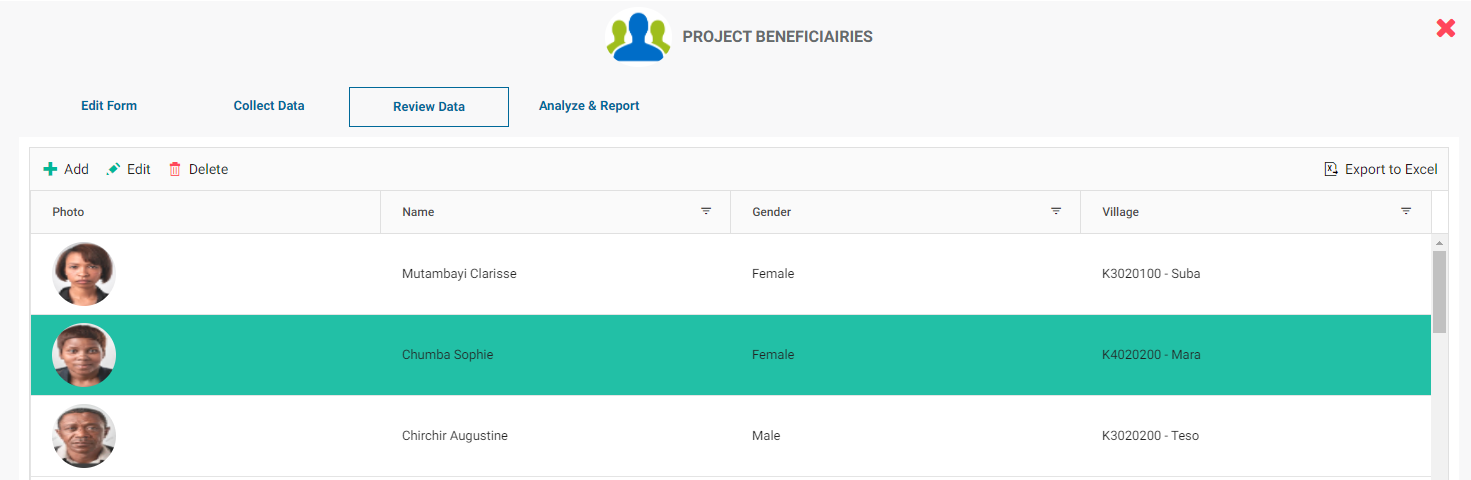
You can also double-click the record to open it. The resulting popup window contains the existing data for this record.
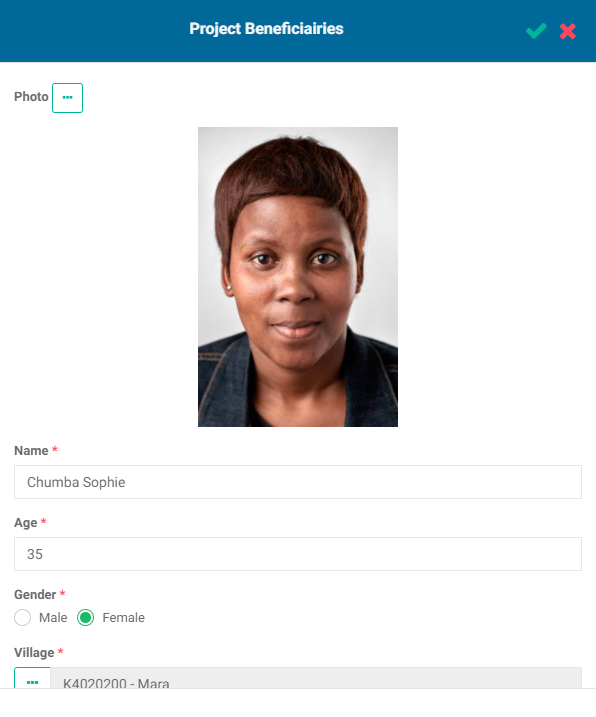
Make the necessary changes, then click the checkmark in the popup window to save your work and return to the data review screen.
To delete a record, click it once to select it. Click the Delete icon in the toolbar, then confirm the deletion.
To export the data, click on the Export to Excel button at top right.
The download should start automatically. Check your Downloads folder for the exported file.
NOTE: if a data collection form is the object of a workflow, any records which are under review will be locked from editing.
Previous: Data Collection: Import Data From Excel File | Next: Data Collection: Analyze & Report
Author: Administrator
Last update: 2023-07-01 21:33
Data Collection Module » Data Collection Analytics Reports
Data Collection: Analyze & Report
Delta features a robust and intuitive data collection form analytics functionality. Incorporating basic and advanced functionalities of spreadsheet software such as Excel, forms analytics allows the user to view, analyze, and report on any aspect of a given data collection set.
Five types of reports are available: Table, Pivot Table, Pie Chart, Mixed Chart, and Map.
Table Reports are straightforward grid reports, with functionality similar to Excel.
Pivot Table Reports also have functional similarities with Excel's functionality.
Pie Chart Reports display data interactively, where users can drill down into periods from the global view.
Mixed Charts Reports allow users to graph several data subsets side by side, for example, data collected each individual year of a project.
Map Reports are geospatial visualizations from datasets which contain sufficient location information, either a Locations field, or one of two GPS fields.
Previous: Data Collection: Reviewing Data | Next: Forms Analytics: Table Reports
Author: Administrator
Last update: 2023-07-02 18:27
Forms Analytics: Table Reports
All forms analytics functionality has been consolidated in the Data Collection module, under Analyze & Report. There are five types of Custom Reports for data collection forms: Table, Pivot Table Reports, Pie Chart Reports, Mixed Charts Reports, and Map Reports.
To create a report for a data collection form, select the form in the list, then click Analyze & Report to go to the analytics list screen. NOTE: if no reports have been created, the page will be blank.

Table reports are similar to an ordinary Excel spreadsheet. To create a new Table report, click on +Add at top right, and select Table from the menu.
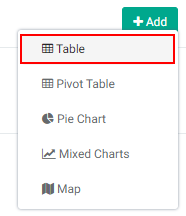
When you first create an analytics report, all the data in the data collection form is displayed.
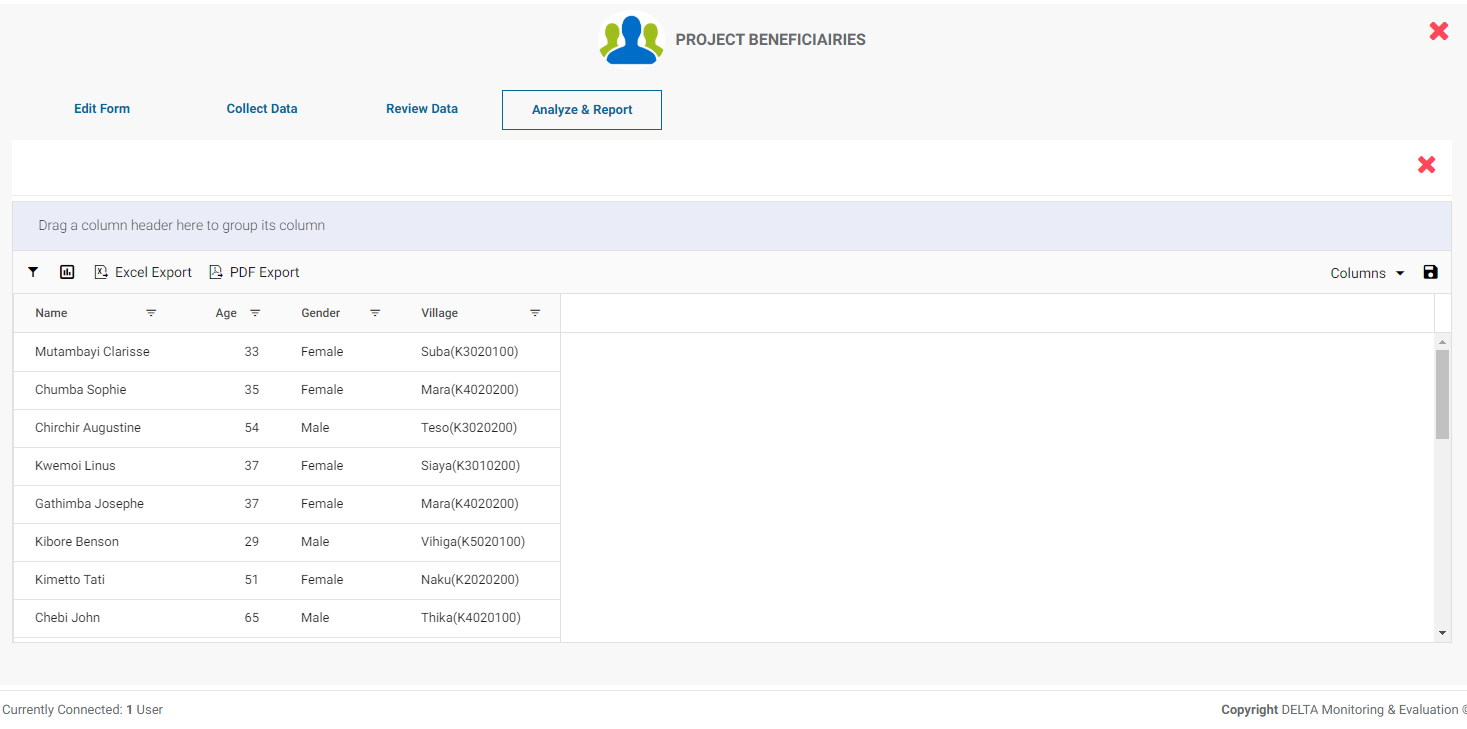
The toolbar for analytics is located at top left of the data area: Filter, Graph, Excel Export, and PDF Export.
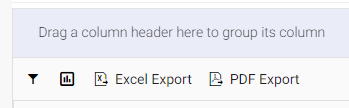
To add a filter to a analytics report, click the Filter icon to bring up the Filter popup window.
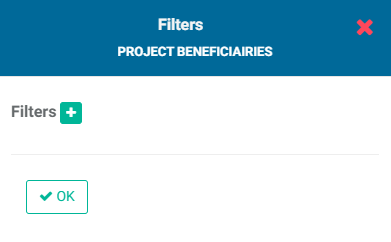
Click the + button to add a filter. The Filters popup window will appear.
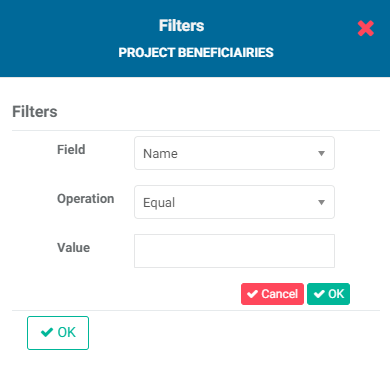
Select the field, operation, and value you want to assign to the filter. Click the OK button (the one next to the Cancel button) to save your work. The filter will be displayed in the Filters popup window.
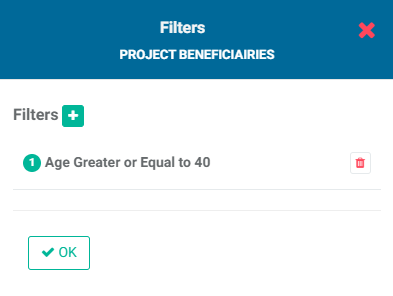
You can add as many filters as are needed. If you create more than one filter, you also need to add logic for the system to know how to handle multiple filters. The logic is simply AND/OR, and the correct syntax uses the number of the filter. In the example below, the logic is 1 AND 2, so both conditions must be met. The AND operator requires that all conditions must be met, while the OR operator requires that at least one condition must be met.
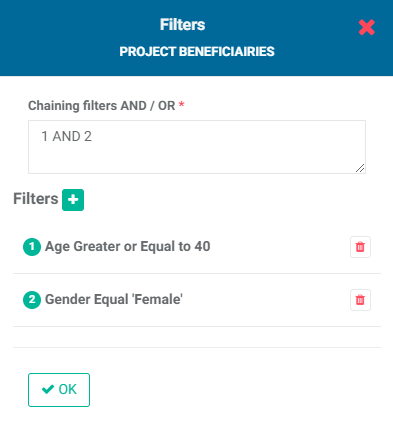
Click OK to save the filter. Only the data which conforms to the applied filter is displayed.
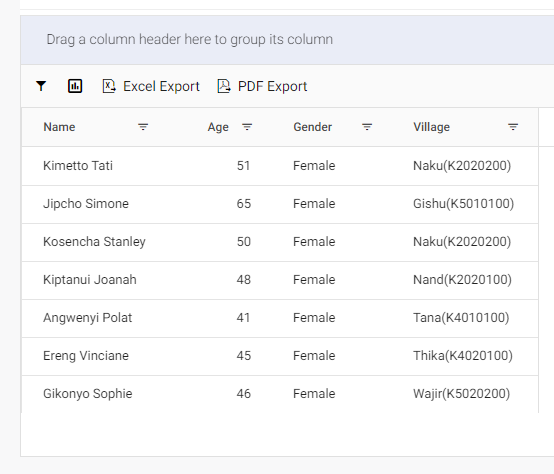
To edit or delete a filter, click on the Filter icon and make the necessary changes.
The Chart icon in the toolbar allows you to graph your data on the fly. This is a shortcut to the Mixed Graphs and Pie Chart custom reports. These are described in detail in the Mixed Charts Reports and Pie Chart Reports articles.
Delta supports exporting data collection forms analytics reports in two formats: Excel and PDF. Click on the Excel Export button to export the current state of the table data to Excel. Any filters currently in use will be taken into account in the export.
Click on the PDF Export button to export the current state of the table to PDF format. Any filters currently in use will be taken into account in the export. Graphs will be exported along with tables.
You can group data by dragging column names to the area above the toolbar. This will display the table data in groups sorted by the various values contained in that column.
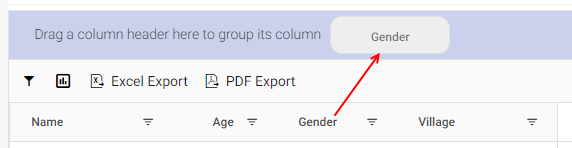
To sort records, click, hold, drag and drop the header of the column you want to use into the area above the toolbar. You can use as many headers as are needed. This in effect allows you to disaggregate your data.
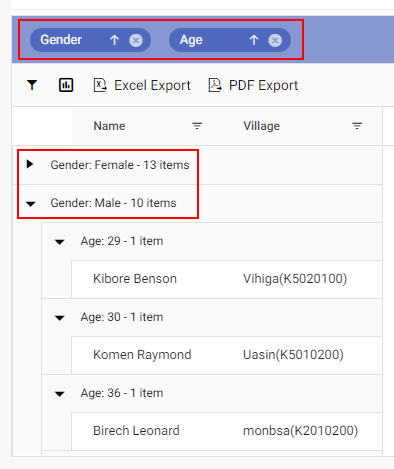
If two or more elements are used for sorting, they are taken into account in the order in which they were added to the top bar. To change the order, you must delete and re-drag the header to its proper location. Dragging within the top bar is not allowed.
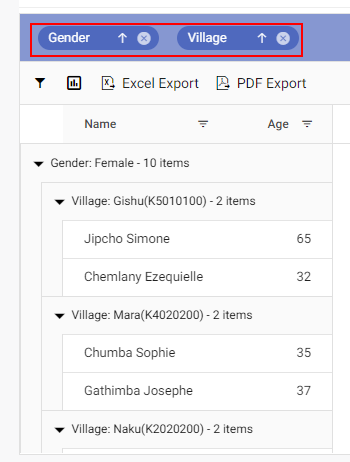
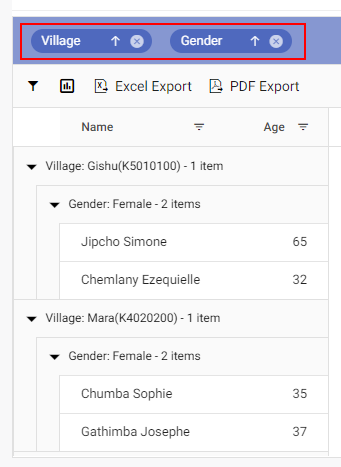
The sort parameters will appear in the table column headers, each followed by an arrow which lets your display each group in ascending or descending order.

You can also filter individual columns. Click on the three lines to the right of the column name, and select/deselect the items you want to display/hide.
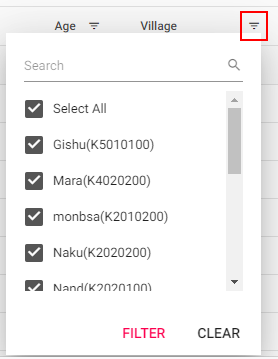
When an individual column filter is applied, the three lines next to its header will turn red to indicate a filter exists. To edit a filter, click on the three lines again, make your changes, and click Filter. To delete a filter, click the three lines and click Clear.
At the right of the screen are two more options: Columns, and Save. Columns allows the user to select which columns to display on screen. This is similar to the corresponding functionality in Excel.
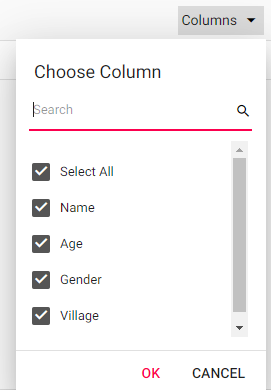
Click on the box next to a column item to show/hide that column. Click OK to confirm your selections. NOTE: any operations you perform on a table only applies to visible columns. Also, if any sorting parameters are currently in use, they will be marked as not shown in the Columns pick list.
To save a report, click the Save icon. You'll be asked to provide a title (name) and a short description for the report. IMPORTANT: you must explicitly use the Save icon to save your report. If you return to the analytics list screen without saving, your work will not be saved. That said, you can save a report even if you're not done with it, and edit it later as needed, or save another version.
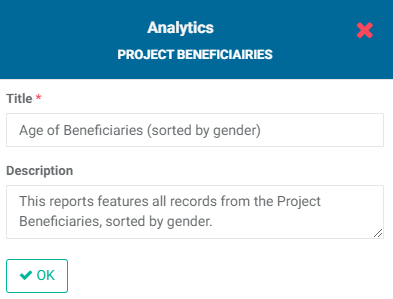
To edit the report, click on its name to open it, and make your changes. IMPORTANT: don't forget to explicitly save your edited report. To delete a report, click its Delete (trashcan) icon in the list.
Previous: Data Collection: Analyze & Report | Next: Forms Analytics: Pivot Table Reports
Author: Administrator
Last update: 2023-07-01 21:36
Forms Analytics: Pivot Table Reports
The second type of data collection forms report is Pivot Table. This functionality is similar to the corresponding functionality in Excel.
To create a pivot table report, locate the form in the list and click it to open it, then select Analyze & Report.
Click the +Add button and select Pivot Table from the menu.
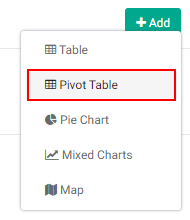
The screen is initially empty.

To select the data to work with, click the Show Field List icon in the toolbar, second from left.

From the Field List popup window, select rows, columns, and values.
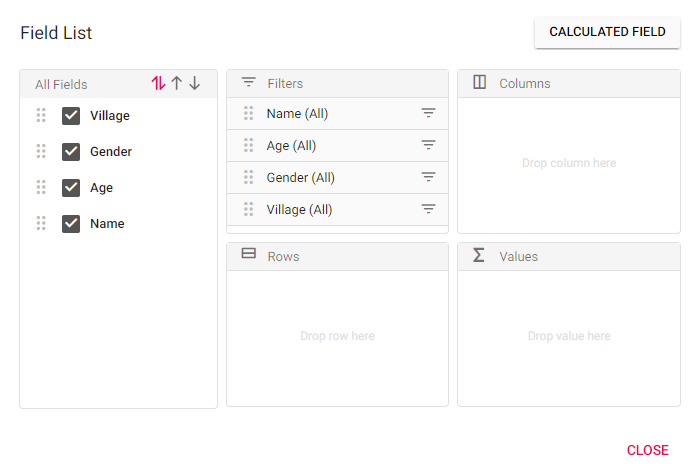
Select the fields to work with. To select a field, hover on top of its vertical double row of dots until the cursor turns into a Move cursor (double-headed double arrow), then click, hold, and drag the field into the Rows, Columns, or Values box. To remove a field from any part of the pivot table popup window, drag it back to the Field List area of the window. It will become automatically deselected. To rearrange the order in which fields are used by the pivot table, click the up arrow next to its name to move it up/down the list.
Each field also has its own filters. To set a filter for a field, click on its three-line icon to select the parameters for the filter. Filters have three modes: Member (actual data in the table), Label (filter operation to perform on this data), and Value (filter through the other selected field(s) in the pivot table).
Fields for which a filter has been applied will display its Filter icon in red.
When you're done with setting up rows, columns, and values, close the Show Field List popup window to return to the pivot table.
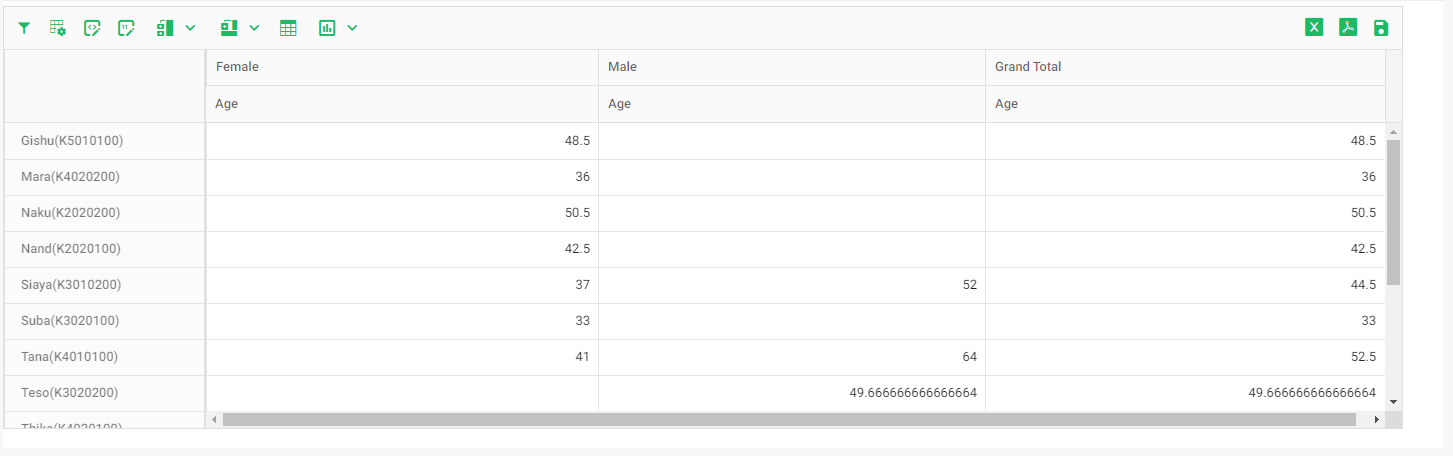
Instead of using the data as is, users can also create a calculated field based on the existing fields. With the Show Field List popup window open, click on the Calculated Field button to select which fields to use.
Enter a name for the new field. Drag the desired fields to the formula box and enter the calculation to be performed. Click OK when you're done to return to the Show Field List popup window.
Make any other changes to the pivot table, then click the Save icon at far right to save your pivot table report. IMPORTANT: you must explicitly save your work for the report to be saved. The Save icon is the one on the far right of the screen.
The toolbar contains a number of tools aside from the Show Field List button. The first icon, Filters, allows you to add filters to the entire dataset.

Click the Filters icon to bring up its popup window.
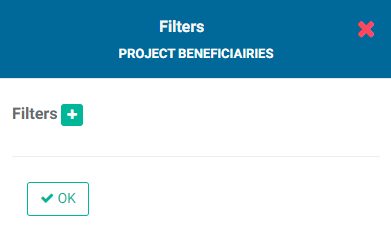
Click the + button to add a filter. Enter the field to be filtered, the operation to be performed on that field's data, and the desired value.
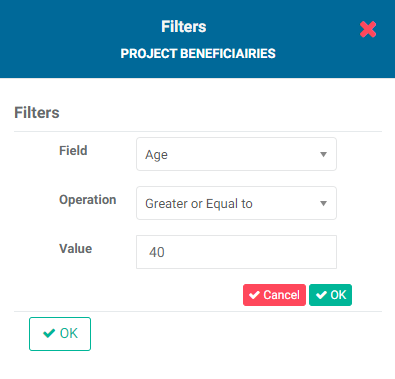
Click the small OK button to save the filter. You can add as many filters are needed. If you use more than one filter, you'll need to chain them using the same AND/OR logic used in other filters throughout Delta.
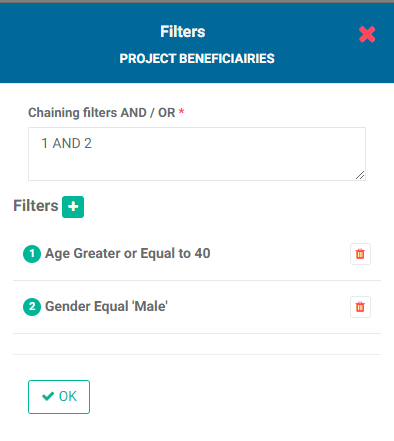
The AND operator will return only records which conform to both filters. The OR operator returns all records which conform to at least one filter.
To delete a filter, click its Delete icon. To save the filter and return to the pivot table, click OK.
The next icon in the pivot table toolbar after the Show Field List icon is Conditional Formatting.

Conditional Formatting allows to add a condition whereby the data which matches the condition will be displayed differently from the non-matching data. For example, a condition could be set by which all negative numbers appear in red. Click on the icon to bring up its popup window.
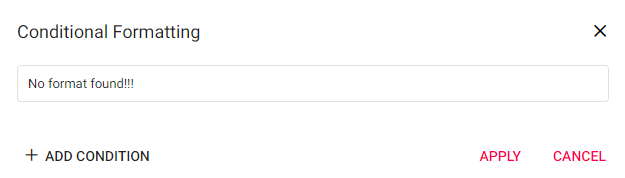
Click + Add Condition to set up a new condition.
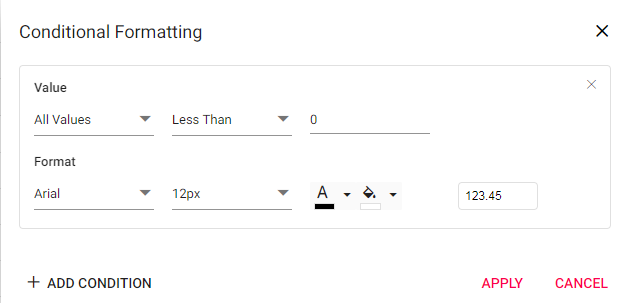
Choose the desired settings. Add as many conditions as desired, and click Apply at the bottom of the popup window when you're done. The matching data in the pivot table will reflect the conditions. In the example below, any negative numbers will appear in red.
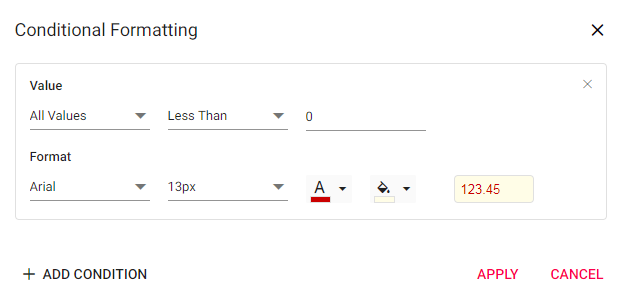
The next icon, Number Formatting, allows you to set formatting for numbers, percentages, and currency.

Click the icon to bring up its popup window.
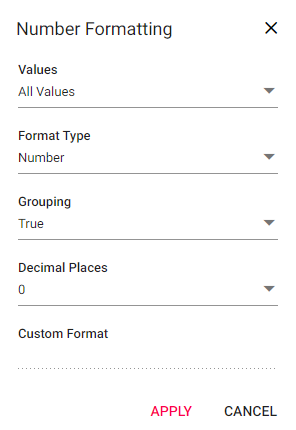
Formatting options for numbers and percentages are grouping and decimal places. Formatting options for currency include grouping, decimal places, currency symbol, and placement of currency symbol. You can also create custom formats.
The next two icons, Sub Totals and Grand Totals, give you more control over the appearance of the pivot table.
The Show Table icon allows you to toggle back to the table view when you're working in Graph mode.

Graph is the last icon in the pivot table toolbar. It offers a full selection of graphing methods.
Select the type of graph you want to use. Any filters which are currently applied will also be reflected in the graph.
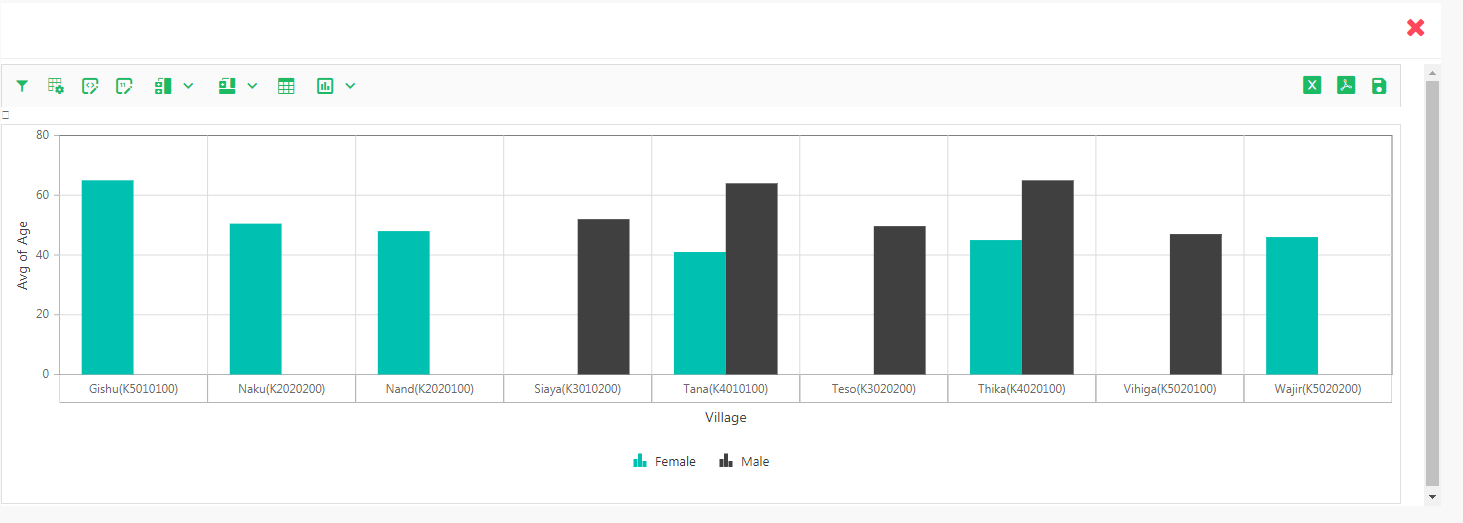
Click the Show Table icon in the toolbar to go back to the Table view from Graph view.
You can export pivot table reports to Excel or PDF by using their respective icons at upper right. Remember to click the Save button to save your work.
Previous: Forms Analytics: Table Reports | Next: Forms Analytics: Pie Chart Reports
Author: Administrator
Last update: 2023-07-01 21:40
Forms Analytics: Map Reports
The fifth type of data collection forms custom report is Map. NOTE: if the data collection form contains no GPS or location fields, you will not be able to create a map report.
Open the form of interest from the Data Collection module, click on Analyze & Report, and click the +Add button and select Map.
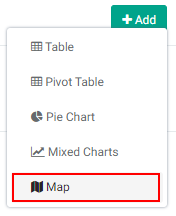
The screen initially displays the map with no data.
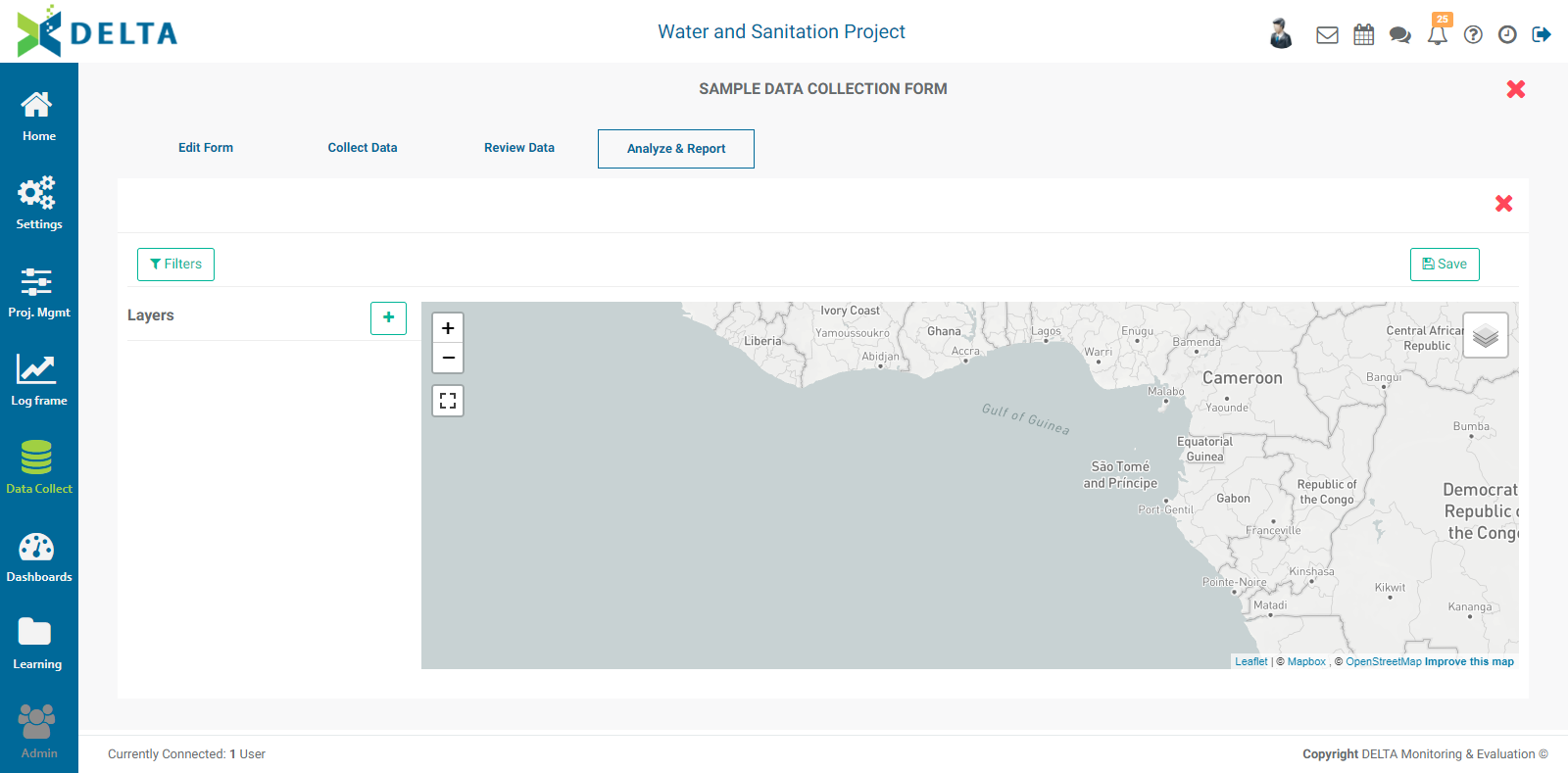
To add a data layer, click the + button to bring up the Layer Selection popup window. NOTE: If the + button does not appear, the data collection form you selected does not contain GPS or location information and cannot be used in a Map custom report.
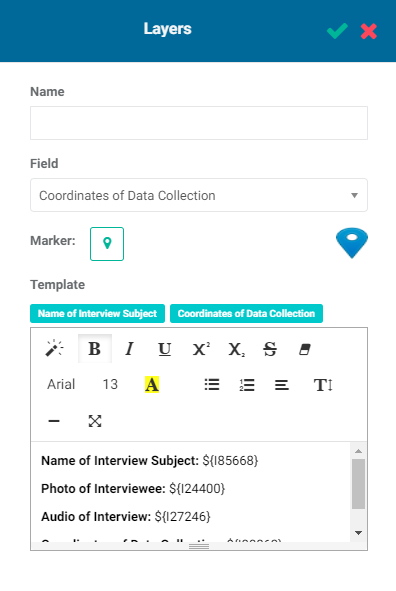
The popup window contains default settings for the form fields and map legend. Enter a name for the layer. Select the form field you want to show on the map. The pick list is populated with the form fields than can be used in geospatial visualization.
The default marker for the map is a blue pin. To replace it with a custom marker, click the Pin button, then navigate to the location of your custom marker graphic file, click the file once to select it, and press Enter on your keyboard. The new marker will be displayed instead of the default pin. NOTE: the marker graphic should contain a transparent background.

The Template field contains the unique identifiers for the fields in the form. What each identifier does is display that part of the record in a popup when a user clicks on a map marker. The default includes every field in the form.
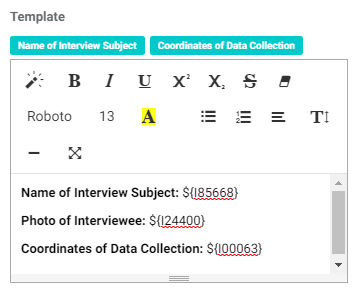
The syntax for the template is simple: the legend label, a $ (dollar sign) and the corresponding field's unique identifier in curly brackets {}. Delta offers a shortcut by displaying the unique identifiers from each form field in a small block above the template box so you don't have to look them up in the form. The default legend label for each item is the name of the field in the form. This can be edited as well. Finally, you can change the style of the text by using the text editor tools at the top of the Template box.
Edit the template as desired, then click the checkmark in the popup window title bar to save your work and return to the map report. The GPS data entered in the form appears on the map.
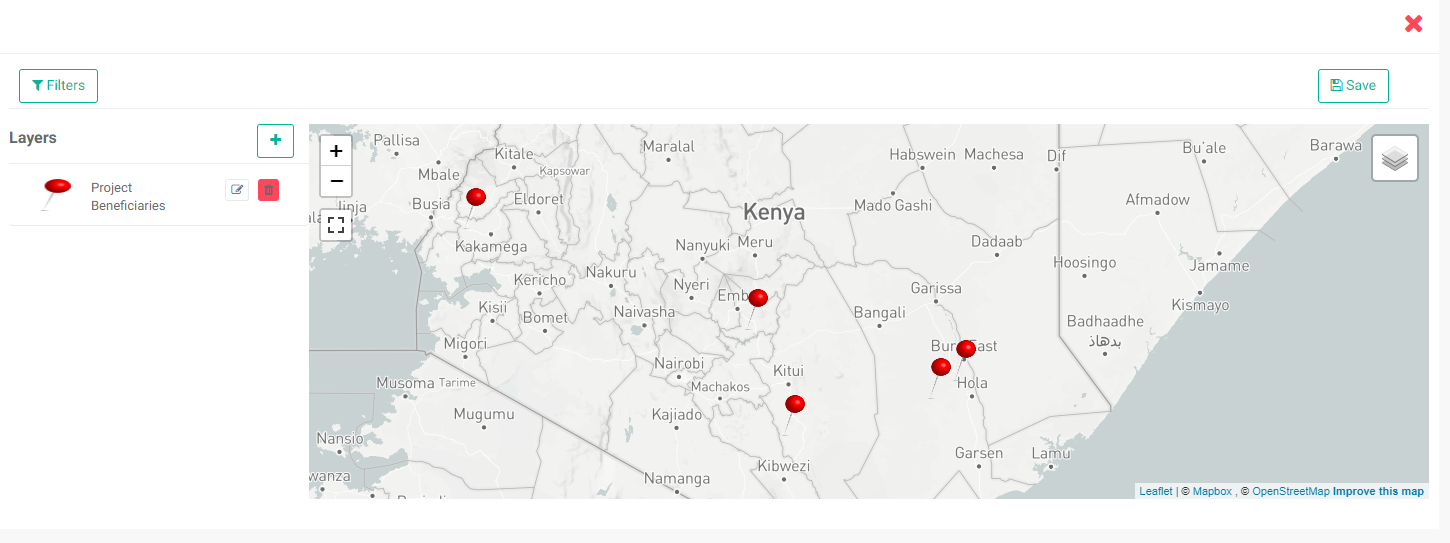
The default basemap is Grayscale. Mouse over the map stack in the upper right corner of the map to select Street Map or Satellite instead.
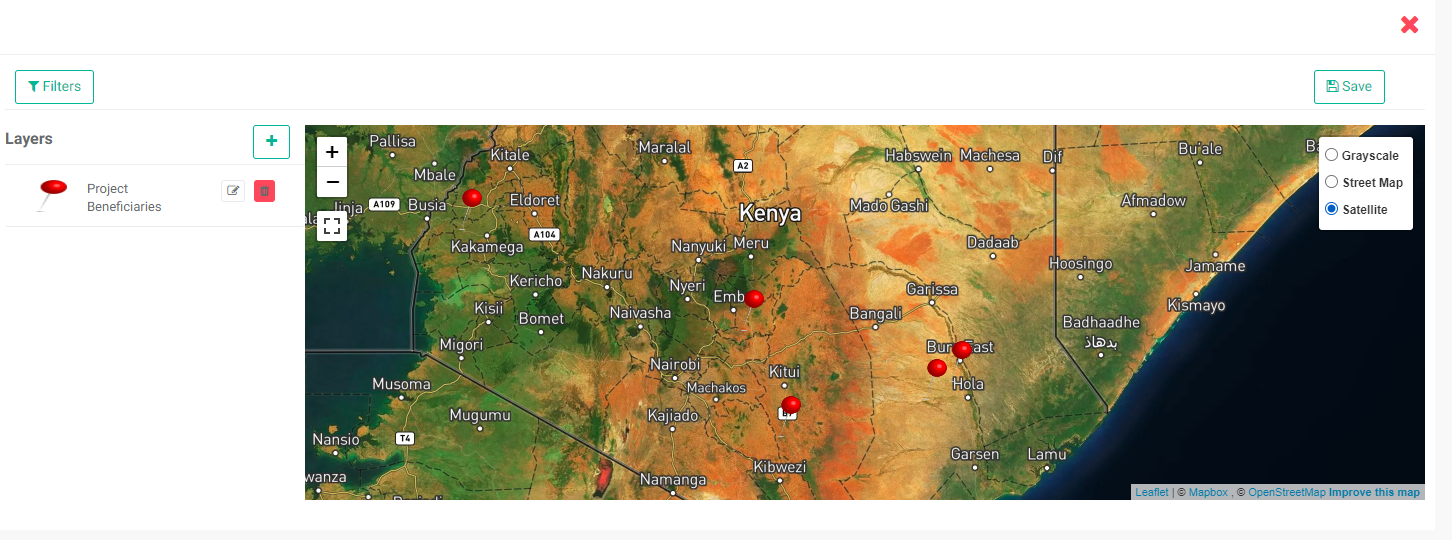
Clicking any marker on the map will bring up the information that was selected in the Template box when the layer was created. Click the X in the top right corner of the popup to close it.
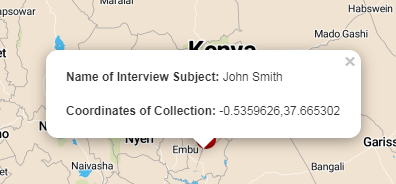
You can add filters to Map reports. Click the Filters button at top left to bring up the Filters popup window, and click + to add a new filter.
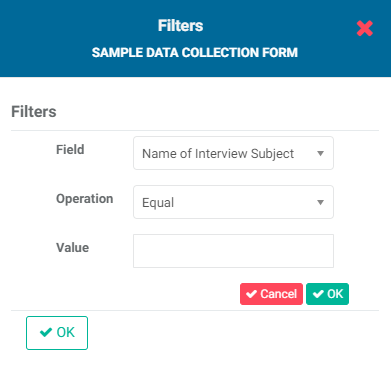
Enter the desired filter parameters, and click the small OK button. The filter will appear in the popup window.
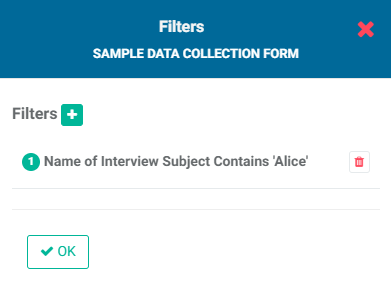
If you're done, click OK to save your work and return to the map report screen. The data will be filtered according to the selected parameters.
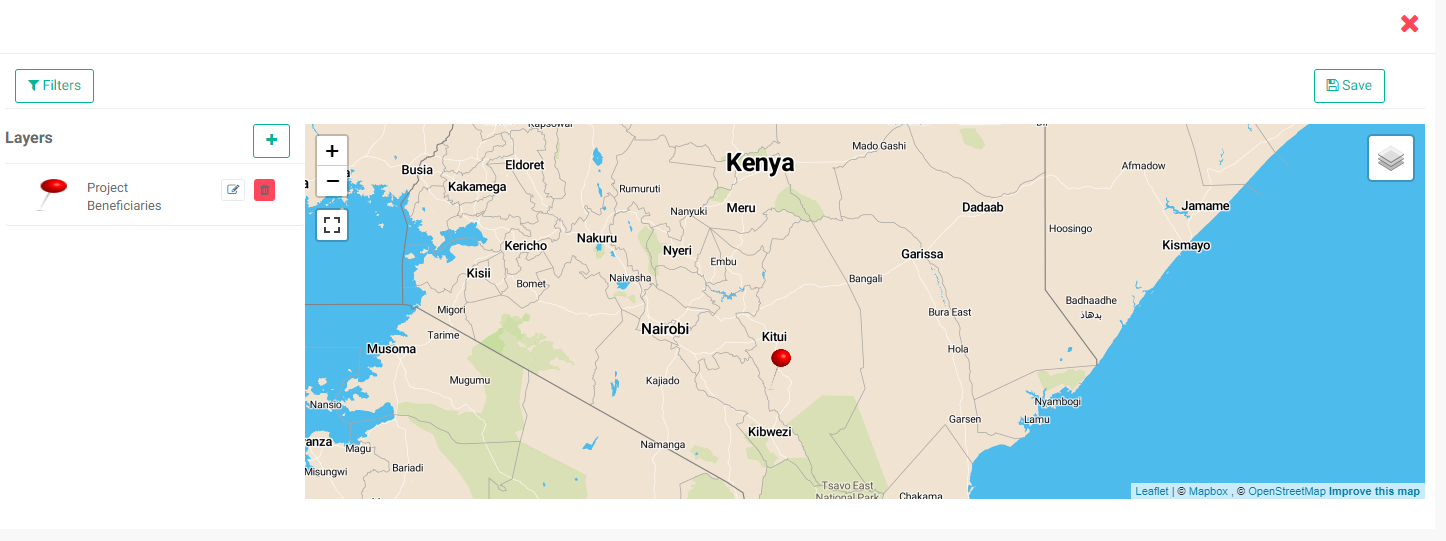
If you use more than one filter, you'll need to chain them using AND/OR logic. Use the filter numbers to chain filters. The syntax is 1 AND 2, or 1 OR 2. The AND operator returns only records which conform to both filters, while the OR operator returns records which conform to either or both filters.
To remove a filter, click the Filters button and delete the filter.
To edit a layer, click on its Edit icon and make the necessary changes, then click the chckmark in the popup window title bar to save your work and return to the map report.
IMPORTANT: you must explicitly save your report. Click the Save button at top right, then enter a title for the report (mandatory) and a description (optional, but encouraged as a best practice). Click OK to save your report.
To return to the Analyze & Report section of the data collection form, click the lower X on the right. You'll see your new report listed on the page. Click its name to reopen it and make additional changes, or save as a different version.

Previous: Forms Analytics: Mixed Charts Reports | Next: Forms Analytics: Using Forms Analytics as Inputs to Indicators
Author: Administrator
Last update: 2023-07-01 21:41
Forms Analytics: Pie Chart Reports
The third type of data collection form custom report is Pie Chart. From the Data Collection module, select the form of interest, then click on the form's Analyze & Report tab. Click the +Add button at top right to bring up the menu, and select Pie Chart.
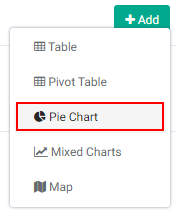
The Chart Settings popup window opens.
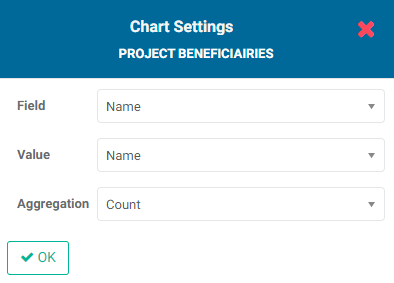
Select the Field you want to use as the basis for the graph, the value to graph, and the aggregation method. The aggregation options are Count, Sum, Average, Minimum, Maximum, and Variance.
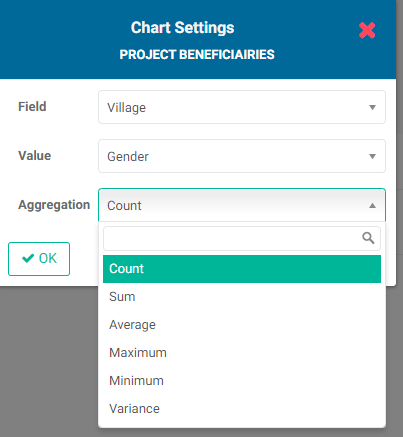
Click OK when you're done to save your work. The popup window will close and your graph will appear on the screen.
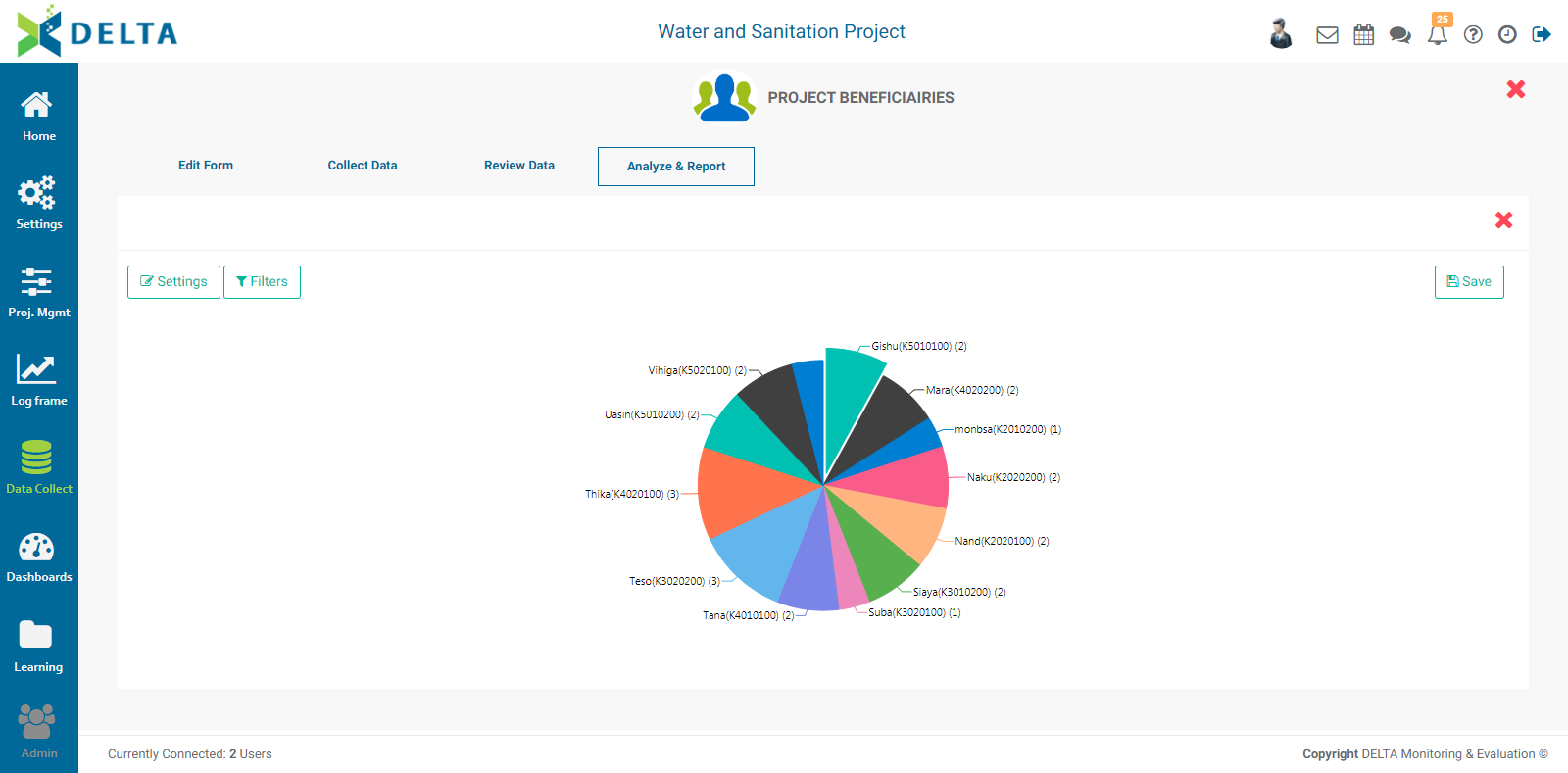
Click the Settings button at top left to bring back the Chart Settings popup window and modify the chart's settings.
To add filters to the pie chart, click the Filters button to bring up the Filters popup window, and click the + to add a new filter.
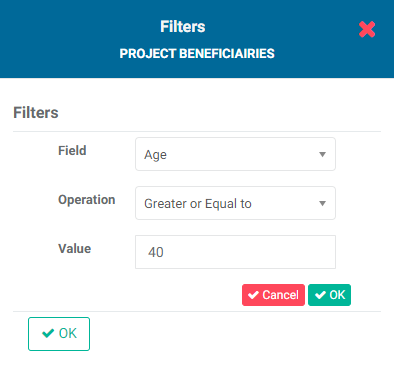
Click the small OK button when you're done to save your filter. The filter will appear in the popup window.
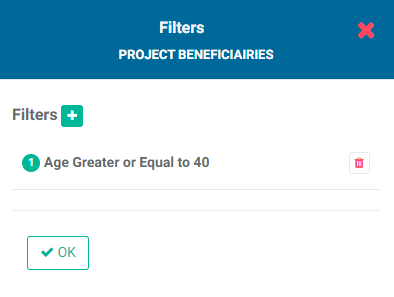
If you're done, click OK to save your work and return to the pie chart report screen. The data will be filtered according to the selected parameters.
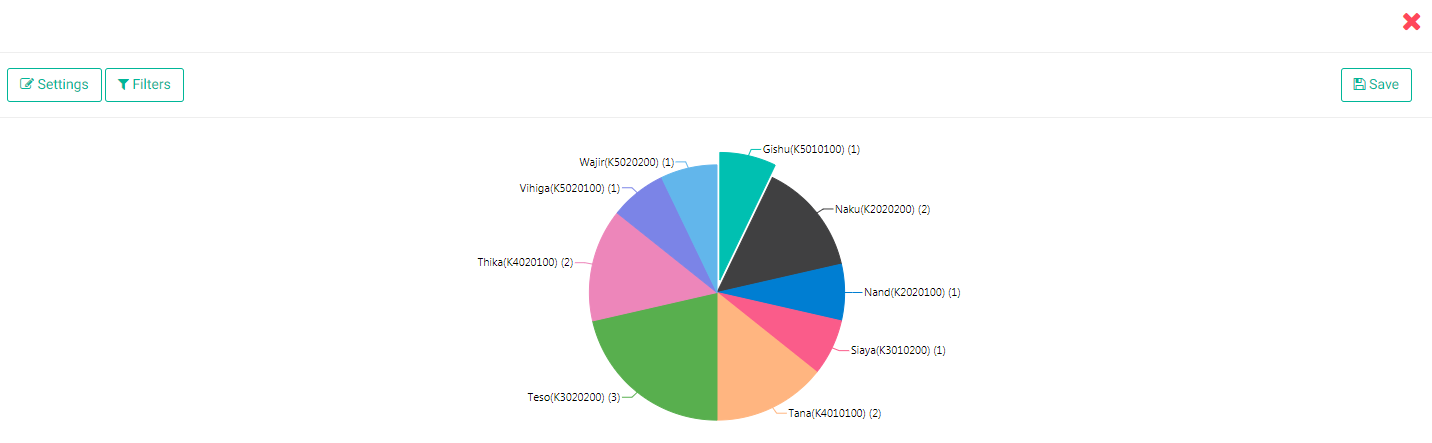
If you use more than one filter, you'll need to chain them using AND/OR logic. Use the filter numbers to chain filters. The syntax is 1 AND 2, or 1 OR 2. The AND operator returns only records which conform to both filters, while the OR operator returns records which conform to either or both filters.
To remove a filter, click the Filters button and delete the filter.
One slice of the pie chart is highlighted by default. Click on another slice to highlight it.
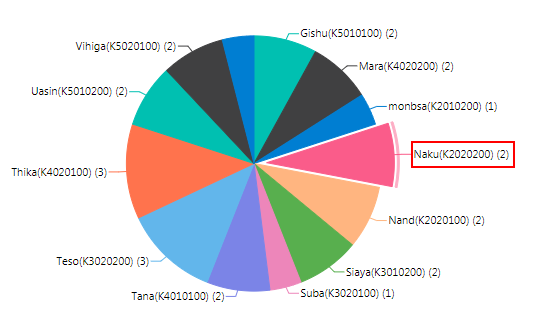
Each slice's data will appear as a tool tip when you mouse over the map.
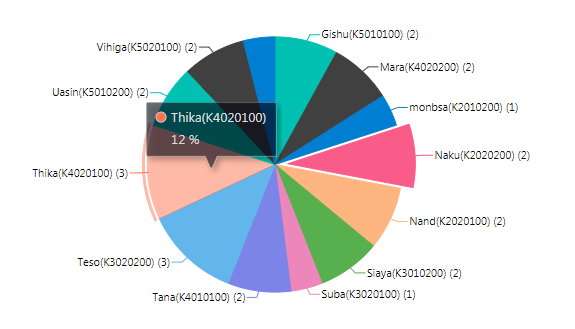
IMPORTANT: you must explicitly save your report. Click the Save button at top right, then enter a title for the report (mandatory) and a description (optional, but encouraged as a best practice). Click OK to save your report. The title you have selected for the report appears on the screen above the graph.
To return to the Analyze & Report section of the data collection form, click the lower X on the right, above the Save button. You'll see your new report listed on the page. Click its name to reopen it and make additional changes, or save as a different version.
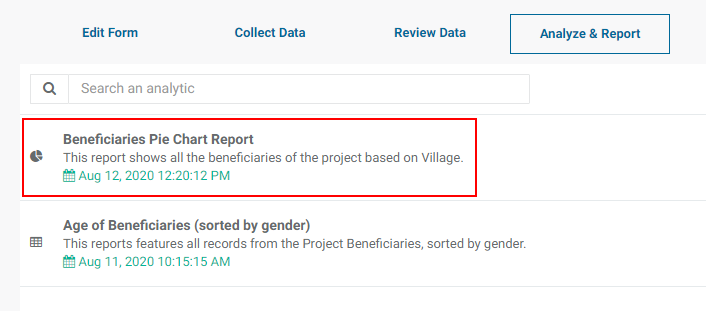
To delete a report, click its Delete icon and confirm the deletion.
Previous: Forms Analytics: Pivot Table Reports | Next: Forms Analytics: Mixed Charts Reports
Author: Administrator
Last update: 2023-07-01 21:43
Forms Analytics: Mixed Charts Reports
The fourth type of data collection form custom report is Mixed Charts. Also sometimes referred to as Combined Graphs, Mixed Charts reports allow users to graph series, for example form data broken down by year and graphed side-by-side.
From the Data Collection module, select the desired form to open it, then click on Analyze & Reports. Click the +Add button at top right to bring up the menu, and select Mixed Charts.
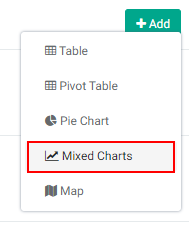
The Chart Settings popup window appears.
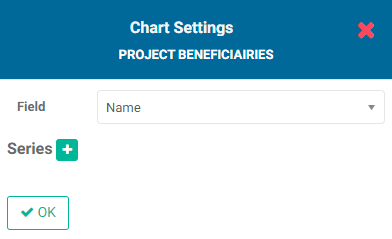
Choose the field whose data you want to graph as series from the pick list. This is the data which will populate the X axis of the graph.
In the example below, we are graphing the age of each beneficiary and the number of children they have, based on the beneficiary's name. To be precise, the name will be the X axis, and the age and number of children will be shown on the graph separately.
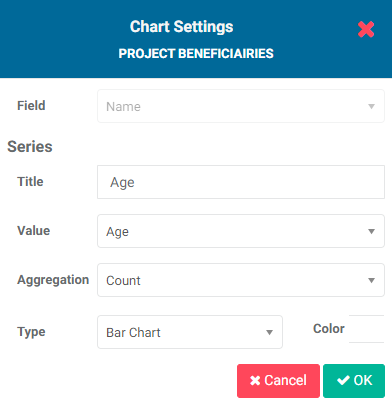
The aggregation options are the same as they are throughout Delta: Count, Sum, Average, Maximum, Minimum, and Variance. In this particular case, since each beneficiary only has one age, the aggregation method is not relevant and can be left as the default Count.
The graphing options are Line Chart and Bar Chart. You can also use the color picker to change the color of the series. Click on the color block next to the report title and select the desired color.
Click OK when you're done. Your new series will appear in the Chart Settings popup window.

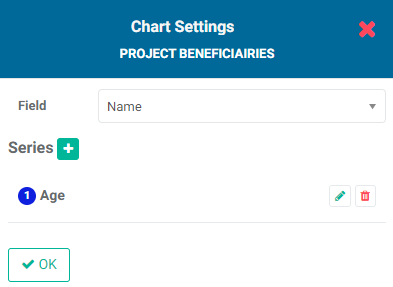
To add another series, click the + button. The second series in this example is the number of children of each beneficiary.
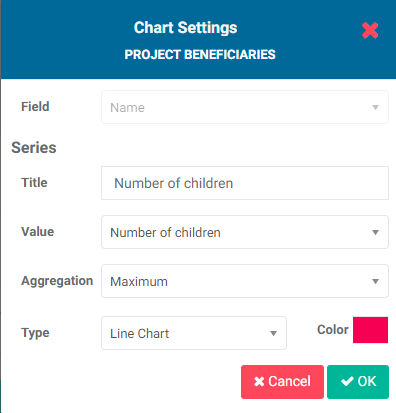
Click OK after adding each series. They will appear one by one in the Chart Settings popup window.
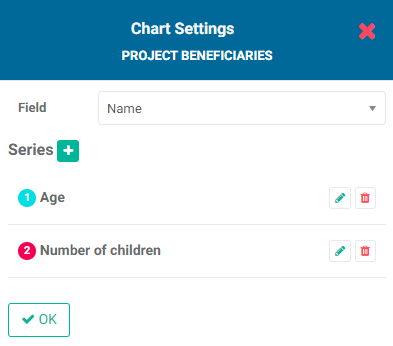
When you're done adding all the desired series, click OK at the bottom left corner of the Chart Settings popup window to close it and view your graph.
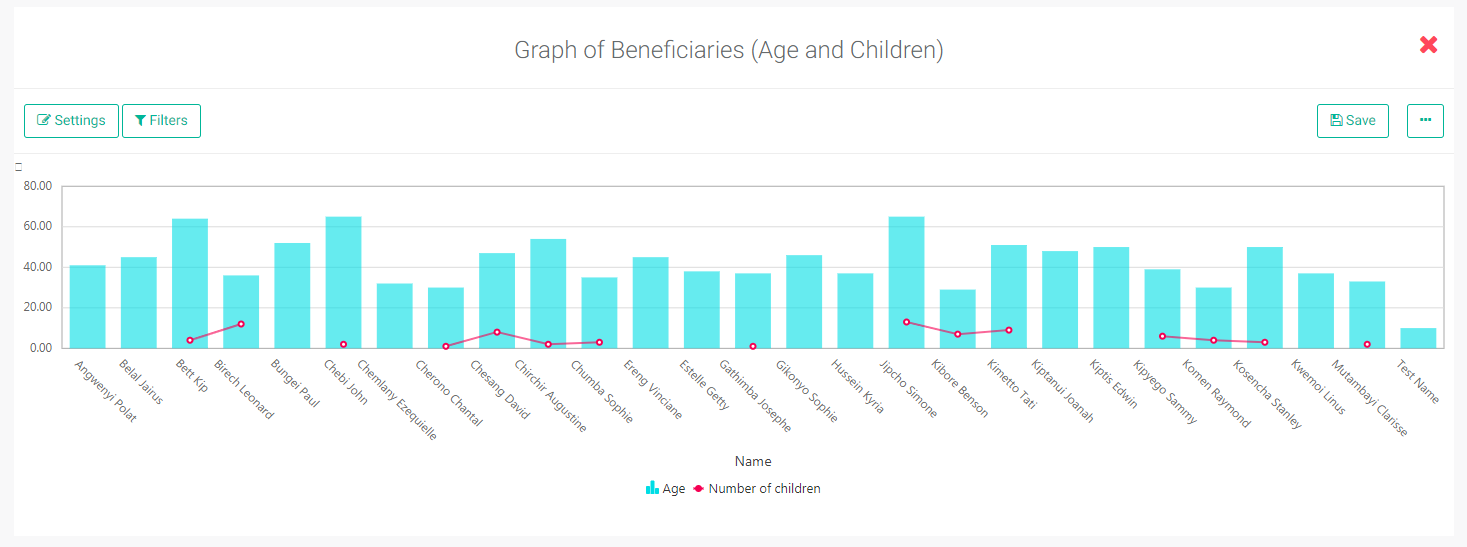
To edit the parameters of the report, open the report and click the Settings button at top left to open the Chart Settings popup window. Make the necessary changes, then click OK to save your work and return to the report.
To add filters to the report, click the Filters button at top left of the open report to bring up the Filters popup window.
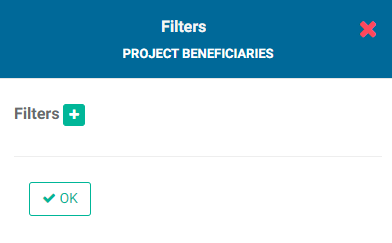
Click the + button to add a filter. Select the field whose data you wish to filter, then select the operation the filter will perform on that data.
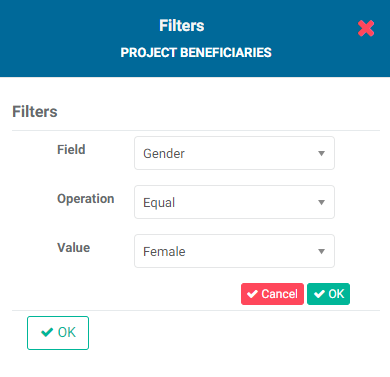
Click the small OK button to save the filter. The new filter will appear in the popup window.
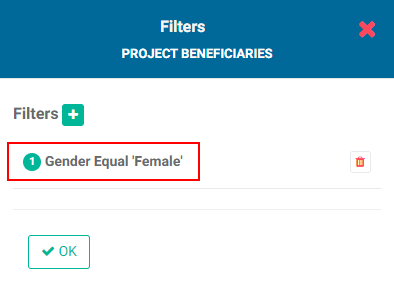
If you're done, click OK to save your work and return to the Mixed Chart report screen. The filter(s) will be applied immediately.
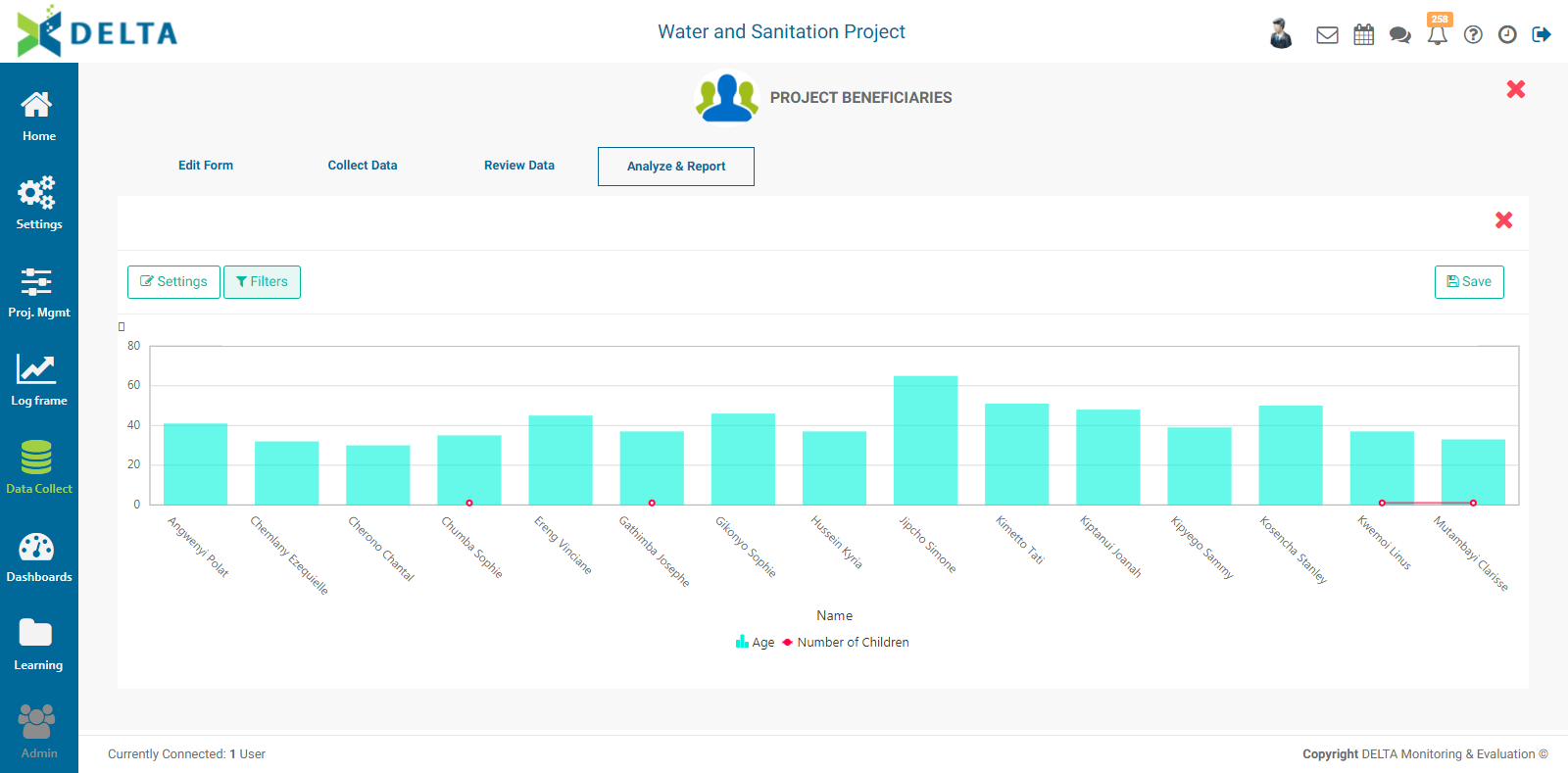
If you create more than one filter, you also need to add logic for the system to know how to handle multiple filters. The logic is simply AND/OR, and the correct syntax uses the number of the filter. In the example below, the logic is 1 OR 2, so either condition must be met. The AND operator requires that all conditions must be met, while the OR operator requires that at least one condition must be met.
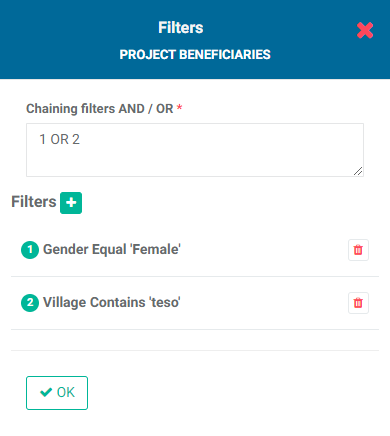
To remove a filter, click the Filters button and click the Delete icon for the filter in question.
IMPORTANT: you must explicitly save the report by clicking the Save button at top right. Enter a title (mandatory) and a description (optional but recommended), then click OK to save your work and return to the report screen.
To close the report and return to the Analyze & Report screen, click the X at top right.
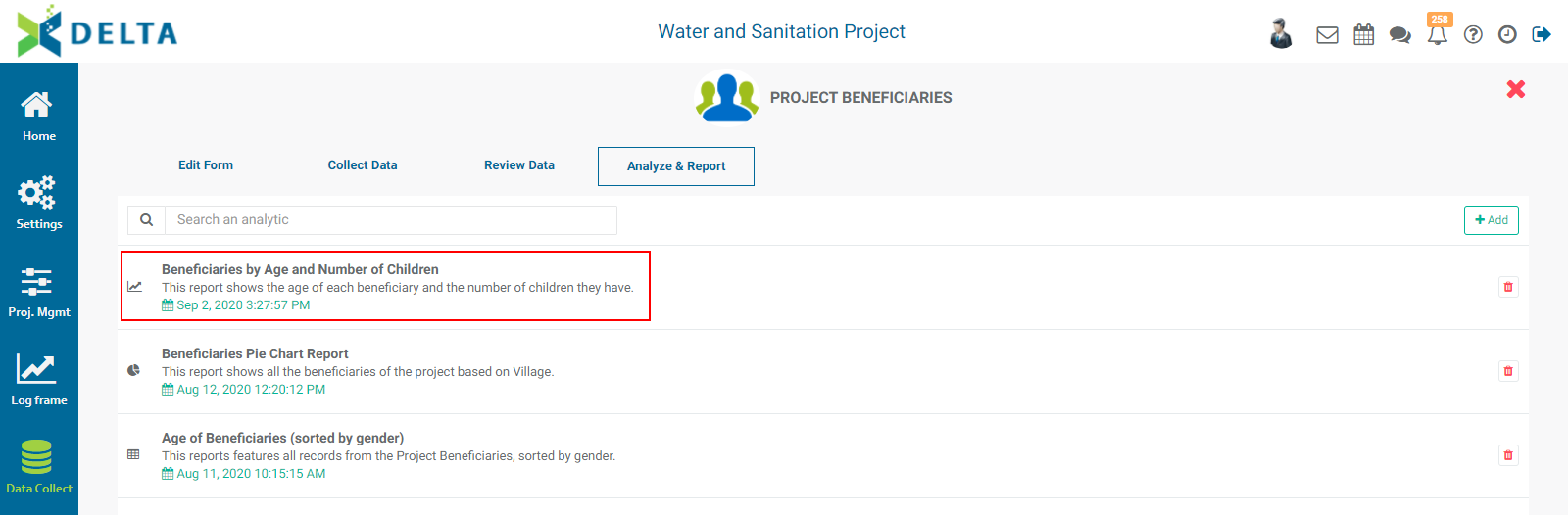
Previous: Forms Analytics: Pie Chart Reports | Next: Forms Analytics: Map Reports
Author: Administrator
Last update: 2023-07-01 21:46
Forms Analytics: Using Forms Analytics as Inputs to Indicators
As described in the Indicators: Creating Indicators: Data Source article, one of the options for an indicator data source is Populate From A Data File. This refers to the use of a data collection forms analytics report as input to an indicator.
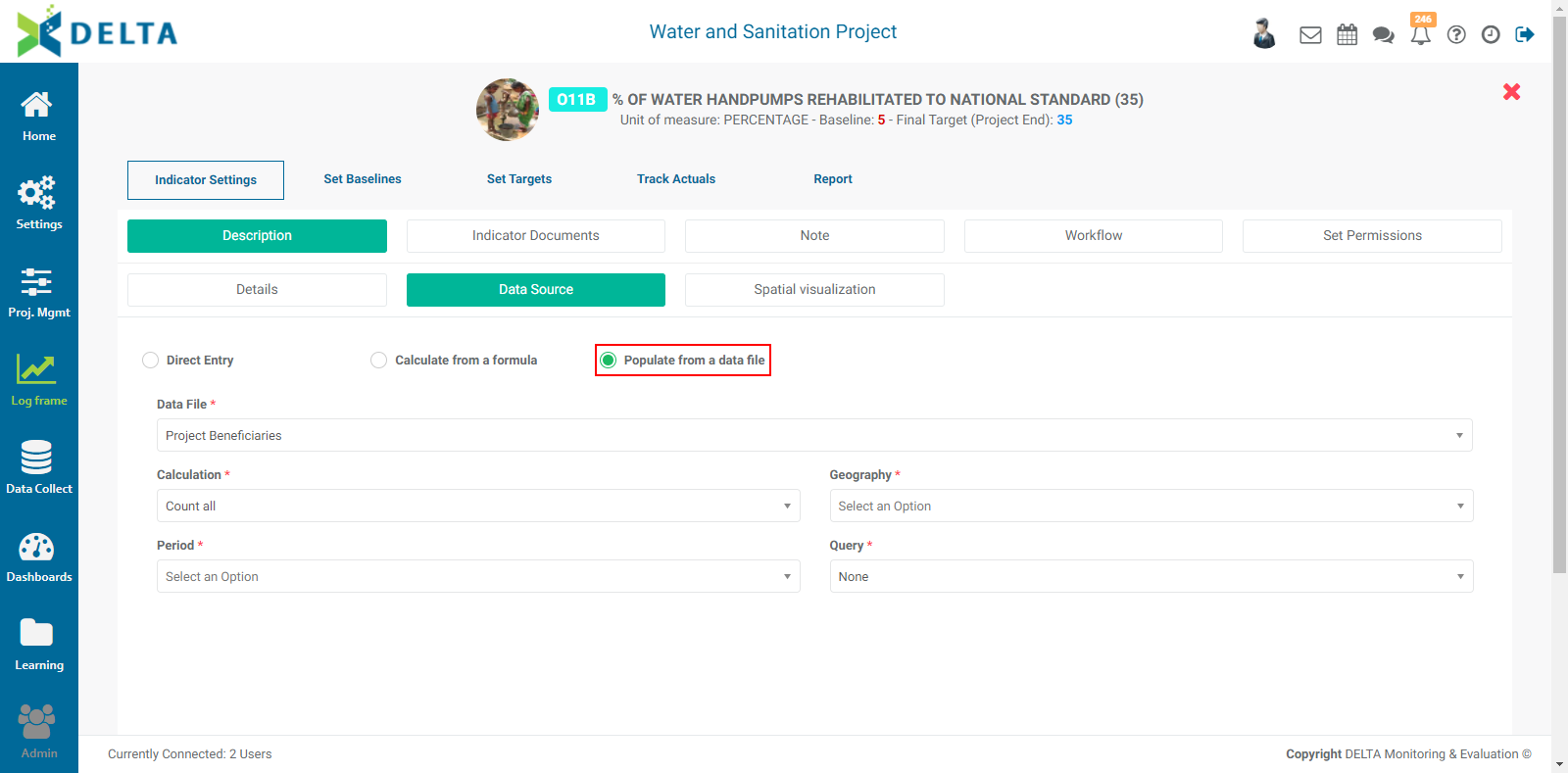
NOTE: using this option assumes the existence of:
- at least one data collection form in the project's Data Collection module. The Data File field is populated from the list of forms.
- at least one field of type Date in the selected data collection form. The Date fields in the form populate the Period field. This field is usually the date of collection of the data entry.
- at least one field containing geography information in the selected data collection form, either a GPS field or a List field with the Locations preset selected in its parameters.
- at least one set of analytics report derived from the selected data collection form after it has been populated with data. The reports populate the Query field in the Data Source screen.
Note that if a location is not georeferenced in the Locations list, it will not appear in geospatial reports.
Previous: Forms Analytics: Map Reports | Next: Dashboards Module
Author: Administrator
Last update: 2023-07-01 21:42
Portfolio Screen » Filters and Search
Filters and Search
The Filter lists at the top of the Portfolio screen allow users to filter projects by Funding Sources, Status, and/or Agency. Multiple filters can be applied at once.

Click each filter to make your selections. You can select and deselect all items in each list, or select only the items you want the filter to use. IMPORTANT: click the Filter By button to apply your filter selections. Only the projects which conform to all your filter selections will be displayed.
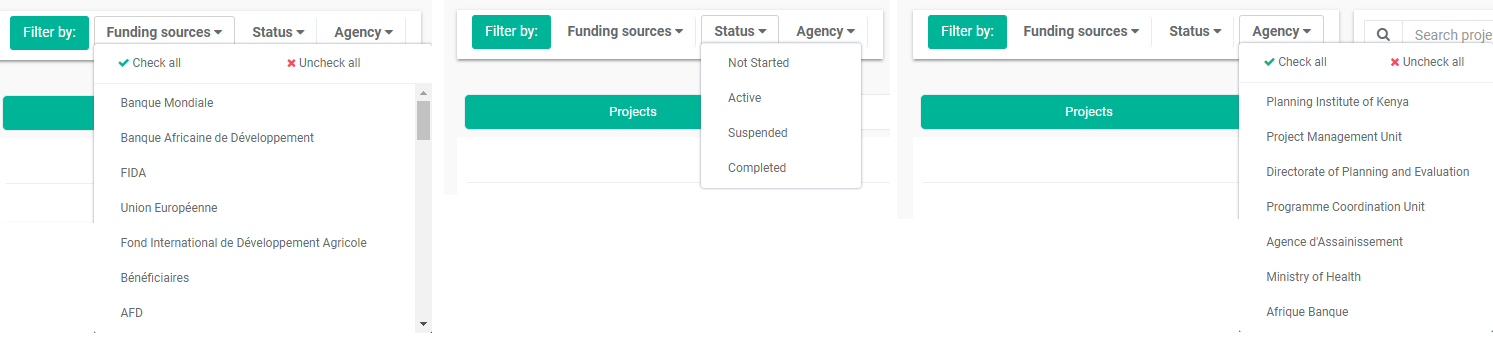
The Search bar allows you to search projects by code or label.

Delta will display matching projects as you type your search terms in the search bar. Other search bars throughout the system work the same way.
Previous: Main Toolbar: Recent/History | Next: Creating a New Project: Project Details
Author: Administrator
Last update: 2023-07-01 21:46
Portfolio Screen » Portfolio Views
Portfolio: Projects View
The default Portfolio view on the home page is Projects. This screen displays all the projects in the portfolio, and contains several other functions.
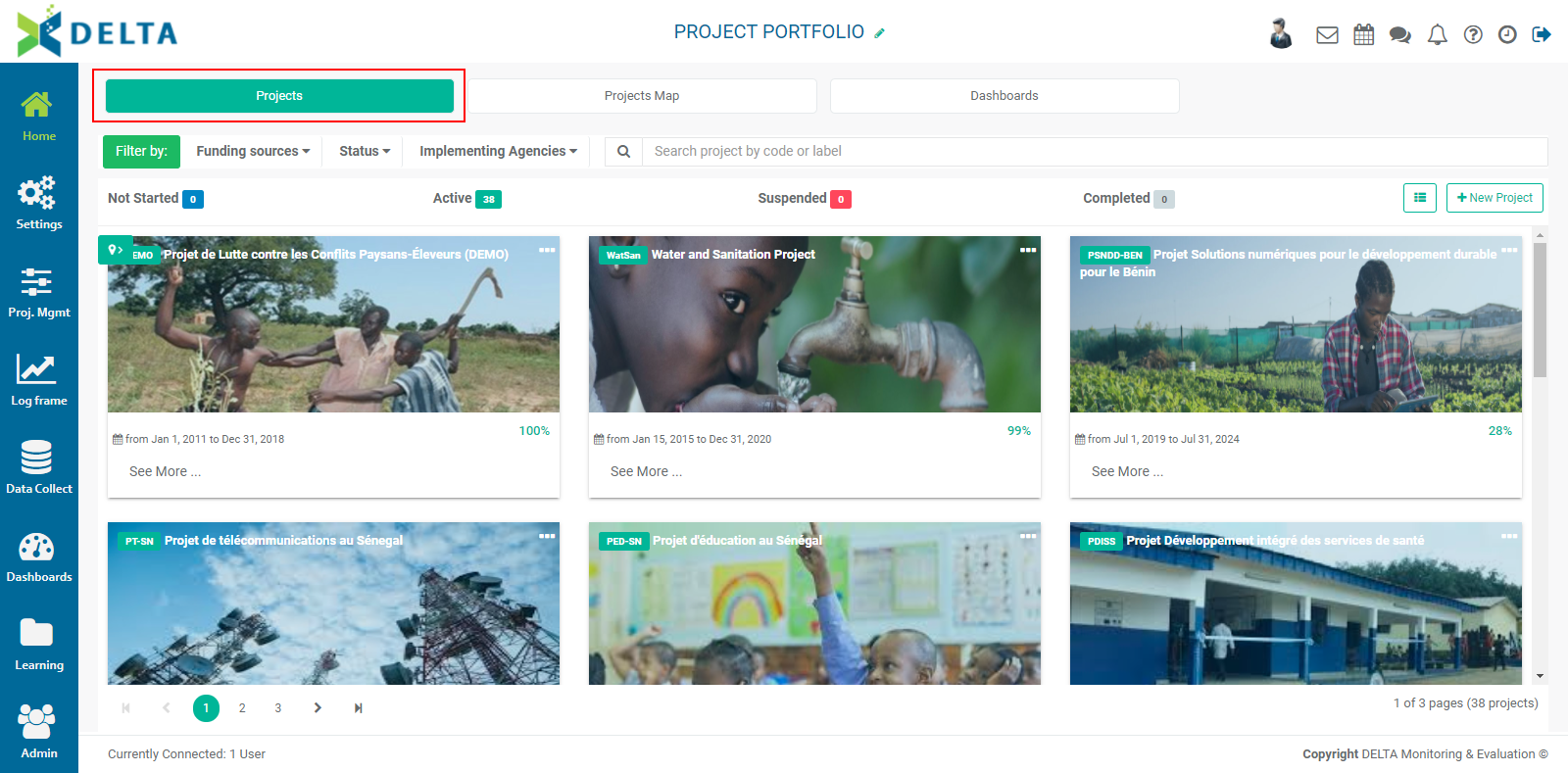
The top of the screen displays at-a-glance status information on the status of the projects in the portfolio.

In addition to Filters and Search, this screen contains a View toggle which switches between Tile and List views.
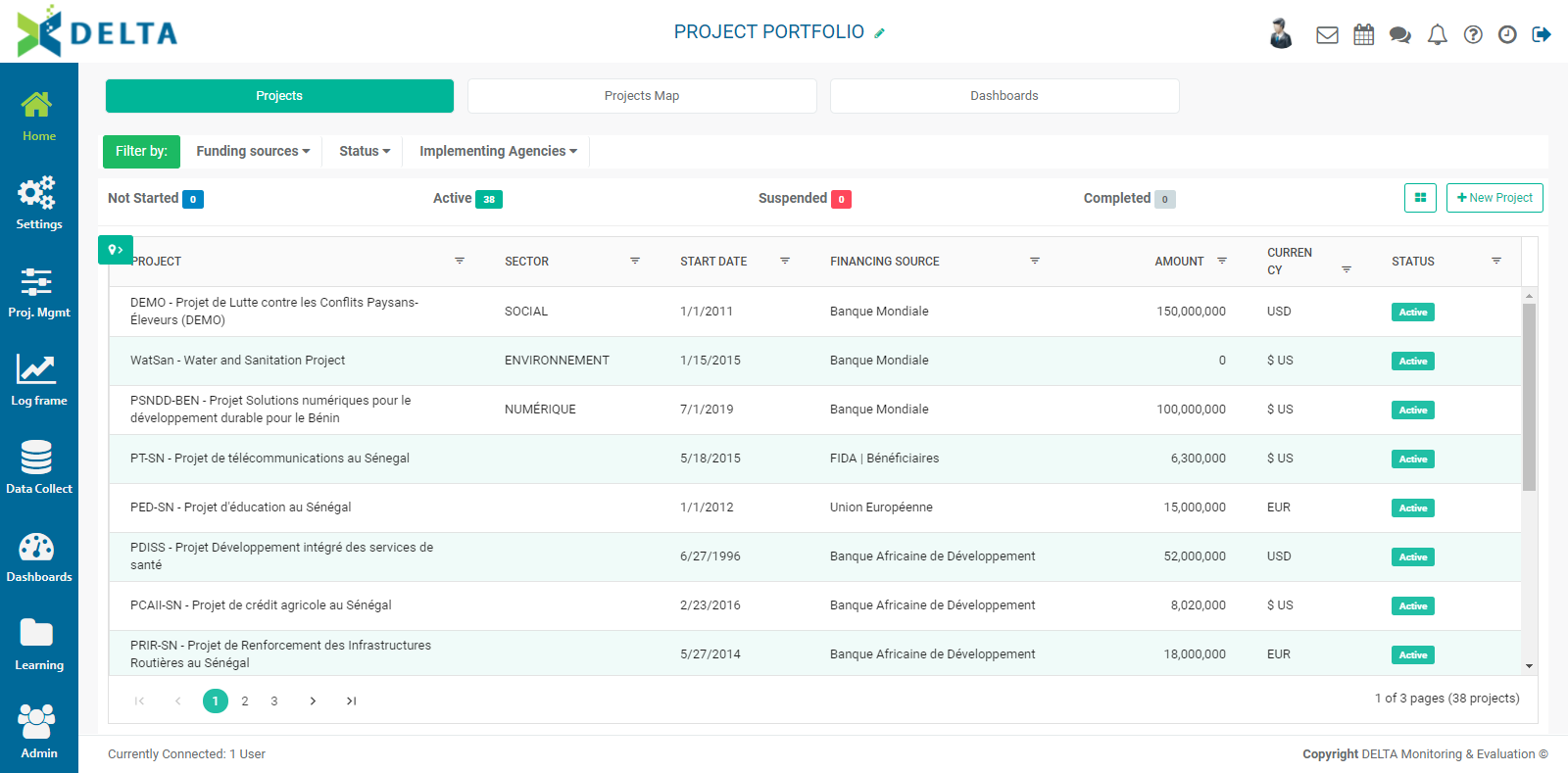
The top left of the Projects area contains an additional filter based on the Locations list of the Portfolio. Click on the small tab to display the Locations list.
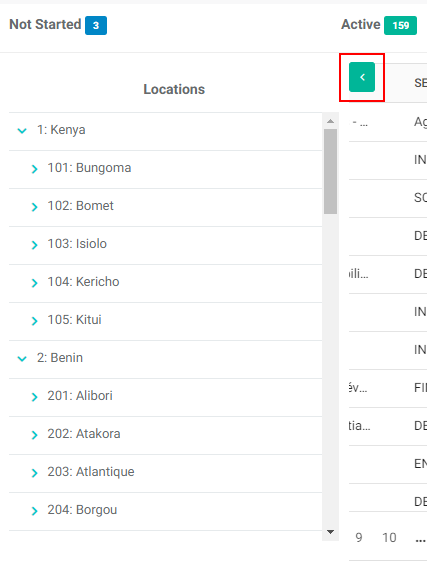
Click on the carets (> and v) to expand and collapse the Locations list. Click on a location to view only the projects taking place at that location. You can select as many locations as needed. Clicking a location puts a checkmark next to it; click it again to clear the checkmark.
The bottom of this screen features page links to facilitate navigating large portfolios. Click the number links to go from page to page; click on the Previous and Next buttons to go directly to the first, last, previous, or next page.

Finally, at the very bottom of the screen, Delta displays how many users are currently logged into the system.

Previous: Portfolio Screen | Next: Portfolio: Projects Map View
Author: Administrator
Last update: 2023-07-01 21:47
Portfolio: Projects Map View
The second available portfolio view in the Portfolio screen is Projects Map. Click the Projects Maps tab to switch to a map view of all the projects in the portfolio.
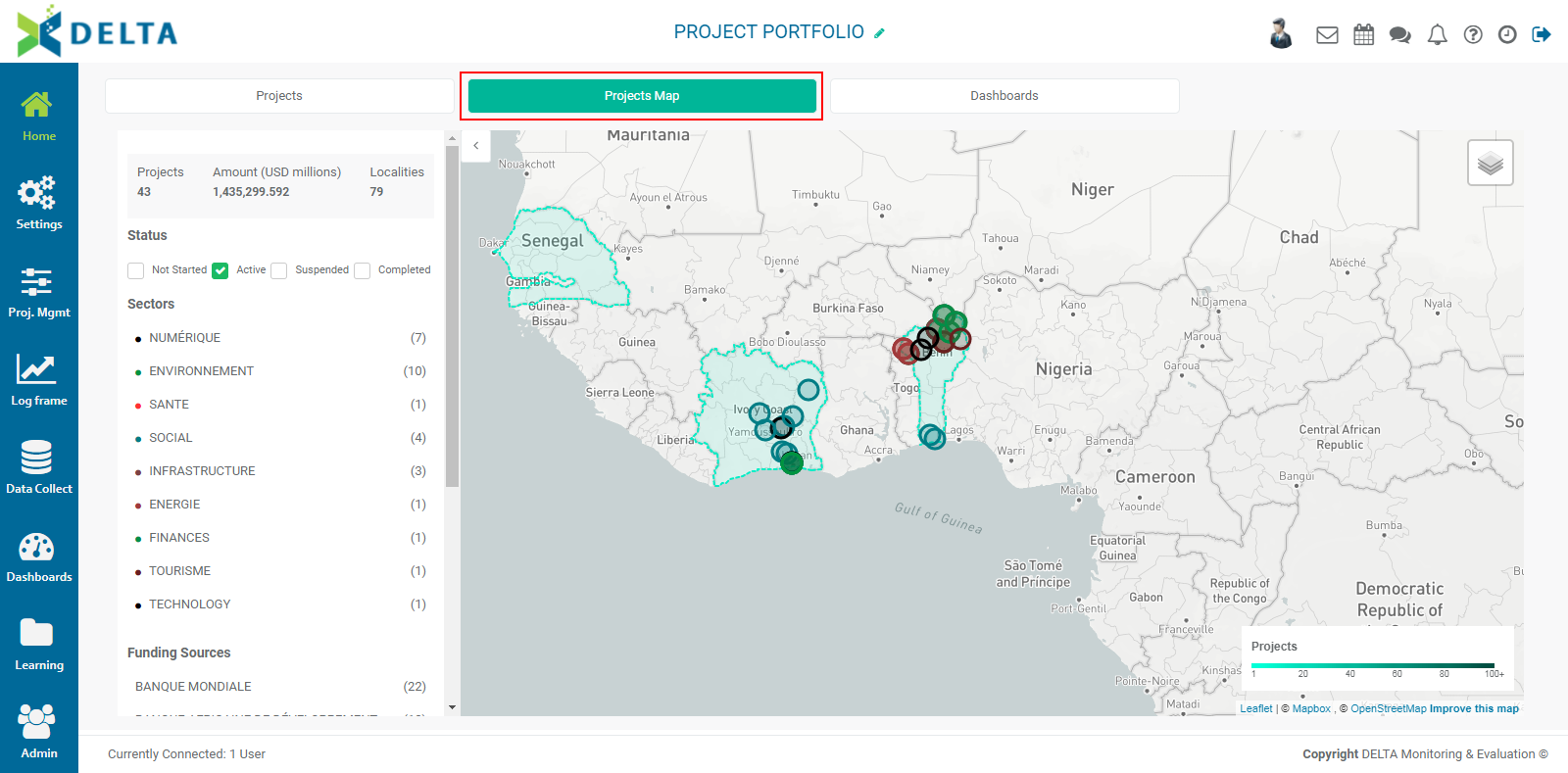
The Projects Map can be filtered by Status, Sectors, Funding Source, and Sub-Localities. Use the toggle to hide the left pane and show the map controls.
The Map controls work the same way as the Google Map controls. Use the + and - buttons to zoom in and out. You can also use the scroll wheel on your mouse to zoom in and out of the map. Use the square brackets button to display the map full screen. To return to the normal screen view, press the Esc key, or click the square brackets button again.
The default map background is Grayscale. Additional controls are located at the top right of the map.
Two additional backgrounds are available: Street Map, and Satellite.
Street Map displays additional street information when the zoom is used.
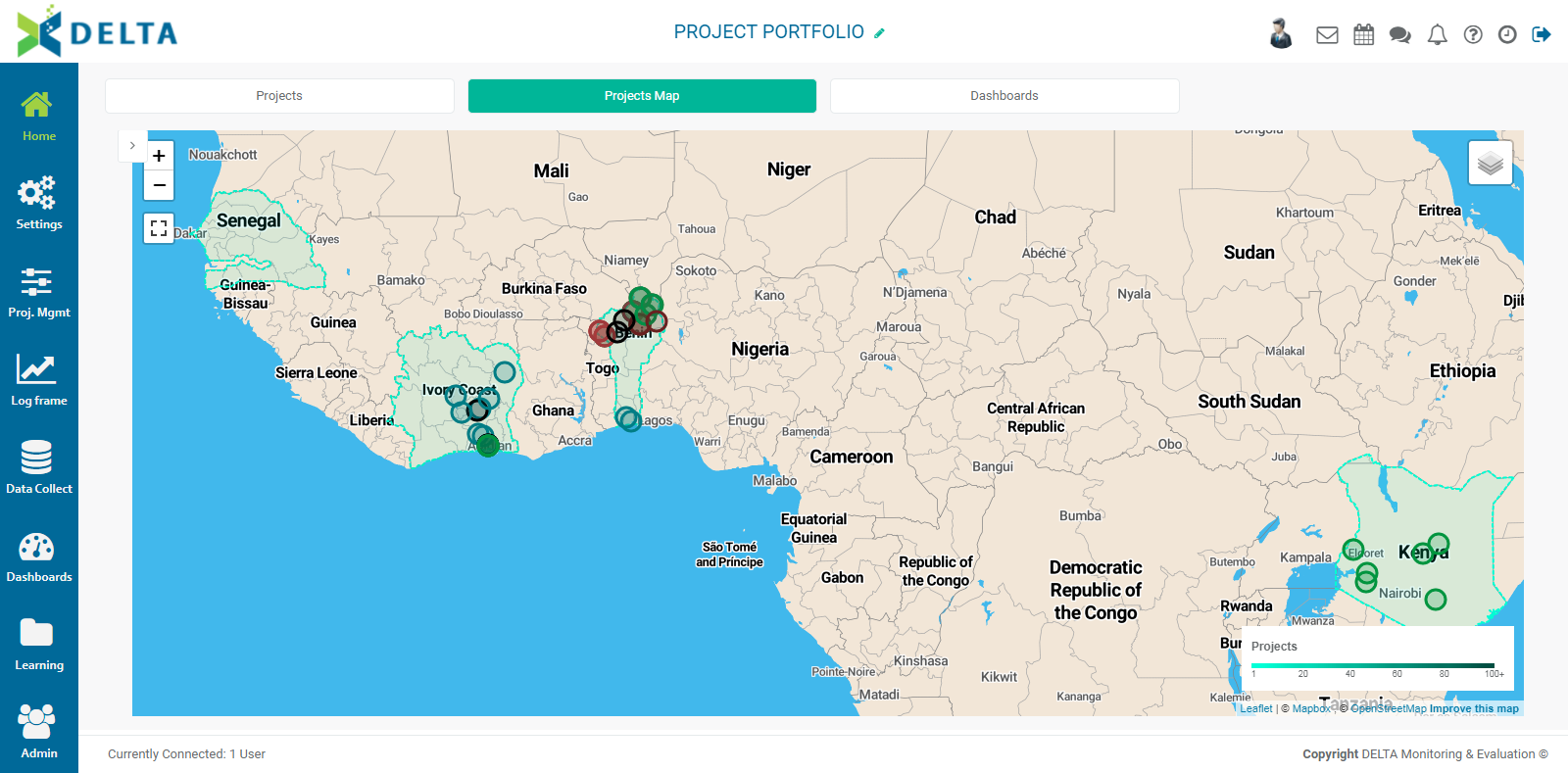
The Satellite view adds a realistic background to the map.
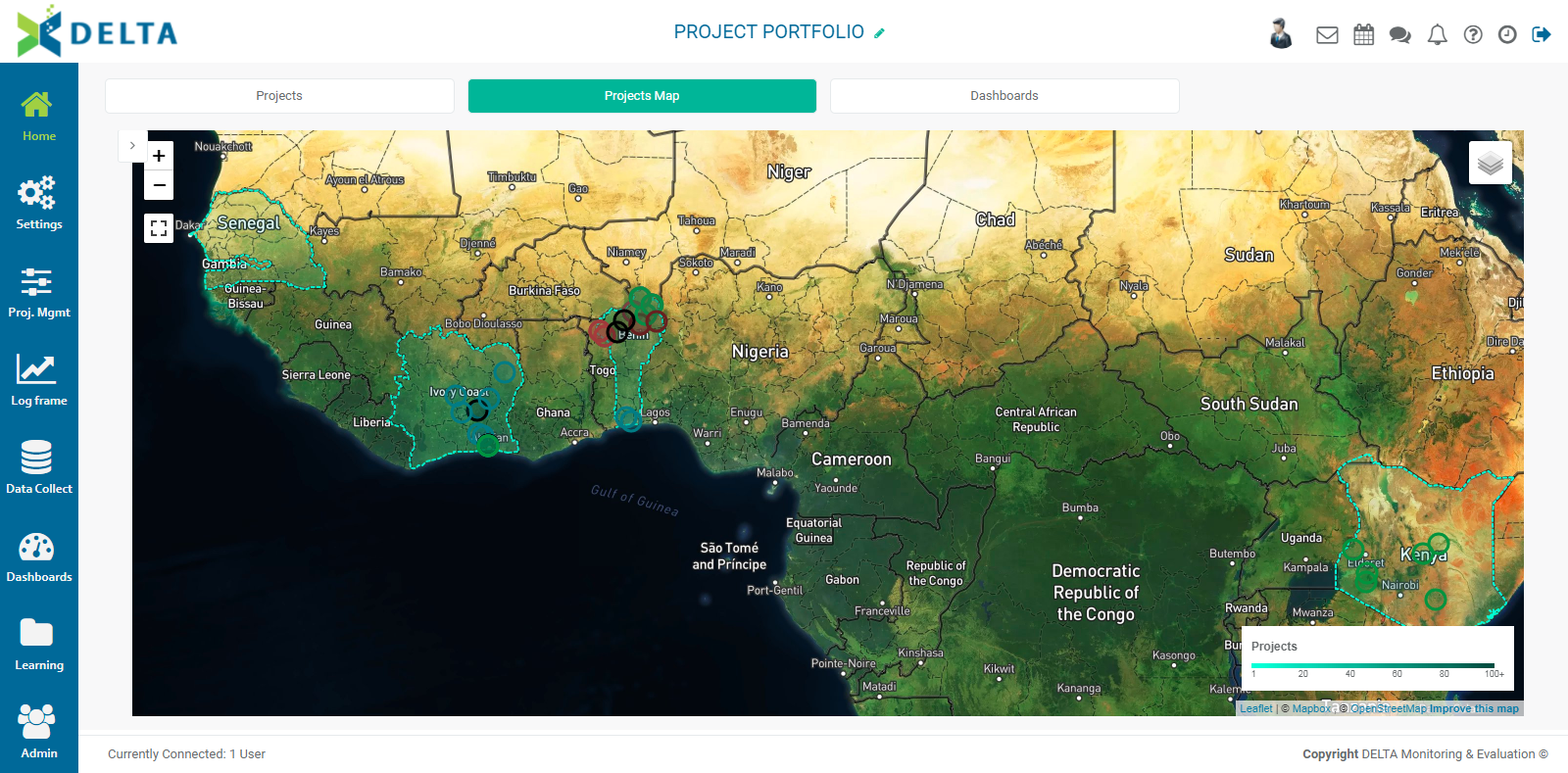
The map displays project locations by country. The country color overlay represents the number of projects in that country; the color scale is shown at the bottom right of the map. Delta's mapping and graphing functionality allows users to get at-a-glance information about the map or graph. Mouse over a country to view how many projects are taking place in that country.
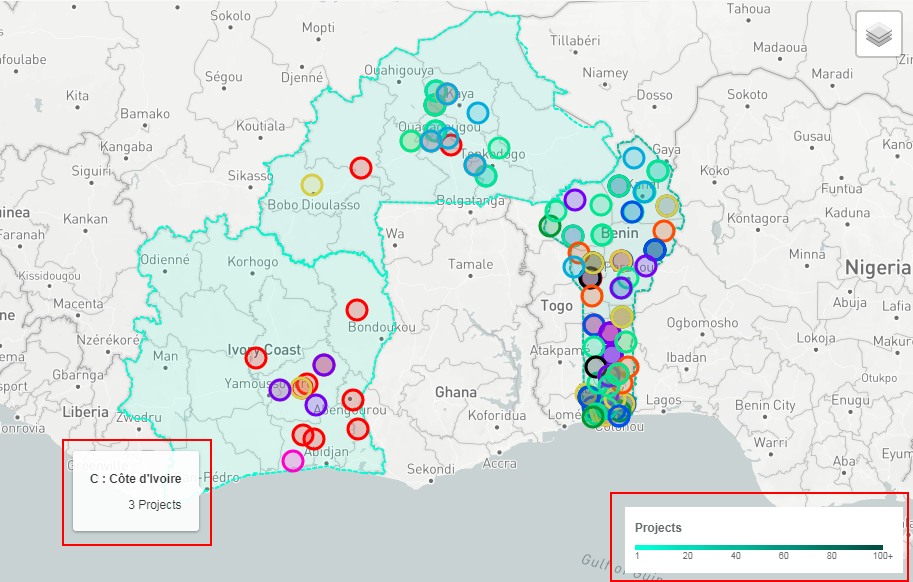
Each circle on the map represents a specific location where project activities are taking place. Circles are color-coded by Sector. Sectors are assigned when a project is created. Mouse over a circle to see its at-a-glance information.
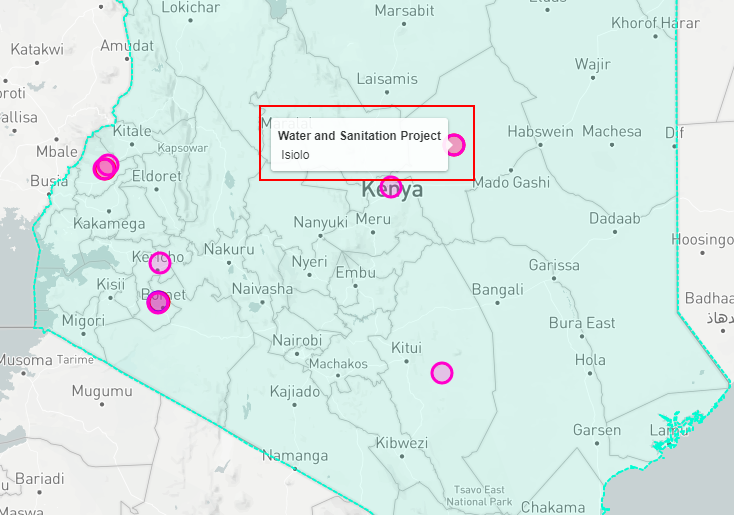
To filter the map by Sector, toggle the left pane display, and select the appropriate sector.
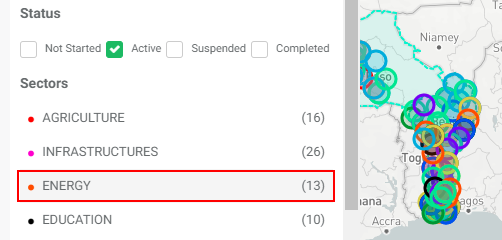
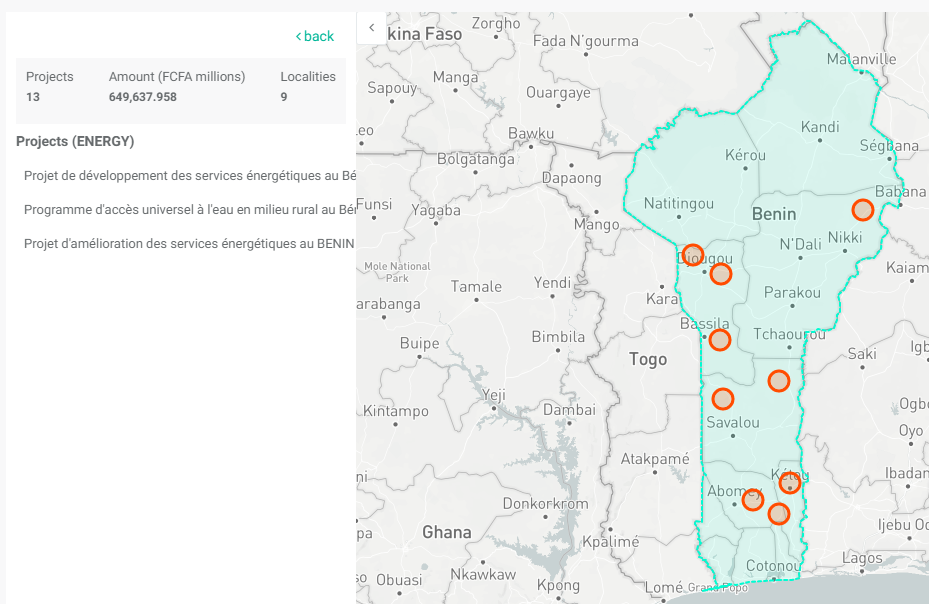
To return to the full display, click Back next to the left pane toggle.
To filter the map by Funding Sources, select the appropriate funding source in the left pane. The map will update itself to show only projects underwritten by that funding source.
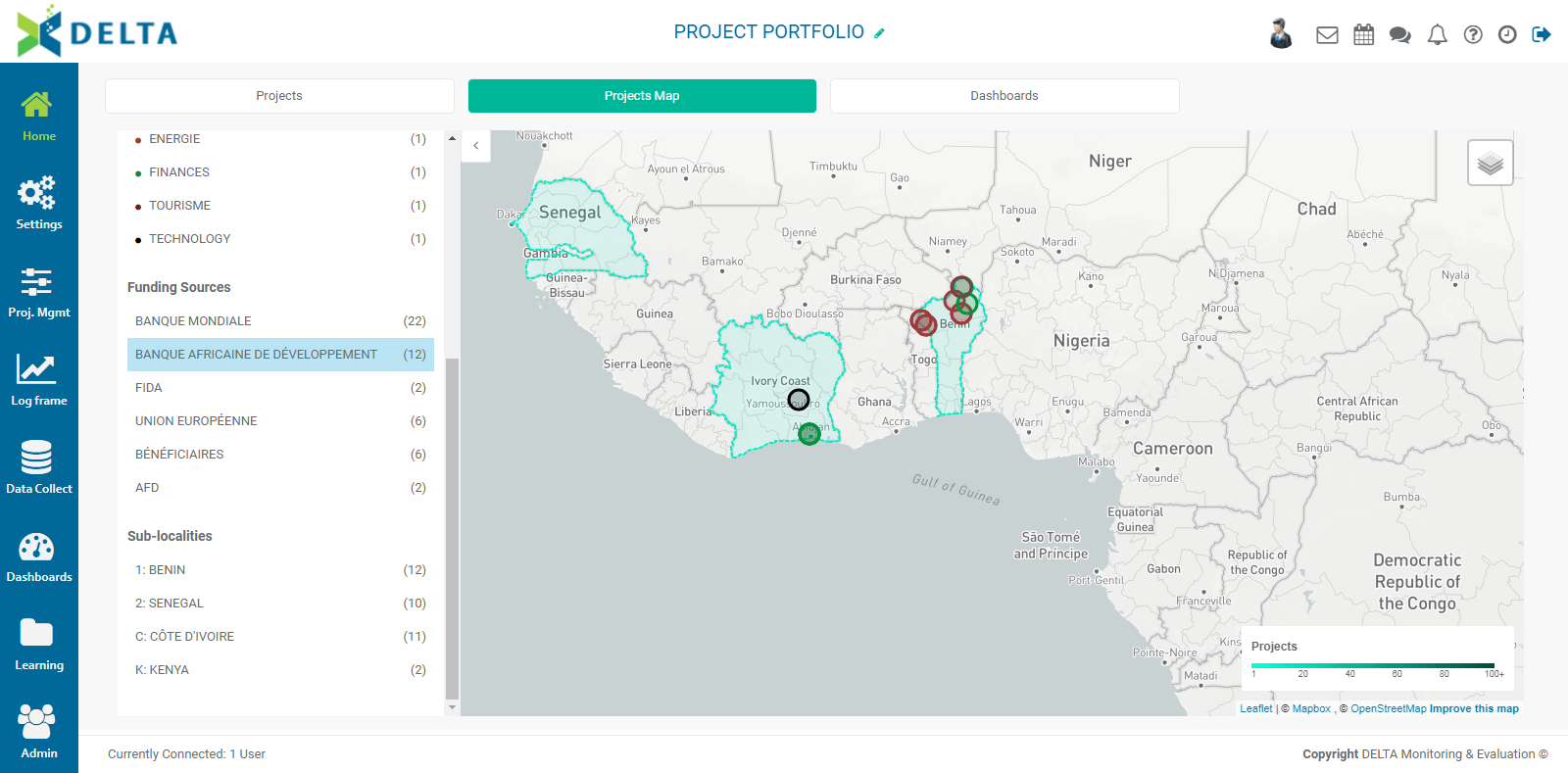
Click the Funding Source to deselect it and return to the full map view.
To filter the map by Sub-Localities, scroll down the left pane to view the Locations list, and select the appropriate country to see its list of sub-localities. The name of the selected locality will also appear at the top of the left pane, regardless of its level in the geography list.
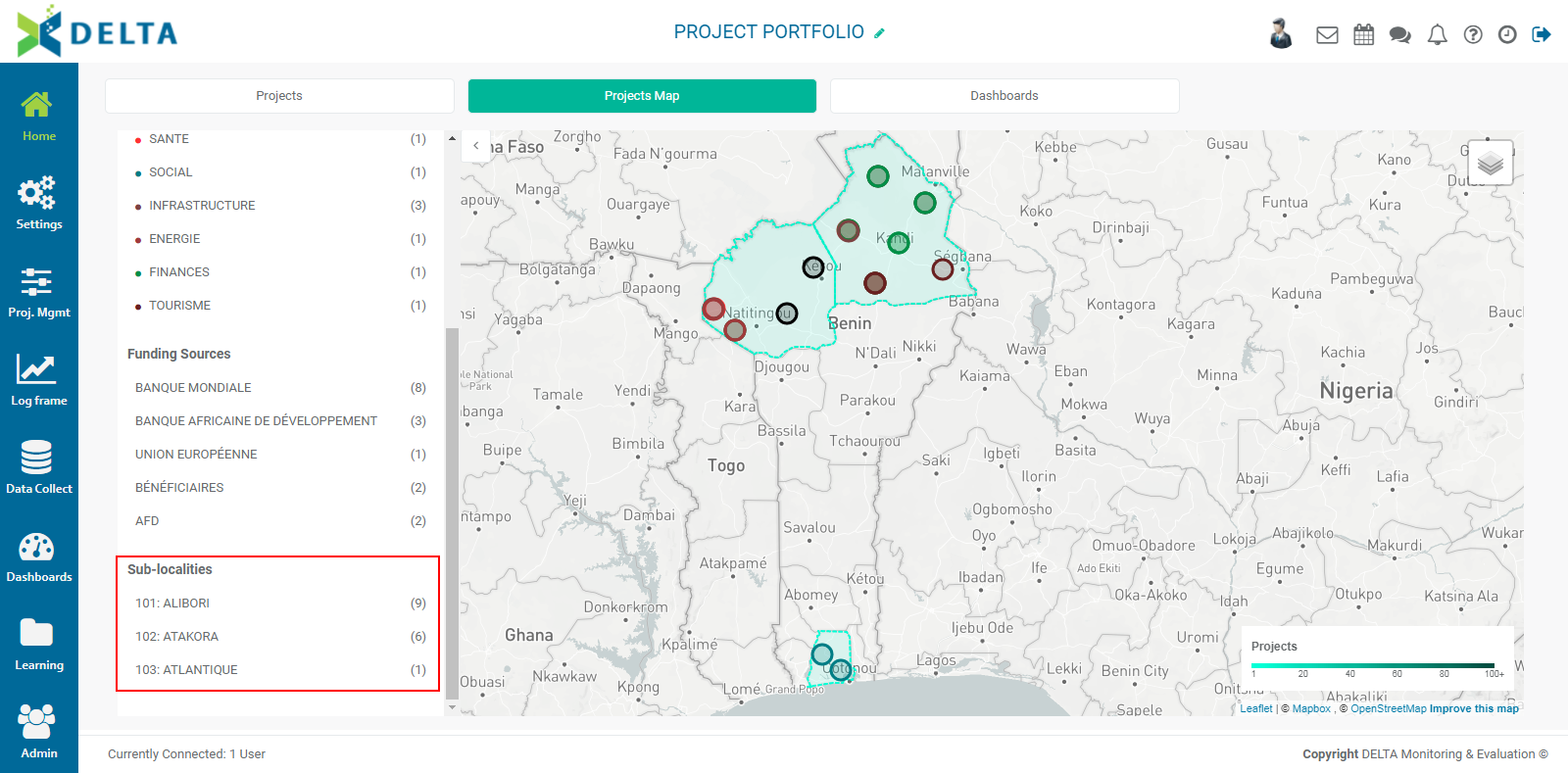
Select a sub-locality to view only that sub-locality's information. Depending on the number of geographical divisions used in the Geography List, additional sub-localities will appear, making it possible to drill down to fine-grained data.
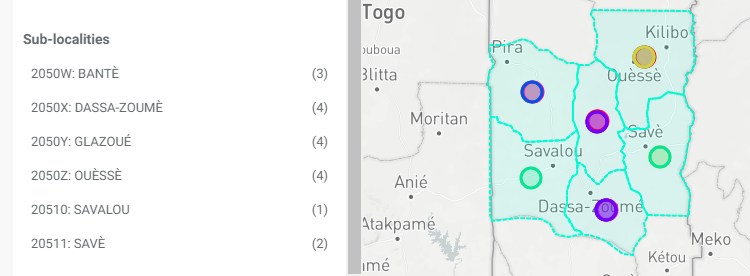
To return to the full display, click Back next to the left pane toggle.
To return to the default Portfolio view, click the Projects tab.
Previous: Portfolio: Projects View | Next: Portfolio: Projects Dashboard View
Author: Administrator
Last update: 2023-07-01 21:48
Portfolio: Dashboards View
The third available Portfolio view in the Project Portfolio screen is Dashboards. Click the Dashboards tab to switch to the dashboard view of the portfolio.
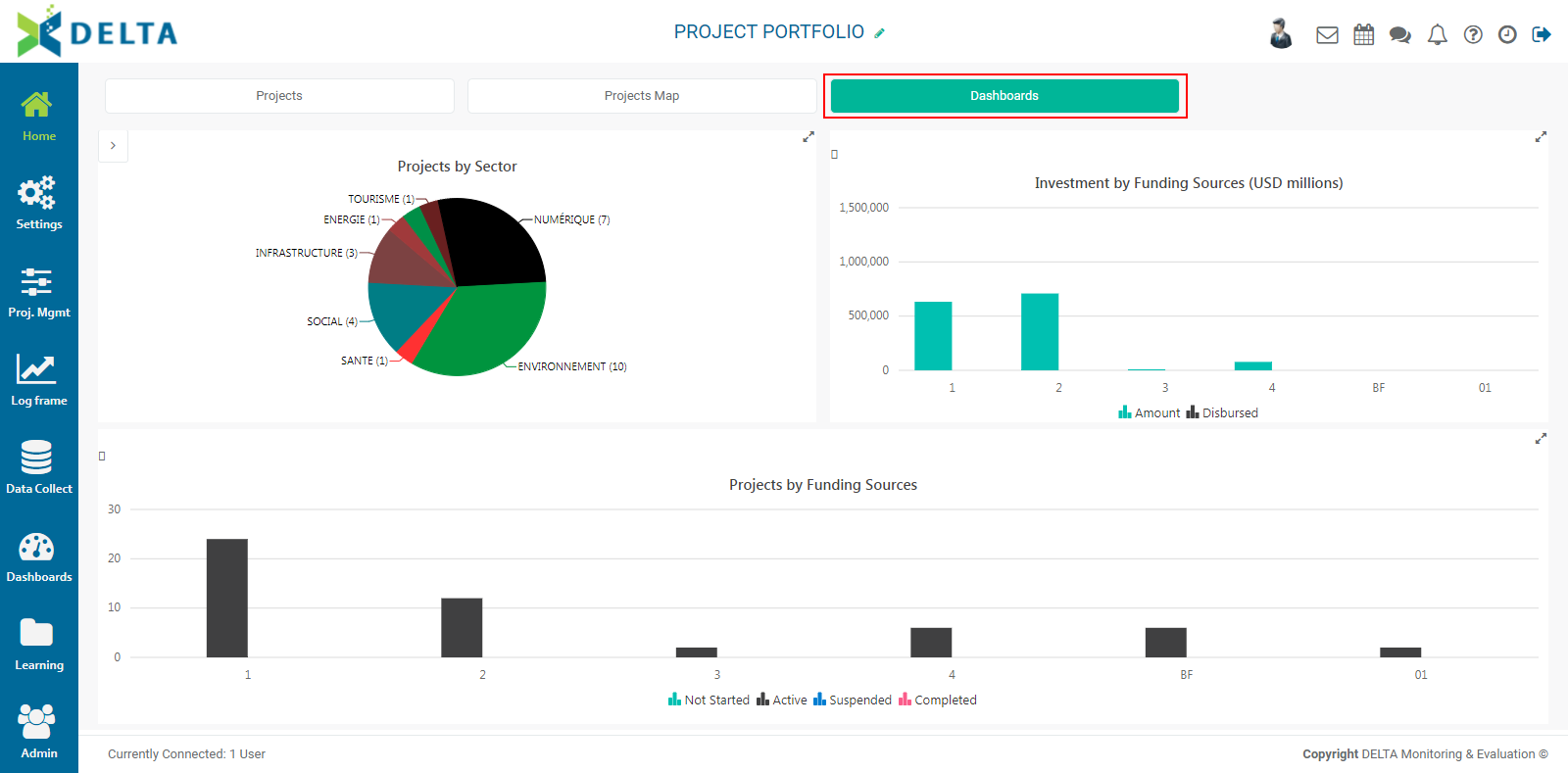
The Dashboards view regroups three at-a-glance data points: Projects by Sector, Investment by Funding Source, and Projects by Funding Sources. The latter also displays the status of each funding source's projects.
As is the case for all graphs in Delta, users can mouse over these dashboard graphs to view the data which generated that particular data point.
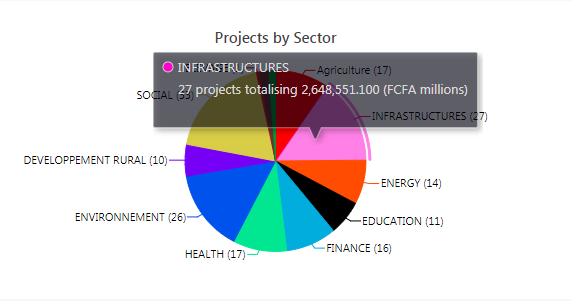
To view each part of the dashboard in fullscreen mode, click the diagonal double arrow at the top right corner of each graph's pane. Press Esc to go back to the dashboard.
Delta allows users to temporarily filter line and bar graphs by "crossing out" legend elements. To mask a given part of a graph, click its legend item. The masked item(s) will be grayed out.

Finally, users can right-click on a dashboard pane to export a PNG image of that portion of the dashboard.
Previous: Portfolio: Projects Map View | Next: Portfolio: Project Tiles and Project List Views
Author: Administrator
Last update: 2023-07-01 21:51
Portfolio: Project Tiles and Project List Views
Delta now features both a Tile view and a List view for projects in the portfolio. Each tile or list item represents a project.
In the Tile View, each project's tile shows the project Code, project Title, time range, and percentage of completion.
The project tile also features a More icon, denoted by three dots at the upper right corner, and a See More link at bottom left. The More icon in Delta is a contextual menu which changes depending on the item on which it appears. On a project tile, the menu allows users to add an image to a tile, edit the project, view a project summary, and delete the project. NOTE: once there is data in a project, deleting that project will require an intervention from technical support.
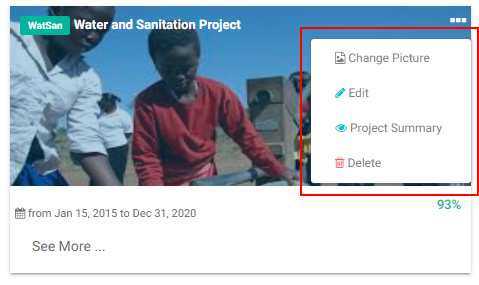
To add or change the picture for a project tile, select Change Picture from the More menu, navigate to the desired image file, and double-click it to add it.
To edit a project, select Edit from the More menu, and edit the project parameters.
The See More link at the bottom left of the project tile opens a project summary page, with project details such as time frame, disbursement data, and indicator data.
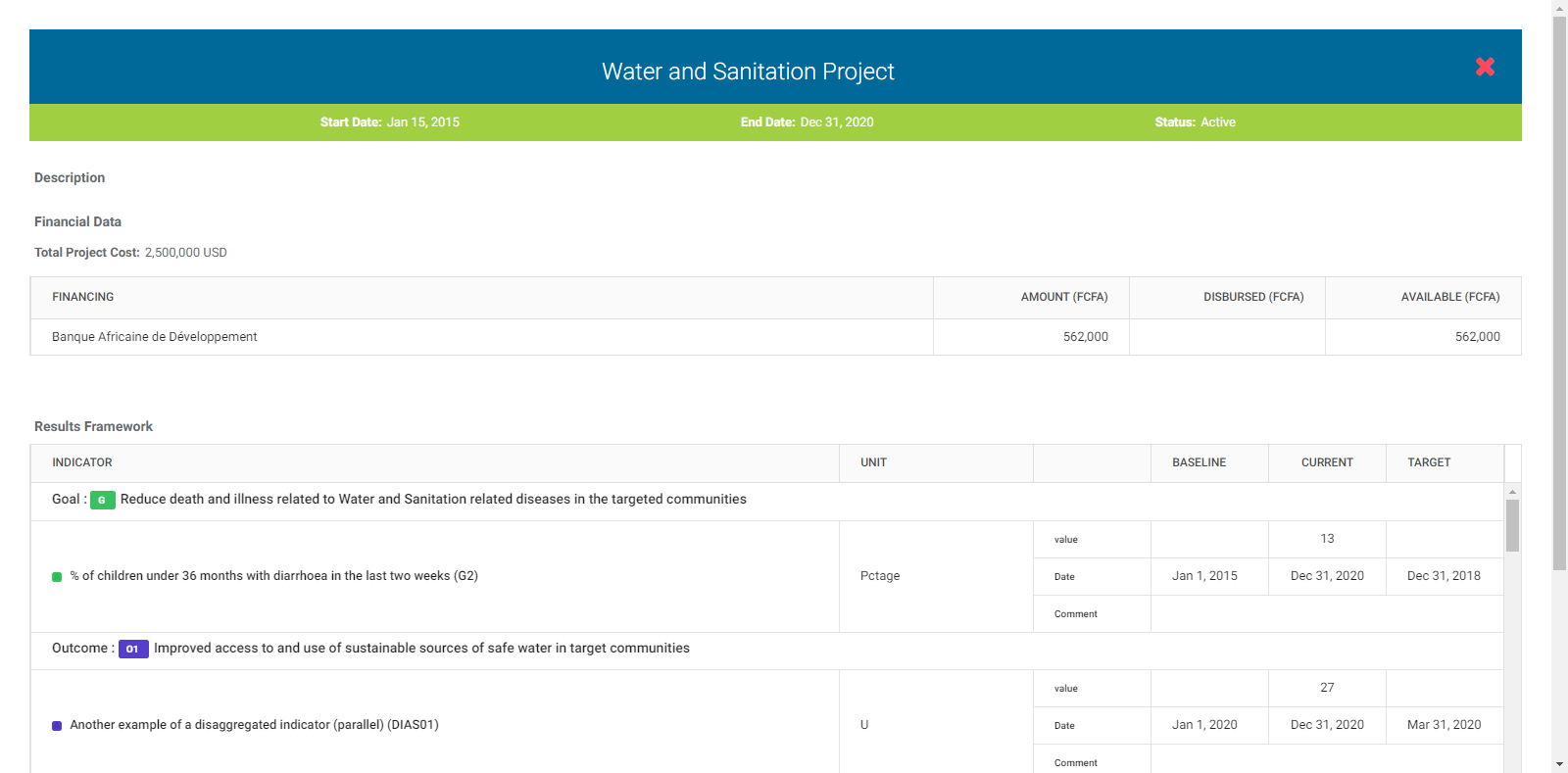
Click the X at top right to close the project summary screen and return to the Portfolio page.
To filter by Locations, click the arrow toggle at the top left to bring up a list of all the locations in the portfolio.

Select a location from the list to narrow down the project tile display to only the selected locations. Use the carets (> and v) to expand and collapse the Locations tree. To select more than one location, click it once. Active selections will have a checkmark next to them. To reset the locations, click all the selected locations to remove the checkmarks.
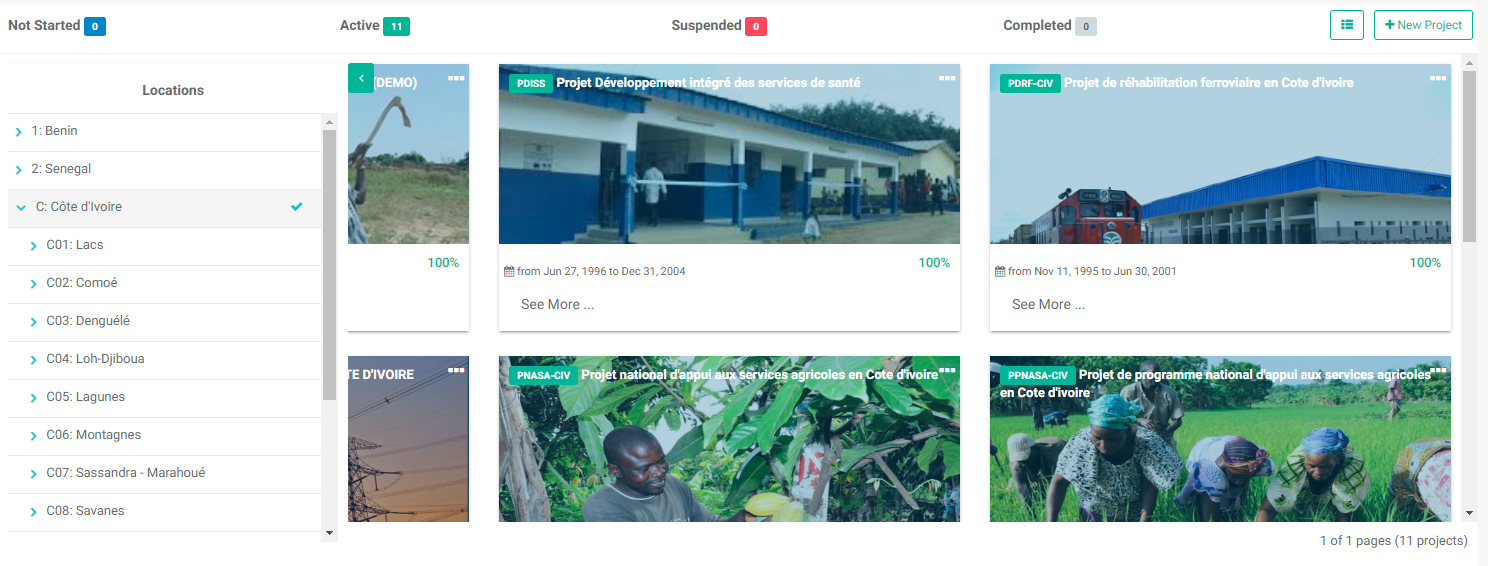
The List View displays all the projects in the portfolio as an interactive table. Click the toggle button to the left of the +New Project button to switch between Tile and List views.
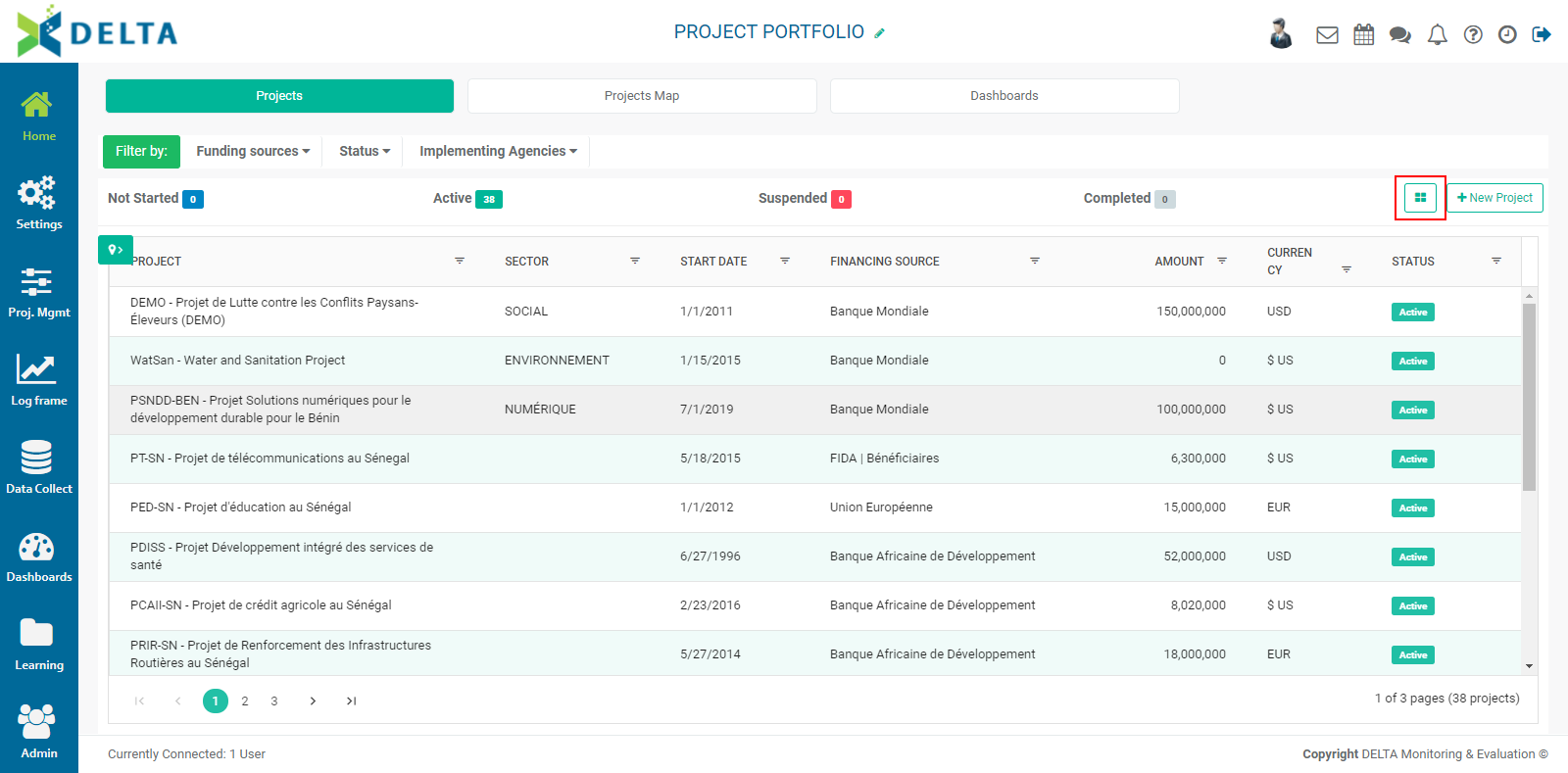
Each line item in the table is a project. Use the filters at the top of each column to narrow down the list.
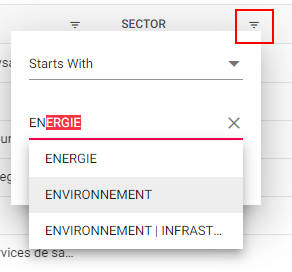
To filter by Locations, click the arrow toggle at the top left to bring up a list of all the locations in the portfolio.
Select a location from the list to narrow down the project tile display to only the selected locations. Use the carets (> and v) to expand and collapse the Locations tree. To select more than one location, click it once. Active selections will have a checkmark next to them. To reset the locations, click all the selected locations to remove the checkmarks.
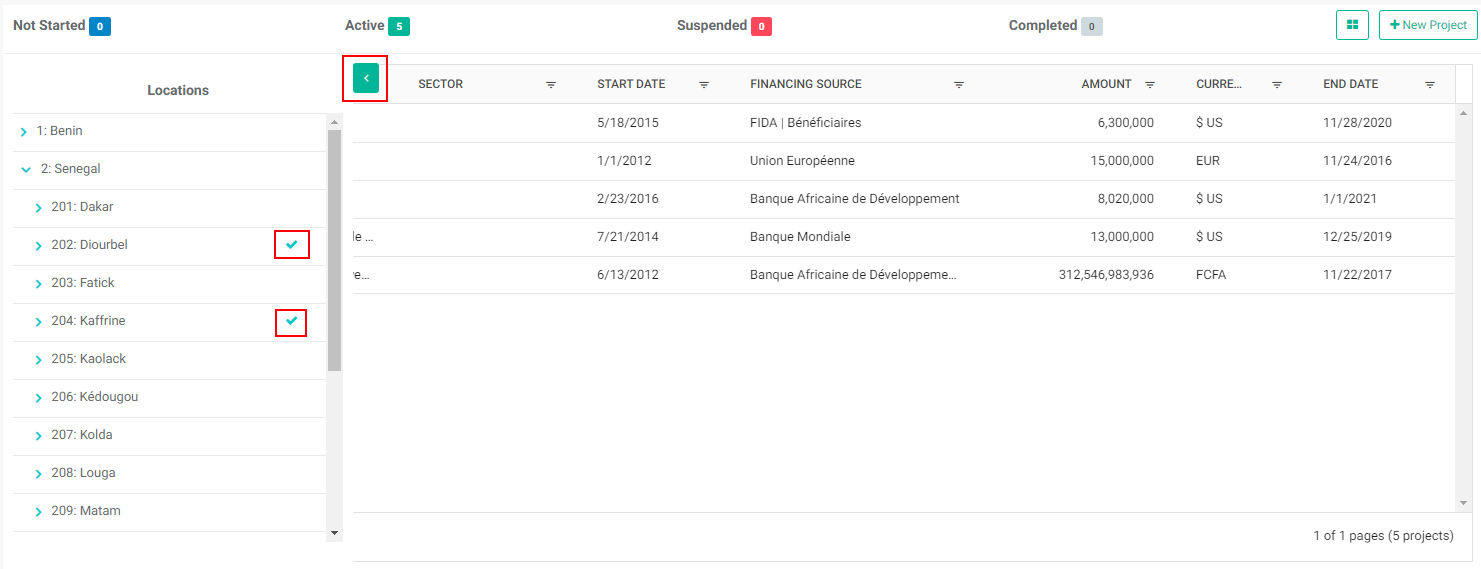
To edit or delete a project in List view, right-click on that project's name in the list. NOTE: once there is data in a project, deleting that project will require an intervention from technical support.
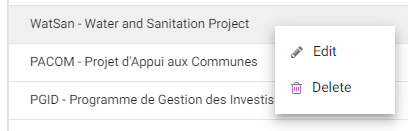
Previous: Portfolio: Projects Dashboards View | Next: Main Toolbar: My Messages
Author: Administrator
Last update: 2023-07-01 21:52
Portfolio Screen » Creating a Project
Creating a Project: Project Description
The second tab of the project definition is Project Description. Although all the fields on this screen are optional, we suggest as a best practice that you enter as much information as is available.
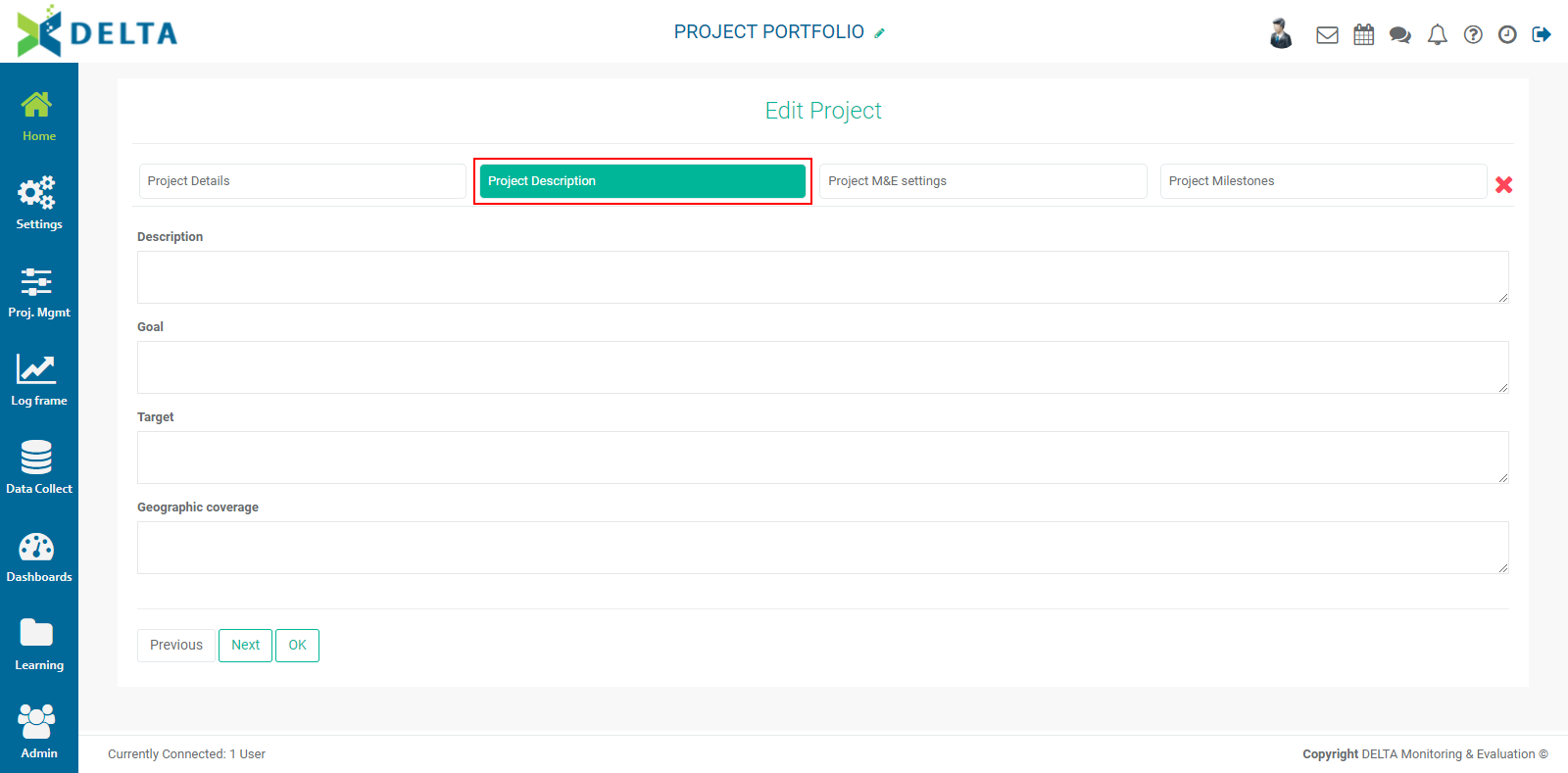
Description: enter a detailed description of the project.
Goal: enter a detailed summary of what the project's expected results are.
Target: enter targets for the project. These can be anything having to do with the project's aims.
Geographic Coverage: describe the geographic area where the project will take place.
Some of this information will appear on the project's Home page as part of its summary.
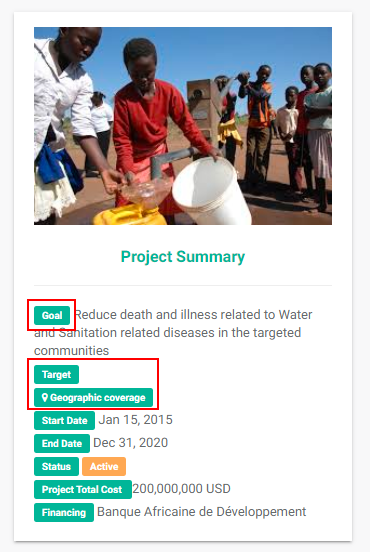
Previous: Creating a Project: Project Details | Next: Creating a Project: Project M&E Settings
Author: Administrator
Last update: 2023-07-01 22:30
Creating a Project: Project M&E Settings
The third tab of the project definition screen is M&E Settings. These settings are extremely important because they control how the system will handle project information, specifically for accurate project and financial reporting.
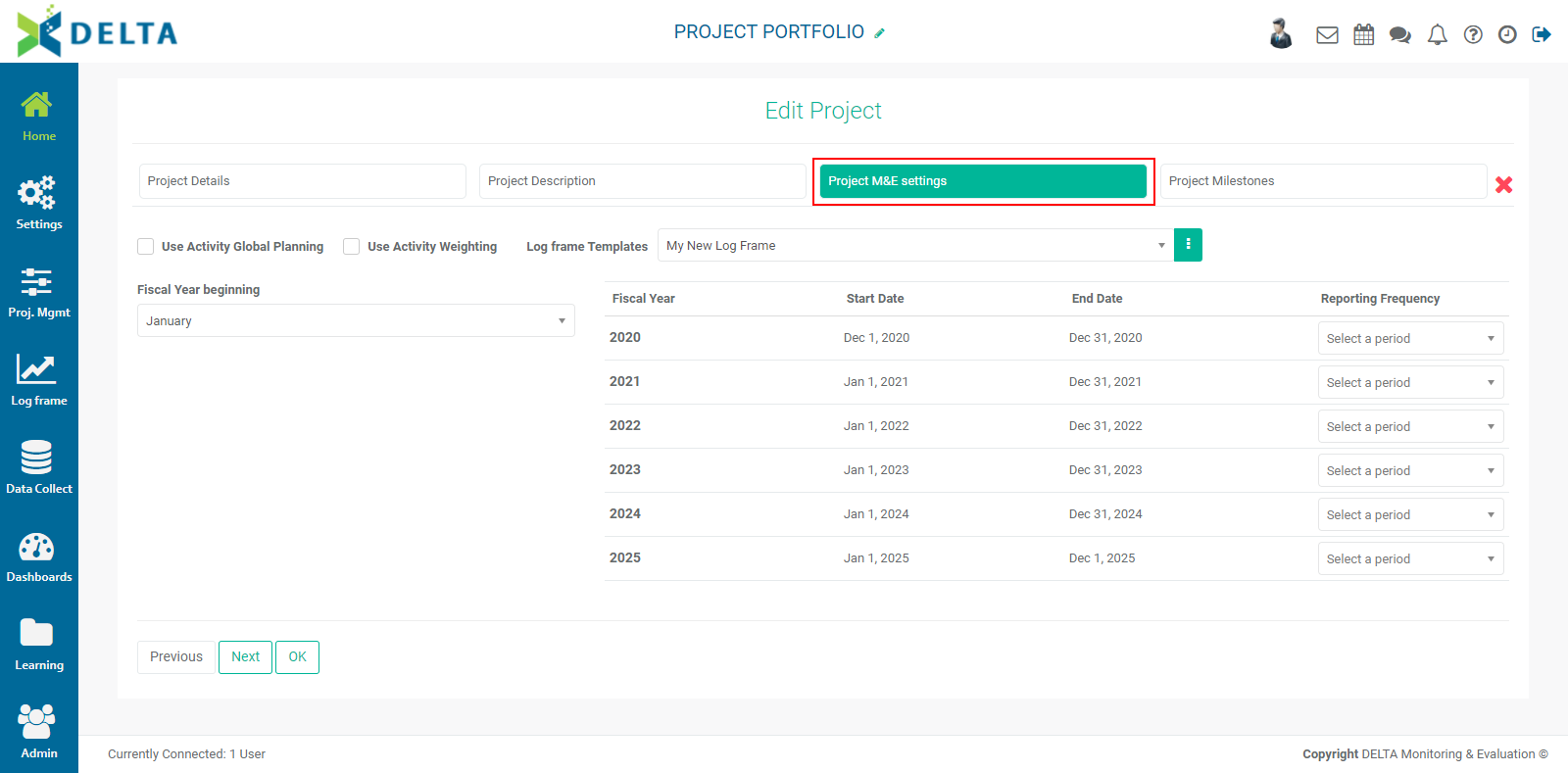
Delta supports up to three levels of project financial planning: Global, Annual, and Period. Check Use Activity Global Planning to enable planning of all project activities over the life of the entire project. If you leave this unchecked, the system will default to Annual Planning, where you'll plan activities year over year for each year of the project. Period Planning is always used, regardless of whether one or two levels above it are used.
IMPORTANT: once you've set your planning parameters, you will not be able to change them once the project has been saved. Make your selection carefully.
Some projects use weighted activities. Select this option if you want to enable weighting activities by budget, actual cost, or sum of the weights (sigma). The type of weighting is selected for each activity in the log frame of the project, in the Settings module. The use of Activity Weighting is described in detail in Project Settings: Log Frame: Using Activity Weights.
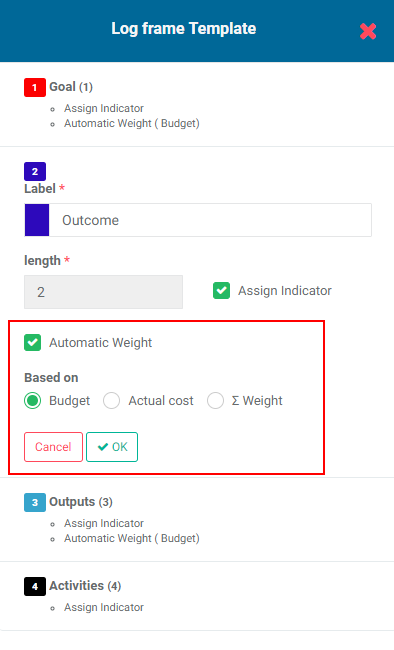
Select a Log Frame Template. Choosing Custom Log Frame will allow you to create or import a log frame that's specific to your project. Other templates can be created and added to the list at the Project level, as described in Portfolio Settings: Log Frame.
Select the correct month for the start of the fiscal year. IMPORTANT: Once you have selected this, the system calculates how to establish periods for the entire project. If you change your mind, any existing data will be erased.
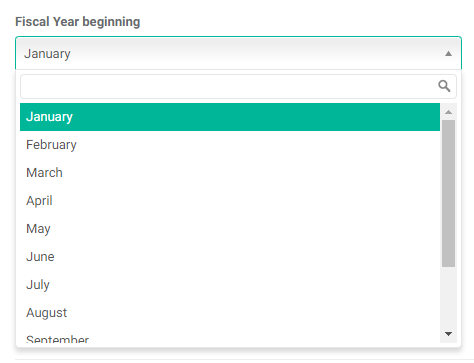
Note that the Start and End dates for each Fiscal Year on the right side of the screen change according to your selection in the Fiscal Year Beginning field.
Set the Reporting Frequency for each project year from the pick list at the right end of each line. You have the option of selecting different reporting frequencies for different project years if it's appropriate for the project.
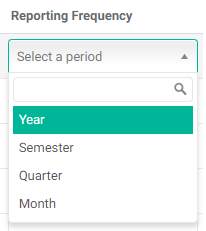
IMPORTANT: this is another setting which will result in data loss if you alter it after data has been entered into the project. Make your selections carefully.
You can click OK to save the project as is, or click Next to go to the Milestones tab of the project definition.
Previous: Creating a Project: Project Description | Next: Creating a Project: Project Milestones
Author: Administrator
Last update: 2023-07-01 22:31
Creating a Project: Project Milestones
The fourth tab of the project definition screen is Project Milestones.
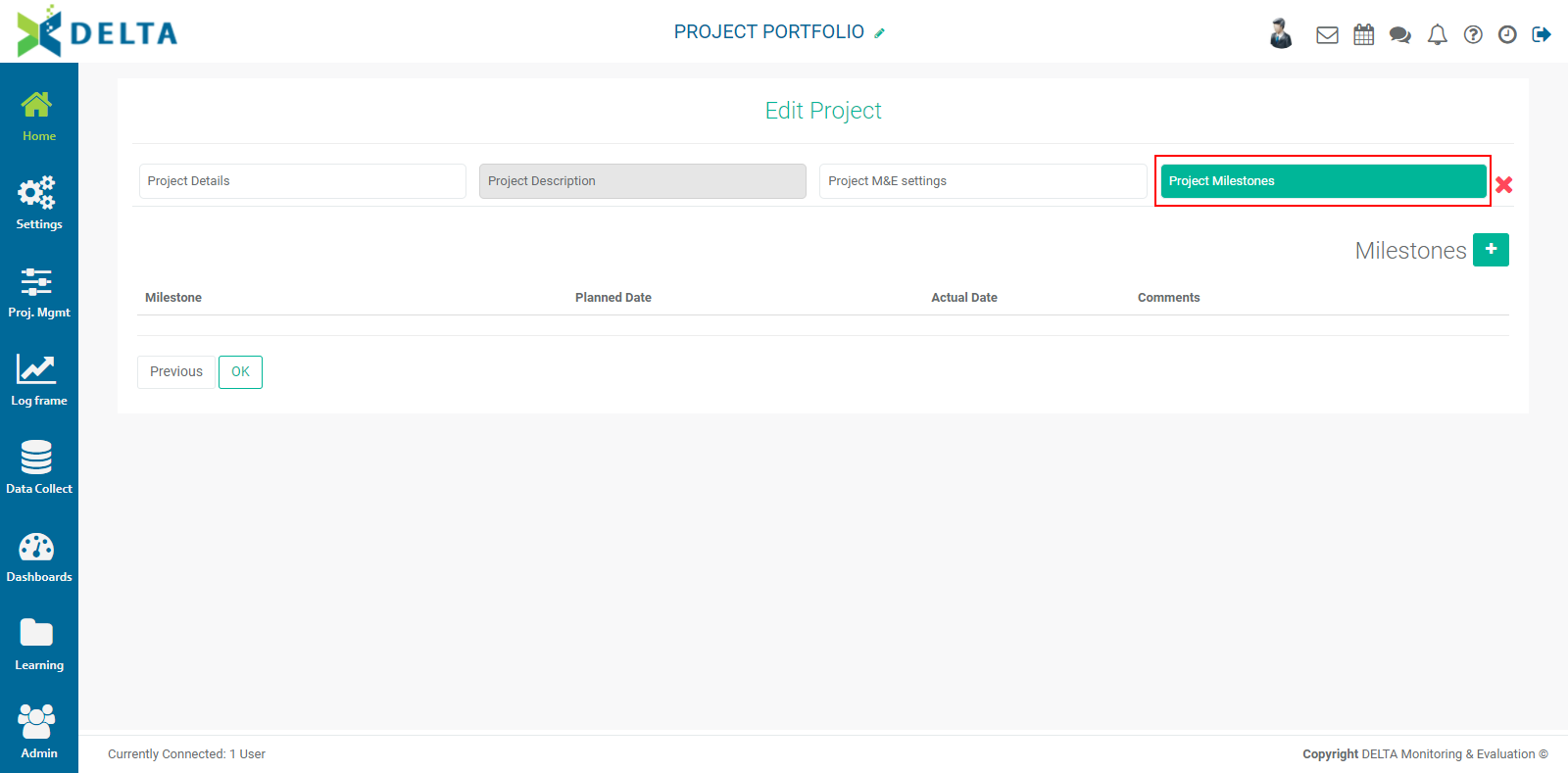
To enter a new milestone, click the + button at top right to bring up the Milestones popup window.
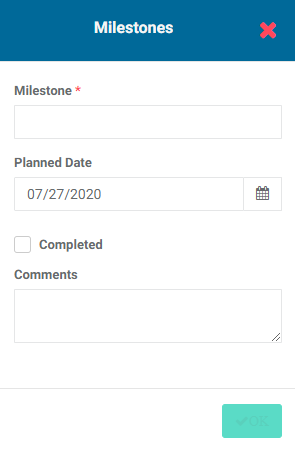
Enter the milestone and its planned date, and a short comment if appropriate. Click OK to save your work and return to the Milestones screen. The new milestone will appear on the screen.
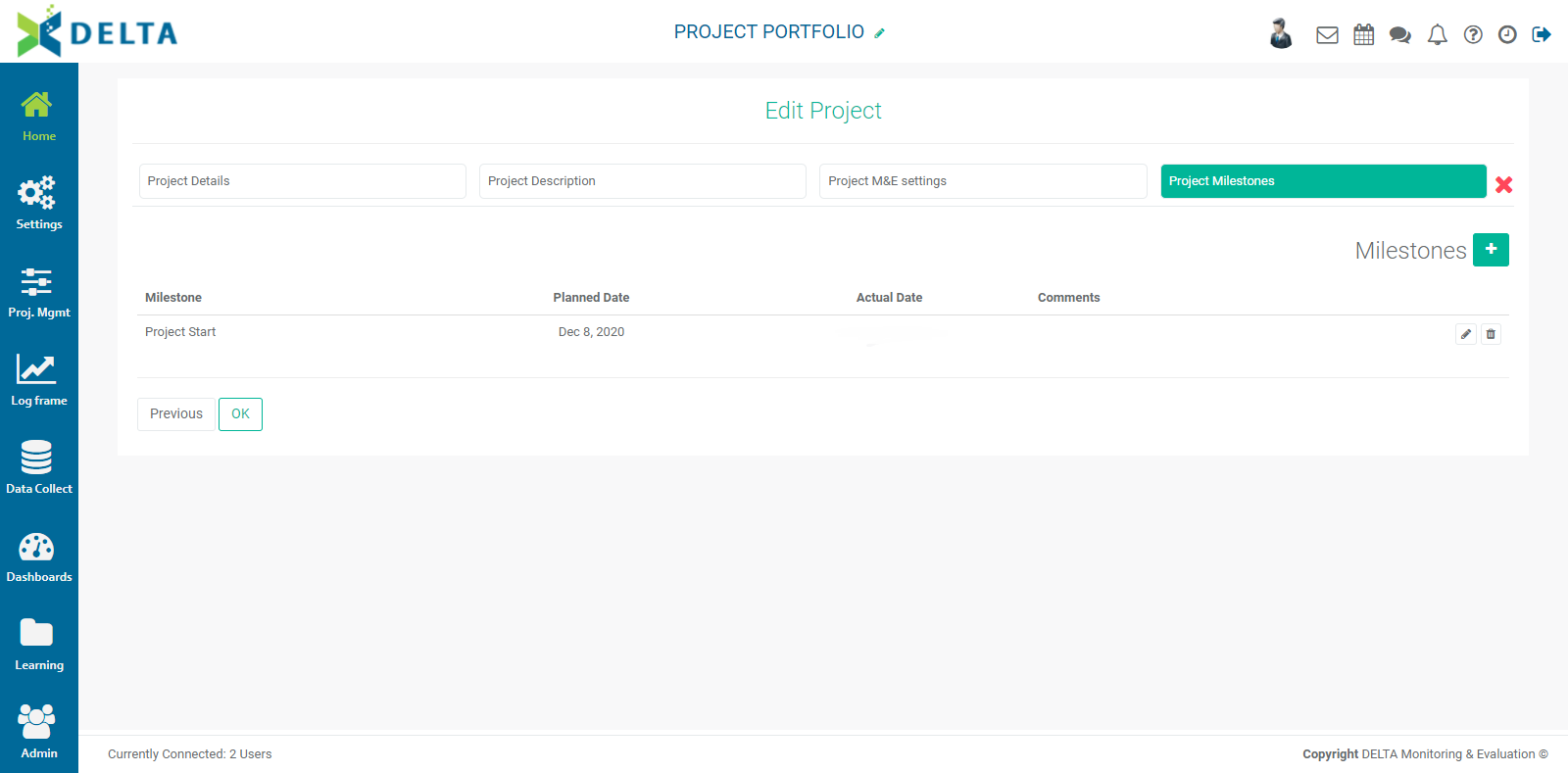
To edit a milestone, click its Edit icon. You may edit the milestone's name, planned date, comments, and mark it as complete. When you check the Complete box, another date field will appear, from which you can select the actual date. Click OK when you're done with your changes to save your work and return to the Milestones screen.
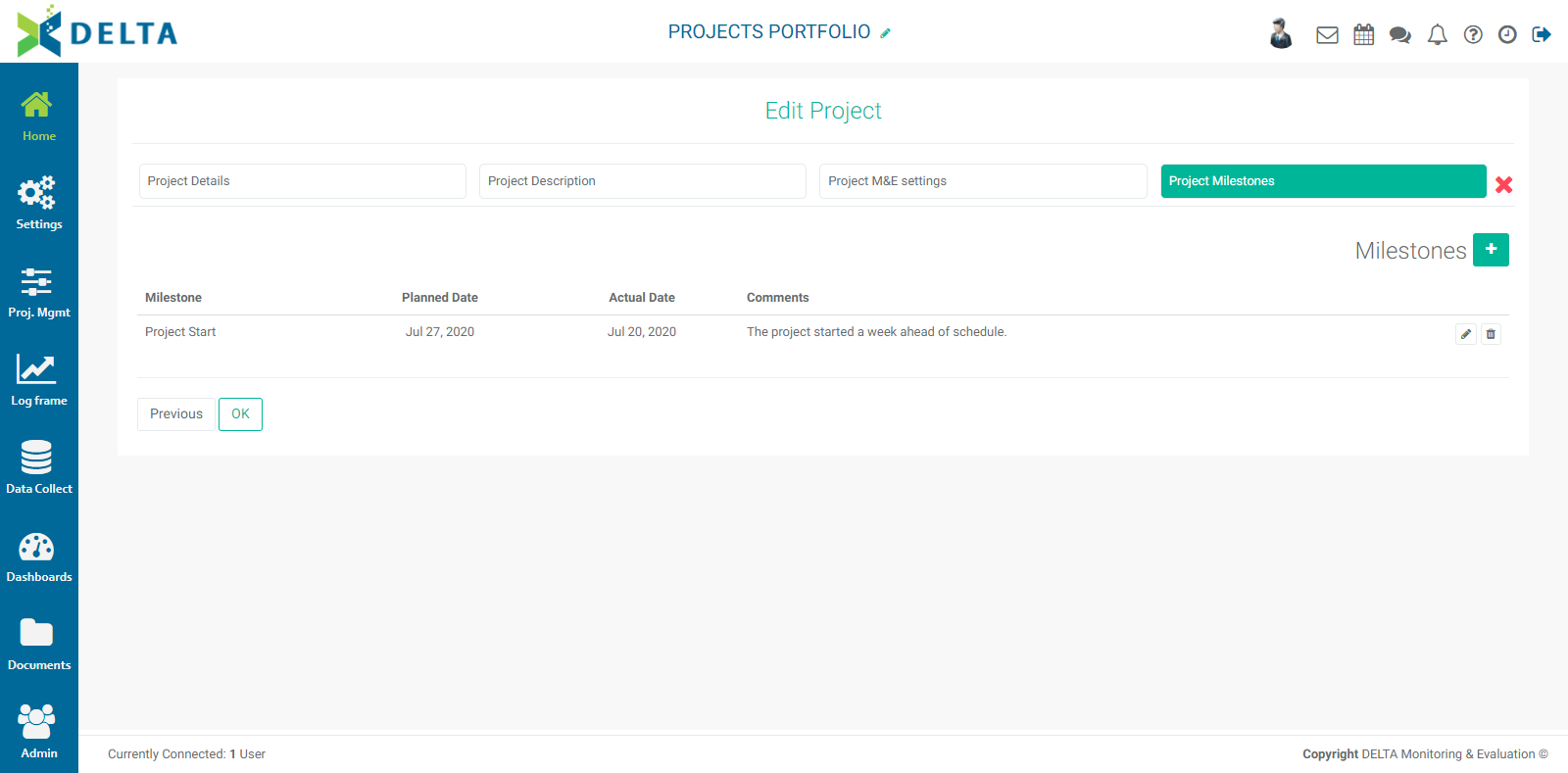
Milestones appear in the Project Dashboard at lower right, under the Project Summary.
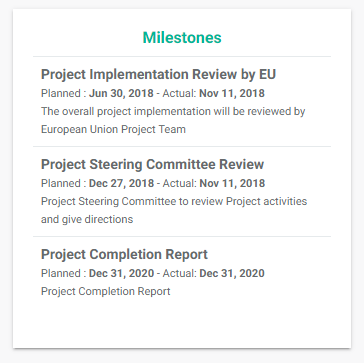
Previous: Creating a Project: Project M&E Settings | Next: Creating a Project: Add an Image
Author: Administrator
Last update: 2023-07-01 22:32
Creating a Project: Add an Image
To add an image to your project, locate its tile on the Portfolio page, click on its More icon, and click Change Picture. NOTE: you must be in Tile view on the Portfolio page to add an image.
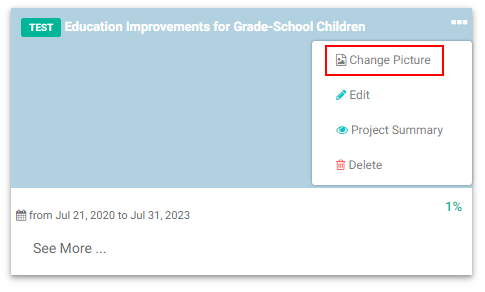
Browse to the image you want to select, click on it once to select it, and click Open. The image will appear on the project tile.
To cancel at any time while entering project information, click the X button at the top right of the screen to get back to the Portfolio screen.
Previous: Creating a Project: Project Milestones | Next: Project Home Page: Main Project Dashboard
Author: Administrator
Last update: 2023-07-01 22:32
Creating a Project: Project Details
Overview
Projects are created from the Portfolio page. Cick the +New Project button at top right of the project tile/list area.
There are four tabs to fill out: Project Details, Project Description, Project M&E Settings, and Project Milestones.
Project Details Tab: this tab contains the minimum information you need to enter in order to create a project. Mandatory fields are denoted with an asterisk (*). The other three tabs will be enabled once all the mandatory fields of the Project Details tab are filled out.
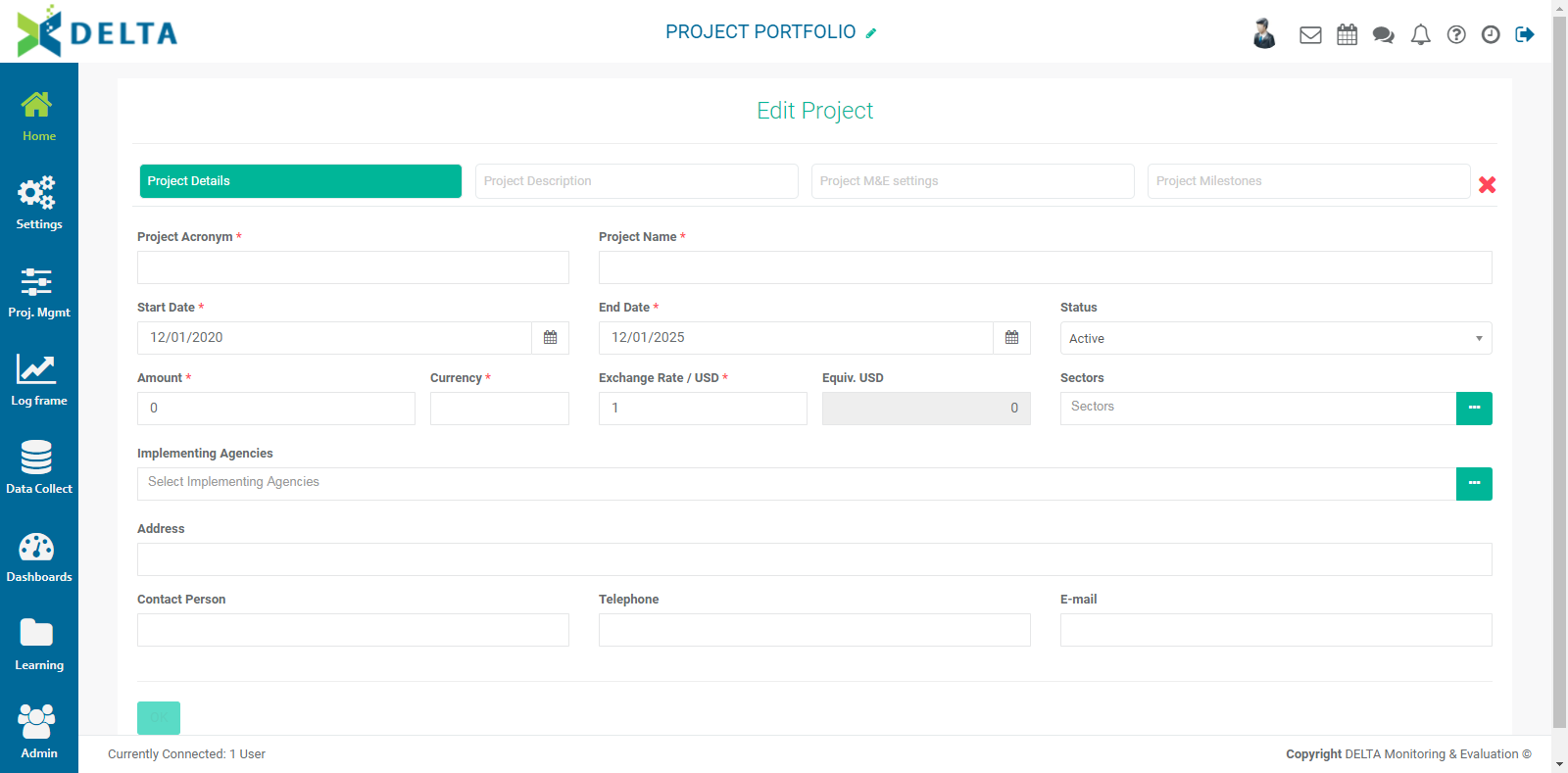
Project Acronym: enter a code (up to 10 characters) for the project. The code will be displayed on the project tile, and serves as a search term when searching projects on the Portfolio page. Codes cannot be edited once the project is saved, as Delta uses codes as unique identifiers.
Project Name: enter the name for the project. The project name will be displayed on the project tile, and will appear on all project screens at the center top as a link to the project's home page. It will also serve as a label throughout various screens.
Start Date: enter the start date for the project. Note that once data has been entered into the project, the start date cannot be changed.
End Date: enter the end date for the project.
Status: Select the status of the project from the pick list. The options are Not Started, Active, Suspended, and Completed.
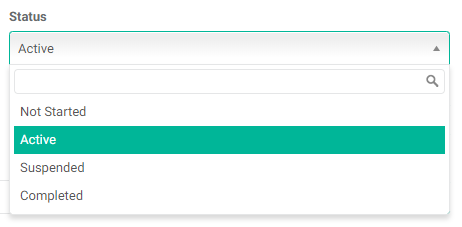
This field is optional, but selecting the appropriate option for the project's current status will display the project in the correct Status category in the Projects tab of the Portfolio page.

Selecting the appropriate status will also ensure the project is filtered correctly depending on which Status filter is used in the Projects Map View dashboard of the Portfolio page.
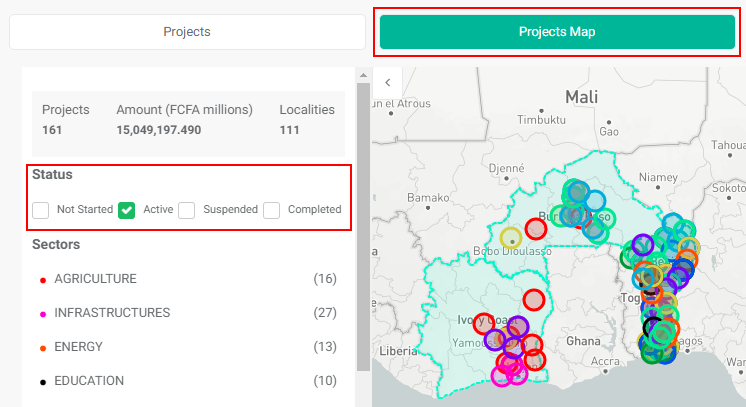
Amount: enter the total amount of financing for the project. This should include all funding sources.
Currency: enter the currency the project will use. This field can contain up to five characters.
Exchange Rate: enter the exchange rate of the project currency versus the Portfolio default currency. If they are the same currency, enter 1.0. The system will convert the amount and enter it in the next field.
In the example below, the project currency is the U.S. Dollar, and the Portfolio default currency is the Australian Dollar. The conversion rate is set at 0.71. NOTE: this is not a live exchange rate, but a 'snapshot' of the rate on the day the project was created.

Sectors: enter the sector(s) for the project. To select more than one sector, click in the blank part of the field and select another item for the pick list. If the desired sector does not appear in the list, click the More icon at the right end of the field to bring up the Sector popup window.
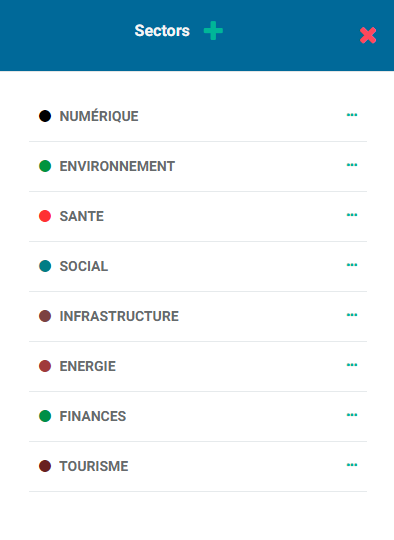
Click the + in the popup window title bar to create a new entry. Name the sector, then click the checkmark next to the name to add it to the list.
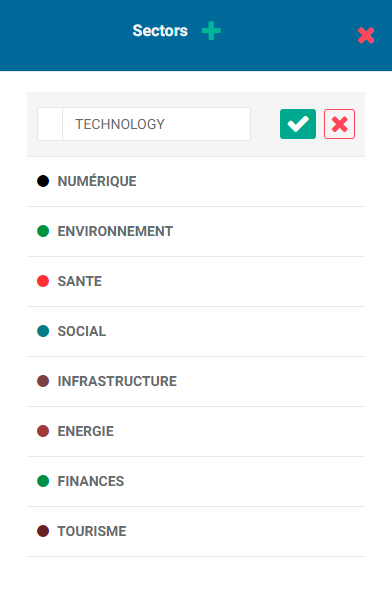
The system will assign a color to the new sector. To edit or delete a sector, click its More icon. Click the X in the popup window title bar to return to the project definition screen.
Sectors are used as a filter in the Portfolio Projects Map and Portfolio Projects Dashboards views.
Implementing Agencies: select the appropriate implementing agency(ies) from the pick list. The list is populated from the Agencies screen in the Portfolio Settings module.

To select more than one agency, click in the blank part of the field to bring up the list, and make one selection at a time.
If the desired agency does not appear in the list, click on the More icon at the right end of the field to bring up the Agencies popup window, and click the + in the popup window title bar.
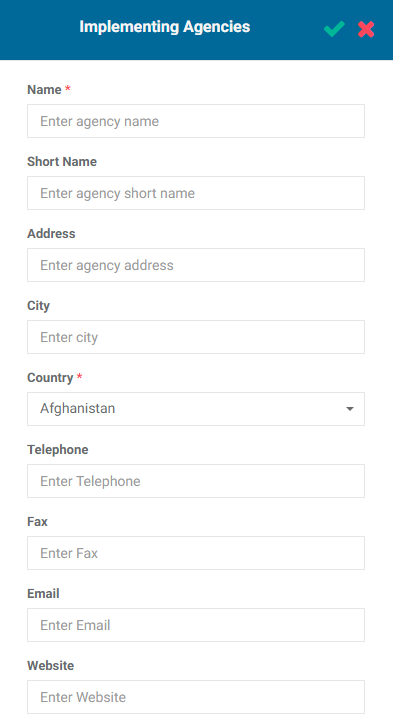
There are two mandatory fields: Name and Country. As a best practive, we recommend entering as much information as is available in the optional fields. Click the checkmark in the popup window title bar to save your work and return to the project definition screen. The new Implementing Agency will now be available for selection in the pick list.
The last four fields are also optional, but we suggest filling them out if the information is available.
Address: enter an address for the project team.
Contact Person: enter the name of the contact person for the project.
Telephone: enter a telephone number for the contact person.
Email: enter an appropriate email, either for the contact person or a team mailbox if one is available.
Once all the mandatory fields in the Project Details screen have been filled, the other tabs will become active. You can click OK at this point to save the project as is. A good use of this is creating project "shells" as placeholders for projects that are scheduled to start weeks or months out from the current date. You can go back later to edit the project and add the information in the other three tabs.
Previous: Filters and Search | Creating a Project: Project Description
Author: Administrator
Last update: 2023-07-01 22:33
Using This Guide
Using This Guide
This interactive user guide lets you navigate the information in several ways:
- Read all articles sequentially using the Previous and Next Links at the bottom of article pages;
- Click the top-level categories to view its subcategories and topics;
- Enter search terms in the Search bar, including the ID of an article;
- Click on a link in the Most Popular FAQs and Latest FAQs;
- Click on a Popular Search Word;
- Click on a Tag.
If you don't see the topic you're interested in, use the Add Question link at the top of the screen to ask us. We will review your question and post the answer.
For an outline of all the topics for which entries have been made, click the All Categories link at the top of the screen.
To return to the front page of the FAQ, click the Delta logo at upper left.
Don't forget to rate our FAQs and leave comments! Your feedback is important to us. Please note that comments are moderated.
IMPORTANT: we do require that you create an account in order to leave comments and add questions. Please see our Privacy Policy for details on how we use your information.
Author: Administrator
Last update: 2023-07-02 18:28
What's in the Top Bar of FAQ Pages?
Each FAQ article contains a toolbar similar to the one above. The elements of this toolbar are as follows:
- Reading Time: this is the approximate time required to read the article in its entirety
- Author: the name of the system user who wrote the article
- Time Stamp: the date and time the article was last updated (Eastern Time)
- Comments: link to comments made by users on the article
- Edit Record: link to editing a FAQ, not visible to guests or users without sufficient permissions
- PDF Version: click to convert the article to PDF
- Send to a Friend: click to send the article via email
- Social Media: click to share on Twitter (Twitter account required)
- ID Badge: click to generate an article page with a permanent URL which you can use to link directly to the article
Using This Guide
Author: Administrator
Last update: 2023-07-02 18:28
How Do I Sign Up to the User Documentation Database?
Registration is required for access to the user documentation database. To sign up, simply click Registration on the login page.
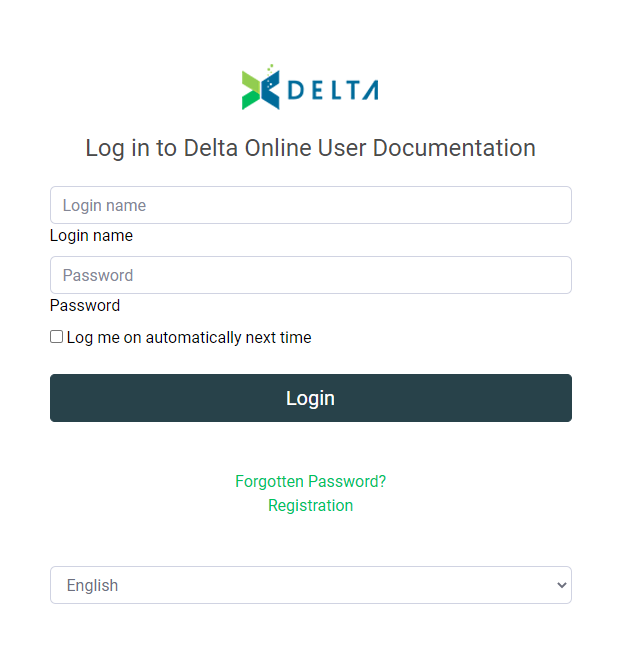
Enter your email address, your real name, your desired user name, and the code contained in the CAPTCHA. Click OK when you're done. The Administrator will review your request, and you will receive a confirmation email once your account has been activated. NOTE: this is not an automated process. All sign-up requests are reviewed before activation.
Once you receive confirmation that your account has been approved, you may change your password by logging in and selecting User Control Panel from the menu under your name at top right of the screen.
Your only option will be to change your password. Enter and confirm your new password, and click Submit to save your changes. Your new password will take effect the next time you log in.
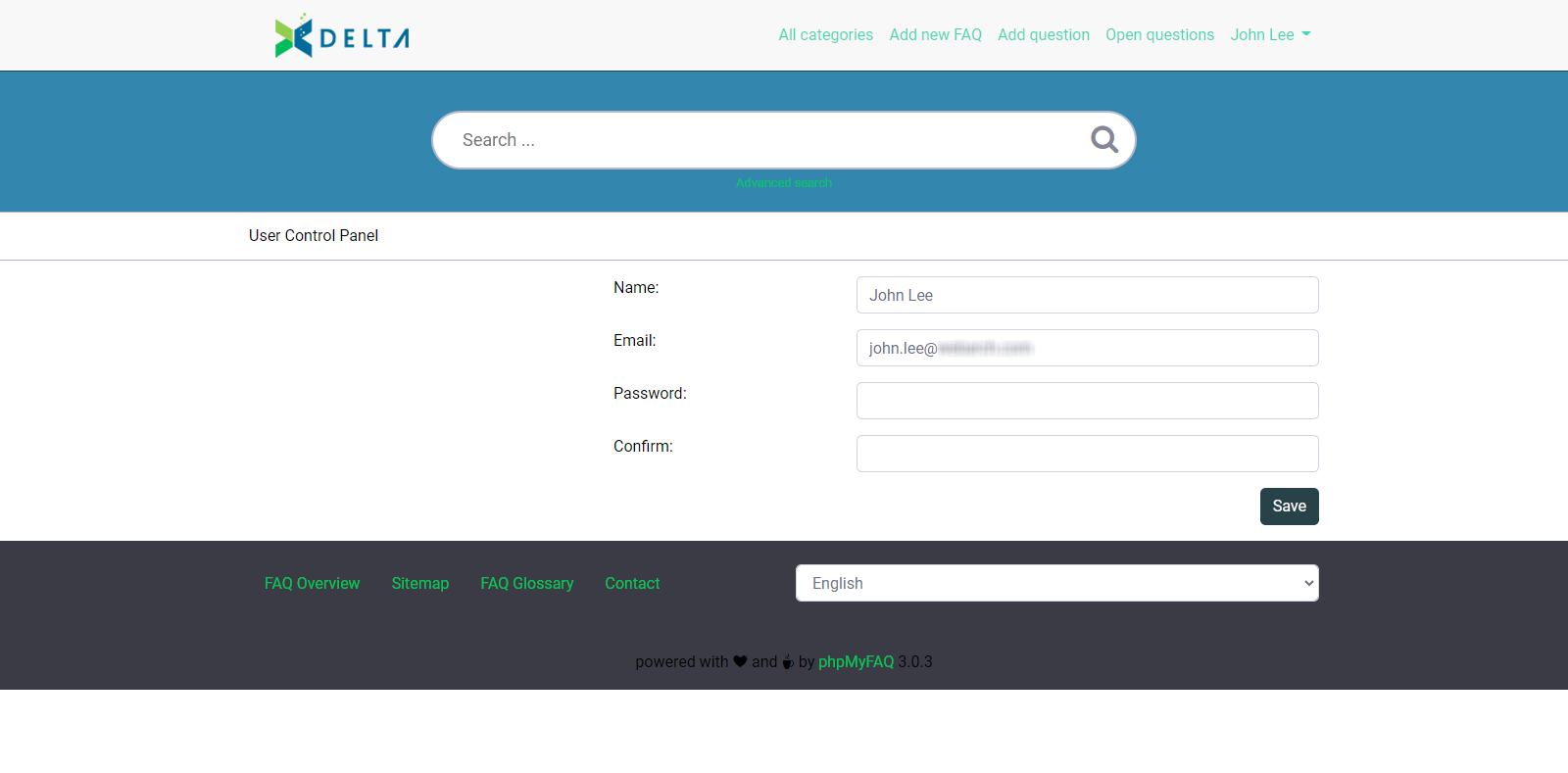
Using This Guide
Author: Administrator
Last update: 2023-07-01 22:35
How Do I Leave a Comment?
Leaving comments on the articles in this guide is easy. We do ask that you register for an account so that we may know who you are. Consult our Privacy Policy for information on how we handle your data.
Once you're registered, click the Comments link in the article toolbar.

A comment box will open at the bottom of the page. As a registered user, your name and email address are already filled in.
Enter your comment, and click the Submit button. You'll get a confirmation that your comment was sent.
Comments are moderated, meaning that although your message will appear immediately at the bottom of the page, it may be reviewed and deleted if the system administrator determines that it was inappropriate. Requesting that users register in order to leave comments and suggest topics is in large part to prevent incidents.
Please consider rating the page as well. We appreciate users' feedback and suggestions to improve this system.
Using This Guide
Author: Administrator
Last update: 2023-07-01 22:35
Log Frame Module » Log Frame Centricity in Delta
Log Frame Centricity in Delta
Delta's Log Frame module consolidates all Indicators functionality in one convenient place. The log frame is presented on the left side of the screen, and the horizontal navigation allows users to quickly go back and forth between log frame levels. The log frame tree can be used as a filter to drill down to a specific set of indicators by clicking on a log frame level. Only the indicators associated with that level will be displayed on the screen.
Activities are the end points of each branch of the log frame, and as such are listed first in the secondary menu of the Log Frame module. Keep in mind that you can use your own terminology and nomenclature for log frames, up to ten levels. However, the end points of any log frame will be first in the horizontal navigation.
NOTE: the vast majority of the functionalities associated with activities is now located in the Project Management module. You can associate indicators to activities in the Log Frame module as well as in the PM module. However, the activities list proper no longer appears in the Log Frame module.
Indicators can also be set up to directly inform activities.
Previous: Project Management: Staff Reports | Next: Indicators: Indicators Screen
Author: Administrator
Last update: 2023-07-02 18:28
Settings Module » Portfolio Settings
Portfolio Settings: Agencies
Agencies refers to any entity involved in the realization of a project. Agencies created at the Portfolio level are made available to pick from at the Project level.
From the Portfolio Settings module, select Agencies from the horizontal navigation bar.
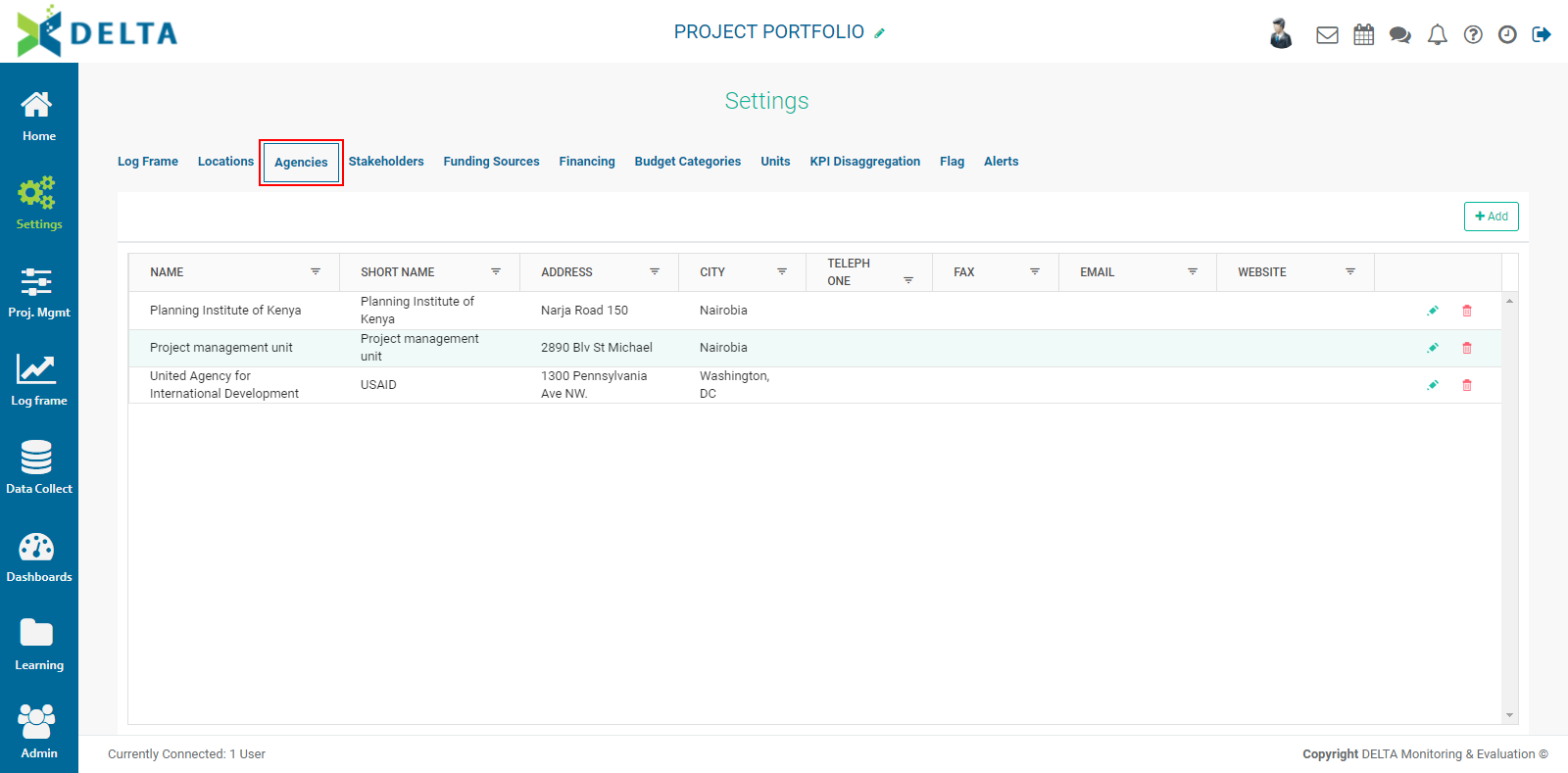
To create an agency, click the +Add button at top right. The Implementing Agencies popup window will appear.
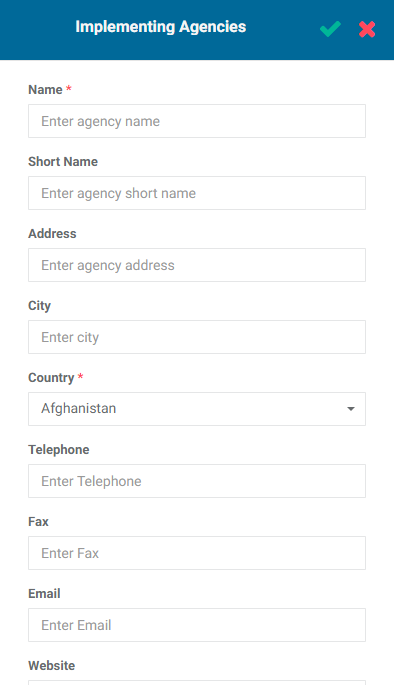
Two fields are mandatory: Name and Country. The remaining fields are optional, but we recommend as a best practice to enter as much information as is available for easy reference. Entering a short name is strongly suggested.
Enter the information and click the checkmark in the popup window title bar when you're done. The new agency will appear on the screen.
To edit an agency, click its Edit icon. Make your changes, and click the checkmark in the popup window to save your work and return to the Agencies screen.
To delete an agency, click its Delete icon, and confirm the deletion. IMPORTANT: deleting an agency at the Portfolio level will also remove it from all the projects in the portfolio which use that agency.
Agencies can also be created at the Project level.
Previous: Portfolio Settings: Locations | Next: Portfolio Settings: Stakeholders
Author: Administrator
Last update: 2023-07-02 18:07
Portfolio Settings: Stakeholders
Stakeholders are all the actors involved in the workflow of monitoring and evaluation. Although each project has its own stakeholders, you can also create stakeholders at the Portfolio level. Unlike Agencies, Portfolio Stakeholders are only used at the Portfolio level. Conversely, project stakeholders belong to that project only.
Whether or not you use the Portfolio Stakeholders depends on how you'll be working with the Portfolio itself. If you're using the system only to monitor and evaluate individual projects, you may not need the Portfolio stakeholders at all.
However, if you plan on using cross-cutting indicators and/or cross-cutting activities, you'll need to set up Portfolio-level stakeholders so they can be assigned those activities and indicators.
From the Portfolio page, click Settings in the left navigation, then select Stakeholders from the horizontal navigation.
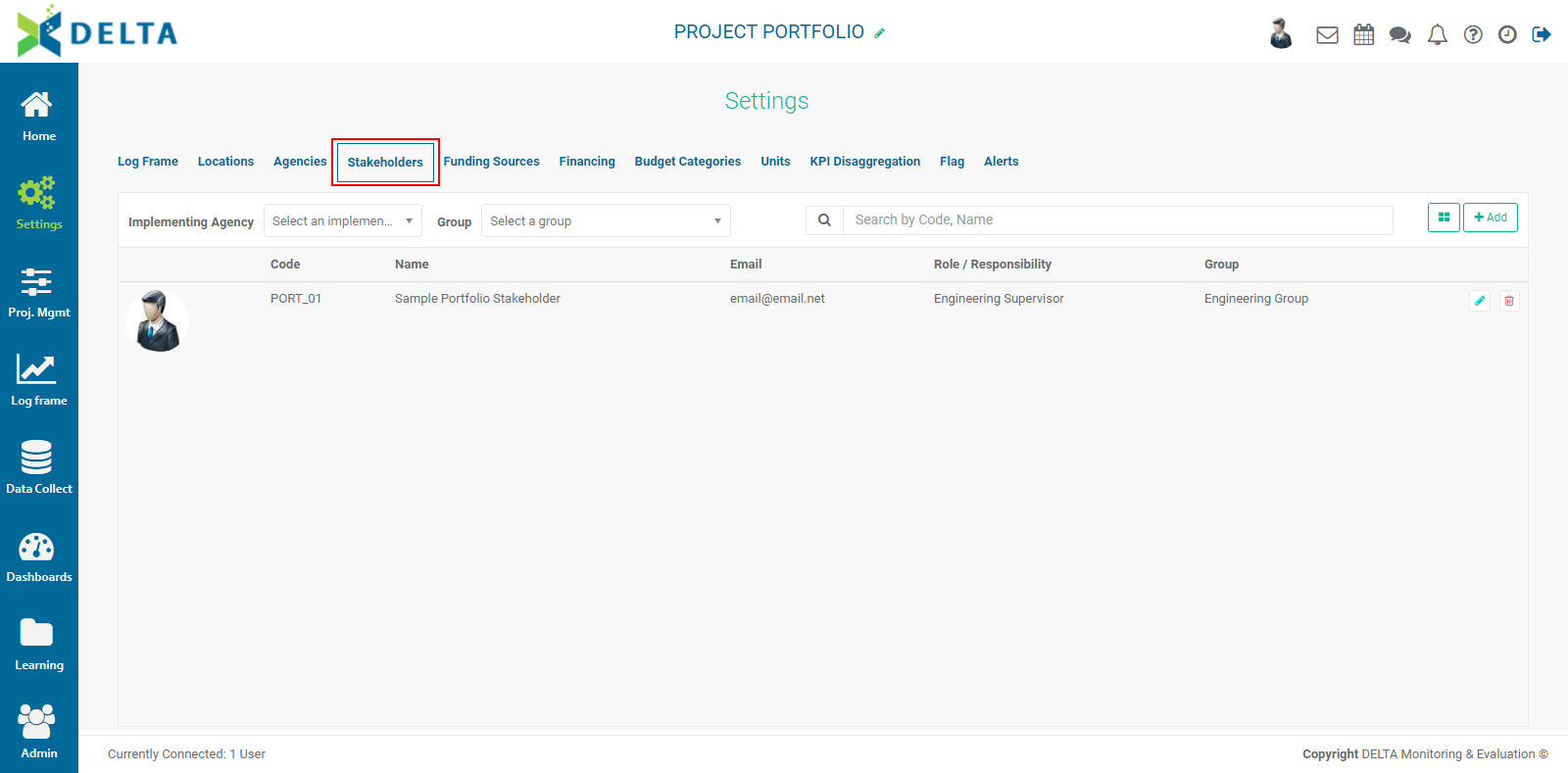
To add a stakeholder, click the +Add button at far right. The Stakeholder information screen will open.
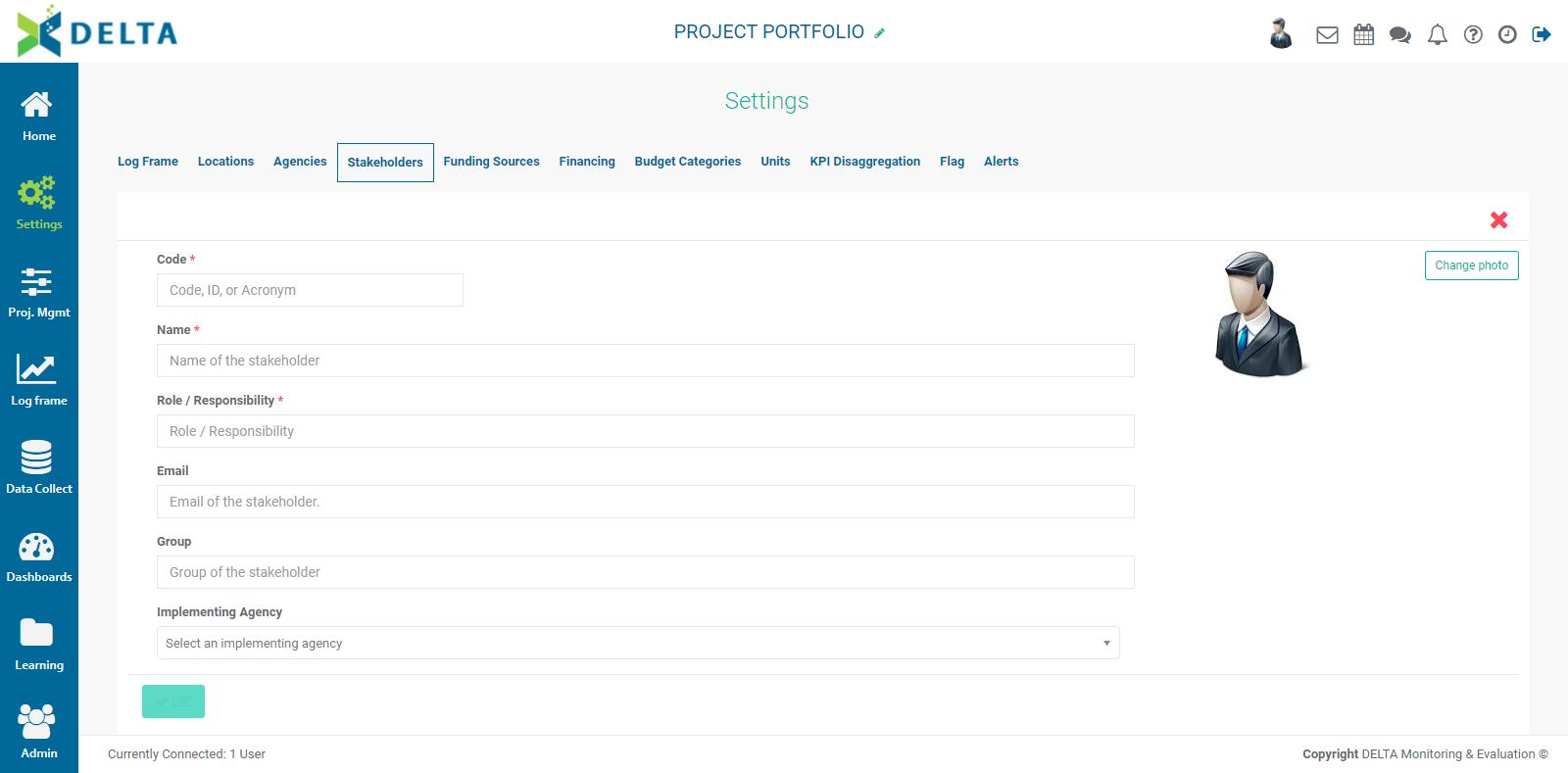
The Code, Name, and Role/Responsibility fields are mandatory. You can use your own nomenclature for the code. Using numbers and special characters such as hyphens and underscores is allowed. NOTE: codes cannot be edited once the stakeholder is saved.
The Role/Responsibility field is a freeform pick list; if you don't see the role you need, enter it in the field.
The other fields are optional, but as a best practice we suggest entering as much information as is available for easy reference.
The Groups field is a freeform pick list. If you don't see the group you need in the list, enter it in the field.
The Implementing Agencies pick list is populated from the Agencies which have been entered in the system, either at the Portfolio level or the Project level.
Check Display on Portal to make this stakeholder appear on the Delta Public Portal in the form of a link which can be accessed by anyone who has the portal address. Information published to the portal does not require an account or login credentials.
To add a photo for the stakeholder, click Change Photo, then navigate to the desired image file to select it. Click on it once and press Enter on your keyboard to associate the image to the stakeholder information.
When you're done, click OK at bottom left to save your work and return to the Portfolio Stakeholders screen. The new stakeholder appears in the list.
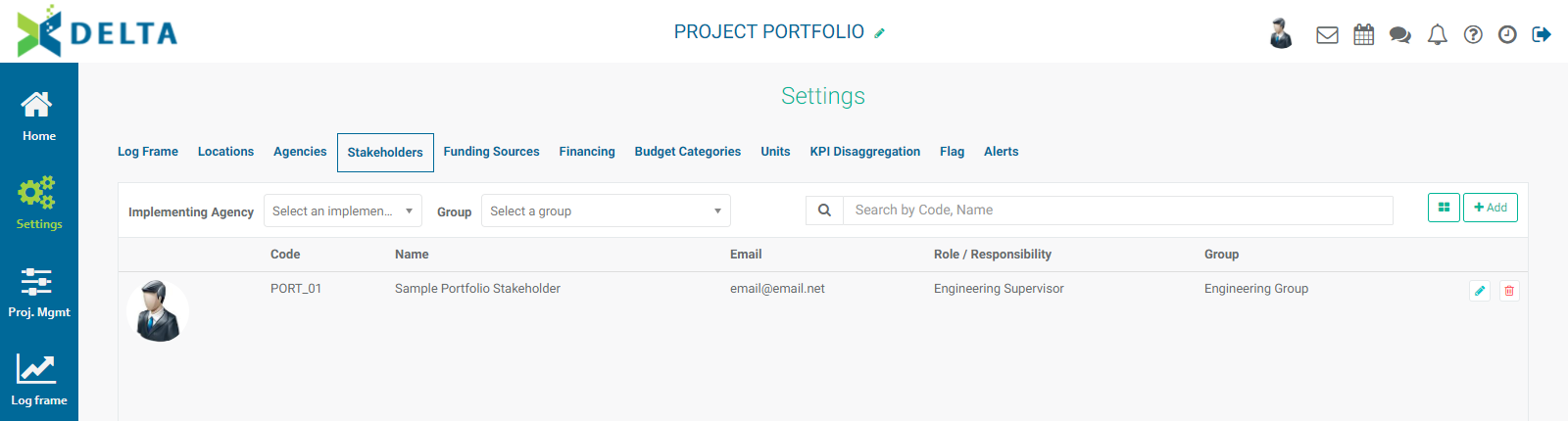
To edit a stakeholder, click its Edit icon, make the necessary changes, and click OK to save your work. To delete a stakeholder, click its Delete icon, and confirm the deletion.
Previous: Portfolio Settings: Agencies | Next: Portfolio Settings: Funding Sources
Author: Administrator
Last update: 2023-07-02 18:08
Portfolio Settings: Log Frame
The Logical Framework (Log Frame) describes the chain of results within the Portfolio. Delta supports the commonly used chain (Activities, Results/Outputs, Outcomes, Impact/Goals) as well as up to six additional user-defined levels. All labels in the log frame can be edited to conform to your own nomenclature and terminology. NOTE: regardless of the labels you use, Delta will handle the end points of each branch of a log frame as an activity.
Depending on how you intend to use the system, you may not have to set up a Portfolio-level log frame. One specific use for the Portfolio-level log frame are to support the use of cross-cutting activities and cross-cutting indicators. Since activities and indicators are log frame elements, and cross-cutting activities and indicators are created at the Portfolio level and informed at the Project level, the Portfolio must contain a log frame.
Another circumstance in which you will need to create a portfolio-level log frame is if you plan on creating indicators at the Portfolio level in order to track composite indicators. For example, you may base portfolio-level indicators on project indicators, either directly or by using a project indicator for calculating the portfolio-level indicator.
These considerations aside, the Portfolio-level log frame functions in a similar fashion to the project-level log frame. The related articles are:
Detailed information on cross-cutting activities and cross-cutting indicators can be found here:
Note also that you may not need to use the full set of functionalities in this section of the Portfolio Settings module, depending on how you intend to use it.
Previous: Project Home Page: Custom Analytics Dashboards | Next: Portfolio Settings: Locations
Author: Administrator
Last update: 2023-07-02 18:08
Portfolio Settings: Funding Sources
Funding Sources displays all the sources of funding for a particular project. This setting is only available at the Portfolio level.
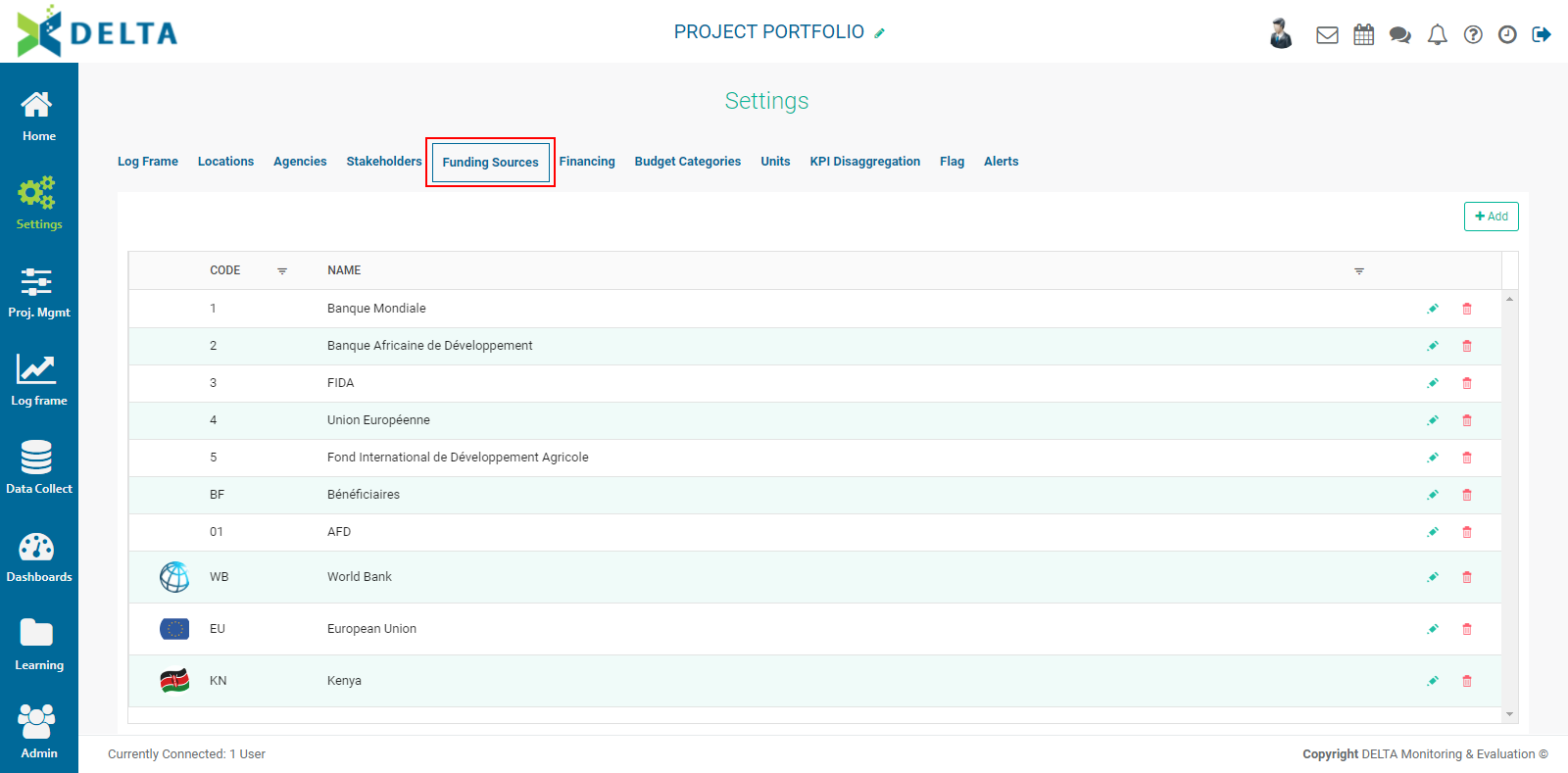
The Funding Sources created here will populate the Financing Source pick list inside projects.
To add a funding source, click +Add at the top right to bring up the Funding Sources popup window.
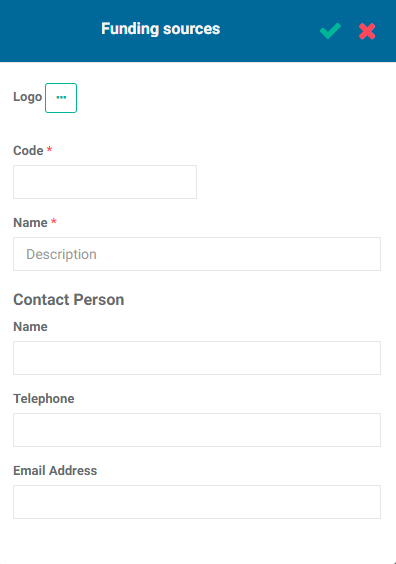
The Code and Name fields are mandatory. You may use your own nomenclature for the codes. Codes cannot be edited once the funding source has been saved.
To add a logo to the funding source, click the More (...) button, navigate to the desired image file, click it once to select it, and press Enter on the keyboard. The image will be added to the Funding Source. NOTE: keep the image file dimensions small. Large images must be resized for display in the alloted space and may cause noticeable latencies.
The Contact Person information is optional, but we suggest entering all available information as a best practice.
When you're done, click the checkmark in the popup window title bar to save your work and return to the Funding Sources screen. The new funding source will appear on the page.
To edit a funding source, click its Edit icon and make the necessary changes. To delete a funding source, click its Delete icon and confirm the deletion. IMPORTANT: deleting a funding source from this screen will also delete it from any projects that use it.
Previous: Portfolio Settings: Stakeholders | Next: Portfolio Settings: Financing
Author: Administrator
Last update: 2023-07-02 18:09
Portfolio Settings: Financing
The Financing screen displays financing agreement for each funding source for the portfolio. This helps further break down where portfolio funds are spent, and facilitates reporting to funding sources as required. NOTE: if you're only following financials and activities at the project level, or you do not use financing agreements with the portfolio funding sources, you may not need to use this screen.
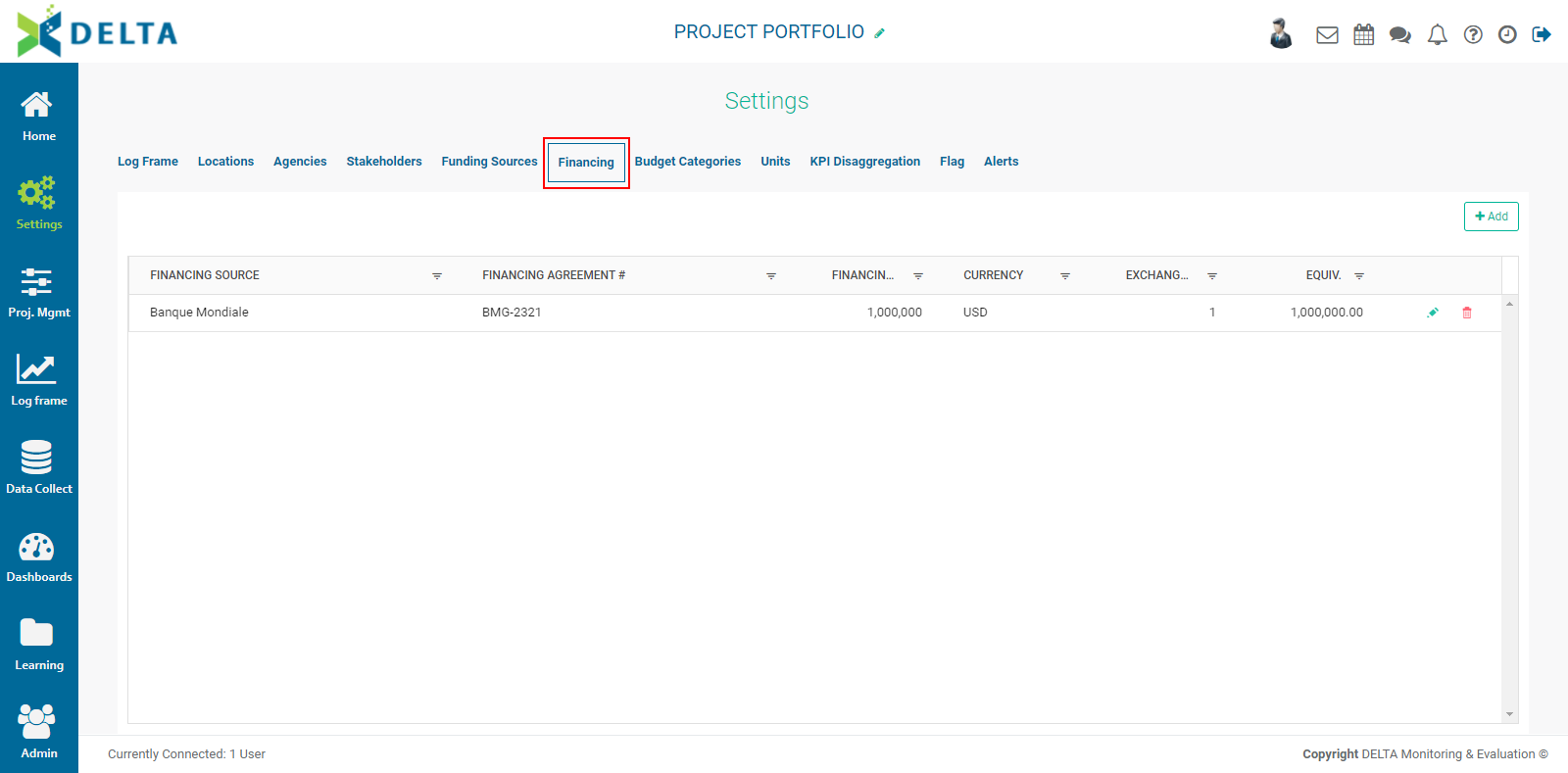
To add a financing agreement, click +Add at the top right and enter the information. Mandatory items are marked with an asterisk. NOTE: the Financing Agreement entry cannot be edited once the financing information is saved.
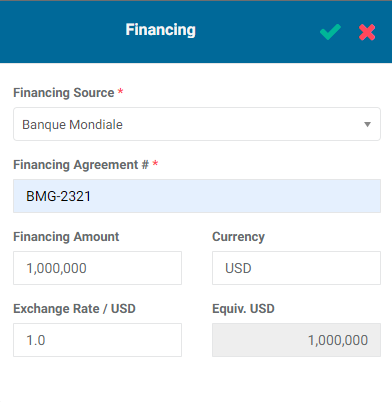
Click the checkmark in the popup window title bar when you're done to save your work and return to the Financing screen. The new financing agreement will appear in the list.
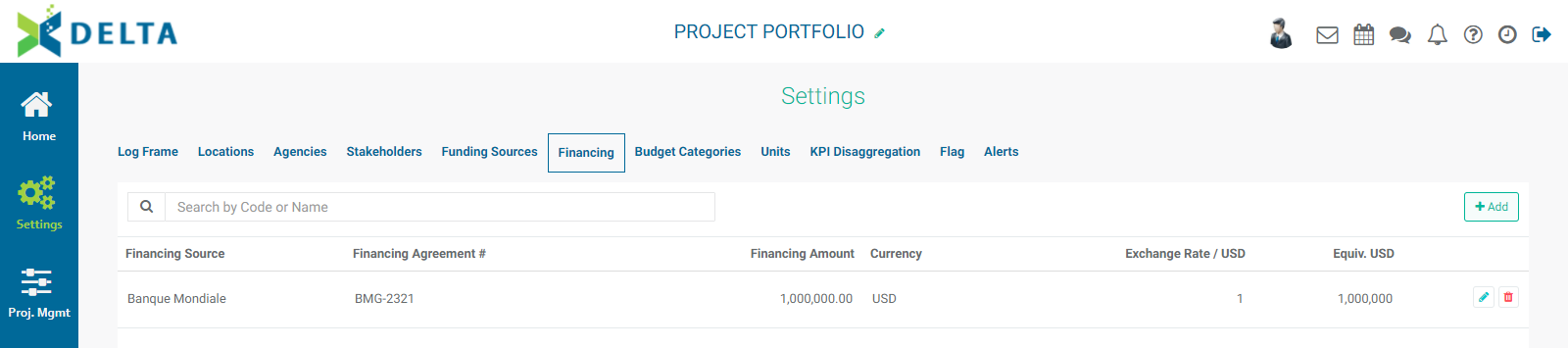
To edit a financing agreement, click its Edit icon. To delete a financing agreement, click its Delete icon and confirm the deletion.
NOTE: The default base currency is set at the Portfolio level. The exchange rate entered in the Funding Sources popup window is a snapshot; live rates are not available. A suggested best practice is to revisit the rate quarterly in order to ensure the financials are as accurate as possible.
Previous: Portfolio Settings: Funding Sources | Next: Portfolio Settings: Budget Categories
Author: Administrator
Last update: 2023-07-02 18:10
Portfolio Settings: Budget Categories
Budget Categories allow you to further refine the financial information of the portfolio by sorting its expenses by category. If you use cross-cutting activities, you'll be able to enter budget categories information in those activities.
From the Portfolio page, click Settings to enter the module, then select Budget Categories from the horizontal navigation.
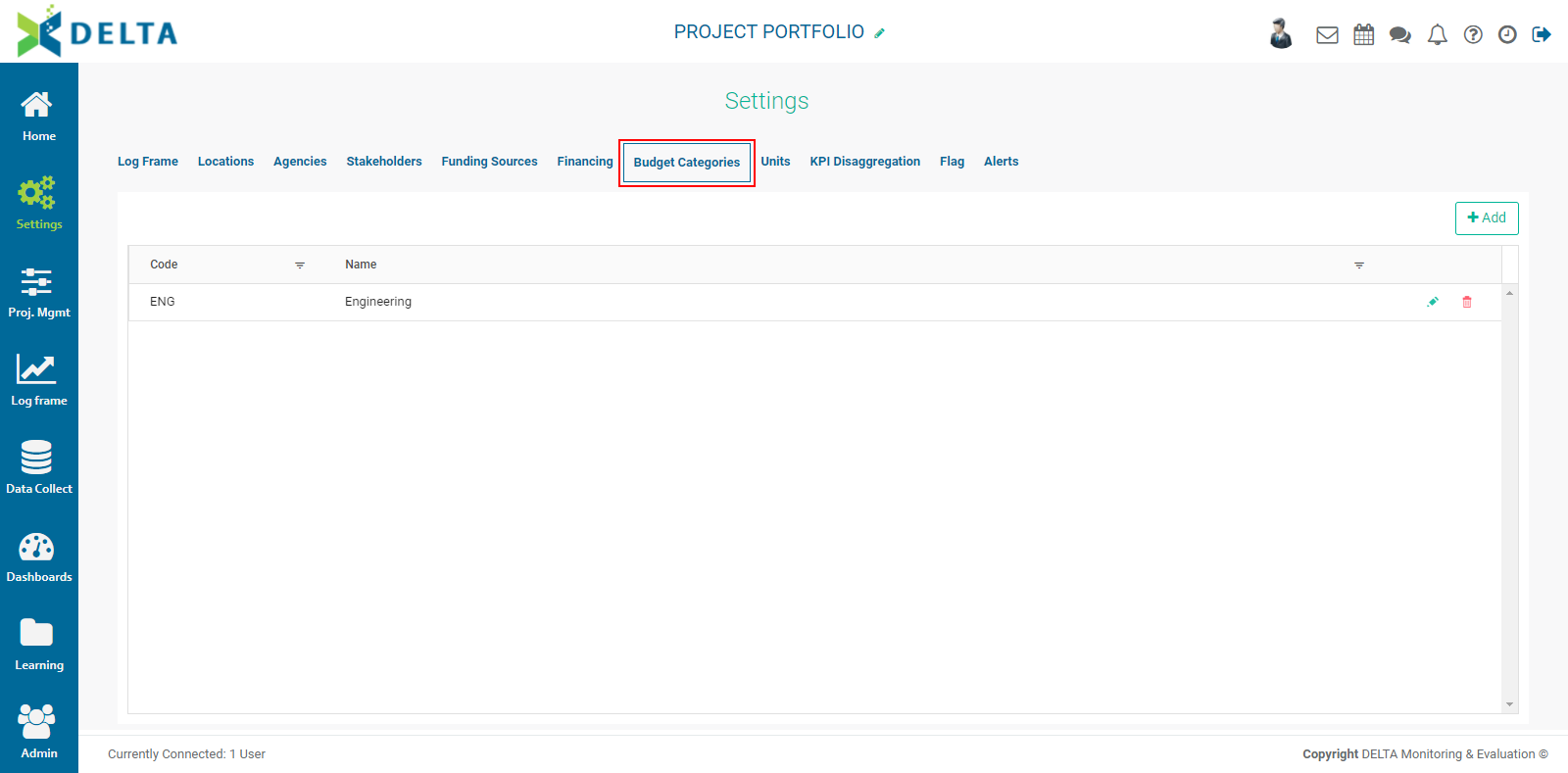
To add a budget category, click +Add at top left of the list grid and enter a code and a name for the category.
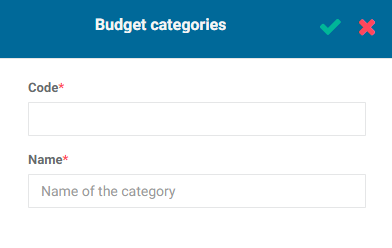
Click the checkmark in the popup window title bar when you're done to save your work and return to the Budget Categories screen. The new budget category will appear in the list. NOTE: you cannot edit the code once you've saved the budget category.
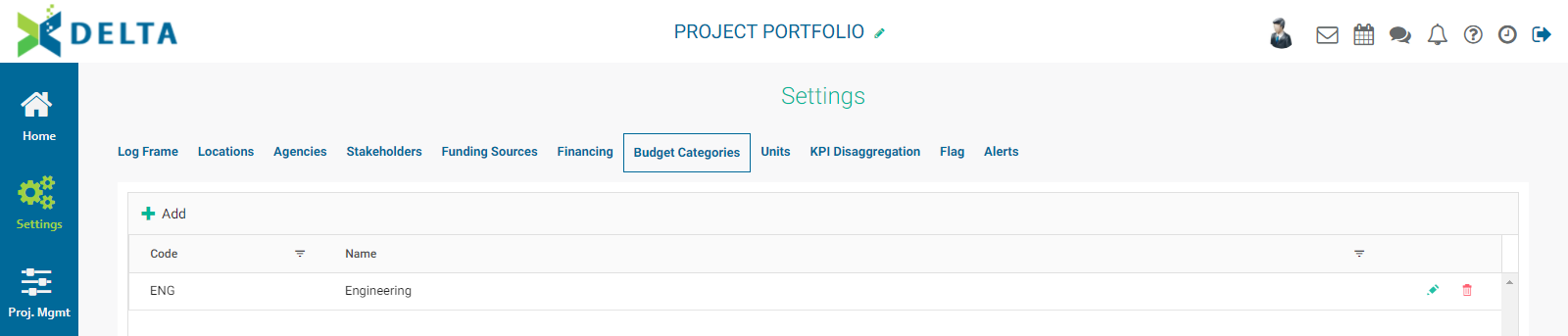
To edit a budget category, click its Edit icon. To delete a budget category, click its Delete icon and confirm the deletion.
To quickly find a category in long lists, use the Filter to narrow down the displayed list.
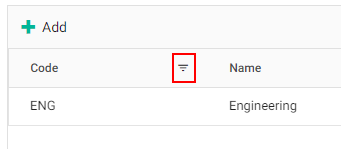
Enter a selection criterion for the filter, and enter the value you're looking for.
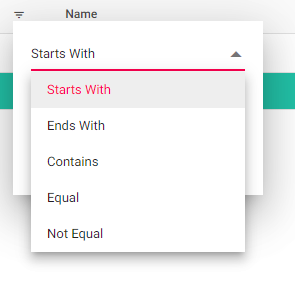
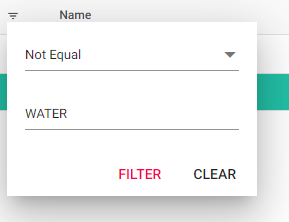
Click Filter to enable your selected parameters. The list will be filtered according to your settings. NOTE: the Filter icon will change from black to red when a filter is applied.
To go back to the full list, click the Filter icon again and select Clear.
Previous: Portfolio Settings: Financing | Next: Portfolio Settings: Units
Author: Administrator
Last update: 2023-07-02 18:11
Portfolio Settings: Units
The Units screen allows you to set units of measure for your project. If you use cross-cutting indicators and/or cross-cutting activities at the Portfolio level, you will need to create at least one unit of measure in the Portfolio's Settings module before you can proceed. Units are mandatory entries for activities and indicators.
From the Portfolio screen, click Settings in the left navigation to enter the module, then select Units from the horizontal navigation.
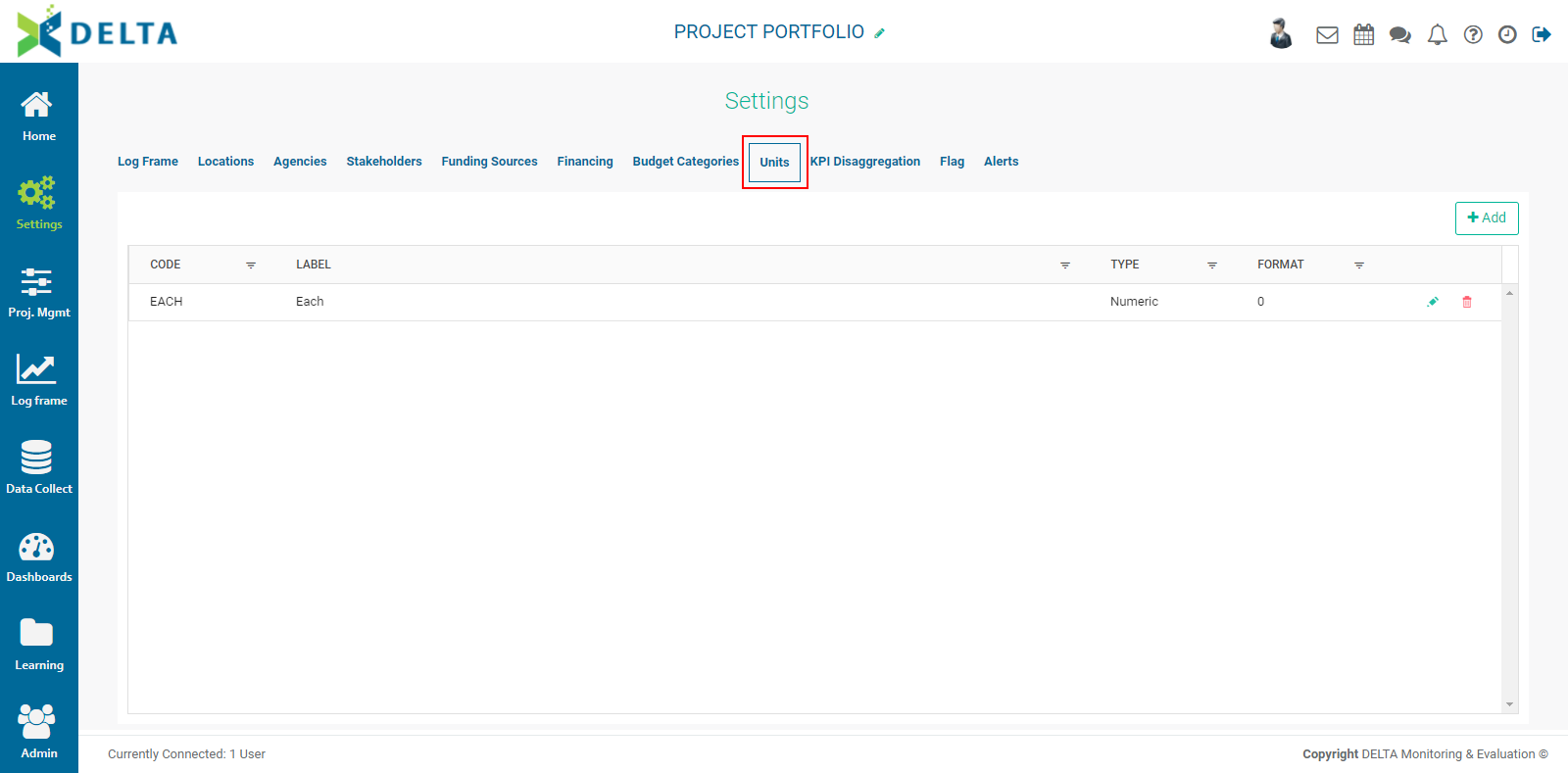
To add a unit of measure, click the +Add button to bring up the Units of Measure popup window.
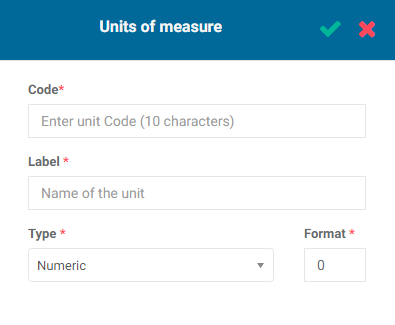
Enter a unique code for the unit of measure. Enter a label, a type, and a format. The available types are Percentage, Numeric, and Text. Text units are used in qualitative indicators; the other two types are used in quantitative indicators. The Format pick list lets you select the number of digits after the decimal point the unit will display. For whole numbers, set the Format to zero.
Click the checkmark in the popup window title bar when you’re done to save your work and return to the Units screen. The new unit of measure will appear in the list. A small description containing the format of the unit is displayed under its code and name.
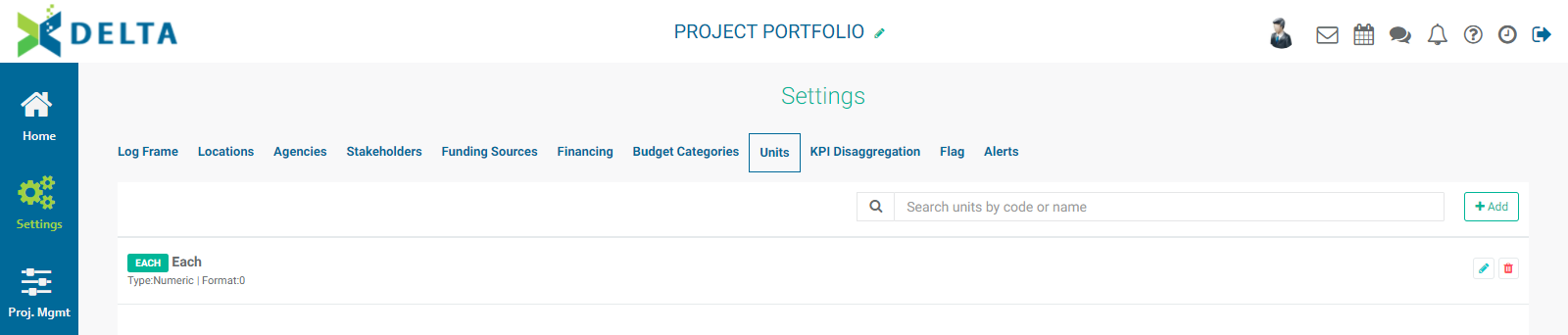
To edit a unit of measure, click its Edit icon, make the necessary changes, and click OK to save your work. To delete a unit of measure, click its Delete icon and confirm that you want to delete the item.
NOTE: you cannot edit the code of a unit of measure once it is created.
Previous: Portfolio Settings: Budget Categories | Next: Portfolio Settings: KPI Disaggregation
Author: Administrator
Last update: 2023-07-02 18:11
Portfolio Settings: KPI Disaggregation
Delta's KPI Disaggregation Categories allow a finer breakdown of indicator data. Common examples include age and gender. If you're not using portfolio-level or cross-cutting indicators, you may not need to use this screen.
From the Portfolio page, click Settings in the left navigation to enter the module, then select KPI Disaggregation from the horizontal navigation.
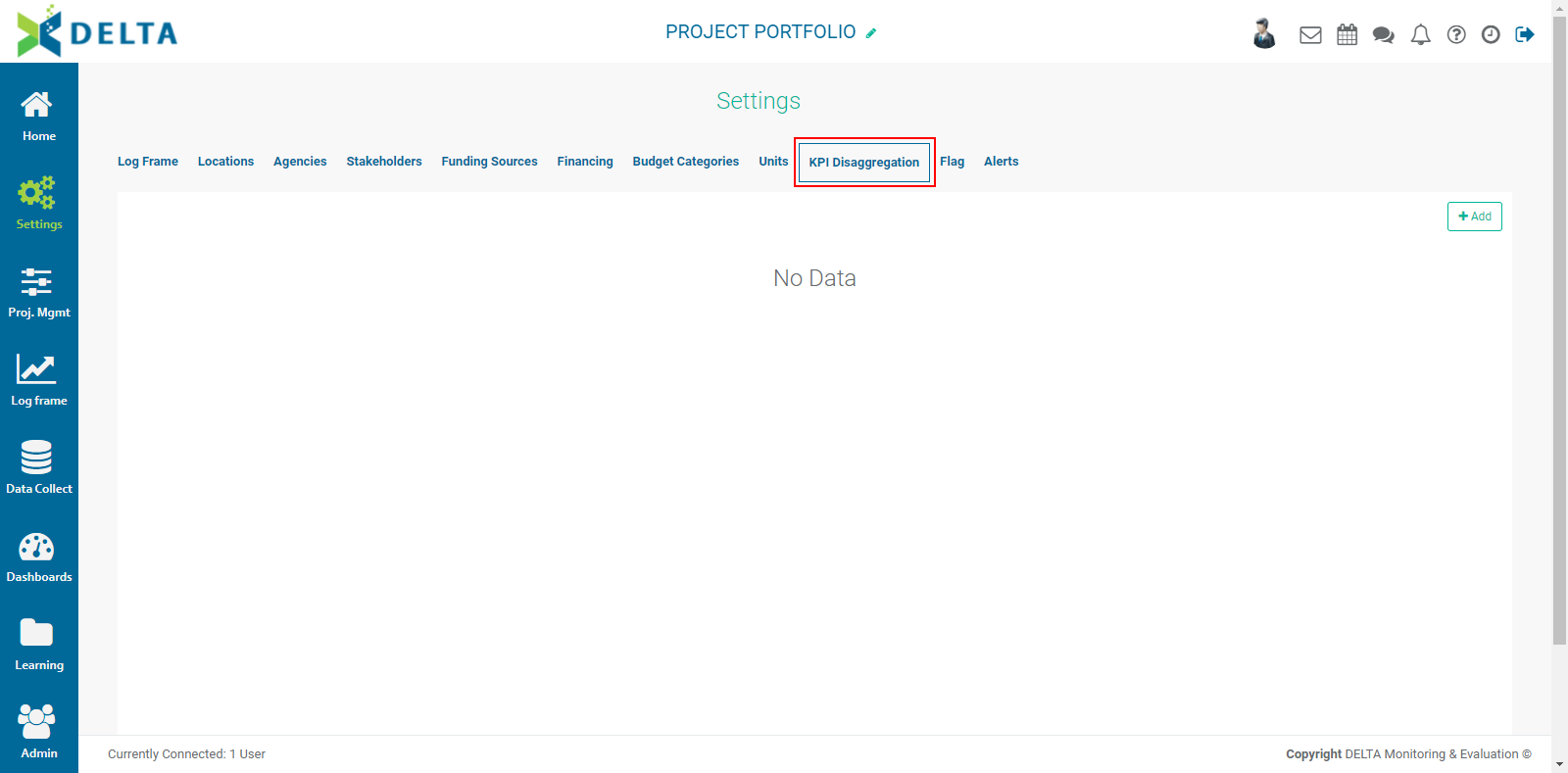
To add a disaggregation category, click the +Add button, then enter a code and a label. Choose the aggregation calculation you wish to use (sum, average, maximum, minimum), then click Option to create the category name. These are strictly labels, and as such do not perform any calculations, but mathematical symbols are often a good shorthand, particularly in the case of a KPI category with many numerical ranges, such as the age range shown below:
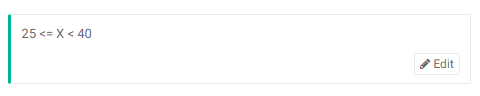
You can use as many options as needed. However, keep in mind that using a large number of options for a KPI disaggregation category will make planning and actuals more time-consuming to enter, especially if you use more than one KPI disaggregation category in an indicator.
Click OK when you're done to save your work and return to the KPI Disaggregation Categories list page. The new category will appear on the screen.
To edit a disaggregation category, click its name in the list or its Edit icon. To delete it, click its Delete icon and confirm the deletion.
Previous: Portfolio Settings: Units | Next: Portfolio Settings: Flags
Author: Administrator
Last update: 2023-07-02 18:12
Portfolio Settings: Flag
Flags are used to associate a color to an activity or an indicator to highlight its current status. By convention, green/yellow/red are often used to correspond to Satisfactory/Warning/Unsatisfactory, but one can assign any number of flags, ranges, and colors.
From the Portfolio page, click Settings in the left navigation to enter the module, then select Flag from the horizontal navigation.
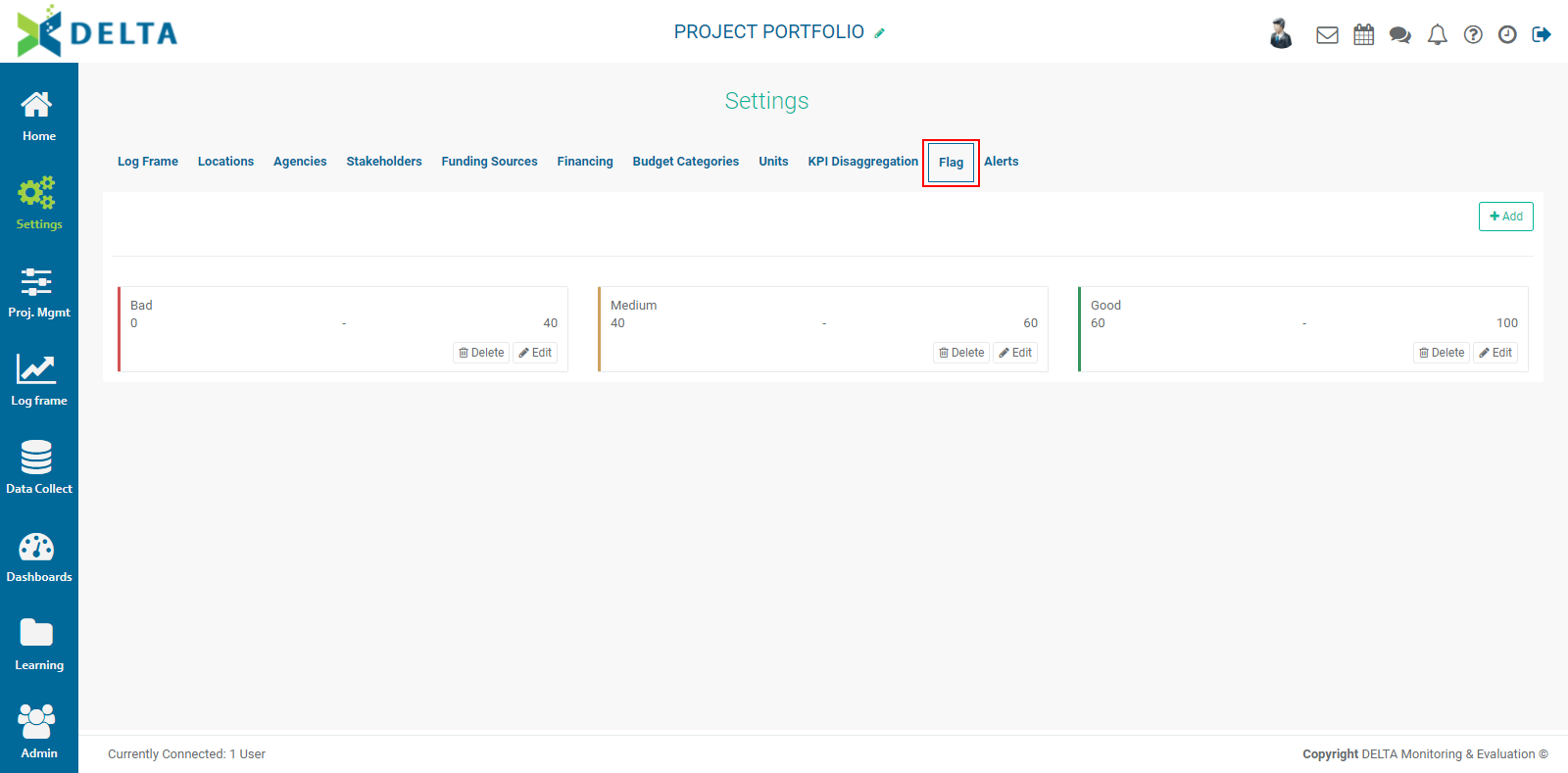
The system displays the default colors and value range for each color. You may accept these values without making any changes. The default colors will be used in dashboards throughout the portfolio level.
To add a flag, click the +Add button at top right to open an inline form.
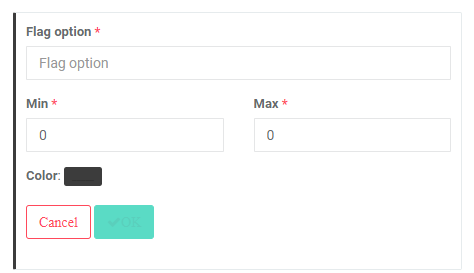
Enter the Flag Option (label) for the flag. This should be a short descriptor for the value range (bad, good, excellent, etc.)
Set the minimum and maximum values for the flag, and click the color picker button to select your desired color for this range of values. Click OK when you're done to return to the Flags page. The new range will appear on the screen. Add as many ranges as are needed.
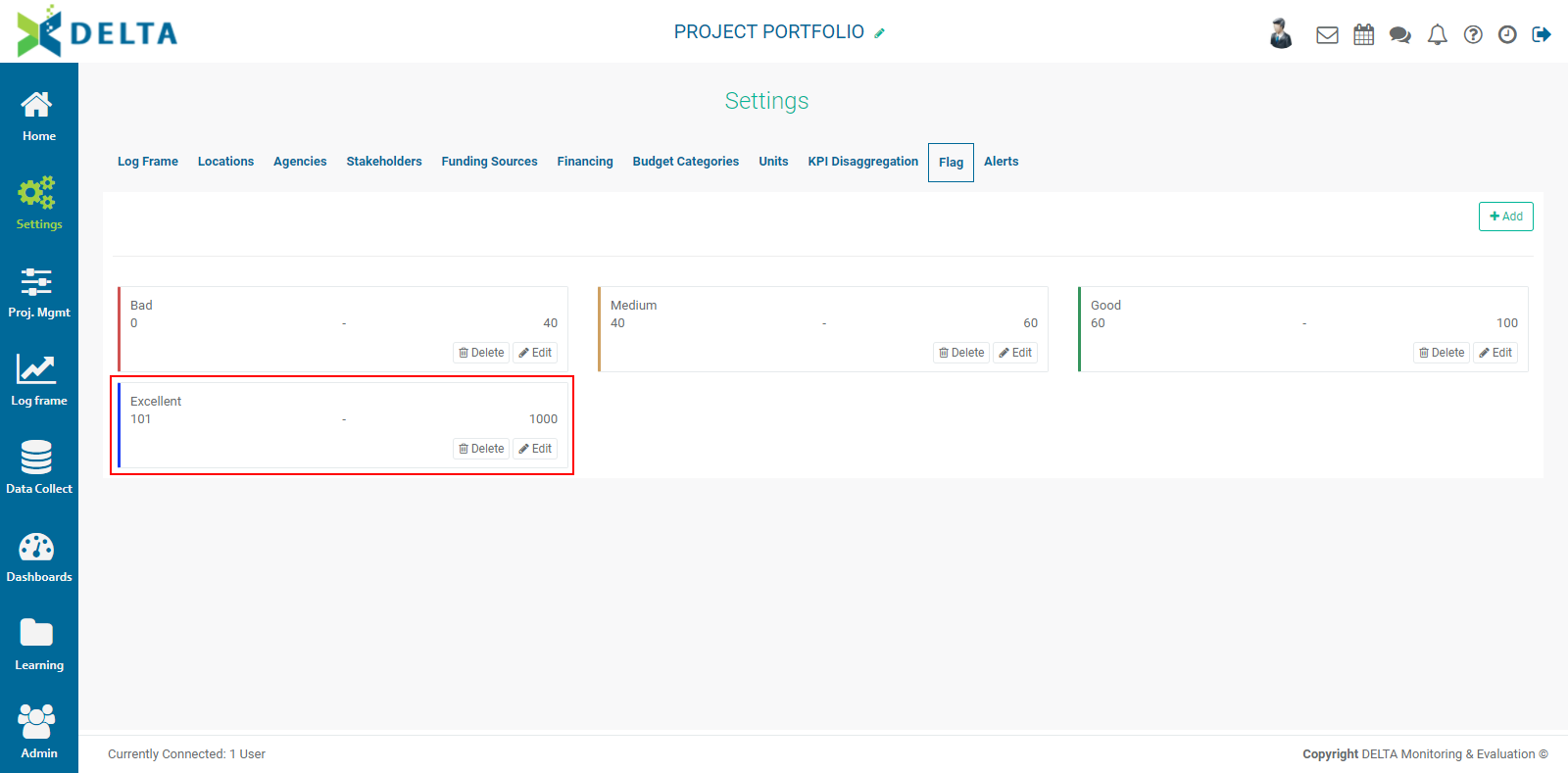
NOTE: when creating flags, make sure the ranges don't overlap. Fractions/decimals may be used, for example a range of 0-20 followed by a range of 20.01-40.
It's also a good idea to have the maximum value of the last range exceed the actual expected maximum. For example, setting the maximum to 1000 will allow the system to display overperforming values in their proper color for that range.
Previous: Portfolio Settings: KPI Disaggregation | Next: Portfolio Settings: Alerts
Author: Administrator
Last update: 2023-07-02 18:13
Portfolio Settings: Alerts
Alerts are associated with the entry of indicator/activity data. Alerts are set in days; for example, setting a two-day alert will trigger an alert two days before the entry of indicator/activity data is due. Actors who are assigned data entry tasks will receive the alert. NOTE: this setting pertains specifically to Portfolio-level items.
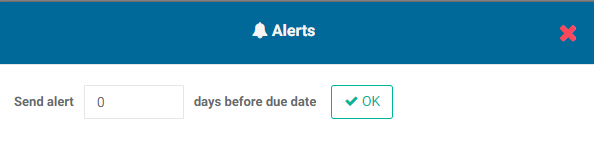
Enter the number of days before a due date, and click OK to save.
This setting acts as a backstop for system items that are due. Delta supports other alerts throughout the system, especially within workflows, but this setting is the default for assigned items if no other alert has been set or is available for that item.
Previous: Portfolio Settings: Flags | Next: Project Settings: Log Frame: Creating Templates
Author: Administrator
Last update: 2023-07-02 18:13
Portfolio Settings: Locations
Locations (formerly called Geography List) are the hierarchical list of geographical localities of all the locations where portfolio projects take place. While previous versions of Delta required importing a locations list for every project, the current version of Delta centralizes Locations at the Portfolio level. Locations are the second tab in the Portfolio Settings module.
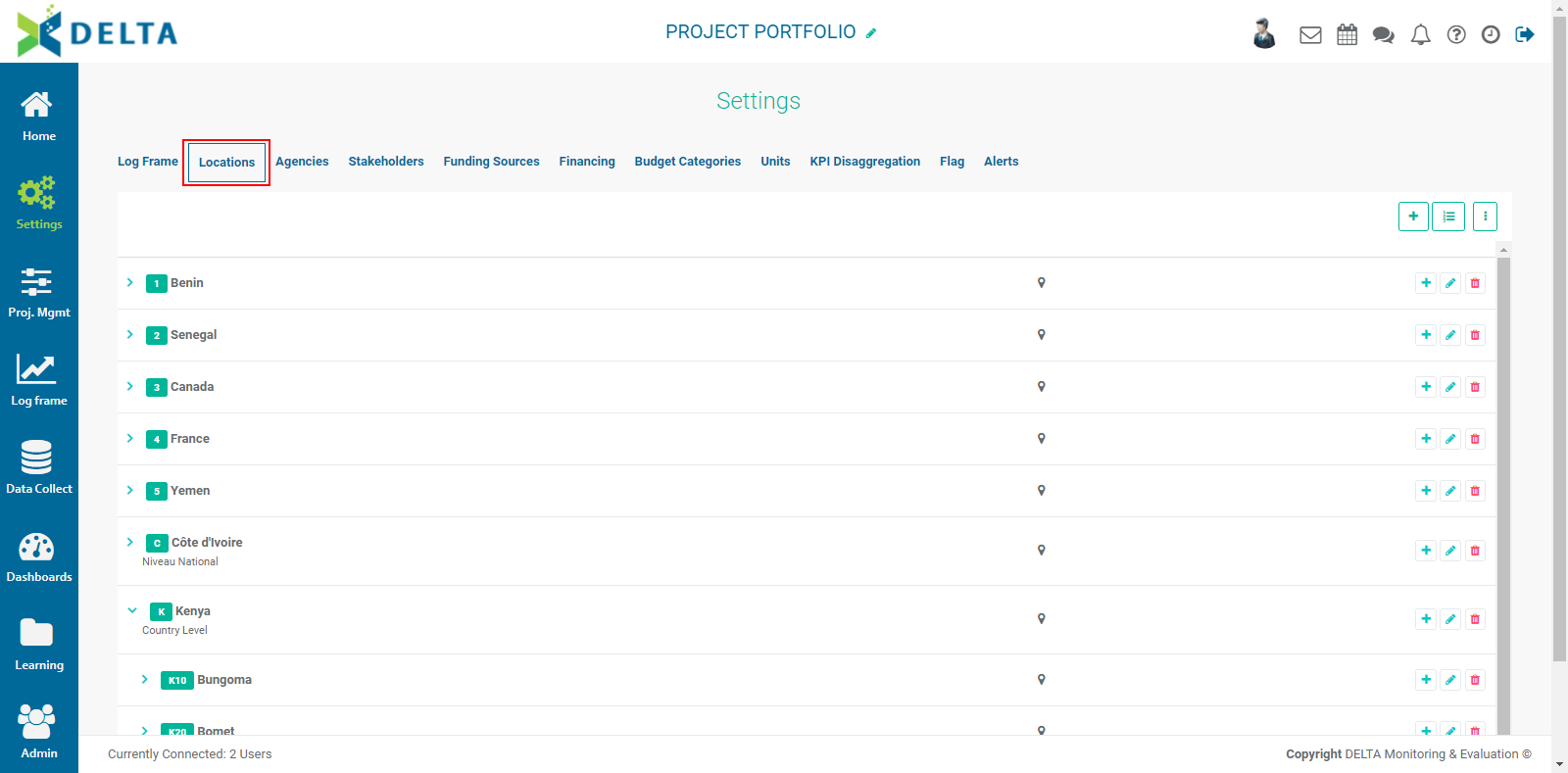
The toolbar for this screen includes the following icons (at top right):
From left to right: Add, Geography Division, and More.
A Locations list is created in two parts: the Geography Divisions, and the Locations List proper. The divisions determine the structure of the list, including the levels, and the list itself contains the actual locations’ names. A list can be created manually or imported. Whether you manually input or import a list, it’s a best practice to plan the geography divisions ahead of time. Locations are coded according to their hierarchy and level of nesting within that hierarchy, which can take time and be confusing if it’s not planned ahead of time before creating the list. A crucial part of the exercise is determining the length of each level code.
For example, a list which contains four levels might be ordered as follows, from the top down: Country, Province, District, and Village. These are your Geography Divisions. Let's say this list will have one country, which can be coded as C1 or C01. This determines the length of the code for the Country level, in this case 2. Depending on how many provinces are contained in each region, we might assign two or three characters for the country, such as P1 or P01. The nomenclature is entirely up to you. The number of items at each level of the list will help you figure out how many characters you'll need for each level. You can mix numbers and letters, and use special characters such as hyphens and underscores.
The result in your spreadsheet might look something like this:
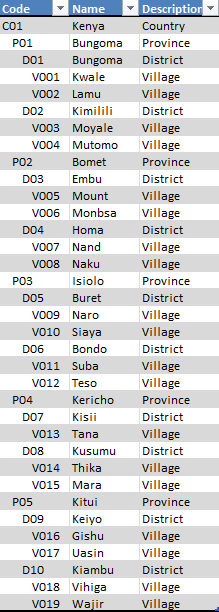
where C is Country, P is Province, D is District, and V is Village. This example also uses indents (not spaces or tabs) in the worksheet in order to better visualize the hierarchy between the different levels.
Once you’ve worked out how you want to code the Locations, you’ll also have on hand the length of each level’s code. In the example above, C=3, P=3, D=3, and V=4. This will constrain what you can input for each location’s code. This allows you to enter the correct information for geography divisions.
Delta supports three different ways to input a Locations list: manual, spreadsheet import, and GIS server import. The latter should only be used when entire countries need to be imported. There is no functional limit to the number of locations that can be input or imported into Locations.
Regardless of whether you will be inputting the Locations by hand or via Excel import, you’ll need to determine the nomenclature you want to use for your list, as explained above.
NOTE: the following instructions assume that no locations information has been entered into the system, and that the Locations list and its hierarchy and codes have been worked out in advance.
To enter geography divisions manually, from the Portfolio screen, click the Settings icon in the left navigation, then select Locations from the horizontal navigation. You'll be taken to the Locations screen.

The toolbar at immediate upper right contains two icons: Geography Divisions, and More. The contextual More menu contains the import and export functions. Click the Geography Divisions icon to open its input window.
Click the + in the window title bar to add the first (top level) geography division. Enter its label, and the number of characters you want to use for it.
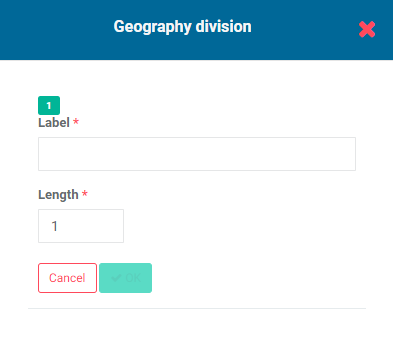
Click OK when you’re done, then click on the + in the window title bar to add the next level down. You’ll notice that the default Length field is 1+ the number of characters you used for the top level division. Select the number of characters you want to use, based on the nomenclature you worked out beforehand, and enter the name of the level.
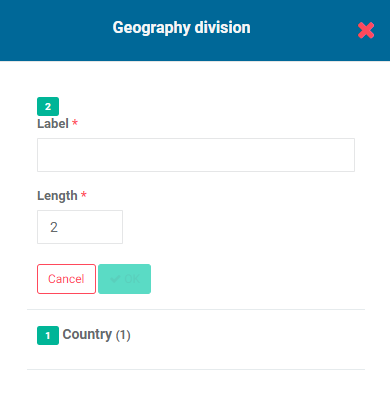
When you’re done entering the levels, click the X in the window title bar to return to the Locations list screen.
A visual cue that the system contains geography divisions is the appearance of a + button to the left of the Geography Divisions button.
To add locations manually, from the Locations screen, click the + button to the left of the Geography Divisions button to bring up the Locations popup window.
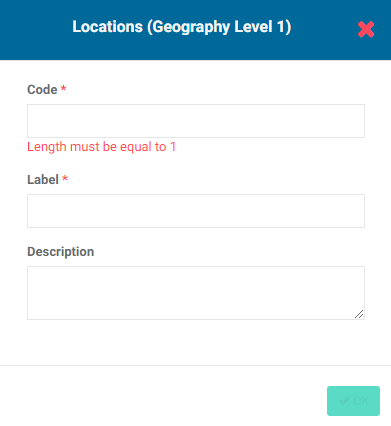
Enter the code for the location. This is the highest level in the list. You will be restricted to the number of characters you selected when you created the divisions.
Enter a label for the location (mandatory) and a description for the location (optional, but recommended). Click OK to save your work and return to the Locations screen, and verify that your location appears in the list.
Adding locations at the other levels follows the same pattern as the steps above, except that to add those, you’ll click on the + button of the line of the location’s immediate predecessor in the hierarchy. To enter provinces, you’ll click on the + button of the top-level location, in our example the country. To enter districts, you’ll click on the + button of the province where the district is located. Similarly, to enter a village, you’ll click on the + button of the district where the city is located.
It’s a matter of preference as to whether you enter all the locations at a given level, then all the locations at the next lower level, or whether you enter all the locations of a given branch of the Locations list, then move on to the next branch.
You can also import your Locations list instead of entering it manually. Whenever you import data into Delta, make sure that only one sheet in the workbook contains data. Delta assumes there is only one sheet in an import file, and will not allow you to select a sheet from a multisheet workbook. You’ll also need to remove any extra information from the sheet, such as instructions, extra lines, etc. When you import a Locations list, you don’t need to create the geography divisions first. The Description field is used to place each location in the correct spot in the hierarchy.
To import a Locations list, from the Locations screen, click the More icon and select Import From Excel File. Navigate to the Excel file you want to use, click on the file to select it, and click Open or press Return on your keyboard. Delta will display a progress icon showing that the data is being imported. If the import is successful, the Locations list will appear on the screen. If the import was not successful, Delta will show a message to the effect that there was an error in the data structure. Errors are principally caused by two situations: the data sheet contains extraneous information, or the structure of your hierarchy is inconsistent. You’ll need to correct your data sheet before you can import it.
Whether you add your Locations list manually or import it, you’ll be able to tell at a glance whether the structure is what you intended by using the carets next to the location to expand and collapse each level.
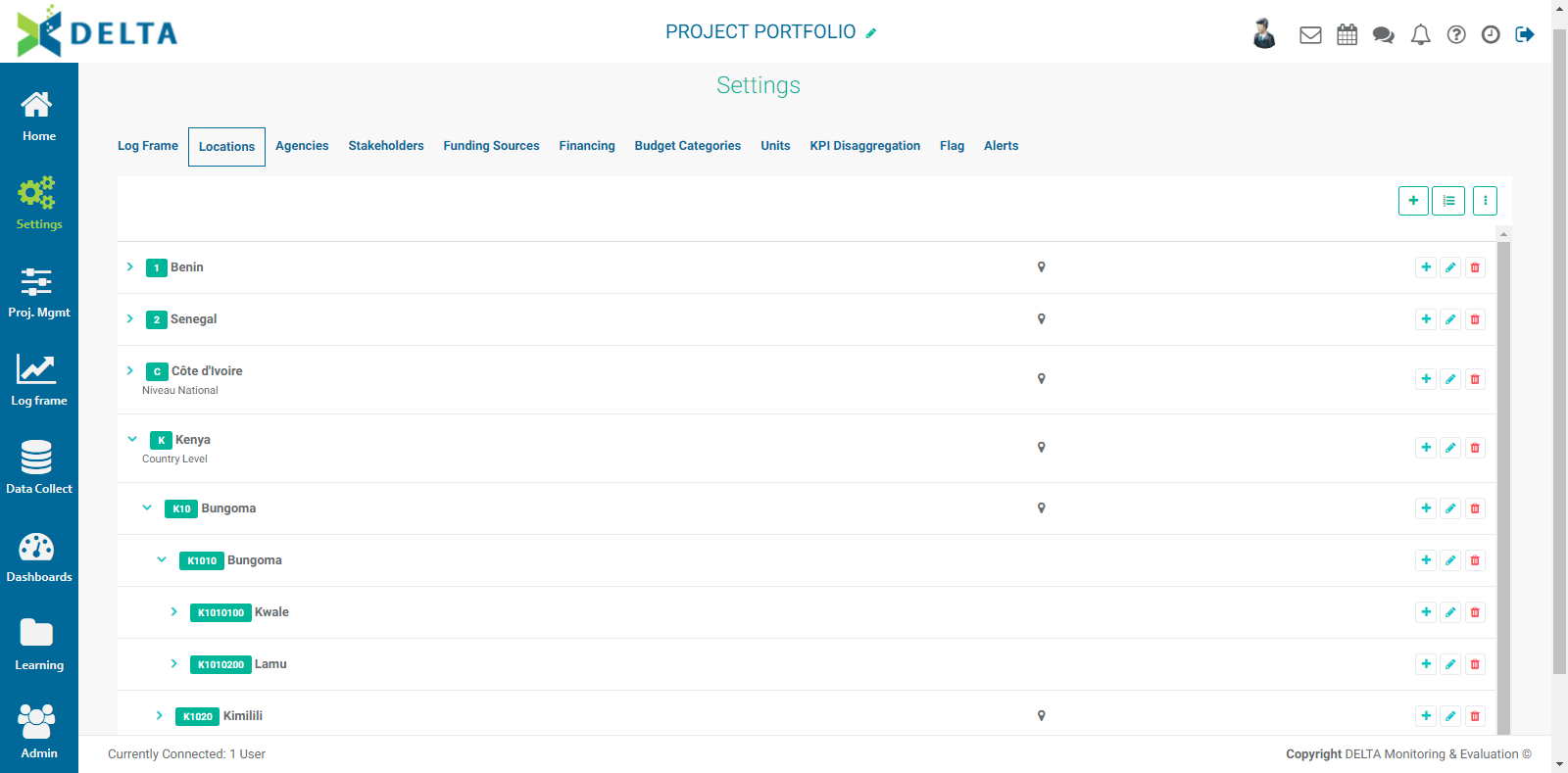
If the import worked but you still see errors in the structure, you can correct the errors in your data sheet and overwrite the faulty Locations list by importing the corrected one. All the data will be replaced. IMPORTANT: overwrites CANNOT be undone. Proceed cautiously.
The last thing you’ll need to do after importing your Locations list is click on the Geography Divisions button and rename the generic Level 1, Level 2, etc. labels in it.
You can also edit the individual labels of geography divisions and locations, but not their codes. Click the Geography Divisions button or the Location's Edit button, make your changes, and save your work.
As mentioned previously, Delta also allows the import of Locations list from a GIS server; however, this function imports entire countries at a time. If your project only concerns a relatively small number of locations, working out the geography divisions and codes and importing your locations from an Excel spreadsheet is most likely the most straightforward way to handle your Locations list. You also need to keep in mind that GIS information usually reflects political boundaries, which may or may not be useful to your particular project.
Once your Locations list is complete, the More menu at top left will change to reflect the presence of locations data in the system.
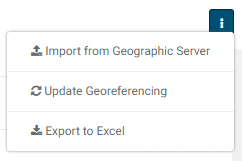
As mentioned above, Import from Geographic Server allows importing GIS information from an entire country at one time. Select it from the More menu to open the import window.
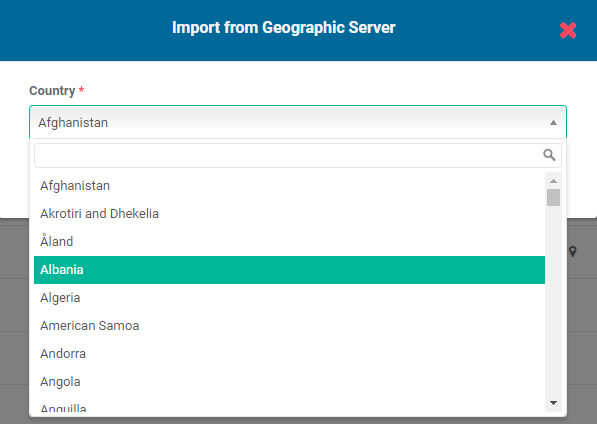
Select the country you want to import, and click OK. The country's GIS information will appear in the Locations list once the import is completed.
Update Georeferencing allows associating locations with GIS-mapped objects. Locations which are properly associated will display a GPS pin in the Locations list.
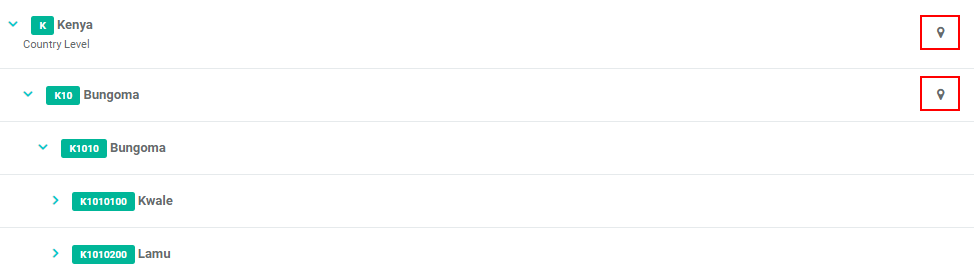
If some locations lack GPS pins, you can use Update Georeferencing to update them and have them represented correctly on map displays. NOTE: the names of localities must match those of officially recognized locations for the update to yield results. Note also that this operation can take time, depending on how many locations are in the list.
Previous: Portfolio Settings: Log Frame | Next: Portfolio Settings: Agencies
Author: Administrator
Last update: 2023-07-02 18:15
Settings Module » Project Settings
Project Settings: Stakeholders
Stakeholders are all the actors involved in the workflow of monitoring and evaluation.
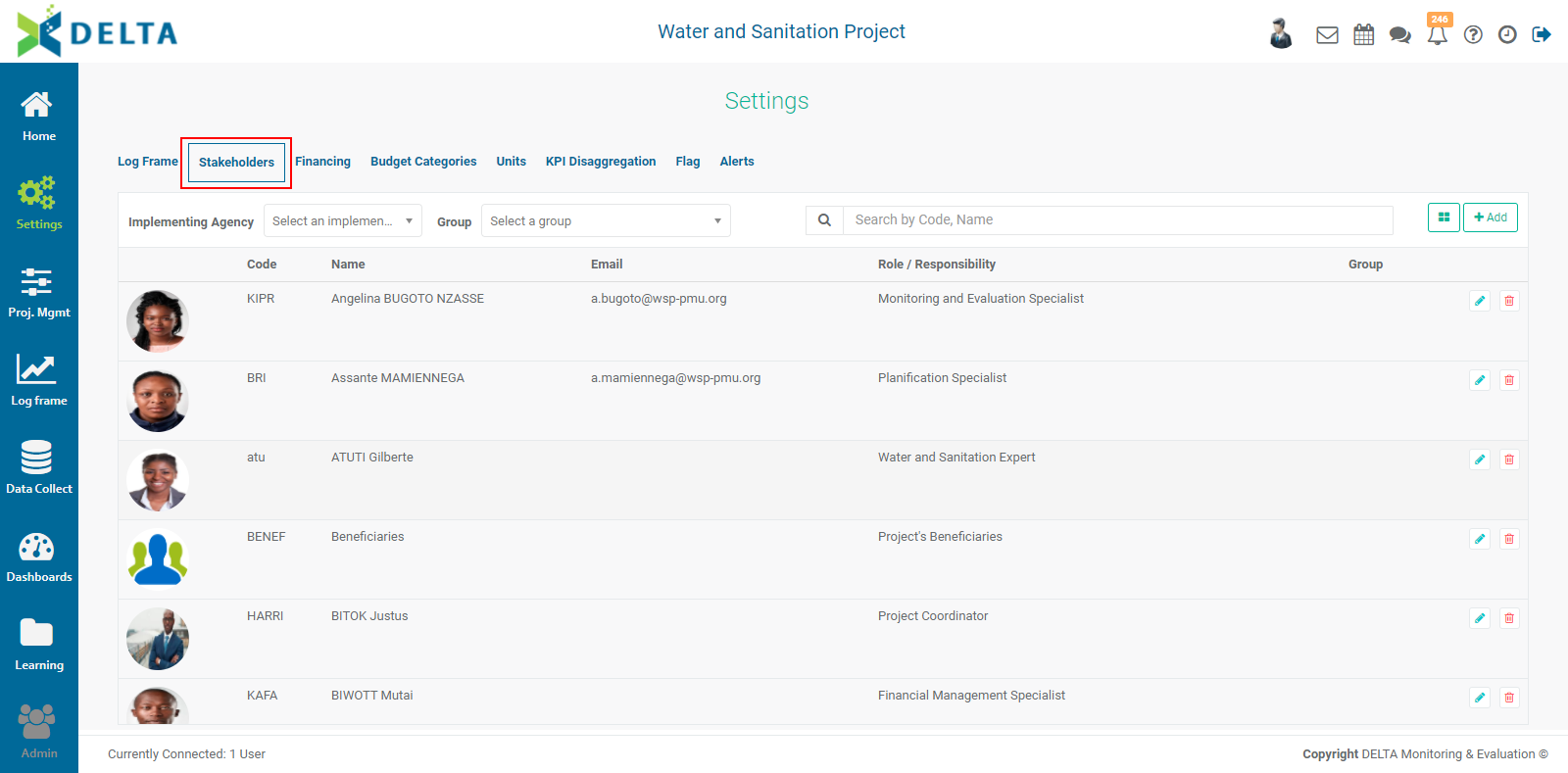
Use the Agency and Group pick lists to narrow down the list, or use the Search bar.
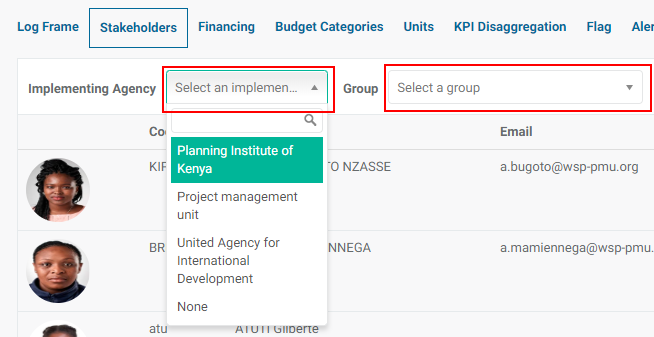
Click the Tile/List icon to toggle between the List and Tile views. The icon is to the left of the +Add button.
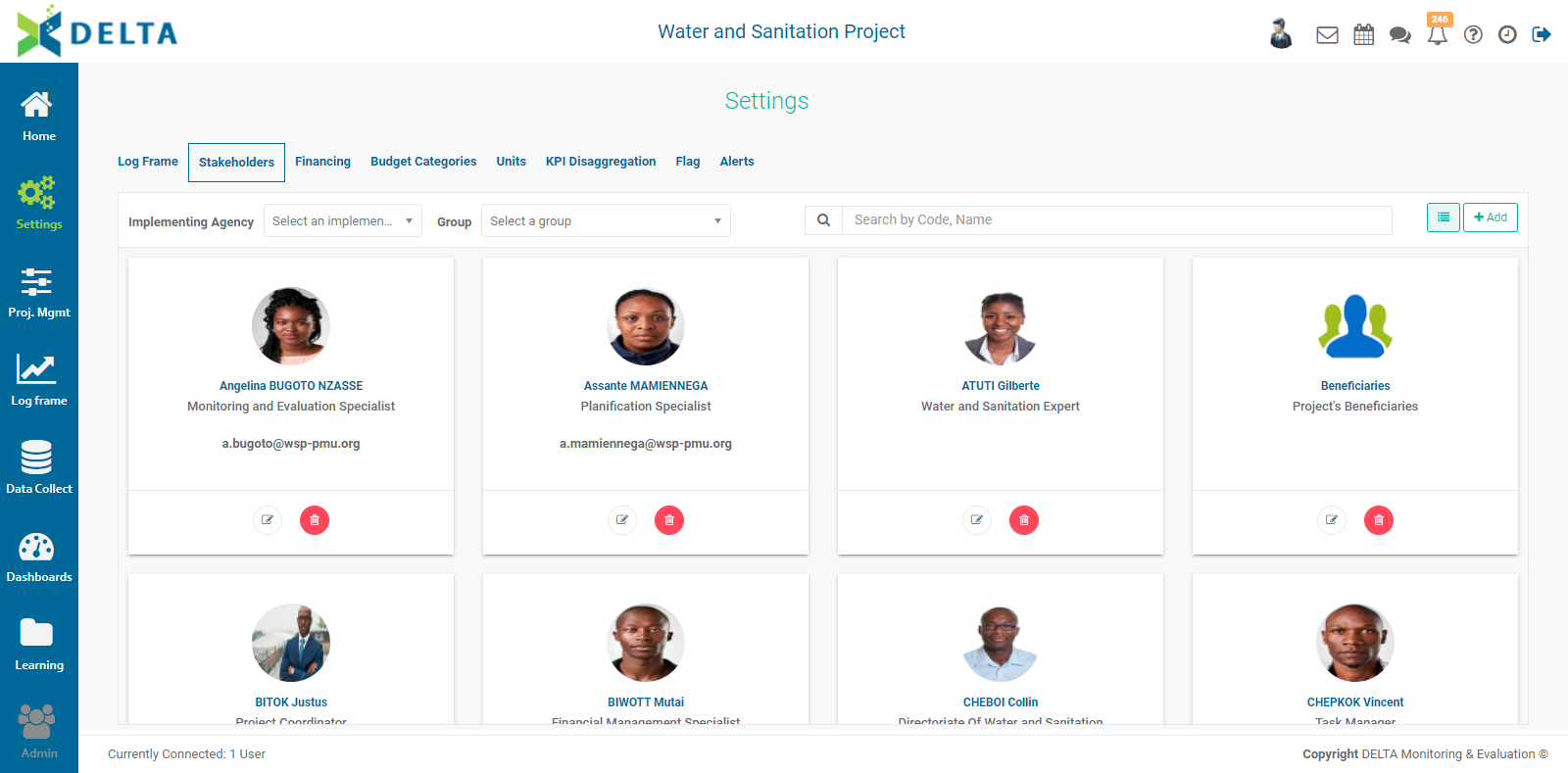
To create a new stakeholder, click +Add to bring up the Stakeholder information screen.
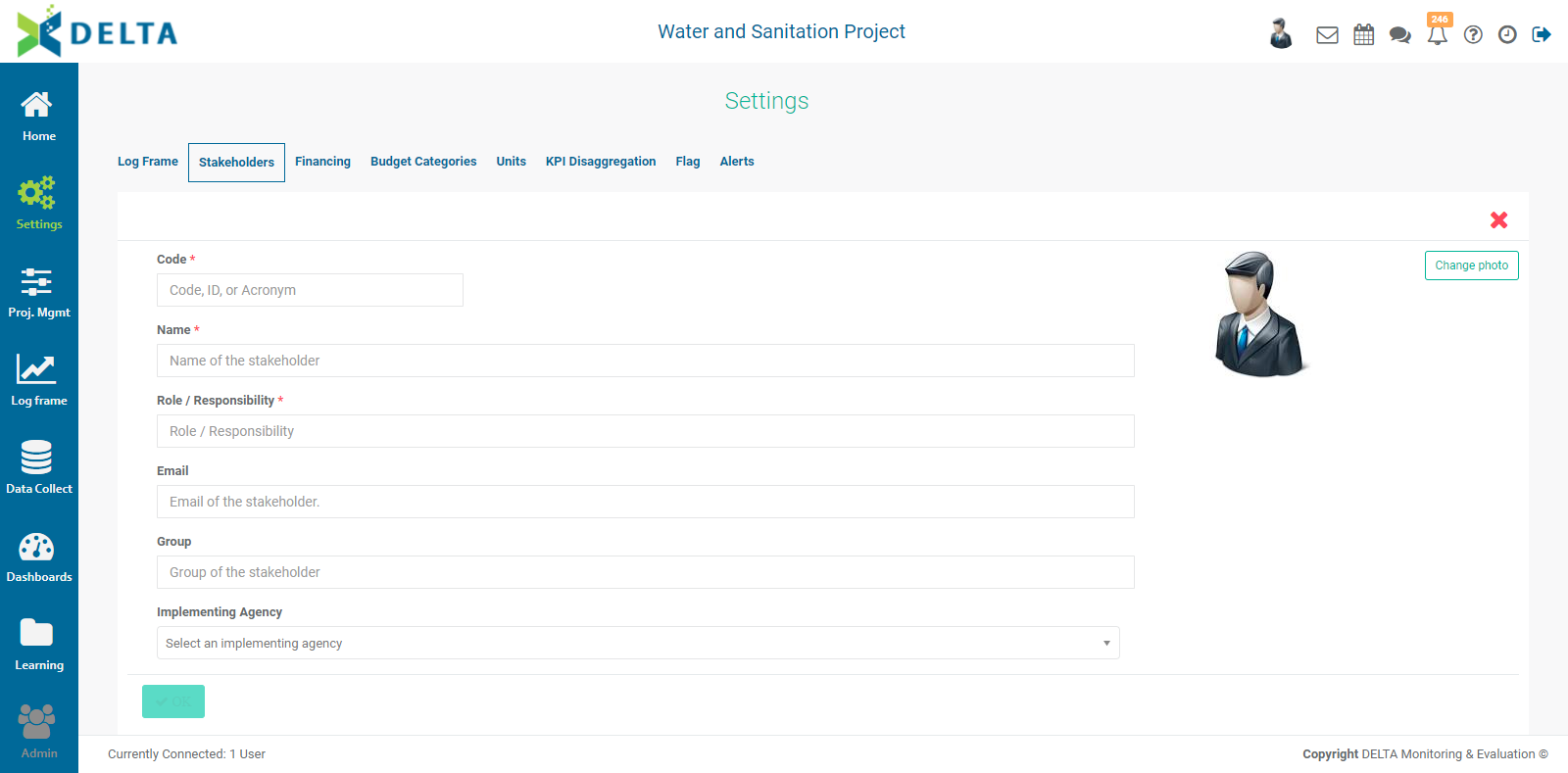
Fill out the screen with the appropriate information. Mandatory fields are indicated with an asterisk (*). As a best practice, we suggest you also fill out all the available information in the optional fields.
The Role/Responsibility field is free-form, but it also contains a pick list. If your desired role doesn't appear in the list, enter it manually, and it will become available in both the pick list and search filters.
If the group you're looking for is not in the Group pick list, enter it in the field, and it will become available in both the pick list and the search filters.
Implementing Agencies are created at the Portfolio level. If you don't see your desired agency, you'll first need to set it up in the Settings module of the Portfolio.
Click Change Photo to display the stakeholder's picture, if desired. Navigate to the photo file to select it, and click OK to associate it with the stakeholder record.
Click OK when you're done to save your work and return to the Stakeholders list.
To edit or delete a stakeholder, click on the Edit icon or the Delete icon on that stakeholder's tile or list item.
Each stakeholder has a dashboard which displays activities and reports for which that stakeholder is responsible. To view a stakeholder's dashboard, click on that stakeholder's entry in the list or tile view.
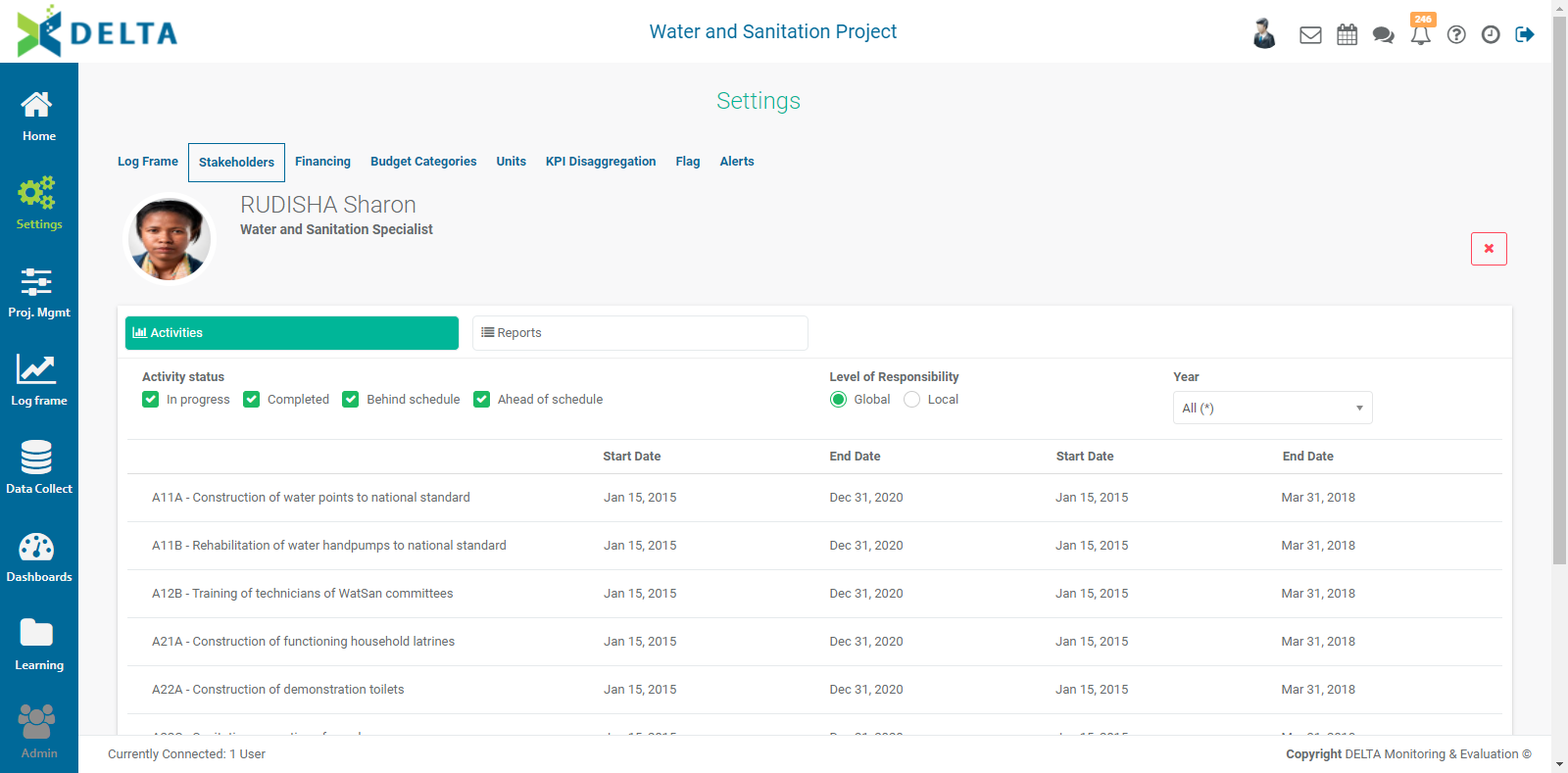
The default view is Activities. Click on the Reports tab to view which reports have been assigned to this stakeholder. Use the Activity Status, Level of Responsability, and Year filters to narrow down the list.
Click the X at top right to return to the previous screen.
NOTE: before creating a stakeholder in your project, check to make sure that stakeholder does not already exist. Stakeholders created at the project level will also be available at the portfolio level, and stakeholders created at the portfolio level are also available to be selected by all projects. A little attention to this detail will prevent duplication of stakeholders.
NOTE: when you create a stakeholder at the Portfolio level, you will have the additional option of displaying that stakeholder's information on Delta's Public Portal. What this does is publish selected information on the login page, which allows people who do not have access to the system to read information about the Portfolio and projects. The Portal is an optional functionality which you have to specify before your system is commissioned.
Previous: Project Settings: Log Frame: Editing a Log Frame | Next: Project Settings: Financing
Author: Administrator
Last update: 2023-07-02 18:16
Project Settings: Financing
The Financing screen displays all the sources of funding for a particular project.
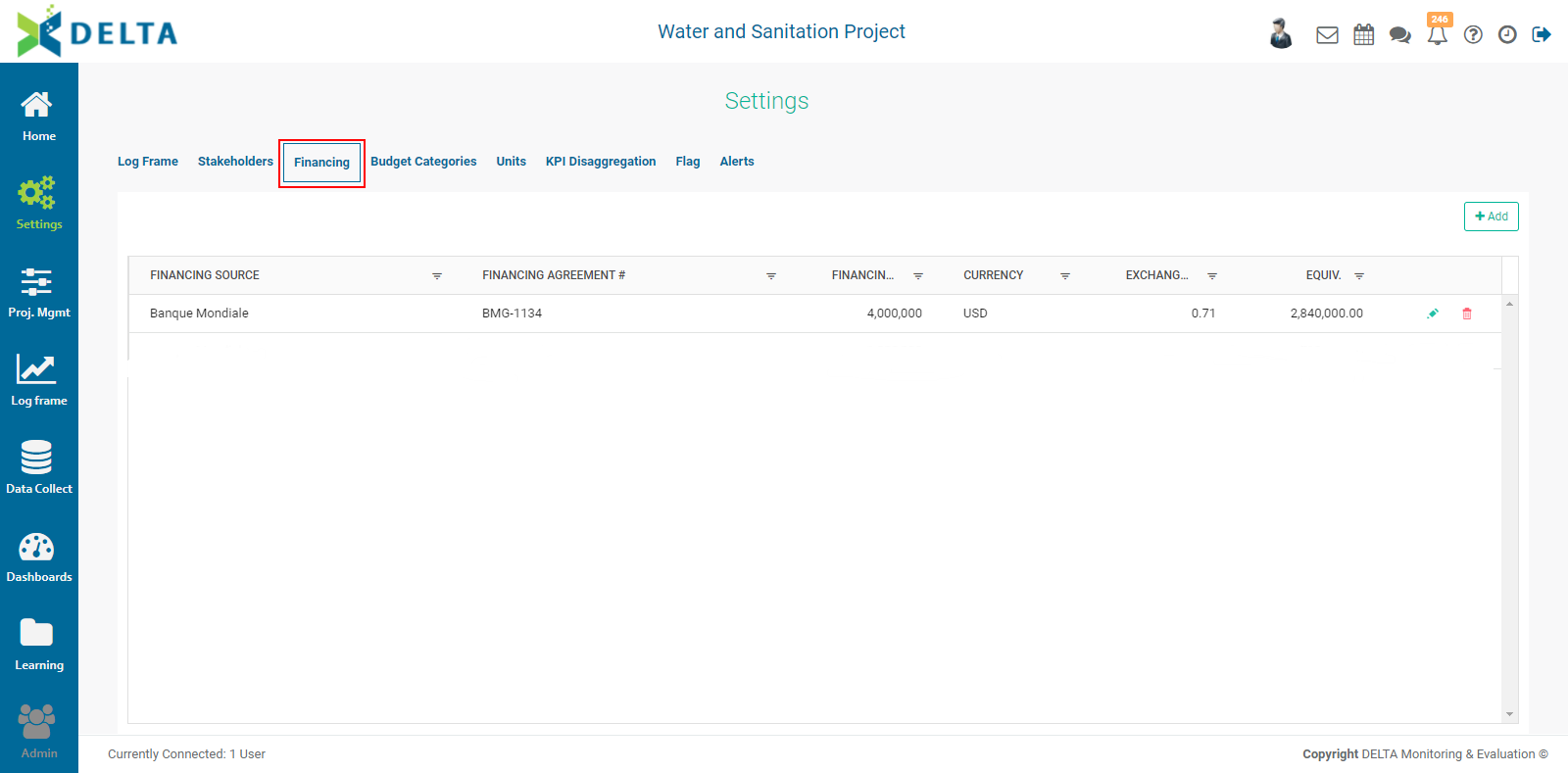
To add a financing source, click +Add at the top right and enter the information for that source. Mandatory items are marked with an asterisk.
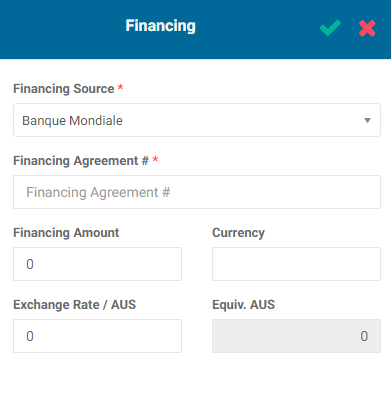
Click the checkmark in the popup window title bar when you're done. The new funding source will appear in the list.
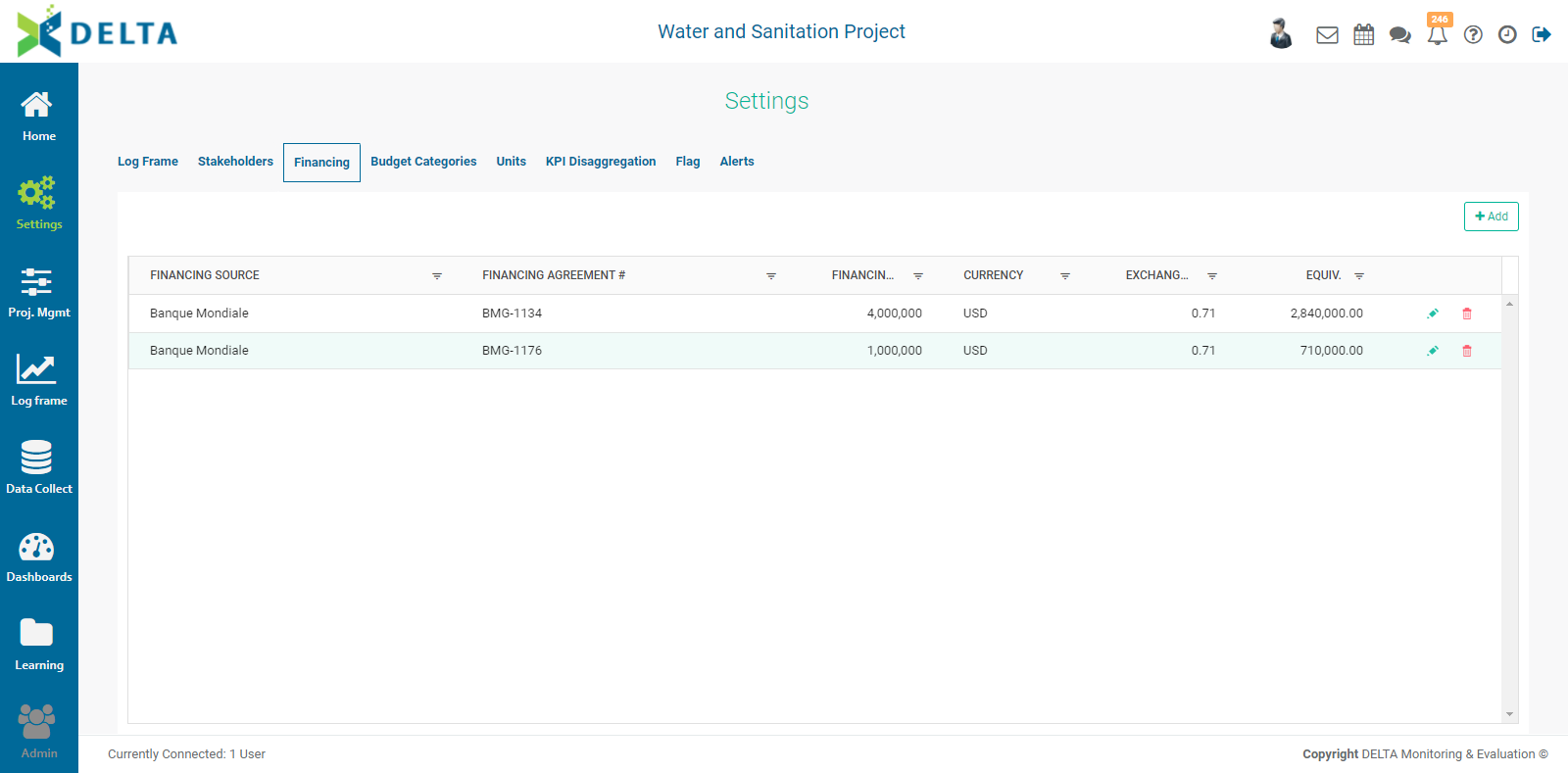
To edit a funding source, click its Edit icon. NOTE: you cannot edit the Financing Agreement field for the Financing Source once you've saved it.
To delete a funding source, click its Delete icon and confirm the deletion.
NOTE: The default base currency is set at the Portfolio level. The exchange rate entered in the Funding Sources popup window is a snapshot; live rates are not available. A suggested best practice is to revisit the rate quarterly, or at the same intervals as data collection, in order to ensure the financials are as accurate as possible.
Previous: Project Settings: Stakeholders | Next: Project Settings: Budget Categories
Author: Administrator
Last update: 2023-07-02 18:17
Project Settings: Budget Categories
Budget Categories allow you to further refine the financial information of a project by sorting its expenses by category. If you use costs and budgets for your activities, you'll be able to enter that information at the Activity level.
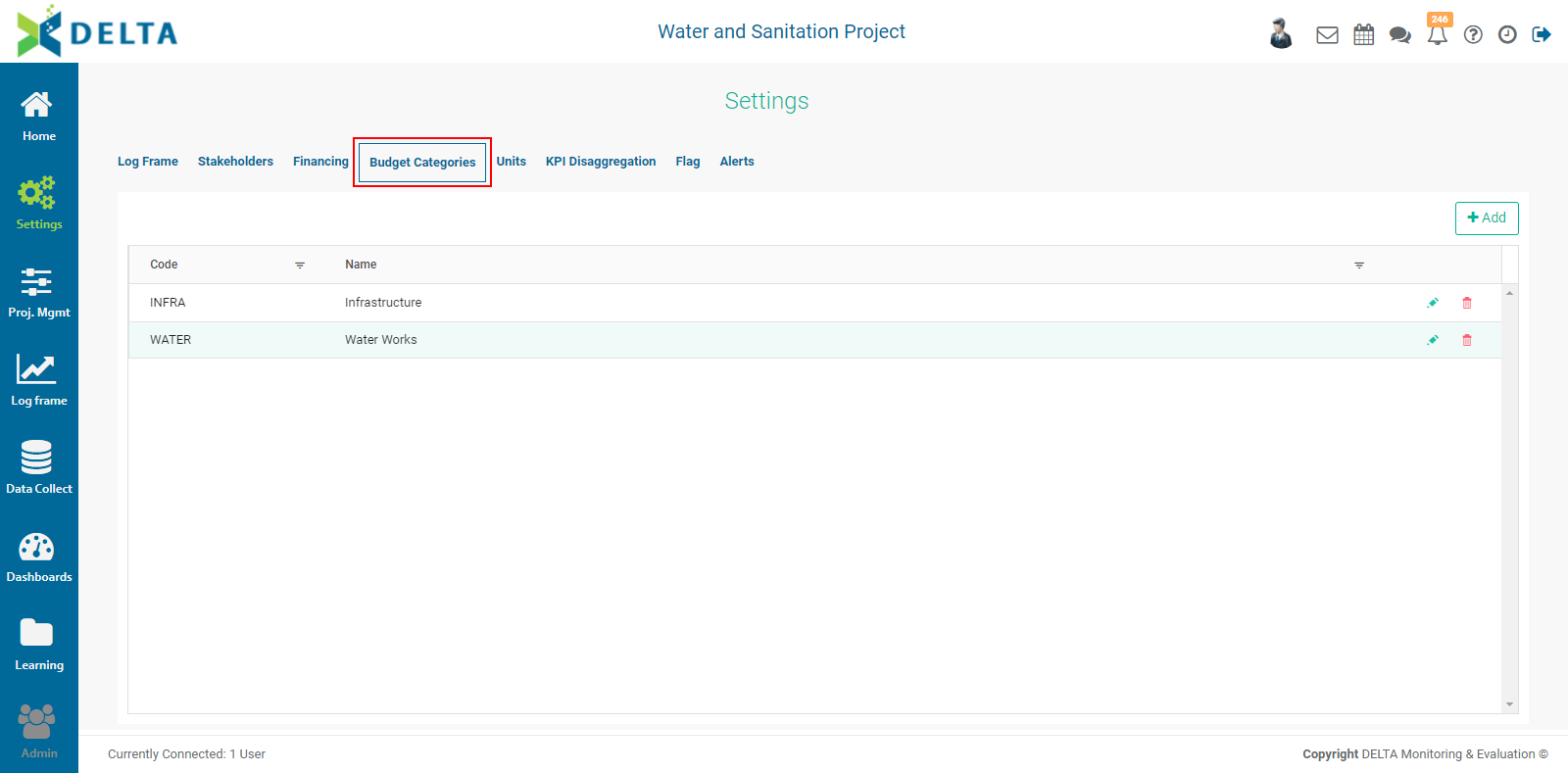
To add a budget category, click +Add at top left of the list grid and enter a code and a name for the category. Click the checkmark in the popup window title bar when you're done to save your work and return to the Budget Categories screen. The new budget category will appear in the list. NOTE: you cannot edit the code once you've saved the budget category.
To edit a budget category, click its Edit icon. To delete a budget category, click its Delete icon and confirm the deletion.
To quickly find a category in long lists, use the Filter to narrow down the displayed list.
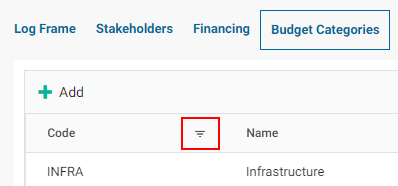
Enter a selection criterion for the filter, and enter the value you're looking for.
Click Filter to enable your selected parameters. The list will be filtered according to your settings. NOTE: the Filter icon will change from black to red when a filter is applied.
To go back to the full list, click the Filter icon again and select Clear.
Previous: Project Settings: Financing | Next: Project Settings: Units
Author: Administrator
Last update: 2023-07-02 18:17
Project Settings: Units
The Units screen allows you to set units of measure for your project.
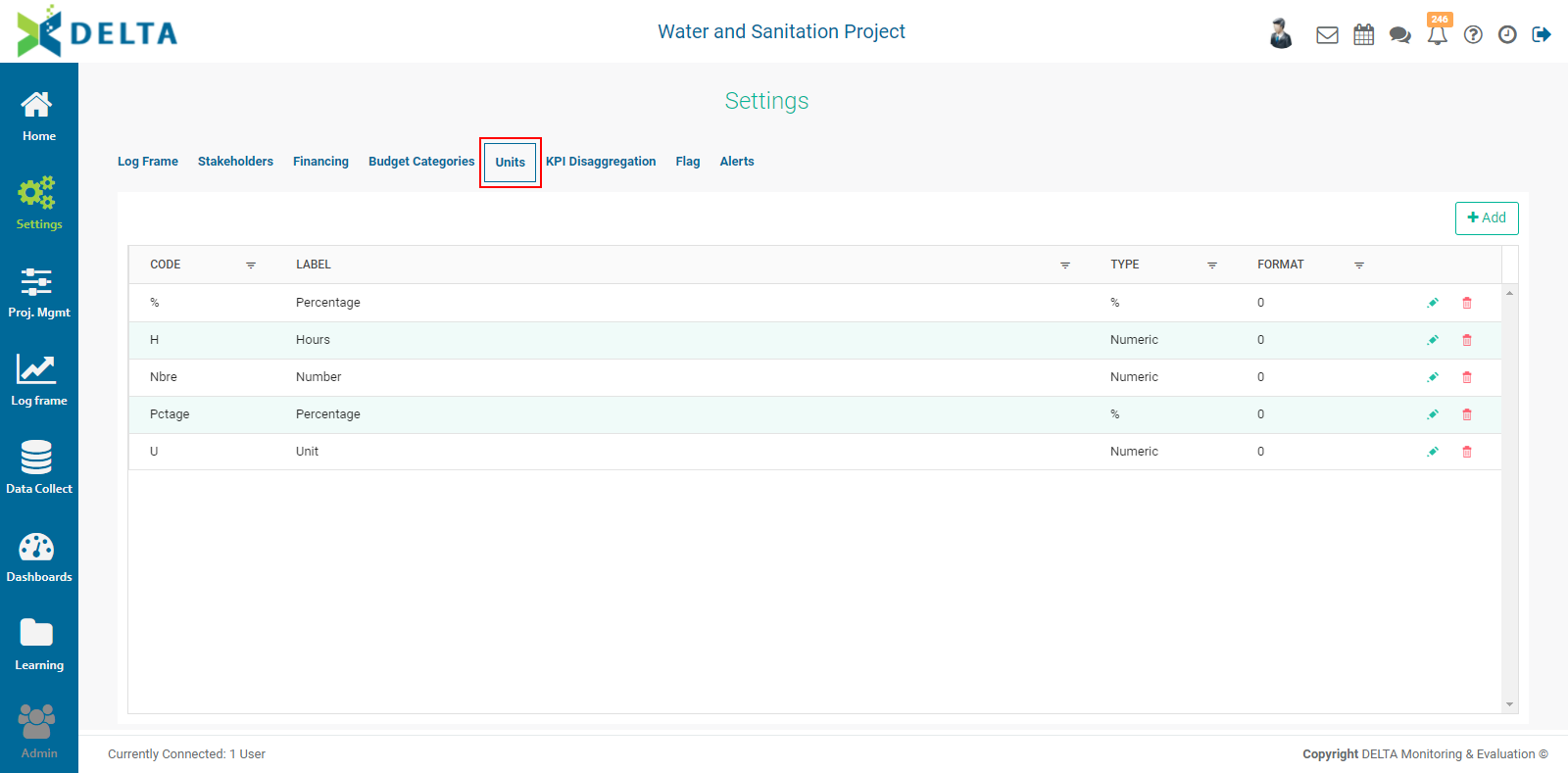
To add a unit of measure, click the +Add button to bring up the Units of Measure popup window.
Enter a unique code for the unit of measure. Enter a label, a type, and a format. The available types are Percentage, Numeric, and Text. Text units are used in qualitative indicators; the other two types are used in quantitative indicators. The Format pick list lets you select the number of digits after the decimal point the unit will display. For whole numbers, set the Format to zero.
Click the checkmark in the popup window title bar when you’re done to save your work and return to the Units screen. The new unit of measure will appear in the list.
To edit a unit of measure, click the Edit icon on its line. To delete a unit of measure, click its Delete icon and confirm that you want to delete the item.
NOTE: you cannot edit the code of a unit of measure once it is created.
Previous: Project Settings: Budget Categories | Next: Project Settings: KPI Disaggregation
Author: Administrator
Last update: 2023-07-02 18:18
Project Settings: KPI Disaggregation
Delta's KPI Disaggregation Categories allow a finer breakdown of project data. Common examples include age and gender. Disaggregation categories are used in indicators.
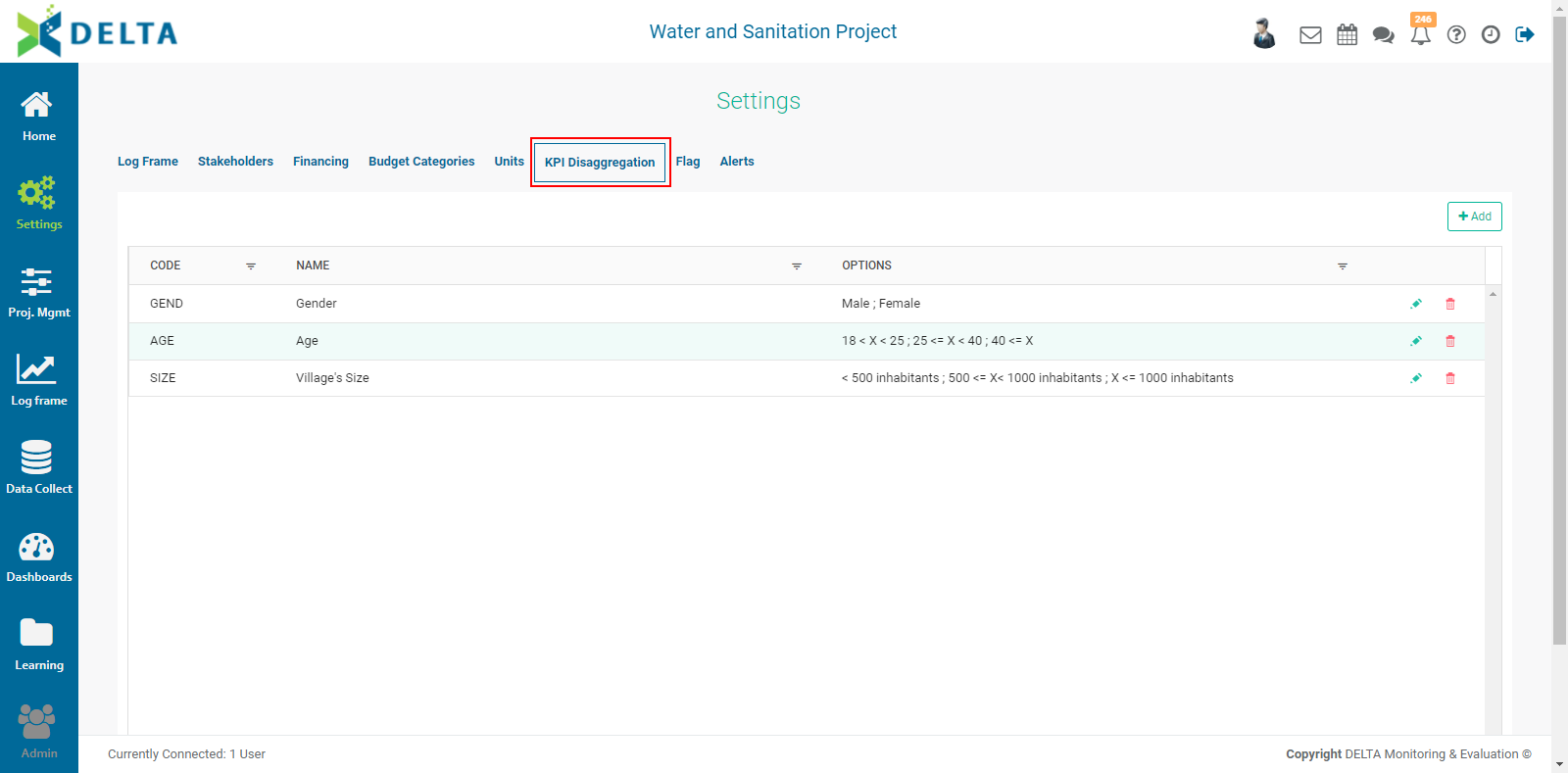
To add a disaggregation category, click the +Add button, then enter a code and a label. Choose the aggregation calculation you wish to use (sum, average, maximum, minimum), then click Option to create the category name. These are strictly labels, and as such do not perform any calculations, but mathematical symbols are often a good shorthand, particularly in the case of a KPI category with many numerical ranges, such as the age range shown below:
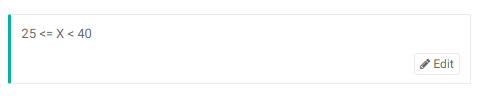
You can use as many options as needed. However, keep in mind that using a large number of options for a KPI disaggregation category will make planning and actuals more time-consuming to enter, especially if you use more than one KPI disaggregation category in an indicator.
Click OK when you're done to save your work and return to the KPI Disaggregation Categories list page.
To edit a disaggregation category, click its name in the list or its Edit icon. To delete it, click its Delete icon and confirm the deletion.
Previous: Project Settings: Units | Next: Project Settings: Flag
Author: Administrator
Last update: 2023-07-02 18:19
Project Settings: Flag
Flags are used to associate a color to an activity or an indicator to highlight its current status. By convention, green/yellow/red are often used to correspond to Satisfactory/Warning/Unsatisfactory, but one can assign any number of flags, ranges, and colors.
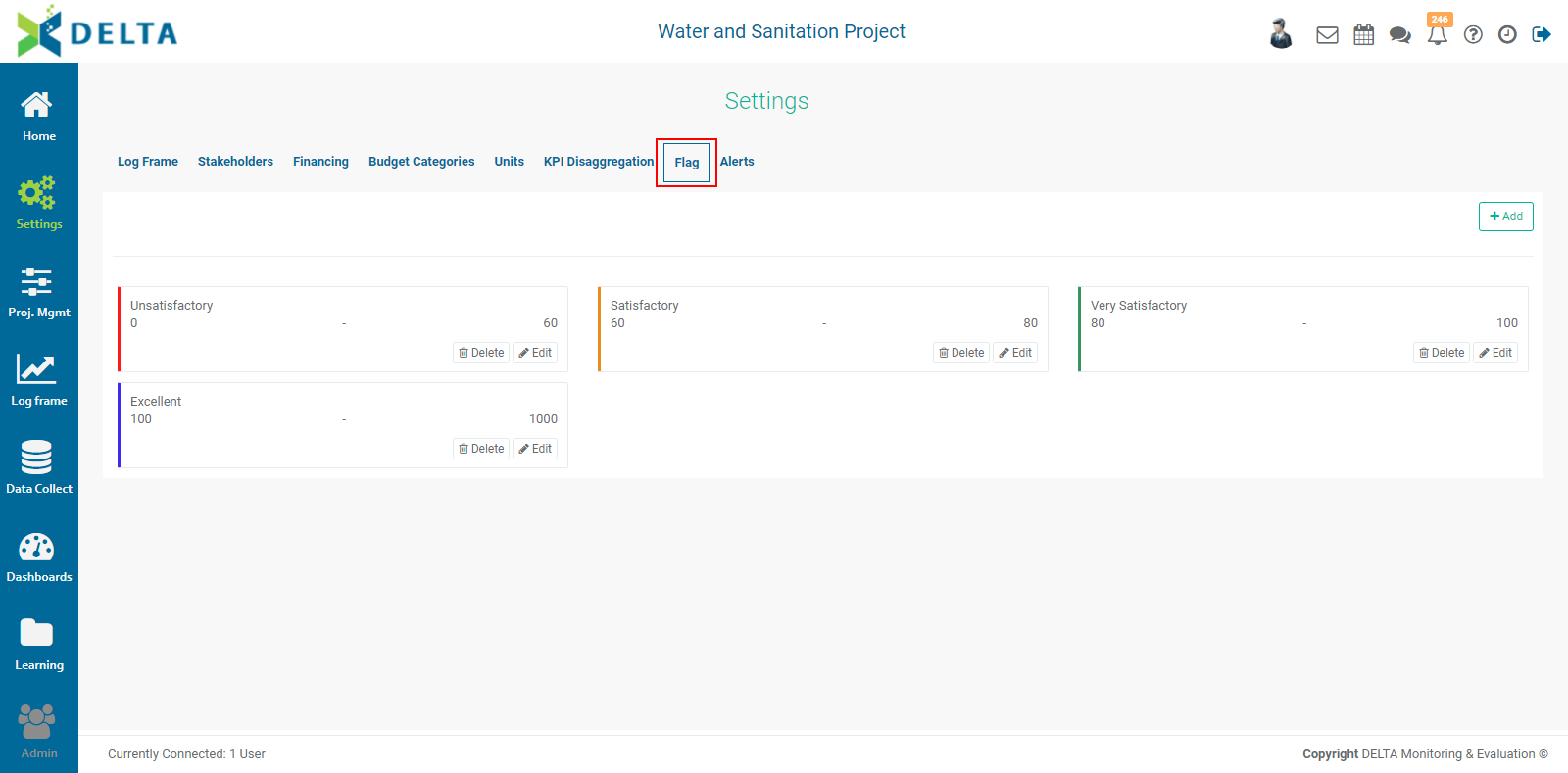
Click the +Add button to create a flag.
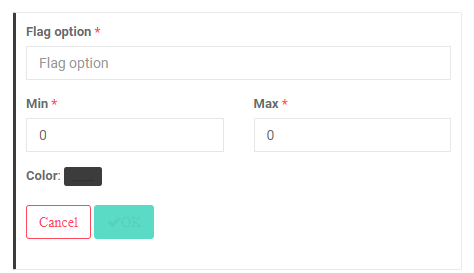
Enter the Flag Option (label) for the flag. Set its minimum and maximum, and click the color picker button to select your desired color for this range of values. Click OK when you're done to return to the Flags page. Add as many rnages as are needed.
NOTE: when creating the flags for a project, make sure the ranges don't overlap. Fractions/decimals may be used, for example a range of 0-20 followed by a range of 20.01-40.
It's also a good idea to have the maximum value of the last range exceed the actual expected maximum. For example, setting the maximum to 1000 will allow the system to display overperforming indicator values in their proper color for that range.
Previous: Project Settings: KPI Disaggregation | Next: Project Settings: Alerts
Author: Administrator
Last update: 2023-07-02 18:19
Project Settings: Alerts
Alerts are associated with the entry of indicator/activity data. Alerts are set in days; for example, setting a two-day alert will trigger an alert two days before the entry of indicator/activity data is due. Actors who are assigned data entry tasks will receive the alert.
Enter the number of days before a due date, and click OK to save.
This setting acts as a backstop for system items that are due. Delta supports other alerts throughout the system, especially within workflows, but this setting is the default for assigned items if no other alert has been set or is available for that item.
Previous: Project Settings: Flag | Next: Intro to the Project Management Module
Author: Administrator
Last update: 2023-07-02 18:20
Project Settings: Log Frame: Creating Templates
The Logical Framework (Log Frame) describes the chain of results within the project. Delta supports the commonly used chain (Activities, Results/Outputs, Outcomes, Impact/Goals) as well as up to six additional user-defined levels. All labels in the log frame can be edited to conform to your own nomenclature and terminology. NOTE: regardless of the labels you use, Delta will handle the end points of each branch of a log frame as an activity.
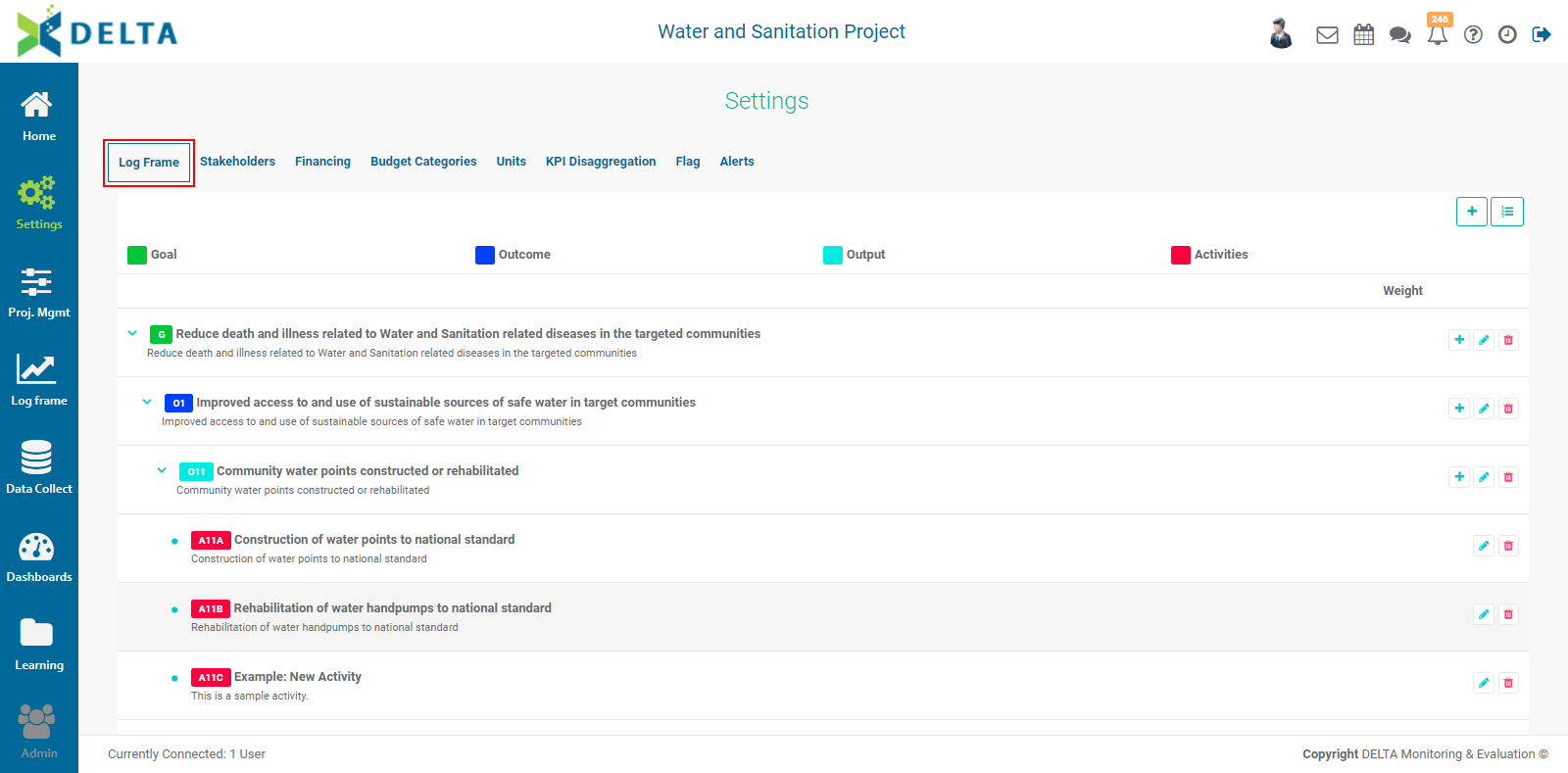
When creating a project, you have to select in the M&E Settings tab whether you want to use an existing log frame template, create a custom log frame, or import a custom log frame. This is the first step in using any log frame in your project.
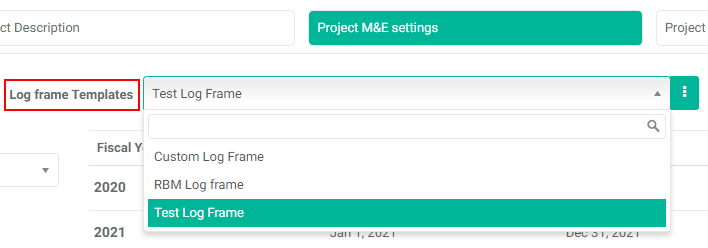
The pick list is populated by templates already entered in the system. In a new system, the only option in the M&E Settings Log Frame Template pick list will be Custom Log Frame. Select this option to either enter a log frame manually, or import it from a spreadsheet.
Log frame templates are reusable objects. This is especially useful if you have similar projects with similar activities; you can create the log frame once, and select it from any project when it's being created.
To create a new template in your project's M&E Settings screen, click the More icon at the right end of the Log Frame Templates field to bring up the Log Frame Templates popup window. Click the + button in the popup window title bar, and enter the levels of your log frame.
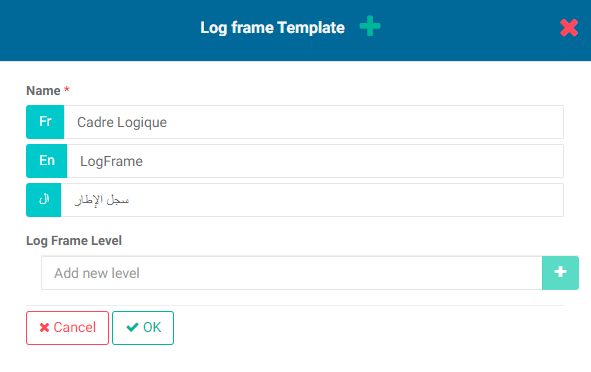
Name the template, then enter a name for the first (top) level of the log frame template. Click + after each entry. You can create up to ten levels.
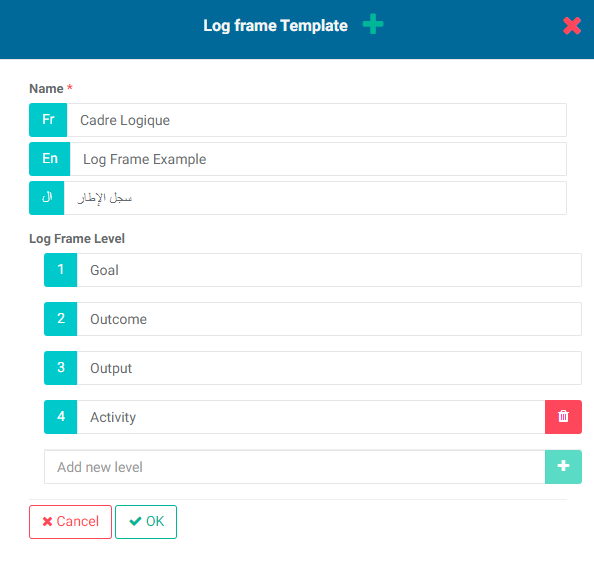
Click OK when you're done to save your work and return to the Log Frame Template popup window. The new template will appear.
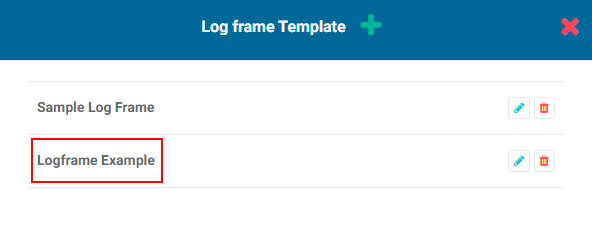
Click the X in the popup window title bar to close the window and return to the M&E Settings tab of the Project Definition screen. The template you created will appear in the list and is available for selection.
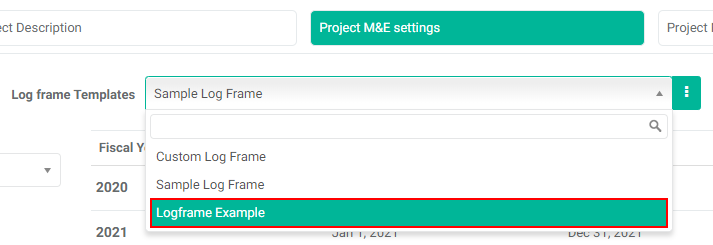
Once you have created a log frame template in the project's M&E Settings screen, it will appear as an available selection in all subsequent projects.
You also have the option of selecting Custom Log Frame in the M&E Settings screen, then creating the template in the project's Settings > Log Frame screen. This will allow you to manually create a log frame template completely from scratch, using the method described in this article.
Previous: Portfolio Settings: Alerts | Next: Project Settings: Log Frame: Coding A Log Frame
Author: Administrator
Last update: 2023-06-30 21:43
Project Settings: Log Frame: Configuring a Log Frame
Once you have created or selected a log frame template in the project's M&E Settings screen, saved the project, and determined how each log frame elements is to be coded, the next step is to configure the template for the project. The Log Frame is the first item in the project's Settings module. If you selected an existing template log frame (meaning other than Custom), its name will appear instead of the generic designation "Log Frame".
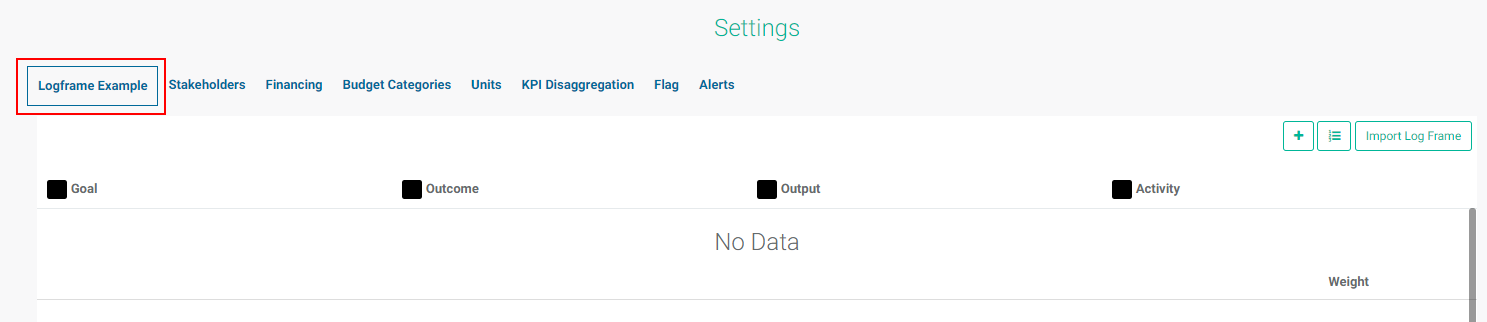
In the case of a project for which a specific template was selected, depicted above, the Log Frame screen will display the names of the levels of the template, from top to bottom.
NOTE: If Custom Template was selected in the project's M&E Settings screen when you created it, the Log Frame screen will be blank. If you'll be inputting the log frame manually, you'll need to click on the Log Frame Template button at top right to enter the log frame levels and names as described in the preceding article. Importing a log frame is described in detail in Project Settings: Log Frame: Importing a Log Frame.
Whether you enter a log frame manually or import one, you'll need to first edit the template to reflect your selected code structure before you can add log frame elements. To edit the template, click the Log Frame Template button at top right.
At the Activity level of the log frame, you also have the option to use an indicator to inform an activity. This functionality is explained in the article PM: Activities: Associating Indicators to an Activity.
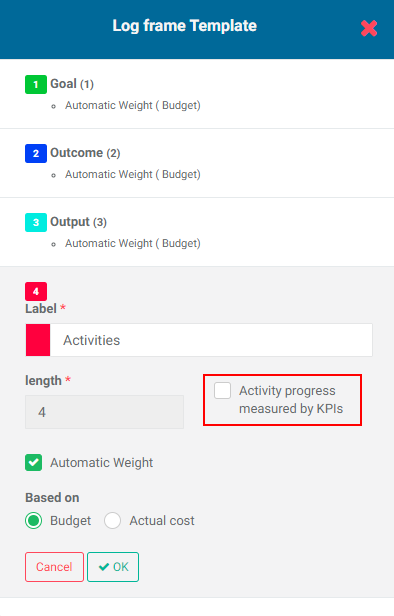
Once your log frame template has been fully configured, you can begin adding the log frame elements to build out the log frame. For the manual process, read Creating a Log Frame Manually. For details on how to import a log frame, consult Importing a Log Frame.
Previous: Project Settings: Log Frame: Coding a Log Frame | Next: Project Settings: Log Frame: Using Activity Weights
Author: Administrator
Last update: 2023-07-02 18:20
Project Settings: Log Frame: Importing a Log Frame
Delta supports the importing of log frames from an Excel spreadsheet. A bit of planning goes into preparing a spreadsheet for import. Notably, the Excel file must contain data in only one sheet, and the column headers are specific, in particular the Parent Code column. To that end, figuring out how to code the various elements of the log frame is crucial.
If you know ahead of time that you'll be importing a log frame into your project, select Custom Log Frame from the Log Frame Template pick list in the project's M&E Settings when you're creating the project. This will leave the log frame screen completely blank, instead of displaying the levels you would see as a result of creating and/or selecting a log frame template.
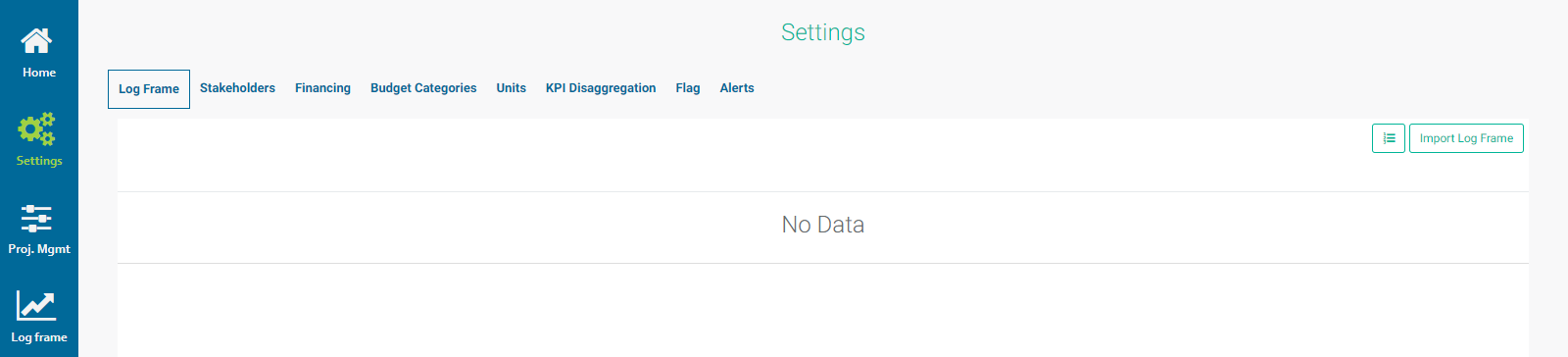
Parent codes are the concatenated codes of all the log frame element's predecessors in the tree. These are necessary for the import to work, otherwise Delta will not be able to place each element in its correct spot in the hierachy of the log frame tree, since each element has at least one parent or one dependency.
In the spreadsheet example below, each log frame element contains a parent code, its own code, a name, and a description.
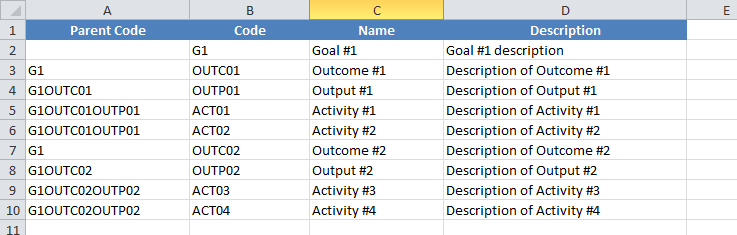
The Parent Code is the concatenation of all the log frame elements which are the predecessors of the current element. It’s worth it to plan out a log frame in a spreadsheet even if you’re going to build it out manually, to make sure the nomenclature you selected makes sense to you, and that each element is coded properly according to the convention you selected as to the length of each level code.
Tips and tricks: to better see the hierarchy of the log frame tree in the spreadsheet, use the Indent function – NOT spaces or tabs – to nest the codes. In the example below, the Outcomes have been indented once, the Outputs twice, and the Activities three times. This trick emulates the nested hierarchy you will see in the log frame tree after the import, and can be used to verify that the import worked as expected.
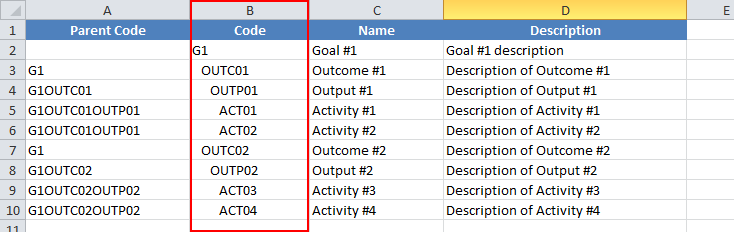
Note that activities which are at the same level of the log frame tree will have the exact same predecessors/parent codes.
Once you’ve worked out your log frame in Excel, you can import it into the Log Frame screen of the project’s Settings module. Click the Import Log Frame button at top right, navigate to your Excel file, and open/select it. IMPORTANT: this operation will overwrite any existing data.
If there are mistakes in the parent codes or element codes, the system will return an error. If the spreadsheet is correct, the log frame will be imported and displayed correctly, with the proper nesting and hierarchy for each element.
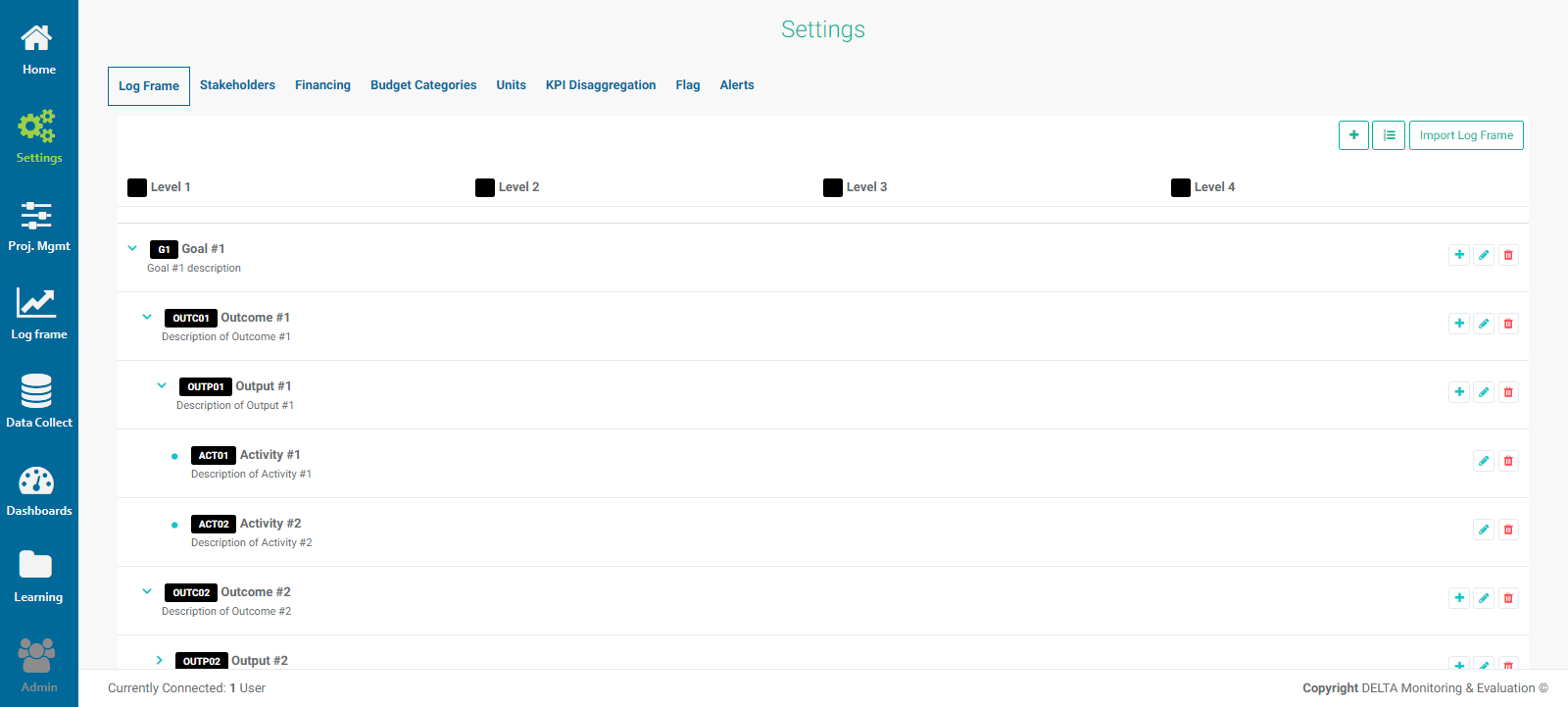
Once the import is complete, verify that the tree structure is correct, then click the Log Frame Template icon at top right to finish configuring the log frame levels with names and color coding. Note that the length of each code is already set, based on the individual element codes you entered in the spreadsheet.
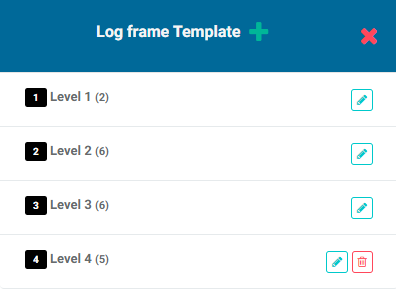
Edit each level in turn, and click the X in the popup window title bar when you're done to return to the Settings > Log Frame screen. The changes are applied immediately.
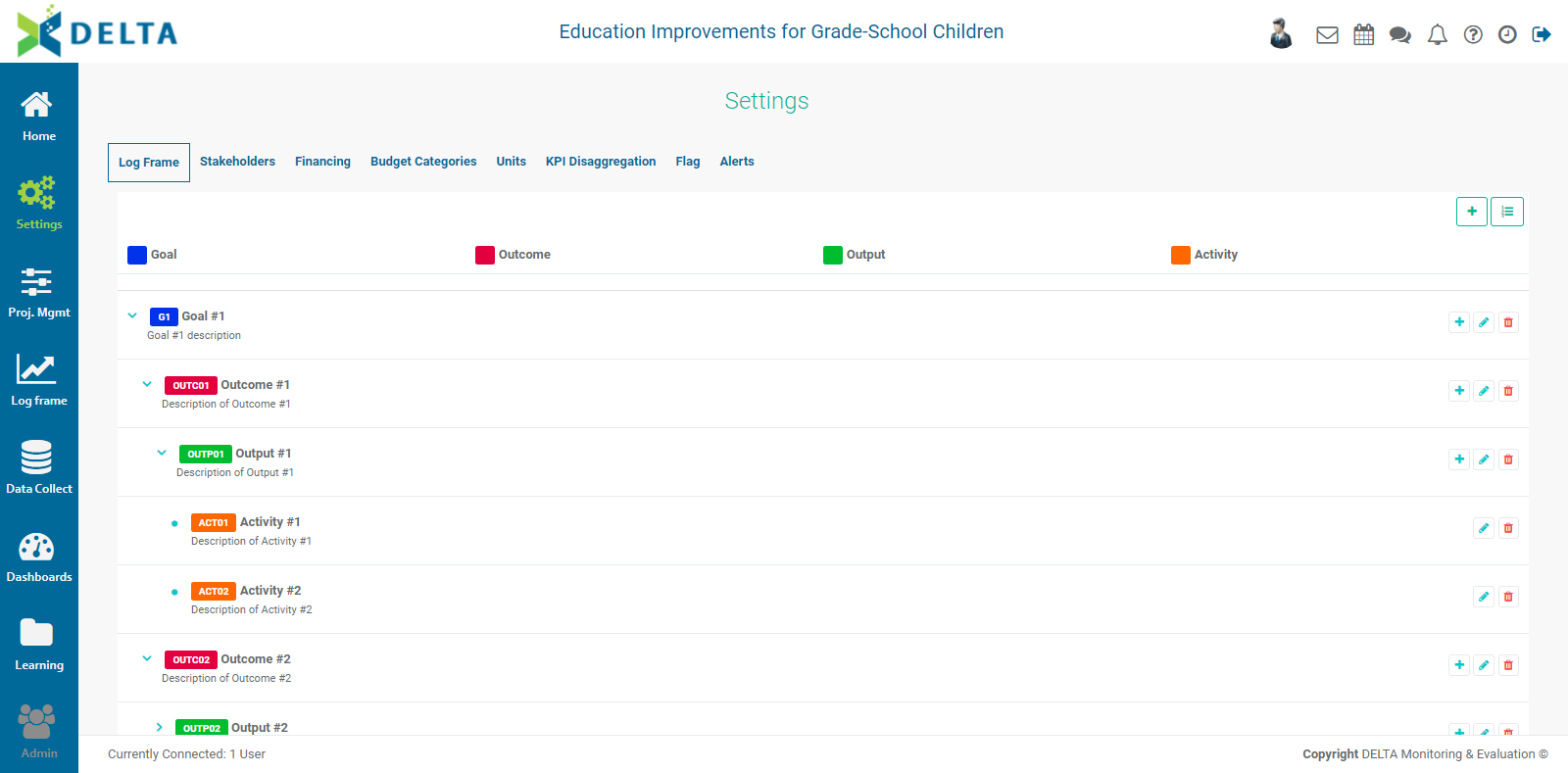
NOTE: When using Custom Log Frames, you can still create your log frame manually. Click the Log Frame Template button at top right to open the Log Frame Template popup window. Since Custom Log Frame was selected, the window is empty.
Click the + button in the popup window to add levels to the log frame template.
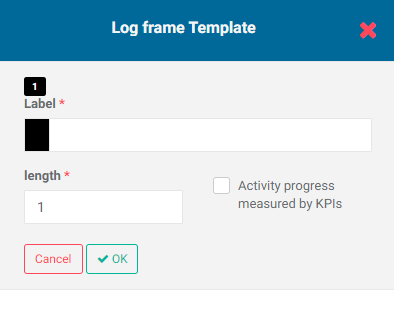
Each level contains a Label and a Length. The label is the name of the level (Goal, Outcome, Output, Activity, etc.) The length is determined by the coding schema you established.
Create as many levels as are required for the project, then click the X in the popup window title bar to save your work and return to the Log Frame screen of the Settings module. The levels you created and their associated colors (if used) appear across the top of the screen.

You can then add your log frame elements as described in the manual log frame process.
Previous: Project Settings: Log Frame: Creating a Log Frame Manually | Next: Project Settings: Log Frame: Editing a Log Frame
Author: Administrator
Last update: 2023-07-02 18:22
Project Settings: Log Frame: Using Activity Weights
If you opted to use Activity Weights in your project definition when the project was created, you'll be able to set weights for the various log frame elements. You can tell at a glance whether the project is set to use activity weights in the Log Frame Template popup window. Log frames templates in projects where Activity Weights was enabled in the project's M&E Settings screen will feature that information in the popup window.
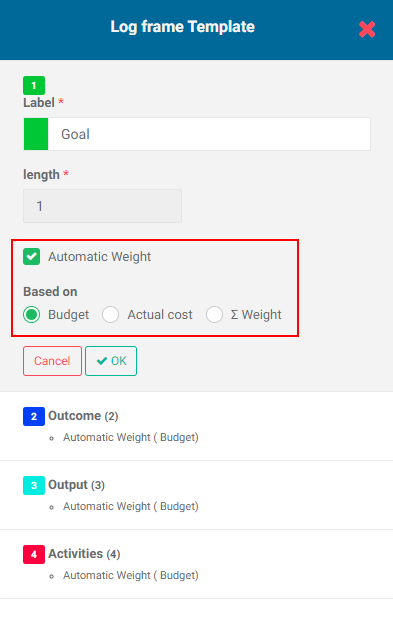
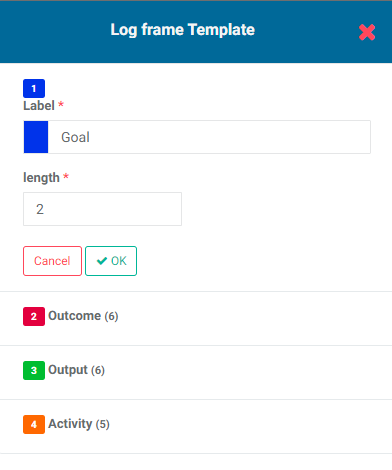
Using activity weights works from the bottom up. You first set the parameters for the weighting at the last level of the log frame, in this example, Activities. Weighting can be automatic or manual, and based on either Budget or Actual Cost.
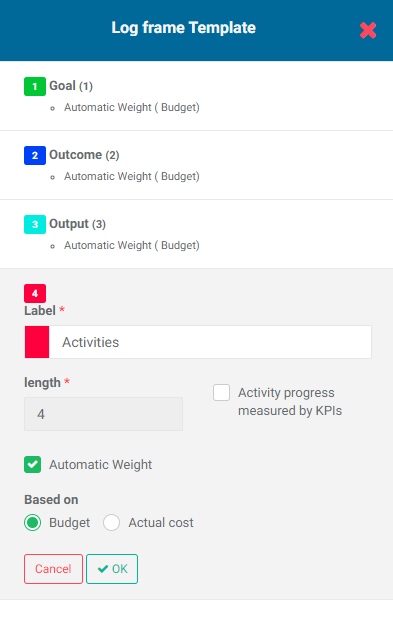
If you choose to enter activity weights manually, the Based On options will not appear, but an additional column in the log frame page will allow you to enter weights for each activity in the log frame.
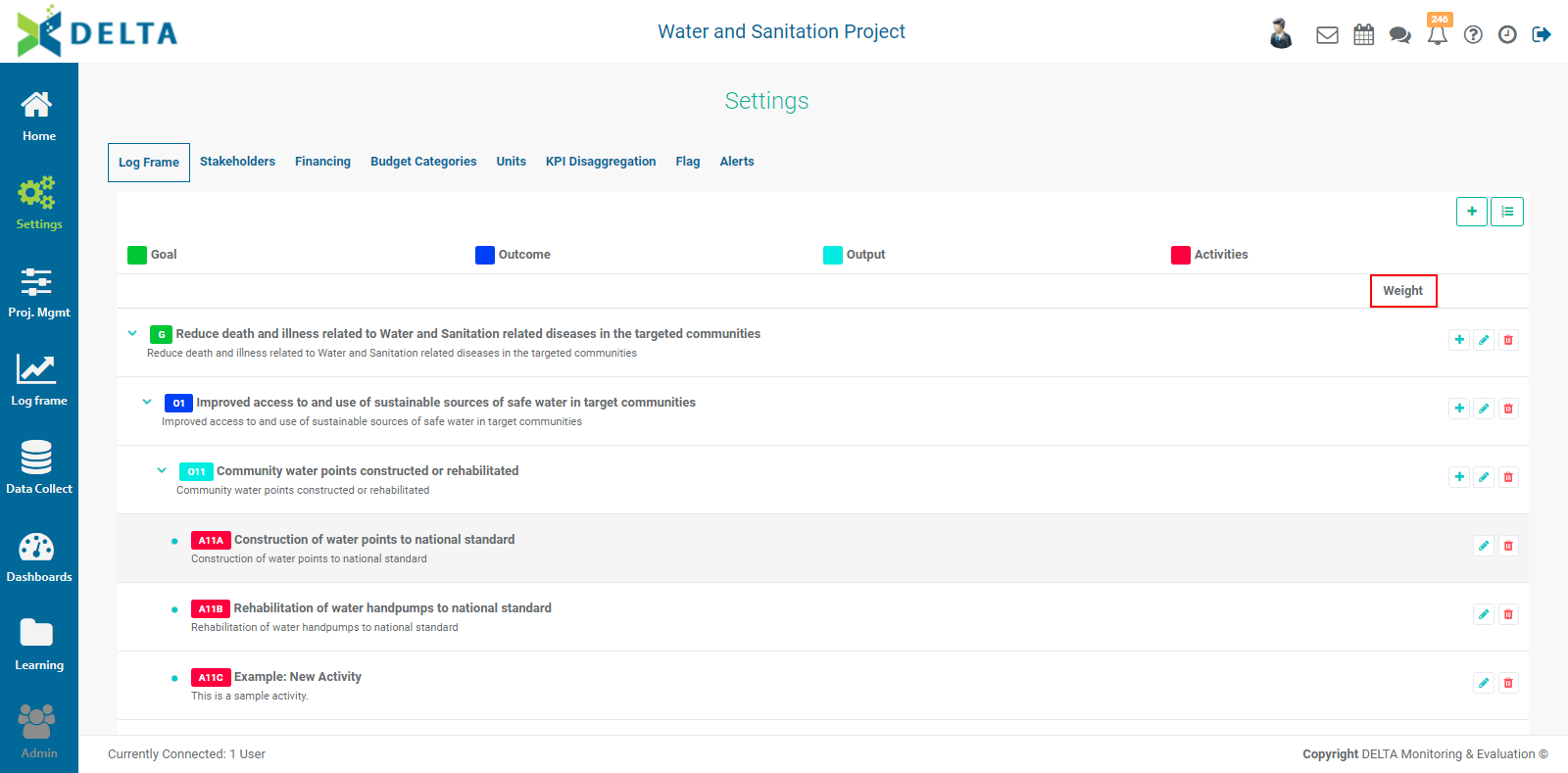
This option allows you the flexibility to set a relative weight for each individual activity instead of for the entire Activity level of the log frame, which is what selecting Automatic Weight does. For example, if an activity should be weighed twice as much as another, you can enter 2 for that activity's weight, and 1 for the other.
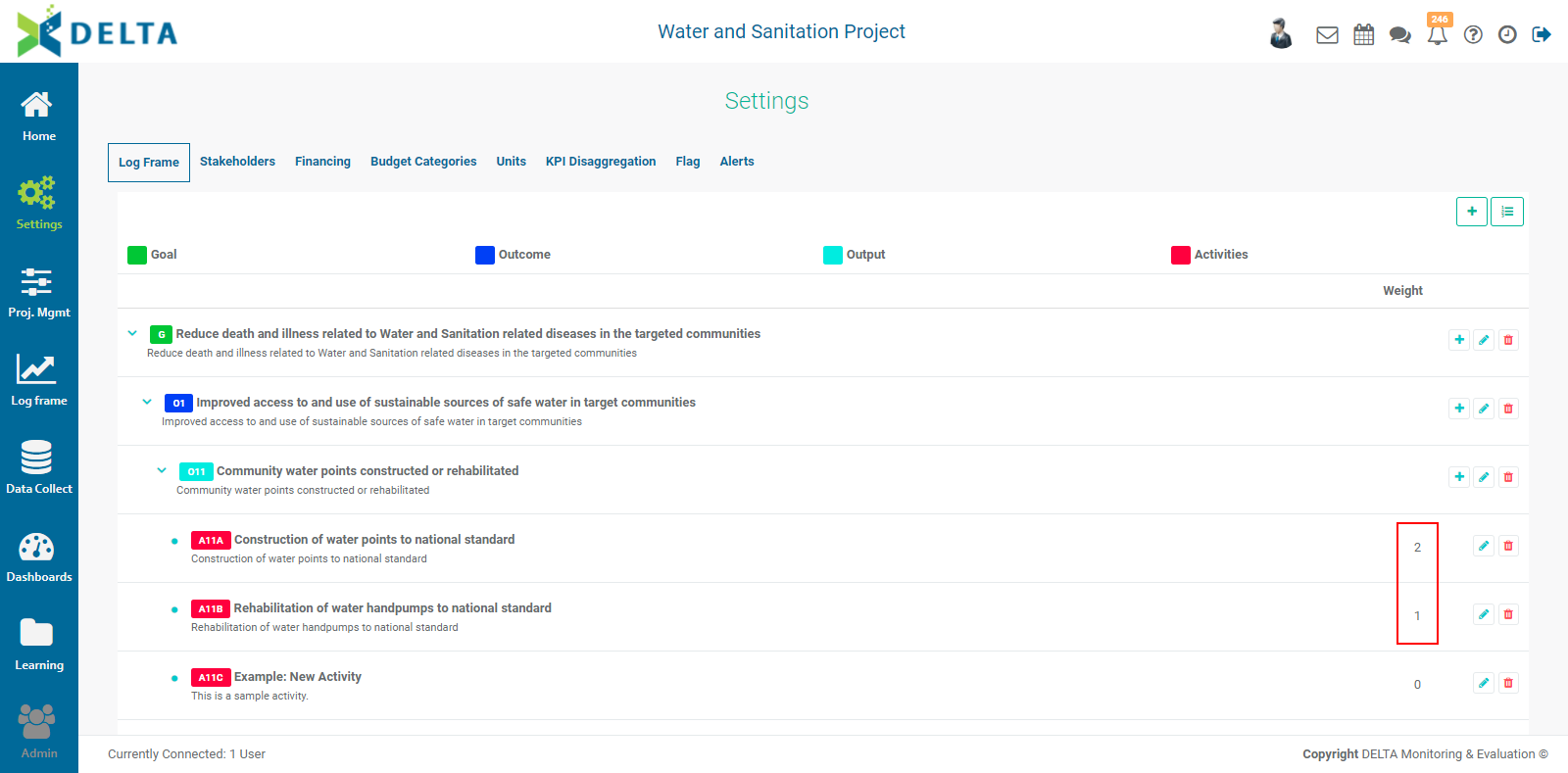
At higher levels of the log frame, your weighting options are the same as for activities, with an additional option to sum up the weights of the levels below the selected level. This essentially sets how the weight roll-up will be calculated for the project performance at the higher levels of the log frame.
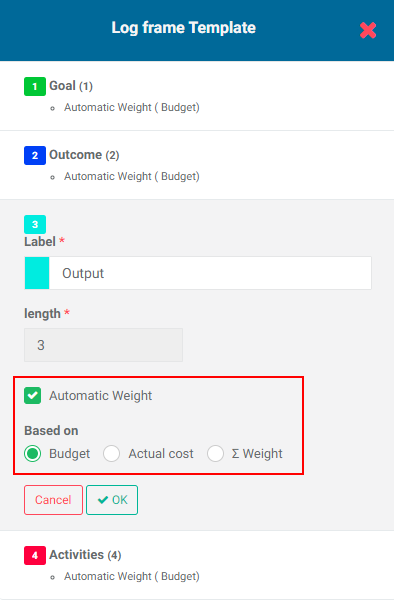
Previous: Project Settings: Log Frame: Configuring a Log Frame | Next: Project Settings: Log Frame: Creating a Log Frame Manually
Author: Administrator
Last update: 2023-07-02 18:23
Project Settings: Log Frame: Editing a Log Frame
There are several ways a log frame and its elements can be edited:
- edit a log frame element name;
- edit a log frame element description;
- add elements to a log frame;
- import a custom log frame over an existing one;
- delete elements from a log frame.
To edit a log frame element name or description, simply click the Edit icon in that element's toolbar in the Settings > Log Frame screen, and enter your changes in the popup window. NOTE: codes cannot be edited. If you need to edit the element code for whatever reason, you'll first need to delete all the dependencies underneath that element, then delete the element and create a new one in its place.
Adding elements to a log frame uses the same process as manually adding log frame elements. Locate the parent of the new log frame element in the log frame tree, click the + icon in its toolbar, and enter the element's code, name and description in the popup window. Click the checkmark in the popup window's title bar to save your work and return to the Settings > Log Frame screen. The new element will appear in the tree at the selected spot in the hierarchy.
In the specific case of activities, however, there is another available method; you can add activities directly in the Activity Plan & Budget screen of the Project Management module. This process is described in detail in Project Management: Activity Plan & Budget (APB).
Importing a log frame over an existing one is very simple. From the Settings > Log Frame screen, click the Import Log Frame button, navigate to the spreadsheet that contains the log frame, select it, and click Open to import it. IMPORTANT: this will overwrite all the existing log frame information and should only be done before any data is entered into the project. Data loss will occur if project data exists.
Deleting items from the log frame should be undertaken with caution. The important thing to keep in mind is that the log frame underpins the majority of the project data; therefore, the system contains safeguards against deleting items with which data is associated. For example, Delta will not allow deleting a log frame element to which an indicator has been assigned and populated with data. Consequently, any deletions should be performed before the project contains data.
For example, if you selected Custom Log Frame in the Log Frame Template pick list of the project definition's M&E Settings, and you decide using a log frame template would be more appropriate for the project, you can go back to the project definition and make the change without incurring data loss. However, doing so after project data has been entered will overwrite the existing log frame and all its associated data.
If you have to delete a log frame element which contains dependencies, you must first delete all the dependencies before you can delete the item. For example, for an output which contains four activities, you'll need to delete the four activities, then delete the output. Because this can be time-consuming, we suggest as a best practice that if you notice an error while manually building a log frame, you fix it as soon as possible to avoid rework.
Click the Delete icon of the element you want to delete, and confirm the deletion. If the item is associated with project data, Delta will return an error, and the deletion will not take place.
Previous: Project Settings: Log Frame: Importing a Log Frame | Next: Project Settings: Stakeholders
Author: Administrator
Last update: 2023-07-02 18:23
Project Settings: Log Frame: Creating a Log Frame Manually
Once you have established a coding framework for the log frame template and configured each level in it, you can begin adding log frame elements. Log frame elements are added top down, from Level 1 to the last level.
Click the + button to the left of the Log Frame Template button to add a log frame element to the top of the log frame. NOTE: there is an associated tooltip associated with the + button throughout the page which displays which level the element is being added to.
The popup window for the new log frame elements will open. The level of the log frame element appears in the popup window title bar.
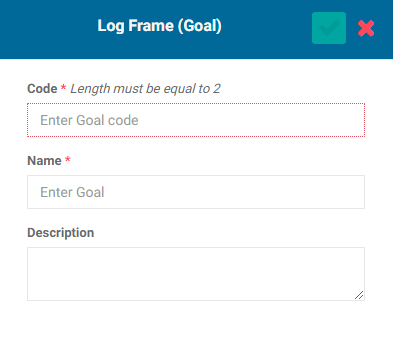
This is where the length – number of characters – of the code comes into play. Since we established the naming convention for the codes in previous steps, there should be no guesswork. In this example, we're using two characters for Goal (Gx), six characters for Outcome (OUTCxx), 6 characters for Output (OUTPxx), and 5 characters for Activity (ACTxx), where xx are numbers.
For the first goal in the log frame, we’ll enter G1, and a name (mandatory) and description (optional, but recommended). If a description is not readily available, you can enter it later.
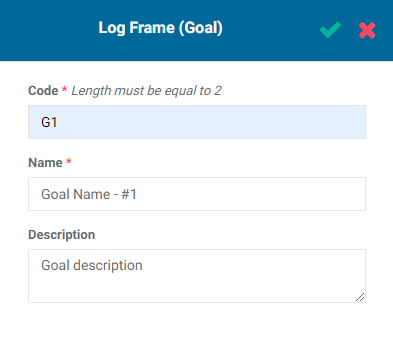
Click the checkmark in the popup window title bar to save the element and return to the Log Frame screen. The new element will appear on the screen, with a code marker in the color you selected for the level. NOTE: codes cannot be edited once the log frame element is saved.
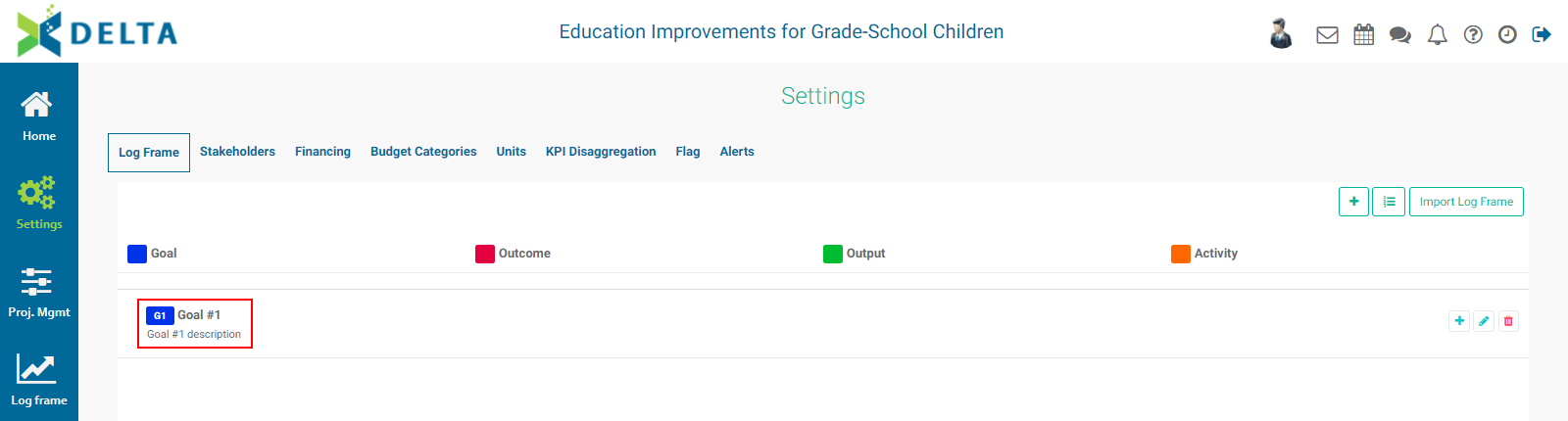
Each log frame element has its own toolbar: +, Edit, and Delete, except for the last level of the log frame, which only has Edit and Delete, since the last level constitutes the end point of each branch of the log frame tree. The Add icon is used to add log frame elements one level down from the selected item.
Mouse over the + (Add) icon in the Goal’s toolbar at right, and note that the tooltip now states the item which will be added is an outcome, the second level down.
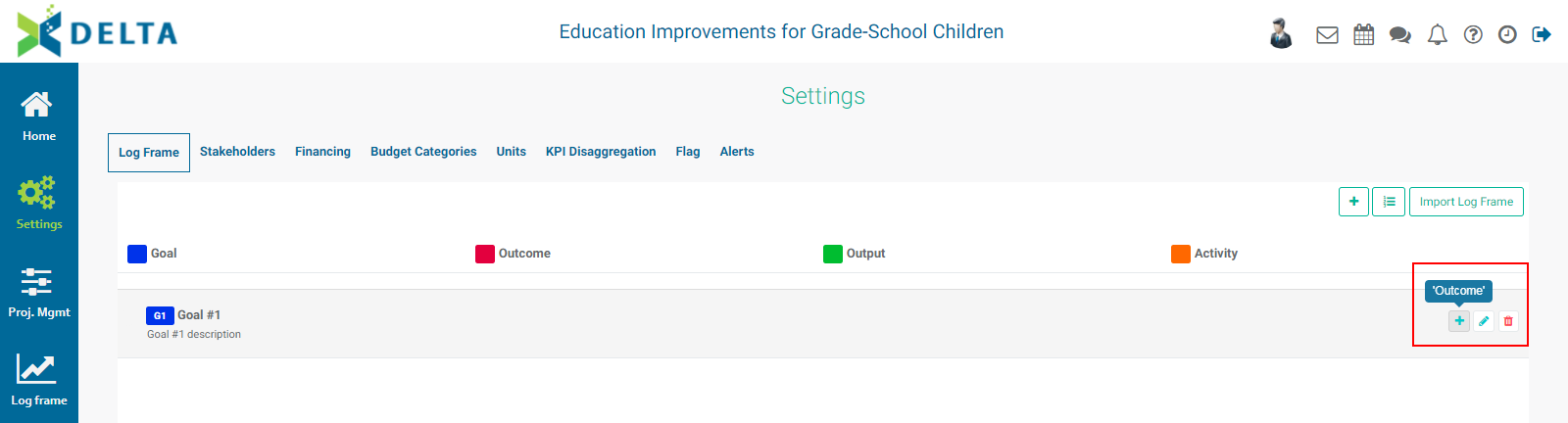
Click the + button to enter the information for the outcome. Again, since the nomenclature was already established during the log frame coding step, there is no guesswork as to the code and its length.
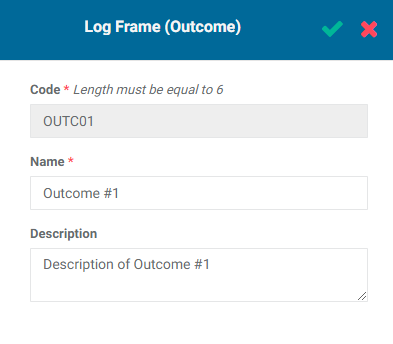
Click the checkmark in the popup window title bar to save the element and return to the Log Frame screen. The new element will appear on the screen, with a code marker in the color you selected for the level. If necessary, use the carets (> and v) to expand and collapse the log frame tree.
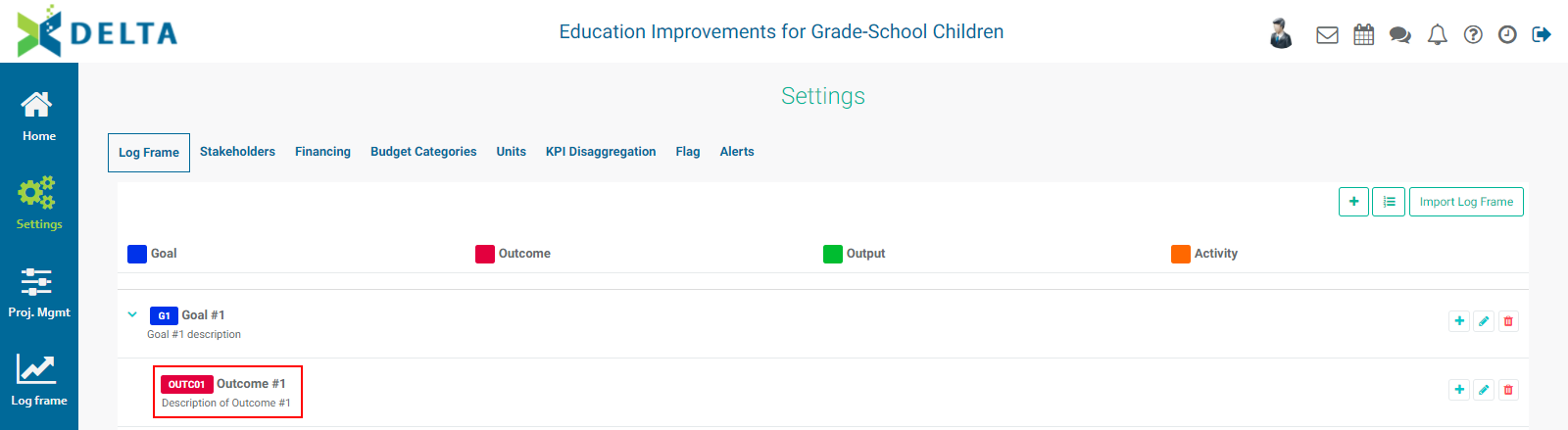
Add the other elements (in this example, Outputs and Activities) to the log frame by clicking the appropriate + button and entering the information for the log frame element. Each will be placed in the correct spot in the log frame tree as long as you clicked the correct + button to add the element.
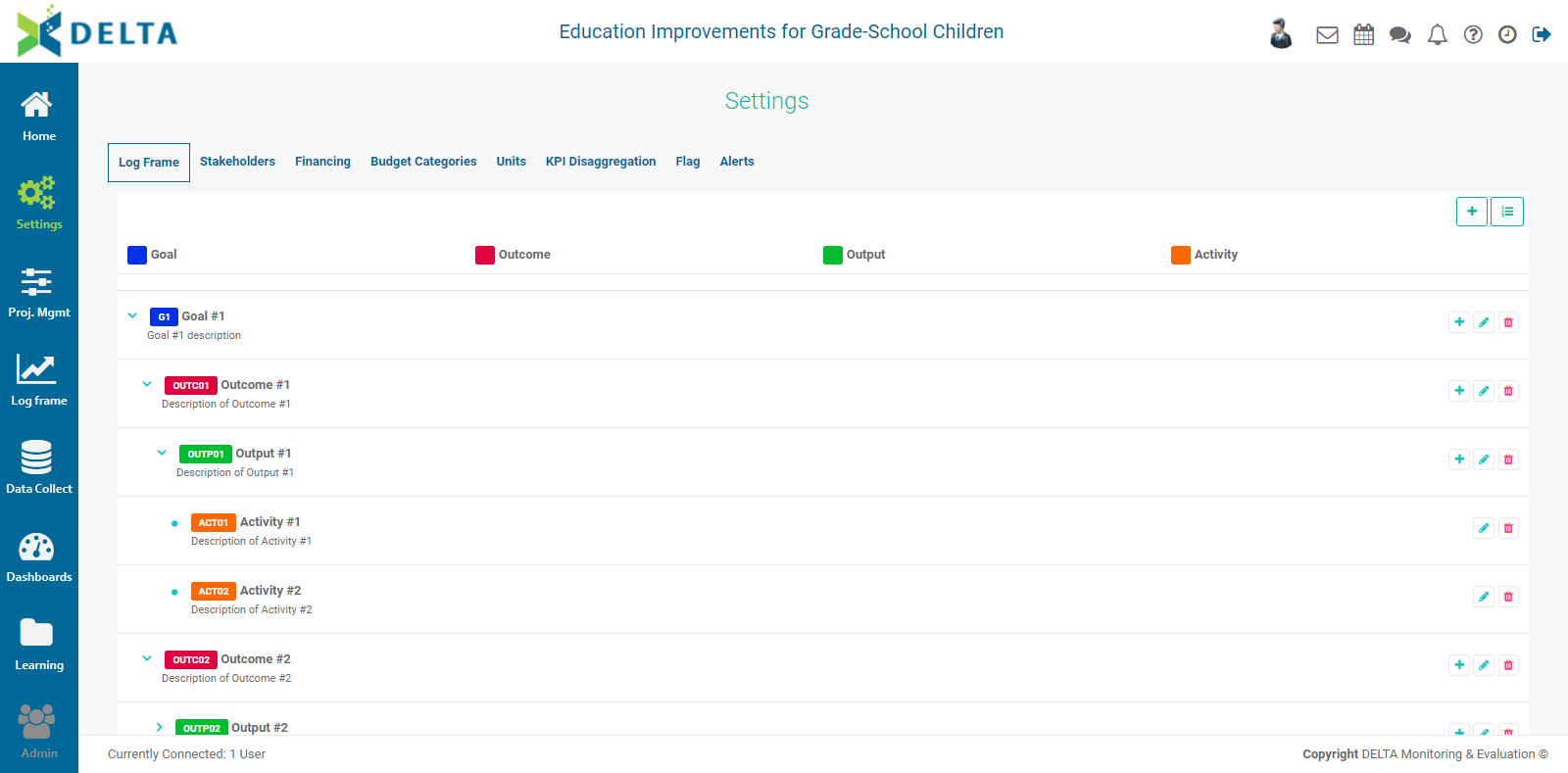
The log frame tree contains a lot of visual feedback. All the elements are color-coded according to their level, and are nested under their predecessors (parents) in the tree. It is easy to tell at a glance whether the elements are properly nested.
Regardless of the nomenclature used in building the log frame, the system will handle the end points of each branch of the log frame as an activity.
From a practical standpoint, there’s no difference between adding all the elements at one level before moving on to the next lower level, and building out each branch of the log frame in its entirety. This is entirely left to the user’s preference.
IMPORTANT: if, however, you make a code error when creating an element, you should correct it at once. If there's a code error in an element which contains dependencies, i.e. lower-level elements, you'll need to delete all the lower-level elements before you can delete the erroneous item. This only applies to codes; you can edit the name and description of any log frame elements by clicking the Edit icon in its toolbar to bring up its popup window.
Previous: Project Settings: Log Frame: Using Activity Weights | Next: Project Settings: Log Frame: Importing a Log Frame
Author: Administrator
Last update: 2023-07-02 18:25
Project Settings: Log Frame: Coding A Log Frame
Log frame coding is a crucial step in planning and inputting/importing your log frames into Delta. Regardless of how you intend on creating your log frame, establishing a code hierarchy for the levels and elements of your log frame is essential for it to function properly within the system. Moreover, you cannot import a log frame before working out the structure of the log frame tree elements.
Coding a log frame is relatively simple, but attention to detail must be paid, especially if the log frame will be imported. The log frame template determines the number of levels; the codes direct how each element will relate to all the other elements.
An important thing to keep in mind when working up how to code your log frame levels is that a log frame is a hierarchical object. An imported log frame will need to include parent codes for each log frame element.
The following example uses four levels: Goals, Outcome, Output, and Activity. Keep in mind that you can use up to ten levels, and that you can use your own nomenclature.
Each individual element of a log frame has a code, a name, and a description. The code is the unique identifier Delta uses to accurately keep track of each log frame level and associated elements. One of the parameters of the code is its length.
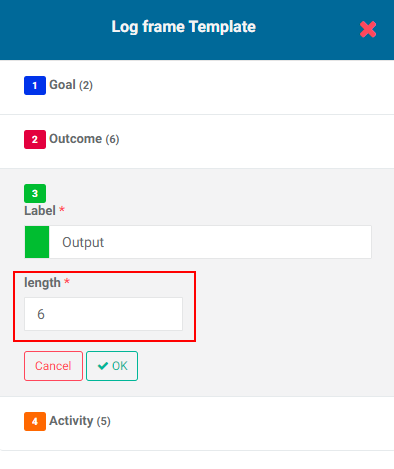
You determine the length parameter for each level of the log frame, which is why it has to be planned first. Once you've entered data into a project, any attempt to change log frame parameters will result in data loss.
For example, let’s assume this particular project has one Goal. This means we can use just one character, like G. If the project has more than one goal, we can use two characters, so each goal will be the letter G and a single-digit number, like G1 and G2. The idea is to create a coding structure which is recognizable to you, internally consistent, and which reflects the hierarchical relationship between the various levels of the log frame.
The other levels, in this case Outcome, Output, and Activity, also need to be similarly configured. To keep things simple in the example, let’s assign 6 characters for Outcome (OUTCxx), 6 characters for Output (OUTPxx), and 5 characters for Activity (ACTxx), where xx are numbers. You can also use special characters like hyphens and underscores.
When you first click on the Log Frame Template at top right of the Settings > Log Frame screen, all you'll see are the levels from the template you selected in the project's M&E Settings. NOTE: this example assumes that you either created a template and selected it, or selected an existing template. Custom Log Frames work a bit differently, since selecting that setting allows you to create a log frame completely from scratch, by either entering it manually, or importing it.
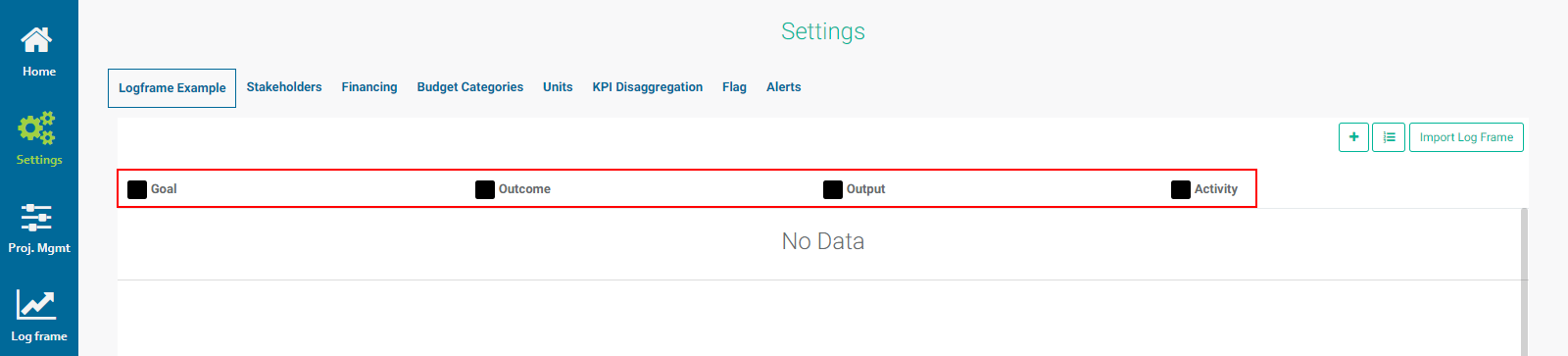
Levels are color-coded in black by default. Click on the Log Frame Template button at top right to open the Log Frame Template popup window and enter the parameters for each level. Note that the length for each level (in parentheses) is not set.
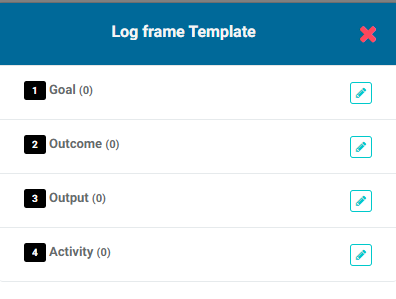
Click on each level's Edit icon to enter its code length, and select a color for the level if desired, so each level can be recognized at a glance. Using colors is especially useful when working with indicators. Each log frame element, when created or imported, will feature a small color badge reflecting its code and the color of the log frame level with which it's associated.
Click each level's OK button when you're done, and repeat for each level in the log frame. Click the X in the Log Frame Template popup window to save your work and return to the Log Frame screen. The levels will appear at the top of the page with the selected color-coding.

Previous: Project Settings: Log Frame: Creating Templates | Next: Project Settings: Log Frame: Configuring a Log Frame
Author: Administrator
Last update: 2023-07-02 18:26
Log Frame Module » Indicators (KPIs)
Indicators: KPIs Results Framework
The Indicator (KPIs) Results Framework is an at-a-glance dashboard of all the indicators in the project. It allows you to drill down into any amount of detail you need for any indicator based on location and type. Two versions are available from the Log Frame screen. Both present the same information in slightly different visual format.
Results Framework 1 displays indicator information in a compact tabular format which also includes graphical elements such as popup graphs.
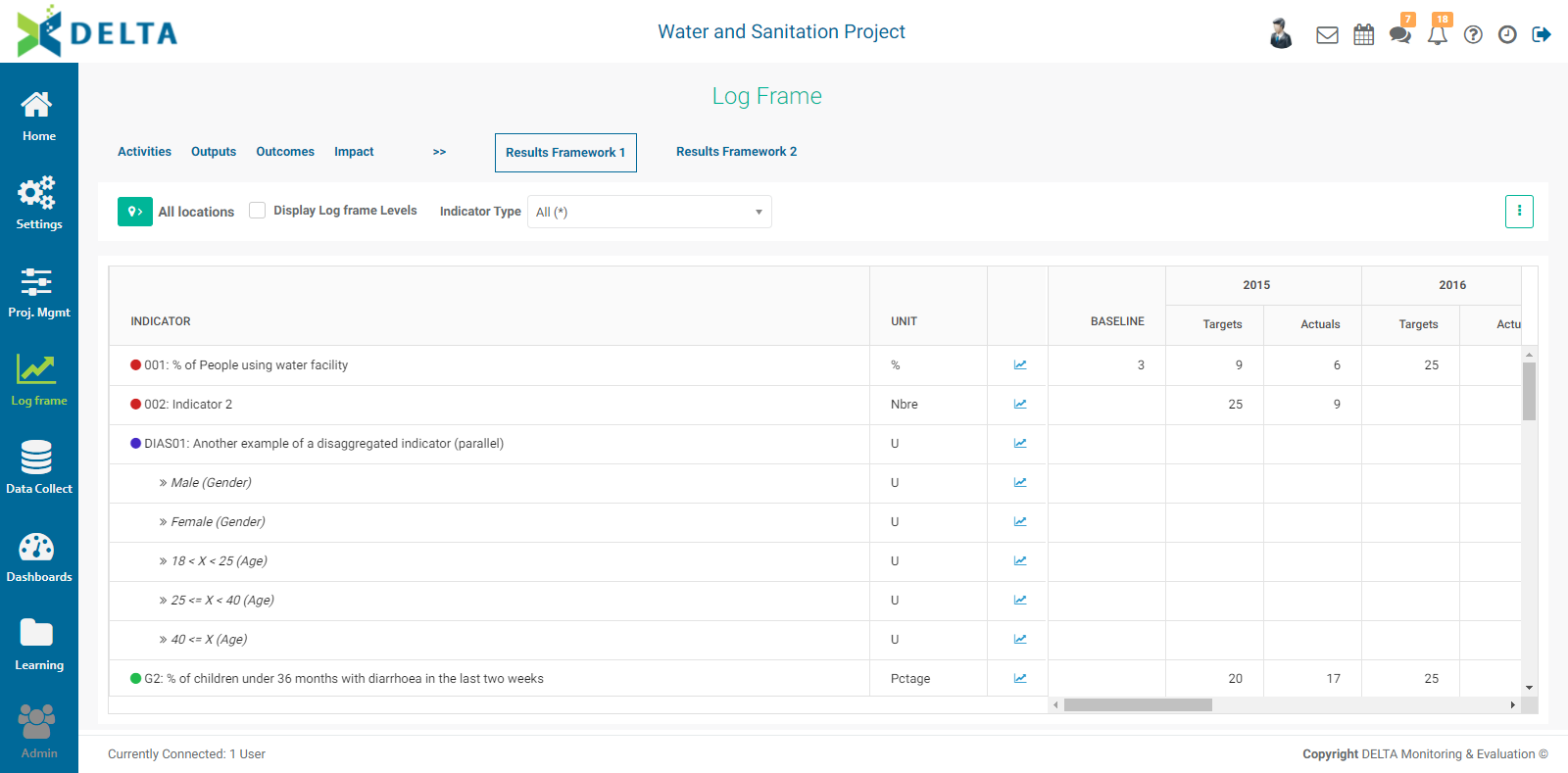
Results Framework 2 displays log frame information by default, and emphasizes numerical data.
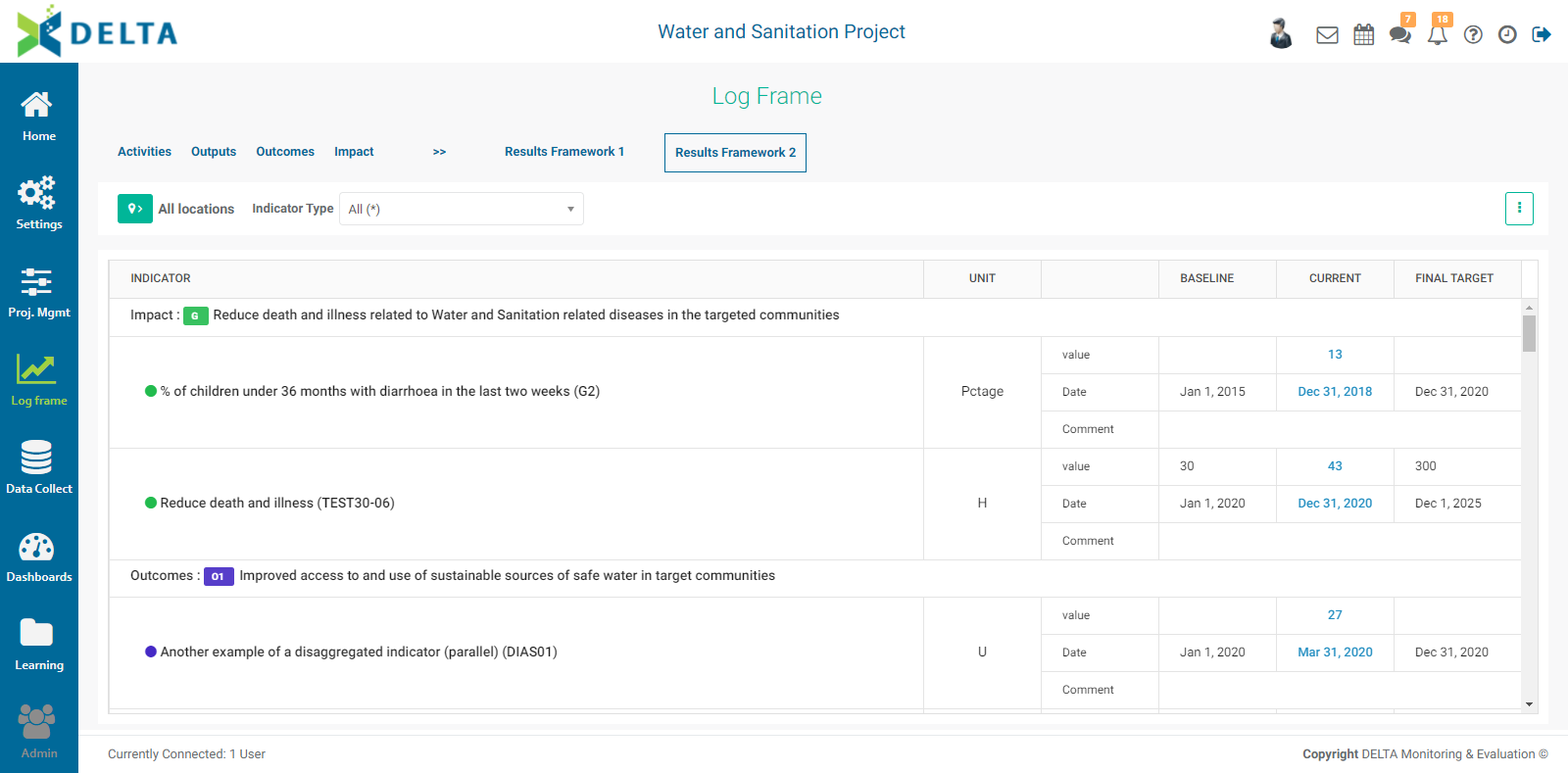
Both frameworks feature filtering by location. To view only the indicators associated with a specific geographical area, toggle on the Locations list and select the desired location in the list. Both also support filtering by indicator type.
To view the progress of a single indicator, click on its graph icon in Results Framework 1 to bring its performance graph.
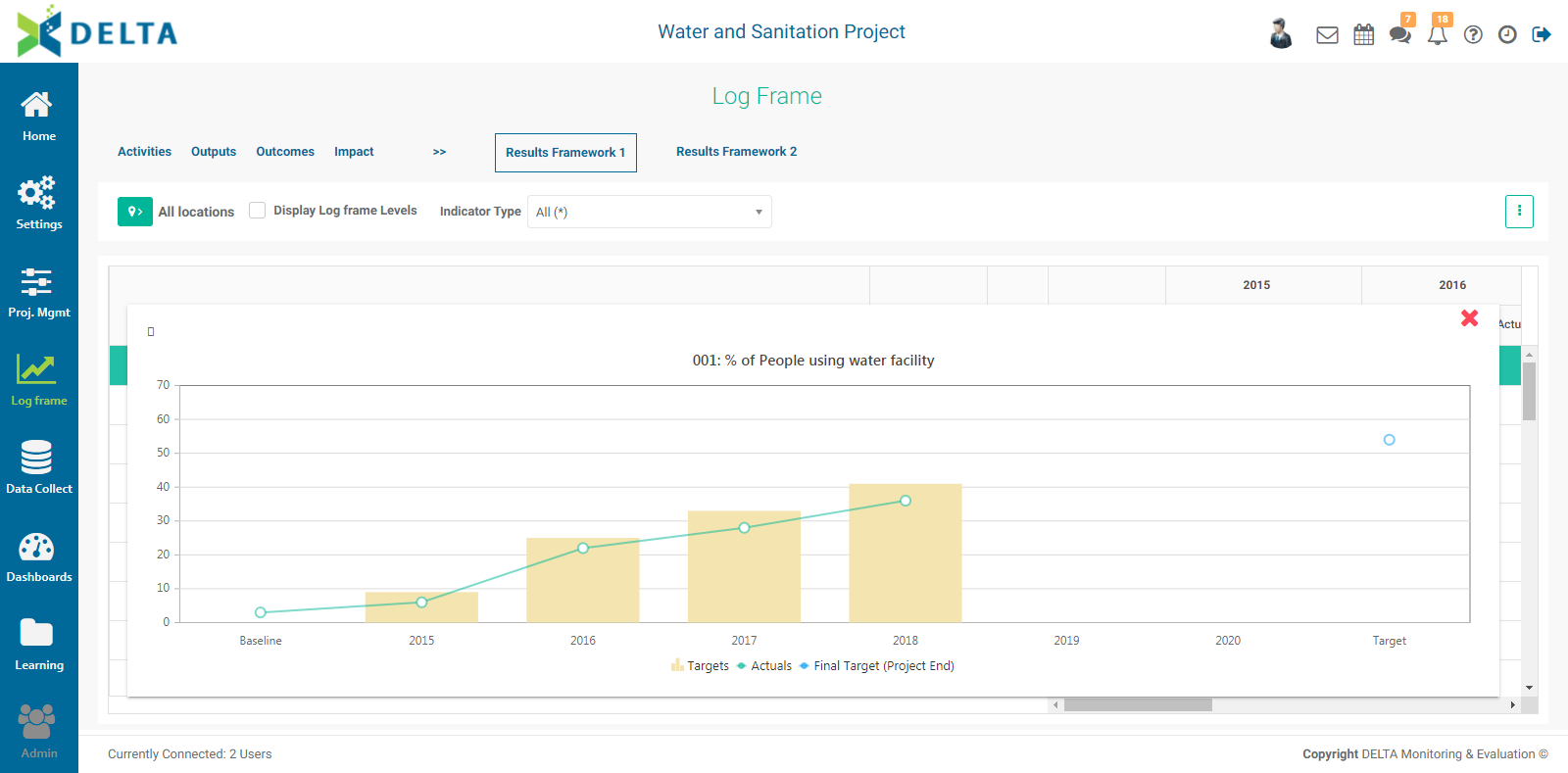
To see the numbers on which any data point on the graph is based, mouse over it. To dismiss the graph, click the X at upper right of the graph popup window.
Click the vertical More icon at upper right to export either Results Framework dashboard to Excel.
Previous: Indicators: Cross-Cutting Indicators | Next: Data Collection: Form Design
Author: Administrator
Last update: 2023-07-02 18:29
Indicators: Creating Indicators: Data Source
Once you have completed the Details screen of your indicator, you can save the indicator and return to it later, or you can finish entering parameters for the indicator. The second screen is Data Source.
Click the Data Source tab in the Indicator Settings > Description screen to specify how data for the indicator will be input.
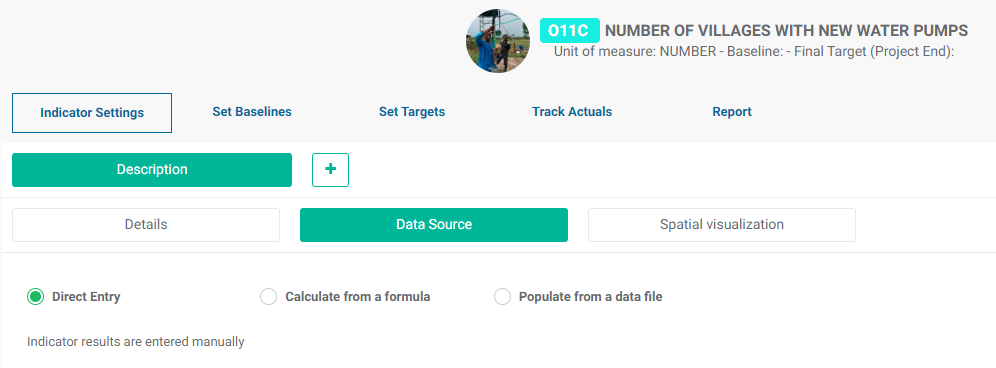
The default option is Direct Entry, which is self-explanatory. Data for the indicator will be populated manually for each location and time period. In practical terms, indicator data (actuals) will be entered manually in the indicator's Track Actuals screen.

The Calculate from a Formula option allows you to enter a formula based on any indicators in the project. Use the calculator to create the appropriate formula for the indicator. You can perform simple maths on an indicator, or create complex indicators based on other indicators.
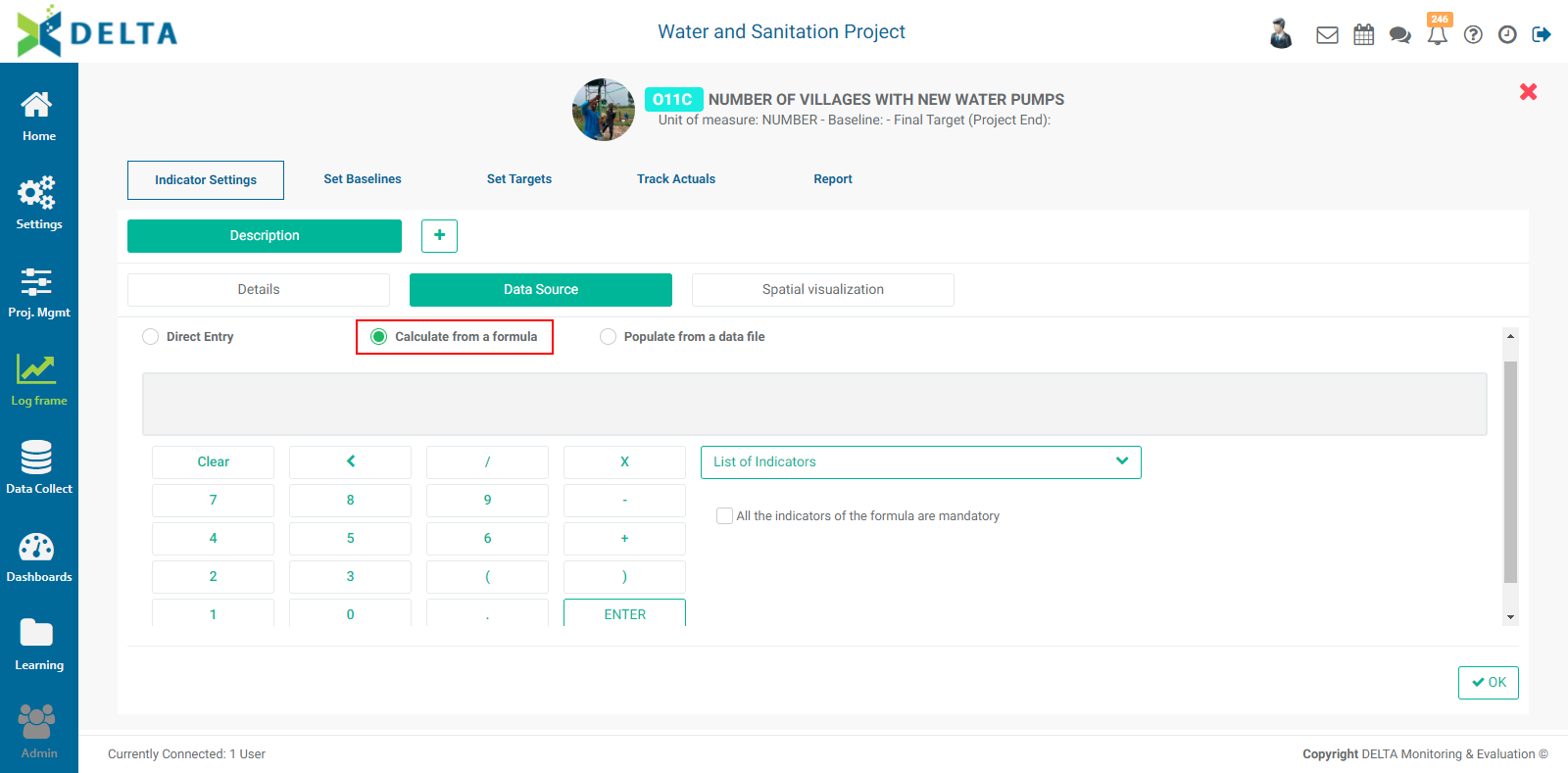
The syntax for formulas follows regular rules of arithmetic. For example, INDICATOR*DATAFIELD/100 will be parsed as written, whereas INDICATOR*(DATAFIELD/100) will be evaluated using the contents of the parentheses first.
Check All the Indicators in the Formula are mandatory box to force the calculation to take all the indicators in the formula into account regardless of their value. This ensures that if the calculation results in a null or zero value, it's the actual result of the calculation, and not because one or more indicator has a value of zero.
The third option, Populate from a Data File, allows the indicator data to be populated via a data collection form analytics report.
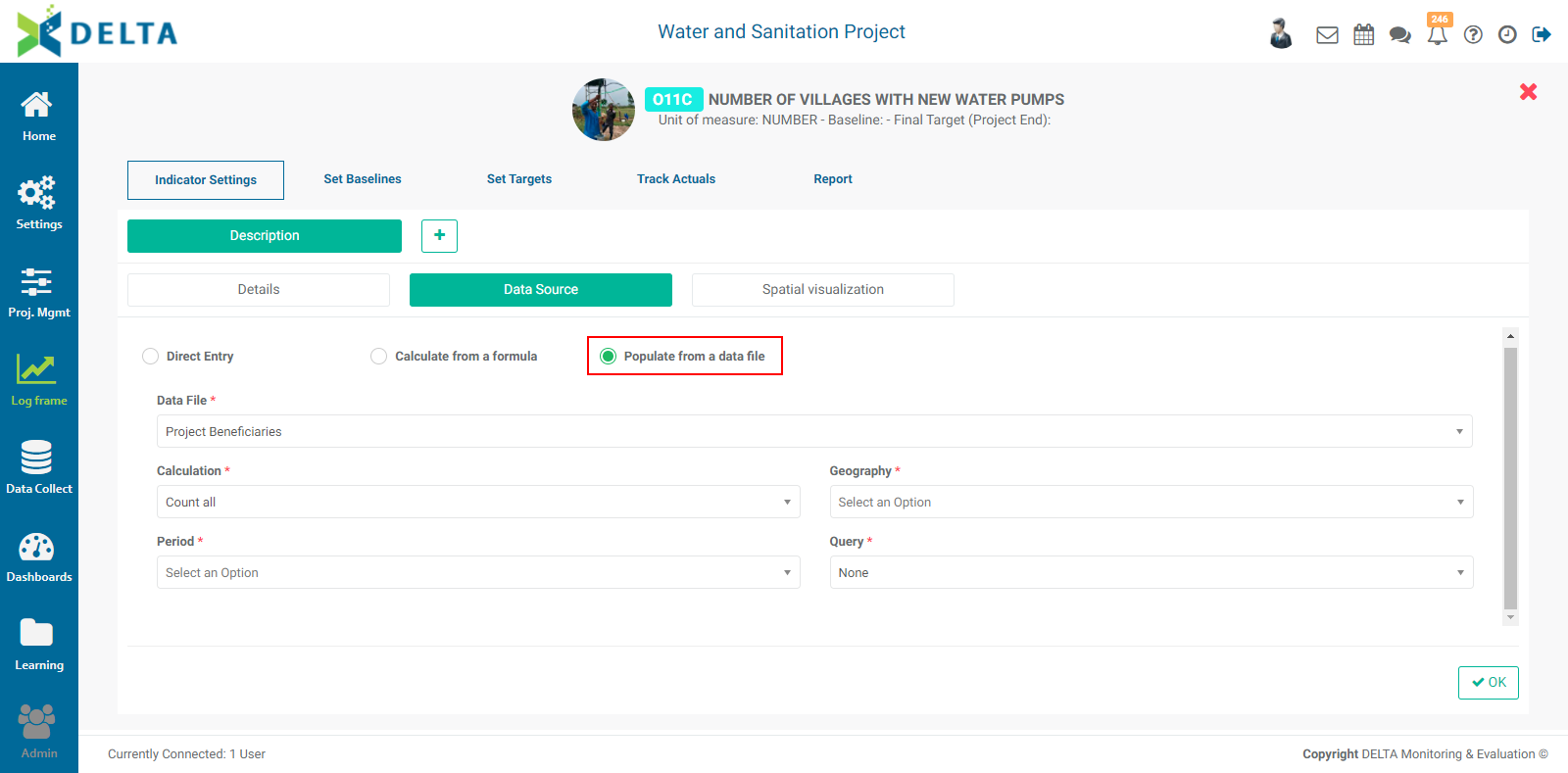
IMPORTANT: This option assumes the existence of:
- at least one data collection form in the project's Data Collection module. The Data File field is populated from the list of forms.
- at least one field of type Date in the selected data collection form. The Date fields in the form populate the Period field. This is usually a date field containing the date of collection.
- at least one field containing geography information in the selected data collection form, either a GPS field (Coordinates and/or Path) or a List field with the Locations preset selected in its parameters.
- at least one analytics report derived from the selected data collection form after it has been populated with data. The analytics reports in the Data Collection module populate the Query field in the Data Source screen for each specific data collection form.
Data collection form design is described in detail in Data Collection: Form Design.
You can click OK to save your work and return to the Indicators page, or you can set up spatial visualization parameters in the next screen.
Previous: Indicators: Creating Indicators: Details | Next: Indicators: Creating Indicators: Spatial Visualization
Author: Administrator
Last update: 2023-07-02 18:30
Indicators: Creating Indicators: Spatial Visualization
The third tab under Description is Spatial Visualization. If you're creating the indicator, you will not yet see the Description tab; it only appears after the indicator has been created and saved.
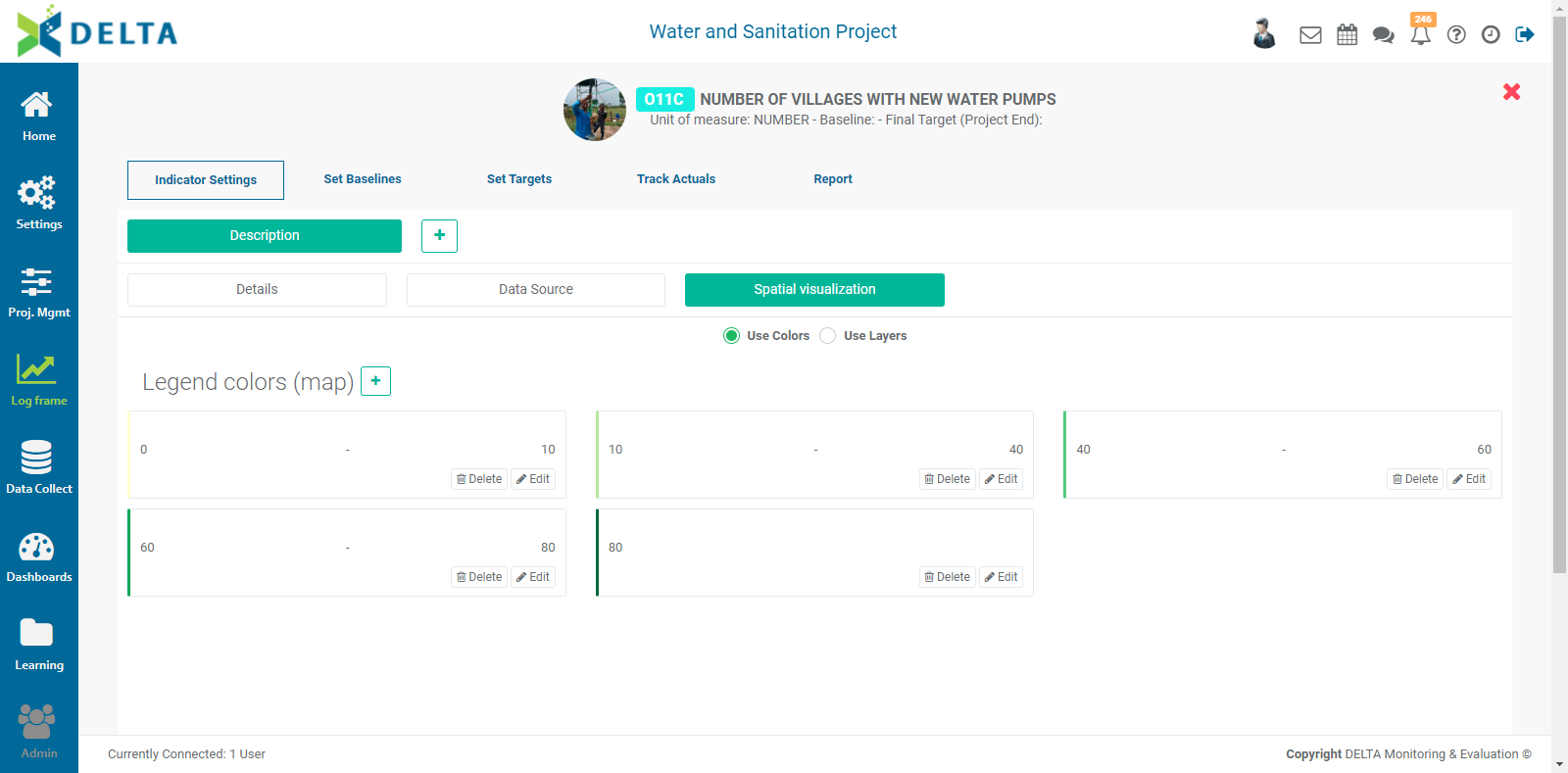
The indicator contains default colors and ranges for the map. Make sure Use Colors is selected, and click the + next to Legend Colors (map) to add a range and select a display color for that range. Click on an existing range's Edit icon to change its name, its range, and its color. You can add as many ranges as required for the indicator.
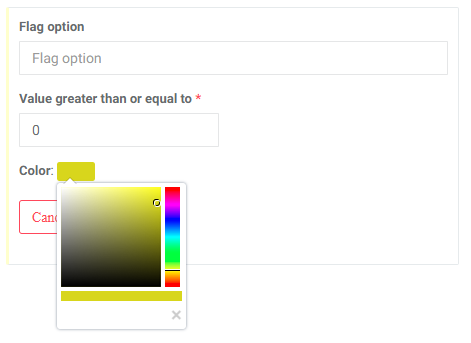
The Flag Option field is optional. What you enter here will be displayed in the legend on the map alongside the range for that item. If you only want to show the ranges and colors, leave this field blank.
Selecting Use Layers allows you to add geospatial overlays to the indicator map. Click on the + button to bring up the data layer parameter popup window.
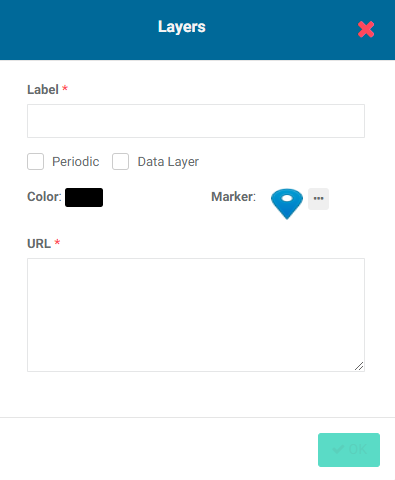
Enter a short, representative label/name for the layer, and select a color to use on the map for this layer. The OK button will be activated once a label has been entered.
If you wish to use a map marker other than the default, click on its More menu, and navigate to the image you want to use. Click on the file once to select it, then click Open or press Enter on your keyboard. The new marker graphic replaces the default in the popup window.
Enter the URL for the GIS data you want the later to display. NOTE: this requires access to an external service such as ArcGIS.
Checking the Data Layer box brings up the Format field, which allows you to add metadata to the layer. The format refers to the syntax used to display the metadata on the map. The syntax for formatting variables uses curly brackets. For example, in a layer which displays the locations of hospitals, the format template might look like this:
Hospital
Parish: {PARISH}
Region: {HEALTH_Area}
Facility Type: {FACIL_TYPE}
Name: {CEN_NAME}
where the items in brackets are the variables available from the URL, and the labels are the map legend labels. In practical terms, adding this formatting will allow the information in the variables to be shown on the map when a user clicks on the marker in the Map project dashboard for that indicator, or in the indicator Report tab Map view of the indicator itself.
Finally, checking the Periodic box allows several URLs to be defined for this layer and to update it periodically. When this option is selected, the Track Actuals tab of the indicator will feature a data entry icon. You will enter the URLs here instead of in the Spatial Visualization tab.
After creating the layer in the Spatial Visualization tab and checking the Periodic box, select Track Actuals, and click the Enter Layer URL icon below the Track Actual tab.
Enter the URL in the box, and click OK to save your work.
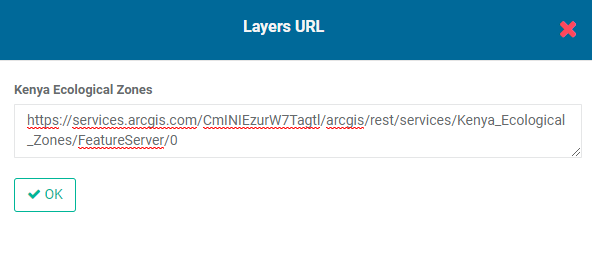
The layer will be updated periodically based on the information provided at the link.
External GIS data will appear in its own layer in indicator map reports once the indicator has been planned and actuals entered.
Once an indicator is saved, several additional tabs appear when you reopen the indicator, allowing you to plan, track and report on indicators, and to add notes and documents in a similar fashion to adding notes and documents to activities.
Previous: Indicators: Creating Indicators: Data Source | Next: Indicators: Documents
Author: Administrator
Last update: 2023-07-02 18:31
Indicators: Indicators Screen
Indicators are located in the Log Frame module. They are added to levels of the log frame, usually above the Activities level, although indicators can be associated to activities as well.
The latest version of Delta regroups several indicator-related functions which were dispersed throughout the system in earlier versions. As a result, the navigation tabs inside an indicator (once it's been opened) have been updated as well.
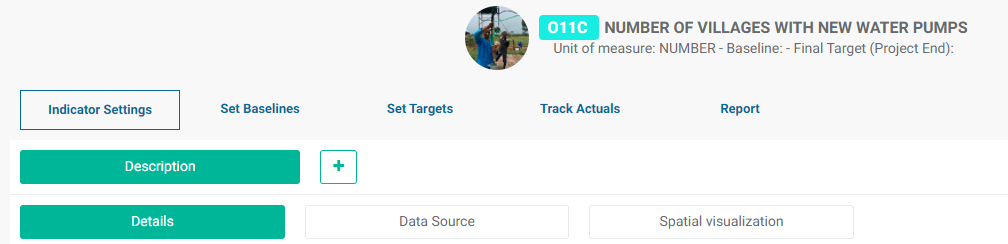
When you create a new indicator, the only tabs you'll see are Details, Data Source, and Spatial Visualization. These three tabs and their screens, regrouped under Indicator Settings > Description, comprise the indicator definition.
The Details screen contains the basic information about an indicator: Code, Name, Log Frame level association, Locations level association, etc.
The Data Source screen sets how the tracking (Actuals) data will be entered into the indicator: Manual, Calculation, or Data File.
The Spatial Visualization screen contains the parameters that will be used on map displays of indicator performance, most notably map legend colors and external GIS overlays.
Once you save a new indicator, the other tabs will appear when you click the indicator to open it. The other basic indicator parameters are located in the Documents, Note, Workflow, and Set Permissions tabs, all of which are optional and regrouped under the More icon of the Indicator Settings > Description screen.
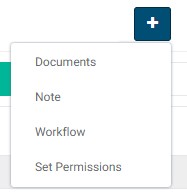
The Documents screen allows users to associate documents to an indicator.
The Notes screen contains a full-featured text editor, making it easy for project members to add notes, links, photos, videos, etc. to an indicator.
The Workflow screen allows users to create workflows and assign indicator-related tasks to project team members.
The Set Permissions screen is used to set indicator-specific permissions for tasks such as planning and tracking.
Once all the basic information has been entered into an indicator, use the top-level tabs to plan, track, and report on the indicator.
The Set Baselines screen is where baseline and final target values for the indicator can be entered for each geographical location.
The Set Targets screen is where the indicator is planned in detail for each geographical location. These are the planned targets and dates for the indicator performance.
The Track Actuals screen is where actual performance data is entered into the indicator.
Finally, the Reports screen regroups the built-in indicator reports as well as improved Custom Reports.
Previous: Log Frame Centricity in Delta | Next: Indicators: Creating Indicators: Details
Author: Administrator
Last update: 2023-07-02 18:32
Indicators: Other Settings
A few other settings are available for indicators. They are located in an indicator's More menu, which is at the end of the indicator's line item in List view, and on an indicator's tile in the upper right corner in Tile view.

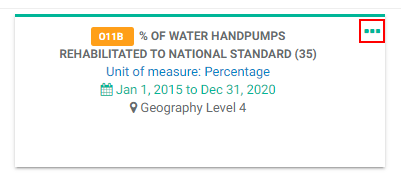
The menu contains three items: Image, Indicator Reference Sheet, and Delete.
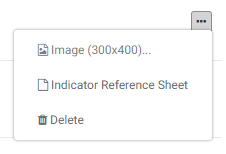
The Image option allows you to associate an image with the indicator. The selected image is toggled using the Picture checkbox at upper right. The image will appear on the indicator tile in Tile view, on its line item in List view, and as part of its header at top center when it's open.
To add an image to an indicator, select Image from the indicator's More menu, navigate to the location of the image you want to use on your local or network drive, click on the image to select it, and click OK or press Enter on your keyboard. The image will be associated with the indicator. If you can't see the image, make sure that the Picture checkbox is checked.
The Indicator Reference Sheet assembles the most important information for a given indicator, including a timeline graph of the indicator's performance. Click the Print button at top right to print a copy of the reference sheet.
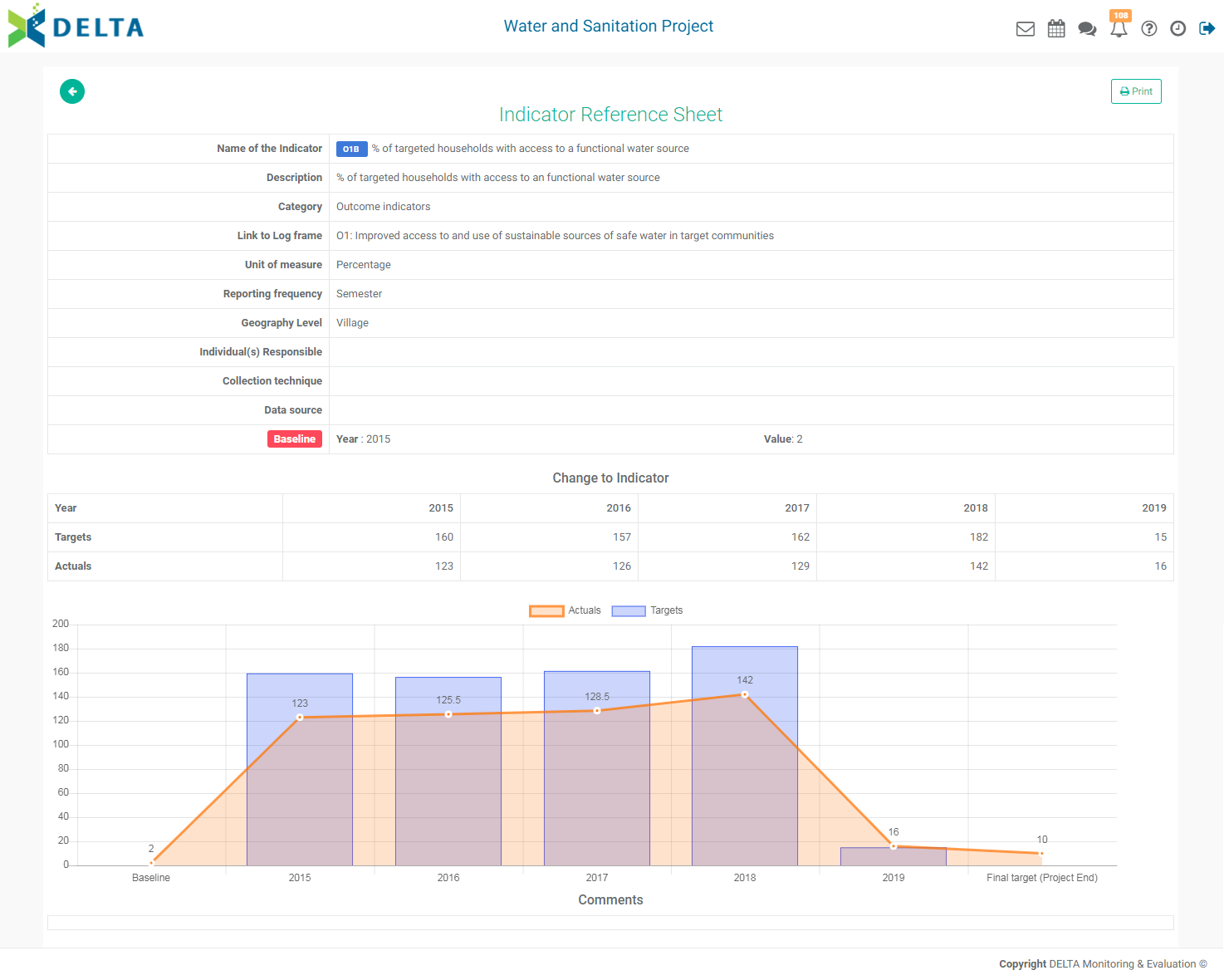
This screen is populated in part from planned and tracked data entered into the indicator, so there will be very little information at first, most of which will originate from the Details tab information entered earlier.
If comments were added to the indicator, they will appear in a Comments section below the graph.
Select Delete from the More menu to delete the indicator. NOTE: if the indicator contains data, the system will prevent deletion in order to maintain data integrity.
Previous: Indicators: Custom Reports | Next: Indicators: Cross-Cutting Indicators
Author: Administrator
Last update: 2023-07-02 18:33
Indicators: Documents
The Indicator Documents screen serves as a repository of indicator-specific documents. It's accessed from the More button of the Indicator Settings screen.
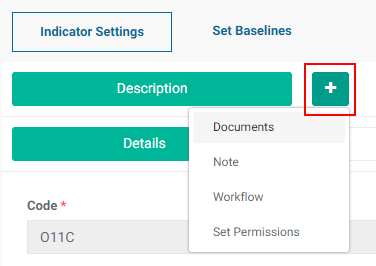
Click Documents in the More menu to bring up the Documents tab, then click the tab to open it.

Click the Add button at top right to add a document.
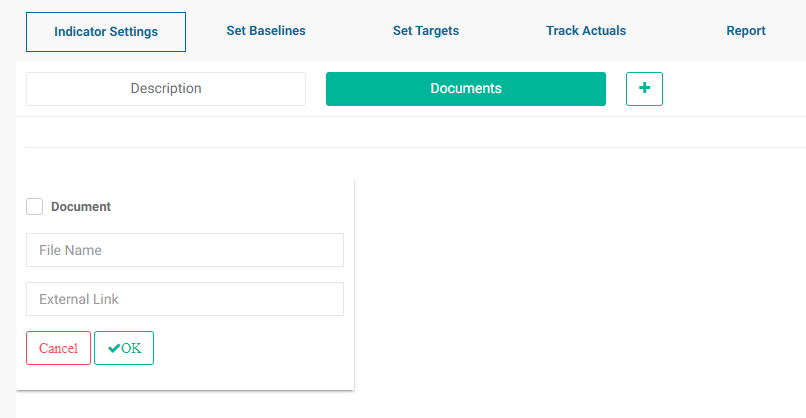
Two options are available: link to an external file, and link to a library document in the Learning Module.
To link to an external document, enter the file name and the external link for the file. This is particularly useful when linking to a master or authoritative version of a document, for example on a Sharepoint server or Google Drive. This helps prevent the proliferation of multiple versions of a document. Click OK when you're done. The document will appear on the screen.
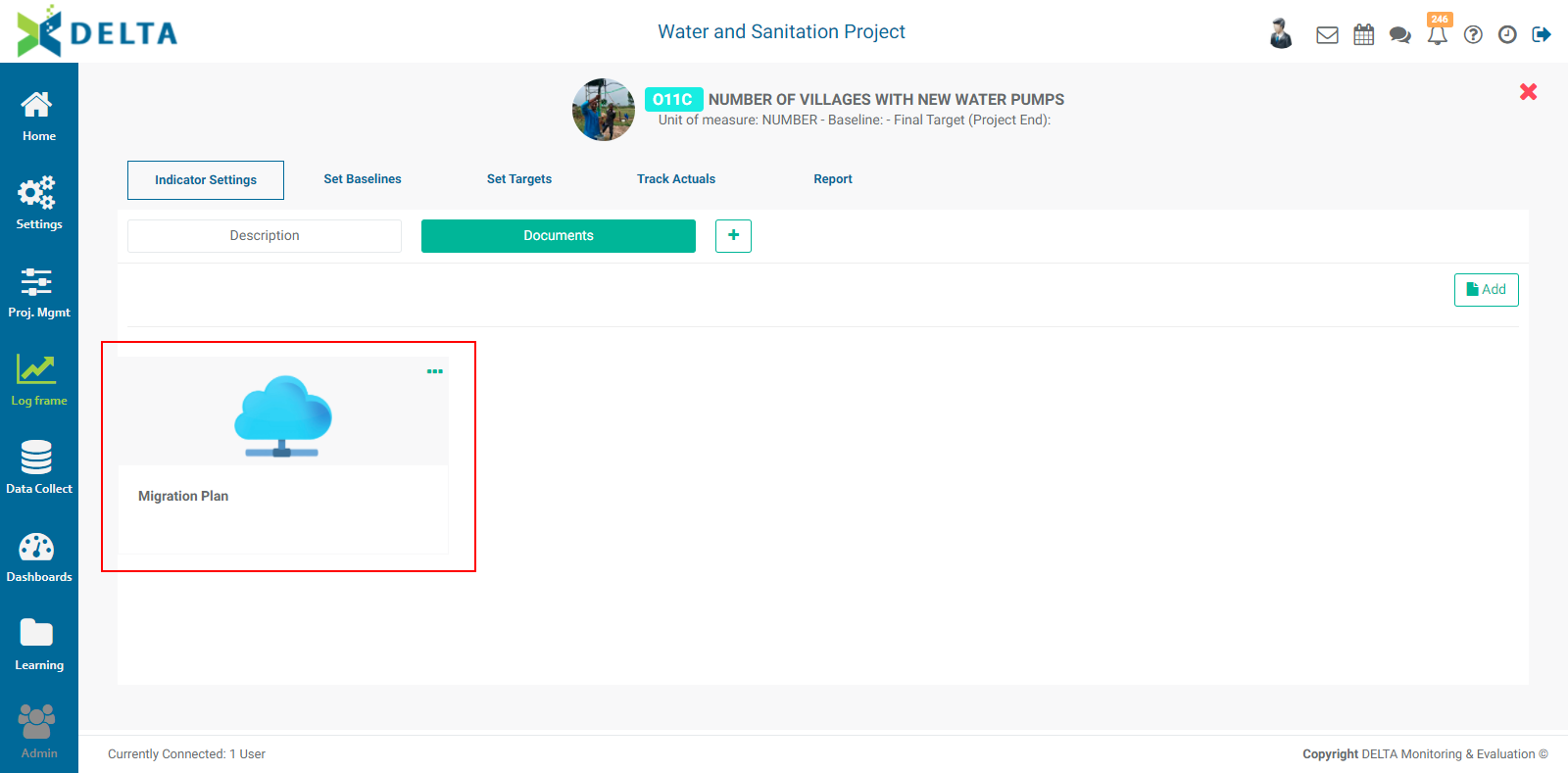
To link to a library document, check the Document box. The File Name and External Links fields will be replaced by a pick list which is populated by the existing documents in the Learning module.
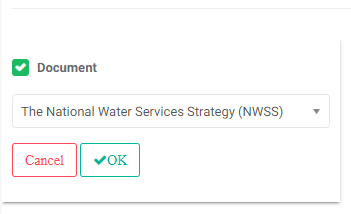
Select a document from the pick list, and click OK. The document will appear on the screen.
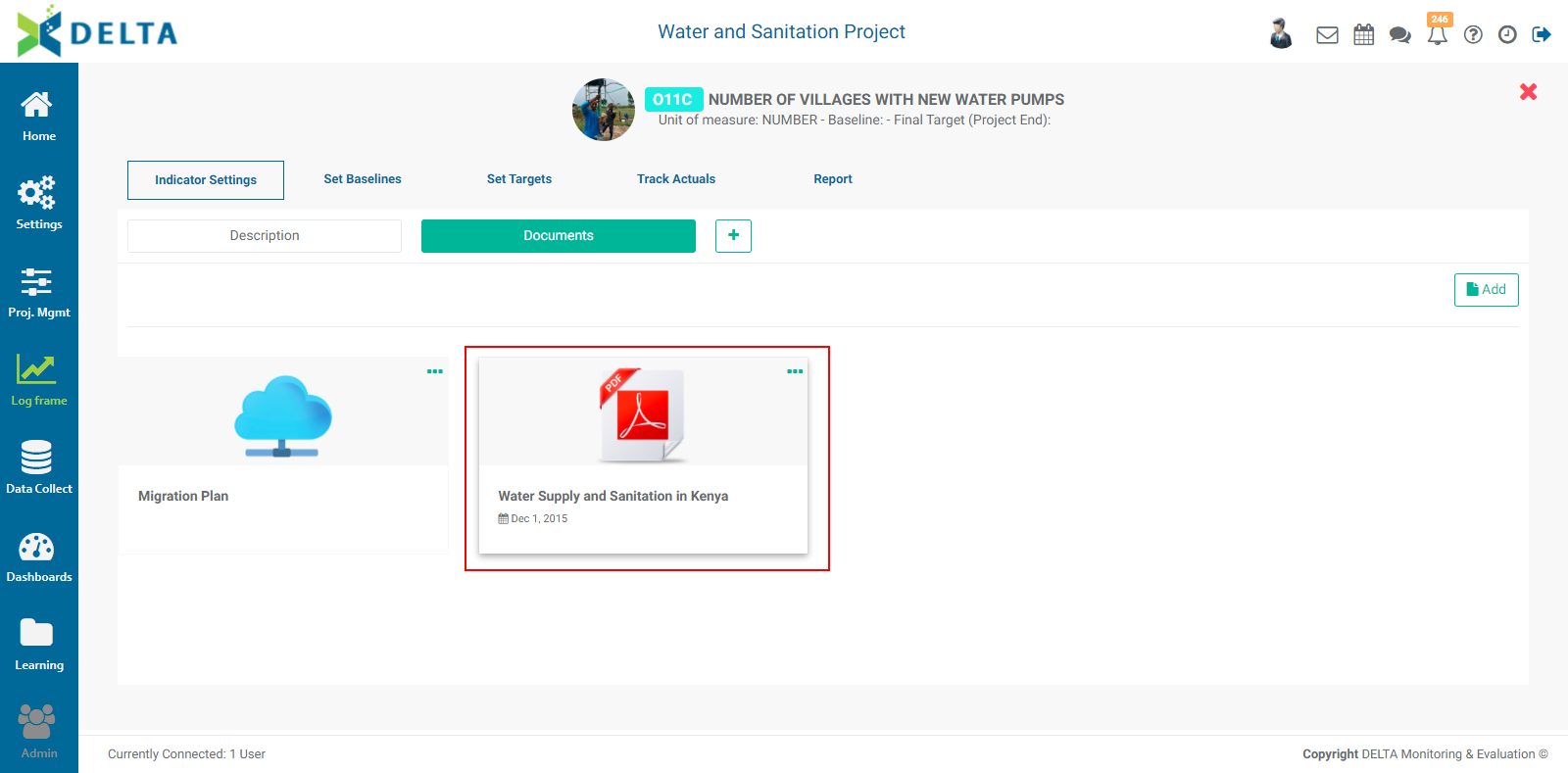
To remove a document, click the More (...) icon in the upper right corner of its tile and select Delete. NOTE: this does not delete the actual document, only the link to it.
NOTE: clicking the Delete icon next to the Documents tab does not delete its contents. It merely hides the Documents tab. To bring the tab back, click the More button and select Documents from the pick list.

Previous: Indicators: Creating Indicators: Spatial Visualization | Next: Indicators: Notes
Author: Administrator
Last update: 2023-07-02 18:35
Indicators: Notes
The Note screen contains a full-feature text editor which includes styles, fonts, lists, tables, links, pictures, videos, and its own help system. This is the same functionality that appears throughout Delta.
Select Note from the More menu, then click the Note tab to open it.
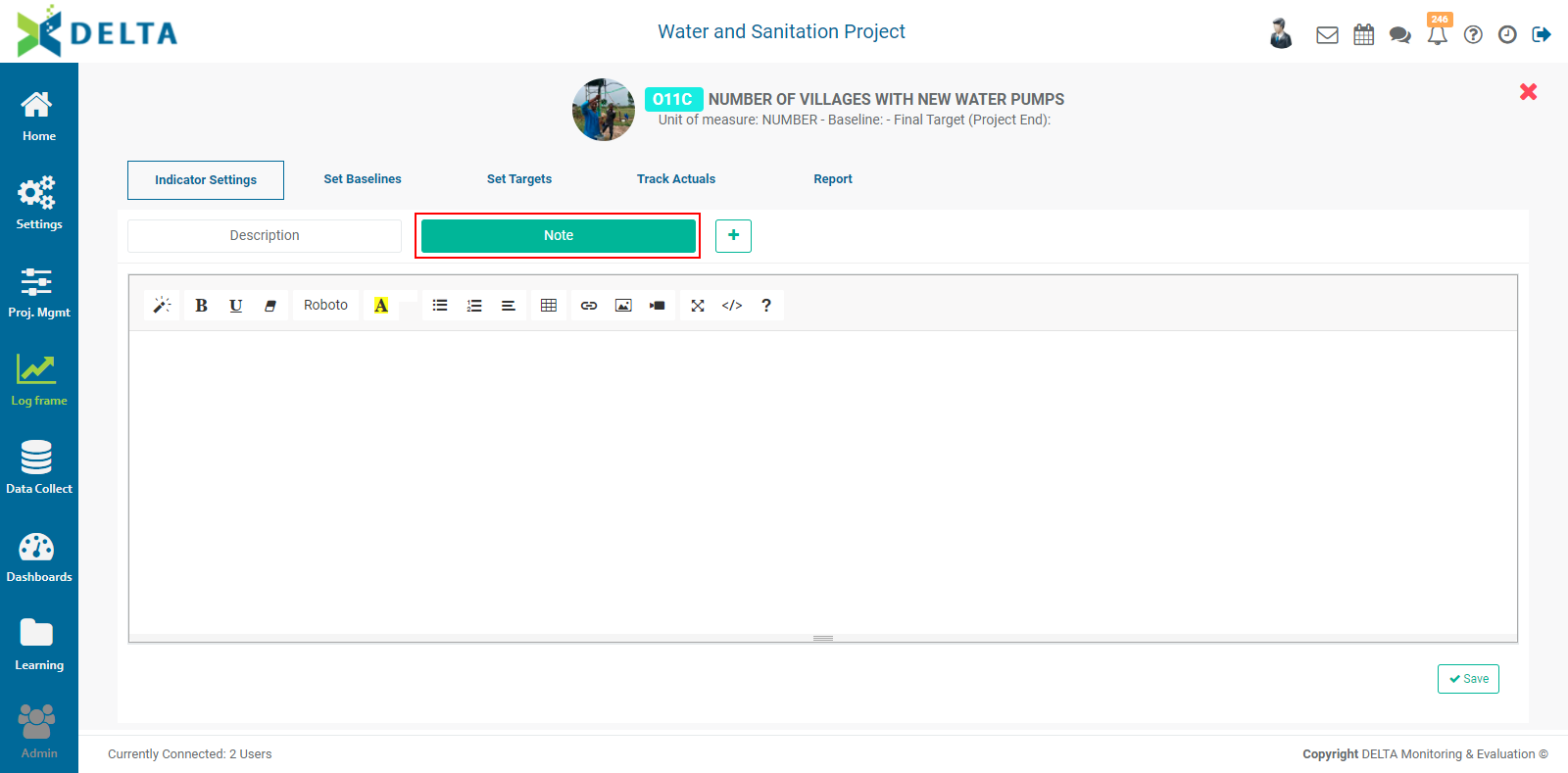
After you've entered a note, click the Save button at lower right. You can add to the note by reentering this tab at any time. It is a best practice to manually timestamp and add your initials or name to a note, so that other users know when and who wrote the note.
Previous: Indicators: Documents | Next: Indicators: Workflows
Author: Administrator
Last update: 2023-07-02 18:35
Indicators: Workflows
The next tab under Indicator Settings is Workflow. This screen is where you assign who is responsible for a given indicator. The two tasks you can associate workflows with are Plan Targets and Track Indicator.
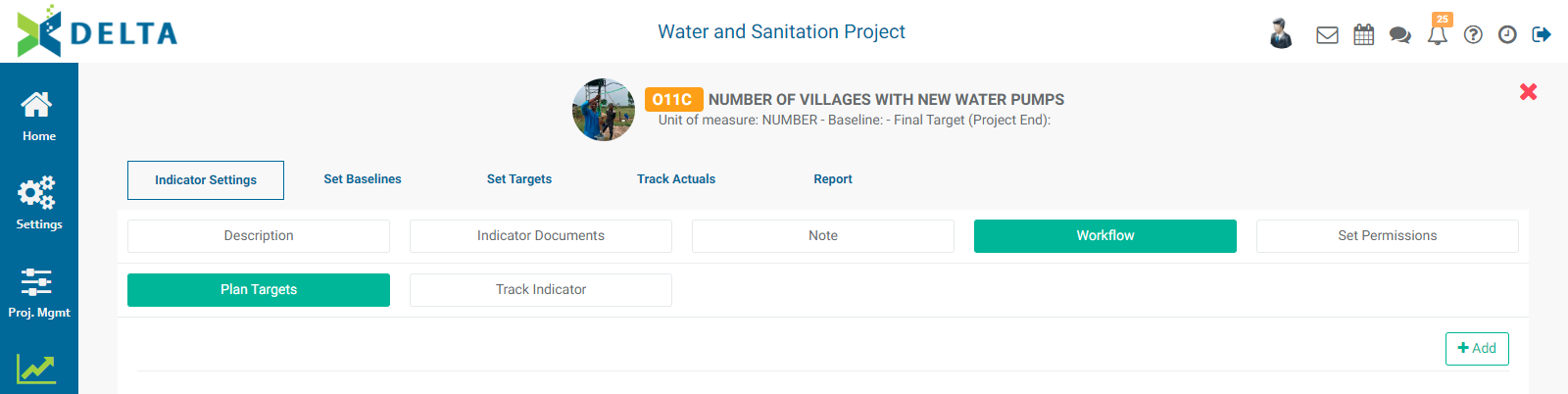
To assign an indicator to an actor, click the +Add button, select which type of task the workflow will be for - Plan Targets or Track Indicator - and enter a name for the workflow and a person responsible for it. You may also optionally select a color for the workflow.
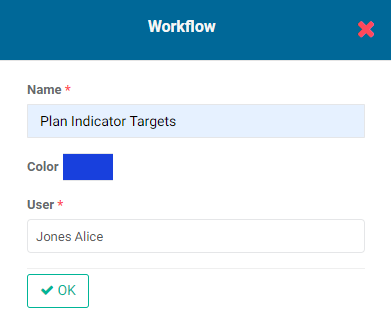
The person who is assigned to that indicator will receive a notification from the system, signified by a numbered badge on top of the Alerts/Notifications icon in the main toolbar.
The responsible person's name will also appear on a tile on the Workflow screen.
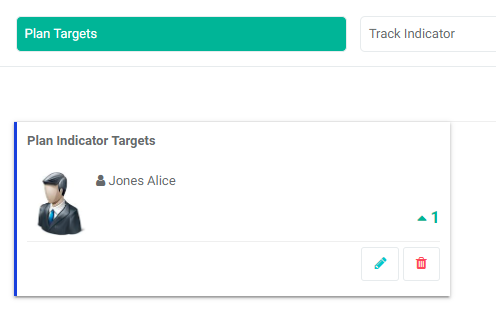
The notifications remain in the system to make sure the person who's assigned to the indicator can refer to them at any time. To view notifications, click on the Alerts/Notifications in the main toolbar at the very top right of the screen.
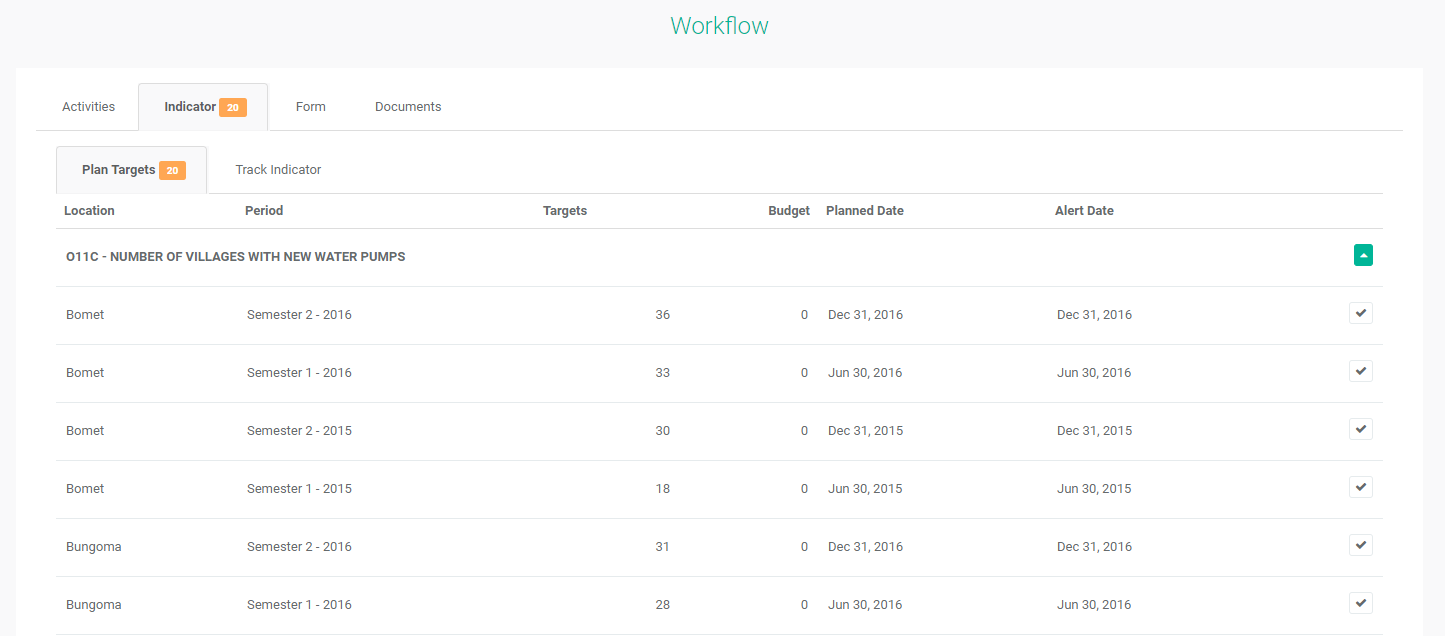
In the example above, each location appears once for each instance of the assigned task. For example, if a workflow calls for quarterly tracking in a five-year project, 20 instances of the workflow will appear for each location, with planned and alert dates clearly indicated.
The checkmark at right will change into a dot once the workflow for that item has been started, and the corresponding data will be locked from editing to ensure the integrity of the data. The color of the dot will match the color assigned to the last person in the workflow who worked on that item.
Previous: Indicators: Notes | Next: Indicators: Set Permissions
Author: Administrator
Last update: 2023-07-02 18:36
Indicators: Set Permissions
The next tab in the Indicator Settings group is Set Permissions. This allows setting the access permissions to each indicator for three tasks: Baselines & Final Targets, Plan Targets, and Track Indicator.
To grant permissions, select the desired task, then select the appropriate user(s), and click OK when you're done. NOTE: superusers do not appear in the Set Permissions screens since they have explicit permissions for the entire system.
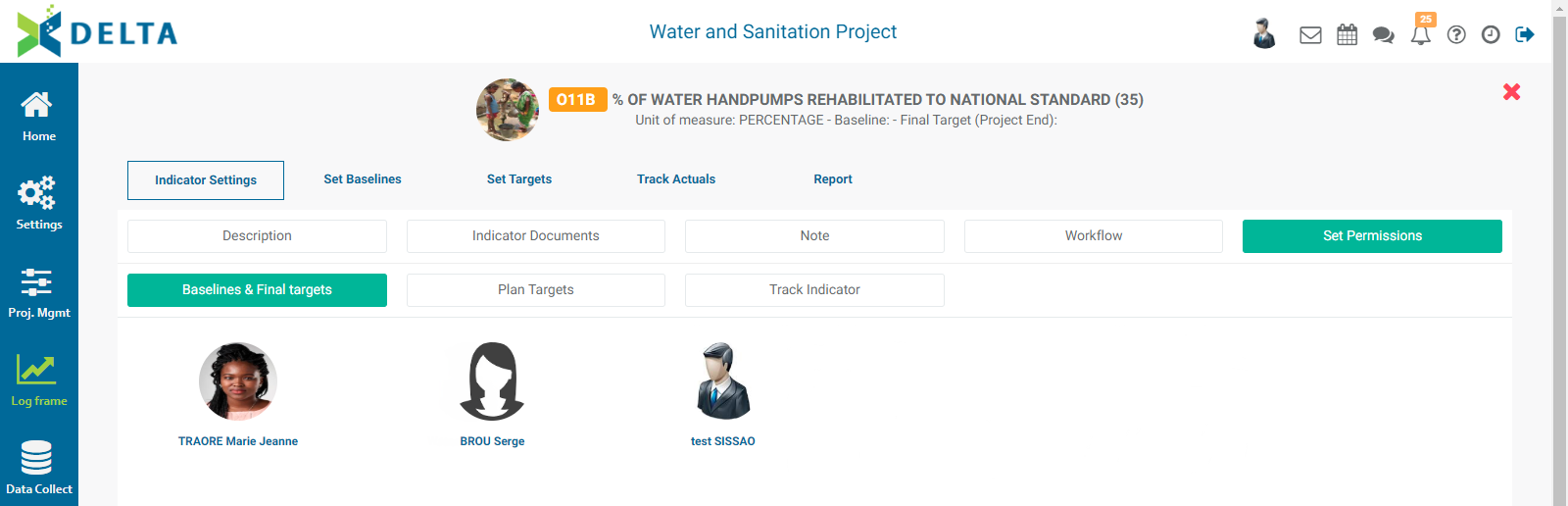
Previous: Indicators: Workflows | Next: Indicators: Set Baselines
Author: Administrator
Last update: 2023-07-02 18:37
Indicators: Set Baselines
The next top-level tab in Indicators is Set Baselines. This function has been consolidated here for ease of access. In previous versions of Delta, it was located in an indicator's More menu.
Set Baselines is where you'll be entering baselines and final targets for your indicator. Baselines in particular are crucial to tracking the progress of an indicator and understanding its data in context of the project's timeline.
The screen will initially open blank. Click the + button at far right to add Locations from the list.
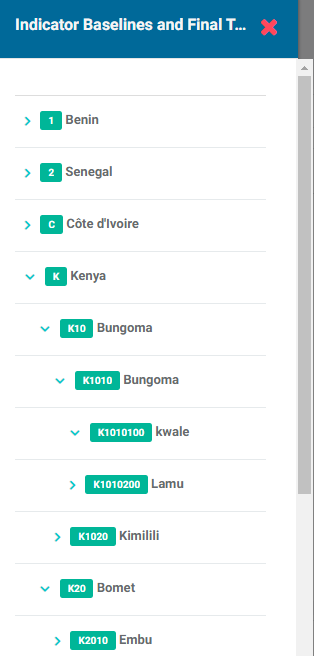
NOTE: depending on the geography level which was set when the indicator was created, all the locations in the list may not be available.
Clicking on the desired location brings up its Indicator Baseline and Final Targets popup window.
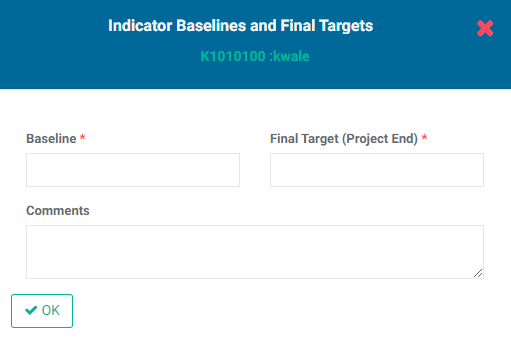
Enter the location's Baseline and Final Target, along with a comment (optional).
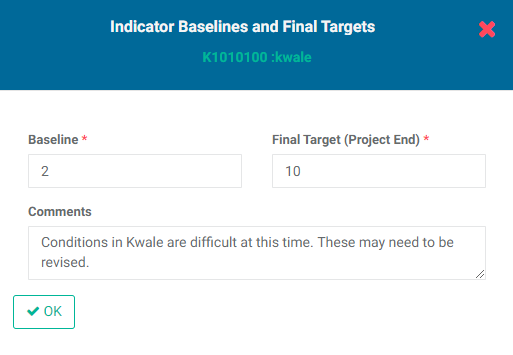
Click OK when you're done. The location and its baseline and target will appear on the screen.
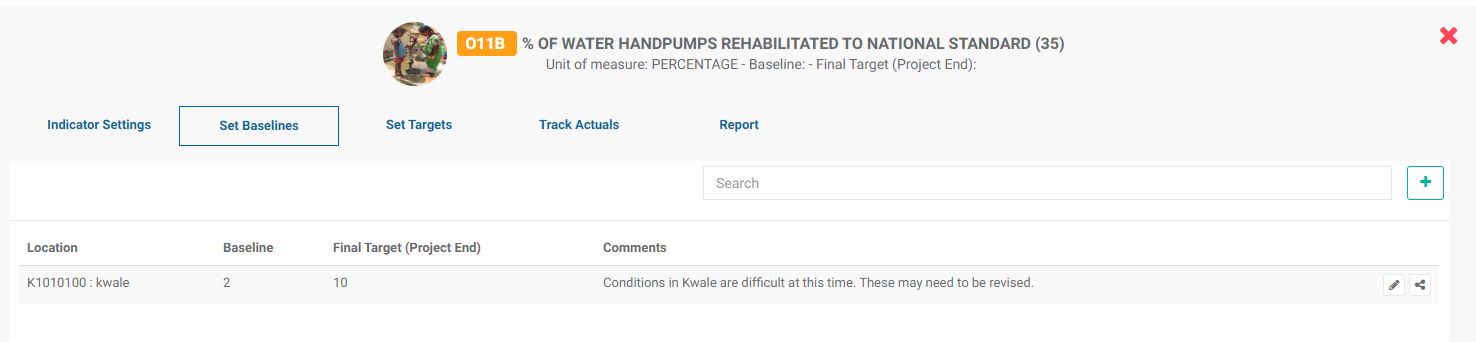
NOTE: as you add locations, baselines, and targets, the indicator header at top center of the screen will reflect the cumulative changes you make.
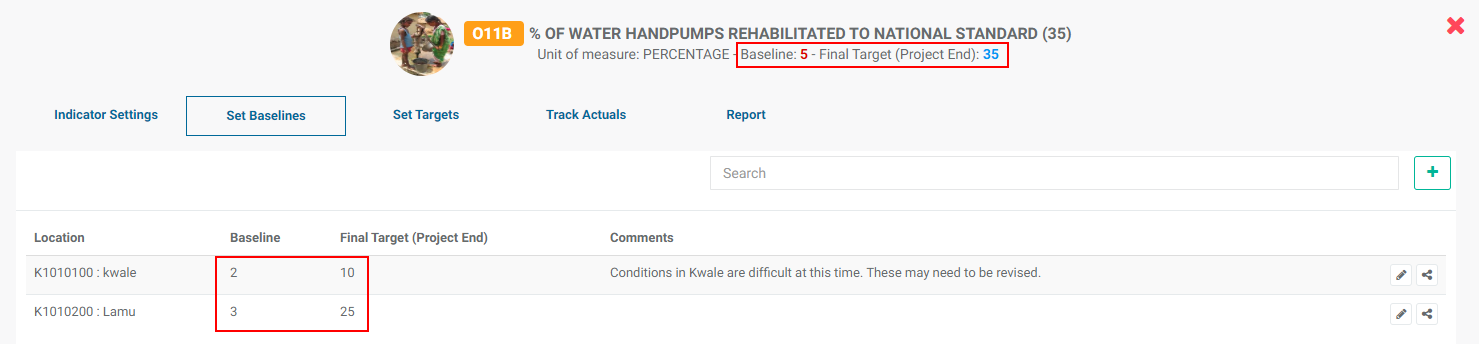
Prevously: Indicators: Set Permissions | Next: Indicators: Set Targets
Author: Administrator
Last update: 2023-07-02 18:38
Indicators: Track Actuals
Overview
Once targets have been set, the indicator can be tracked. The tracking method depends on which data source you selected when you set up the indicator: Direct Entry (manual), Calculate from a Formula, or Populate from a Data File. The examples below assume that Direct Entry was selected. When either of the other two methods are used, the Indicator Track Actuals screen will feature a Data Entry icon instead of allowing manual entry.
Manually entering actuals into an indicator is straightforward. Click on the indicator to open it and select the Track Actuals tab. Delta will display all the elements of the geography list for which planning information was entered. If you don't see the information you entered in the Set Targets screen, make sure you have selected the correct year and period.
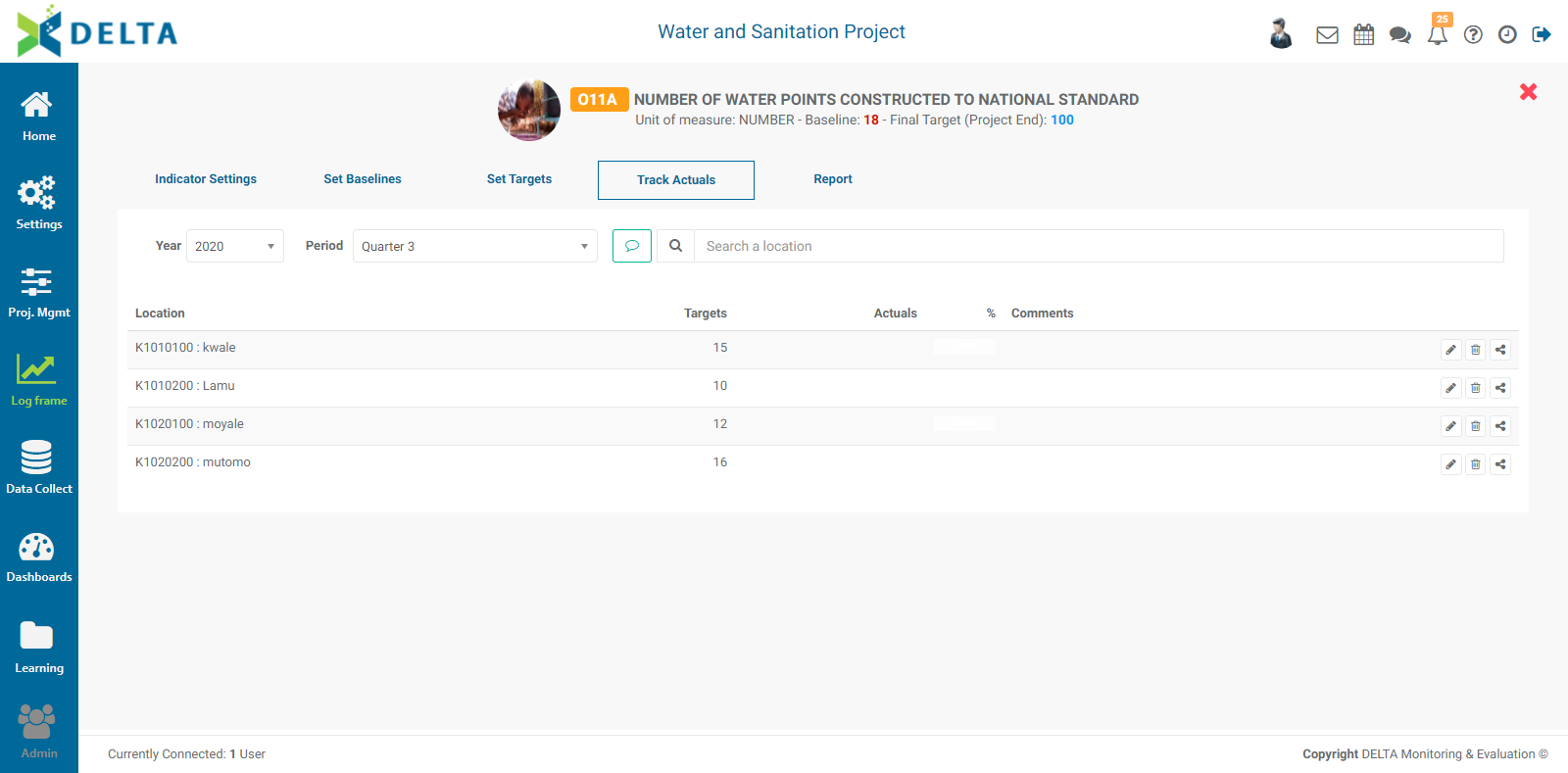
To input actuals, click on a location's Edit icon to bring up the Indicator Actuals popup window. Keep in mind that the content of the window will differ slightly from the example below, depending on whether disaggregation categories were used, and whether tracking budgets and costs was enabled. When disaggregation categories are used, you'll need to break down the actuals for each disaggregation category in a way similar to setting targets.
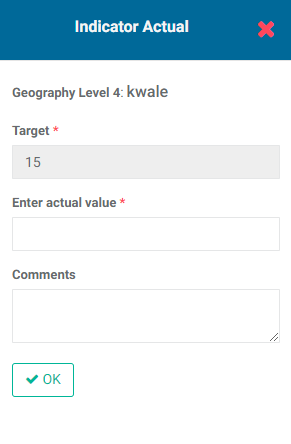
Enter the actuals for the location, a comment if warranted, and click OK to save your work and return to the Track Actuals screen. The new information appears in the list, along with performance data based on the targets you entered. The colors of the performance markers are based on the Flag colors you set in the project's Settings module.
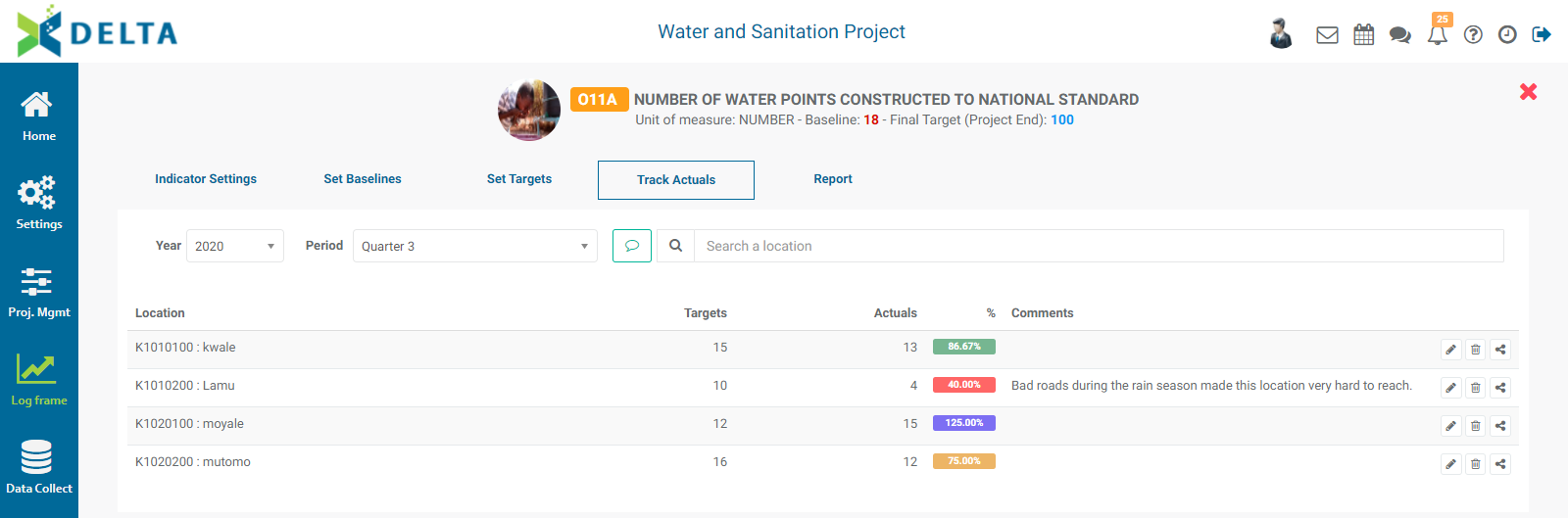
Once actuals data have been entered, you can review the indicator's performance in the Reports tab.
Previous: Indicators: Set Targets | Next: Indicators: Built-In Reports
Author: Administrator
Last update: 2023-07-02 18:39
Indicators: Built-In Reports
Overview
An indicator's Report tab regroups several built-in dashboards as well as custom reports. The latter were previously located in the Analytics module of Delta.
For any data to appear in the Reports, some actuals must be input into the indicator's Track Actuals screen. There are four tabs to the Report screen: Performance, Progress, Map, and Custom Reports.

The Performance tab displays Actuals vs Targets for each location in the indicator. The default view is Global.
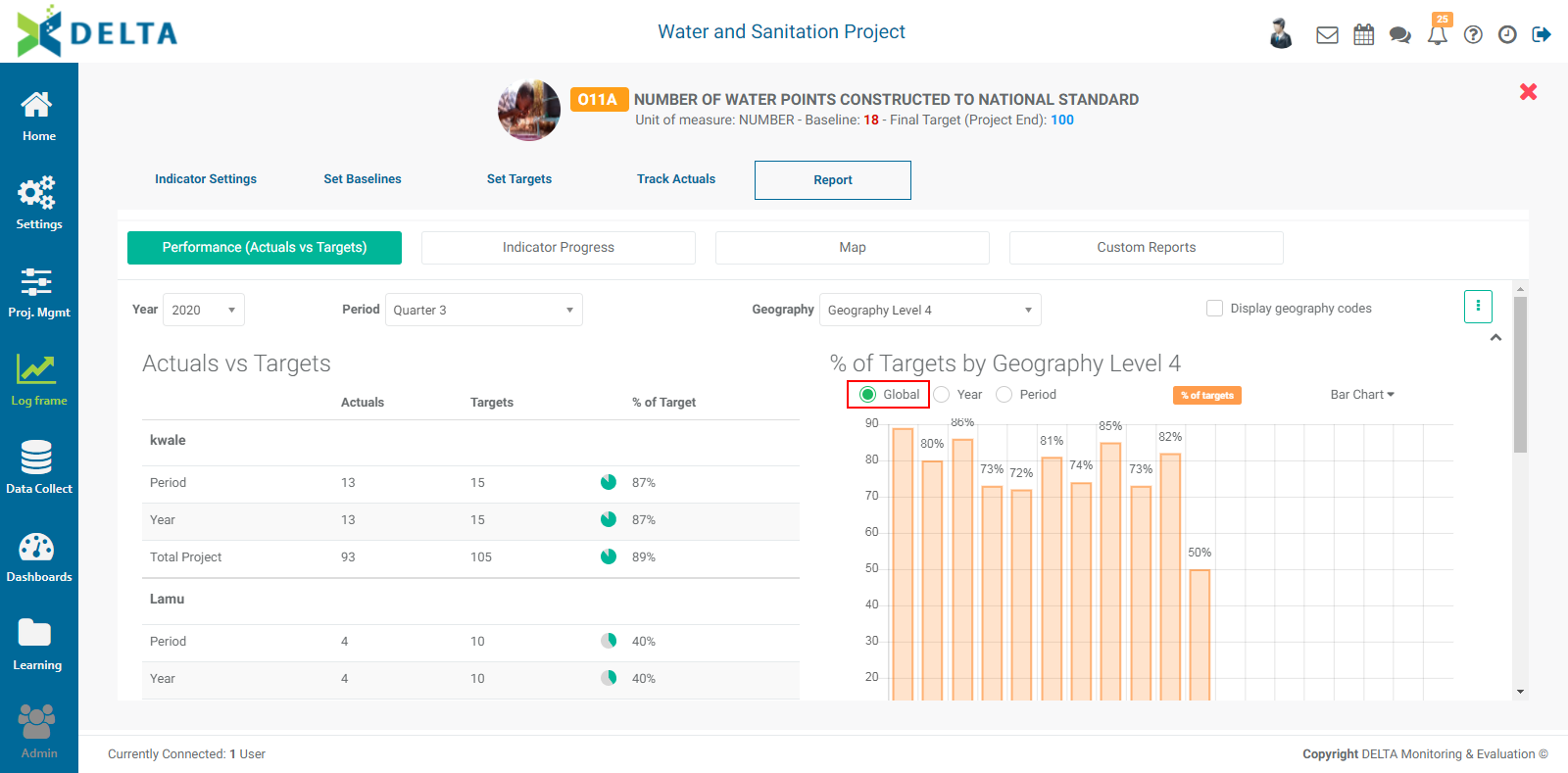
Use the Global, Year, and Period radio buttons to navigate the data. You can specify the year and period by using the pick lists at top left right under the Performance tab.
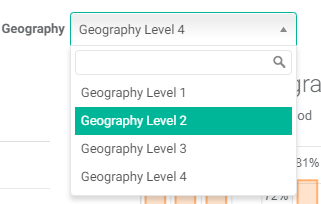
You can select any geography level equal to or higher than the level selected in the indicator definition when it was created.
You can also display or hide the locations' code by checking the Display Geography Codes box.
The left pane displays the locations data based on the selected year, period, and geography in tabular format. Each location features a circle which is filled to the performance percentage of the indicator for that location. It also scrolls independently from the other areas of the screen.
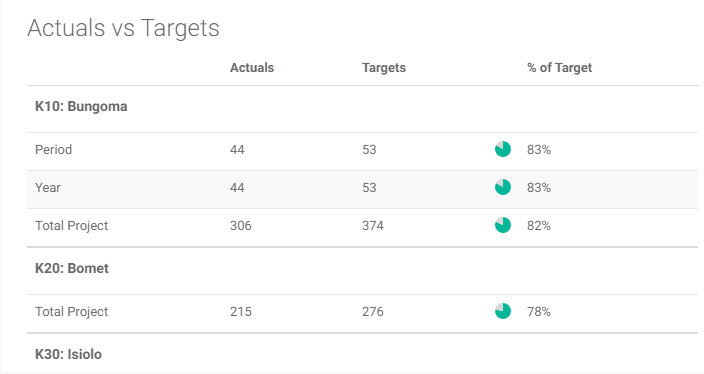
The right pane displays the indicator's data in graph format. This pane also scrolls independently of the rest of the screen.
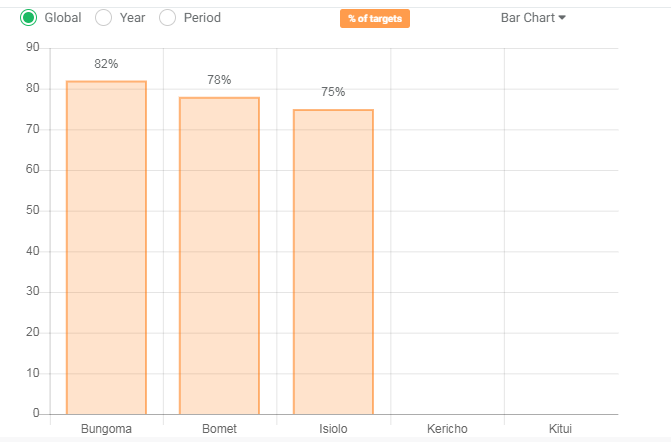
To change the color of the graph, click on the color bar at top to bring up the color picker, and select the desired color.
To change the type of graph, select it from the pick list next to the color bar. Options are Bar, Line, Donut, and Polar.
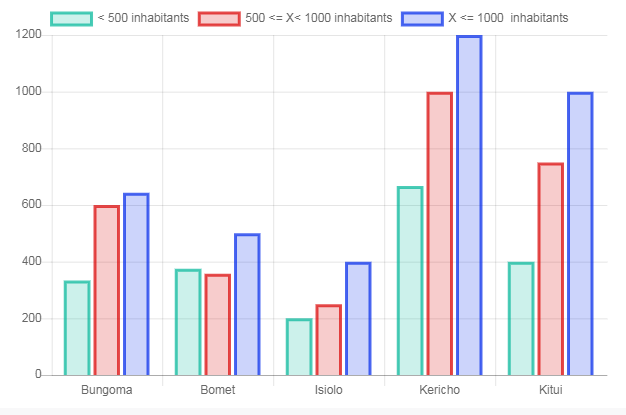
If the indicator uses disaggregation categories, you'll have the option to view disaggregated data. Each category is graphed side by side with the others for a full at-a-glance picture of the indicator's performance.
Click the Disaggregate button above the graph to select the disaggregation categories you want to filter for.
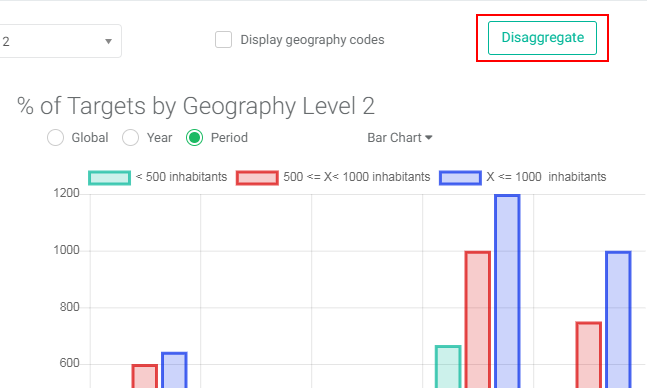
Select the categories you want to filter, and click OK when you're done. Keep in mind that the popup will look different depending on how many disaggregation categories are used by the indicator, and whether two or more categories are parallel- or cross-disaggregated.
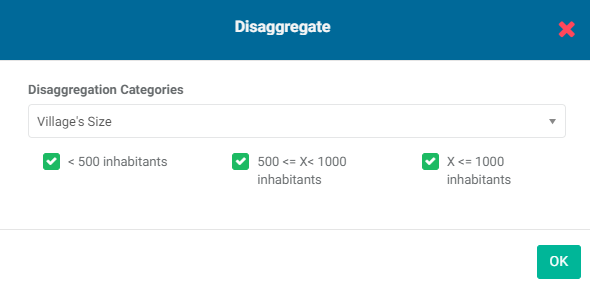
The selected data will appear in all three panes. To restore a category, click Disaggregate again and check its box, then click OK to save your work and return to the Performance screen.
The bottom pane of the screen displays side-by-side actuals vs targets based on period and location.
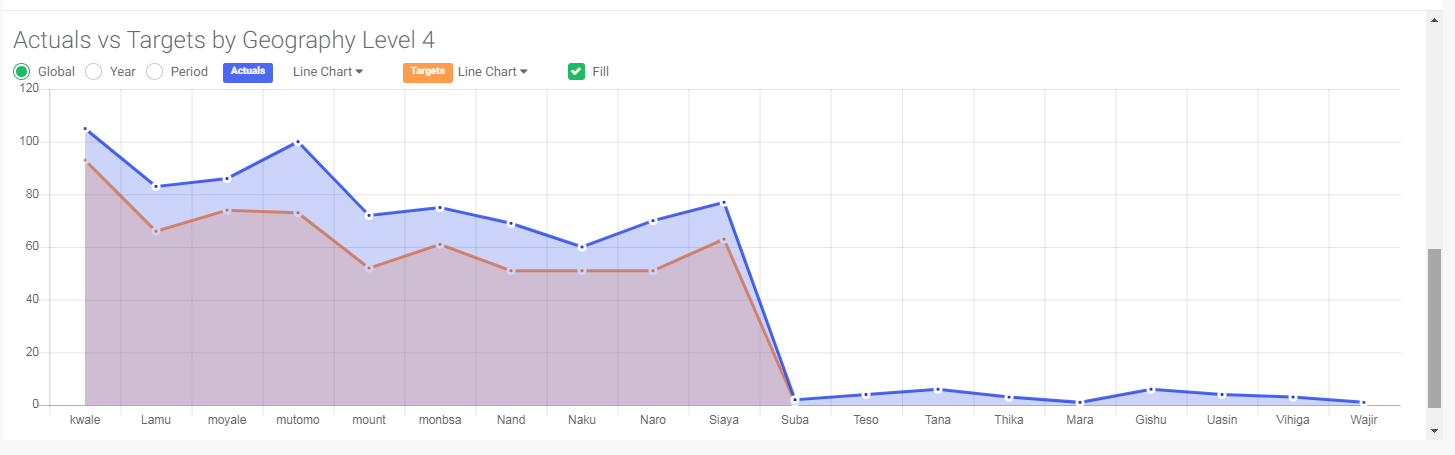
Select the desired period and geography level. Click the color bars to change the colors. The Fill checkbox fills the area under a line graph.
Export this report by clicking on the vertical More icon at top right. The options are Excel and Word formats.
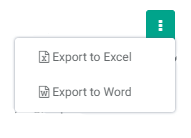
NOTE: exported reports will contain data based on your period and geography level selections.
The Indicator Progress tab displays the indicator data's trends over the lifetime of the project per location.
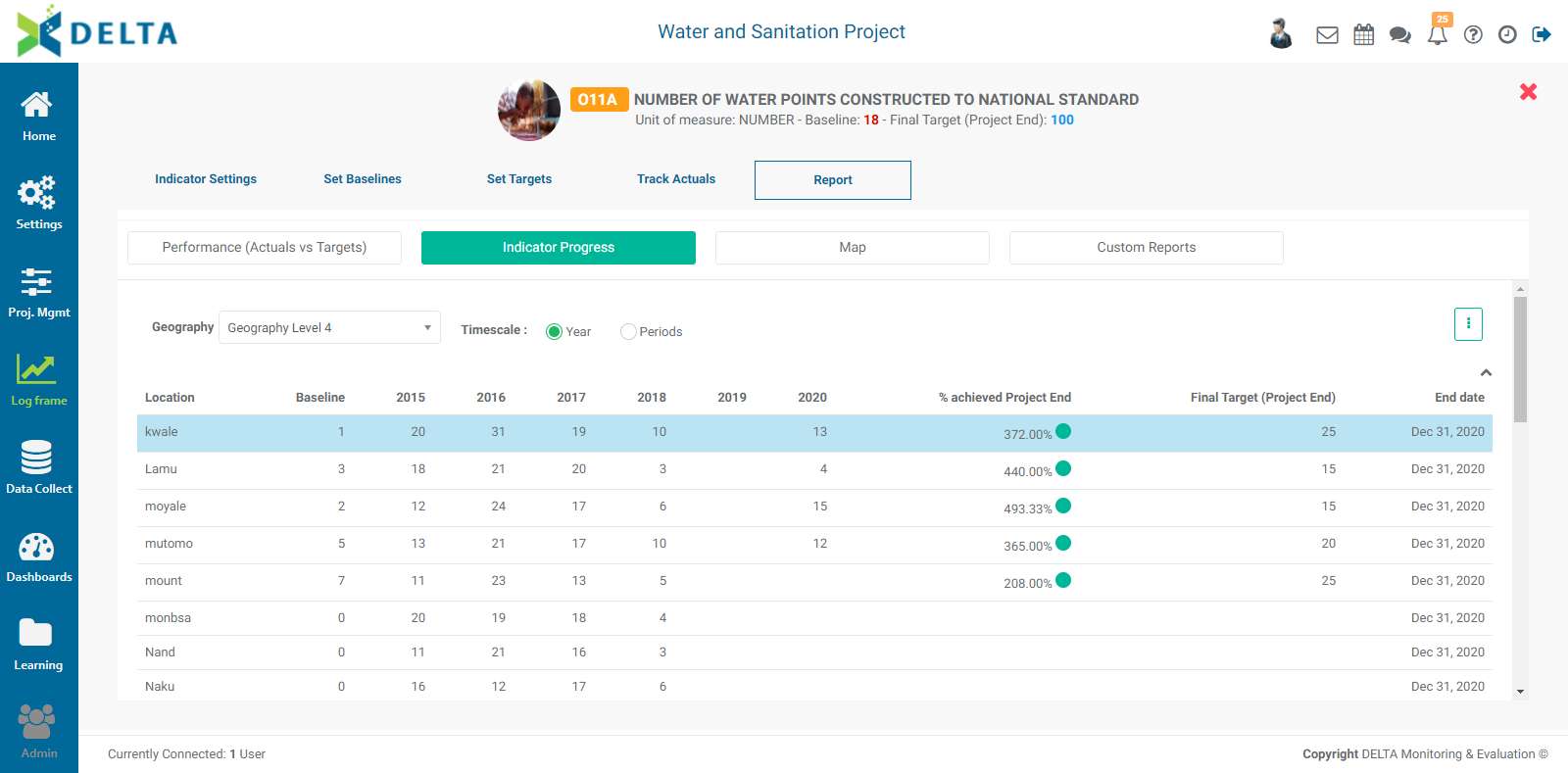
Use the Geography pick list to select the geography level. The display default when you open the tab is the geography level which was set in the indicator's definition when it was created.
The default timescale is Year. To view detailed data, select Period. The table will update itself to reflect your selections.
Select a location in the table to see its detailed information in both the table and the graph at the bottom of the page.
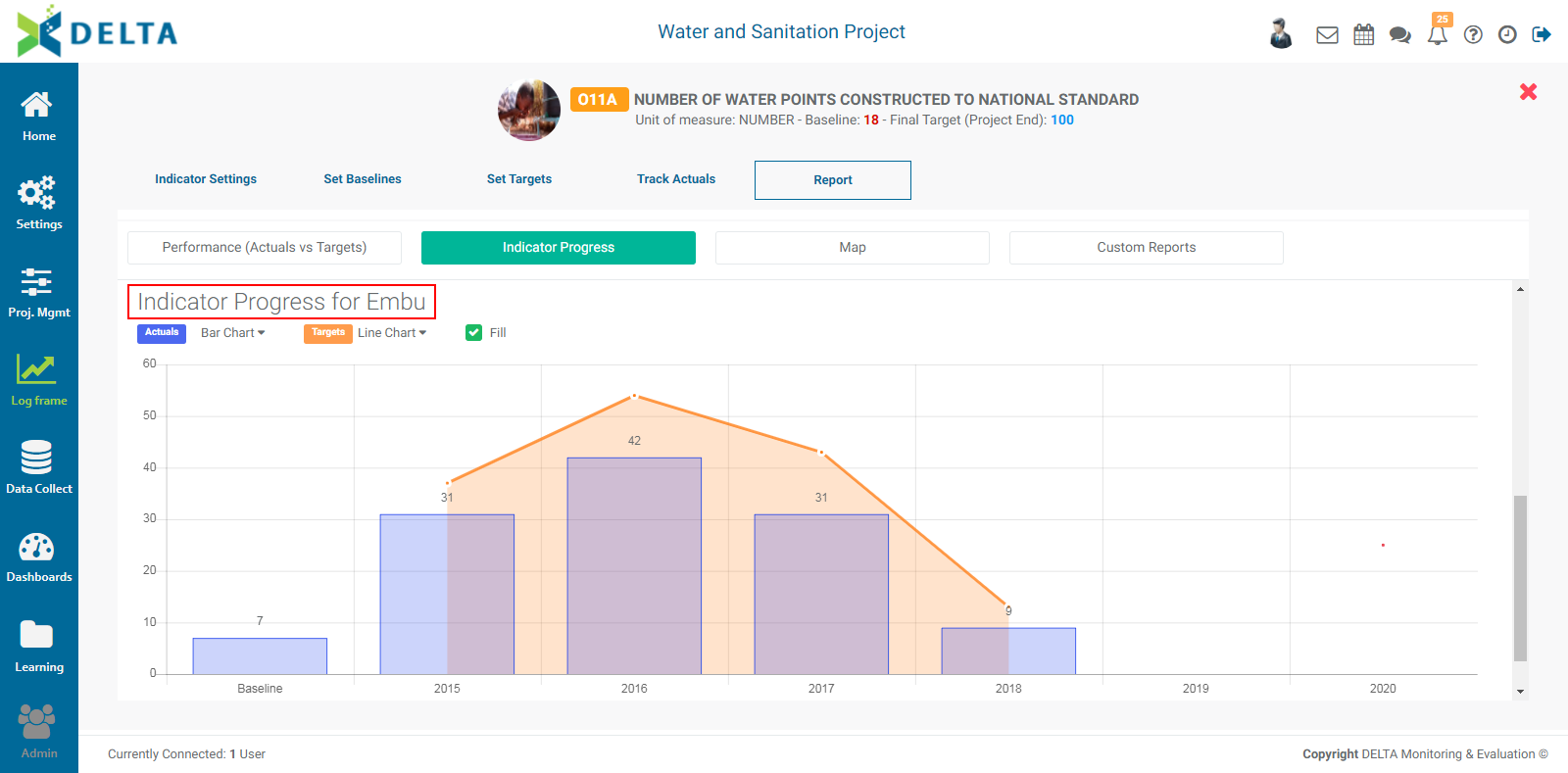
Export this report by clicking on the More icon at top right. You can export to Excel and Word formats. NOTE: the export file will reflect any options which were applied when the report is exported, such as geography levels, periods, and locations.
The third tab is Map. Indicator data will be displayed on the map in the Delta Layer according to the geography level, the period selected, and the breakdown and color coding selected in the indicator's Details > Spatial Visualization settings. Any additional GIS layers will also appear, and can be turned off by unchecking their respective boxes. You can also mouse over any part of the map data to see its information.
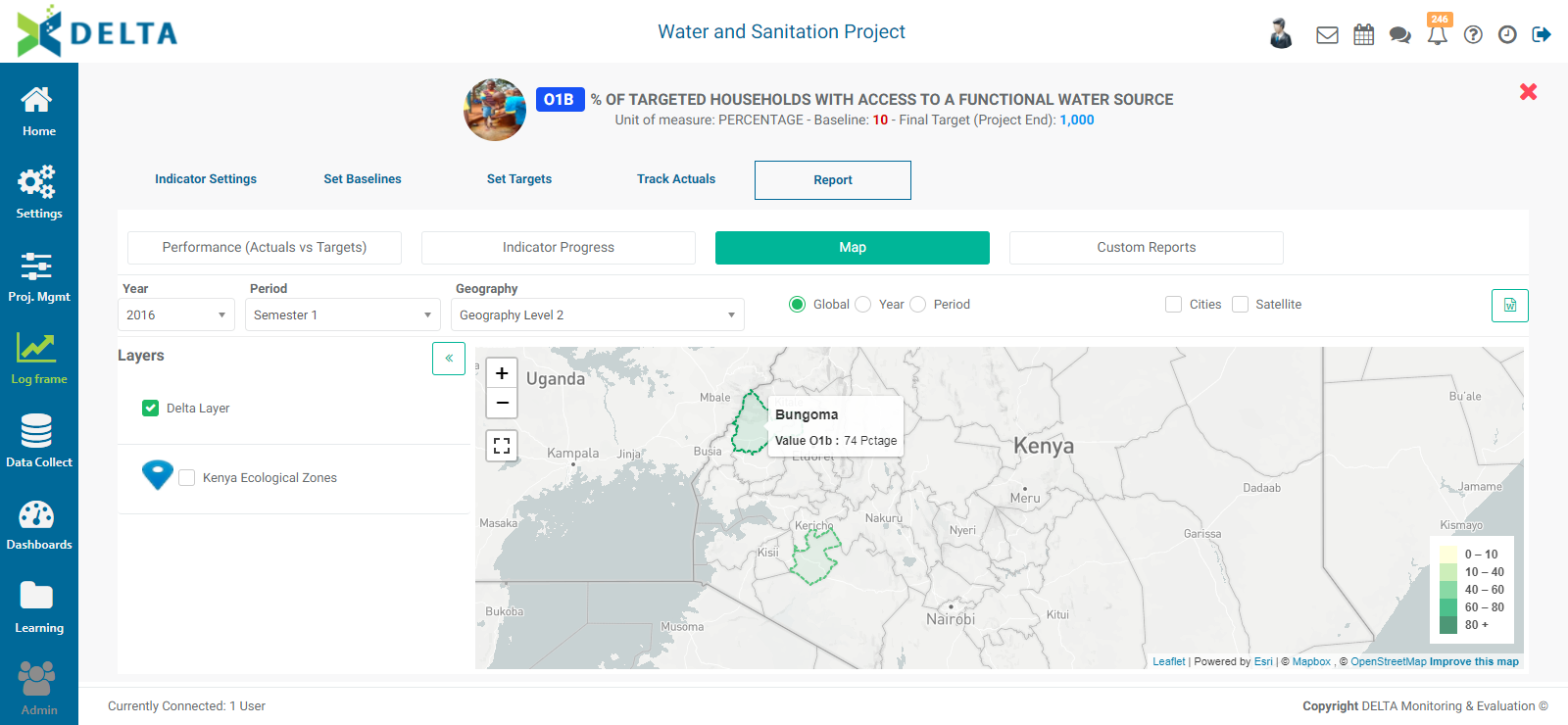
Export this dashboard by clicking on the Word icon at upper right.
Previous: Indicators: Track Actuals | Next: Indicators: Custom Reports
Author: Administrator
Last update: 2023-07-02 18:41
Indicators: Cross-Cutting Indicators
As mentioned in the Portfolio Settings: Log Frame article, Delta supports the creation of cross-cutting indicators. These indicators are created at the Portfolio level, but informed at the Project level.
Creating cross-cutting indicators requires that a Log Frame, Locations, Units, and Stakeholders be entered in the Portfolio's Settings module.
Adding a cross-cutting indicator is simple. From the Portfolio page, click the Log Frame icon in the left navigation menu to bring up the Portfolio Indicators screen, and select any log frame level except the first one, which is Activities or its equivalent log frame end point.
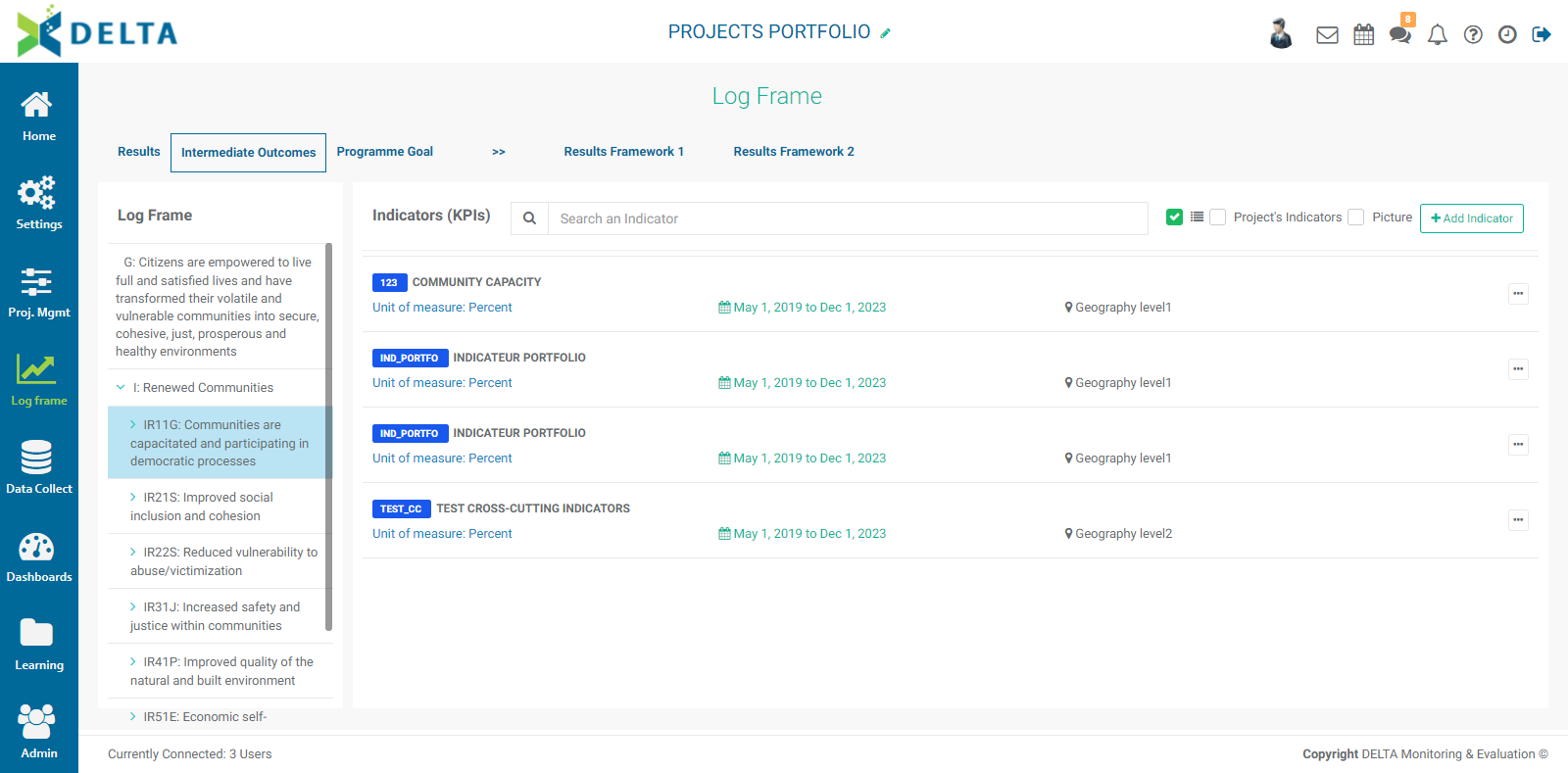
To create a cross-cutting indicator, click the +Add Indicator button at top right, and enter the required information. All fields are mandatory except the description, but it's a best practice to enter a short description for the indicator, especially since it will appear in several projects.
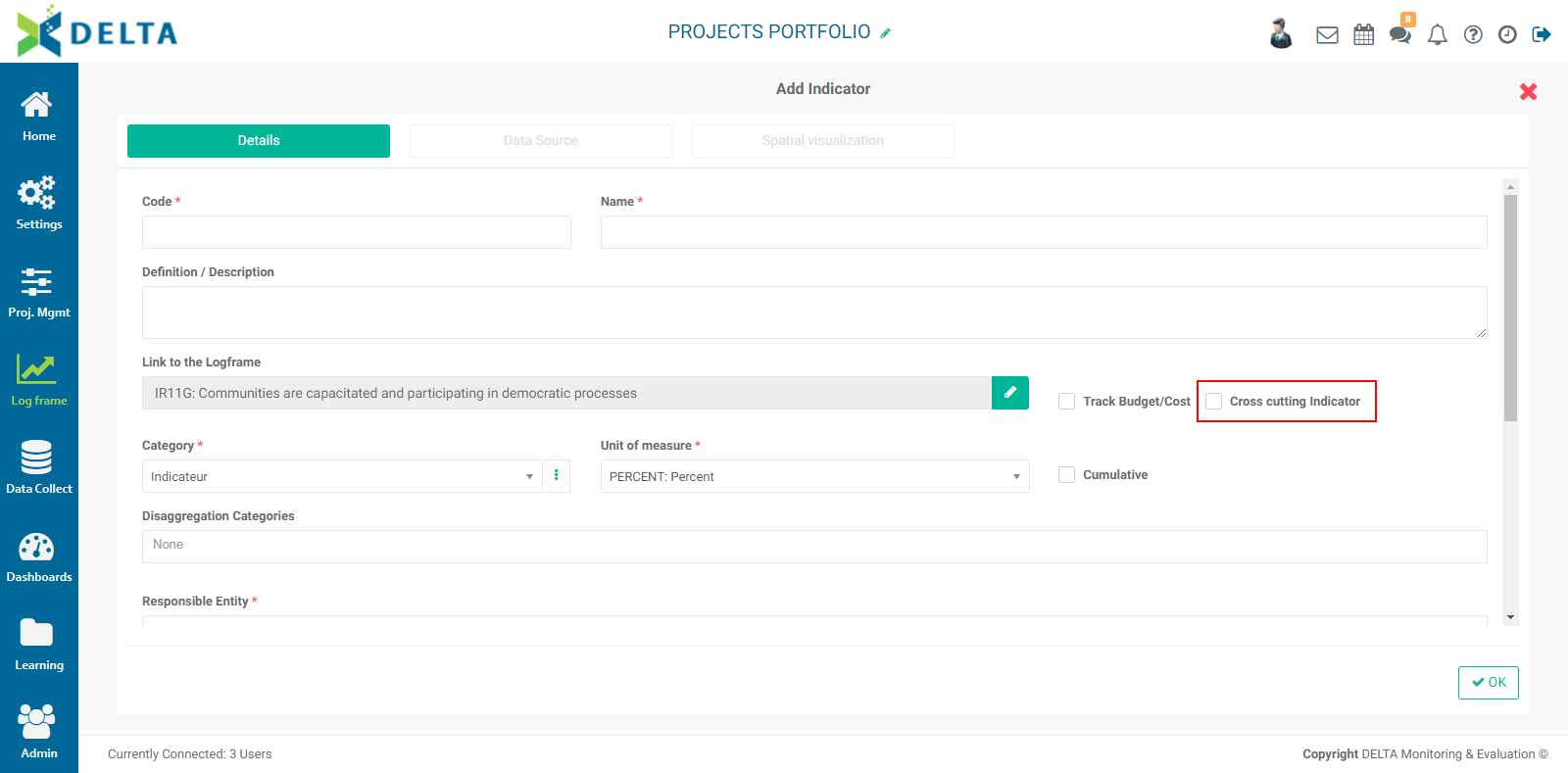
IMPORTANT: make sure to check the Cross-Cutting Indicator box. If you do not, you'll be creating a regular portfolio-level indicator.
Once you have entered a code and a name for the cross-cutting indicator, and the Cross-Cutting Indicator box is checked, the Data Source and Spatial Visualization tabs will be replaced by a Projects tab. Click on it to select the projects in which you want to use the indicator.

Click OK to save your work and return to the Portfolio Indicators screen. Click the cross-cutting indicator you just created to open it, and note that it only contains two tabs: Indicator Settings, and Report. All the indicator data will be entered at the project level, which will then be reflected in the Report tab at the Portfolio level, with its data broken down by project to clearly indicate each project's contribution to the indicator. Go to one of the projects to which you deployed this indicator, and click the indicator to open it. NOTE: if you have trouble finding your indicator, select one of the Results Framework views. All indicators are shown there, regardless of whether or not they've been configured at the project level.
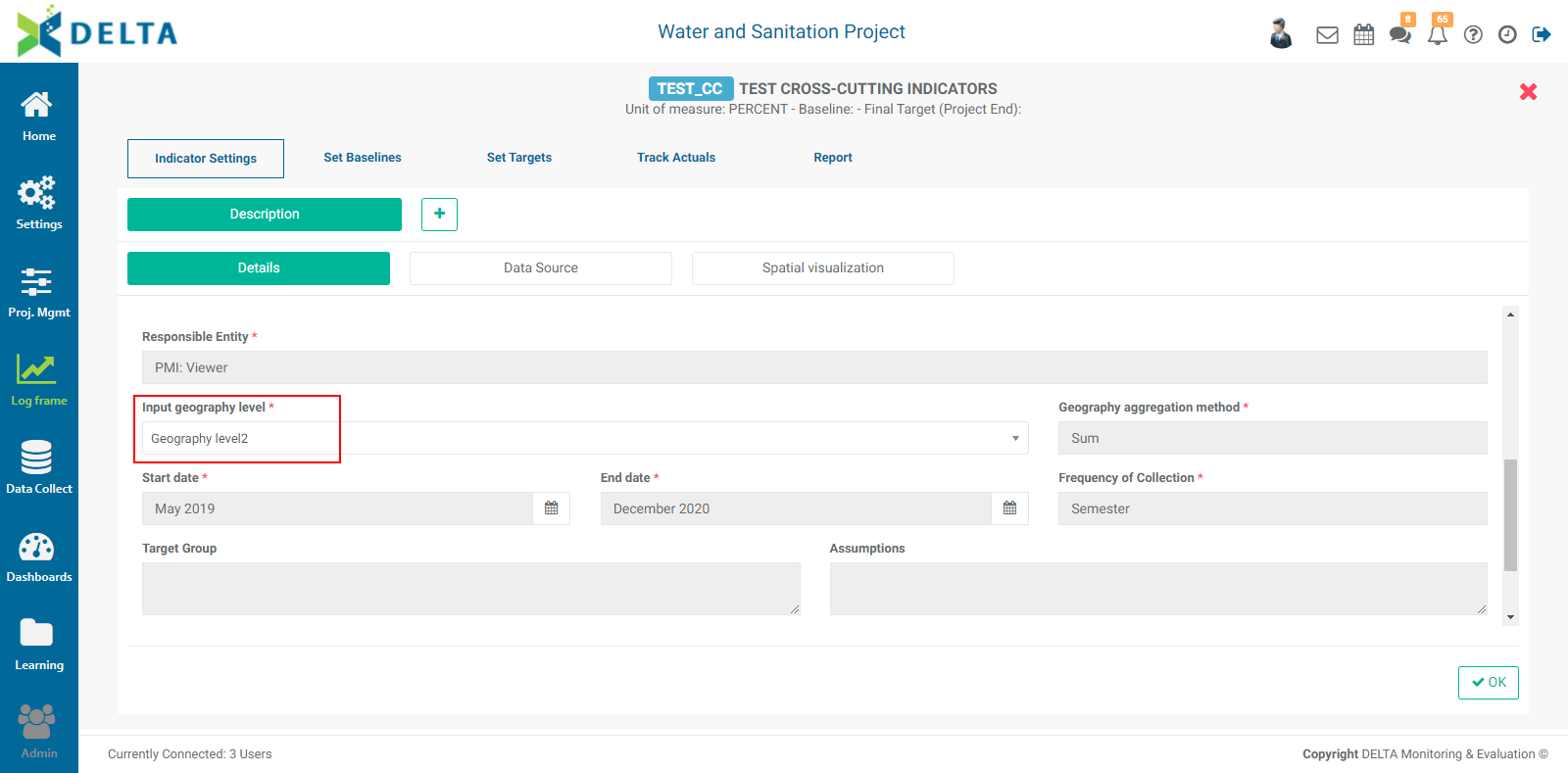
There are two elements you need to edit in order for the cross-cutting indicator to be properly configured: the project log frame element to which the indicator will be associated, and the geography level. These are the only two fields which are editable at the project level.
Once the Indicator Settings > Details tab has been completed, do the same for the Data Source and Map tabs. Click OK when you're done to save your work and return to the project's indicator list (or Results Framework list, depending on your screen of origin).
When you click on the indicator to open it, you'll see the tabs you're familiar with: Plan Targets, Track Indicator, Indicator Report, and the optional screens under the More button: Documents, Notes, Workflow, and Permissions. These behave the same way as they do for project indicators.
Previous: Indicators: Other Settings | Next: Indicators: KPIs Results Framework
Author: Administrator
Last update: 2023-07-02 18:42
Indicators: Creating Indicators: Details
Overview
Indicators can be created at any level of the log frame up from the Activities level. Select a log frame element to view the indicators for that element, and to add indicators for that element. Indicators are filtered by default according to their level in the log frame hierarchy (output, outcome, goal, etc.).
NOTE: associating an indicator to an activity is a special case, and is described in the article PM: Activities: Associating Indicators to an Activity.
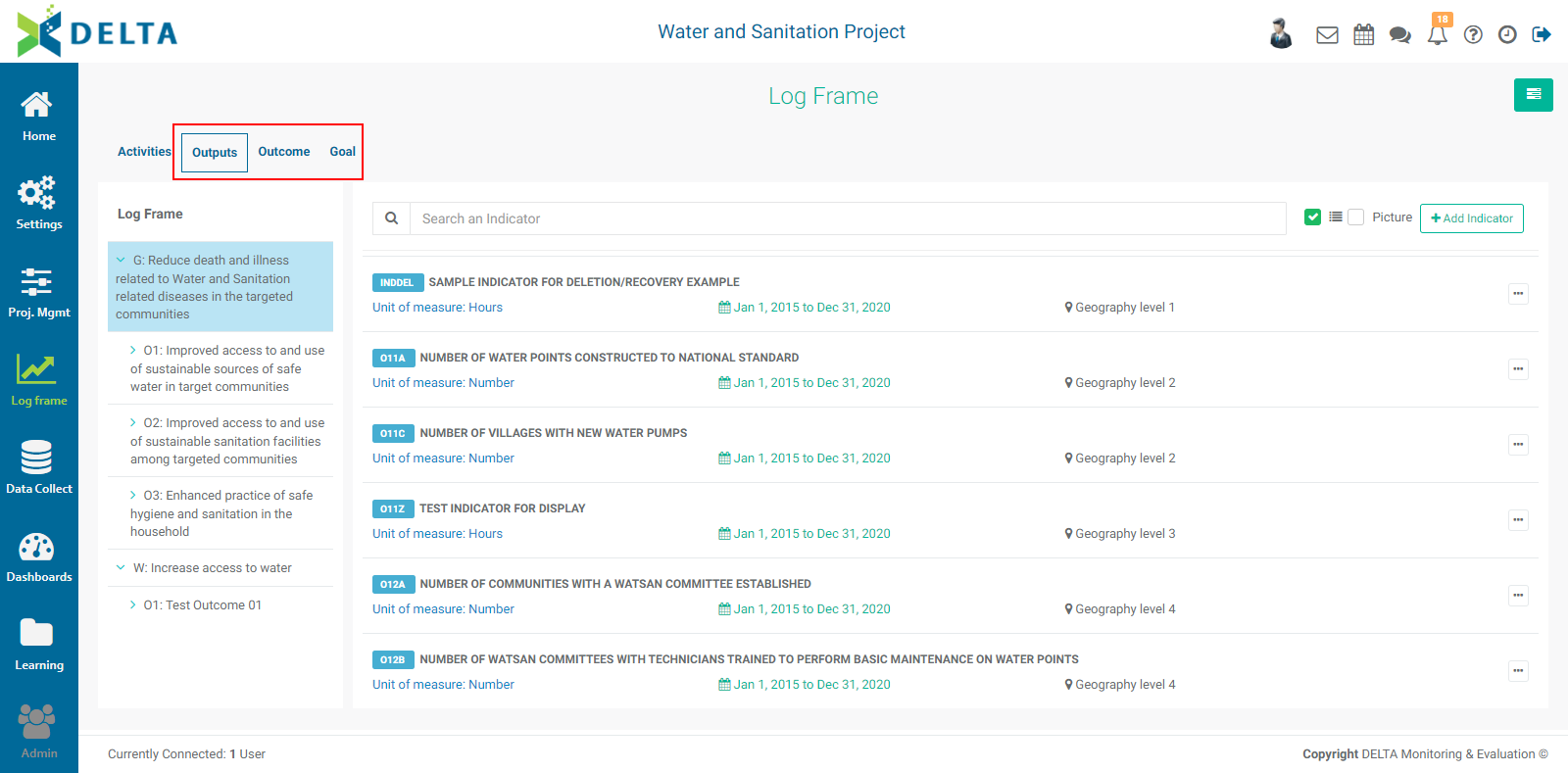
Each indicator features at-a-glance information such as its code, name, unit of measure, time range, and geography level.
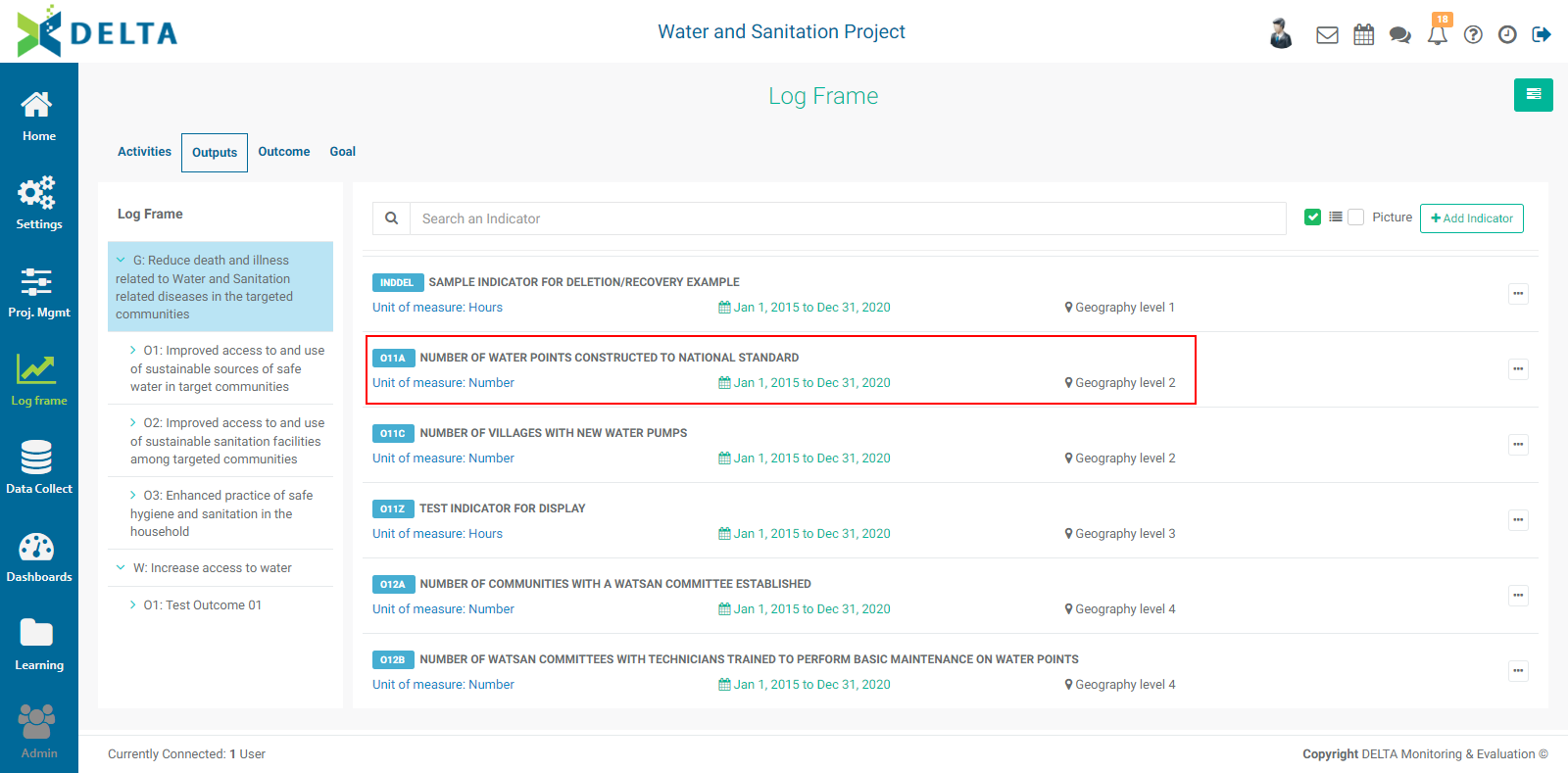
To create a new indicator, click the +Add Indicator button. The first screen contains the essential parameters for the indicator, and it contains three sub tabs: Details, Data Source, and Spatial Visualization.
The Details tab is the basic information about the indicator. Fields with mandatory information are marked with an asterisk. Begin by assigning a code and a name to the indicator. The Data Source and Spatial Visualization tabs as well as the OK button at the bottom right of the screen will be enabled once you enter the code and name.
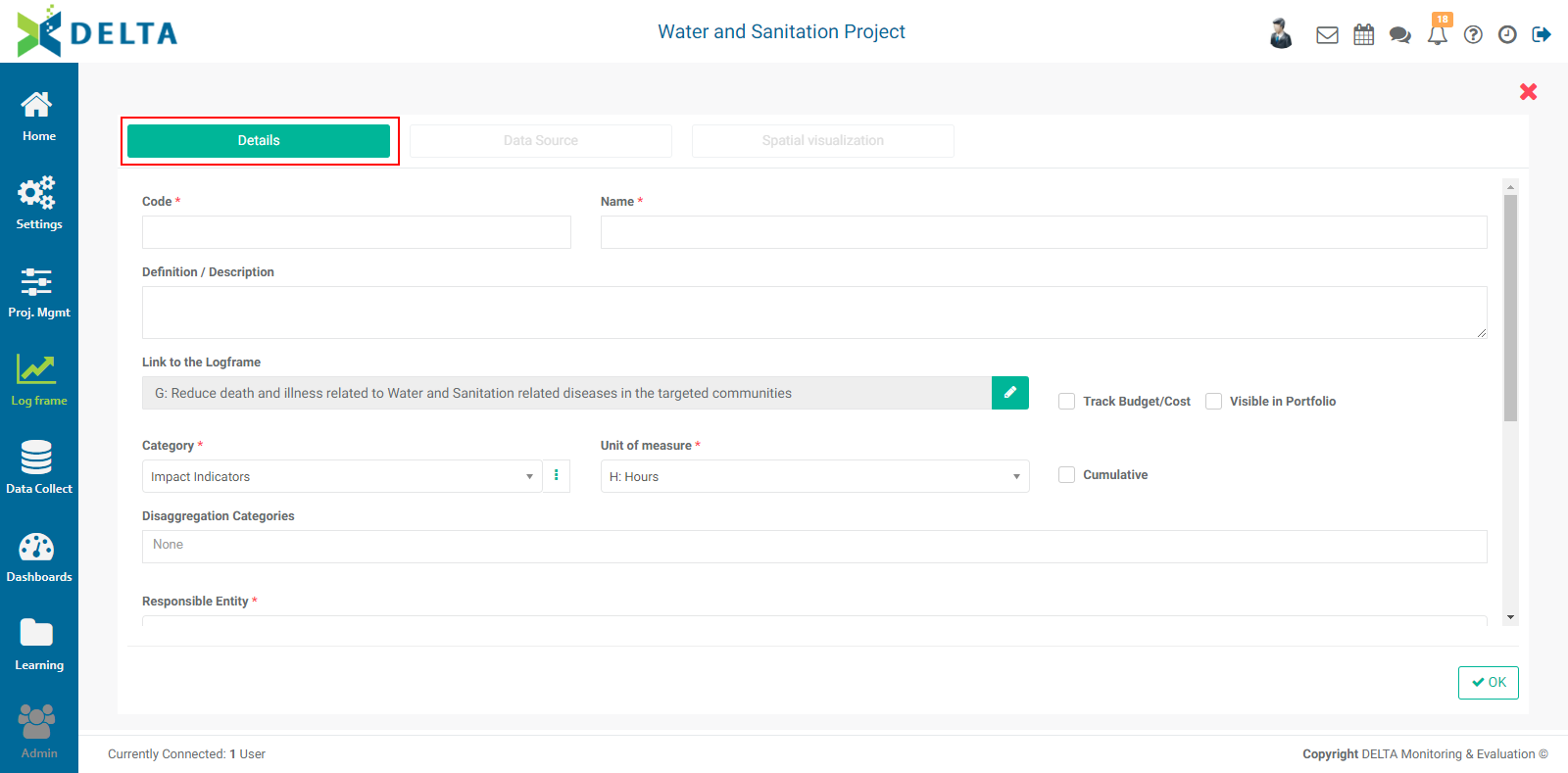
The Definition/Description field is optional, but it's a best practice in general to write out what the indicator is about so it can be referred to at any time.
If a log frame element was selected when you created the indicator, that element will be automatically selected in the Details screen Link to the Log Frame field. Verify that it is the log frame element you intended. If it is not, click either inside the field or on the field's Edit icon (pencil) to select the appropriate log frame element from the log frame tree in the popup window.
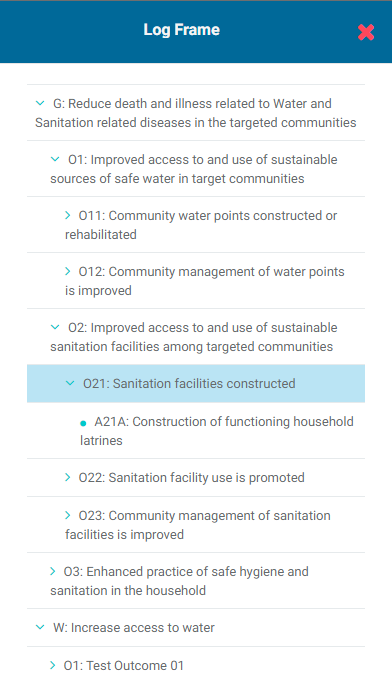
Check the Track Budget/Cost box if you want the system to track and enable reporting on the indicator's financial data. this can be omitted if you don't perform any financial tracking at the indicator level.
Check the Visible in Portfolio to make this indicator visible at the portfolio level. NOTE: this does not make the indicator a cross-cutting indicator; those are created exclusively at the Portfolio level. Checking Visible in Portfolio simply adds the indicator to the portfolio list for more visibility and ease of access.
Select the appropriate category for the indicator you're creating in the Category pick list.
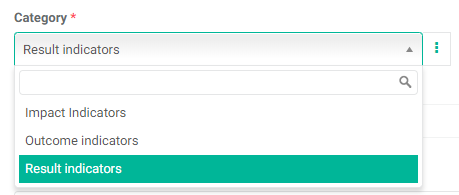
If the category you're looking for does not yet exist, you can create a new one from the Details > Description screen. To add a new category, click the More icon (three vertical dots) at the right end of the field to bring up the KPIs Categories popup window.
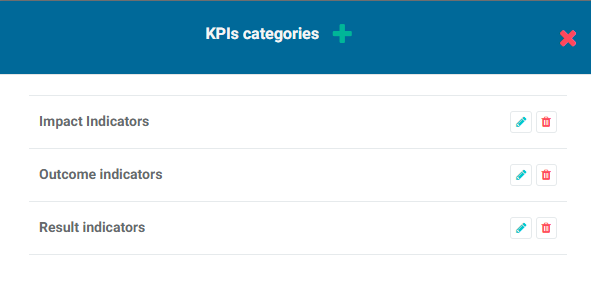
Click the + in the popup window's title bar, and enter the Label for the category. Click OK to save your work.
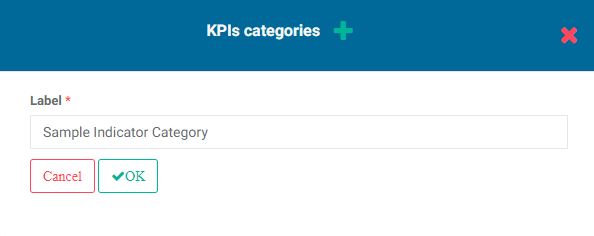
The new KPI Category will appear in the popup window.
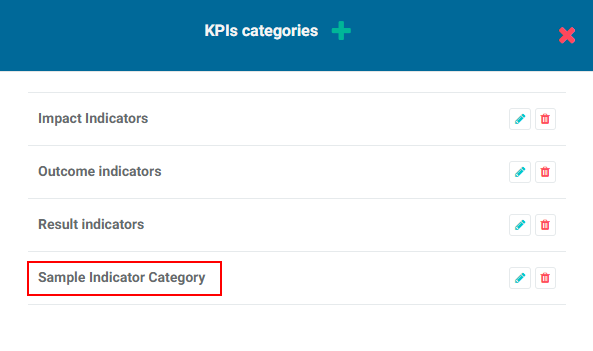
To edit a KPI category, click its Edit icon in the KPIs Category popup window, make the necessary changes, and click OK. To delete a category, click its Delete icon in the popup window and confirm the deletion.
By default, all indicators are Simple. Check the Cumulative box to switch the indicator from Simple to Cumulative. Cumulative indicators values never decrease over time.
Enter a Unit of Measure for the indicator. This pick list is populated by the Project Settings: Units you entered in the project's Settings module.
Enter as many Disaggregation Categories as are appropriate for the indicator. If you select more than one, you'll be given the option of choosing between Parallel Disaggregation and Cross Disaggregation. IMPORTANT: be careful selecting which disaggregation type you want to use; you cannot change this selection once you save the indicator.
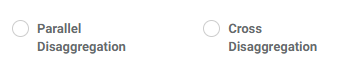
Select the Responsible Entity for the indicator. This pick list is populated from the Stakeholders you entered in the project's Settings menu.
Use the Input Geography Level pick list to associate the indicator to the proper geography level. NOTE: depending on how you set up your Locations at the Portfolio level, your geography levels/divisions will differ from this example.
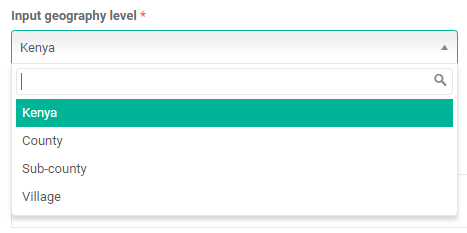
The Geography Aggregation Method pick list offers standard aggregation calculations: Sum, Average, Maximum, and Minimum.
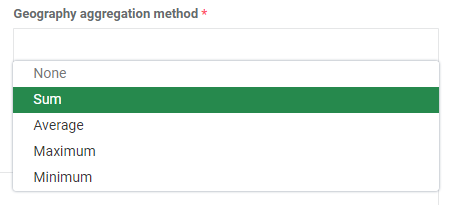
The last three mandatory fields on this screen are Start Date, End Date, and Frequency of Collection. Enter the proper information for each.

The last four fields on this form are optional, but it's good practice to enter some information so it can be referred to later. Typically, this information is contained in an M&E framework manual. The fields are: Target Group, Assumptions, Means of Verification, and Collection Technique.
When the Details screen is complete, you can save your work by clicking the OK button at the bottom and come back to the indicator later, or you can continue entering indicator information. If you choose to save your work, you will be returned to the Log Frame > Indicators screen at the log frame level you previously selected. Your new indicator will appear on the screen.
Previous: Indicators: Indicators Screen | Next: Indicators: Creating Indicators: Data Source
Author: Administrator
Last update: 2023-07-02 18:44
Indicators: Set Targets
Overview
The Set Targets screen allows you to set detailed targets for each location and each year and period of the project.
From inside the project, click Log Frame in the left navigation to enter the module, then select the log frame level of the indicator, and click Set Targets in the horizontal navigation. When you first open this tab after setting baselines and end targets, all you'll see is a blank screen.
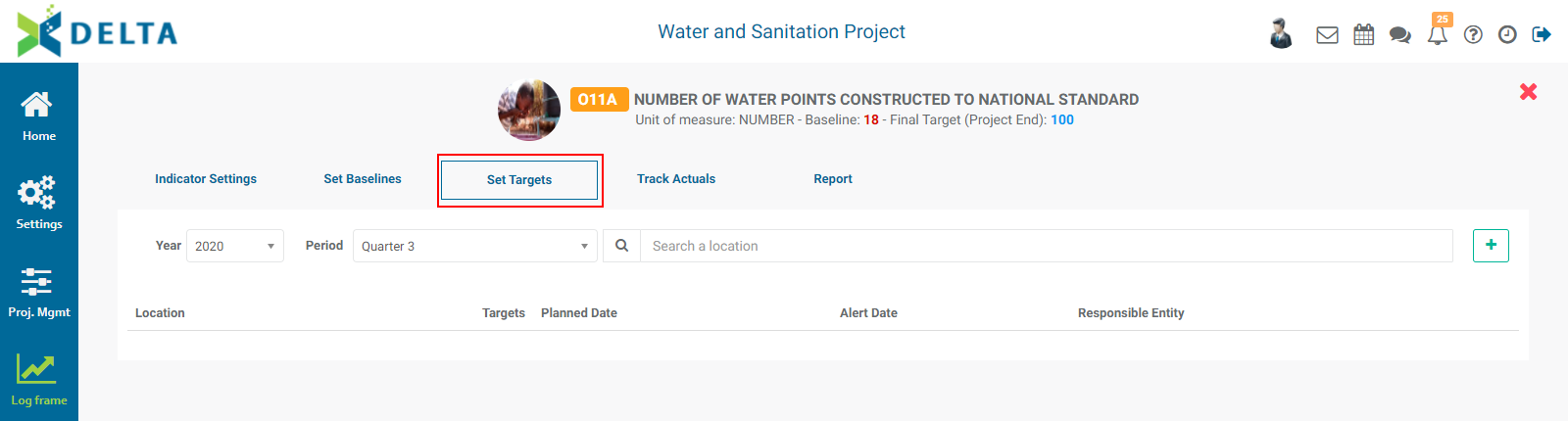
To set targets for a location, you must first select the proper year and period to plan from the pick lists at top left. The period is determined by the setting you selected in the indicator's Details tab Frequency of Collection field when you created the indicator.
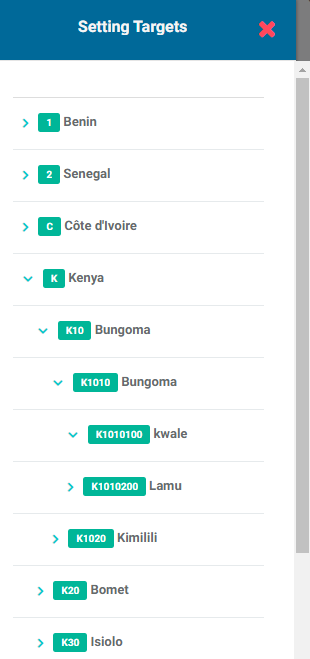
Click the + button at the far end of the Search bar to bring up the Locations list. The level of geography Delta displays is controlled by the geography level you selected when you created the indicator. In the Locations list below, the geography level for this indicator was set at the lowest level (Village), so all the villages in the locations list are displayed when you use the carets to expand and collapse the list.
Select the desired location to bring up its Setting Targets popup window.
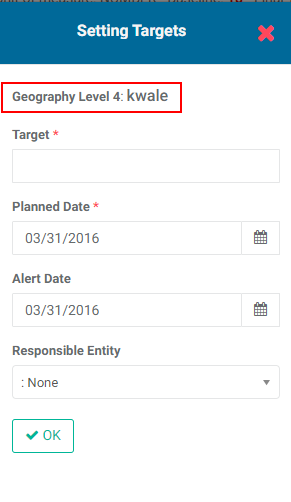
Input the indicator's target, planned date, alert date, and responsible entity. NOTE: if you selected Track Budget/Cost in the indicator's Details tab, you'll also see a Budget field in the Setting Targets popup window.
Click OK to save your work and return to the Set Targets screen. Your entries are displayed in the list.
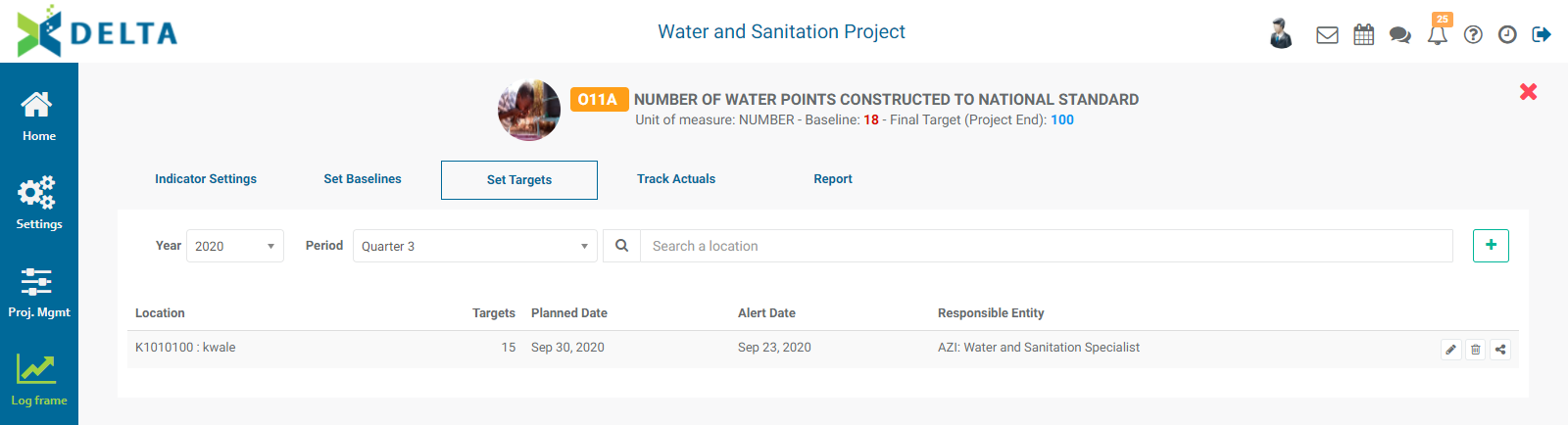
Repeat the process until all locations and periods have been planned with set targets.
To edit a location's target information, click on its Edit icon. Make the necessary changes, then click OK to close the popup window and return to the Set Targets screen. Your changes will be reflected on the screen.
To delete a location, click its Delete icon and confirm the deletion.
To share a location, click its Share icon. Enter a comment in the text editor, then click the Share With tab to choose the recipients. Click OK at bottom left of the text editor popup window to send to the recipients. Selected recipients will receive a notification on their Chatroom icon in the main toolbar.
Depending on whether the indicator uses no disaggregation categories, one disaggregation category, two or more parallel categories, or two or more cross categories, the bottom part of the popup window will look different. For example, for cross disaggregation, you'll need to enter disaggregated targets for each disaggregated group. The screenshot below shows target setting popup windows from an indicator which does not use any disaggregation categories, an indicator which uses one disaggregation category, and an indicator which uses two cross-disaggregated categories.
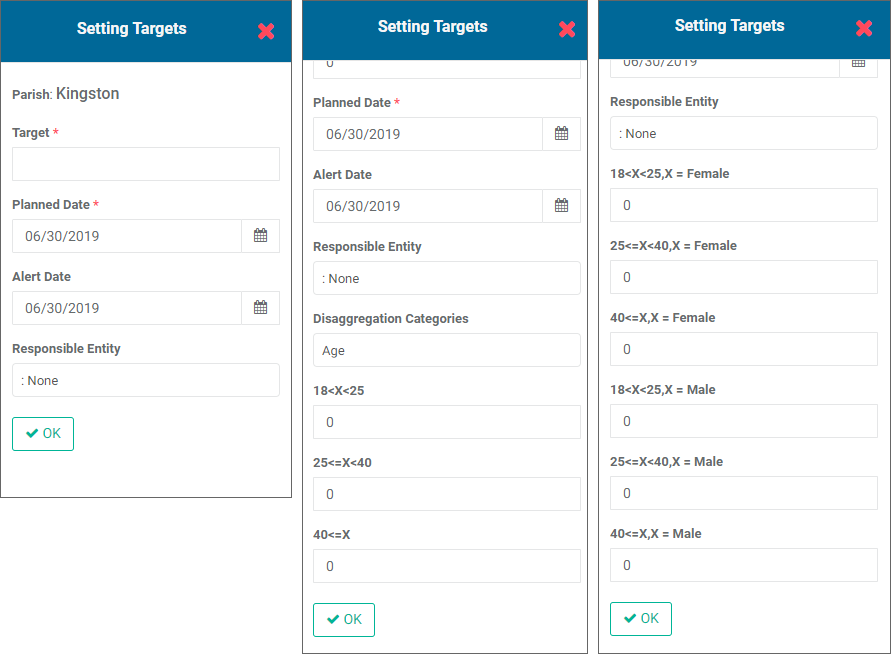
You'll need to be consistent entering disaggregated targets; Delta will return an error message if the sum of the disaggregated targets does not equal the overall target. Click OK to save each target entry in turn.
IMPORTANT: when working with parallel disaggregation, you will need to enter targets for all the disaggregation categories one by one by selecting them one at a time from the pick list and entering the targets. If you don't enter all the targets, Delta will return the error message described above.
Click the X at top right of the screen to return to the Indicators screen.
Previous: Indicators: Set Baselines | Next: Indicators: Track Actuals
Author: Administrator
Last update: 2023-07-02 18:46
Indicators: Custom Reports
In addition to Delta's built-in reports for indicators, users can also create Custom Reports. Three types of custom reports are available for indicators: Table, Pie Chart, and Widget.
From inside the indicator, select Report, then click Custom Reports.
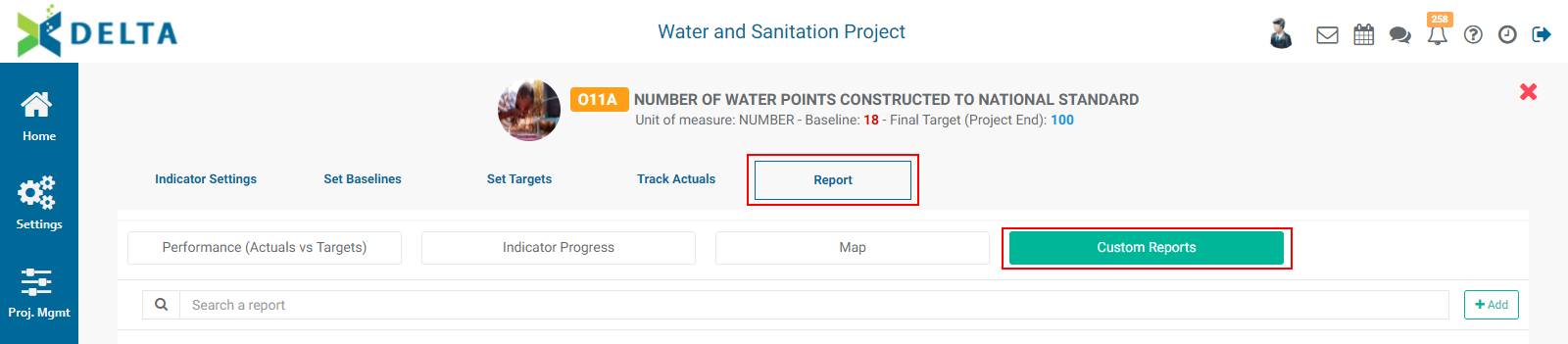
Click the +Add button at top right to bring up the report format selection menu, then select the type of report you want to create.
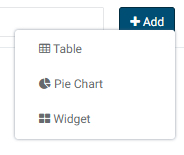
Select Table to bring up the Custom Reports - Table popup window.
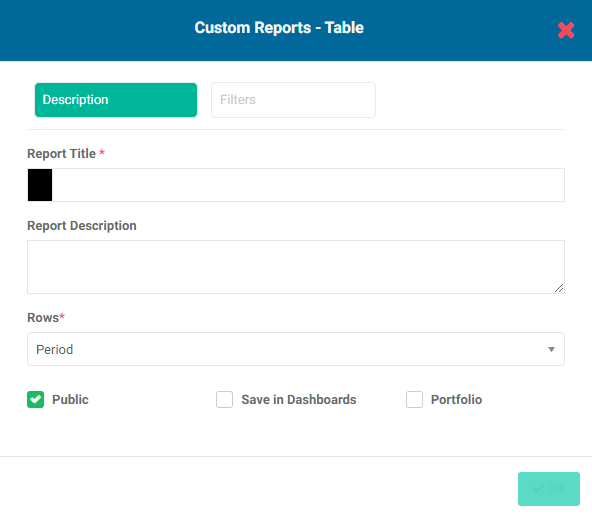
Enter a title for the report (mandatory) and a short description (optional but recommended). To change the color of the report icon, click the color block next to the report title and select the desired color from the color picker.
Select the basis for the report from the Rows pick list.
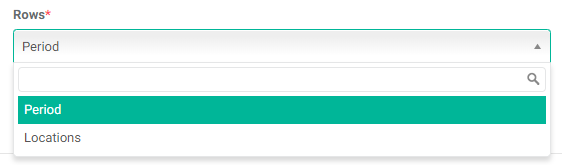
To make this report available on the public portal, check the Public box. Anyone with the link to the portal (login page) will be able to view the report without system access credentials.
Check Save Report in Dashboards to make this report available to other users for their dashboards. You will see the report in the My Dashboards section of the Dashboards module; other users will see it in their Others list.
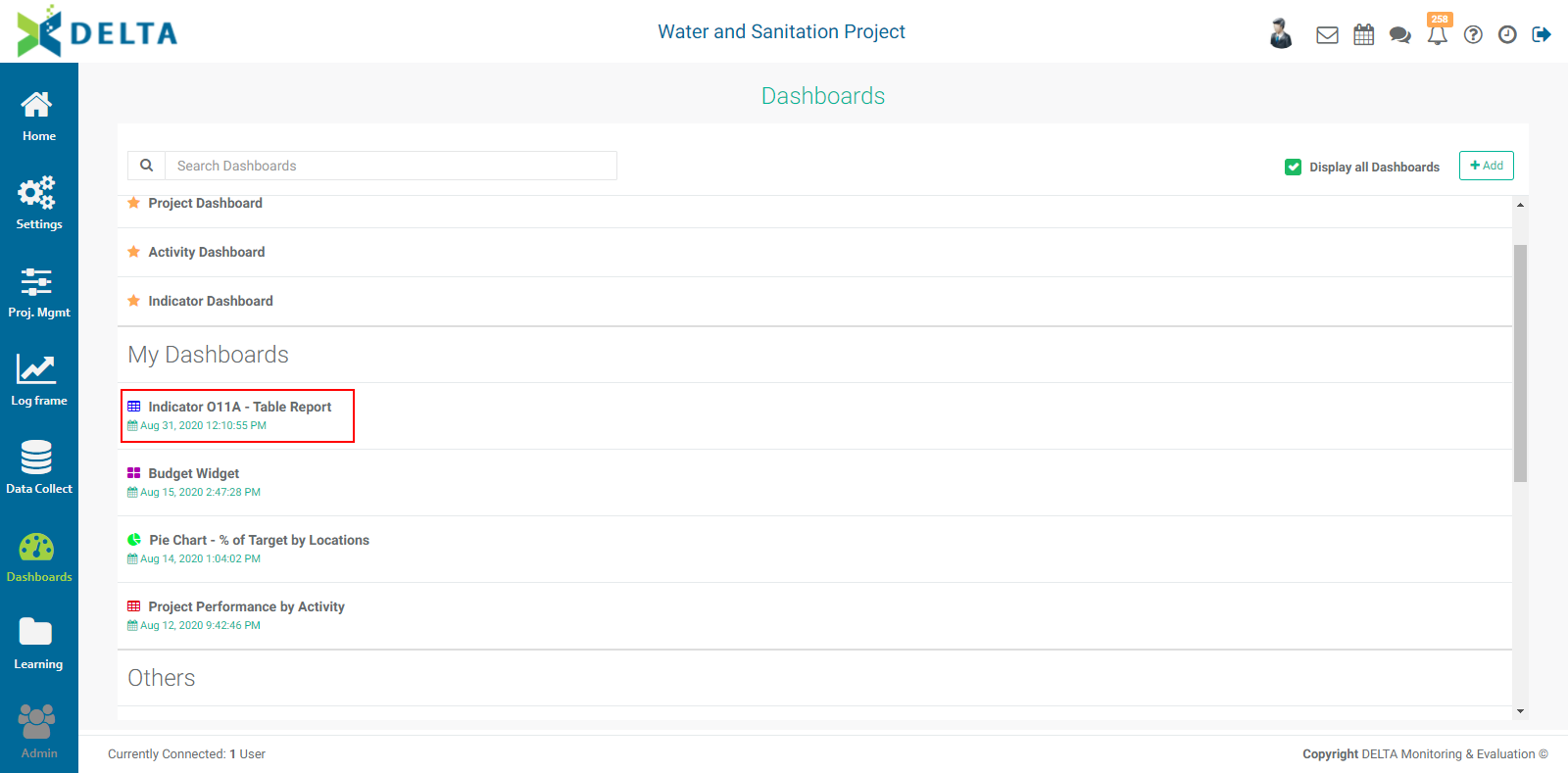
Checking the Portfolio box will make this report available at the Portfolio level. The reports' names appear in the Portfolio Dashboard pick list, sorted by project and type (Activities, Indicators, Forms), and can then be used for multiproject dashboards. NOTE: all project reports are automatically available to be added to project custom dashboards.
Click OK to save your work and return to the Custom Reports screen. The new report will appear on the page. Reports are sorted by most recent in descending order.
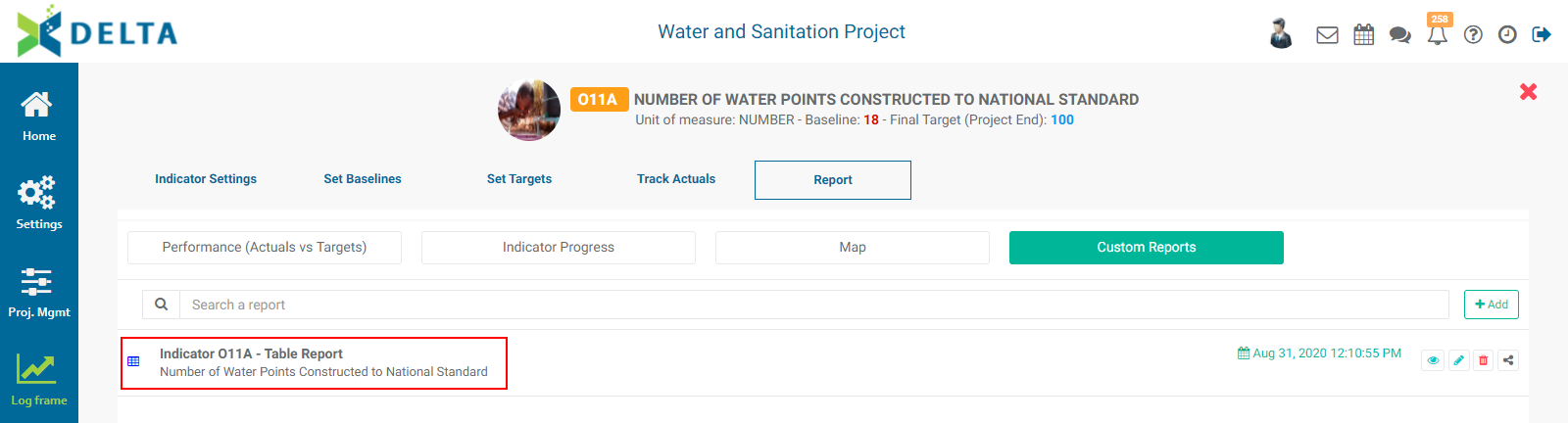
To view the report, click its name in the list, or click the report's View icon in its toolbar.
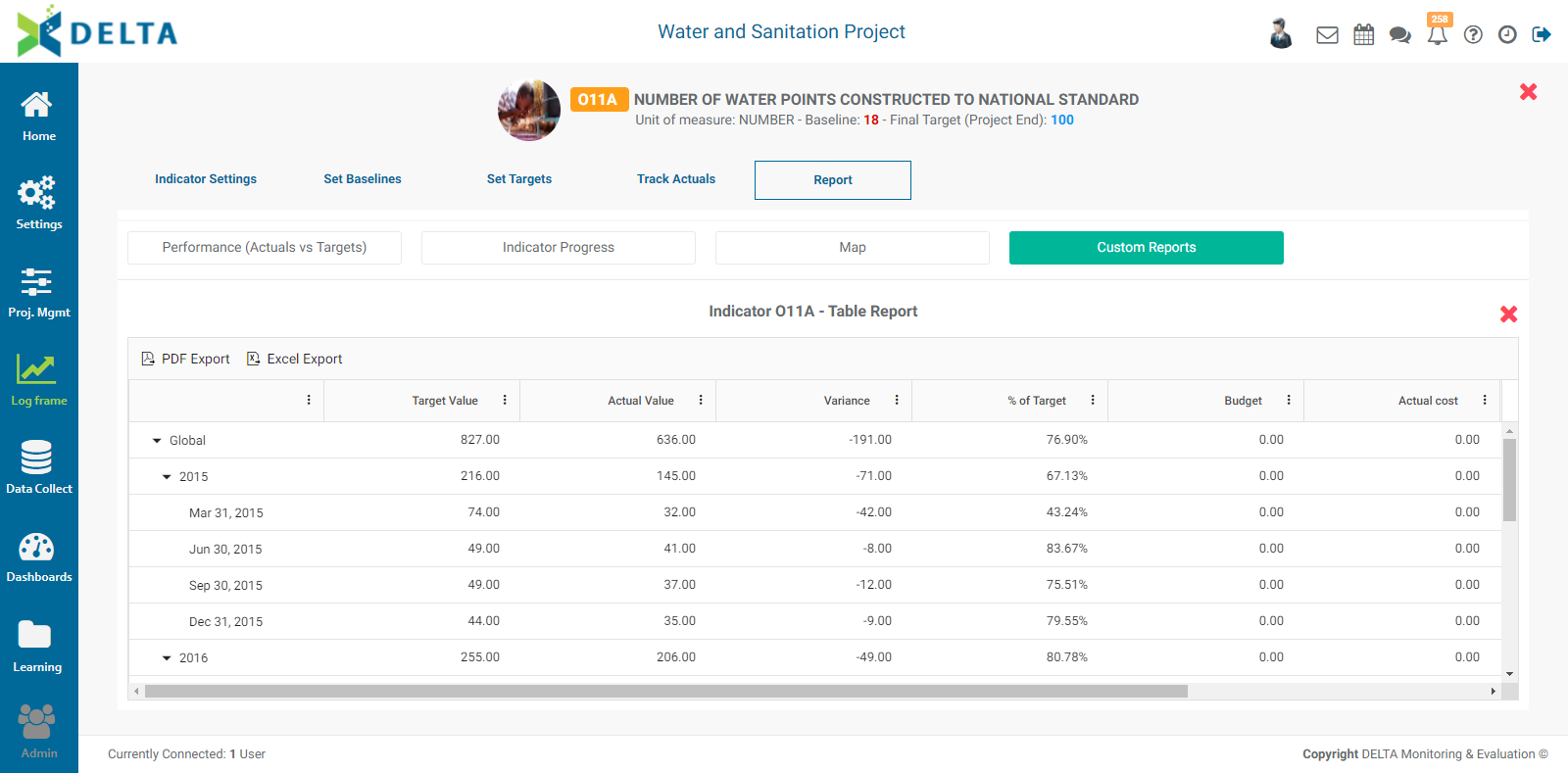
While viewing the report, several additional display options become available. Click the vertical More menu in any column to size and/or sort it, or select which columns to show/hide. The functionality is the same as the corresponding functions in Excel.
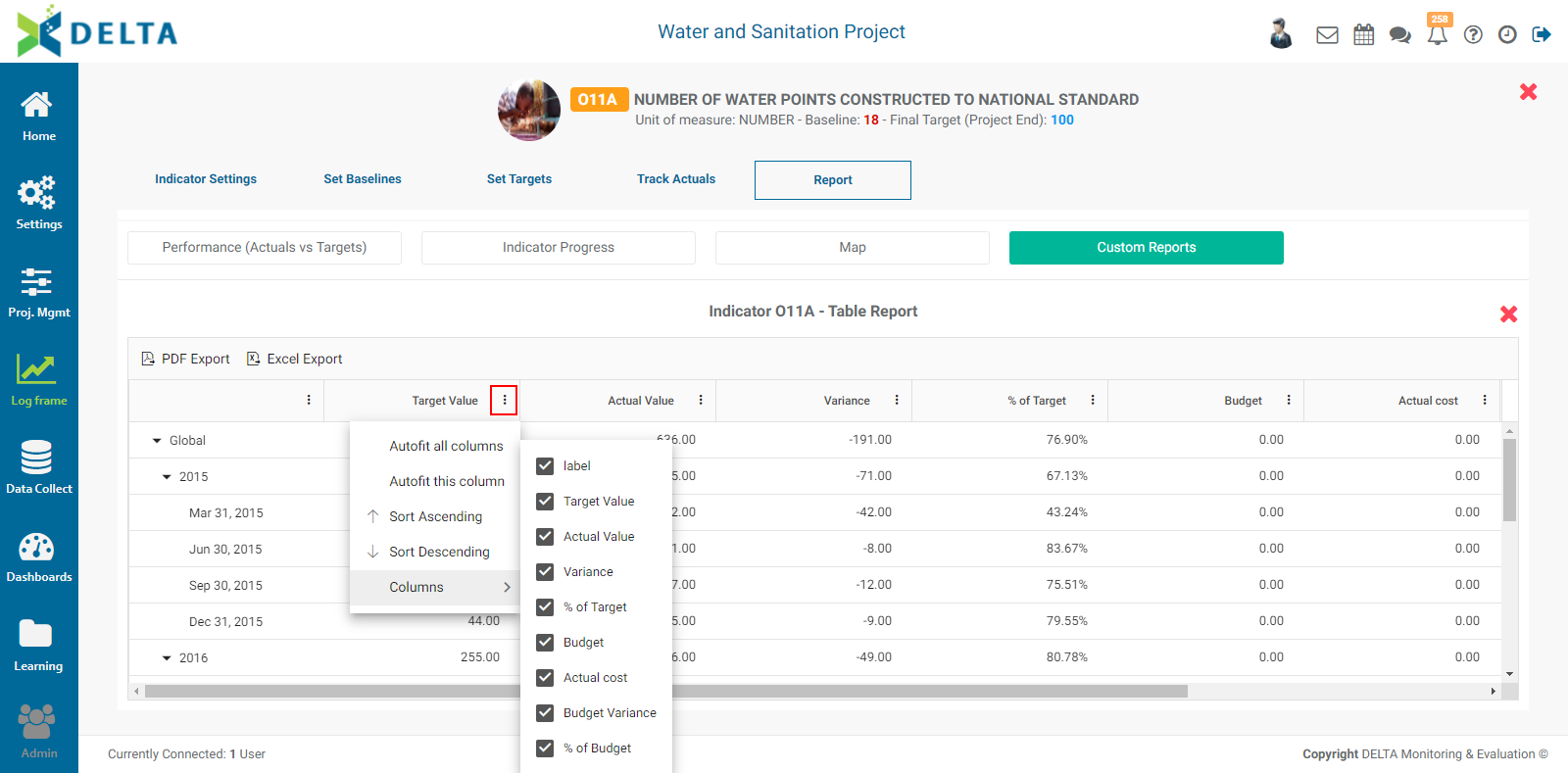
To close a report, click the X at top right.
To edit a report, click the Edit icon in its toolbar.
Delta supports the use of Filters in indicator table reports. Click the Filters tab in the Custom Reports - Table popup window to create and configure the filters you want to use.
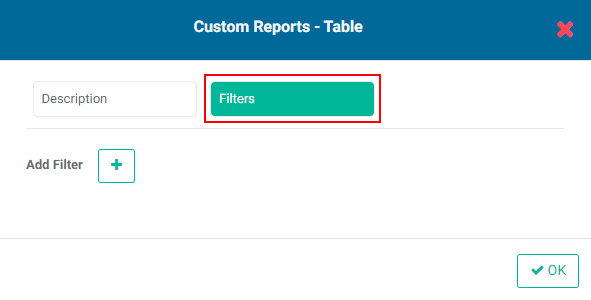
To add a filter, click the + button. The filter parameter fields will appear.
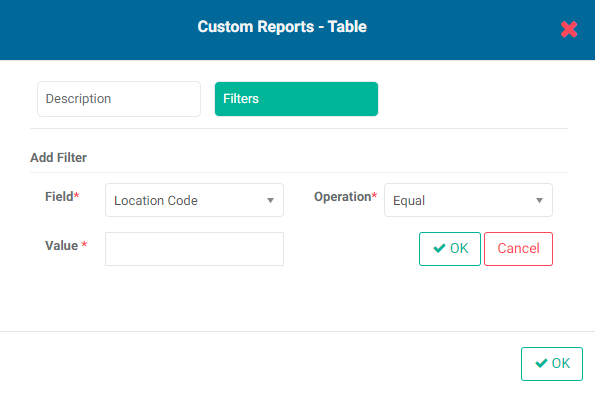
In the example above, the Location Code is the only choice in the Field pick list because this report is based on periods. Conversely, if the report is based on Locations, the Field pick list will only contain Year.
Select how the data will be filtered from the Operation pick list.
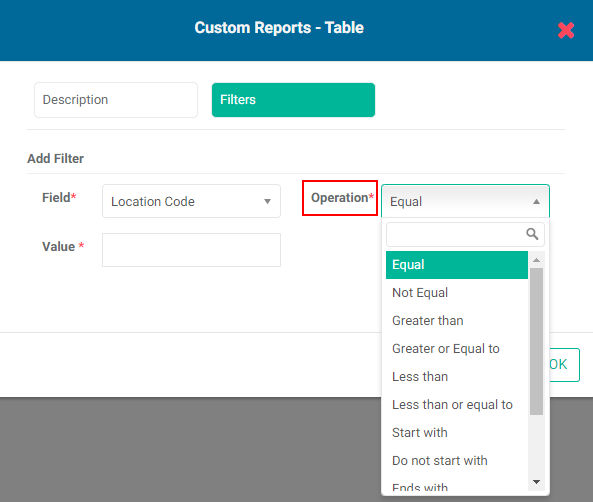
Select the value of the filter. For example, you might select 'Equal to' from the Operator pick list and enter '2016' as the value for a filter based on Year.
Click the OK button next to Cancel to save your work. The new filter will appear in the popup window.
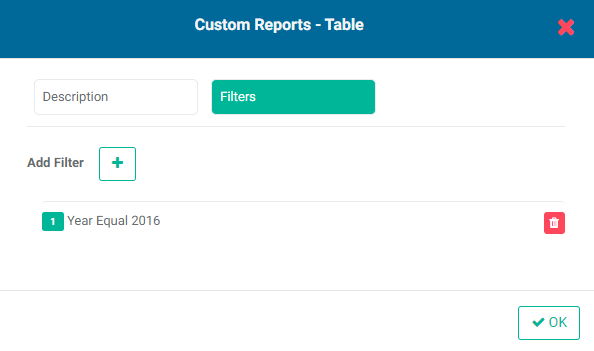
If you're done, click OK at bottom right to close the popup window and return to the Custom Reports screen.
You can add as many filters as are needed. If you create more than one filter, you also need to add logic for the system to know how to handle multiple filters. The logic is simply AND/OR, and the correct syntax uses the number of the filter. In the example below, the logic is 1 OR 2, so either condition must be met. The AND operator requires that all conditions must be met, while the OR operator requires that at least one condition must be met.
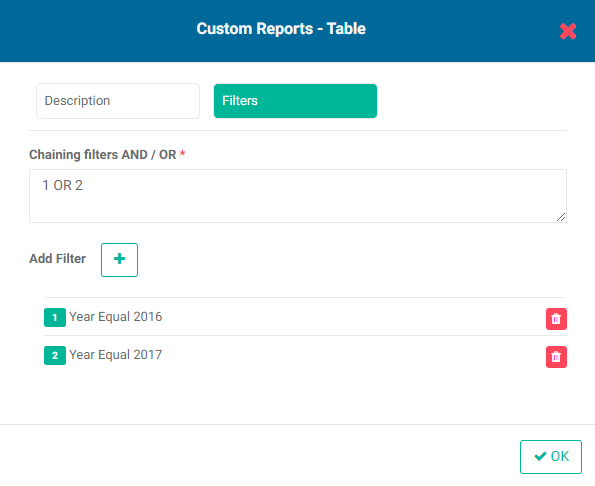
To delete a filter, click its Delete icon in the Filters tab of the Custom Report - Table popup window.
To export a Table report, open the report, then select the format for the export from the top left of the table.

To share a report, click the Share icon in its toolbar, then enter a comment to enable the Share With tab.
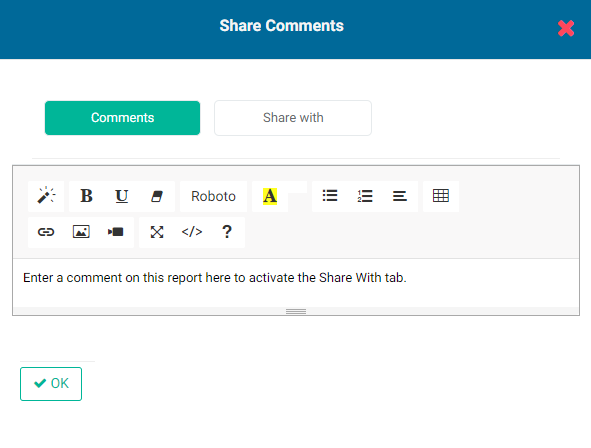
If you need more space for your comments, click, hold, and drag the three small bars at the botton centre of the comment box to enlarge it.
Click the Share With tab to bring it to the front, select the recipients, then click OK. Recipients will be notified via a small dot badge on the Chatroom icon of the main toolbar at the very top right of the screen.
To delete a report, click the Delete icon in its toolbar.
The second type of indicator report is Pie Chart. From the Custom Reports list page, click the +Add button and select Pie Chart from the menu.
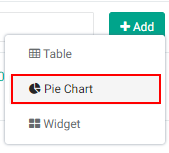
The Custom Reports - Pie Chart popup window will appear.
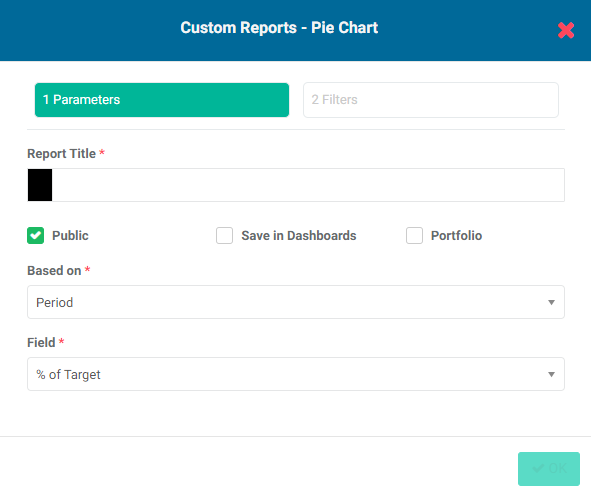
Enter a report title, change the color if desired, and check/uncheck the Public, Save in Dashboards, and Portfolio boxes. These options work in an identical manner to the corresponding ones in Table reports.
Select the basis for the report. As is the case for Table reports, the options are Period and Locations.
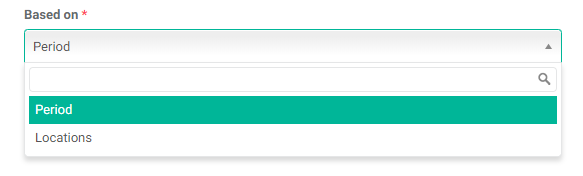
Select the field to graph in the pie chart from the Field pick list.
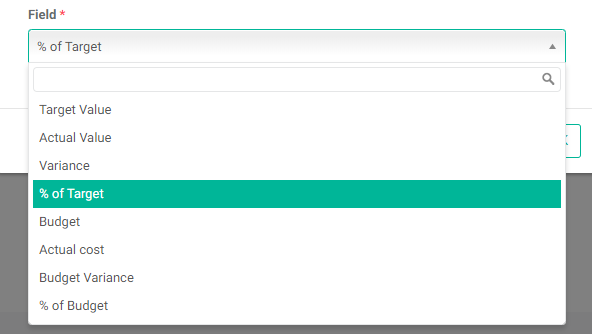
Click OK to save your work and return to the Custom Reports list page. The new report will appear in the list.
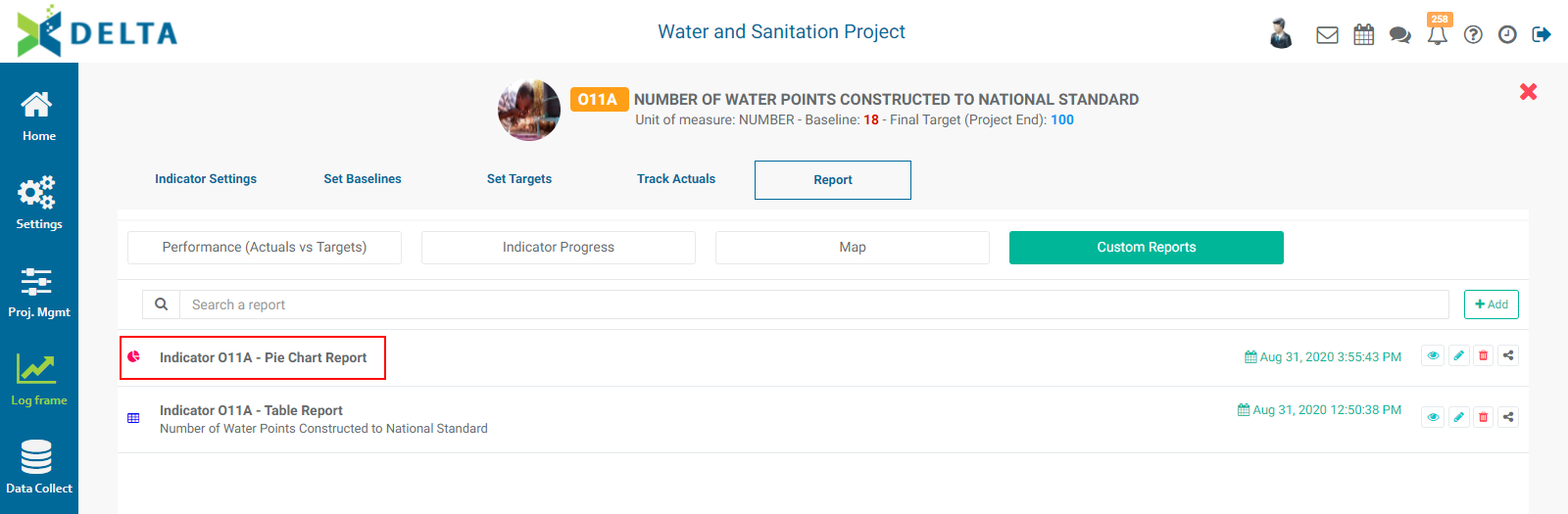
As is the case with Table reports, each Pie Chart report has its own toolbar with the same icons. To view the report, click its name in the list, or click its View icon.
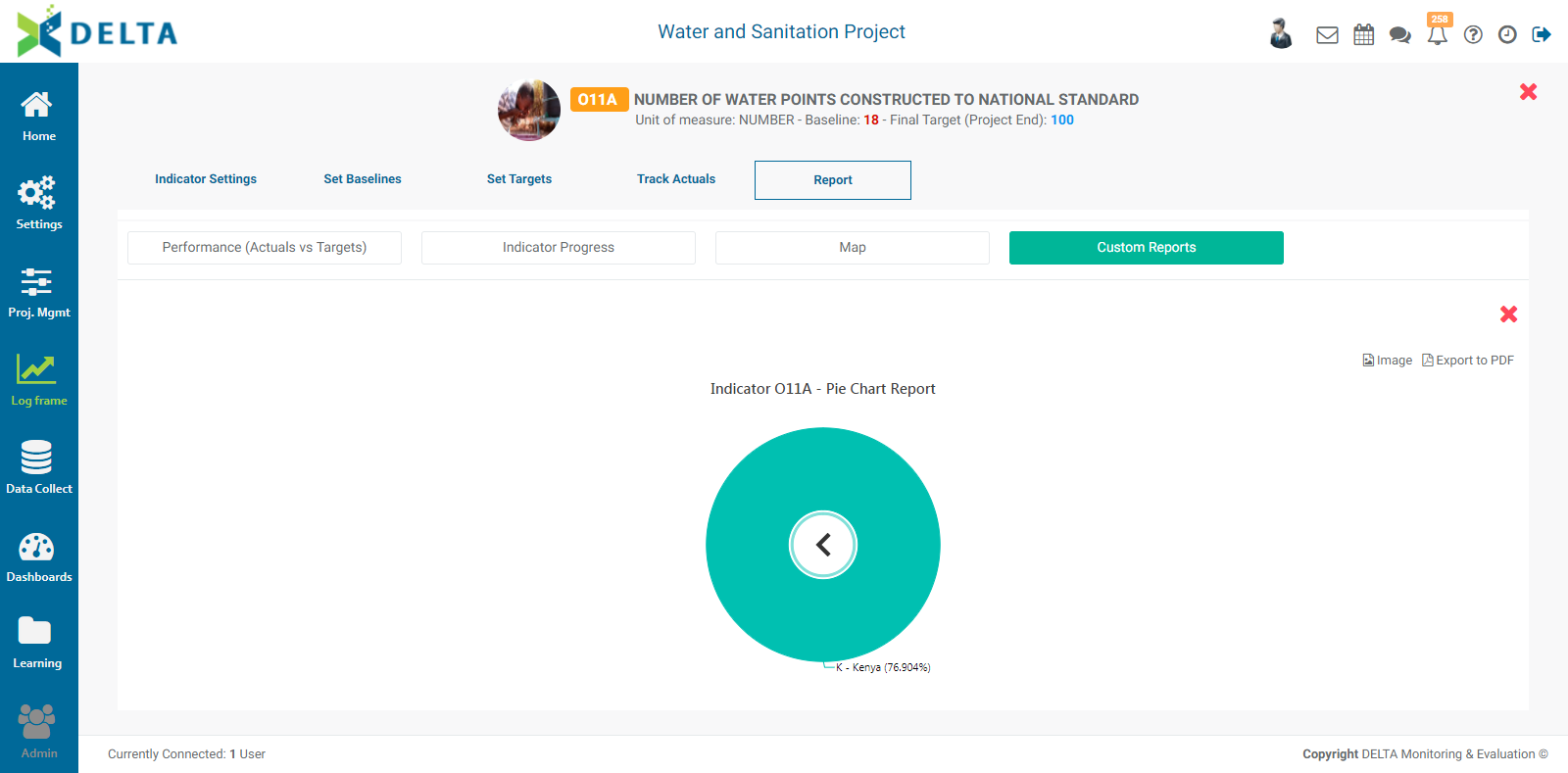
The default view is Global, and the graph shows the aggregated value for the selected basis, in this case Locations. To drill down into the data, click any colored portion of a graph to get its details.
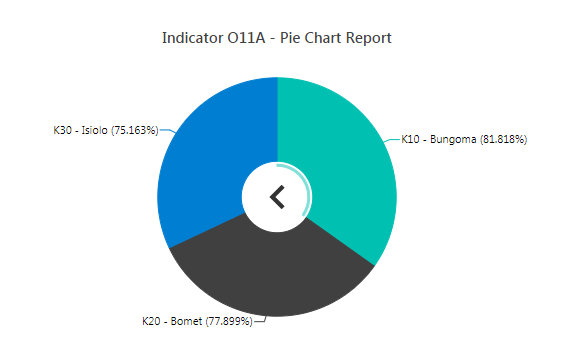
How far you can drill down depends on what the indicator's Geography Division was set at when the indicator was created (for Locations) or which reporting period was selected in the indicator's Frequency of Collection (for Periods).
Continue to click on any colored portion of a pie chart to drill down.
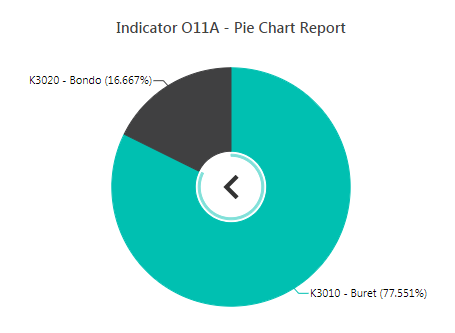
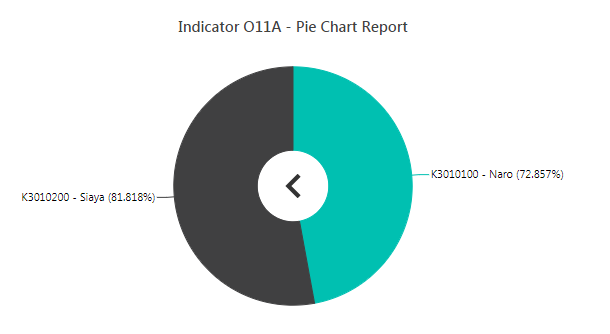
To go back to the previous level, click on the caret (<) in the middle of the pie chart.
To export a pie chart report, click on the desired format at top right. The options are Image and PDF. Images generated by the Image export are in PNG format.
To edit a pie chart report, click its Edit icon.
The Filters functionality for pie chart reports is identical to that for table reports. Click the Filters tab in the Custom Reports - Pie Chart popup window to bring it to the front, and create the filter(s) you need.
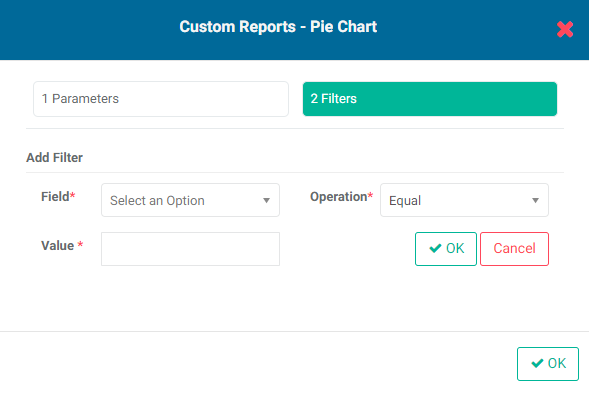
The third type of indicator custom report is Widget. Widgets display single data items, making it easy to have lots of at-a-glance information in a dashboard without taking up a lot of space.
From the Report page of the indicator, click the +Add button at top right and select Widget.
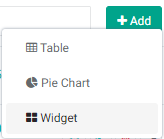
The Custom Reports - Widgets popup window will appear.
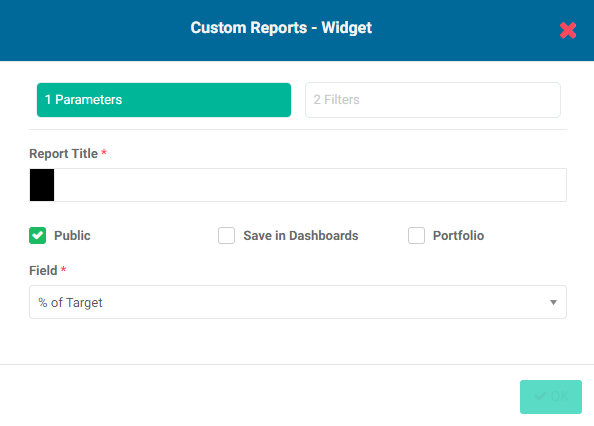
Enter a title for the report. Since there is very little context for widgets, we recommend as a best practice that you be as specific as possible when writing a title for the widget report.
Change the color if desired by clicking the color block in the report title field and selecting a new color from the color picker. The icon for the widget will appear in the selected color in the Custom Reports list.
Check/uncheck the Public, Save in Dashboards, and Portfolio boxes. These options work in an identical manner to the corresponding ones in Table and Pie Chart reports.
Select the single data point you want to display from the Field pick list.
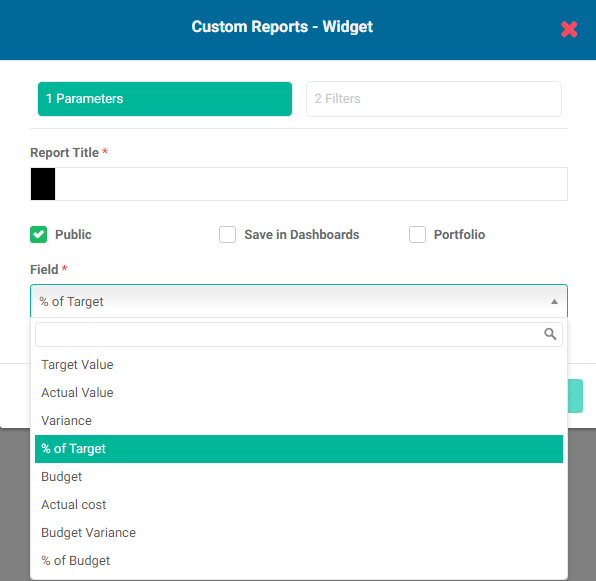
If you're done, click OK to save your work and return to the Custom Reports list. The new report will appear on the page.
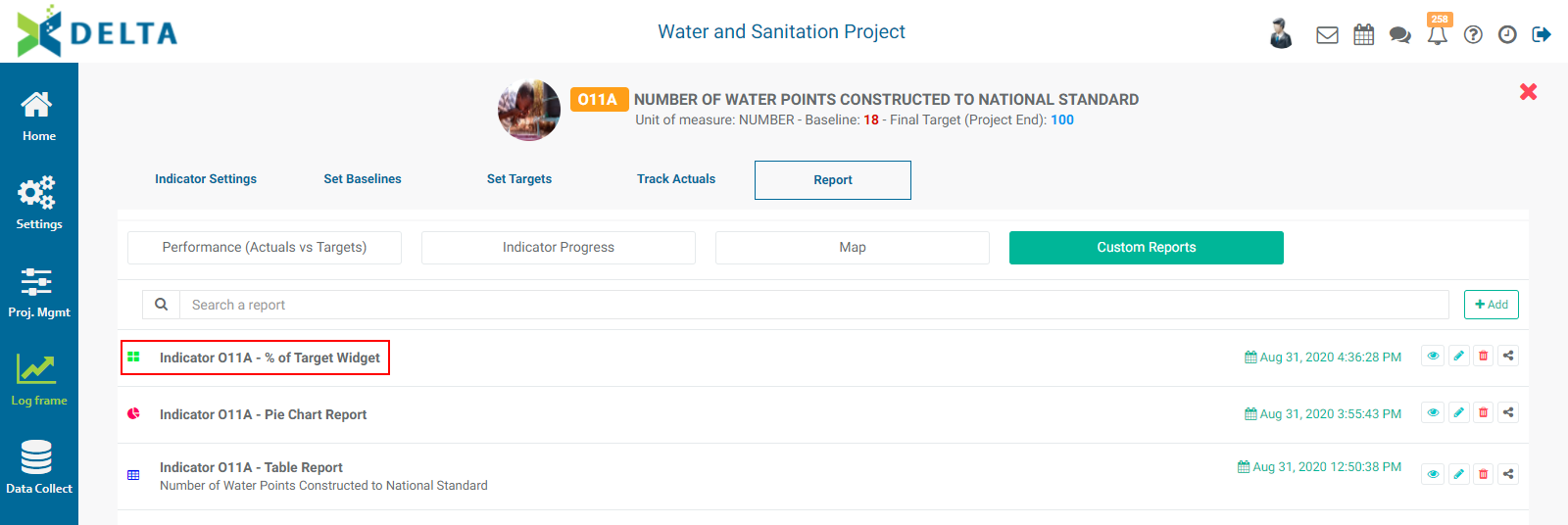
Widgets support the use of Filters. To edit a widget report, click the Edit icon in its toolbar and make the necessary changes, including adding filters. The functionality is identical to the filters available for Table and Pie Chart reports.
Unless you create filters which drill down into the data, for example by specific period or precise location, the widget will display the overall data point for the entire project to date.
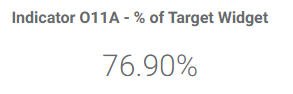
Widgets can be shared in the same way as Table and Pie Chart reports. There is no export functionality for widget reports.
Previous: Indicators: Built-In Reports | Next: Indicators: Other Settings
Author: Administrator
Last update: 2023-07-02 18:50
Legal
Use of Cookies on Our Sites and Software
COOKIE POLICY
Welcome to DELTAGIS! DELTAGIS is owned and operated by DELTAGIS INC.
This Cookie Policy explains how and why cookies and other similar technologies may be stored on and accessed from your device when you use or visit:
http://deltagis.net/index_en.html
(Hereinafter referred to as “DELTAGIS”).
The information collected through cookies will be under responsibility and in charge of:
DELTAGIS INC
1250 Boulevard René-Lévesque O #2200,
Montreal, QC H3B 4W8, Canada
Email: info@deltagis.net
Call center (+1) 438 469 0723
This Cookie Policy should be read together with our Privacy Policy and our Terms of Service. By using DELTAGIS, you accept the use of cookies by this website, in the terms contained in this policy.
WHAT ARE COOKIES?
“Cookies” are small text files that are stored on your computer or mobile device when you visit a website.
They allow the website to recognize your device and remember if you have been to the website before.
Cookies are a very common web technology; most websites use Cookies and have done so for years. Cookies are widely used in order to make websites work more efficiently, as well as providing information to the owners of the website.
Cookies are used to measure which parts of the website people visit and to customize your experience. Cookies also provide information that helps us monitor and improve the website’s performance.
REFUSING OR WITHDRAWING CONSENT TO THE USE OF COOKIES
If you do not want Cookies to be dropped on your device, you can adjust the setting of your Internet browser to reject the setting of all or some Cookies and to alert you when a Cookie is placed on your device. For further information about how to do so, please refer to your browser ‘help’, ‘tool’, or ‘edit’ section. Please note that if you use your browser settings to block all Cookies, including strictly necessary Cookies, you may not be able to access or use all or parts of the functionalities of DELTAGIS website.
If you want to remove previously-stored Cookies, you can manually delete the Cookies at any time. However, this will not prevent DELTAGIS website from placing further Cookies on your device unless and until you adjust your Internet browser setting as described above.
We provide the links below for the management and blocking of cookies depending on the browser you use:
FIRST-PARTY COOKIES
We use Cookies to enhance the performance of our website and personalize your online DELTAGIS experience.
Cookies help us to collect information on how people use our website and which pages they visit. They enable us to monitor the number of visitors and to analyze website usage patterns and trends.
We collect this information anonymously, so it does not identify anyone as an individual and no personal information is stored in our Cookies. We always use Cookie data in a responsible way.
Our aim is to continually improve the DELTAGIS online experience. Cookies help to make our website work better and more efficiently. However, you can stop Cookies from being downloaded to your device from DELTAGIS at any time by selecting the appropriate settings in your browser. Most browsers will tell you how to change your browser settings to notify you when a Cookie is being set or updated, or to restrict or block certain types or all Cookies.
THIRD-PARTY COOKIES
Third-party cookies may come from partners that provide functional web tools for our site, other website where we advertise and from social networks.
DELTAGIS may contract with third-party service providers to send e-mails to users who have provided us with their contact information. To help measure and improve the effectiveness of our e-mail communications, and/or to determine whether messages have been opened and links clicked on, the third-party service providers may place Cookies on the devices of these users.
PERSISTENT COOKIES
We use persistent Cookies to improve your experience of using the DELTAGIS website. This includes recording your acceptance of our Cookie Policy to remove the cookie message which first appears when you use the DELTAGIS website. Persistent Cookies remain on your device until deleted manually or automatically.
SESSION COOKIES
Session Cookies are temporary and deleted from your machine when your web browser closes. We use session Cookies to help us track internet usage for improvement of our website.
You may refuse to accept browser Cookies by activating the appropriate setting on your browser. However, if you select this setting you may be unable to access certain parts of the DELTAGIS website. Unless you have adjusted your browser setting so that it will refuse Cookies, our system will issue Cookies when you direct your browser to the DELTAGIS website.
The data collected by the DELTAGIS website and/or through Cookies that may be placed on your computer will not be kept for longer than is necessary to fulfil the purposes mentioned above.
USES OF COOKIES
Our Cookies are used for the following purposes:
Strictly Necessary: These Cookies are essential for the DELTAGIS website to perform its basic functions.
Security: We use these Cookies to help identify and prevent potential security risks.
Analytics and Performance: Performance Cookies collect information on how users interact with our website, including what pages are visited most, as well as other analytical data. We use these details to improve how our website functions and to understand how users interact with the website.
Facebook Pixel: We use Facebook Pixel to create and optimize advertising campaigns. Facebook pixel may collect information about your visits to our website and what type of content you visited in order to design advertising campaigns that reach the right audiences. Facebook Pixel may use cookies to collect information. To learn more about Facebook Pixel and how it collects information, please refer to the Facebook privacy policy.
Remarketing: We use Google remarketing from Google Ads for the purpose of optimizing advertising campaigns and delivering ads to users who have already visited certain pages. Google Remarketing allows its users to target advertising to those who have already interacted with a website. The remarketing function may use cookies, so please refer to Google's privacy policy for more information about how Google collects information through cookies.
Advertising: These Cookies are used to display relevant advertising to visitors who use our services or visit websites we host or provide, as well as to understand and report on the efficacy of ads served on our website. They track details such as the number of unique visitors, the number of times particular ads have been displayed, and the number of clicks the ads have received. They are also used to build user profiles, including showing you ads based on products you’ve viewed on our website. These are set by DELTAGIS and trusted third party networks and are generally persistent in nature.
GOOGLE Analytics. We use Google Analytics provided by Google, Inc., USA (“Google”). These tools and technologies collect and analyze certain types of information, including IP addresses, device and software identifiers, referring and exit URLs, feature use metrics and statistics, usage and purchase history, media access control address (MAC Address), mobile unique device identifiers, and other similar information via the use of cookies. The information generated by Google Analytics (including your IP address) may be transmitted to and stored by Google on servers in the United States. We use the GOOGLE Analytics collection of data to enhance the website and platform and improve our service.
CONTACT US
If you have questions about this Cookies Policy, please contact us through our contact form or contact us at:
Call center (+1) 438 469 0723
Email: info@deltagis.net
Privacy Policy | Terms and Conditions
Author: Administrator
Last update: 2023-07-02 18:50
Terms and Conditions
TERMS AND CONDITIONS
Welcome to DELTAGIS!
DELTAGIS is owned and operated by DELTAGIS INC.
These are the terms and conditions for: http://deltagis.net/index_en.html
By accessing the DELTAGIS website, (hereby "our website” or “DELTAGIS website”), you agree to be bound by these terms and conditions ("Terms") and our Privacy Policy. If you do not accept all of these Terms, then you may not use our website. In these Terms, "we", "us", "our" and "DELTAGIS" refers to DELTAGIS and "you" and “your" refers to you, the user of our website and services. PLEASE READ THESE TERMS AND CONDITIONS CAREFULLY BEFORE ACCESSING, USING OR OBTAINING ANY MATERIALS, INFORMATION, OR SERVICES.
ACCEPTANCE OF TERMS
This agreement sets forth legally binding terms for your use of DELTAGIS. By using DELTAGIS, you agree to be bound by this agreement. If you do not accept the terms of this agreement, you should leave DELTAGIS website and discontinue use of the services immediately. We may modify this agreement from time to time, and such modification shall be effective upon its posting on DELTAGIS. You agree to be bound by any modification to this agreement when you use DELTAGIS after any such modification is posted; it is therefore important that you review these terms regularly.
You represent and warrant that your use of the services does not violate any applicable law or regulation. DELTAGIS may, in its sole discretion, refuse to offer the services to any entity and change its eligibility criteria at any time. This provision is void where prohibited by law and the right to access the Service and the platform is revoked in such jurisdictions.
ELIGIBLITY
You may use the platform and services only if you can form a binding contract with DELTAGIS, and only in compliance with these terms and all applicable local, state, national, and international laws, rules, and regulations.
The use of this website and services for children under 13 years is prohibited and older children should be supervised and given appropriate guidance in their use of our platform and products. It is the responsibility of parents and legal guardians to determine whether any of the content is appropriate for their child.
By using the services, you represent and warrant that you have the full right, power and authority to enter into this agreement and to fully perform all of your obligations hereunder. You further represent and warrant that you are under no legal disability or contractual restriction that prevents you from entering into this agreement.
DELTAGIS
DELTAGIS Provide Institutions, Organizations, Project Management Units and Multisectoral Development Programs with proven and effective solutions for planning, monitoring and evaluation.
Quality and professional standards ·
- Expertise in System Design for Monitoring and Evaluation
- Expertise in Geographic Information Systems
- Quality of Services and Products
Our Services
We design IT Systems with modern and state-of-the-art-tools.
- IT System for M&E
- GIS
- Collaborative systems
- Databases
For more information about our services, please contact us, through our contact form or our contact information. Our support team will be attentive and available to answer your questions and concerns.
SOFTWARE USE LICENSES
DELTAGIS gives you a personal, worldwide, royalty-free, non-assignable and non-exclusive license to use the software provided to you by DELTAGIS as part of the services. This license is for the sole purpose of enabling you to use and enjoy the benefit of the services as provided by DELTAGIS, in the manner permitted by these terms. You may not copy, modify, distribute, sell, or lease any part of our services or included software, nor may you reverse engineer or attempt to extract the source code of that software, unless laws prohibit those restrictions or you have our written permission.
The user agrees not to use the software and the services negligently, for fraudulent purposes or in an unlawful manner. Likewise, the user agrees not to partake in any conduct or action that could damage the image, interests or rights of the DELTAGIS application or third parties.
DISCLAIMER
By using the services you accept and agree to comply with the Disclaimer. DELTAGIS will not accept any liability for any loss or damage, including without limitation, any loss of profit, which may arise directly or indirectly from the use of the software offered by DELTAGIS.
By using the services and installing and using the software provided by DELTAGIS, you accept personal responsibility for the results of your actions in using such software. You agree to assume full responsibility for any damage or harm you suffer as a result of the use, or lack of use, of the software provided by DELTAGIS and the services available from DELTAGIS. The correct use of the software provided by DELTAGIS is at your own risk and responsibility. DELTAGIS does not accept claims from third parties for the use or misuse of the software by our clients.
THIRD-PARTY MATERIALS
“Third-Party Materials” means any content, images, videos, texts or other material that is owned by a third party, such as stock images, videos and texts. Such Third-Party Materials are subject to the applicable third-party terms and licenses, and may only be used as permitted by such terms and licenses.
RESALE OF SERVICES
Users may not resell any portion of the content or the functionality of the services, to any other party without prior written permission from DELTAGIS, which may be granted or withheld in DELTAGIS’ sole discretion.
INTELLECTUAL PROPERTY OF THE SOFTWARE
The intellectual property and all copyrights pertaining to the software offered on this website and provided as part of the services, belong to DELTAGIS.
DELTAGIS assigns to the customer all rights, title and interest in the software, solely for personal use. The right to exploit the product and the commercial license are not included and can only be granted with the permission of DELTAGIS.
Unauthorized use of the software or the available content of the software without the respective commercial licenses may cause a violation of copyright and result in a lawsuit, as provided by the Canadian copyright laws.
COPYRIGHT
All content included on this website, such as text, graphics, logos, button icons, images, video, audio clips, data compilation, and software, is the property of DELTAGIS, its merchants, or its content suppliers, and protected by Canadian and international copyright laws. The compilation of all content on this site is the exclusive property of DELTAGIS and protected by Canadian and international copyright laws. All software used on this site is the property of DELTAGIS or its software suppliers and protected by Canadian and international copyright laws.
You have no authorization to copy, transmit, distribute, display, republish, post, or upload from our website in any way without our prior written approval, or stated otherwise on our site. You may print a copy of our site's content strictly for personal use only. By doing so, you also consent not to directly or indirectly change or remove any copyright, trade name, service mark, trademark, or any other proprietaries shown on any of our content. Any alterations or use of content outside the guidelines of this Terms and Conditions violates intellectual property rights. By accessing our website, you do not own any rights or titles to our content or other intellectual properties.
COPYRIGHT COMPLAINTS
DELTAGIS respects the intellectual property of others, and expects users to do the same. If you believe, in good faith, that any materials provided on or in connection with the DELTAGIS website infringe upon your copyright or other intellectual property rights, please send the following information to: info@deltagis.net
- Identification of the intellectual property right that is allegedly infringed. All relevant registration numbers, or a statement concerning the ownership of the work, should be included.
- A statement specifically identifying the location of the infringing material, with enough detail that DELTAGIS may find it on the DELTAGIS Site. Please note: it is not sufficient to merely provide a top-level URL.
- Your name, address, telephone number and e-mail address.
- A statement by you that you have a good faith belief that the use of the allegedly infringing material is not authorized by the owner of the rights, or its agents, or by law.
- A statement by you, made under penalty of perjury, that the information in your notice is accurate, and that you are the copyright owner or authorized to act on the copyright owner's behalf.
- An electronic or physical signature of the owner of the copyright or the person authorized to act on behalf of the owner of the copyright interest.
ACCURACY AND TIMELINESS OF INFORMATION
We do not guarantee that the information available on the website is accurate, complete or updated. The content of this website is provided for general information. Any use of the material provided on this website is at your own risk.
PROHIBITED ACTIVITIES
The content and information available on the website (including, but not limited to, data, information, text, music, sound, photos, graphics, video, maps, icons or other material), as well as the infrastructure used to provide such Content and information, is proprietary to DELTAGIS or licensed to DELTAGIS by third parties. For all content other than your content, you agree not to otherwise modify, copy, distribute, transmit, display, perform, reproduce, publish, license, create derivative works from, transfer, or sell or re-sell any information, software or services obtained from or through the website. Additionally, you agree not to:
- Use the services or content for any commercial purpose, outside the scope of those commercial purposes explicitly permitted under this agreement and related guidelines as made available by DELTAGIS;
- Access, monitor, reproduce, distribute, transmit, broadcast, display, sell, license, copy or otherwise exploit any Content of the Services, including but not limited to, using any robot, spider, scraper or other automated means or any manual process for any purpose not in accordance with this Agreement or without our express written permission;
- Violate the restrictions in any robot exclusion headers on the Services or bypass or circumvent other measures employed to prevent or limit access to the Services;
- Take any action that imposes, or may impose, in our discretion, an unreasonable or disproportionately large load on our infrastructure;
- Deep-link to any portion of the Services for any purpose without our express written permission;
- "Frame", "mirror" or otherwise incorporate any part of the services into any other websites or service without our prior written authorization;
- Attempt to modify, translate, adapt, edit, decompile, disassemble, or reverse engineer any software programs used by DELTAGIS in connection with the services;
- Circumvent, disable or otherwise interfere with security-related features of the Services or features that prevent or restrict use or copying of any Content; or
- Download any Content unless it’s expressly made available for download by DELTAGIS.
DISCLAIMER OF WARRANTIES
DELTAGIS will provide its services with reasonable skill and care but does not give any guarantees, warranties or representations in respect of any other person's services.
Because of the nature of the Internet, DELTAGIS provides and maintains The Website on an "as is", "as available" basis and makes no promise that use of The Website will be uninterrupted or entirely error-free. We are not responsible to you if we are unable to provide our Internet services for any reason beyond our control.
Our website may from time to time contain links to other web sites which are not under the control of and are not maintained by us. These links are provided for your convenience only and we are not responsible for the content of those sites.
Except as provided above, we can give no other warranties, conditions or other terms, express or implied, statutory or otherwise and all such terms are hereby excluded to the maximum extent permitted by law.
You will be responsible for any breach of these terms by you, and if you use The Website in breach of these terms you will be liable to and will reimburse DELTAGIS for any loss or damage caused as a result.
DELTAGIS will not be liable in any amount for failure to perform any obligation under this agreement if such failure is caused by the occurrence of any unforeseen event beyond its reasonable control including without limitation Internet outages, communications outages, fire, flood, war or act of God.
These terms do not affect your statutory rights as a consumer which are available to you.
Subject as aforesaid, to the maximum extent permitted by law, DELTAGIS excludes liability for any loss or damage of any kind howsoever arising, including without limitation any direct, indirect or consequential loss whether or not such arises out of any problem you report to DELTAGIS, and DELTAGIS shall have no liability to pay any money by way of compensation, including without limitation all liability in relation to:
- Any incorrect or inaccurate information on DELTAGIS;
- The infringement by any person of any Intellectual Property Rights of any third party caused by their use of The Website or any product or service purchased through the website;
- Any loss or damage resulting from your use or the inability to use the web site or resulting from unauthorized access to, or alteration of your transmissions or data in circumstances which are beyond our control;
- Any loss of profit, wasted expenditure, corruption or destruction of data or any other loss which does not directly result from something we have done wrong;
- Any amount or kind of loss or damage due to viruses or other malicious software that may infect a user's computer equipment, software, data or other property caused by persons accessing or using content from The Website, or from transmissions via emails or attachments received from DELTAGIS.
- All representations, warranties, conditions and other terms which but for this notice would have effect.
DELTAGIS AND THIRD PARTIES
DELTAGIS contains content of third-party licensors to DELTAGIS, which is protected by copyright, trademark, patent, trade secret and other laws. DELTAGIS owns and retains all rights, title and interest in the content. DELTAGIS hereby grants to you a limited, revocable, non-sublicensable license to Stream and/or view the content and any third party content located on or available through DELTAGIS or Service (excluding any software code therein as set forth above) solely for your personal, non-commercial use in connection with viewing DELTAGIS and using the Service.
Any dealings with third parties included within or on DELTAGIS involving the delivery of and payment for goods and services, or any other terms, conditions, warranties, or representations associated with such third parties, are solely between you and that third party. DELTAGIS is neither responsible nor liable for any part of such dealings or promotions. Any reference to any third party or the products or services of any third party on DELTAGIS does not constitute an endorsement or recommendation of such third party or the product or services of such third party by DELTAGIS or any of its employees, officers, independent contractors, agents or other representatives. Any reference to any third party on DELTAGIS is provided to you for informational purposes only. DELTAGIS encourages you to conduct your own research and due diligence regarding such third parties and their products and services. While DELTAGIS works to ensure the information on DELTAGIS is current and accurate, we are not responsible for the accuracy and timeliness of third-party content.
NON-COMMERCIAL USE
The services may not be used in connection with any commercial purposes, except as specifically approved by DELTAGIS. Unauthorized framing of or linking to any of DELTAGIS is prohibited. Commercial advertisements, affiliate links, and other forms of content without notice and may result in termination of user privileges.
SECURITY COMPONENTS
You understand that DELTAGIS and software embodied within DELTAGIS may include security components that permit digital materials to be protected, and that use of these materials is subject to usage rules set by DELTAGIS and/or content providers who provide content to the DELTAGIS platform. You may not attempt to override, disable, circumvent or otherwise interfere with any such security components and usage rules embedded into DELTAGIS.
ELECTRONIC COMMUNICATIONS
No responsibility will be accepted by DELTAGIS for failed, partial or garbled computer transmissions, for any computer, telephone, cable, network, electronic or internet hardware or software malfunctions, failures, connections, availability, for the acts or omissions of any service provider, internet accessibility or availability or for traffic congestion or unauthorized human act, including any errors or mistakes.
INDEMNIFICATION You agree to defend and indemnify DELTAGIS from and against any claims, causes of action, demands, recoveries, losses, damages, fines, penalties or other costs or expenses of any kind or nature including but not limited to reasonable legal and accounting fees, brought by third parties as a result of:
- Your breach of this Agreement or the documents referenced herein.
- Your violation of any law or the rights of a third party.
- Your use of the DELTAGIS website, platform and services.
CHANGES AND TERMINATION
We may change the website and these terms at any time, in our sole discretion and without notice to you. You are responsible for remaining knowledgeable about these terms. Your continued use of the site constitutes your acceptance of any changes to these Terms and any changes will supersede all previous versions of the terms. Unless otherwise specified herein, all changes to these Terms apply to all users take effect immediately. Furthermore, we may terminate this agreement with you under these Terms at any time by notifying you in writing (including by email) or without any warning.
PERSONAL DATA
Any personal information you post on or otherwise submit in connection with the Services and the use of the platform will be used in accordance with our Privacy Policy. Please refer to our Privacy Policy.
ASSIGNMENT
This agreement and any rights and licenses granted hereunder, may not be transferred or assigned by you, but may be assigned by DELTAGIS without restriction.
INTEGRATION CLAUSE
This agreement together with the Privacy Policy and any other legal notices published by DELTAGIS shall constitute the entire agreement between you and DELTAGIS concerning and governing your use of the platform and website.
DISPUTES
You agree that any dispute, claim or controversy arising out of or relating to these Terms or the breach, termination, enforcement, interpretation or validity thereof or the use of the DELTAGIS website, will be settled by binding arbitration between you and DELTAGIS, except that each party retains the right to bring an individual action in small claims court and the right to seek injunctive or other equitable relief in a court of competent jurisdiction to prevent the actual or threatened infringement, misappropriation or violation of a party’s copyrights, trademarks, trade secrets, patents or other intellectual property rights. You acknowledge and agree that you and DELTAGIS are each waiving the right to a trial by jury or to participate as a plaintiff or class in any purported class action or representative proceeding. Further, unless both you and DELTAGIS otherwise agree in writing, the arbitrator may not consolidate more than one person's claims, and may not otherwise preside over any form of any class or representative proceeding.
HEADINGS
Headings are for reference purposes only and in no way define, limit, construe or describe the scope or extent of such section. Our failure to act with respect to a breach by you or others does not waive our right to act with respect to subsequent or similar breaches. These terms set forth the entire understanding and agreement between us with respect to the subject matter therein.
FINAL PROVISIONS
These Terms are governed by Canadian law. Use of our services is not authorized in any jurisdiction that does not give effect to all provisions of these Terms, including, without limitation, this paragraph.
Our performance of these Terms is subject to existing laws and legal process, and nothing contained in these Terms limits our right to comply with law enforcement or other governmental or legal requests or requirements relating to your use of our Platform or information provided to or gathered by us with respect to such use.
If any part of these Terms is found to be invalid, illegal or unenforceable, the validity, legality and enforceability of the remaining provisions will not in any way be affected or impaired. Our failure or delay in enforcing any provision of these Terms at any time does not waive our right to enforce the same or any other provision(s) hereof in the future.
Any rights not expressly granted herein are reserved.
CONTACT US
If you have questions or concerns about these terms, please contact us through our contact form, or at:
Call center (+1) 438 469 0723
Email: info@deltagis.net
Privacy Policy | Cookies Policy
Author: Administrator
Last update: 2023-07-02 18:51
Privacy Policy
PRIVACY POLICY
Welcome to DELTAGIS!
DELTAGIS is owned and operated by DELTAGIS INC. DELTAGIS values your privacy. This notice describes what information we collect, how we use it, and, if necessary, those with whom we share it. By visiting DELTAGIS, you are accepting the practices described in this Privacy Policy. Your use of the Website is also subject to our Terms and Conditions. This Privacy Policy may change from time to time. Your continued use of the website after we make changes is deemed to be acceptance of those changes, so please check the policy periodically for updates. This Privacy Policy has been developed and is maintained in accordance with all applicable federal and international laws and regulations, and specifically with The Personal Information Protection and Electronic Documents Act (PIPEDA – Canadian regulation) and the GDPR (General Data Protection Regulation - European regulation).
GENERAL INFORMATION
The personal data of the users that are collected and processed through:
- http://deltagis.net/index_en.html
- DELTA application
Will be under the responsibility and in the charge of:
- DELTAGIS INC
- 1250 Boulevard René-Lévesque O #2200, Montréal, QC H3B 4W8, Canada
- Email: info@deltagis.net
- Call center (+1) 438 469 0723
(Hereinafter referred to as “DELTAGIS”).
TYPES OF INFORMATION GATHERED
The information we learn from customers helps personalize and continually improve your experience at DELTAGIS. Here are the types of information we gather:
Information You Give Us. You provide information when you search, read and watch the content, purchase a subscription or communicate with us. As a result of those actions, you might supply us with the following information:
- First and last name
- Email address
- Phone number (includes WhatsApp)
- Organizations’ information (teams, projects, programs, and beneficiaries)
- IP address
- Payment information
- Any additional information relating to you that you provide to us directly through our websites or indirectly through our websites or online presence such as ‘cookies’.
DELTAGIS will not collect any personally identifiable information about you, unless you provide it.
Third Party Information: By using our services and application, you represent that you have the permission of the owners and holders of the data provided through our application and subscriptions to use and process the data for the purposes contained in this policy. DELTAGIS is not responsible for claims by third-party information owners for the storage and use of information provided by users of our application as a result of our providing the services contained in the subscriptions. It is the sole responsibility of our users to obtain the authorization of the third parties whose data are delivered and stored by DELTAGIS through our application.
GOOGLE Analytics. We use Google Analytics provided by Google, Inc., USA (“Google”). These tools and technologies collect and analyze certain types of information, including IP addresses, device and software identifiers, referring and exit URLs, feature use metrics and statistics, usage and purchase history, media access control address (MAC Address), mobile unique device identifiers, and other similar information via the use of cookies. The information generated by Google Analytics (including your IP address) may be transmitted to and stored by Google on servers in the United States. We use the GOOGLE Analytics collection of data to enhance the website and platform and improve our service.
Please consult Google's privacy policy here: https://policies.google.com/privacy
Automatic Information. Like many websites, we use "cookies." We obtain certain types of anonymous information which is not personally identifiable when your web browser accesses DELTAGIS or third-party content served by or on behalf of DELTAGIS on other websites. Some of the information we collect and analyze includes the Internet protocol (IP) address; computer and connection information such as browser type, version, and connection speed; purchase history; and the content you searched for, viewed, and possibly purchased.
HOW LONG WE KEEP YOUR DATA
Personal data will be kept for the time necessary for the provision of the subscriptions or as long as the user does not close his account or subscription or withdraw his consent. The user's personal data will be deleted from our database immediately after the user's account or subscription is closed or consent is withdrawn.
HOW WE USE YOUR INFORMATION.
In general, we use the information we collect primarily to provide, maintain, protect and improve our current website and services. We use personal information collected through our site as described below and described elsewhere in this Policy to: ·
- Identify you as a user in our system.
- Provide the services.
- Provide the application (DELTA)
- Provide the subscriptions.
- Communicate with you through your contact details.
- Improve our services, website, and how we operate our business.
- Understand and enhance your experience using our website and services.
- Send emails through bulk email delivery platforms such as MailChimp.
- Respond to your comments or questions and for our support team to provide service.
- Send you related information, including confirmations, invoices, technical notices, updates, security alerts, and support and administrative messages.
- Communicate with you about upcoming events and news about products and services offered by DELTAGIS and our selected partners.
- Marketing purposes of DELTAGIS.
- Protect, investigate and deter against fraudulent, unauthorized, or illegal activity.
HOW DO YOU GET MY CONSENT?
By using the application, purchasing a subscription and providing us with personal information to communicate with you, you agree that we collect and use your information. You can withdraw your consent by contacting us through the contact information link or the contact page.
HOW WE SHARE INFORMATION
Information about our customers is an important part of our business, and we are not in the business of selling it to others. We share customer information only as described below.
Third-Party Service Providers. We employ other companies and individuals to perform functions on our behalf. Examples include sending email, analyzing data, providing marketing assistance, and providing search results and links. They have access to personal information needed to perform their functions, but may not use it for other purposes.
Business Transfers. In the event that DELTAGIS creates, merges with, or is acquired by another entity, your information will most likely be transferred. DELTAGIS will email you or place a prominent notice on our Website before your information becomes subject to another privacy policy.
Protection of DELTAGIS and others. We release personal information when we believe release is appropriate to comply with the law, enforce or apply our Terms and conditions and other agreements, or protect the rights, property, or safety of DELTAGIS, our users or others. This includes exchanging information with other companies and organizations for fraud protection and credit risk reduction.
With Your Consent. Other than as set out above, you will receive notice when personally identifiable information about you might go to third parties, and you will have an opportunity to choose not to share the information.
Anonymous Information. DELTAGIS uses the anonymous browsing information collected automatically by our servers primarily to help us administer and improve the platform and website. We may also use aggregated anonymous information to provide information about the website to potential business partners and other unaffiliated entities. This information is not personally identifiable.
Email Address. The email address that you supply to us for purposes of receiving our email communications will never be rented or sold to a third party.
PROTECTING YOUR INFORMATION
We work to protect the security of your information during transmission by using Secure Sockets Layer (SSL) software, which encrypts information you input. If transactions are processed on the Website, transaction information is transmitted to and from the website in encrypted form using industry-standard SSL connections to help protect such information from interception. We restrict authorized access to your personal information to those persons who have a legitimate purpose to know that information in order to provide products or services to you and those persons you have authorized to have access to such information.
DELTAGIS follows generally accepted industry standards to protect the personal information submitted to us, both during transmission and once DELTAGIS receives it. No method of transmission over the Internet, or method of electronic storage, is 100% secure. Therefore, while DELTAGIS strives to use commercially acceptable means to protect your personal information, we cannot guarantee its absolute security.
We will not sell, distribute, or lease your personal information to third parties unless we have your permission or are required by law to do so.
YOUR RIGHTS
You have the following rights in relation to your personal data provided to DELTAGIS:
- Access your personal data.
- Request the correction of inaccurate data.
- Request its deletion.
- Request limitation of the processing of your data.
- Oppose the treatment of your data.
- Request your portability.
- Not be subject to automated individual decisions.
The Users can exercise all these rights by contacting us through the contact information or the contact page and indicating the reason for their request.
Without preconception to any other administrative appeal or legal action, the User shall have the right to submit a claim to a Control Authority, in particular in the Member State in which he or she has their habitual residence, place of work or place of the alleged infringement, ifyou consider that the processing of your personal data is not appropriate to the regulations, as well as in the case of not seeing the exercise of your rights satisfied. The control authority in which the claim was filed will inform the claimant about the course and result of the claim.
EU MEMBERS’ RIGHTS (GDPR COMPLIANT)
If you are habitually located in the European Union, you have the right to access, rectify, download or erase your information, as well as the right to restrict and object to certain processing of your information. While some of these rights apply generally, certain rights apply only in certain limited circumstances.
We describe these rights below:
- Access and Porting: You can access your information at any time.
- Rectify, Restrict, Limit, and Delete: You can also rectify, restrict, limit, or delete much of your information by contacting us.
- Object: Where we process your information based on our legitimate interests explained above, or in the public interest, you can object to this processing in certain circumstances. In such cases, we will cease processing your information unless we have compelling legitimate grounds to continue processing or where it is needed for legal reasons.
- Revoke consent: Where you have previously provided your consent, such as to permit us to process health-related data about you, you have the right to withdraw your consent to the processing of your information at any time. For example, you can withdraw your consent by updating your settings. In certain cases, we may continue to process your information after you have withdrawn consent if we have a legal basis to do so or if your withdrawal of consent was limited to certain processing activities.
- Complain: Should you wish to raise a concern about our use of your information (and without prejudice to any other rights you may have), you have the right to do so with your local supervisory authority.
Additionally, if you are a European resident, we note that we are processing your information in order to fulfil contracts we might have with you or otherwise to pursue our legitimate business interests listed above. Additionally, please note that your information will be transferred outside of Europe.
You can see more about these rights at:
https://ec.europa.eu/info/law/law-topic/data-protection/reform/rights-citizens_en
CALIFORNIA ONLINE PRIVACY PROTECTION ACT COMPLIANCE (CalOPPA)
CalOPPA is the first state law in the United States to require commercial websites and online services to post a privacy policy. The law’s reach stretches well beyond California to require any person or company in the United States (and conceivably the world) that operates websites collecting Personally Identifiable Information from California consumers to post a conspicuous privacy policy on its website stating exactly the information being collected and those individuals or companies with whom it is being shared.
Because we value your privacy, we have taken the necessary precautions to be in compliance with the California Online Privacy Protection Act (CalOPPA).
According to the California Online Privacy act, you have the following rights:
- Know what personal data is being collected.
- Know whether your personal data is sold or disclosed and to whom.
- Access to your personal data.
- Request to delete any personal information about you.
- Not be discriminated against for exercising your privacy rights.
CHILDREN’S ONLINE PRIVACY PROTECTION
We are in compliance with the requirements of The Personal Information Protection and Electronic Documents Act (PIPEDA – Canadian regulation) and the GDPR (General Data Protection Regulation - European regulation) regarding the protection of the personal data of minors. We do not collect any information from anyone under 13 years of age.
EDITING AND DELETING INFORMATION
If you believe that any information we are holding on you is incorrect or incomplete, please write or email us as soon as possible. We will promptly correct any information found to be incorrect. You can change, modify, rectify and delete your Information at any time, please contact us through the contact information. To opt-out of DELTAGIS email, follow the instructions included in the email. Your request should be processed within 48 hours.
SUPPLIERS AND OTHER THIRD PARTIES
Except as otherwise expressly included in this Privacy Policy, this document addresses only the use and disclosure of information DELTAGIS collects from you. If you disclose your information to others, whether other users or suppliers on DELTAGIS, different rules may apply to their use or disclosure of the information you disclose to them. DELTAGIS does not control the privacy policies of third parties, and you are subject to the privacy policies of those third parties where applicable. DELTAGIS is not responsible for the privacy or security practices of other websites on the Internet, even those linked to or from the DELTAGIS site. DELTAGIS encourages you to ask questions before you disclose your personal information to others.
CHANGES TO THIS PRIVACY POLICY
DELTAGIS will post modifications by date to this Privacy Policy to inform you of any changes. DELTAGIS reserves the right to modify this Privacy Policy at any time; please review it frequently.
ENFORCEMENT
DELTAGIS regularly reviews its compliance with this Policy. Please feel free to direct any questions or concerns regarding this Policy or DELTAGIS treatment of personal information by contacting us. When we receive formal written complaints, it is DELTAGIS policy to contact the complaining user regarding his or her concerns. We will cooperate with the appropriate regulatory authorities, including local data protection authorities, to resolve any complaints regarding the transfer of personal data that cannot be resolved between DELTAGIS and an individual.
CONTACT US
If you have questions or concerns about these Privacy Policy and the handling and security of your data, please contact us throw our contact form or contact at:
Call center (+1) 438 469 0723
Email: info@deltagis.net
Terms and Conditions | Cookies Policy
Author: Administrator
Last update: 2023-07-02 18:51
Portfolio Screen » Project Dashboards
Project Home Page: Main Project Dashboard
The default view for a project is the Project Dashboard. This screen is a collection of at-a-glance information on the project. From the Portfolio page, click on a project's tile or list item to enter the project.
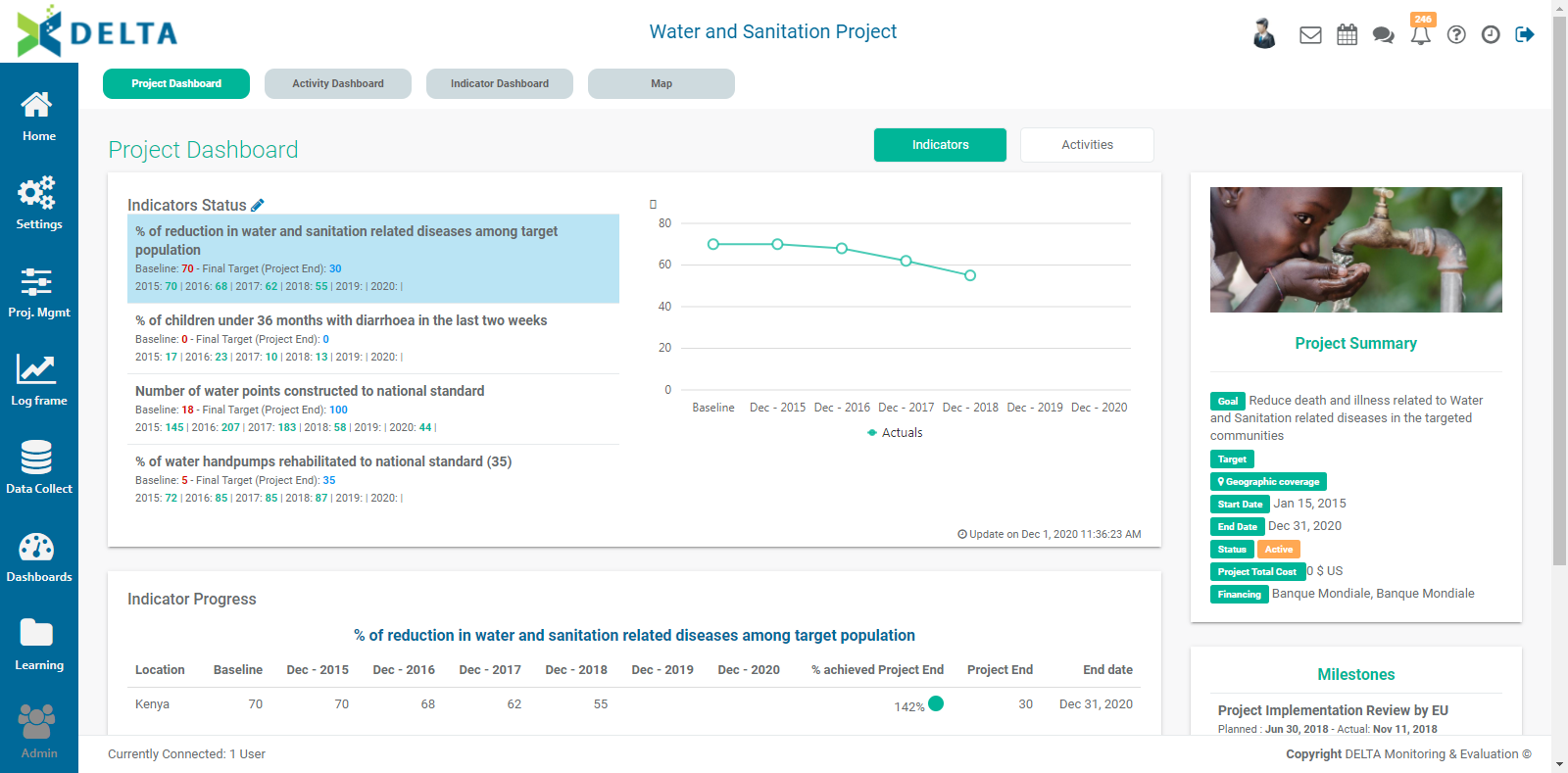
The project's name appears at top center. To return to this screen from anywhere within the project, click on the project's name.
The Project Description and Milestones information also appears in the right column of the page. This information is entered when the project is created.
The project home page features a number of dashboards and shortcuts. The default view is Project Dashboard.

The Project Dashboard default view contains a list of indicators, from which users can select to view the indicator's data. The default selection is the first indicator in the list. Click on another indicator once to bring up its at-a-glance information, along with a graph at right and detailed data in the table below. NOTE: only indicators which contain data appear in the list.
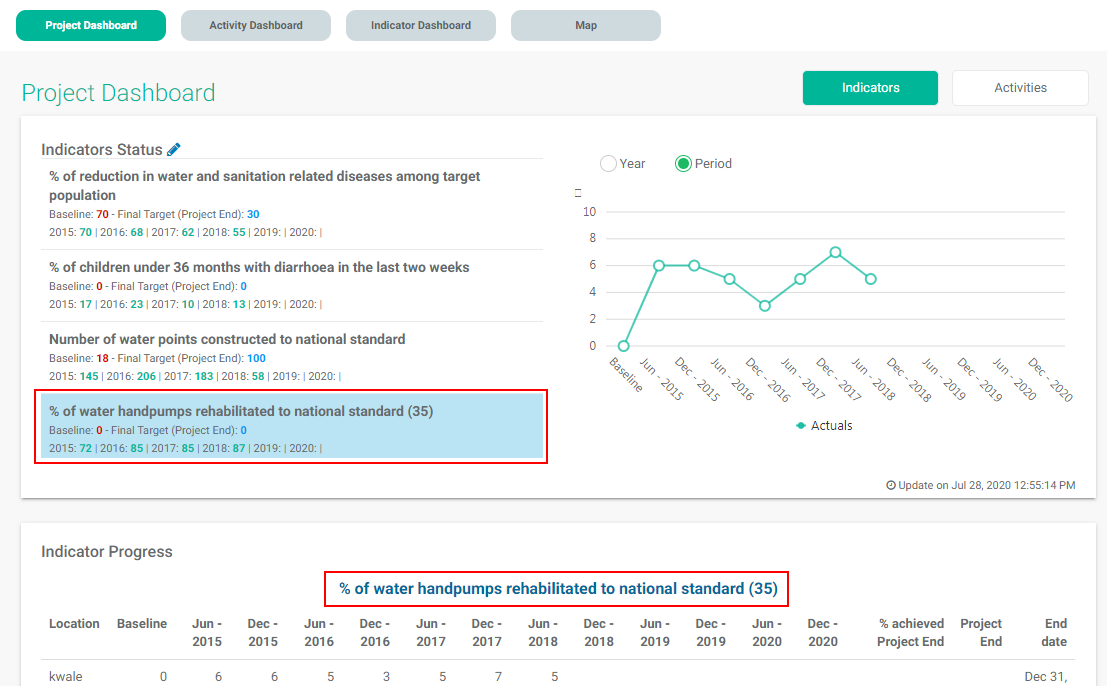
Use the radio buttons above the graph to switch between Year and Period views.
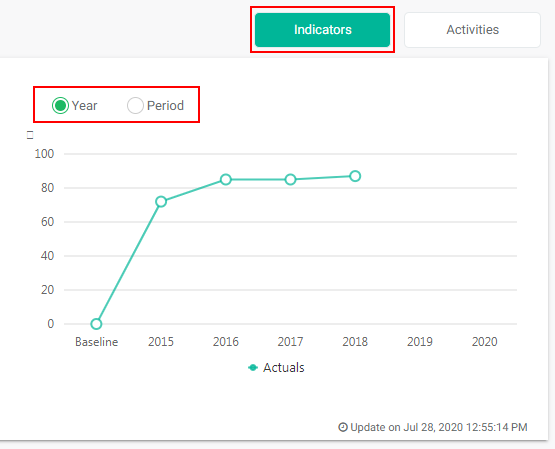
Double-click an indicator in the list to go directly to the indicator's screen.
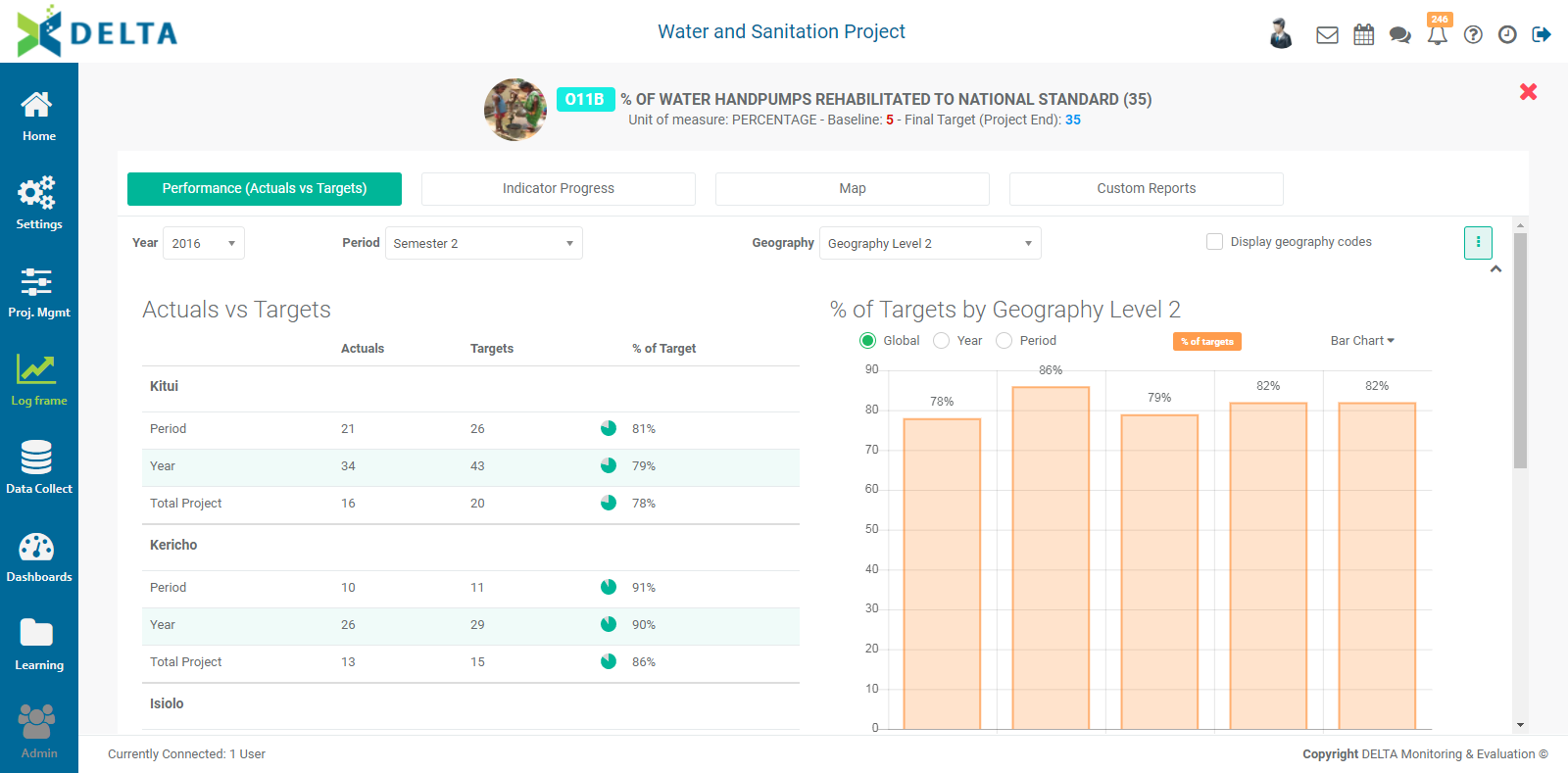
Click the X at top right to return to the project home page.
The other view on the project home page is Activities. Click the Activities tab next to the Indicators tab to enter the Activities view.
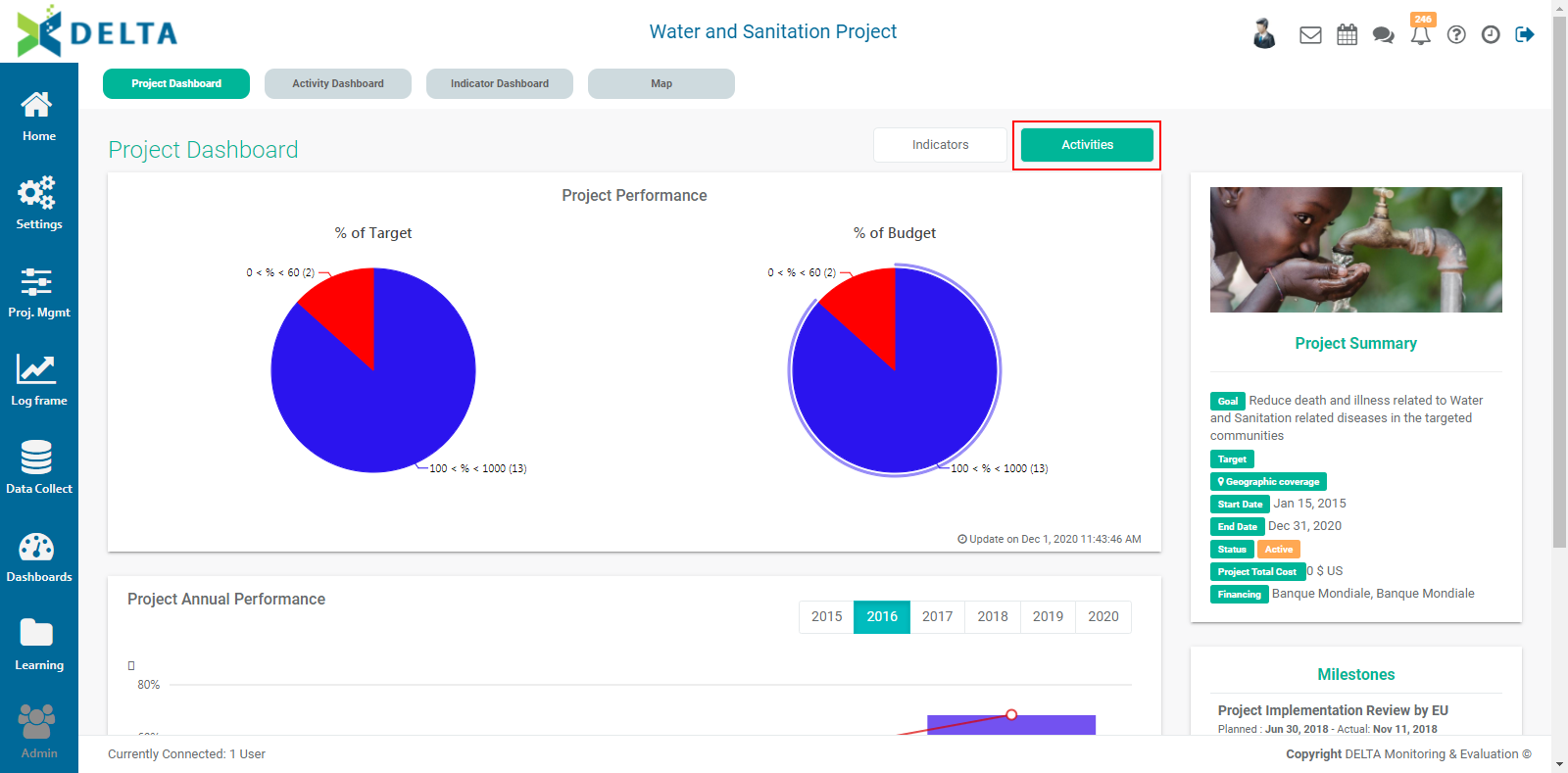
This view features graphs and tables for the project's activities and budget performances. The graph can be navigated by using the Year tabs.
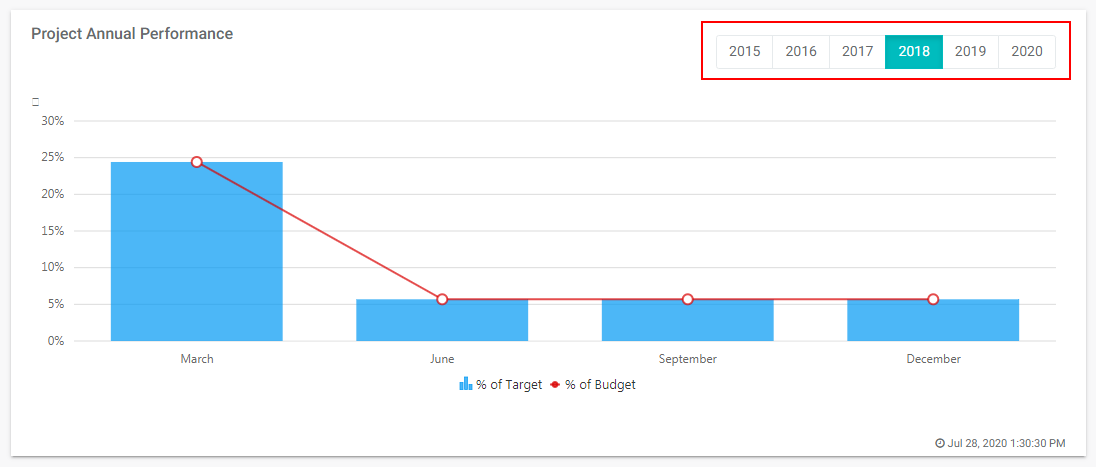
Mouse over the various graphs to view a tool tip which shows the data which generated that particular data point.
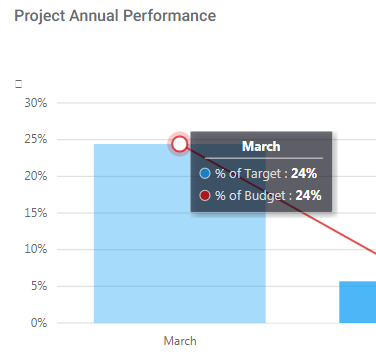
Click the Indicators tab to return to the project default view.
Previous: Creating a Project: Add an Image | Next: Project Home Page: Activity Dashboard
Author: Administrator
Last update: 2023-07-02 18:52
Project Home Page: Activity Dashboard
The Project Activity Dashboard regroups all the detailed data for each project activity.
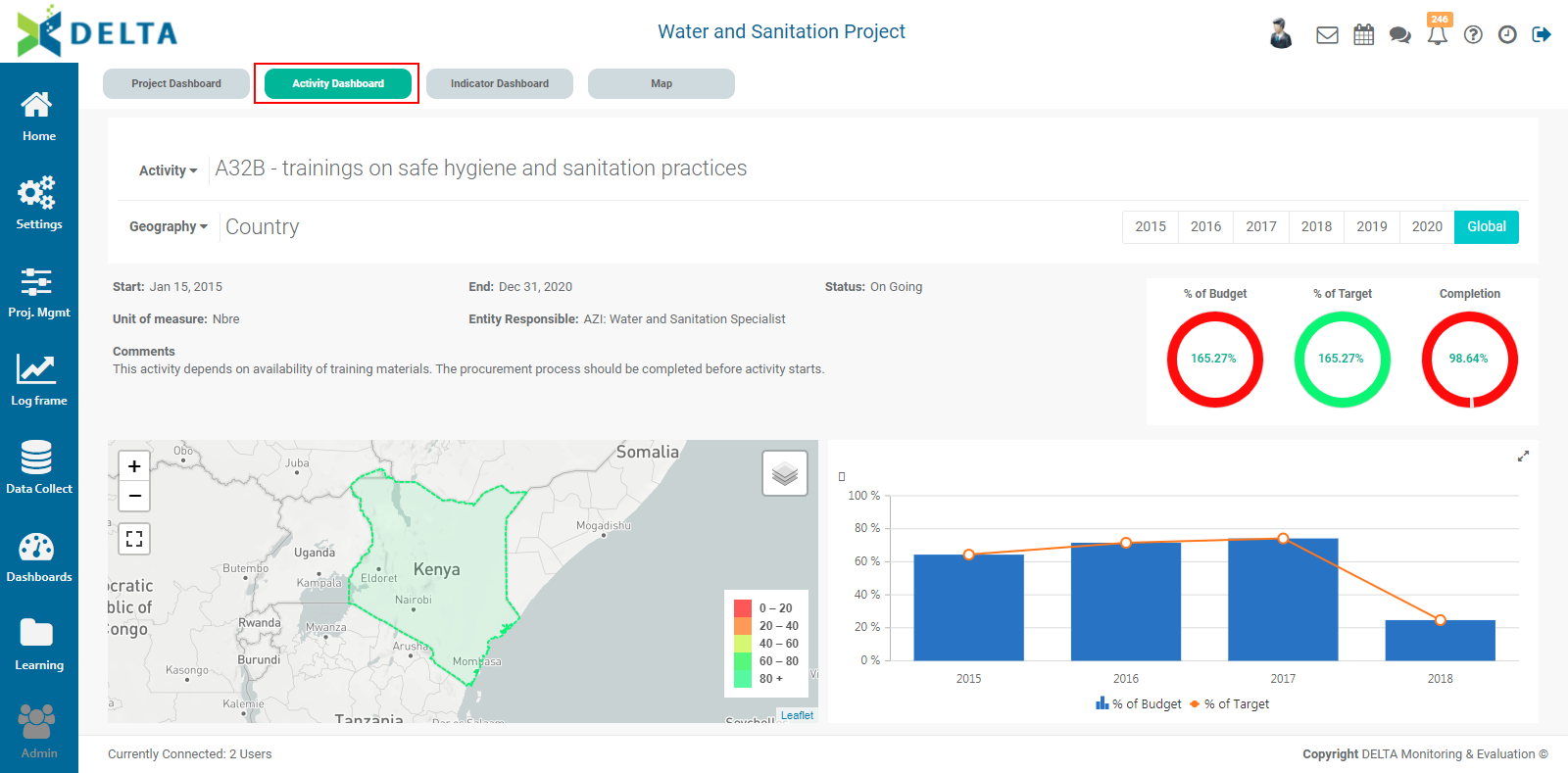
Select an activity from the pick list. Only activities which contain data appear in the list. The graphs and maps will update with the selected activity's data.
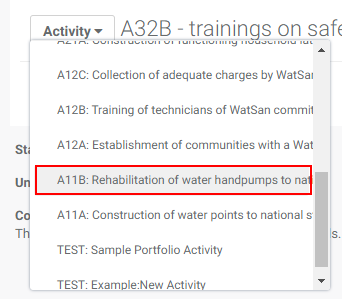
The screen displays basic information about the activity.

Select a geography level to view that level's data on the map.
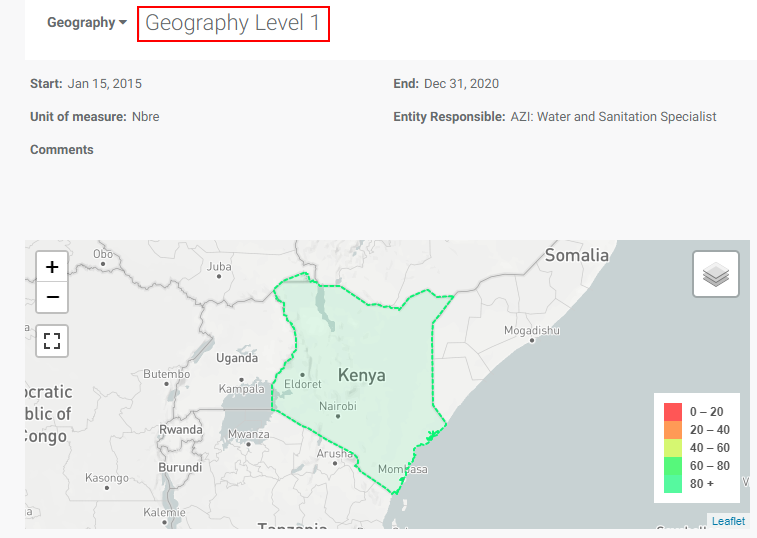
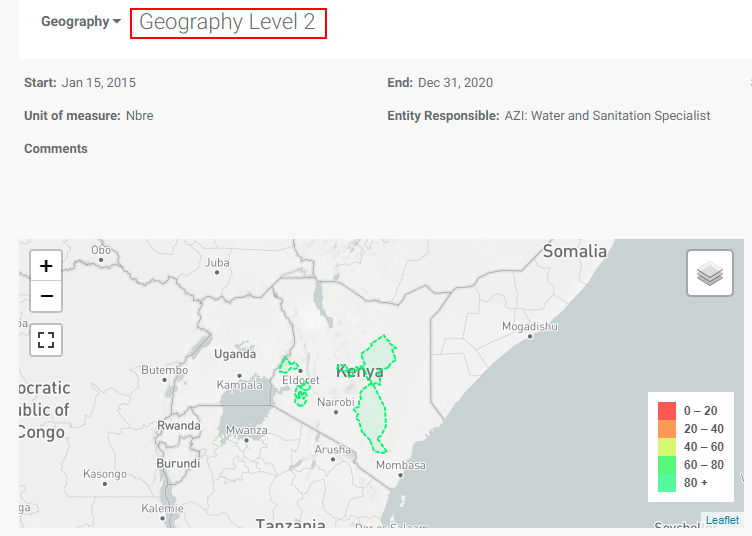
The map controls work in a similar fashion to Google Map controls. Use the Zoom controls to zoom in and out of the map. You can also use a mouse scroll wheel to zoom. You can also display the map fullscreen using the third control.
To return to the normal view from a fullscreen map, press Escape on your keyboard, or click the Exit Fullscreen button at top right of the fullscreen view.

The default map view is Grayscale. Additional map controls are located in the top right corner of the map, and include Street Map View, which adds location names and has a slightly different color, and Satellite View, which adds realistic features to the map.
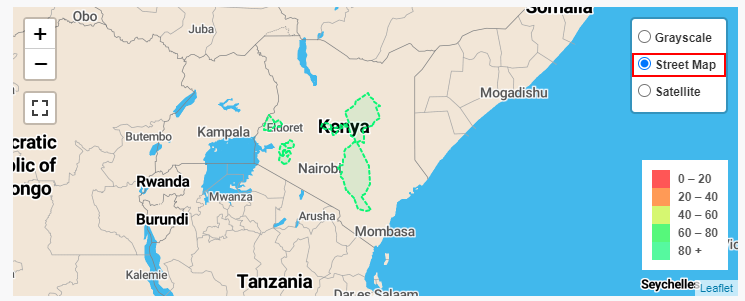
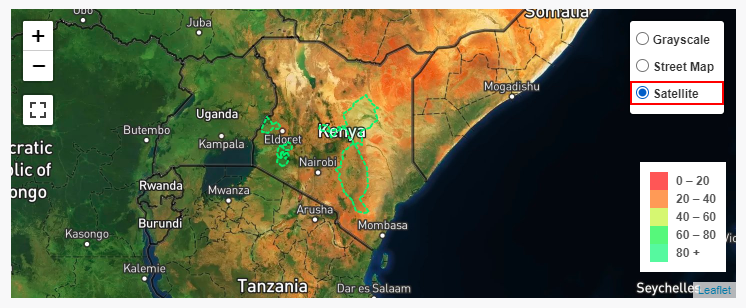
Clicking on a data area on the map will popup a small graph showing the performance for that location. Click the x at top right corner of the popup to close it.
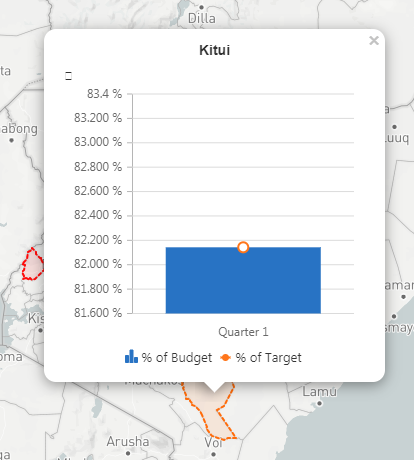
The default timeline for the display is Global. This setting shows all the data from the activity for the entire project.

Click a year to bring up only the data for that year. The at-a-glance %Budget, %Target, and Completion at upper right will update according to the selected year. The year setting will also be reflected on the data shown on the map at the currently selected geography level.
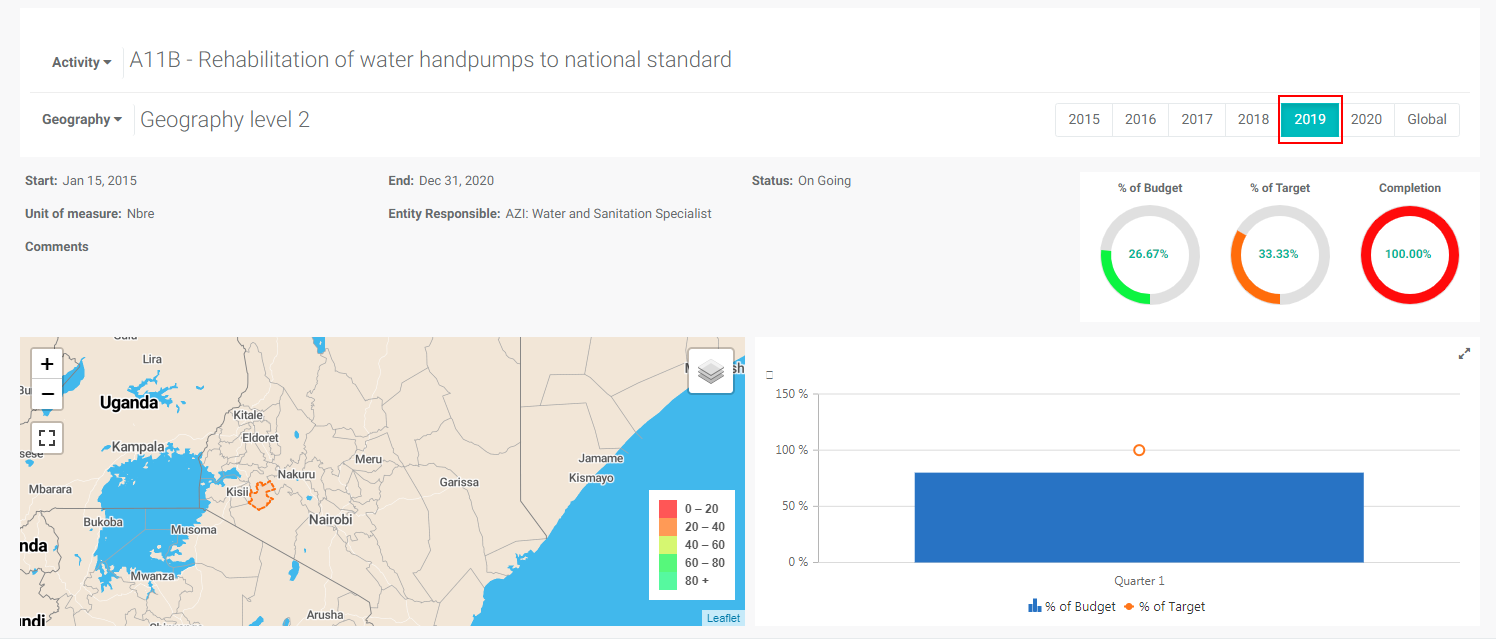
The graph at lower right displays the details for each period of each selected year, or for each year if Global is selected.
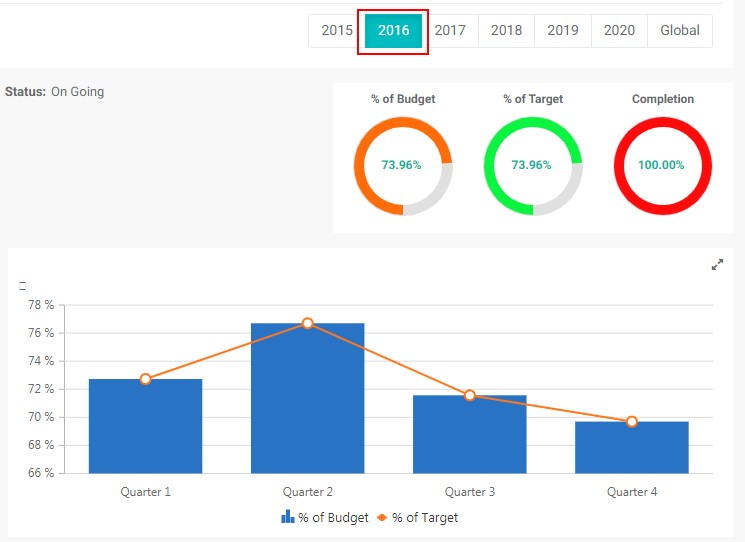
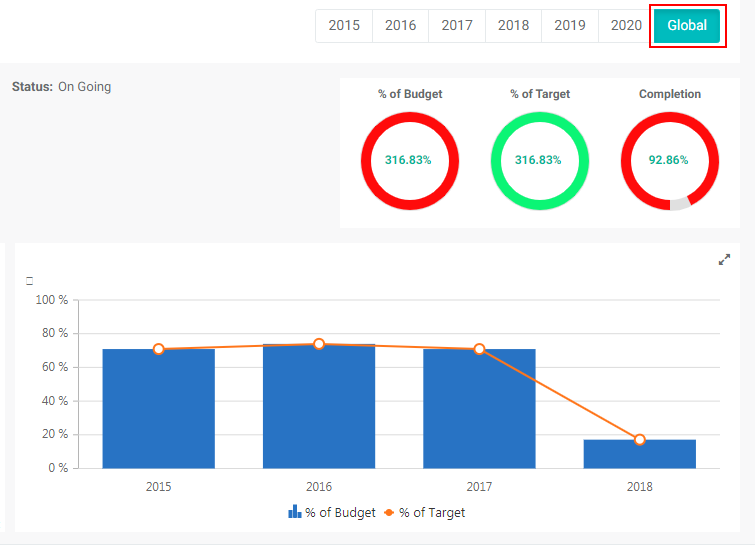
Previous: Project Home Page: Main Project Dashboard | Next: Project Home Page: Indicator Dashboard
Author: Administrator
Last update: 2023-07-02 18:56
Project Home Page: Indicator Dashboard
The Project Indicator Dashboard regroups all the detailed data for each project indicator. Click on the Indicator Dashboard at the top of the screen to go to that screen.
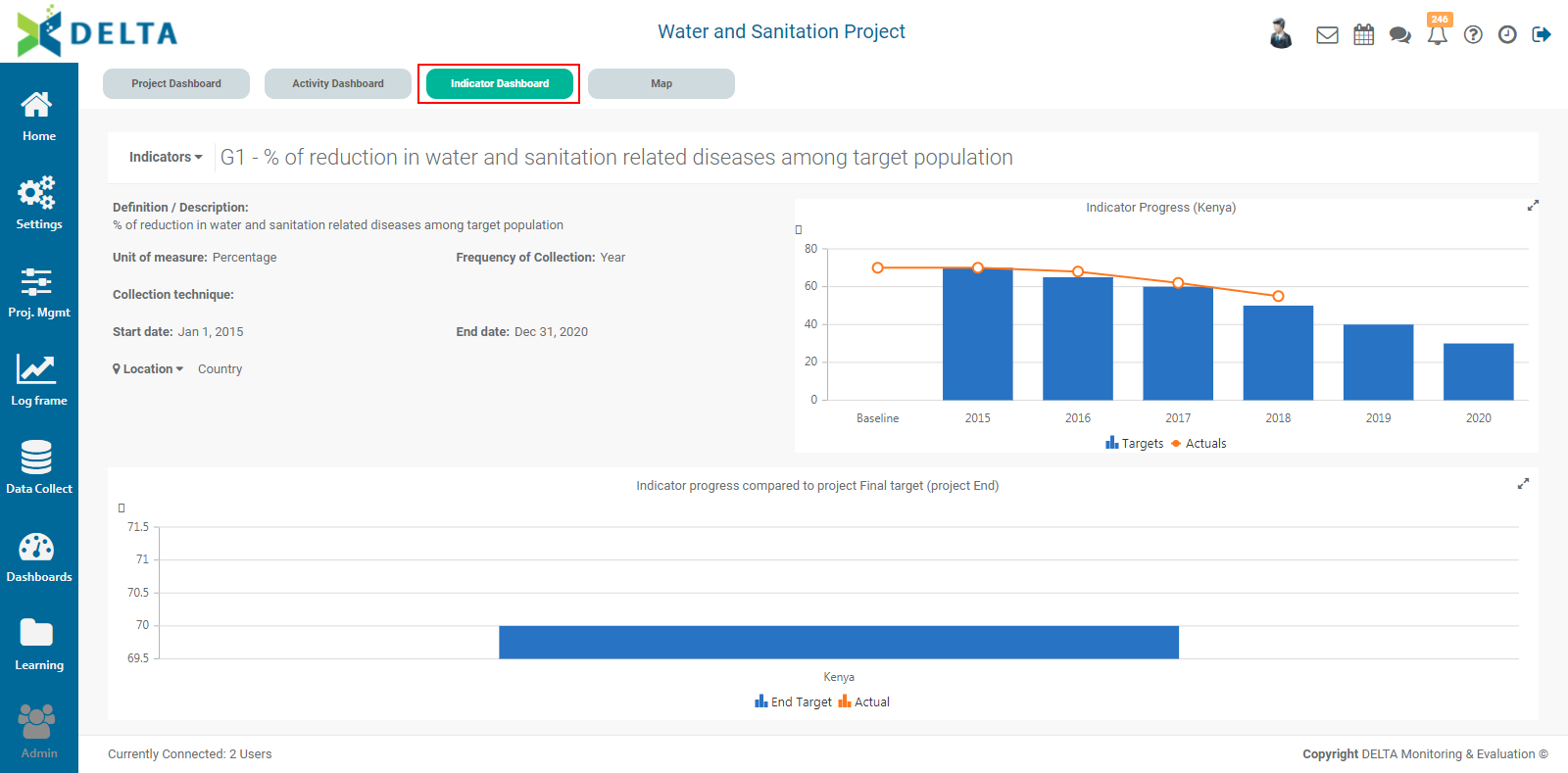
Select the desired indicator from the pick list.
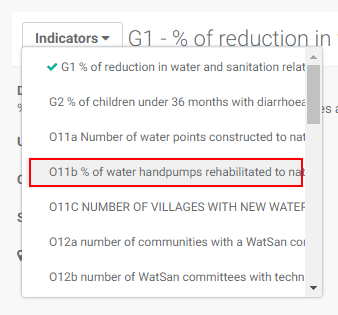
The map and graphs will update automatically with the selected indicator's data and information, including an at-a-glance summary of how the indicator was set up.
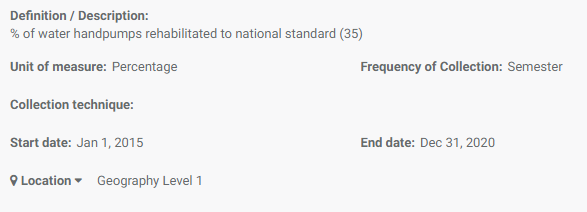
The default view is the top geography level. Select another level to drill down into location details for the indicator.
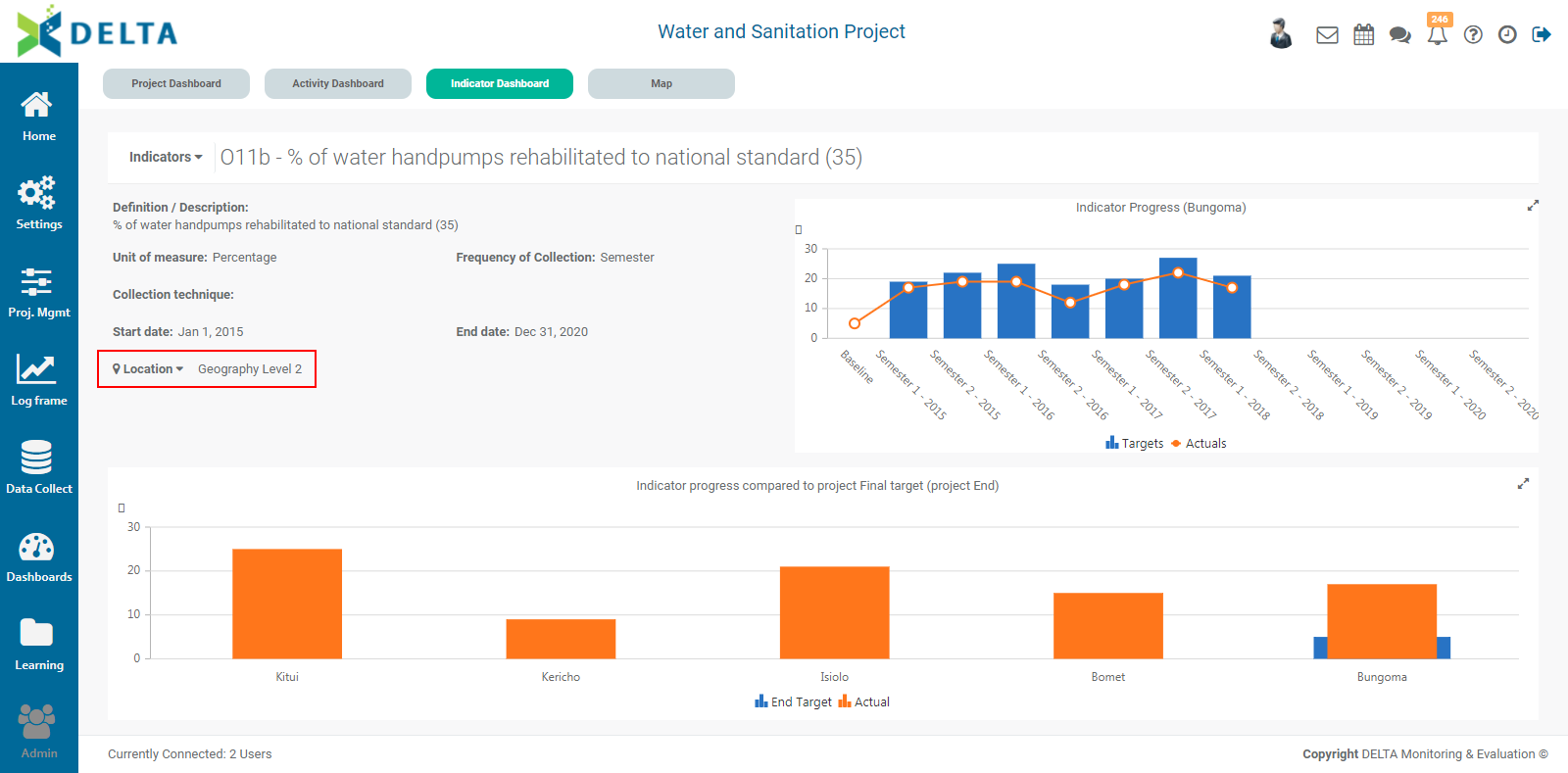
The graph at the bottom of the screen shows the indicator progress for each geography level location for which there exists indicator performance data. The graph at top right shows the details for a specific location. To view another location's details, click it in the bottom graph. The top right graph will refresh to show the indicator performance details for the selected location.
NOTE: depending on the geography level associated with the particular indicator, some geography levels may not be available. For example, an indicator associated with Level 2 of a locations list will not show any data for lower levels of the locations list.
Mousing over any part of a graph will trigger a tool tip which displays the data used for that part of the graph.
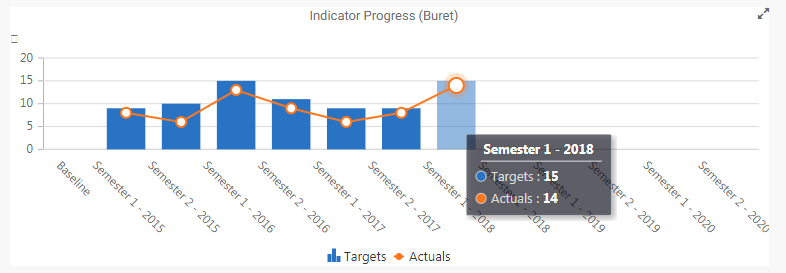
Click the double arrow at the top right corner of either graph to expand it to fullscreen. Press Escape on your keyboard to exit the fullscreen view.
Previous: Project Home Page: Activity Dashboard | Next: Project Home Page: Map Dashboard
Author: Administrator
Last update: 2023-07-02 18:56
Project Home Page: Map Dashboard
The third major view for the project dashboard is Map. Click the Map tab to view geospatial data for each of the project indicators.
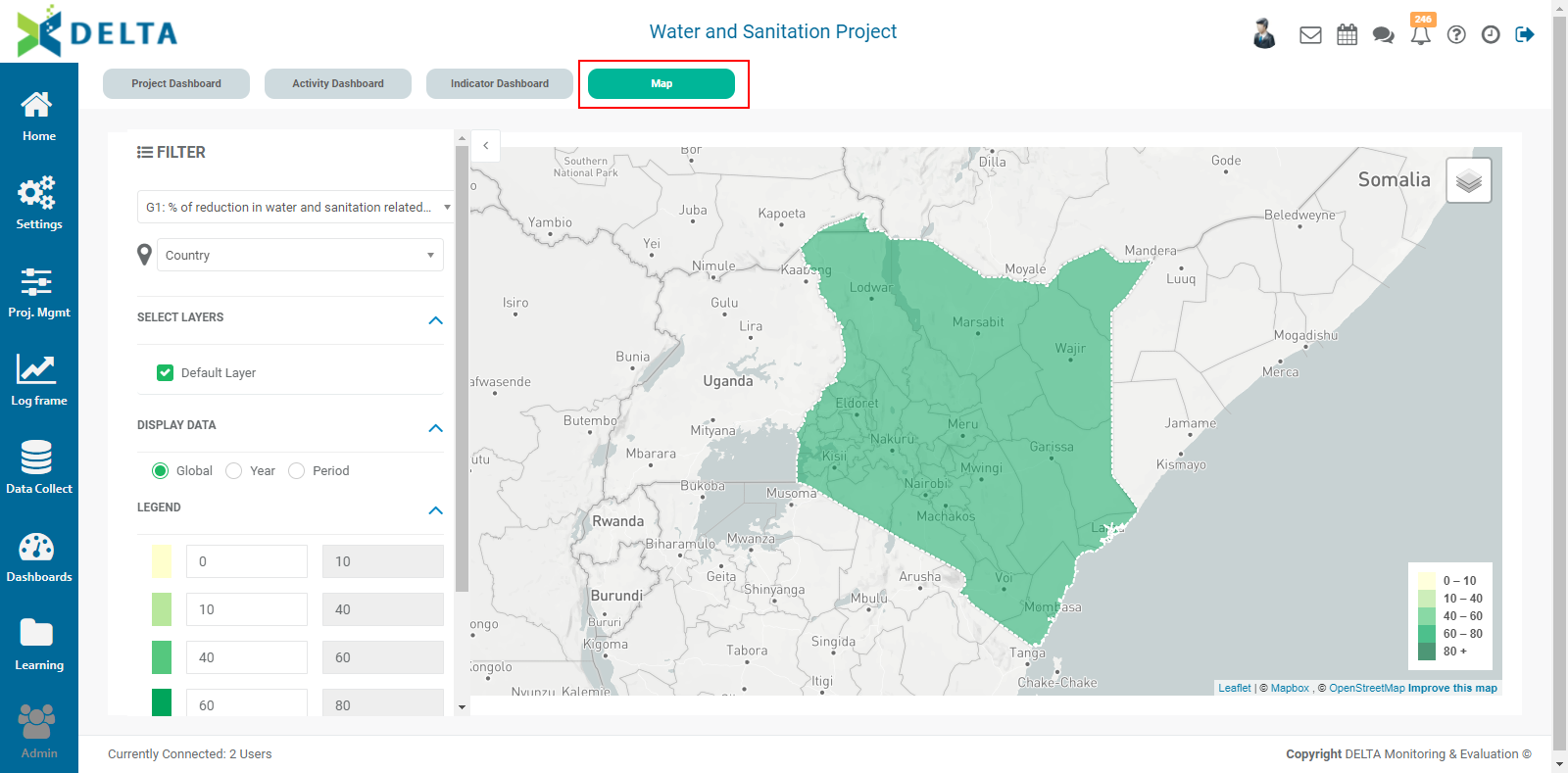
Select an indicator from the pick list to view its geospatial representation on the map. The display will refresh automatically.
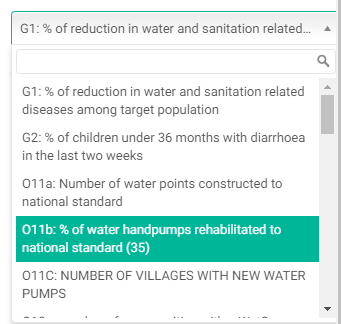
The default geography level is Level 1, the highest level in the Locations tree. Select another geography level to drill down into the indicator data by location. NOTE: lower geography levels may not be available, depending on how the indicator was set up.
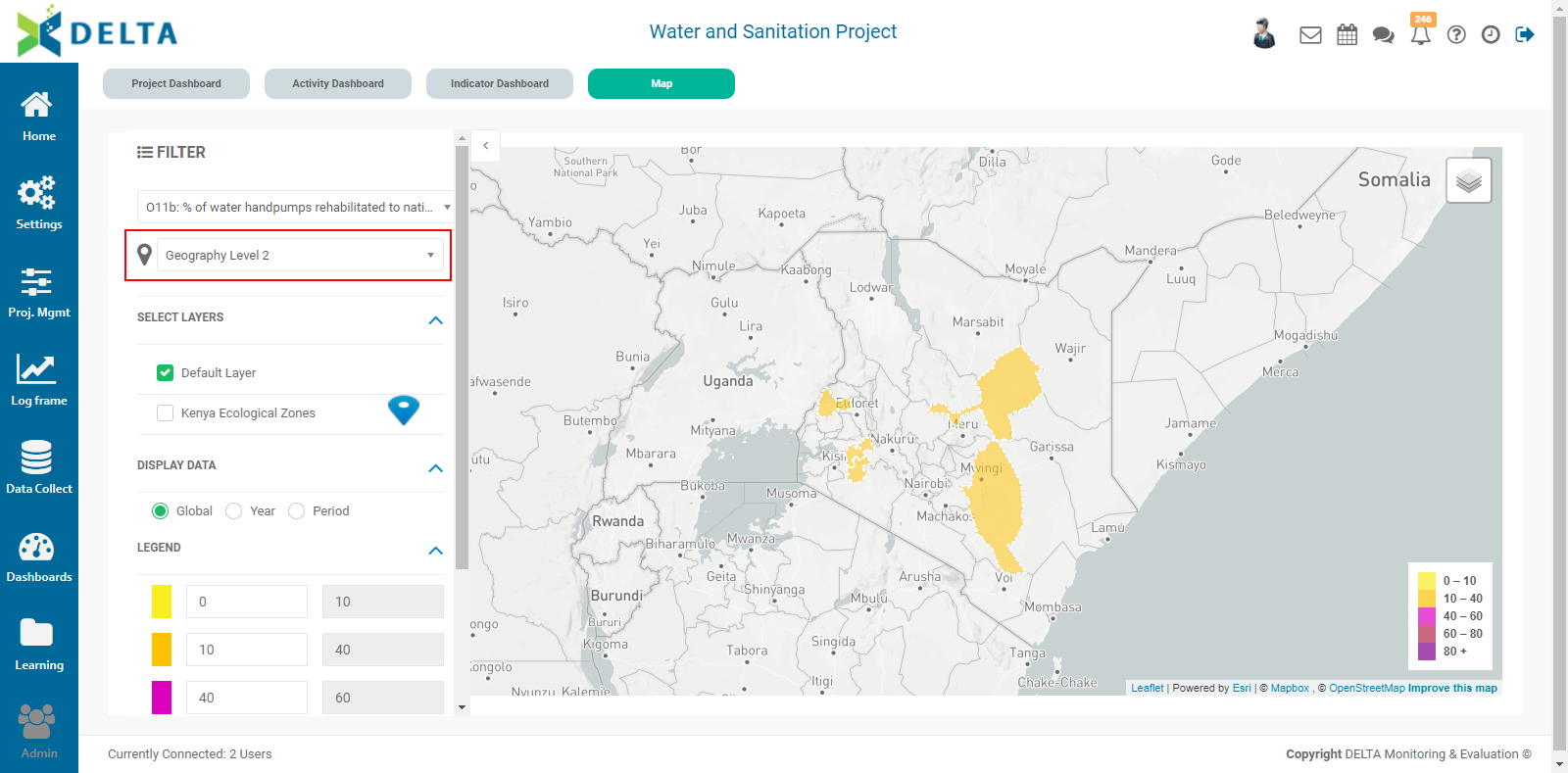
Spatial visualization settings for each indicator are determined in the Details tab of the indicator when it's created. The settings control the intervals and colors for the legend, and the addition of any external GIS data layers. The indicator data is always contained in the Default Layer. If external data layers have been associated with the indicator, it will also appear on the map, but can be turned off by unchecking its box in the Select Layers section of the Filter pane.
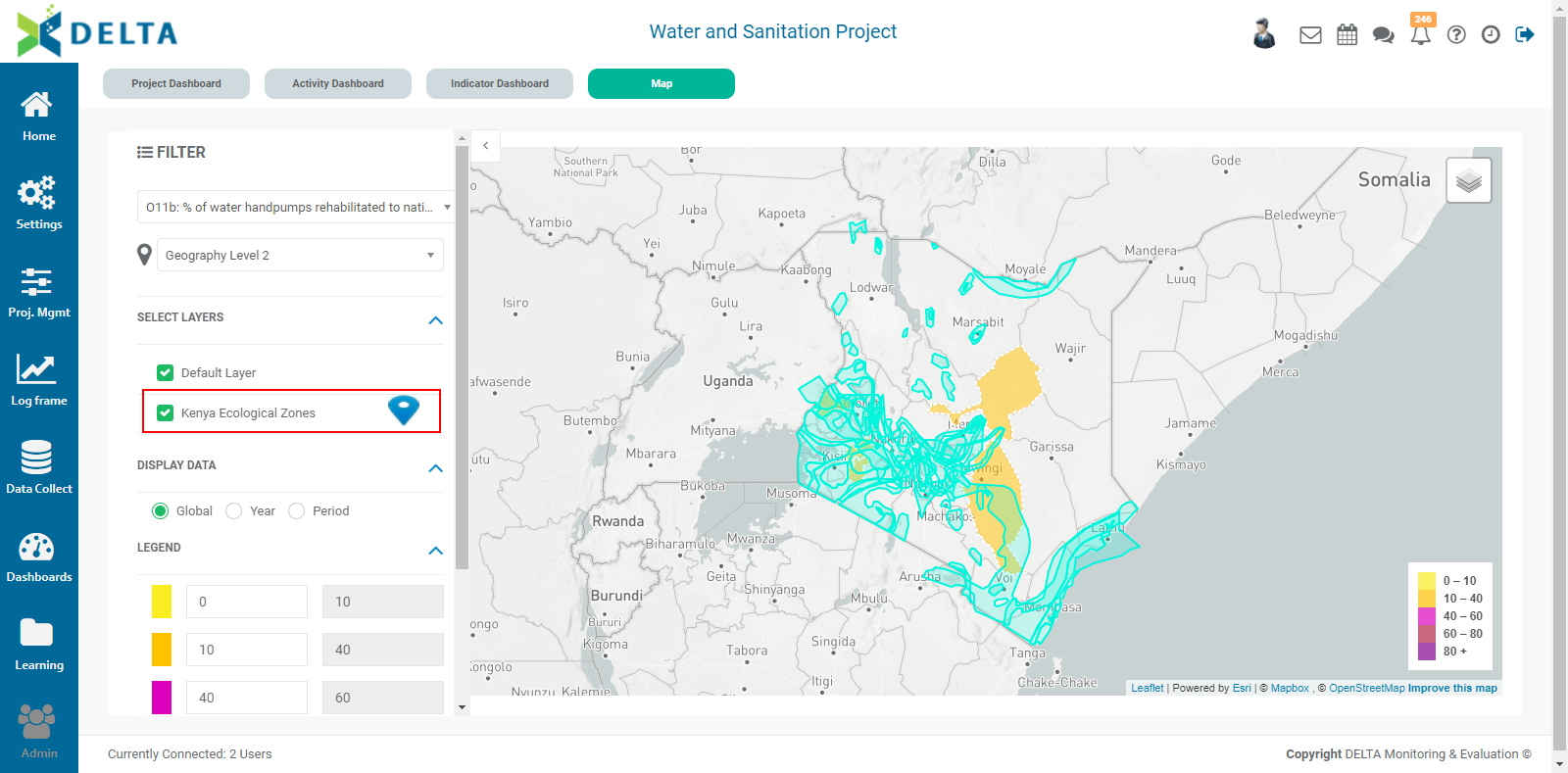
The default for Display Data is Global. Select Year to view indicator data for each year.
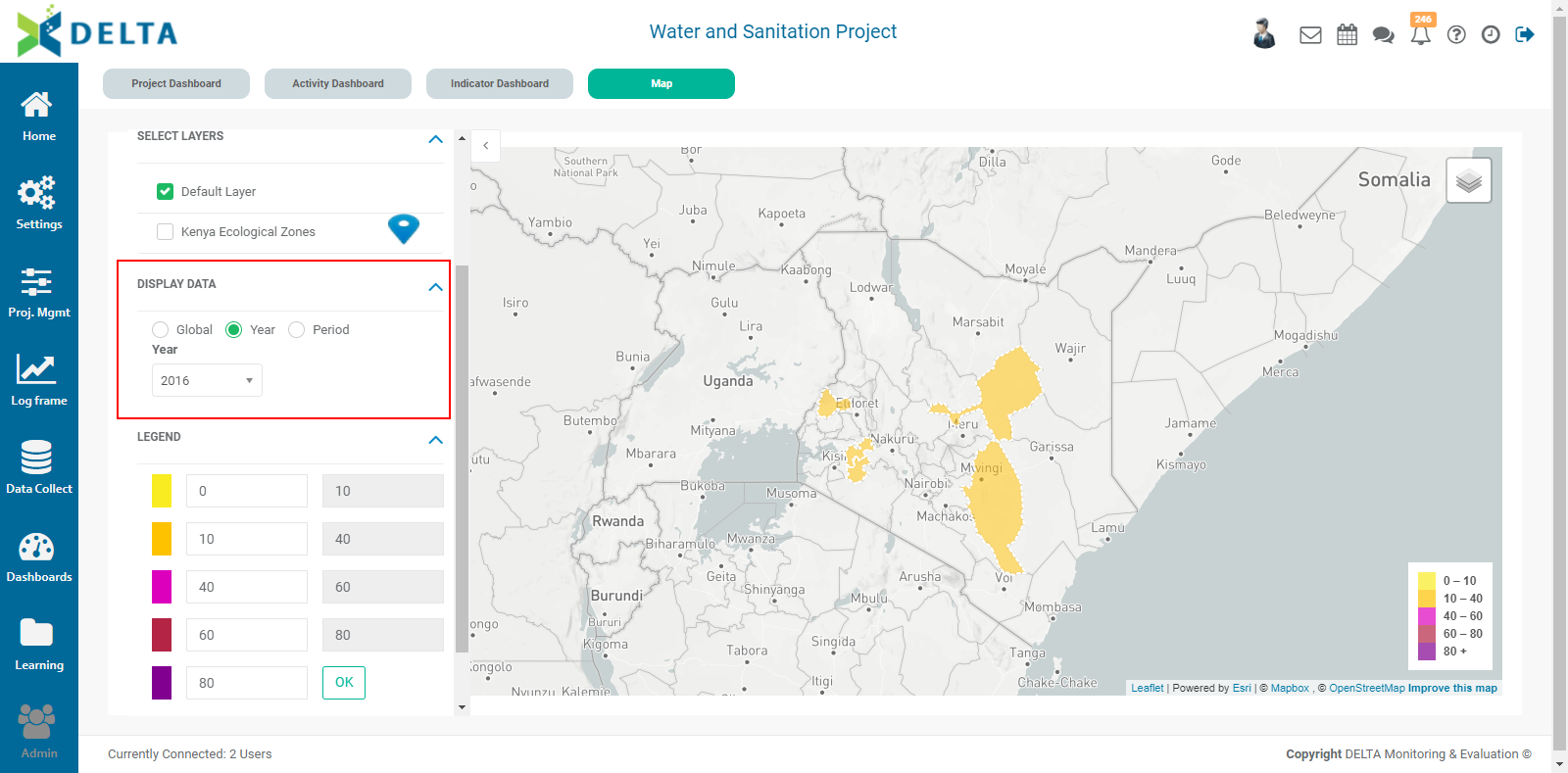
To drill down further into indicator data, click the Period radio button, and select the desired year and period.
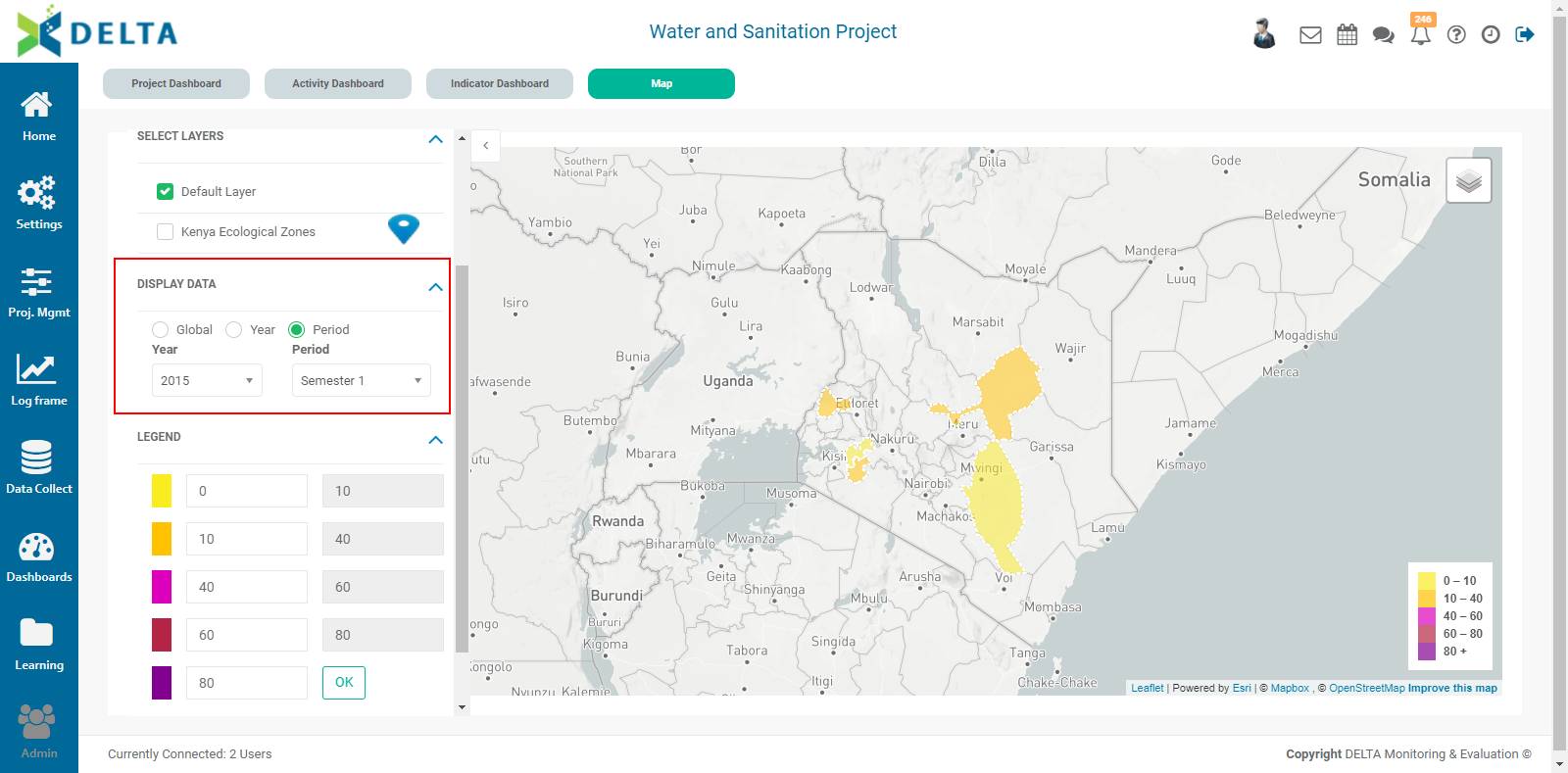
The Legend colors cannot be changed from this screen. Legend colors are controlled via the Spatial Visualization settings of the indicator. However, the range can be edited from this screen. Change the beginning of each range as desired, and click OK to apply your changes. NOTE: this does not alter the settings in the indicator itself, but only refreshes the dashboard display.
The last section of the Filter pane is Collected Data. It will display any custom analytics reports from data collection forms as long as they contain a location/GPS component. Turn the display on and off with the checkboxes next to each item.
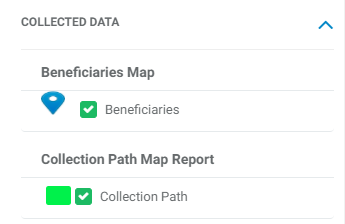
The map controls are the same as they are throughout Delta. The default background for the map is Grayscale. Click the stacked layers icon on the top right corner of the map to switch to Street View or Satellite.
To hide the Filter pane and uncover the map controls, use the toggle at the top right corner of the pane.

Previous: Project Home Page: Indicator Dashboard | Next: Project Home Page: Custom Analytics Dashboards
Author: Administrator
Last update: 2023-07-02 18:58
Project Home Page: Custom Analytics Dashboards
Delta supports the creation of shortcuts to custom reports. If you create custom dashboards in the Dashboards module and mark them with a star to favorite them, new tabs with the names of the dashboards will appear next to the Map tab. Click each tab to view the corresponding dashboard.
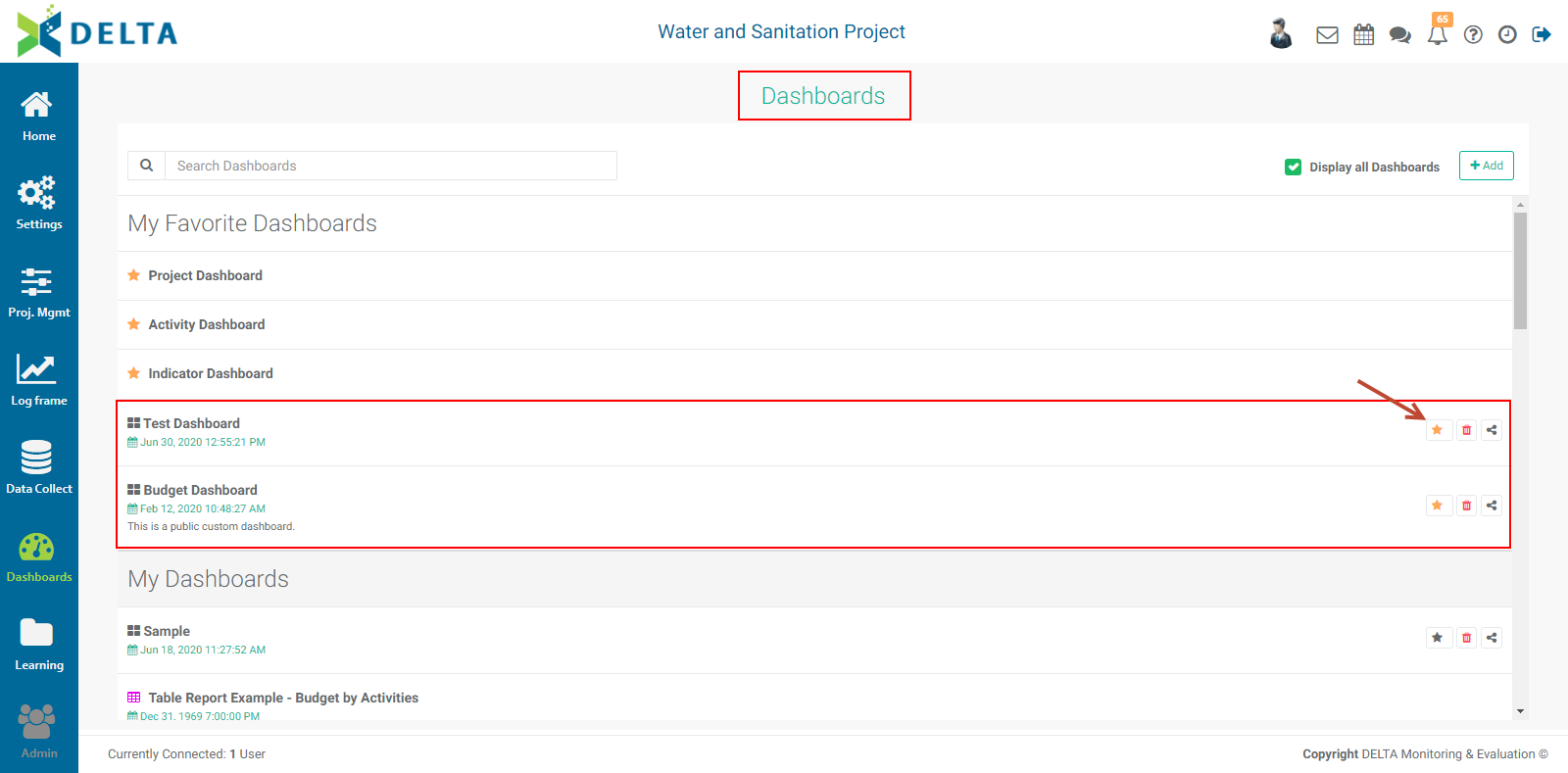
Previous: Project Home Page: Map Dashboard | Next: Portfolio Settings: Log Frame
Author: Administrator
Last update: 2023-07-02 18:58
DELTAbriefs
DELTAbriefs: Video Library
Access deniedAuthor: Administrator
Last update: 2020-12-28 10:56
DELTAbriefs: Deep Dives
Access deniedAuthor: Administrator
Last update: 2020-12-10 12:33