Data Collection: Form Design
Delta's Data Collection Module contains four functional areas: Create/Edit Form, Collect Data, Review Data, and Analyze & Report. Click the Data Collect icon in the left navigation to enter the module.
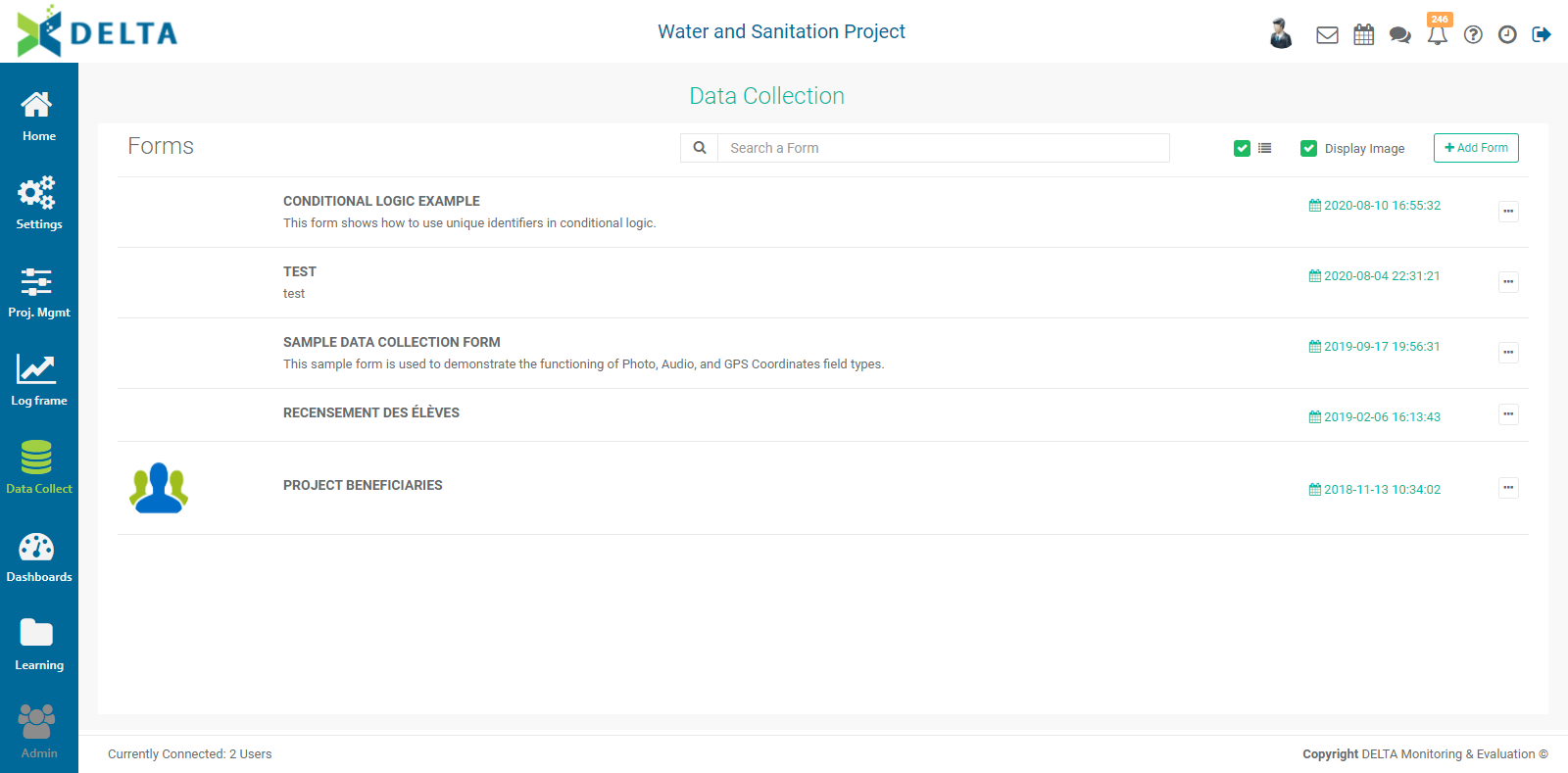
To create a new form, click the + Add Form button at the top right to bring up the Form Design screen.
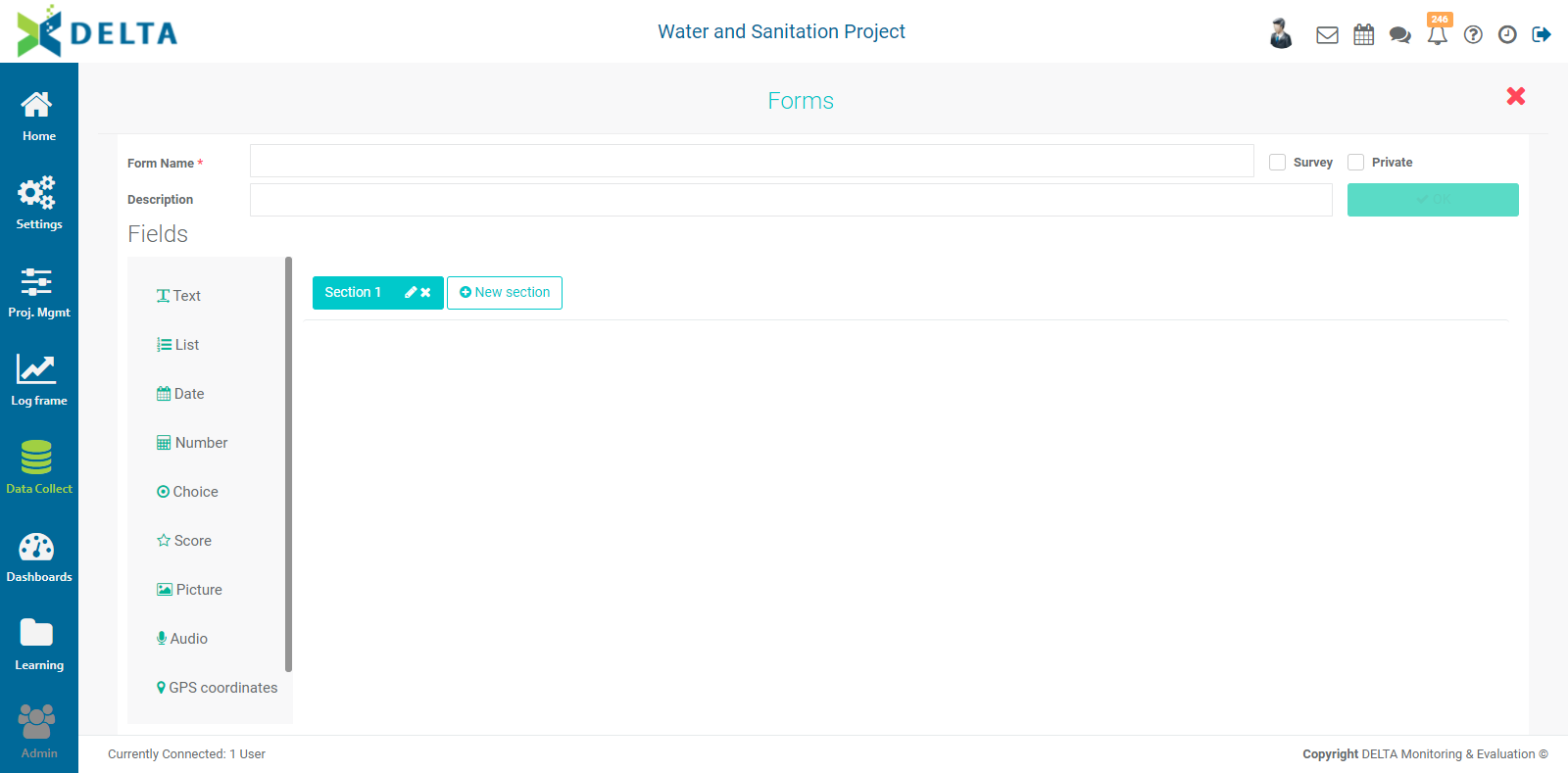
Enter a name for the form in the Name field.
To add a field of a particular type to the form structure, click, hold, and drag your selection onto the blank area of the screen.
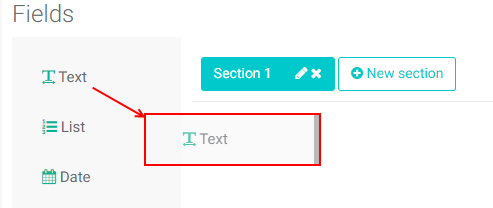
Select the spot where you want to place the field, and release the selection. The field and its parameters appear on the page.

Each field type has its own parameters. Each also is automatically assigned a unique identifier by the system. This identifier appears to the right of the label of the field, along with a key icon, and always begins with the capital letter "I".
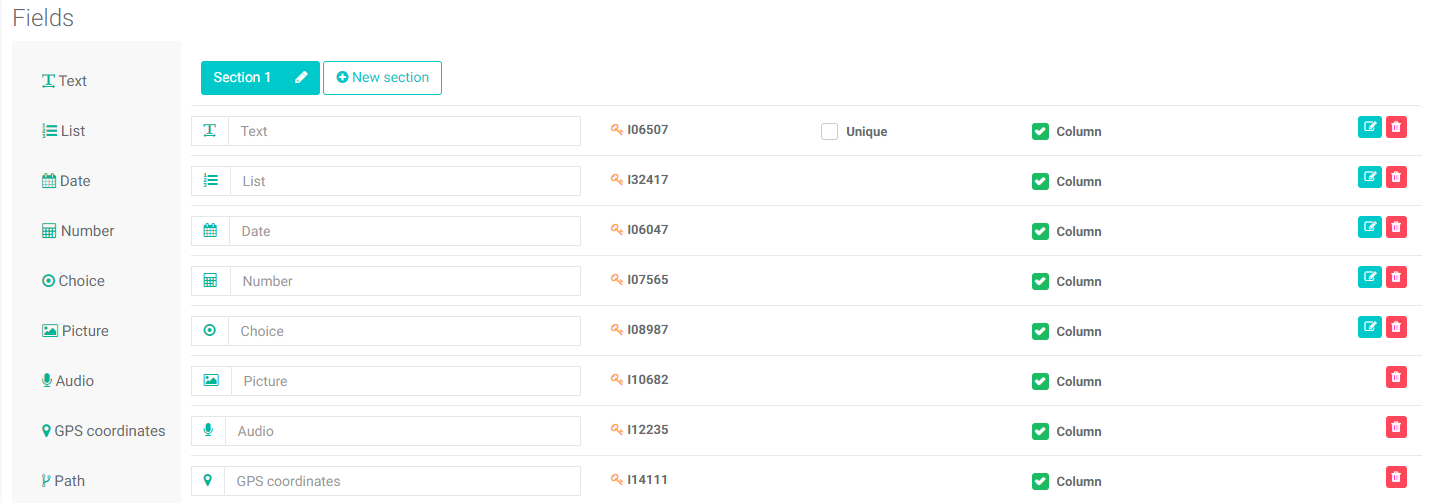
NOTE: make sure that you replace the placeholder text in the field name with an actual name for the field. If you do not, Delta will display the dataset with no headers (which is what the Column checkbox does, using the field name), or will use the field's unique key identifier as the header. Unique key identifiers and using conditional logic (skip logic) are discussed in detail in the article Data Collection: Unique Identifiers & Skip Logic.
The first of the ten types of field is Text.
Enter the label of the text field. Checking the Unique box forces a unique entry into this field every time data is entered into the form during data collection. Checking the Column box will display the data from this form in columnar form during data review.
To configure the text field, click its Edit icon.
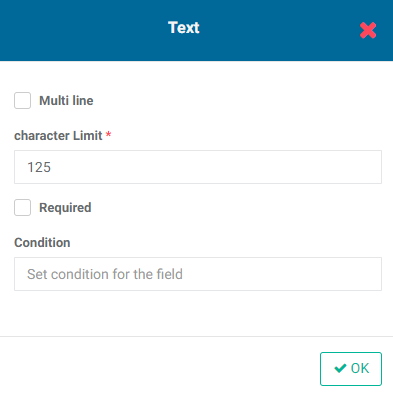
Check Multiline to allow more than one line of text to be displayed on the form. Enter the maximum numbers of characters allowed for this data entry (required). Check the Required box to make this data entry mandatory. Add a condition if appropriate, then click OK when you're done.
The List data field type allows you to add pick lists, parameters from the project settings, and other forms. After adding a List field to your form, click its Edit icon to further configure the field.
The first option, List Options, allows you to create pick lists in your form. Select List Options, then add the items to be displayed in the pick list. Click the Add button after each one. Check/uncheck the Required box, add a condition if appropriate, then click OK when you're done.
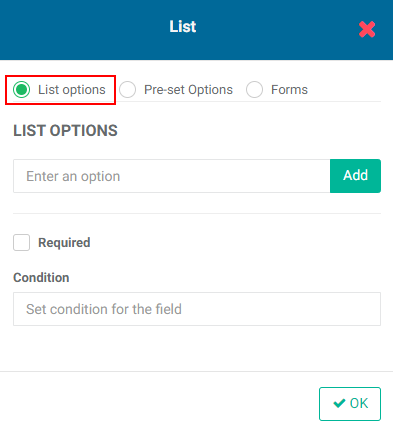
The second option, Pre-set Options, allows you to select a set of project parameters, such as geography list or log frame. Select Pre-set Options, then select the desired parameter. Check/uncheck the Required box, add a condition if appropriate, then click OK when you're done.
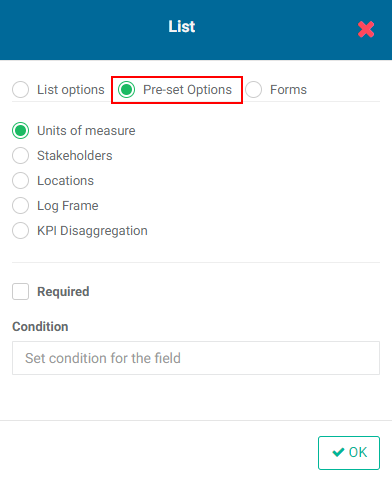
Selecting Units of Measure will populate a pick list with the units of measure entered in the project settings. The pick list will appear in the data collection form when it's used.
Selecting Stakeholder will populate a pick list with the stakeholders from the project settings. The pick list will appear in the data collection form when it's used.
Selecting Locations will display all the project locations in a pick list. This option is useful in a couple of ways: it makes sure location names are consistent, and it also provides the GIS part of the system with the correct data for this particular dataset’s geospatial visualization.
Selecting Log Frame will make all the log frame elements available in a pick list. This option is used to associate form data to a particular activity or indicator.
Selecting Disaggregation Categories will bring up a pick list from which you can select the project disaggregation category you want to use in the form.
The third option, Forms, allows you to select another form in order to incorporate it into the form you're creating. Select Forms, then select the form you want to use.
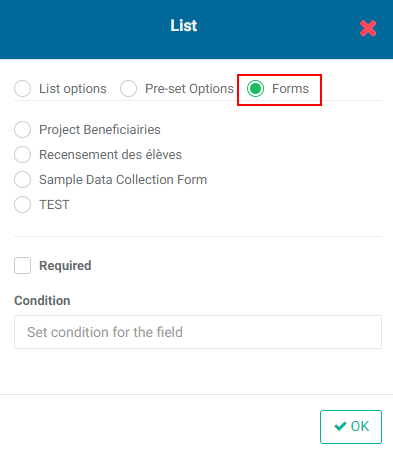
A specialized use of the Forms option is linking baseline (static) with timeline (variable) data in the context of longitudinal studies.
The Date data field type is self-explanatory. After adding a Date field to your form, click its Edit icon to further configure it.
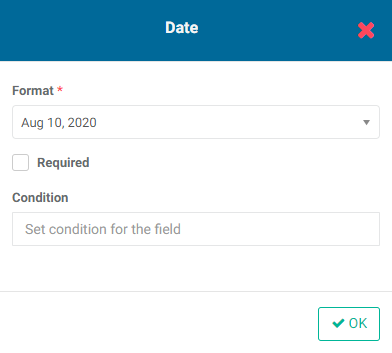
Select a date format from the pick list. Check/uncheck the Required box, add a condition if appropriate, then click OK when you're done.
NOTE: A typical use of this field is to enter the date the data collection took place. This allows the system to place the record in its proper reporting period. Date fields appear in the Period field of an indicator’s Populate With Data File parameters.
The Number data field type is also straightforward. Its only parameter is the number of digits after the decimal point. After adding a Number field to your form, click its Edit icon to configure it.
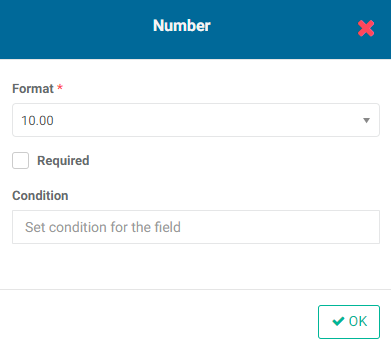
Select the number of digits after the decimal point from the pick list. Check/uncheck the Required box, add a condition if appropriate, then click OK when you're done.
The Choice data field type allows you to quickly build pick lists for your form. After adding a Choice field to your form, click its Edit icon to further configure it.
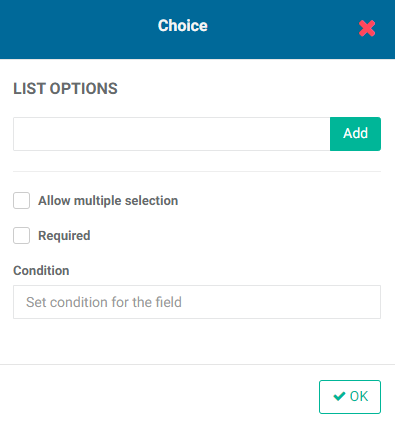
Add the items to be displayed in the pick list. Click the Add button after each one. Check/uncheck the Allow Multiple Selection box, check/uncheck the Required box, add a condition if appropriate, then click OK when you're done.
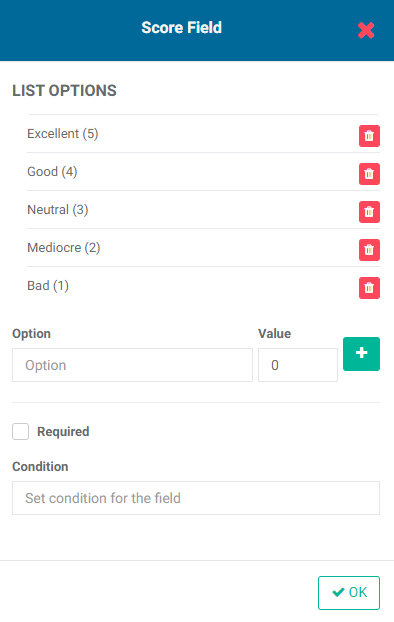
The next field type is Score. This field allows you to add options for scoring an item, for example on a five-point Likert scale. This is especially useful for surveys. Enter each option and its score one at a time, clicking the + button after each one to save it. You may enter as many options as you need.
The last four data field types, Picture, Audio, and GPS Coordinates, and Path, require no parameters.
The Picture field type has no configurable elements. It will appear as a More icon in the data collection form. Clicking the More icon will allow you to navigate to the location of an image to add it to the dataset. Supported formats include GIF, JPEG, and PNG. The field acts as a placeholder so the photo can be added after the record has been imported, for example a photo of a interviewed person.
To add a photo to an existing record in a data collection form, click the name of the form you want to work with from the Data Collection module landing page, and either manually create a record or import data. Open the record you want to add the photo to, click the More (...) icon next to the title of the Photo field, and navigate to the image file you want to use. Click OK to confirm. The photo will appear in the form.
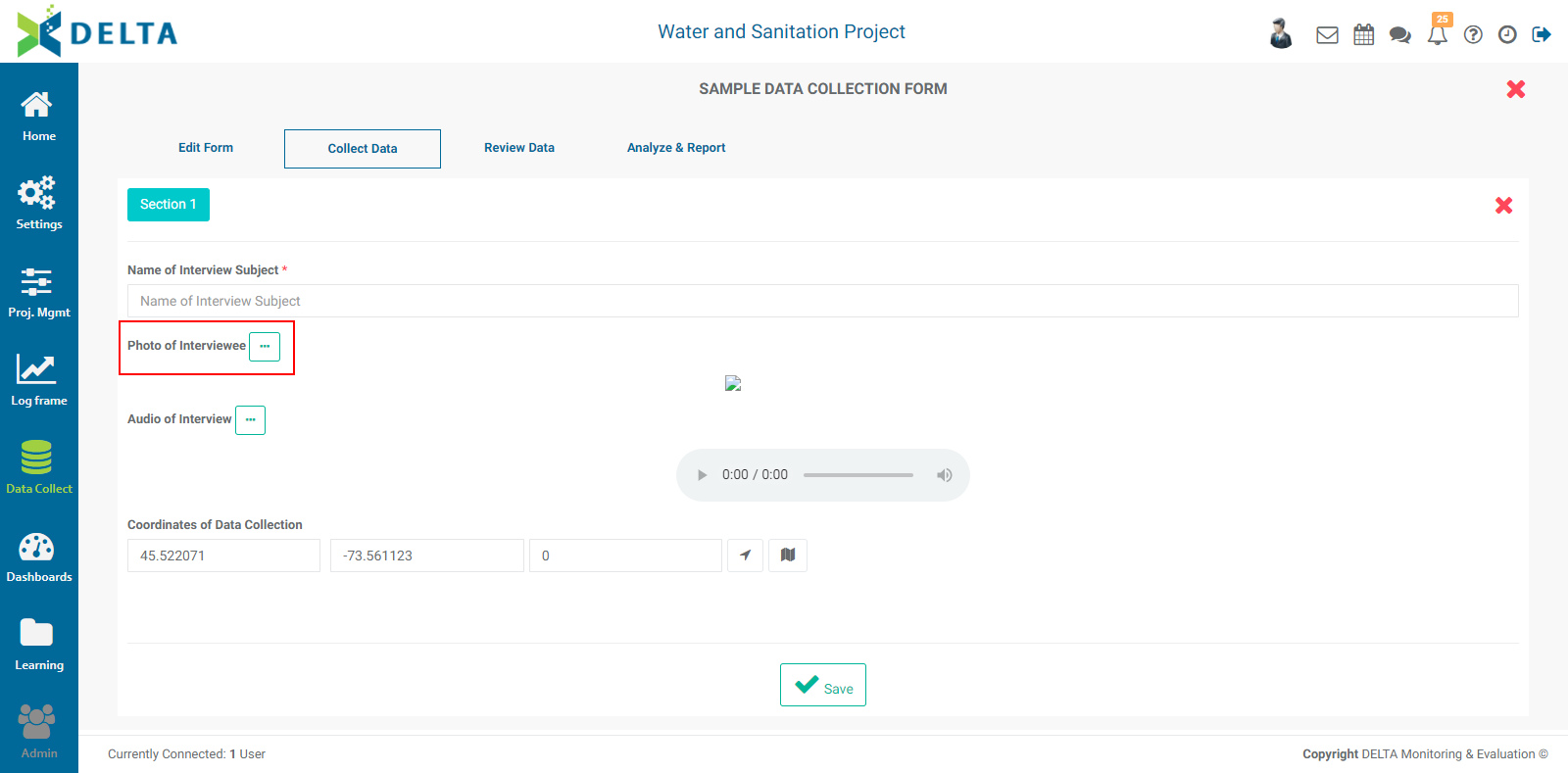
Graphic formats supported by the Photo field are: .xbm, .tif, .pjp, .pjpeg, .jfif, .webp, .ico, .tiff, .bmp, .png, .jpeg, .svgz, .jpg, .gif, and .svg. Keep in mind that larger photo file sizes may slow down the system's display speed, so consider sampling down very large image files into smaller copies.
The Audio field type has no configurable elements. It will appear as a More icon in the data collection form. Clicking the More icon will allow you to navigate to the location of an audio recording to add it to the dataset.
Adding an audio file is similar to adding a photo. In an existing record, click the More (...) menu next to the title of the audio file, navigate to the location of the audio file, and click OK to confirm. The selected audio file will be available for playback in the audio player interface.
Audio formats supposted by the Audio field are: .weba, .webm, .opus, .oga, .flac, .m4a, .ogg, .AMR, .wav, .mp3, .mid, .aiff, .wma, .au, and .aac.
The GPS Coordinates field type has no configurable elements. The GPS coordinates of the data collection site will be entered into the form automatically if the person using the form is in range of a network. GPS coordinates can also be added in after the fact, for example if data collection took place offline but the coordinates are known. The information in this type of field will inform geospatial visualization reports.
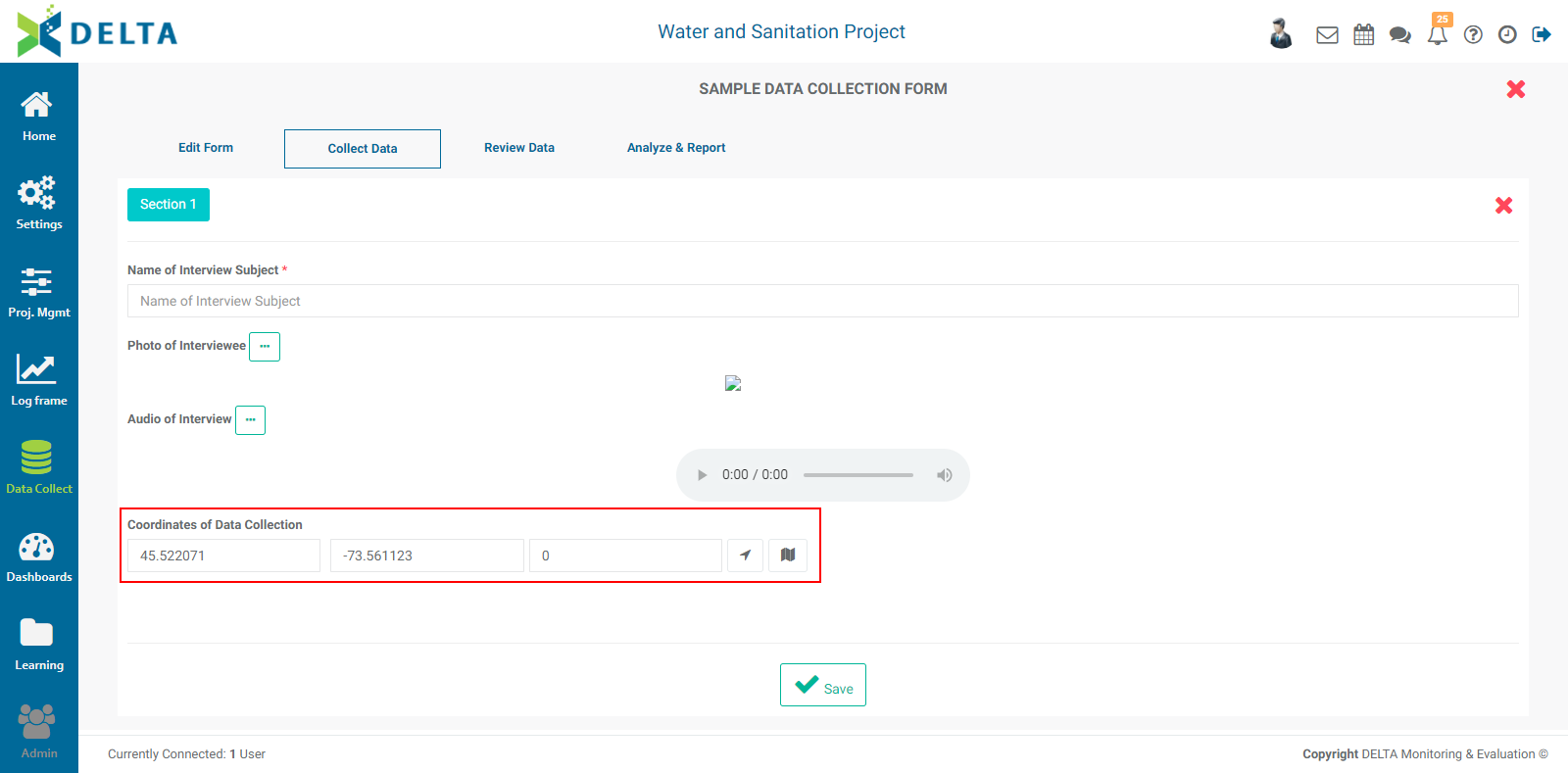
NOTE: the third coordinate of the GPS field is Altitude. The first two coodinates, Longitude and Latitude, are sufficient to correctly place the data record in spatial visualization reports.
The field can also be used as a location/geographic query when setting up an indicator to be populated by a data file, or added as a data layer in indicator geospatial data maps.
The Path field type has no configurable elements. Paths are a specialized GPS-based field which allows people in the field to note their coordinates at several points during traveling, for example while doing fieldwork in several successive locations. The geospatial visualization map for this type of field will display the trajectory taken by the user while performing data collection.
NOTE: these particular visualizations are very fine-grained, and you will most likely need to zoom in very close to see them on the map, as they typically only cover a few miles/km. They can also be added as a data layer in indicator geospatial data maps.
Each form structure screen can hold up to ten fields. If your form is longer, you can create as many form sections as required. Click the + New Section button to create a section. To edit the name of the section, click its Edit icon and enter the new name. Click the checkmark to save the name, or the X to cancel.

To reorder the fields, click and hold a field's icon (to the left of its label), and drag it up or down to another spot. Release the field in its new spot.
When you're done building the form, click OK at top right of the screen. The new form will appear in the list.
Previous: Indicators: KPIs Results Framework | Next: Data Collection: Other Form Settings