Creating a Project: Project Milestones
The fourth tab of the project definition screen is Project Milestones.
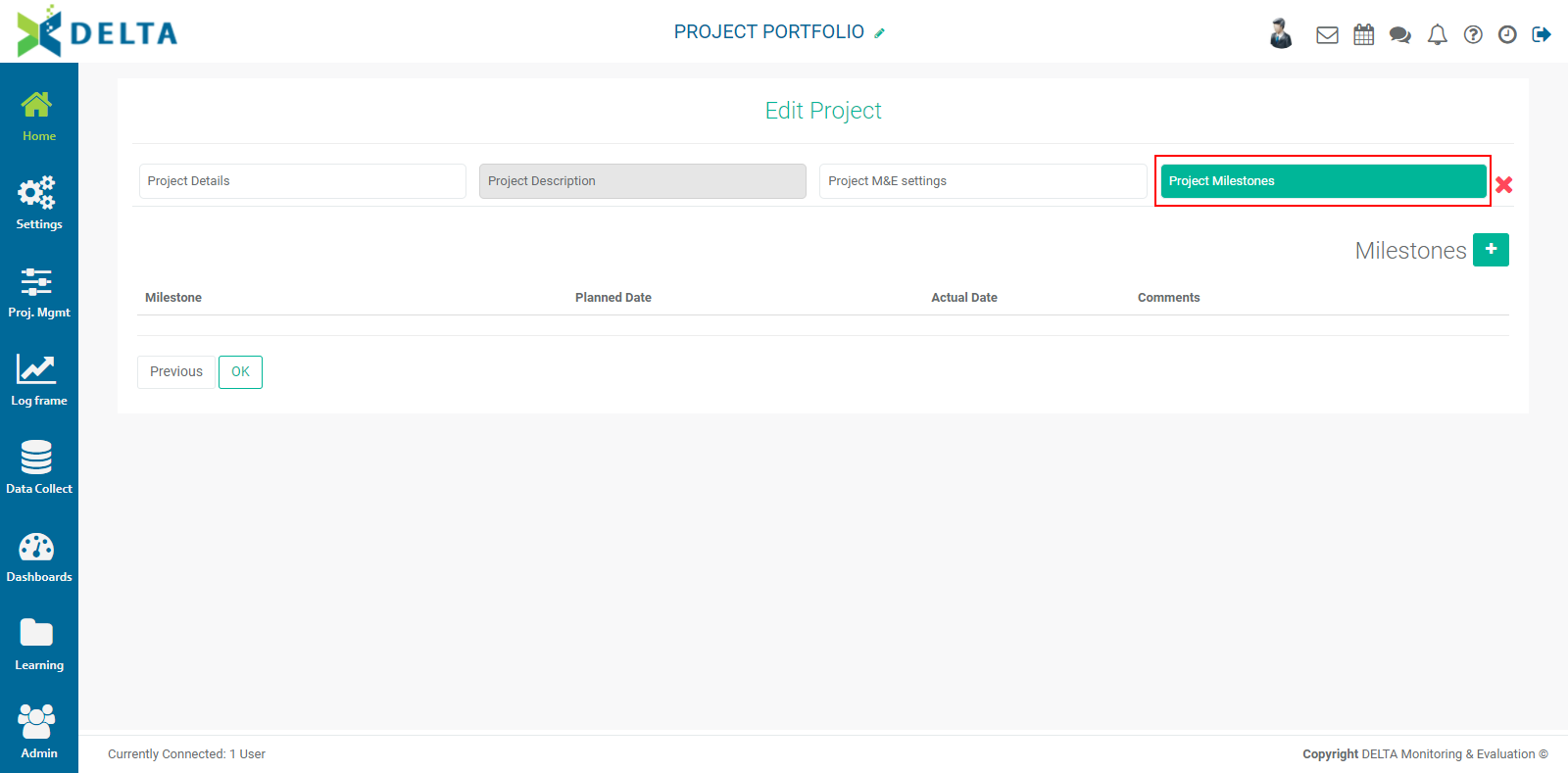
To enter a new milestone, click the + button at top right to bring up the Milestones popup window.
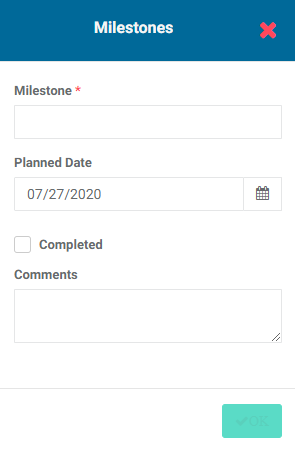
Enter the milestone and its planned date, and a short comment if appropriate. Click OK to save your work and return to the Milestones screen. The new milestone will appear on the screen.
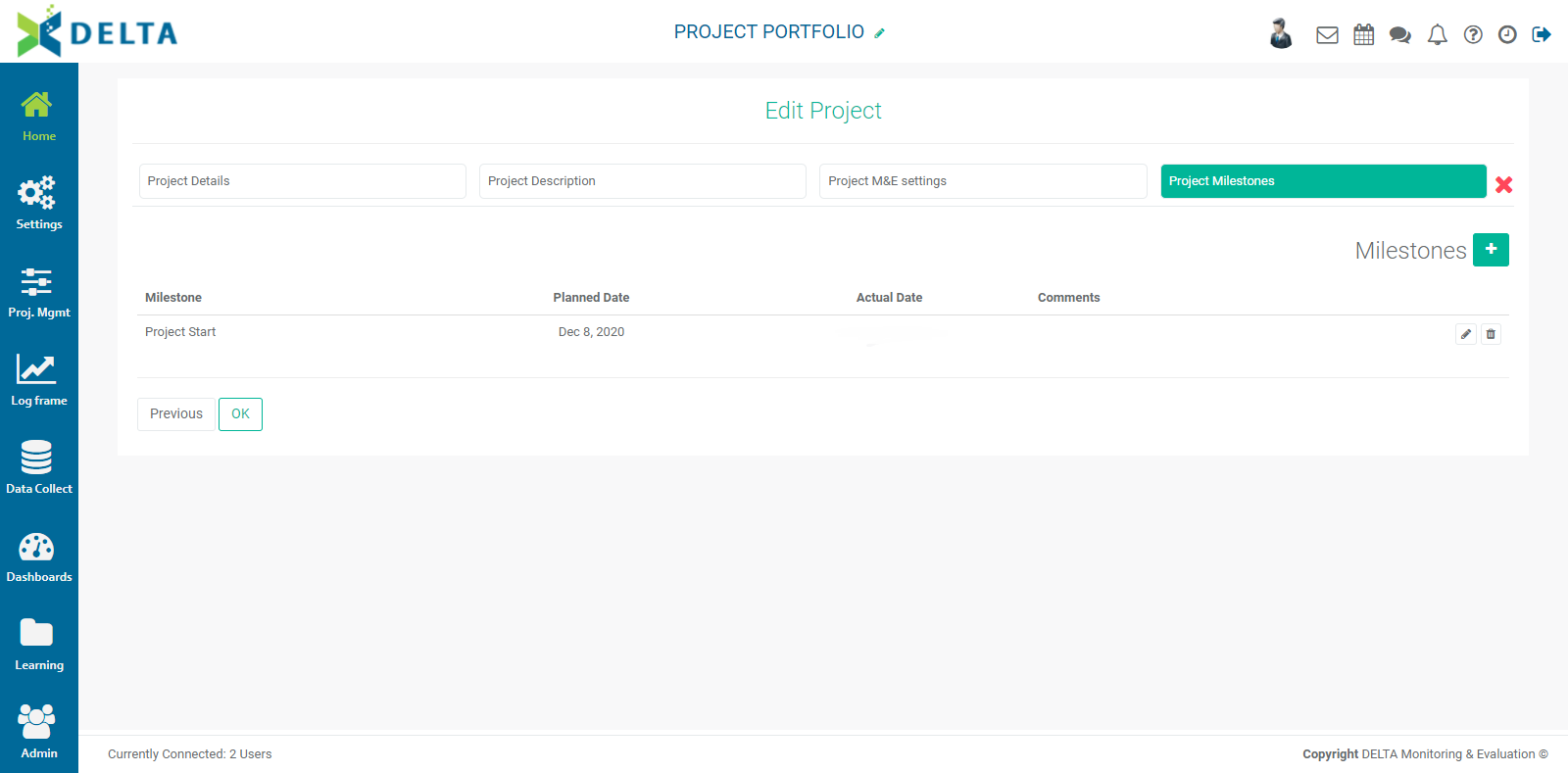
To edit a milestone, click its Edit icon. You may edit the milestone's name, planned date, comments, and mark it as complete. When you check the Complete box, another date field will appear, from which you can select the actual date. Click OK when you're done with your changes to save your work and return to the Milestones screen.
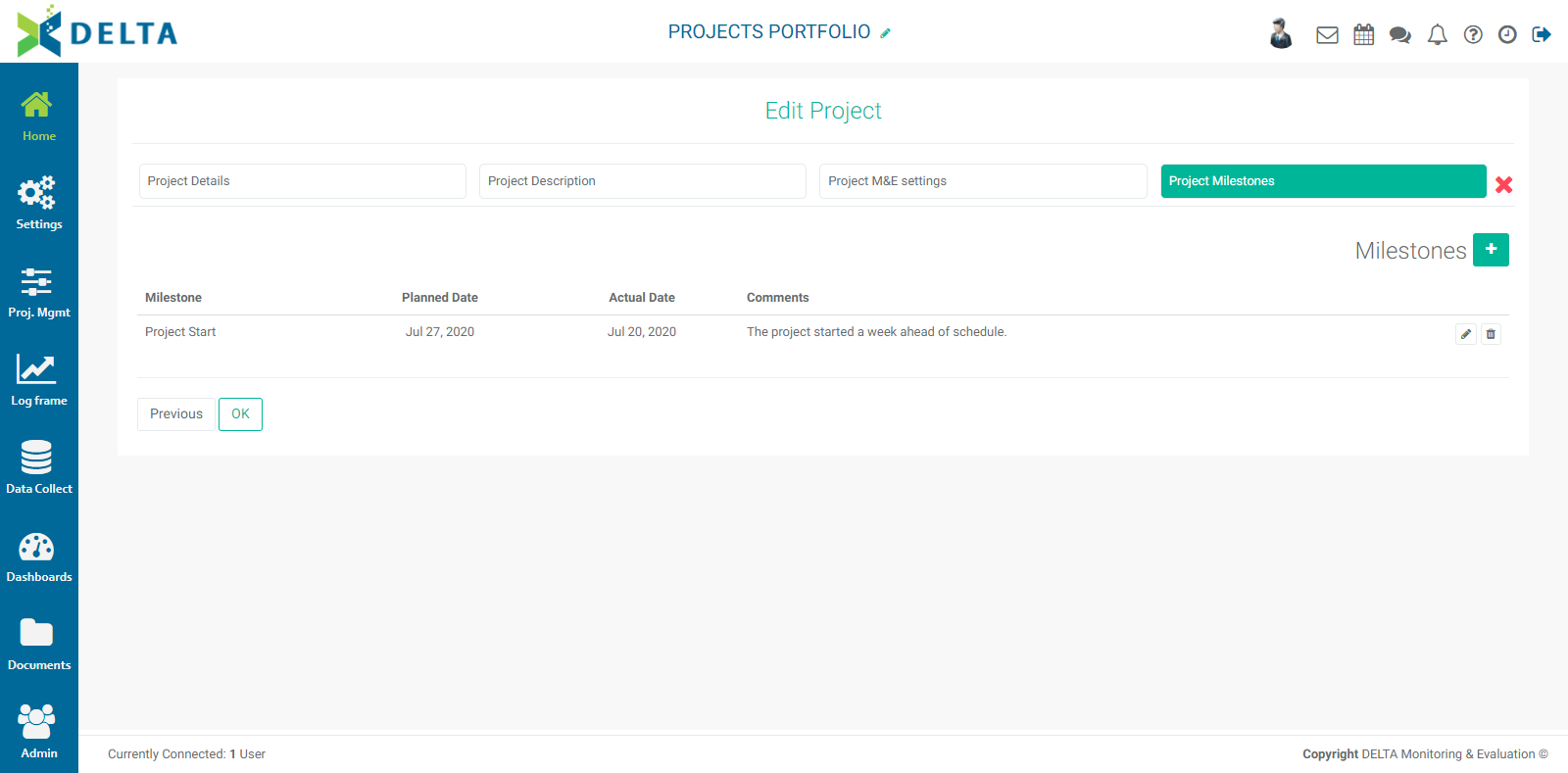
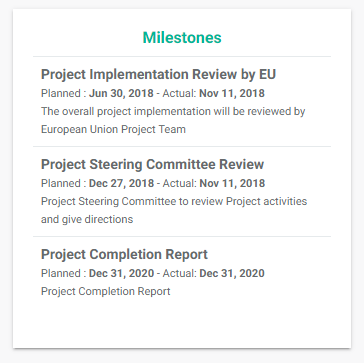
Milestones appear in the Project Dashboard at lower right, under the Project Summary.
Previous: Creating a Project: Project M&E Settings | Next: Creating a Project: Add an Image