PM: Activities: Cross-Cutting Activities
Delta features an additional type of activity, Cross-Cutting Activities. These are activities that appear in every project. They are set up at the portfolio level, and informed by each project from its Project Management module's APB screen. IMPORTANT: the Portfolio must contain a log frame to which activities (and indicators) can be associated.
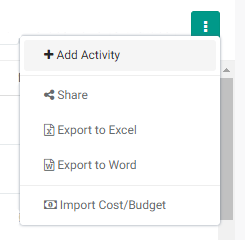
To add a cross-cutting activity, enter the Portfolio's Project Management module, select Activity Plan & Budget, click the More button at top right and select +Add Activity.
The unlabeled Activity Details screen will appear.
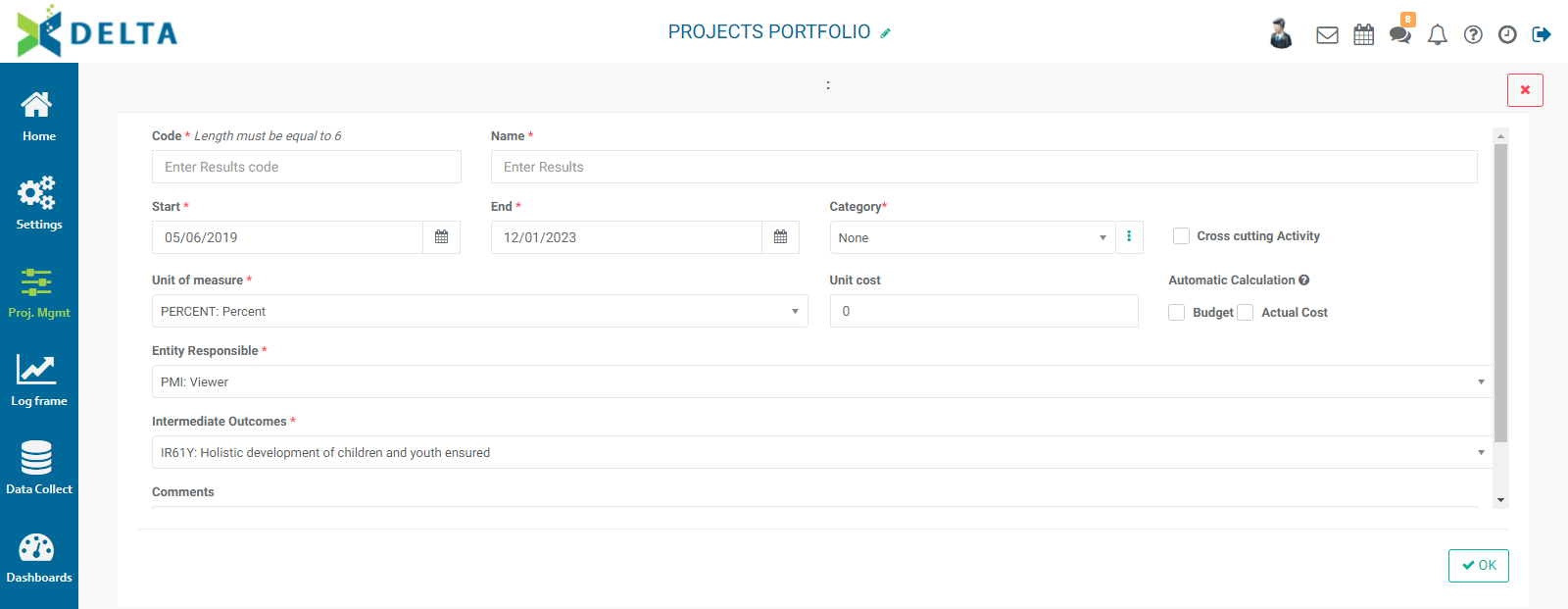
Enter a code and name for the activity, then enter a start date, end date, and category for the activity. If no categories exist in the pick list, click the More icon at the end of the Category field, and create the desired category, as described in the Configuring an Activity article.
IMPORTANT: check the Cross Cutting Activity checkbox. Two subtabs will appear: Description (the current screen) and Projects.
Select a unit of measure from the pick list. This list is populated by the Portfolio-level Settings -> Units entries.
Enter a unit cost, and select Budget and/or Actual costs if you want Delta to automatically perform those calculations.
Enter the entity responsible for the activity. The pick list is populated from the portfolio-level stakeholders list.
Select the proper portfolio log frame element to which the activity is to be associated.
Enter a comment (optional) regarding the cross-cutting activity. Although optional, we strongly suggest as a best practice that you enter as much information as is available, especially since this activity will be deployed to projects.
Click the Projects tab to bring it to the front.
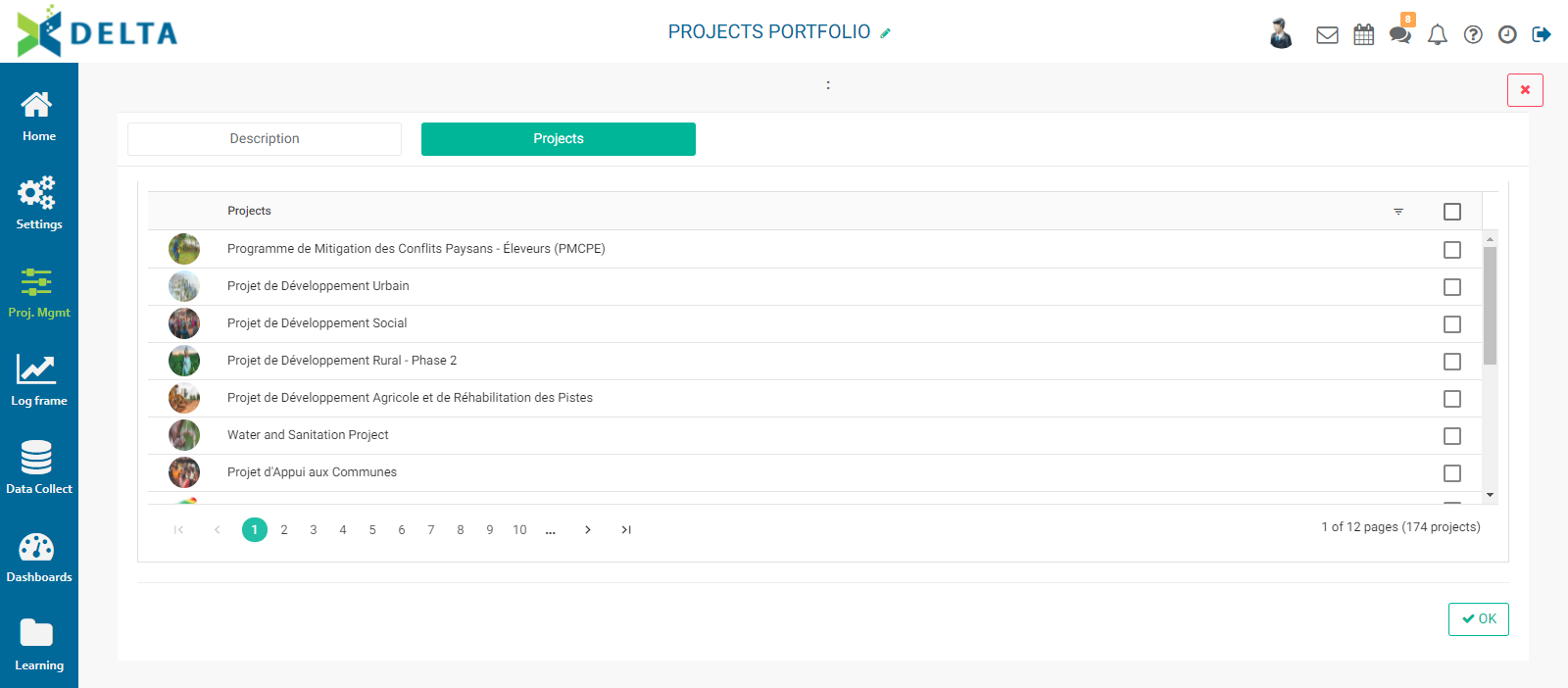
Select the projects to which you want to deploy the activity, and click OK to save your work. Click the X at top right to close the screen and return to the APB screen.
Verify that your new activity appears on the screen, and click on the activity to open it. Note the available tabs. Cross-cutting activities are created at the portfolio level, but informed at the project level. When you click on the cross-cutting activity you created, you’ll note that the Plan and Track tabs do not appear at the Portfolio level. Similarly, Workflows and Permissions are set at the Project level, and those optional interface items do not appear at the Portfolio level.
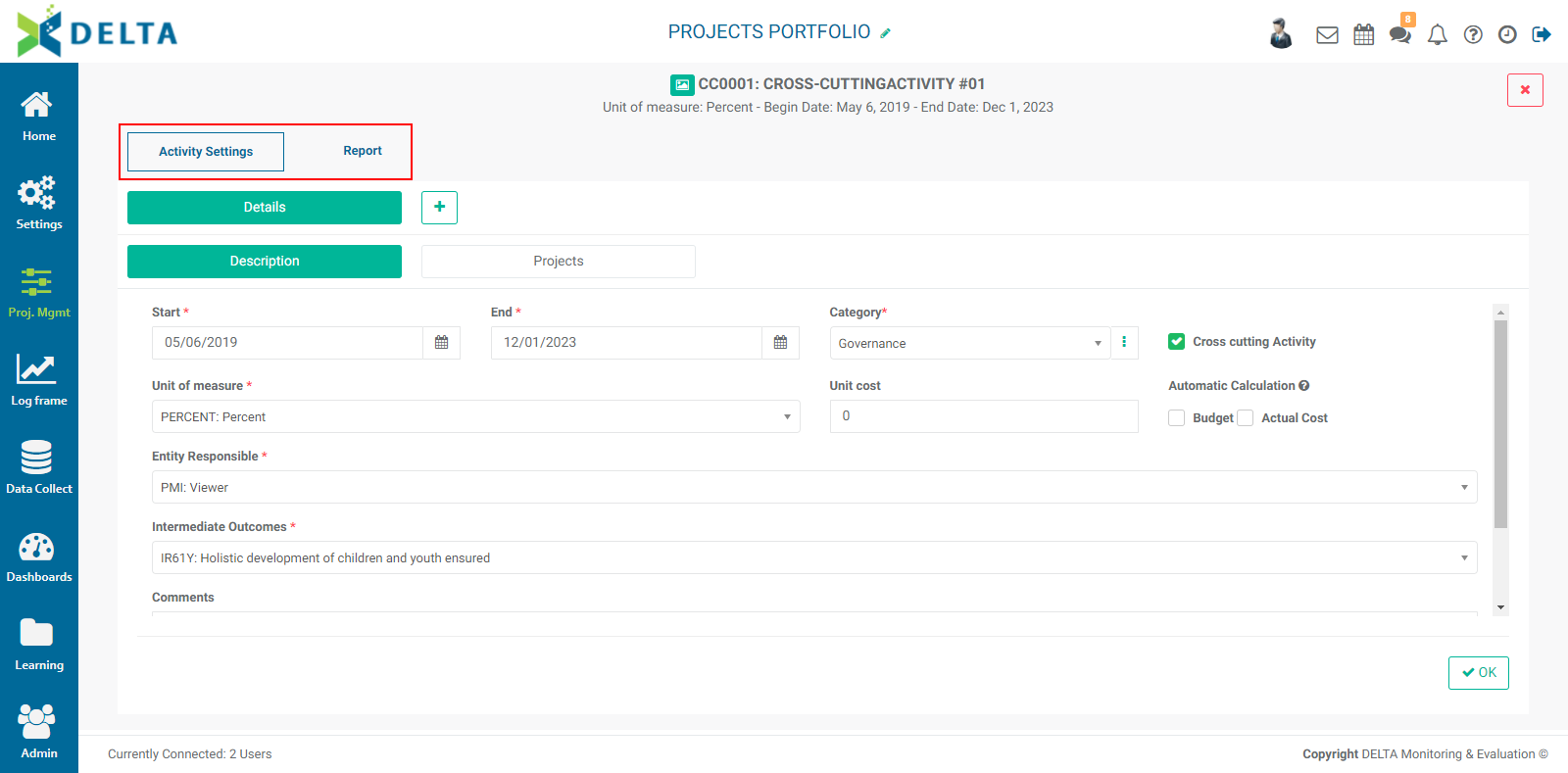
Before you can use the cross-cutting activity, you need to also configure it at the project level. Open a project to which you've deployed the cross-cutting activity, and open the activity from the project's Project Management module.
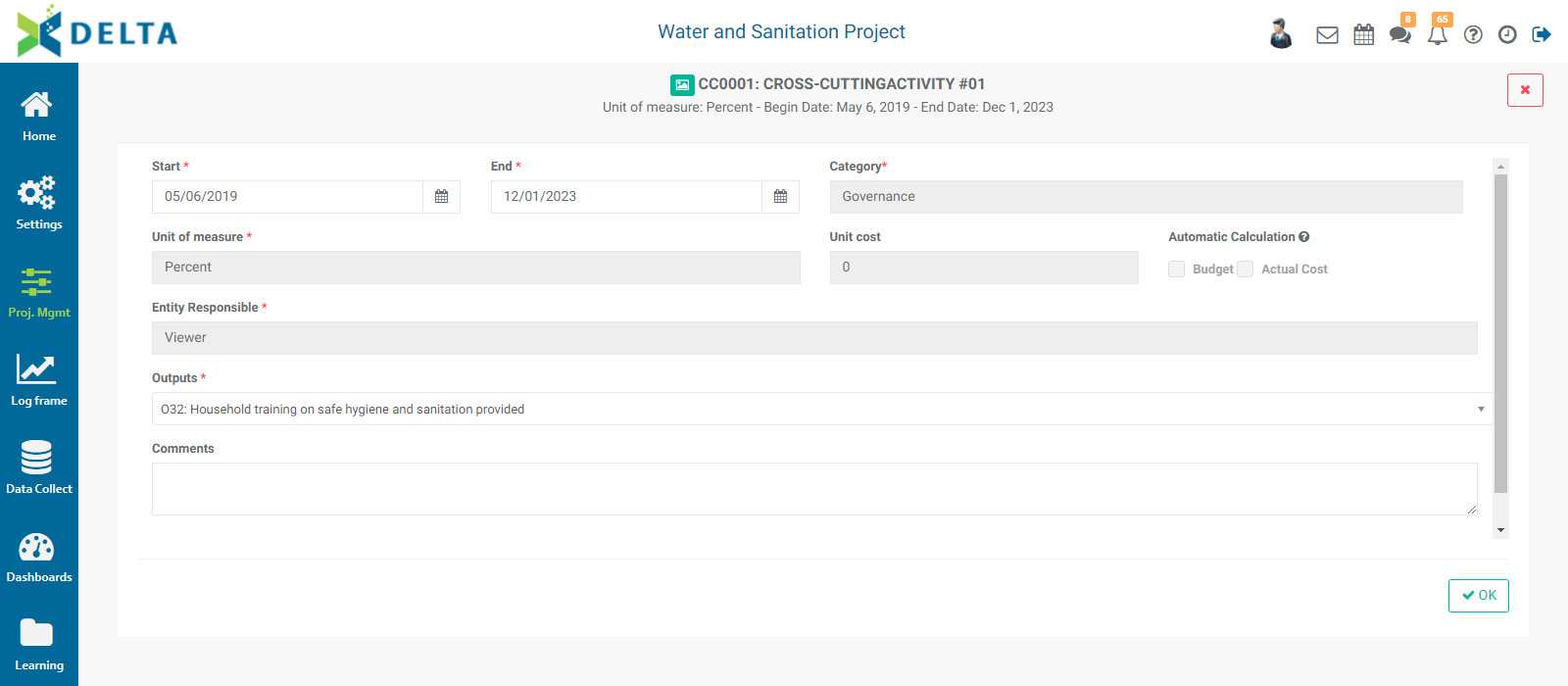
The activity needs one more item of configuration: it must be associated with a project log frame element. Most of the other fields are locked from editing at the project level because those parameters are set at the Portfolio level.
Select the start and end date for the cross-cutting activity, and select the correct project log frame element the activity needs to be associated with.
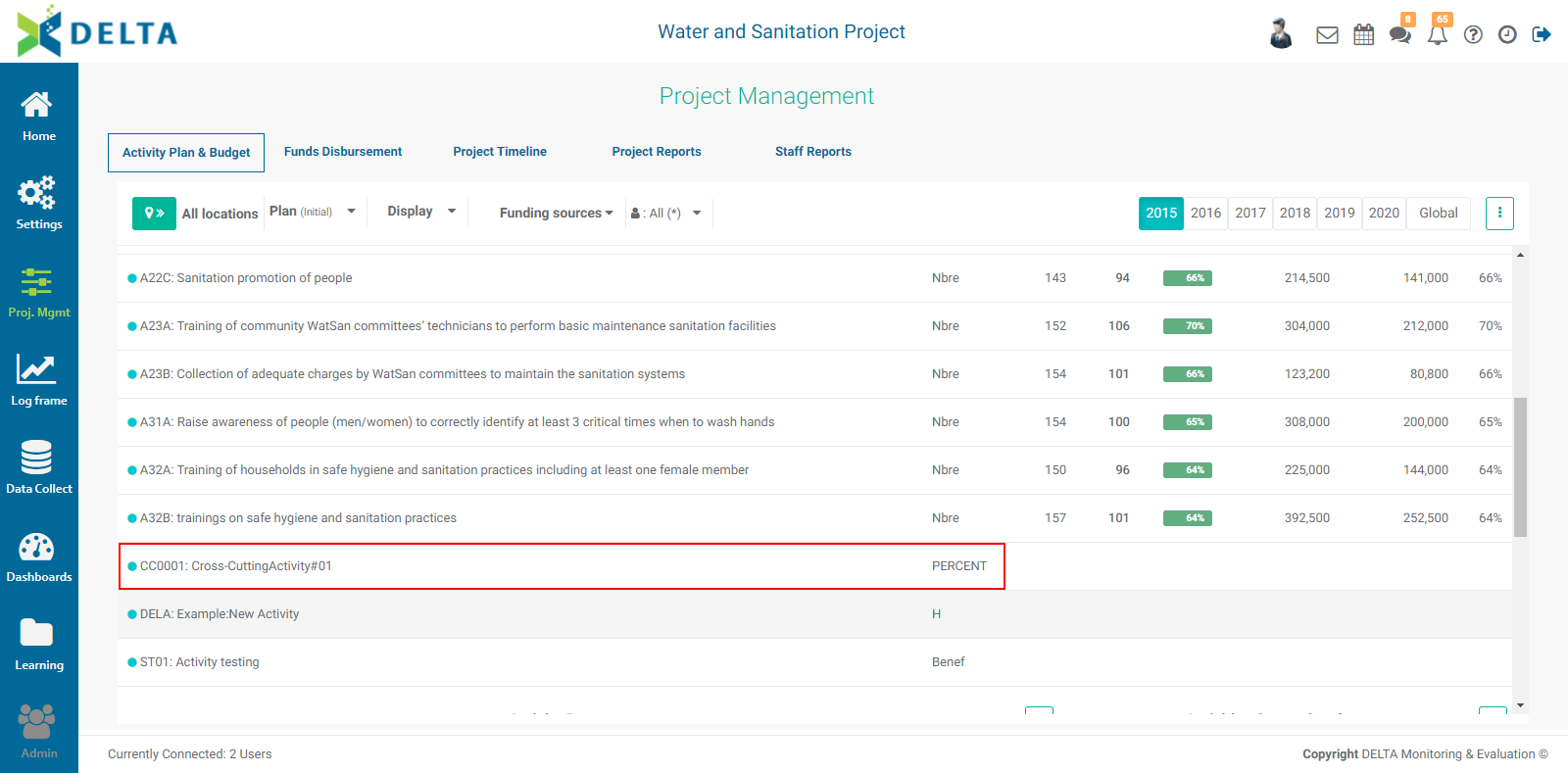
Click OK to save your work and return to the APB screen. The cross-cutting activity will now appear in the list as configured, with its unit of measure displayed in its line.
To view a cross-cutting activity’s report, from the Portfolio Project Management APB screen, click on a cross-cutting activity to open it and select the Report tab. You can select a single project, or all projects to display the relevant information for the cross-cutting activity. You can also select the year or the global view (timeline of the portfolio based on the projects it contains), initial or revised figures, and whether cost and budget are displayed.
Click the More icon at the right of the Search bar to share or export the dashboard.
If no information is available for a cross-cutting activity, it means that it has not been populated at the project level. To enter planning and tracking data into a cross-cutting activity, return to the Portfolio level, locate your project and open it. Enter the Project Management module and locate the cross-cutting activity you created. Click on it to open it.
In the (unlabeled) Details tab, enter the required information. In particular, you’ll need to assign a project-level log frame element to the activity. Click OK when you’re done to save your work and return to the APB screen.
Once you’ve entered the details for a cross-cutting activity at the project level, you can plan and track it, and report on it just like you would any project-level activity.
To enter planning and tracking data for a cross-cutting activity, you'll need to open each project in turn and enter the appropriate data there. Click on the Home icon to return to the Portfolio screen, and select a project to which the cross-cutting activity was deployed. Enter the project's Project Management module, and click the activity to open it. Enter planning and tracking data as you would for any activity, and click OK to save your work and return to the project's APB screen.
To view a cross-cutting activity’s report, from the Portfolio Project Management module's APB screen, click on a cross-cutting activity to open it, and select the Report tab. You can select a single project, or all projects to display the relevant information for the cross-cutting activity. You can also select the year or the global view (timeline of the portfolio based on the projects it contains), initial or revised figures, and whether cost and budget are displayed.
Click the More menu at the right of the Search bar to share or export the dashboard.
If no information is available for a cross-cutting activity, it means that it has not been populated at the project level.
Previous: PM: Activities: Permissions | Next: PM: Activities: Creating a New Activity