Portfolio Screen
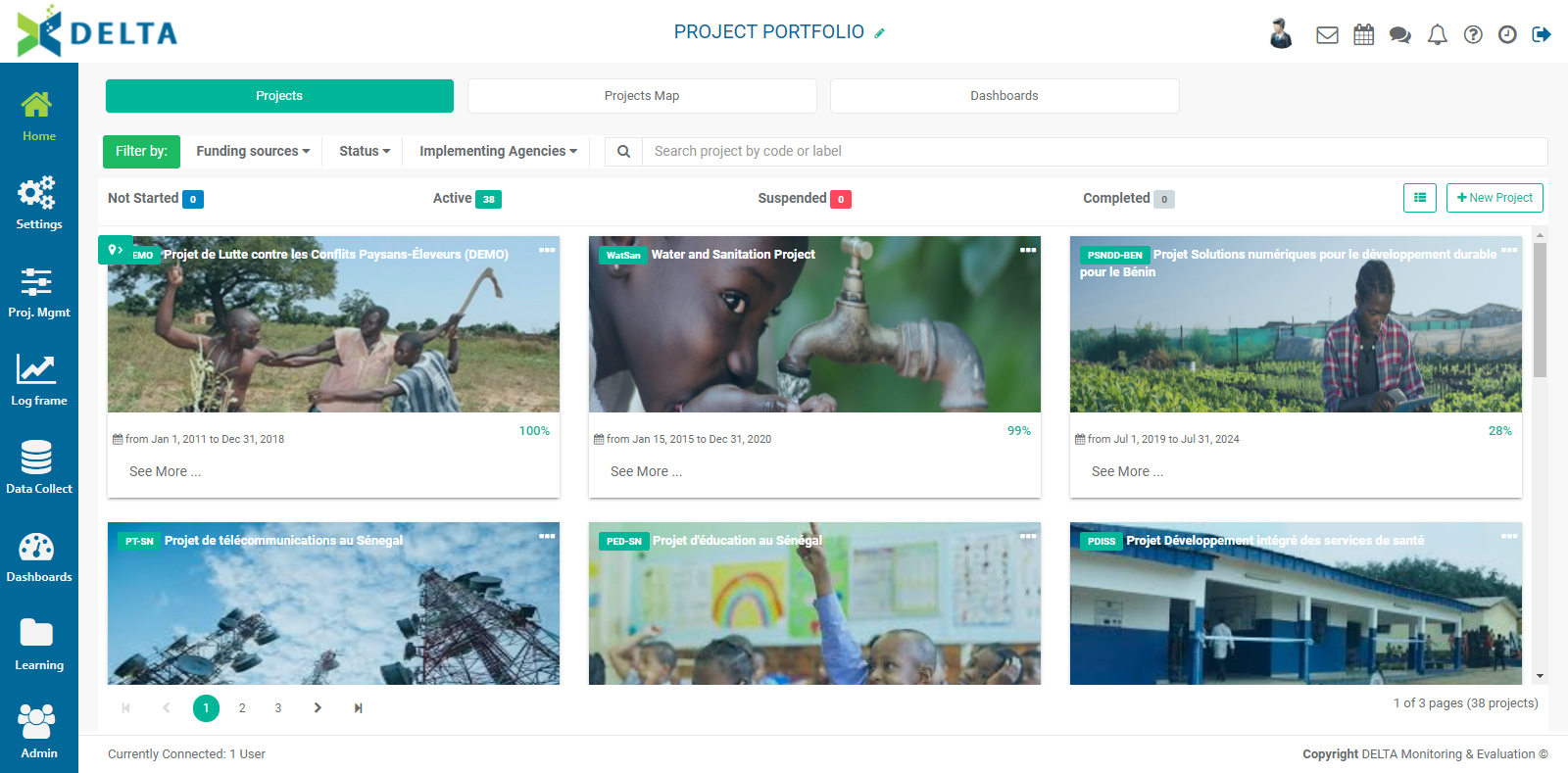
The Portfolio screen is your home page. The screen is divided into two parts: the left navigation, and the main viewscreen. Use the icons in the left navigation to access the various modules of Delta. Each module in the left navigation is explained in detail in this guide.
When you’re on the Portfolio page, the information you'll be putting into each module will pertain specifically to the Portfolio level. For example, indicators created at the Portfolio level will be associated with the portfolio log frame. A specific use of this is the creation of cross-cutting indicators which can be made available to all the projects in the portfolio, and will be informed (planned, tracked, and reported on) at the project level.
The Portfolio screen features several areas: the Main Toolbar at the top right, the Filter bar, the Search bar, three tabs that correspond to three views for the project portfolio, a +New Project button which you’ll use to create a new project, and the tile area, each of which corresponds to an individual project. New to Delta is the option to display projects in List view as well as Tile view.
The default view is the Project Portfolio view. You can also choose to view projects by location/map, and view a basic dashboard which displays at-a-glance information about the sectors and funding of the projects in the portfolio.
To return to this screen at any time, click the Home button at the top of the left navigation.
NOTE: this user guide covers every function of Delta, without regards to permissions.
Previous: Accessing Delta: Delta's Public Portal | Next: Portfolio: Projects View