Project Settings: Log Frame: Coding A Log Frame
Log frame coding is a crucial step in planning and inputting/importing your log frames into Delta. Regardless of how you intend on creating your log frame, establishing a code hierarchy for the levels and elements of your log frame is essential for it to function properly within the system. Moreover, you cannot import a log frame before working out the structure of the log frame tree elements.
Coding a log frame is relatively simple, but attention to detail must be paid, especially if the log frame will be imported. The log frame template determines the number of levels; the codes direct how each element will relate to all the other elements.
An important thing to keep in mind when working up how to code your log frame levels is that a log frame is a hierarchical object. An imported log frame will need to include parent codes for each log frame element.
The following example uses four levels: Goals, Outcome, Output, and Activity. Keep in mind that you can use up to ten levels, and that you can use your own nomenclature.
Each individual element of a log frame has a code, a name, and a description. The code is the unique identifier Delta uses to accurately keep track of each log frame level and associated elements. One of the parameters of the code is its length.
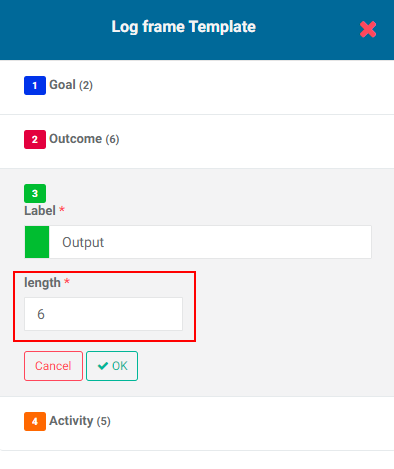
You determine the length parameter for each level of the log frame, which is why it has to be planned first. Once you've entered data into a project, any attempt to change log frame parameters will result in data loss.
For example, let’s assume this particular project has one Goal. This means we can use just one character, like G. If the project has more than one goal, we can use two characters, so each goal will be the letter G and a single-digit number, like G1 and G2. The idea is to create a coding structure which is recognizable to you, internally consistent, and which reflects the hierarchical relationship between the various levels of the log frame.
The other levels, in this case Outcome, Output, and Activity, also need to be similarly configured. To keep things simple in the example, let’s assign 6 characters for Outcome (OUTCxx), 6 characters for Output (OUTPxx), and 5 characters for Activity (ACTxx), where xx are numbers. You can also use special characters like hyphens and underscores.
When you first click on the Log Frame Template at top right of the Settings > Log Frame screen, all you'll see are the levels from the template you selected in the project's M&E Settings. NOTE: this example assumes that you either created a template and selected it, or selected an existing template. Custom Log Frames work a bit differently, since selecting that setting allows you to create a log frame completely from scratch, by either entering it manually, or importing it.
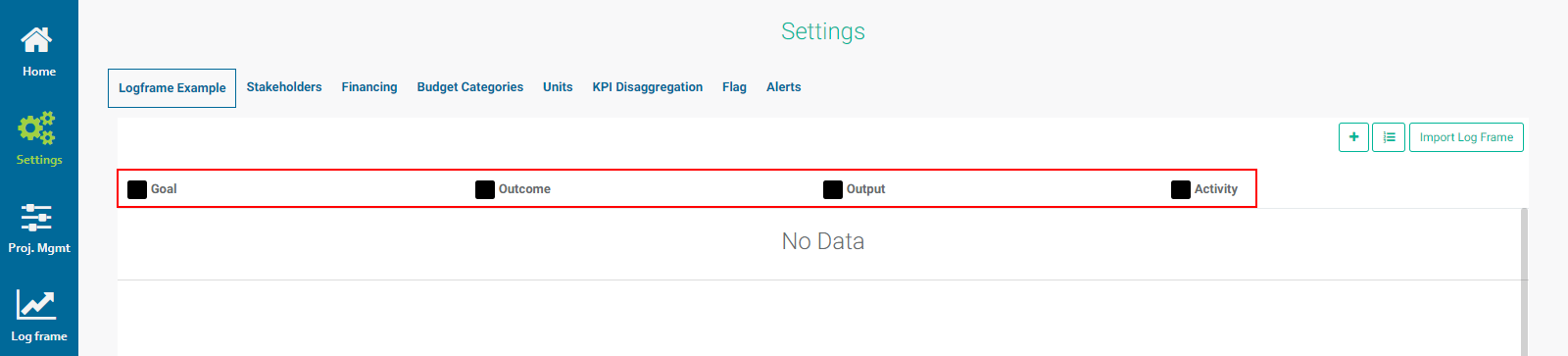
Levels are color-coded in black by default. Click on the Log Frame Template button at top right to open the Log Frame Template popup window and enter the parameters for each level. Note that the length for each level (in parentheses) is not set.
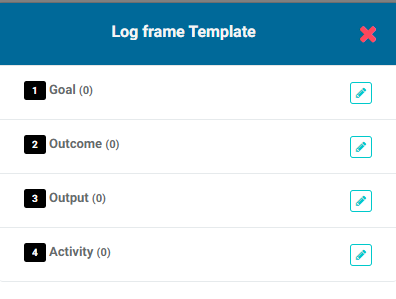
Click on each level's Edit icon to enter its code length, and select a color for the level if desired, so each level can be recognized at a glance. Using colors is especially useful when working with indicators. Each log frame element, when created or imported, will feature a small color badge reflecting its code and the color of the log frame level with which it's associated.
Click each level's OK button when you're done, and repeat for each level in the log frame. Click the X in the Log Frame Template popup window to save your work and return to the Log Frame screen. The levels will appear at the top of the page with the selected color-coding.

Previous: Project Settings: Log Frame: Creating Templates | Next: Project Settings: Log Frame: Configuring a Log Frame