Portfolio Settings: Funding Sources
Funding Sources displays all the sources of funding for a particular project. This setting is only available at the Portfolio level.
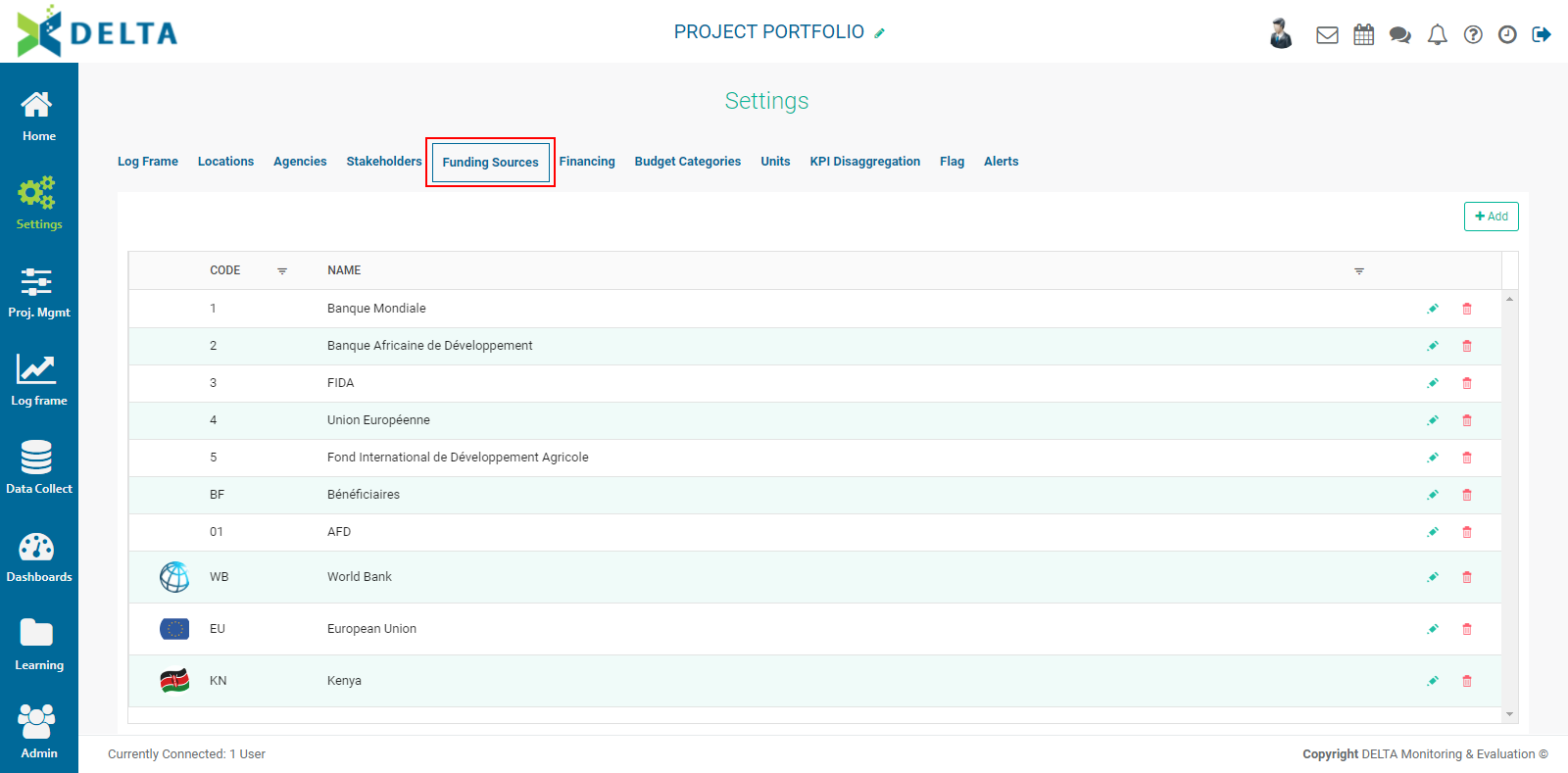
The Funding Sources created here will populate the Financing Source pick list inside projects.
To add a funding source, click +Add at the top right to bring up the Funding Sources popup window.
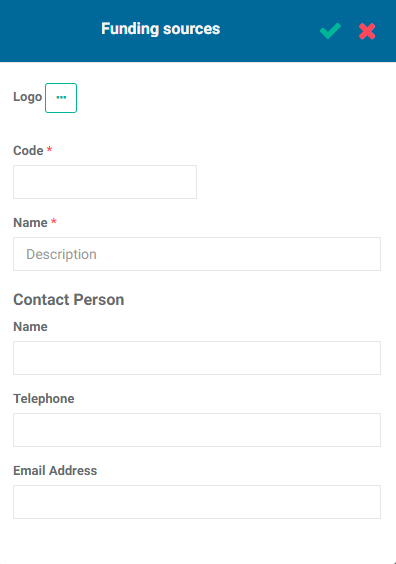
The Code and Name fields are mandatory. You may use your own nomenclature for the codes. Codes cannot be edited once the funding source has been saved.
To add a logo to the funding source, click the More (...) button, navigate to the desired image file, click it once to select it, and press Enter on the keyboard. The image will be added to the Funding Source. NOTE: keep the image file dimensions small. Large images must be resized for display in the alloted space and may cause noticeable latencies.
The Contact Person information is optional, but we suggest entering all available information as a best practice.
When you're done, click the checkmark in the popup window title bar to save your work and return to the Funding Sources screen. The new funding source will appear on the page.
To edit a funding source, click its Edit icon and make the necessary changes. To delete a funding source, click its Delete icon and confirm the deletion. IMPORTANT: deleting a funding source from this screen will also delete it from any projects that use it.
Previous: Portfolio Settings: Stakeholders | Next: Portfolio Settings: Financing