Project Home Page: Activity Dashboard
The Project Activity Dashboard regroups all the detailed data for each project activity.
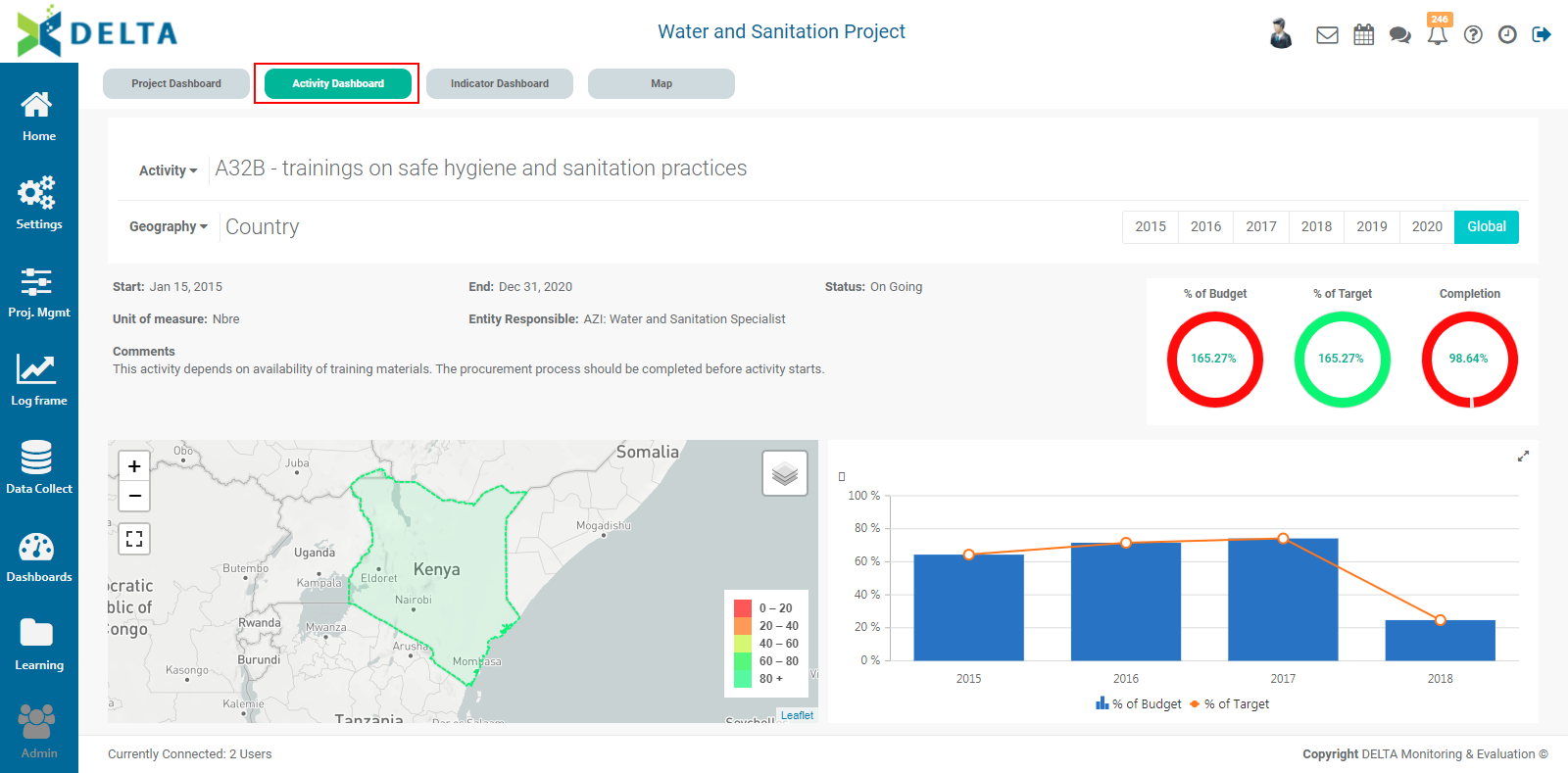
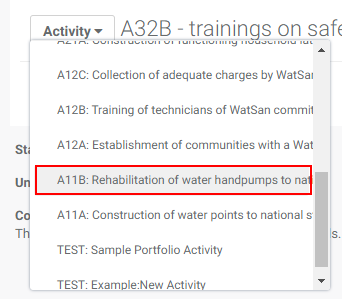
Select an activity from the pick list. Only activities which contain data appear in the list. The graphs and maps will update with the selected activity's data.
The screen displays basic information about the activity.

Select a geography level to view that level's data on the map.
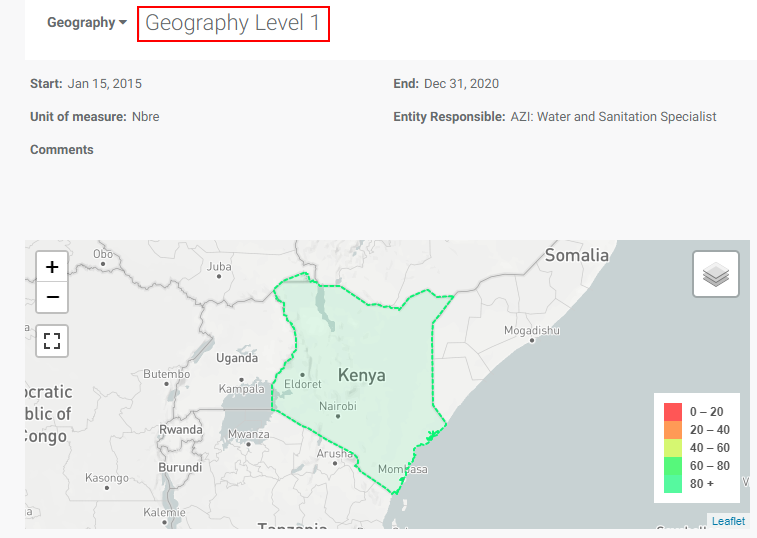
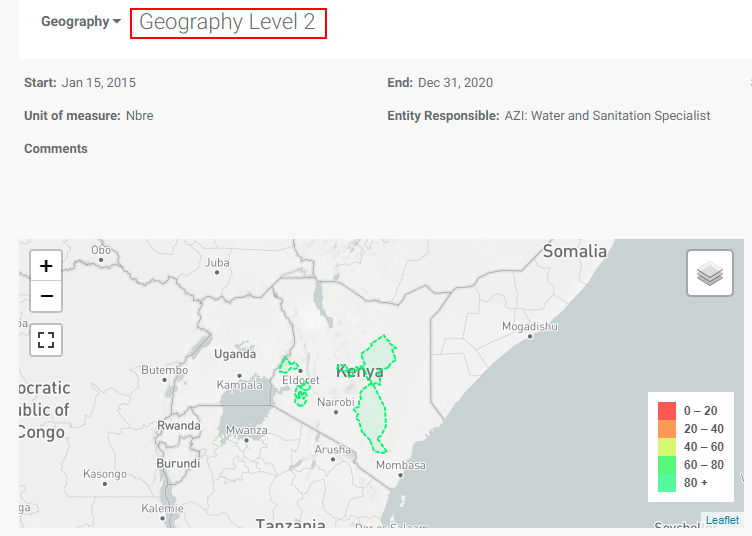
The map controls work in a similar fashion to Google Map controls. Use the Zoom controls to zoom in and out of the map. You can also use a mouse scroll wheel to zoom. You can also display the map fullscreen using the third control.
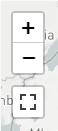
To return to the normal view from a fullscreen map, press Escape on your keyboard, or click the Exit Fullscreen button at top right of the fullscreen view.

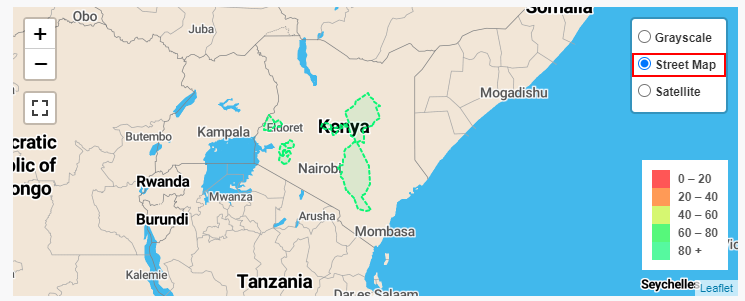
The default map view is Grayscale. Additional map controls are located in the top right corner of the map, and include Street Map View, which adds location names and has a slightly different color, and Satellite View, which adds realistic features to the map.
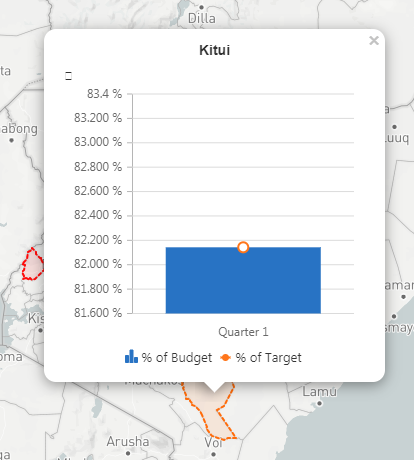
Clicking on a data area on the map will popup a small graph showing the performance for that location. Click the x at top right corner of the popup to close it.
The default timeline for the display is Global. This setting shows all the data from the activity for the entire project.

Click a year to bring up only the data for that year. The at-a-glance %Budget, %Target, and Completion at upper right will update according to the selected year. The year setting will also be reflected on the data shown on the map at the currently selected geography level.
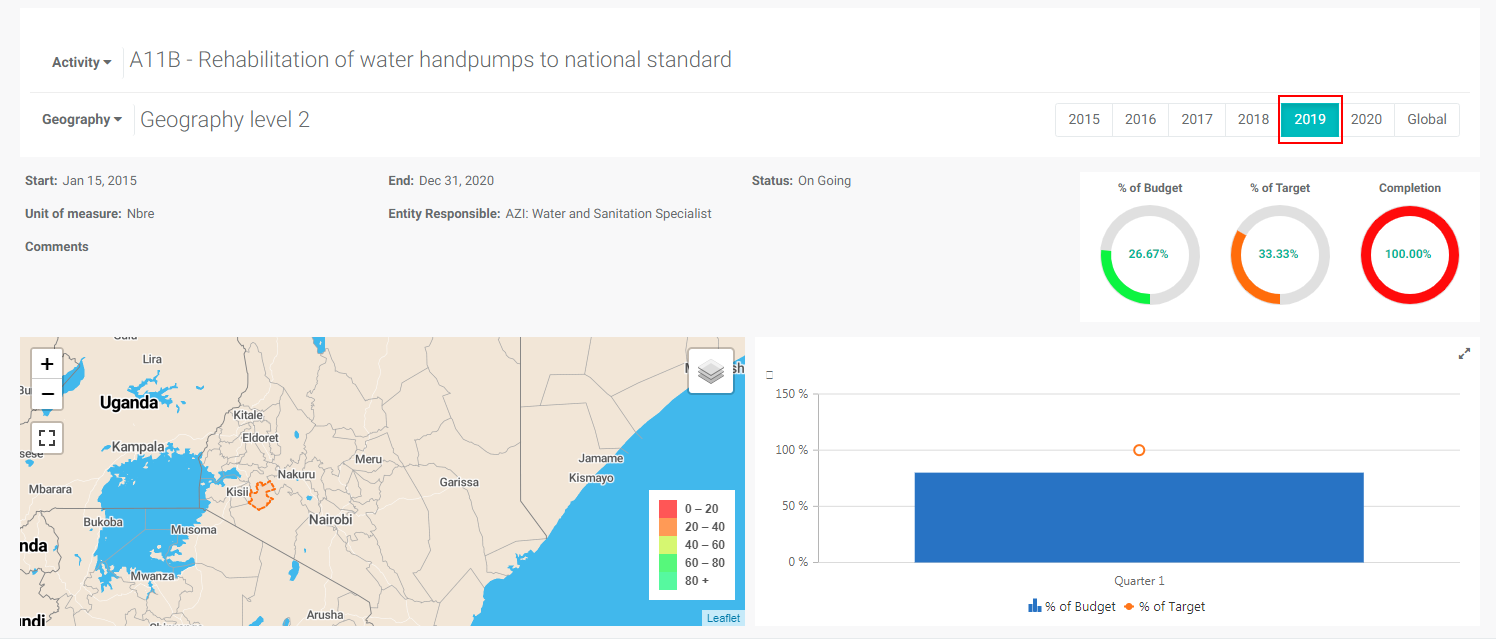
The graph at lower right displays the details for each period of each selected year, or for each year if Global is selected.