Project Home Page: Main Project Dashboard
The default view for a project is the Project Dashboard. This screen is a collection of at-a-glance information on the project. From the Portfolio page, click on a project's tile or list item to enter the project.
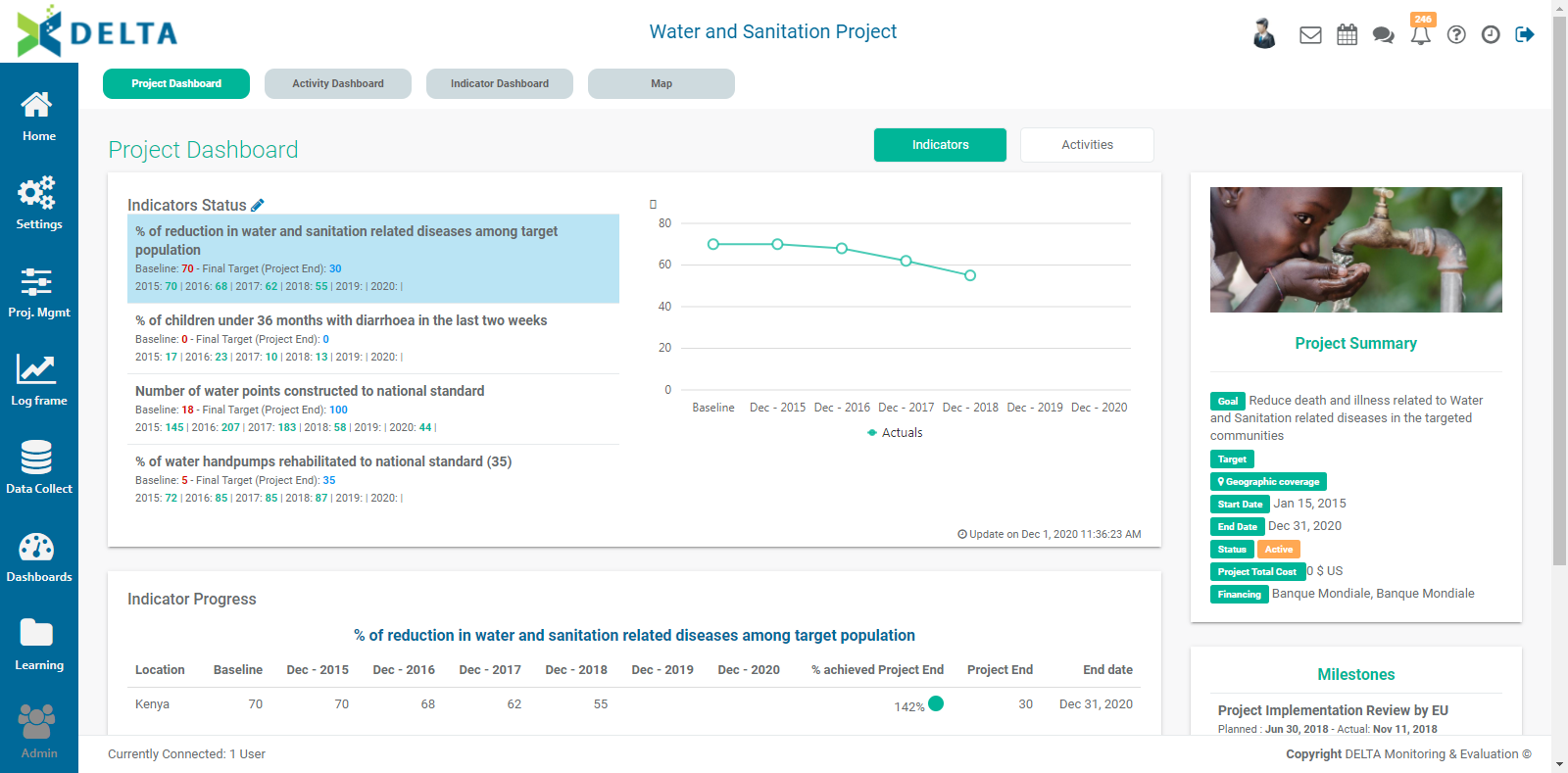
The project's name appears at top center. To return to this screen from anywhere within the project, click on the project's name.
The Project Description and Milestones information also appears in the right column of the page. This information is entered when the project is created.
The project home page features a number of dashboards and shortcuts. The default view is Project Dashboard.

The Project Dashboard default view contains a list of indicators, from which users can select to view the indicator's data. The default selection is the first indicator in the list. Click on another indicator once to bring up its at-a-glance information, along with a graph at right and detailed data in the table below. NOTE: only indicators which contain data appear in the list.
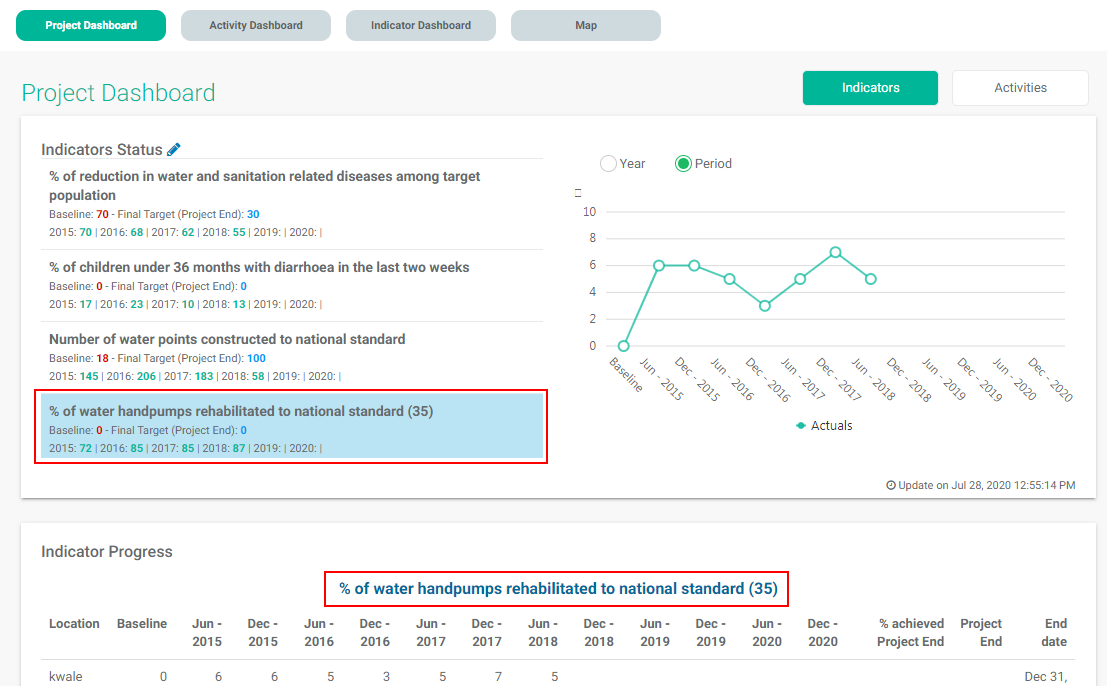
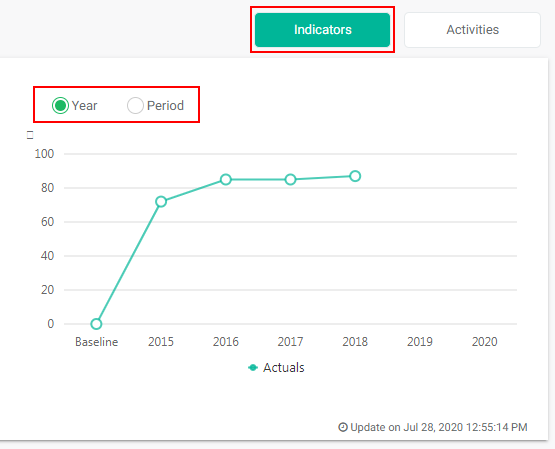
Use the radio buttons above the graph to switch between Year and Period views.
Double-click an indicator in the list to go directly to the indicator's screen.
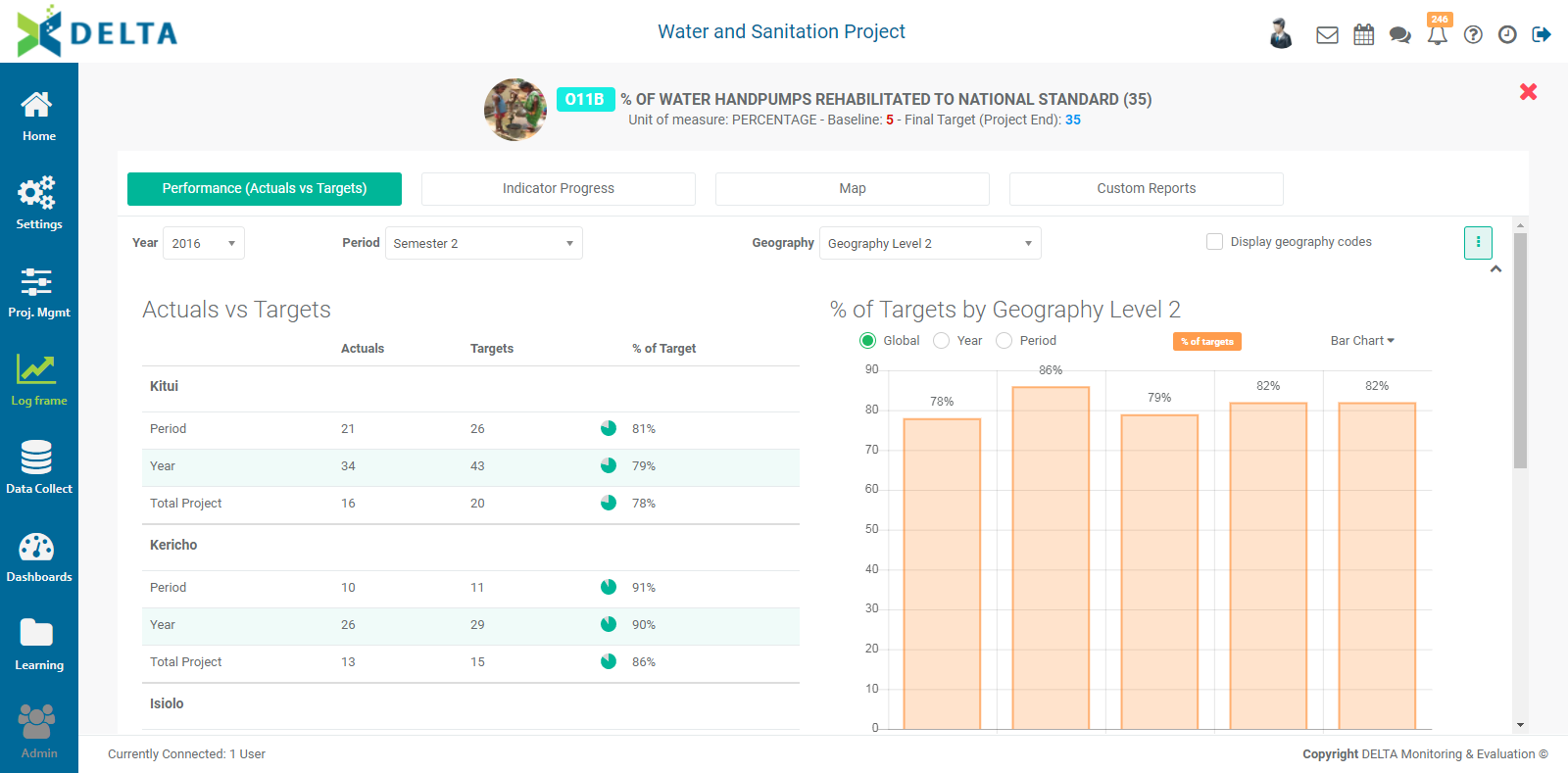
Click the X at top right to return to the project home page.
The other view on the project home page is Activities. Click the Activities tab next to the Indicators tab to enter the Activities view.
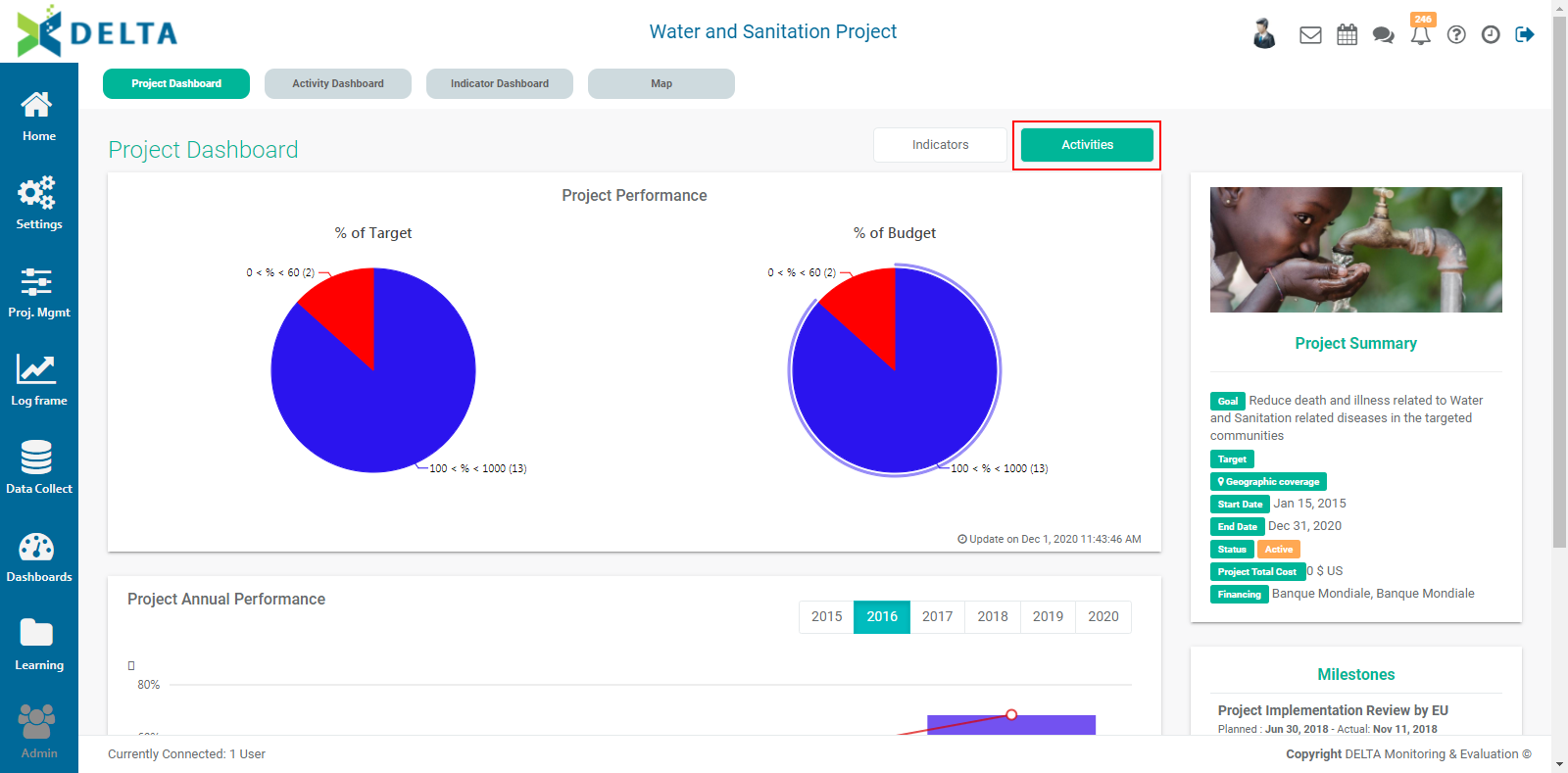
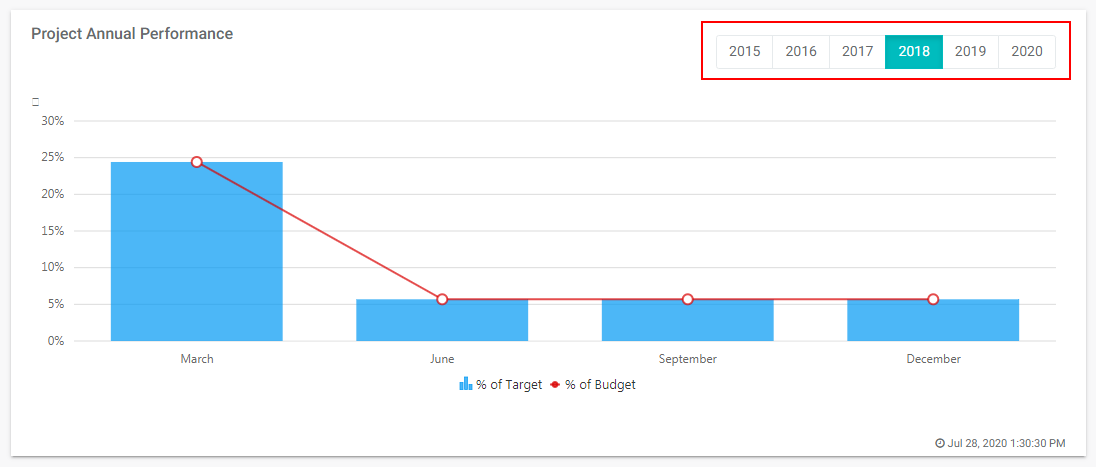
This view features graphs and tables for the project's activities and budget performances. The graph can be navigated by using the Year tabs.
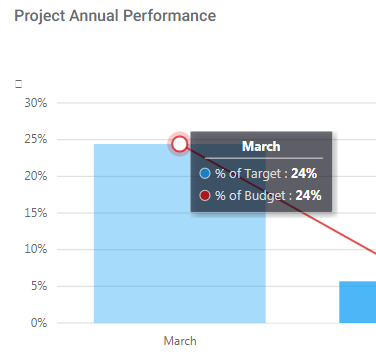
Mouse over the various graphs to view a tool tip which shows the data which generated that particular data point.
Click the Indicators tab to return to the project default view.
Previous: Creating a Project: Add an Image | Next: Project Home Page: Activity Dashboard