Forms Analytics: Map Reports
The fifth type of data collection forms custom report is Map. NOTE: if the data collection form contains no GPS or location fields, you will not be able to create a map report.
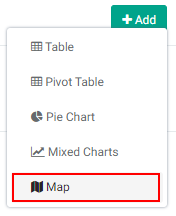
Open the form of interest from the Data Collection module, click on Analyze & Report, and click the +Add button and select Map.
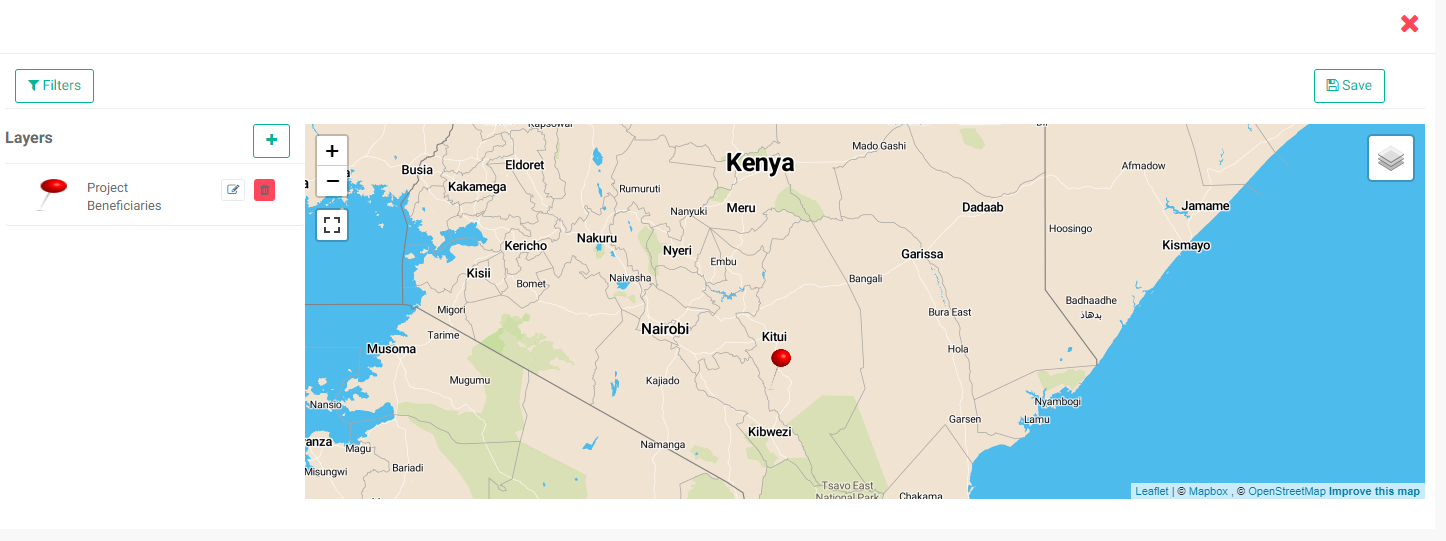
The screen initially displays the map with no data.
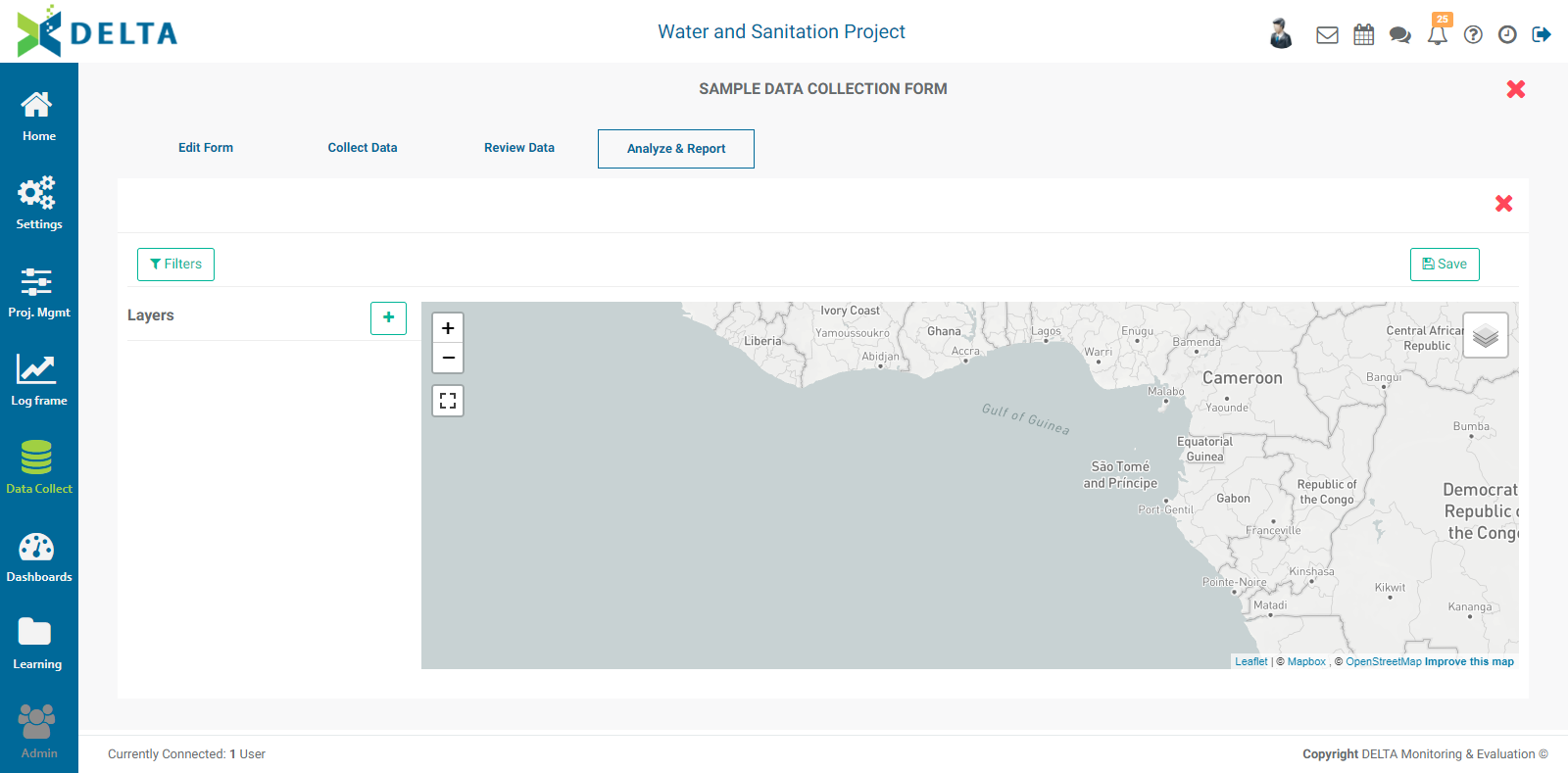
To add a data layer, click the + button to bring up the Layer Selection popup window. NOTE: If the + button does not appear, the data collection form you selected does not contain GPS or location information and cannot be used in a Map custom report.
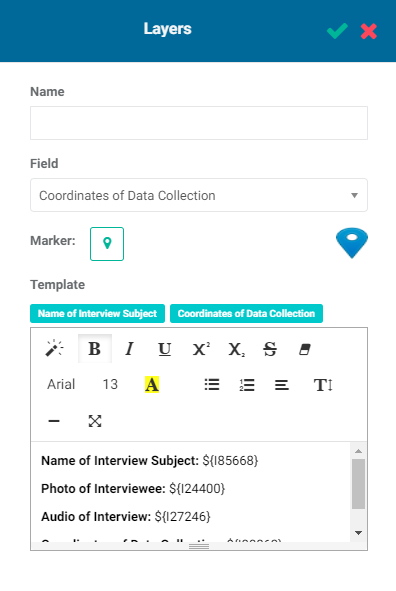
The popup window contains default settings for the form fields and map legend. Enter a name for the layer. Select the form field you want to show on the map. The pick list is populated with the form fields than can be used in geospatial visualization.
The default marker for the map is a blue pin. To replace it with a custom marker, click the Pin button, then navigate to the location of your custom marker graphic file, click the file once to select it, and press Enter on your keyboard. The new marker will be displayed instead of the default pin. NOTE: the marker graphic should contain a transparent background.

The Template field contains the unique identifiers for the fields in the form. What each identifier does is display that part of the record in a popup when a user clicks on a map marker. The default includes every field in the form.
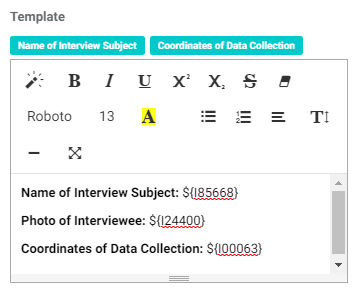
The syntax for the template is simple: the legend label, a $ (dollar sign) and the corresponding field's unique identifier in curly brackets {}. Delta offers a shortcut by displaying the unique identifiers from each form field in a small block above the template box so you don't have to look them up in the form. The default legend label for each item is the name of the field in the form. This can be edited as well. Finally, you can change the style of the text by using the text editor tools at the top of the Template box.
Edit the template as desired, then click the checkmark in the popup window title bar to save your work and return to the map report. The GPS data entered in the form appears on the map.
The default basemap is Grayscale. Mouse over the map stack in the upper right corner of the map to select Street Map or Satellite instead.
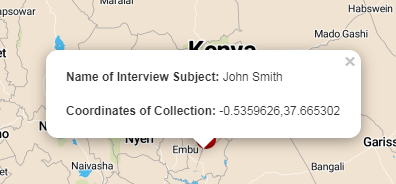
Clicking any marker on the map will bring up the information that was selected in the Template box when the layer was created. Click the X in the top right corner of the popup to close it.
You can add filters to Map reports. Click the Filters button at top left to bring up the Filters popup window, and click + to add a new filter.
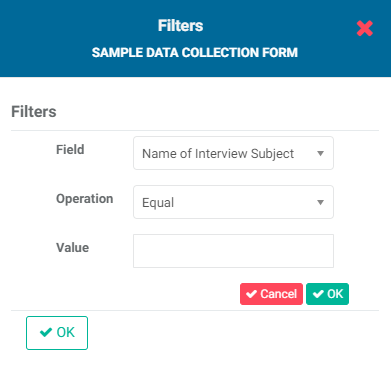
Enter the desired filter parameters, and click the small OK button. The filter will appear in the popup window.
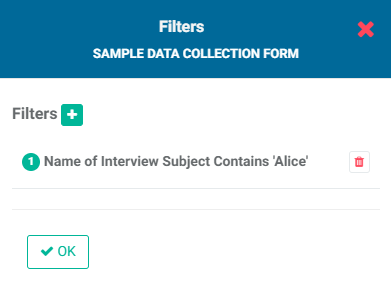
If you're done, click OK to save your work and return to the map report screen. The data will be filtered according to the selected parameters.
If you use more than one filter, you'll need to chain them using AND/OR logic. Use the filter numbers to chain filters. The syntax is 1 AND 2, or 1 OR 2. The AND operator returns only records which conform to both filters, while the OR operator returns records which conform to either or both filters.
To remove a filter, click the Filters button and delete the filter.
To edit a layer, click on its Edit icon and make the necessary changes, then click the chckmark in the popup window title bar to save your work and return to the map report.
IMPORTANT: you must explicitly save your report. Click the Save button at top right, then enter a title for the report (mandatory) and a description (optional, but encouraged as a best practice). Click OK to save your report.
To return to the Analyze & Report section of the data collection form, click the lower X on the right. You'll see your new report listed on the page. Click its name to reopen it and make additional changes, or save as a different version.

Previous: Forms Analytics: Mixed Charts Reports | Next: Forms Analytics: Using Forms Analytics as Inputs to Indicators