Forms Analytics: Pivot Table Reports
The second type of data collection forms report is Pivot Table. This functionality is similar to the corresponding functionality in Excel.
To create a pivot table report, locate the form in the list and click it to open it, then select Analyze & Report.
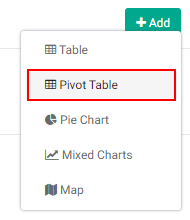
Click the +Add button and select Pivot Table from the menu.
The screen is initially empty.

To select the data to work with, click the Show Field List icon in the toolbar, second from left.

From the Field List popup window, select rows, columns, and values.
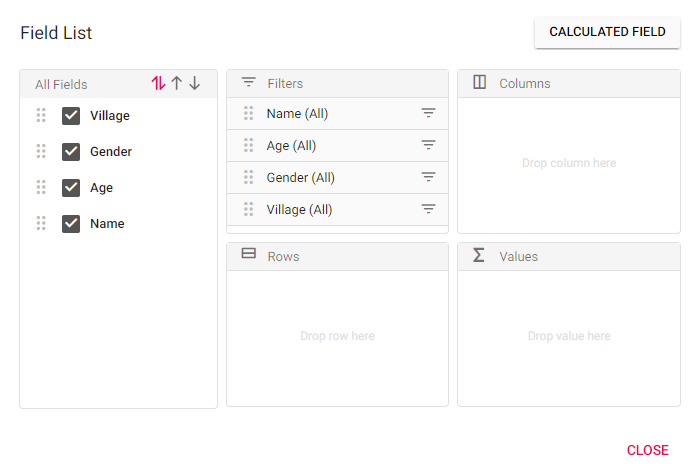
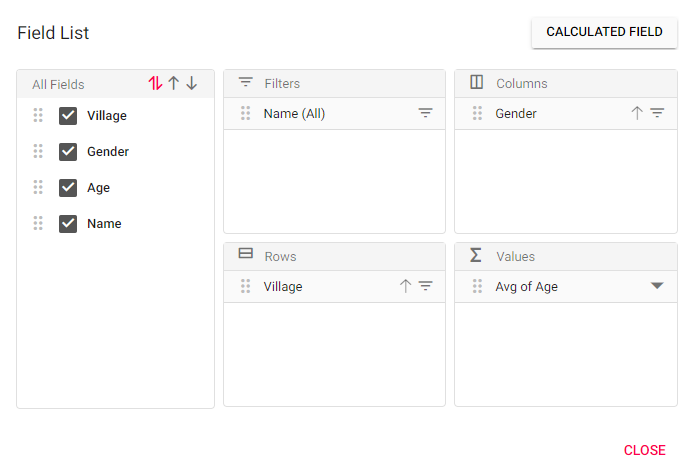
Select the fields to work with. To select a field, hover on top of its vertical double row of dots until the cursor turns into a Move cursor (double-headed double arrow), then click, hold, and drag the field into the Rows, Columns, or Values box. To remove a field from any part of the pivot table popup window, drag it back to the Field List area of the window. It will become automatically deselected. To rearrange the order in which fields are used by the pivot table, click the up arrow next to its name to move it up/down the list.
Each field also has its own filters. To set a filter for a field, click on its three-line icon to select the parameters for the filter. Filters have three modes: Member (actual data in the table), Label (filter operation to perform on this data), and Value (filter through the other selected field(s) in the pivot table).
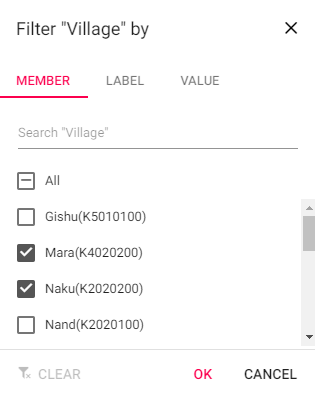
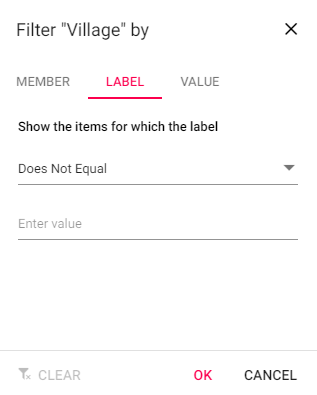
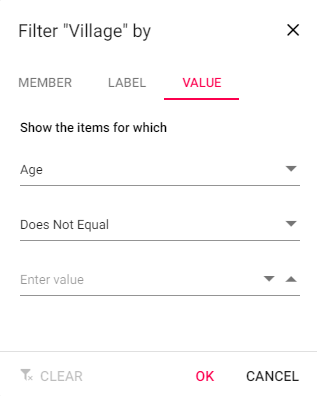
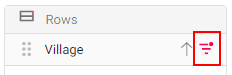
Fields for which a filter has been applied will display its Filter icon in red.
When you're done with setting up rows, columns, and values, close the Show Field List popup window to return to the pivot table.
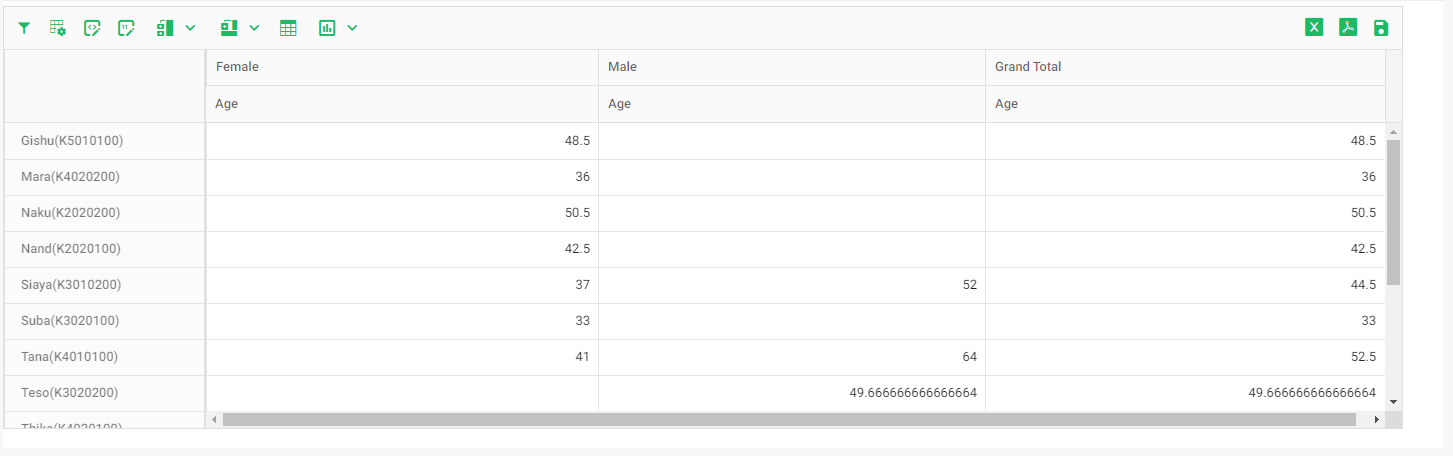
Instead of using the data as is, users can also create a calculated field based on the existing fields. With the Show Field List popup window open, click on the Calculated Field button to select which fields to use.
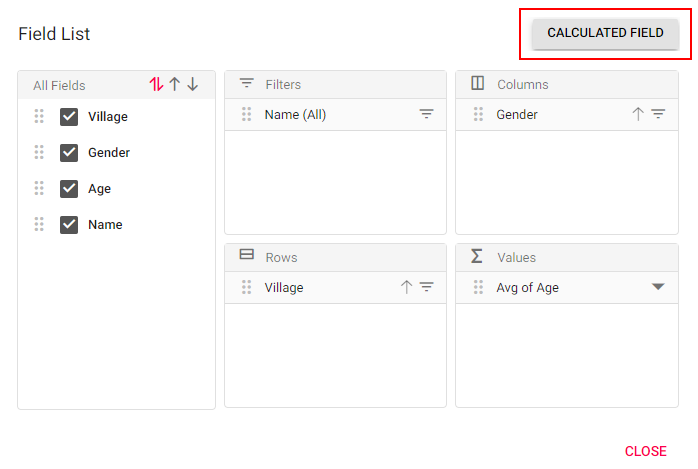
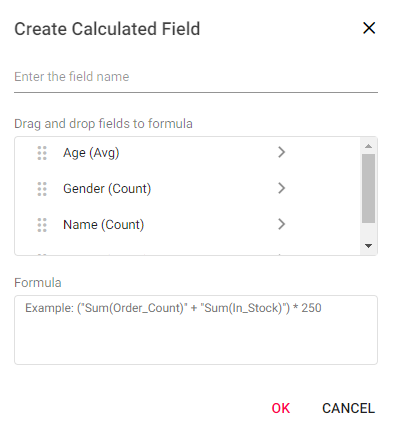
Enter a name for the new field. Drag the desired fields to the formula box and enter the calculation to be performed. Click OK when you're done to return to the Show Field List popup window.
Make any other changes to the pivot table, then click the Save icon at far right to save your pivot table report. IMPORTANT: you must explicitly save your work for the report to be saved. The Save icon is the one on the far right of the screen.
The toolbar contains a number of tools aside from the Show Field List button. The first icon, Filters, allows you to add filters to the entire dataset.

Click the Filters icon to bring up its popup window.
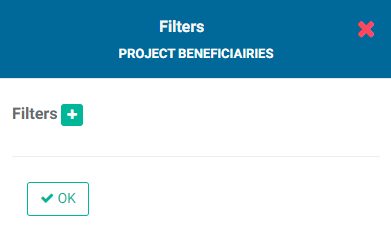
Click the + button to add a filter. Enter the field to be filtered, the operation to be performed on that field's data, and the desired value.
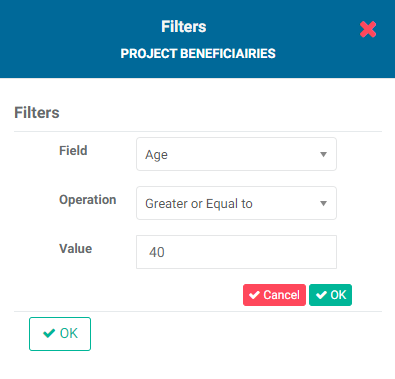
Click the small OK button to save the filter. You can add as many filters are needed. If you use more than one filter, you'll need to chain them using the same AND/OR logic used in other filters throughout Delta.
The AND operator will return only records which conform to both filters. The OR operator returns all records which conform to at least one filter.
To delete a filter, click its Delete icon. To save the filter and return to the pivot table, click OK.
The next icon in the pivot table toolbar after the Show Field List icon is Conditional Formatting.

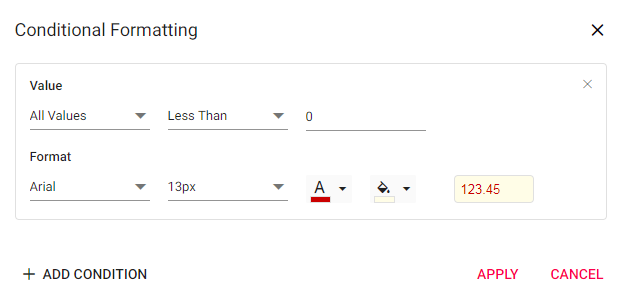
Conditional Formatting allows to add a condition whereby the data which matches the condition will be displayed differently from the non-matching data. For example, a condition could be set by which all negative numbers appear in red. Click on the icon to bring up its popup window.
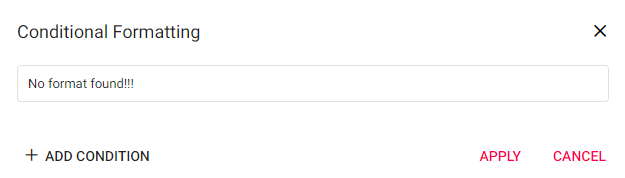
Click + Add Condition to set up a new condition.
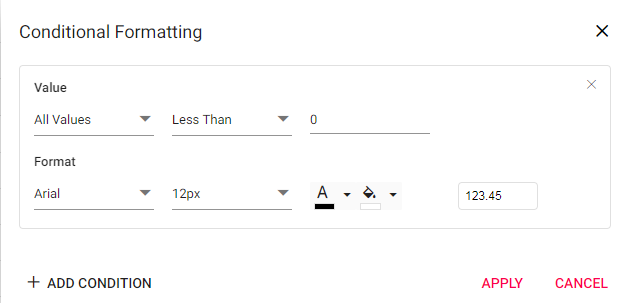
Choose the desired settings. Add as many conditions as desired, and click Apply at the bottom of the popup window when you're done. The matching data in the pivot table will reflect the conditions. In the example below, any negative numbers will appear in red.
The next icon, Number Formatting, allows you to set formatting for numbers, percentages, and currency.

Click the icon to bring up its popup window.
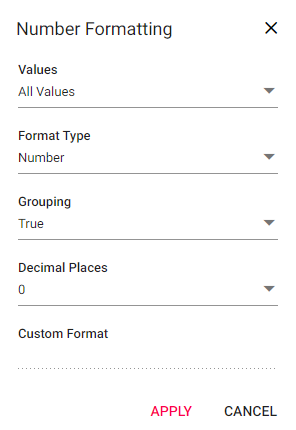
Formatting options for numbers and percentages are grouping and decimal places. Formatting options for currency include grouping, decimal places, currency symbol, and placement of currency symbol. You can also create custom formats.
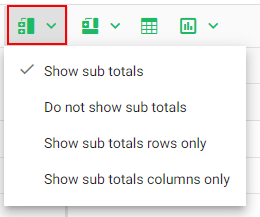
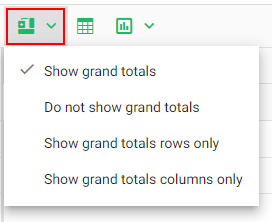
The next two icons, Sub Totals and Grand Totals, give you more control over the appearance of the pivot table.
The Show Table icon allows you to toggle back to the table view when you're working in Graph mode.

Graph is the last icon in the pivot table toolbar. It offers a full selection of graphing methods.
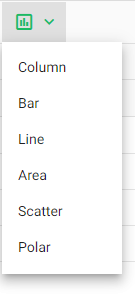
Select the type of graph you want to use. Any filters which are currently applied will also be reflected in the graph.
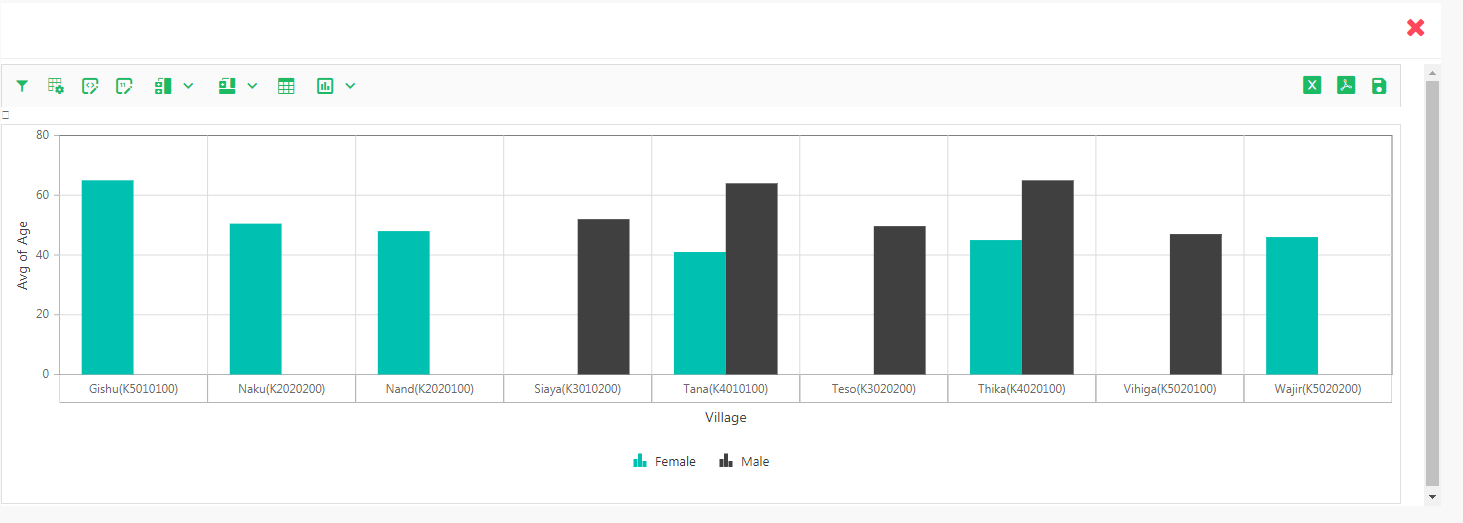
Click the Show Table icon in the toolbar to go back to the Table view from Graph view.
You can export pivot table reports to Excel or PDF by using their respective icons at upper right. Remember to click the Save button to save your work.
Previous: Forms Analytics: Table Reports | Next: Forms Analytics: Pie Chart Reports