Indicators: Creating Indicators: Spatial Visualization
The third tab under Description is Spatial Visualization. If you're creating the indicator, you will not yet see the Description tab; it only appears after the indicator has been created and saved.
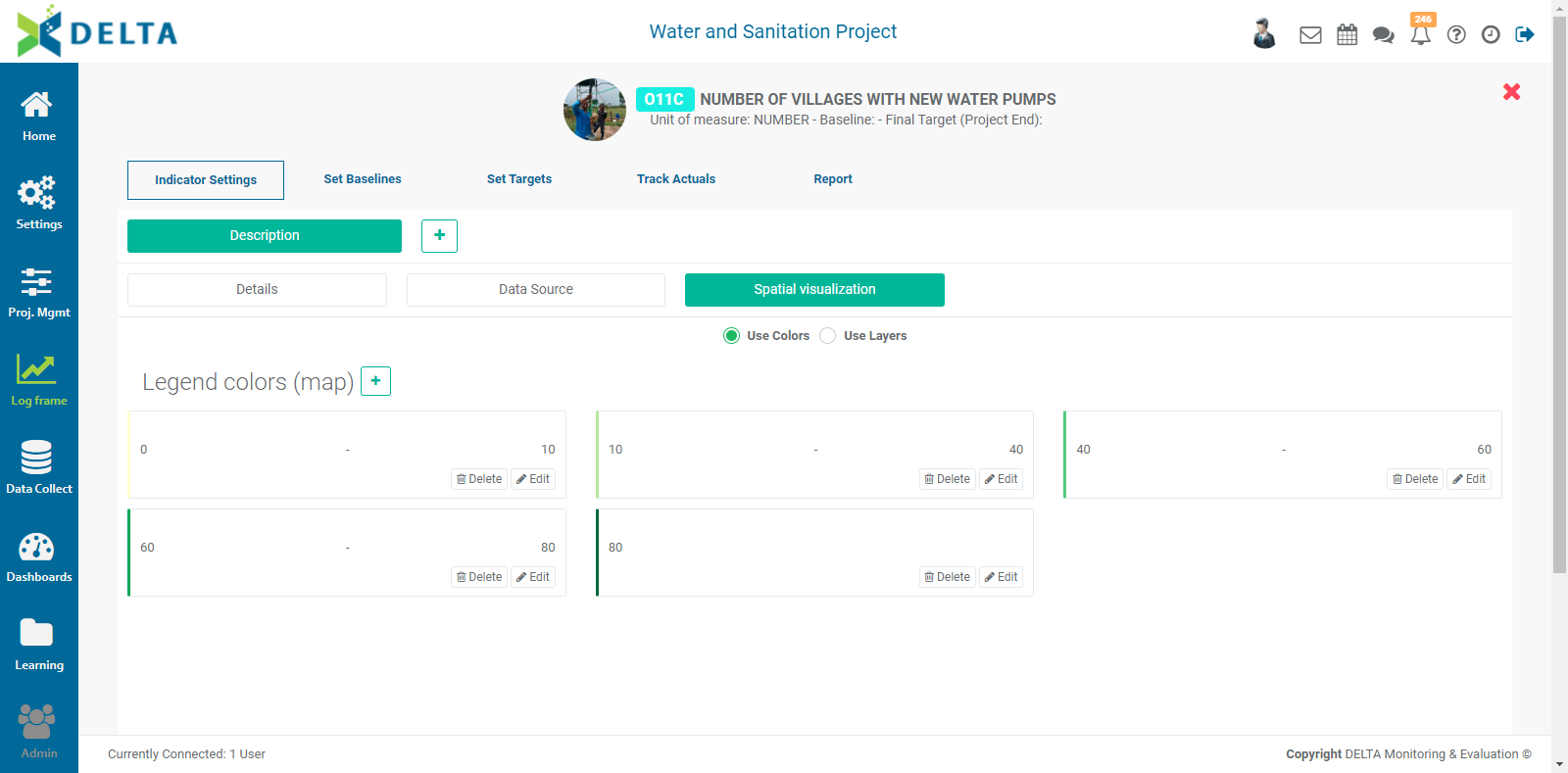
The indicator contains default colors and ranges for the map. Make sure Use Colors is selected, and click the + next to Legend Colors (map) to add a range and select a display color for that range. Click on an existing range's Edit icon to change its name, its range, and its color. You can add as many ranges as required for the indicator.
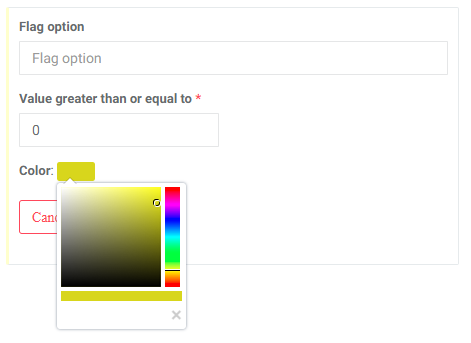
The Flag Option field is optional. What you enter here will be displayed in the legend on the map alongside the range for that item. If you only want to show the ranges and colors, leave this field blank.
Selecting Use Layers allows you to add geospatial overlays to the indicator map. Click on the + button to bring up the data layer parameter popup window.
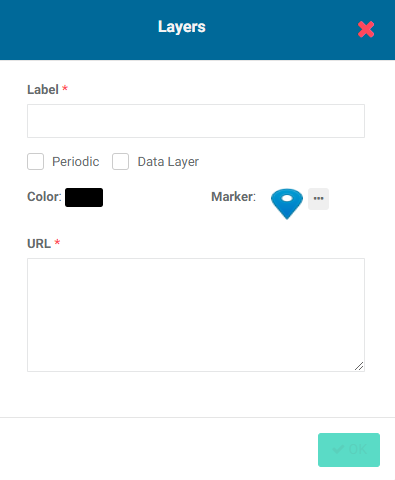
Enter a short, representative label/name for the layer, and select a color to use on the map for this layer. The OK button will be activated once a label has been entered.
If you wish to use a map marker other than the default, click on its More menu, and navigate to the image you want to use. Click on the file once to select it, then click Open or press Enter on your keyboard. The new marker graphic replaces the default in the popup window.
Enter the URL for the GIS data you want the later to display. NOTE: this requires access to an external service such as ArcGIS.
Checking the Data Layer box brings up the Format field, which allows you to add metadata to the layer. The format refers to the syntax used to display the metadata on the map. The syntax for formatting variables uses curly brackets. For example, in a layer which displays the locations of hospitals, the format template might look like this:
Hospital
Parish: {PARISH}
Region: {HEALTH_Area}
Facility Type: {FACIL_TYPE}
Name: {CEN_NAME}
where the items in brackets are the variables available from the URL, and the labels are the map legend labels. In practical terms, adding this formatting will allow the information in the variables to be shown on the map when a user clicks on the marker in the Map project dashboard for that indicator, or in the indicator Report tab Map view of the indicator itself.
Finally, checking the Periodic box allows several URLs to be defined for this layer and to update it periodically. When this option is selected, the Track Actuals tab of the indicator will feature a data entry icon. You will enter the URLs here instead of in the Spatial Visualization tab.
After creating the layer in the Spatial Visualization tab and checking the Periodic box, select Track Actuals, and click the Enter Layer URL icon below the Track Actual tab.
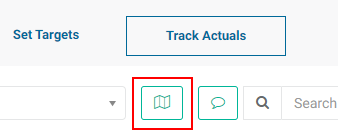
Enter the URL