Learning Module: Documents
Delta’s Learning module is a centralized repository for project- and portfolio-related documents and knowledge sharing. Click the Learning icon in the left navigation to enter the Learning module.
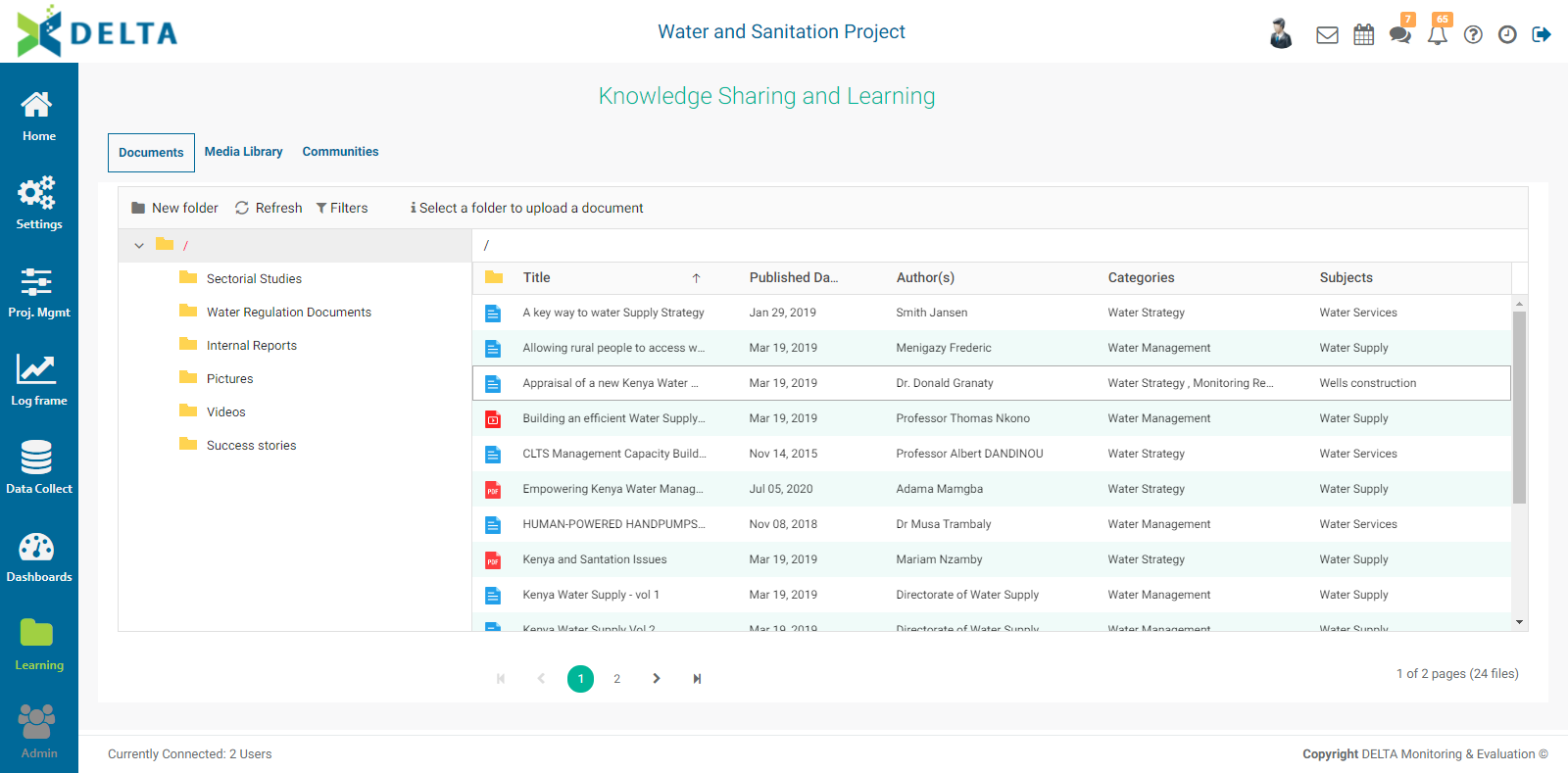
The first section of the module, Documents, is the centralized repository for project-related documents. Select Documents from the horizontal navigation, if not already selected.

The left side of the screen is the navigation pane, while the right side is referred to as the document pane. Folders are shown on the left, their contents on the right. The top folder level, called Root, is denoted by a forward slash (/).
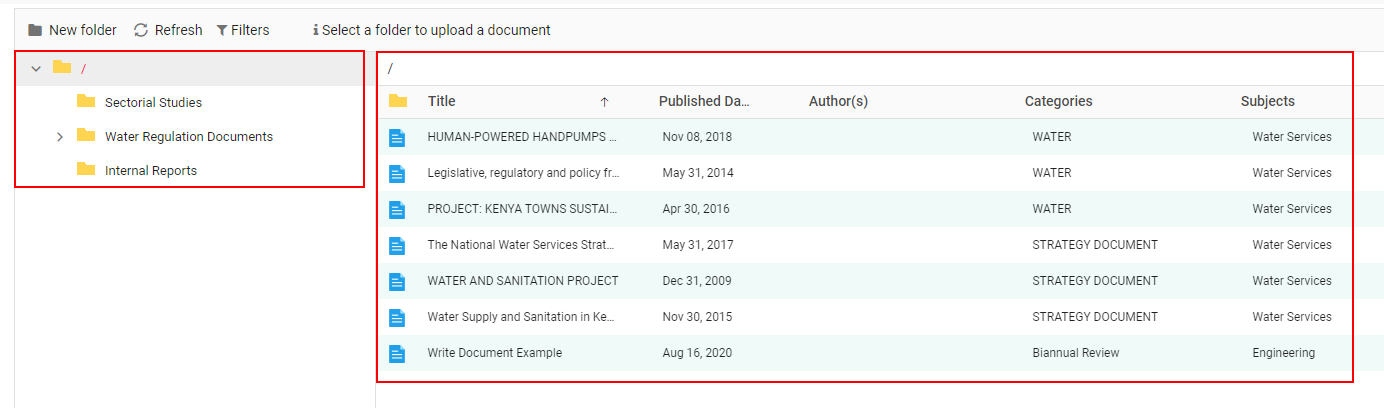
NOTE: the horizontal functions menu is contextual, meaning it will change depending on where you are in the folder structure and which task you're accomplishing. The defaults, seen above, are New Folder, Refresh, and Filters.
Click on a folder column header to sort the selected folder’s documents by Name, Published Date, Author(s), Category, and Subject.
To navigate between folders, click a folder in the navigation pane to select it and display its contents.
To create a new folder, click the New Folder button below the horizontal sections navigation to bring up the New Folder popup window.
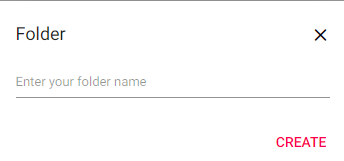
Enter the desired name for the folder and click Create. The folder will be created inside the level selected in the navigation pane.
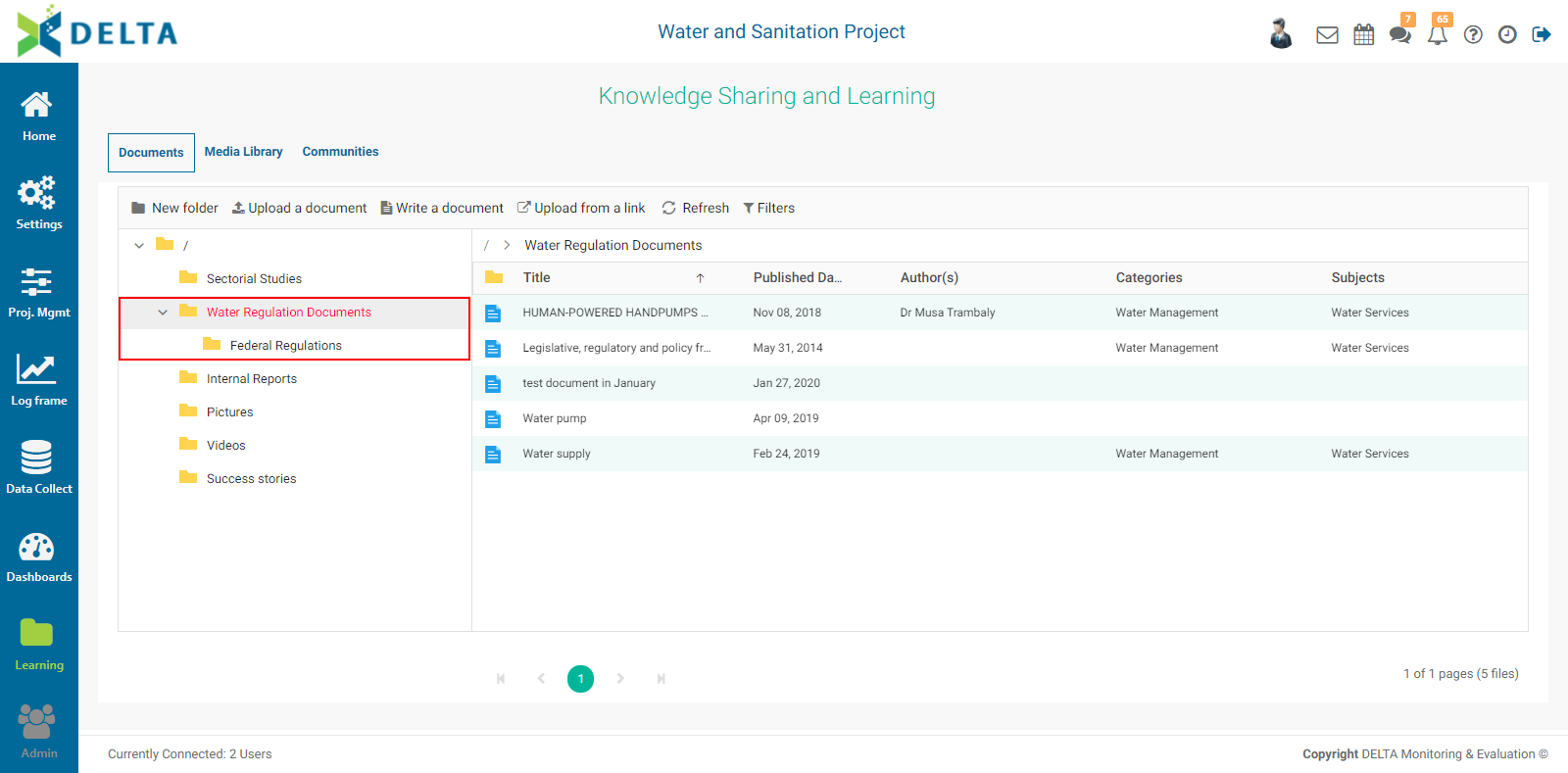
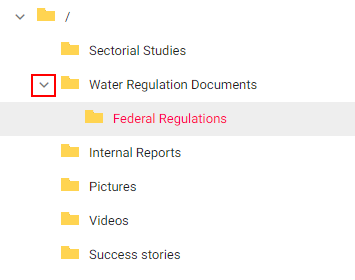
Use the carets in the navigation pane to expand and collapse the list of subfolders.
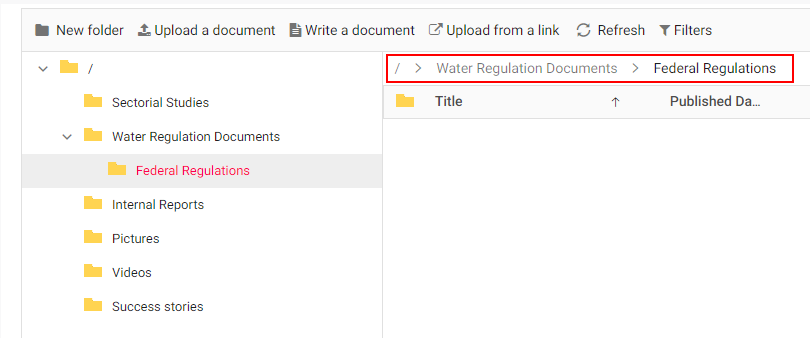
The path from a folder back to the Root level is displayed at the top left of the Document pane. You can use these breadcrumbs to navigate the contents of the library.
Three methods are available to you for adding documents to the library: Upload, Write, and Upload from Link.

To upload a document, click the destination folder in the left pane to select it. Select Upload a Document from the menu. This will open a standard dialog box from which you can navigate to the document you want to upload. Click the document and click Open or press Enter from your keyboard. A status popup will appear with a thermometer bar showing the progress of the upload. When the upload is complete, the popup will display a success message along with the file name and its size.
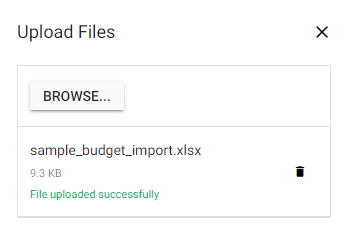
To upload another document to the same destination folder, click the Browse button in the status popup, and navigate to another document. Click the document to select it and click Open or press Enter from your keyboard. The status popup will appear after the upload has been completed. When you’re done, click the X at top right corner of the status popup to dismiss it. Your uploaded document(s) will appear in the documents pane.
Each document type has its own icon and color. If the document’s name is truncated by the width of the Title column, move your cursor until you get a double grab bar icon ( <-||-> ), then click, hold, and drag to resize the column. You can resize any column in the document pane.
NOTE: while there are no limits to the size of documents which can be uploaded, keep in mind that the larger the document, the longer the upload will take. This may cause problems when using unstable or weak network connections.
To write a document, click the destination folder in the navigation pane to select it. Select Write a Document from the menu. The Document Description screen will open. All fields denoted by an asterisk are mandatory.
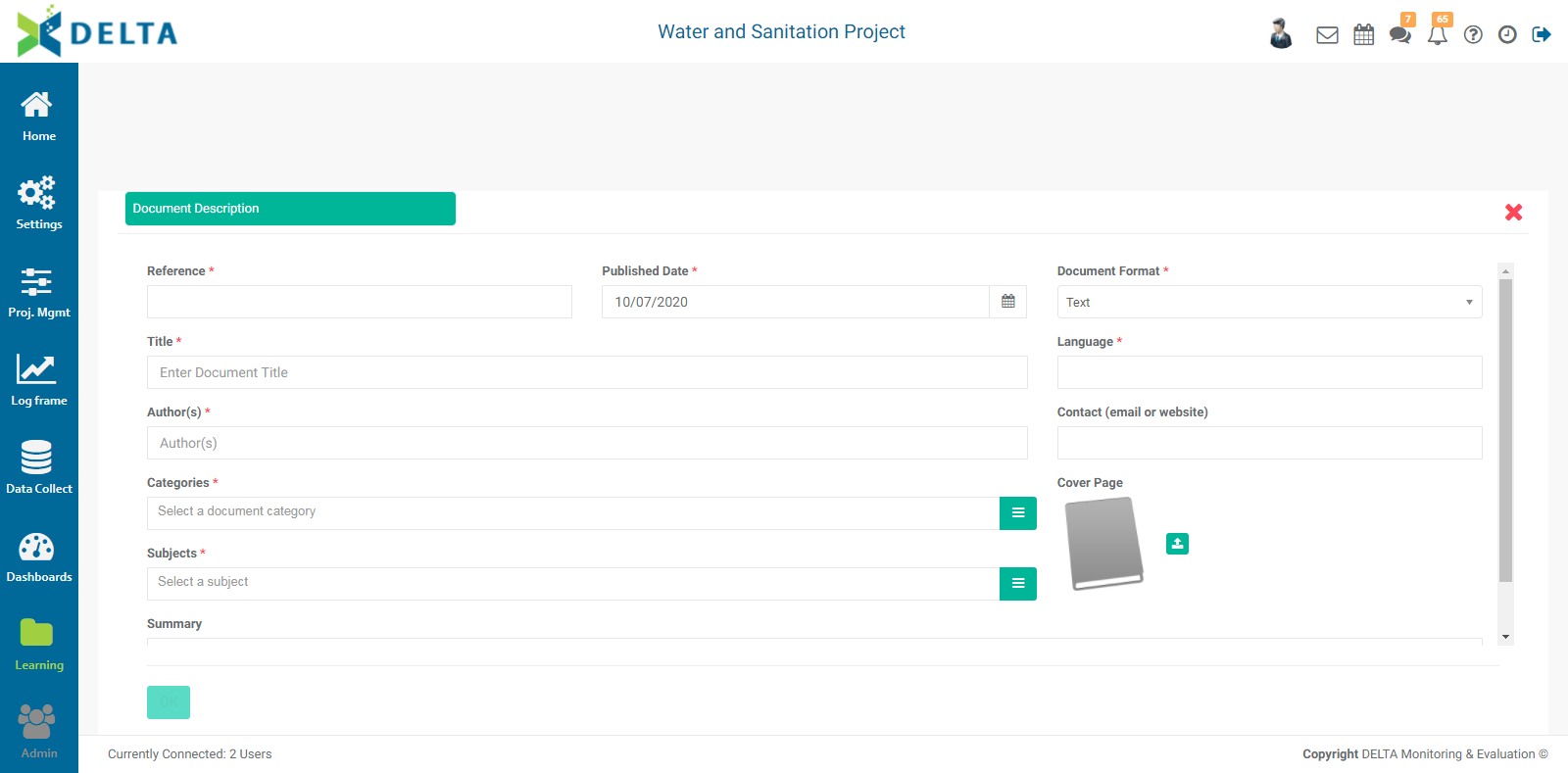
Enter a reference number for the document. There is no set format for how reference numbers are built, so you can use any convention or nomenclature you deem appropriate.
Enter the publication date of the document. The default is today’s date. To select another date, click the calendar at the right end of the Publication Date field to open the calendar and navigate to the desired date.
Select the Document Format from the pick list.
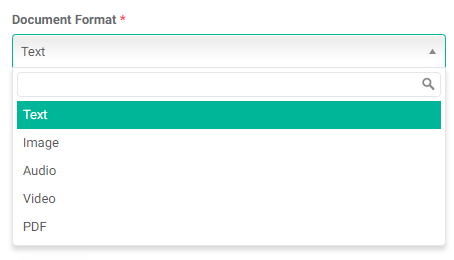
Enter a title for the document, and select the language. If the language you want does not appear, enter it freehand in the Language field. It will be made available for other documents once you save yours.
Enter the name of the author. This is a freehand field. If contact information for the author is available, enter it in the Contact field. Contact information can be an email address or a website URL. This field is optional, but we suggest as a best practice that you always enter as much information as is available.
Enter one or more category(ies) for the document. If the category you’re looking for is not in the pick list, click the ≡ icon at the end of the field to bring up the Categories popup window.
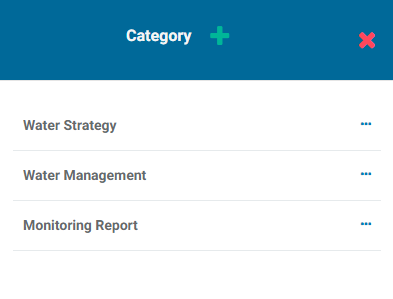
Click the + in the popup window title bar to add the desired category. Enter its label and click OK. The new category will appear in the popup window. Click the X in the popup window title bar to close the popup. The new category will appear in the pick list and is available for selection.
Select one of more Subjects from the pick list. If the subject you’re looking for does not appear in the pick list, create it using the same method described above for the Categories.
If desired, click the Upload icon under Cover Page to upload a cover page for your document. Cover pages are images, and most graphic formats are allowed: .xbm, .tif, .pjp, .jfif, .webp, .pjpeg, .avif, .ico, .tiff, .bmp, .png, .jpeg, .svgz, .jpg, .gif, and .svg. Navigate to your cover page image to select it, and press Enter or click Open to associate it to your document.
Enter a summary for the document. This field is optional.
Once all the mandatory fields have been completed, the Content and Document Sharing tabs will appear next to the Document Description tab.

Click the Content tab to bring it to the front. This screen contains Delta’s full feature text editor. You can enter text and style it, embed images, and link to audio and video files, among its features.
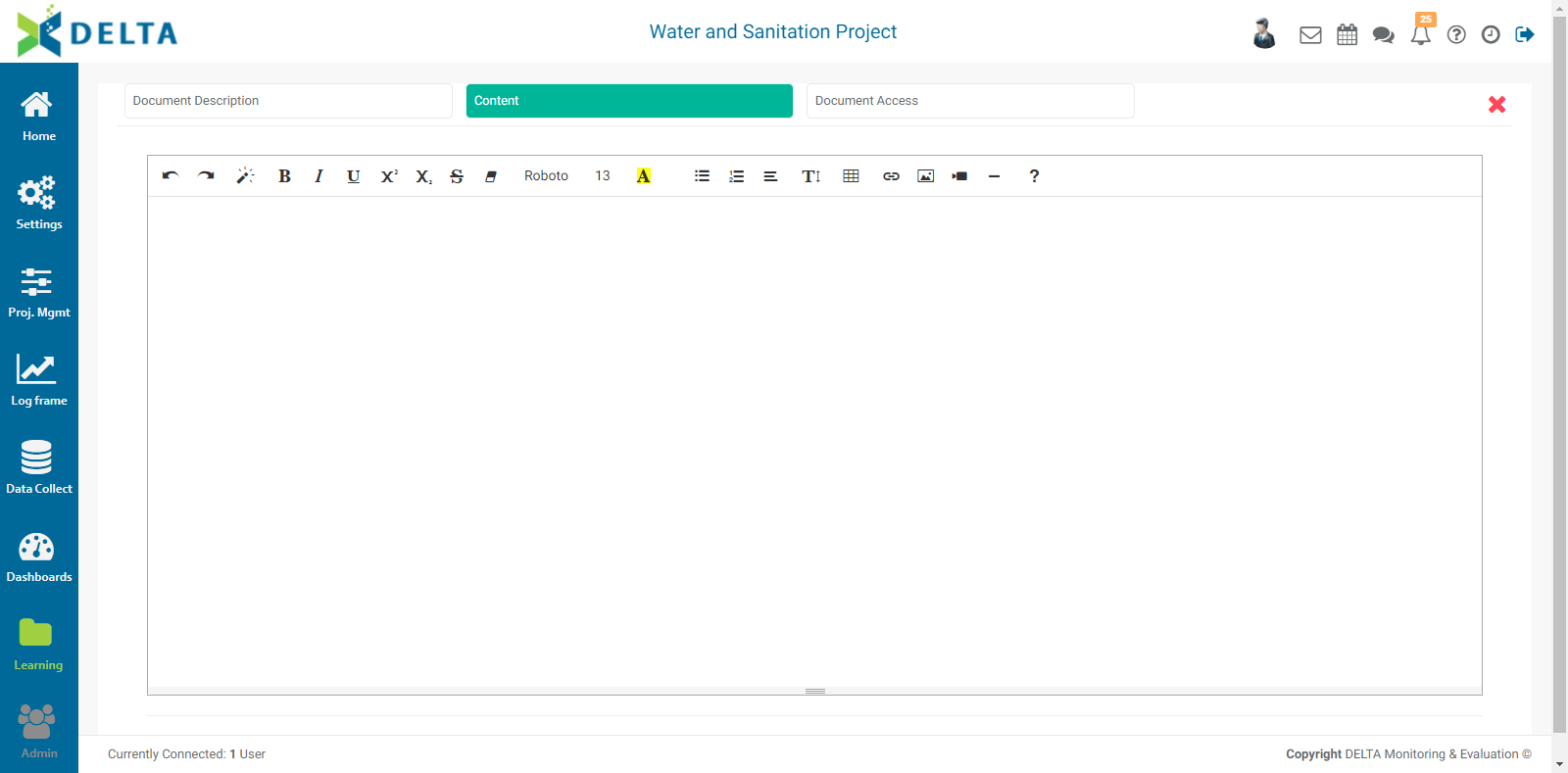
Click OK at the bottom of the Content screen if you’re done. If you would like to add permissions to your document, click the Document Access tab to bring it to the front.
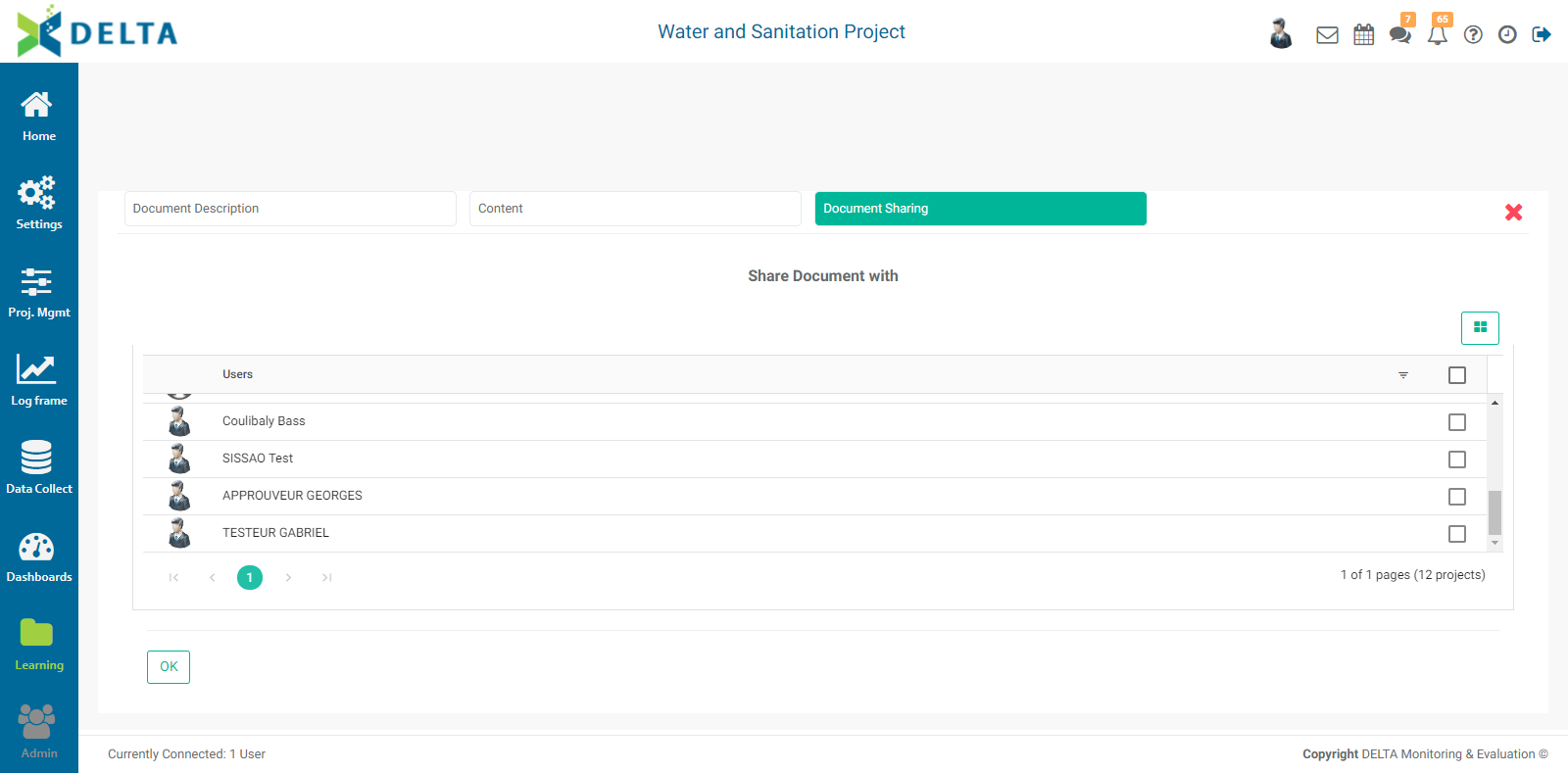
Select the stakeholders who will have access to the document. Note that superusers do not appear on this screen, since they have permissions for everything in the system. Click OK when you’re done. Your document will appear in the document list screen.
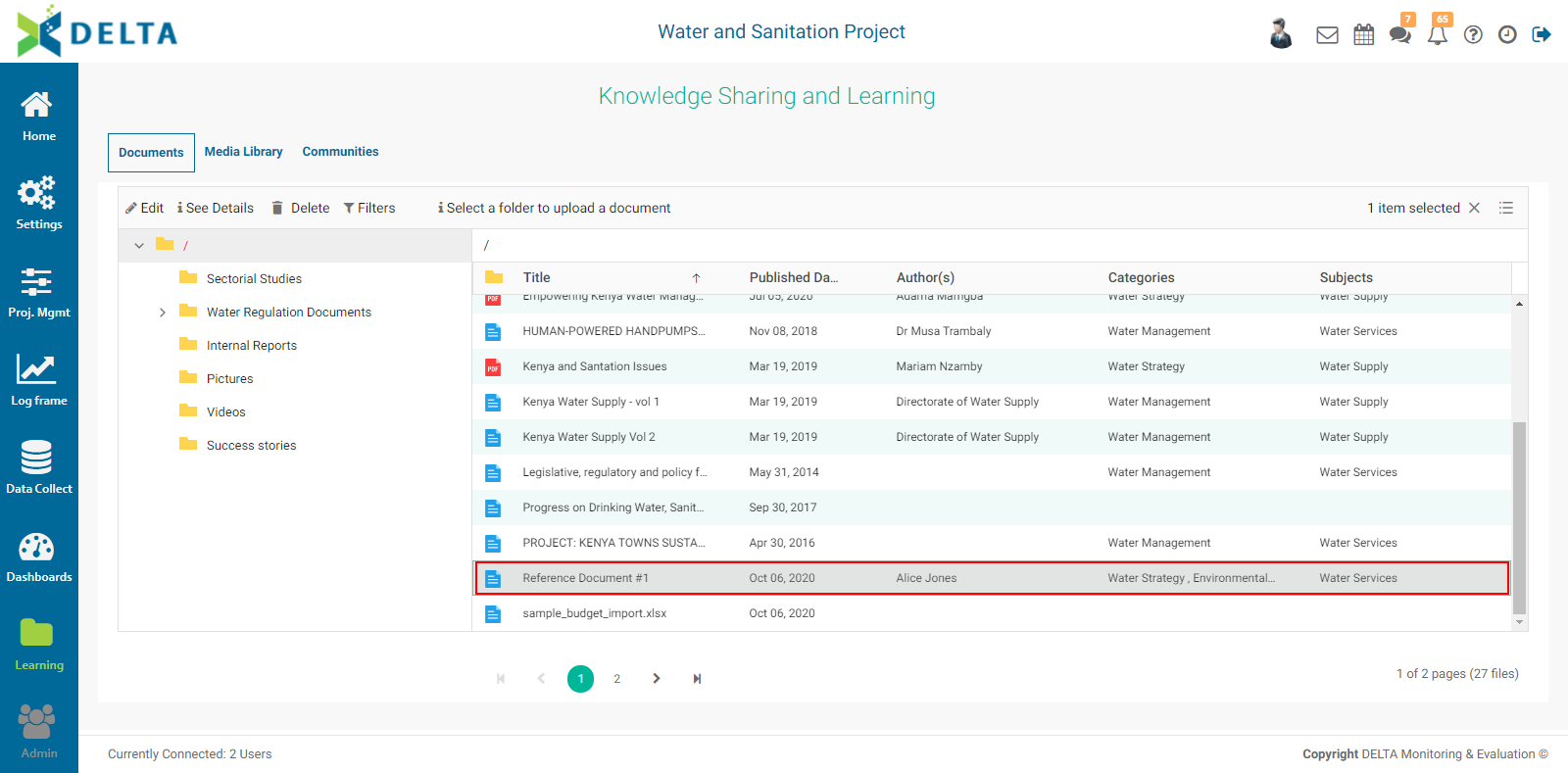
If the document does not appear, use the Refresh button, or navigate to the destination folder if it's not the one currently selected.
The last option in the menu, Upload from a Link, allows you to point to a cloud document, such as documents stored on Dropbox or Google Drive. The document description tab is essentially the same as that for the Write a Document option, except that you must enter the URL of the document instead of navigating to it. There also is no Content tab. NOTE: documents added to the library via this method remain on their respective repositories and are not copied to the library.
Select a document by clicking its name once. To edit the selected document, click the Edit icon at top left above the navigation pane. To see a document’s details, select it and click See Details at top left above the navigation pane, or double-click the document. Its Details screen will open.
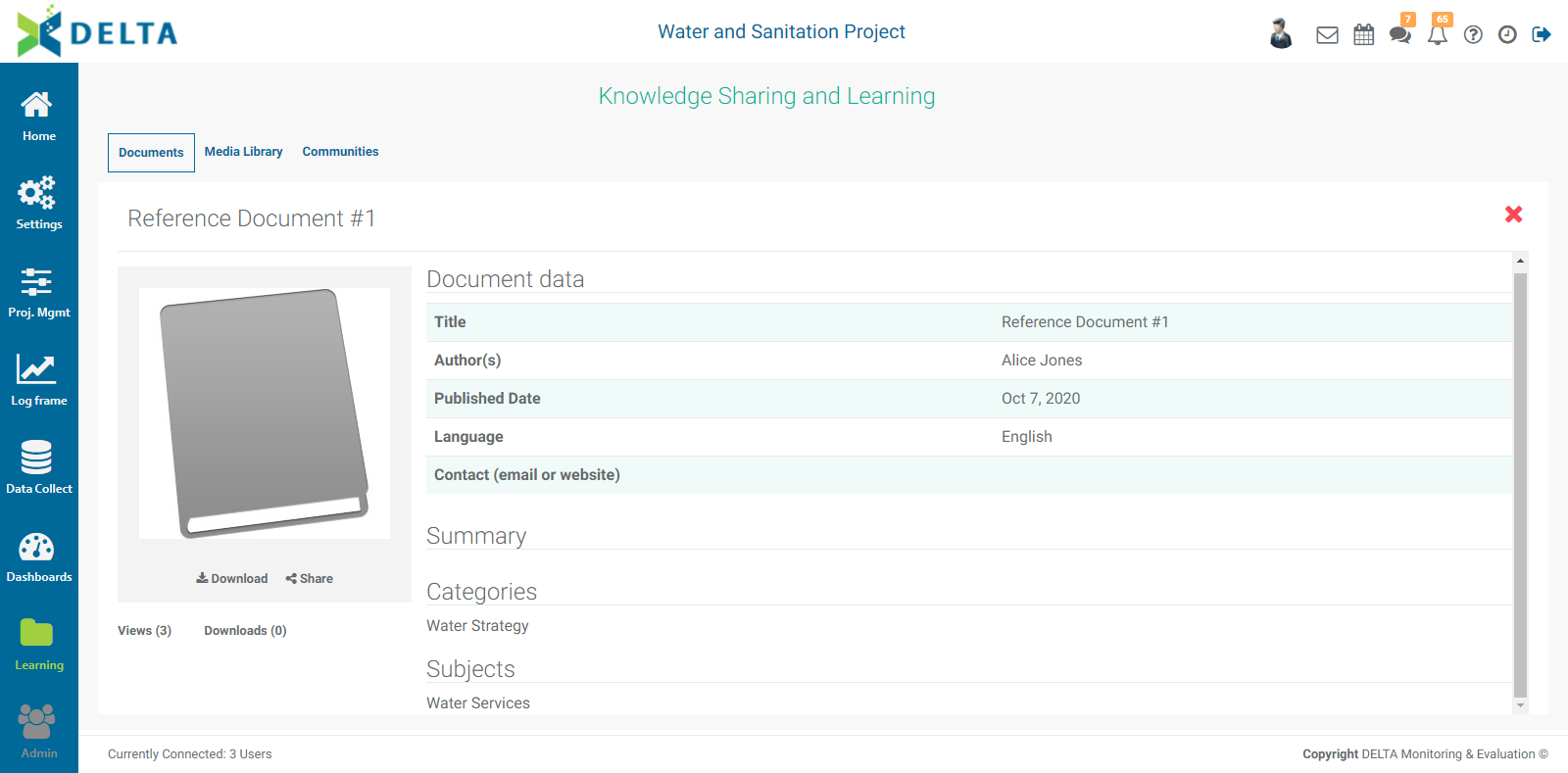
To download the document, select Download at bottom left. NOTE: downloading a linked document will open a new browser tab to the cloud service, in which you'll be able to view the document. This makes the Upload from Link an excellent option for making authoritative versions of external documents available to a project without having to worry about the freshness of the document's information. Click the X at top right to close the document details screen.
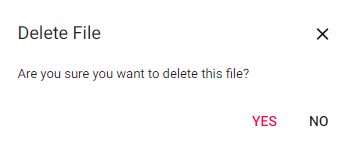
To delete a document, select it in the document pane, click Delete, and confirm the deletion.
To rename a folder, right-click it in the navigation pane, and select Rename from the menu.
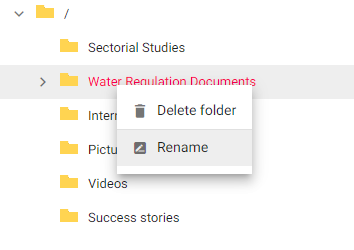
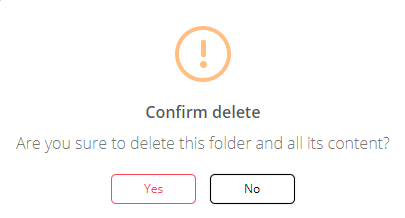
To delete a folder and its contents, right-click it in the left pane, select Delete, and confirm the deletion.
Use the Filters to sort through the library.
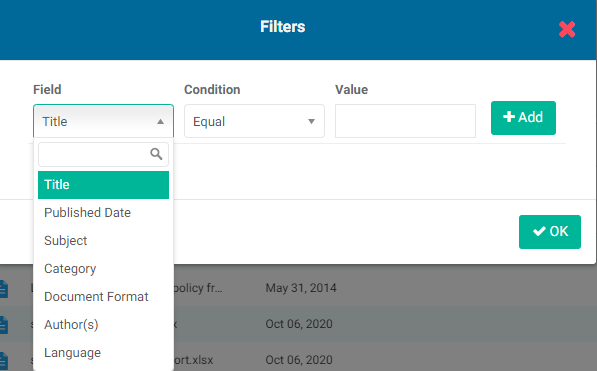
Select the field which you want to use to filter, then enter a condition.