PM: Activities: Creating a New Activity
Adding activities can be done at both the Portfolio and the Project level. A critical difference between the two is that cross-cutting activities can only be created at the Portfolio level. For more details, read PM: Activities: Cross-Cutting Activities.
To add an activity from the Portfolio level, go to the Portfolio page, click on the Project Management icon in the left navigation, make sure you're in the Activity Plan & Budget screen, then click on the More icon at upper right and select +Add Activity.
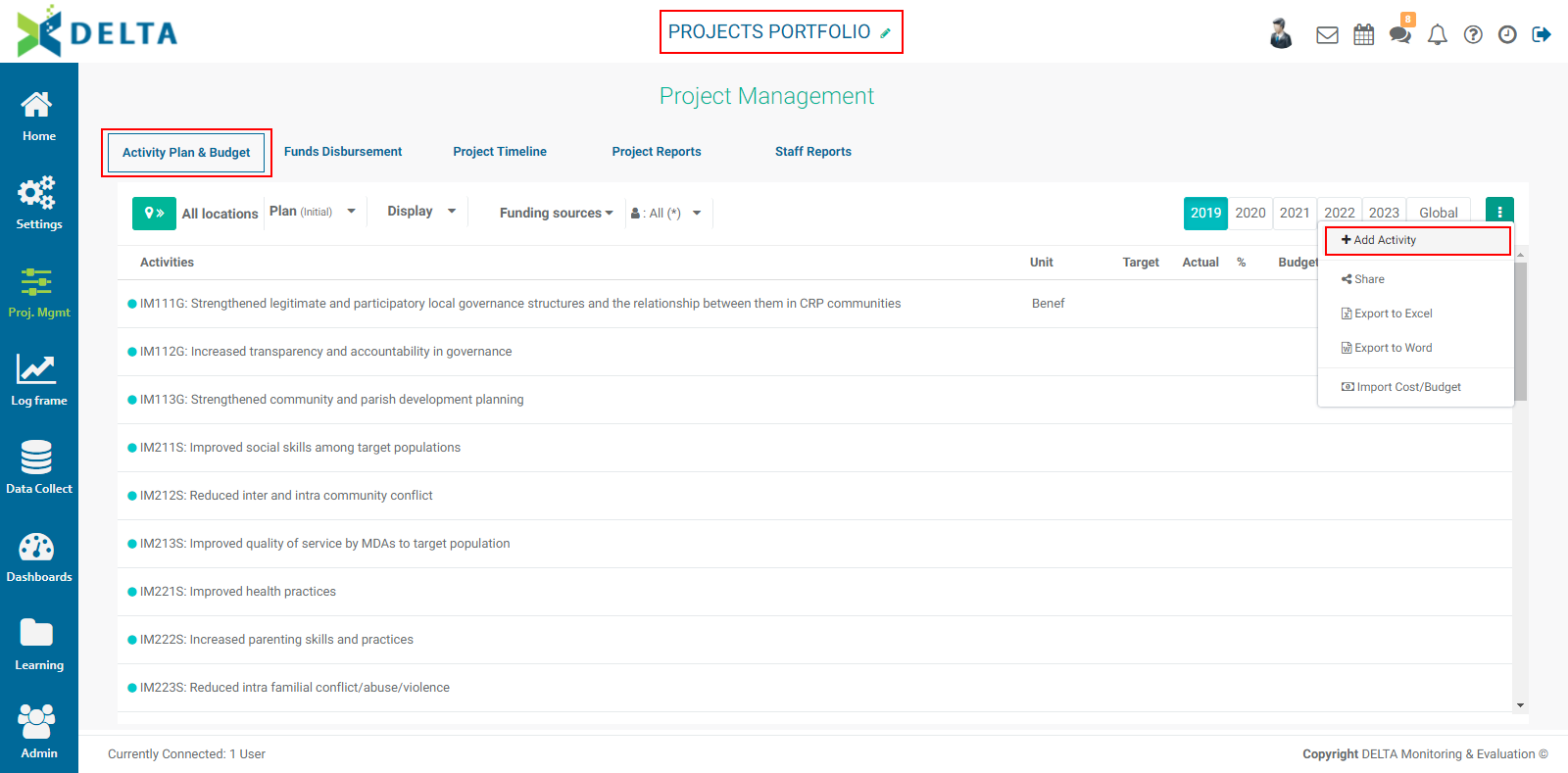
The Activity Details screen will open.
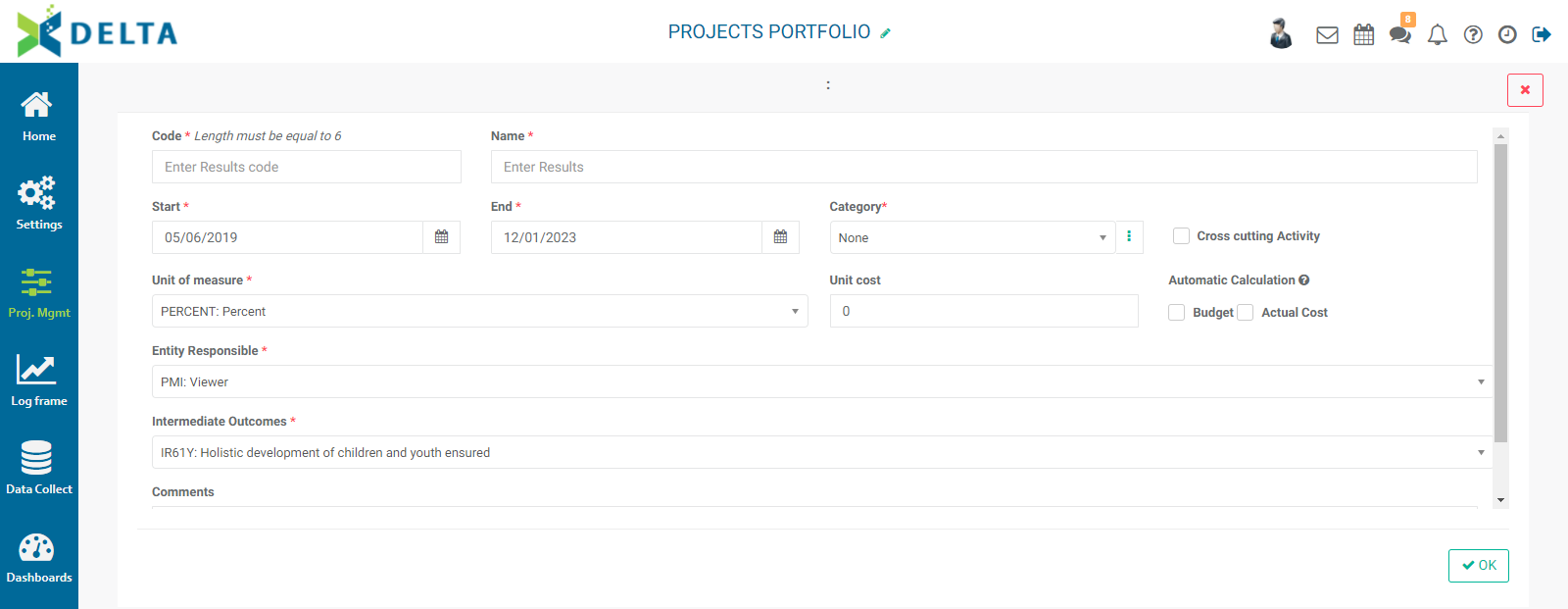
Several fields in this screen get their information from settings entered at the Portfolio level. For example, the length of the code for the activity is determined by the Portfolio log frame. If you're not familiar with its specific information, you can view it in the Settings module at the Portfolio level.
Units of Measure and Entity Responsible are also informed by those settings at the Portfolio level.
To create an activity category, click the More icon at the right of the Category field, click the + in the Activity Categories popup window title bar, then enter the required information in the popup window, and click OK to save your work and return to the Activity Categories list.
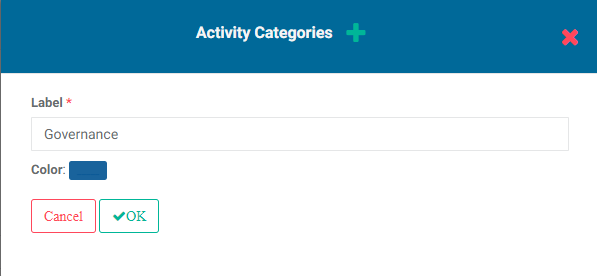
Click the X in the popup window title bar to return to the activity definition screen without saving.
Make sure you select the correct portfolio log frame level in the field directly beneath the Entity Responsible field. the name of that field will be different from the one used in this example (Intermediate Outcome) because it's based on the level of the log frame immediately above the Activity level, and will therefore be aligned with your nomenclature.
To specify this activity as a cross-cutting activity, check the box at upper right. Checking the box will allow you to enter additional information for the activity.
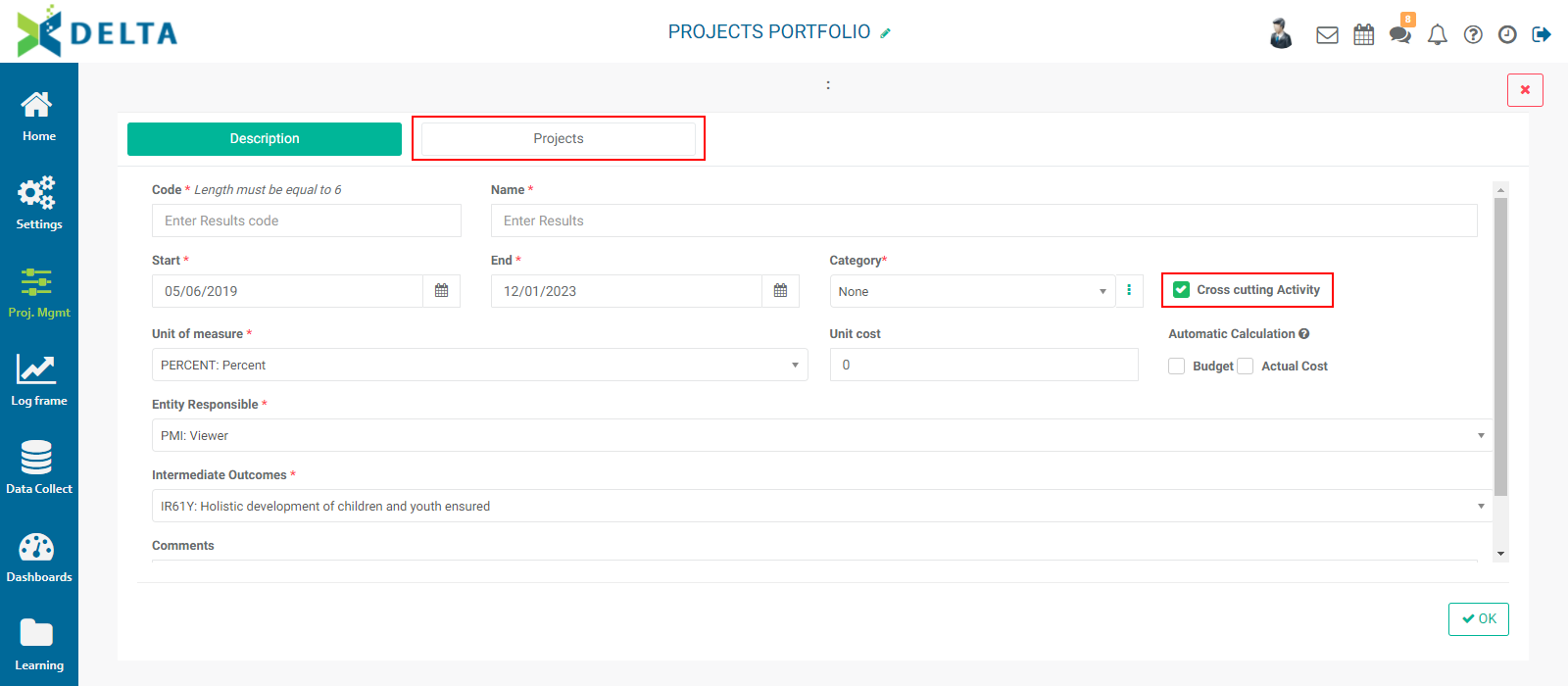
Click the Projects tab to select the projects this activity should be deployed to.
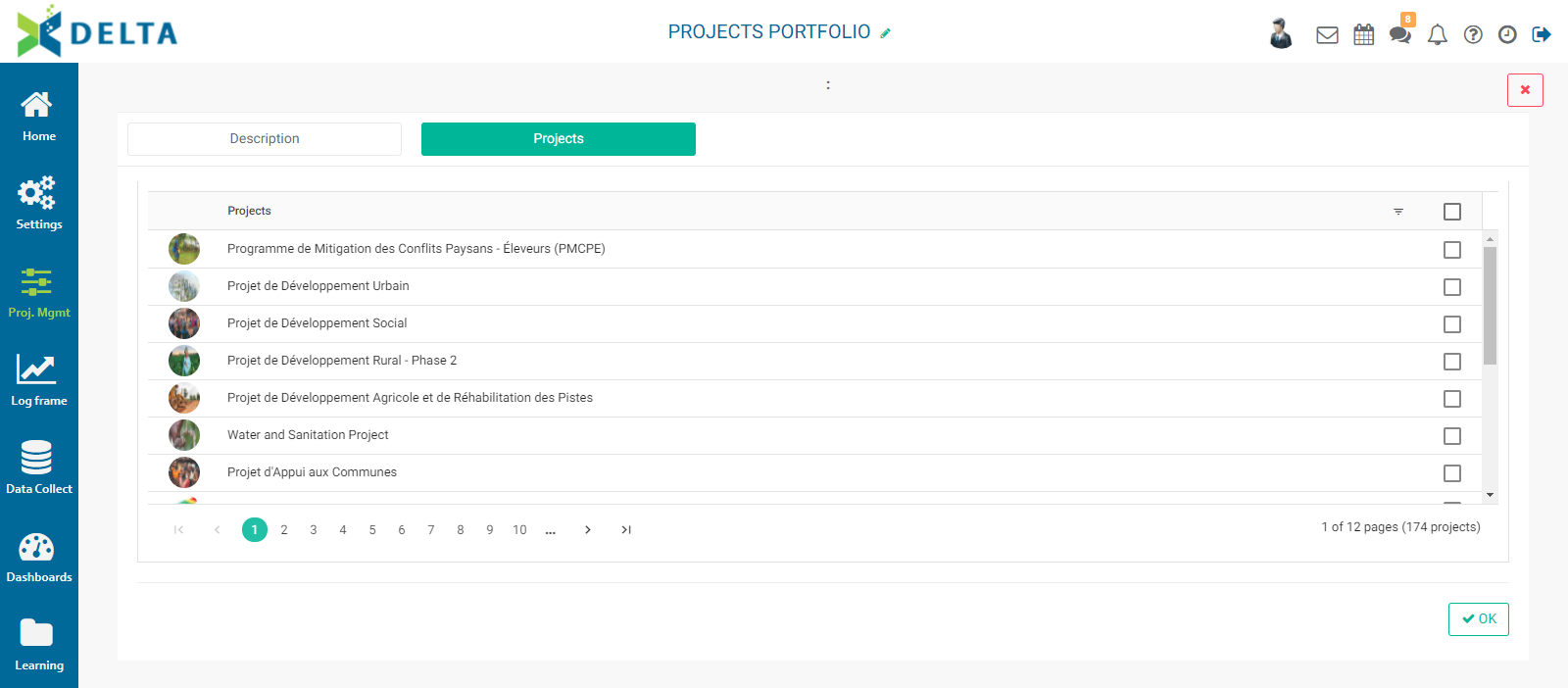
Select the desired projects, or click Check All to select all the projects. If you're done, scroll down to the bottom of the screen and click OK to save your work, or return to the Description screen by clicking its tab, and save your work from there by clicking OK.
Cross-cutting activities are described in further detail in this article.
When creating a project-specific activity from the Activity Planning & Budget screen, the option for a cross-cutting activity is replaced with a Visible in Portfolio checkbox. Select this box to make the activity visible at the portfolio level.
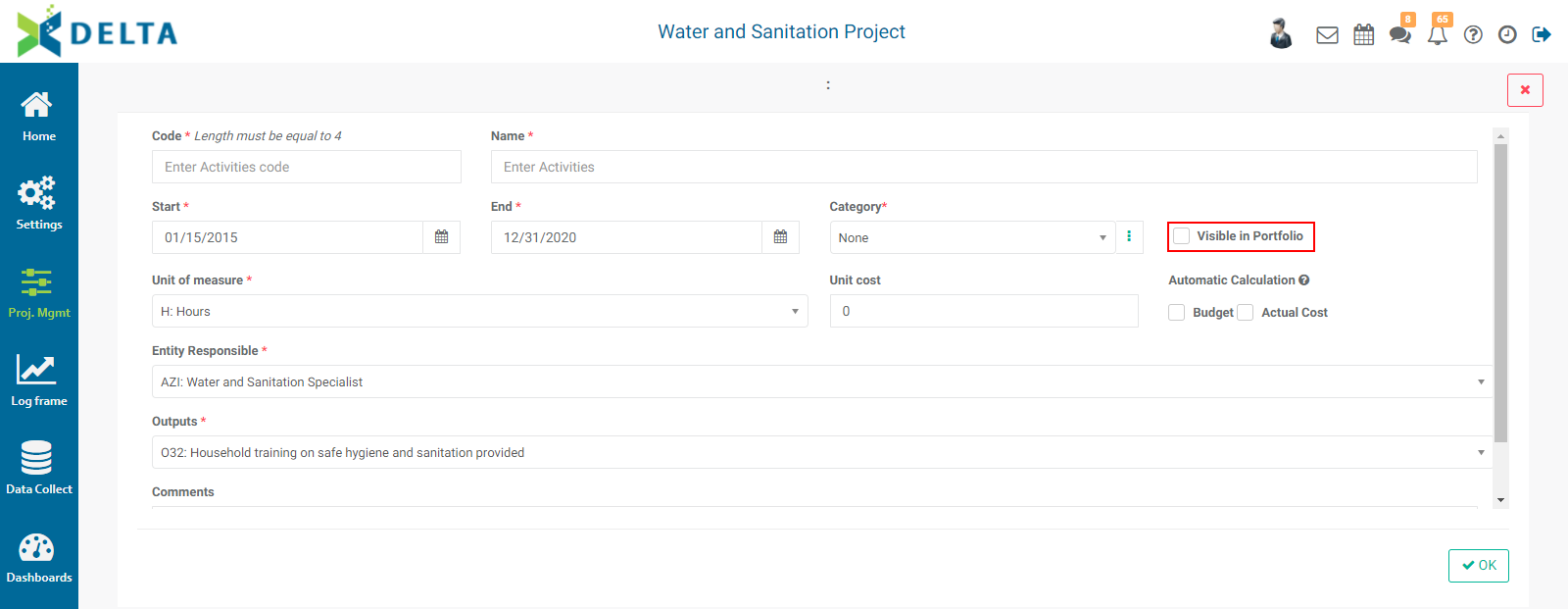
The rest of the process is the same as working with a log frame-generated activity.
NOTE: new activities can also be created from the Log Frame screen of the Settings module, either at the Portfolio or project level. However, to perform any tasks with the new activity, you'll need to do so in the Project Management module.
Previous: PM: Activities: Cross-Cutting Activities | Next: PM: Activity Plan & Budget (APB)