Indicators: Cross-Cutting Indicators
As mentioned in the Portfolio Settings: Log Frame article, Delta supports the creation of cross-cutting indicators. These indicators are created at the Portfolio level, but informed at the Project level.
Creating cross-cutting indicators requires that a Log Frame, Locations, Units, and Stakeholders be entered in the Portfolio's Settings module.
Adding a cross-cutting indicator is simple. From the Portfolio page, click the Log Frame icon in the left navigation menu to bring up the Portfolio Indicators screen, and select any log frame level except the first one, which is Activities or its equivalent log frame end point.
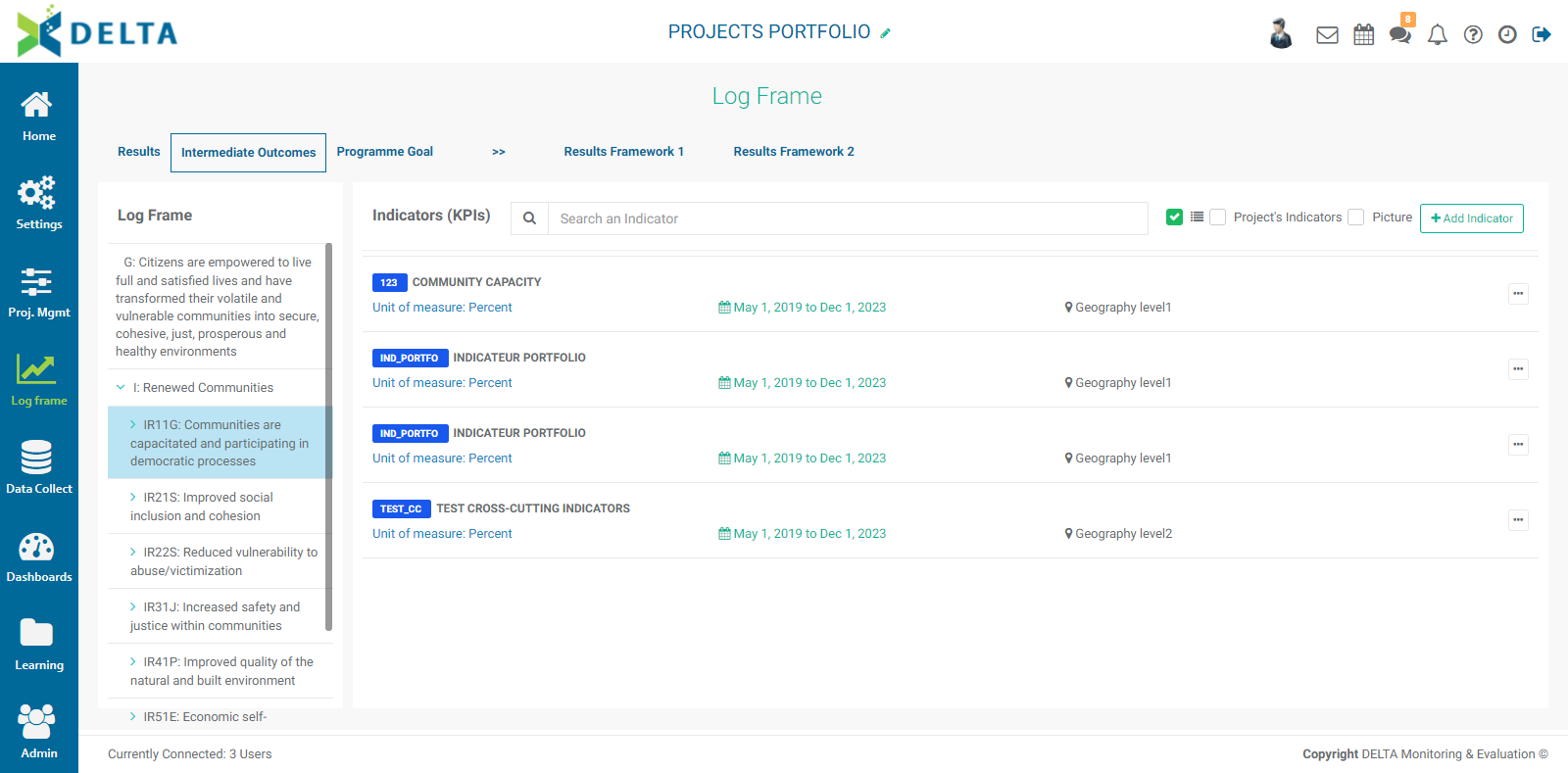
To create a cross-cutting indicator, click the +Add Indicator button at top right, and enter the required information. All fields are mandatory except the description, but it's a best practice to enter a short description for the indicator, especially since it will appear in several projects.
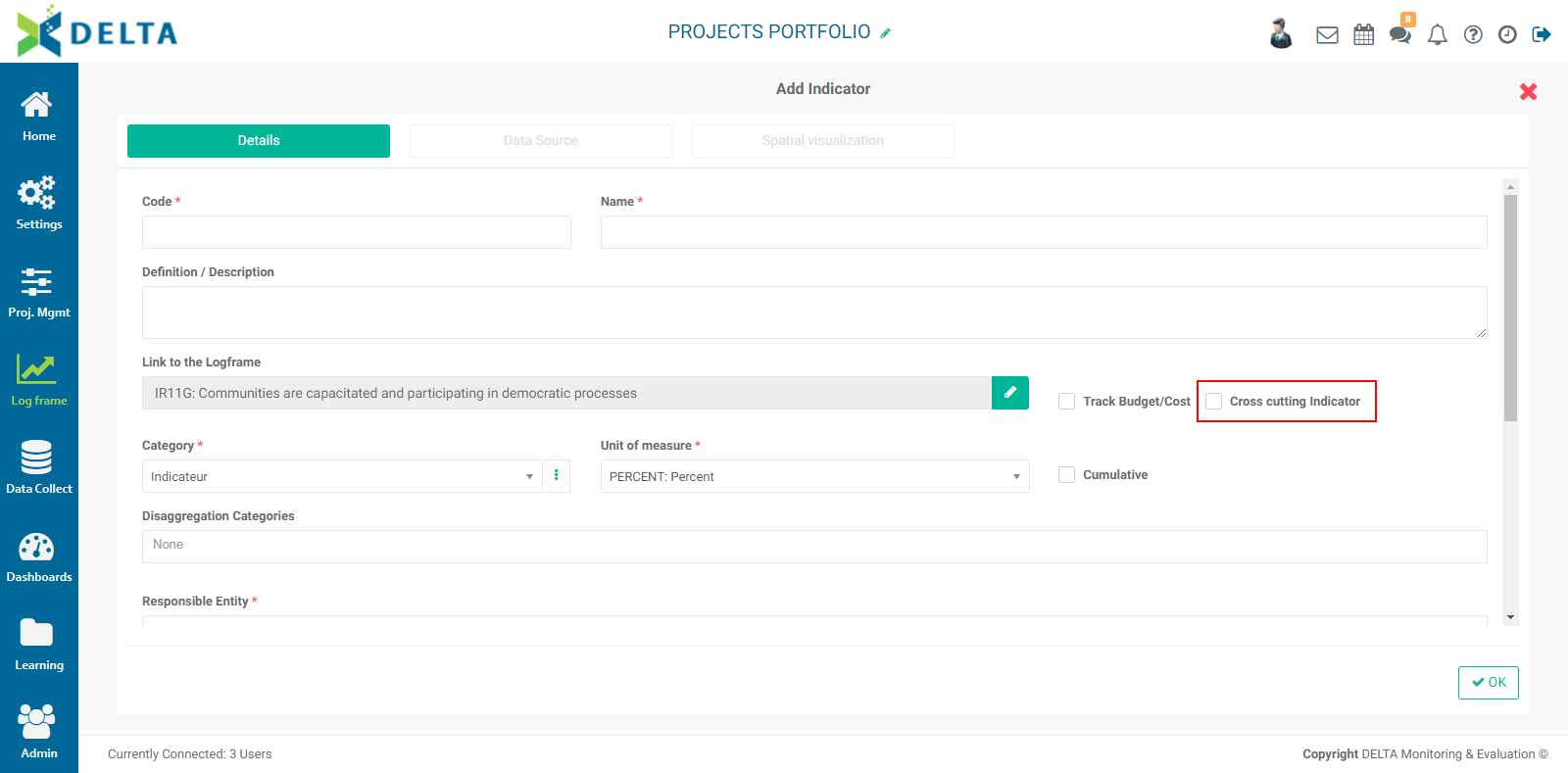
IMPORTANT: make sure to check the Cross-Cutting Indicator box. If you do not, you'll be creating a regular portfolio-level indicator.
Once you have entered a code and a name for the cross-cutting indicator, and the Cross-Cutting Indicator box is checked, the Data Source and Spatial Visualization tabs will be replaced by a Projects tab. Click on it to select the projects in which you want to use the indicator.

Click OK to save your work and return to the Portfolio Indicators screen. Click the cross-cutting indicator you just created to open it, and note that it only contains two tabs: Indicator Settings, and Report. All the indicator data will be entered at the project level, which will then be reflected in the Report tab at the Portfolio level, with its data broken down by project to clearly indicate each project's contribution to the indicator. Go to one of the projects to which you deployed this indicator, and click the indicator to open it. NOTE: if you have trouble finding your indicator, select one of the Results Framework views. All indicators are shown there, regardless of whether or not they've been configured at the project level.
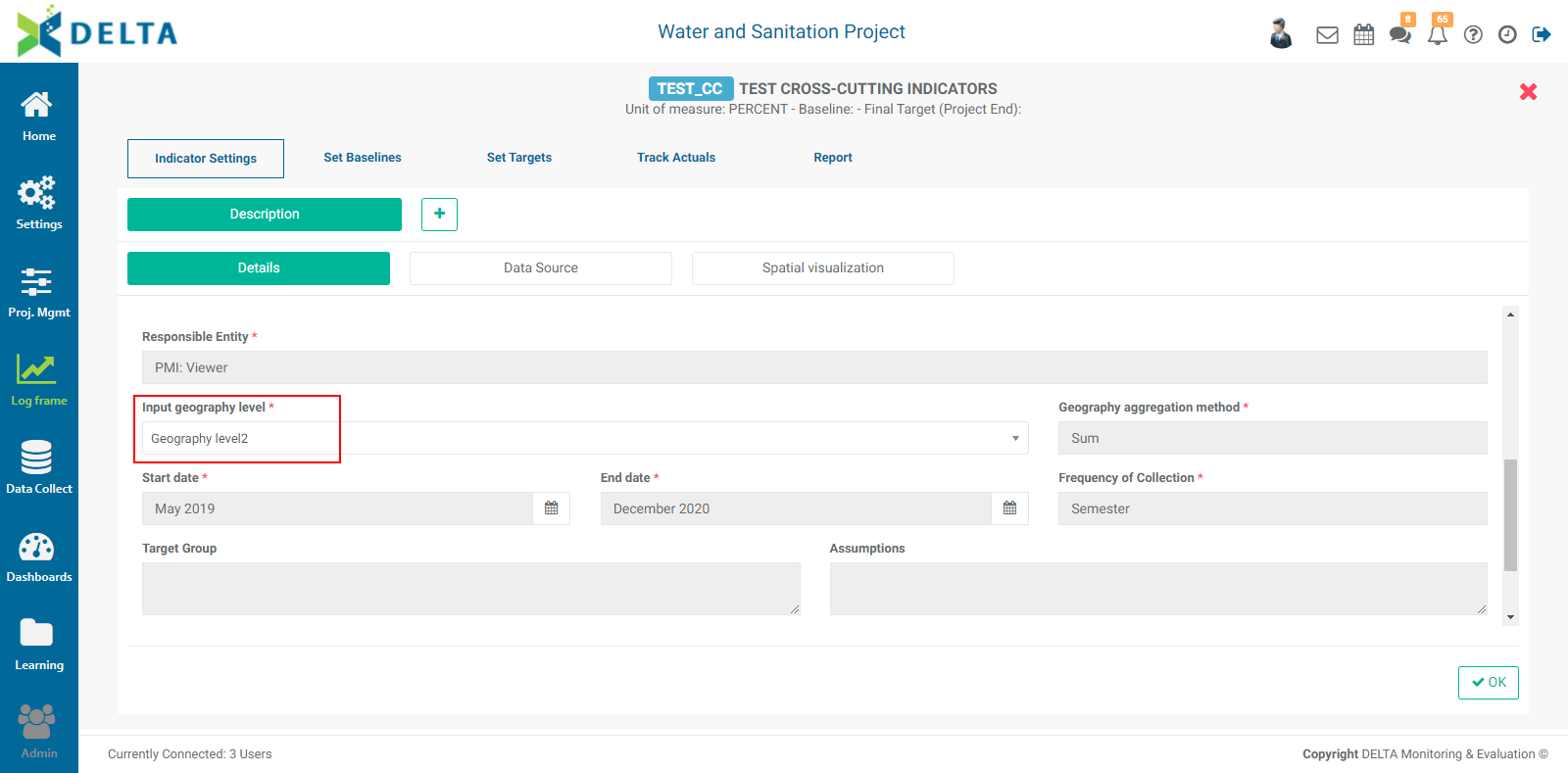
There are two elements you need to edit in order for the cross-cutting indicator to be properly configured: the project log frame element to which the indicator will be associated, and the geography level. These are the only two fields which are editable at the project level.
Once the Indicator Settings > Details tab has been completed, do the same for the Data Source and Map tabs. Click OK when you're done to save your work and return to the project's indicator list (or Results Framework list, depending on your screen of origin).
When you click on the indicator to open it, you'll see the tabs you're familiar with: Plan Targets, Track Indicator, Indicator Report, and the optional screens under the More button: Documents, Notes, Workflow, and Permissions. These behave the same way as they do for project indicators.
Previous: Indicators: Other Settings | Next: Indicators: KPIs Results Framework