Data Collection: Other Form Settings
There are several more tasks you can perform in this part of the Data Collection module once you've created a form. They are described below.
To edit a form, click its name in the list. This will bring up the Form Design screen. Make your changes, and click OK at top right to save your work and return to the Forms list page. The form will be timestamped with the day and time of the last edits.
Delta now supports using data collection forms as surveys. Check the Survey box to mark your form as a survey. The article on Collecting Data describes in detail how to use this functionality.
You can opt to make a form private. In practical terms, this makes the form invisible to all except the user who created it. This is useful if you create a form over several sessions and don't want anyone to use it before it's ready. Check the Private box at top right to keep your form hidden from other users.
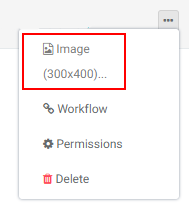
You can associate an image with a form. From the Forms list screen, select Image from the form's More menu.
Navigate to the location of your image, then click Open or press Enter on your keyboard. The image will appear on the form tile.
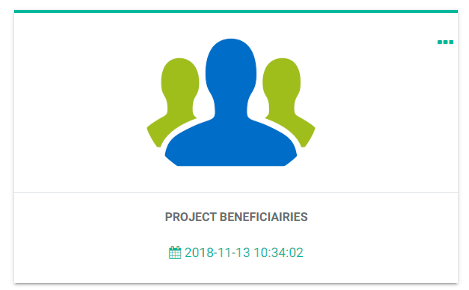
The image is displayed automatically in Tile view, but can be toggled on and off in List view.
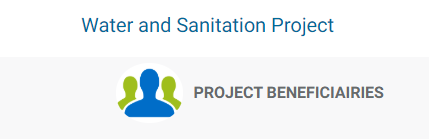
The image also appears at the top middle of the screen next to the form's name once the form is open.
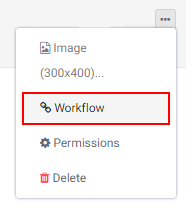
To create a workflow for a form, select Workflow from the form's More menu.
Click the Add button at top right to bring up the workflow popup window.
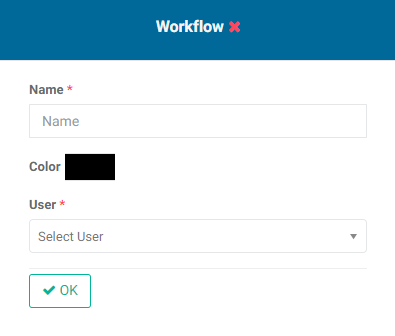
Enter the name of the workflow, and assign a user to it. Editing the color is optional. Click OK when you're done. The new workflow step is displayed as a tile on the screen.
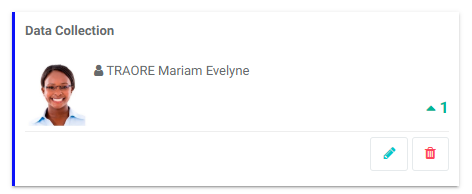
Create as many steps as are needed to complete the workflow for the form. Each step will feature a number reflecting its order in the workflow.
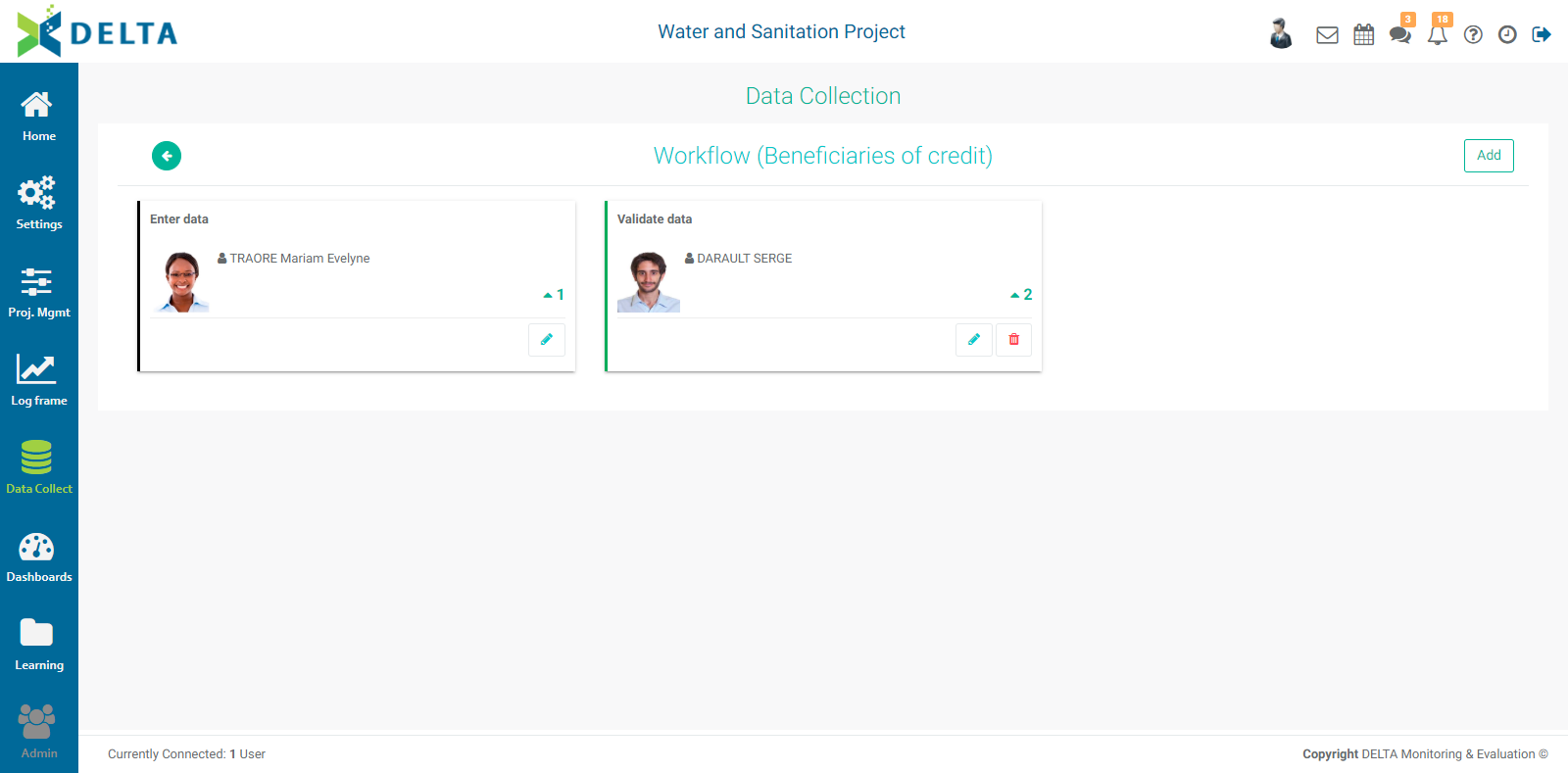
To edit a workflow step, click its Edit icon, make your changes, and click OK to save your work and return to the Workflow screen. To delete a workflow step, click on its Delete icon. NOTE: you can only delete the last step of a workflow. Once it is deleted, the previous step becomes the last and can then be deleted.
Users who are selected to be parts of a workflow will receive a notification in their Alert icon in the Main Toolbar.
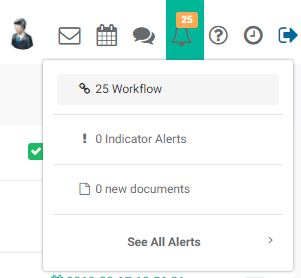
Click the Alert icon to view your assigned items in the system
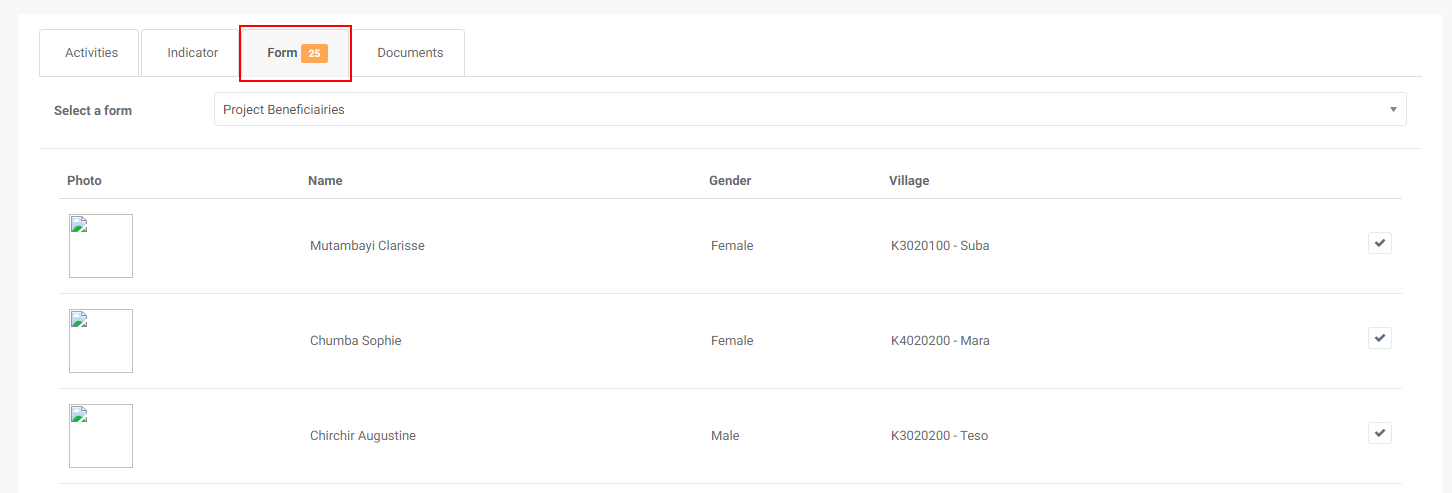
NOTE: in the example above, 25 notifications were created because the data collection form has 25 existing records in it. Regardless of where you set up workflows in Delta, the system will create every instance of an alert. In this case, the recipient of the alerts indeed saw 25 tasks pending in the Workflow section of the Alerts space.
Note also that notifications for a project will only appear once the user has clicked on the project to open it.
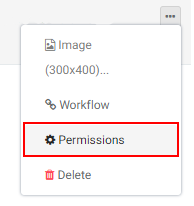
To assign permissions to a form, select Permissions from the form's More menu.
The Permissions screen will appear. NOTE: Only regular users will be shown in the list at left. Superusers do not appear on this screen since they have explicit permissions to the entire system.
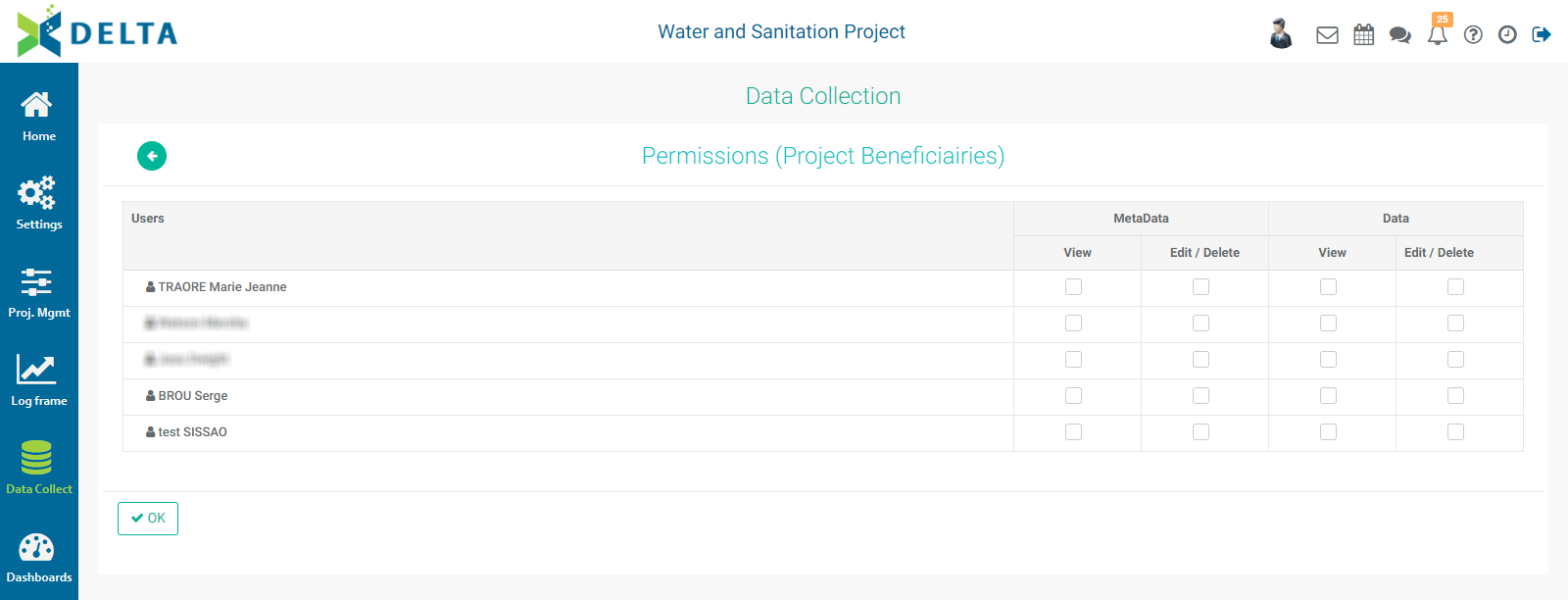
A form's metadata is its structure. Those permissions allow a user to make changes to the form itself. The form's data is the dataset of information collected using that form. Those permissions allow working with only form data.
For each user, select the permissions you want to grant. Click OK when you're done.
To delete a form, select Delete from the form's More menu, then confirm the deletion. NOTE: all data contained in the form will also be deleted.
Previous: Data Collection: Form Design | Next: Data Collection: Unique Identifiers & Skip Logic