PM: Activities: Planning an Activity
Overview
Once you have configured the activity settings, you can start planning that activity. Planning takes place from the top down, i,e. starting at the Global level (if used), then Annual, then Period. Planning information can be entered manually for each activity, or imported through the Activity Plan & Budget screen in the Project Management module.
From the Project Management module, select Activity Plan & Budget in the horizontal navigation.
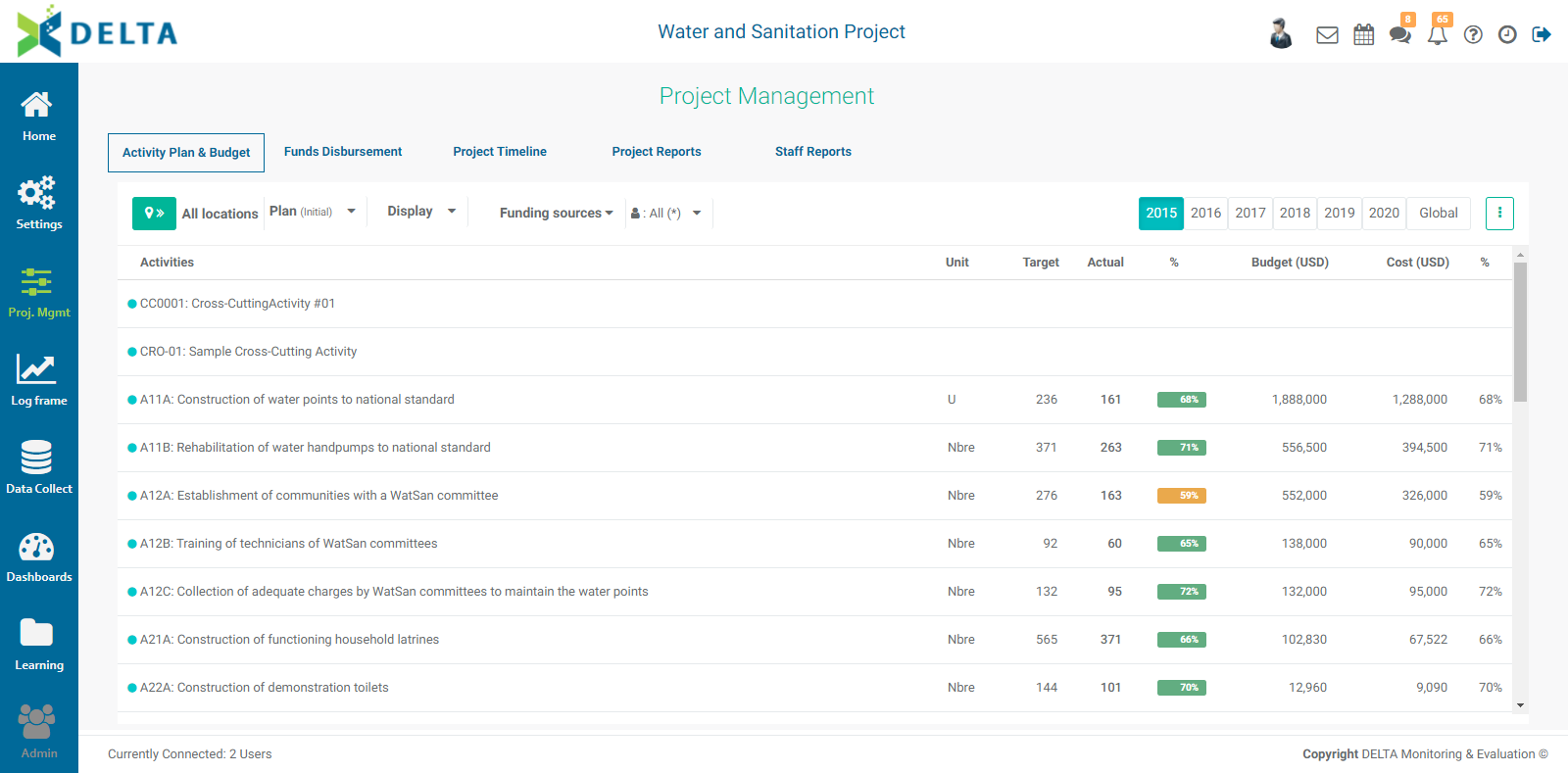
Click the activity you want to plan to open it, and select Plan from the top tier navigation.
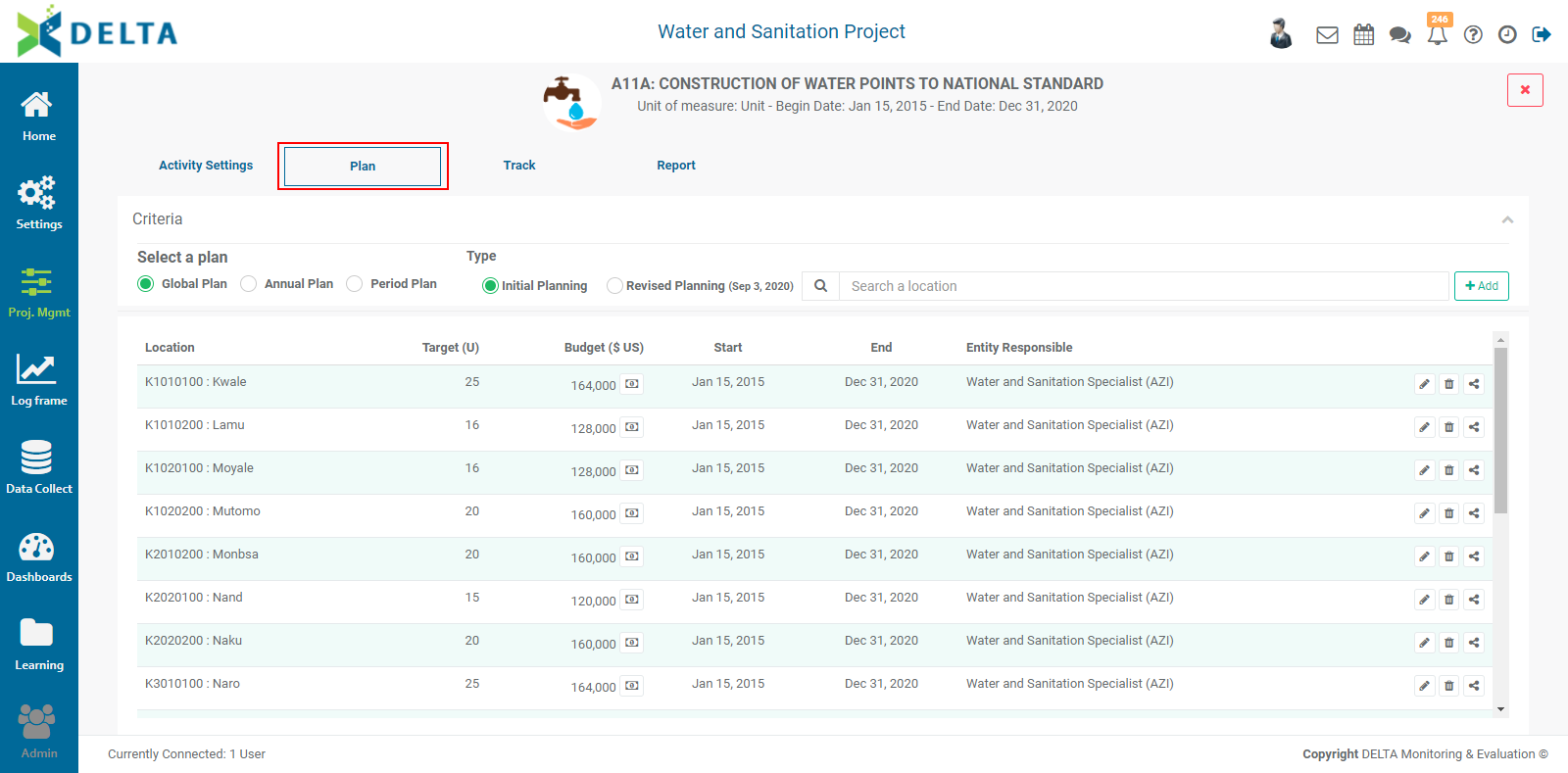
The first time you open the Planning screen to plan an activity, it will be empty. You will add the locations where the activity takes place, and plan each one on the Global (if used), Annual, and Period levels. The example above uses Global planning, and already contains planned locations.
To add a location, click the +Add button at top right to bring up the Locations popup window. The contents of this window is populated by the Locations settings at the Portfolio level. If the +Add button does not appear on the screen, make sure you're at the highest level of planning for your project, either Global or Annual. Also, make sure the Initial Planning radio button is active.
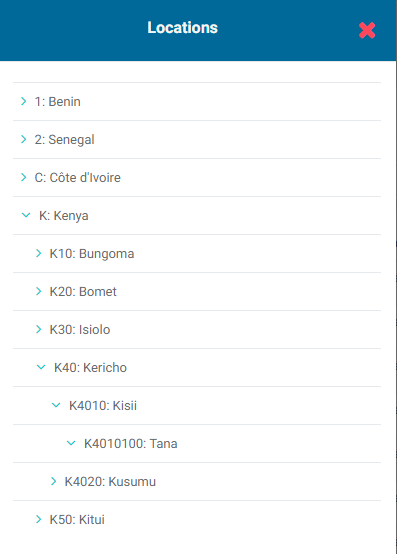
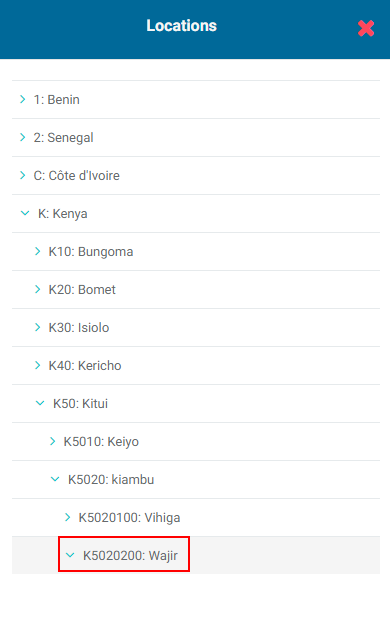
Use the carets to expand and collapse the various elements of the list. Find the location you want to use, and click it to select it. Activities (the lowest level of the log frame) take place at the lowest level of the Locations geography.
The Locations popup window will change to the Plan popup window.
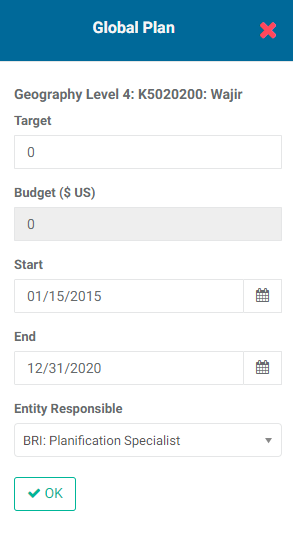
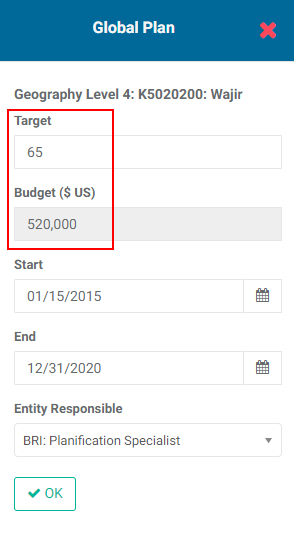
Enter the target for this activity for the entire duration of the activity within the project. If you selected Automatic Calculation: Budget & Actual Cost in the Activity Details when you configured the activity, Delta will automatically enter a budget figure based on the Unit Cost you entered in the Details screen.
NOTE: if you want to manually input budget and/or costs information, make sure you uncheck Automatic Calculation: Budget & Actual Cost. If you choose not to use Delta to track financials, you should also leave those options unchecked. You may also automatically track budget but not cost, and vice-versa, simply by checking one box and not the other.
Note that the level of planning is displayed in the popup window title bar.
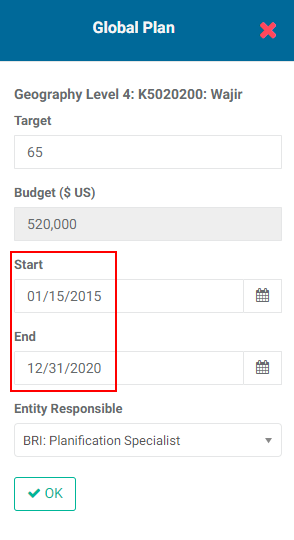
The default Start and End dates are based on the project start and end dates. If the activity will take place during the entire project, leave the default dates as is. If, on the other hand, the activity will only take place during a specific duration in the project timeline, select the correct start and end dates for the activity.
Enter the person or entity responsible for the activity. The pick list is populated by the Stakeholders you entered in the project Settings module.
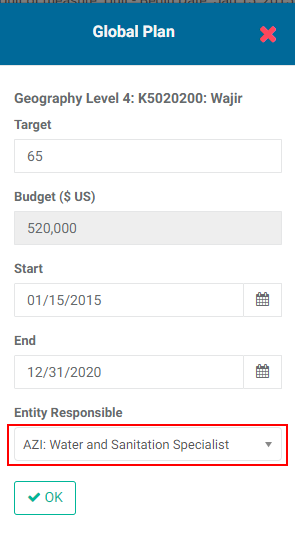
Click OK when you're done to save your work and return to the Plan screen. The location you just added will appear on the page. NOTE: locations are sorted alphabetically/numerically by Location code. You may need to scroll to find your new location.
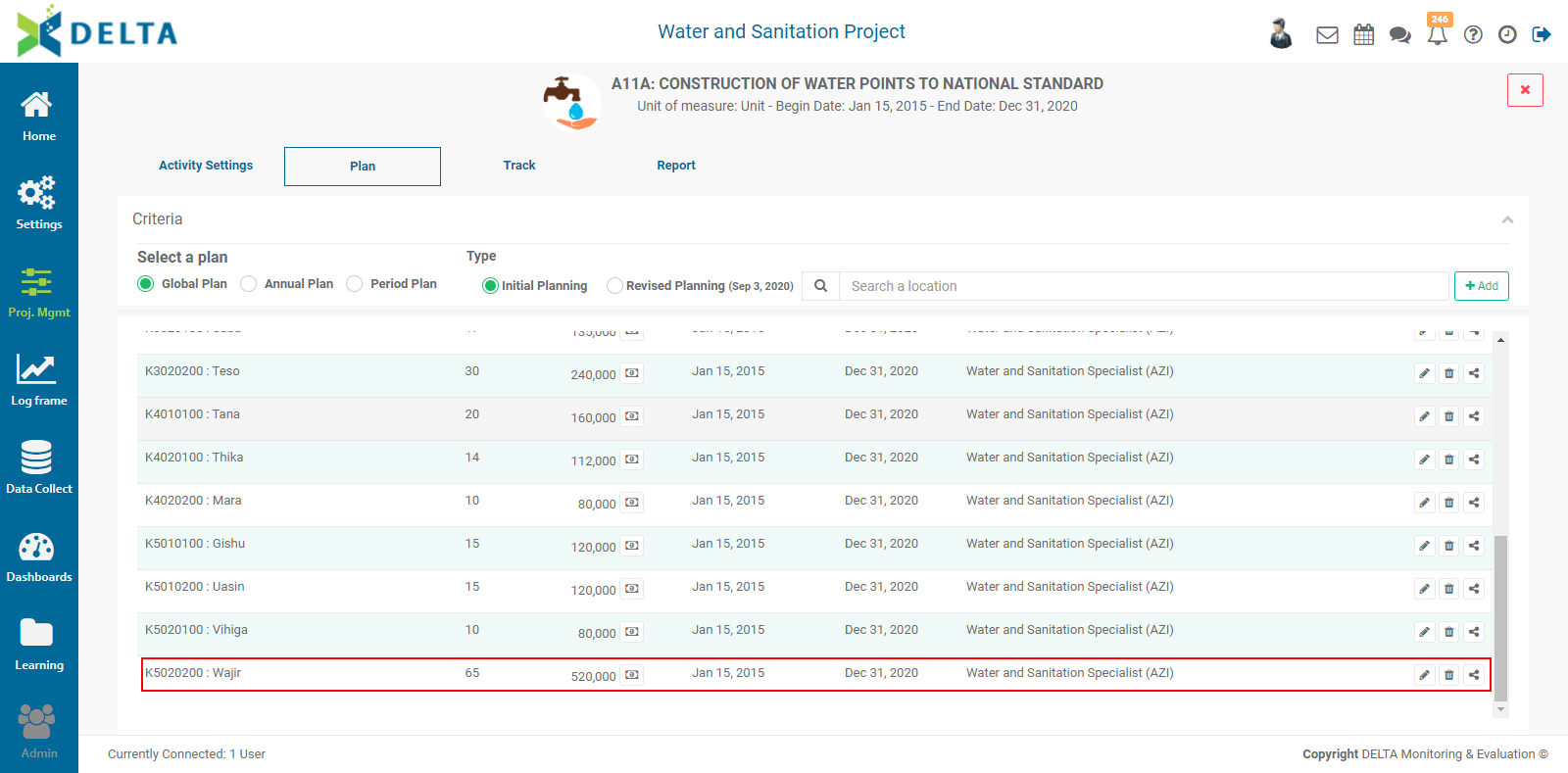
You’ll notice a dollar icon next to the Budget figure. Click on it to enter the distribution of the budget. This functionality allows you to allocate the budget to the various funding sources (Portfolio settings) and budget categories which were entered in the Settings module. This gives you very fine-grained control over budget, cost, and financials reporting.
To edit the budget distribution for an activity, click the Dollar icon next to the Budget figure to open the Distribution popup window.
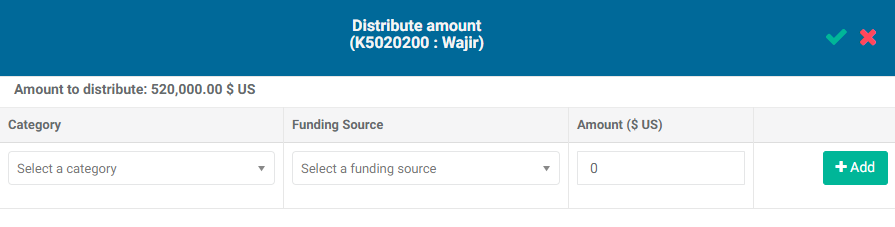
The amount to be distributed appears at top left. The sum of all distributions to the funding sources and categories must equal this figure, or the system will return an error.
Select the budget category and the funding source, and enter the appropriate amount.
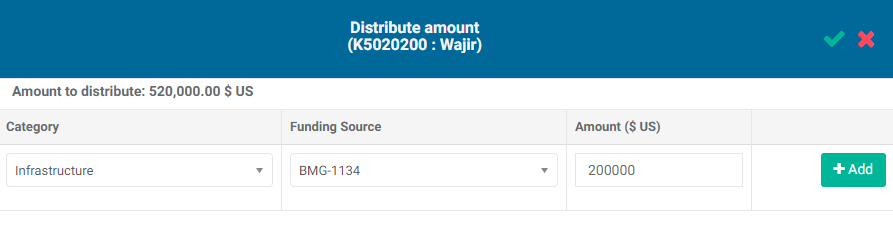
Click the +Add button to save this allocation. The saved allocation will appear at the bottom of the popup window.
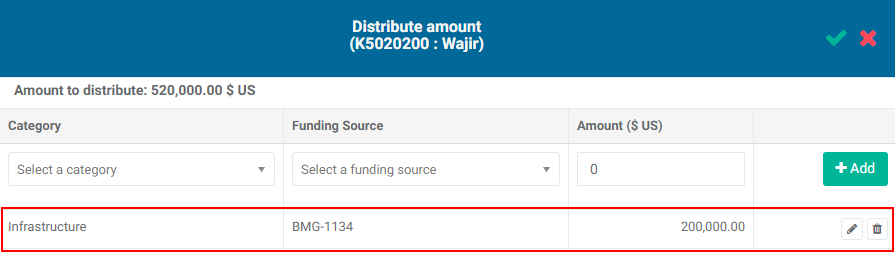
Click the allocation’s Edit icon to make any changes. Click the small inline checkmark to save your changes. Click the Delete icon to delete the allocation.
Repeat the steps above until the entire amount has been distributed. Delta displays a running total as you enter each allocation.
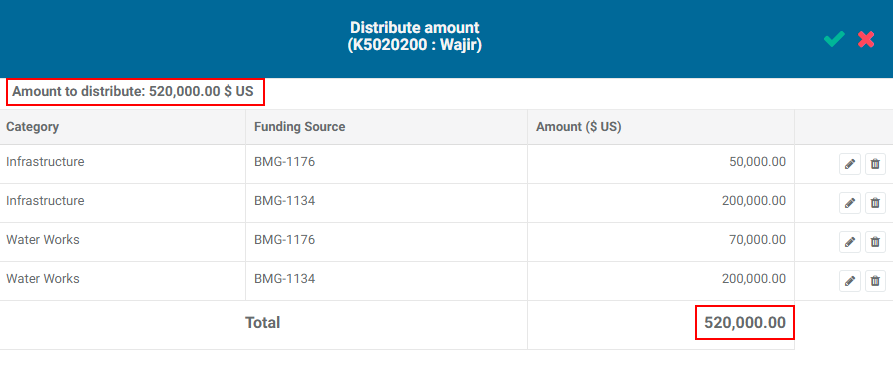
When the amount has been distributed, click the checkmark in the Distribution popup window title bar to save your work and return to the Plan screen.
Using this functionality is optional; however, it affords a lot of flexibility and refinement in tracking budgets and actuals.
Each activity location has its own toolbar: Edit, Delete, and Share. To edit an activity location, click its Edit icon, make the necessary changes, and click OK to save your work and return to the Plan screen. To delete a location, click its Delete icon and confirm the deletion.
To share an activity location, click its Share icon to open the Share popup window. Entering a comment in the box enables the Share With button. If you need more space to enter your comment, click, hold, and drag the three small lines at botton center of the Comments box to resize it.
Click the Share With button to select the recipients. All recipients are selected by default. Selected recipients are highlighted. Click OK to share the item. Recipients will get a notification in the form of a numbered badge on top of their Chat icon in the main toolbar.
Whenever you work in activity planning, you have to keep an eye on three things: which level of planning you’re working with, which specific year and period you’re entering information into, and whether you’re using Initial or Revised Planning. You start with the highest level (Global or Annual), then drill down to the lower levels (Annual and/or Period), and with Initial Planning. Use the radio buttons to switch to another planning timeline. This will allow you to refine your activity planning to more detailed levels.
If you opted to use Global Planning in your project definition, you’ll be able to plan year over year once you select Annual Planning. Once your annual planning is done, switch to Period Planning to break down your targets and budgets for each period. You’ll need to select each year and each period of each year to enter all the planning information. NOTE: you will not be able to enter period planning for a given location until you’ve entered your annual planning. If you’re using global planning, you’ll need to complete it before you can enter annual planning for a given location.
Click the Annual Plan radio button to switch to that level of planning. Locations which have not been planned at the Global level (if used) will not appear on this screen until Global Planning is completed. Locations which have yet to be planned for a given year will appear on the screen, but will not contain any targets or budget information.
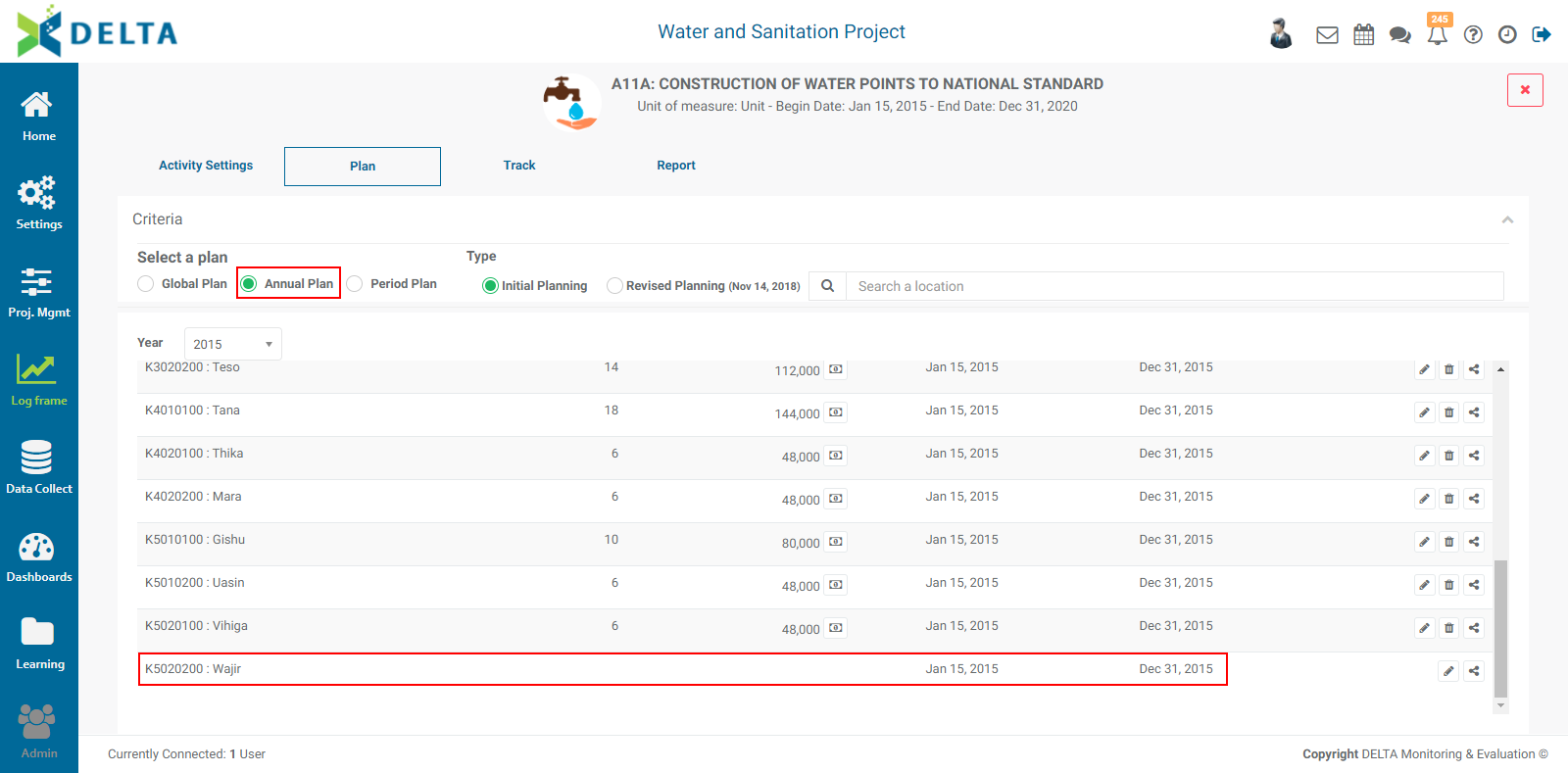
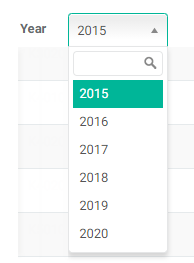
Select the appropriate year for which to enter planning data from the pick list at top left. You can plan years in any order, but a year must be planned for Period Planning to be available for that year.
Click on the activity location's Edit icon to open it, and enter budget and cost information for that location and year.
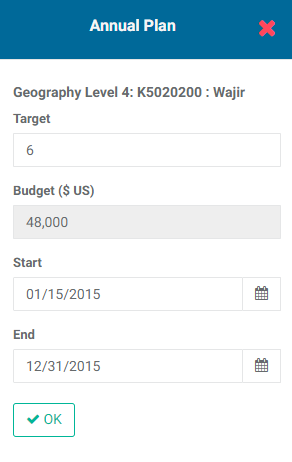
The default Start and End dates are based on the fiscal year. In the example above, the fiscal year is the same as the calendar year. Fiscal years are set in the M&E settings screen of the project definition. Adjust the dates as appropriate. Click OK when you're done to save your work and return to the Plan screen. The target and budget for the activity location will appear, once again sorted by alpha/numeric order of log frame code.
Since this example used Global Planning, part of the allocation information is already populated when you click on the location's Dollar icon to enter its distribution.
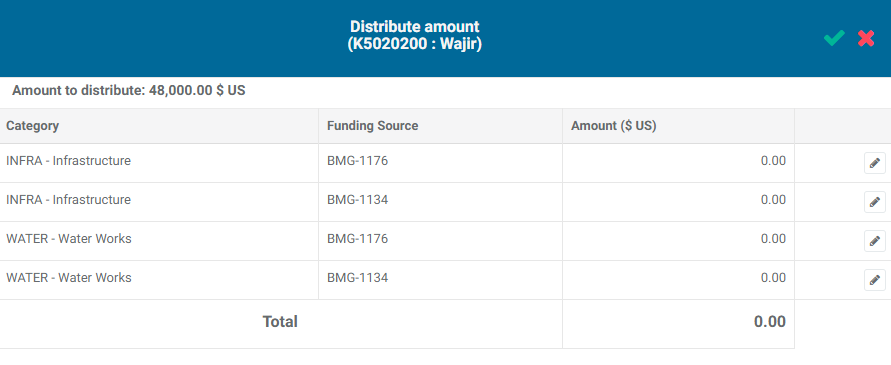
The amount to distribute is displayed at top left. As long as the distributed amount equals that figure, some line items may be left blank; for example, if one funding source will not contribute to this activity at this location for the selected year, its line item distribution can be set to zero.
Click each line item's Edit icon to enter the appropriate amount for the funding source and budget category, and click its checkmark when you're done to save the item. Repeat until the amount has been distributed.
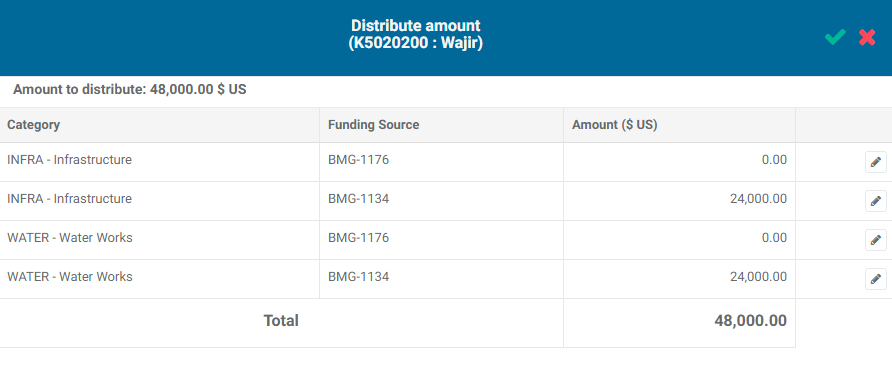
Click the checkmark in the Annual Planning popup window to save your work and return to the Plan screen.
To enter Period Planning, click the radio button for that level, and select the year and period for which you want to enter planning information. Periods are determined by the M&E settings you entered when you created the project.
The steps to enter Period Planning are the same as for the other planning levels. As a best practice, we suggest planning all the periods of a given year for a given location at the same time, but you can proceed however you see fit.
At the highest level of planning (Global or Annual, depending on your project definition), you can also enter revised planning information. Revised planning information allows you to save changes made to planning on a given date.
To enter revised planning information, verify that you’re at the highest planning level, and click the Revised Planning radio button.

Click the Edit icon next to Revised Planning to select the date of the revised planning. Click the calendar icon and navigate the calendar to select the date, and then click the checkmark to save your work. The date you selected will appear next to the Revised Planning.

Click on the Edit icon of every location to enter revised planning. Click OK for each popup window when you’re done, and edit the next location.
NOTE: Revised Planning is only available at your highest level of planning.
Previous: PM: Activities: Configuring an Activity | Next: PM: Activities: Tracking an Activity