PM: Project Reports: Widgets
The fourth and last type of Activity Custom Report is Widget. Widgets contain a single data element. From the Project Management module, click the Reports tab, then click the +Add button at top right, and select Widget from the menu.
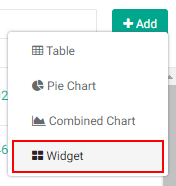
The Custom Report - Widget popup window will open.
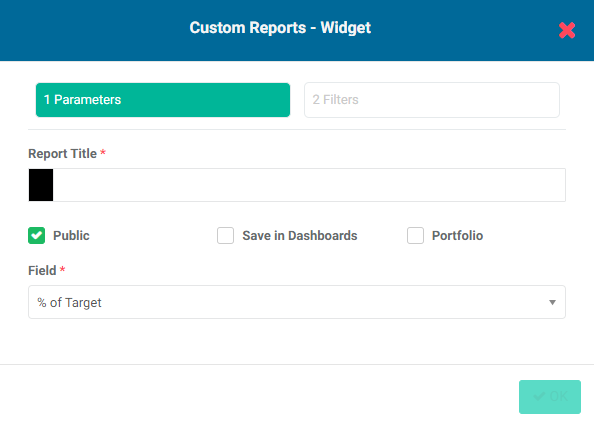
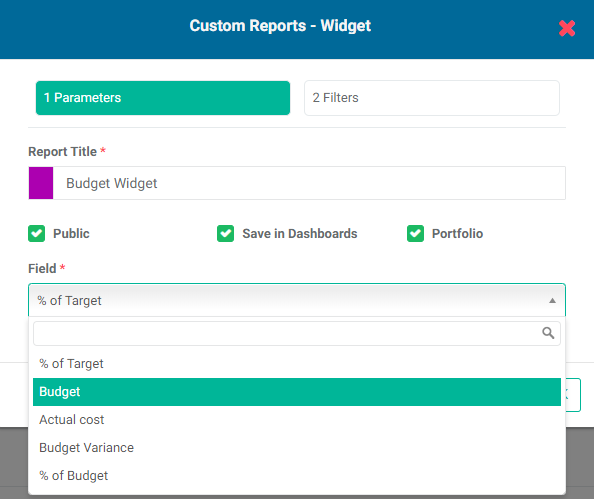
Enter a name for the report in the Report Title field.
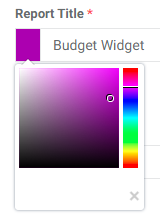
The default color for the report icon is black. Select another color by clicking on the color block to the left of the Report Title box to bring up the color picker.
Checking the Public box makes this report available to anyone. The Public option throughout Delta publishes selected project information to the Portal - the Delta login page - for access by anyone with the URL to the portal. This functionality is described in detail in Accessing Delta: Delta's Public Portal.
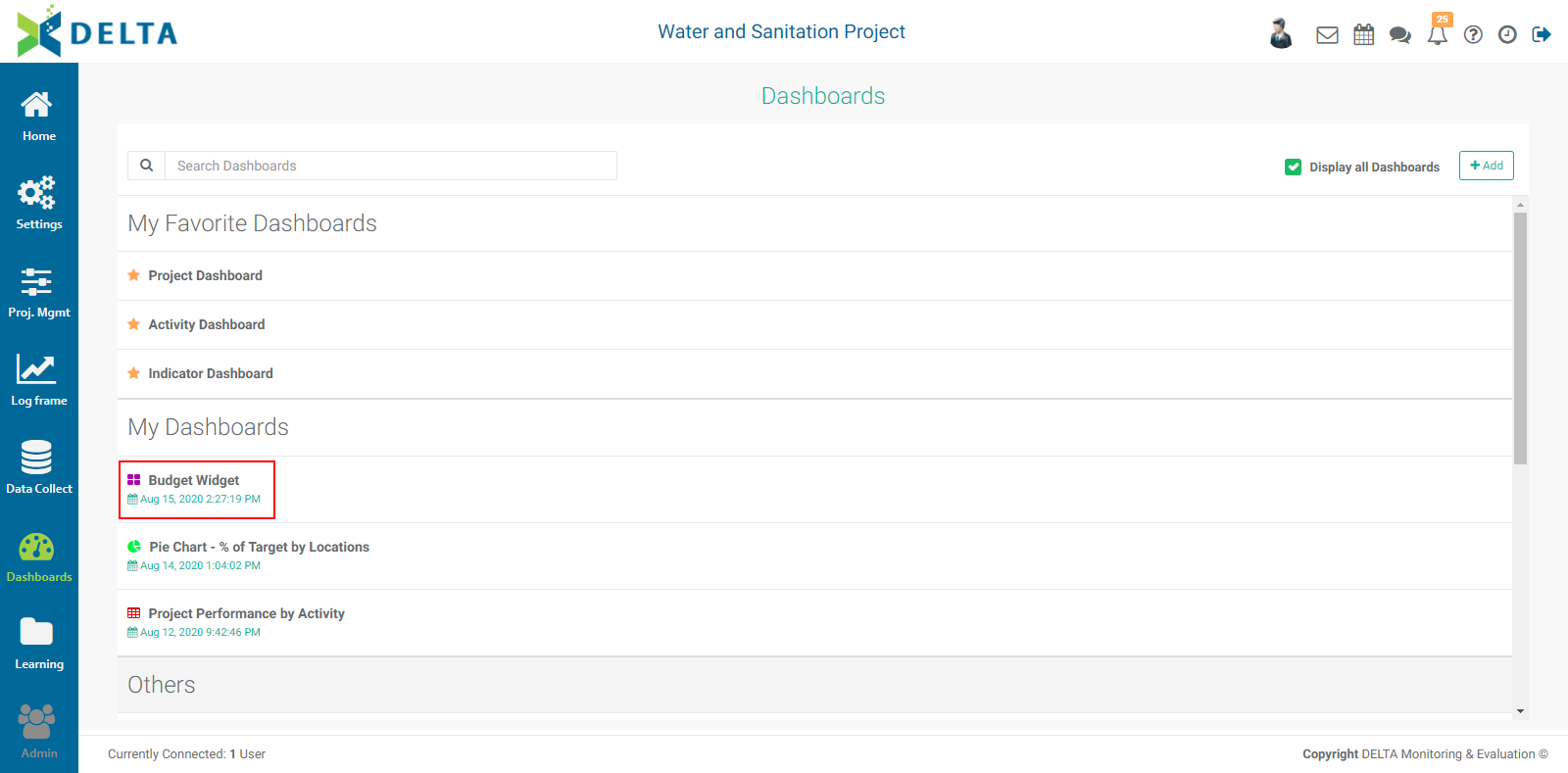
Checking the Save in Dashboards box will show this report in the Dashboards Module. It will appear in My Dashboards for you, and in Others for other users, who will then be able to add this report to their own dashboards.
Checking the Portfolio box will make this report available at the Portfolio level. The reports' names appear in the Portfolio Dashboard pick list, sorted by project and type (Activities, Indicators, Forms), and can then be used for multiproject dashboards. NOTE: all project reports are automatically available to be added to project custom dashboards.
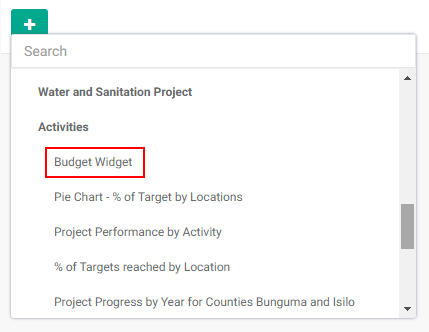
Select the single data point you want the widget to display from the Field menu.
Click OK to save your work and return to the Reports tab of the Project Management module. The new report will appear at the top of the list.
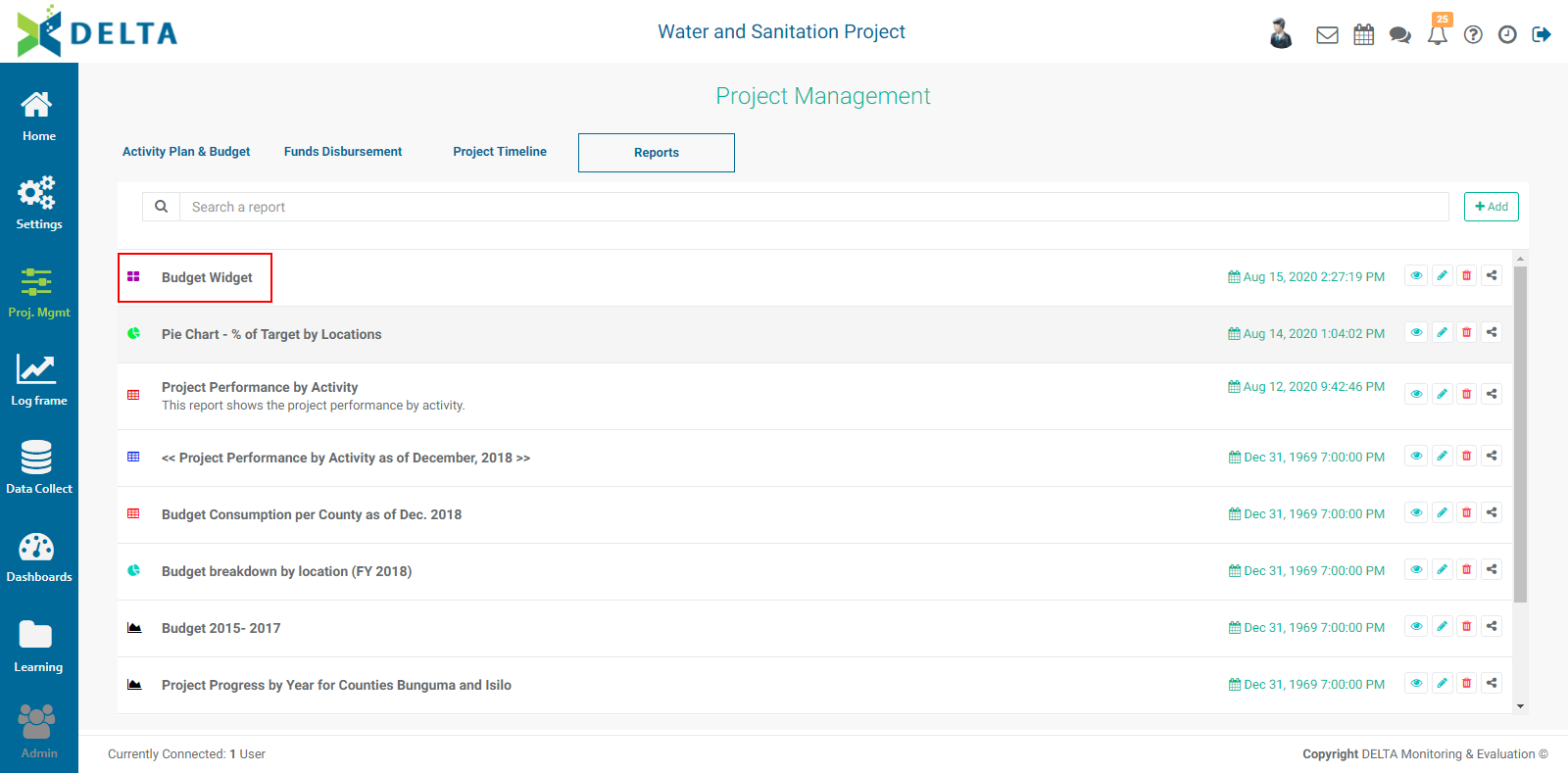
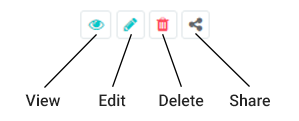
Reports are sorted by most recent first. They also feature a timestamp, and a toolbar with the following icons:
To view the report, click its name in the list, or click its View icon.