Main Toolbar: Chatroom
The Chatroom area allows teams to send public messages to other team members, and to share items from various screens in Delta, including reports and dashboards.

Any item which features a Share icon can be sent to the Chatroom.

For example, if you add a comment to an indicator's Actuals and click the Share button, Delta will display a list of recipients from which to choose. Recipients will be notified with a dot on top of the Chatroom icon in their Main Toolbar to indicate new items are waiting to be read. NOTE: shared items in a project will only appear from inside that project. Shared items at the Portfolio level will likewise only appear on the Portfolio Main Toolbar.
NOTE: unlike My Messages, threads and conversations in the Chatroom are visible to everyone (items at the Portfolio level) and to everyone in a project who has sufficient permissions to access that project. In comparison, My Messages items are addressed only to the recipients you selected.
Comments in the chatroom are timestamped and threaded, and show the originator. Reply to a comment by entering text in the Reply (Write Comment) field under the comment you're replying to. Click the checkmark when you're done. The reply will appear under the associated comment.
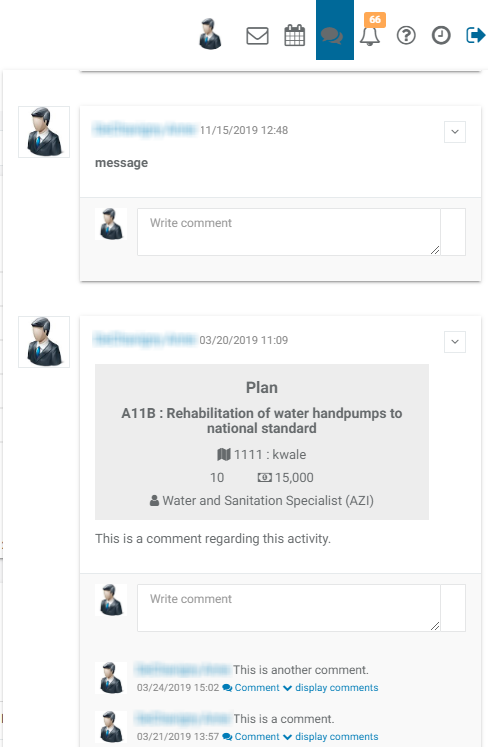
Click the +Add button to create a new comment from scratch. The text editor is the same one used throughout Delta, and features a full complement of tools.
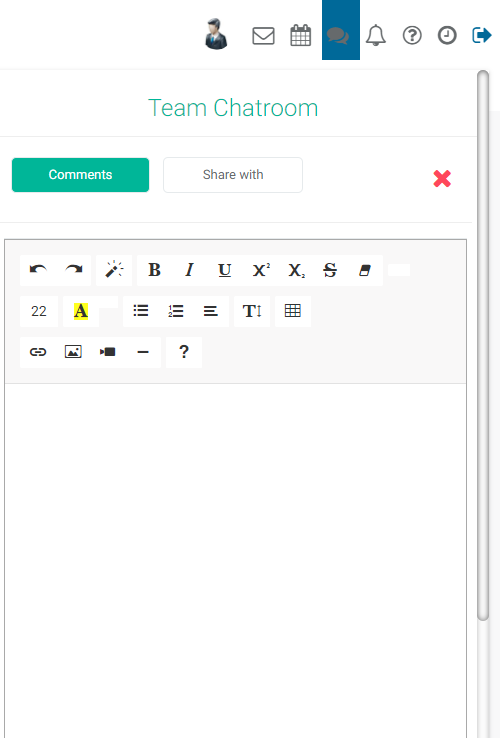
When you're done with your message, Click the Share With tab and select the recipients.
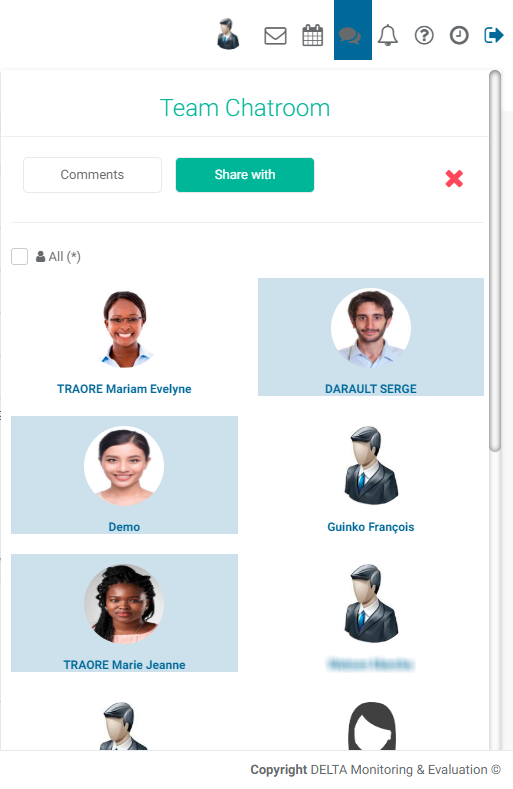
When you share an item, notifications will appear as a dot on top of the Chatroom icon in the main toolbar, accessible from any screen inside Delta. Recipients can reply by clicking on the Chatroom icon, scrolling to the message they wish to reply to, and entering their reply in the text box. Conversations are threaded (displayed by topic in the order in which they are posted), tracked by commenter, and timestamped.
As mentioned above, shared items in a project will only appear from inside that project. Shared items at the Portfolio level will likewise only appear at the Portfolio level.
To dismiss the chat window, click on the Chatroom icon again, or on the X at top right of the Chatroom window.
Previous: Main Toolbar: Calendar/Agenda | Next: Main Toolbar: Alerts