Indicators: Track Actuals
Overview
Once targets have been set, the indicator can be tracked. The tracking method depends on which data source you selected when you set up the indicator: Direct Entry (manual), Calculate from a Formula, or Populate from a Data File. The examples below assume that Direct Entry was selected. When either of the other two methods are used, the Indicator Track Actuals screen will feature a Data Entry icon instead of allowing manual entry.
Manually entering actuals into an indicator is straightforward. Click on the indicator to open it and select the Track Actuals tab. Delta will display all the elements of the geography list for which planning information was entered. If you don't see the information you entered in the Set Targets screen, make sure you have selected the correct year and period.
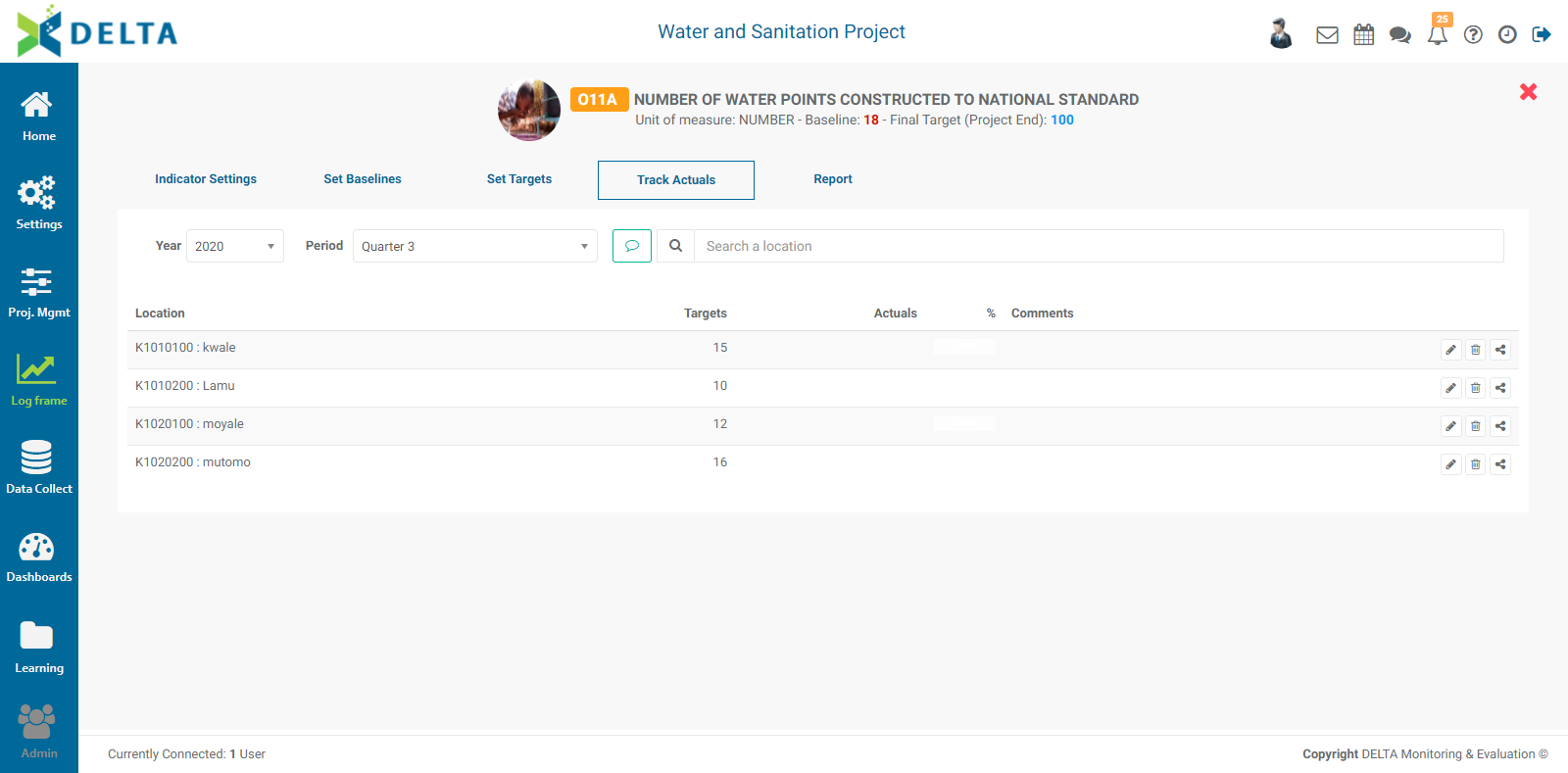
To input actuals, click on a location's Edit icon to bring up the Indicator Actuals popup window. Keep in mind that the content of the window will differ slightly from the example below, depending on whether disaggregation categories were used, and whether tracking budgets and costs was enabled. When disaggregation categories are used, you'll need to break down the actuals for each disaggregation category in a way similar to setting targets.
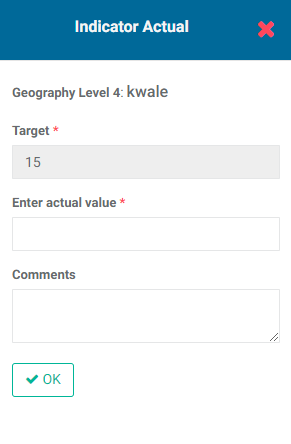
Enter the actuals for the location, a comment if warranted, and click OK to save your work and return to the Track Actuals screen. The new information appears in the list, along with performance data based on the targets you entered. The colors of the performance markers are based on the Flag colors you set in the project's Settings module.
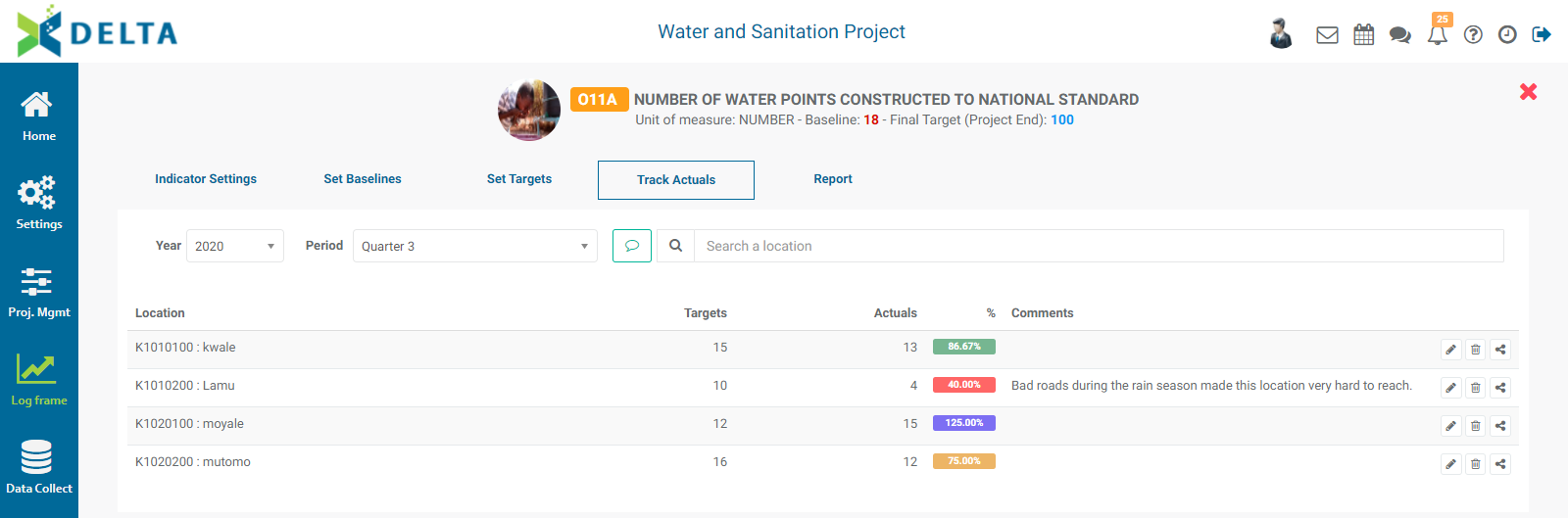
Once actuals data have been entered, you can review the indicator's performance in the Reports tab.
Previous: Indicators: Set Targets | Next: Indicators: Built-In Reports