Forms Analytics: Table Reports
All forms analytics functionality has been consolidated in the Data Collection module, under Analyze & Report. There are five types of Custom Reports for data collection forms: Table, Pivot Table Reports, Pie Chart Reports, Mixed Charts Reports, and Map Reports.
To create a report for a data collection form, select the form in the list, then click Analyze & Report to go to the analytics list screen. NOTE: if no reports have been created, the page will be blank.

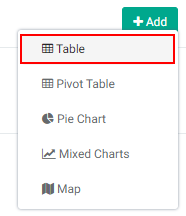
Table reports are similar to an ordinary Excel spreadsheet. To create a new Table report, click on +Add at top right, and select Table from the menu.
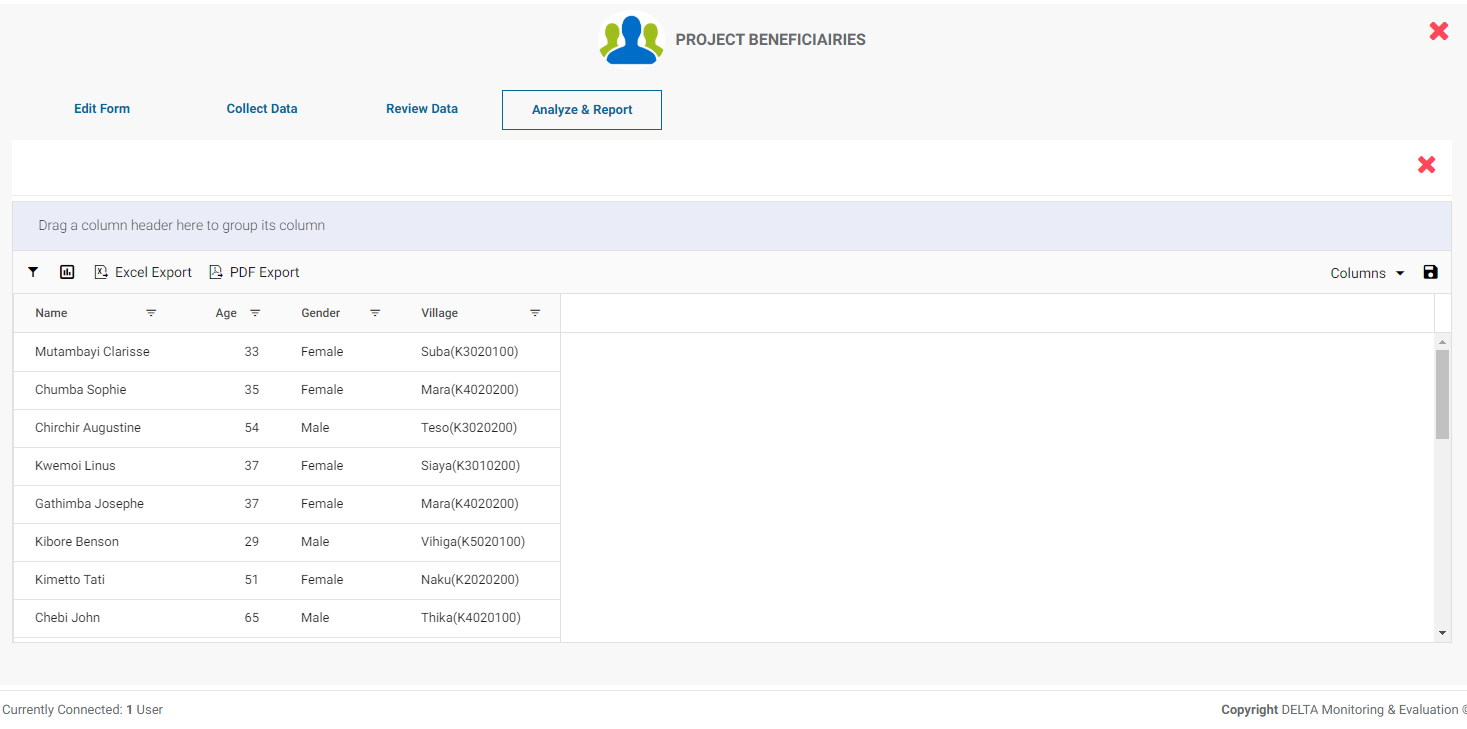
When you first create an analytics report, all the data in the data collection form is displayed.
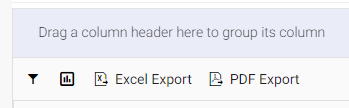
The toolbar for analytics is located at top left of the data area: Filter, Graph, Excel Export, and PDF Export.
To add a filter to a analytics report, click the Filter icon to bring up the Filter popup window.
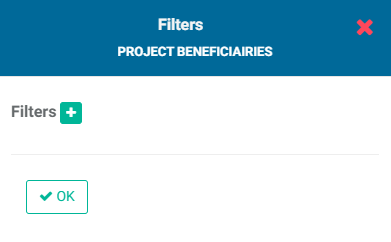
Click the + button to add a filter. The Filters popup window will appear.
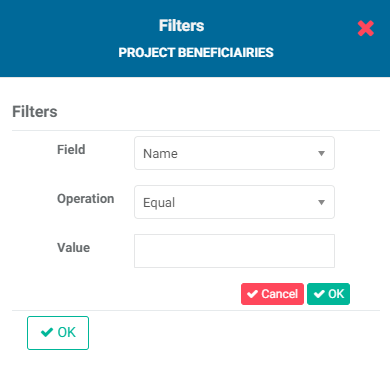
Select the field, operation, and value you want to assign to the filter. Click the OK button (the one next to the Cancel button) to save your work. The filter will be displayed in the Filters popup window.
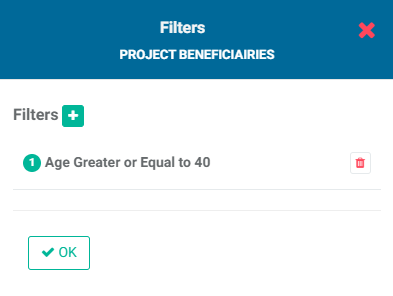
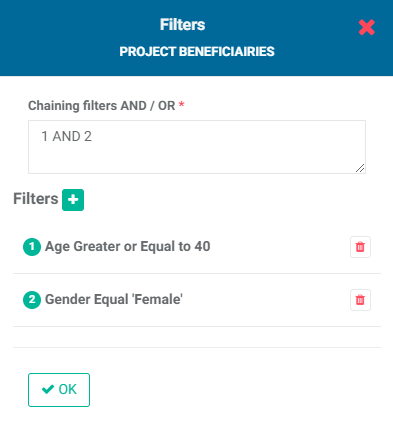
You can add as many filters as are needed. If you create more than one filter, you also need to add logic for the system to know how to handle multiple filters. The logic is simply AND/OR, and the correct syntax uses the number of the filter. In the example below, the logic is 1 AND 2, so both conditions must be met. The AND operator requires that all conditions must be met, while the OR operator requires that at least one condition must be met.
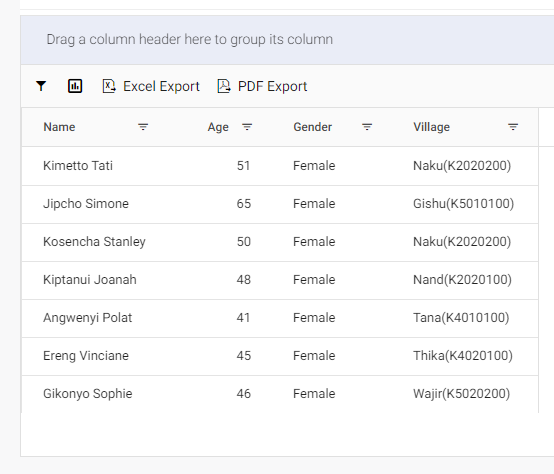
Click OK to save the filter. Only the data which conforms to the applied filter is displayed.
To edit or delete a filter, click on the Filter icon and make the necessary changes.
The Chart icon in the toolbar allows you to graph your data on the fly. This is a shortcut to the Mixed Graphs and Pie Chart custom reports. These are described in detail in the Mixed Charts Reports and Pie Chart Reports articles.
Delta supports exporting data collection forms analytics reports in two formats: Excel and PDF. Click on the Excel Export button to export the current state of the table data to Excel. Any filters currently in use will be taken into account in the export.
Click on the PDF Export button to export the current state of the table to PDF format. Any filters currently in use will be taken into account in the export. Graphs will be exported along with tables.
You can group data by dragging column names to the area above the toolbar. This will display the table data in groups sorted by the various values contained in that column.
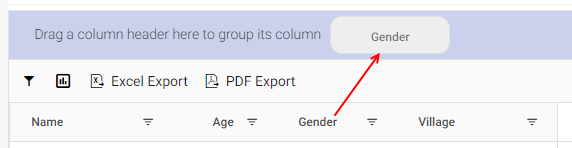
To sort records, click, hold, drag and drop the header of the column you want to use into the area above the toolbar. You can use as many headers as are needed. This in effect allows you to disaggregate your data.
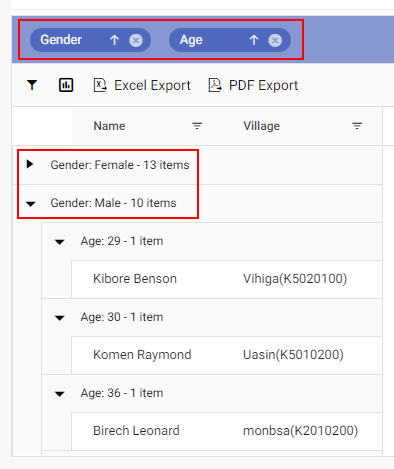
If two or more elements are used for sorting, they are taken into account in the order in which they were added to the top bar. To change the order, you must delete and re-drag the header to its proper location. Dragging within the top bar is not allowed.
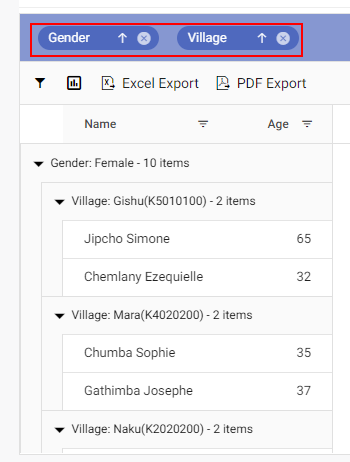
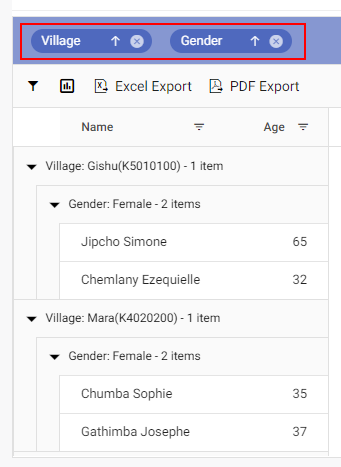
The sort parameters will appear in the table column headers, each followed by an arrow which lets your display each group in ascending or descending order.

You can also filter individual columns. Click on the three lines to the right of the column name, and select/deselect the items you want to display/hide.
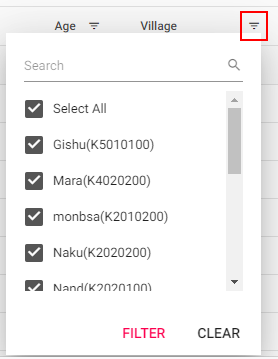
When an individual column filter is applied, the three lines next to its header will turn red to indicate a filter exists. To edit a filter, click on the three lines again, make your changes, and click Filter. To delete a filter, click the three lines and click Clear.
At the right of the screen are two more options: Columns, and Save. Columns allows the user to select which columns to display on screen. This is similar to the corresponding functionality in Excel.
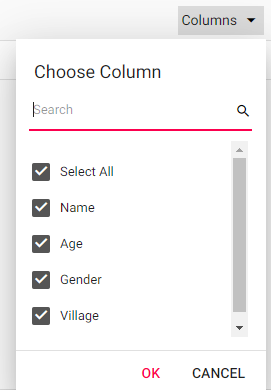
Click on the box next to a column item to show/hide that column. Click OK to confirm your selections. NOTE: any operations you perform on a table only applies to visible columns. Also, if any sorting parameters are currently in use, they will be marked as not shown in the Columns pick list.
To save a report, click the Save icon. You'll be asked to provide a title (name) and a short description for the report. IMPORTANT: you must explicitly use the Save icon to save your report. If you return to the analytics list screen without saving, your work will not be saved. That said, you can save a report even if you're not done with it, and edit it later as needed, or save another version.
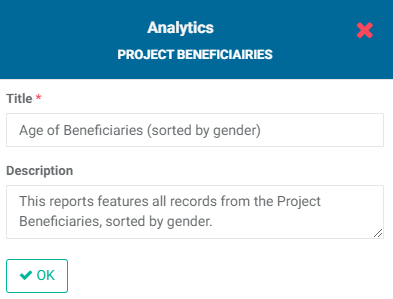
To edit the report, click on its name to open it, and make your changes. IMPORTANT: don't forget to explicitly save your edited report. To delete a report, click its Delete (trashcan) icon in the list.
Previous: Data Collection: Analyze & Report | Next: Forms Analytics: Pivot Table Reports