Project Settings: Log Frame: Using Activity Weights
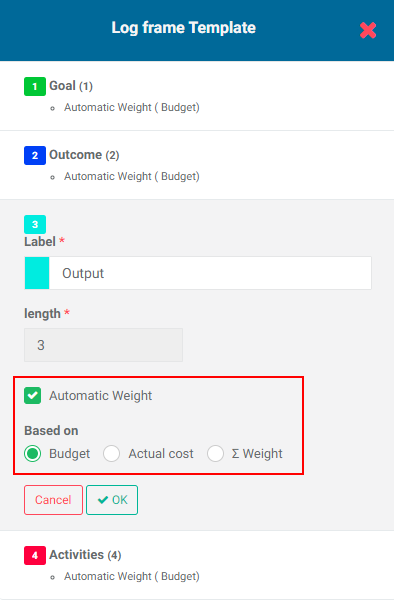
If you opted to use Activity Weights in your project definition when the project was created, you'll be able to set weights for the various log frame elements. You can tell at a glance whether the project is set to use activity weights in the Log Frame Template popup window. Log frames templates in projects where Activity Weights was enabled in the project's M&E Settings screen will feature that information in the popup window.
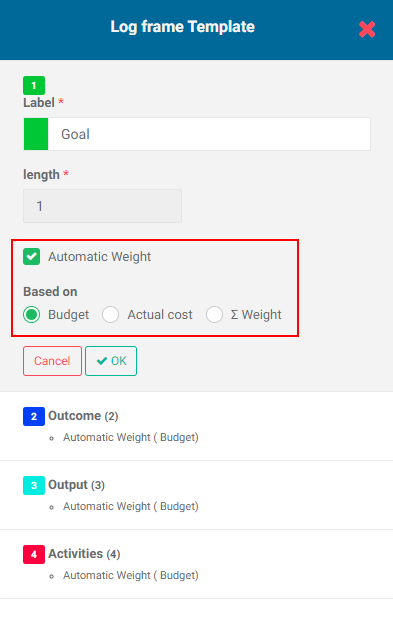
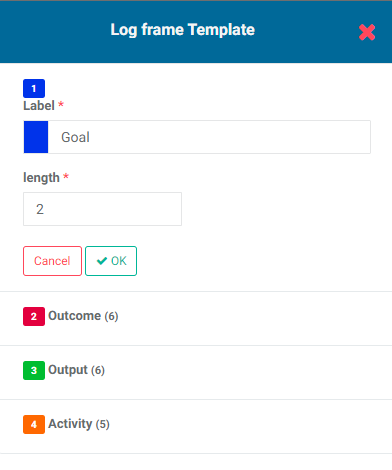
Using activity weights works from the bottom up. You first set the parameters for the weighting at the last level of the log frame, in this example, Activities. Weighting can be automatic or manual, and based on either Budget or Actual Cost.
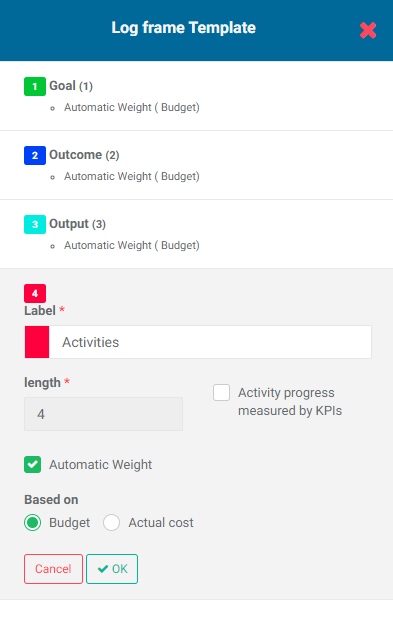
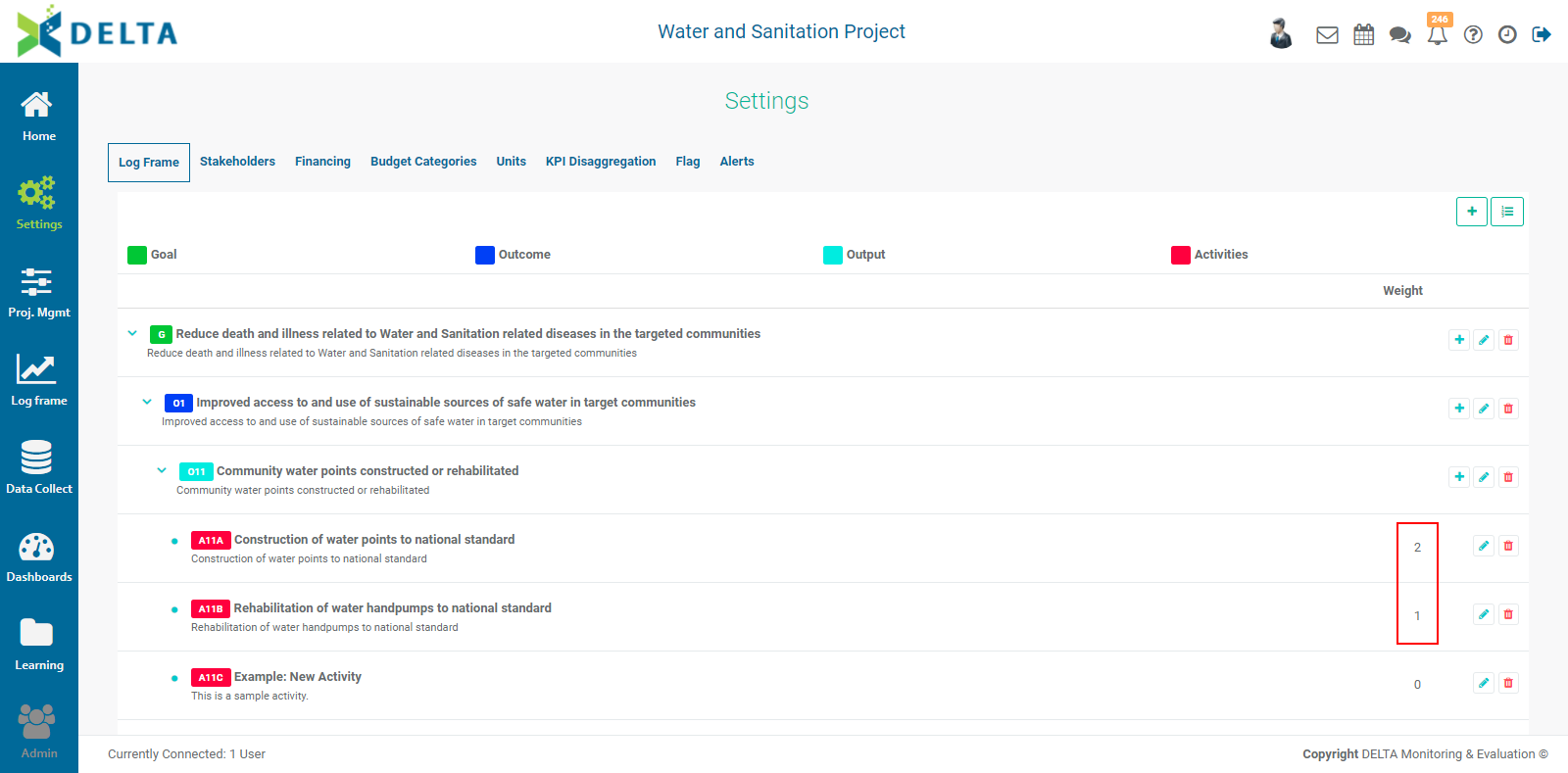
If you choose to enter activity weights manually, the Based On options will not appear, but an additional column in the log frame page will allow you to enter weights for each activity in the log frame.
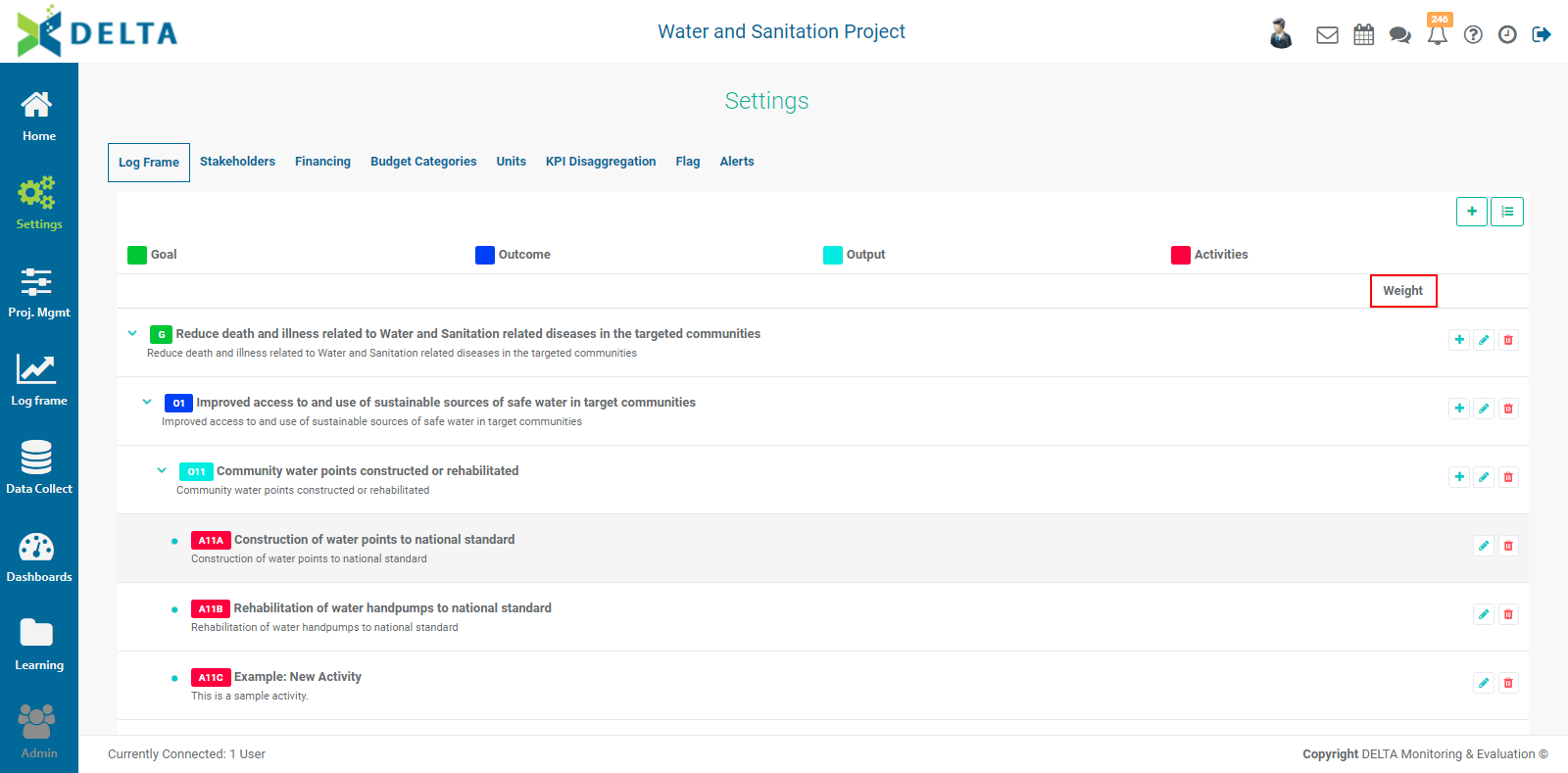
This option allows you the flexibility to set a relative weight for each individual activity instead of for the entire Activity level of the log frame, which is what selecting Automatic Weight does. For example, if an activity should be weighed twice as much as another, you can enter 2 for that activity's weight, and 1 for the other.
At higher levels of the log frame, your weighting options are the same as for activities, with an additional option to sum up the weights of the levels below the selected level. This essentially sets how the weight roll-up will be calculated for the project performance at the higher levels of the log frame.
Previous: Project Settings: Log Frame: Configuring a Log Frame | Next: Project Settings: Log Frame: Creating a Log Frame Manually