Forms Analytics: Mixed Charts Reports
The fourth type of data collection form custom report is Mixed Charts. Also sometimes referred to as Combined Graphs, Mixed Charts reports allow users to graph series, for example form data broken down by year and graphed side-by-side.
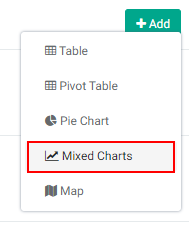
From the Data Collection module, select the desired form to open it, then click on Analyze & Reports. Click the +Add button at top right to bring up the menu, and select Mixed Charts.
The Chart Settings popup window appears.
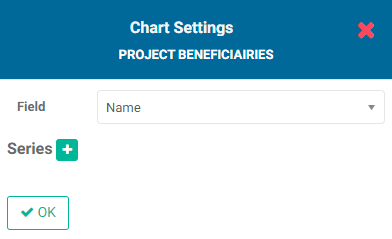
Choose the field whose data you want to graph as series from the pick list. This is the data which will populate the X axis of the graph.
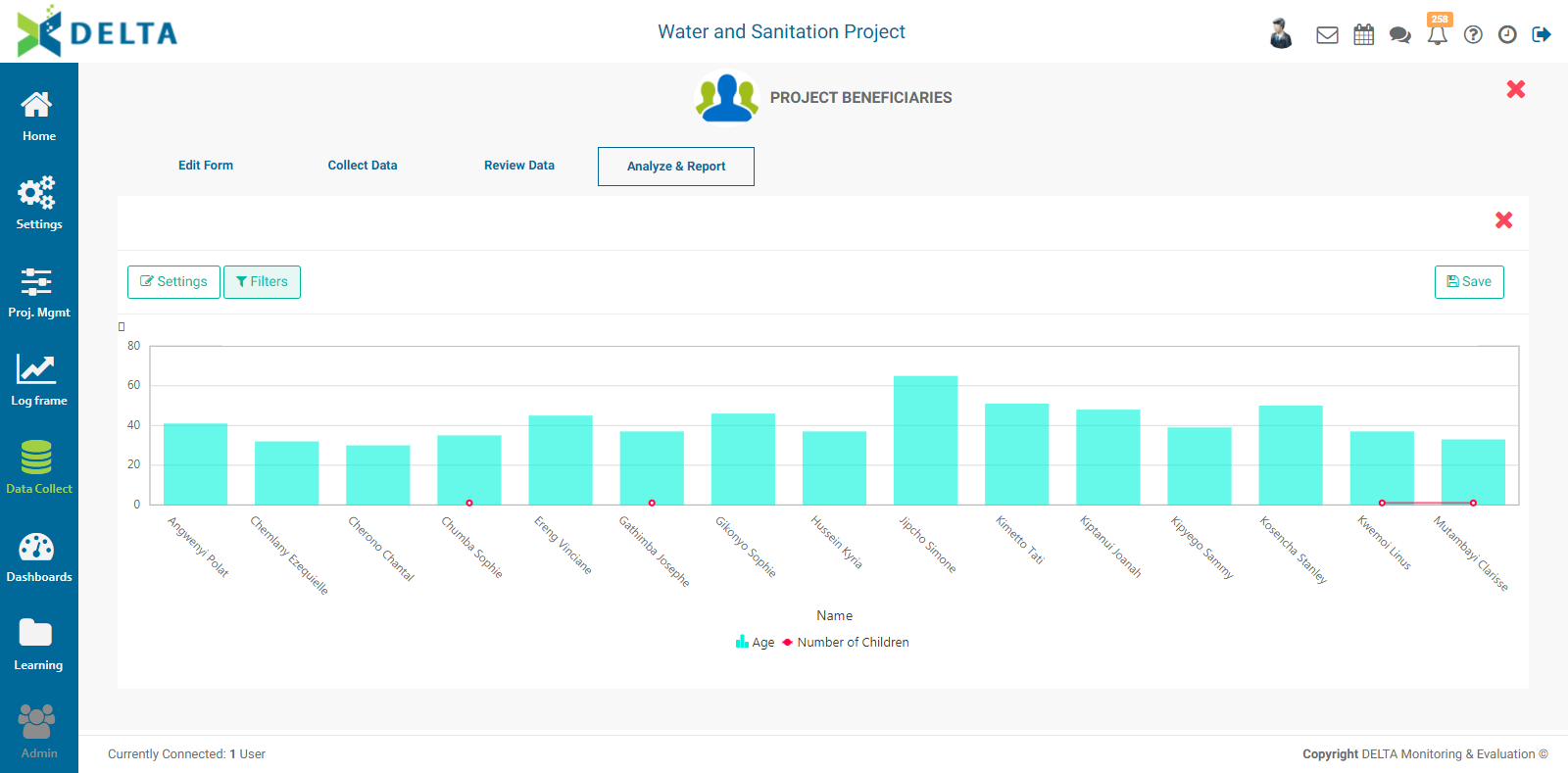
In the example below, we are graphing the age of each beneficiary and the number of children they have, based on the beneficiary's name. To be precise, the name will be the X axis, and the age and number of children will be shown on the graph separately.
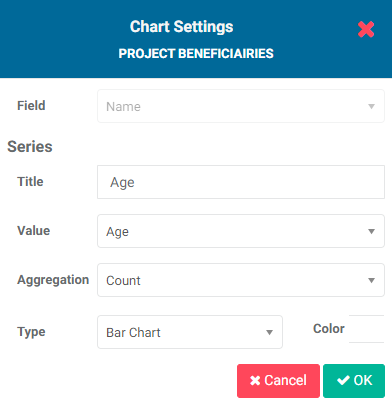
The aggregation options are the same as they are throughout Delta: Count, Sum, Average, Maximum, Minimum, and Variance. In this particular case, since each beneficiary only has one age, the aggregation method is not relevant and can be left as the default Count.
The graphing options are Line Chart and Bar Chart. You can also use the color picker to change the color of the series. Click on the color block next to the report title and select the desired color.
Click OK when you're done. Your new series will appear in the Chart Settings popup window.
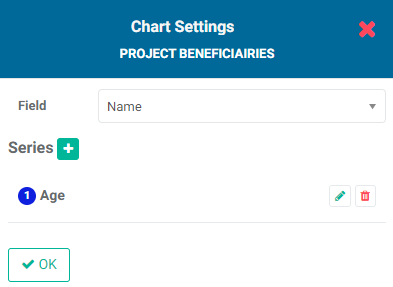
To add another series, click the + button. The second series in this example is the number of children of each beneficiary.
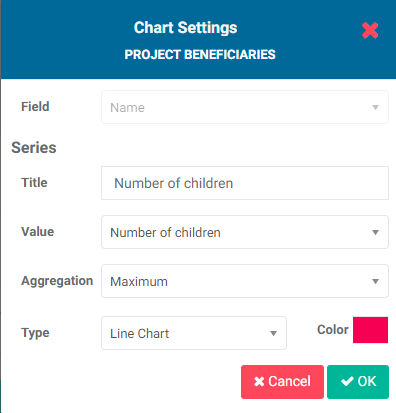
Click OK after adding each series. They will appear one by one in the Chart Settings popup window.
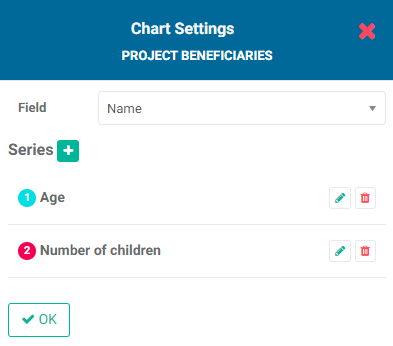
When you're done adding all the desired series, click OK at the bottom left corner of the Chart Settings popup window to close it and view your graph.
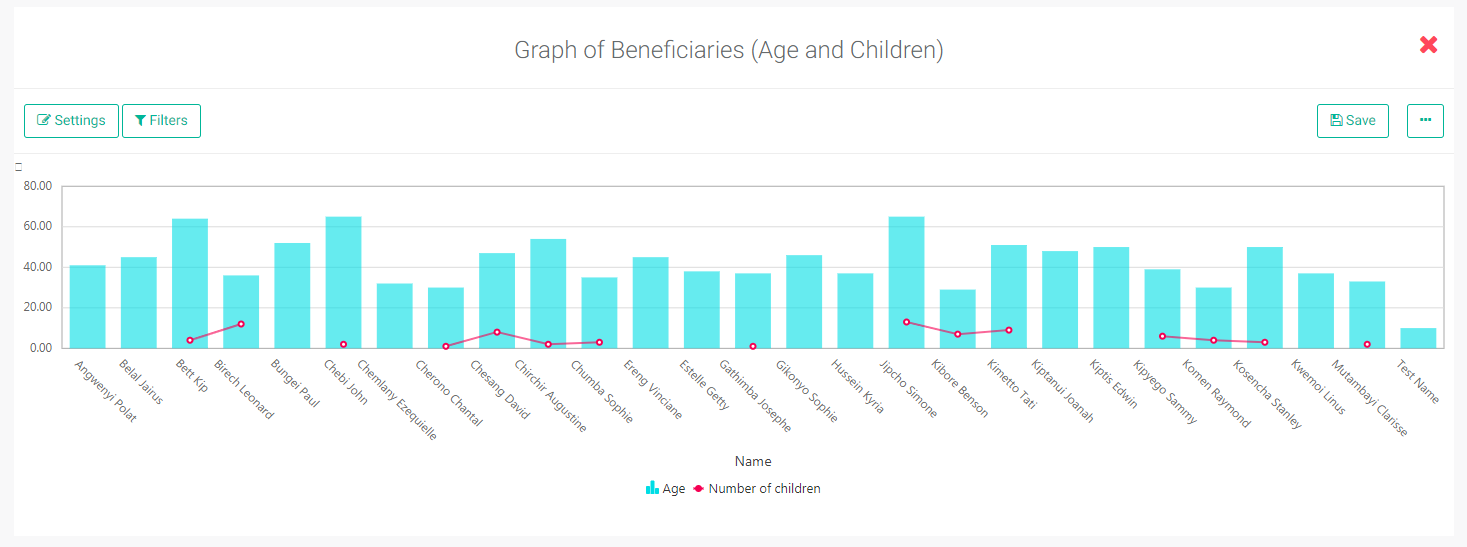
To edit the parameters of the report, open the report and click the Settings button at top left to open the Chart Settings popup window. Make the necessary changes, then click OK to save your work and return to the report.
To add filters to the report, click the Filters button at top left of the open report to bring up the Filters popup window.
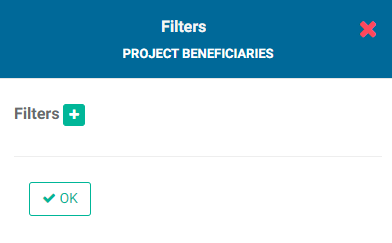
Click the + button to add a filter. Select the field whose data you wish to filter, then select the operation the filter will perform on that data.
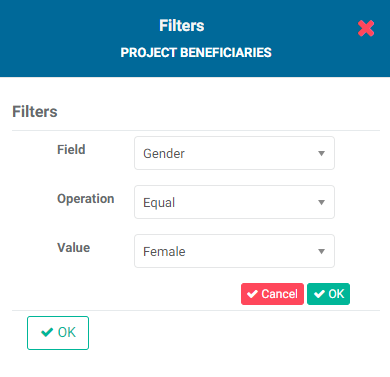
Click the small OK button to save the filter. The new filter will appear in the popup window.
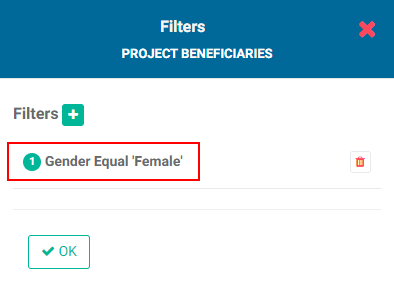
If you're done, click OK to save your work and return to the Mixed Chart report screen. The filter(s) will be applied immediately.
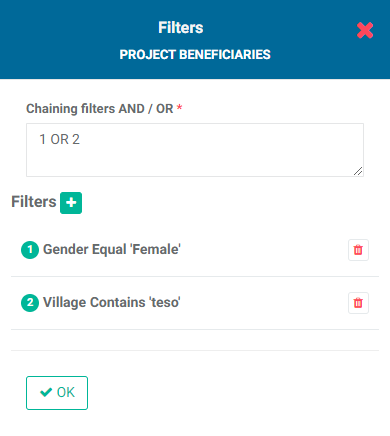
If you create more than one filter, you also need to add logic for the system to know how to handle multiple filters. The logic is simply AND/OR, and the correct syntax uses the number of the filter. In the example below, the logic is 1 OR 2, so either condition must be met. The AND operator requires that all conditions must be met, while the OR operator requires that at least one condition must be met.
To remove a filter, click the Filters button and click the Delete icon for the filter in question.
IMPORTANT: you must explicitly save the report by clicking the Save button at top right. Enter a title (mandatory) and a description (optional but recommended), then click OK to save your work and return to the report screen.
To close the report and return to the Analyze & Report screen, click the X at top right.
Previous: Forms Analytics: Pie Chart Reports | Next: Forms Analytics: Map Reports