Data Collection: Collect Data via Mobile Device
Delta features a mobile app for data collection. The app works online and offline, and can be installed on any Android device.
To install Delta Mobile, click this link.
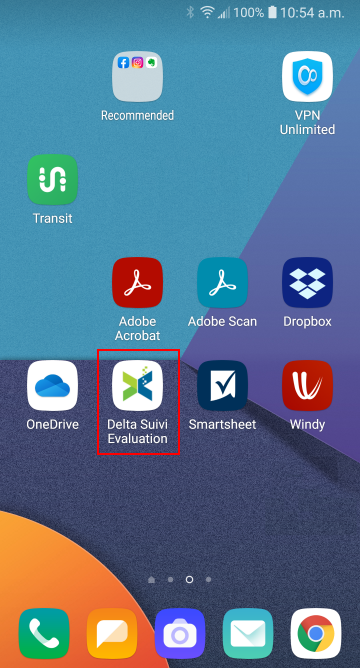
Once Delta Mobile is installed, tap its icon to open the app.
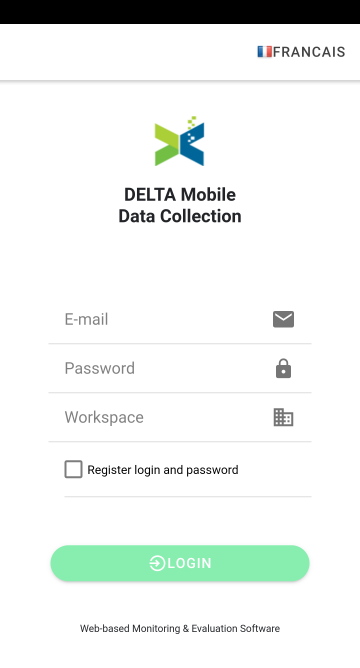
Enter your email address, your password, and the name of your assigned workspace. Check with your system administrator if you don't have those credentials. IMPORTANT: the app will only link to production (live) workspaces. The workspace is NOT the URL of the system you're connecting with.
Check the Register Login and Password box to allow the app to remember you the next time you use it, then tap the LOGIN button. The app will open with the list of projects.
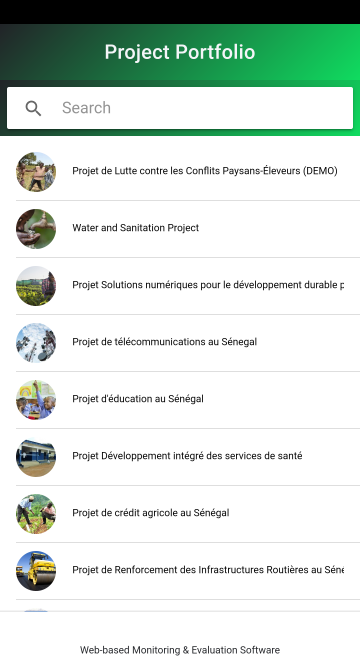
Tap the name of the project you want to work with. The default view is Data Collection. You will see a list of all data collection forms you have permissions to for the project.
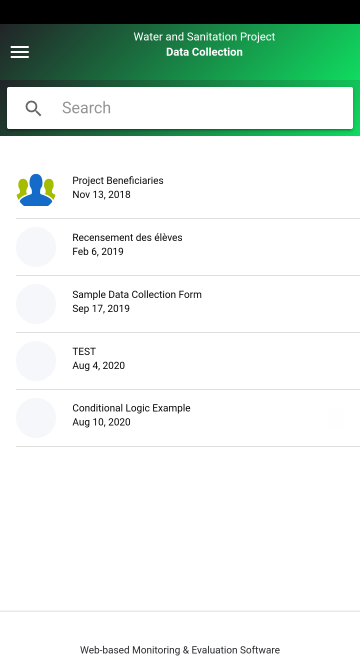
Tap the menu at top right to access the navigation menu. The menu contains four items:
- Projects List
- Activities
- Indicators
- Data Collection
The Projects List is the list of all the projects you're allowed to access via the workspace. This is the default view when you launch the application.
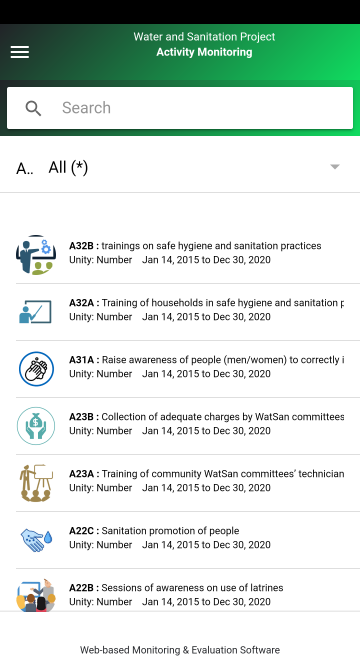
Activities shows all the activities for which you can collect data.
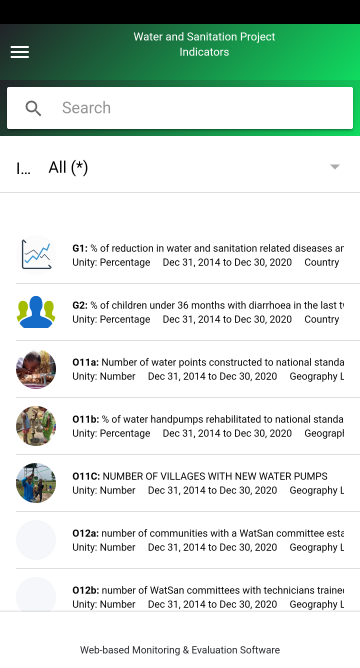
Indicators shows the indicators for which you can enter actuals.
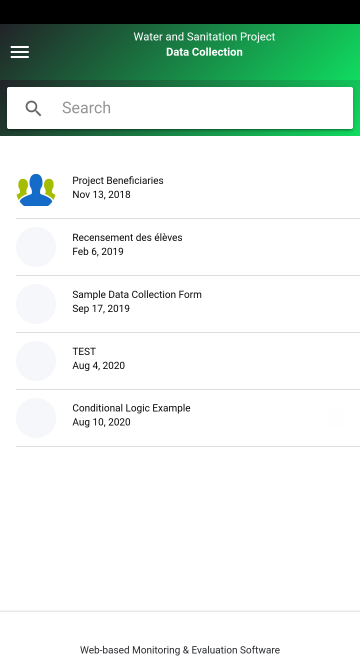
Data Collection displays all the data collection forms you're authorized to work with. This is the default view when you open a project.
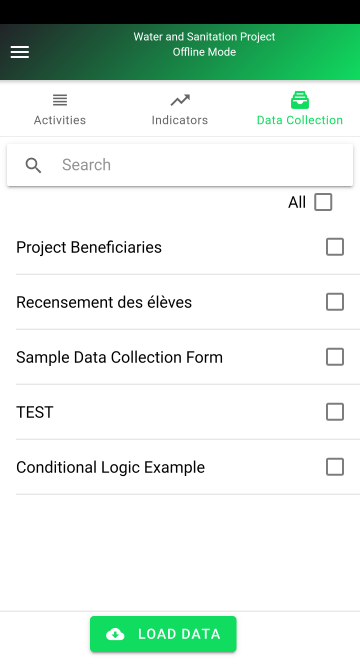
To work offline, tap Offline Mode at the bottom of the main menu screen. Select the item(s) you want to work with (activities, indicators, or data collection forms), then tap Load Data to download the data onto your device. Once the download is complete, you can work without an internet connection.
Previous: Data Collection: Display Data Collection Screen (Manual Input) | Next: Data Collection: Send Link for External Data Entry