Portfolio Settings: Units
The Units screen allows you to set units of measure for your project. If you use cross-cutting indicators and/or cross-cutting activities at the Portfolio level, you will need to create at least one unit of measure in the Portfolio's Settings module before you can proceed. Units are mandatory entries for activities and indicators.
From the Portfolio screen, click Settings in the left navigation to enter the module, then select Units from the horizontal navigation.
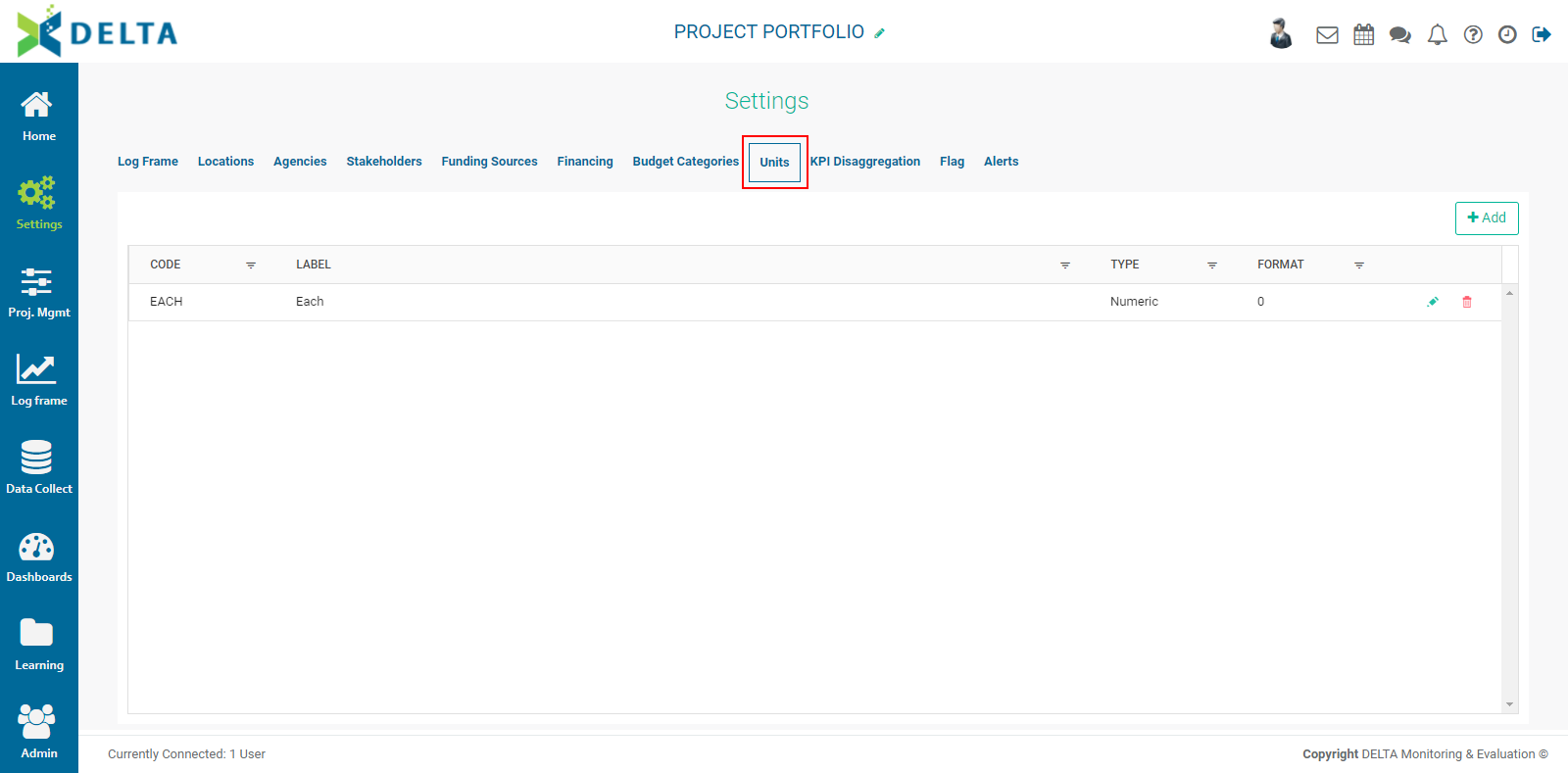
To add a unit of measure, click the +Add button to bring up the Units of Measure popup window.
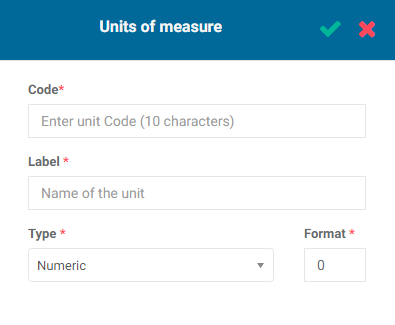
Enter a unique code for the unit of measure. Enter a label, a type, and a format. The available types are Percentage, Numeric, and Text. Text units are used in qualitative indicators; the other two types are used in quantitative indicators. The Format pick list lets you select the number of digits after the decimal point the unit will display. For whole numbers, set the Format to zero.
Click the checkmark in the popup window title bar when you’re done to save your work and return to the Units screen. The new unit of measure will appear in the list. A small description containing the format of the unit is displayed under its code and name.
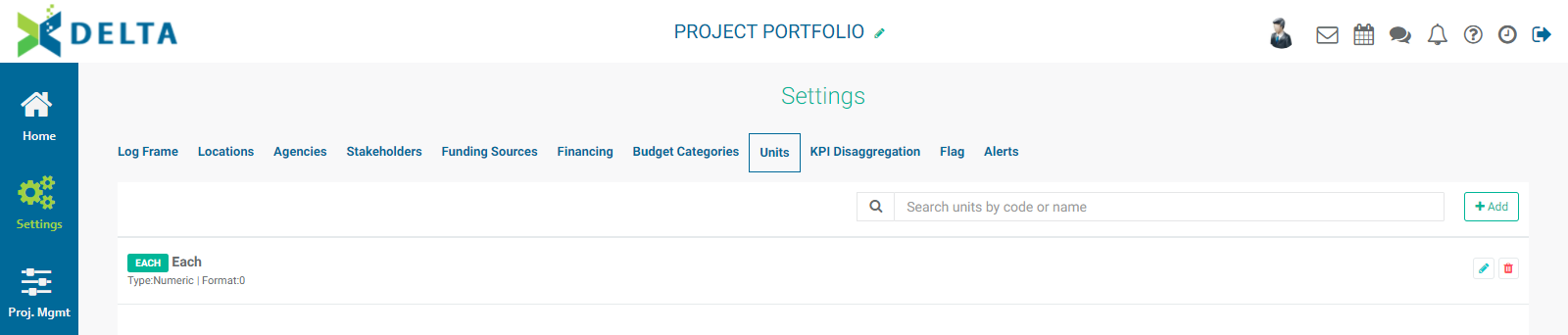
To edit a unit of measure, click its Edit icon, make the necessary changes, and click OK to save your work. To delete a unit of measure, click its Delete icon and confirm that you want to delete the item.
NOTE: you cannot edit the code of a unit of measure once it is created.
Previous: Portfolio Settings: Budget Categories | Next: Portfolio Settings: KPI Disaggregation