Project Home Page: Map Dashboard
The third major view for the project dashboard is Map. Click the Map tab to view geospatial data for each of the project indicators.
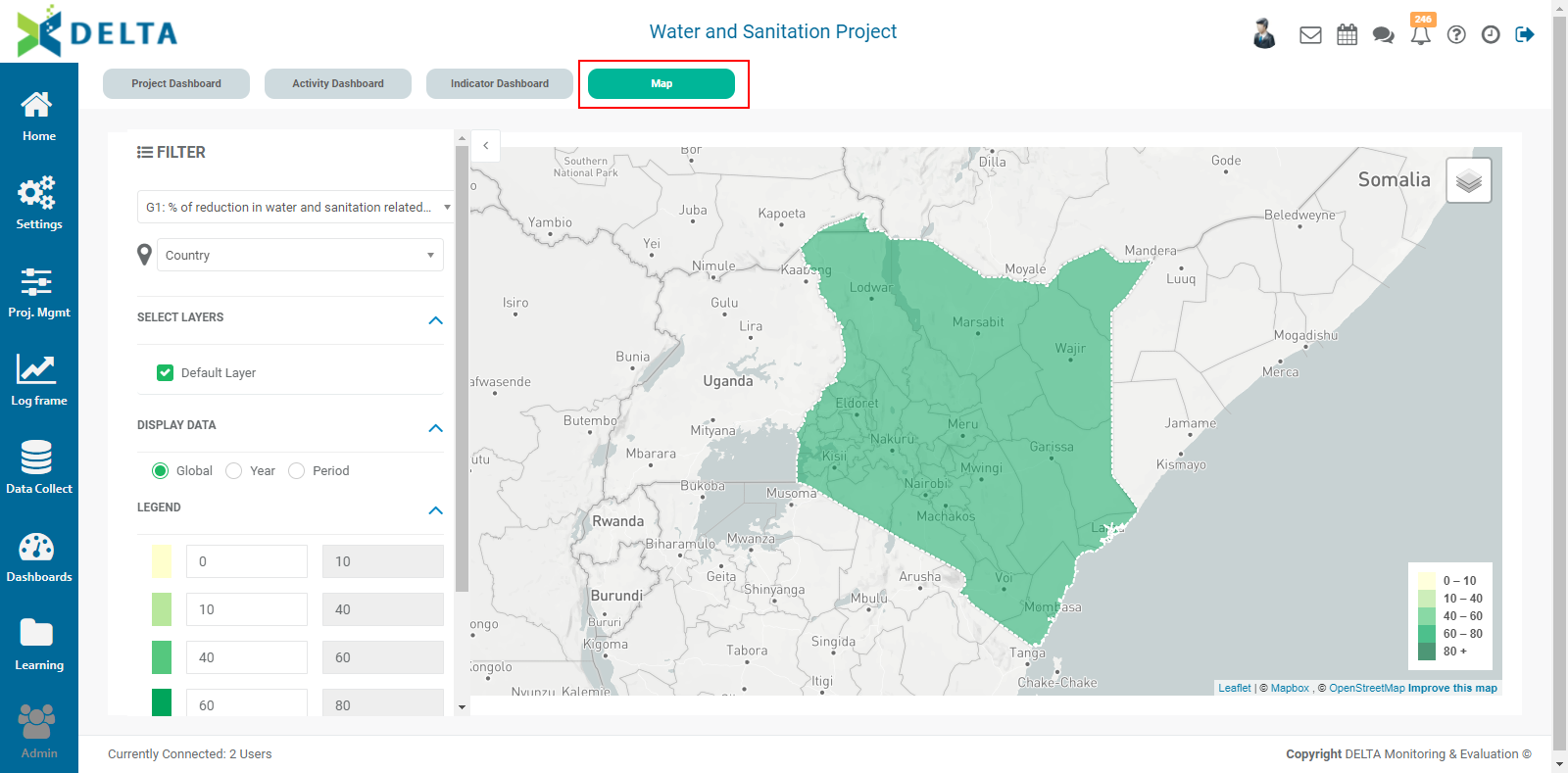
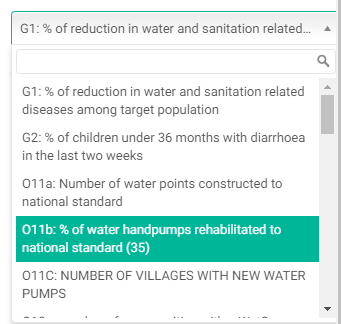
Select an indicator from the pick list to view its geospatial representation on the map. The display will refresh automatically.
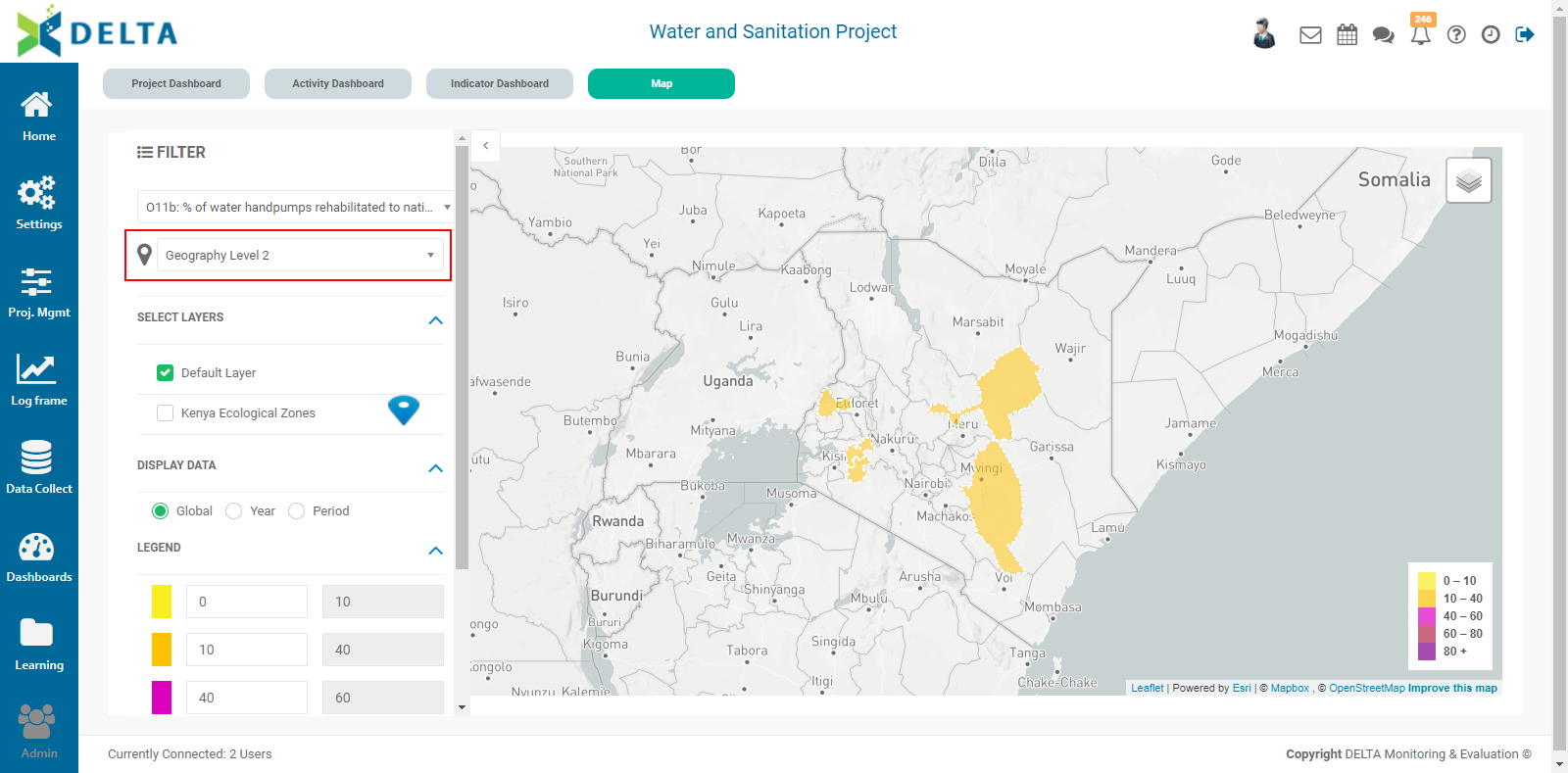
The default geography level is Level 1, the highest level in the Locations tree. Select another geography level to drill down into the indicator data by location. NOTE: lower geography levels may not be available, depending on how the indicator was set up.
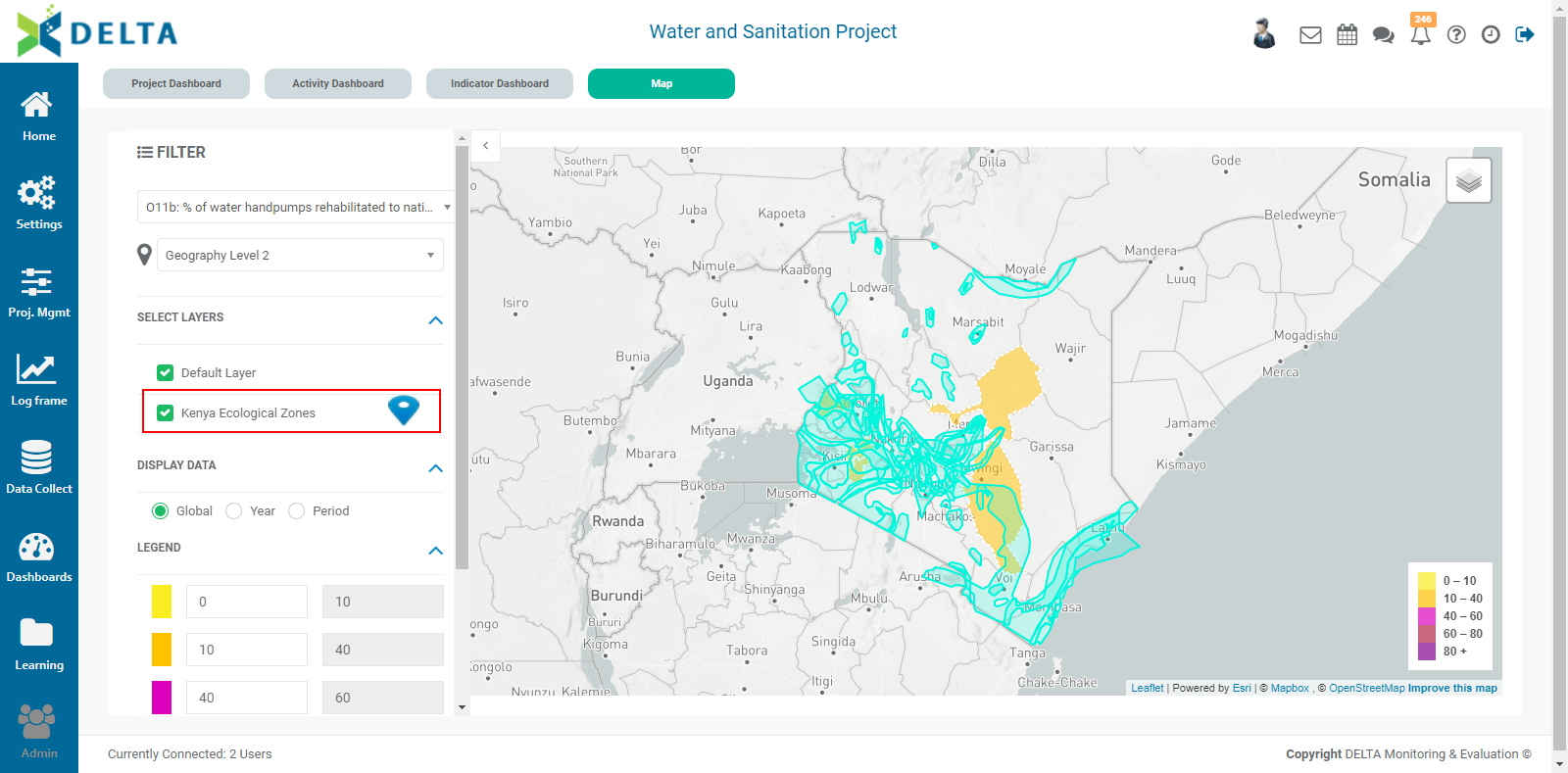
Spatial visualization settings for each indicator are determined in the Details tab of the indicator when it's created. The settings control the intervals and colors for the legend, and the addition of any external GIS data layers. The indicator data is always contained in the Default Layer. If external data layers have been associated with the indicator, it will also appear on the map, but can be turned off by unchecking its box in the Select Layers section of the Filter pane.
The default for Display Data is Global. Select Year to view indicator data for each year.
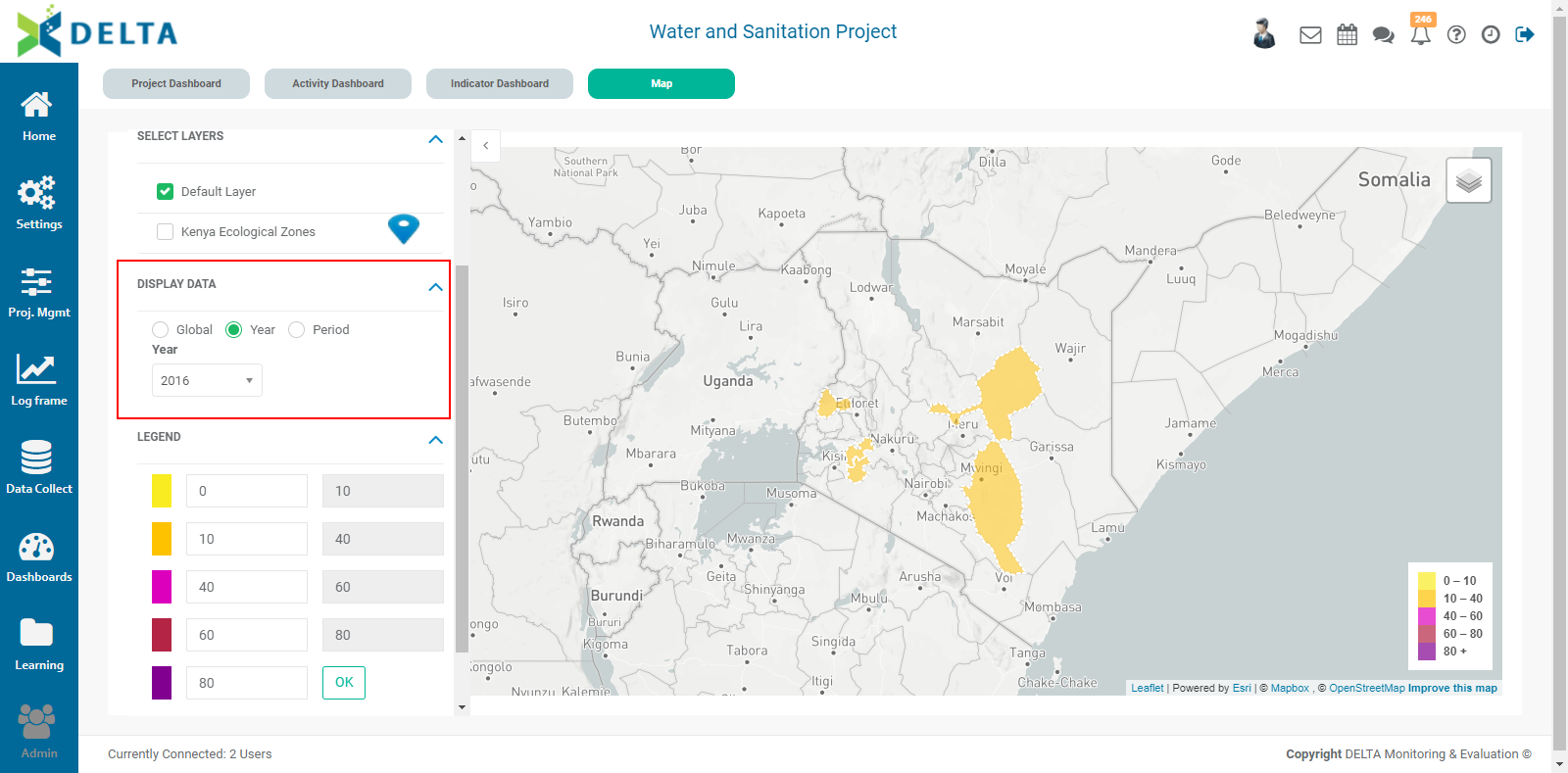
To drill down further into indicator data, click the Period radio button, and select the desired year and period.
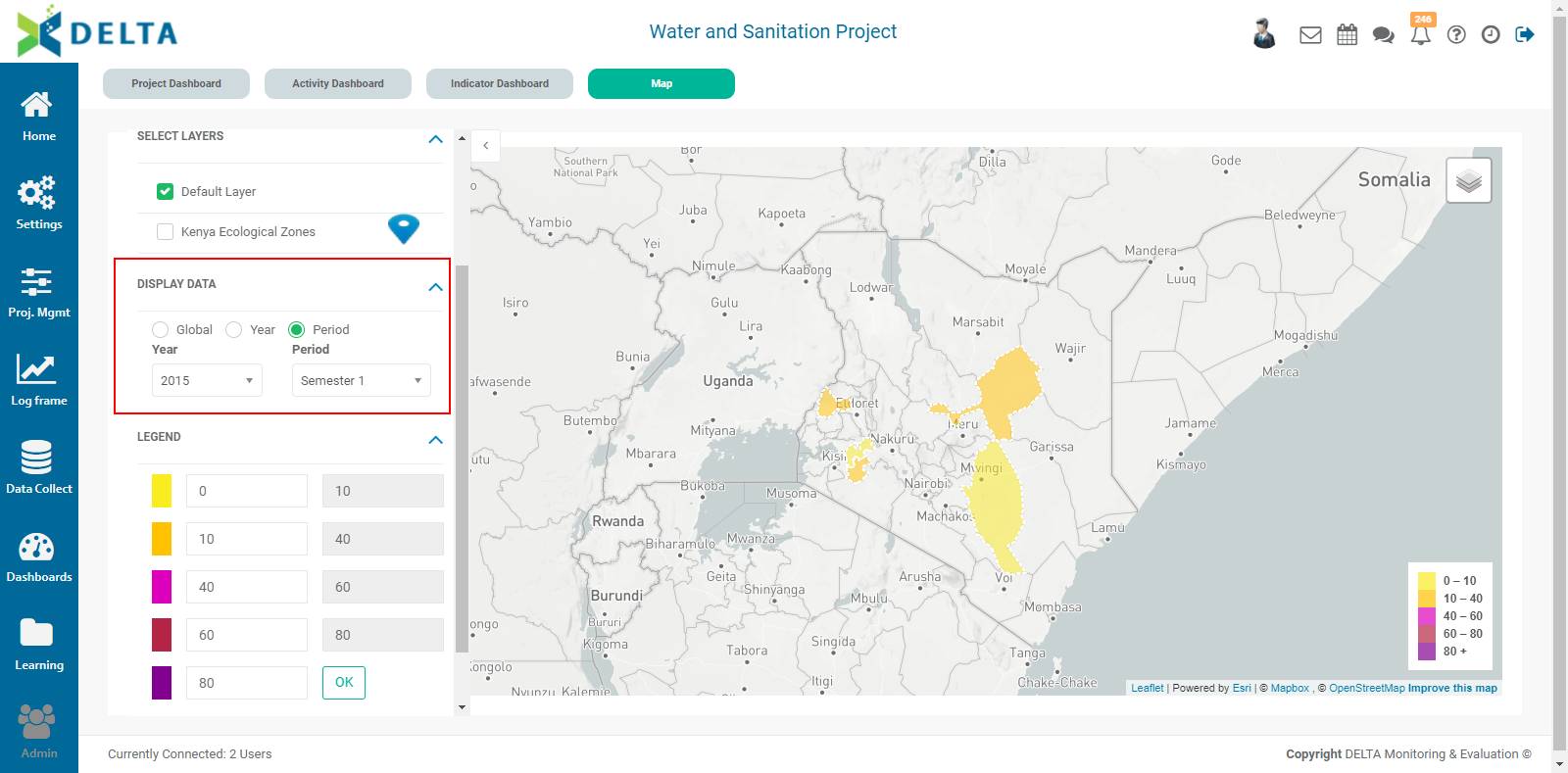
The Legend colors cannot be changed from this screen. Legend colors are controlled via the Spatial Visualization settings of the indicator. However, the range can be edited from this screen. Change the beginning of each range as desired, and click OK to apply your changes. NOTE: this does not alter the settings in the indicator itself, but only refreshes the dashboard display.
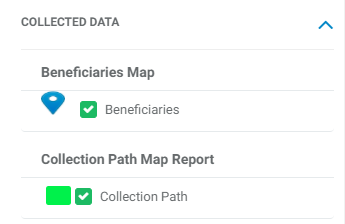
The last section of the Filter pane is Collected Data. It will display any custom analytics reports from data collection forms as long as they contain a location/GPS component. Turn the display on and off with the checkboxes next to each item.
The map controls are the same as they are throughout Delta. The default background for the map is Grayscale. Click the stacked layers icon on the top right corner of the map to switch to Street View or Satellite.
To hide the Filter pane and uncover the map controls, use the toggle at the top right corner of the pane.

Previous: Project Home Page: Indicator Dashboard | Next: Project Home Page: Custom Analytics Dashboards