Indicators: Indicators Screen
Indicators are located in the Log Frame module. They are added to levels of the log frame, usually above the Activities level, although indicators can be associated to activities as well.
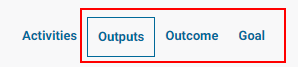
The latest version of Delta regroups several indicator-related functions which were dispersed throughout the system in earlier versions. As a result, the navigation tabs inside an indicator (once it's been opened) have been updated as well.
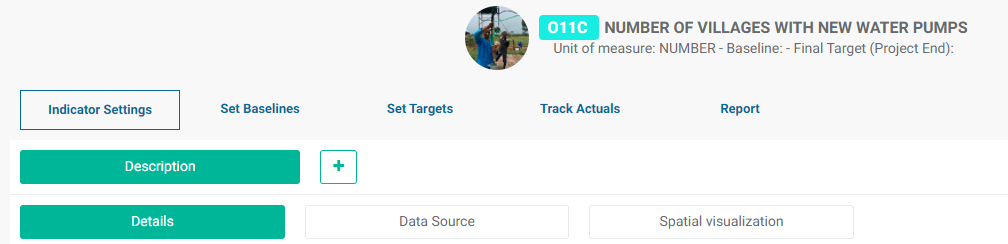
When you create a new indicator, the only tabs you'll see are Details, Data Source, and Spatial Visualization. These three tabs and their screens, regrouped under Indicator Settings > Description, comprise the indicator definition.
The Details screen contains the basic information about an indicator: Code, Name, Log Frame level association, Locations level association, etc.
The Data Source screen sets how the tracking (Actuals) data will be entered into the indicator: Manual, Calculation, or Data File.
The Spatial Visualization screen contains the parameters that will be used on map displays of indicator performance, most notably map legend colors and external GIS overlays.
Once you save a new indicator, the other tabs will appear when you click the indicator to open it. The other basic indicator parameters are located in the Documents, Note, Workflow, and Set Permissions tabs, all of which are optional and regrouped under the More icon of the Indicator Settings > Description screen.
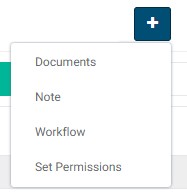
The Documents screen allows users to associate documents to an indicator.
The Notes screen contains a full-featured text editor, making it easy for project members to add notes, links, photos, videos, etc. to an indicator.
The Workflow screen allows users to create workflows and assign indicator-related tasks to project team members.
The Set Permissions screen is used to set indicator-specific permissions for tasks such as planning and tracking.
Once all the basic information has been entered into an indicator, use the top-level tabs to plan, track, and report on the indicator.
The Set Baselines screen is where baseline and final target values for the indicator can be entered for each geographical location.
The Set Targets screen is where the indicator is planned in detail for each geographical location. These are the planned targets and dates for the indicator performance.
The Track Actuals screen is where actual performance data is entered into the indicator.
Finally, the Reports screen regroups the built-in indicator reports as well as improved Custom Reports.
Previous: Log Frame Centricity in Delta | Next: Indicators: Creating Indicators: Details