PM: Project Reports: Combined Chart Reports
The third type of Activity Custom Report is Combined Chart. This type of report allows you to graph series side-by-side.
From the Project Management module, select the Reports tab, then click the +Add button at top right to bring up the menu, and select Combined Chart.
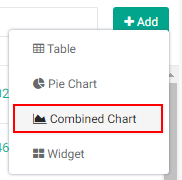
The Custom Report - Combined Chart popup window will open.
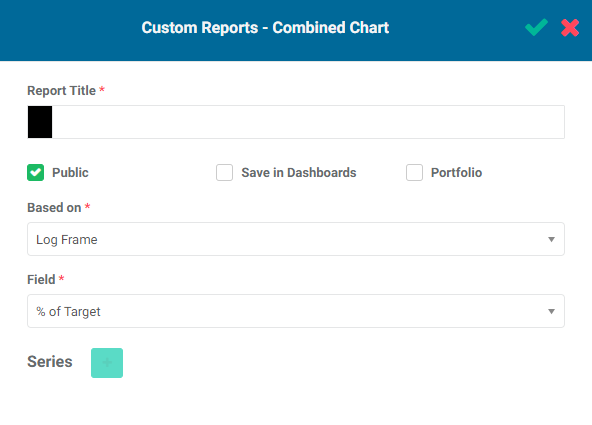
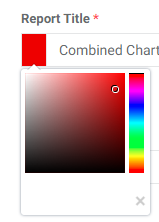
Enter a title for the report. This will enable the Series + button at the bottom of the popup window. If desired, change the default color for the report icon by clicking on the color block to the left of the Report Title box to bring up the color picker.
Checking the Public box makes this report available to anyone. The Public option throughout Delta publishes selected project information to the Portal - the Delta login page - for access by anyone with the URL to the portal, without the need for system access credentials. This functionality is described in detail in Accessing Delta: Delta's Public Portal.
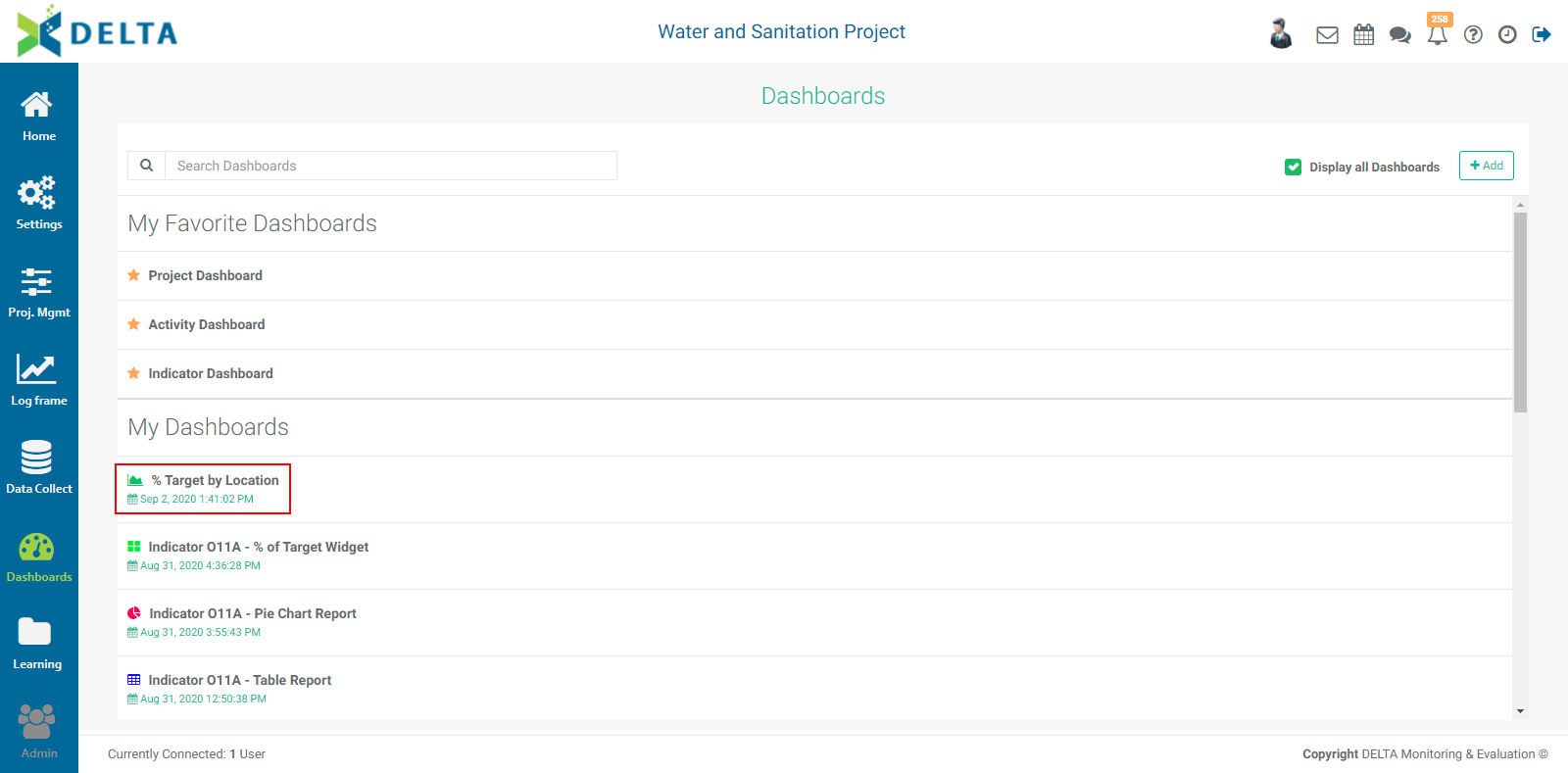
Checking the Save in Dashboards box will show this report in the Dashboards Module. It will appear in My Dashboards for you, and in Others for other users, who will then be able to add this report to their own dashboards.
Checking the Portfolio box will make this report available at the Portfolio level. The reports' names appear in the Portfolio Dashboard pick list, sorted by project and type (Activities, Indicators, Forms), and can then be used for multiproject dashboards. NOTE: all project reports are automatically available to be added to project custom dashboards.
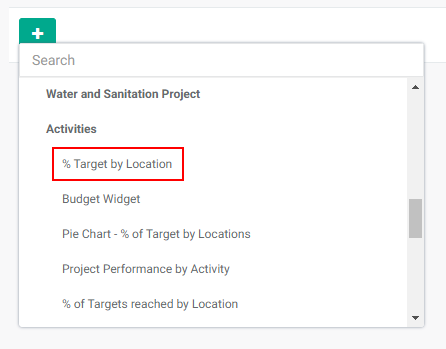
Select the basis for the combined graph from the Based On pick list. The options are Log Frame, Period, Locations, Financing Sources, and Budget Category.
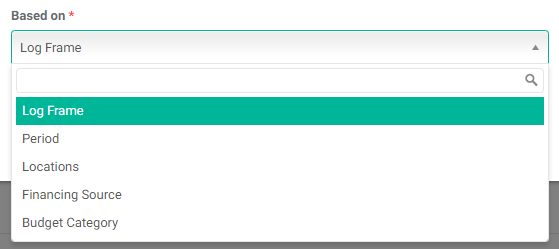
Select the field you want to graph from the Field pick list.
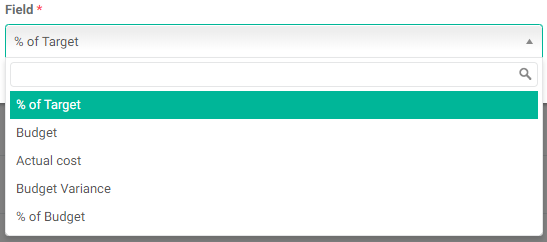
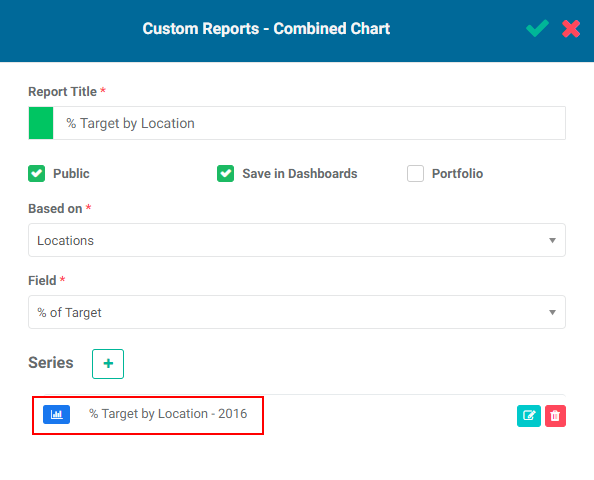
Click the + button next to Series to add a series. In this example, we are going to breakdown '% of Target' by Location and by Year, the latter using series.
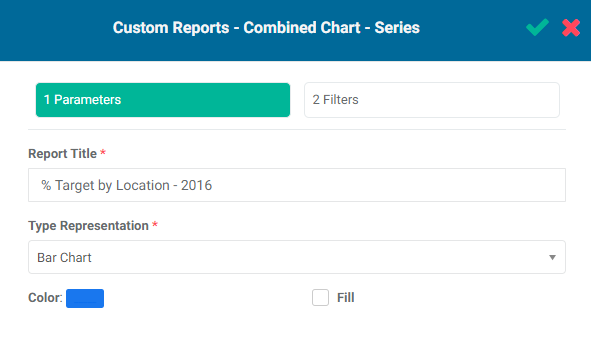
The Report Title in this context is the title for the series. Type Representation are the graphing options: Line Chart and Bar Chart. The Fill checkbox toggles whether the space under a line graph or the bars in a bar graph are filled with the selected color.
When you enter the series title, the Filters tab is enabled. The Filters functionality is similar to that available in other custom reports in Delta, except that in Combined Charts, filters must be used to create the data subsets you wish to graph side-by-side. Click the Filters tab to enter the tab, then click + to add a new filter.
Select the field you want to filter on. The options are Responsible Entity, Log Frame Code, Year, Financing Source Code, and Budget Category.
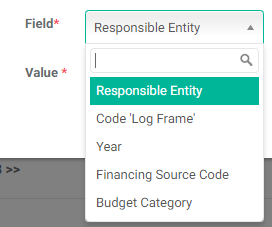
The Log Frame Code allows a user to pinpoint an exact element of the log frame for the report. The code is used instead of the element name to keep things short.
Select the operation you want the filter to perform, and the value of the filter. In this example, we're going to filter for data for the year 2016, where the Field is 'Year', the Operation is 'Equal', and the Value is '2016'.
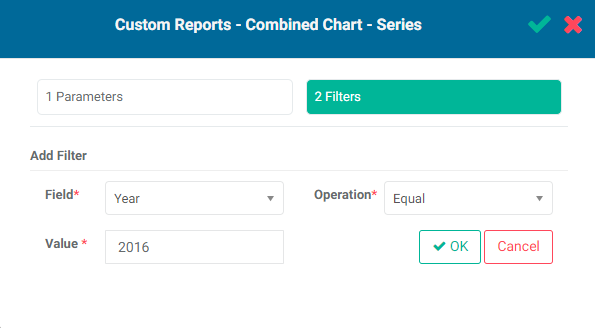
Click OK when you're done to save your filter. The new filter will appear at the bottom of the popup window.
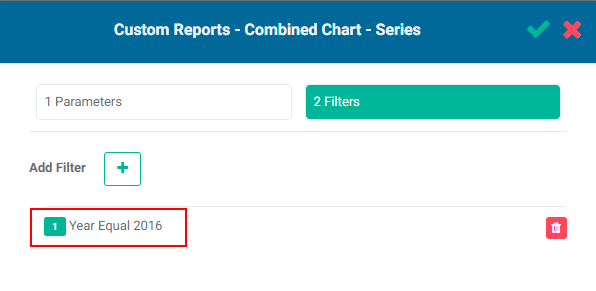
Click the checkmark in the popup window to save this series and return to the Combined Chart popup window. The series will appear at the bottom of the window. The color of the icon is that of the color you selected for the bar or line graph.
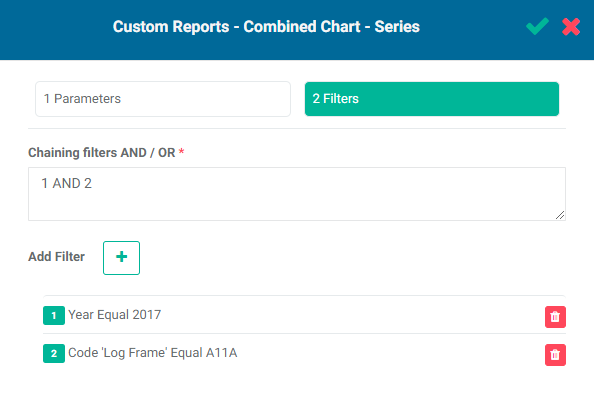
When using filters for a series, you can add as many filters as are needed. If you create more than one filter, you also need to add logic for the system to know how to handle multiple filters. The logic is simply AND/OR, and the correct syntax uses the number of the filter. In the example below, the logic is 1 AND 2, so both conditions must be met. The AND operator requires that all conditions must be met, while the OR operator requires that at least one condition must be met.
In this example, the filters will only return data from Activity A11A for 2017.
Add as many series as needed for the combined graph.
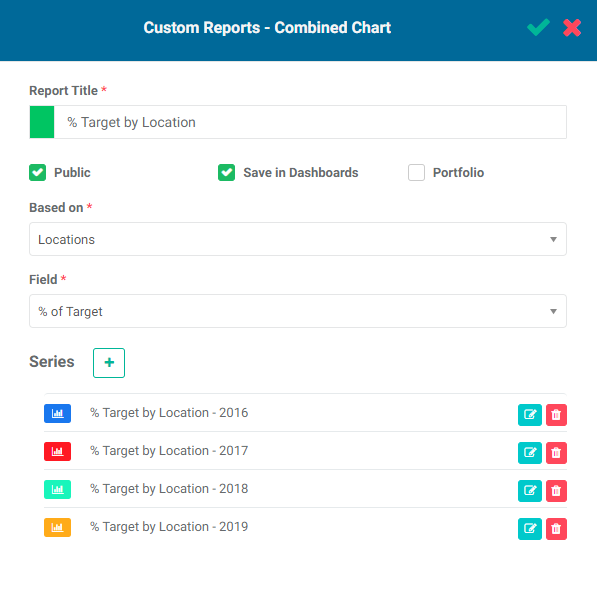
To edit a series, click its Edit icon and make your changes. To delete a series, click its Delete icon.
When you've added all the series you need, click the checkmark in the title bar of the Combined Chart popup window to save your work and return to the Reports screen. The new report will appear at the top of the list.
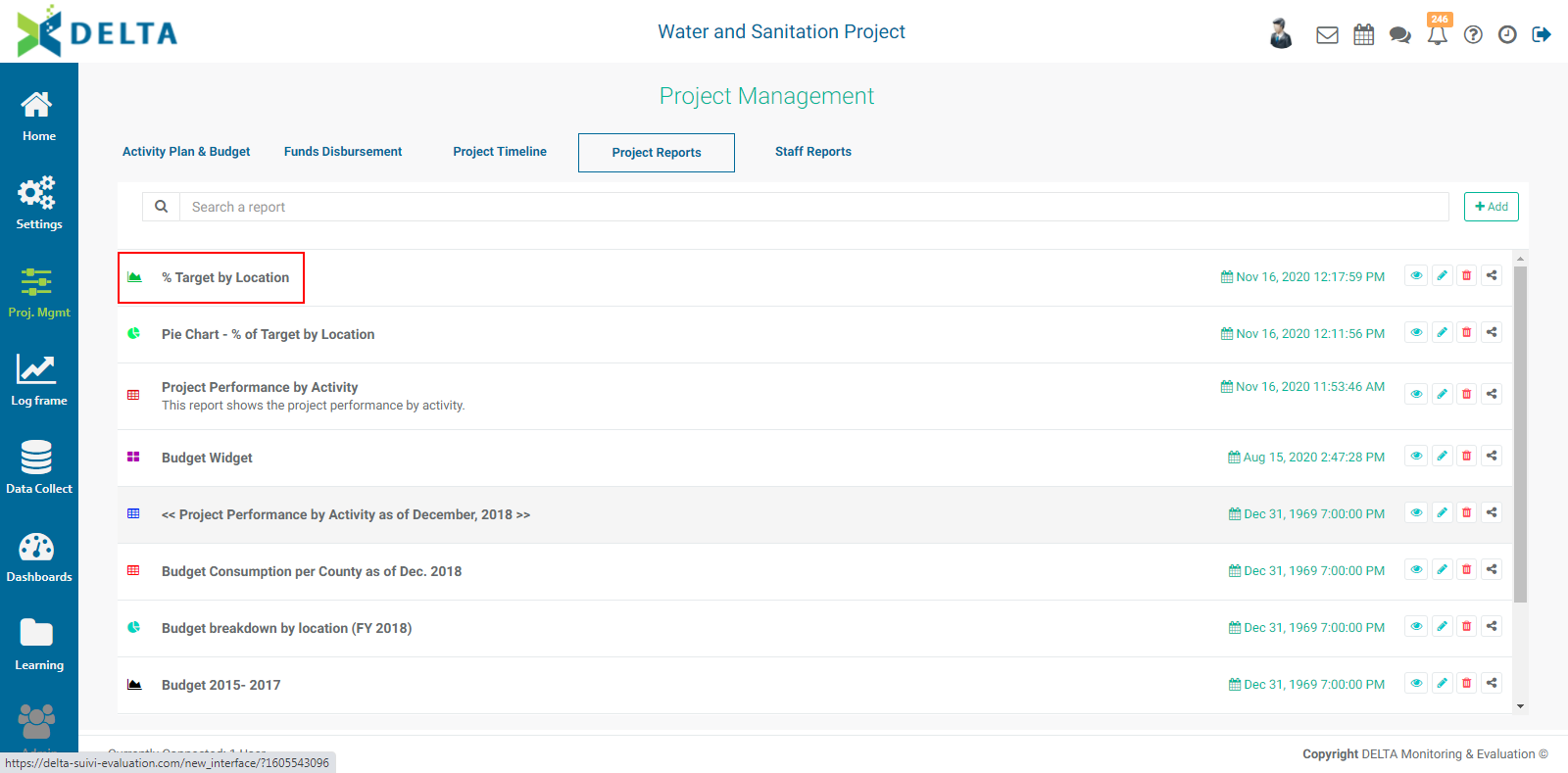
To view the report, click its name in the list, or the View icon in its toolbar.
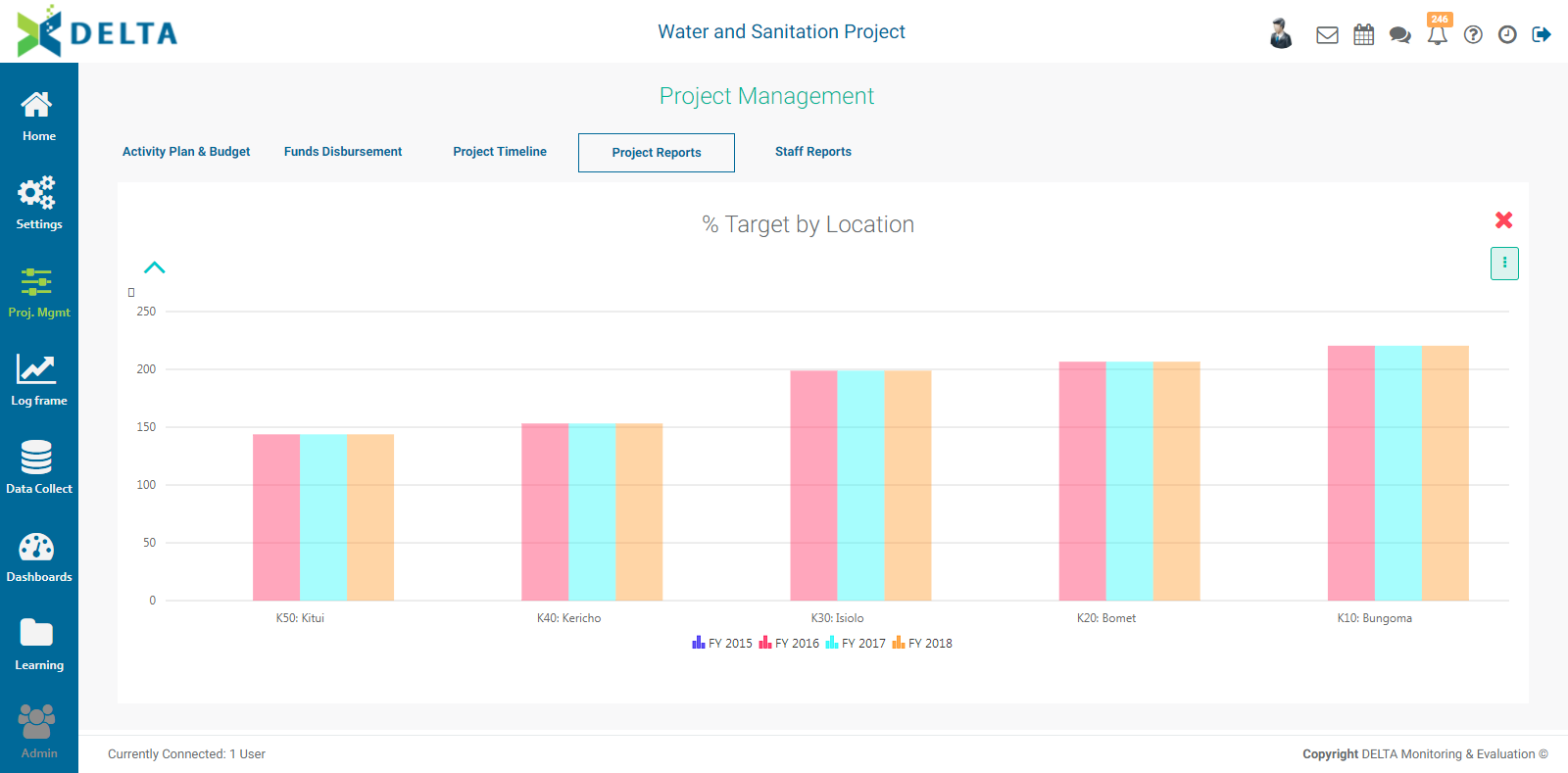
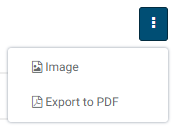
To export the report, open it, then click the vertical More icon at top right. The format options are Image (.png format) and PDF.
To share a report, click its Share icon from the Reports list screen. Enter a comment, and select the recipients.
To delete a report, click its Delete icon.
Previous: PM: Project Reports: Pie Chart Reports | Next: PM: Project Reports: Widgets