Project Settings: Budget Categories
Budget Categories allow you to further refine the financial information of a project by sorting its expenses by category. If you use costs and budgets for your activities, you'll be able to enter that information at the Activity level.
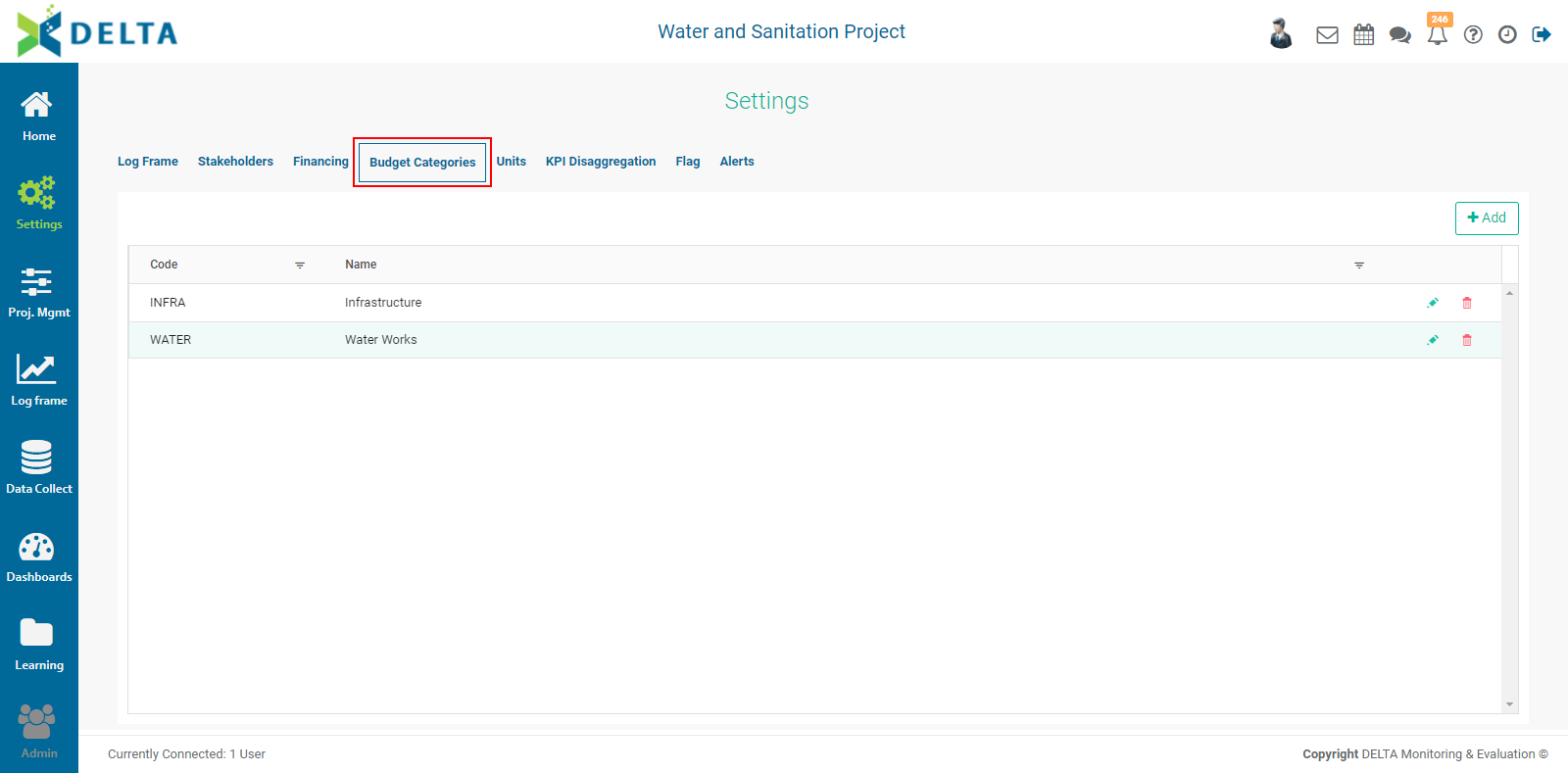
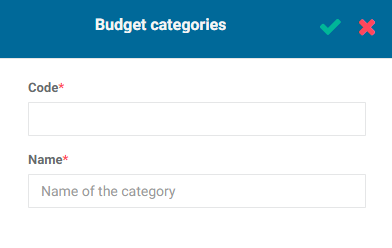
To add a budget category, click +Add at top left of the list grid and enter a code and a name for the category. Click the checkmark in the popup window title bar when you're done to save your work and return to the Budget Categories screen. The new budget category will appear in the list. NOTE: you cannot edit the code once you've saved the budget category.
To edit a budget category, click its Edit icon. To delete a budget category, click its Delete icon and confirm the deletion.
To quickly find a category in long lists, use the Filter to narrow down the displayed list.
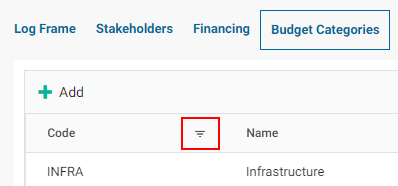
Enter a selection criterion for the filter, and enter the value you're looking for.
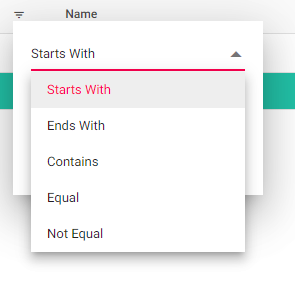
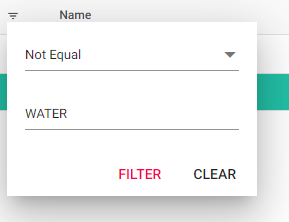
Click Filter to enable your selected parameters. The list will be filtered according to your settings. NOTE: the Filter icon will change from black to red when a filter is applied.
To go back to the full list, click the Filter icon again and select Clear.
Previous: Project Settings: Financing | Next: Project Settings: Units