Admin Module: Users
Delta features a versatile Administration Module which includes extensive access control capabilities, which affords fine-grained control of users' access to data. The module is split into five functions: Users, Customized Rights, Audit Trail, Deleted Items, and Security. In this context, users can be anyone with access, regardless of whether they are actors in a project. NOTE: only superusers (administrators) have access to this module and see its icon in the left navigation.
Users are created at the Portfolio level. The Admin Module icon will be grayed out at the Project level.
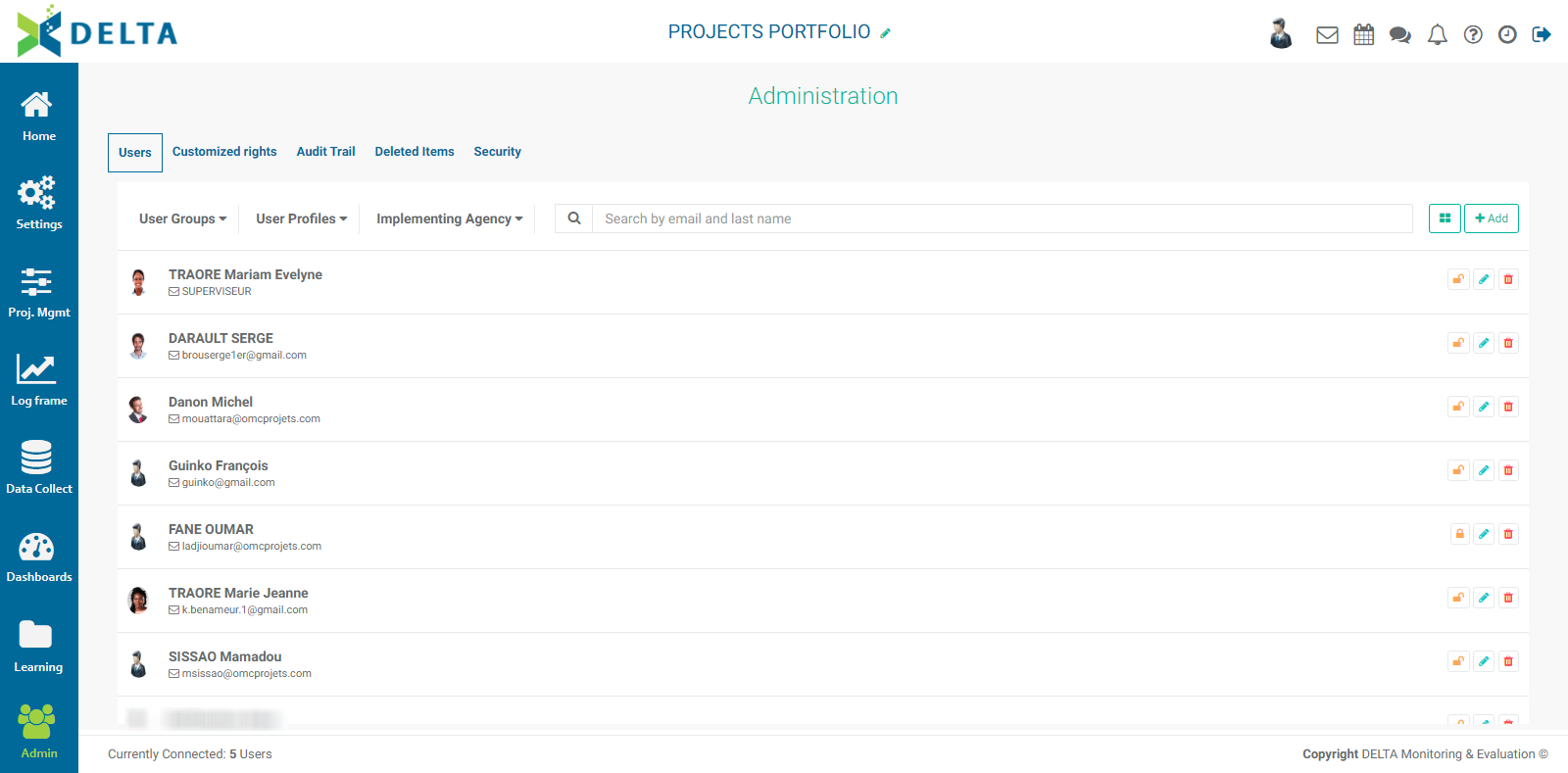
You can filter by user groups, user profiles, or agency, and search for names and email addresses. You can also toggle the view between List and Tile by clicking the List/Tile icon at upper right.
Click the +Add button to create a new user. In the List view, the new user screen will appear inline on top of the list. In the Tile view, the new user screen will appear by itself. The first tab is User Details.
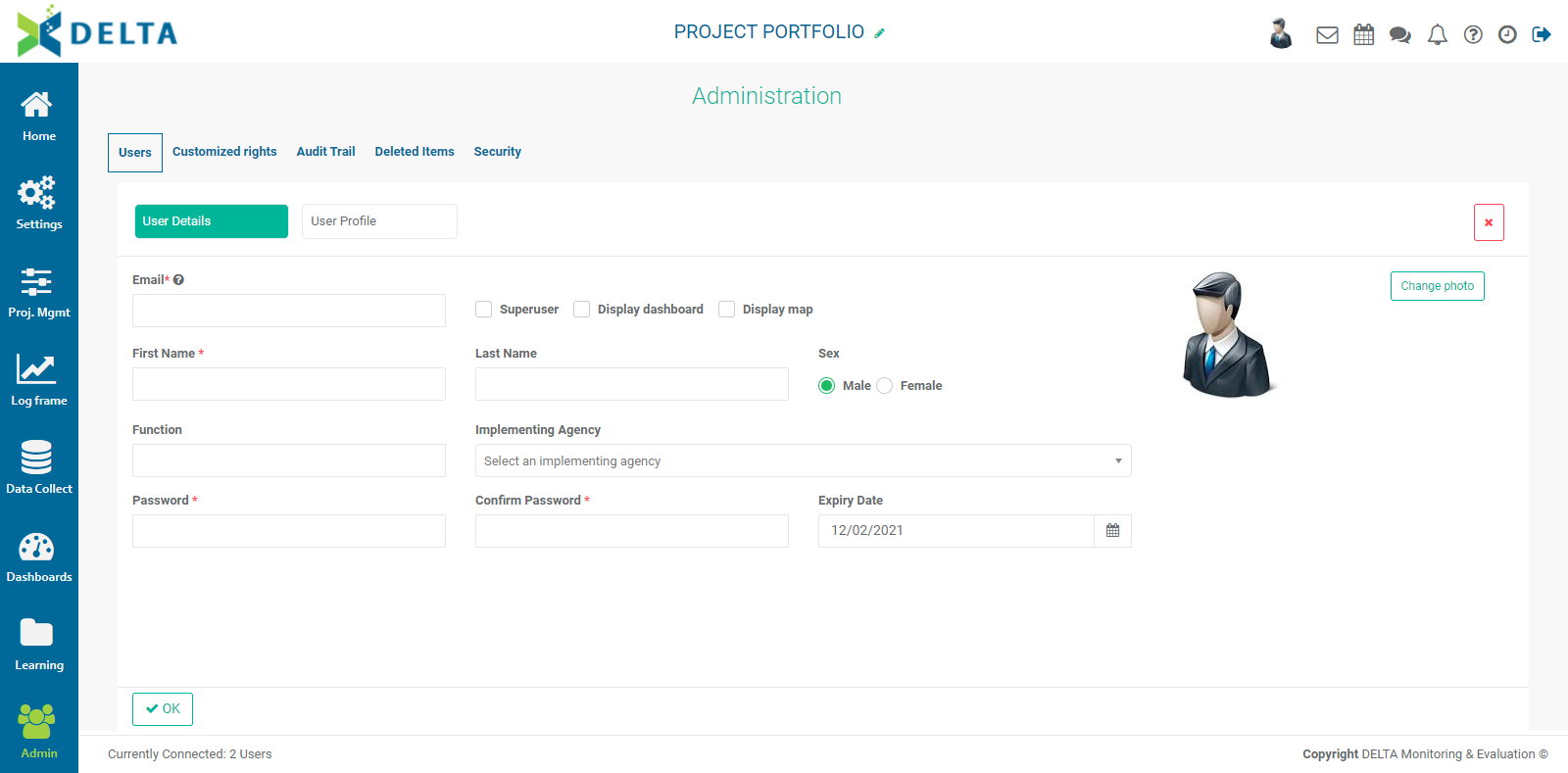
The email, first name, and passwords fields are mandatory. The email in particular must be correct, since it serves as a user's login credential along with their password. They will also receive system notifications at that address. The other fields are optional. It is suggested as a best practice to enter as much information as is available.
Checking the Superuser box grants system-wide access to a user. This will allow a user to access all the system areas as well as all the data contained in the system. This is usually reserved to system administrators. Superusers are the only ones with permissions to create other users. Superusers are also the only users who will see the Admin module icon at the bottom of the left-hand navigation. NOTE: once the Superuser box is checked, the User Profile tab of the Users screen will disappear.
Checking the Display Dashboard and Display Map will grant access to the Portfolio dashboards and map, respectively. These checkboxes will disappear once the Superuser box is checked.
The User Profile tab is used for 'regular', i.e. non-superuser accounts. This screen contains a current list of the projects in the portfolio, and allows administrators to easily grant portfolio and project access permissions to users.
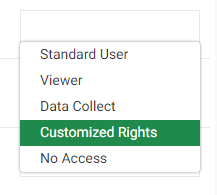
The default selection is Customized Rights. The other options are:
- Standard User: allows access to the entire project or portfolio, including Create, Edit, and Delete
- Viewer: allows view-only access
- Data Collect: allows access to the Data Collection module only, for data collection, verification, and validation
- No Access: locks the user out of the project
Selecting Customized Rights allows the administrator to further refine the permissions to the project. It is the default selection because in and of itself, selecting Customized Rights grants no access to a project until and unless a user is added to a User Group and User Profile in the Customized Rights tab. This also facilitates the work of an administrator, by not having to set permissions for each and every project in the portfolio.
Select Male or Female to indicate the gender of the user. If there is no photo available for the user, a generic icon will appear in the first spot of the Main Toolbar at top right. Selecting the proper gender will ensure the proper generic icon will appear.
Select the user's agency from the Agency pick list, and the user's role/staff post from the Staff/Stakeholder pick list. These are optional fields. If the correct agency or staff/stakeholder information does not appear in their respective pick lists, set them up in Delta's Settings module. NOTE: Agencies can only be created at the Portfolio level, either in the Portfolio's Settings module, or when creating a new project.
Enter a password for the user, then enter it again in the Confirm Password field. Passwords are case-sensitive. Strong passwords should include a mix of uppercase and lowercase characters as well as numbers. Special characters are also allowed except for @, #, and $.
You can set an expiration date for a password. By default, passwords expire one year after the creation of the user in the system. Click the Expiry Date field calendar icon to select another date if appropriate.
Click the Change Photo button to add/change a user's photo.
When you're done, click OK to save your work and return to the previous screen. The user you just created appears in the List and Tile views.
Each user entry has its own toolbar in List view. To edit a user in List view, click that user's Edit icon, make the necessary changes, and click OK to save your changes and return to the list.

To temporarily suspend an account without deleting it, click the list item's Lock icon. Click the icon again to unsuspend the account. The lock's appearance toggles between open and closed to reflect its current state. To delete an account in List view, click its Delete icon, then confirm the deletion.
To manage accounts in Tile view, click the account you want to edit to open it. Make the necessary changes, and click OK to save your work and return to the Tile view. To suspend an account, click its tile, then click its lock icon, and click OK. To delete the account, click on its tile, and click its Delete icon, then confirm the deletion.
Previous: Learning Module: Communities | Next: Admin Module: Customized Rights