Data Collection: Reviewing Data
Once data has been entered in the form, regardless of method, the next step is to review the collected data. From the Data Collection module, select the form for which you want to review the data, and click Review Data.
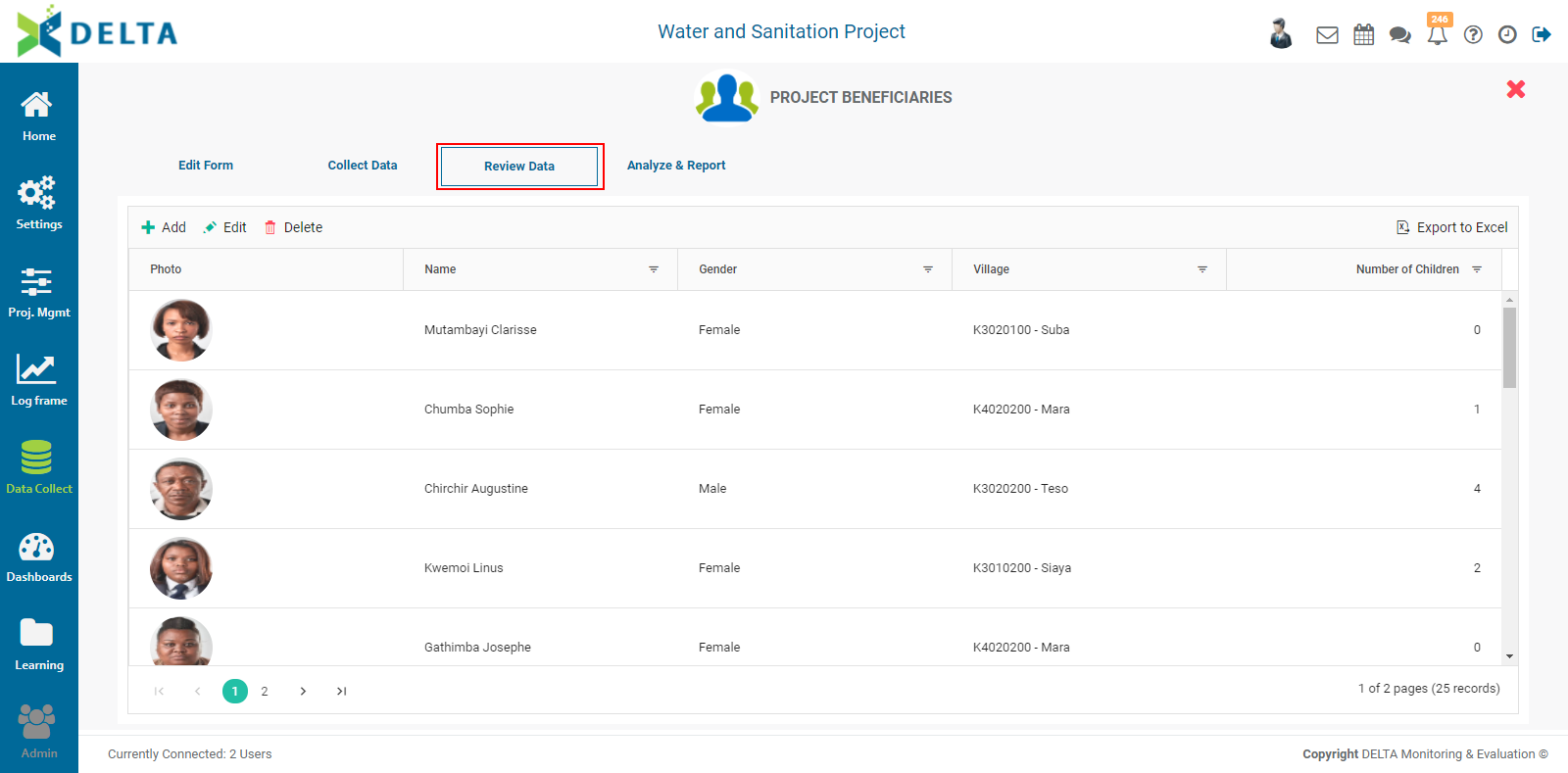
From the toolbar at top left, you can manually add records, edit existing records, and delete records.

You can also filter by data field. Click the Filter icon in a column to select it for filtering.

Select the operation you want the filter to perform.
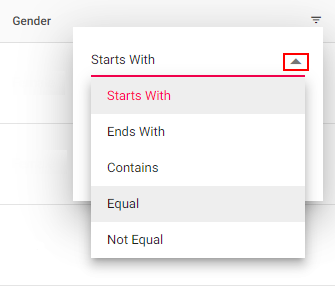
Enter the value the filter will use, then click Filter to apply it to the column. The records will be filtered according to the filter parameters, and the filter icon in that column will appear in red to denote that a filter is in use.
To edit a filter, click the Filter icon again, and make the necessary changes. To delete a filter, click the Filter icon and select Clear.
To add a record, click the +Add icon to bring up the data entry popup window. Make the entry, then click the checkmark in the popup window to save your work and return to the data review screen. Your entry will be appended to any existing records. If necessary, use the page controls to navigate to your new record.

To edit a record, you must first click on it once to select it.
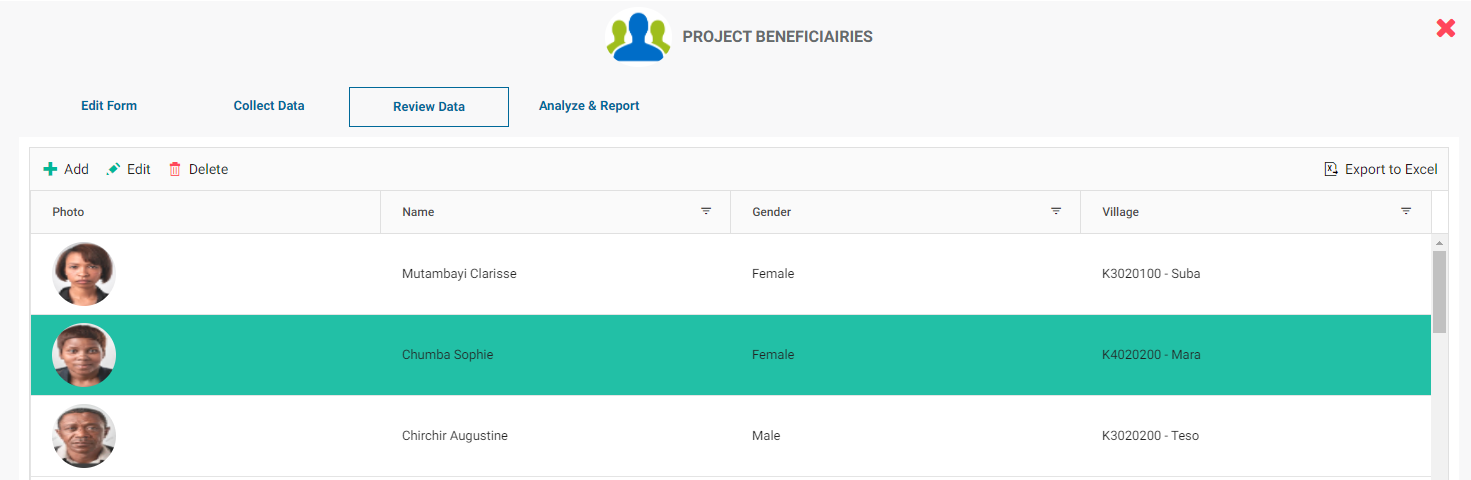
You can also double-click the record to open it. The resulting popup window contains the existing data for this record.
Make the necessary changes, then click the checkmark in the popup window to save your work and return to the data review screen.
To delete a record, click it once to select it. Click the Delete icon in the toolbar, then confirm the deletion.
To export the data, click on the Export to Excel button at top right.
The download should start automatically. Check your Downloads folder for the exported file.
NOTE: if a data collection form is the object of a workflow, any records which are under review will be locked from editing.
Previous: Data Collection: Import Data From Excel File | Next: Data Collection: Analyze & Report