Indicators: Workflows
The next tab under Indicator Settings is Workflow. This screen is where you assign who is responsible for a given indicator. The two tasks you can associate workflows with are Plan Targets and Track Indicator.
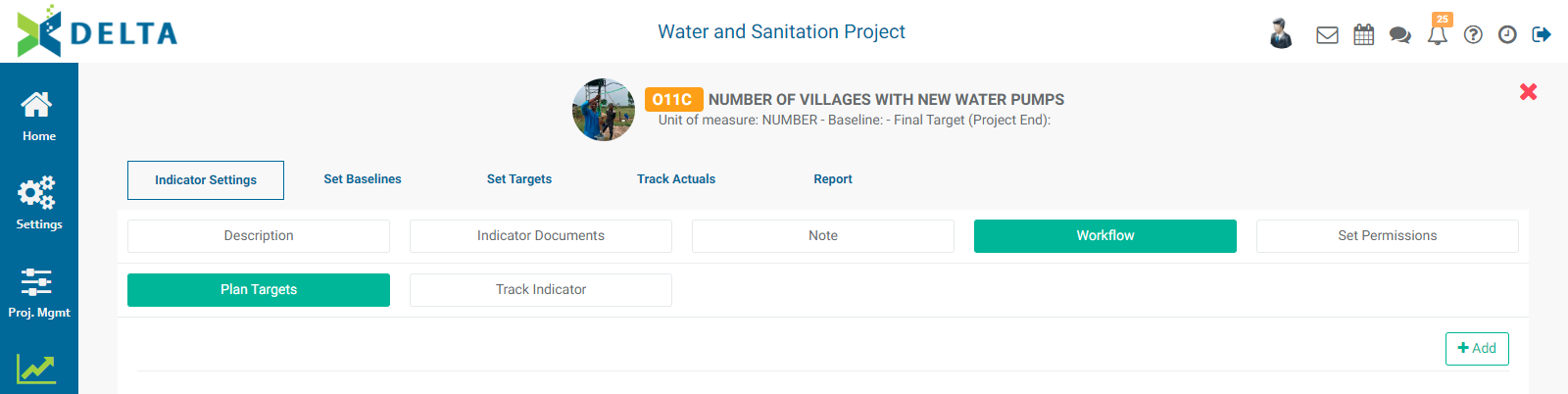
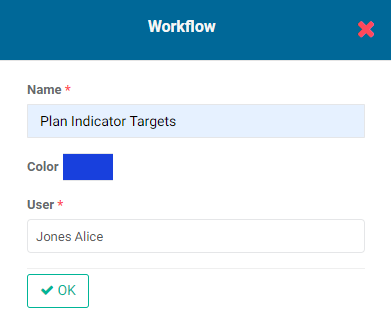
To assign an indicator to an actor, click the +Add button, select which type of task the workflow will be for - Plan Targets or Track Indicator - and enter a name for the workflow and a person responsible for it. You may also optionally select a color for the workflow.
The person who is assigned to that indicator will receive a notification from the system, signified by a numbered badge on top of the Alerts/Notifications icon in the main toolbar.
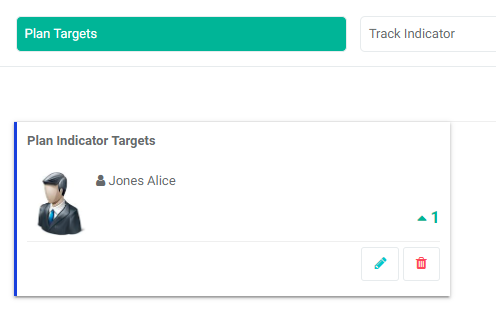
The responsible person's name will also appear on a tile on the Workflow screen.
The notifications remain in the system to make sure the person who's assigned to the indicator can refer to them at any time. To view notifications, click on the Alerts/Notifications in the main toolbar at the very top right of the screen.
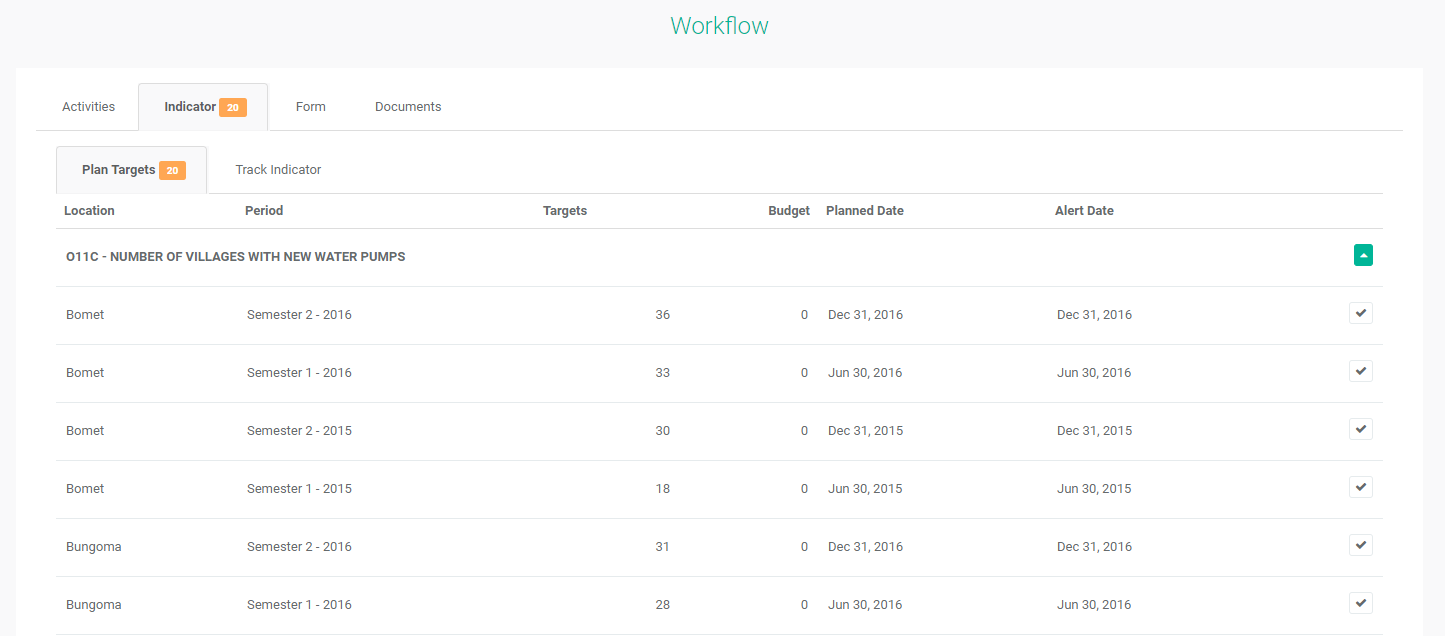
In the example above, each location appears once for each instance of the assigned task. For example, if a workflow calls for quarterly tracking in a five-year project, 20 instances of the workflow will appear for each location, with planned and alert dates clearly indicated.
The checkmark at right will change into a dot once the workflow for that item has been started, and the corresponding data will be locked from editing to ensure the integrity of the data. The color of the dot will match the color assigned to the last person in the workflow who worked on that item.
Previous: Indicators: Notes | Next: Indicators: Set Permissions