Project Settings: Log Frame: Importing a Log Frame
Delta supports the importing of log frames from an Excel spreadsheet. A bit of planning goes into preparing a spreadsheet for import. Notably, the Excel file must contain data in only one sheet, and the column headers are specific, in particular the Parent Code column. To that end, figuring out how to code the various elements of the log frame is crucial.
If you know ahead of time that you'll be importing a log frame into your project, select Custom Log Frame from the Log Frame Template pick list in the project's M&E Settings when you're creating the project. This will leave the log frame screen completely blank, instead of displaying the levels you would see as a result of creating and/or selecting a log frame template.
Parent codes are the concatenated codes of all the log frame element's predecessors in the tree. These are necessary for the import to work, otherwise Delta will not be able to place each element in its correct spot in the hierachy of the log frame tree, since each element has at least one parent or one dependency.
In the spreadsheet example below, each log frame element contains a parent code, its own code, a name, and a description.
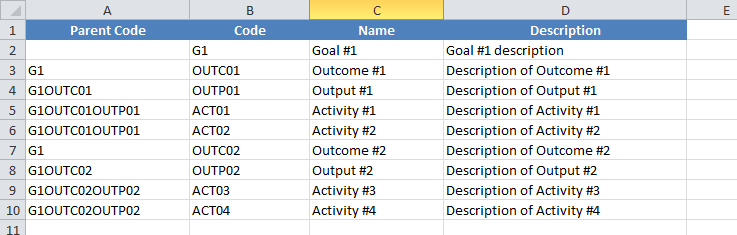
The Parent Code is the concatenation of all the log frame elements which are the predecessors of the current element. It’s worth it to plan out a log frame in a spreadsheet even if you’re going to build it out manually, to make sure the nomenclature you selected makes sense to you, and that each element is coded properly according to the convention you selected as to the length of each level code.
Tips and tricks: to better see the hierarchy of the log frame tree in the spreadsheet, use the Indent function – NOT spaces or tabs – to nest the codes. In the example below, the Outcomes have been indented once, the Outputs twice, and the Activities three times. This trick emulates the nested hierarchy you will see in the log frame tree after the import, and can be used to verify that the import worked as expected.
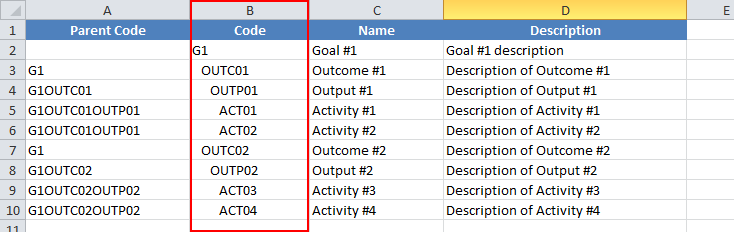
Note that activities which are at the same level of the log frame tree will have the exact same predecessors/parent codes.
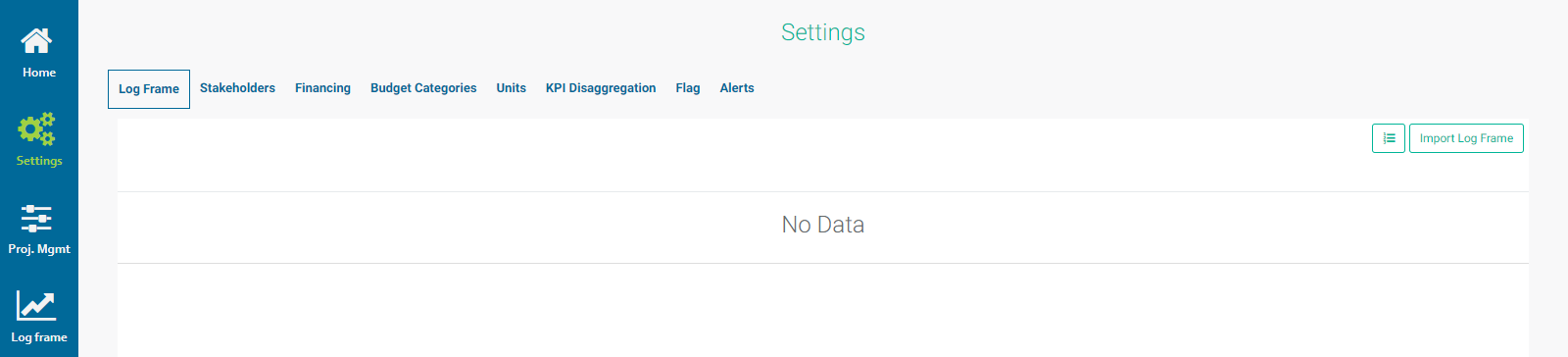
Once you’ve worked out your log frame in Excel, you can import it into the Log Frame screen of the project’s Settings module. Click the Import Log Frame button at top right, navigate to your Excel file, and open/select it. IMPORTANT: this operation will overwrite any existing data.
If there are mistakes in the parent codes or element codes, the system will return an error. If the spreadsheet is correct, the log frame will be imported and displayed correctly, with the proper nesting and hierarchy for each element.
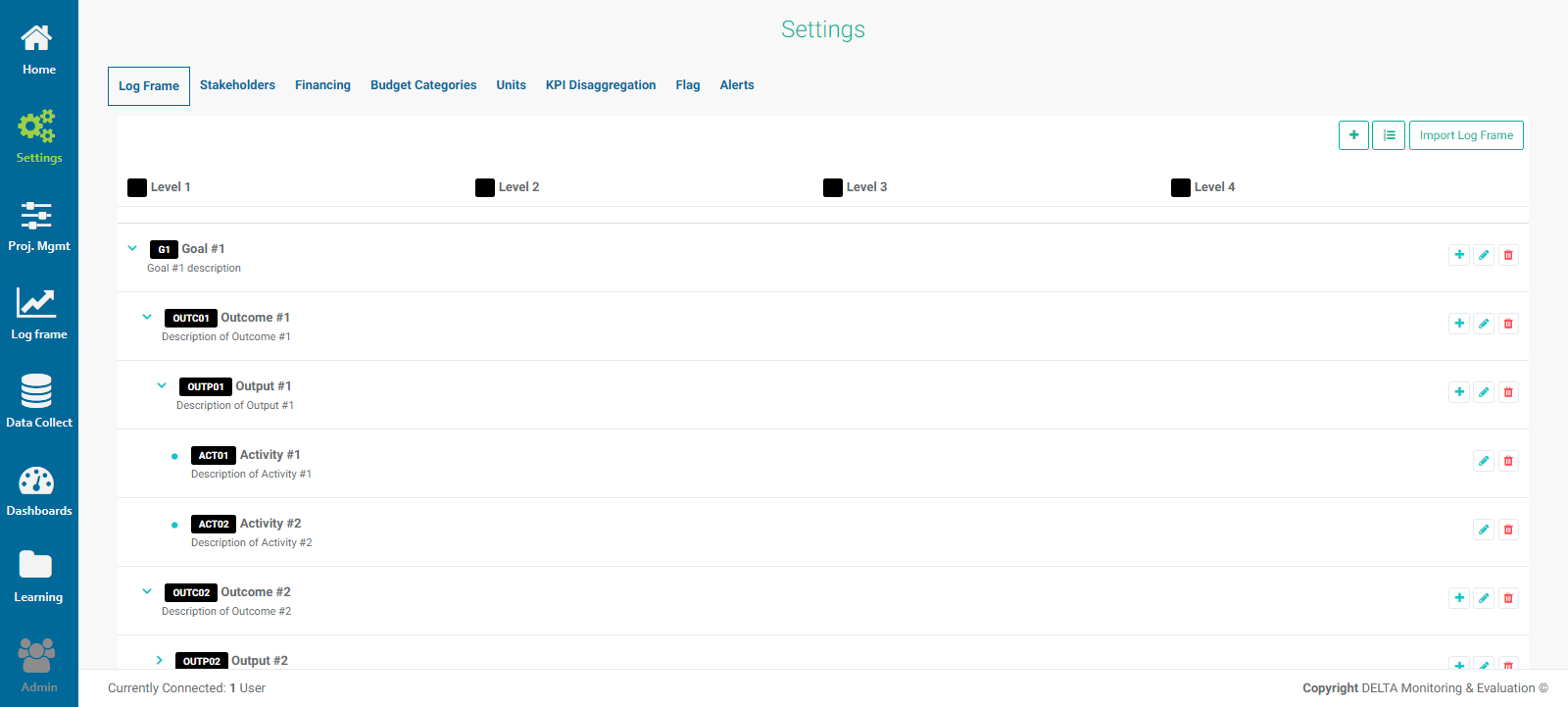
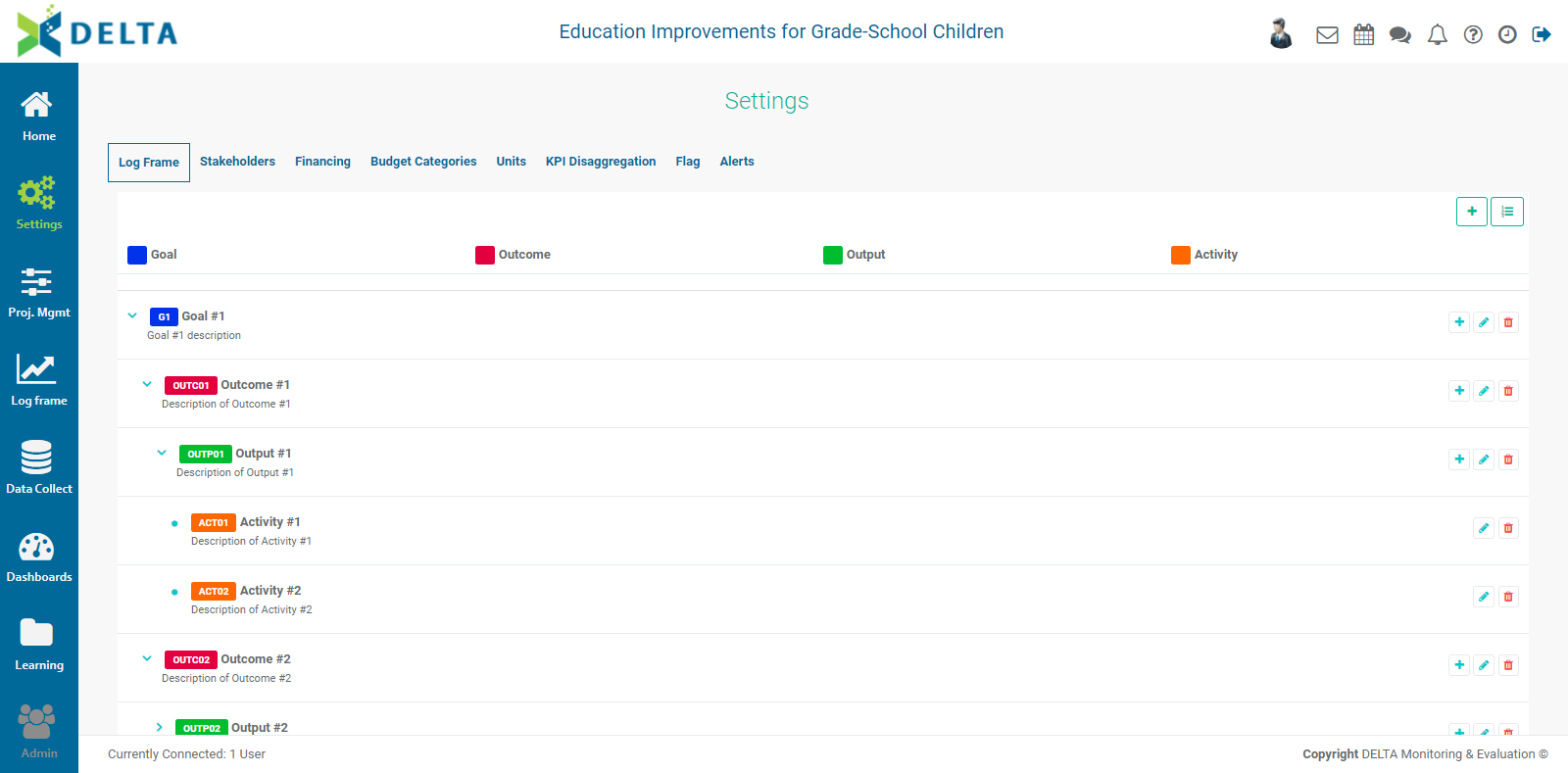
Once the import is complete, verify that the tree structure is correct, then click the Log Frame Template icon at top right to finish configuring the log frame levels with names and color coding. Note that the length of each code is already set, based on the individual element codes you entered in the spreadsheet.
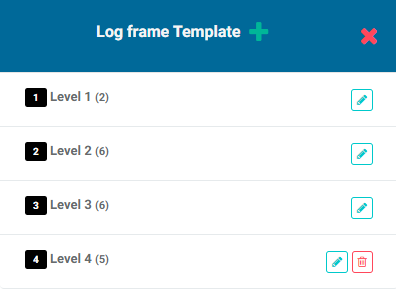
Edit each level in turn, and click the X in the popup window title bar when you're done to return to the Settings > Log Frame screen. The changes are applied immediately.
NOTE: When using Custom Log Frames, you can still create your log frame manually. Click the Log Frame Template button at top right to open the Log Frame Template popup window. Since Custom Log Frame was selected, the window is empty.

Click the + button in the popup window to add levels to the log frame template.
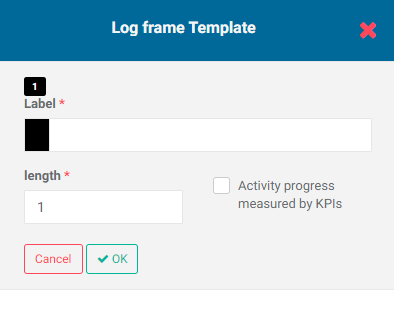
Each level contains a Label and a Length. The label is the name of the level (Goal, Outcome, Output, Activity, etc.) The length is determined by the coding schema you established.
Create as many levels as are required for the project, then click the X in the popup window title bar to save your work and return to the Log Frame screen of the Settings module. The levels you created and their associated colors (if used) appear across the top of the screen.

You can then add your log frame elements as described in the manual log frame process.
Previous: Project Settings: Log Frame: Creating a Log Frame Manually | Next: Project Settings: Log Frame: Editing a Log Frame