PM: Project Reports: Pie Chart Reports
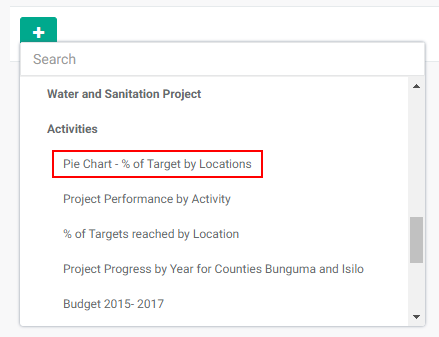
The second type of Activity Custom Reports is Pie Chart. From the Project Management module, click on the Project Reports tab, click the +Add button, and select Pie Chart from the menu.
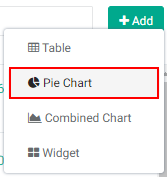
The Custom Reports - Pie Chart popup window opens.
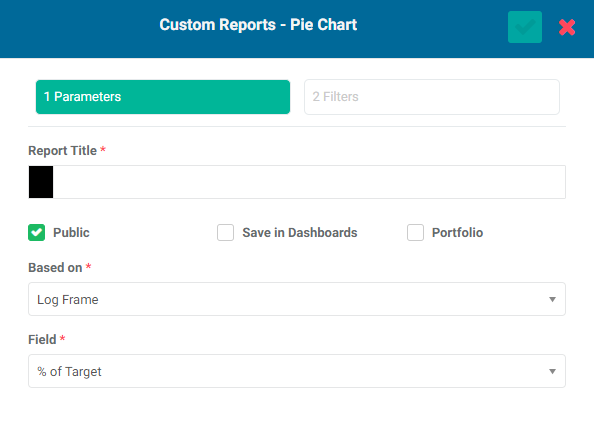
Enter a name for the report in the Report Title field.
The default color for the report icon is black. Select another color by clicking on the color block to the left of the Report Title box to bring up the color picker.
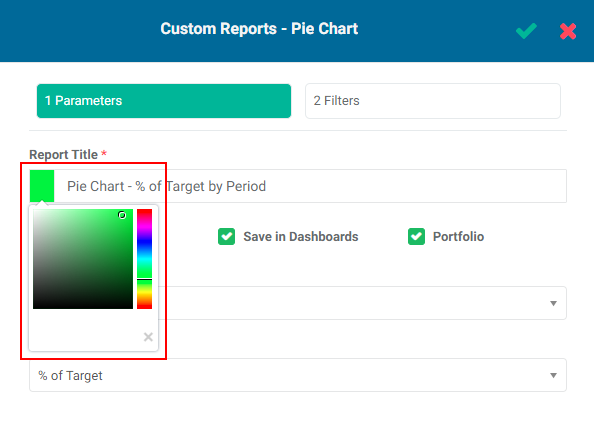
Checking the Public box makes this report available to anyone. The Public option throughout Delta publishes selected project information to the Portal - the Delta login page - for access by anyone with the URL to the portal. This optional functionality is described in detail in Accessing Delta: Delta's Public Portal.
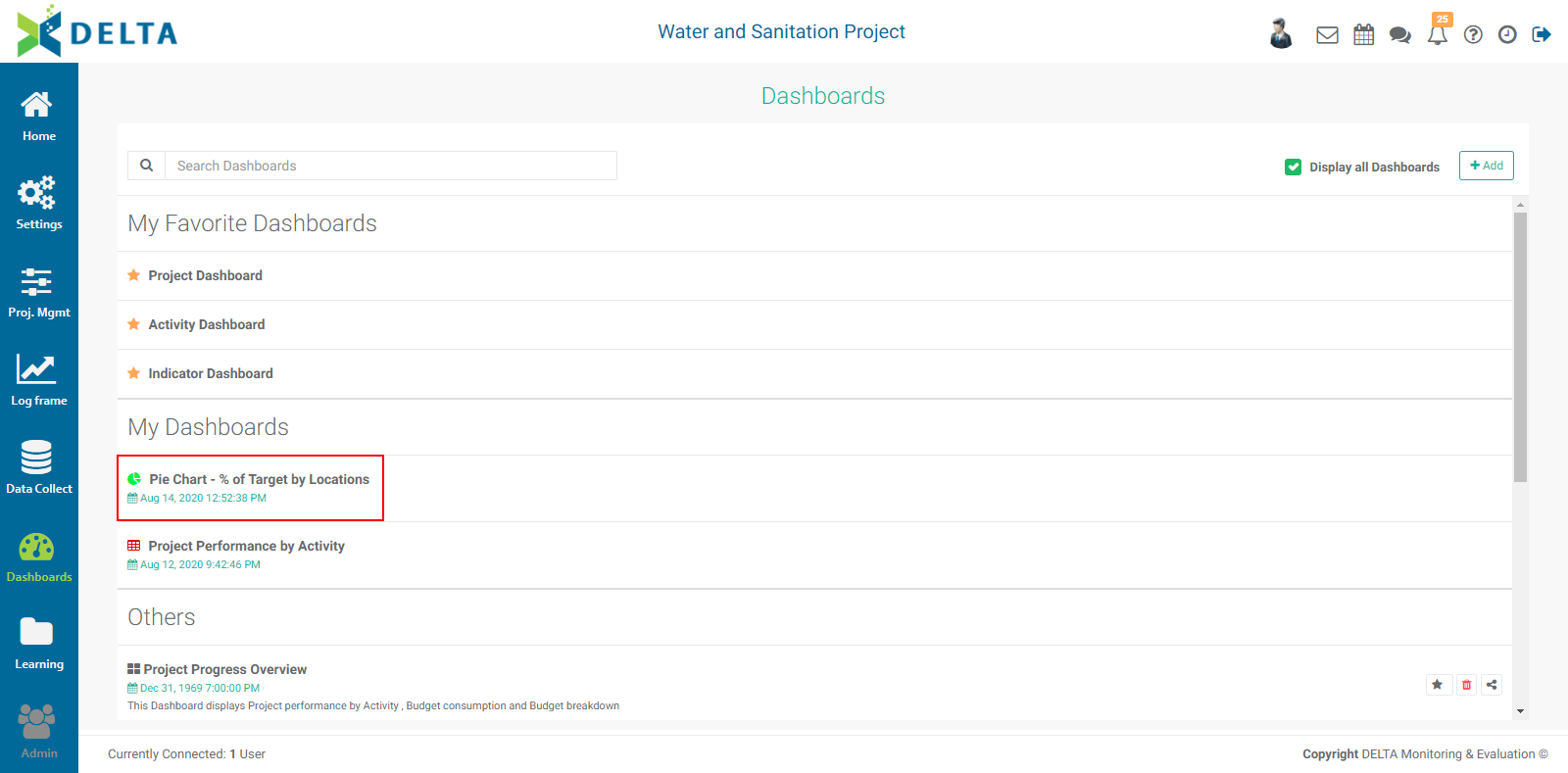
Checking the Save in Dashboards box will show this report in the Dashboards Module. It will appear in My Dashboards for you, and in Others for other users, who will then be able to add this report to their own dashboards.
Checking the Portfolio box will make this report available at the Portfolio level. The reports' names appear in the Portfolio Dashboard pick list, sorted by project and type (Activities, Indicators, Forms), and can then be used for multiproject dashboards. NOTE: all project reports are automatically available to be added to project custom dashboards.
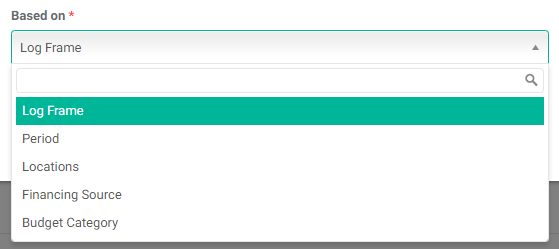
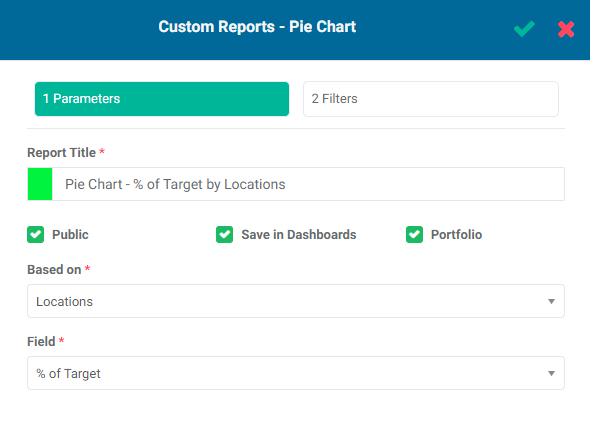
Select the basis for the pie chart from the Based On pick list. The options are Log Frame, Period, Locations, Financing Sources, and Budget Category.
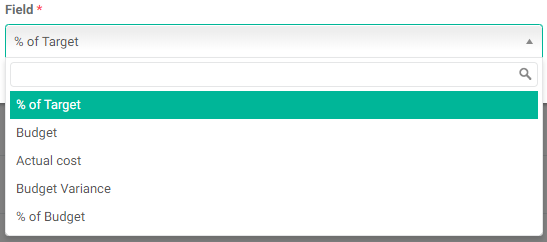
Select the field you want to graph from the Field pick list.
If you're done, click the checkmark in the popup window title bar to save your work and return to the Reports tab of the Project Management module. The new report will appear at the top of the list.
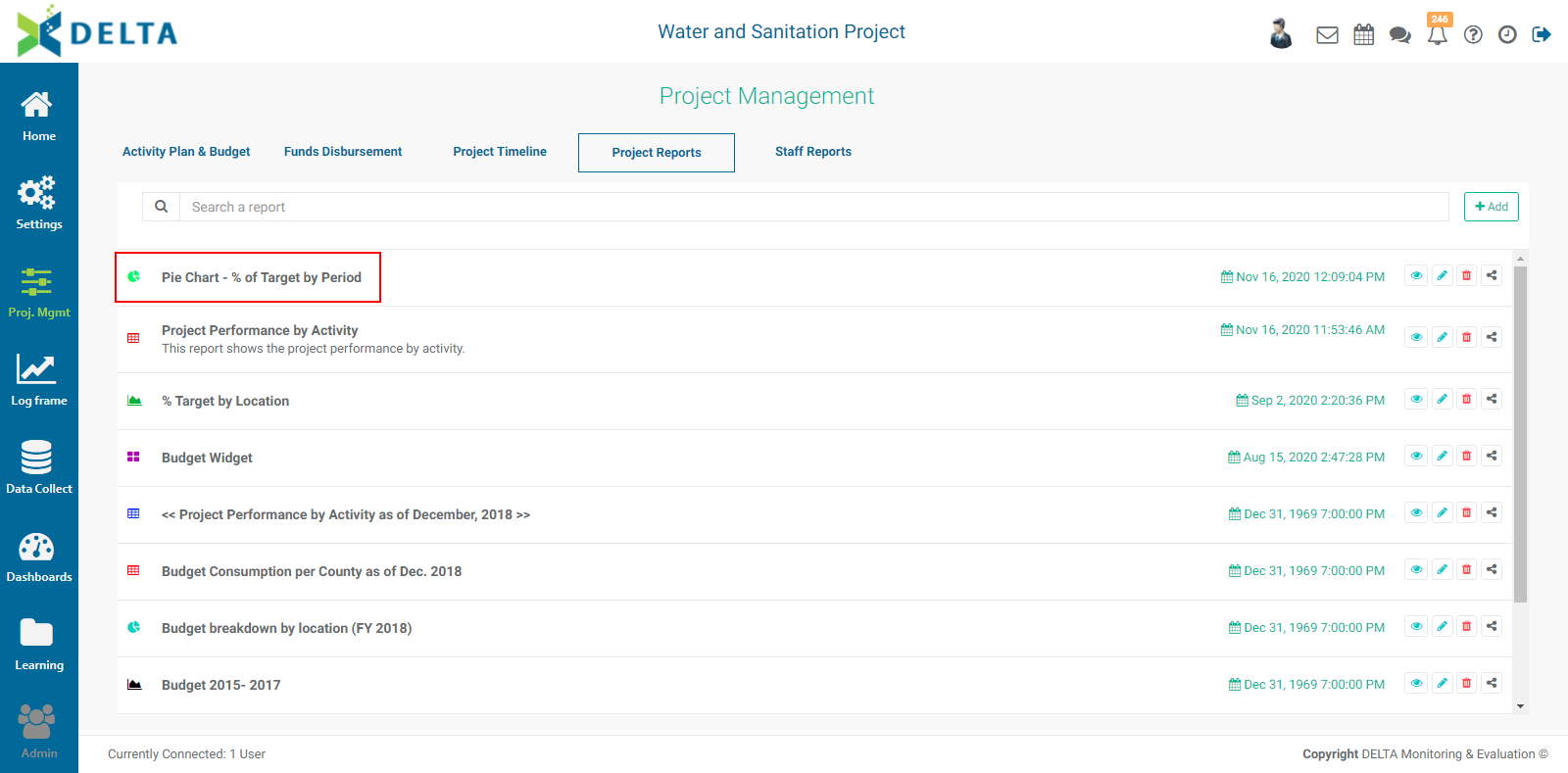
Reports are sorted by most recent first. They also feature a timestamp, and a toolbar with the following icons:
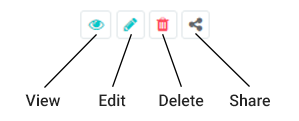
To view a report, click its name in the list, or click its View icon.
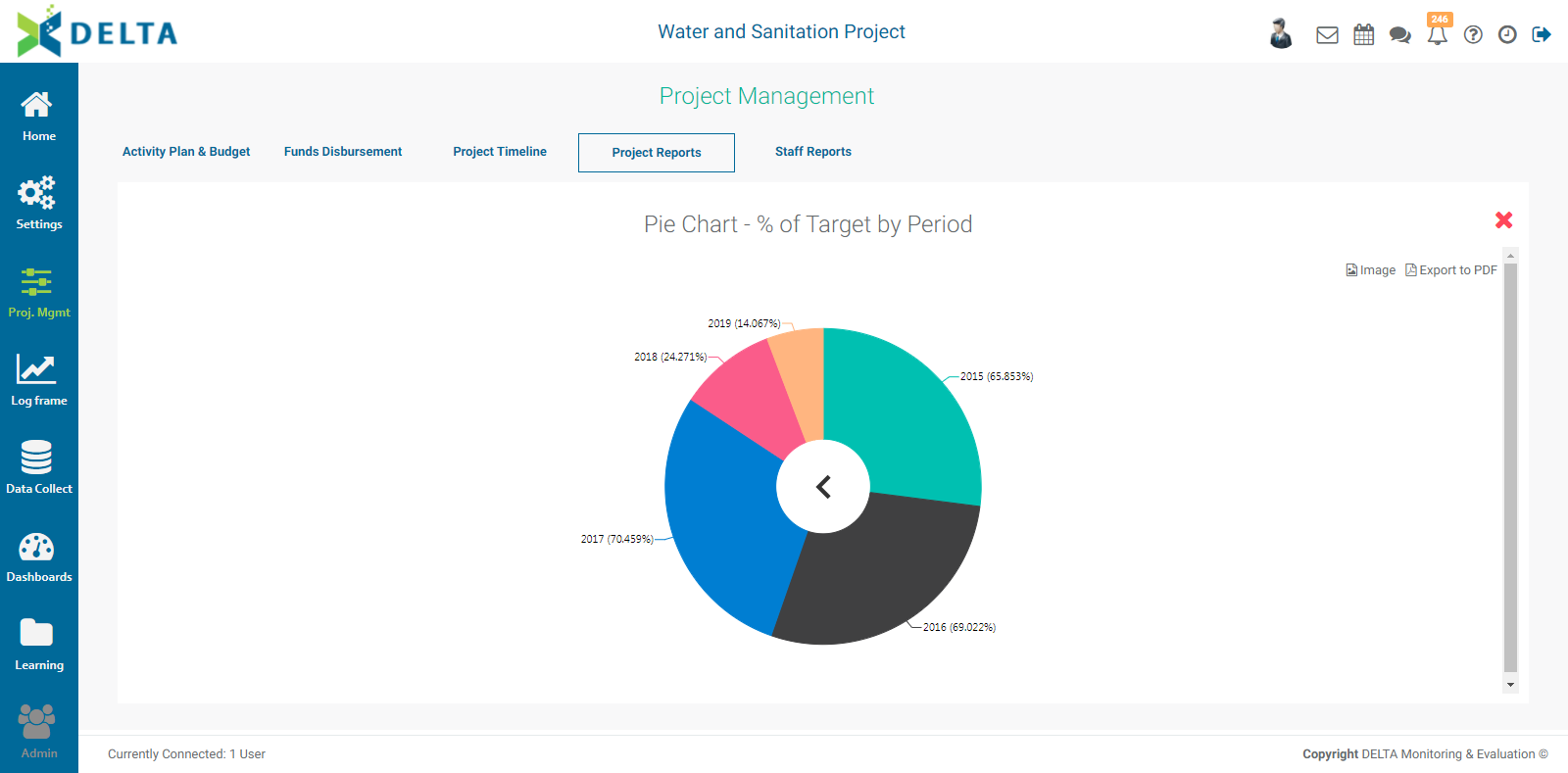
In the example above, the % Target is shown by period. There is no Global display. Each period shows Year and % Target. Year is the highest level available, and therefore is the default view.
Click the X at top right to close the report and return to the Reports list screen.
To edit a report, click the Edit icon in its toolbar. Make the desired changes to the report parameters, and click the checkmark in the Custom Reports - Table popup window title bar to save your work and return to the Reports list screen.
For our example, we'll change the % Target by Period to % Target by Locations. This will break down project performance data by geographical location. We'll also change the title of the report to reflect its settings.
As before, the highest level is the default view. For Locations, this will usually be the country.
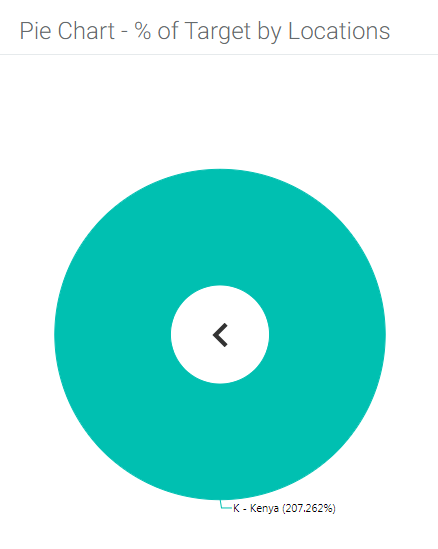
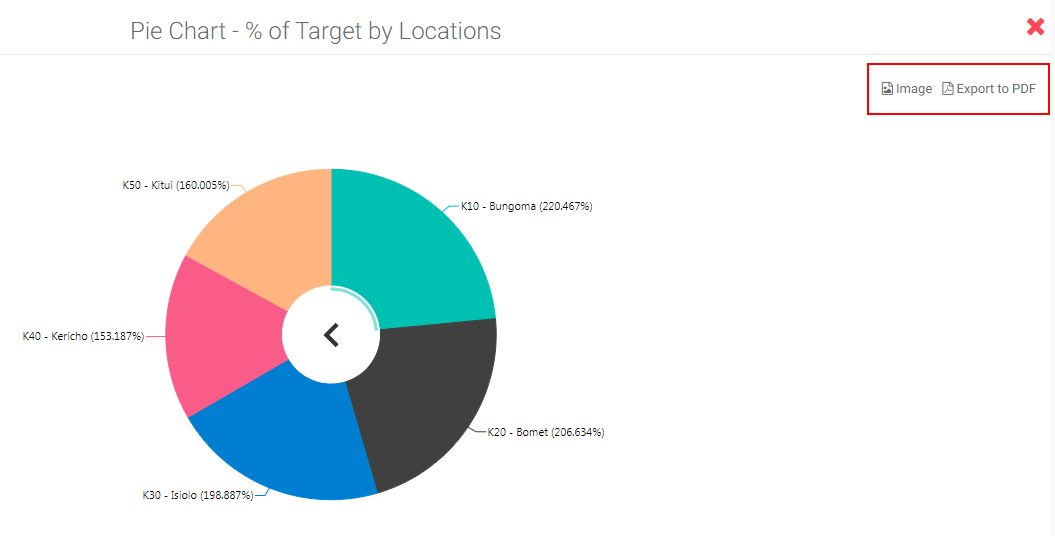
Pie Chart reports by default initially display data at the highest level available for the selected item. Delta's BI reports allow users to further drill down into pie chart data by simply clicking on the each slice of the pie chart. Click on the caret (<) in the middle of the chart to return to the higher levels of the data.
Click on the chart to drill down to the next level of the Locations list.
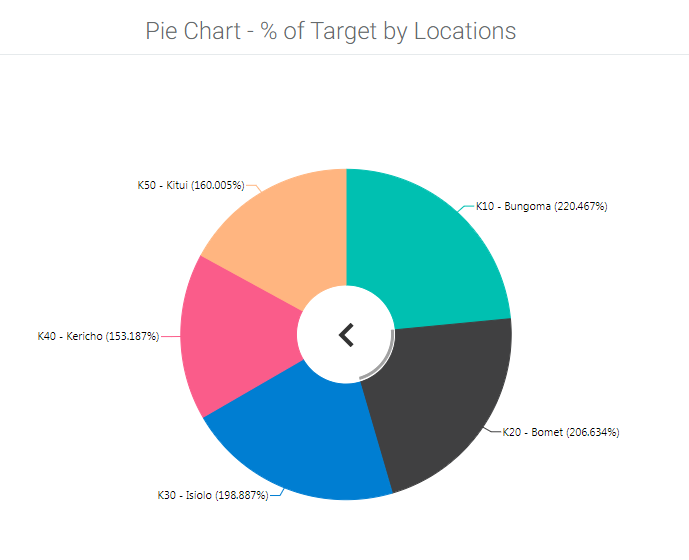
Click the caret (<) in the middle of the chart to return to higher levels of the Locations.
Pie Chart reports support the use of filters. Click the report's Edit icon, and click the Filters tab in the Custom Reports - Pie Chart popup window, then click the + button next to Add Filter.
Select the field you want to filter on. The options are Responsible Entity, Log Frame Code, Year, Financing Source Code, and Budget Category.
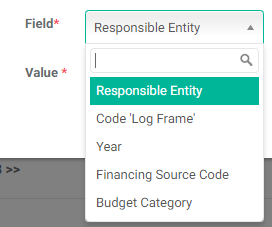
The Log Frame Code allows a user to pinpoint an exact element of the log frame for the report. The code is used instead of the element name to keep things short.
Select the operation you want the filter to perform, and the value of the filter. In this example, we're going to filter for data for the year 2016, where the Field is 'Year', the Operation is 'Equal', and the Value is '2016'.
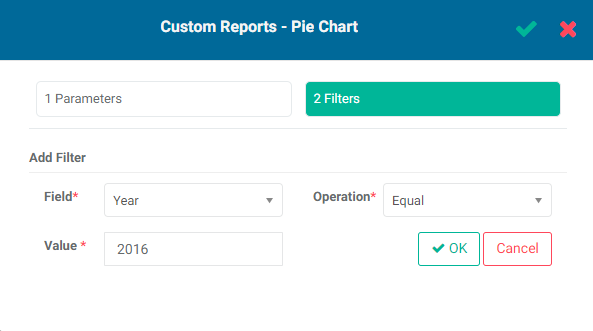
Click OK when you're done to save your filter. Your new filter will appear at the bottom of the popup window.
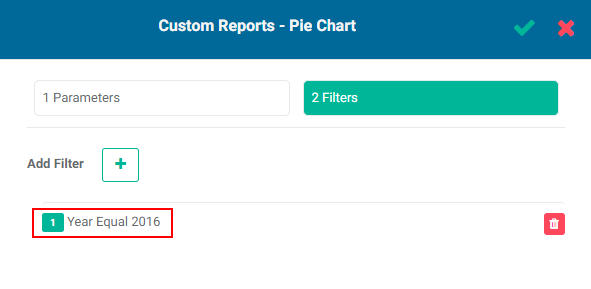
Click the checkmark in the Custom Reports - Table popup window title bar to save your work and return to the Reports list screen. Open the report to view the filtered data.
You can add as many filters as are needed. If you create more than one filter, you also need to add logic for the system to know how to handle multiple filters. The logic is simply AND/OR, and the correct syntax uses the number of the filter. In the example below, the logic is 1 OR 2, so either condition must be met. The AND operator requires that all conditions must be met, while the OR operator requires that at least one condition must be met.
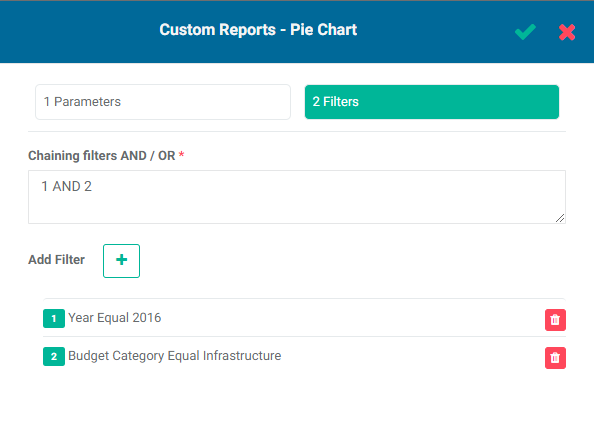
You can also use parentheses to group logical operations. In an instance with three filters, for example, 1 AND 2 OR 3 is parsed in the order in which it is written; but in 1 AND (2 OR 3), the contents of the parentheses are parsed first.
To remove a filter, click its Delete icon. There is currently no way by which a user can edit a filter, but they take very little time to set up, so replacing an incorrect filter is easy.
While you're viewing a pie chart report, you can export it in Image (.png) or PDF (.pdf) format by clicking on either option at top right of the screen. Note that if any filters are applied, this will be reflected in the exported file.
The Share icon in the report's toolbar allows users to input notes, comments, media, or other information about the report with specified recipients.
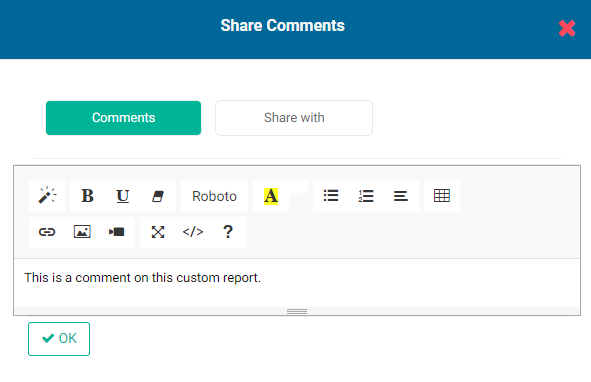
Note the three parallel lines at the bottom of the comment input box. Click, hold, and drag the lines to increase the height of the comment input box.
As you start to input content into the comments box, the Share With button appears. When you're done with your comment, click the Share With button to select recipients. Click OK when you're done. The selected persons will receive a notification in the form of a dot on top of their Alerts icon in the project's main toolbar.
Previous: PM: Project Reports: Table Reports | Next: PM: Project Reports: Combined Chart Reports