Admin Module: Customized Rights
Customized Rights allow system administrators to grant extremely fine-grained permissions to users whose profile permissions are set to Customized Rights in the User Profile tab of the Users screen. IMPORTANT: if Customized Rights are used, a user will not have access to a project unless they are a member of at least one group and one profile for that particular project.
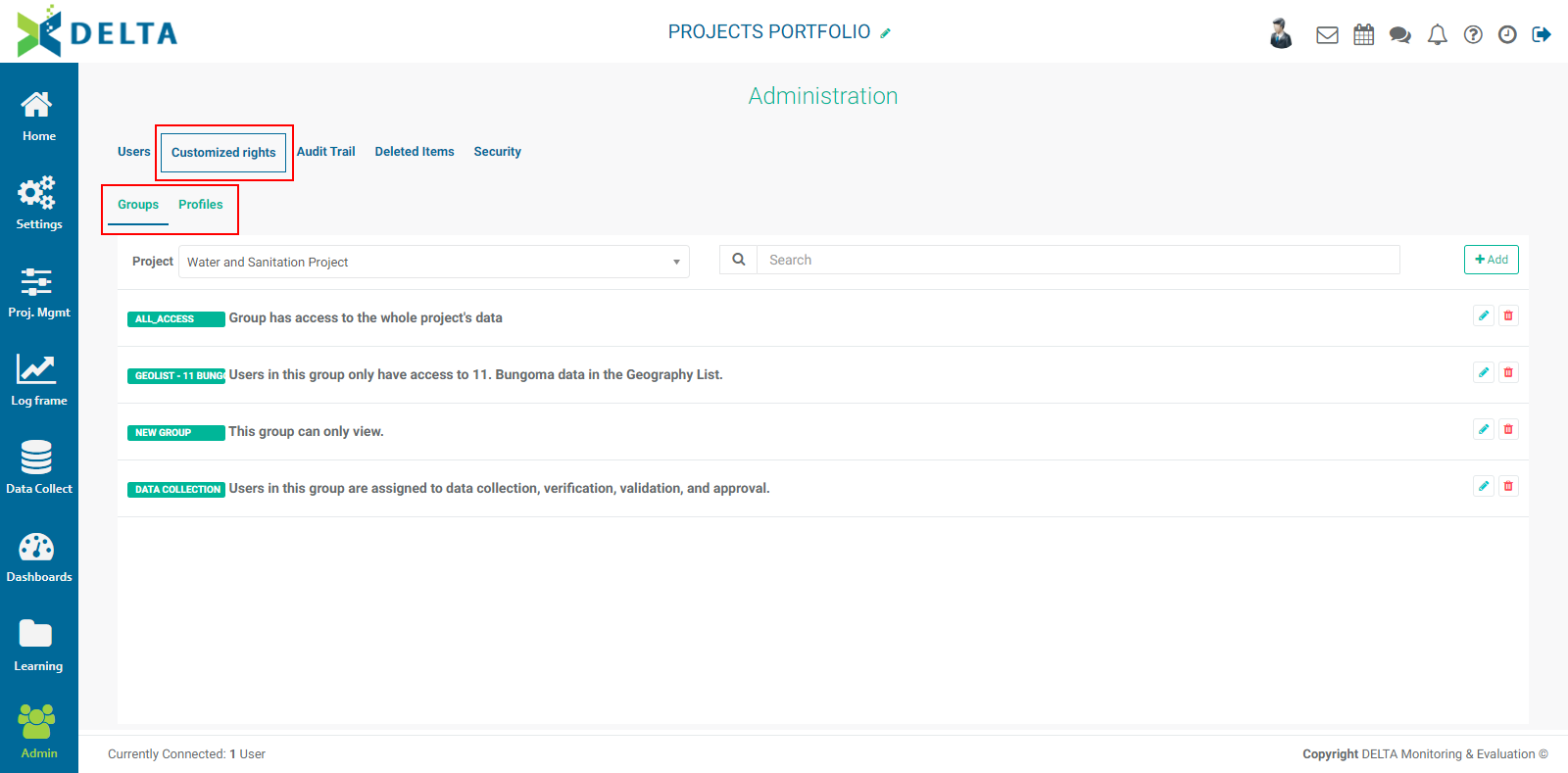
Customized rights in Delta are granted in two ways: project data permissions are handled by user groups, and system permissions are handled by user profiles.
User groups are used to assign fine-grained permissions to the project data. A best practice is to create user groups for users with similar tasks or roles, for example, who require similar levels of access.
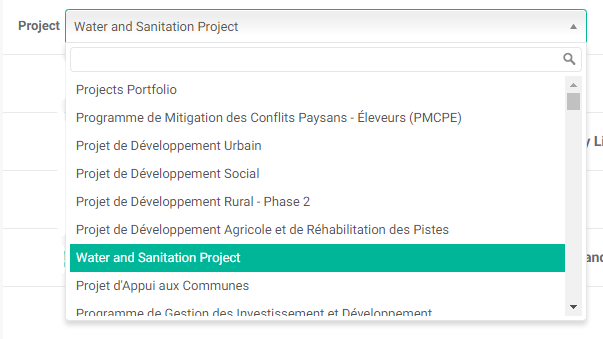
To create a user group, you must first select the project for which you want to apply the permissions. Click the Project picklist and make your selection from the project list.
Click the +Add button at the top right of the Customized Rights screen. The first tab of the Group definition screen is Locations.
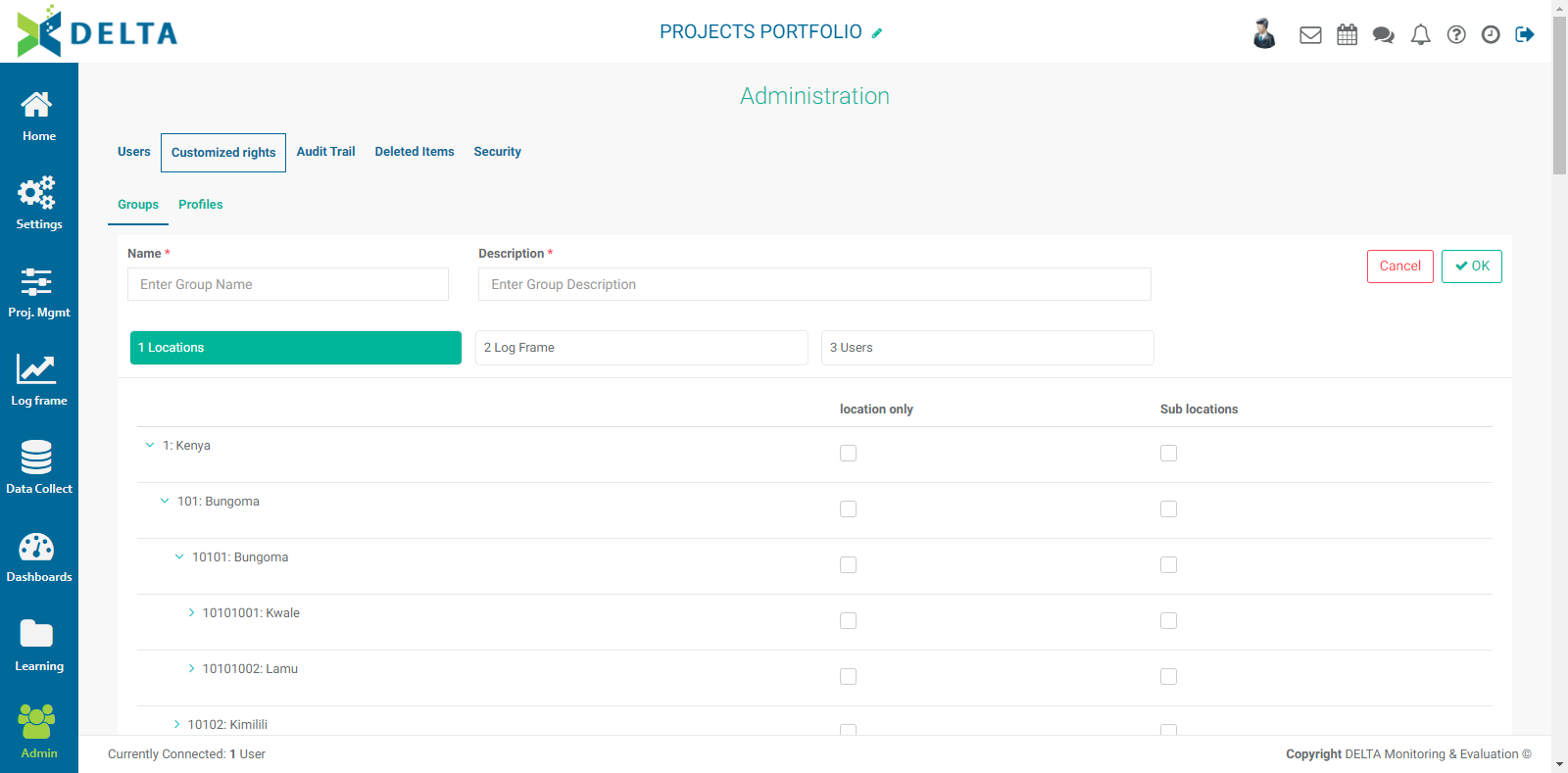
Enter a name and a description for the user group. A good description should include a summary of the permissions. The summary appears on the Groups list screen and makes it easier to locate a user group in the list.
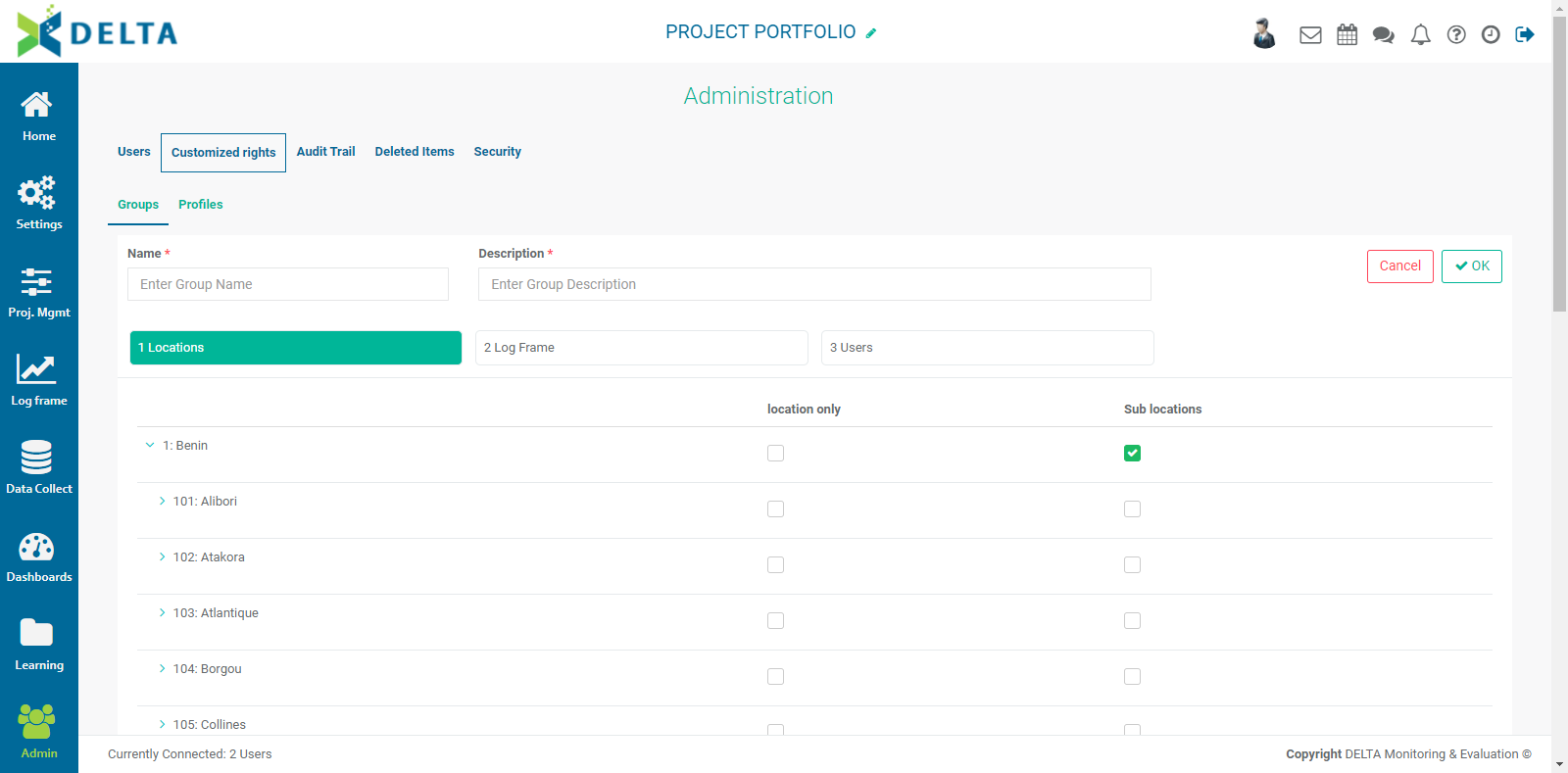
The Locations appear on the left. You can assign permissions at any level of geography (Location Only), and choose to include access to sub-levels in the Geography List (Sub Location). Note that unless you explicitly grant a specific permission by checking a box, the members of the group will have no access to those items' data.
Next, click the Log Frame tab to bring up the log frame permissions screen.
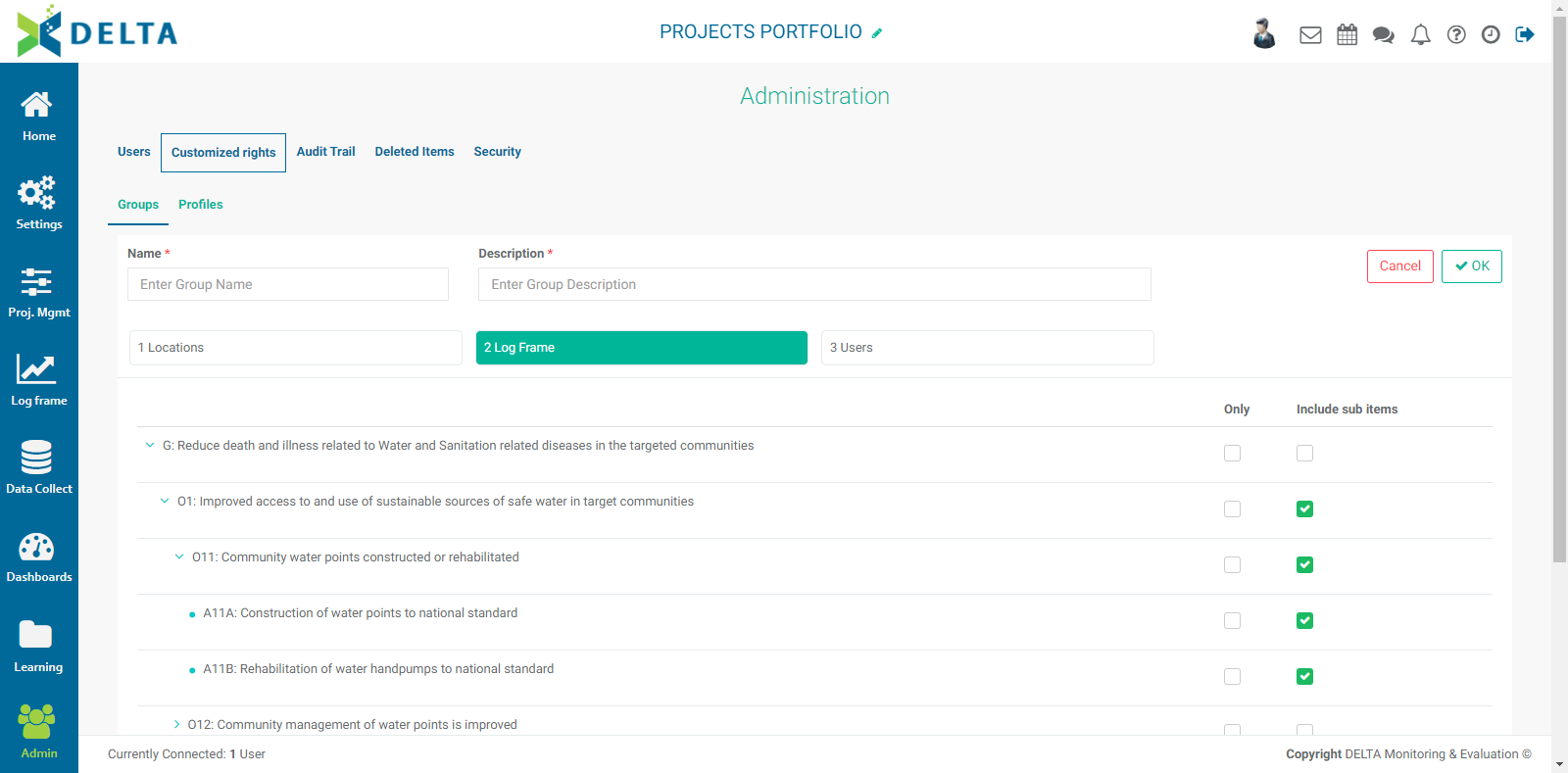
In this screen, you grant/restrict access to individual items in the log frame. This gives you precise control over who sees the project data. You can assign permissions at any level of the log frame (Only), and choose to include sub-items. Note that you must check a box in order to explicitly grant permissions to those items' data to the members of the group.
Finally, click the Users tab to add users to the group. Click All to select all users, or click on a user tile to select that user. Selected users are highlighted. NOTE: superusers will not appear on this screen because they have global permissions for everything in the system by virtue of their status as superusers.
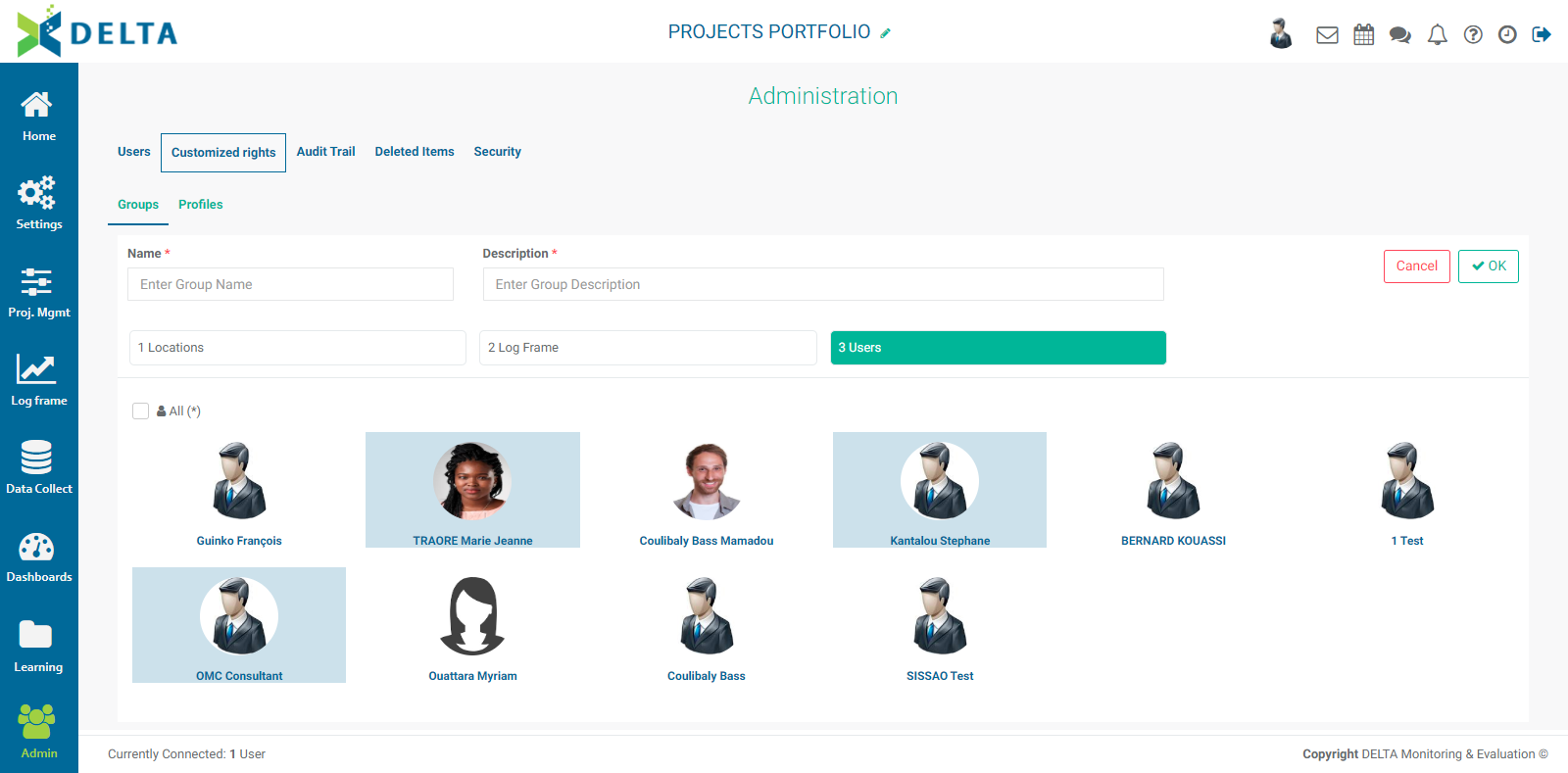
Click OK to save your work and return to the Groups page. The new user group appears in the list, along with its description.
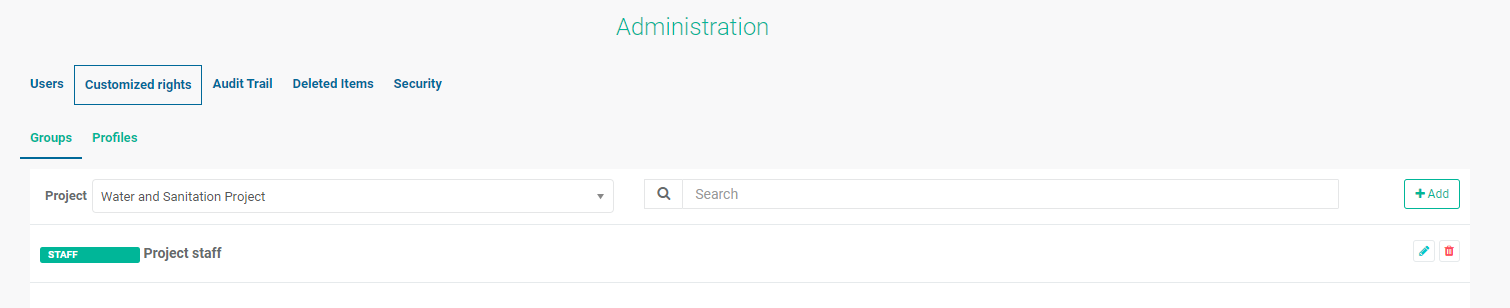
To edit a user group, click its Edit icon. Note that the name of the user group is not editable once it's been created and saved. To delete a user group, click its Delete icon.
User Profiles are used to assign fine-grained permissions to the system itself. A best practice is to create profiles for users with similar roles. Profiles are an effective way to ensure that users can only use the modules of Delta to which they should have access.
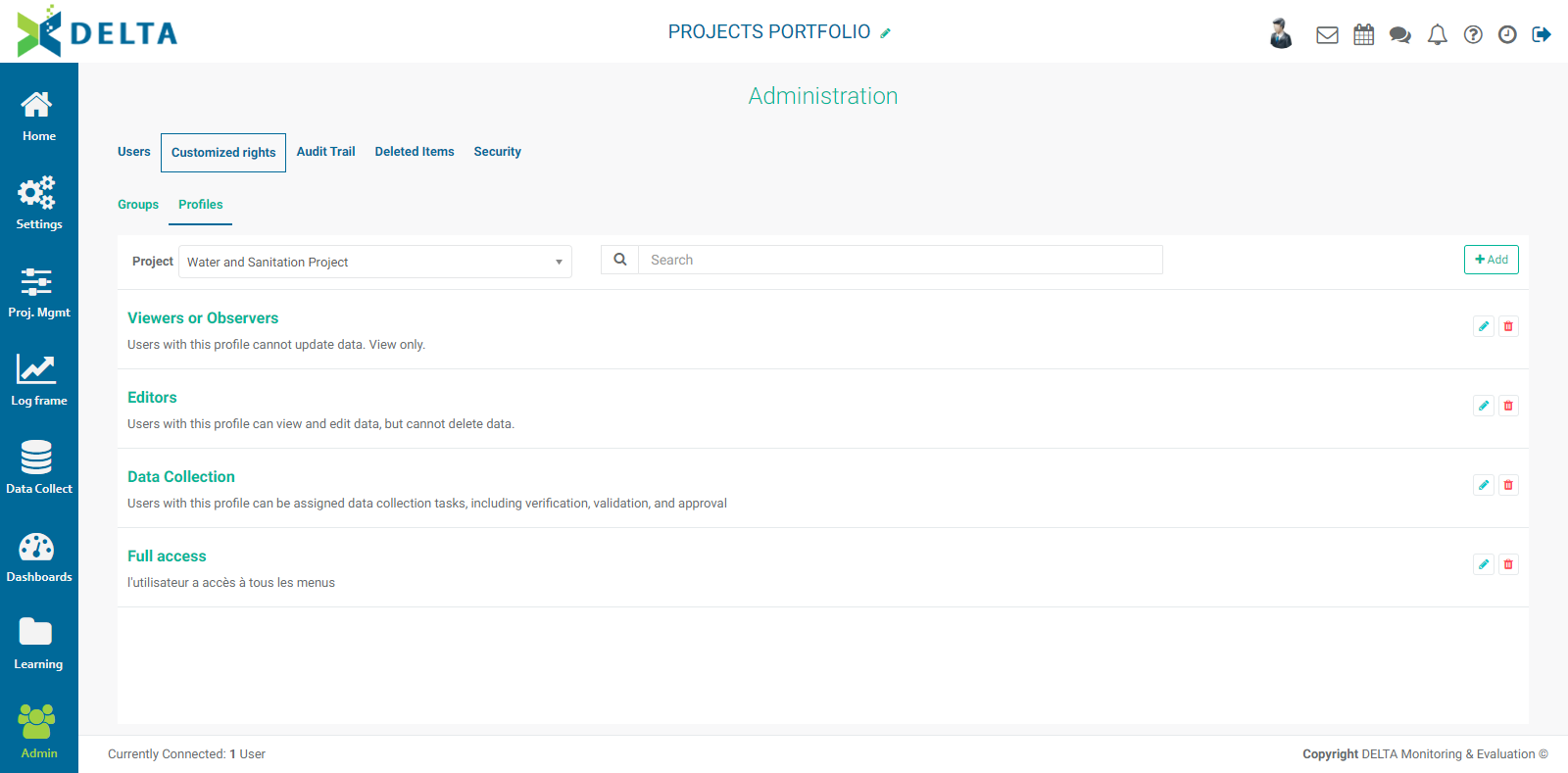
To create a user profile, you must first select the project for which you want to apply the permissions. Click the Project picklist and make your selection from the project list.
Click the +Add button at upper right of the Profiles screen to enter the Profile Definition screen.
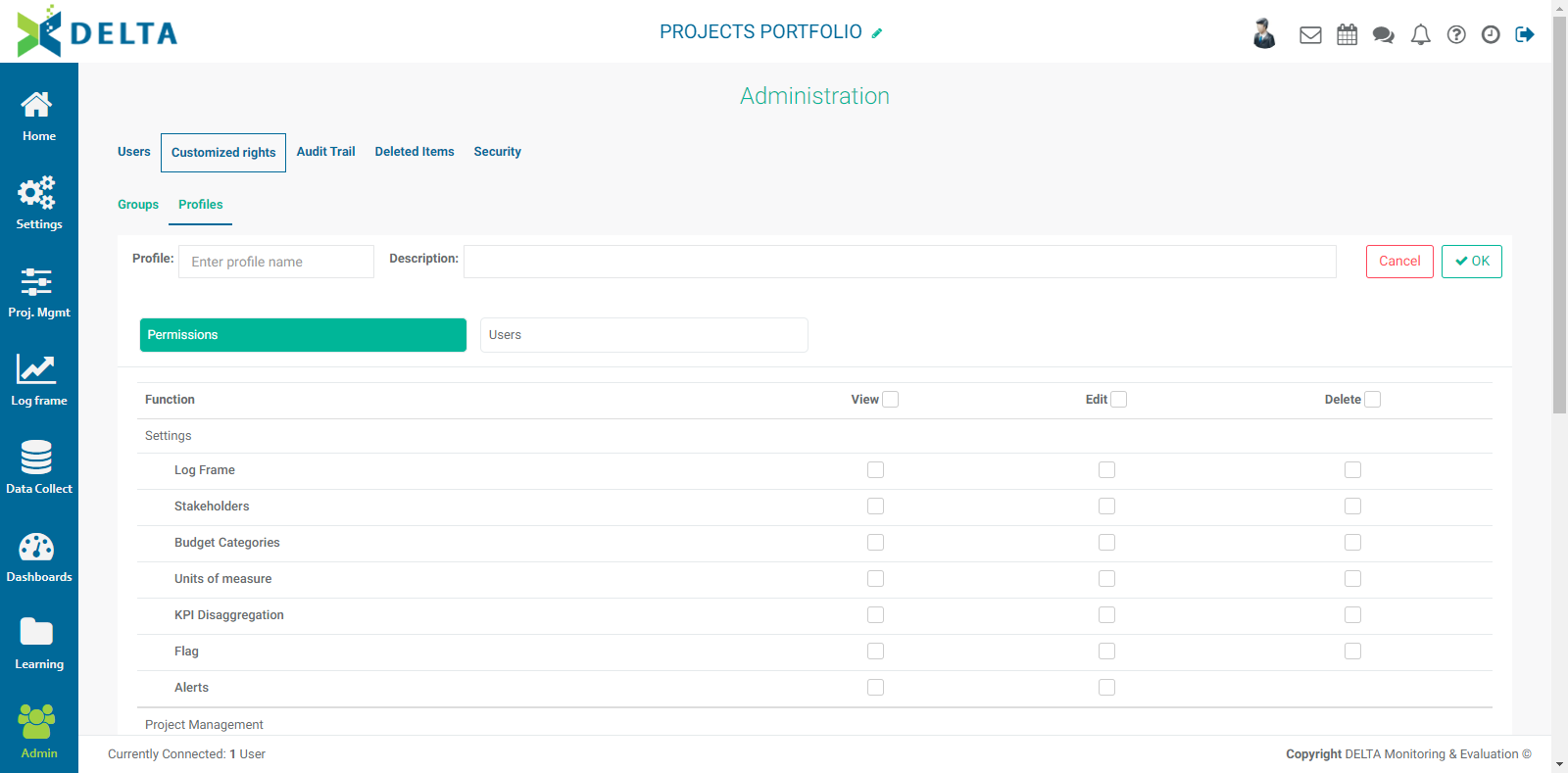
Note that the categories on the left are the modules of Delta, corresponding to the Delta navigation bar on the far left of the screen. User profiles allow the system administrator to hide entire functions and modules of Delta from users. Note also that the Admin module does not appear at all, since only superusers have access to it, and the module will be invisible to regular users.
Enter a profile name and a short description. A good description should include a summary of the permissions. The summary appears on the User Profile list screen and makes it easier to locate a user profile in the list.
Select the items for which this user profile will grant access. NOTE: unless you explicitly grant a specific permission by checking a box, the members of the user profile will have no access to those modules and functions.
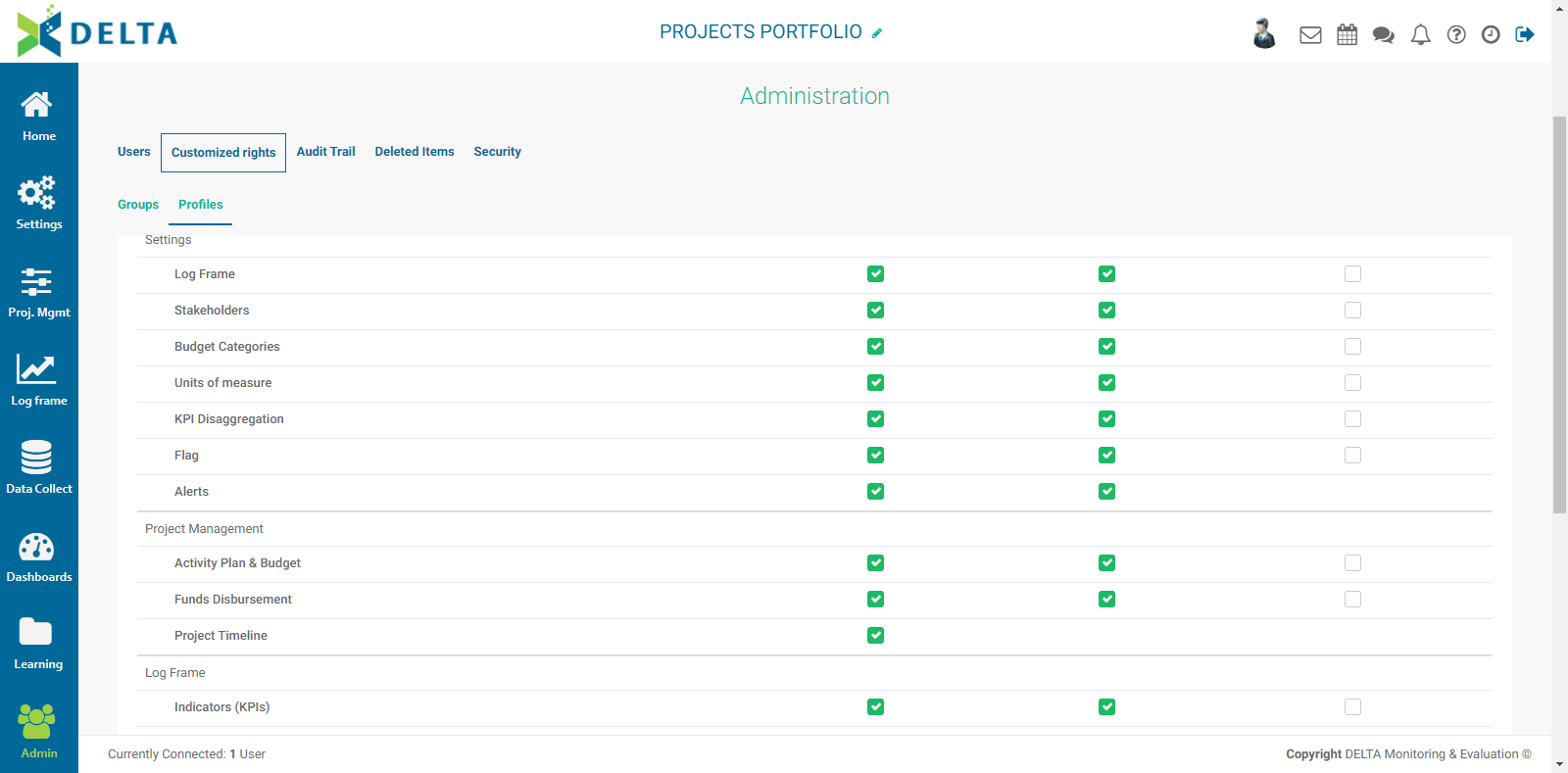
When you're done, click the Users tab. Click All to select all users, or click on a user tile to select the user. Selected users are highlighted. Please note that superusers will not appear on this screen, since they have global permissions for everything in the system by virtue of their status as superusers.
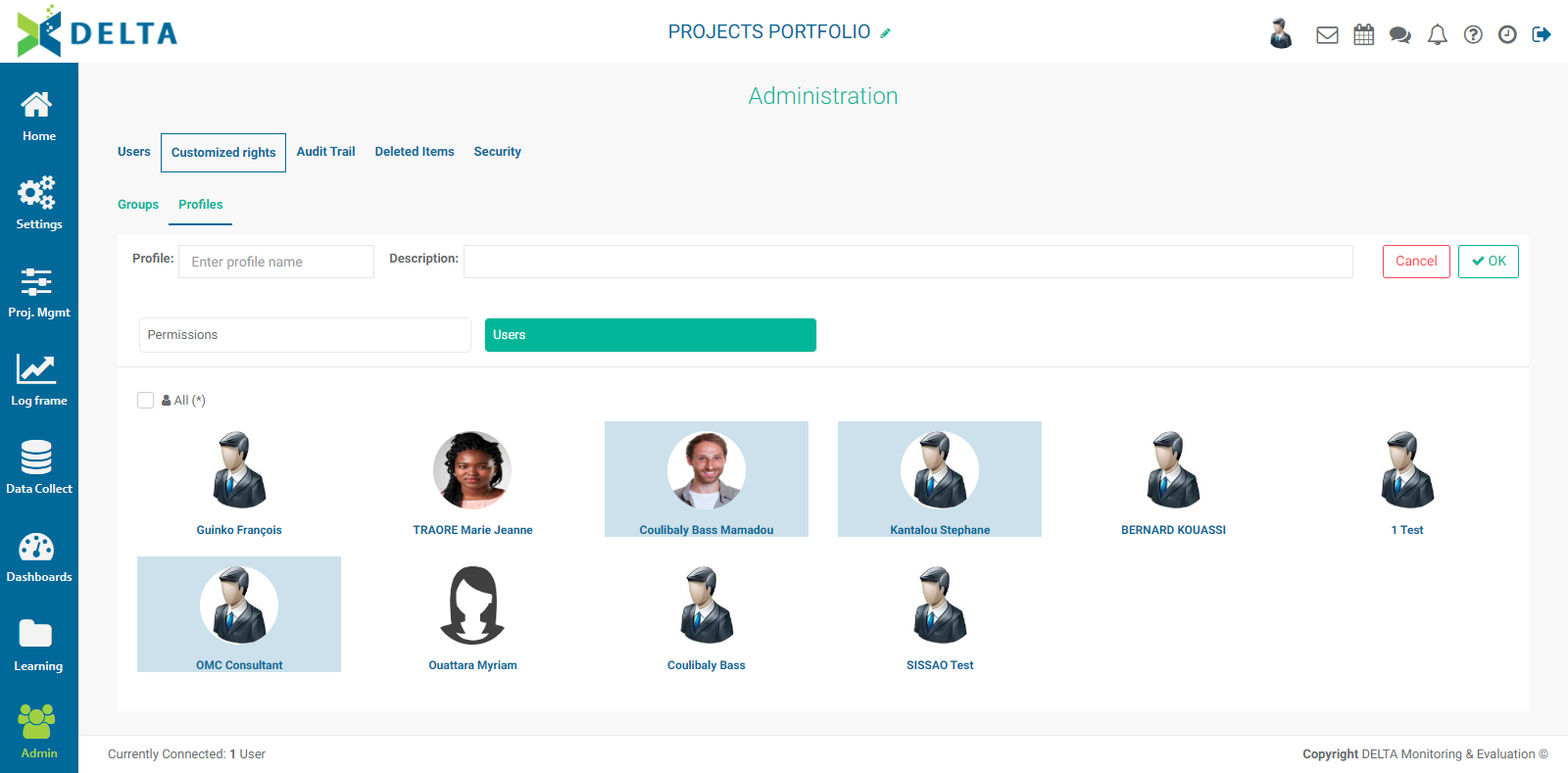
Click OK to save your work and return to the Profiles screen. The new profile appears in the list, along with its description.
To edit a profile, click its Edit icon. To delete a profile, click on its Delete icon.
NOTE: Permissions for Data Collection Forms are handled in the Data Collection module. Forms are a special case for permissions, and the only Forms permission that can be granted in the Admin module is View.
Previous: Admin Module: Users | Next: Admin Module: Audit Trail