PM: Activity Plan & Budget (APB)
The Activity Planning & Budget (APB) screen is the planning and monitoring tool that's generally used for annual planning and follow-up of a programme. The APB is usually prepared by the programme managers and approved in a workflow which involves steering and monitoring bodies as well as technical and financial partners. Activities are planned as described on the basis of the APB.
After activities have been planned, and/or actuals data associated with these activities has been entered into the system, users can call up this screen to view and follow the status of the APB.
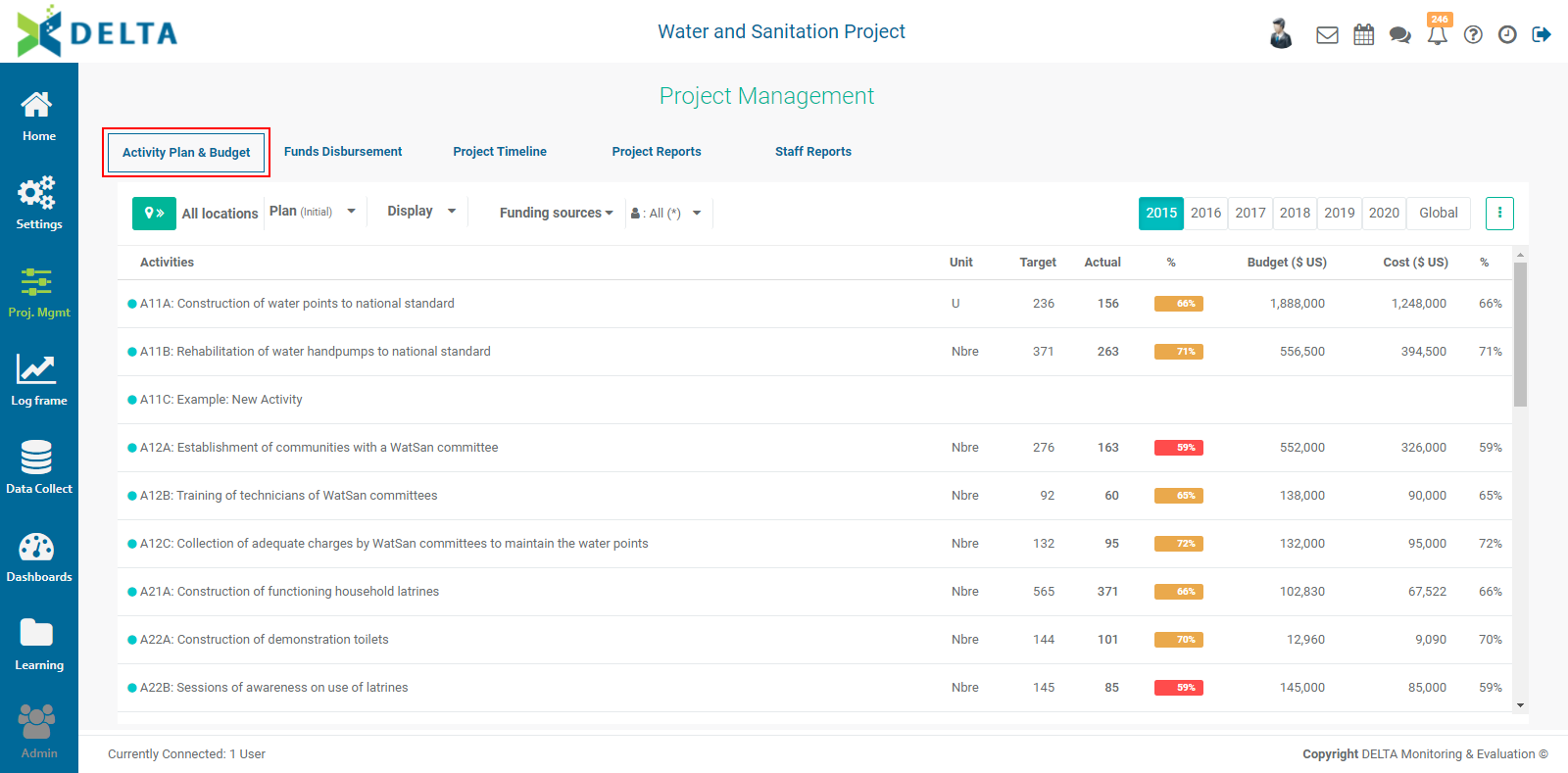
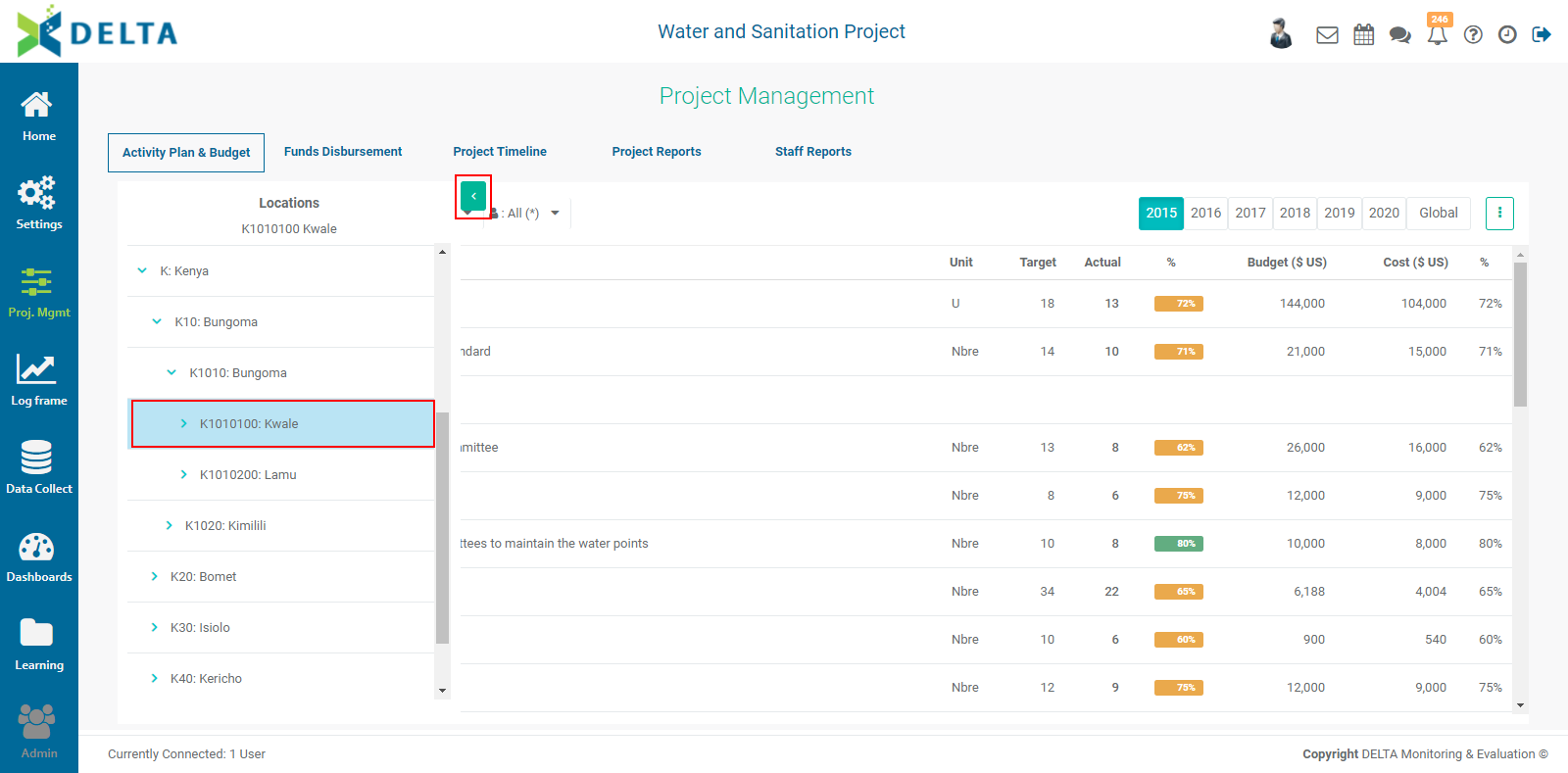
The basis for the APB is the Locations list. Click the >> button to expand the Locations list onto the screen.

To expand and collapse the branches of the Locations list, click the carets (> and v) to the left of each level. Click on a location to select it and view its specific information. Click the Hide (<) button to hide the geography list.
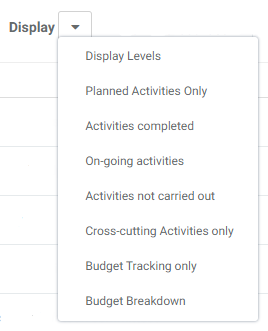
The data can be further filtered by various criteria: by Plan (initial vs. revised), by Display type, by Funding Source, and/or by Stakeholder. Filters can be combined simply by choosing criteria under each individual filter.
The Display options are extensive and include type of activity as well as activity status and budget tracking or breakdown. It is especially useful to sort out cross-cutting activities used by the project.
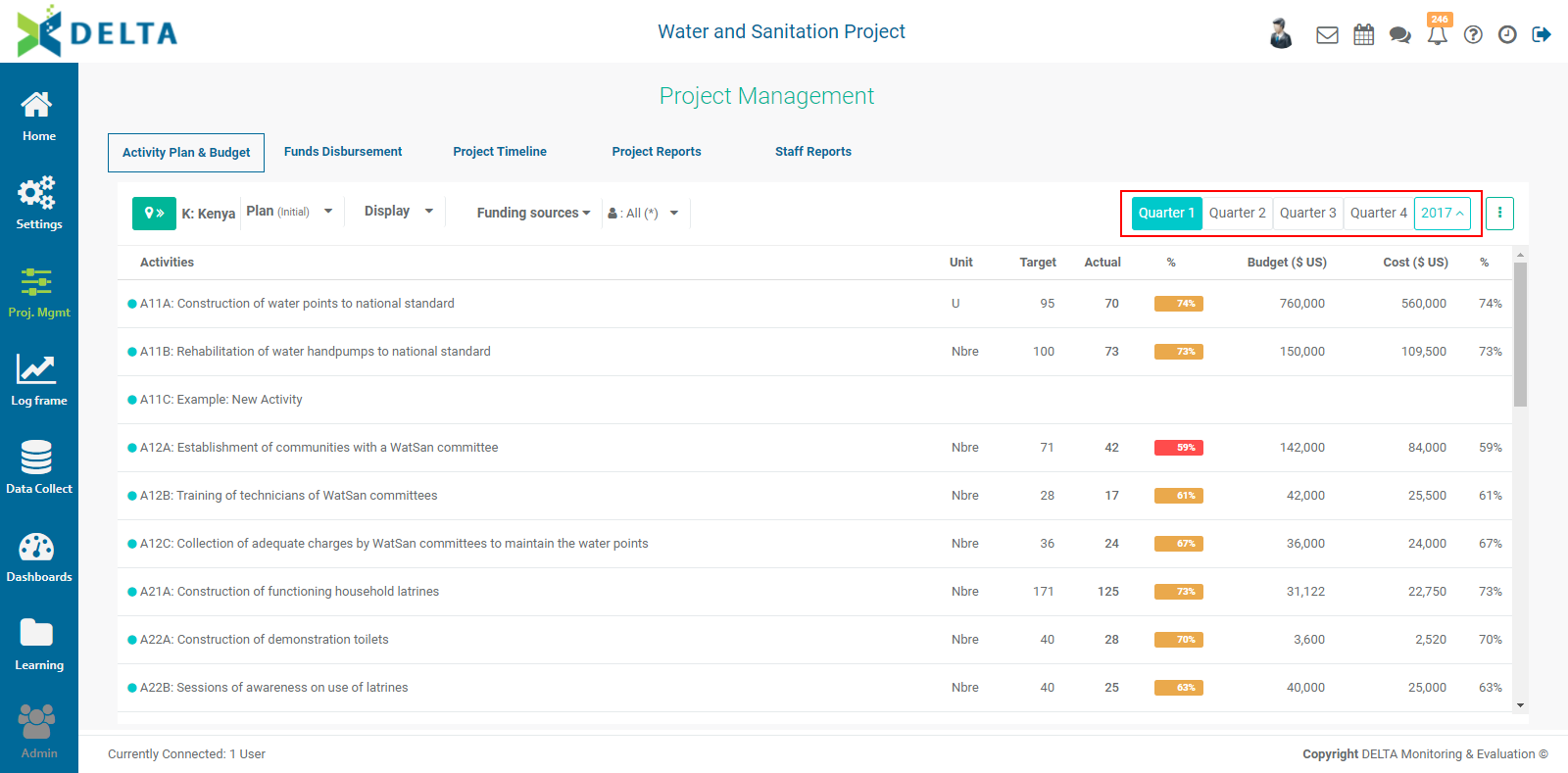
The default timeline view for this dashboard is Global.

Click on a year to view its data.

To see the details of a given period, double-click on a year to expand its data. Click on each of the period tabs to view its data. Click on the year tab to return to the previous screen. NOTE: Any filters or views already applied will also be applied to the year and period views.
The vertical More icon to the right of the timeline bar contains additional functions which can be performed from this screen:
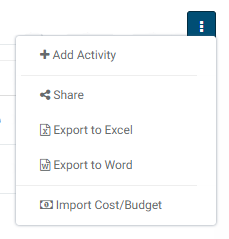
Click +Add Activity to create a new activity for the project. This process is described in detail in this article: PM: Activities: Creating a New Activity.
Select Share to send this dashboard to selected recipients in the Chatroom.
To export this dashboard, select Export to Excel or Export to Word.
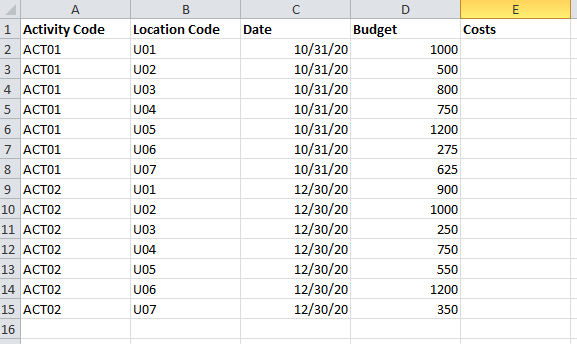
To import activity costs and budgets for the project, select Import Cost/Budget, navigate to the Excel spreadsheet you want to use to select it, and click Open or press Enter on your keyboard. The system will briefly display a status icon while the import takes place. NOTE: this step should only be performed after all activities have been configured. The cost and budget spreadsheet must contain the following columns: Activity Code, Location Code, Date, Budget, and Costs. The date allows the system to place the budget item in the proper period for each location and activity.
IMPORTANT: Budgets and costs can be imported more than once, but you need to be careful; any import subsequent to the first one will overwrite existing data if the spreadsheet contains identical codes and dates. In the example below, costs have not yet been determined and are left blank.
Previous: PM: Activities: Creating a New Activity | Next: PM: Funds Disbursement