Indicators: Custom Reports
In addition to Delta's built-in reports for indicators, users can also create Custom Reports. Three types of custom reports are available for indicators: Table, Pie Chart, and Widget.
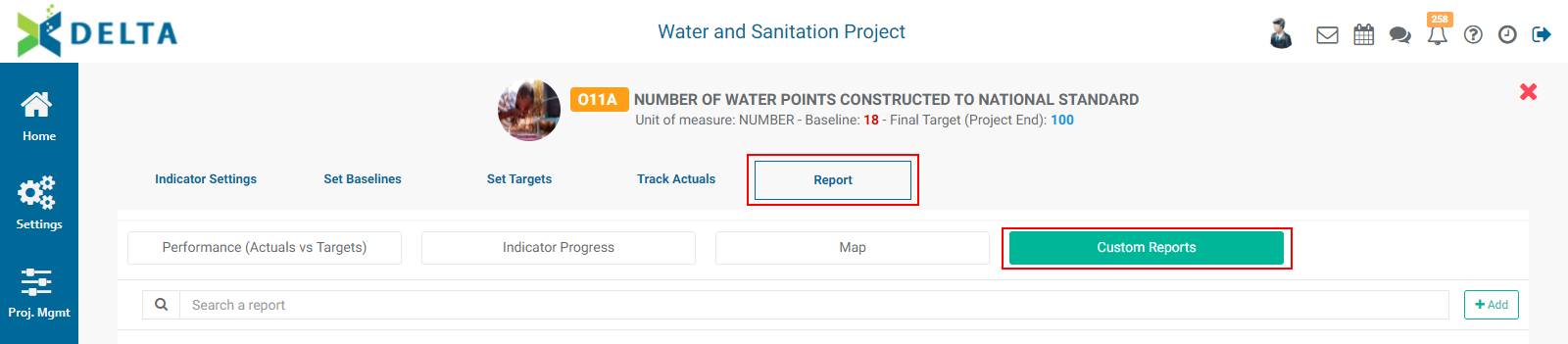
From inside the indicator, select Report, then click Custom Reports.
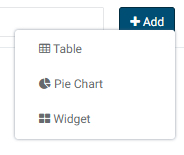
Click the +Add button at top right to bring up the report format selection menu, then select the type of report you want to create.
Select Table to bring up the Custom Reports - Table popup window.
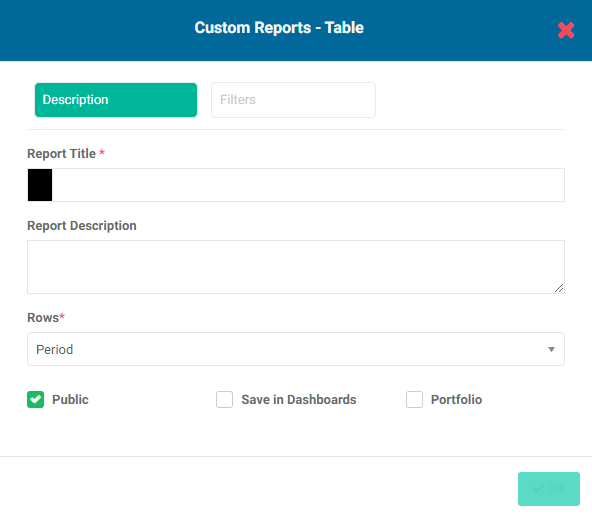
Enter a title for the report (mandatory) and a short description (optional but recommended). To change the color of the report icon, click the color block next to the report title and select the desired color from the color picker.
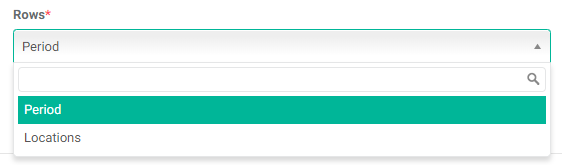
Select the basis for the report from the Rows pick list.
To make this report available on the public portal, check the Public box. Anyone with the link to the portal (login page) will be able to view the report without system access credentials.
Check Save Report in Dashboards to make this report available to other users for their dashboards. You will see the report in the My Dashboards section of the Dashboards module; other users will see it in their Others list.
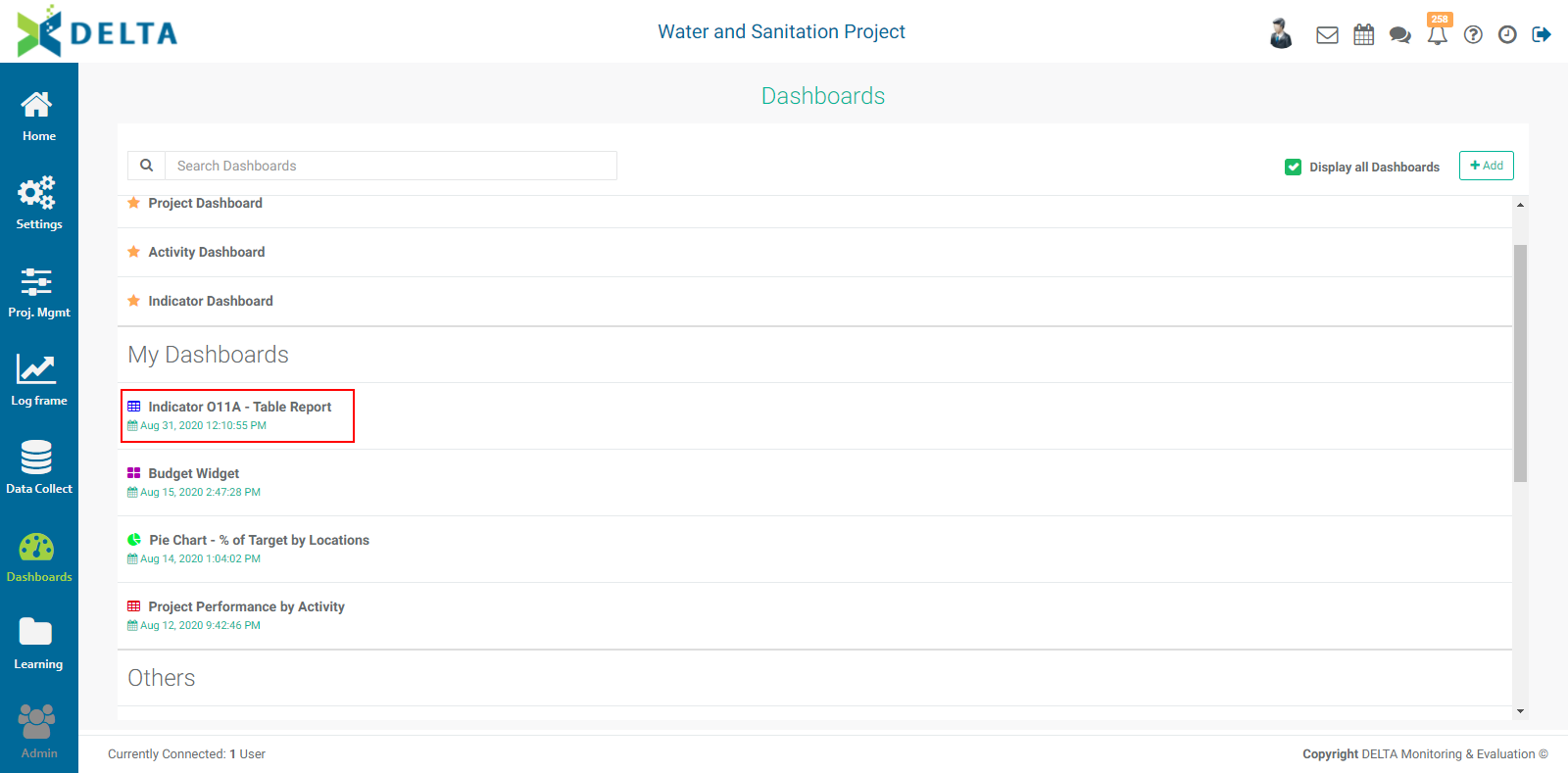
Checking the Portfolio box will make this report available at the Portfolio level. The reports' names appear in the Portfolio Dashboard pick list, sorted by project and type (Activities, Indicators, Forms), and can then be used for multiproject dashboards. NOTE: all project reports are automatically available to be added to project custom dashboards.
Click OK to save your work and return to the Custom Reports screen. The new report will appear on the page. Reports are sorted by most recent in descending order.
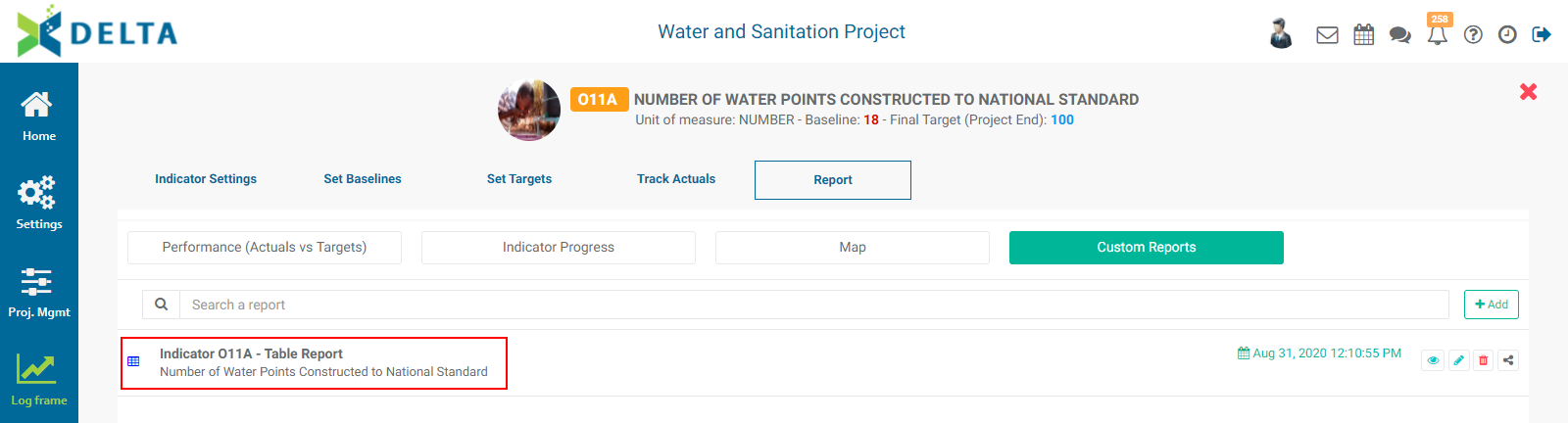
To view the report, click its name in the list, or click the report's View icon in its toolbar.
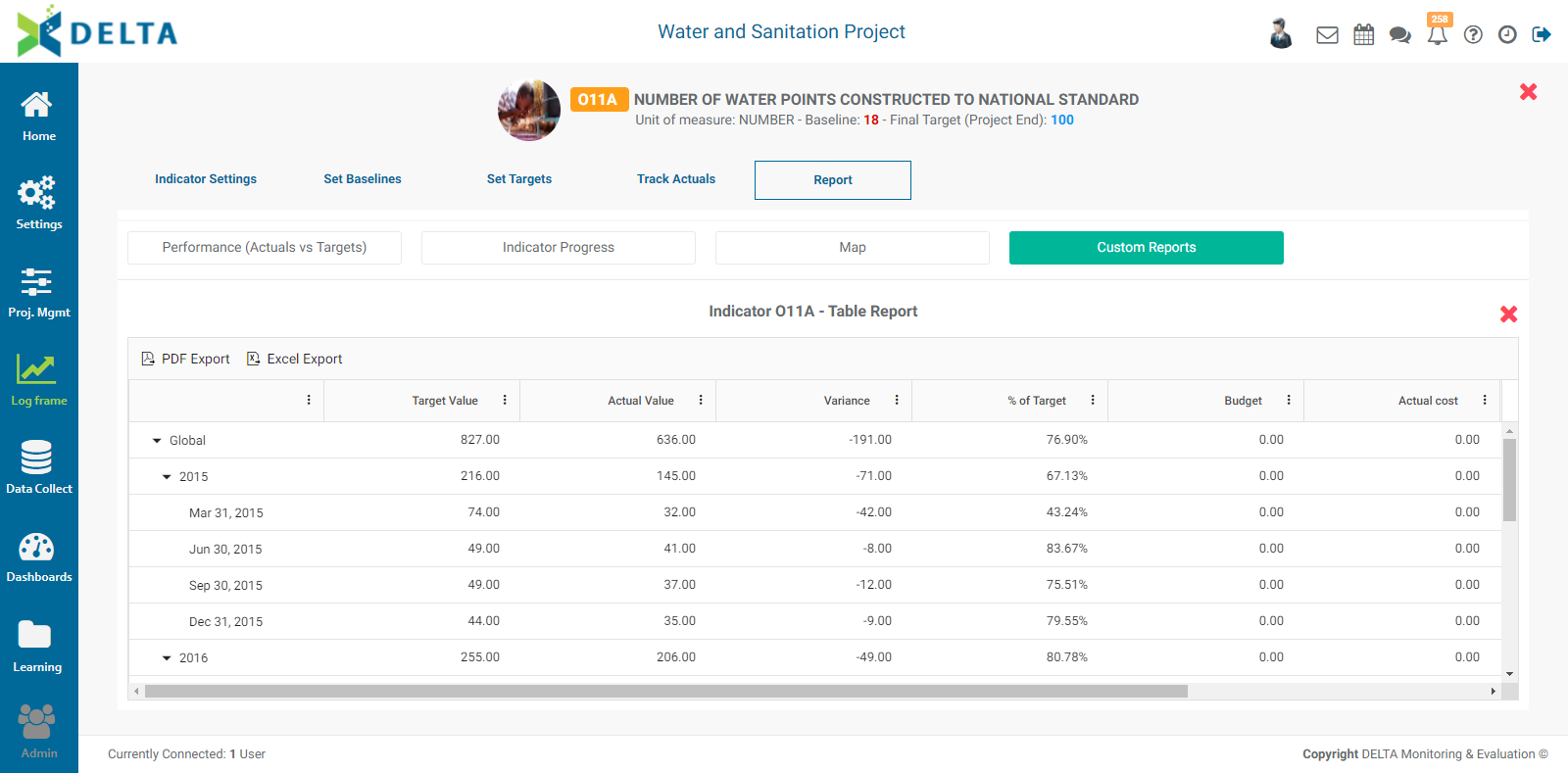
While viewing the report, several additional display options become available. Click the vertical More menu in any column to size and/or sort it, or select which columns to show/hide. The functionality is the same as the corresponding functions in Excel.
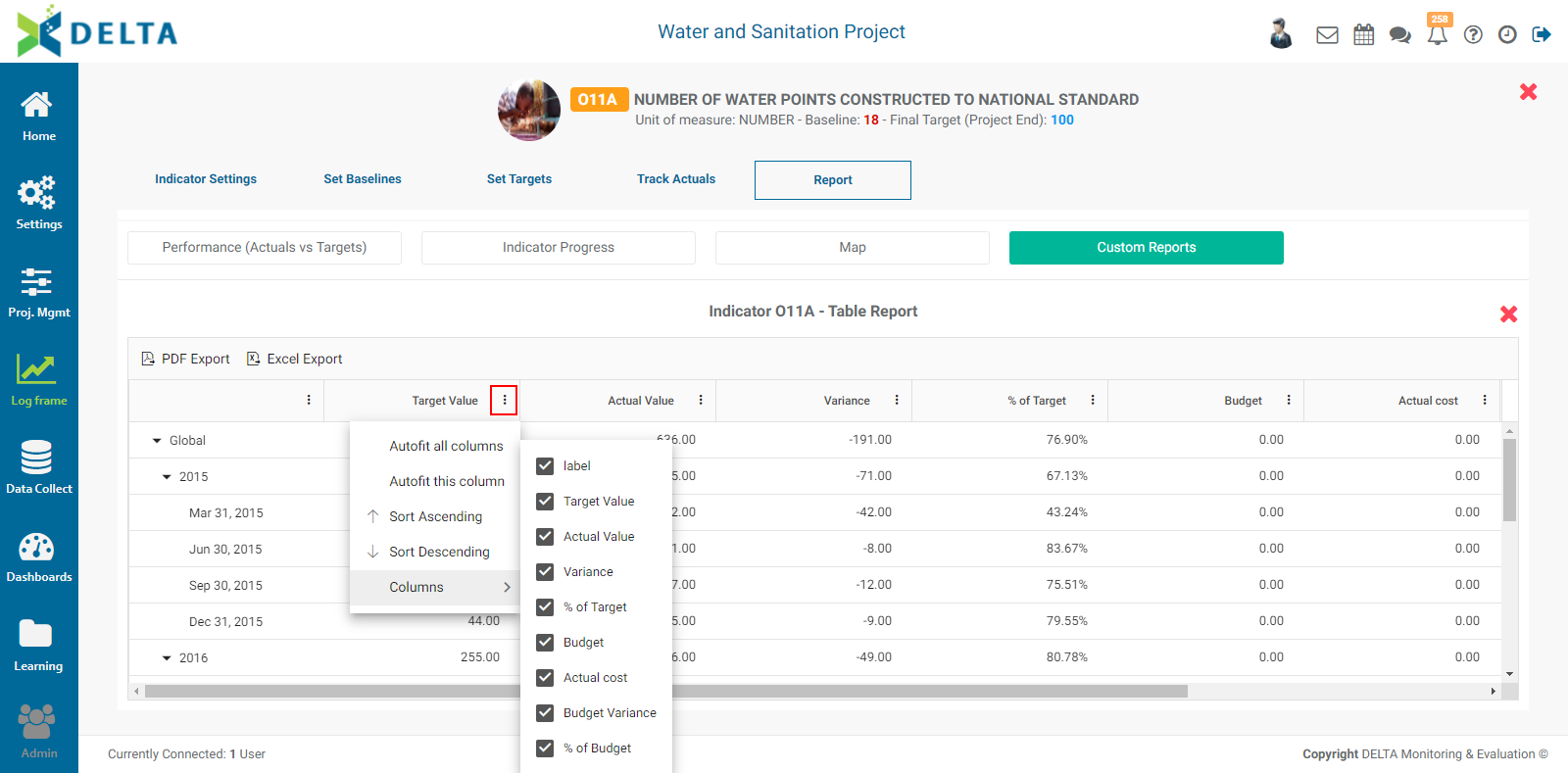
To close a report, click the X at top right.
To edit a report, click the Edit icon in its toolbar.
Delta supports the use of Filters in indicator table reports. Click the Filters tab in the Custom Reports - Table popup window to create and configure the filters you want to use.
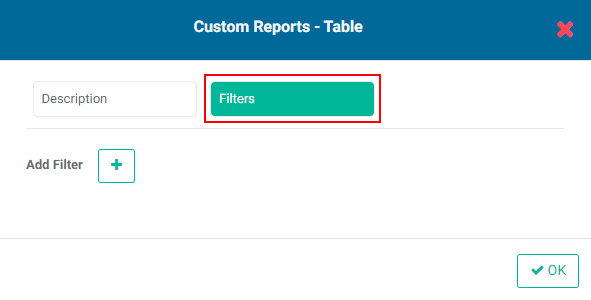
To add a filter, click the + button. The filter parameter fields will appear.
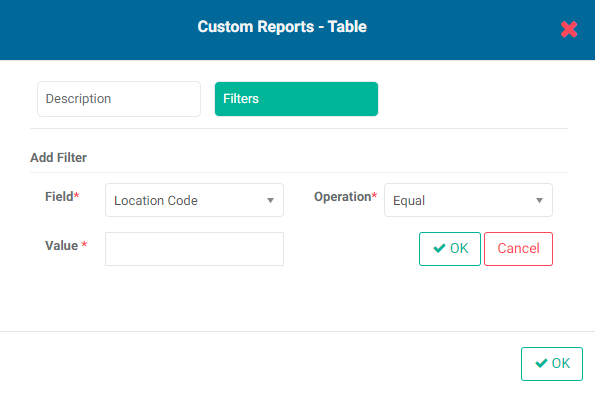
In the example above, the Location Code is the only choice in the Field pick list because this report is based on periods. Conversely, if the report is based on Locations, the Field pick list will only contain Year.
Select how the data will be filtered from the Operation pick list.
Select the value of the filter. For example, you might select 'Equal to' from the Operator pick list and enter '2016' as the value for a filter based on Year.
Click the OK button next to Cancel to save your work. The new filter will appear in the popup window.
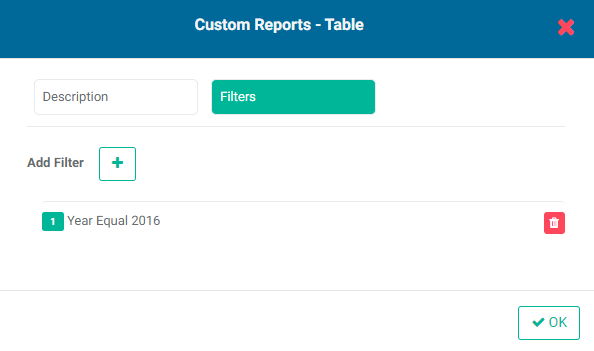
If you're done, click OK at bottom right to close the popup window and return to the Custom Reports screen.
You can add as many filters as are needed. If you create more than one filter, you also need to add logic for the system to know how to handle multiple filters. The logic is simply AND/OR, and the correct syntax uses the number of the filter. In the example below, the logic is 1 OR 2, so either condition must be met. The AND operator requires that all conditions must be met, while the OR operator requires that at least one condition must be met.
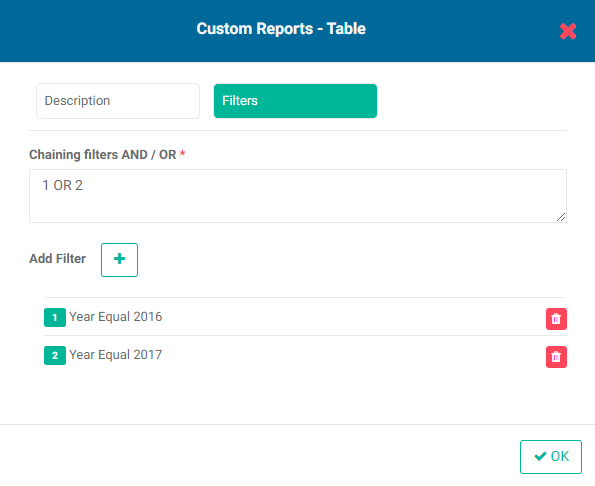
To delete a filter, click its Delete icon in the Filters tab of the Custom Report - Table popup window.
To export a Table report, open the report, then select the format for the export from the top left of the table.

To share a report, click the Share icon in its toolbar, then enter a comment to enable the Share With tab.
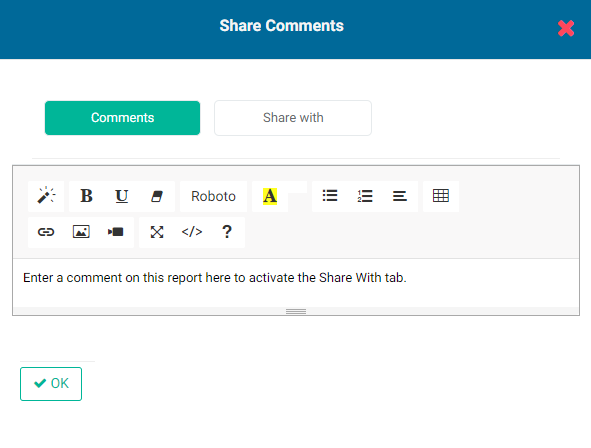
If you need more space for your comments, click, hold, and drag the three small bars at the botton centre of the comment box to enlarge it.
Click the Share With tab to bring it to the front, select the recipients, then click OK. Recipients will be notified via a small dot badge on the Chatroom icon of the main toolbar at the very top right of the screen.
To delete a report, click the Delete icon in its toolbar.
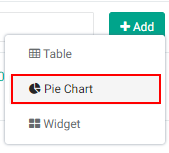
The second type of indicator report is Pie Chart. From the Custom Reports list page, click the +Add button and select Pie Chart from the menu.
The Custom Reports - Pie Chart popup window will appear.
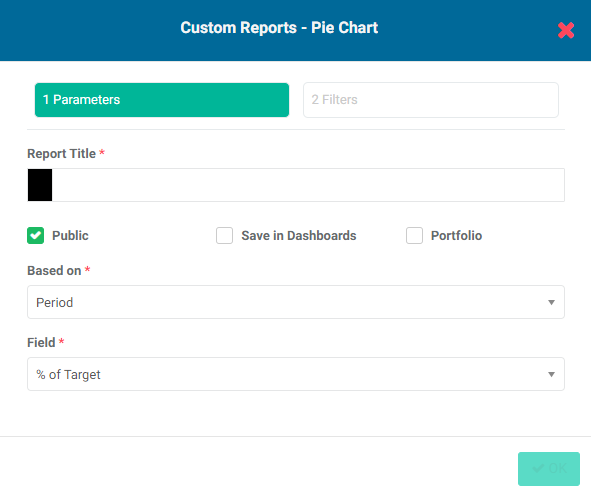
Enter a report title, change the color if desired, and check/uncheck the Public, Save in Dashboards, and Portfolio boxes. These options work in an identical manner to the corresponding ones in Table reports.
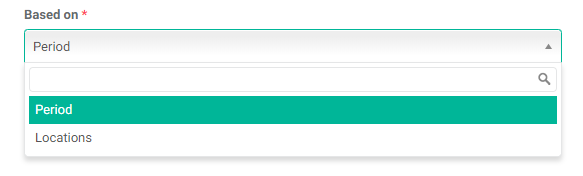
Select the basis for the report. As is the case for Table reports, the options are Period and Locations.
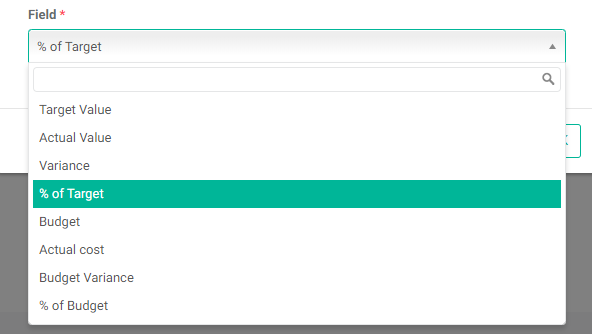
Select the field to graph in the pie chart from the Field pick list.
Click OK to save your work and return to the Custom Reports list page. The new report will appear in the list.
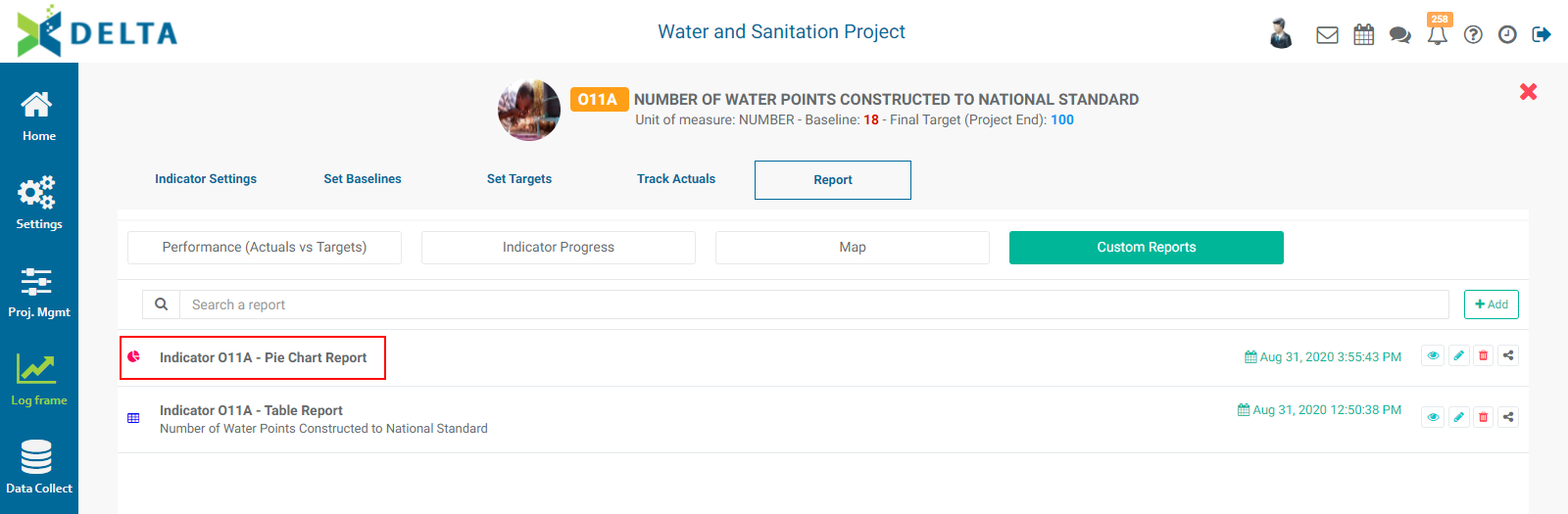
As is the case with Table reports, each Pie Chart report has its own toolbar with the same icons. To view the report, click its name in the list, or click its View icon.
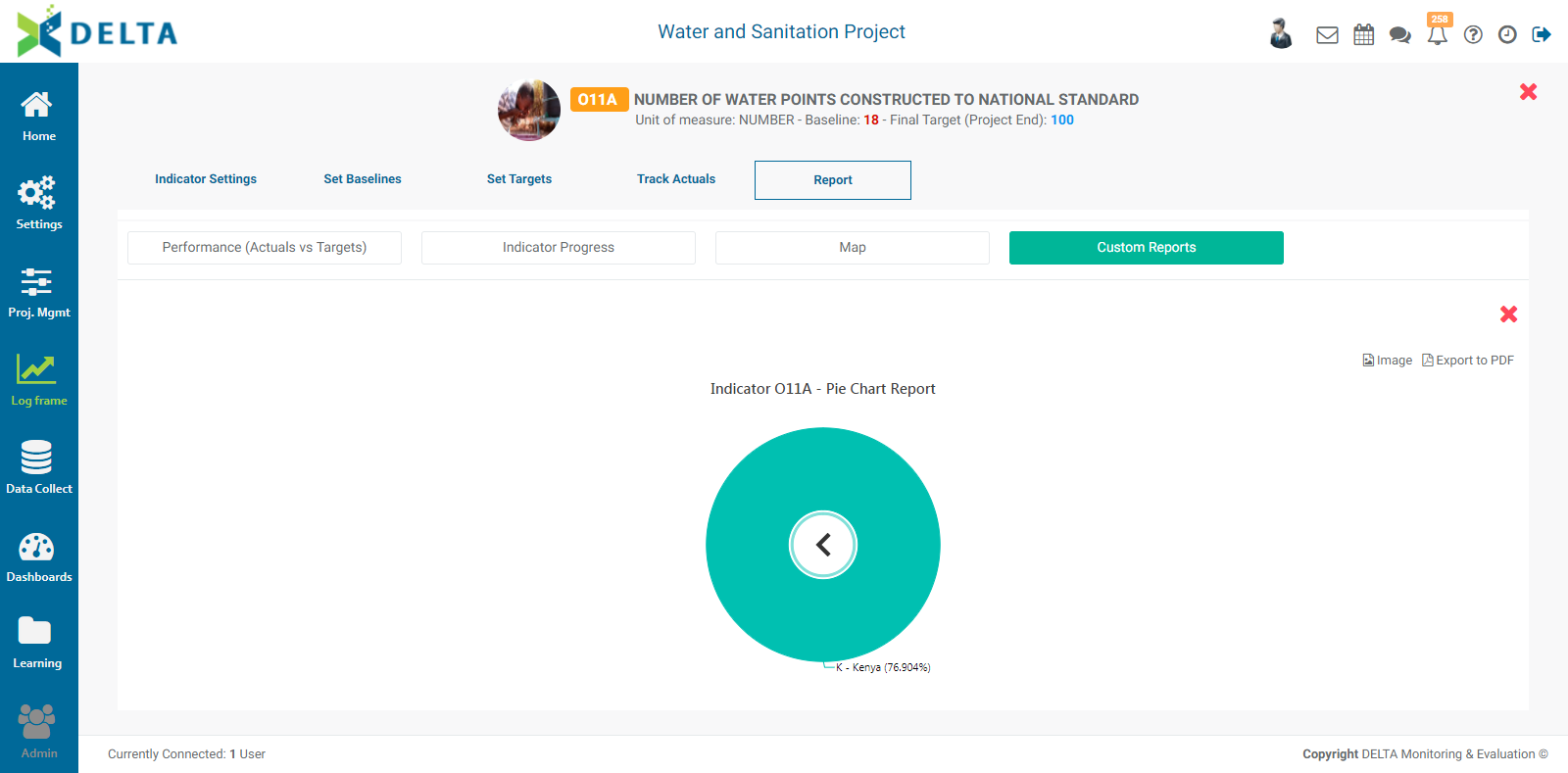
The default view is Global, and the graph shows the aggregated value for the selected basis, in this case Locations. To drill down into the data, click any colored portion of a graph to get its details.
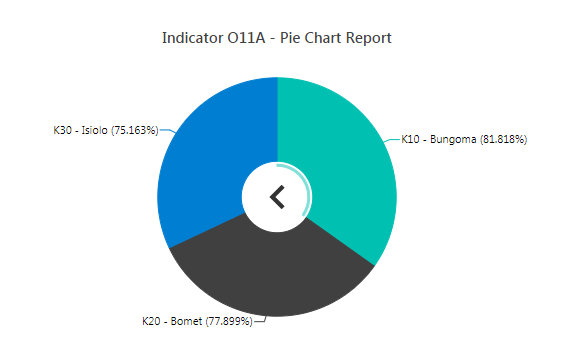
How far you can drill down depends on what the indicator's Geography Division was set at when the indicator was created (for Locations) or which reporting period was selected in the indicator's Frequency of Collection (for Periods).
Continue to click on any colored portion of a pie chart to drill down.
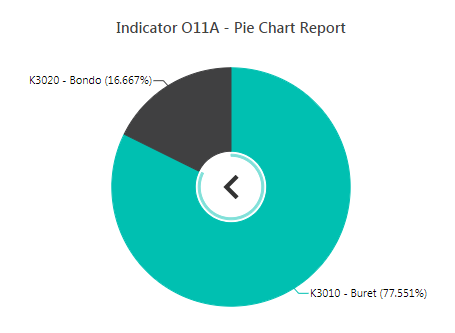
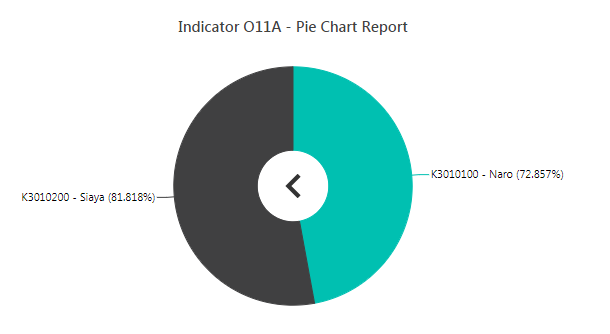
To go back to the previous level, click on the caret (<) in the middle of the pie chart.
To export a pie chart report, click on the desired format at top right. The options are Image and PDF. Images generated by the Image export are in PNG format.
To edit a pie chart report, click its Edit icon.
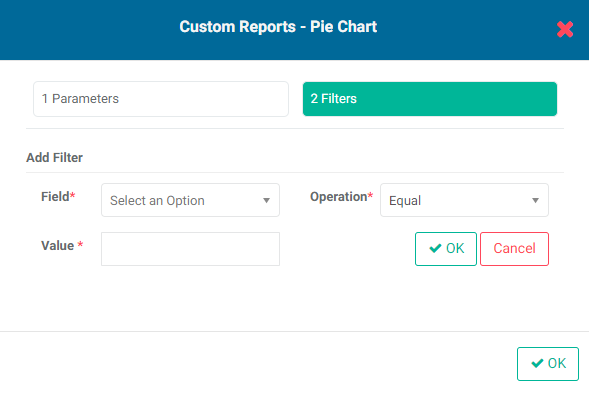
The Filters functionality for pie chart reports is identical to that for table reports. Click the Filters tab in the Custom Reports - Pie Chart popup window to bring it to the front, and create the filter(s) you need.
The third type of indicator custom report is Widget. Widgets display single data items, making it easy to have lots of at-a-glance information in a dashboard without taking up a lot of space.
From the Report page of the indicator, click the +Add button at top right and select Widget.