Project Settings: Log Frame: Configuring a Log Frame
Once you have created or selected a log frame template in the project's M&E Settings screen, saved the project, and determined how each log frame elements is to be coded, the next step is to configure the template for the project. The Log Frame is the first item in the project's Settings module. If you selected an existing template log frame (meaning other than Custom), its name will appear instead of the generic designation "Log Frame".
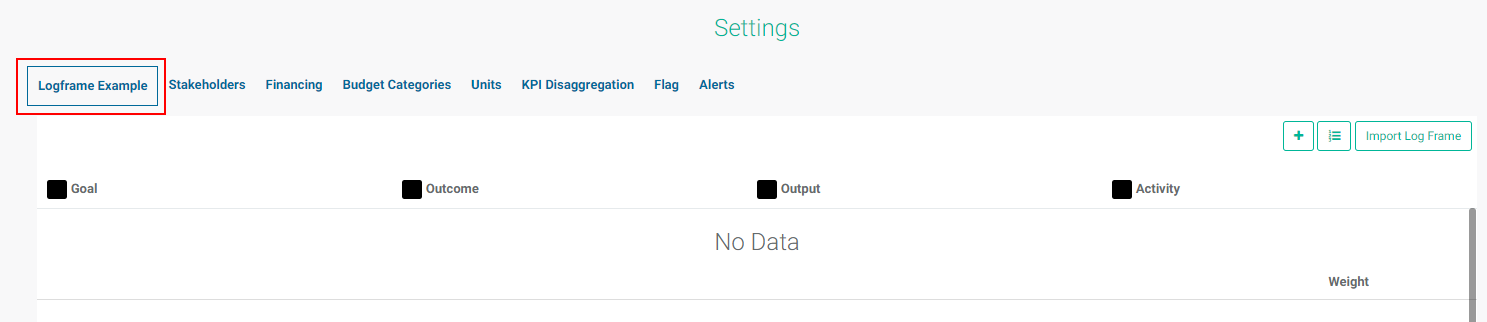
In the case of a project for which a specific template was selected, depicted above, the Log Frame screen will display the names of the levels of the template, from top to bottom.
NOTE: If Custom Template was selected in the project's M&E Settings screen when you created it, the Log Frame screen will be blank. If you'll be inputting the log frame manually, you'll need to click on the Log Frame Template button at top right to enter the log frame levels and names as described in the preceding article. Importing a log frame is described in detail in Project Settings: Log Frame: Importing a Log Frame.
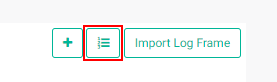
Whether you enter a log frame manually or import one, you'll need to first edit the template to reflect your selected code structure before you can add log frame elements. To edit the template, click the Log Frame Template button at top right.
At the Activity level of the log frame, you also have the option to use an indicator to inform an activity. This functionality is explained in the article PM: Activities: Associating Indicators to an Activity.
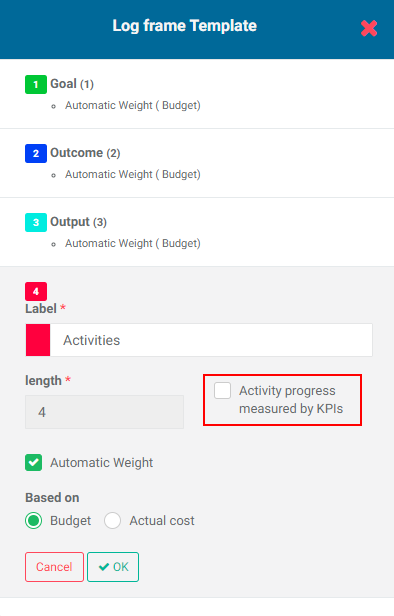
Once your log frame template has been fully configured, you can begin adding the log frame elements to build out the log frame. For the manual process, read Creating a Log Frame Manually. For details on how to import a log frame, consult Importing a Log Frame.
Previous: Project Settings: Log Frame: Coding a Log Frame | Next: Project Settings: Log Frame: Using Activity Weights