Portfolio Settings: Agencies
Agencies refers to any entity involved in the realization of a project. Agencies created at the Portfolio level are made available to pick from at the Project level.
From the Portfolio Settings module, select Agencies from the horizontal navigation bar.
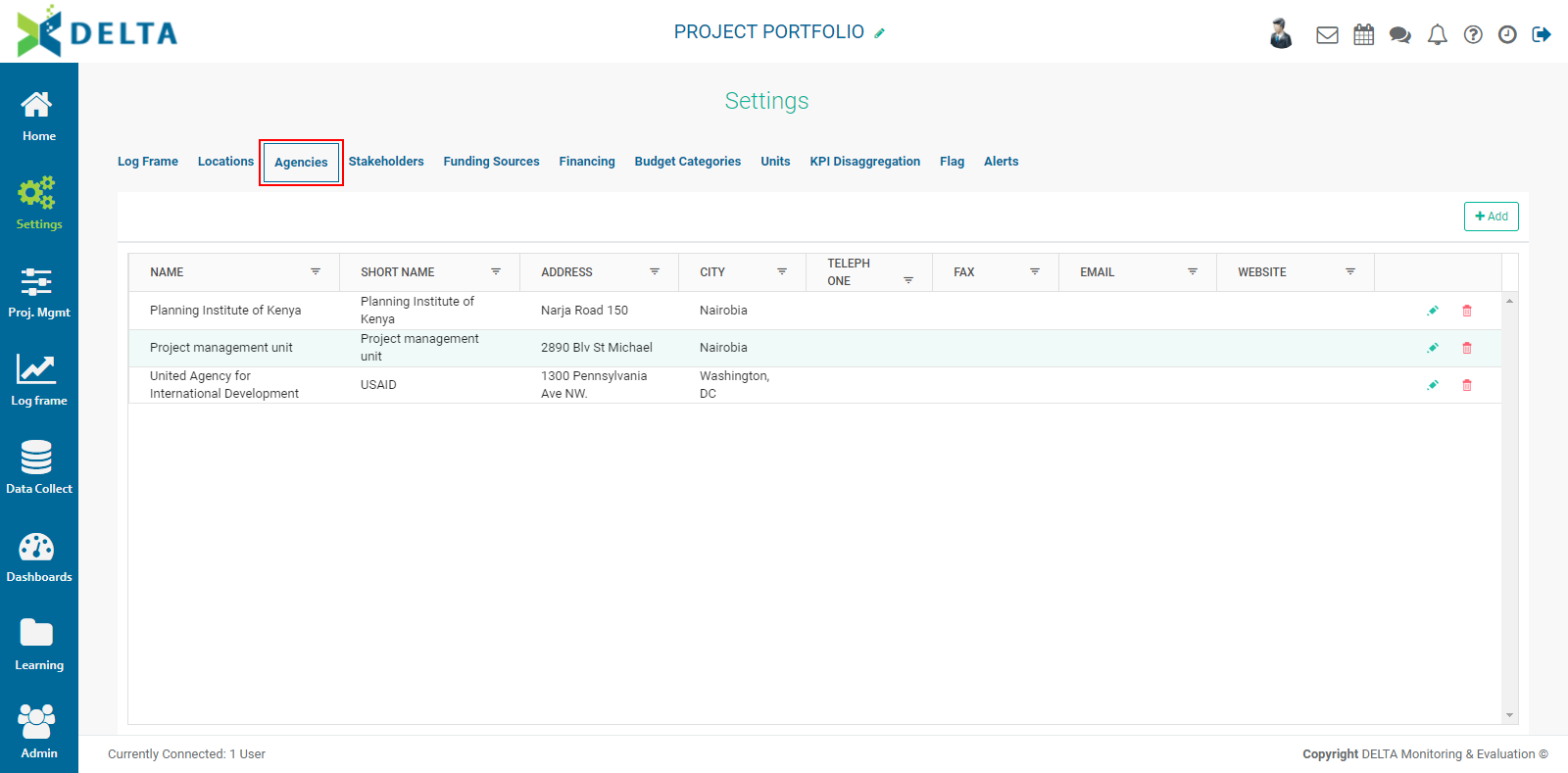
To create an agency, click the +Add button at top right. The Implementing Agencies popup window will appear.
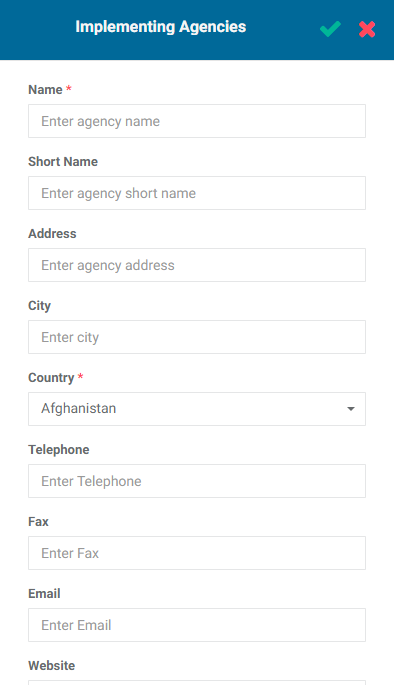
Two fields are mandatory: Name and Country. The remaining fields are optional, but we recommend as a best practice to enter as much information as is available for easy reference. Entering a short name is strongly suggested.
Enter the information and click the checkmark in the popup window title bar when you're done. The new agency will appear on the screen.
To edit an agency, click its Edit icon. Make your changes, and click the checkmark in the popup window to save your work and return to the Agencies screen.
To delete an agency, click its Delete icon, and confirm the deletion. IMPORTANT: deleting an agency at the Portfolio level will also remove it from all the projects in the portfolio which use that agency.
Agencies can also be created at the Project level.
Previous: Portfolio Settings: Locations | Next: Portfolio Settings: Stakeholders