Portfolio Settings: Stakeholders
Stakeholders are all the actors involved in the workflow of monitoring and evaluation. Although each project has its own stakeholders, you can also create stakeholders at the Portfolio level. Unlike Agencies, Portfolio Stakeholders are only used at the Portfolio level. Conversely, project stakeholders belong to that project only.
Whether or not you use the Portfolio Stakeholders depends on how you'll be working with the Portfolio itself. If you're using the system only to monitor and evaluate individual projects, you may not need the Portfolio stakeholders at all.
However, if you plan on using cross-cutting indicators and/or cross-cutting activities, you'll need to set up Portfolio-level stakeholders so they can be assigned those activities and indicators.
From the Portfolio page, click Settings in the left navigation, then select Stakeholders from the horizontal navigation.
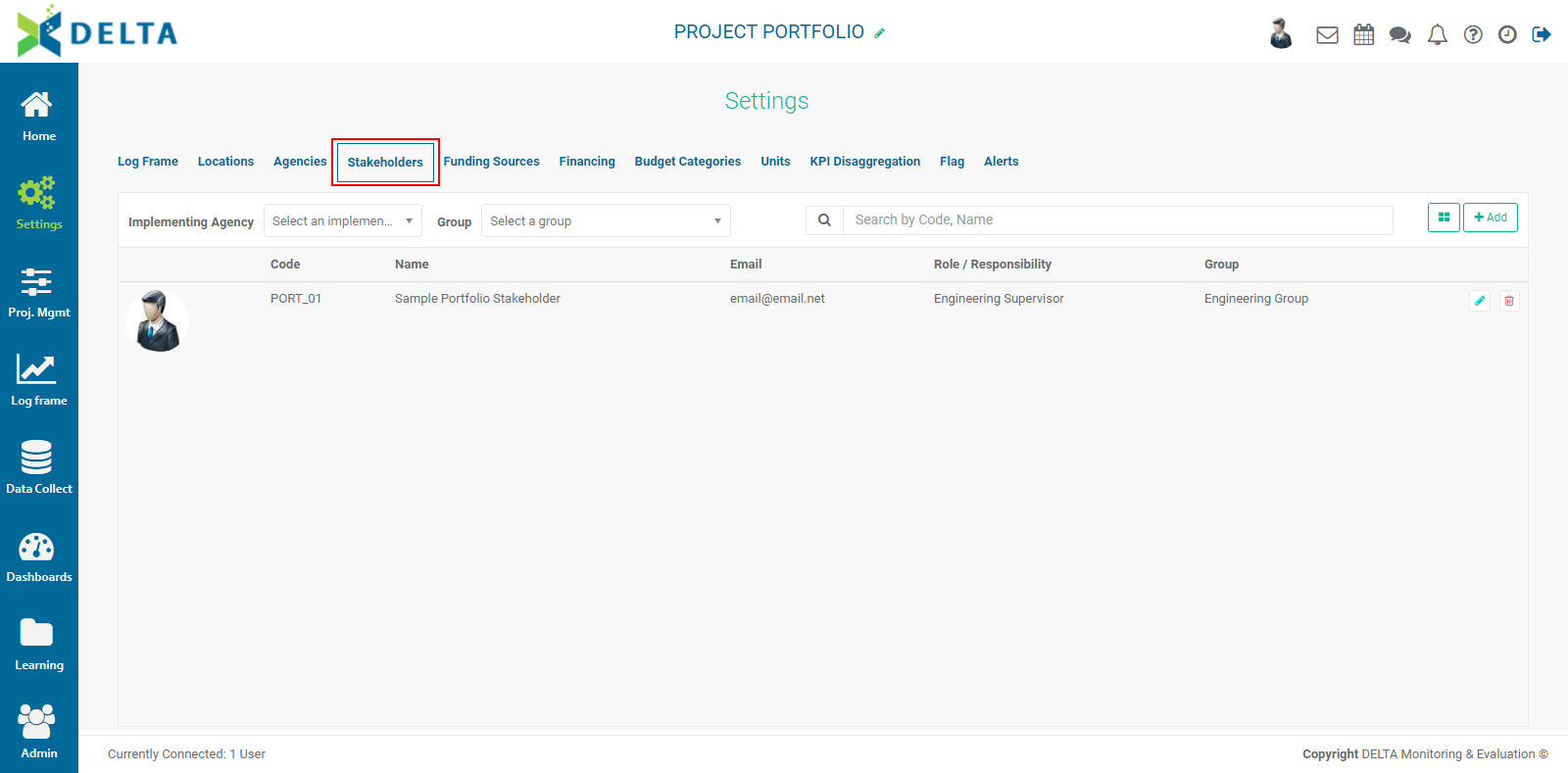
To add a stakeholder, click the +Add button at far right. The Stakeholder information screen will open.
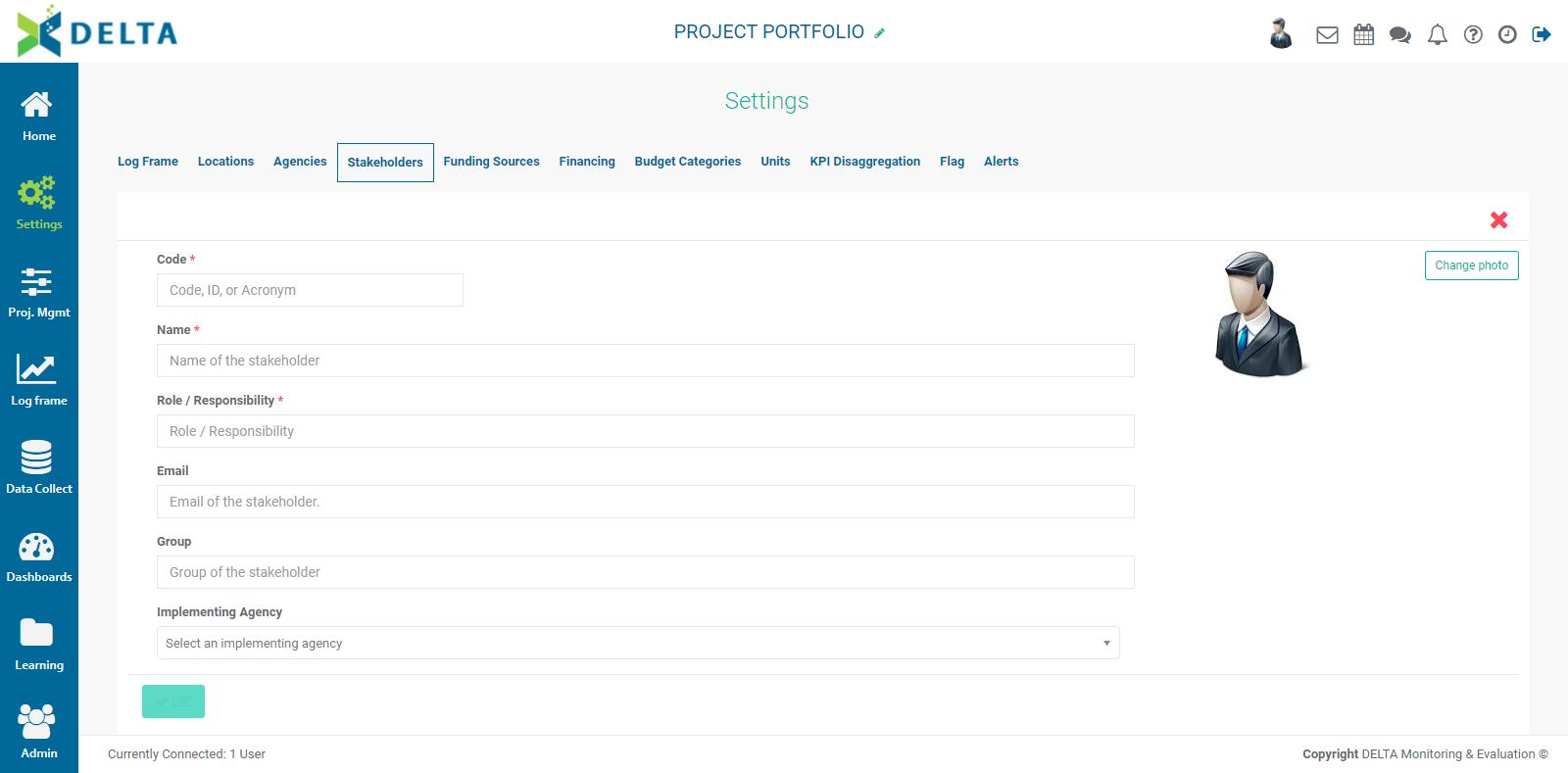
The Code, Name, and Role/Responsibility fields are mandatory. You can use your own nomenclature for the code. Using numbers and special characters such as hyphens and underscores is allowed. NOTE: codes cannot be edited once the stakeholder is saved.
The Role/Responsibility field is a freeform pick list; if you don't see the role you need, enter it in the field.
The other fields are optional, but as a best practice we suggest entering as much information as is available for easy reference.
The Groups field is a freeform pick list. If you don't see the group you need in the list, enter it in the field.
The Implementing Agencies pick list is populated from the Agencies which have been entered in the system, either at the Portfolio level or the Project level.
Check Display on Portal to make this stakeholder appear on the Delta Public Portal in the form of a link which can be accessed by anyone who has the portal address. Information published to the portal does not require an account or login credentials.
To add a photo for the stakeholder, click Change Photo, then navigate to the desired image file to select it. Click on it once and press Enter on your keyboard to associate the image to the stakeholder information.
When you're done, click OK at bottom left to save your work and return to the Portfolio Stakeholders screen. The new stakeholder appears in the list.
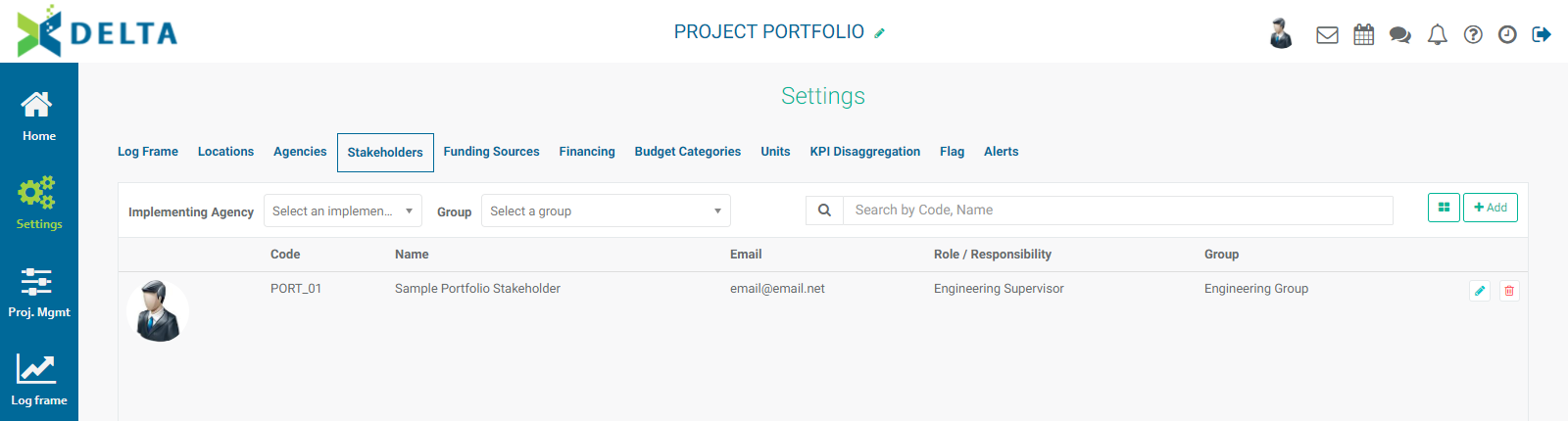
To edit a stakeholder, click its Edit icon, make the necessary changes, and click OK to save your work. To delete a stakeholder, click its Delete icon, and confirm the deletion.
Previous: Portfolio Settings: Agencies | Next: Portfolio Settings: Funding Sources