Main Toolbar: My Messages
My Messages is the system mailbox. It works like a regular email service, but it is entirely internal to Delta. Click on the My Messages icon in the main toolbar to enter the My Messages screen.

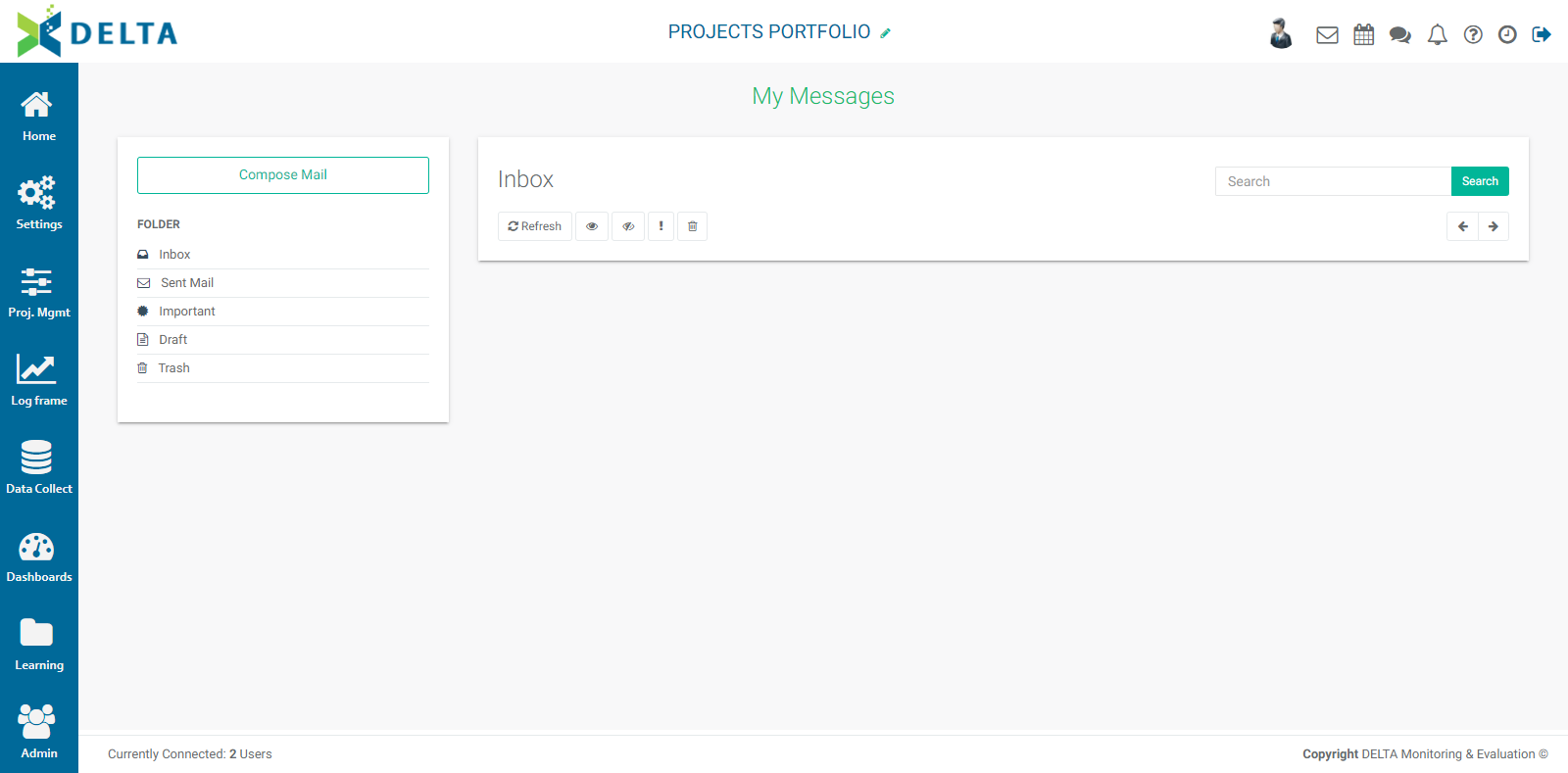
Click the Compose Mail at the top left of the email area to send messages to the members of the project team.
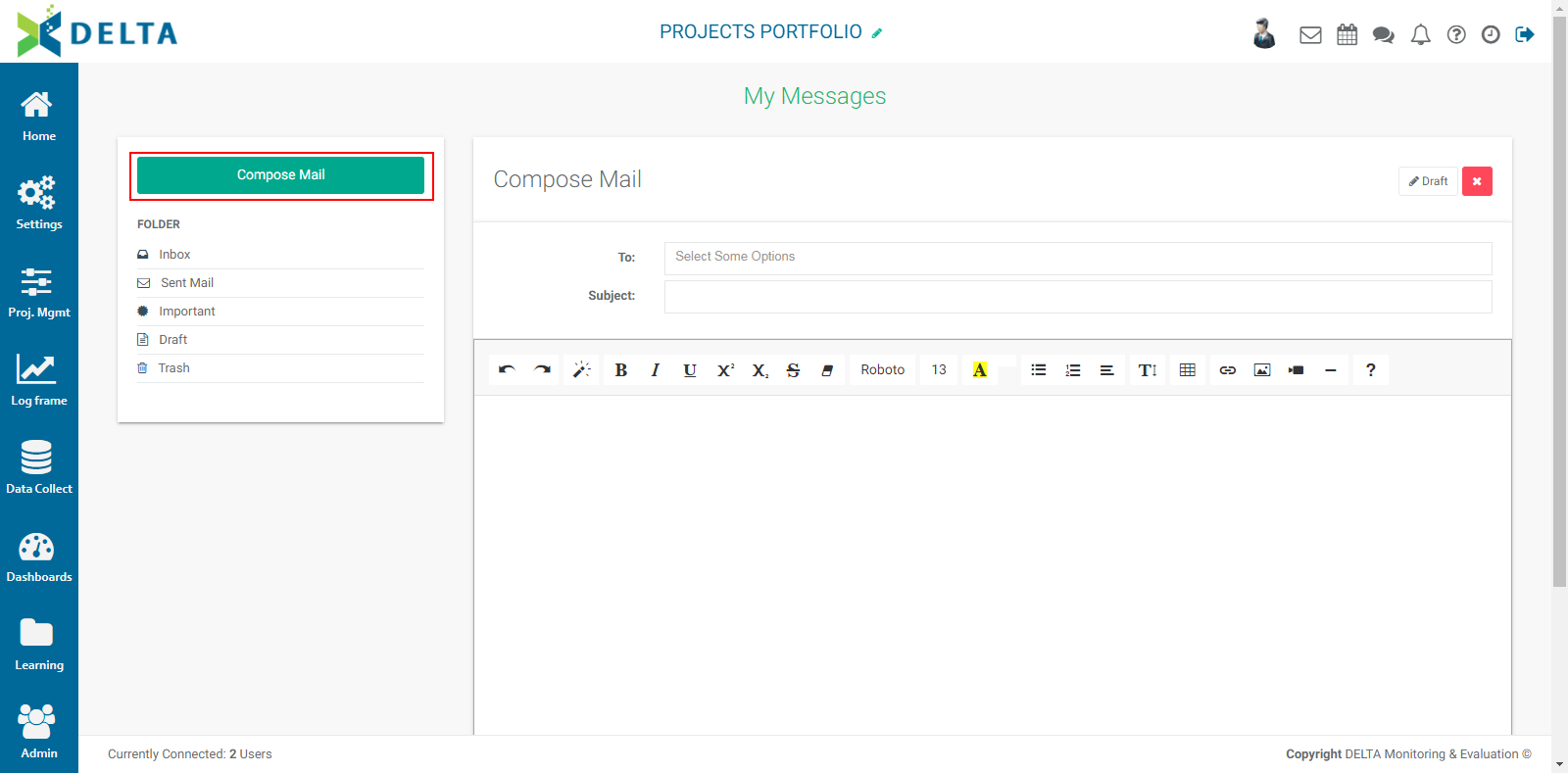
You can select more than one recipient by adding them one at a time from the pick list. Click in the blank part of the To: field to bring up the pick list, and make additional selections as needed.
Enter a Subject, and the body of your message. You can add links, pictures, videos, and use a full slate of word-processing tools such as styles, headers, tables, etc. The email system also comes with its own help.

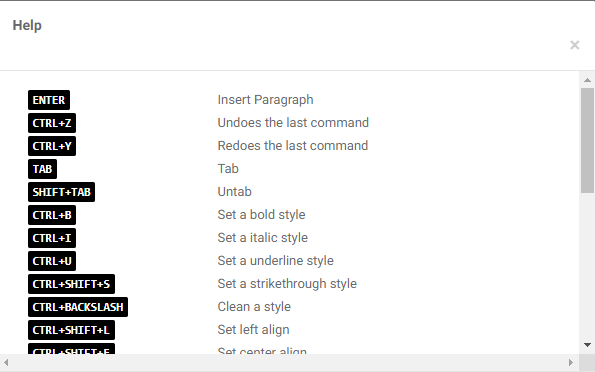
Click the Help icon to bring up the list of shortcuts for the My Messages system.
You can save a Draft of your message by clicking the Draft button at top right of the message body window.
Draft messages will be moved to the Draft folder.
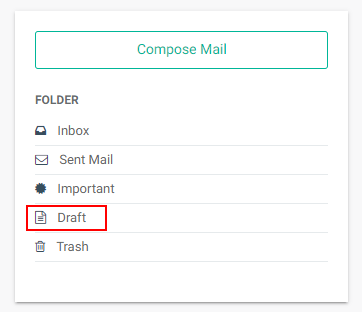
To edit a draft, open the Draft folder and click the desired message. You may resave as a draft, or send the revised message by clicking the Send button at top right of the message body box. Your sent messages will appear in the Sent Mail folder on the left.
Incoming messages you flag as Important will appear in the Important folder on the left. Messages you delete will be moved to the trash. To delete trashed messages, open the Trash folder, select the messages you want to delete, and click the trashcan icon.
Recipients of a message will be notified via a numbered badge over the My Messages icon in the Main Toolbar. NOTE: messages sent at the Project level will only be visible from inside the project, along with the associated notifications. Similarly, messages sent at the Portfolio