Indicators: Creating Indicators: Data Source
Once you have completed the Details screen of your indicator, you can save the indicator and return to it later, or you can finish entering parameters for the indicator. The second screen is Data Source.
Click the Data Source tab in the Indicator Settings > Description screen to specify how data for the indicator will be input.
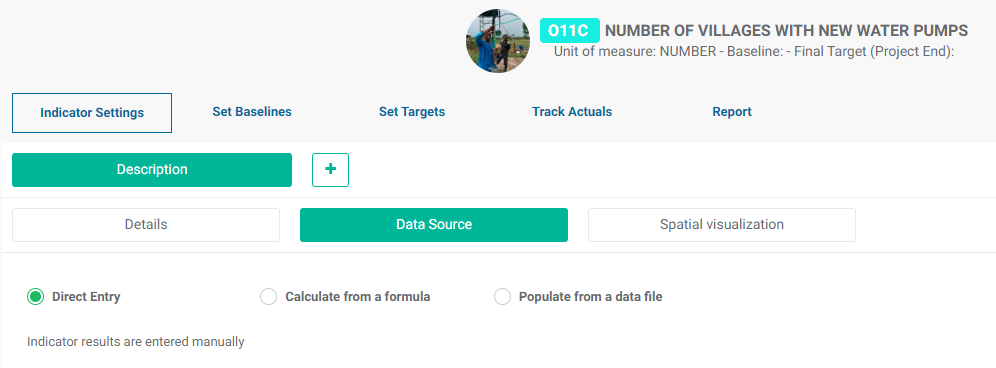
The default option is Direct Entry, which is self-explanatory. Data for the indicator will be populated manually for each location and time period. In practical terms, indicator data (actuals) will be entered manually in the indicator's Track Actuals screen.

The Calculate from a Formula option allows you to enter a formula based on any indicators in the project. Use the calculator to create the appropriate formula for the indicator. You can perform simple maths on an indicator, or create complex indicators based on other indicators.
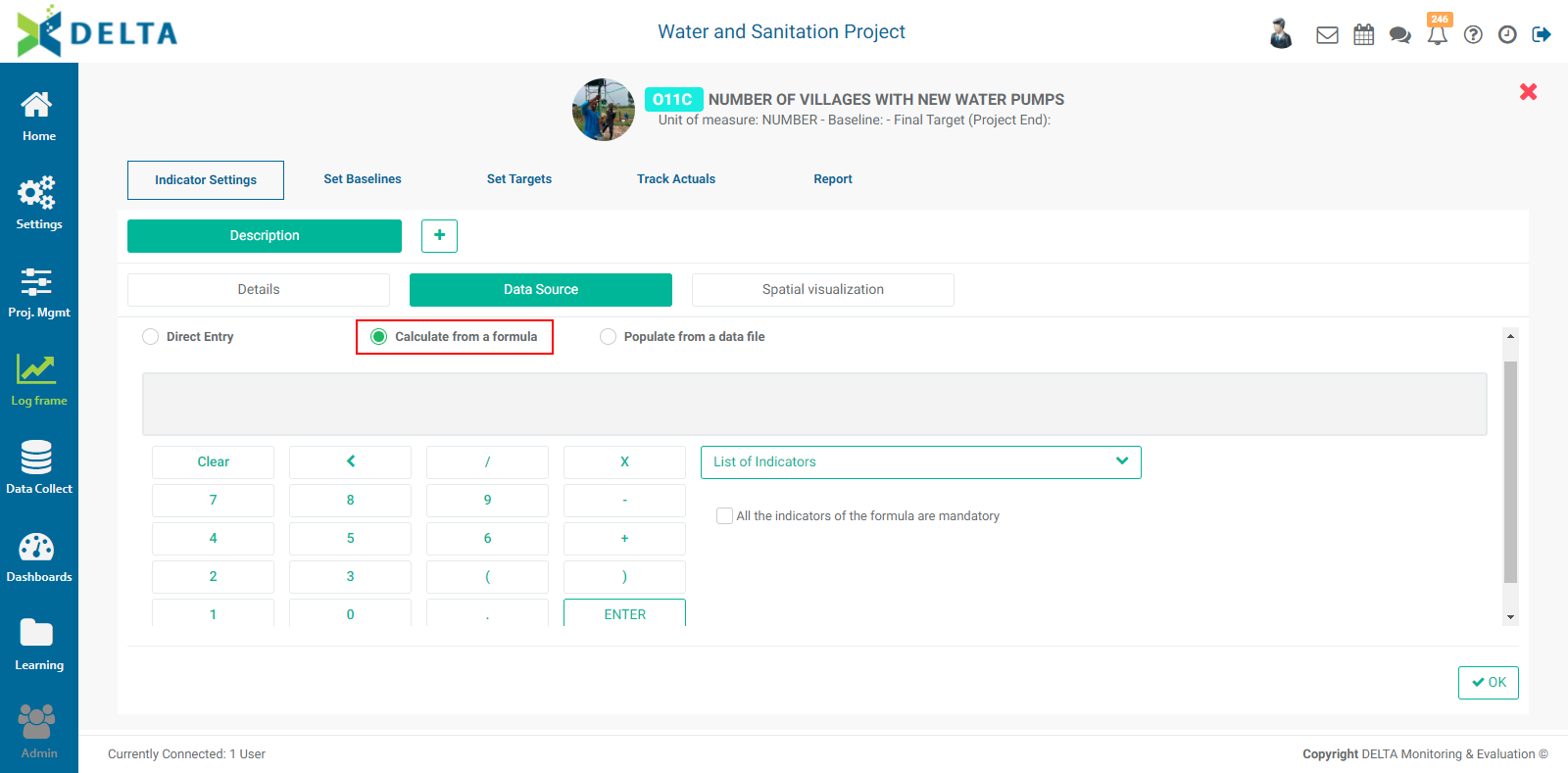
The syntax for formulas follows regular rules of arithmetic. For example, INDICATOR*DATAFIELD/100 will be parsed as written, whereas INDICATOR*(DATAFIELD/100) will be evaluated using the contents of the parentheses first.
Check All the Indicators in the Formula are mandatory box to force the calculation to take all the indicators in the formula into account regardless of their value. This ensures that if the calculation results in a null or zero value, it's the actual result of the calculation, and not because one or more indicator has a value of zero.
The third option, Populate from a Data File, allows the indicator data to be populated via a data collection form analytics report.
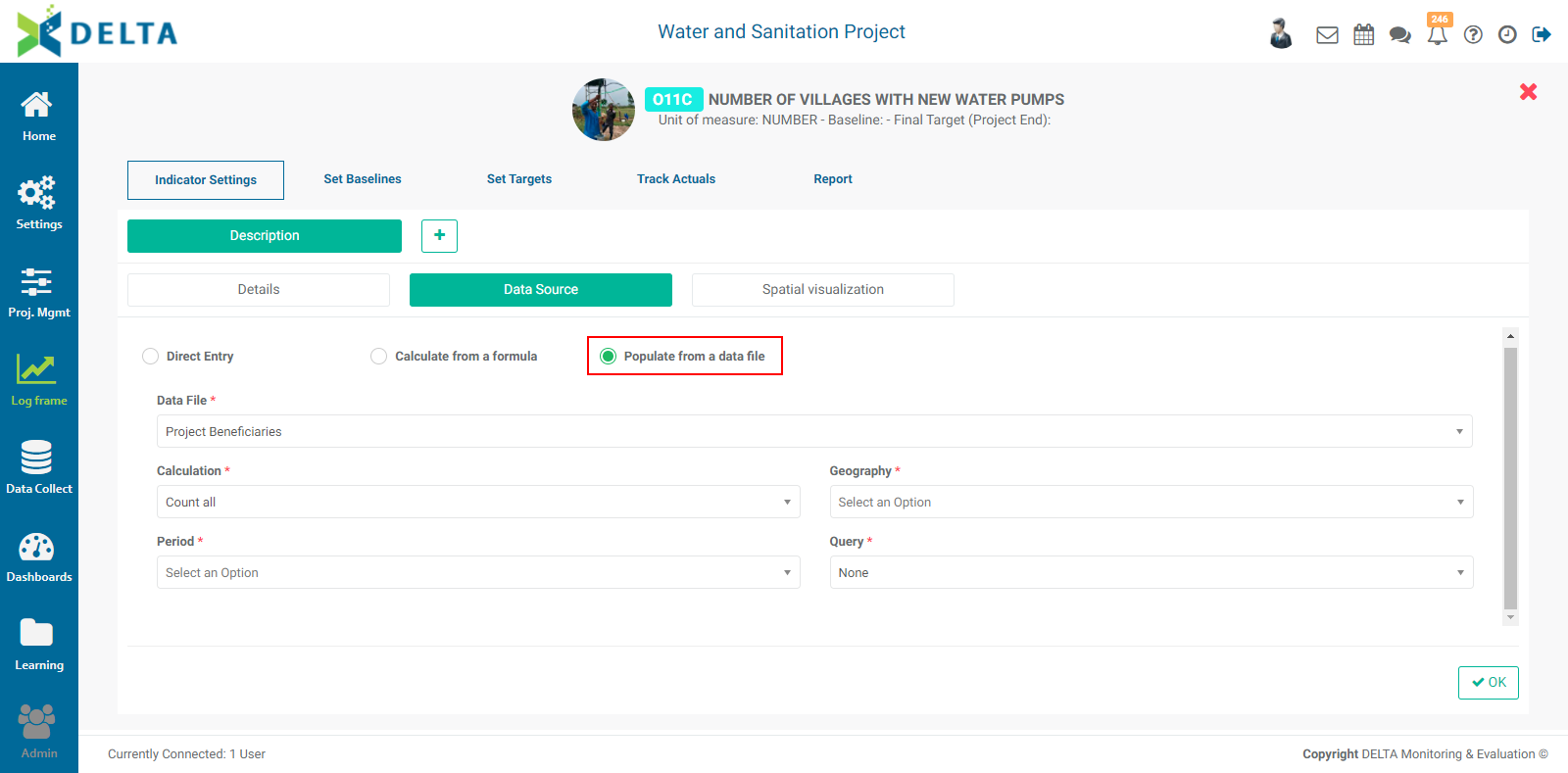
IMPORTANT: This option assumes the existence of:
- at least one data collection form in the project's Data Collection module. The Data File field is populated from the list of forms.
- at least one field of type Date in the selected data collection form. The Date fields in the form populate the Period field. This is usually a date field containing the date of collection.
- at least one field containing geography information in the selected data collection form, either a GPS field (Coordinates and/or Path) or a List field with the Locations preset selected in its parameters.
- at least one analytics report derived from the selected data collection form after it has been populated with data. The analytics reports in the Data Collection module populate the Query field in the Data Source screen for each specific data collection form.
Data collection form design is described in detail