Indicators: Set Targets
Overview
The Set Targets screen allows you to set detailed targets for each location and each year and period of the project.
From inside the project, click Log Frame in the left navigation to enter the module, then select the log frame level of the indicator, and click Set Targets in the horizontal navigation. When you first open this tab after setting baselines and end targets, all you'll see is a blank screen.
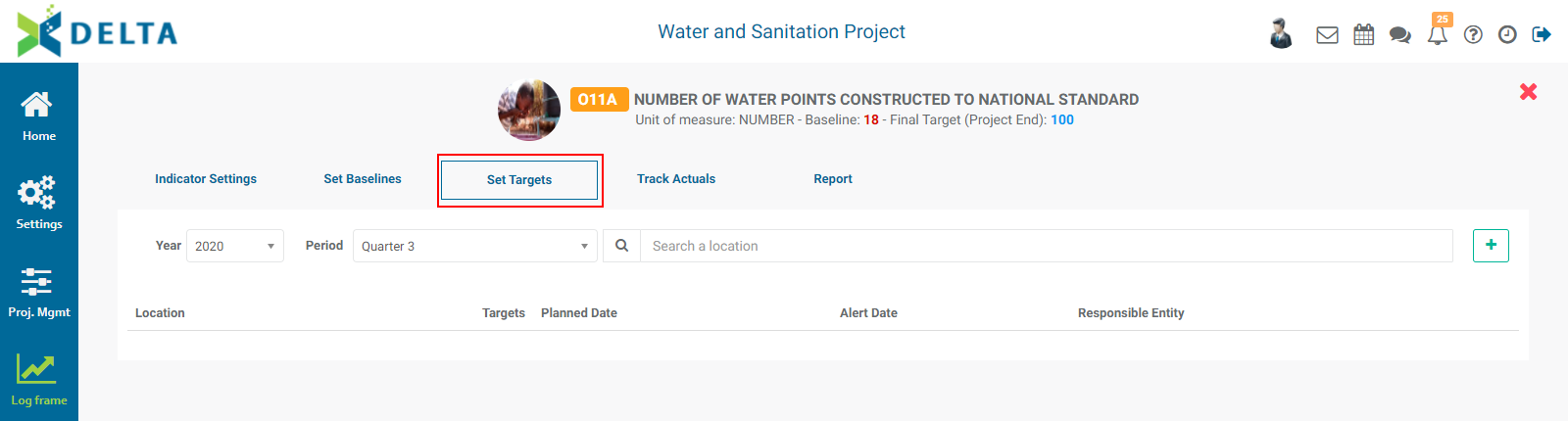
To set targets for a location, you must first select the proper year and period to plan from the pick lists at top left. The period is determined by the setting you selected in the indicator's Details tab Frequency of Collection field when you created the indicator.
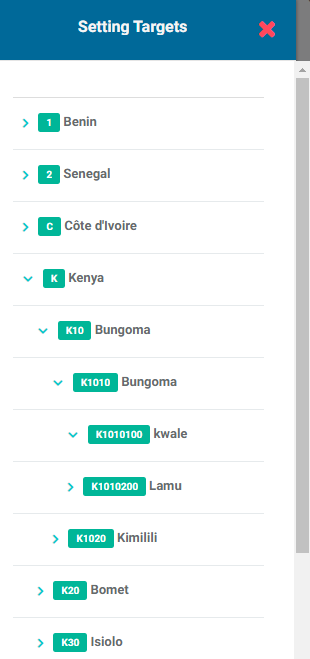
Click the + button at the far end of the Search bar to bring up the Locations list. The level of geography Delta displays is controlled by the geography level you selected when you created the indicator. In the Locations list below, the geography level for this indicator was set at the lowest level (Village), so all the villages in the locations list are displayed when you use the carets to expand and collapse the list.
Select the desired location to bring up its Setting Targets popup window.
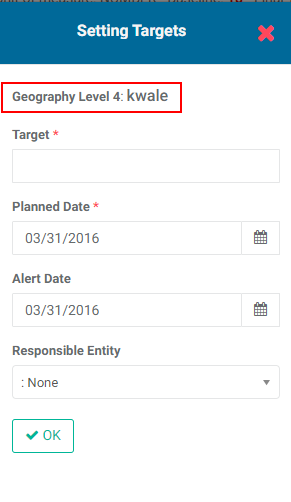
Input the indicator's target, planned date, alert date, and responsible entity. NOTE: if you selected Track Budget/Cost in the indicator's Details tab, you'll also see a Budget field in the Setting Targets popup window.
Click OK to save your work and return to the Set Targets screen. Your entries are displayed in the list.
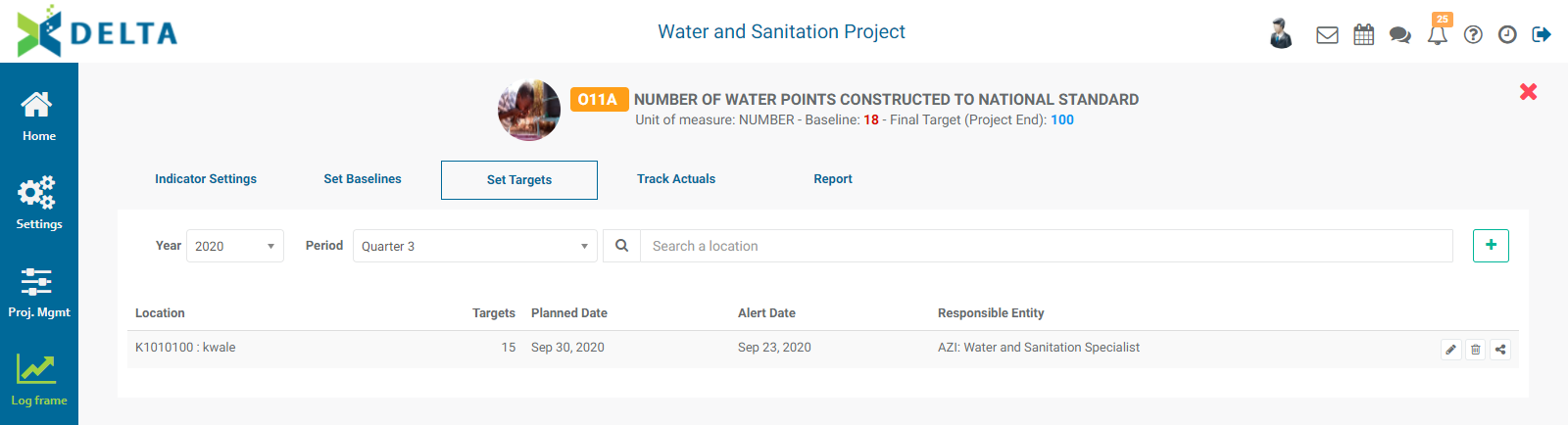
Repeat the process until all locations and periods have been planned with set targets.
To edit a location's target information, click on its Edit icon. Make the necessary changes, then click OK to close the popup window and return to the Set Targets screen. Your changes will be reflected on the screen.
To delete a location, click its Delete icon and confirm the deletion.
To share a location, click its Share icon. Enter a comment in the text editor, then click the Share With tab to choose the recipients. Click OK at bottom left of the text editor popup window to send to the recipients. Selected recipients will receive a notification on their Chatroom icon in the main toolbar.
Depending on whether the indicator uses no disaggregation categories, one disaggregation category, two or more parallel categories, or two or more cross categories, the bottom part of the popup window will look different. For example, for cross disaggregation, you'll need to enter disaggregated targets for each disaggregated group. The screenshot below shows target setting popup windows from an indicator which does not use any disaggregation categories, an indicator which uses one disaggregation category, and an indicator which uses two cross-disaggregated categories.
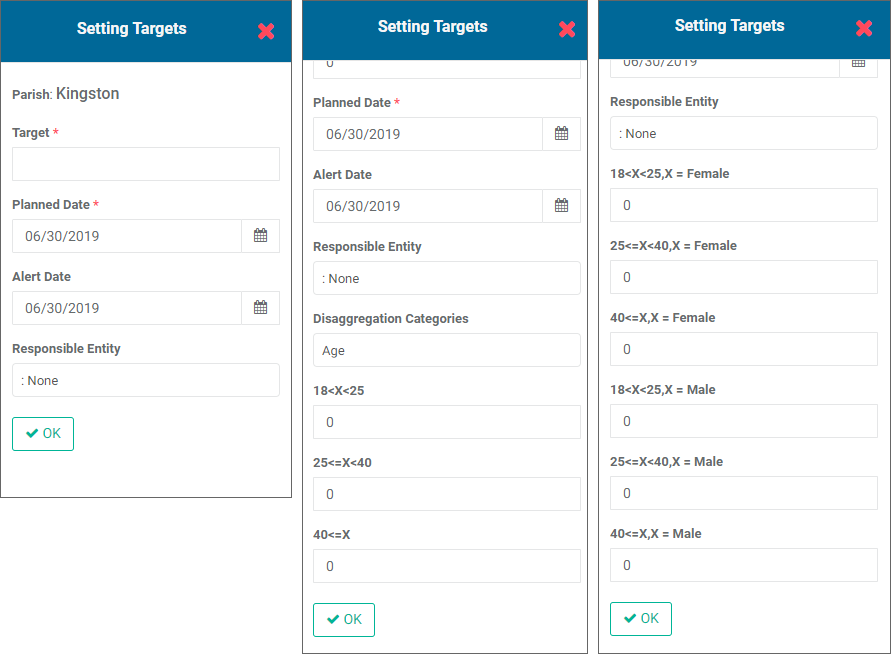
You'll need to be consistent entering disaggregated targets; Delta will return an error message if the sum of the disaggregated targets does not equal the overall target. Click OK to save each target entry in turn.
IMPORTANT: when working with parallel disaggregation, you will need to enter targets for all the disaggregation categories one by one by selecting them one at a time from the pick list and entering the targets. If you don't enter all the targets, Delta will return the error message described above.
Click the X at top right of the screen to return to the Indicators screen.
Previous: Indicators: Set Baselines | Next: Indicators: Track Actuals