Project Settings: Log Frame: Creating a Log Frame Manually
Once you have established a coding framework for the log frame template and configured each level in it, you can begin adding log frame elements. Log frame elements are added top down, from Level 1 to the last level.
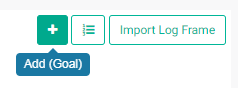
Click the + button to the left of the Log Frame Template button to add a log frame element to the top of the log frame. NOTE: there is an associated tooltip associated with the + button throughout the page which displays which level the element is being added to.
The popup window for the new log frame elements will open. The level of the log frame element appears in the popup window title bar.
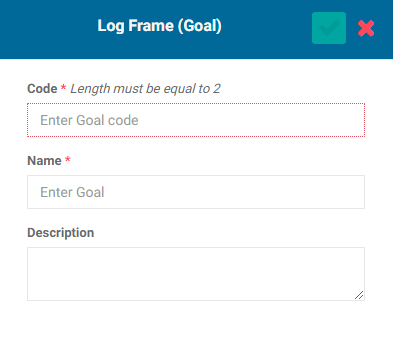
This is where the length – number of characters – of the code comes into play. Since we established the naming convention for the codes in previous steps, there should be no guesswork. In this example, we're using two characters for Goal (Gx), six characters for Outcome (OUTCxx), 6 characters for Output (OUTPxx), and 5 characters for Activity (ACTxx), where xx are numbers.
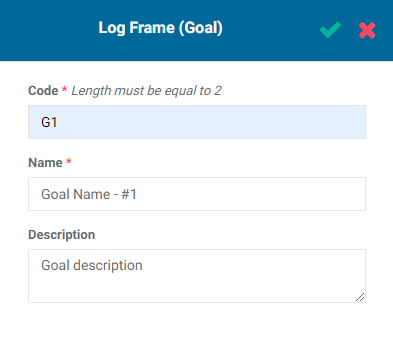
For the first goal in the log frame, we’ll enter G1, and a name (mandatory) and description (optional, but recommended). If a description is not readily available, you can enter it later.
Click the checkmark in the popup window title bar to save the element and return to the Log Frame screen. The new element will appear on the screen, with a code marker in the color you selected for the level. NOTE: codes cannot be edited once the log frame element is saved.
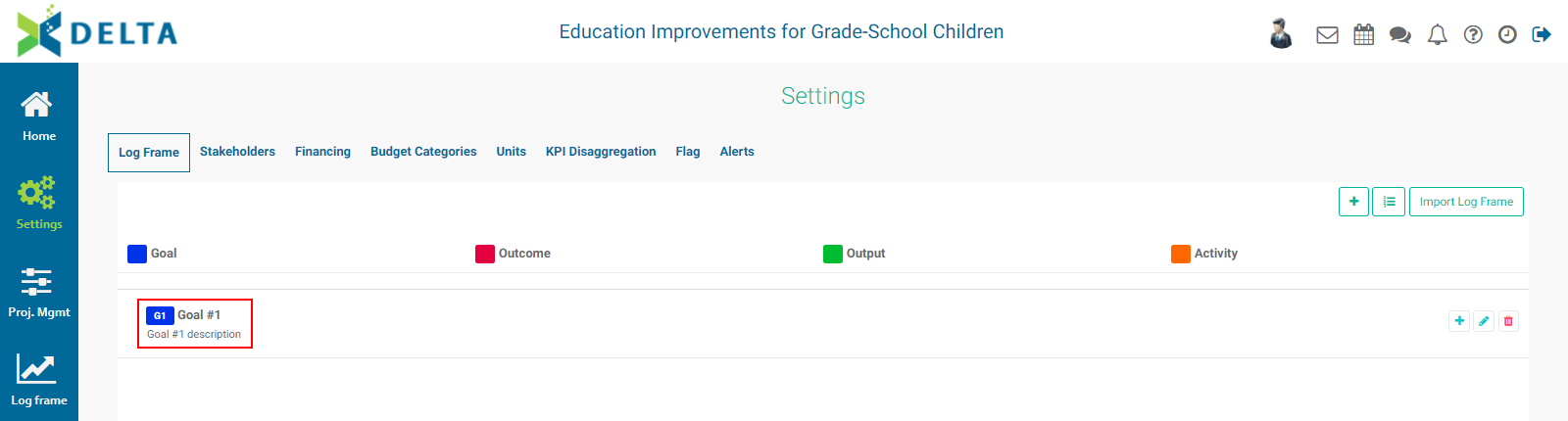
Each log frame element has its own toolbar: +, Edit, and Delete, except for the last level of the log frame, which only has Edit and Delete, since the last level constitutes the end point of each branch of the log frame tree. The Add icon is used to add log frame elements one level down from the selected item.
Mouse over the + (Add) icon in the Goal’s toolbar at right, and note that the tooltip now states the item which will be added is an outcome, the second level down.
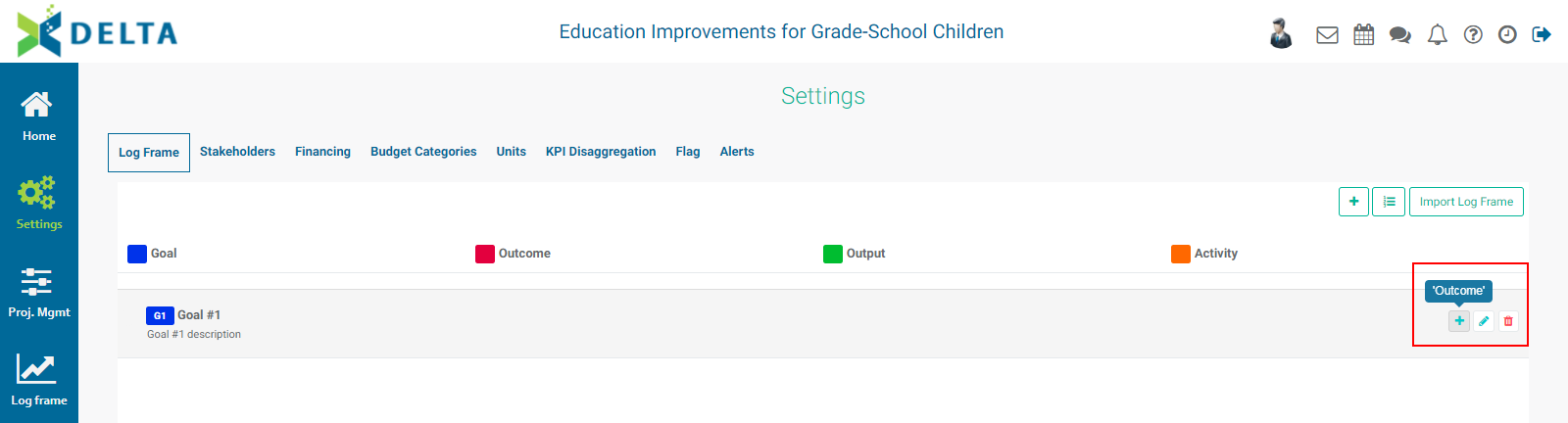
Click the + button to enter the information for the outcome. Again, since the nomenclature was already established during the log frame coding step, there is no guesswork as to the code and its length.
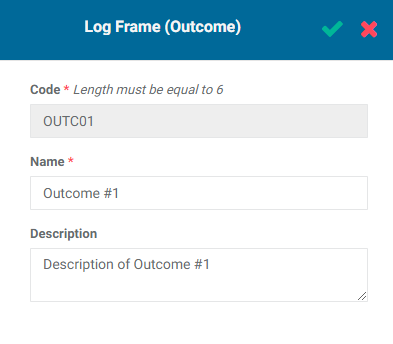
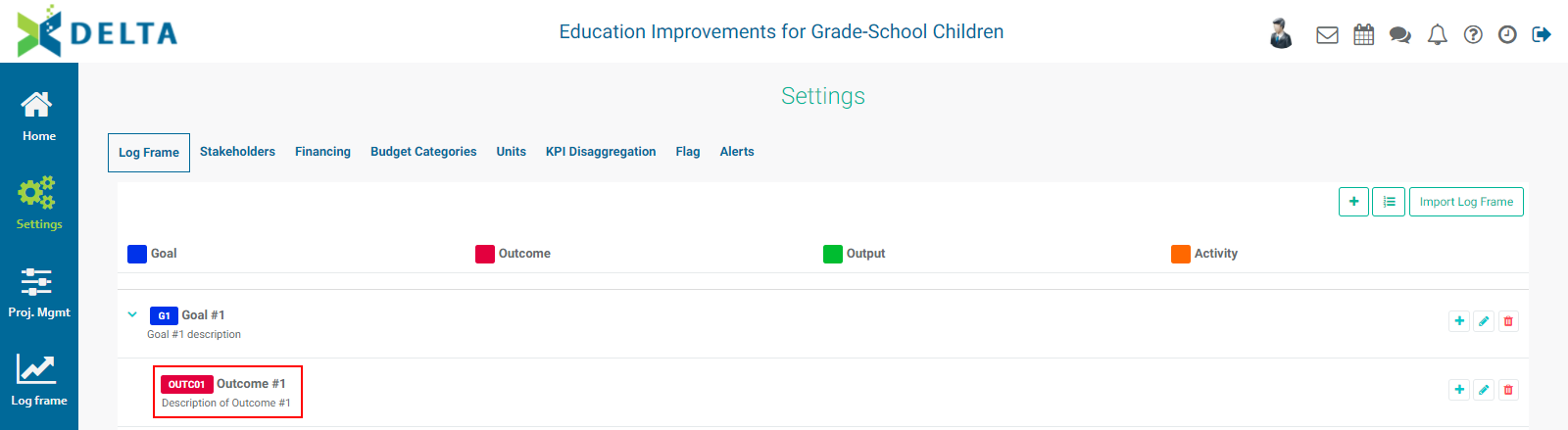
Click the checkmark in the popup window title bar to save the element and return to the Log Frame screen. The new element will appear on the screen, with a code marker in the color you selected for the level. If necessary, use the carets (> and v) to expand and collapse the log frame tree.
Add the other elements (in this example, Outputs and Activities) to the log frame by clicking the appropriate + button and entering the information for the log frame element. Each will be placed in the correct spot in the log frame tree as long as you clicked the correct + button to add the element.
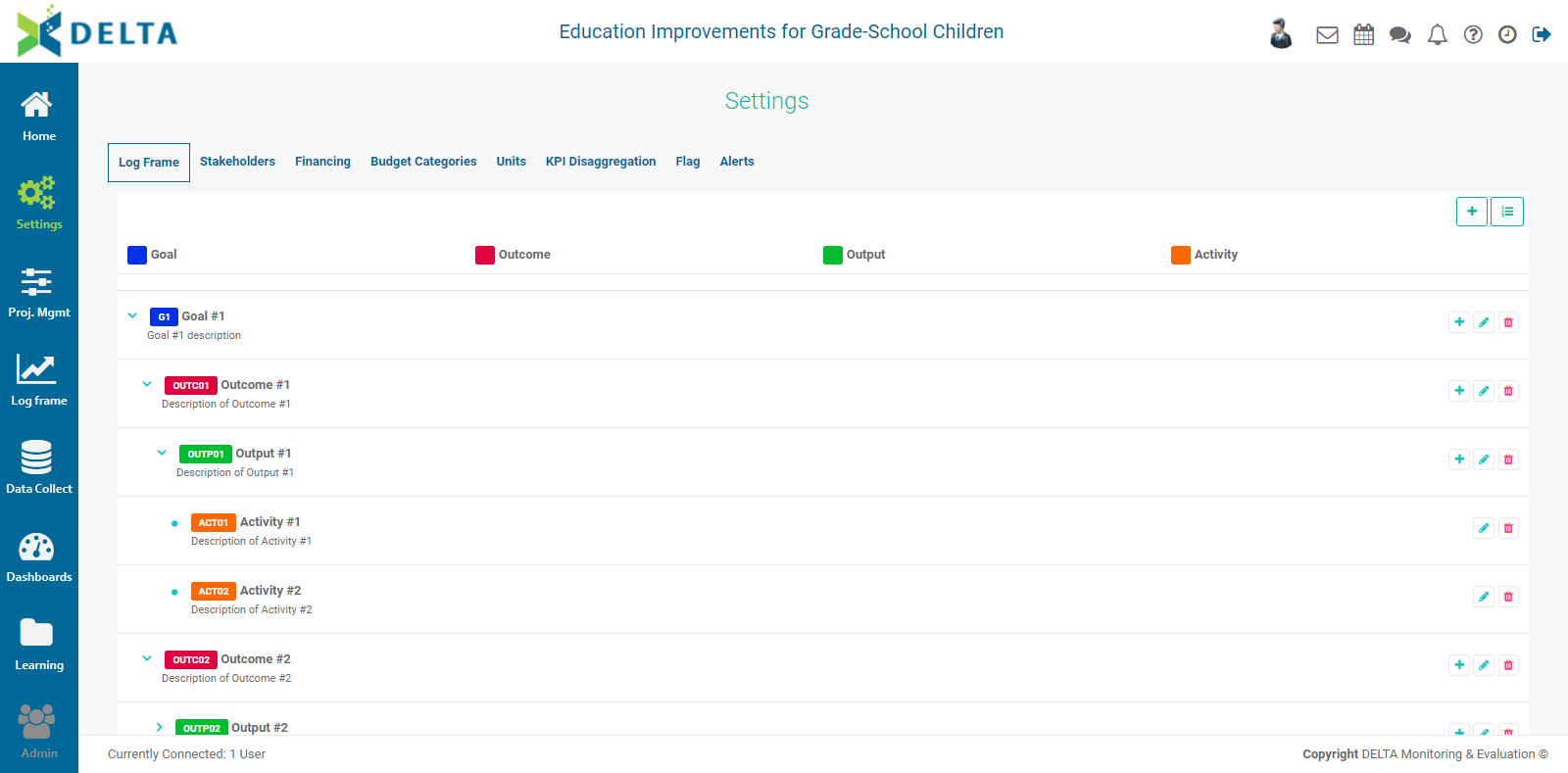
The log frame tree contains a lot of visual feedback. All the elements are color-coded according to their level, and are nested under their predecessors (parents) in the tree. It is easy to tell at a glance whether the elements are properly nested.
Regardless of the nomenclature used in building the log frame, the system will handle the end points of each branch of the log frame as an activity.
From a practical standpoint, there’s no difference between adding all the elements at one level before moving on to the next lower level, and building out each branch of the log frame in its entirety. This is entirely left to the user’s preference.
IMPORTANT: if, however, you make a code error when creating an element, you should correct it at once. If there's a code error in an element which contains dependencies, i.e. lower-level elements, you'll need to delete all the lower-level elements before you can delete the erroneous item. This only applies to codes; you can edit the name and description of any log frame elements by clicking the Edit icon in its toolbar to bring up its popup window.
Previous: Project Settings: Log Frame: Using Activity Weights | Next: Project Settings: Log Frame: Importing a Log Frame