Data Collection: Unique Identifiers & Skip Logic
Delta features a powerful conditional tool to allow users to tailor data collection forms to their target audience.
Conditions are commonly used to show/hide fields based on the data entered in another field. This is usually referred to as ‘skip logic’. For example, a field worker might ask a question of women only when performing a survey.
In the example shown below, conditions are added to two number fields which will make only one field appear in the form based on the data entered in a list field. The syntax utilizes the unique key identifiers for the fields, and is straightforward: [identifier]=’value of field’. If the syntax is incorrect, the fields will not appear at all in the form.
The example features one List field with the label Gender, and the choices ‘Woman’ and ‘Man’, and two number fields, 'Number of Children Living at Home' and 'Number of Weekly Trips to Water Points'. We’ll add a condition to each Number field, to make its display on the data collection form contingent on the data entered in the List field.
The concept hinges on the key/unique identifier of the List field. Note that the identifiers for your form fields will be different than the ones depicted below. In this example, the key for the List field is I07299.

Click on the Edit icon of the Number of Children field to open its configuration popup window. In the Condition field, enter the condition using this syntax: [identifier]=’value’. The identifier of the Gender field must be inside square brackets, and the selected value of the Gender field must be between single quotes.
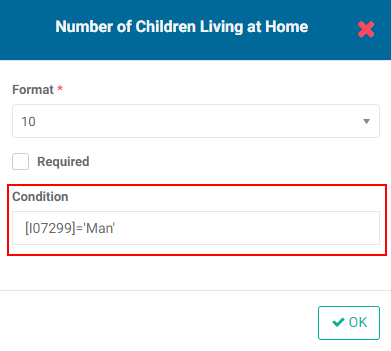
This instructs the field to only appear in the data collection form if the Gender selected in the form is 'Man'.
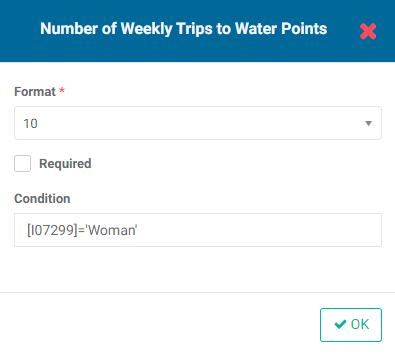
Similarly, for the Number of Weekly Trips field, the condition is entered according to the same syntax, except the value will be 'Woman'. This will display that field in the form only if 'Woman' was selected in the Gender field.
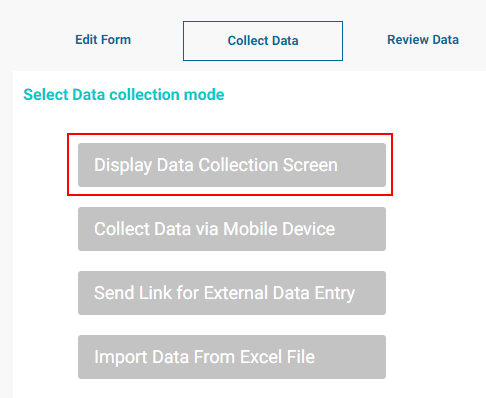
To see how this works, click Collect Data, then click Display Data Collection Screen to view the actual form in Data Collection mode.
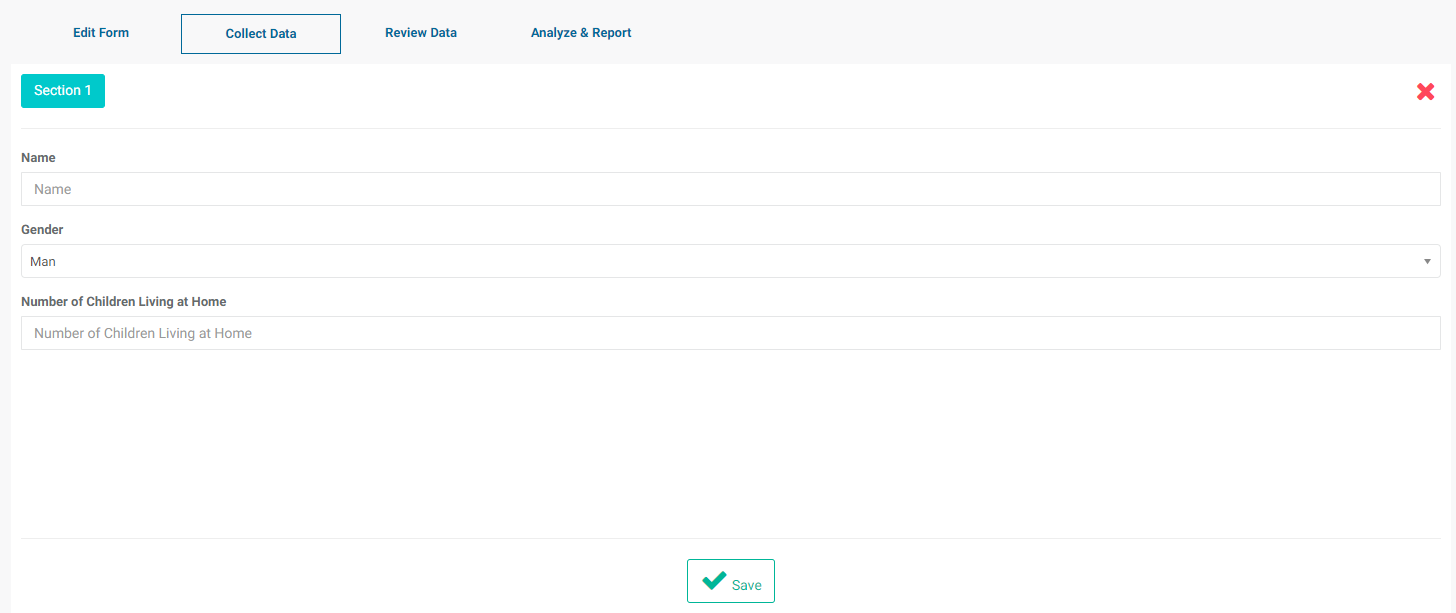
Note that since the first option in the Gender field is selected by default, only the question to be answered only by men appears on the form. Select 'Woman' in the Gender field, and the visibility of both fields is toggled.
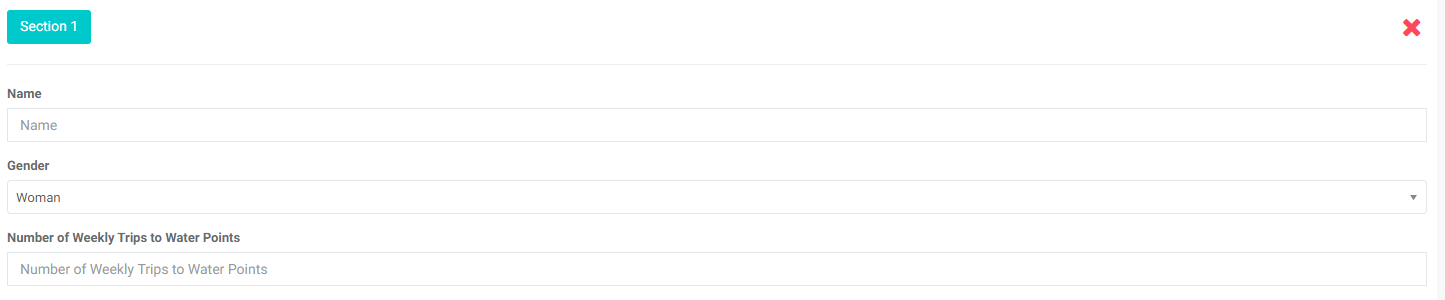
The syntax for skip logic is exact, and there is no room for error. If the form doesn't display properly, return to the Form Design/Edit Form screen to correct any mistakes.
Previous: Data Collection: Other Form Settings | Next: Data Collection: Display Data Collection Screen (Manual Input)