Creating a Project: Project Details
Overview
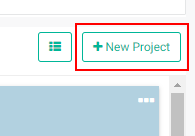
Projects are created from the Portfolio page. Cick the +New Project button at top right of the project tile/list area.
There are four tabs to fill out: Project Details, Project Description, Project M&E Settings, and Project Milestones.
Project Details Tab: this tab contains the minimum information you need to enter in order to create a project. Mandatory fields are denoted with an asterisk (*). The other three tabs will be enabled once all the mandatory fields of the Project Details tab are filled out.
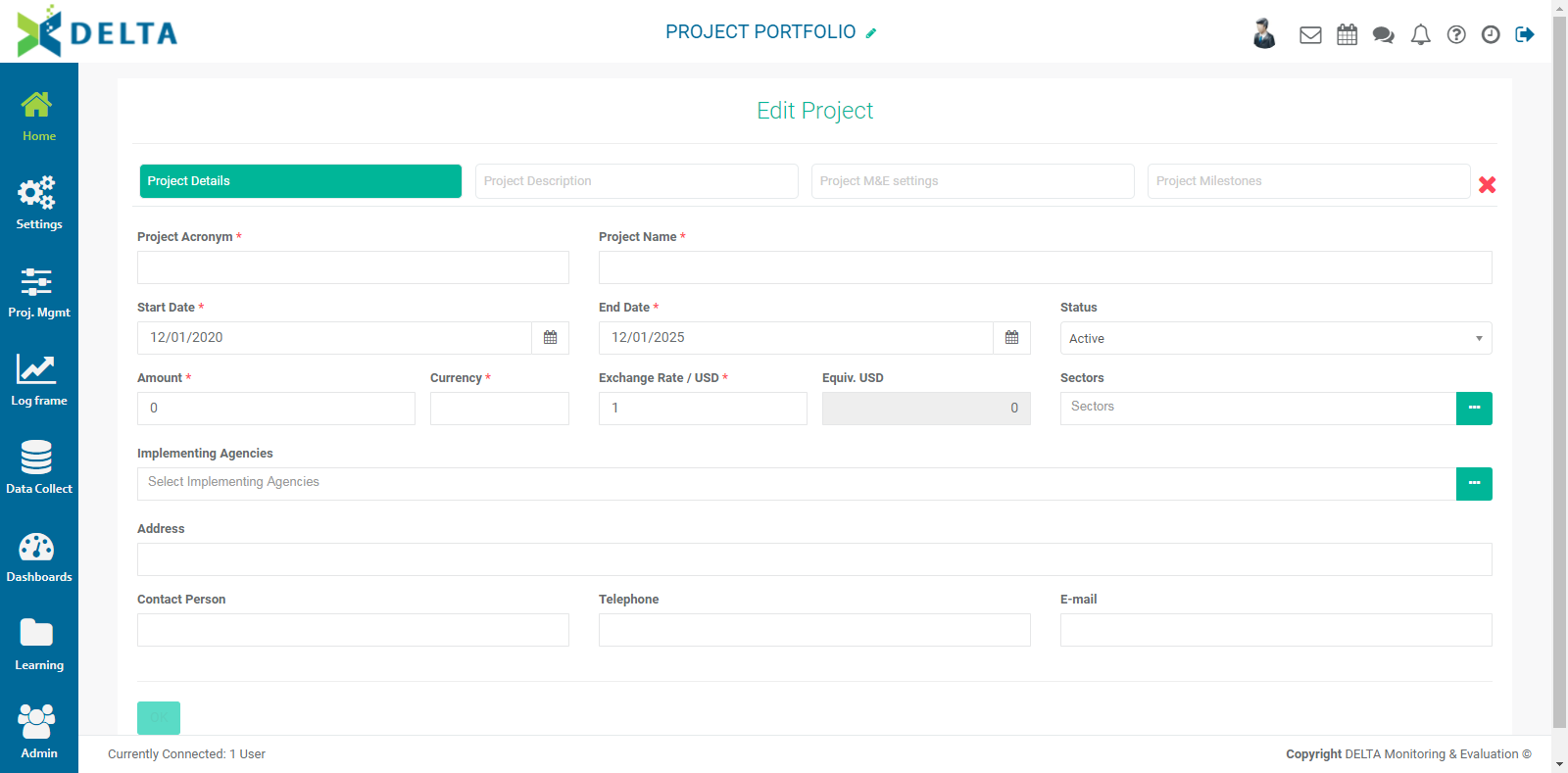
Project Acronym: enter a code (up to 10 characters) for the project. The code will be displayed on the project tile, and serves as a search term when searching projects on the Portfolio page. Codes cannot be edited once the project is saved, as Delta uses codes as unique identifiers.
Project Name: enter the name for the project. The project name will be displayed on the project tile, and will appear on all project screens at the center top as a link to the project's home page. It will also serve as a label throughout various screens.
Start Date: enter the start date for the project. Note that once data has been entered into the project, the start date cannot be changed.
End Date: enter the end date for the project.
Status: Select the status of the project from the pick list. The options are Not Started, Active, Suspended, and Completed.
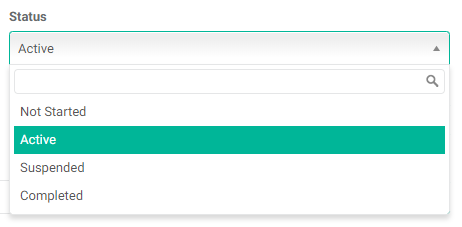
This field is optional, but selecting the appropriate option for the project's current status will display the project in the correct Status category in the Projects tab of the Portfolio page.

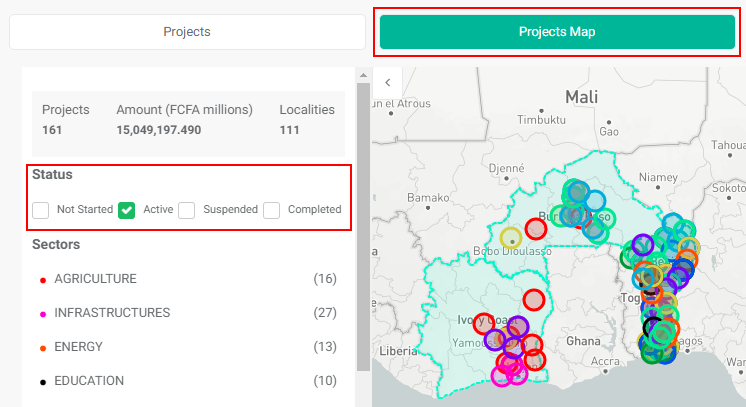
Selecting the appropriate status will also ensure the project is filtered correctly depending on which Status filter is used in the Projects Map View dashboard of the Portfolio page.
Amount: enter the total amount of financing for the project. This should include all funding sources.
Currency: enter the currency the project will use. This field can contain up to five characters.
Exchange Rate: enter the exchange rate of the project currency versus the Portfolio default currency. If they are the same currency, enter 1.0. The system will convert the amount and enter it in the next field.
In the example below, the project currency is the U.S. Dollar, and the Portfolio default currency is the Australian Dollar. The conversion rate is set at 0.71. NOTE: this is not a live exchange rate, but a 'snapshot' of the rate on the day the project was created.

Sectors: enter the sector(s) for the project. To select more than one sector, click in the blank part of the field and select another item for the pick list. If the desired sector does not appear in the list, click the More icon at the right end of the field to bring up the Sector popup window.
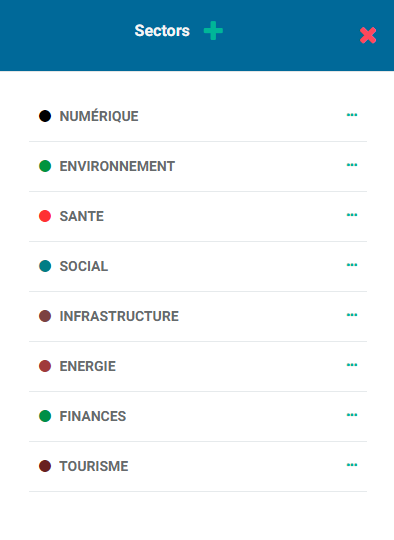
Click the + in the popup window title bar to create a new entry. Name the sector, then click the checkmark next to the name to add it to the list.
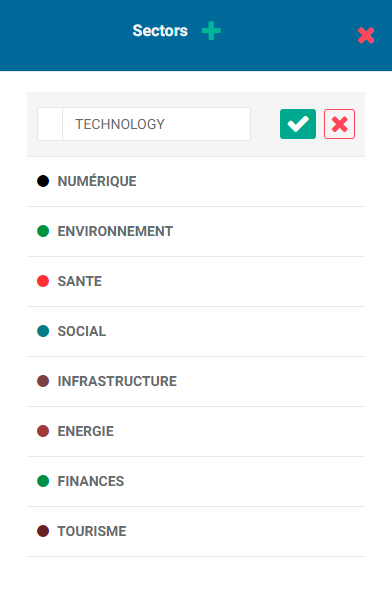
The system will assign a color to the new sector. To edit or delete a sector, click its More icon. Click the X in the popup window title bar to return to the project definition screen.
Sectors are used as a filter in the Portfolio Projects Map and Portfolio Projects Dashboards views.
Implementing Agencies: select the appropriate implementing agency(ies) from the pick list. The list is populated from the Agencies screen in the Portfolio Settings module.

To select more than one agency, click in the blank part of the field to bring up the list, and make one selection at a time.
If the desired agency does not appear in the list, click on the More icon at the right end of the field to bring up the Agencies popup window, and click the + in the popup window title bar.
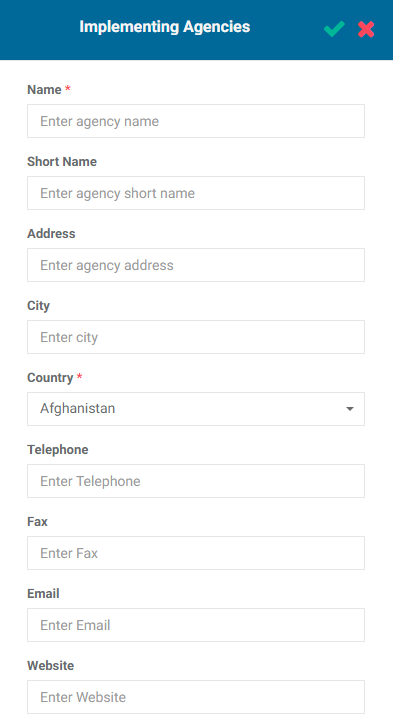
There are two mandatory fields: Name and Country. As a best practive, we recommend entering as much information as is available in the optional fields. Click the checkmark in the popup window title bar to save your work and return to the project definition screen. The new Implementing Agency will now be available for selection in the pick list.
The last four fields are also optional, but we suggest filling them out if the information is available.
Address: enter an address for the project team.
Contact Person: enter the name of the contact person for the project.
Telephone: enter a telephone number for the contact person.
Email: enter an appropriate email, either for the contact person or a team mailbox if one is available.
Once all the mandatory fields in the Project Details screen have been filled, the other tabs will become active. You can click OK at this point to save the project as is. A good use of this is creating project "shells" as placeholders for projects that are scheduled to start weeks or months out from the current date. You can go back later to edit the project and add the information in the other three tabs.
Previous: Filters and Search | Creating a Project: Project Description