Portfolio Settings: Flag
Flags are used to associate a color to an activity or an indicator to highlight its current status. By convention, green/yellow/red are often used to correspond to Satisfactory/Warning/Unsatisfactory, but one can assign any number of flags, ranges, and colors.
From the Portfolio page, click Settings in the left navigation to enter the module, then select Flag from the horizontal navigation.
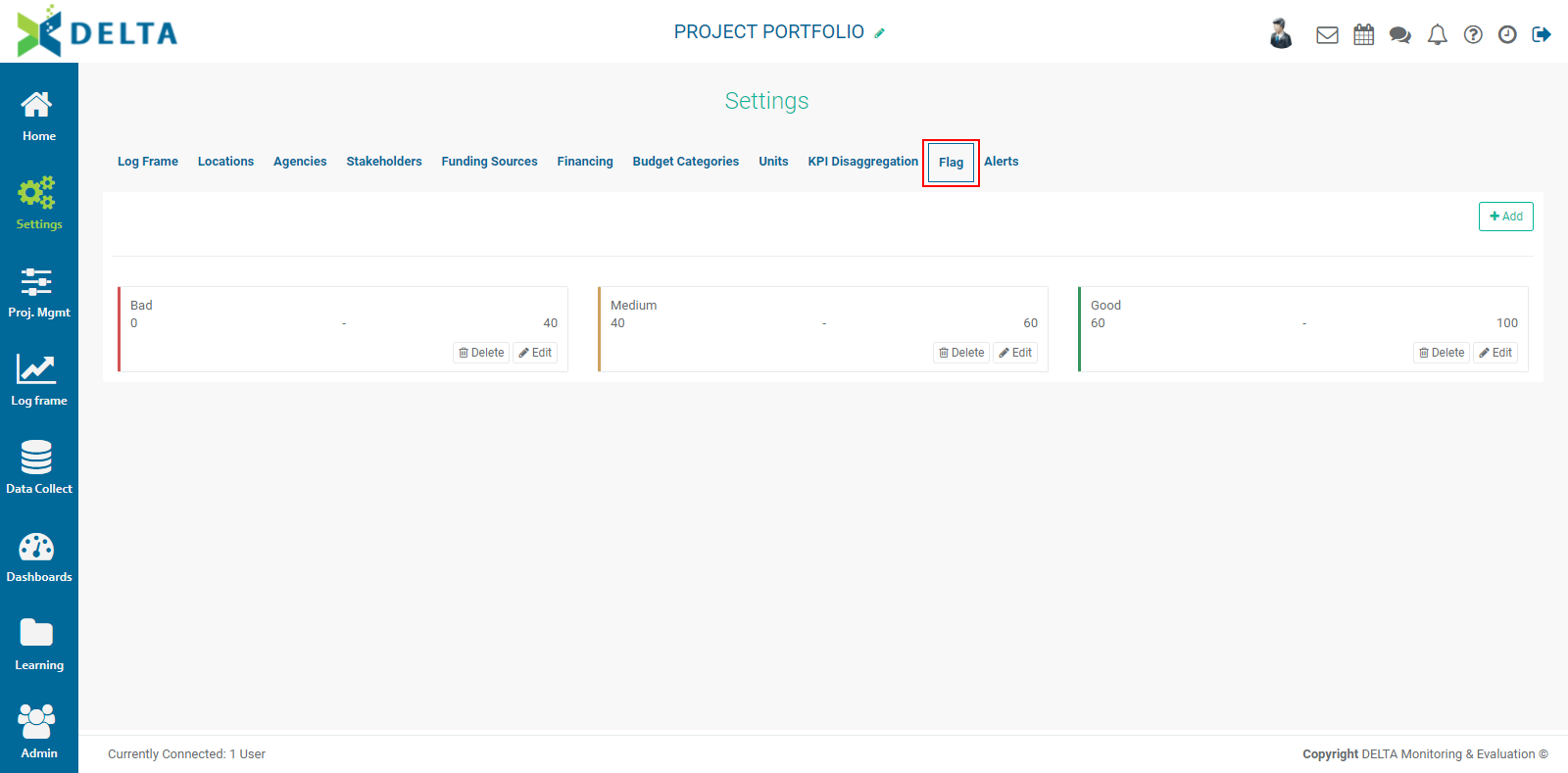
The system displays the default colors and value range for each color. You may accept these values without making any changes. The default colors will be used in dashboards throughout the portfolio level.
To add a flag, click the +Add button at top right to open an inline form.
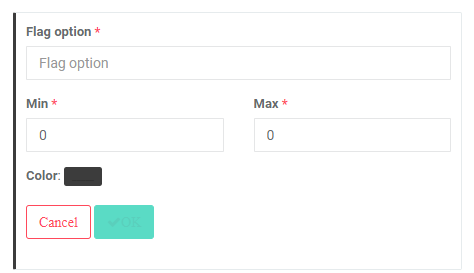
Enter the Flag Option (label) for the flag. This should be a short descriptor for the value range (bad, good, excellent, etc.)
Set the minimum and maximum values for the flag, and click the color picker button to select your desired color for this range of values. Click OK when you're done to return to the Flags page. The new range will appear on the screen. Add as many ranges as are needed.
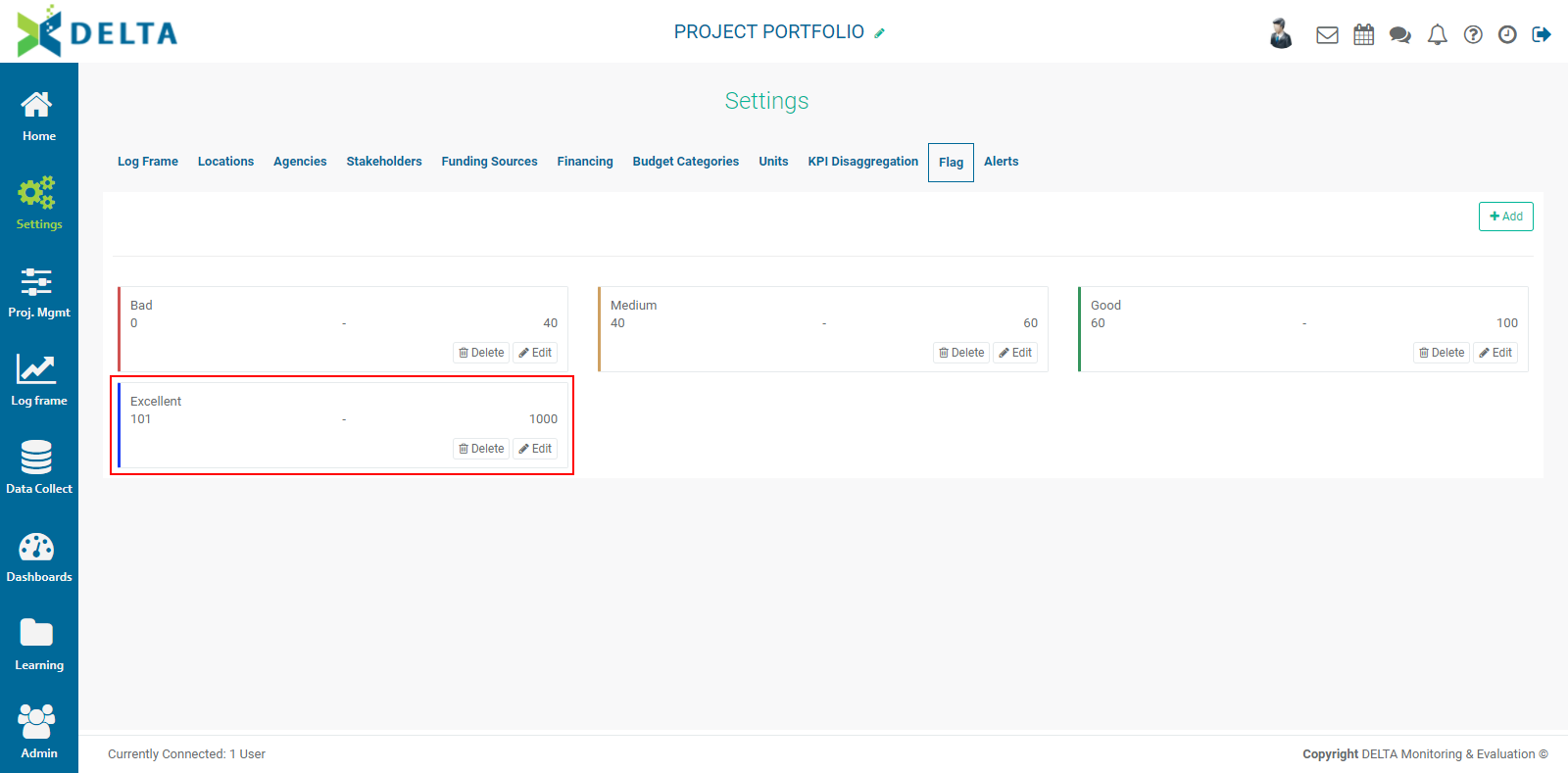
NOTE: when creating flags, make sure the ranges don't overlap. Fractions/decimals may be used, for example a range of 0-20 followed by a range of 20.01-40.
It's also a good idea to have the maximum value of the last range exceed the actual expected maximum. For example, setting the maximum to 1000 will allow the system to display overperforming values in their proper color for that range.
Previous: Portfolio Settings: KPI Disaggregation | Next: Portfolio Settings: Alerts