Data Collection: Display Data Collection Screen (Manual Input)
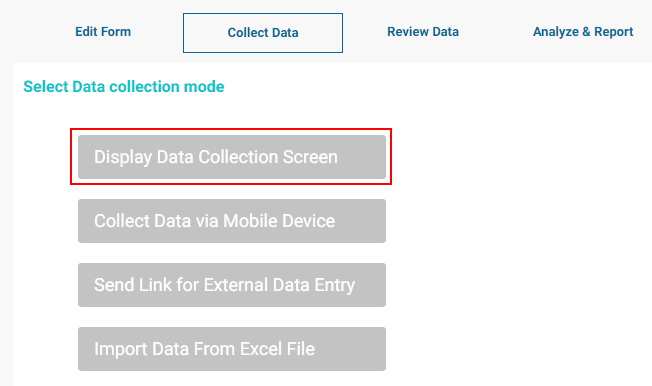
To enter the data entry screens, click on your form's name to open it, then click Collect Data. You will be presented with four choices: Display Data Collection Screen, Collect Data via Mobile Device, Send Link for External Data Entry, and Import Data From Excel File.
Select Display Data Collection Screen to input data manually into the form.
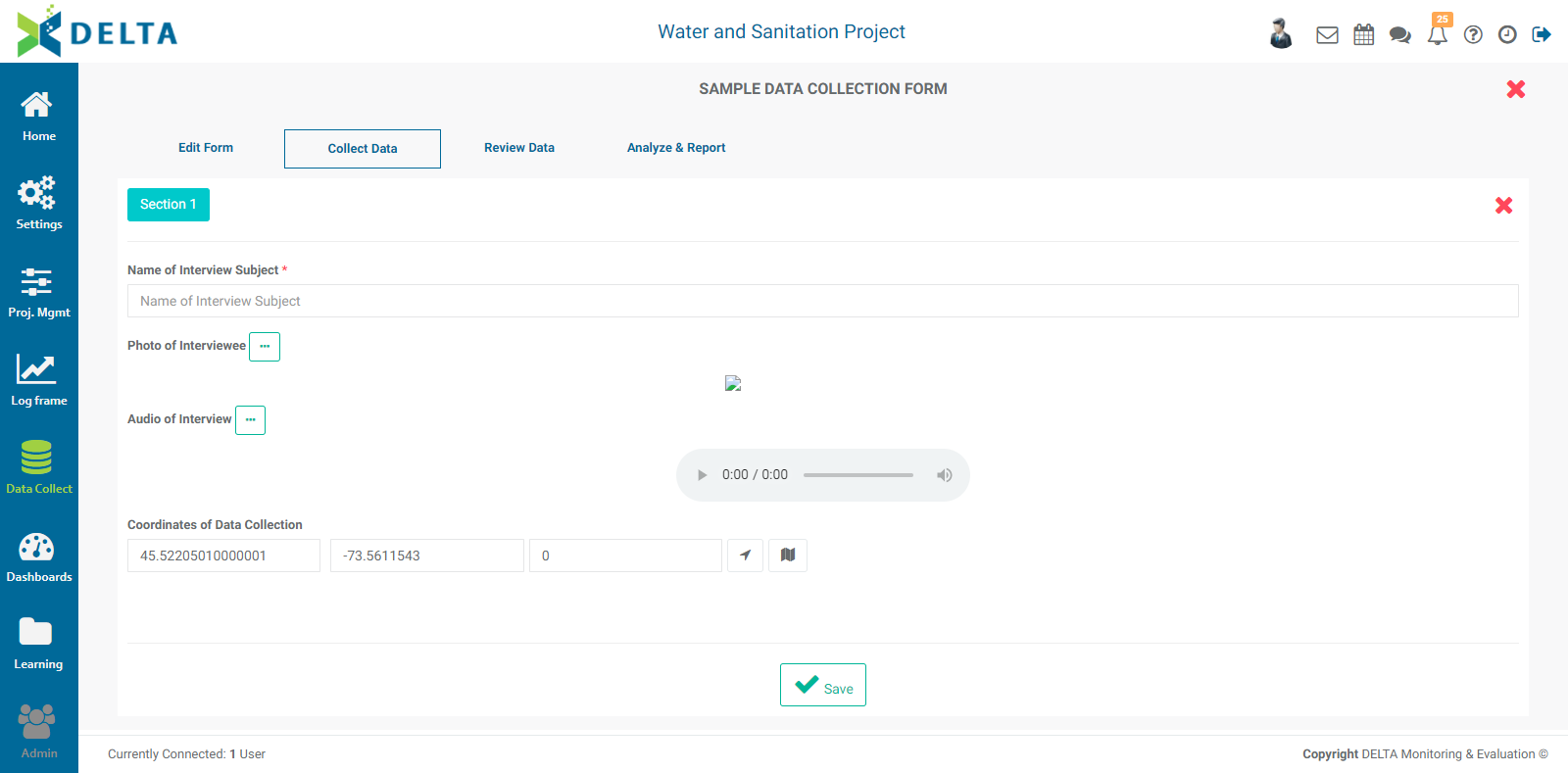
Enter data into the form, and click Save to save your work. The record will be saved, a small confirmation will appear for a few seconds, and the form will reset to blank so another record can be entered into the form. Once you're done entering individual records into the form, click the X at upper right to close the data entry form. NOTE: if the form uses the GPS field, and the device on which the data entry has a live connection, the GPS field will be populated automatically.
Reviewing and editing the data is described in detail in the Data Collection: Reviewing Data article.
Previous: Data Collection: Unique Identifiers & Skip Logic | Next: Data Collection: Collect Data via Mobile Device