Data Collection: Import Data From Excel File
Delta supports offline data collection via importing Excel spreadsheet data directly into data collection forms. You'll first need to make sure the Excel file contains column headers, and has only one active sheet.
From the Data Collection module, select the form into which you want to import data, then click Import Data From Excel File.
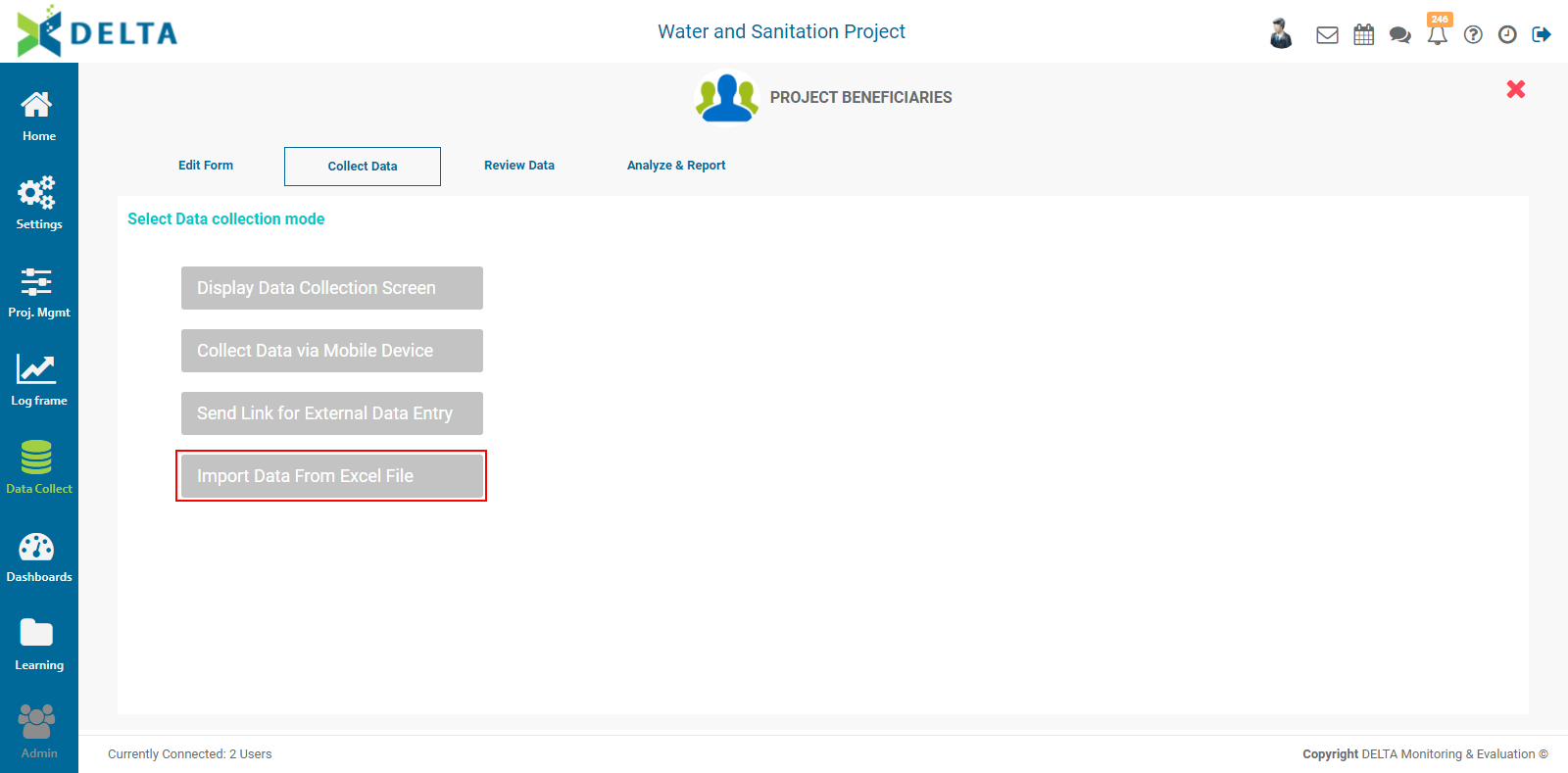
Navigate to the Excel file you want to use. Click on it to select it, and click OK or press Enter on the keyboard to bring up the Import Data popup window.
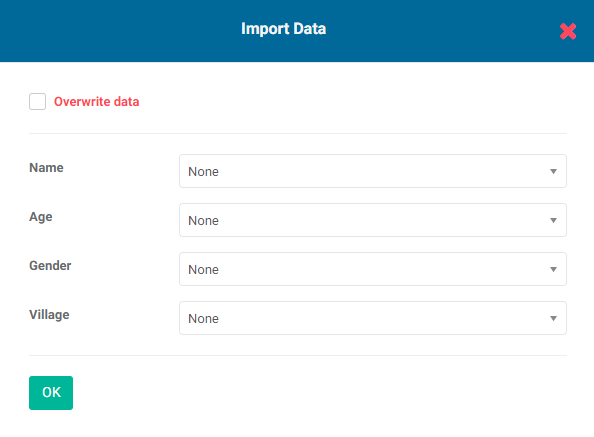
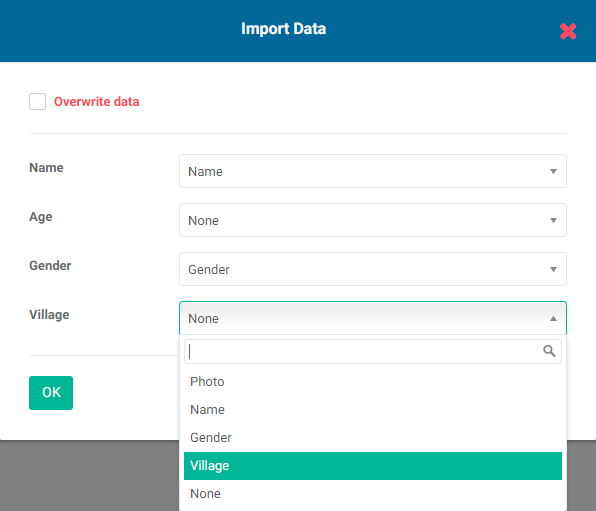
For each field in the form, use the pick list to match the field with the header of the column which contains that particular data. A best practice is to set up your spreadsheet with header names which match the data collection form field names exactly. Also, you may have more columns in your spreadsheet than fields in the form. Just select the ones you want to use from the pick list for each field.
When the import is complete, the imported data will appear in the Reviewing Data screen. If the form already contained data, the imported records are appended at the end.
If any errors occur during the import, Delta will provide an error message stating that the structure of the source file needs corrections. Those errors usually result from missing headers in the spreadsheet, or multiple data sheets in the Excel file. Make the necessary corrections, and try the import again.
NOTE: for forms which contain GPS fields, to correctly import GPS coordinates, the latitude and longitude must be contained within a single field in the Excel spreadsheet, with the latitude first and the longitude second, separated by a comma, with no extra spaces. Delta will add brackets to the GPS data: [-3.774247676475482,-3.774247676475482]. You can also use three GPS coordinates, the third one being altitude. The format for the import is the same, except for another comma and a third number: [-3.774247676475482,-3.774247676475482,0].
The data import functionality allows you to overwrite existing data in the form. Click the Overwrite Data checkbox to enable/disable it. IMPORTANT: Use this only with test data when testing the form prior to deploying it in the field. Data overwrites are irreversible.
Previous: Data Collection: Send Link for External Data Entry | Next: Data Collection: Reviewing Data