Project Settings: Log Frame: Creating Templates
The Logical Framework (Log Frame) describes the chain of results within the project. Delta supports the commonly used chain (Activities, Results/Outputs, Outcomes, Impact/Goals) as well as up to six additional user-defined levels. All labels in the log frame can be edited to conform to your own nomenclature and terminology. NOTE: regardless of the labels you use, Delta will handle the end points of each branch of a log frame as an activity.
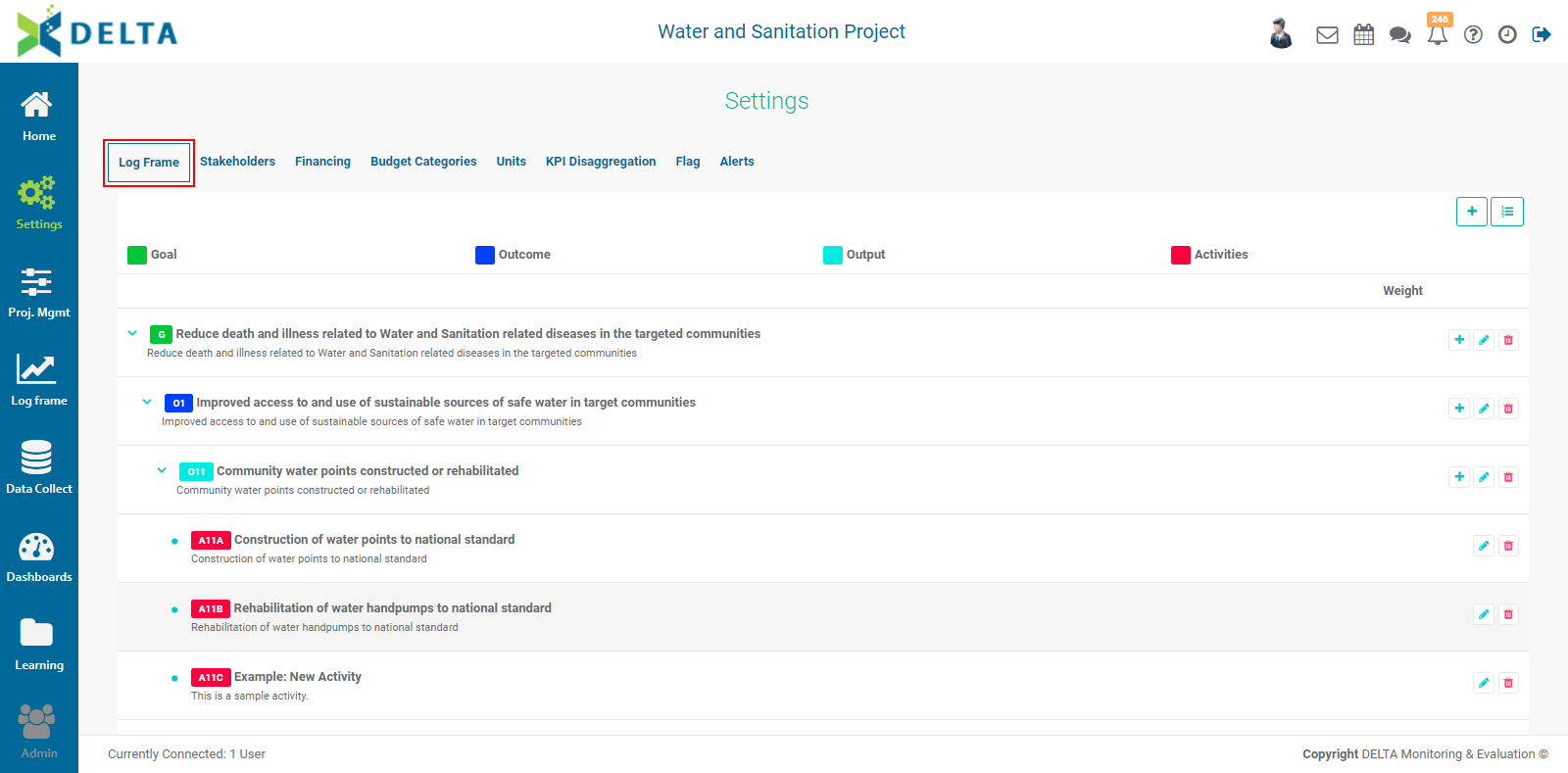
When creating a project, you have to select in the M&E Settings tab whether you want to use an existing log frame template, create a custom log frame, or import a custom log frame. This is the first step in using any log frame in your project.
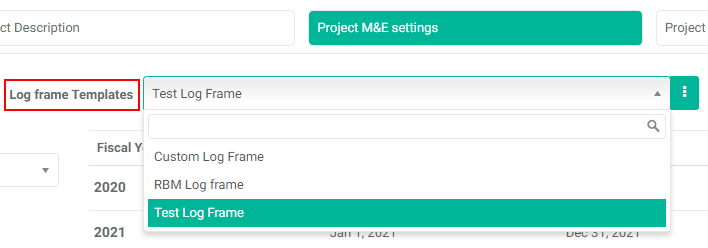
The pick list is populated by templates already entered in the system. In a new system, the only option in the M&E Settings Log Frame Template pick list will be Custom Log Frame. Select this option to either enter a log frame manually, or import it from a spreadsheet.
Log frame templates are reusable objects. This is especially useful if you have similar projects with similar activities; you can create the log frame once, and select it from any project when it's being created.
To create a new template in your project's M&E Settings screen, click the More icon at the right end of the Log Frame Templates field to bring up the Log Frame Templates popup window. Click the + button in the popup window title bar, and enter the levels of your log frame.
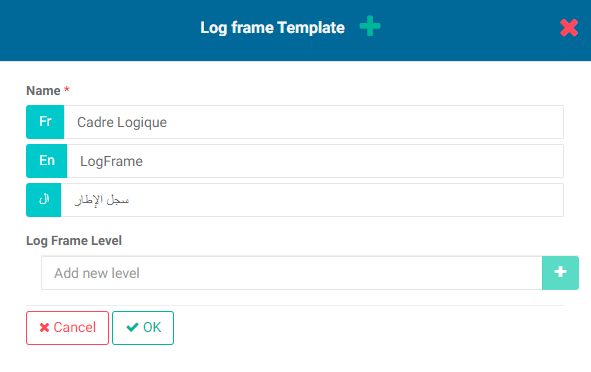
Name the template, then enter a name for the first (top) level of the log frame template. Click + after each entry. You can create up to ten levels.
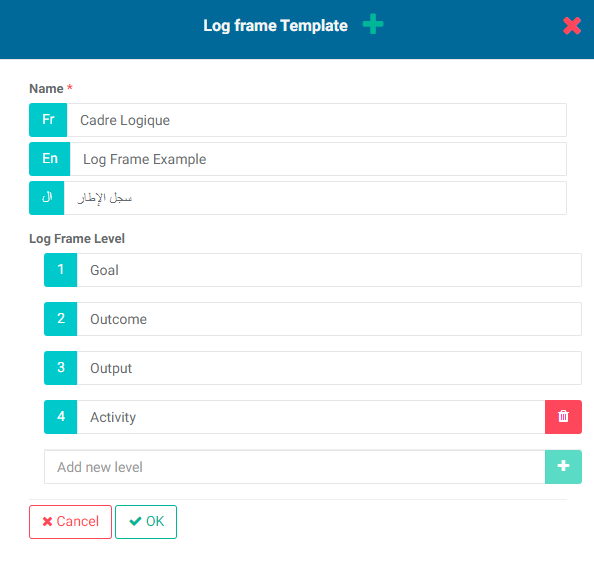
Click OK when you're done to save your work and return to the Log Frame Template popup window. The new template will appear.
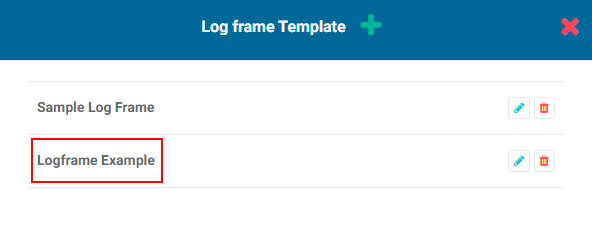
Click the X in the popup window title bar to close the window and return to the M&E Settings tab of the Project Definition screen. The template you created will appear in the list and is available for selection.
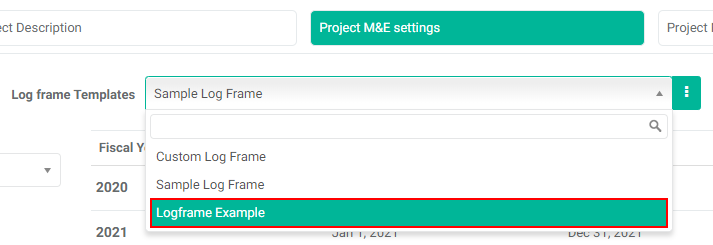
Once you have created a log frame template in the project's M&E Settings screen, it will appear as an available selection in all subsequent projects.
You also have the option of selecting Custom Log Frame in the M&E Settings screen, then creating the template in the project's Settings > Log Frame screen. This will allow you to manually create a log frame template completely from scratch, using the method described in this article.
Previous: Portfolio Settings: Alerts | Next: Project Settings: Log Frame: Coding A Log Frame